

Page 1
Welcome to Orbic. Orbic is a brand of products designed
to help consumers connect to the things that are important
to them. Orbic products offer consumers quality and value
combined with up-to-date technology. This guide will show
you how to set up and use your phone.
Slot 1
Quick Start Guide
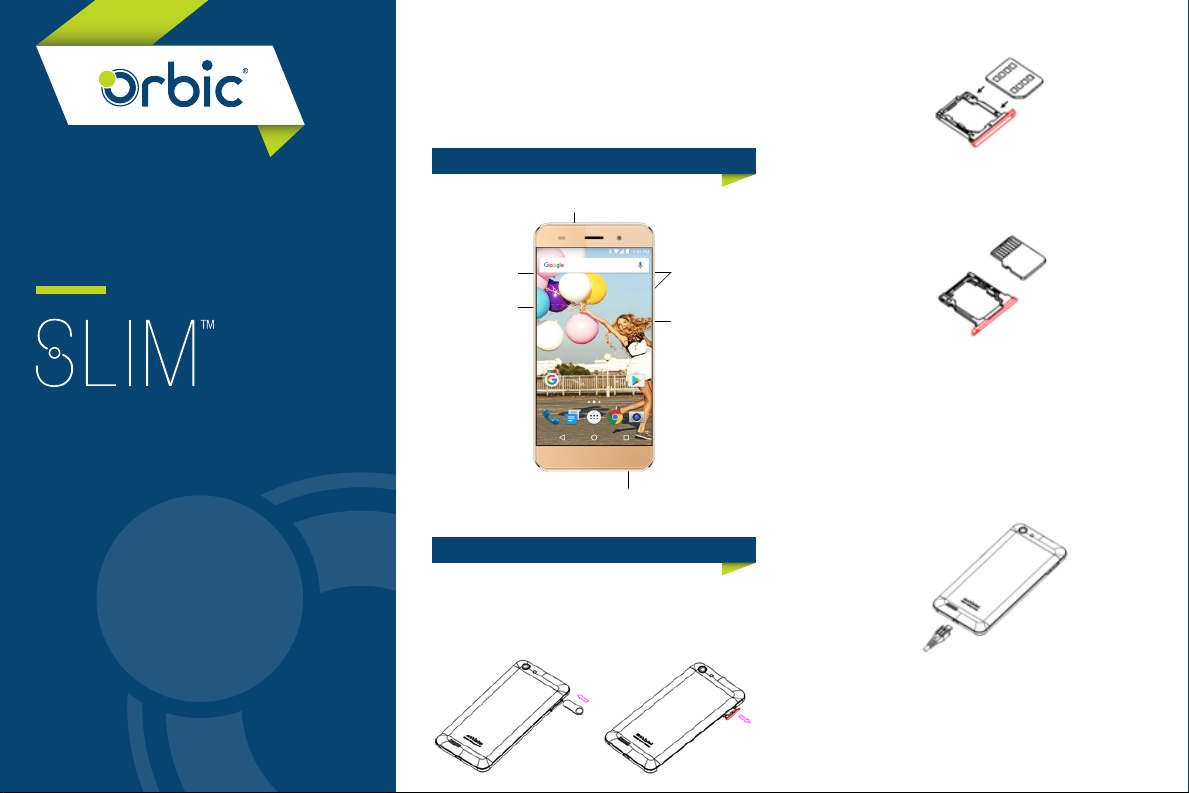
PHONE FEATURES
Earphone Jack
Slot 1 (Micro SIM)
Slot 2 (MicroSD)
USB Jack
Volume Key
Power Key
SETTING UP YOUR PHONE
Insert SIM Card and MicroSD Card
To open the SIM Card or MicroSD tray, use the tray eject
tool included with your device.
Micro SIM
Slot 2
MicroSD Card
Charge the Battery
Before turning on your phone, charge the battery fully.
Enclosed is a wall charger and a USB cable. Connect these
together and plug one end into the charging port of your
phone and the other end into an electrical outlet.
WARNING: Use only an approved charging accessory to
charge your phone. Improper handling of the charging port,
as well as the use of an incompatible charger may cause
damage to your device and void the warranty.
Page 2
USING YOUR PHONE
Turning Your Phone On/Off
• To turn ON, press and hold the Power/Lock button.
• To turn OFF, press and hold the Power/Lock button and
follow the prompts.
Using Onscreen Gestures
Use onscreen gestures to move around the screen, open
menus, select items, zoom in or out on web pages, and more.
Swipe – Swipe by quickly sliding your finger in any direction
Drag – Touch and hold an item to move it to a new position.
Double Tap – Tap two times rapidly to zoom in or out on a
web page or picture.
Zoom – Spread two fingers apart on a web page, map or
image to zoom in a part. Pinch to zoom out.
Locking and Unlocking Your Phone
Prevent accidental key presses by locking your phone.
• To Lock, press the Power/Lock button.
• To Unlock, press the Power/Lock button.
Then swipe your finger across the screen.
Setting Up Email Accounts
1. From the home screen, tap
2. Tap the Email icon
3. Enter the email address and password, and then tap NEXT.
4. Follow the on-screen instructions to complete the setup.
To set up another email account, tap MORE Settings
Add account.
Making a Call
1. From the Home screen, tap the phone icon
2. Tap the dial-pad icon and enter the number you want
to call.
Tap the handset icon to place the call.
If you make a mistake while dialing, tap to clear the
last digit.
Tap and hold to clear the entire sequence.
Receiving a Call
Touch and hold , then slide to the right to answer an
incoming call.
Sending a Text
1. From the home screen, tap
2. Enter the name or number of the recipient.
3. Enter your message.
4. To add an attachment to your message, tap Icon7.
5. Tap Icon8 to send your message.
Taking Photos
1. From the Home screen, tap
2. Using the phone’s main display screen as a view finder,
adjust the image by aiming the camera at the subject.
3. Pinch the screen to zoom in or pinch open to zoom out.
4. If desired, before taking the photo, you can tap onscreen
icons to access various camera options and settings.
5. Tap Iconuntil the shutter sounds. The picture is
automatically stored in your selected storage location.
Play Store
Find and download all of your music, videos, apps and
games.
*Android, Google, Google Play, and other marks are
trademarks of Google Inc.
Installing Apps
Thousands of apps are available to download from the Play
Store. You can access the Play Store by tapping from
the home screen.
Viewing Apps
To view preloaded and downloaded apps on your phone,
tap from the home screen.
Uninstalling Apps
1. From the home screen, tap Icon11.
2. Touch and hold the downloaded app you want to uninstall.
3. Drag and drop it into the trash can to uninstall the app.
Improving Accessibility
Adjust accessibility settings to assist users who have impaired
vision, hearing or reduced dexterity.
1. From the home screen, tap Icon11.
2. Tap the settings icon.
3. Scroll down until you find the accessibility icon.
4. Tap a category and set the desired options to improve
accessibility.
Connecting to a Wi-Fi Network
Activate the Wi-Fi feature to connect to a Wi-Fi network and
access the Internet or other network devices.
1. From the settings menu, tap the Wi-Fi switch to activate it.
2. Select a network from the Wi-Fi networks list. Networks
that require a password appear with a lock icon
3. Tap CONNECT.
Once the device connects to a Wi-Fi network, the device will
reconnect to that network each time it is available without
requiring a password. To prevent the device from connecting
to the network automatically, select it from the list of networks
and tap FORGET.
orbic.us
 Loading...