

Page 1

OPT-6016 16-Ports GE SFP Fiber Switch
CLI Manual
V1.1
Optone Technology Limited
Tel: 0755-86099578
Fax: 0755-86099522
Email: [email protected]
Website: http://www.optone.net
Page 2

©2017 OPTONE All Right Reserved
The copyright of this Instruction belongs to Optone Technology Limited. All rights reserved. No unit or individual
may extract, reproduce, translate or distribute for commercial purposes in any way without the written
permission of the copyright owner.
Revision record
Version Revision Explanation
V1.0
The first official publish
Page 3

Content
1 MANAGE ACCESS METHOD ........................................................................................... 1
1.1 Console Access ..................................................................................................................................... 1
2 COMMAND LINE INSTRUCTION ..................................................................................... 3
2.1 The First Level Menu ............................................................................................................................ 3
2.2 The Second Level Menu [port] ............................................................................................................. 4
2.2.1 Usage of [vlan] .................................................................................................................................. 4
2.2.2 Usage of [frame] ............................................................................................................................... 4
2.2.3 Usage of [packets] ............................................................................................................................. 4
2.2.4 Usage of [enable] .............................................................................................................................. 5
2.2.5 Usage of [disenable] ......................................................................................................................... 5
2.2.6 Usage of [mode] ............................................................................................................................... 5
2.2.7 Usage of [rate] .................................................................................................................................. 5
2.2.8 Usage of [status] ............................................................................................................................... 5
2.3 The Second Level Menu [config] .......................................................................................................... 6
2.3.1 Usage of [suppression] ..................................................................................................................... 6
2.3.2 Usage of [user] .................................................................................................................................. 6
2.3.3 Usage of [password] ......................................................................................................................... 6
2.4 The Second Level Menu [status] .......................................................................................................... 7
2.4.1 Usage of [temperature] .................................................................................................................... 7
Page 4
OPT-6016 Manage Operating Instruction
1 Manage access method
Instruction:
The model supports Console manage access method.
Default Management A/C: admin
Default Management P/W: admin
1.1 Console Access
Note:
Please use the supplied serial management cable to connect.
Step 1: One side of the serial management cable connects to serial interface of a computer, and
the other side connects to Console port of this model.
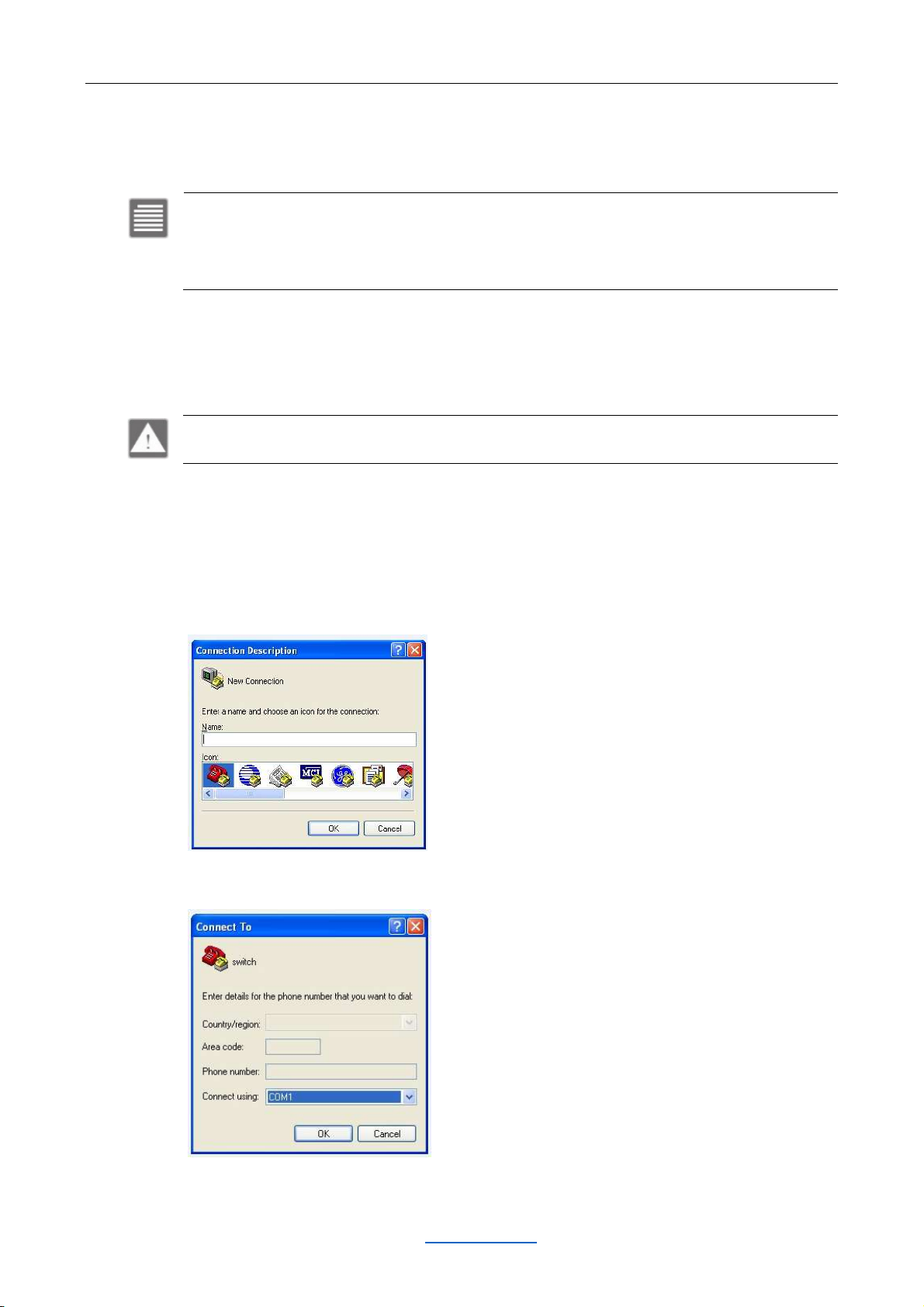
Step 2: Run Hyper Terminal of your windows system.
Step 3: Create a new connection, and enter an arbitrary name.
Step 4: Select a proper port according to your actual situation.
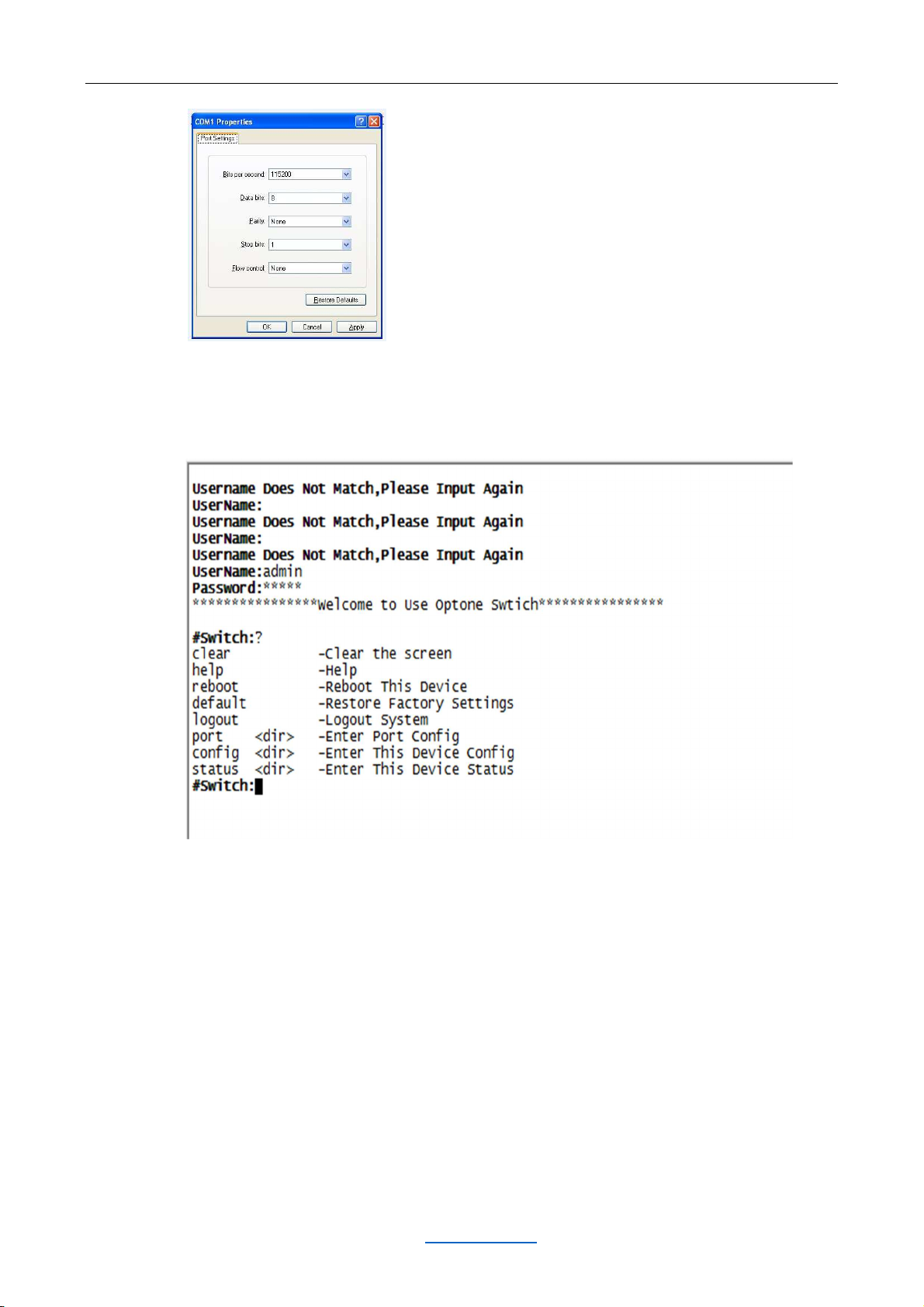
Step 5: Port settings are as follows:
www.optone.net 1
Page 5
OPT-6016 Manage Operating Instruction
Step 6: Click “OK” to enter command line manage interface. Then, click “?”; or input command
“help” and then click “Enter” to show all commands of the first level menu, as is shown below:
www.optone.net 2
Page 6
OPT-6016 Manage Operating Instruction
2 COMMAND LINE INSTRUCTION
Instruction:
All commands support tab completion function. For example, if you need to input command of ”temperature”, as
long as you click the initial letter “t”, and then click “tab”, the system will complete the whole command of
“temperature” automatically.
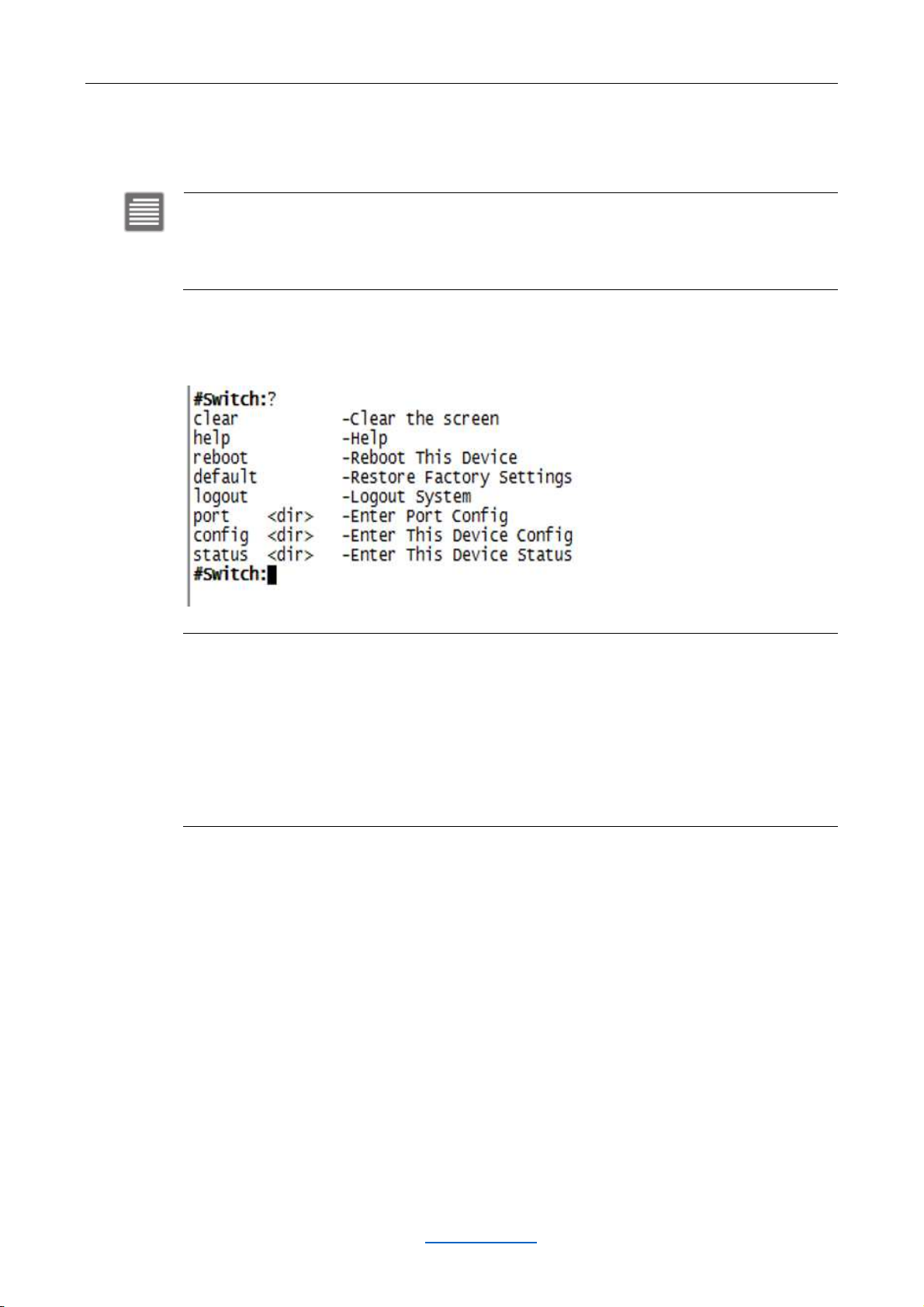
2.1 The First Level Menu
clear: Clear all characters of current screen.
help: Display all commands line available.
reboot: reboot the model.
default: Restore factory settings. All parameters are reset.
logout: Logout the current account
port: Enter “port” to set up the second level menu, such as port parameters, vlan, etc…
config: Enter the second level menu “config” to modify username, password or debug.
status: Enter the second level menu “status” to check temperature of the model.
www.optone.net 3
Page 7
OPT-6016 Manage Operating Instruction
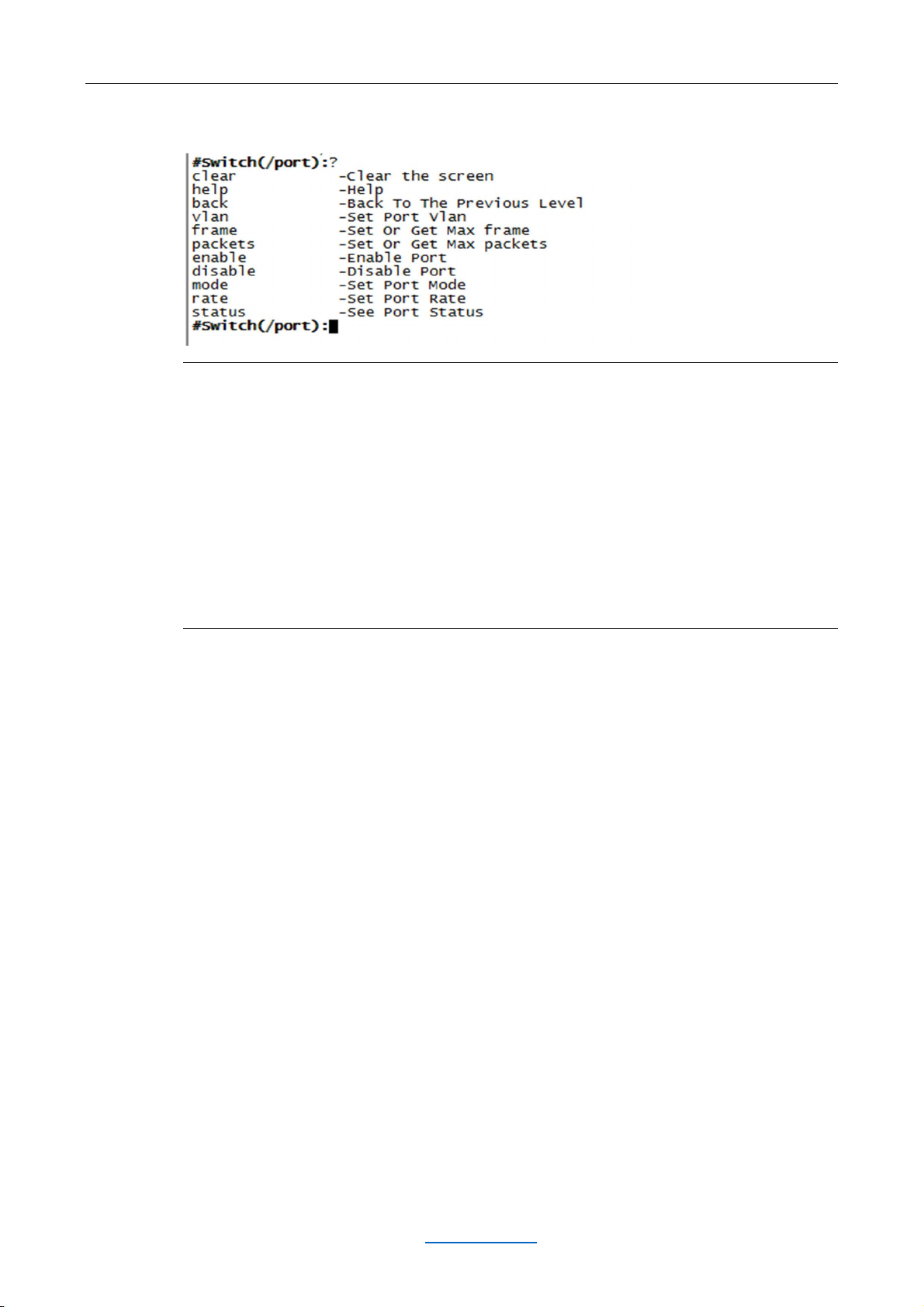
2.2 The Second Level Menu [port]
Clear: Clear all characters of current screen.
help: Display all commands line available.
back: Return to the previous menu.
vlan: Configure vlan based on port.
frame: Configure frame size of the port.
packets: Configure data package size ofFIFO-TX-RX.
enable: Enable some ports.
disenable: Disenable some ports.
mode: Configure modes of the port.
rate: Configure bandwidth of the port (Need to use cooperatively with command “suppression” under the second
level menu “config”).
2.2.1 Usage of [vlan]
1、 vlan add {1,2,3,15,16} – Add a vlan group, and classify 1, 2, 3, 15, 16 to the vlan group
2、 vlan all show – Show all vlan groups of the model
3、 vlan del 1 – Delete the first vlan group. When there is only one vlan group, it cannot be
deleted. The default classification is that all ports are in one vlan group.
2.2.2 Usage of [frame]
1、 frame 1 norma – Set the port 1 frame size as normal mode, namely the max frame size is 1522
bits.
2、 frame 1 jumbo – Set the port 1 frame size as jumbo mode, namely the max frame size is 9728
bits.
3、 frame 1 show – show frame size of port 1.
2.2.3 Usage of [packets]
1、 packets 1 5k – Set packets 1 size as 5K (packets size parameter: 5K, 10K, 13.5K).
www.optone.net 4
Page 8

OPT-6016 Manage Operating Instruction
2.2.4 Usage of [enable]
1、 enable 1 – enable port 1
2、 enable all – enable all ports
2.2.5 Usage of [disenable]
1、 disenable1 – disable port 1
2、 disenable all – disable all prots
2.2.6 Usage of [mode]
There are three kinds of modes: [serdes], [sgmii] and [auto]. [serdes] is the default mode. When
you insert 10/100/1000M copper SFP to the model, you need to change the mode from [serdes]
to [auto] or [sgmii].
1、 mode 1 sgmii – set the port 1 to [sgmii] mode
2、 mode all auto – set all the ports to auto identification mode
2.2.7 Usage of [rate]
Configure bandwidth of the port (Need to use cooperatively with command “suppression” under
the second level menu “config”). Command [suppression] includes two control blocks, bucket0
and bucket1. Each control block controls the turn on/off status of unicast, multicast, and
broadcast’s flow control. Command [rate] is the second level switch, which determines the exact
port and the bandwidth of the port. Default configuration: bucket0 controls broadcast; bucket1
controls unicast and multicast. [rate] controls all ports are turned off by default.
1、 rate 1 enable – enable flow control of port 1
2、 rate 1 disable – disable flow control of port 1
3、 rate 1 b0 2 – the max bandwidth of the packet controlled by bucket0 of port 1 is 2*8=16M
(the max is 1000M)
4、 rate 1 b1 2 - the max bandwidth of the packet controlled by bucket1 of port 1 is 2*8=16M (the
max is 1000M)
2.2.8 Usage of [status]
1、 status 1 show – show status of port 1
2、 status all show – show status of all prots
www.optone.net 5
Page 9
OPT-6016 Manage Operating Instruction
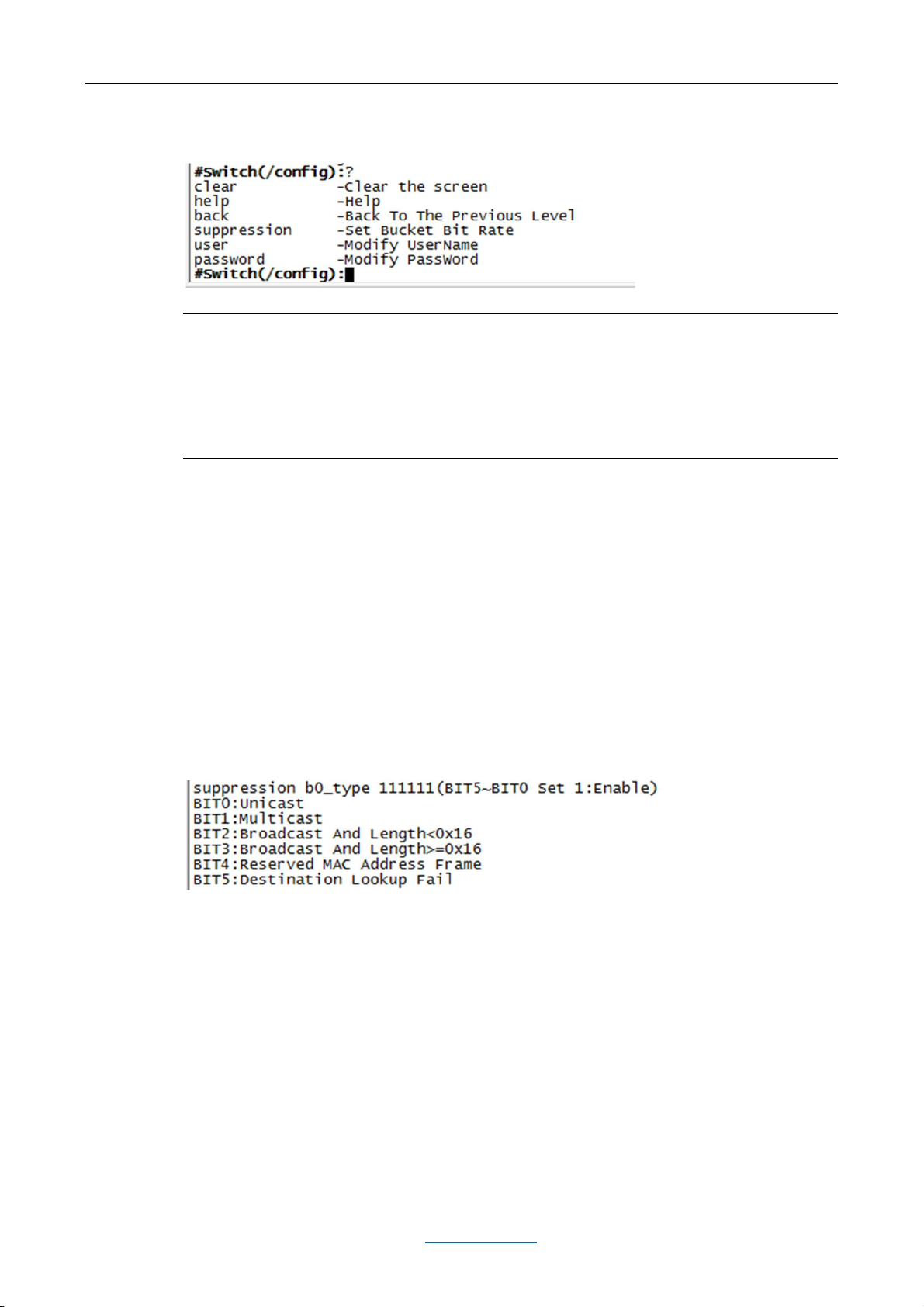
2.3 The Second Level Menu [config]
clear: Clear all characters of current screen.
help: Display all commands line available.
back: Return to the previous menu.
suppression: Configure bucket0 or bucket1.
user: Modify username
password: Modify password
2.3.1 Usage of [suppression]
1、 suppression b0_type 111111bucket0 – turn on flow control of all packets, including unicast,
multicast, and broadcast.
2、 suppression b0_type 000000bucket0 – turn off flow control of all packets, including unicast,
multicast, and broadcast.
3、 suppression b1_type 111111bucket1– turn on flow control of all packets, including unicast,
multicast, and broadcast.
4、 suppression b1_type 000000bucket1 – turn off flow control of all packets, including unicast,
multicast, and broadcast.
2.3.2 Usage of [user]
1、 user switch – modify username to switch
2.3.3 Usage of [password]
1、 password 12345 – modify password to 123456
www.optone.net 6
Page 10
OPT-6016 Manage Operating Instruction
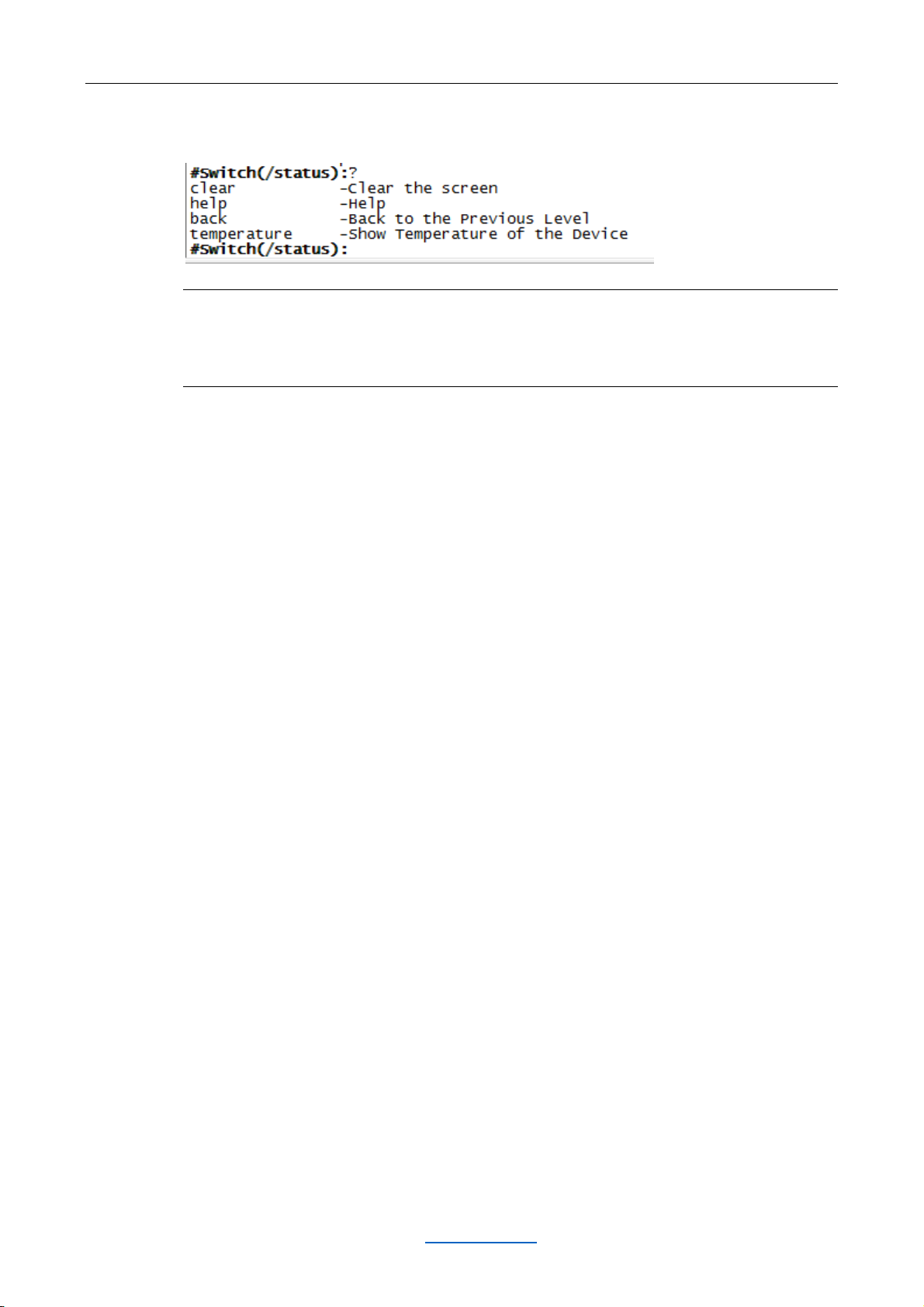
2.4 The Second Level Menu [status]
clear: Clear all characters of current screen.
help: Display all commands line available.
back: Return to the previous menu.
temperature: display current temperature of the model.
2.4.1 Usage of [temperature]
1、 temperature show –display current temperature of the model.
www.optone.net 7
 Loading...