

Page 1
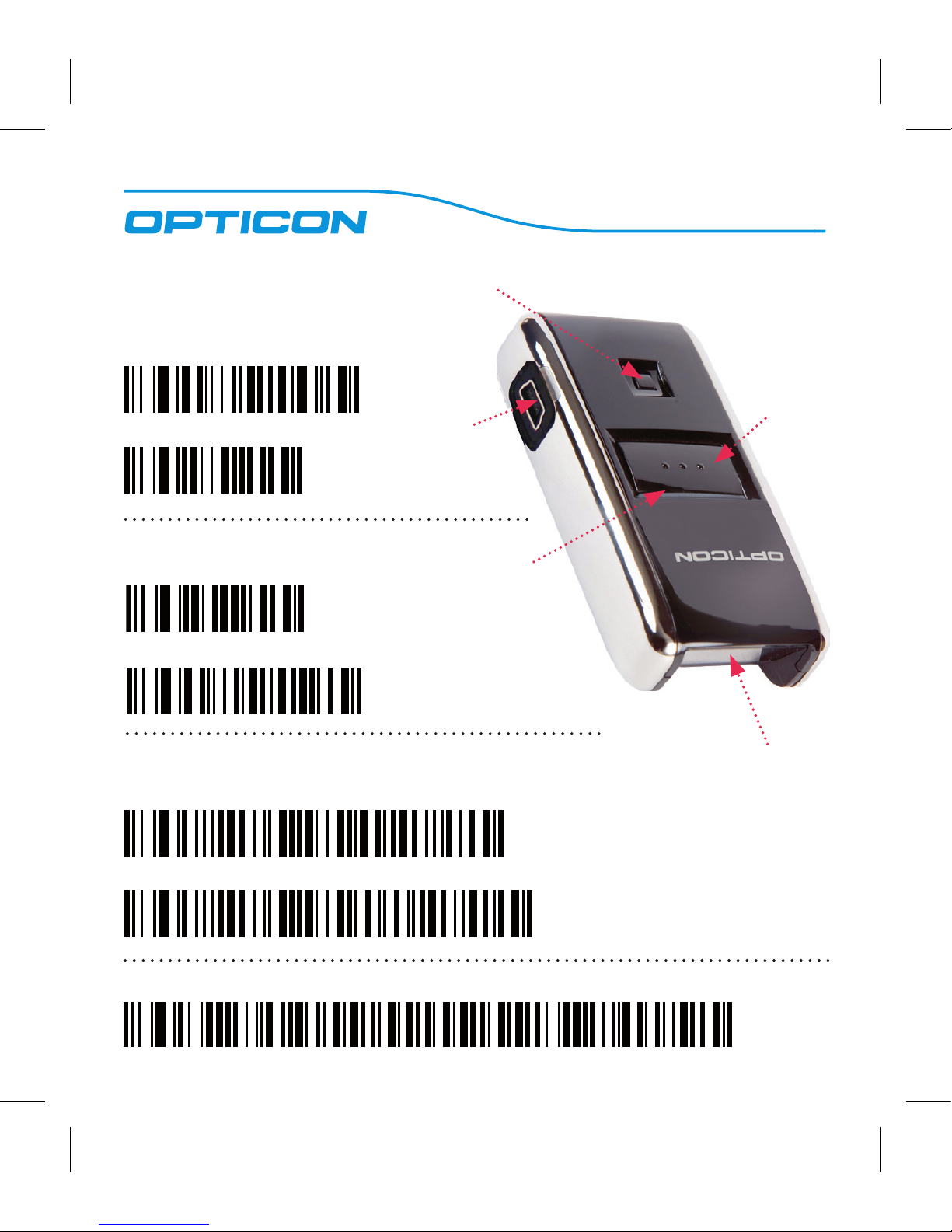
DISABLE
ENABLE
(Recommended for iOS devices)
iOS Keyboard Toggle (with Clear/Function Key)
Bluetooth PIN Code - Set 0000
SPP
HID
(Most Common)
Bluetooth Mode
USB Mode
HID
VCP
USB Connector
Red/Blue/Orange LED
Clear/Function Key
Trigger Key
Laser Engine
> OPN-2006 BLUETOOTH
Page 2
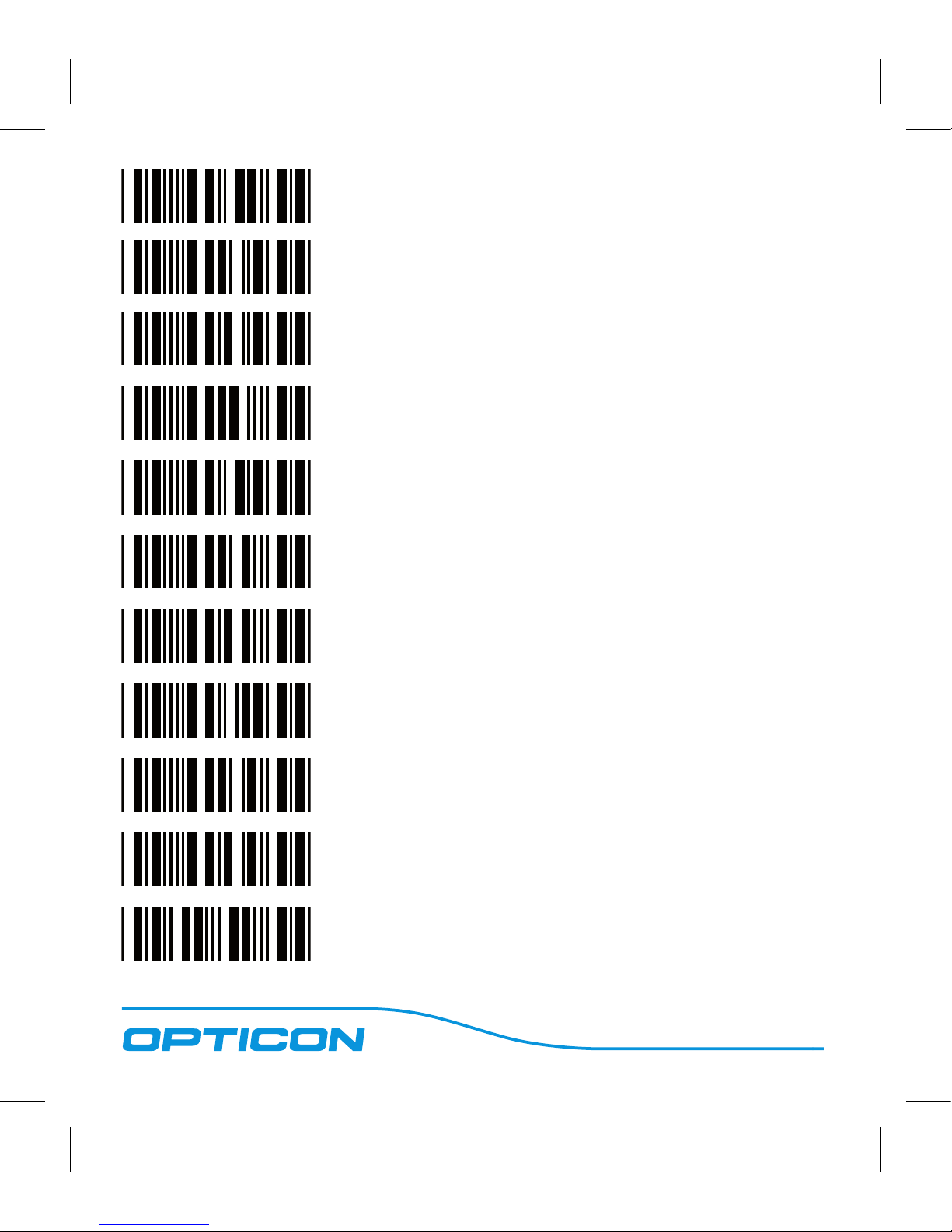
0
1
2
3
4
5
6
7
8
9
end
Quick Start Instructions
Step 1 - Scan Bluetooth Mode
Scan the Bluetooth Default barcode that matches
the connection method you wish to use, HID
(recommended) or SPP.
If you enable the iOS Keyboard Toggle feature by
scanning the ENABLE barcode, you will also be
able to toggle the on-screen keyboard of an iOS
device by tapping the Clear/Function key.
Step 2 - Hold Clear/Function Key for 5 seconds
Hold the OPN-2006’s Clear/Function key for 5
seconds until it beeps and begins to flash blue.
The OPN-2006 is now discoverable by your host
device. This can be cancelled at any time by holding the Clear/Function key for another 5 seconds.
Step 3 - Perform Bluetooth search on host
Use the Bluetooth interface on your host device
to search for and select the OPN-2006. The OPN2006 will beep and the LED will flash blue slower
than before indicating pairing was successful. If
you are pairing in Bluetooth-SPP mode, the OPN2006 will complete the pairing process as soon as
you launch an appropriate application and open
the serial port created by your Bluetooth software.
For information about your OPN-2006, including
detailed setup instructions, downloads and more,
visit us at: www.opticonusa.com/start/opn
> WWW.OPTICON.COM
> WWW.OPTICONUSA.COM
 Loading...