

Page 1
Purpose
This manual covers the basic to advanced operations for using the IVPC system. When installing the system,
please refer to the settings and installation guide provided with each device. The goal of this manual is to help
readers understand what is needed for their application. A simple home video intercom doorbell application
may only need two devices (IVPC-DM or equivalent), whereas an office may wish to further expand their
system to include multiple mobile stations (IVPC-MS or smartphones/tablets running the OPTEX Vision App)
and a door interface (IVPC-DI).
Check the following overview sections to get started. Thank you for choosing OPTEX!
User manual
EN
Page 2
Overview
Product Lineup
For details about each lineup, please visit www.optexamerica.com/security-products/ivpc-dm
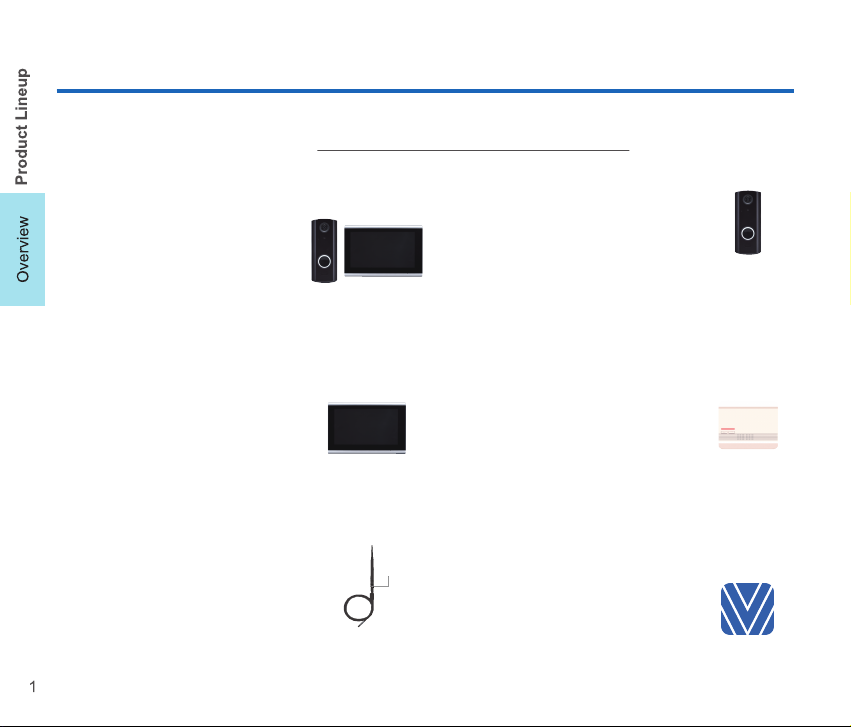
IVPC-DM
Door Station and Mobile Station
The basic set for the iVision+
Connect. When a visitor presses the
doorbell button on the IVPC-DS, a
notification is sent to the Mobile
Station. Expandable to include
multiple IVPC-DS/MS/DI or devices
running the OPTEX Vision App.
IVPC-MS
Mobile Station
Wi-Fi only Mobile Station for
responding to visitors. Features live
video and audio on a wide display.
<Optional>
IVPC-ANT
External Antenna
External antenna extension to avoid
dead spots in the Wi-Fi coverage.
IVPC-DS
Door Station
Doorbell replacement adding video
and audio communication when
used with the IVPC-MS or a device
running the OPTEX Vision App.
Needed for use of the IVPC-DI.
IVPC-DI
Door Interface
Can be used as a door unlocking
device and chime. Must be used in
conjunction with IVPC-DS. Operates
as a chime even when Wi-Fi is down.
<Optional>
OPTEX Vision
Smartphone/Tablet App
Substitutes the Mobile Station with
your smartphone/tablet. Capable of
answering calls out of Wi-Fi range
using mobile data.
Page 3
Overview
Operations
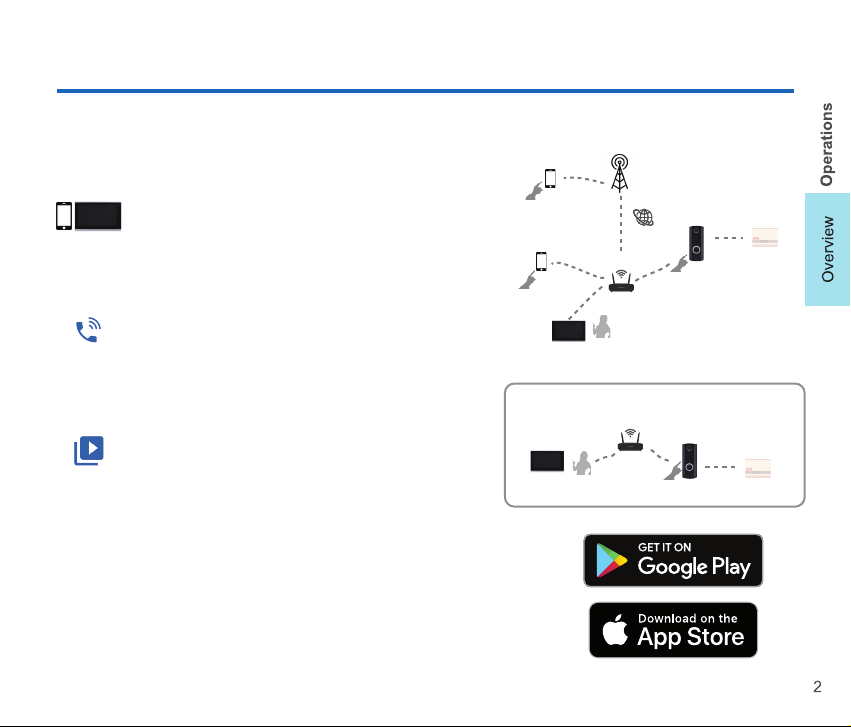
Smartphone *
Visitor Calling
Respond on the go with the OPTEX Vision App on
your smartphone. Have a dedicated mobile station
at the office with the IVPC-MS.
Answering a Visitor
See and converse with a visitor before opening
the door.
Live View / Event List
Use your smartphone or IVPC-MS to get a live
view from your IVPC-DS. Examine past event
stored locally at any time.
* To use on a smartphone, search and install OPTEX Vision at App store or
Google play.
Refer to page 2 & 3 of the SETTINGS AND INSTALLATION GUIDE.
6 p.
Smartphone *
7 p.
IVPC-MS
8 p.
IVPC-MS
Mobile Data
IVPC-DS IVPC-DI
Internet
Wi-Fi router
Local network(IVPC-MS only)
Wi-Fi router
IVPC-DS IVPC-DI
Page 4
Overview
Operations
Expand Your System
Add more devices to meet your needs.
Door Unlock
You can unlock an electric lock with the optional IVPC-DI. Door unlock function is limited to one
per IVPC-DS.
9 p.
9 p.
Appendix
- App Settings
- Device Settings
- Retrieving Images
- Updates
- Cloud Setting
- Troubleshoot
10 p.
11 p.
12 p.
13 p.
13 p.
14-15 p.
Page 5
Overview
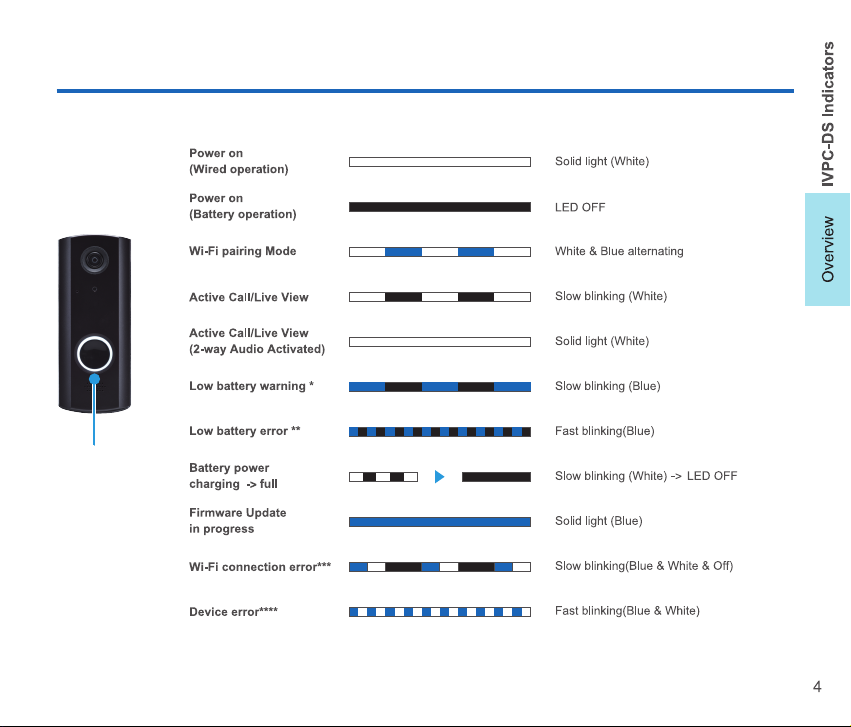
IVPC-DS Indicators
Indicators
Low battery warning : The battery has approximately a week of charge left. Please recharge soon.
*
Low battery error : The battery is completely drained. Please recharge immediately.
**
Wi-Fi connection error : Please check connection of IVPC-DS & Wi-Fi router.
***
Device error : Please contact a service provider.
****
Page 6
Overview
Battery Charge
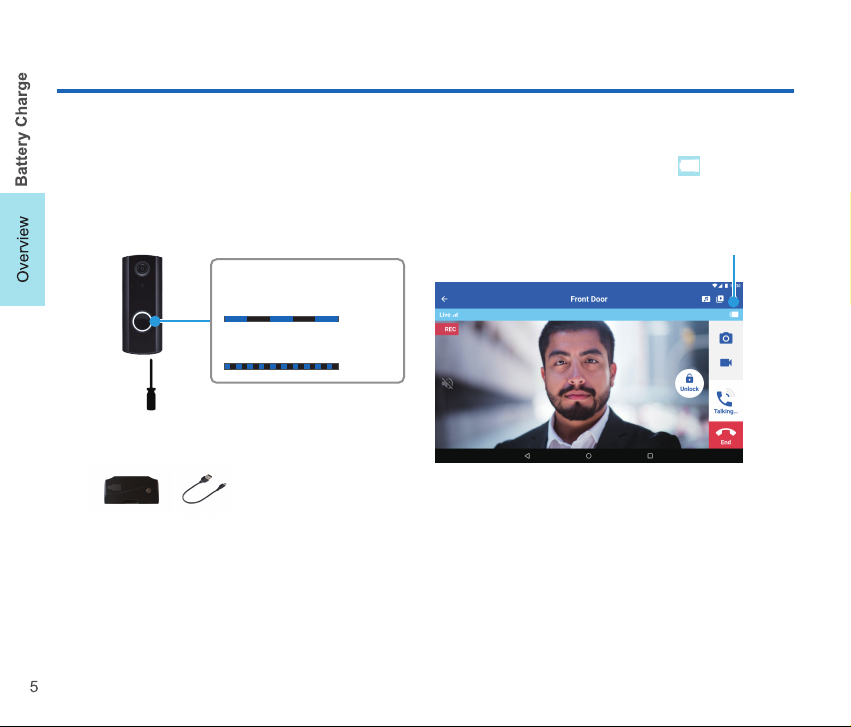
The IVPC-DS can be powered by batteries or wired. When battery operated, please charge regularly. The
battery level of the IVPC-DS can be checked by looking at the top right corner of the live view or by the
LED indicator on the IVPC-DS. The battery level symbol will be completely white when fully charged.
Caution: Please recharge only when temperature is 10 °C to 40 °C (50 °F to 104 °F).
Battery level
Low battery *
Slow blinking (Blue)
Fast blinking(Blue)
Remove IVPC-DS
Charge with the included USB cable **
*
If the IVPC-DS battery becomes low, it will automatically enter battery saving mode. This will disable the
option to turn on the live view from the device list. Refer to page 8. After charging, the battery saving mode
returns to OFF.
**
In case of wired operation, the IVPC-DS does not charge the battery.
Page 7
Operations
Visitor Calling
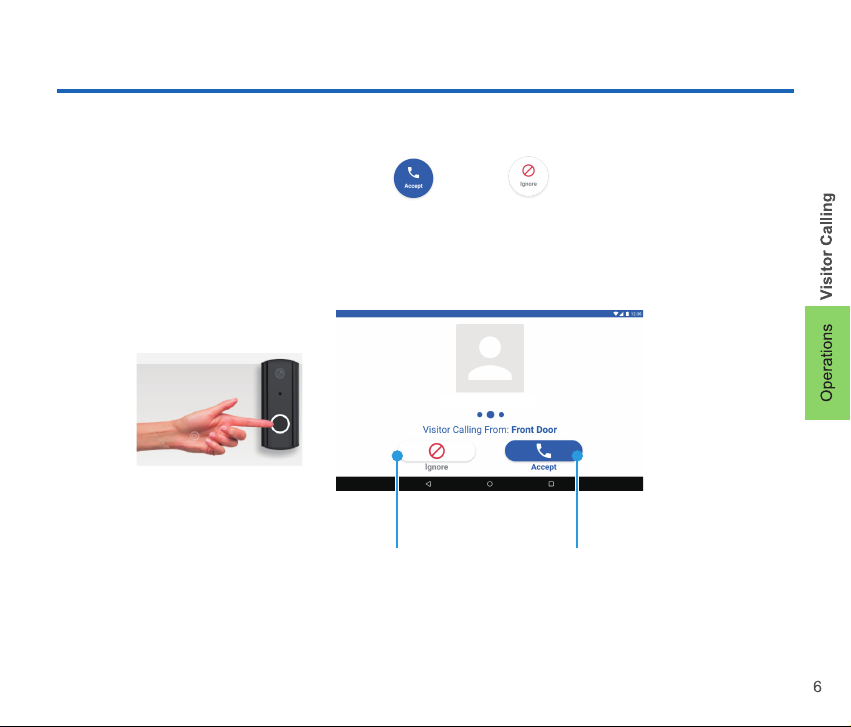
When a visitor presses the doorbell button on the IVPC-DS, a notification is sent to the IVPC-MS or the
OPTEX Vision App. You can see the live view with , close with . All calls, whether they are
answered or not, automatically record to the IVPC-DS microSD card as set in the device settings menu.
Close To live view
Page 8
Operations
Answering a Visitor
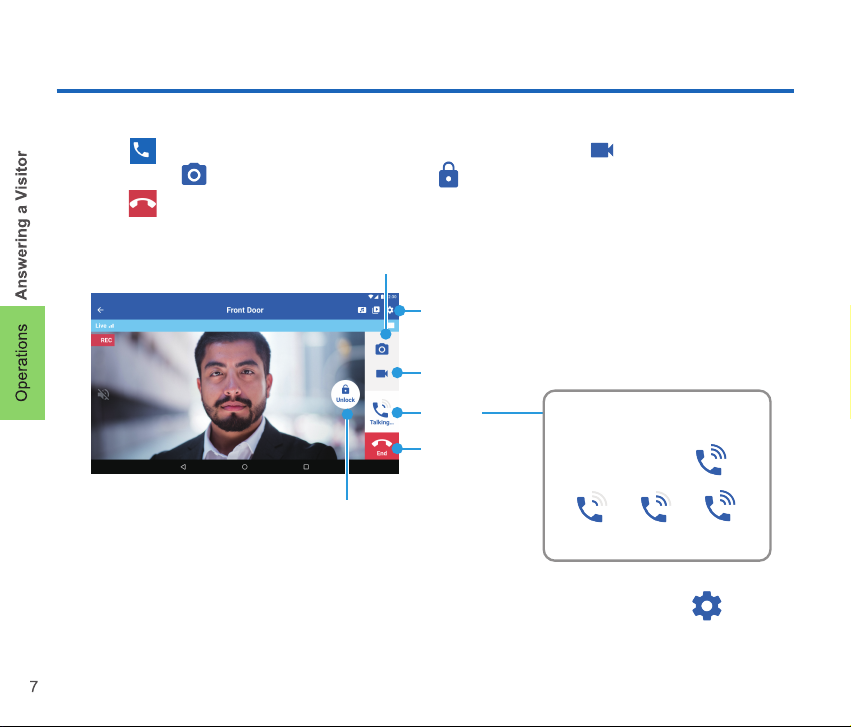
Touch the to turn the microphone on when speaking to a visitor. Touch the to manually record
videos. Touch the to record a still image. Touch the to unlock an electric strike or maglock.
Touch the to end the call. The same can be done by accessing the live view without an active caller as
explained in the next page.
Record still images
Device settings
Manually record videos*
Talking
End call
Door unlock**
*
You can select the recording time from (5/10/15/30/60 s) on the Device settings .
**
Optional IVPC-DI is required.
Volume adjustment of IVPC-DS
(Unavailable on iOS)
Touch and hold
Min Mid Max
Page 9
Operations
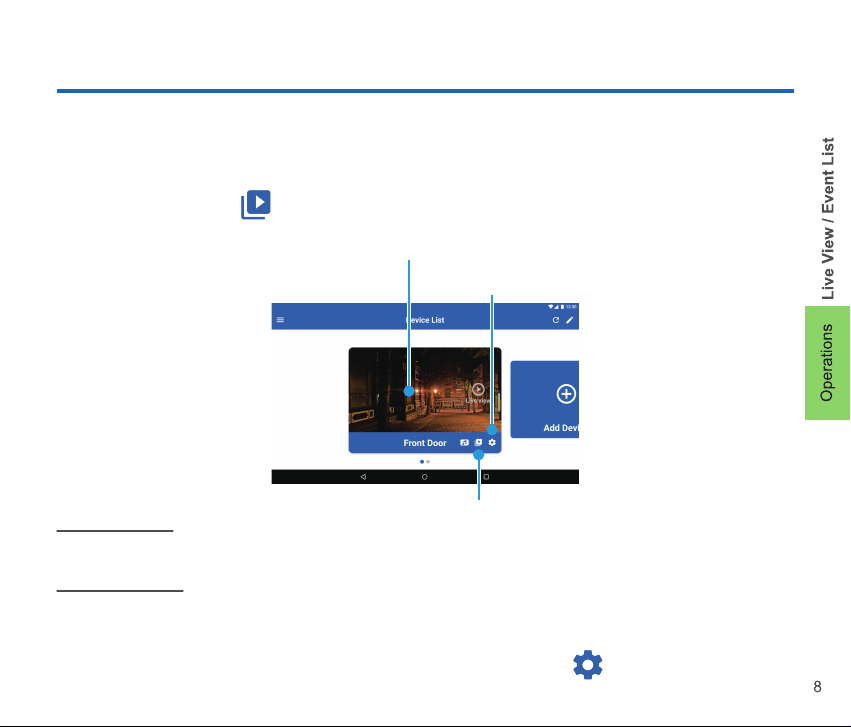
Live View / Event List
When you launch the IVPC-MS or the OPTEX Vision App, the Device List is displayed.
You can see a live view by touching the screen on the Device List.* You can check recorded videos and still
images from the Event List .
Touch the screen to see a live view
Device settings
*
Wired Operation
It is always valid.
*
Battery Operation
It is valid only when the battery saving mode is OFF and there is an internet connection. The default setting is
battery saving mode OFF. However, if the IVPC-DS battery becomes low, the battery saving mode will be
turned ON automatically. When the charging of the battery is completed, the battery saving mode returns to
OFF. The battery saving mode can be switched ON/OFF with Device settings .
Event List of recorded video and still image
Page 10
Operations
Expand Your System* / Door Unlock
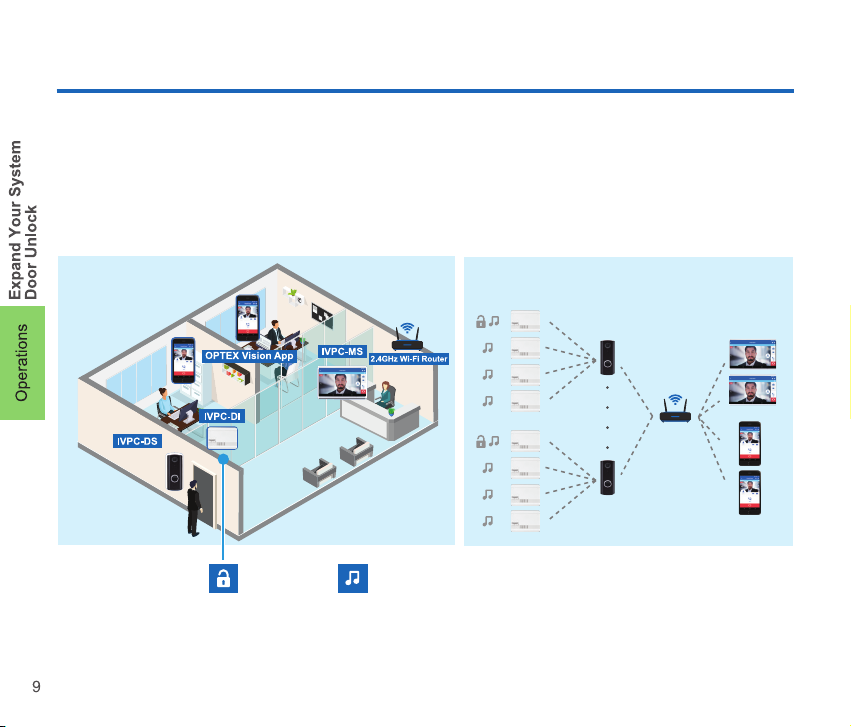
Additional users can join an existing system by adding IVPC-MS or downloading the OPTEX Vision App.
Please reference the setup information provided by the installer when using the app wizard.
One IVPC-DI per IVPC-DS can be assigned through the device settings menu to unlock an electric strike or
maglock. All IVPC-DI per IVPC-DS can work as chimes, even if the Wi-Fi is down.
Operational image
*
An admin and device password (default 123456) is required. Refer to the instruction guide.
**
5 selectable chime tones by IVPC-MS or OPTEX Vision App.
3 levels chime volume and mute by IVPC-DI button.
***
Limit depends on the network capacity, not the IVPC system itself.
Door unlock
Maximum system structure
IVPC-DI
Max 4 per DS
Chimes at the visitor event **
IVPC-DS
Max 6 per
MS or smartphone
IVPC-MS
OPTEX
Vision App
No limit***
Page 11
Appendix
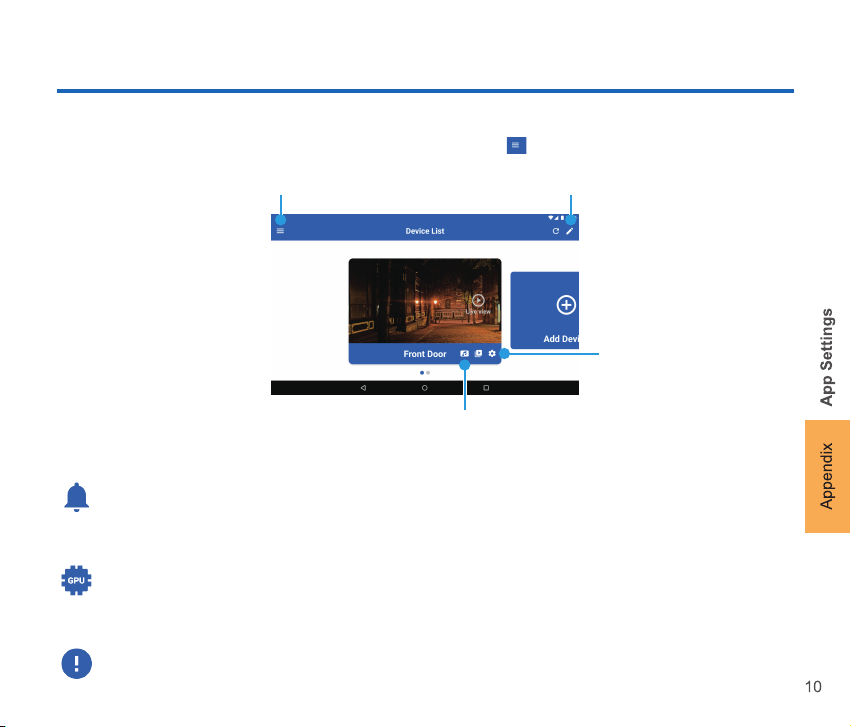
App Settings
You can change the settings of the App from the Device List button
App settings
Notification
Enable or disable notifications on IVPC-MS or Android smartphone. iOS users must go to their
smartphone settings to change this feature. Individual notification settings are not available;
notifications are either ON or OFF for all paired IVPC-DS.
Video Hardware Acceleration (Android phone only)
By turning on the hardware acceleration function, improvement of drawing performance can be
expected. However, it consumes a lot of memory. The default is ON.
About
You can check the version of OPTEX Vision.
Device list edit (Change name or delete an
existing device)
Device settings
(Refer to next page)
IVPC-DI settings (Refer to next page)
Page 12
Appendix
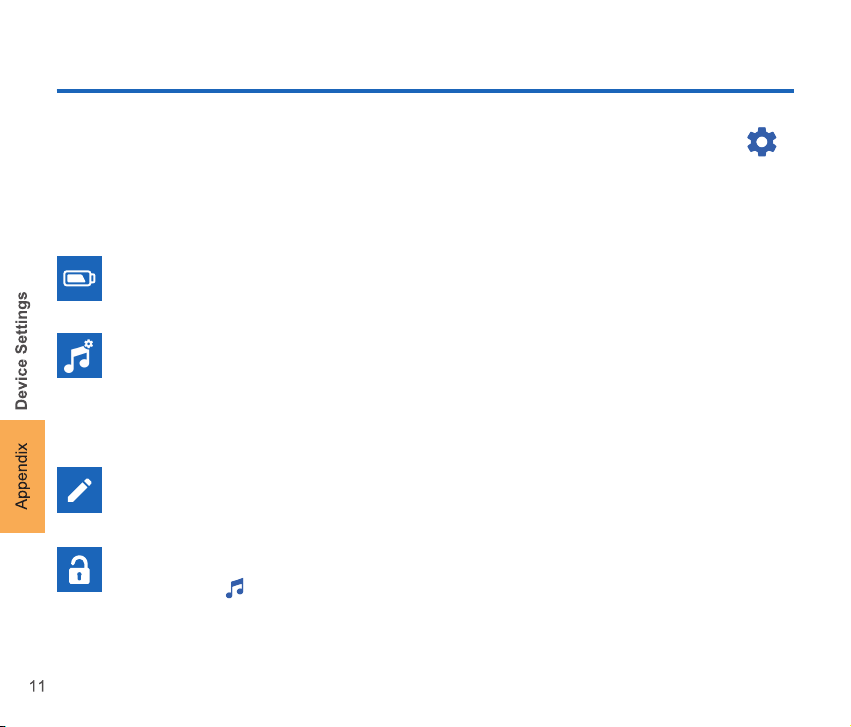
Device Settings
The main customization settings of IVPC-DS are as follows. You can change them from Device Settings
of Device List or Live View.* An admin password (default 123456) is required. Refer to the SETTINGS AND
INSTALLATION GUIDE. Press 'Save' after setting and IVPC-DS may reboot. Do not manually restart the
IVPC-MS or OPTEX Vision App.
Battery Saving
It is effective only when battery operated. Default setting is OFF. By setting it to ON, you can extend
the battery life of IVPC-DS. (About 1 year @ 25 °C/77 °F) However, when the battery saving mode is
ON, Live View only works when answering a visitor.
Device Sounds
You can change the volume of the IVPC-DS. Chime tone is fixed.
Other Settings
Device Edit
You can rename or delete devices that appear in IVPC-MS or OPTEX Vision App.
Unlock Settings
Select which IVPC-DI will activate its output relay for a selectable duration time. You can set from
IVPC-DI settings . Refer to previous page.
* In case of battery operated, press the doorbell button to wake up IVPC-DS before entering the setting menu.
Page 13
Appendix
Retrieve Image from IVPC-DS
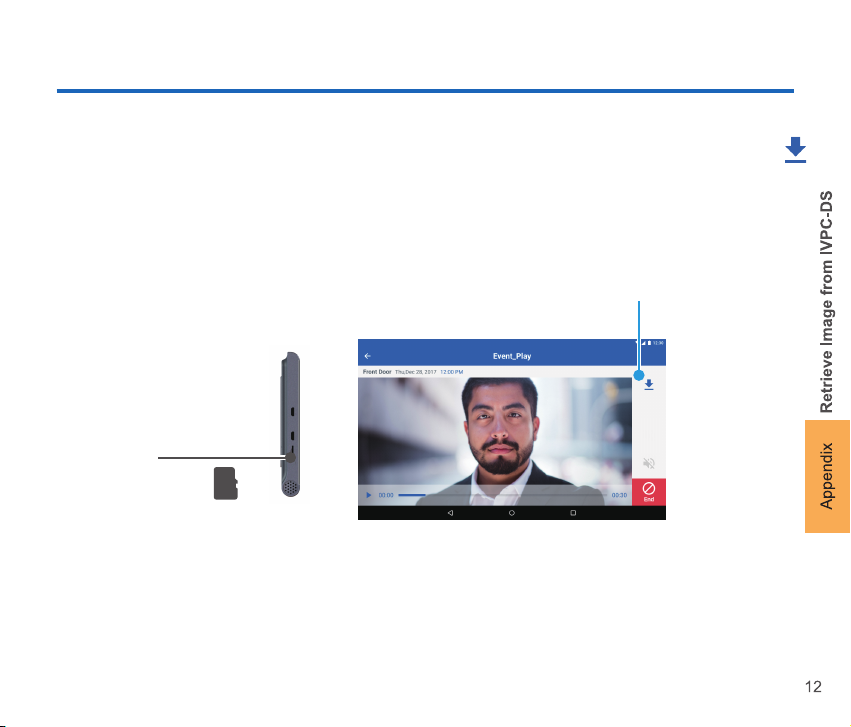
Videos are stored on the memory card of the IVPC-DS. From the Event List or Event Play, you can download
them to the IVPC-MS or a device running the OPTEX Vision App. UHS-1 microSD card (not included) can be
used to save the videos and images off the IVPC-MS.
Download
microSD card slot
Not included (IVPC-MS)
Page 14
Appendix
Updates
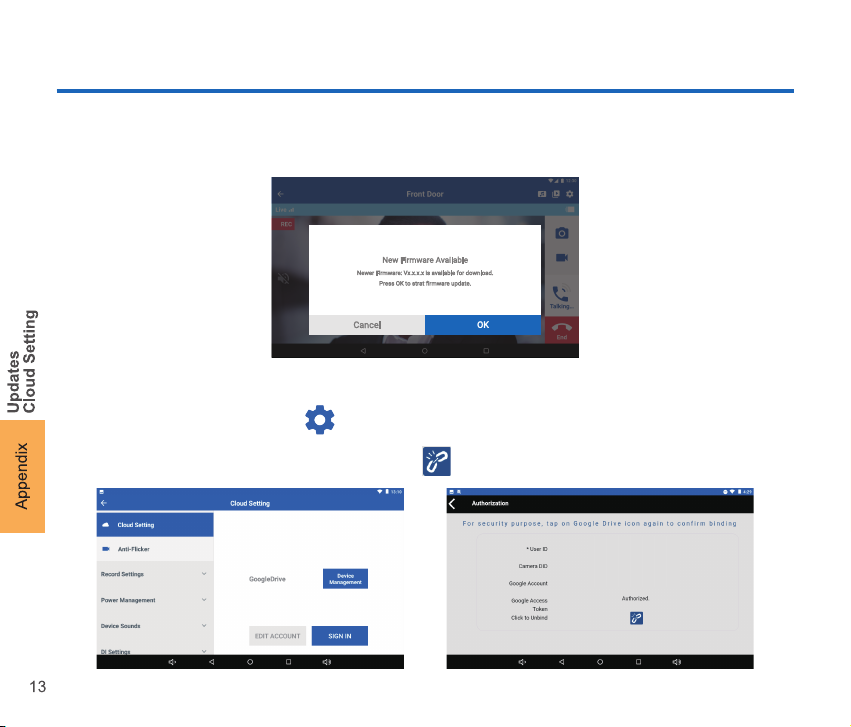
When you receive the Update message on IVPC-MS or OPTEX Vision App, please update according to the
screen.
Cloud Setting
You can transfer images stored in IVPC-DS to your registered cloud service.
It can be set from the device settings .
If you want to remove cloud service, you will need to unbind from the IVPC-DS by going to the device settings cloud settings - sign in - device management and click
DOOJ-xxxxxx-xxxxx
xxxxx
Page 15
Appendix
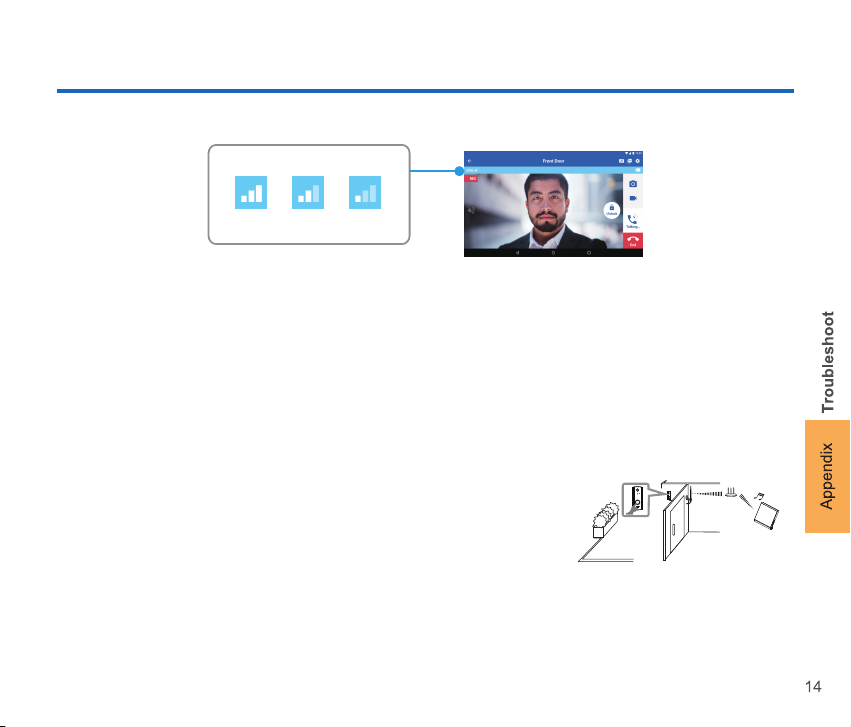
How to check the signal strength indicator using IVPC-MS or OPTEX Vision App
IVPC-DS signal indicator
Excellent Good Fair
Troubleshoot
Chime does not sound / Audio is interrupted / No device or battery error indicated
Please check the signal strength between the IVPC-DS and Wi-Fi router. Signal strength can be confirmed with the
IVPC-MS or OPTEX Vision App. If the signal strength is poor, please check whether there was any change in the
installation environment from the time the IVPC was installed. (Example: Metal placed around IVPC - DS, changed
location of the Wi-Fi router. Construction scaffolding was built around the building. ) If you improve the installation
environment, communication status will recover. If the cause can not be specified or can not be restored to the state
at the time of installation, contact a service provider.
Troubleshoot options:
- Wi-Fi range extender (When the IVPC-DS and the Wi-Fi router are far away.)
- IVPC-ANT External antenna (When the IVPC-DS and the Wi-Fi router are close.)
IVPC-ANT External Antenna (optional)
The IVPC-ANT helps by providing an antenna at a position that avoids obstacles
against radio waves such as walls and doors. The best communication is
achieved by a direct open path between the communicating devices, in this case
the Wi-Fi router and the IVPC-DS. For details please contact a service provider.
LED slow blinking (Blue & White & Off)
Please check connection of IVPC-DS & Wi-Fi router.
LED fast blinking (Blue & White)
IVPC-DS is faulty. Please contact a service provider.
Live view
Page 16
Appendix
Chime does not sound (LED OFF)
Power may not supplied to the IVPC-DS. Please charge the IVPC-DS.
Battery life of IVPC-DS is short
Check the setting of the battery saving mode with the IVPC-MS or OPTEX Vision App. By setting it to ON, you can
extend the battery life of IVPC-DS. (About 1 year @ 25 °C/77 °F) However, when the battery saving mode is ON,
Live view only works when answering a visitor.
Forgot admin password, device password
Check if the installer wrote down the passwords on the 2nd page of the IVPC DS and MS SETTINGS AND
INSTALLATION GUIDE.
If the password was not written down, you may need to delete the device and pair again.
Change admin password, device password
Admin password and device password can be changed from . However, if you change the device password, you
must also reset the device password for the IVPC-MS / Smartphone that is paired. The device password can be set
from .
Latest software
Download the latest software and IVPC-MS OPTEX Vision from the following URL.
IVPC-DS navi.optex.net/firmware/50259/
IVPC-MS navi.optex.net/firmware/50260/
OPTEX CO., LTD. (JAPAN)
OPTEX INC. (U.S.)
URL: www.optexamerica.com
URL: www.optex.net
Technical assistance: (800)966-7839
Video and FAQ available:
optexamerica.com/resource/ivision-connect
Copyri ght (C) 2019 OPTE X CO.,LTD.
5927507
 Loading...