

Page 1
Page 2

Page 3

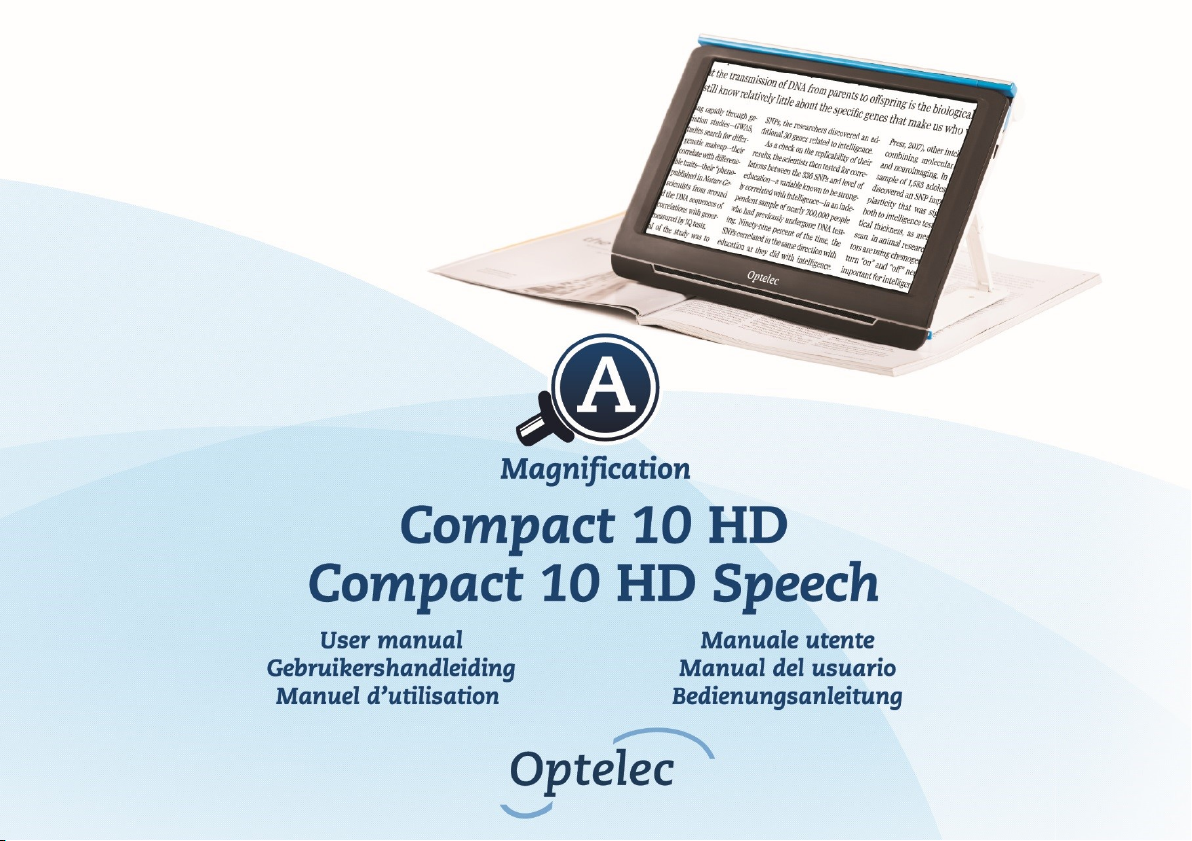
Optelec Compact 10 HD & Compact 10 HD Speech
2
Contents
1. INTRODUCTION .................................................................................................................................................... 15
ABOUT THIS MANUAL ................................................................................................................................................ 15
WHAT’S IN THE BOX? ................................................................................................................................................ 16
2. GETTING STARTED ............................................................................................................................................. 17
2.1. CHARGING THE BATTERY ................................................................................................................................... 18
Battery warning.............................................................................................................................................. 19
2.2. POWER ON AND OFF .......................................................................................................................................... 19
Standby ......................................................................................................................................................... 19
Sleep and resume ......................................................................................................................................... 20
2.3. FOLDING AND UNFOLDING THE COMPACT 10 HD ................................................................................................ 21
2.4. CLEANING THE CAMERAS ................................................................................................................................... 22
2.5. BUTTONS AND CONNECTIONS ............................................................................................................................ 23
3. CAMERAS ............................................................................................................................................................. 24
3.1. MAGNIFIER CAMERA .......................................................................................................................................... 24
3.2. FULL PAGE CAMERA .......................................................................................................................................... 24
3.3. OVERVIEW CAMERA ........................................................................................................................................... 25
4. USING THE COMPACT 10 HD SPEECH’S TEXT-TO-SPEECH & OCR............................................................. 26
5. EASY AND ADVANCED MODE ........................................................................................................................... 28
5.1 FEATURES IN EASY MODE ................................................................................................................................... 30
Adjusting the magnification ........................................................................................................................... 30
Selecting a viewing mode .............................................................................................................................. 30
Taking a snapshot of an image (Compact 10 HD only) ................................................................................ 31
Taking a snapshot and use Text-to-Speech (Compact 10 HD Speech only) ............................................... 31
5.2. FEATURES IN ADVANCED MODE .......................................................................................................................... 32
Time and date................................................................................................................................................ 32
Taking a snapshot of an image (Compact 10 HD Speech) ........................................................................... 32
MENU ...................................................................................................................................................................... 33
Page 4

Optelec Compact 10 HD & Compact 10 HD Speech
3
Voice (Compact 10 HD Speech only) ........................................................................................................... 35
Line On/Off .................................................................................................................................................... 36
Battery status................................................................................................................................................. 36
Save .............................................................................................................................................................. 36
Open .............................................................................................................................................................. 37
Adjusting the brightness ................................................................................................................................ 38
SETTINGS ................................................................................................................................................................ 39
Color .............................................................................................................................................................. 40
View (Compact 10 HD Speech only) ............................................................................................................. 41
Miracast: connecting wirelessly to a monitor or TV ....................................................................................... 41
Bluetooth (Compact 10 HD Speech only) ..................................................................................................... 43
Line ................................................................................................................................................................ 44
Buttons .......................................................................................................................................................... 44
Theme ........................................................................................................................................................... 45
Columns (Compact 10 HD Speech only) ...................................................................................................... 45
Lights ............................................................................................................................................................. 45
Sound ............................................................................................................................................................ 45
Standby ......................................................................................................................................................... 46
Language (Compact 10 HD only) .................................................................................................................. 46
Restore .......................................................................................................................................................... 46
6. TRANSFERRING DOCUMENTS TO PC .............................................................................................................. 47
APPENDIX A: TECHNICAL INFORMATION ............................................................................................................ 48
APPENDIX B: SAFETY AND REGULATORY NOTICES ......................................................................................... 49
Page 5

Optelec Compact 10 HD & Compact 10 HD Speech
4
Inhoud
1. INLEIDING ............................................................................................................................................................. 57
OVER DEZE HANDLEIDING ......................................................................................................................................... 57
INHOUD VAN DE VERPAKKING .................................................................................................................................... 58
2. AAN DE SLAG....................................................................................................................................................... 59
2.1. OPLADEN VAN DE BATTERIJ ................................................................................................................................ 60
Batterijwaarschuwing .................................................................................................................................... 61
2.2. AAN- EN UITZETTEN ........................................................................................................................................... 61
Standby ......................................................................................................................................................... 61
Slaapstand en werking hervatten .................................................................................................................. 62
2.3. HET OPVOUWEN EN ONTVOUWEN VAN DE COMPACT 10 HD ................................................................................. 63
2.4. HET SCHOONHOUDEN VAN DE CAMERALENS EN DE SPIEGEL ................................................................................. 64
2.5.KNOPPEN .......................................................................................................................................................... 65
3. CAMERA’S ............................................................................................................................................................ 66
3.1. CAMERA VOOR VERGROTING ............................................................................................................................. 66
3.2. CAMERA VOOR VOLLEDIGE PAGINA ..................................................................................................................... 66
3.3. OVERZICHTSCAMERA ......................................................................................................................................... 67
4. TEKST-NAAR-SPRAAK EN OCR ........................................................................................................................ 68
5. EENVOUDIGE EN GEAVANCEERDE WEERGAVE............................................................................................ 70
5.1. EENVOUDIGE WEERGAVE ................................................................................................................................... 72
Vergroting aanpassen ................................................................................................................................... 72
Een leesmodus selecteren ............................................................................................................................ 72
Een snapshot maken van een afbeelding (Compact 10 HD) ........................................................................ 73
Een tekst-naar-spraak snapshot maken (Compact 10 HD Speech) ............................................................. 73
5.2. GEAVANCEERDE WEERGAVE .............................................................................................................................. 74
Tijd en datum ................................................................................................................................................. 74
Een snapshot maken van een afbeelding (Compact 10 HD Speech)........................................................... 74
HET MENU................................................................................................................................................................ 75
Page 6

Optelec Compact 10 HD & Compact 10 HD Speech
5
Stem .............................................................................................................................................................. 76
Lijn aan/uit ..................................................................................................................................................... 78
Batterijstatus .................................................................................................................................................. 78
Opslaan ......................................................................................................................................................... 78
Openen .......................................................................................................................................................... 79
Aanpassen van helderheid ............................................................................................................................ 80
INSTELLINGEN .......................................................................................................................................................... 81
Kleuren .......................................................................................................................................................... 82
Beeld (enkel Compact 10 HD Speech) ......................................................................................................... 83
Miracast: draadloos verbinden met een monitor of tv ................................................................................... 83
Bluetooth (enkel Compact 10 HD Speech) ................................................................................................... 85
Lijn ................................................................................................................................................................. 87
Knoppen ........................................................................................................................................................ 87
Thema ........................................................................................................................................................... 87
Kolommen (enkel Compact 10 HD Speech) ................................................................................................. 87
Verlichting ...................................................................................................................................................... 88
Geluid ............................................................................................................................................................ 88
Standby ......................................................................................................................................................... 88
Taal (enkel Compact 10 HD) ......................................................................................................................... 89
Fabrieksinstellingen herstellen ...................................................................................................................... 89
6. DOCUMENTEN OVERZETTEN NAAR DE PC ..................................................................................................... 90
BIJLAGE A: TECHNISCHE INFORMATIE ............................................................................................................... 91
BIJLAGE B: VEILIGHEID EN ONDERHOUD ........................................................................................................... 92
Page 7

Optelec Compact 10 HD & Compact 10 HD Speech
6
Table des matières
1. INTRODUCTION .................................................................................................................................................... 99
À PROPOS DE CE MANUEL ......................................................................................................................................... 99
QUE CONTIENT LA BOÎTE? ....................................................................................................................................... 100
2. POUR DÉBUTER................................................................................................................................................. 101
2.1. CHARGER LA BATTERIE .................................................................................................................................... 102
Avertissement de batterie faible .................................................................................................................. 103
2.2. MISE EN MARCHE ET ARRÊT ............................................................................................................................. 104
Mode de veille ............................................................................................................................................. 104
Mise en veille et redémarrage ..................................................................................................................... 104
2.3. PLIER ET DÉPLIER LE COMPACT 10 HD ............................................................................................................. 105
2.4. NETTOYER LA FENÊTRE DE LA CAMÉRA ............................................................................................................. 106
2.5. LES BOUTONS ................................................................................................................................................. 107
3. CAMÉRAS ........................................................................................................................................................... 108
3.1. CAMÉRA DE GROSSISSEMENT .......................................................................................................................... 108
3.2. CAMÉRA PLEINE PAGE ..................................................................................................................................... 108
3.3. CAMÉRA VUE D'ENSEMBLE ............................................................................................................................... 109
4. UTILISER LES FONCTIONS TEXTE-À-PAROLE ET OCR ............................................................................... 110
5. MODE STANDARD ET MODE AVANCÉ ........................................................................................................... 112
5.1. MODE STANDARD ............................................................................................................................................ 114
Ajuster le grossissement........................................................................................................................................... 114
Choisir un mode de visualisation ............................................................................................................................. 114
Prendre une photo (Compact 10 HD) ..................................................................................................................... 115
Prendre une photo et utiliser la synthèse vocale (Compact 10 HD Speech) .............................................. 115
5.2. MODE AVANCÉ ................................................................................................................................................ 116
HEURE ET DATE ..................................................................................................................................................... 116
PRENDRE UNE PHOTO (COMPACT 10 HD SPEECH) .................................................................................................. 116
MENU .................................................................................................................................................................... 117
Page 8

Optelec Compact 10 HD & Compact 10 HD Speech
7
Voix (Compact 10 HD Speech uniquement) ............................................................................................... 119
Ligne On / Off .............................................................................................................................................. 120
État de la batterie ........................................................................................................................................ 120
Sauvegarder ................................................................................................................................................ 121
Ouvrir ........................................................................................................................................................... 121
Ajuster la luminosité .................................................................................................................................... 122
RÉGLAGES ............................................................................................................................................................. 123
Couleur ........................................................................................................................................................ 124
Affichage (Compact 10 HD Speech uniquement) ....................................................................................... 125
Miracast: Connection sans-fil à un moniteur ou à un téléviseur ................................................................. 125
Bluetooth (Compact 10 HD Speech uniquement) ....................................................................................... 127
Ligne ............................................................................................................................................................ 128
Boutons ....................................................................................................................................................... 129
Thème ......................................................................................................................................................... 129
Colonnes (Compact 10 HD Speech uniquement) ....................................................................................... 129
Lumières ...................................................................................................................................................... 129
Son .............................................................................................................................................................. 130
Mode veille .................................................................................................................................................. 130
Langue (Compact 10 HD uniquement) ....................................................................................................... 130
Restaurer ..................................................................................................................................................... 130
6. TRANSFÉRER DES DOCUMENTS VERS UN PC ............................................................................................. 131
ANNEXE A: INFORMATIONS TECHNIQUES ........................................................................................................ 132
ANNEXE B: SÉCURITÉ .......................................................................................................................................... 133
Page 9

Optelec Compact 10 HD & Compact 10 HD Speech
8
Indice
1. INTRODUZIONE .................................................................................................................................................. 141
INFORMAZIONI SU QUESTO MANUALE ....................................................................................................................... 141
CONTENUTO DELLA CONFEZIONE............................................................................................................................. 142
2. INIZIAMO ............................................................................................................................................................. 143
2.1. RICARICA DELLA BATTERIA ............................................................................................................................... 144
AVVISO SULLA BATTERIA ......................................................................................................................................... 145
2.2. ACCENSIONE E SPEGNIMENTO .......................................................................................................................... 146
Standby ....................................................................................................................................................... 146
Stand-by e riattivazione ............................................................................................................................... 146
2.3. APRIRE E CHIUDERE COMPACT 10 HD .............................................................................................................. 147
2.4. PULIRE LA TELECAMERA ................................................................................................................................... 148
2.5. PULSANTI ........................................................................................................................................................ 149
3. TELECAMERE..................................................................................................................................................... 150
3.1. TELECAMERA PER L'INGRANDIMENTO ................................................................................................................ 150
3.2. TELECAMERA PER TUTTA LA PAGINA ................................................................................................................. 150
3.3. TELECAMERA PANORAMICA .............................................................................................................................. 151
4. USO DELLE FUNZIONI SINTESI VOCALE E OCR DI COMPACT 10 HD SPEECH ........................................ 152
5. MODALITÀ FACILE E AVANZATA .................................................................................................................... 154
5.1. FUNZIONI IN MODALITÀ FACILE ......................................................................................................................... 156
Regolare l'ingrandimento............................................................................................................................. 156
Selezionare una modalità di visualizzazione ............................................................................................... 156
Acquisire un’immagine (Compact 10 HD) ................................................................................................... 157
Acquisire un'immagine e fare l'OCR (Compact 10 HD Speech) ................................................................. 157
5.2. FUNZIONI IN MODALITÀ AVANZATA .................................................................................................................... 158
Data e ora .................................................................................................................................................... 158
Acquisire un’immagine (Compact 10 HD Speech) ...................................................................................... 158
Menu ............................................................................................................................................................ 159
Page 10

Optelec Compact 10 HD & Compact 10 HD Speech
9
Voce (Solo Compact 10 HD Speech) .......................................................................................................... 161
Riga Attivata/Disattivata .............................................................................................................................. 162
Stato della batteria ...................................................................................................................................... 162
Salva ............................................................................................................................................................ 162
Apri .............................................................................................................................................................. 163
Regolare la luminosità ................................................................................................................................. 164
IMPOSTAZIONI ........................................................................................................................................................ 165
Colore .......................................................................................................................................................... 166
Visualizza (Solo Compact 10 HD Speech) .................................................................................................. 167
Miracast: connessione wireless a un monitor o a una TV ........................................................................... 167
Bluetooth (Solo Compact 10 HD Speech) ................................................................................................... 169
Riga ............................................................................................................................................................. 170
Pulsanti ........................................................................................................................................................ 171
Tema ........................................................................................................................................................... 171
Colonne (Solo Compact 10 HD Speech) .................................................................................................... 171
Luci .............................................................................................................................................................. 171
Suoni ........................................................................................................................................................... 172
Standby ....................................................................................................................................................... 172
Lingua (Solo Compact 10 HD) .................................................................................................................... 172
Ripristina ...................................................................................................................................................... 172
6. TRASFERIRE DOCUMENTI SUL PC ................................................................................................................. 173
APPENDICE A: INFORMAZIONI TECNICHE ........................................................................................................ 174
APPENDICE B: SICUREZZA .................................................................................................................................. 175
Page 11

Optelec Compact 10 HD & Compact 10 HD Speech
10
Índice
1. INTRODUCCIÓN ................................................................................................................................................. 183
ACERCA DE ESTE MANUAL ...................................................................................................................................... 183
CONTENIDO DE LA CAJA? ........................................................................................................................................ 184
2. CÓMO EMPEZAR A TRABAJAR ...................................................................................................................... 185
2.1. CARGAR LA BATERÍA ........................................................................................................................................ 186
AVISO DE BATERÍA .................................................................................................................................................. 187
2.2. ENCENDER Y APAGAR EL EQUIPO...................................................................................................................... 188
Standby ....................................................................................................................................................... 188
Modo suspensión y reactivación ................................................................................................................. 188
2.3. PLEGAR Y DESPLEGAR COMPACT 10 HD .......................................................................................................... 189
2.4. LIMPIAR LA VENTANA DE LA CÁMARA ................................................................................................................. 190
2.5. BOTONES Y CONECTORES ................................................................................................................................ 191
3. CÁMARAS ........................................................................................................................................................... 192
3.1. CÁMARA DE AMPLIACIÓN .................................................................................................................................. 192
3.2. CÁMARA DE PÁGINA COMPLETA ........................................................................................................................ 192
3.3. CÁMARA DE VISTA GENERAL ............................................................................................................................. 193
4. UTILIZAR LAS FUNCIONES DE TEXTO A VOZ Y OCR DE COMPACT 10 HD SPEECH .............................. 194
5. LOS MODOS BÁSICO Y AVANZADO ............................................................................................................... 196
5.1 FUNCIONES DEL MODO BÁSICO ......................................................................................................................... 198
Ajustar la ampliación ................................................................................................................................... 198
Seleccionar un modo de vista ..................................................................................................................... 198
Hacer una captura de una imagen (Compact 10 HD) ................................................................................. 199
Hacer una captura para reconocimiento y lectura del texto (Compact 10 HD Speech) ............................. 199
5.2. FUNCIONES DEL MODO AVANZADO ................................................................................................................... 200
Fecha y hora ................................................................................................................................................ 200
Hacer una captura de una imagen (Compact 10 HD Speech) ................................................................... 200
Menú ............................................................................................................................................................ 201
Page 12

Optelec Compact 10 HD & Compact 10 HD Speech
11
Voz (sólo Compact 10 HD Speech) ............................................................................................................ 203
Línea activada/desactivada ......................................................................................................................... 204
Estado de la batería .................................................................................................................................... 204
Guardar ....................................................................................................................................................... 204
Abrir ............................................................................................................................................................. 205
Ajustar el brillo ............................................................................................................................................. 206
CONFIGURACIÓN .................................................................................................................................................... 206
Color ............................................................................................................................................................ 207
Vista (sólo Compact 10 HD Speech) .......................................................................................................... 208
Miracast: conexión inalámbrica con un monitor o televisor ........................................................................ 208
Bluetooth (sólo Compact 10 HD Speech) ................................................................................................... 210
línea ............................................................................................................................................................. 212
Botones ....................................................................................................................................................... 212
Tema ........................................................................................................................................................... 212
Columnas (sólo Compact 10 HD Speech) .................................................................................................. 212
Luces ........................................................................................................................................................... 213
Sonido ......................................................................................................................................................... 213
Standby ....................................................................................................................................................... 213
Idioma (solo Compact 10 HD) ..................................................................................................................... 214
Restaurar ..................................................................................................................................................... 214
6. TRANSFERIR DOCUMENTOS AL PC ............................................................................................................... 215
APÉNDICE A: INFORMACIÓN TÉCNICA .............................................................................................................. 216
APÉNDICE B: SEGURIDAD……………………………………………………………………………………………… 217
Page 13

Optelec Compact 10 HD & Compact 10 HD Speech
12
Inhalt
1. EINFÜHRUNG ..................................................................................................................................................... 224
ÜBER DIESES HANDBUCH ....................................................................................................................................... 224
WAS GEHÖRT ZUM LIEFERUMFANG? ........................................................................................................................ 225
2. ERSTE SCHRITTE .............................................................................................................................................. 226
2.1. AUFLADEN DES AKKUS .................................................................................................................................... 227
AKKUWARNUNG ..................................................................................................................................................... 228
2.2. EIN- UND AUSSCHALTEN .................................................................................................................................. 228
Bereitschaft .................................................................................................................................................. 228
Schlafmodus und Aufwecken (Standby) ..................................................................................................... 229
2.3. ÖFFNEN UND SCHLIEßEN DES COMPACT 10 HD LESESTÄNDERS ........................................................................ 230
2.4. REINIGUNG DER KAMERALINSEN ...................................................................................................................... 231
2.5. TASTENBELEGUNG .......................................................................................................................................... 232
3. KAMERAS ........................................................................................................................................................... 233
3.1. LESEKAMERA .................................................................................................................................................. 233
3.2. GANZSEITENKAMERA ....................................................................................................................................... 233
3.3. OBJEKTKAMERA .............................................................................................................................................. 234
4. MIT DEM COMPACT 10 HD SPEECH TEXTE ERKENNEN UND VORLESEN LASSEN ................................ 235
5. EINFACHER UND ERWEITERTER MODUS ...................................................................................................... 238
5.1. EINFACHER MODUS ......................................................................................................................................... 240
Einstellen der Vergrößerung ....................................................................................................................... 240
Auswahl des Darstellungsmodus ................................................................................................................ 240
Einen Schnappschuss eines Bildes Machen (Compact 10 HD) ................................................................. 241
Einen Schnapschuss machen und Text anhören (Compact 10 HD Speech) ............................................. 241
5.2. ERWEITERTER MODUS ..................................................................................................................................... 242
Zeit und Datum ............................................................................................................................................ 242
Einen Schnappschuss eines Bildes Machen (Compact 10 HD Speech) .................................................... 242
MENÜ .................................................................................................................................................................... 243
Page 14

Optelec Compact 10 HD & Compact 10 HD Speech
13
Stimmen und Landessprachen (nur Compact 10 HD Speech) ................................................................... 244
Linie Ein/Aus ................................................................................................................................................ 246
Akku-Status ................................................................................................................................................. 246
Sichern ........................................................................................................................................................ 247
Öffnen .......................................................................................................................................................... 247
Löschen ....................................................................................................................................................... 248
Die Helligkeit anpassen ............................................................................................................................... 249
EINSTELLUNGEN..................................................................................................................................................... 250
Farben ......................................................................................................................................................... 251
Darstellung (nur bei Compact 10 HD Speech) ............................................................................................ 252
Miracast: Drahtlos mit einem Monitor oder Fernseher verbinden ............................................................... 252
Bluetooth (nur bei Compact 10 HD Speech) ............................................................................................... 254
Linie Ein / Aus.............................................................................................................................................. 256
Tasten .......................................................................................................................................................... 256
Design ......................................................................................................................................................... 256
Spalten (nur bei Compact 10 HD Speech) .................................................................................................. 256
Beleuchtung ................................................................................................................................................. 257
Sound .......................................................................................................................................................... 257
Bereitschaft (Standby) ................................................................................................................................. 257
Landessprache (nur bei Compact 10 HD Speech) ..................................................................................... 258
Wiederherstellen.......................................................................................................................................... 258
6. DOKUMENTE AUF DEN PC ÜBERTRAGEN .................................................................................................... 259
ANHANG A: TECHNISCHE INFORMATIONEN ..................................................................................................... 260
ANHANG B: SICHERHEITS- UND PFLEGEHINWEISE ........................................................................................ 261
CONTACT ................................................................................................................................................................ 268
Page 15

Optelec Compact 10 HD & Compact 10 HD Speech
English 14
Compact 10 HD
Compact 10 HD Speech
User Manual
Version 1.3
© 2019 Optelec, the Netherlands
All rights reserved
Optelec
P.O. Box 399
2990 AJ Barendrecht
The Netherlands
Phone: +31 (0)88 678 34 44
E-mail: [email protected]
Internet: www.optelec.com
Page 16

Optelec Compact 10 HD & Compact 10 HD Speech
15 English
1. Introduction
Congratulations on choosing the Compact 10 HD or the Compact 10 HD Speech!
With its large 10” screen, customizable features and intuitive operation, the Compact 10 HD offers
all benefits of a desktop video magnifier, but in a much smaller, foldable, and portable design. With
the arm unfolded, you can easily look at photos, write your signature, view medicine packaging, and
even read round cans without being restricted in your movements. With the Compact 10 HD Speech,
the swing-out arm allows you to scan and read full pages of text.
If you have questions or suggestions concerning the use of this product, please contact your
distributor or Optelec’s headquarters, using the contact information on the last page of this manual.
Your feedback is greatly appreciated. We hope you enjoy working with your Compact 10 HD!
About this manual
At Optelec, we are constantly improving our products and their functionality. Therefore, it is possible
that this manual is not the latest version. Please download the most up-to-date manual on
www.optelec.com at the Support section.
Page 17

Optelec Compact 10 HD & Compact 10 HD Speech
English 16
This manual will familiarize you with the features and basic operation of the Compact 10 HD and
the Compact 10 HD Speech. Please read this manual carefully before using your device.
Unless otherwise indicated, all references to the Compact 10 HD will also apply for the
Compact 10 HD Speech. Functionality specifically applicable for the Compact 10 HD
Speech are marked with the Speech logo.
What’s in the box?
The Compact 10 HD packaging contains the following:
The Compact 10 HD or the Compact 10 HD Speech video magnifier
A protective pouch
A USB power supply with USB-C cable
4 country-specific power plugs (EU, US, UK, and AU)
A screen cleaning cloth
This user manual
If any of these items are missing from your package, please contact your distributor.
Page 18
Optelec Compact 10 HD & Compact 10 HD Speech
17 English
2. Getting started
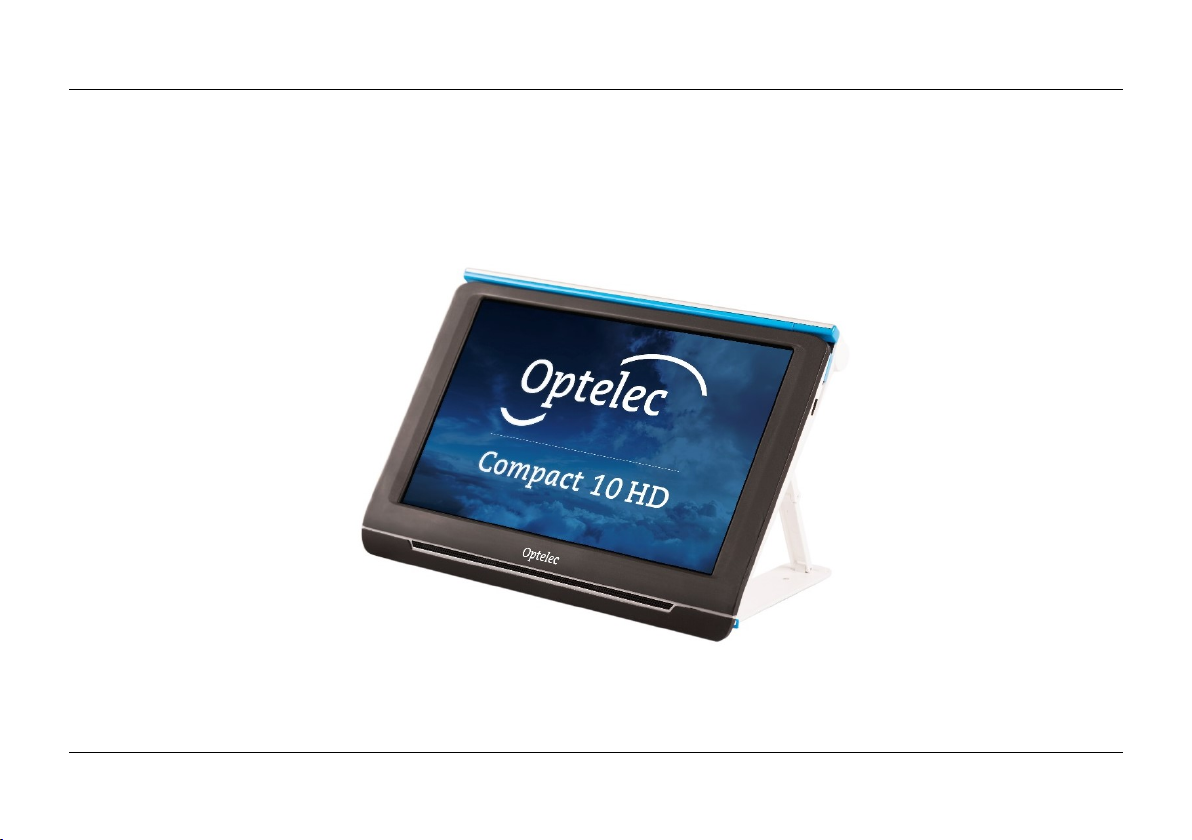
The Compact 10 HD is placed correctly in front of you when the screen is facing up and towards
you, with the Optelec logo below the screen.
Page 19
Optelec Compact 10 HD & Compact 10 HD Speech
English 18
2.1. Charging the battery
The Compact 10 HD is delivered with a power supply and four country-specific power plugs in EU,
US, UK, and AU types. Slide the appropriate plug for your region onto the power supply until it
clicks.
To charge the Compact 10 HD, connect the supplied USB cable to the power supply and the blue
USB connector located on the left side of the unit. Plug the other end of the power supply into a
power outlet.
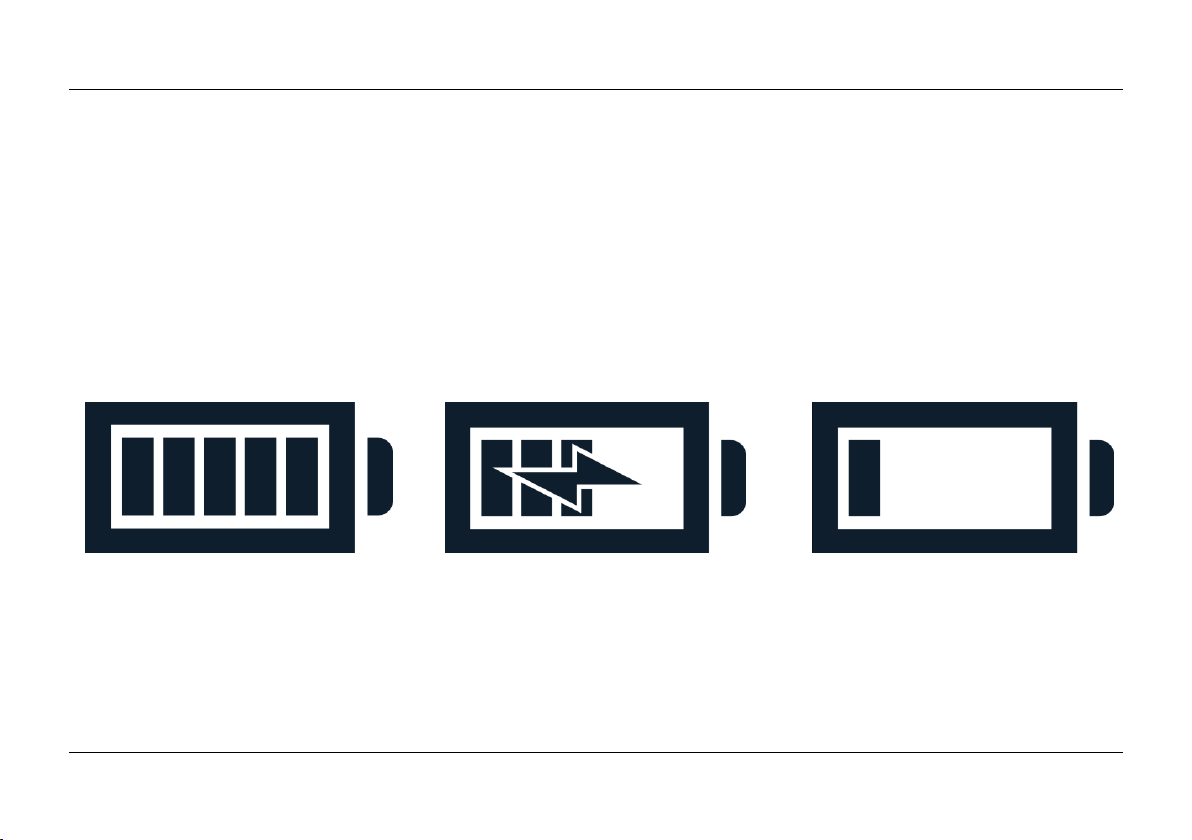
Battery full Battery charging Battery almost empty
Charging the Compact 10 HD takes approximately 4 hours. A fully charged Compact 10 HD can
operate approximately 3,5 hours, depending on the power settings and usage. For safety reasons,
please only use the power supply and USB cable that was delivered with the Compact 10 HD to
charge the unit’s battery.
Page 20

Optelec Compact 10 HD & Compact 10 HD Speech
19 English
Battery warning
The Compact 10 HD will briefly show an empty battery warning icon to indicate that the battery
needs to be charged. When this occurs, make sure to charge your unit. When the battery is empty,
the unit will automatically switch off.
If the Compact 10 HD does not switch on, please make sure it is charged.
2.2. Power on and off
To switch on the Compact 10 HD for the first time, the unit needs to be charged. Once charged,
hold down the orange On / Off switch. To switch off the Compact 10 HD, press the orange button
for three seconds again. When switching on the Compact 10 HD, it will take approximately 20
seconds before an image displays on screen.
Standby
The Compact 10 HD will automatically go into standby mode if no button is pressed or no movement
is detected. Pressing the orange on / off button will switch it back on. The standby time can be
changed or disabled in the Compact 10 HD menu. Please refer to chapter 5.2 on how to change
these settings.
Page 21

Optelec Compact 10 HD & Compact 10 HD Speech
English 20
Sleep and resume
When the Compact 10 HD is switched on, a click of the orange On / Off button will place the unit
into sleep mode. A click of the orange On / Off button again will resume the Compact 10 HD
operation in the mode in which it was put to sleep. When resuming from sleep, the Compact 10 HD
will take approximately 1 second before an image displays on screen.
Page 22

Optelec Compact 10 HD & Compact 10 HD Speech
21 English
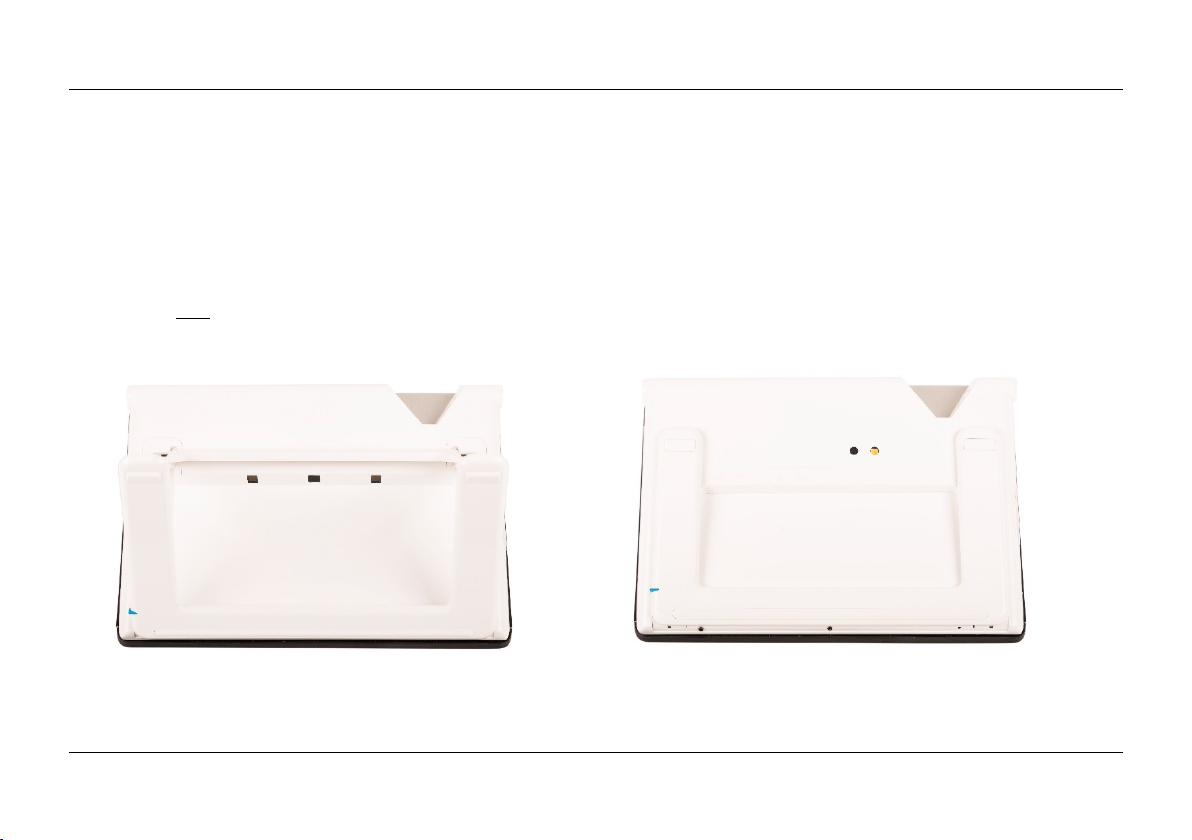
2.3. Folding and Unfolding the Compact 10 HD
When unfolding the Compact 10 HD, the screen will be set at an ergonomic angle for reading, and
the magnifier camera will be activated.
To open the Compact 10 HD, follow these steps:
1. Place the Compact 10 HD in front of you so that the screen is facing up, and the Optelec
logo is below the screen.
2. Grab and hold the Compact 10 HD in an upright position. Your fingers hold the feet of the
stand while your thumbs hold the side of the Compact 10 HD.
3. While supporting the unit by squeezing it with the palms of your hands, curl your ringers
underneath the legs and pull them away from the back of the unit. You will feel the legs
start to unfold, pull until they are completely straight.
To close the Compact 10 HD, follow these steps:
1. Place the Compact 10 HD in front of you so that the screen is facing towards you.
2. Hold the Compact 10 HD at the sides and place your fingers on the supports between the
feet and the unit.
3. Gently press against the hinges of the stand until it starts to fold, then continue folding until
the feet are flush with the unit. Tilt the screen down until it clicks in position.
Page 23
Optelec Compact 10 HD & Compact 10 HD Speech
English 22
2.4. Cleaning the cameras
For an optimal quality image, it is recommended to ensure that the camera lens and object light
window are kept clean. A dirty camera window will result in a fuzzy image and may cause the autofocus camera to focus incorrectly. To clean the cameras, use the provided cleaning cloth or another
soft lens cleaning cloth.
Note: Do not use water or cleaning agents to clean the camera window.
Page 24
Optelec Compact 10 HD & Compact 10 HD Speech
23 English
2.5. Buttons and Connections
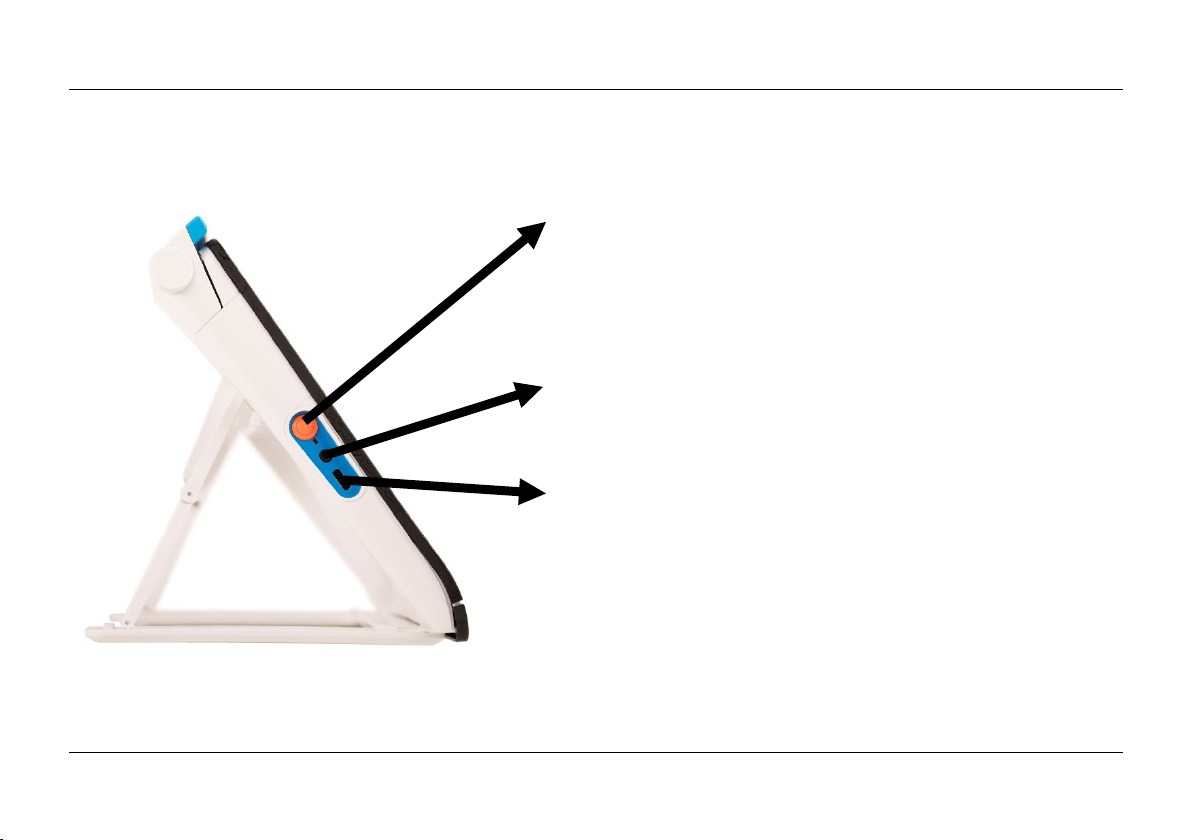
The Compact 10 HD has the following buttons and connections at the left side of the product:
On / Off button
A short press of the orange On / Off button will place
the Compact 10 HD into sleep mode or resume the
unit. A 6 second press of this button switches the
unit off or back on again.
Audio jack
Use the audio jack to connect a headset to the
Compact 10 HD.
USB-C connector
Use the USB-C connector to charge the Compact
10 HD. The supplied USB cable connects to this
USB port and power supply. Use only the power
supply that comes with the Compact 10 HD to power
and charge the unit.
Page 25
Optelec Compact 10 HD & Compact 10 HD Speech
English 24
3. Cameras
The Compact 10 HD is equipped with three cameras, each serving a specific task or situation. All
cameras can be used in Easy mode and Advanced mode. If the image on screen looks out of focus,
tap the screen to re-focus the camera and get a sharp image.
3.1. Magnifier camera
The Magnifier camera is used when the Compact 10 HD is in the open position with the stand
unfolded. The Magnifier camera is used for reading on a desk or table. The Compact 10 HD is
placed on top of the reading material.
3.2. Full Page camera
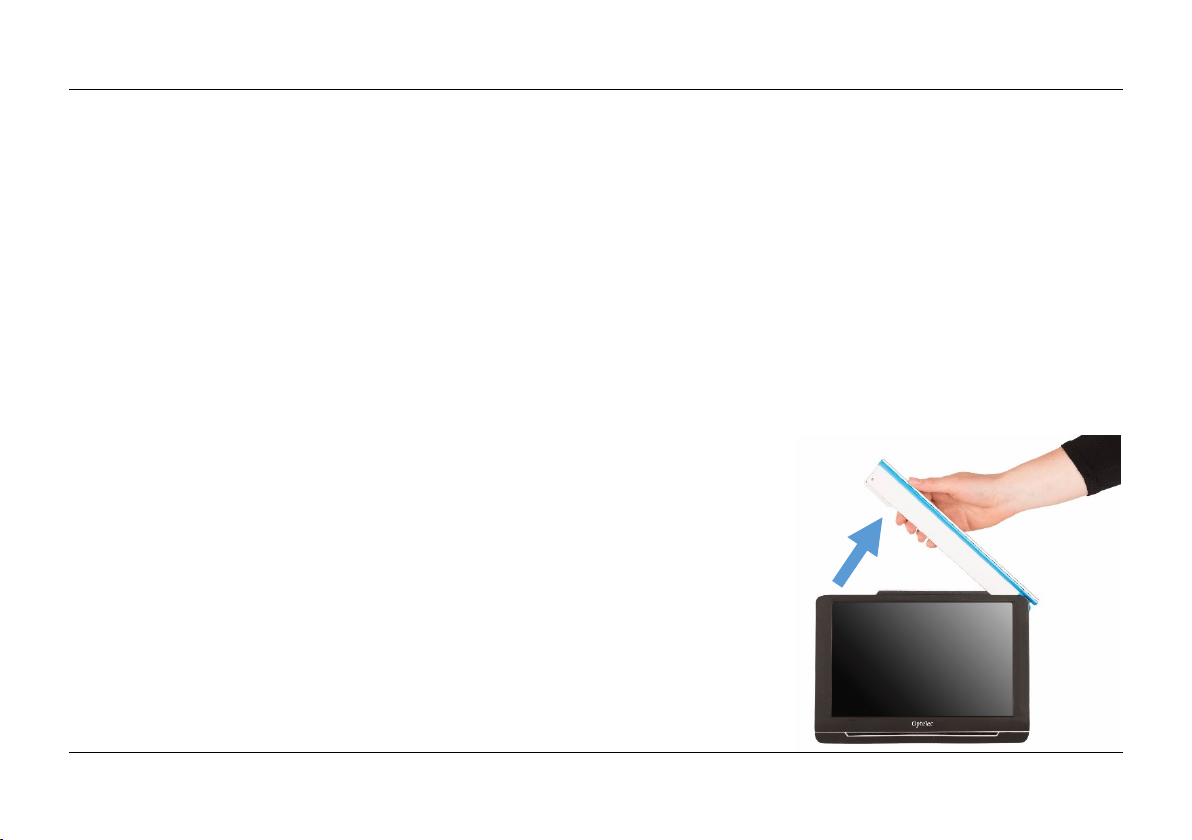
The Full Page camera is used when the swing-out camera arm is
opened. The Full Page camera can be used to view photos and
objects more comfortably, or to write your signature, without being
restricted in your movements.
Focus lock
The auto focus can be locked for writing or viewing objects at a
fixed distance. Use the pen icon at the top right corner of the screen
to lock or unlock the focus.
Page 26

Optelec Compact 10 HD & Compact 10 HD Speech
25 English
If you own a Compact 10 HD Speech, the full page camera is also used to scan and
read full-page documents. Place the document you want to read below the camera,
aligning the bottom left corner of the document with the blue line at the right foot of
the Compact 10 HD Speech.
3.3. Overview camera
The Overview camera is used when you power on the Compact 10 HD while the Compact 10 HD
stand is closed. To switch from Magnifier camera to Overview camera, close the stand and press
the On / Off button. The overview camera is optimized to look at objects at a short distance, such
as time tables.
Page 27
Optelec Compact 10 HD & Compact 10 HD Speech
English 26
4. Using the Compact 10 HD Speech’s Text-to-Speech &
OCR
If you own a Compact 10 HD Speech, you can take a Text-to-Speech
snapshot. The Compact 10 HD Speech will extract the text from the
image and will read the text aloud.
Activating the speech
To take a Text-to-Speech snapshot and activate the Speech:
Position the text or part of the text in the camera view and press the Text-to-Speech
snapshot button. When taking a Text-to-Speech snapshot of a full page, use the full-page
camera and make sure you align the bottom left corner of the document with the blue
indicator at the right side of the stand of the Compact 10 HD Speech. For an optimal result,
make sure there is enough light in the environment, prevent shadows and limit the text to
only the part of the document you would like to read. If the font you are scanning gets too
small, the recognition will lose accuracy and might fail.
A progress bar will be shown. The Compact 10 HD Speech will start reading after the
recognition process has been finished.
Use the Play/Pause button to start or stop reading.
Tap and hold (long press) on the text to start reading at the word or section you point at.
Press the “Mode” button to view the captured text in your selected viewing mode and cycle
through the selected high contrast colors of this viewing mode. Please refer to chapter 5.2,
Page 28

Optelec Compact 10 HD & Compact 10 HD Speech
27 English
View and chapter 5.2 Color for more information.
If no text is found, a “No text found” message will be shown.
Adjusting the volume and reading speed
To adjust the volume or reading speed, activate the button bar with a single tap. Tap the Audio
button to display the “Volume” and “Speed” sliders. The “Volume” and “Speed” sliders are only
present in the snapshot view.
Adjusting language and voice
To adjust the language or voice in Easy Mode, press and hold the Audio button to go to the Voice
menu. To adjust the language or voice in Advanced Mode, press the “Menu” button and then press
the “Voice” menu. Please refer to Chapter 5.2, Voice for more information on how to navigate the
“Voice” menu.
Table Mode
The regular reading mode reads columns, ideal for newspapers and magazines. But, you might
occasionally want to read a menu, receipt, table or other text that has a table-like layout.
By pressing and holding the Text-to-Speech Snapshot button, the Compact 10 HD Speech will
take a snapshot and read all captured text per line from left to right first, and then move on to
the next line.
When you exit the Text-to-Speech snapshot and take another snapshot, you will automatically
switch back to the regular reading mode.
Page 29

Optelec Compact 10 HD & Compact 10 HD Speech
English 28
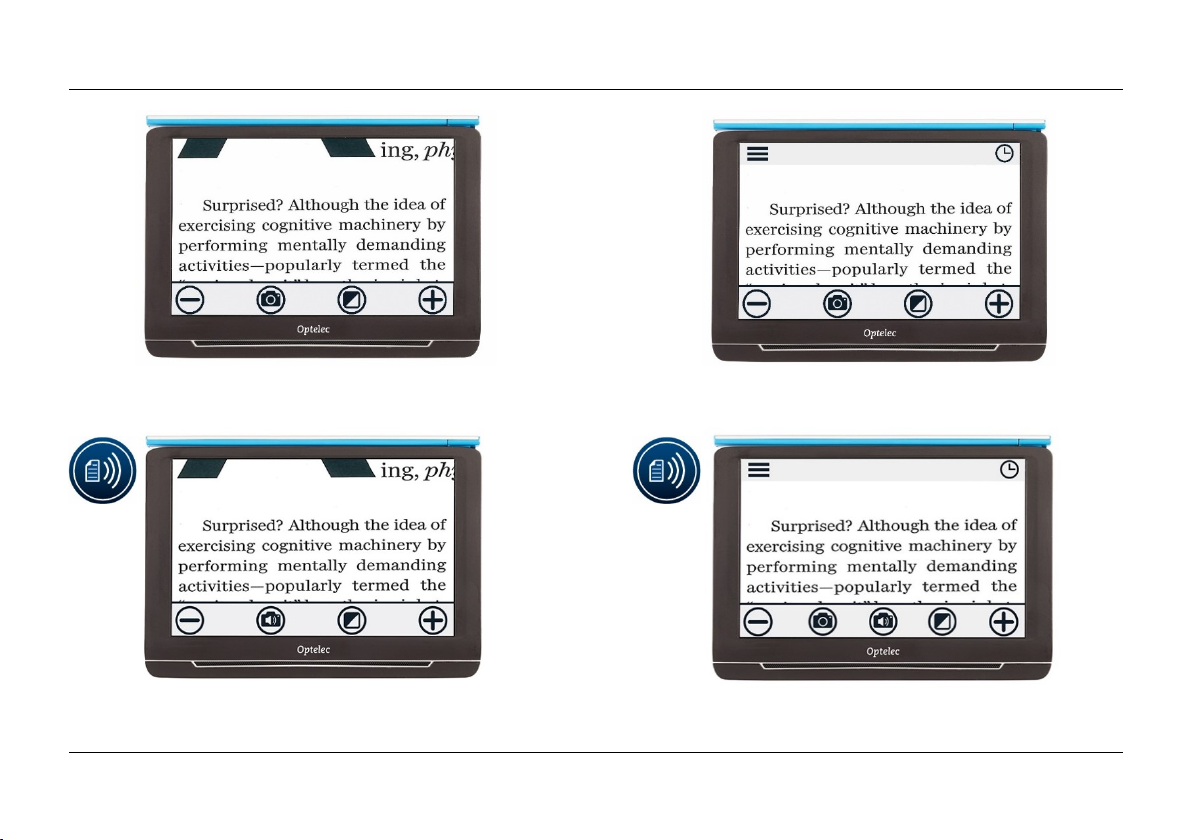
5. Easy and Advanced mode
To switch between Easy and Advanced mode, press and hold the Mode button and tap Easy or
Advanced.
In Easy mode, you have access to the main features:
- Adjusting the magnification
- Selecting a viewing mode
- Taking a snapshot of an image (Compact 10 HD only)
- Taking a snapshot and use Text-to-Speech (Compact 10 HD Speech only)
- Switching between the Magnifier and Overview camera
In Advanced mode, you have the same functions as in Easy mode, plus some additional features:
- Time and date
- Access to the menu with the options to:
- Save and open snapshots
- Changing the language and reading voice
- Changing color modes
- Enabling the Reading Line
- Bluetooth audio and Miracast
- Other advanced settings
- Taking a snapshot of an image (Compact 10 HD Speech only)
Page 30
Optelec Compact 10 HD & Compact 10 HD Speech
29 English
Compact 10 HD Easy Mode Compact 10 HD Advanced Mode
Compact 10 HD Speech Easy Mode Compact 10 HD Speech Advanced Mode
Page 31

Optelec Compact 10 HD & Compact 10 HD Speech
English 30
5.1 Features in Easy mode
Adjusting the magnification
To change the magnification, simply tap the screen. The button bar will be shown at the
bottom of the screen or at the right side of the screen, depending on the chosen button
bar position. The button bar position can be selected in the menu. See chapter 7 for
more information on how to change the button bar position. In the button bar tap the +
button to increase or the – button to decrease the magnification. Alternatively, use the
pinch-to-zoom gesture to change the magnification. Tap the screen to hide the button
bar. The button bar will automatically hide when the screen is not touched for 10
seconds.
Selecting a viewing mode
Tapping the Mode button in the middle of the button bar allows you to select one of the
following viewing modes:
Photo mode: Viewing full color texts and photos
Negative mode: Reading in high contrast, white on black
Positive mode: Reading in high contrast, black on white
High contrast color combination 1
High contrast color combination 2
Page 32

Optelec Compact 10 HD & Compact 10 HD Speech
31 English
Taking a snapshot of an image (Compact 10 HD only)
If you own a Compact 10 HD, press the snapshot button to take a snapshot. You can
adjust the magnification and viewing mode of the snapshot. Press the X in the top right
corner to close the snapshot and return to live video mode.
Taking a snapshot and use Text-to-Speech (Compact 10 HD Speech only)
If you own a Compact 10 HD Speech, press the Text-to-Speech snapshot button to take
a snapshot and have it read aloud. Use the Play/Pause button to start or stop reading.
You can adjust the magnification and viewing mode, adjust the volume and reading
speed and change the voice within the Text-to-Speech snapshot. Press the X in the top
right corner to close the Text-to-Speech snapshot and return to live video mode.
Please refer to Chapter 4 for more information on how to use Text-to-Speech.
Page 33

Optelec Compact 10 HD & Compact 10 HD Speech
English 32
5.2. Features in Advanced mode
Time and date
To open the clock, tap the screen and tap on the “Clock” icon at the top right corner of the screen.
Use the “Back bar” with the arrow to exit the time and date screen.
To set the time and date, tap the time or date. To change a value, tap on the field you would like to
change and tap on the up or down symbol to change the value. Tap on the “Back bar” to exit the set
time and date screen.
Taking a snapshot of an image (Compact 10 HD Speech)
If you own a Compact 10 HD Speech and just want to take a snapshot of an image
without using Text-to-Speech, press the snapshot button. You can adjust the
magnification and viewing mode of the snapshot. Press the X in the top right corner to
close the snapshot and return to live video mode.
Page 34
Optelec Compact 10 HD & Compact 10 HD Speech
33 English
Menu
Opening and closing the menu
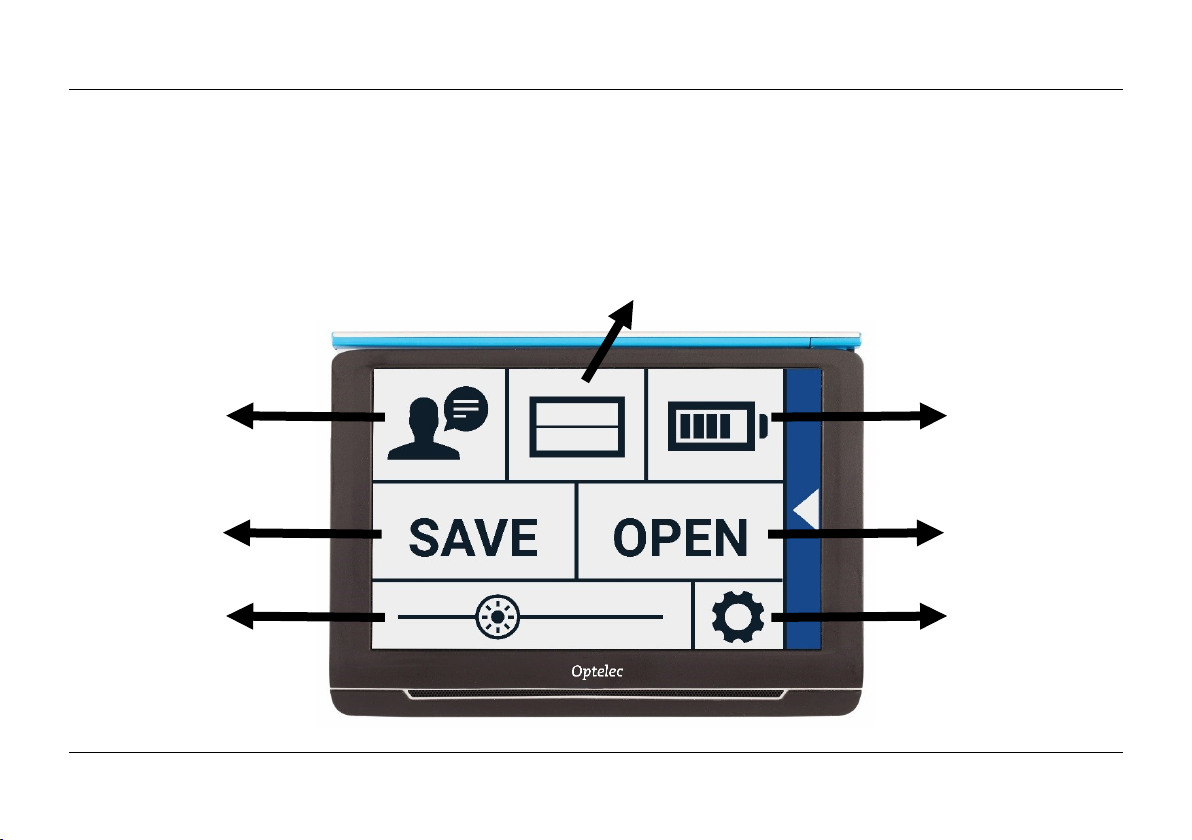
To open the menu, tap on the screen and tap on the “Menu” icon at the left side of the screen. This
will open the main menu. To close the menu, tap on the “Back bar”.
Open
Settings
Battery
Status
Save
Brightness
Slider
Voice
Line On/Off
Page 35

Optelec Compact 10 HD & Compact 10 HD Speech
English 34
The exact items in the menu will vary, depending on if you own a the Compact 10 HD or 10 HD
Speech. To activate a button, tap the button once. Activating a button will open a new menu screen
or list. To go back to the main menu, tap on the “Back bar”. To adjust the slider, tap and hold the
slider button while moving it to the right or left.
The main menu contains the following options:
Voice (Compact 10 HD Speech only)
Line On/Off
Battery status
Save
Open
Brightness slider
Settings
Page 36

Optelec Compact 10 HD & Compact 10 HD Speech
35 English
Voice (Compact 10 HD Speech only)
To select a voice, language and menu language, or to add or remove a voice or language,
open the menu and tap the “Voice” button.
Selecting a voice, language and menu language
This menu item lets you select your reading voice and language. To select another reading voice,
tap the voice icon in the top left corner of the main menu to open the list with preselected voices.
Each voice represents a language. Tap on a voice to select the voice. If adjusting the reading voice
results in a change of language, the menus will automatically change to that language.
Adding or removing a voice or language
To add or remove a voice or language, tap the voice icon in the top left corner of the main menu. In
the list with preselected voices, tap on the “Add/Remove” button. To add or remove a reading voice,
select the language from the list by tapping on the language. This will display a list with available
voices for the selected language. To enable a reading voice, select it from the list by tapping on it.
A checkmark in front of the voice name will indicate if it is enabled. When the voice is enabled, it will
be available under the “Voice” button in the main menu. By deselecting a voice, the voice will be
removed from the available reading voices. The languages of which a reading voice is selected, will
appear at the top of the list with languages, and are marked with a checkmark.
Adjusting language and voice in Easy Mode
In Easy mode, you cannot access the Menu. To adjust the language or voice in Easy Mode, press
and hold the “Audio” button to go directly to the Voice menu and follow the steps described above.
Page 37

Optelec Compact 10 HD & Compact 10 HD Speech
English 36
Line On/Off
The Compact 10 HD can display a reading line to help you position the Compact 10 HD straight on
the document. To enable the reading line, tap the “Line” button. Tap this button again to hide the
reading line.
Battery status
The battery status is shown in the top right corner of the screen. If you tap the battery icon, a new
screen will be opened showing a magnified battery icon and battery status, the “About” button and
the “Back arrow” to return to the main menu. The lightning symbol indicates that the battery is
charging.
About
Tap on the “About” button in the battery screen to see the application version.
Save
This option is only available in Advanced mode.
To save a snapshot, open the menu and tap the “Save” button.
Make a snapshot using the snapshot button
Open the menu
Press the save button to save the snapshot
If there is no snapshot to save, the “Save“ button will be hidden.
Page 38
Optelec Compact 10 HD & Compact 10 HD Speech
37 English
Open
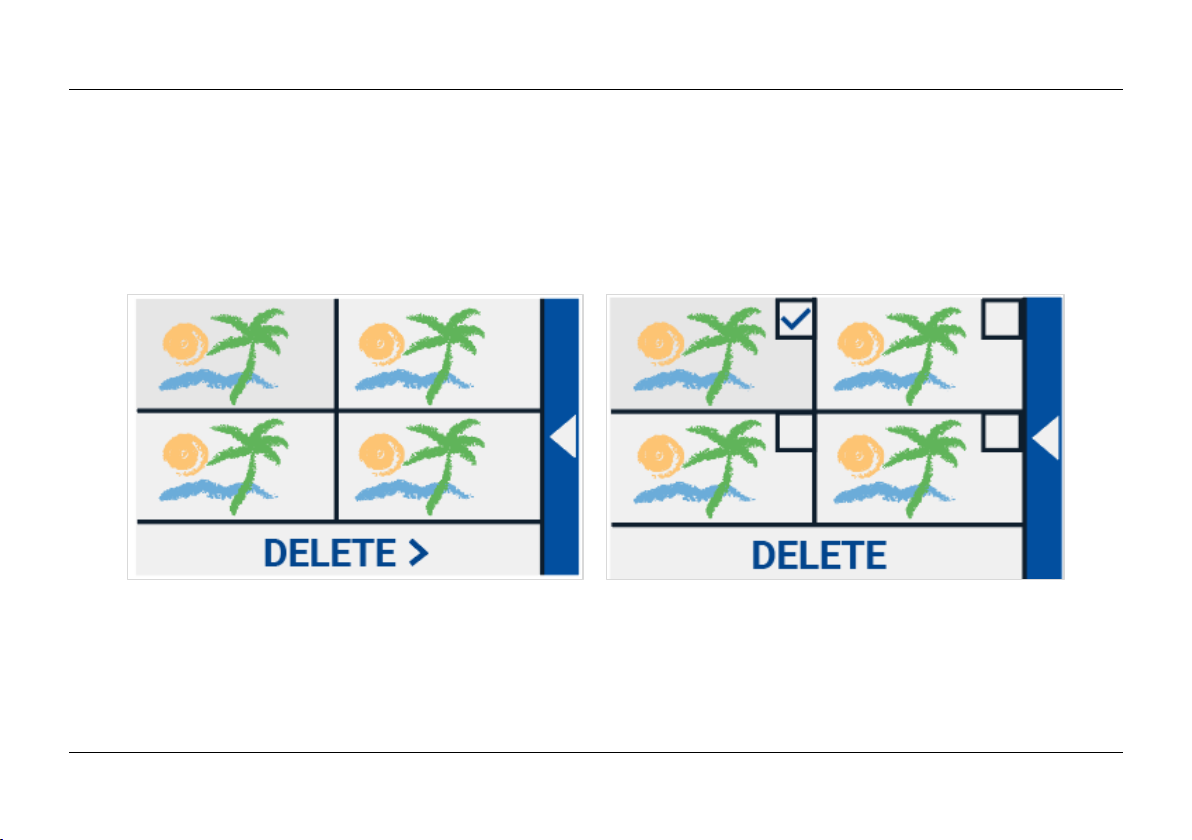
To open a snapshot, open the menu and tap on the “Open” button. A list of thumbnails of the saved
snapshots will be shown, showing the most recently saved snapshot first. If there are more
snapshots than fit on the screen, swipe up and down to scroll through the list. Tap on the snapshot
thumbnail to open it.
Open to view saved snapshots Delete snapshots
Delete
To delete a snapshot, open the menu and tap on the “Open” button. In the open screen, tap on the
“Delete” button. A list of thumbnails of the saved snapshots will be shown, showing the most recently
saved snapshot first. Each snapshot has a checkbox at the top right corner. To select a snapshot,
Page 39

Optelec Compact 10 HD & Compact 10 HD Speech
English 38
tap the checkbox. Tap the “Delete” button to delete the selected snapshots. To delete all snapshots,
tap the “Delete” button without selecting a snapshot. You will be prompted to confirm to delete all
snapshots. To delete all snapshots, select “Yes”. To cancel deleting all snapshots, select “No”. Both
choices will return you to the list of snapshots. Tap the “Back bar” to return to the “Open” screen.
Tap the “Back bar” again to return to the main menu.
Adjusting the brightness
Use the slider with the sun icon to increase or decrease the brightness of the screen.
Page 40
Optelec Compact 10 HD & Compact 10 HD Speech
39 English
Settings
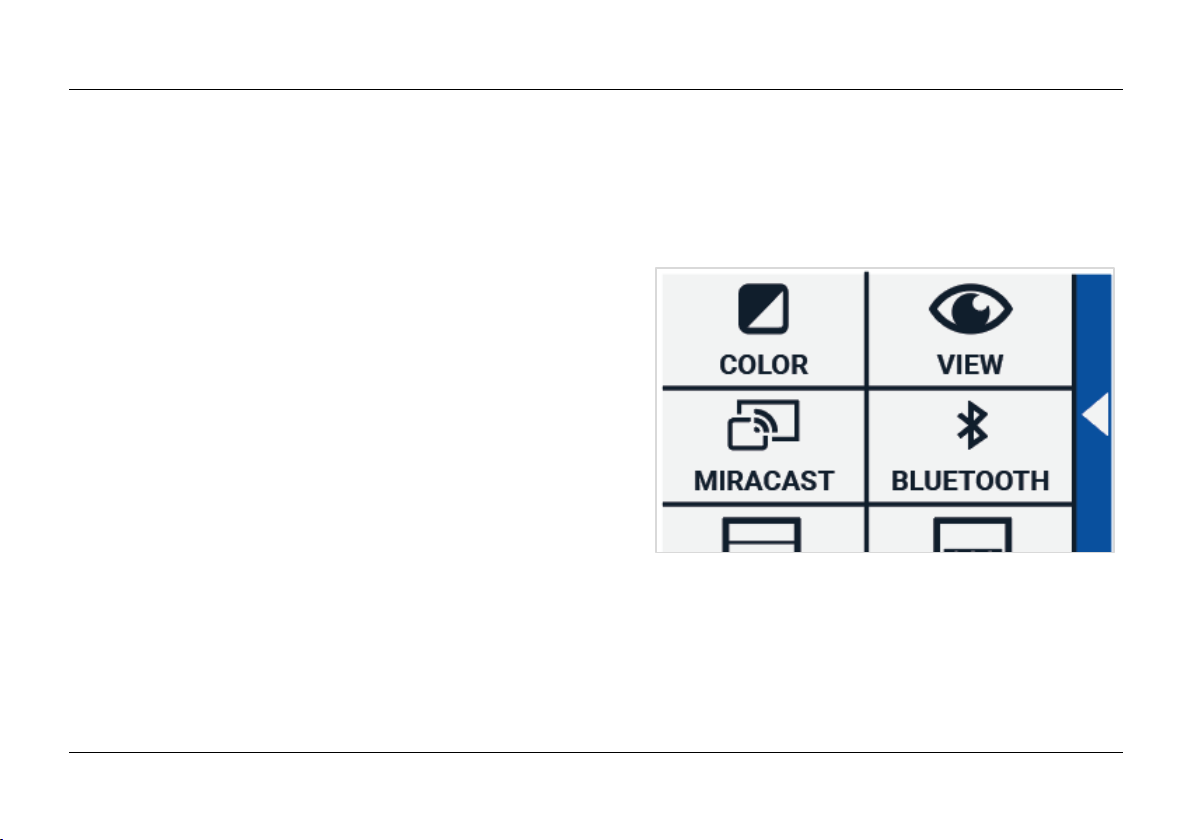
Tap on the “Settings” button to enter the Settings menu. The “Settings” button is the button with the
gear icon at the bottom right. The Settings menu contains the following buttons:
Color
View (Compact 10 HD Speech only)
Miracast
Bluetooth (Compact 10 HD Speech only)
Line
Buttons
Theme
Columns (Compact 10 HD Speech only)
Lights
Sound
Standby
Language (Compact 10 HD only)
Restore
Page 41
Optelec Compact 10 HD & Compact 10 HD Speech
English 40
Color
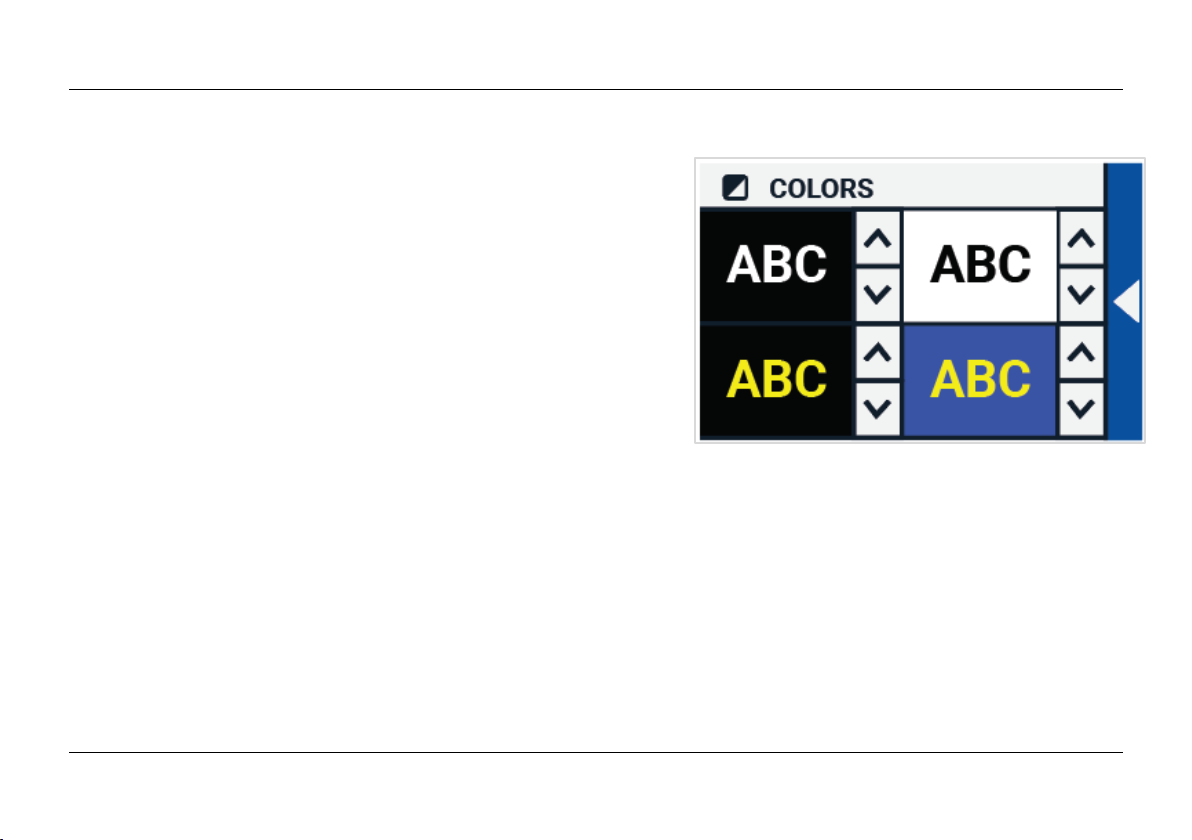
In the settings menu, tap the “Color” button to select the
preferred high contrast colors. The Compact 10 HD
supports four high contrast modes. For each of these
four modes, the foreground and background colors can
be selected. Three of the high contrast modes can be
disabled. The first high contrast mode on the top left is
required.
To change the foreground and background colors, tap the
up or down arrow next to the mode you want to change.
You will cycle through each of the available modes and
can stop on the one you prefer. Select the “X” symbol to disable a high contrast mode. Tap on the
“Back bar” to return to the settings menu.
Page 42
Optelec Compact 10 HD & Compact 10 HD Speech
41 English
View (Compact 10 HD Speech only)
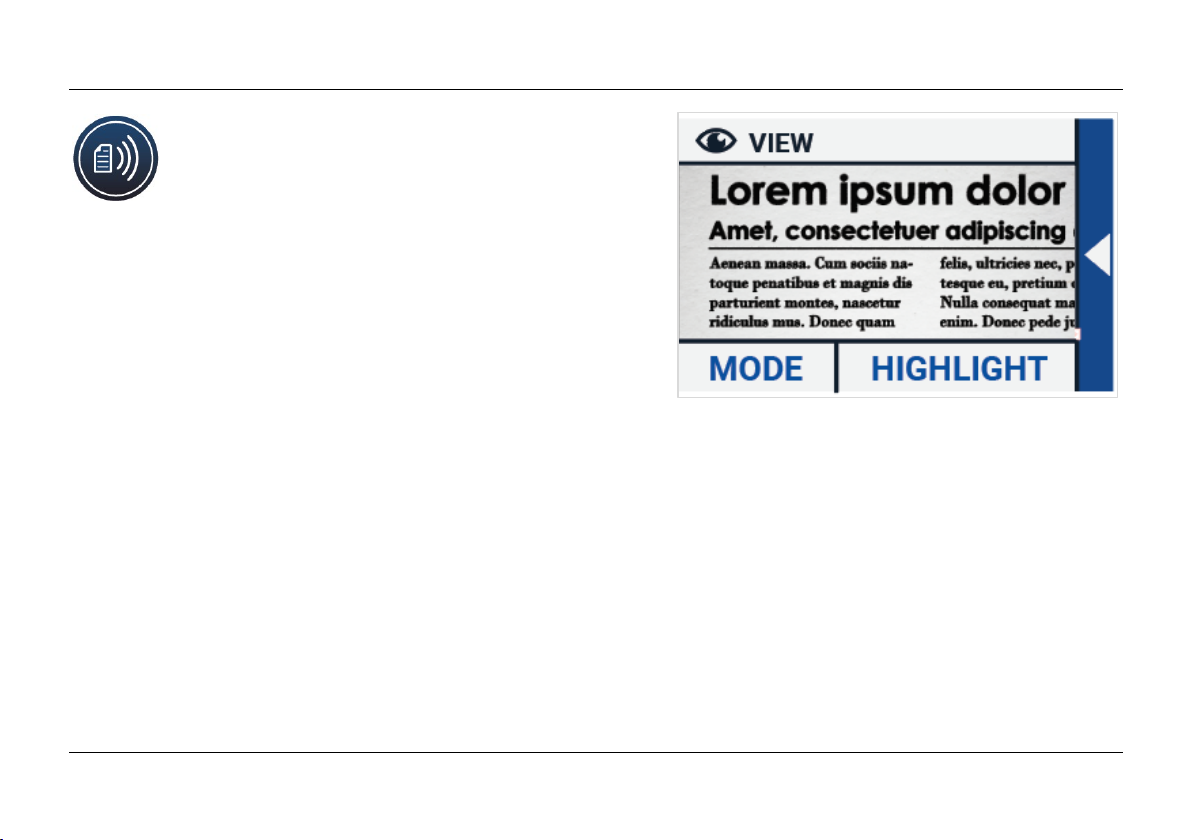
In the settings menu, tap the “View” button to
configure how you want to display captured
text when using Text-to-Speech.
To configure how all captured text is shown, press the
Mode button to cycle through the different viewing
modes: Original, Line and Column.
To configure how the word that is read aloud is shown,
press the Highlight button to cycle through the different
highlight modes: Rectangle and Underline.
When using Text-to-Speech, tap the Mode button in the button bar to view captured text in the
viewing mode you just selected and cycle through your configured high contrast colors.
Miracast: connecting wirelessly to a monitor or TV
Miracast is a standard for a wireless connection to a monitor. It can be described as HDMI over
Wi-Fi", replacing the cable from the Compact 10 HD to the monitor or TV. To be able to use the
Miracast function of the Compact 10 HD, your monitor or TV needs to support Miracast. Please refer
to your monitor or TV manual and documentation to verify if your device supports the Miracast
feature.
Page 43
Optelec Compact 10 HD & Compact 10 HD Speech
English 42
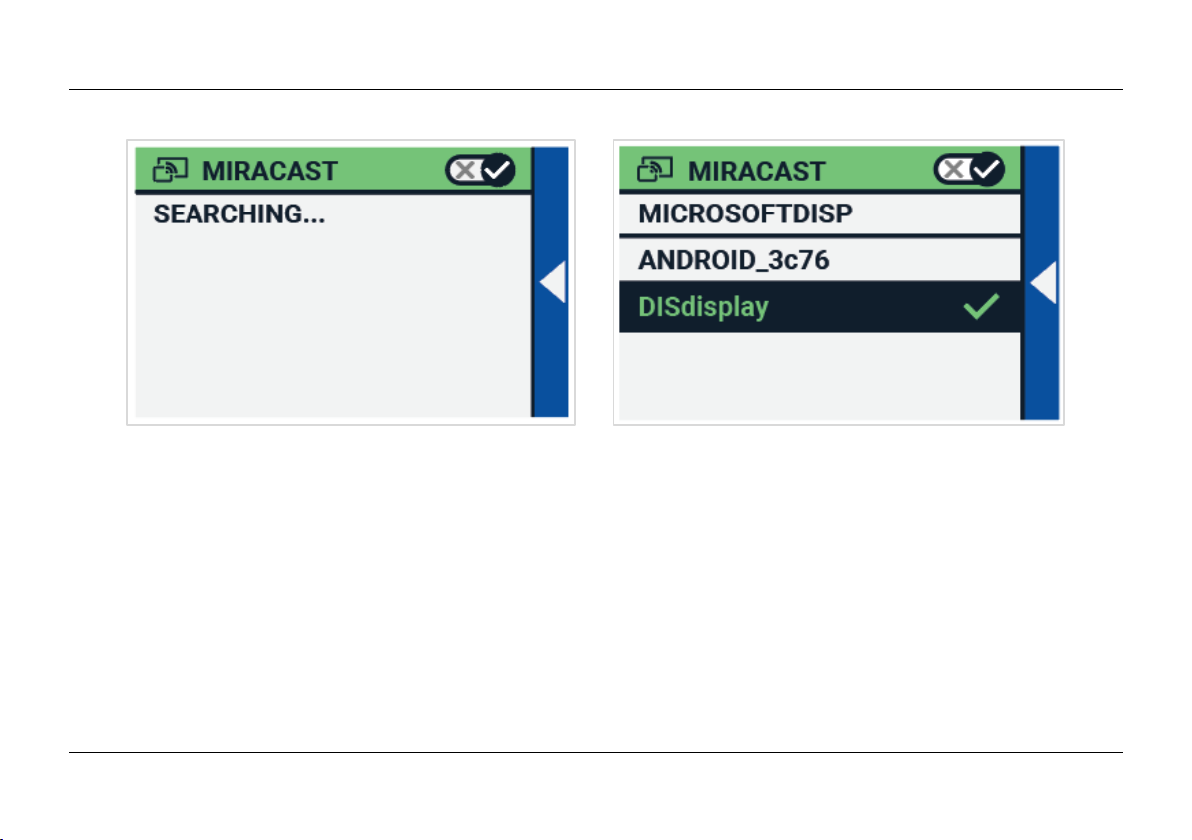
To connect your the Compact 10 HD to a monitor or TV via Miracast, tap the “”Miracast””button and
Switch Miracast on. A list with available devices will be displayed. Click on a device to connect. It
could take up to a minute to establish the connection. Tap on the device again to disconnect. When
a Miracast connection is established, both the audio and video will be streamed to the TV or monitor.
To guarantee a good connection, the Compact 10 HD needs to be within one meter or three feet of
the monitor or TV. Depending on the connection, a short delay of the video and / or audio could be
noticed.
Page 44
Optelec Compact 10 HD & Compact 10 HD Speech
43 English
Bluetooth (Compact 10 HD Speech only)
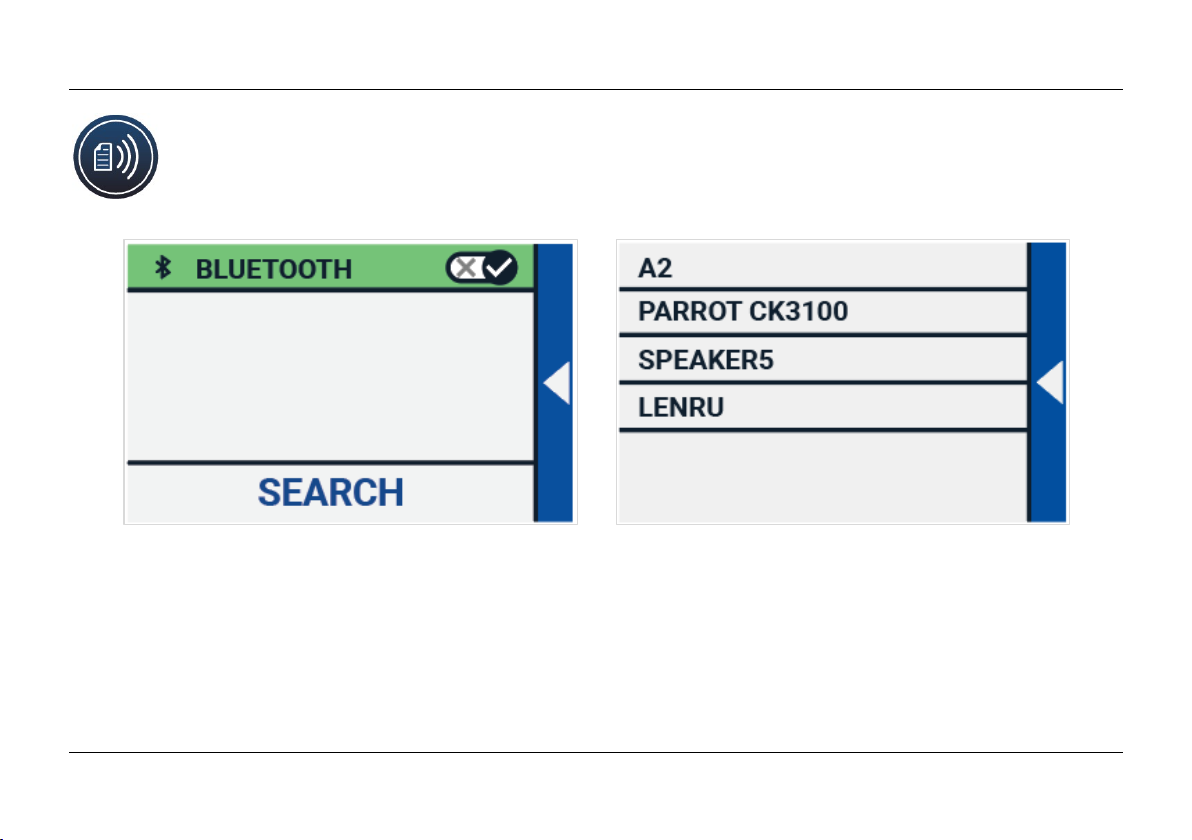
To connect a Bluetooth speaker or headphone, tap the “Bluetooth” button and switch
Bluetooth on.
A list with paired devices is being displayed.
If no speaker or headphone is being paired, tap the “Search“ button to search for available devices.
Before starting the Bluetooth search, make sure the speaker or headphone is switched on and is
set to discoverable. Please refer to the speaker’s or headphone’s manual on how to switch the
device to Bluetooth discoverable mode. To pair the speaker or headphone, tap on the device name
Page 45

Optelec Compact 10 HD & Compact 10 HD Speech
English 44
and if needed enter the pin code. Refer to the speaker’s or headphone’s manual for the pin code of
the device.
When the device is paired, to connect the speaker or headphone, tap the device. You will be asked
to connect or forget the device. Tap the “Connect” button to make the connection.
To indicate that a device is connected, the connected device will have a checkmark and will be
displayed in blue.
To unpair / forget a device, tap the “Forget” button. The device will be removed from the list with
paired devices.
Note: Only Bluetooth version 4.0 or higher headsets and speakers are supported.
Line
This menu item enables you to change the reading line position to one of its six positions; horizontal
top, horizontal center, horizontal bottom, vertical left, vertical center, vertical right. By default, the
reading line is horizontally set to the center of the screen.
Buttons
This menu item enables you to change the button bar position to one of two positions: bottom or
side. Depending on your preference, you could change the position of the button bar to the bottom
or side of the screen. The default setting is “Bottom”.
Page 46

Optelec Compact 10 HD & Compact 10 HD Speech
45 English
Theme
This menu item enables you to select a light or dark theme for the buttons and menus.
Columns (Compact 10 HD Speech only)
This menu item allows you to choose if you want the Compact 10 HD Speech to only
read full columns, or incomplete columns as well. By default, Read full columns only
is selected. Please note that if you select to read incomplete columns, not all characters and
words are fully captured, which may result in incoherent text.
Lights
This menu item allows you to enable or disable the lights in Magnifier mode and in Overview mode.
The Magnifier lights are located to the left and right of the magnifier camera. By default, the reading
lights are enabled for an optimal image quality.
The Overview light is located next to the overview camera. By default, the overview light is disabled.
Sound
This menu item allows you to change the volume, mute the audio feedback and enable or disable
the vibration feedback. By default, sound is enabled and vibration is disabled.
Page 47

Optelec Compact 10 HD & Compact 10 HD Speech
English 46
Standby
The standby time sets the time after which the Compact 10 HD goes into standby mode to conserve
power. Pressing any button will take the unit out of standby mode. By default, the standby time is
set to 5 minutes after no button is pressed or no movement of the Compact 10 HD is detected.
Language (Compact 10 HD only)
This menu item allows you to choose the language of the Compact 10 HD. Tap to select your
preferred menu language.
Restore
Tap this menu item if you wish to restore the default settings. You will be prompted if you are sure
to restore the defaults. To restore the defaults select “Yes”. To cancel restoring the defaults, select
“No”.
Page 48

Optelec Compact 10 HD & Compact 10 HD Speech
47 English
6. Transferring documents to PC
To transfer snapshots and documents to a PC, you need a Windows 10 PC and the included USB
cable and follow the steps below:
1. Switch on the Compact 10 HD and your PC;
2. Connect the Compact 10 HD to your Windows 10 PC using the included USB cable. The
Compact 10 HD will briefly show the “Connected to PC” icon;
3. If you connect the Compact 10 HD for the first time, please wait until Windows has finished
setting up the device;
4. Depending on your Windows settings, Windows Explorer will open the “CP10” device and
show the “Internal Shared Storage”;
5. If Windows 10 does not automatically show the Compact 10 HD device, open the Windows
Explorer and select the CP10 device;
6. Click on the “Internal Shared Storage” and click on the folder “DCIM”;
7. The “DCIM” folder contains folders named with the time and date of the taken pictures.
Each folder contains the taken picture and if you own a Compact 10 HD Speech, a .txt
document with the text found in the picture. In addition, the folder contains 2 system files, a
JSON and Processed Picture file.
8. Use copy and paste to copy the files to your PC.
Page 49

Optelec Compact 10 HD & Compact 10 HD Speech
English 48
Appendix A: Technical information
Magnification Magnifier 2.2 – 22 times
Magnification Overview Approximately 1.8 – 22 times
Magnification Full Page 0.4 – 13 times
Viewing modes Full color photo mode
High contrast, white on black
High contrast, black on white
High contrast color combination 1
High contrast color combination 2
Focus Auto-focus
Screen 10” TFT
Screen resolution 1280 x 800
Dimensions 261 x 189 x 36 mm / 10.28 x 7.44 x 1.42 in
Weight 915 grams / 2.02 lb
Battery Approximately 3.5 hours continuous use
Approximately 4 hours charging time
Li-ion battery Rechargeable, 3.7V, 7600mAh, 28.12Wh
Power supply type (Medical) Adapter Technology Co., LTD. ATM012T-W052VU
Power supply type (Consumer) Shenzhen Fujia Appliance Co., LTD. FJ-SW1260502500UN
Input power rating – Adaptor 100-240V, 50-60Hz, 0.4A
Output power rating – Unit DC5V-2.5A
Page 50

Optelec Compact 10 HD & Compact 10 HD Speech
49 English
Appendix B: Safety and Regulatory Notices
Optelec is the manufacturer of the Compact 10 HD and Compact 10 HD Speech.
Please read the instructions carefully before setting up your Compact 10 HD. Keep this user manual for future
reference.
Intended Use:
The Compact 10 HD is designed in such a way that it can be used in a hospital environment for general
purposes such as reviewing medical records. The Compact 10 HD can not be used for surgical procedures
in combination with life supporting systems.
Warning: Critical diagnostic decisions should not be based on images displayed by this device.
Do not expose the Compact 10 HD to excessive heat or direct sunlight to avoid the risk of fire.
Do not remove any parts of the Compact 10 HD. Contact an Optelec authorized service organization
in your area.
To avoid risk of electrical damage, keep your Compact 10 HD away from fluids and chemicals.
Handle the Compact 10 HD with care. Rough handling will damage the internal components.
Do not use the Compact 10 HD near inadequately shielded medical devices.
Do not try to open the battery compartment or try to remove the battery.
Do not touch or look into the LED lights.
Be careful that your fingers and clothing do not get stuck in moving parts (swing-out arm, stand).
Contact your dealer to service this equipment if necessary. Do not disassemble your unit as it will
void the warranty.
Page 51

Optelec Compact 10 HD & Compact 10 HD Speech
English 50
Always unplug and switch off the unit before cleaning. Use a dry soft cloth to clean the exterior. Do
not use cleaning agents or abrasive materials as they will damage your unit.
Use of the Compact 10 HD other than described in this manual will exclude it from warranty conditions.
Any Changes or modifications not expressly approved by the party responsible for compliance could void the
user's authority to operate the equipment.
Note: This equipment has been tested and found to comply with the limits for a Class B digital device, pursuant
to part 15 of the FCC Rules. These limits are designed to provide reasonable protection against harmful
interference in a residential installation. This equipment generates uses and can radiate radio frequency
energy and, if not installed and used in accordance with the instructions, may cause harmful interference to
radio communications. However, there is no guarantee that interference will not occur in a particular
installation. If this equipment does cause harmful interference to radio or television reception, which can be
determined by turning the equipment off and on, the user is encouraged to try to correct the interference by
one or more of the following measures:
Reorient or relocate the receiving antenna.
Increase the separation between the equipment and receiver.
Connect the equipment into an outlet on a circuit different from that to which the receiver is
connected.
Consult the dealer or an experienced radio/TV technician for help.
FCC RF Radiation Exposure and SAR Statements
The Compact 10 HD and Compact 10 HD Speech have been tested for body-worn Specific Absorption Rate
(SAR) compliance. The radio module has been evaluated under FCC Bulletin OET 65C (01-01) and found to
Page 52

Optelec Compact 10 HD & Compact 10 HD Speech
51 English
be compliant to the requirements as set forth in CFR 47 Sections, 2.1093, and 15.247 (b) (4) addressing RF
Exposure from radio frequency devices. This model meets the applicable government requirements for
exposure to radio frequency waves. The highest SAR level measured for this device was 0.15 W/kg.
Frequency Range: Wifi: 2412~2472MHz
BT: 2402~2480MHz
Max. Transmit Power: Wifi: 18.0 dBm
BT: 5.0 dBm
Operating conditions
Temperature +10°C to 35°C / 50°F to 95°F
Humidity < 70%, no condensation
Altitudes up to 3000 m (9842 feet)
Pressure 700 – 1060 hPa
Storage & transportation conditions
Temperature +10°C to 40°C / 50°F to 104°F
Humidity < 95%, no condensation
Altitudes up to 12192 m (40000 feet)
Pressure 186 – 1060 hPa
Contacting Product Support
If you have questions about operating, installing or configuring your Compact 10 HD, please contact your
Optelec distributor or the Optelec office nearest to you. See the last pages of this manual for a complete list
of Optelec addresses.
Page 53

Optelec Compact 10 HD & Compact 10 HD Speech
English 52
Warranty Conditions
Optelec warrants the Compact 10 HD, effective from the date of delivery, to be free of any defects in material
and workmanship.
The warranty is not transferable and does not apply to groups or multi-users. The Compact 10 HD was
designed for the individual purchaser to be used at home, school and work. Optelec reserves the right to
repair or replace any purchased Compact 10 HD with a similar or improved product.
In no event shall Optelec or its suppliers be held liable for any indirect or consequential damages. The original
user’s remedies are limited to replacement of Compact 10 HD modules. This warranty is valid only when
serviced in the country of original purchase, and with intact seals. For additional warranty claims or service
during or after warranty period, please contact your Optelec distributor.
Optelec is not responsible for any uses of this device other than those described in this manual.
Accessory: Power (Medical)
Power supply type: Adapter Technology Co., LTD. ATM012T-W052VU
Input power rating – Adaptor: 100-240V, 50-60Hz, 0.32-0.19A
Output power rating – Unit : DC5.1V-2.4A
Accessory: Power (Consumer)
Power supply type: Shenzhen Fujia Appliance Co., LTD. FJ-SW1260502500UN
Input power rating – Adaptor: 100-240V, 50-60Hz, 0.4A
Output power rating – Unit : DC5V-2.5A
Guideline:
Input rating for Compact 10 HD: 5Vdc. 3A
Page 54
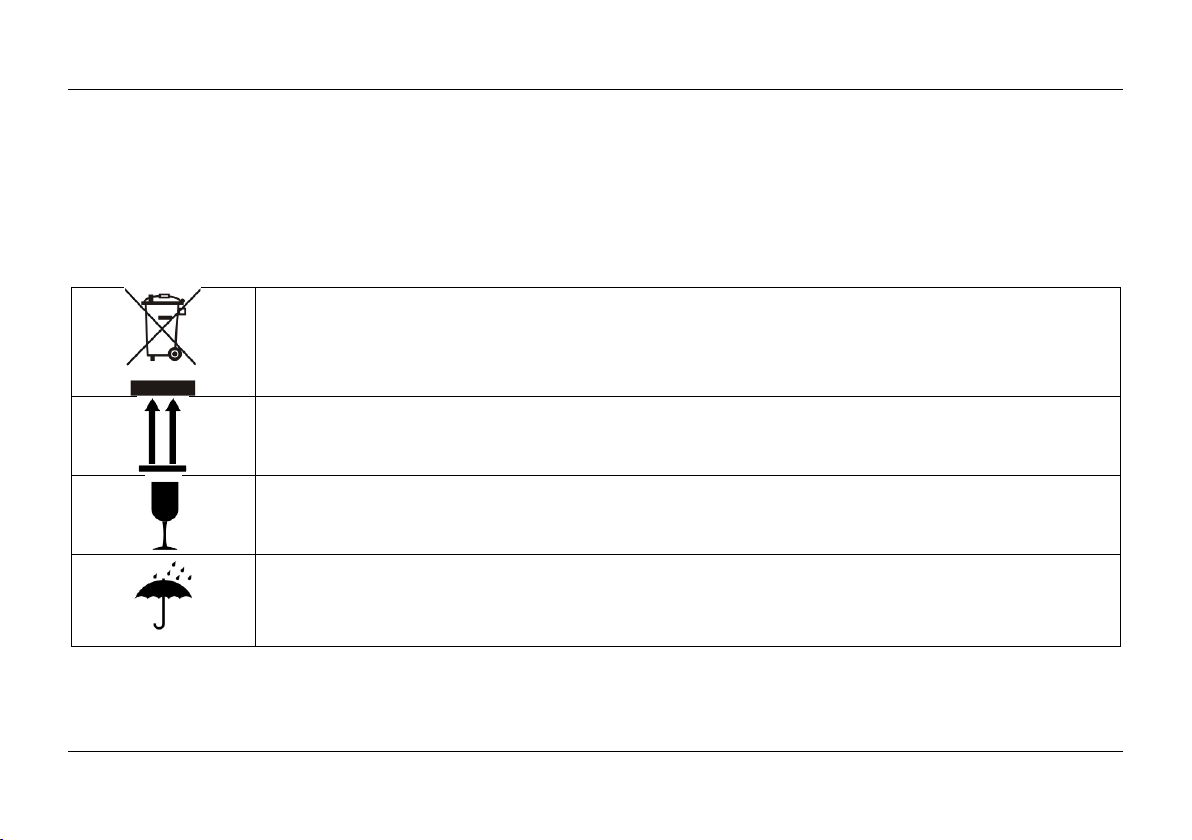
Optelec Compact 10 HD & Compact 10 HD Speech
53 English
Protection against electric shock: Class I
Protection against harmful ingress of water or particulate matter: IPX0
The Compact 10 HD is intended to be routinely cleaned and disinfected by the user with a soft cloth
after use.
Markings Explanation (on label):
Do not throw this electronic device into the trash when discarding. To minimize pollution
and ensure utmost protection of the global environment, please recycle.
This side up.
Fragile.
Keep dry.
.
Page 55

Optelec Compact 10 HD & Compact 10 HD Speech
English 54
WEEE Notice
The directive on Waste Electrical and Electronic Equipment (WEEE), which entered into force as European
law on February 13, 2003, resulted in a major change in the treatment of electrical equipment at end-of-life.
The purpose of this Directive is, as a first priority, the prevention of WEEE, and in addition, to promote the
reuse, recycling and other forms of recovery of such wastes so as to reduce disposal.
The WEEE logo (shown at the left) on the product or its box indicates that this product must not
be disposed of or dumped with your other household waste. You are liable to dispose of all your
electronic or electrical waste equipment by relocating over to the specified collection point for
recycling of such hazardous waste. Isolated collection and proper recovery of your electronic and
electrical waste equipment at the time of disposal will help conserve natural resources. Moreover,
proper recycling of the electronic and electrical waste equipment will ensure the safety of human health and
the environment. For more information about electronic and electrical waste equipment disposal, recovery,
and collection points, please contact your local city centre, household waste disposal service, shop from
where you purchased the equipment, or manufacturer of the equipment.
WARNING: The use of accessories and cables other than those specified and sold by the manufacturer of
the Compact 10 HD, as replacement parts for components, may result in increased emissions or decreased
functioning of the Compact 10 HD.
Page 56
Optelec Compact 10 HD & Compact 10 HD Speech
55 English
Declaration of Conformity
We declare under our sole responsibility that this product, to which this declaration relates, is in conformity
with the council EMC directive 2014/30/EU and the RED directive 2014/53/EU.
RoHS Compliance
This product is in compliance with Directive 2011/65/EU of the European Parliament and of
the Council of 3 January 2013, on the restriction of the use of certain hazardous substances in
electrical and electronic equipment (RoHS-II) and its amendments.
This device complies with part 15 of the FCC rules.
Operation is subject to the following two conditions:
(1) This device may not cause harmful interference, and
(2) This device must accept any interference received, including interference that may cause undesired
operation.
Caution for battery pack
CAUTION
BATTERY NEEDS TO BE REPLACED BY CERTIFIED SERVICE PERSONNEL.
RISK OF EXPLOSION IF BATTERY IS REPLACED BY AN INCORRECT TYPE.
DISPOSE OF USED BATTERIES ACCORDING TO THE REGULATIONS.
This device bears the CE and FCC approval mark.
Page 57

Optelec Compact 10 HD & Compact 10 HD Speech
Nederlands 56
Compact 10 HD
Compact 10 HD Speech
Gebruikershandleiding
Versie 1.3
© 2019 Optelec, Nederland
Alle rechten voorbehouden
Optelec
Postbus 399
2990 AJ Barendrecht
Nederland
Telefoon: +31 (0)88 678 35 55
E-mail: [email protected]
Internet: www.optelec.nl
Page 58

Optelec Compact 10 HD & Compact 10 HD Speech
57 Nederlands
1. Inleiding
Gefeliciteerd met uw keuze voor de Compact 10 HD of Compact 10 HD Speech!
Met zijn grote 10-inch scherm, aanpasbare functies en intuïtieve bediening biedt de Compact 10
HD alle voordelen van een beeldscherm vergroter, maar dan in een veel kleiner, inklapbaar en
draagbaar ontwerp. Met de uitgevouwen arm kunt u eenvoudig naar foto's kijken, uw
handtekening plaatsen, medicijnverpakkingen bekijken en zelfs ronde blikjes lezen, zonder te
worden beperkt in uw bewegingen. Met de Compact 10 HD-spraak kunt u met de uitklapbare
camera arm de tekst van volledige pagina's scannen en lezen.
Als u vragen of opmerkingen heeft over het gebruik van dit product, neem dan contact op met uw
leverancier of met het Optelec hoofdkantoor. Contactinformatie vindt u op de laatste pagina van
deze handleiding. Uw feedback wordt enorm gewaardeerd. We hopen dat u veel gebruiksplezier
heeft van uw Compact 10 HD!
Over deze handleiding
Bij Optelec zijn we continu bezig met het verbeteren van onze producten en de functionaliteit ervan.
Daarom is het mogelijk dat deze handleiding niet de meest recente versie is. De laatste versie van
de handleiding vindt u op www.optelec.nl onder de categorie support.
Page 59

Optelec Compact 10 HD & Compact 10 HD Speech
Nederlands 58
Deze handleiding maakt u bekend met de functionaliteit en bediening van de
Compact 10 HD en Compact 10 HD Speech. Lees deze handleiding vooraf goed
door voor u het apparaat gaat gebruiken. Alle informatie over de Compact 10 HD
is ook van toepassing op de Compact 10 HD Speech behalve als het anders wordt
aangegeven. Specifieke functionaliteit van de Compact 10 HD Speech wordt
gemarkeerd met het “Speech” logo.
Inhoud van de verpakking
De Compact 10 HD verpakking bevat het volgende:
De Compact 10 HD of Compact 10 HD Speech
Beschermtas
Een USB adapter met USB-C kabel
Vier land specifieke adapter opzetstukken (EU, VS, UK en AU), waarvan er één al op de
adapter is gemonteerd
Reinigingsdoekje
Gebruikershandleiding
Indien één van deze items ontbreekt in uw verpakking neem dan contact op met uw leverancier.
Speech logo
Page 60
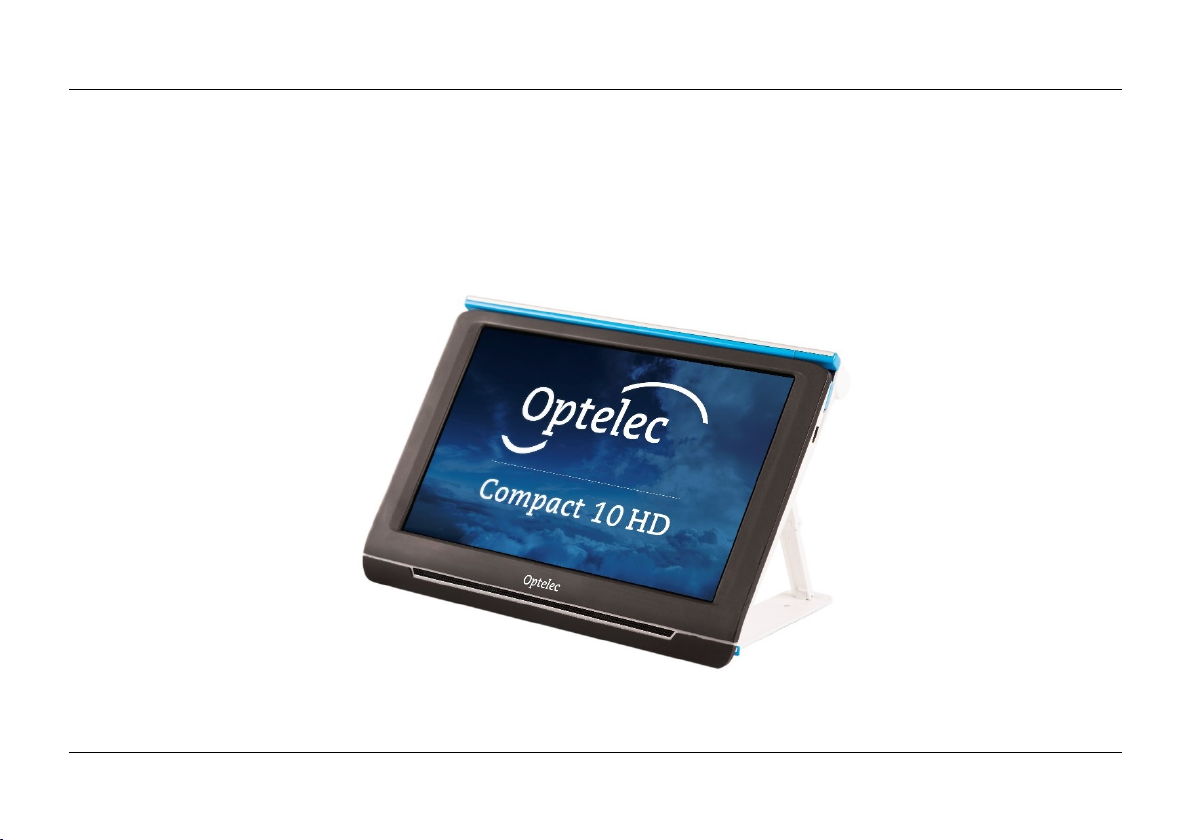
Optelec Compact 10 HD & Compact 10 HD Speech
59 Nederlands
2. Aan de slag
De Compact 10 HD is correct voor u geplaatst wanneer het scherm naar boven en naar u toe is
gericht, met het Optelec-logo onder het scherm.
Page 61
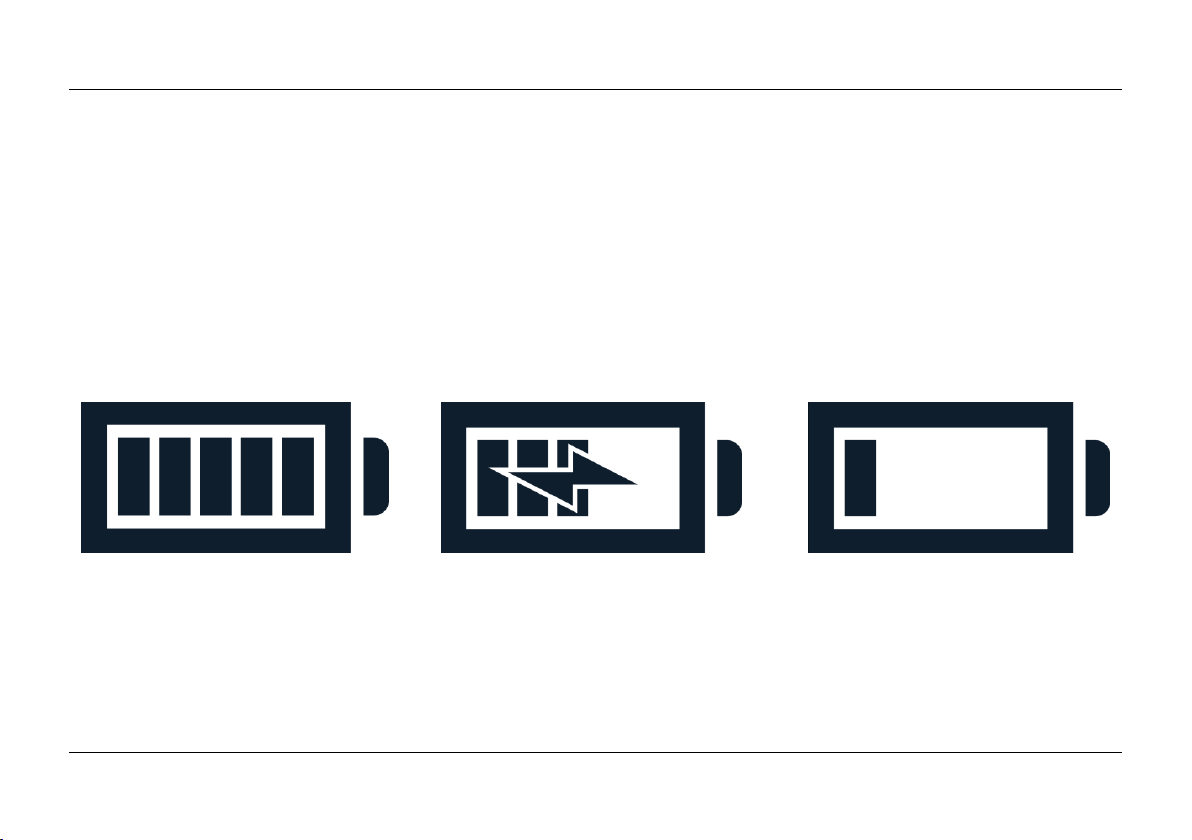
Optelec Compact 10 HD & Compact 10 HD Speech
Nederlands 60
2.1. Opladen van de batterij
De Compact 10 HD wordt geleverd met een adapter met netwerksnoer en vier landspecifieke
adapteropzetstukken, waarvan er één al op de adapter is gemonteerd. Er zijn opzetstukken voor
EU, VS, UK en AU stopcontacten. Kies het opzetstuk dat geschikt is voor uw land en koppel deze
aan de adapter.
Om de Compact 10 HD op te laden, sluit u de meegeleverde USB-kabel aan op de voeding en de
blauwe USB-aansluiting aan de linkerkant van het apparaat. Sluit het andere uiteinde van de
voeding aan op een stopcontact.
Batterij vol Batterij wordt opgeladen Batterij bijna leeg
Het opladen van de Compact 10 HD duurt ongeveer 4 uur. Een volledig opgeladen Compact 10 HD
kan tot ongeveer 3.5 uur gebruikt worden, afhankelijk van de energie-instellingen en het gebruik.
Gebruik om veiligheidsredenen alleen de voeding en de USB-kabel die zijn meegeleverd met de
Compact 10 HD om de batterij van het apparaat op te laden.
Page 62

Optelec Compact 10 HD & Compact 10 HD Speech
61 Nederlands
Batterijwaarschuwing
De Compact 10 HD toont kort een “batterij leeg” waarschuwingsicoon om aan te geven dat de
batterij opgeladen dient te worden. Laad uw apparaat op zodra dit zich voordoet. Wanneer de
batterij leeg is, schakelt het apparaat automatisch uit.
Als de Compact 10 HD niet aan gaat, controleer dan of het apparaat is opgeladen.
2.2. Aan- en uitzetten
Om de Compact 10 HD voor de eerste keer in te schakelen, moet het apparaat worden opgeladen.
Druk als de batterij is opgeladen op de oranje aan / uit-knop.
Om de Compact 10 HD uit te zetten drukt u opnieuw ca. drie seconden op de oranje aan / uit knop.
Als de Compact 10 HD wordt ingeschakeld duurt het ongeveer 20 seconden voor een beeld wordt
weergegeven op het scherm.
Standby
De Compact 10 HD kan automatisch in de stand-bymodus gaan als er geen knop wordt ingedrukt
of als er geen beweging wordt gedetecteerd. Als u op de oranje aan / uitknop drukt, wordt het
apparaat weer ingeschakeld. De standby-tijd kan worden gewijzigd of uitgeschakeld in het Compact
10 HD menu. Zie hoofdstuk 5.2 voor meer informatie over het wijzigen van deze instellingen.
Page 63

Optelec Compact 10 HD & Compact 10 HD Speech
Nederlands 62
Slaapstand en werking hervatten
Als de Compact 10 HD aan staat zal een korte druk op de oranje aan / uit knop het apparaat in een
slaapstand plaatsen.
Na opnieuw een korte druk op de oranje aan / uit knop zal het apparaat terugkeren in de stand
zoals hij voor de slaapstand gebruikt werd.
Na de slaapstand zal het ongeveer één seconde duren voor een beeld wordt weergegeven op het
scherm.
Page 64

Optelec Compact 10 HD & Compact 10 HD Speech
63 Nederlands
2.3. Het opvouwen en ontvouwen van de Compact 10 HD
Bij het ontvouwen van de Compact 10 HD wordt het scherm ingesteld op een ergonomische hoek
voor lezen en de vergrootcamera wordt geactiveerd.
Volg deze stappen, om de Compact 10 HD te openen:
1. Plaats de Compact 10 HD voor u zodat het scherm naar boven wijst en het Optelec-logo
zich onder het scherm bevindt.
2. Houd de Compact 10 HD rechtop. De vingers houden de voeten van de standaard vast
terwijl de duimen de zijkant van de Compact 10 HD vasthouden.
3. Neem met de vingers de rand van de voeten van de standaard vast in de uitsparing aan
de achterkant van het apparaat.
4. Vouw de voeten van de standaard open totdat ze op hun plaats klikken.
Volg deze stappen, om de Compact 10 HD op te vouwen:
1. Plaats de Compact 10 HD voor u zodat het scherm naar u toe is gericht.
2. Houd de Compact 10 HD aan de zijkanten vast en plaats uw vingers op de steunen tussen
de voeten en het apparaat.
3. Druk de steunen van de voeten voorzichtig naar u toe zodat ze buigen.
4. Kantel het scherm naar beneden totdat het op zijn plaats klikt.
Page 65
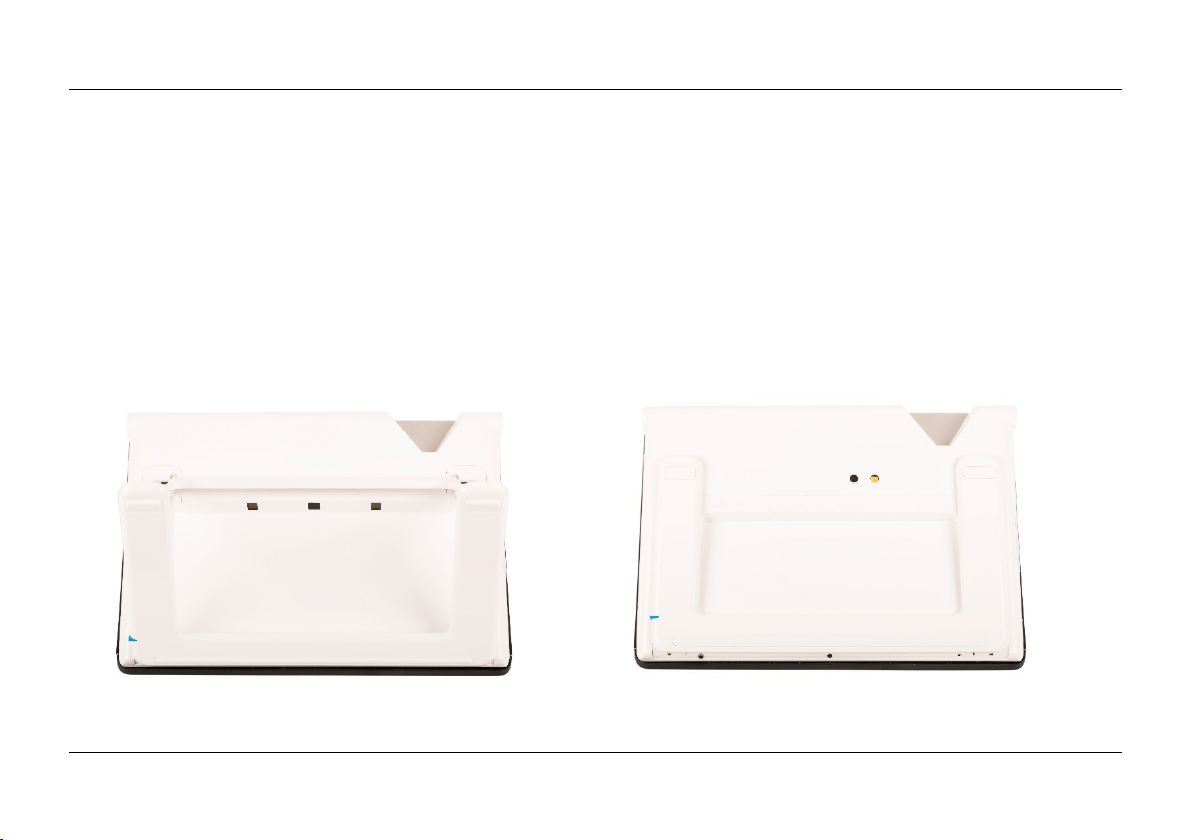
Optelec Compact 10 HD & Compact 10 HD Speech
Nederlands 64
2.4. Het schoonhouden van de cameralens en de spiegel
Voor een optimaal beeld, is het aanbevolen er voor te zorgen dat de cameralens en de spiegel van
het apparaat worden schoongehouden. Een vieze lens resulteert in een troebel beeld en kan ervoor
zorgen dat de autofocus camera niet goed kan scherpstellen. Een schone spiegel is belangrijk om
donkere en lichte vlekken te voorkomen en om een egaal verlicht beeld te krijgen. Om de
cameralens en de spiegel te reinigen, gebruikt u het meegeleverde reinigingsdoekje of een andere
zachte doek die geschikt is voor cameralenzen.
Let op: Gebruik geen water of schoonmaakmiddelen om de cameralens en spiegel te reinigen.
Page 66
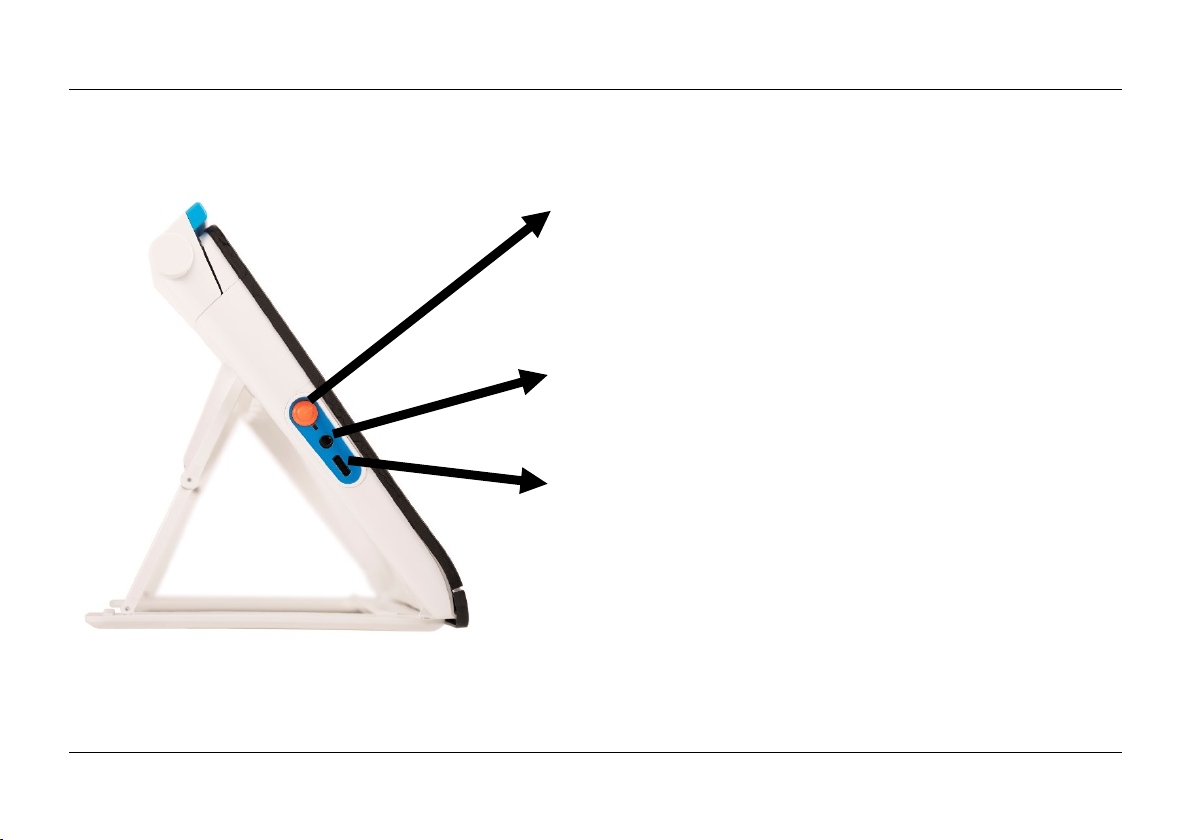
Optelec Compact 10 HD & Compact 10 HD Speech
65 Nederlands
2.5.Knoppen
De Compact 10 HD heeft de volgende knoppen.
Aan / uit knop
Kort drukken op de oranje Aan / Uit-knop zet de
Compact 10 HD in de slaapstand of hervat het
apparaat. Een druk op deze knop van 6 seconden
schakelt het apparaat uit of weer in.
Audio aansluiting
Gebruik de audio-aansluiting om een headset op de
Compact 10 HD aan te sluiten.
USB-C aansluiting
Gebruik de USB-C-connector om de Compact 10
HD op te laden. De meegeleverde USB-kabel wordt
aangesloten op deze USB-poort en op de voeding.
Gebruik alleen de voeding die bij de Compact 10 HD
wordt geleverd om het apparaat van stroom te
voorzien en op te laden.
Page 67
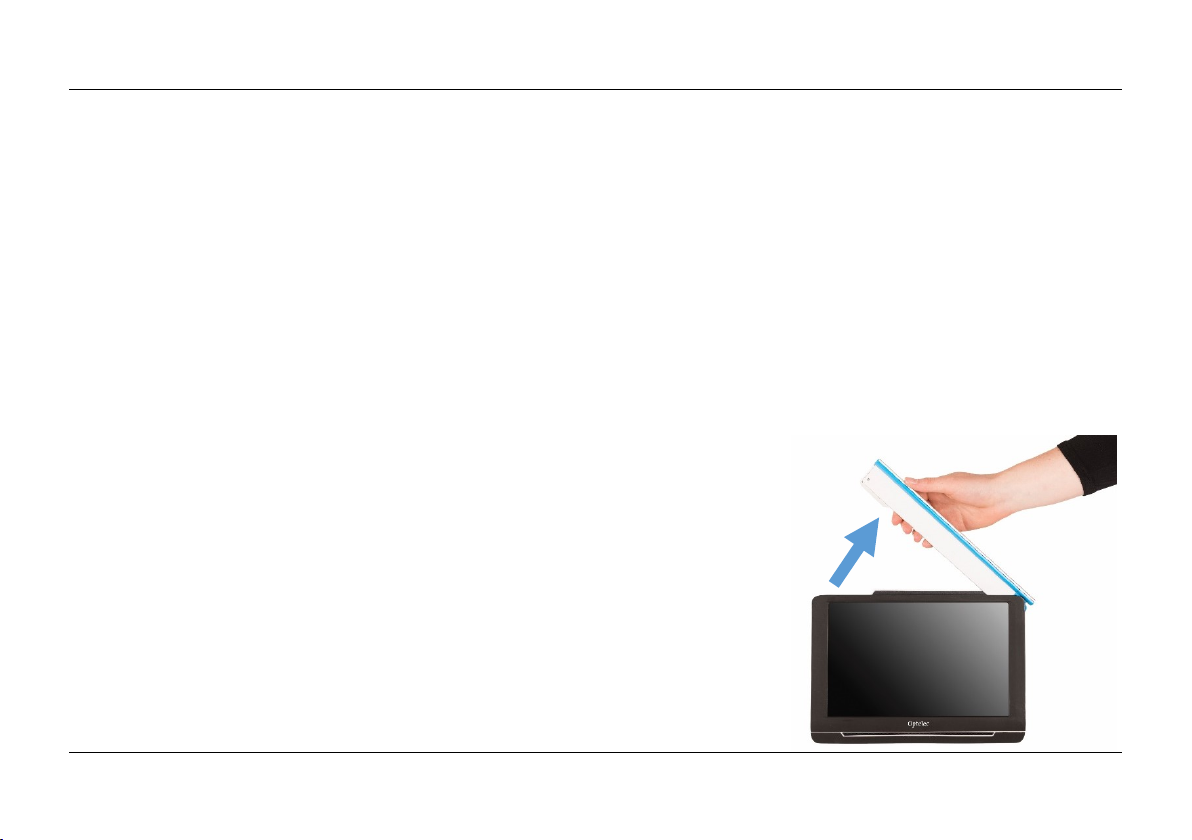
Optelec Compact 10 HD & Compact 10 HD Speech
Nederlands 66
3. Camera’s
De Compact 10 HD is uitgerust met drie camera's die elk een specifieke taak of situatie bedienen.
Alle camera’s kunnen gebruikt worden in de eenvoudige weergave en de geavanceerde weergave.
Als het beeld op het scherm onscherp is, tik dan op het scherm om de camera opnieuw te focussen
en scherp beeld te krijgen.
3.1. Camera voor Vergroting
De vergrotercamera wordt gebruikt wanneer de Compact 10 HD in de open positie staat met de
standaard uitgevouwen. De vergrotercamera wordt gebruikt om op een bureau of tafel te lezen. De
Compact 10 HD wordt bovenop het leesmateriaal geplaatst.
3.2. Camera voor Volledige pagina
De volledige pagina camera wordt gebruikt wanneer de uitklapbare
camera arm wordt geopend. De volledige pagina camera kan
worden gebruikt om foto's en objecten comfortabeler te bekijken,
of om uw handtekening te plaatsen, zonder te worden beperkt in
uw bewegingen.
Page 68

Optelec Compact 10 HD & Compact 10 HD Speech
67 Nederlands
Focus vergrendeling
De autofocus kan op een vaste afstand worden vergrendeld voor het schrijven, of bekijken van
objecten. Gebruik het penpictogram in de rechterbovenhoek van het scherm om de focus te
vergrendelen of ontgrendelen.
Wanneer u de Compact 10 HD-speech bezit, wordt de volledige pagina camera ook
gebruikt om documenten met een volledige pagina te scannen en lezen. Lijn de
linkeronderhoek van het document uit met de indicator op de voet van de Compact
10 HD Speech om het document correct te positioneren.
3.3. Overzichtscamera
De overzichtscamera wordt gebruikt wanneer u de Compact 10 HD inschakelt terwijl de Compact
10 HD-standaard is gesloten. Om van de vergroter camera naar de overzichtscamera te gaan, sluit
u de standaard en drukt u op de aan / uit-knop. De overzichtscamera is geoptimaliseerd om objecten
op korte afstand te bekijken, zoals tijdschema's.
Page 69
Optelec Compact 10 HD & Compact 10 HD Speech
Nederlands 68
4. Tekst-naar-spraak en OCR
Als u in het bezit bent van een Compact 10 HD Speech, zal het nemen
van een tekst-naar-spraak snapshot de spraakfunctionaliteit activeren.
De Compact 10 HD Speech zal de tekst filteren uit een afbeelding en
deze hardop voorlezen.
Spraak activeren
Om een tekst-naar-spraak snapshot te nemen en de spraak te activeren:
Centreer de tekst of een deel van de tekst in de cameraweergave en druk op de tekst-naar-
spraak snapshotknop. Wanneer u een tekst-naar-spraak snapshot maakt van een volledige
pagina, gebruik dan de camera voor volledige pagina en zorg ervoor dat u de
linkerbenedenhoek van het document uitlijnt met de blauwe indicator aan de rechterkant van
de standaard van de Compact 10 HD Speech.
Voor een optimaal resultaat, is omgevingslicht noodzakelijk. Voorkom schaduwen en
beperk de tekst tot alleen dat wat u wilt lezen. Als de tekst in beeld te klein wordt, zal de
herkenning minder accuraat zijn of mislukken.
Er zal een voortgangsbalk getoond worden. De Compact 10 HD Speech zal beginnen met
lezen nadat het herkenningsproces is afgerond.
Gebruik de Play/Pauze knop om het lezen te starten of stoppen.
Tik op de tekst en houd daarbij langdurig ingedrukt om het lezen te starten vanaf het
aangewezen woord of de tekstsectie.
Page 70

Optelec Compact 10 HD & Compact 10 HD Speech
69 Nederlands
Druk op de Modus knop om de gescande tekst te tonen in de geselecteerde ‘beeld’ modus,
en om te schakelen tussen de geselecteerde hoog contrast varianten hiervan. Zie
hoofdstuk 5.2 “Beeld” en “Kleuren” hoe u dit kunt instellen.
Als er geen tekst is gevonden, wordt er een ‘Geen tekst gevonden’ bericht getoond.
Aanpassen van het volume en de leessnelheid
Om het volume of de leessnelheid aan te passen, activeer de knoppenbalk met een enkele tik. Tik
op de Audio knop, om de “Volume” en “Snelheid” schuifbalken weer te geven. De “Volume” en
“Snelheid” schuifbalken zijn enkel aanwezig in de snapshot weergave.
Aanpassen van taal en stem
Om de taal of stem aan te passen in de Eenvoudige weergave, druk de Audio knop en houd deze
ingedrukt om naar het Stem menu te gaan. Om de taal of stem aan te passen in de Geavanceerde
weergave, druk de “Menu” knop en druk vervolgens het “Stem” menu.
Zie hoofdstuk 5.2. “Stem”, voor meer informatie over hoe te navigeren in het “Stem” menu.
Tabel modus
De standaard lees modus leest kolommen, ideaal voor kranten en tijdschriften. Maar, soms
zult u een menu, bonnetje, tabel, of andere tekst willen lezen die in een tabel staat.
Als u de tekst-naar-spraak snapshotknop even ingedrukt houdt, zal de Compact 10 HD Speech
een tekst-naar-spraak snapshot maken en alle tekst in het snapshot per regel van links naar
rechts lezen, en daarna pas de volgende regel lezen. Als u het snapshot verlaat en een nieuw
snapshot neemt, zult u automatisch terug in de standaard lees modus komen.
Page 71

Optelec Compact 10 HD & Compact 10 HD Speech
Nederlands 70
5. Eenvoudige en geavanceerde weergave
Bij het eerste gebruik van het apparaat zal het starten in de Eenvoudige weergave. Om te schakelen
tussen de Eenvoudige en Geavanceerde weergave, druk en houd de Modus knop, ingedrukt en tik
op Eenvoudig of Geavanceerd.
In Eenvoudige weergave, heeft u toegang tot de algemene opties:
- Aanpassen van de vergroting
- Selecteren van een weergave modus
- Nemen van een snapshot (Compact 10 HD)
- Nemen van een tekst-naar-spraak snapshot (Compact 10 HD Speech)
- Schakelen tussen de vergroter- en overzichtscamera
In Geavanceerde weergave heeft u enkele aanvullende mogelijkheden:
- Tijd en datum
- Toegang tot het menu met de opties:
- Opslaan en openen van snapshots
- Veranderen van de taal en leesstem
- Veranderen kleurweergave
- Leeslijn inschakelen
- Bluetooth audio en Miracast
- Andere geavanceerde instellingen
- Nemen van een tekst-naar-spraak snapshot (Compact 10 HD Speech)
Page 72
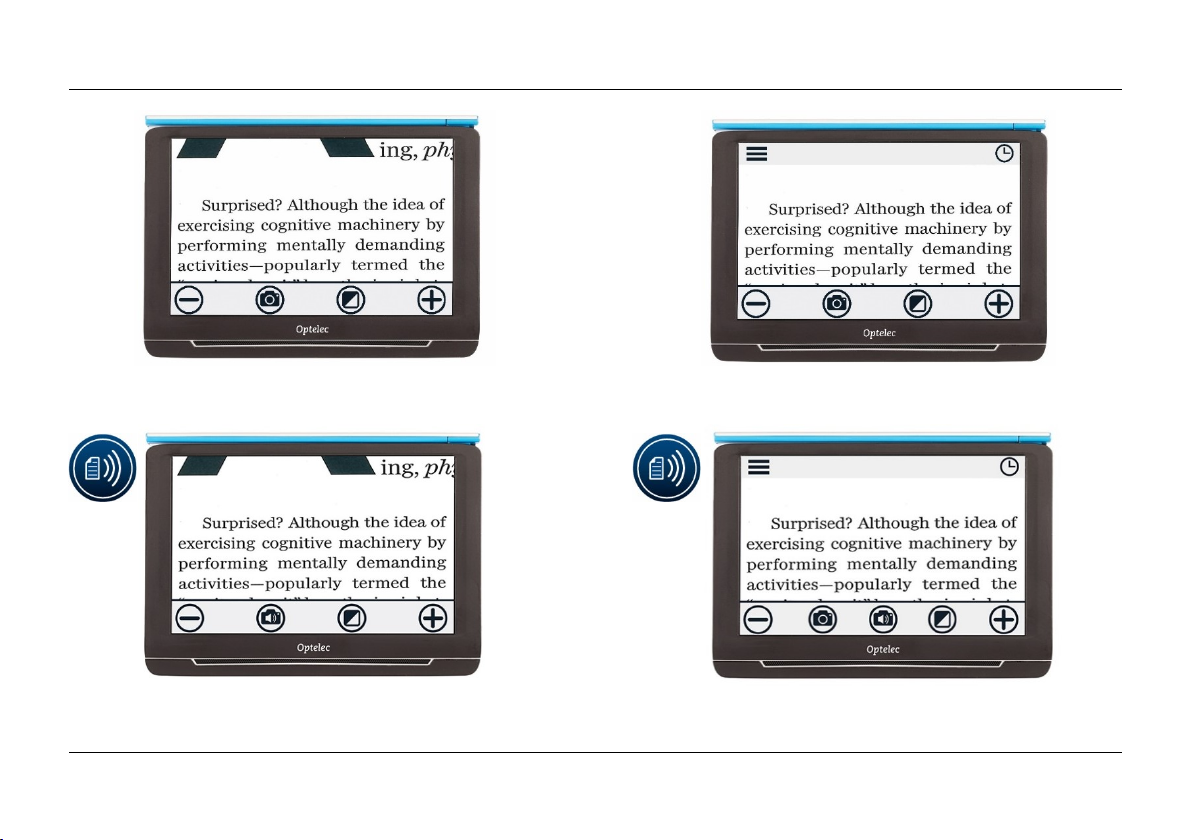
Optelec Compact 10 HD & Compact 10 HD Speech
71 Nederlands
Compact 10 HD eenvoudige weergave Compact 10 HD Geavanceerde weergave
Compact 10 HD Speech eenvoudige weergave Compact 10 HD Speech Geavanceerde weergave
Page 73

Optelec Compact 10 HD & Compact 10 HD Speech
Nederlands 72
5.1. Eenvoudige weergave
Vergroting aanpassen
Tik op het scherm om de vergroting aan te passen. De knoppenbalk wordt onderaan of
aan de rechterzijde van het scherm getoond, afhankelijk van de gekozen positie van de
knoppenbalk. De positie van de knoppenbalk kan geselecteerd worden in het menu. Zie
hoofdstuk 5 voor meer informatie. In de knoppenbalk tikt u op de “+” knop om te
vergroten of de “–” knop om te verkleinen. U kunt ook het pinch-to-zoom gebaar (twee
vingers naar elkaar, of van elkaar af bewegen) gebruiken om de vergroting aan te
passen.Tik op het scherm om de knoppenbalk te verbergen.
De knoppenbalk zal automatisch verdwijnen wanneer het scherm tien seconden niet
wordt aangeraakt.
Een leesmodus selecteren
Door op de “Modus” knop in het midden van de knoppenbalk te tikken, kunt u één van
de volgende leesmodi kiezen
Foto: Bekijk foto’s en tekst in ware kleur.
Negatief: Lezen in hoog-contrast, wit op zwart
Positief: Lezen in hoog-contrast, zwart op wit
Hoog-contrast kleur 1
Hoog-contrast kleur 2
Page 74

Optelec Compact 10 HD & Compact 10 HD Speech
73 Nederlands
Een snapshot maken van een afbeelding (Compact 10 HD)
Als u een Compact 10 HD heeft, drukt u op de snapshotknop om een snapshot (foto) te
maken. U kunt de vergroting en kleurenweergave veranderen. Druk op de X in de
rechterbovenhoek om de snapshot te sluiten en terug te keren naar live beelden.
Een tekst-naar-spraak snapshot maken (Compact 10 HD Speech)
Als u een Compact 10 HD Speech heeft, drukt u op de tekst-naar-spraak
snapshotknop om een snapshot (foto) te maken en deze meteen voor te laten lezen.
Gebruik de Play/Pauze knop om het voorlezen te starten of pauzeren. U kunt de
vergroting, weergave, volume, voorleessnelheid, en voorleesstem veranderen in het
snapshot. Druk op de X in de rechterbovenhoek om de snapshot te sluiten en terug te
keren naar live beelden.
In hoofdstuk 4 vindt u meer informatie over het gebruiken van tekst-naar-spraak.
Page 75

Optelec Compact 10 HD & Compact 10 HD Speech
Nederlands 74
5.2. Geavanceerde weergave
Tijd en datum
Om de klok te openen, tik op het scherm, en tik op het “klok” icoon in de rechterbovenhoek van het
scherm. Om de datum en tijd in te stellen, tik op de tijd of datum om een waarde te wijzigen. Tik
binnen het veld dat u wilt wijzigen op het omhoog of omlaag symbool, om de waarde te wijzigen.
Tik op het “pijl terug” symbool om het Tijd en datum instellen venster te verlaten.
Een snapshot maken van een afbeelding (Compact 10 HD Speech)
Als u een Compact 10 HD Speech heeft en een snapshot wilt maken van een
afbeelding zonder tekst-naar-spraak te gebruiken, drukt u op de snapshotknop. U kunt
de vergroting en kleurenweergave veranderen. Druk op de X in de rechterbovenhoek
om de snapshot te sluiten en terug te keren naar live beelden.
Page 76
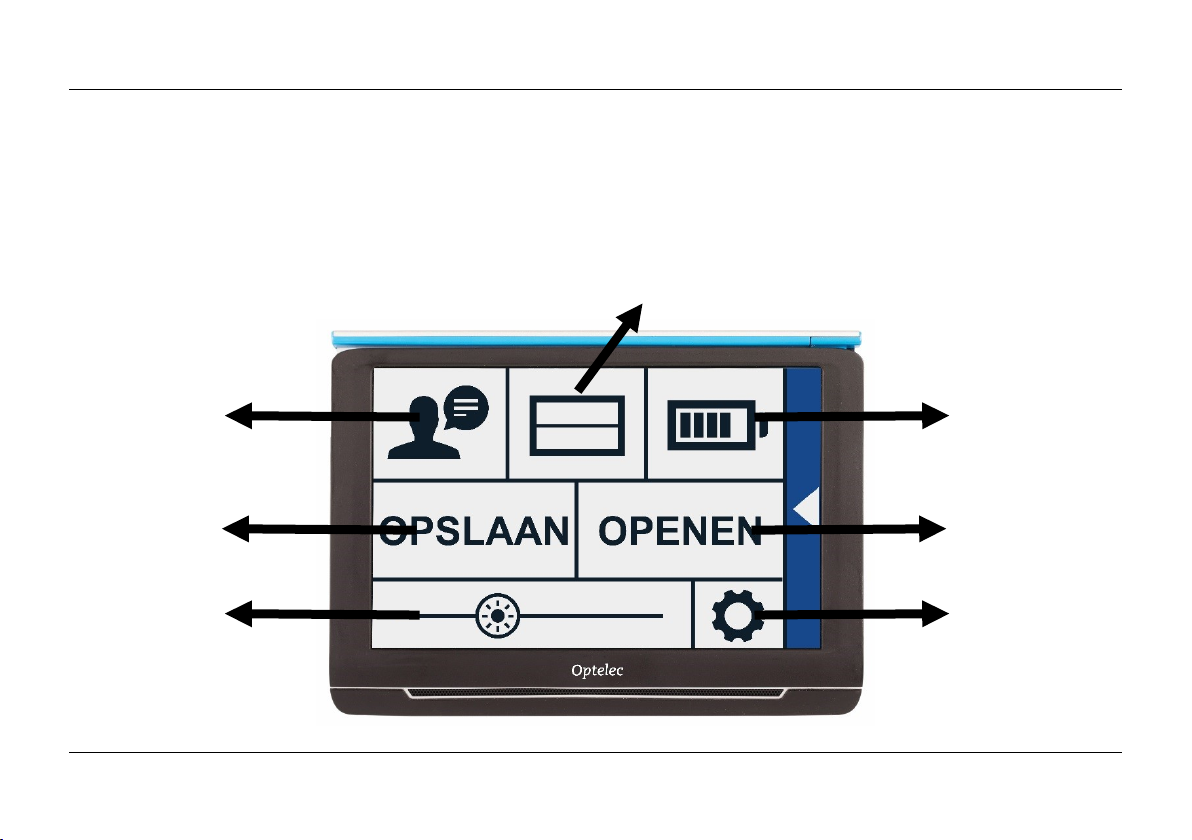
Optelec Compact 10 HD & Compact 10 HD Speech
75 Nederlands
Het menu
Het menu activeren en verlaten
Om het menu te openen, tik op het scherm, en tik het “Menu” icoon aan de linkerzijde van het
scherm. Dit opent het hoofd menu. Om het menu te sluiten, tik op het “pijl terug” symbool.
Instellingen
Opslaan
Helderheid
Stem
Open
Batterij
Status
Lijn aan/uit
Page 77

Optelec Compact 10 HD & Compact 10 HD Speech
Nederlands 76
De onderdelen in het menu verschillen afhankelijk van of u een Compact 10 HD or 10 HD Speech
bezit. Om een knop te activeren, tik eenmaal op de knop. Het activeren van een knop opent een
nieuw menu venster of lijst. Om terug te keren naar het hoofdmenu, tik op het “pijl terug” symbool.
Om de schuifbalk aan te passen tik op de schuifbalk knop, en houd deze ingedrukt, tijden het
verplaatsen naar rechts of links.
Het hoofdmenu bevat de volgende opties:
Stem (enkel Compact 10 HD Speech)
Lijn aan/uit
Batterij status
Opslaan
Openen
Helderheid schuifbalk
Instellingen
Stem
Om een stem, taal of menutaal te selecteren of om een stem of taal toe te voegen of te
verwijderen, open het hoofdmenu en tik op de “Stem” knop.
Selecteren van een stem, taal en menutaal
Hier kunt u de leesstem en taal selecteren. Om een andere leesstem te selecteren, tik op het stem
icoon in de rechter bovenhoek van het hoofdmenu voor de lijst met voorgeselecteerde stemmen.
Page 78

Optelec Compact 10 HD & Compact 10 HD Speech
77 Nederlands
Elke stem representeert tevens een taal. Tik op een stem om deze te selecteren. Als dit resulteert
in een verandering van taal dan verandert het menu automatisch in dezelfde taal.
Toevoegen of verwijderen van een stem of taal
Om een stem of taal toe te voegen of te verwijderen tikt u op het stemicoon in de rechter bovenhoek
van het hoofdmenu. In de lijst met voorgeselecteerde stemmen tikt u op de “Wijzigen” knop. Om
een leesstem toe te voegen of te verwijderen, selecteert u de taal in de lijst door op de taal te tikken.
Dit toont een lijst met beschikbare stemmen voor de geselecteerde taal. Om een taal toe te voegen,
selecteer deze door erop te tikken. Een vinkje voor de stem indiceert of de stem is toegevoegd. Als
de stem is toegevoegd zal deze beschikbaar zijn onder de stem knop in het hoofdmenu. Door een
stem te deselecteren zal deze verwijderd worden uit de beschikbare lees- stemmen. De talen
waaruit lees stemmen zijn geselecteerd zullen bovenaan de lijst met talen worden weergegeven en
zijn gemarkeerd met een vinkje.
Aanpassen van taal en stem in de Eenvoudige weergave
In Eenvoudige weergave kunt u het menu niet benaderen. Om de taal of stem aan te passen in
Eenvoudige weergave druk de “Audio” knop, en houd deze ingedrukt, om direct naar het Stem menu
te gaan en volg de stappen hierboven.
Page 79

Optelec Compact 10 HD & Compact 10 HD Speech
Nederlands 78
Lijn aan/uit
De Compact 10 HD kan een leeslijn weergeven om u te helpen de Compact 10 HD recht op het
document te positioneren. Om de leeslijn in te stellen, tik op de “Lijn” knop. Tik nogmaals op de
knop, om de leeslijn te verbergen.
Batterijstatus
De batterijstatus wordt getoond in de rechter bovenhoek van het scherm. Tikt u op het batterij icoon
dan wordt een nieuw scherm geopend met een vergroot batterijsymbool met de batterijstatus, een
“Over” knop en een “pijl terug” symbool. Het “bliksem” symbool indiceert dat de batterij bezig is met
opladen.
Over
Tik op de “Over” knop in het batterijscherm om de versie van het apparaat te zien.
Opslaan
Deze optie is alleen beschikbaar in de geavanceerde weergave.
Om een snapshot op te slaan open het menu en tik op de “Opslaan” knop.
Maak een snapshot, zie het gebruik van de snapshotfunctie
Open het menu.
Tik op de “Opslaan” knop om de snapshot op te slaan.
Als er geen snapshot is om op te slaan wordt de “Opslaan” knop verborgen.
Page 80
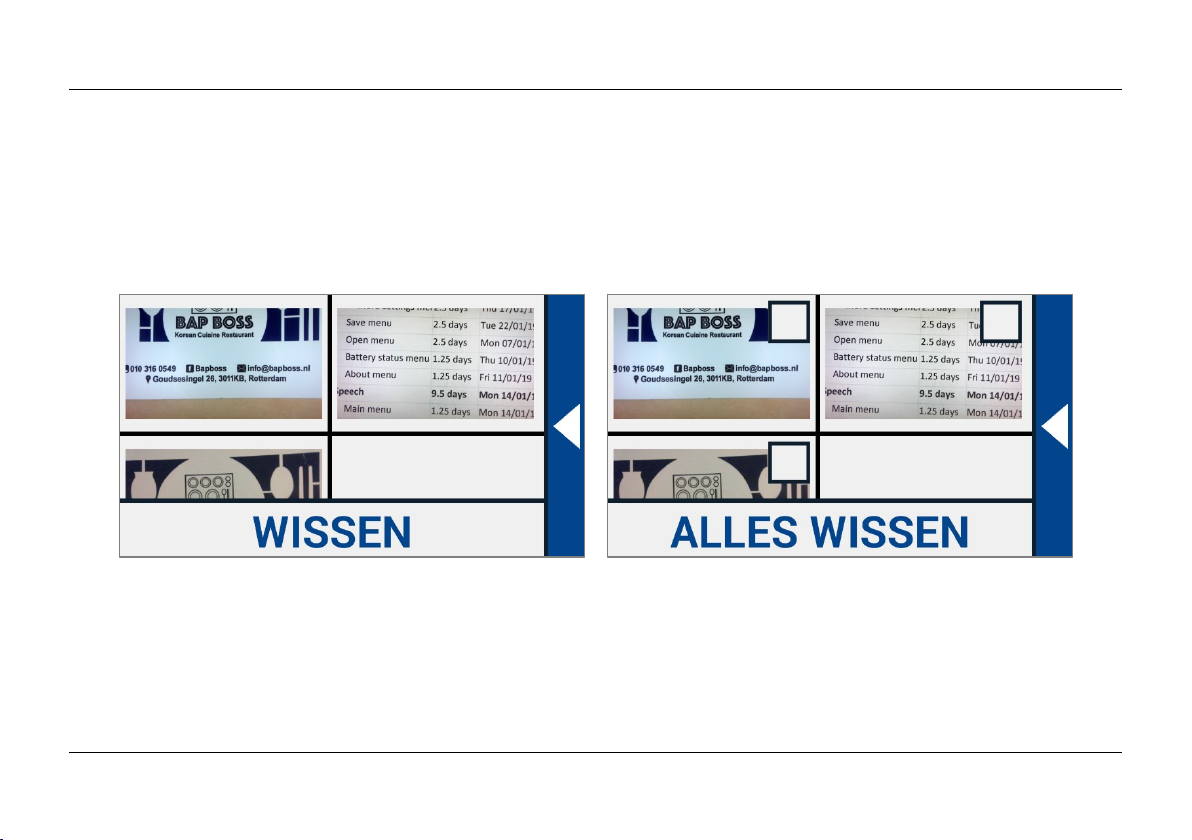
Optelec Compact 10 HD & Compact 10 HD Speech
79 Nederlands
Openen
Om een snapshot te openen, open het menu en tikt op de “Openen” knop. Een lijst met miniatuur
voorbeelden van de opgeslagen snapshots wordt getoond, met de meest recente bovenaan.
Wanneer er meer snapshots zijn dan er in beeld passen, veegt u omhoog en omlaag om door de
lijst te navigeren. Tik op het miniatuur voorbeeld van de snapshot om het te openen.
Opgeslagen snapshots Verwijder snapshots
Verwijderen
Om een snapshot te verwijderen, open het menu en tik op de “Openen” knop. In het open scherm
tikt u op de “Verwijderen” knop. Een lijst met miniatuur voorbeelden van de opgeslagen snapshots
wordt getoond, met de meest recent opgeslagen snapshots bovenaan. Elk snapshot heeft een
vinkvakje in de rechter bovenhoek. Om een snapshot te selecteren vinkt u het vinkvakje aan. Tik op
Page 81

Optelec Compact 10 HD & Compact 10 HD Speech
Nederlands 80
de “Verwijderen” knop om de geselecteerde snapshot te verwijderen. Om alle snapshots te
verwijderen, tikt u op de “Verwijderen” knop zonder een snapshot te selecteren. U dient te
bevestigen dat u alle snapshots wilt verwijderen door op “Ja“ te tikken. Om af te zien van het
verwijderen van alle snapshots tikt u op “Nee”. Na beide opties keert u terug naar de lijst van
snapshots. Tik op het “pijl terug” symbool om terug te keren naar het “Openen” scherm. Tik opnieuw
op het “pijl terug” symbool om terug te keren naar het hoofdmenu.
Aanpassen van helderheid
Gebruik de schuifbalk met het “zon” symbool om de helderheid van het scherm aan te passen.
Page 82
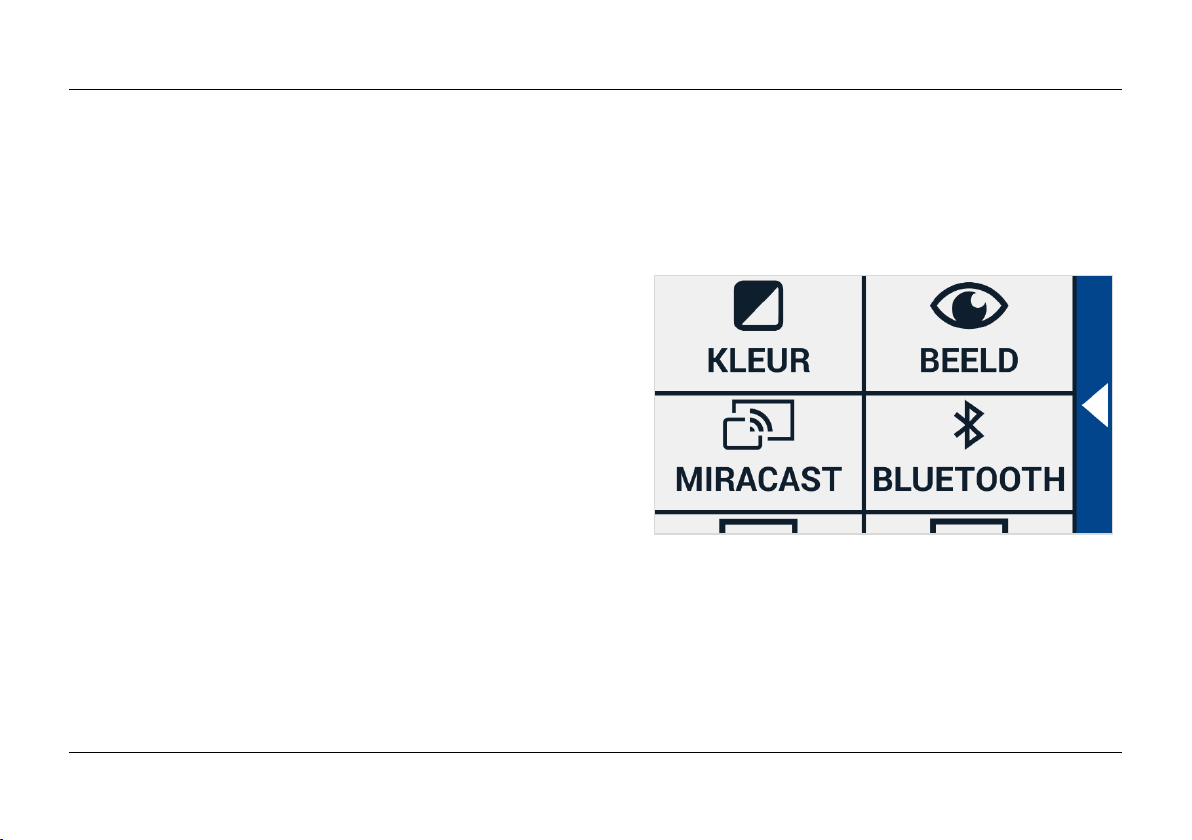
Optelec Compact 10 HD & Compact 10 HD Speech
81 Nederlands
Instellingen
Tik op de “Instellingen” knop, om het Instellingen menu. te activeren. De “Instellingen knop is de
knop met het gereedschaps symbool aan de rechter onderkant.
Het Instellingen menu bevat de volgende knoppen:
Kleuren
Beeld (enkel Compact 10 HD Speech)
Miracast
Bluetooth (enkel Compact 10 HD Speech)
Lijn
Knoppen
Thema
Kolommen (enkel Compact 10 HD
Speech)
Verlichting
Geluid
Standby
Taal (enkel Compact 10 HD)
Herstel
Instellingen menu
Page 83
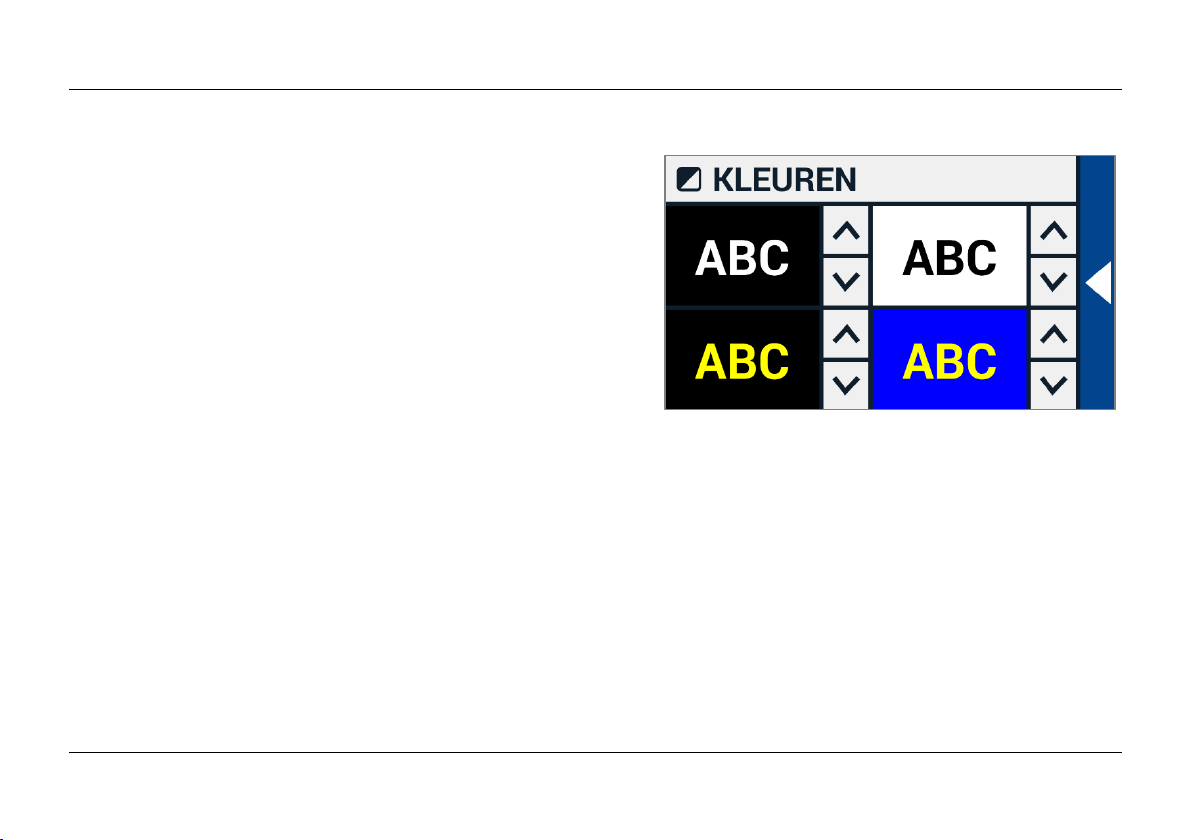
Optelec Compact 10 HD & Compact 10 HD Speech
Nederlands 82
Kleuren
In het instellingen menu, tik op de “Kleuren” knop om
de gewenste hoog-contrast kleuren te selecteren.
De Compact 10 HD ondersteunt vier hoog-contrast
modi. Voor elk van deze vier modi, kunnen de voor- en
achtergrondkleur geselecteerd worden. Drie van de
hoog-contrast modi kunnen uitgeschakeld worden. De
eerste hoog-contrast modus in de linkerbovenhoek is
vereist.
Om de voor- en achtergrondkleuren te wijzigen tikt u op de pijl omhoog of pijl omlaag naast de
modus die u wilt aanpassen. U tikt door de verschillende hoog-contrast modi heen en stopt bij de
modus die uw voorkeur heeft. Selecteer het “X” symbool om een hoog-contrast modus uit te
schakelen. Tik op het ”pijl terug” symbool om terug te keren naar het instellingen menu.
Page 84
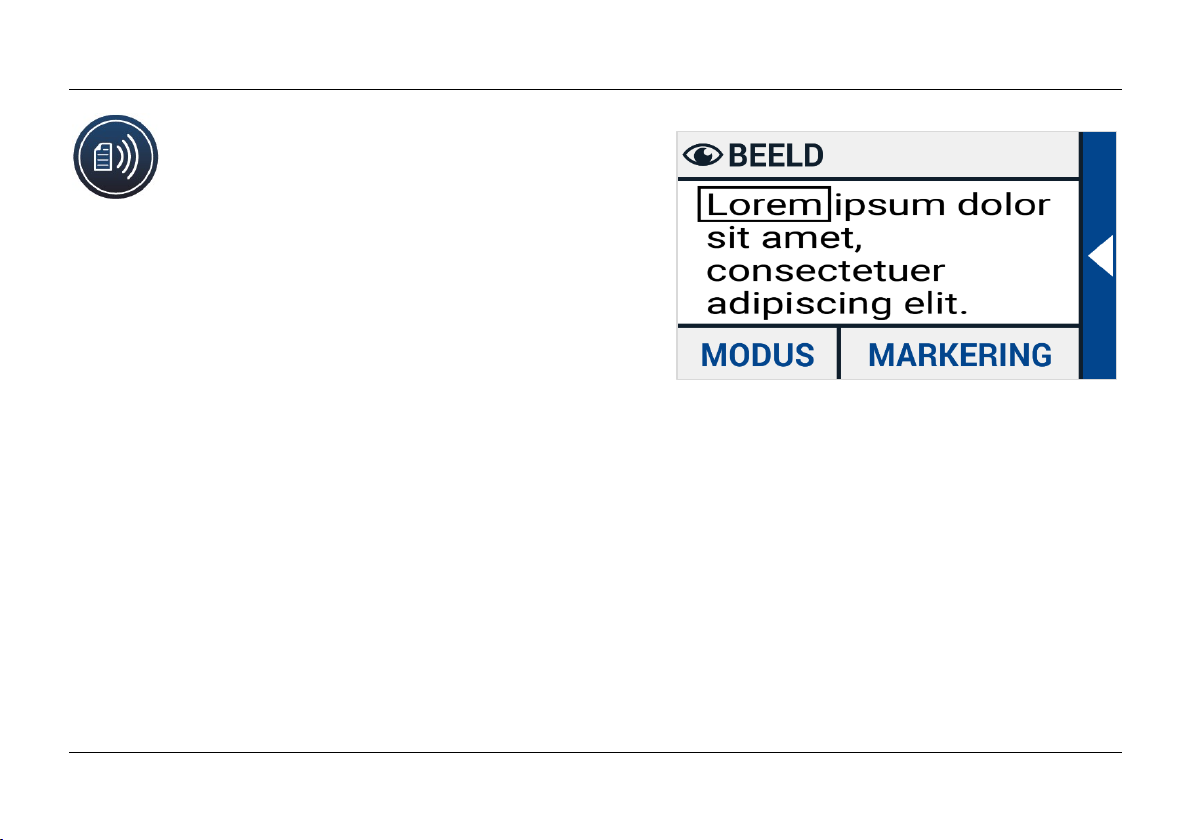
Optelec Compact 10 HD & Compact 10 HD Speech
83 Nederlands
Beeld (enkel Compact 10 HD
Speech)
In het Instellingen menu, tik op de “Beeld”
knop om in te stellen hoe u wilt dat gescande tekst wordt
voorgelezen met tekst-naar-spraak.
Om in te stellen hoe alle gescande tekst wordt getoond,
drukt u op de Modus knop om te rouleren door de
verschillende weergaven: Origineel, Lijn en Kolom.
Om in te stellen hoe het woord wordt getoond dat wordt
voorgelezen, drukt u op de Markering knop om te
rouleren door de verschillende accentueringen: Vierkant en Onderlijnd.
Wanneer u tekst-naar-spraak gebruikt tikt u op de Modus knop in de knoppenbalk om de gescande
tekst in de door u gekozen weergave te zien en om door de ingestelde hoog-contrast modi te
rouleren.
Miracast: draadloos verbinden met een monitor of tv
Miracast is een standaard voor een draadloze verbinding met een monitor. Het kan omschreven
worden als "HDMI over Wi-Fi", wat de kabel van de 10 HD naar de monitor of TV vervangt. Om
gebruik te kunnen maken van de Miracast functie van de Compact 10 HD, moet uw monitor of TV
Miracast ondersteunen. Zie de handleiding van de monitor of TV om na te gaan of het apparaat de
Miracast functie ondersteunt.
Page 85
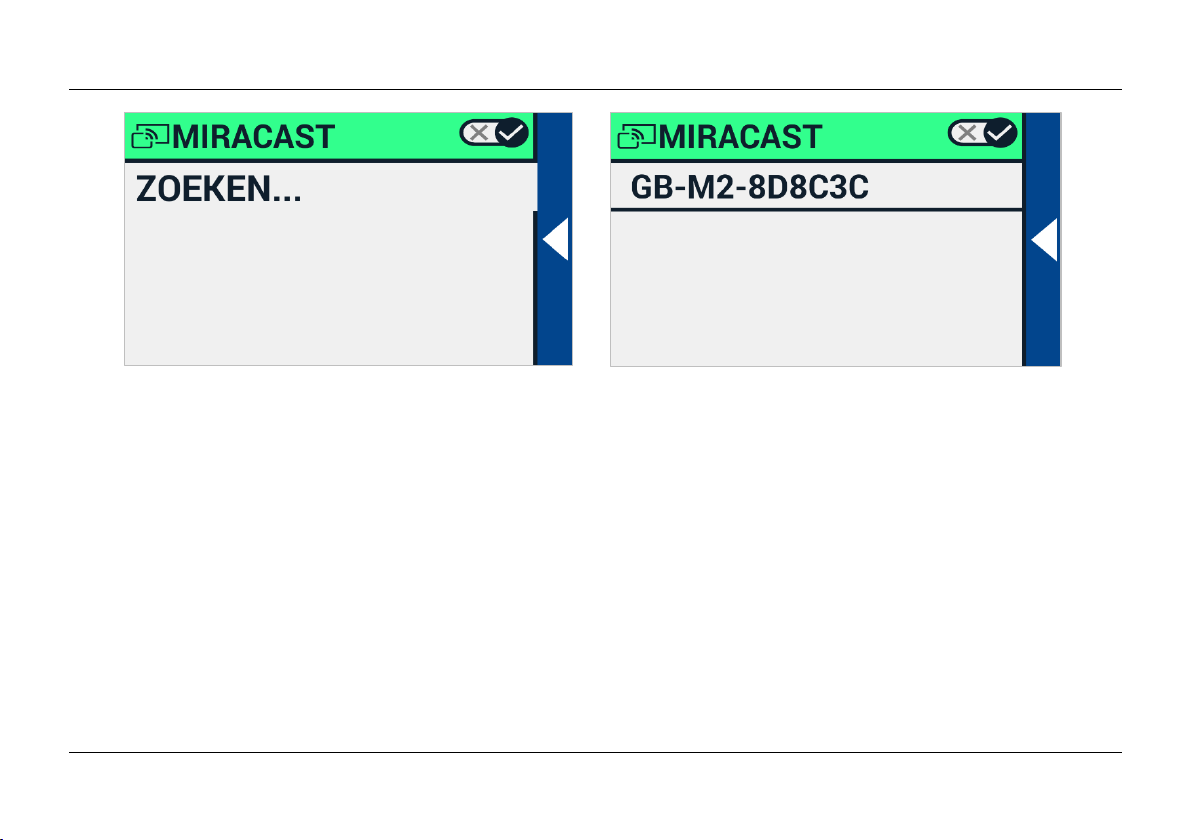
Optelec Compact 10 HD & Compact 10 HD Speech
Nederlands 84
Om uw Compact 10 HD te verbinden met een monitor of TV via Miracast, tik op de “Miracast” knop
en schakel Miracast in. Een lijst met beschikbare apparaten wordt getoond. Tik op de naam van
een apparaat om ermee te verbinden. Het kan tot een minuut duren om de verbinding tot stand te
brengen. Tik nogmaals op de naam van het apparaat om de verbinding te verbreken. Als een
Miracast verbinding tot stand is gebracht zullen zowel audio als video gestreamd worden naar de
TV of monitor. Om gegarandeerd te zijn van een goede verbinding moet de Compact 10 HD zich
bevinden in een radius van 1 meter van de monitor of TV. Afhankelijk van de verbinding kan een
kleine vertraging van de video en/of audio plaatsvinden.
Page 86
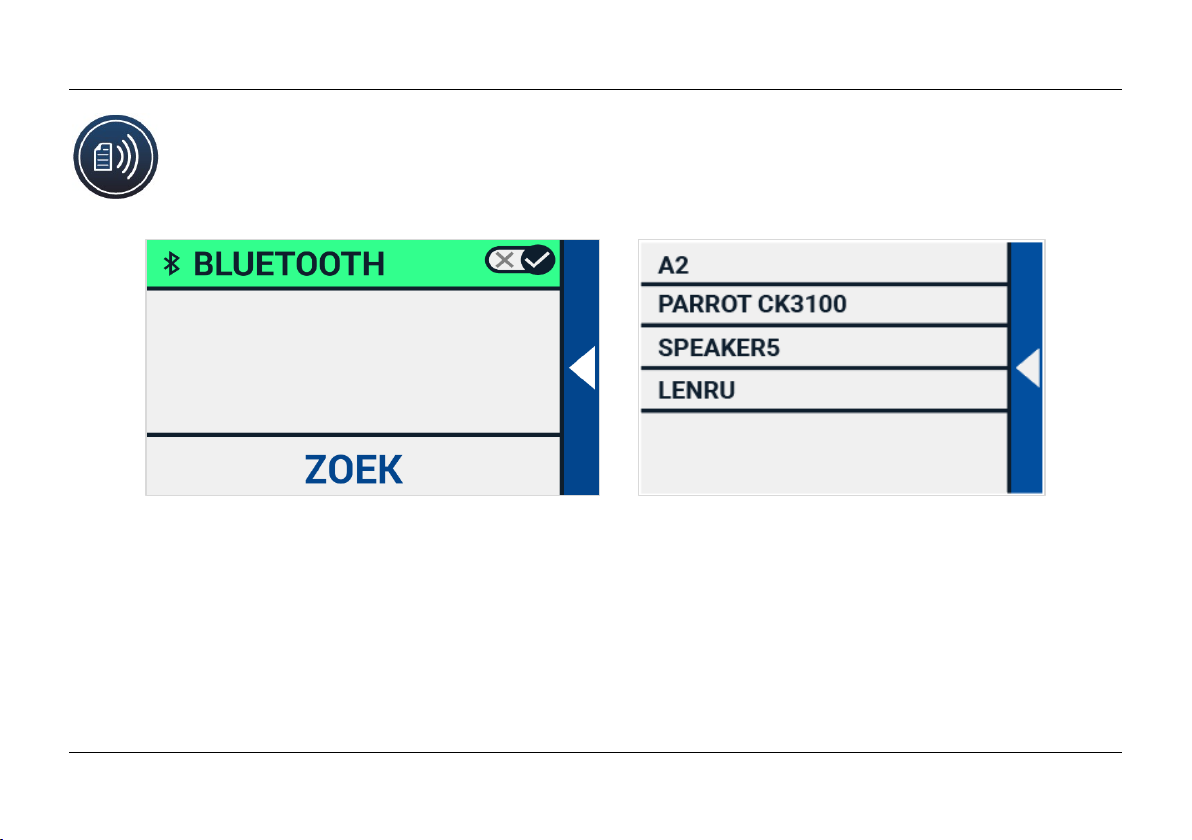
Optelec Compact 10 HD & Compact 10 HD Speech
85 Nederlands
Bluetooth (enkel Compact 10 HD Speech)
Om een Bluetooth luidspreker of hoofdtelefoon te koppelen tik op de “Bluetooth” knop en
schakel Bluetooth in.
Een lijst met gekoppelde apparaten wordt getoond. Als er geen luidspreker of hoofdtelefoon is
aangesloten, tikt u op de “Zoeken” knop om naar beschikbare apparaten te zoeken. Voor de
Bluetooth zoekopdracht moet u er voor zorgen dat de luidspreker of hoofdtelefoon aan staat en
vindbaar is. Zie de handleiding van het apparaat om na te gaan hoe het apparaat vindbaar voor
Bluetooth wordt. Om de luidspreker of hoofdtelefoon te koppelen, tik op de naam van het apparaat
en voer zo nodig de pincode in. Zie de handleiding van de luidspreker of hoofdtelefoon voor de pincode.
Page 87
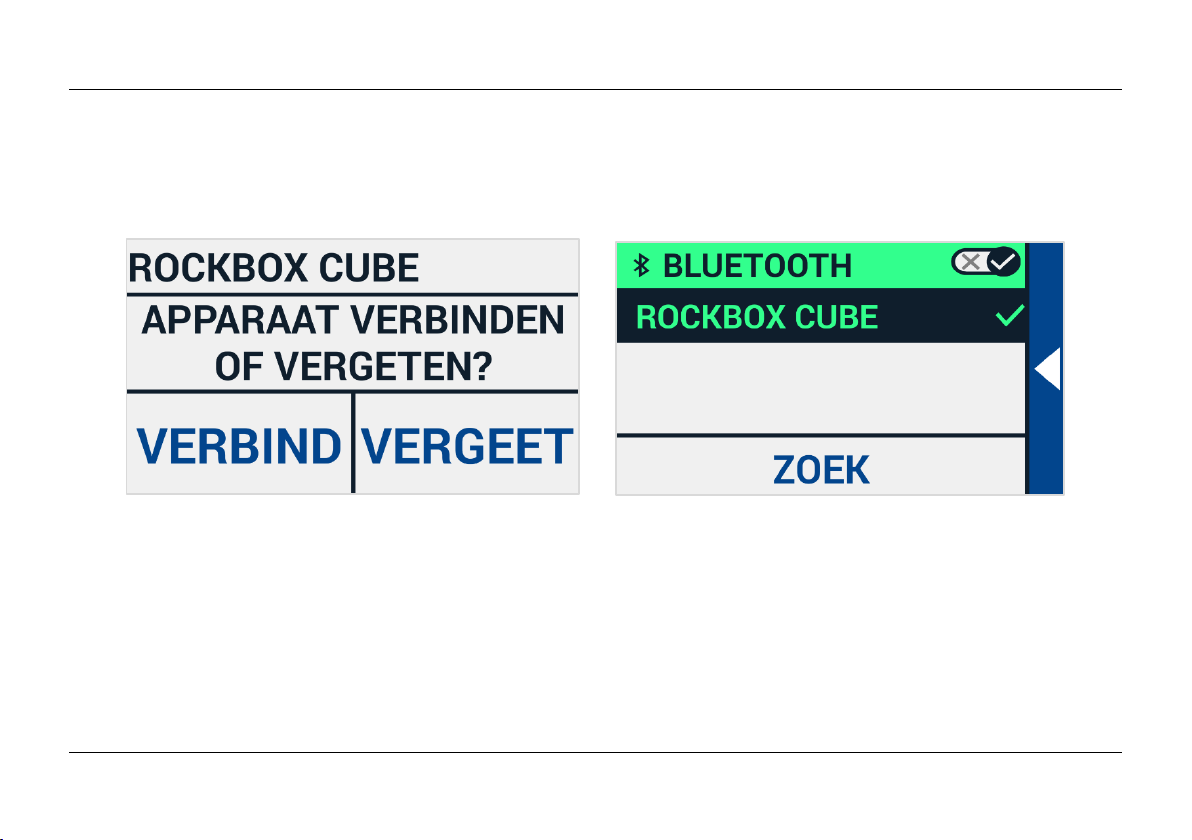
Optelec Compact 10 HD & Compact 10 HD Speech
Nederlands 86
Als het apparaat gekoppeld is, tikt u op de naam van de luidspreker of hoofdtelefoon om de
verbinding tot stand te brengen.
U wordt gevraagd, met het apparaat te verbinden of het te vergeten. Tik op de “Verbinden” knop om
de verbinding tot stand te brengen.
Om te indiceren dat een apparaat beschikbaar is, is het aangevinkt en wordt het in blauw
weergegeven.
Om een apparaat te ontkoppelen / te vergeten, tik op de “Vergeten” knop. Het apparaat wordt
verwijderd uit de lijst met gekoppelde apparaten.
Let op: Alleen Bluetooth luidsprekers of hoofdtelefoons versie 4.0 of hoger worden ondersteund.
Page 88

Optelec Compact 10 HD & Compact 10 HD Speech
87 Nederlands
Lijn
Dit menu onderdeel stelt u in staat de positie van de leeslijn te veranderen in een van deze zes
posities: horizontaal boven, horizontaal midden, horizontaal onder, verticaal links, verticaal midden,
verticaal rechts. Standaard is de leeslijn ingesteld horizontaal midden op het scherm.
Knoppen
Dit menu onderdeel stelt u in staat de knoppenbalk positie te veranderen in een van twee posities:
Onder of Zijde. Afhankelijk van uw voorkeur, kunt u de positie van de knoppenbalk veranderen naar
de onderkant of zijkant van het scherm. De standaard instelling is “Onder”.
Thema
Dit menu onderdeel stelt u in staat een licht of donker thema te selecteren voor de knoppen en
menu's.
Kolommen (enkel Compact 10 HD Speech)
Dit menu onderdeel stelt u in staat te kiezen of u de Compact 10 HD Speech enkel
complete kolommen of ook incomplete kolommen wilt laten lezen. Standaard is Lees
enkel complete kolommen geselecteerd. Houd er rekening mee dat wanneer u Lees incomplete
Kolommen selecteert, mogelijk niet alle karakters en woorden volledig gevangen worden, wat kan
resulteren in foutieve tekst.
Page 89

Optelec Compact 10 HD & Compact 10 HD Speech
Nederlands 88
Verlichting
Dit menu onderdeel stelt u in staat de verlichting in de vergroter- en overzichtsweergave in of uit te
schakelen. De vergroter/leesverlichting bevindt zich links en rechts van de vergroter camera.
Standaard is de leesverlichting ingeschakeld voor een optimale beeldkwaliteit.
De overzichtsverlichting bevindt zich naast de overzichtscamera. Standaard is de
overzichtsverlichting uitgeschakeld.
Geluid
Dit menu onderdeel stelt u in staat om het volume aan te passen en de audio- en vibratie feedback
in of uit te schakelen. Standaard is geluid ingeschakeld en vibratie uitgeschakeld.
Standby
De standby tijd stelt de tijd in na welke tijd de Compact 10 HD in de standby modus gaat om de
batterij te sparen. Het indrukken van een willekeurige knop brengt het apparaat uit de standby
modus. Standaard is de standby tijd ingesteld op vijf minuten waarin geen knop wordt ingedrukt of
beweging wordt waargenomen.
Page 90

Optelec Compact 10 HD & Compact 10 HD Speech
89 Nederlands
Taal (enkel Compact 10 HD)
Dit menu onderdeel stelt u in staat de taal van Compact 10 HD te kiezen. Tik, om de voorkeurs
menu taal te selecteren.
Fabrieksinstellingen herstellen
In dit menu onderdeel kunt u de fabrieksinstellingen herstellen. U wordt dan gevraagd de keuze te
bevestigen. Door “Ja” bevestigt u de keuze en “Nee” annuleert de keuze.
Page 91

Optelec Compact 10 HD & Compact 10 HD Speech
Nederlands 90
6. Documenten overzetten naar de PC
Om snapshots en documenten naar een PC over te zetten heeft u een Windows 10 PC en de
bijgeleverde USB kabel nodig en volgt u onderstaande stappen:
1. Zet de Compact 10 HD en de PC aan.
2. Verbind de Compact 10 HD met de Windows 10 PC met de bijgeleverde USB kabel. De
Compact 10 HD zal kort een “Verbonden met PC” icoon tonen.
3. Als u de Compact 10 HD voor het eerst verbindt zal het Windows wat tijd kosten om het
apparaat goed op te zetten.
4. Afhankelijk van uw Windows 10 instellingen, zal Windows Explorer het “CP10” apparaat
openen en een map met intern gedeelde opslag laten zien.
5. Als Windows 10 niet automatisch het Compact 10 HD apparaat toont, open dan Windows
Explorer en selecteer “CP10”.
6. Klik op ‘Intern Gedeelde Opslag’ en klik op de map “DCIM”.
7. In de “DCIM” map staan mappen met de tijd en datum wanneer de snapshots zijn
genomen. Elke map bevat het gemaakte snapshot, en als u een Compact 10 HD Speech
heeft ook een .txt document met de gescande tekst. Daarnaast bevat de map 2 systeem
bestanden, een JSON en een Processed Picture bestand.
8. Kopiëer en plak de bestanden naar uw PC.
Page 92

Optelec Compact 10 HD & Compact 10 HD Speech
91 Nederlands
Bijlage A: Technische informatie
Vergroting 2.2 - 22 keer
Vergroting Overzicht Ongeveer 1.8 – 22 keer
Vergroting Volledige Pagina 0.4 – 13 keer
Leesstanden Kleuren fotomodus
Hoog contrast kleurencombinatie, wit op zwart
Hoog contrast kleurencombinatie, zwart op wit
Hoog contrast kleurencombinatie 1
Hoog contrast kleurencombinatie 2
Focus Auto-focus
Scherm 10” TFT
Scherm resolution 1280 x 800
Afmetingen 261 x 189 x 36 mm
Gewicht Compact 10 HD 915 gram
Batterij Ongeveer 3.5 uur continu gebruik
Ongeveer 4 uur oplaadtijd
Li-ion batterij oplaadbaar, 3.7V, 7600mAh, 28.12Wh
Adapter type (Medisch) Adapter Technology Co., LTD. ATM012T-W052VU
Adapter type (Consument) Shenzhen Fujia Appliance Co., LTD. FJ- SW1260502500UN
Input power rating – Adapter 100-240V, 50-60Hz, 0.4A
Output power rating – Unit DC5V-2.5A
Page 93

Optelec Compact 10 HD & Compact 10 HD Speech
Nederlands 92
Bijlage B: Veiligheid en Onderhoud
Beoogd gebruik: De Compact 10 HD is ontworpen zodat het kan worden toegepast in een ziekenhuis voor
algemene doeleinden zoals het herzien van medische dossiers. De Compact 10 HD kan niet worden gebruikt
voor chirurgische procedures in combinatie met levensondersteunende systemen.
Waarschuwing: Kritische diagnostische beslissingen mogen niet worden gebaseerd op de beelden die door
dit apparaat worden weergegeven.
Stel de Compact 10 HD niet bloot aan overmatige hitte of direct zonlicht om het risico op brand te
voorkomen.
Verwijder geen onderdelen van Compact 10 HD. Neem contact op met een geautoriseerde Optelec
service-organisatie in uw omgeving.
Om het risico op elektrische schade te voorkomen, houd uw Compact 10 HD uit de buurt van vloeistoffen
en chemicaliën.
Behandel de Compact 10 HD met zorg. Ruwe behandeling zal de interne componenten beschadigen.
Gebruik de Compact 10 HD niet in de buurt van onvoldoende afgeschermde medische apparatuur.
Probeer niet om het batterijcompartiment te openen of om de batterij te verwijderen.
Kijk niet direct in de LED verlichting en raak deze ook niet aan.
Pas op dat uw vingers of loshangende kleding klem komen te zitten in bewegende onderdelen
(leesstandaard, camera arm)
Neem contact op met uw dealer om deze apparatuur te bedienen, indien nodig. Demontage van het
apparaat, zal de garantie ongeldig maken.
Page 94

Optelec Compact 10 HD & Compact 10 HD Speech
93 Nederlands
Trek altijd de stekker uit het stopcontact en schakel de unit uit voor het reinigen. Gebruik een zachte,
droge doek om de buitenkant schoon te maken. Gebruik geen schoonmaakmiddelen of schurende
materialen: deze zullen uw toestel beschadigen.
Het gebruik van de Compact 10 HD anders dan beschreven in deze handleiding wordt uitgesloten van
garantievoorwaarden.
Alle wijzigingen of aanpassingen die niet uitdrukkelijk zijn goedgekeurd door de partij die verantwoordelijk is
voor de naleving, kunnen de bevoegdheid van de gebruiker om de apparatuur te bedienen ongeldig maken.
Opmerking: deze apparatuur is getest en voldoet aan de limieten voor een Klasse B digitaal apparaat,
conform deel 15 van de FCC-regels. Deze limieten zijn bedoeld om een redelijke bescherming te bieden
tegen schadelijke interferentie in een residentiële installatie. Deze apparatuur genereert gebruik en kan
radiofrequentie-energie uitstralen en kan, indien niet geïnstalleerd en gebruikt in overeenstemming met de
instructies, schadelijke interferentie met radiocommunicatie veroorzaken. Er is echter geen garantie dat er
geen interferentie zal optreden in een bepaalde installatie. Als deze apparatuur schadelijke interferentie voor
radio- of televisieontvangst veroorzaakt, wat kan worden vastgesteld door de apparatuur uit- en in te
schakelen, wordt de gebruiker aangemoedigd om te proberen de interferentie te verhelpen door een of meer
van de volgende maatregelen:
Heroriënteer of verplaats de ontvangende antenne.
Vergroot de afstand tussen het apparaat en de ontvanger.
Sluit de apparatuur aan op een stopcontact in een ander circuit dan waarop de ontvanger is
aangesloten.
Raadpleeg de dealer of een ervaren radio / tv-technicus voor hulp.
Page 95

Optelec Compact 10 HD & Compact 10 HD Speech
Nederlands 94
FCC Blootstelling aan RF-straling en SAR-verklaringen
De Compact 10 HD en Compact 10 HD Speech zijn getest op naleving van de lichaamsgedragen specifieke
absorptiesnelheid (SAR – Specific Absorption Rate). De radiomodule is geëvalueerd onder FCC Bulletin OET
65C (01-01) en voldoet aan de vereisten zoals uiteengezet in CFR 47 Secties, 2.1093 en 15.247 (b) (4) over
RF-blootstelling van radiofrequentieapparaten. Dit model voldoet aan de toepasselijke overheidsvereisten
voor blootstelling aan radiofrequentiegolven. Het hoogste SAR-niveau gemeten voor dit apparaat was 0,15
W / kg.
Werkomstandigheden
Temperatuur +10°C to 35°C / 50°F to 95°F
Luchtvochtigheid < 70%, geen condensatie
Hoogtes tot 3000 m (9842 voet)
Luchtdruk 700 – 1060 hPa
Opslag & transportvoorwaarden
Temperatuur +10°C to 40°C / 50°F to 104°F
Luchtvochtigheid < 95%, geen condensatie
Hoogtes tot 12192 m (40000 voet)
Luchtdruk 186 – 1060 hPa
Contact opnemen met productondersteuning
Als u vragen heeft over de bediening, installatie of configuratie van uw Compact 10 HD, neem dan contact
op met het dichtst bijzijnde Optelec Kantoor, uw Optelec distributeur of het Optelec hoofdkantoor. Zie de
laatste pagina van deze handleiding voor een complete lijst van Optelec adressen.
Page 96

Optelec Compact 10 HD & Compact 10 HD Speech
95 Nederlands
Garantie Voorwaarden
Optelec garandeert dat de Compact 10 HD, vanaf de datum van levering, vrij is van gebreken in materiaal
en vakmanschap.
De garantie is niet overdraagbaar en geldt niet voor groepen of meerdere gebruikers. De Compact 10 HD is
ontworpen voor de individuele koper om deze thuis, op school en op het werk te gebruiken. Optelec
behoudt het recht om de aangeschafte Compact 10 HD te repareren of te vervangen met een vergelijkbaar
of verbeterd product.
In geen geval is Optelec of haar leveranciers aansprakelijk voor enige indirecte schade of gevolgschade.
De oplossingen van de oorspronkelijke gebruiker zijn beperkt tot de vervanging van Compact 10 HDmodules. Deze garantie is alleen geldig wanneer onderhouden in het land van aankoop en met intacte
zegels. Voor aanvullende garantieclaims of service tijdens of na de garantieperiode, neem dan contact op
met uw Optelec distributeur.
Optelec is niet verantwoordelijk voor het gebruik van andere apparaten dan het in deze handleiding
beschreven apparaat.
Accessoire: Adapter (Medisch)
Power supply type: Adapter Technology Co., LTD. ATM012T-W052VU
Input power rating – Adaptor: 100-240V, 50-60Hz, 0.32-0.19A
Output power rating – Unit : DC5.1V-2.4A
Accessoire: Adapter (Consument)
Adapter type: Shenzhen Fujia Appliance Co., LTD. FJ- SW1260502500UN
Input power rating – Adapter: 100-240V, 50-60Hz, 0.4A
Output power rating – Unit: DC5V-2.5A
Page 97
Optelec Compact 10 HD & Compact 10 HD Speech
Nederlands 96
Richtlijnen:
Input rating voor Compact 10 HD: 5Vdc. 3A
Bescherming tegen elektrische schokken: Class I
Bescherming tegen schadelijk binnendringen van water of deeltjes: IPX0
De Compact 10 HD moet regelmatig schoongemaakt worden door de gebruiker met een zachte,
droge doek.
WAARSCHUWING: Het gebruik van andere accessoires en kabels dan die gespecificeerd zijn voor - en
verkocht door - de fabrikant van de Compact 10 HD, als vervanging van onderdelen voor componenten, kan
leiden tot verhoogde emissie of verminderde werking van de Compact 10 HD.
RoHS
Dit product voldoet aan Richtlijn 2011/65/EU van het Europees Parlement en van de Raad van 3 januari
2013 betreffende de beperking van het gebruik van bepaalde gevaarlijke stoffen in elektrische en
elektronische apparatuur (RoHS-II) en de bijbehorende amendementen.
Dit apparaat voldoet aan deel 15 van de FCC-regels.
Gebruik is onderworpen aan de volgende twee voorwaarden:
(1) Dit apparaat mag geen schadelijke interferentie veroorzaken, en
(2) Dit apparaat moet elke ontvangen storing accepteren, inclusief storing die een ongewenste werking kan
veroorzaken.
Dit apparaat voldoet aan de richtlijnen en standaarden CE en
Page 98
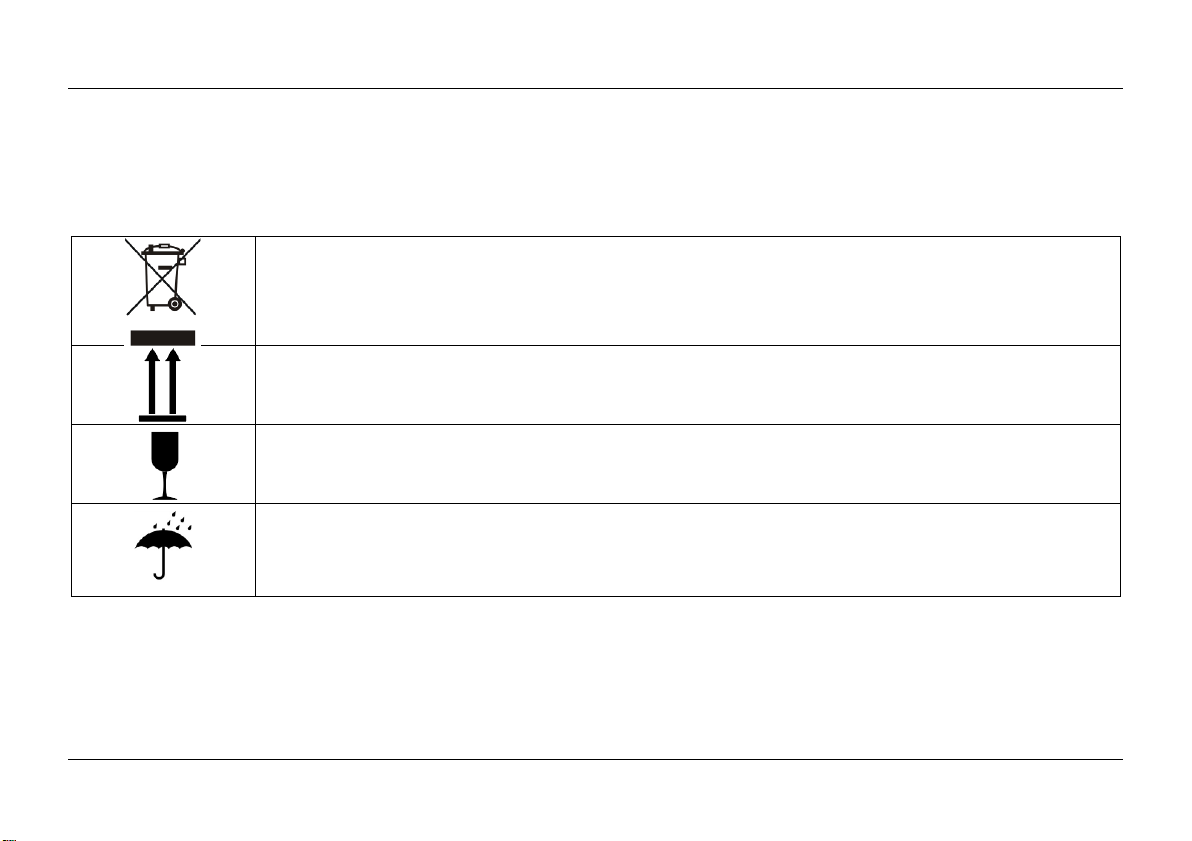
Optelec Compact 10 HD & Compact 10 HD Speech
97 Nederlands
Waarschuwing voor de battery pack
BATTERIJ MOET WORDEN VERVANGEN DOOR GECERTIFICEERD SERVICE PERSONEEL.
EXPLOSIEGEVAAR ALS DE BATTERIJ WORDT VERVANGEN DOOR EEN VERKEERD TYPE.
GOOI GEBRUIKTE BATTERIJEN WEG VOLGENS DE VOORSCHRIFTEN
Gooi dit elektronische apparaat niet in de prullenbak wanneer u het weggooit. Om
vervuiling te minimaliseren en de grootst mogelijke bescherming van de wereldwijde
omgeving te garanderen, kunt u recyclen.
Deze kant omhoog.
Breekbaar.
Droog houden.
Page 99
Optelec Compact 10 HD & Compact 10 HD Speech
Français 98
Compact 10 HD
Compact 10 HD Speech
Manuel d’utilisation
Version 1.3
© 2019 Optelec, Pays-Bas
Tous droits réservés
Optelec
Casier postale 399
2990 AJ Barendrecht
Pays-Bas
Courriel: [email protected]
Internet: www.optelec.com
Téléphone: +31 (0)88 678 34 44
Page 100

Optelec Compact 10 HD & Compact 10 HD Speech
99 Français
1. Introduction
Félicitations pour l’acquisition de votre Compact 10 HD ou Compact 10 HD Speech!
Avec son grand écran de 10 pouces, ses fonctionnalités personnalisables et son fonctionnement
intuitif, le Compact 10 HD offre tous les avantages d'un téléagrandisseur de bureau, mais dans un
design beaucoup plus petit, pliable et portable. Une fois le bras déployé, vous pouvez facilement
regarder des photos, signer votre nom, visualiser l’emballage de médicaments et même lire des
boîtes de conserves, sans être limité dans vos mouvements. Avec le Compact 10 HD Speech, le
bras pivotant vous permet de numériser et de lire des pages complètes de texte.
Si vous avez des questions ou des suggestions à propos de ce produit ou de son utilisation, veuillez
contacter votre distributeur ou les bureaux d’Optelec en vous référant à la dernière page de ce
manuel. Vos commentaires sont grandement appréciés. Nous espérons que vous aimerez travailler
avec votre Compact 10 HD!
À propos de ce manuel
Chez Optelec, nous travaillons constamment à améliorer nos produits et leurs fonctions. Il est donc
possible que ce manuel ne soit pas la plus récente édition. Veuillez télécharger la plus récente
édition du manuel sur notre site www.optelec.com dans la section Support.
 Loading...