

Page 1
Page 2

Page 3

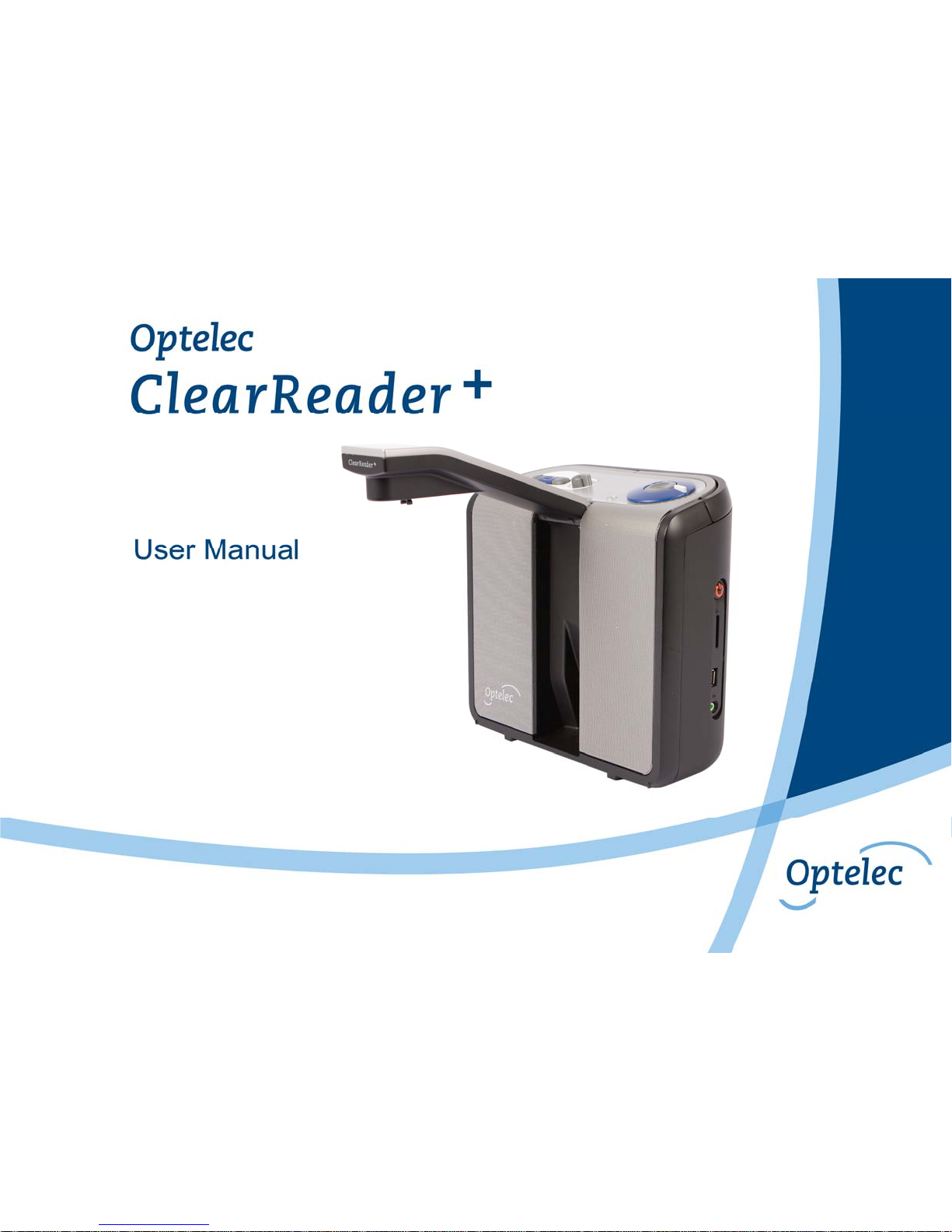
Optelec ClearReader+
English Page 1
The ClearReader+ will be helpful for low vision and blind people in reading.
WEEE Notice
The directive on Waste Electrical and Electronic Equipment (WEEE), which entered into force as European law on 13
th
February 2003, resulted
in a major change in the treatment of electrical equipment at end-of-life.
The purpose of this Directive is, as a first priority, the prevention of WEEE, and in addition, to promote the reuse, recycling and other forms of
recovery of such wastes so as to reduce disposal.
The WEEE logo (shown at the left) on the product or its box indicates that this product must not be disposed of or dumped with
your other household waste. You are liable to dispose of all your electronic or electrical waste equipment by relocating over to
the specified collection point for recycling of such hazardous waste. Isolated collection and proper recovery of your electronic
and electrical waste equipment at the time of disposal will allow us to help conserve natural resources. Moreover, proper
recycling of the electronic and electrical waste equipment will ensure safety of human health and the environment. For more
information about electronic and electrical waste equipment disposal, recovery, and collection points, please contact your local
city centre, household waste disposal service, shop from where you purchased the equipment, or manufacturer of the
equipment.
RoHS Compliance
This product is in compliance with Directive 2002/95/EC of the European Parliament and of the Council of 27 January 2003, on the restriction of
the use of certain hazardous substances in electrical and electronic equipment (RoHS) and its amendments.
European Union Notice
Products with CE marking comply with the R&TTE Directive (99/5/EC), the EMC Directive (89/336/EEC), and the Low Voltage Directive
(73/23/EEC) issued by the Commission of the European Community.
Compliance with these directives implies conformity to the following international standards:
IEC 60950-1 2004;
IEC 55022
IEC 55024 (IEC61000-4-2 excluded)
FCC
FCC part 15 Class B
Page 4

Optelec ClearReader+
English Page 2
Page 5

Optelec ClearReader+
English Page 3
User Manual
OPN: CR-BA-EU/US/AU Version 2.0
© 2013 Optelec, the Netherlands
All rights reserved
Optelec
P.O. Box 399
2990 AJ Barendrecht
The Netherlands
Phone: +31 (0)88 678 34 44
E-mail: [email protected]
Internet: www.optelec.com
Page 6

Optelec ClearReader+
English Page 4
Contents
1. Introduction ........................................................................................................................ 7
About this manual ............................................................................................................ 7
What’s in the box .............................................................................................................. 8
2. Getting to know your ClearReader+ ................................................................................. 9
The Optelec ClearReader+ layout ..................................................................................... 9
Buttons ........................................................................................................................... 11
Connections ................................................................................................................... 12
3. Getting Started ................................................................................................................. 13
Using the ClearReader+ for the first time ........................................................................ 13
Opening the camera arm ................................................................................................ 13
Positioning a document .................................................................................................. 13
Turning on the ClearReader+ ......................................................................................... 14
Standby mode ................................................................................................................ 14
Turning off the ClearReader+ ......................................................................................... 14
Reading text ................................................................................................................... 15
Reading tables and spreadsheets .................................................................................. 15
Adjusting the volume ...................................................................................................... 15
Adjusting the reading speed ........................................................................................... 15
Play or pause reading .................................................................................................... 16
Spelling a word ............................................................................................................... 16
Navigate back in the text ................................................................................................ 16
Navigate forward in the text ............................................................................................ 16
Page 7

Optelec ClearReader+
English Page 5
Navigate to the beginning of the document .................................................................... 16
Selecting the reading voice or language ........................................................................ 17
4. The ClearReader+ Magnification Feature Pack.............................................................. 18
Introduction .................................................................................................................... 18
What’s in the box ............................................................................................................ 18
The ClearReader+ Magnification Feature Pack buttons ................................................. 18
Connecting the Magnification Feature Pack to the Optelec ClearReader+ ..................... 20
Magnification views ........................................................................................................ 21
Page View ...................................................................................................................... 21
Column View .................................................................................................................. 21
Line View ........................................................................................................................ 21
Overview ........................................................................................................................ 22
Reading and navigating with the Magnification Feature Pack ........................................ 22
5. The ClearReader+ Menu .................................................................................................. 24
Activating and closing the menu ..................................................................................... 25
Using the menu .............................................................................................................. 25
Save ............................................................................................................................... 26
Open .............................................................................................................................. 28
Delete ............................................................................................................................. 30
Voice .............................................................................................................................. 31
View ............................................................................................................................... 33
Color .............................................................................................................................. 34
Contrast .......................................................................................................................... 35
Highlight ......................................................................................................................... 35
Page 8

Optelec ClearReader+
English Page 6
Size ................................................................................................................................ 35
Font ................................................................................................................................ 35
Settings .......................................................................................................................... 36
Voice .............................................................................................................................. 37
Resolution ...................................................................................................................... 38
Restore defaults ............................................................................................................. 38
About .............................................................................................................................. 38
6. Power and battery use .................................................................................................... 39
Checking the battery status ............................................................................................ 39
Charging the ClearReader+ battery ................................................................................ 39
Extending the battery life ................................................................................................ 39
7. Troubleshooting .............................................................................................................. 40
Appendix A: Safety .................................................................................................................. 42
Appendix B: Technical information ........................................................................................ 43
Contact Information - Optelec Offices Worldwide................................................................. 44
Page 9

Optelec ClearReader+
English Page 7
1. Introduction
Congratulations on choosing the ClearReader+, an intuitive portable reading assistant developed
by Optelec.
The Optelec ClearReader+ combines ease of use with high quality multilingual speech output and
fast text recognition. It can capture any printed material such as letters, newspapers and books,
and reads text aloud using a naturally sounding voice. The built-in speakers provide high-quality
stereo sound. Thanks to the integrated ClearReader+ battery, you can enjoy reading without the
need to be in close proximity of a mains power outlet.
If you have any questions or suggestions concerning the use of the Optelec ClearReader+, please
contact your Optelec distributor using the contact information on the last page of this manual. Your
feedback is greatly appreciated and we hope you enjoy using your ClearReader+.
About this manual
This manual will familiarize you with the features and easy operation of the ClearReader+. Please
read this manual carefully before using your Optelec ClearReader+.
Page 10

Optelec ClearReader+
English Page 8
What’s in the box
The ClearReader+ packaging contains the following:
- The Optelec ClearReader+
- A power supply with power cord
- A quick start guide
- This user manual
If any of these items are missing from your package, please contact your Optelec distributor.
Page 11

Optelec ClearReader+
English Page 9
2. Getting to know your ClearReader+
This chapter will familiarize you with your Optelec ClearReader
+
.
The Optelec ClearReader+ layout
Swing-out camera arm
Camera
Object lighting
Built-in speakers
Capture area
Foldable carrying
handle
Power indicator
Power button
Page 12

Optelec ClearReader+
English Page 10
Swing-out camera arm Open the arm to capture a document.
Camera To take a snapshot, position the document in front of the ClearReader+.
Use the document positioning indicators on the bottom left and right of
the ClearReader+ to position the document. The document area is
approximately the width of the ClearReader+ and the length of a regular
A4 or letter size page.
Object lighting The ClearReader+ automatically provides sufficient lighting when taking
a snapshot.
Built-in stereo speaker Listen to your letters, newspaper or books.
Foldable carrying handle Open the handle to lift and carry the ClearReader+ comfortably.
Power indicator Light is on when the power is on, blinks in standby mode, and is off
when the power is off.
Power button Press the round button on the right-hand side to turn the ClearReader
+
on or off.
Page 13

Optelec ClearReader+
English Page 11
Buttons
Play / Pause button Speed dial Volume dial
Back button Forward button Scan button
Page 14
Optelec ClearReader+
English Page 12
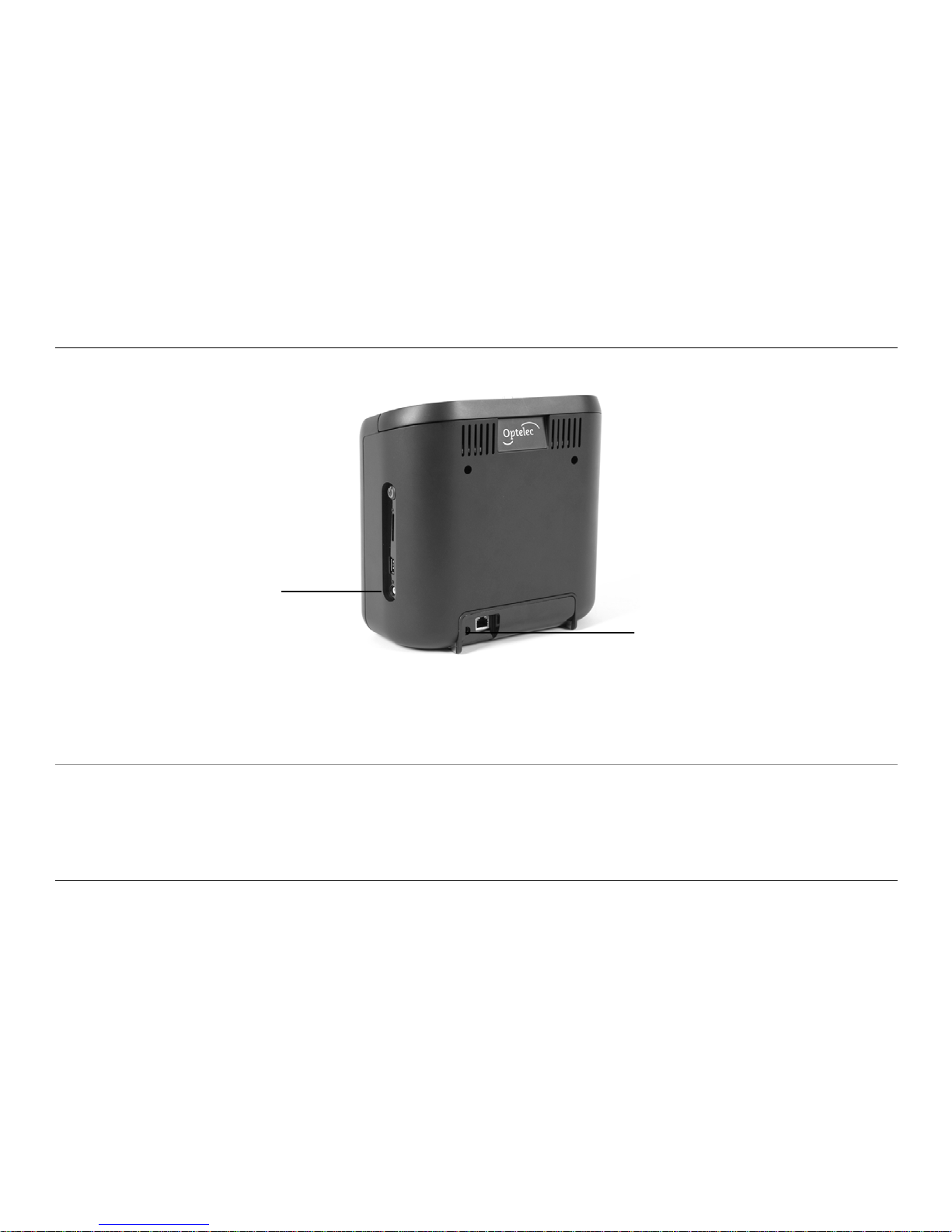
Connections
Power connector Connect the power adaptor to your ClearReader+.
Headphone out Connect headphones if needed.
Power connector
Headphone out
Page 15
Optelec ClearReader+
English Page 13
3. Getting Started
Using the ClearReader+ for the first time
When you use the Optelec ClearReader+ for the first time, the battery
needs to be charged. To charge the battery, connect the ClearReader+ to
a mains power outlet using the ClearReader+ power supply. Charging
takes approximately 3 hours.
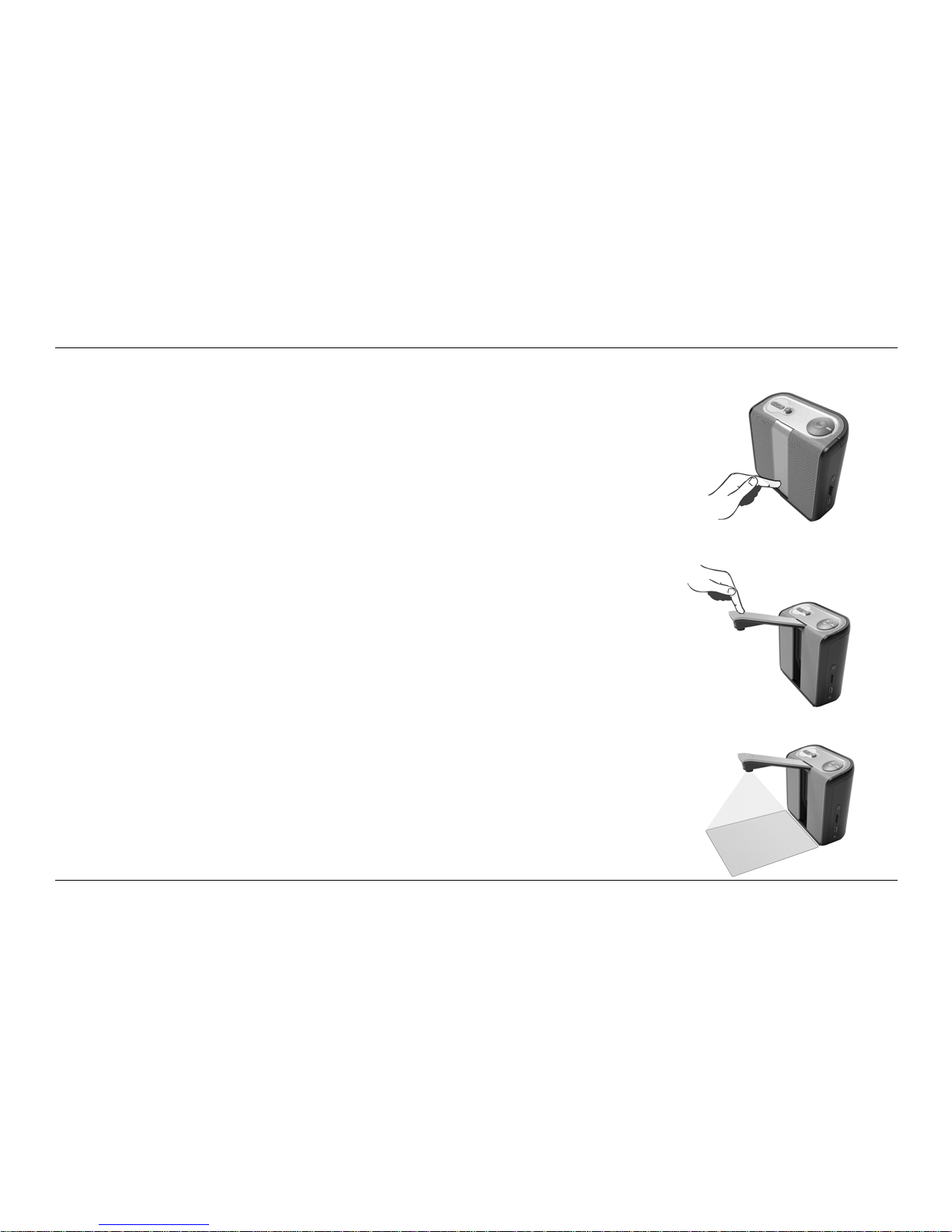
Opening the camera arm
To open the camera, locate the “push” sign on the camera arm at the
front of the ClearReader+ between the speakers. Gently push on the
camera arm until you hear a click. The arm will eject and move towards
you. Close the camera arm in the same way by pushing the end of the
arm back to the closed position until you hear a click.
Positioning a document
The Optelec ClearReader+ camera can capture an area of an A4 or
letter-size page measured from the front side of the ClearReader+. To
position the document, place it in front of the ClearReader
+
between the
two document positioning indicators with the top edge of the document
aligned towards the front of the unit. The orientation of the document will
not influence the recognition of the text.
Page 16
Optelec ClearReader+
English Page 14
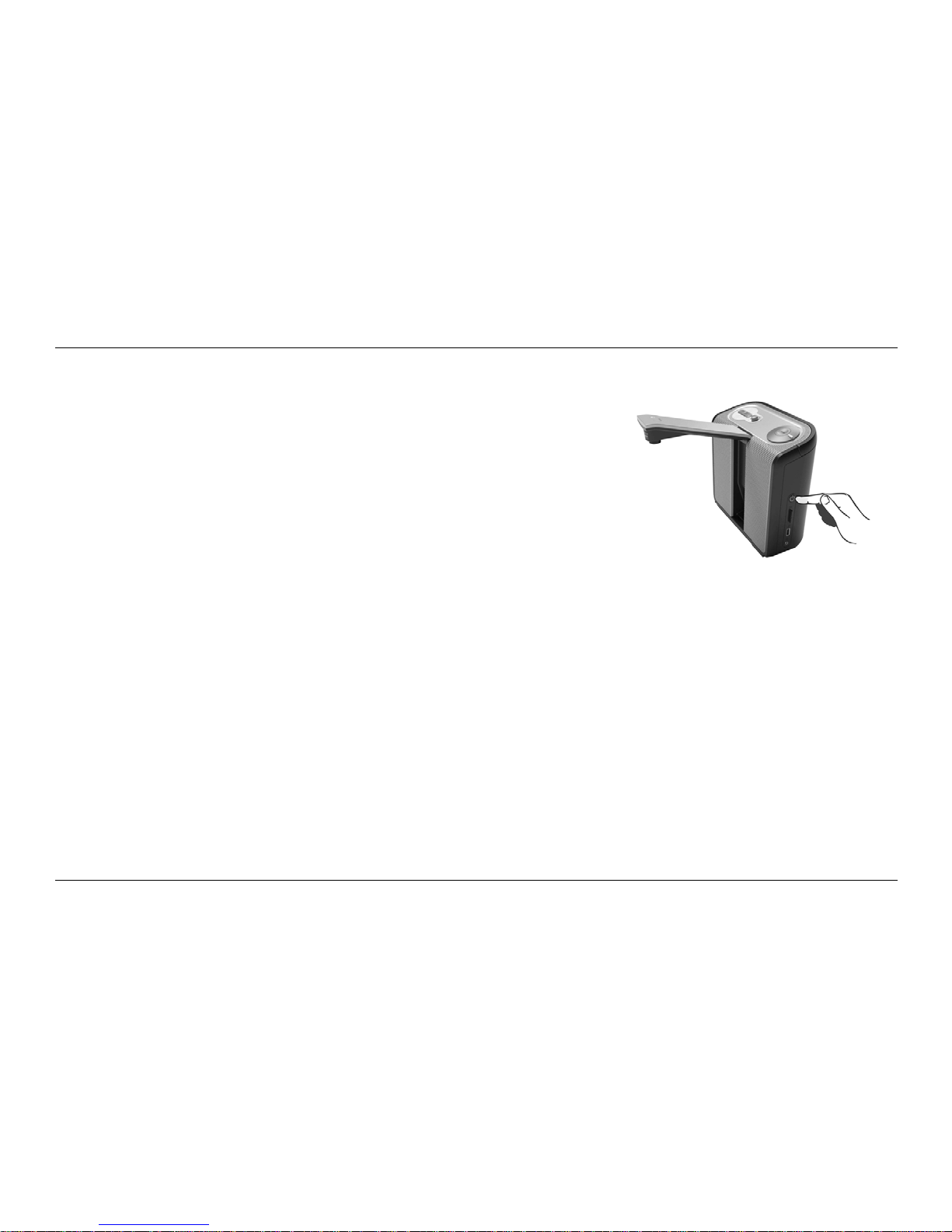
Turning on the ClearReader+
To turn on the ClearReader+, press the round Power button on
the right-hand side. The start-up process will take approximately
40 seconds. You will hear a series of beeps to indicate that the
ClearReader+ is starting up followed by the start-up sound. Now
the Power indicator is lit up and the ClearReader+ is ready to use.
Standby mode
The ClearReader+ will go into standby mode by pressing, and
holding down the Back button and Forward button for 2 seconds.
The standby sound will be played, the Power indicator will start blinking and the ClearReader+ will
go into standby mode. To wake up the ClearReader+ from standby, press the Power button. When
the batteries are fully charged, the standby time of the ClearReader+ is approximately 40 hours.
After 40 hours the ClearReader+ will power down. If switching-on the ClearReader+ from the
standby mode, the start-up process will take approximately 10 seconds.
Turning off the ClearReader+
Press the Power button to power down the ClearReader+ completely. The power down sound will
be played and the Power indicator will turn off.
Page 17
Optelec ClearReader+
English Page 15
Reading text
Press the Scan button to capture and start reading a document positioned beneath the camera.
After pressing the Scan button, you will hear the snapshot sound and within a few seconds the
ClearReader+ will begin reading to you.
Reading tables and spreadsheets
To read tables, receipts and bank statements, press and hold the Scan button for more than 2
seconds until you hear a clicking sound. A long press of the Scan button will enable the Table
Reading mode and will disable the automatic column recognition, making
it possible to read across columns. Text will be read from left to right
ignoring column borders.
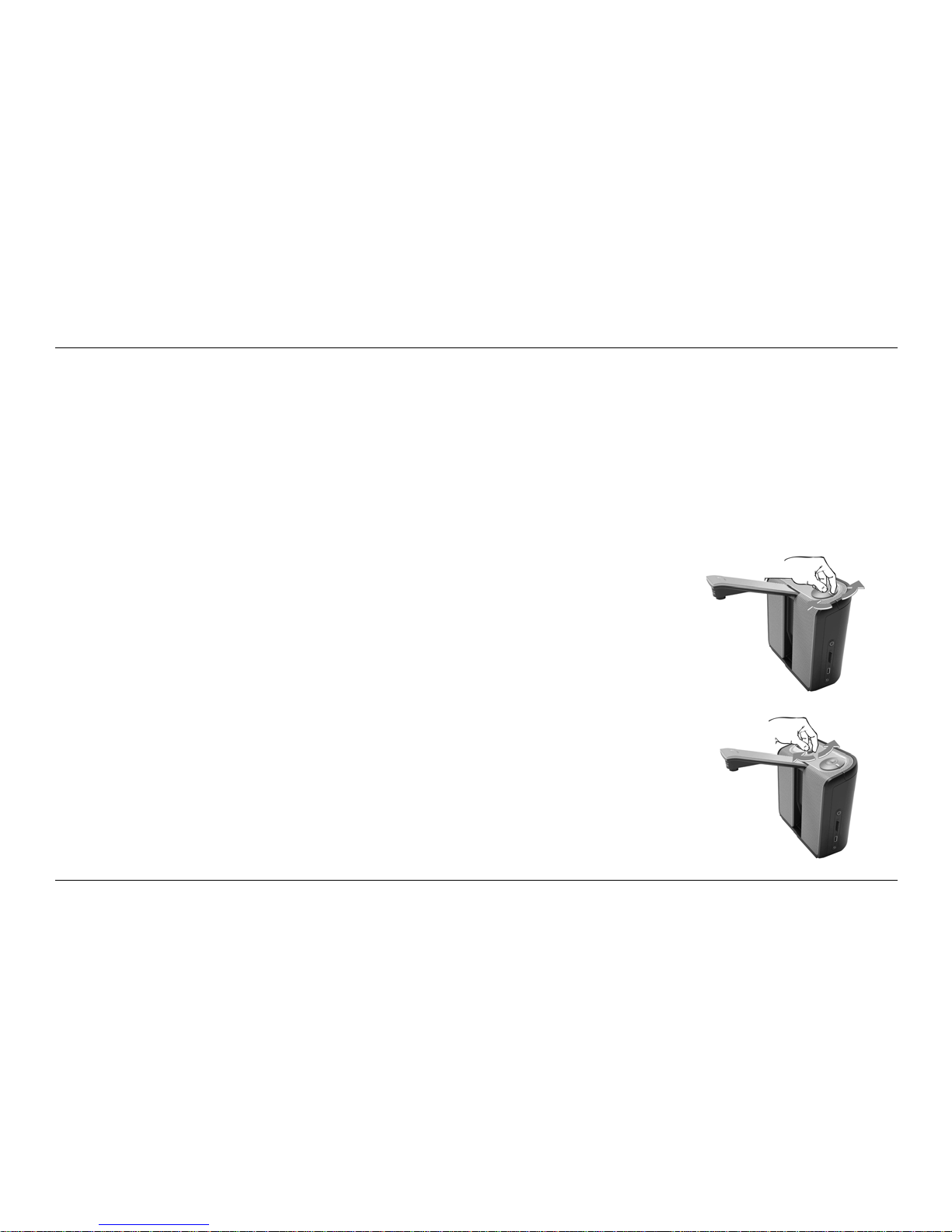
Adjusting the volume
Turn the Volume dial clockwise and release it to slightly increase the
volume of the reading voice. Alternatively, turn the dial counterclockwise
and release it to slightly decrease the volume. To rapidly adjust the
volume, turn and hold the dial to the end position. When releasing the dial
it will always move back to its start position.
Adjusting the reading speed
Turn the Speed dial clockwise and release it to slightly increase the
reading speed. Alternatively, turn the dial counterclockwise and release it
to slightly decrease the reading speed. To rapidly adjust the reading
Page 18

Optelec ClearReader+
English Page 16
speed, turn and hold the dial at the end position. When releasing the dial it will always move back
to its start position.
Play or pause reading
The ClearReader+ will automatically start reading after pressing the Scan button. To pause
reading, press the Play / Pause button. Press this button once again to continue reading.
Spelling a word
To spell a word, press and hold the Play / Pause button until you hear the click. Character by
character, the word will be spelled out loud.
Navigate back in the text
Press the Back button to navigate to the previous word. Press and hold the Back button for 2
seconds to navigate to the previous sentence.
Navigate forward in the text
Press the Forward button to navigate to the next word. Press and hold the Forward button for 2
seconds to navigate to the next sentence.
Navigate to the beginning of the document
To navigate to the beginning of the document, Press the Back button and Play / Pause button
simultaneously.
Page 19

Optelec ClearReader+
English Page 17
Selecting the reading voice or language
To select your preferred reading voice or reading language, press and hold the Back button while
turning the Speed dial at the same time. The ClearReader+ will switch to the next voice and
announce the name of the newly selected voice and the language. For optimal performance the
reading language and language of the document need to match. If the language of the document
does not match the selected reading language, the text recognition will be of a lower quality and
the recognition will take longer.
Page 20

Optelec ClearReader+
English Page 18
4. The ClearReader+ Magnification Feature Pack
Introduction
The ClearReader+ Magnification Feature Pack will add magnification options, as well as advanced
navigation, viewing and reading functionality to your ClearReader+. Use the ClearReader+ and the
Feature Pack without the monitor to listen to the document captured on the screen, or with the
monitor to magnify it.
What’s in the box
The ClearReader+ Magnification Feature Pack packaging contains the following:
- The Optelec ClearReader+ Magnification Feature Pack
If this item is missing from your package, please contact your Optelec distributor.
The ClearReader+ Magnification Feature Pack buttons
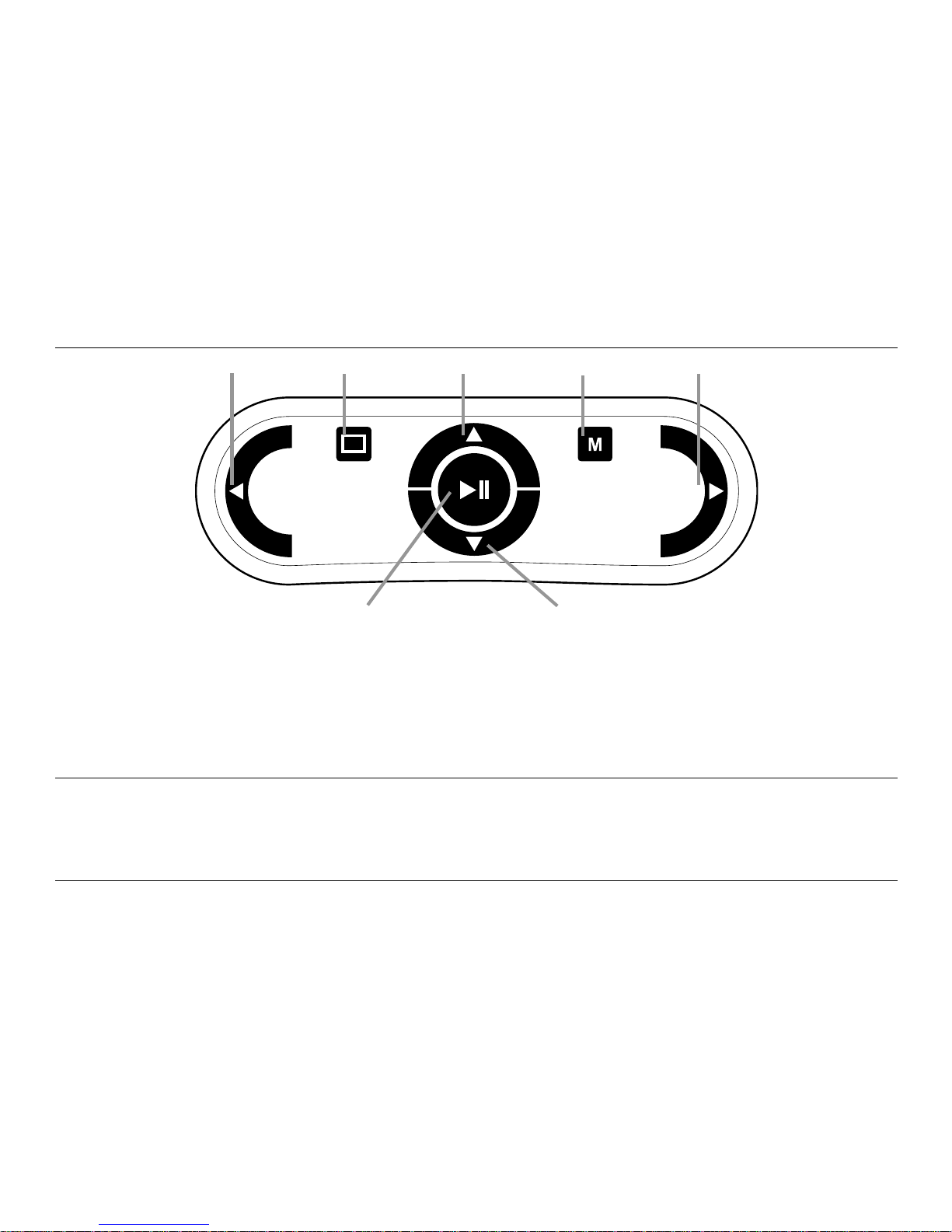
The following figure shows the ClearReader+ Magnification Feature Pack buttons:
Page 21
Optelec ClearReader+
English Page 19
Left View Up Menu Right
Play / Pause Down
Play / Pause button: Round button in the centre of the remote control to stop and restart
reading. Press and hold down the button for 2 seconds to spell the current
word. Pressing the Play / Pause button within the menu will activate the
button, cycle through the available options, check or uncheck the selection
or enter a submenu.
Left arrow key: Press to navigate to the previous word or to the previous menu item in the
menu. During playback of the text, this button will decrease the reading
speed.
Page 22

Optelec ClearReader+
English Page 20
Right arrow key: Press to navigate to the next word or to the next menu item in the menu.
During playback of the text, this button will increase the reading speed.
Up arrow key: Press to navigate a line up in the text, or to move to the previous menu
item in the menu.
Down arrow key: Press to navigate a line down, or to move to the next menu item in the
menu.
Mode button: Square button on the left half of the remote control. Press to switch
between the 4 viewing modes: Column view, Line view, Page view and
Overview mode.
Menu button: Square button marked with the character “M” on the right half of the
remote control. Press to enter and exit the menu.
Connecting the Magnification Feature Pack to the Optelec ClearReader+
Connect the Magnification Feature Pack to the ClearReader+ and optionally, a monitor. Locate the
VGA connector at the bottom rear side of the ClearReader+. If the VGA connector is not visible,
you will need to remove the protection cover which will also reveal two USB connectors. Use a
Page 23

Optelec ClearReader+
English Page 21
Philips screwdriver to remove the screw which closes the cover. This screw is located in the
middle of the cover at the bottom side of the ClearReader+. Connect the monitor to the
ClearReader+ by using a VGA cable. Adjacent to the VGA connector, there are two USB ports.
Connect the USB cable of the ClearReader+ Magnification Feature Pack to one of the two USB
ports on the rear side or to the USB port on the right side of the unit.
When the Magnification Feature Pack is connected to the ClearReader+, switch on the
ClearReader+ and take a snapshot of a document as described in this manual.
Magnification views
With the ClearReader+ Magnification Feature Pack, you can view captured documents in four
different Views: Page view, Column view, Line view and as a full page Overview. To switch
between the different views, press the Mode button on the Magnification Feature Pack.
Page View
The Page view shows a photograph of the document in its original layout, including the pictures.
Column View
In the Column view the text is reformatted and displayed in a column to fit the width of the screen
regardless of the text size. Pictures are not shown in this view.
Line View
In Line view the text is reformatted and displayed in one continuous line, and the highlighted word
is always displayed at the centre of the screen. Pictures are not shown in this view.
Page 24

Optelec ClearReader+
English Page 22
Overview
In the Full page overview, the full page is being shown with blue numbered bullets marking the
detected text zones in the document. The navigation bullets can be used to quickly navigate
through a text. Navigate between the bullets by pressing the Play / Pause button plus the Up
arrow to go to the previous zone and the Down arrow to go to the next zone. The speech will start
reading the selected text zone. The number of the navigation bullets represent the most likely
order of the text. The speech reads the zone with navigation bullet number 1, followed by
navigation bullet number 2, and so on.
In all views, the text cam be displayed in high contrast. Options to adjust the appearance of the
text such as size, color, word highlight, or font can be found within the ClearReader+ Menu.
Reading and navigating with the Magnification Feature Pack
You can navigate to the next or previous line of the text by pressing the Up or Down arrow keys.
To move a screen up in a document, press the Play / Pause button together with the Up arrow
key. To move to the next screen, press the Play / Pause button together with the Down arrow key.
In page overview, Play / Pause together with the up or down arrow will navigate to the previous or
next bullet or text zone. To go to the start or end of the document, use the Left plus Up arrow keys
or Right plus Down arrow keys respectively. If you are reading a book press the Play / Pause
button in conjunction with the Right arrow key to go to the next page. To go to the previous page,
press the Play / Pause button with the Left arrow key.
By default the ClearReader+ will recognize columns. If you wish to disable the column recognition
to read tables, press and hold the Play/Pause button and press the Photo button.
Page 25

Optelec ClearReader+
English Page 23
To start or stop reading, press the Play / Pause button. While reading, the text will scroll
automatically. To decrease the reading / scrolling speed, press the Left arrow key. Alternatively,
press the Right arrow key to increase the reading / scrolling speed.
In case no monitor is connected to the ClearReader+, pressing the Mode button will announce the
page orientation.
Page 26
Optelec ClearReader+
English Page 24
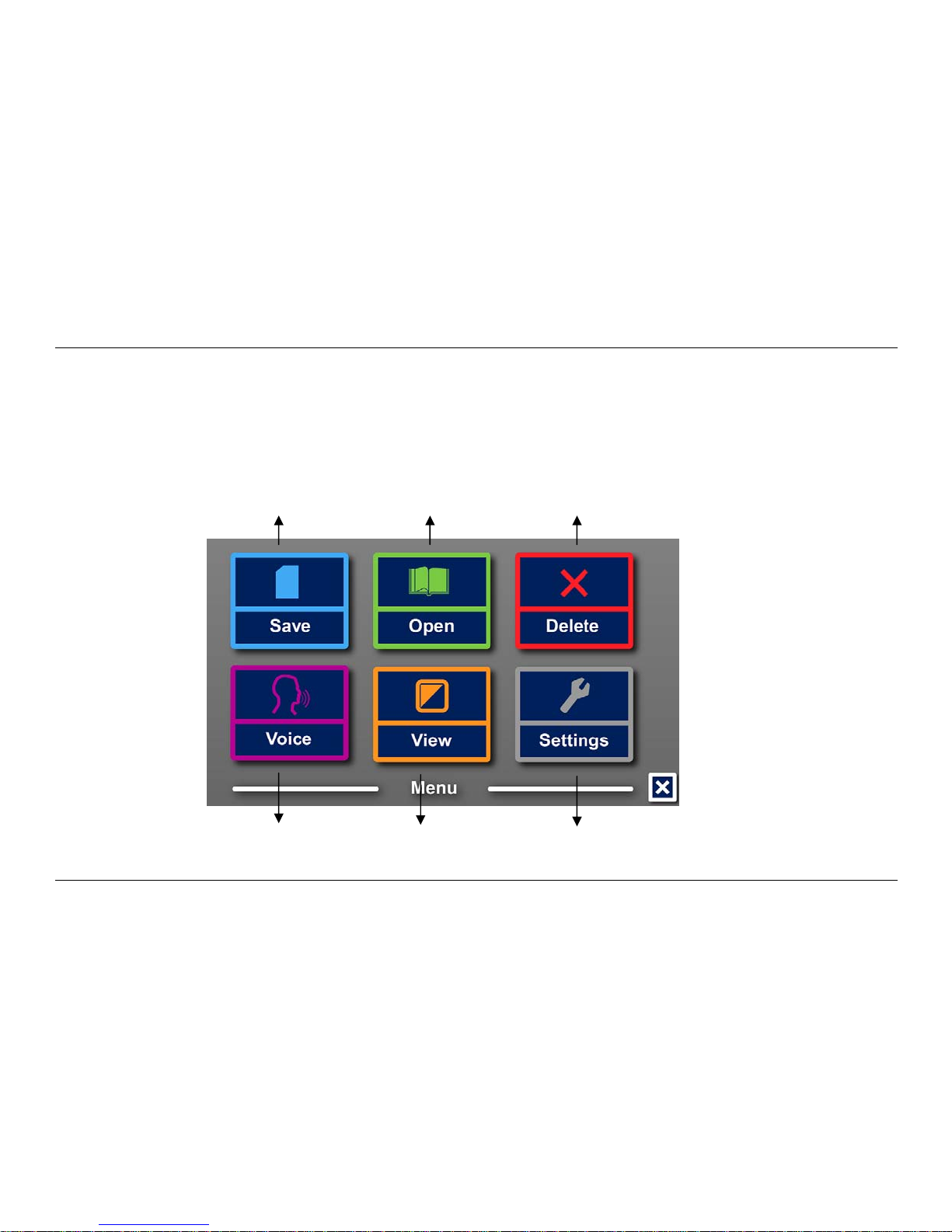
5. The ClearReader+ Menu
This chapter will familiarize you with the ClearReader
+
Menu.
Change
settings
Change viewing
mode
Change
voice
Delete
saved documents
Open
documents
Save
documents
Page 27

Optelec ClearReader+
English Page 25
Activating and closing the menu
To activate the menu, press the Play / Pause button together with the Forward button on the
ClearReader+. Alternatively, press the square button on the feature pack marked with the
character “M”. To close the menu, press the Play / Pause button together with the Forward button
again, or use the Menu button on the feature pack.
Using the menu
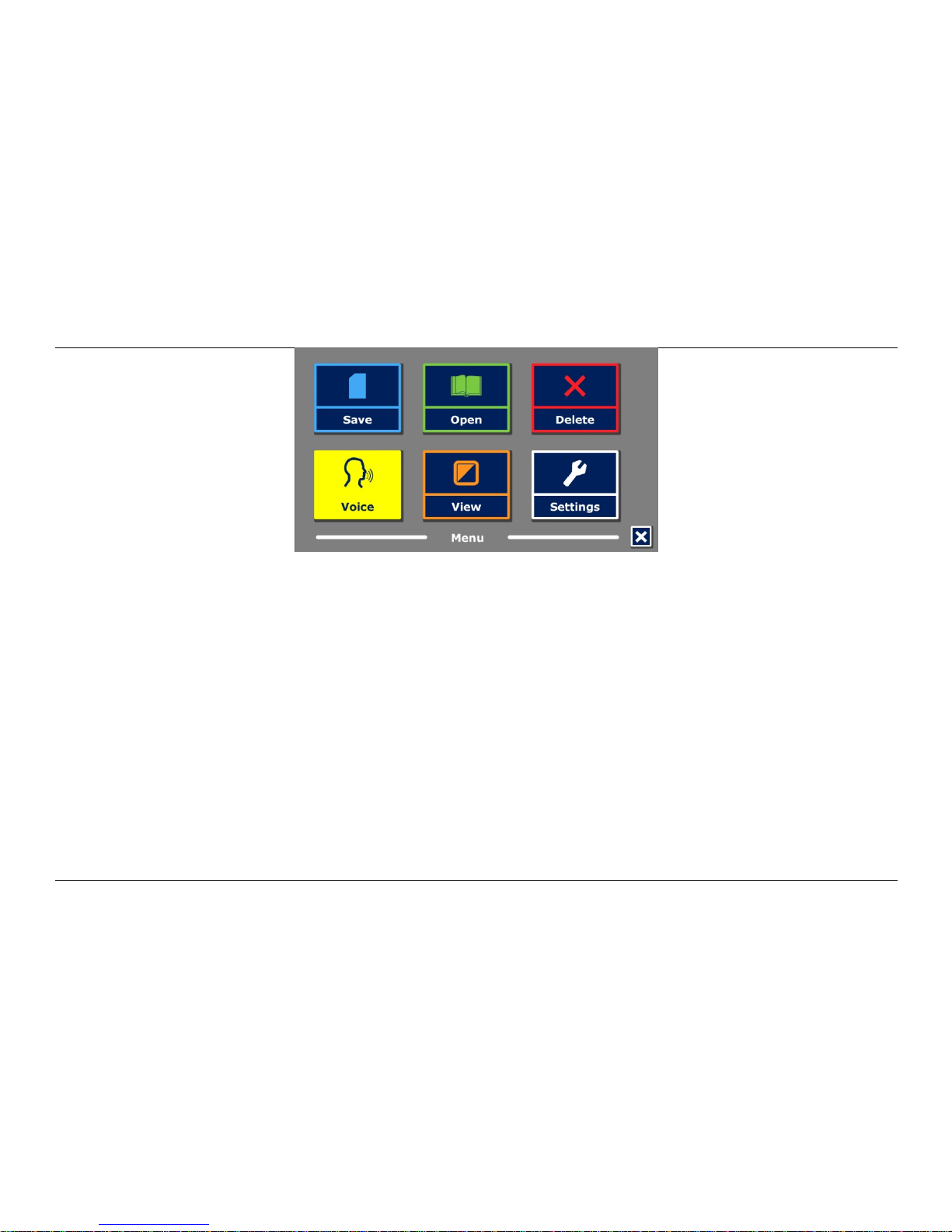
The ClearReader+ menu contains two rows of three large buttons. To activate a button, navigate
to the button using the Back button and Forward button on the ClearReader+. Press the Play /
Pause button to activate the selected menu button. If you have a feature pack, use the Up, Down,
Left and Right arrows to navigate through the menu. Press the Play / Pause button to select a
menu item. Activating a menu button with the Play / Pause button will either change a setting, or
open a submenu or list. If a button is greyed out, the option is not available.
The menu contains the following buttons:
Save
Voice
Open
View
Delete
Settings
Page 28
Optelec ClearReader+
English Page 26
Save
To be able to save documents, you will need to insert a SD card into the SD slot above the USB
port on the right-hand side of the ClearReader+. Alternatively, you can use a USB memory stick to
save documents. By default a document will be saved on the SD card. If you wish to save your
document on a USB drive, connect a USB drive to the ClearReader+. When a USB drive is
connected, the document will always be saved on the USB drive.
To save a document, open the menu and navigate to the blue Save button with the Back and
Forward button or the arrow keys on the feature pack. Activate the Save button with the Play /
Pause button.
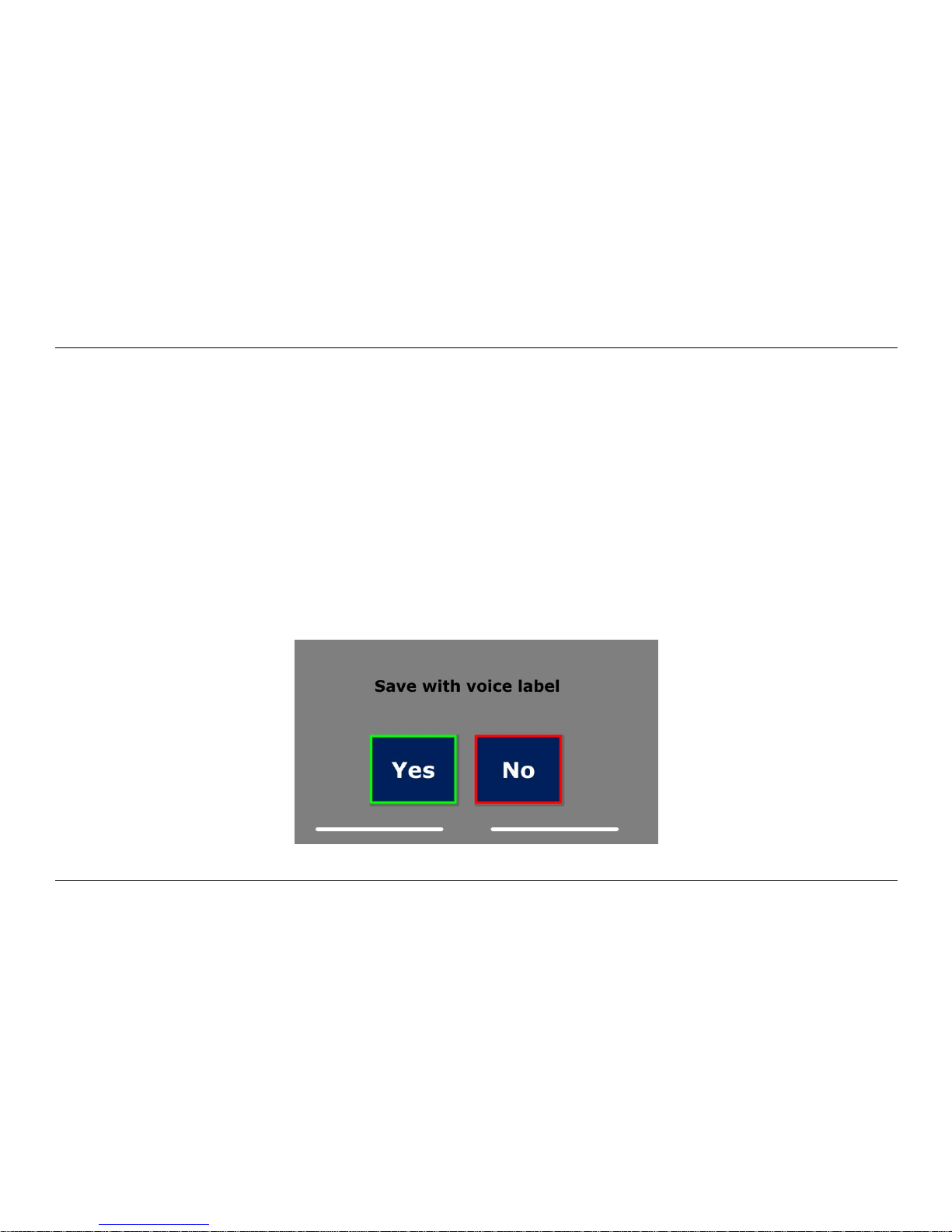
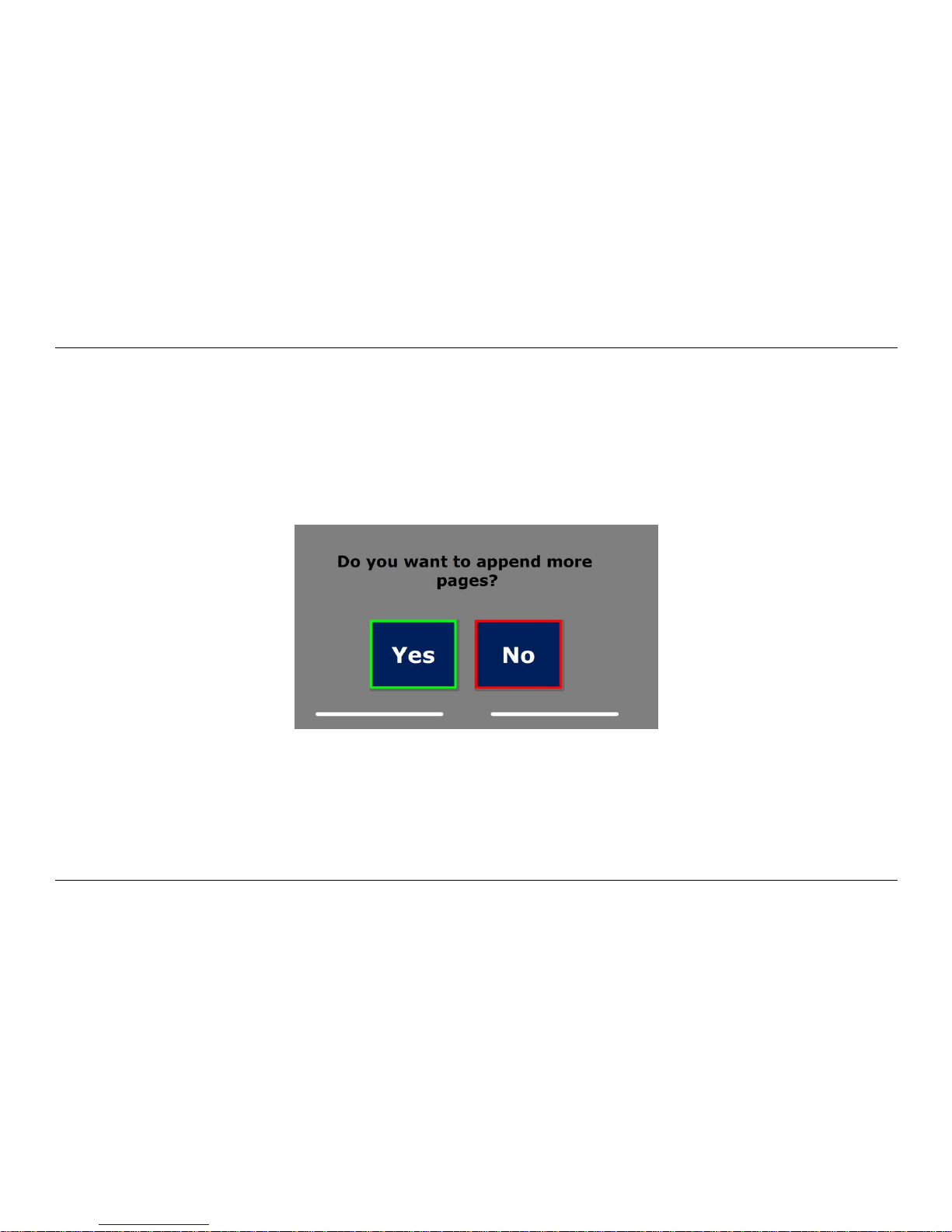
First you will be asked if you would like to save your document with a voice label.
Page 29
Optelec ClearReader+
English Page 27
If you wish to save a document without a voice label, select “No”. The document will be saved
using the first line of the document as the name of the document. If you would like to add a voice
label, select “Yes”. You will hear a beep after which you have 5 seconds to record a voice label. At
the end of the recording you will hear another beep. The document will be saved with the recorded
voice label.
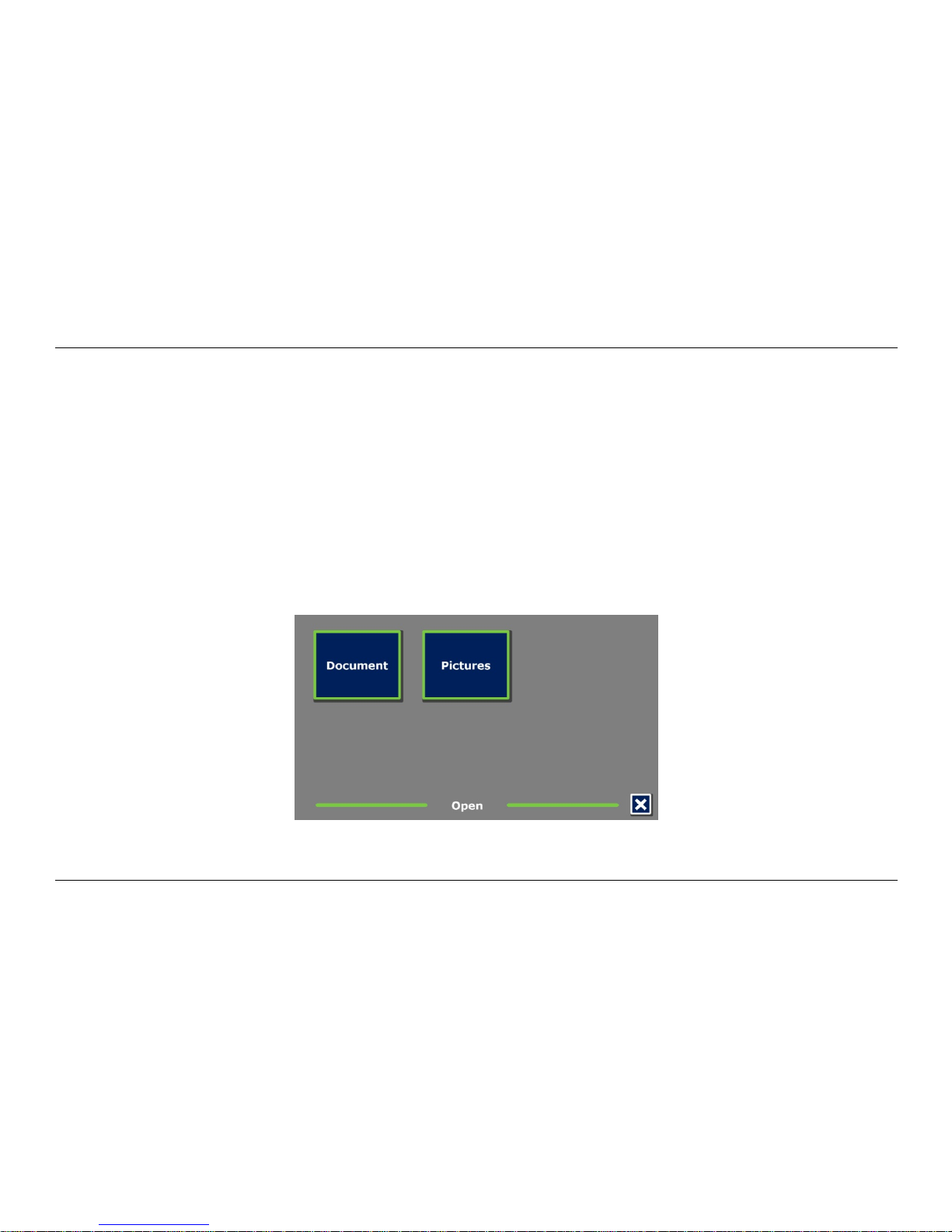
When the document is saved, the ClearReader+ will ask if you would like to append more pages to
the document.
If you select “No”, the menu will be closed, showing the document again. If you select “Yes”, you
can start appending more pages to the document by pressing the Scan button. To stop appending
pages to the document, press the Menu button marked with the “M” or the Play / Pause key on the
ClearReader+.
Page 30
Optelec ClearReader+
English Page 28
The ClearReader+ will prompt you with the question if the captured pages should be processed. If
“No” is selected, the conversion to text will be done while reading the document. If “Yes” is
selected, all pages will be processed before returning to the document reading mode. This
process may take several minutes, depending on the number of pages of the document.
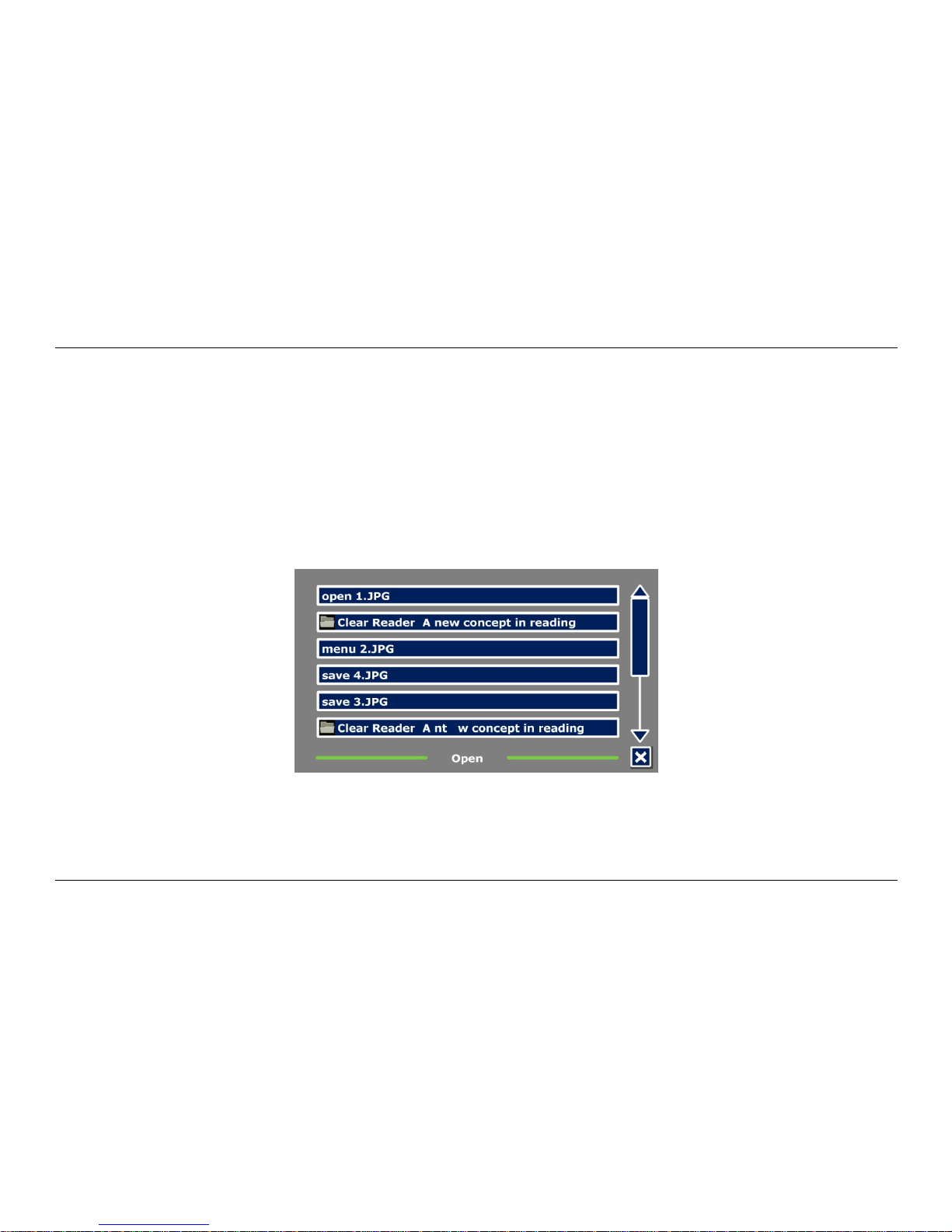
Open
To open a document, open the menu and navigate to the green Open button with the Back and
Forward button or the arrow keys on the feature pack. Activate the Open button with the Play /
Pause button. Select the “Document” button to see the list of saved documents, showing the most
recently saved document first. To open and view pictures, select the “Picture” button.
Page 31
Optelec ClearReader+
English Page 29
Scroll through the list of documents or pictures using the Back button or Forward button on the
ClearReader+, or the arrow keys on the feature pack. Open a document by pressing the Play /
Pause button.
In the list with documents or pictures, use the Play / Pause button to open the document or picture
you wish to read or view. The menu will be closed and the document or picture will be opened. It is
also possible to open documents or photos from a USB stick.
Page 32
Optelec ClearReader+
English Page 30
Delete
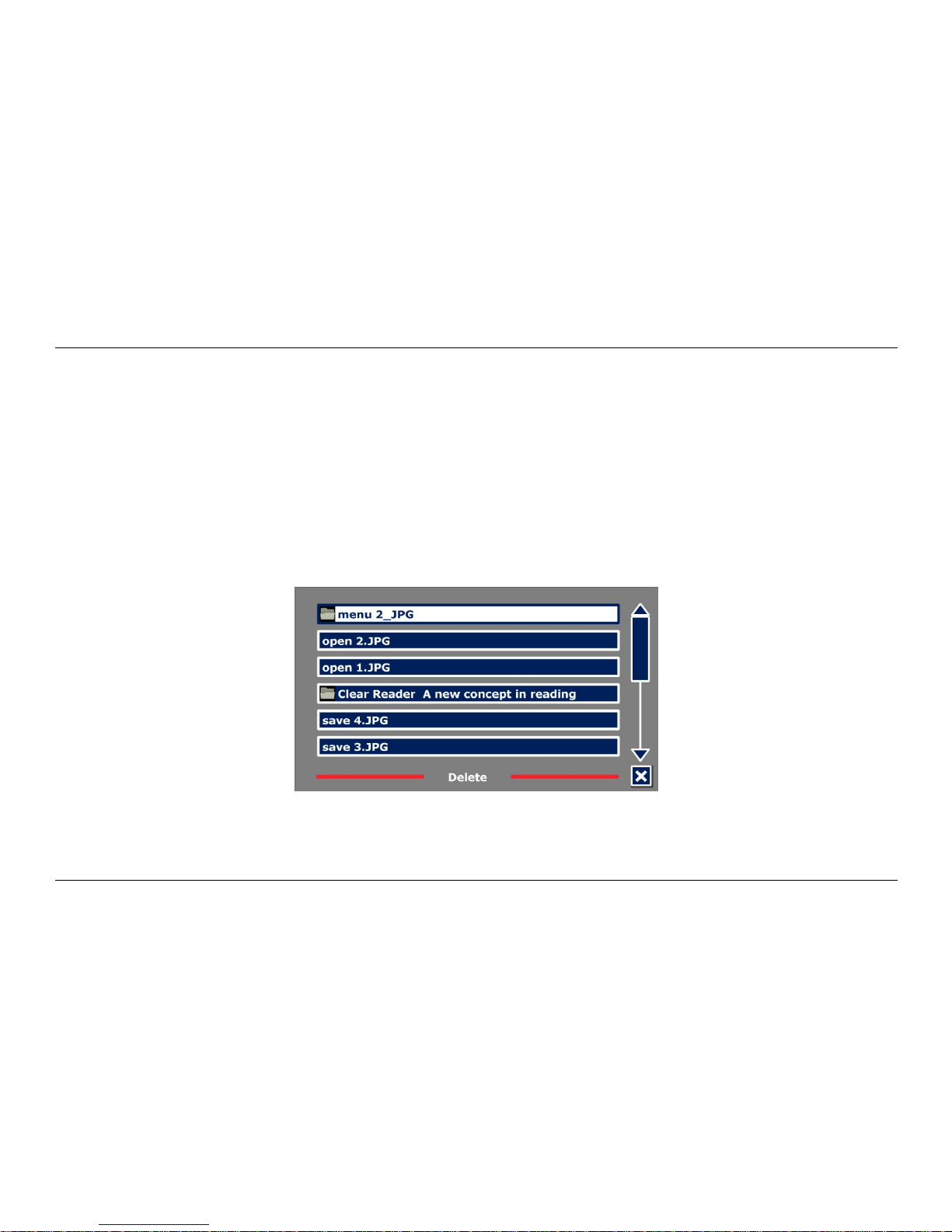
To delete a document, open the menu and navigate to the Delete button with the Back and
Forward button or the arrow keys on the feature pack. Activate the Delete button with the Play /
Pause button. Select the document you wish to delete.
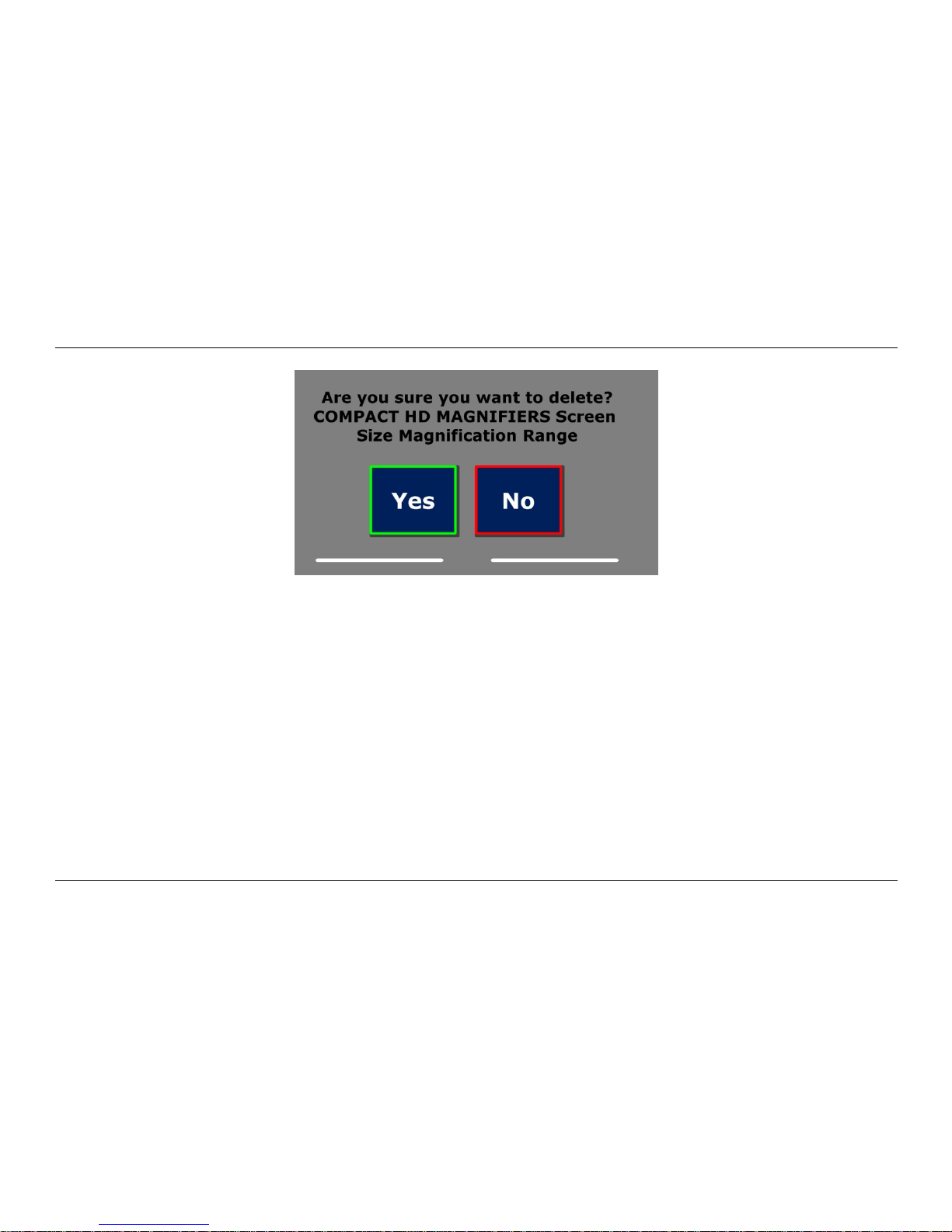
You will be prompted to confirm to delete the document. To delete the document, select “Yes”. To
cancel deleting the document, select “No”. Both choices will return you to the list of documents.
Page 33
Optelec ClearReader+
English Page 31
Voice
This menu item lets you select your reading voice and language. To select another reading voice,
open the menu and navigate to the Voice button with the Back and Forward button or the arrow
keys on the feature pack. To change the voice or language, press the Play / Pause button.
Page 34
Optelec ClearReader+
English Page 32
The ClearReader+ will switch to the next configured voice. If adjusting the reading voice results in
a change of language, the menus will automatically change to the same language. To add or
delete voices and languages from the voice selection, please refer to Settings Menu.
Page 35
Optelec ClearReader+
English Page 33
View
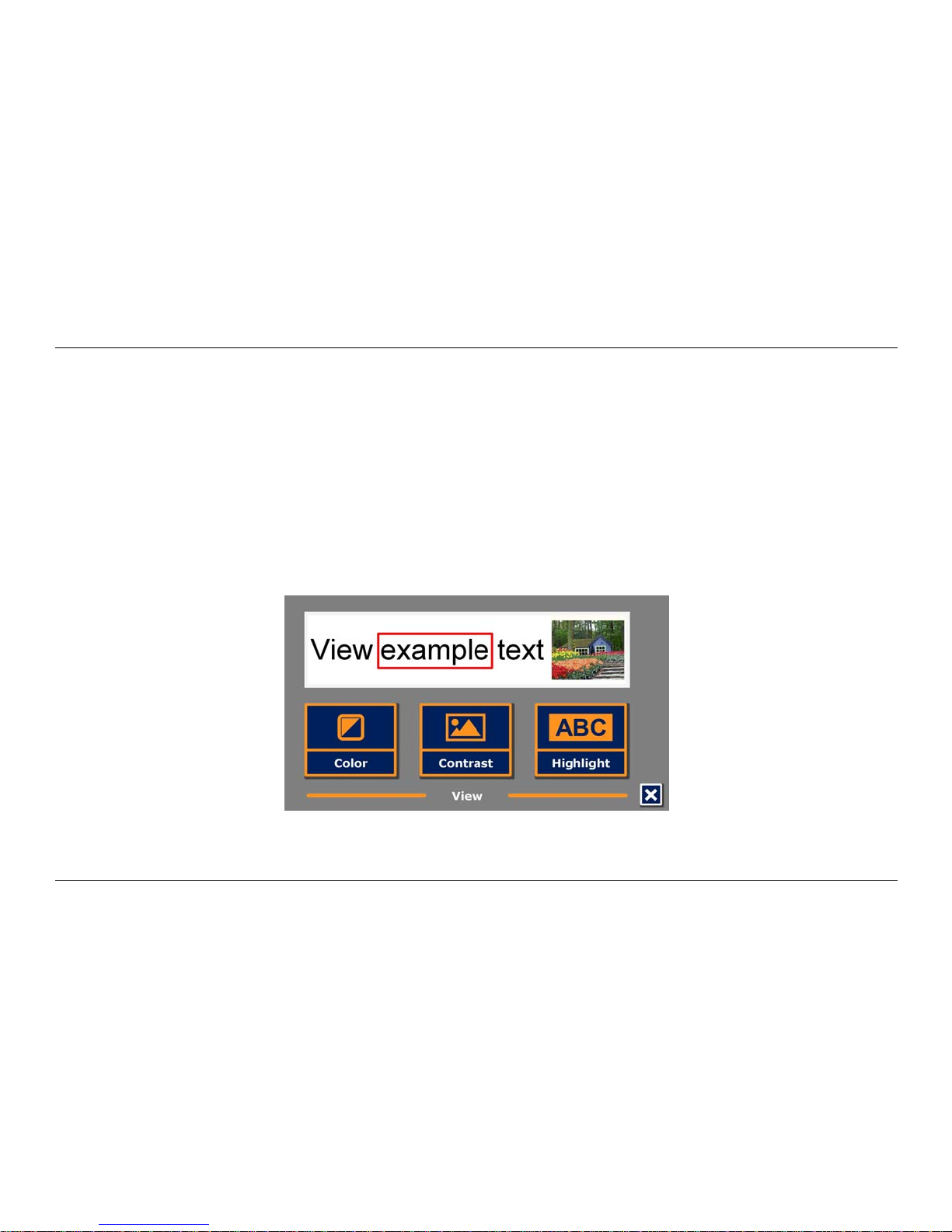
By selecting the “View” button, the “View” menu will be opened. The “View” menu contains five
buttons:
- Color
- Contrast
- Highlight
- Size
- Font
Page 36

Optelec ClearReader+
English Page 34
Color
This option is only available when High Contrast is enabled. To select another color combination,
open the menu and navigate to the View button with the Back and Forward button or the arrow
keys on the feature pack. Open the View menu with the Play / Pause button. Navigate to the Color
button. Press the Play / Pause button again to cycle through the available high contrast text
foreground and background color combinations. The colors that can be selected are:
Black – White
White – Black
Yellow – Black
Black – Yellow
Yellow – Blue
Blue – Yellow
Black – Red
Red – Black
Black – Green
Green – Black
Black – Purple
Purple – Black
Blue – White
White – Blue
Black – Amber
Amber – Black
Page 37

Optelec ClearReader+
English Page 35
Contrast
This option lets you enable or disable high contrast text colors. Pictures will always be displayed in
their original colors. Only the text foreground and background colors will be changed. The default
contrast settings are black text on a white background.
Highlight
This option lets you choose a word highlight, line highlight, inverted block highlight, or no highlight.
Both the color of the word and line highlight can be changed from red to yellow. The use of the
inverted block highlight is limited to the Column and Line view. In Page view and Overview the
inverted block highlight will change into an inverted Box highlight. The red word highlight is the
default.
Size
This option lets you change the font size. In Column and Line view the font size is defined in
points, similar to the font size in Microsoft Word. In Page view the font size is defined in steps.
Font
This option lets you choose between an Arial, Arial Bold, Verdana or Verdana Bold font for the
Column or Line view. In Page view the original picture and font of the document are displayed.
Page 38
Optelec ClearReader+
English Page 36
Settings
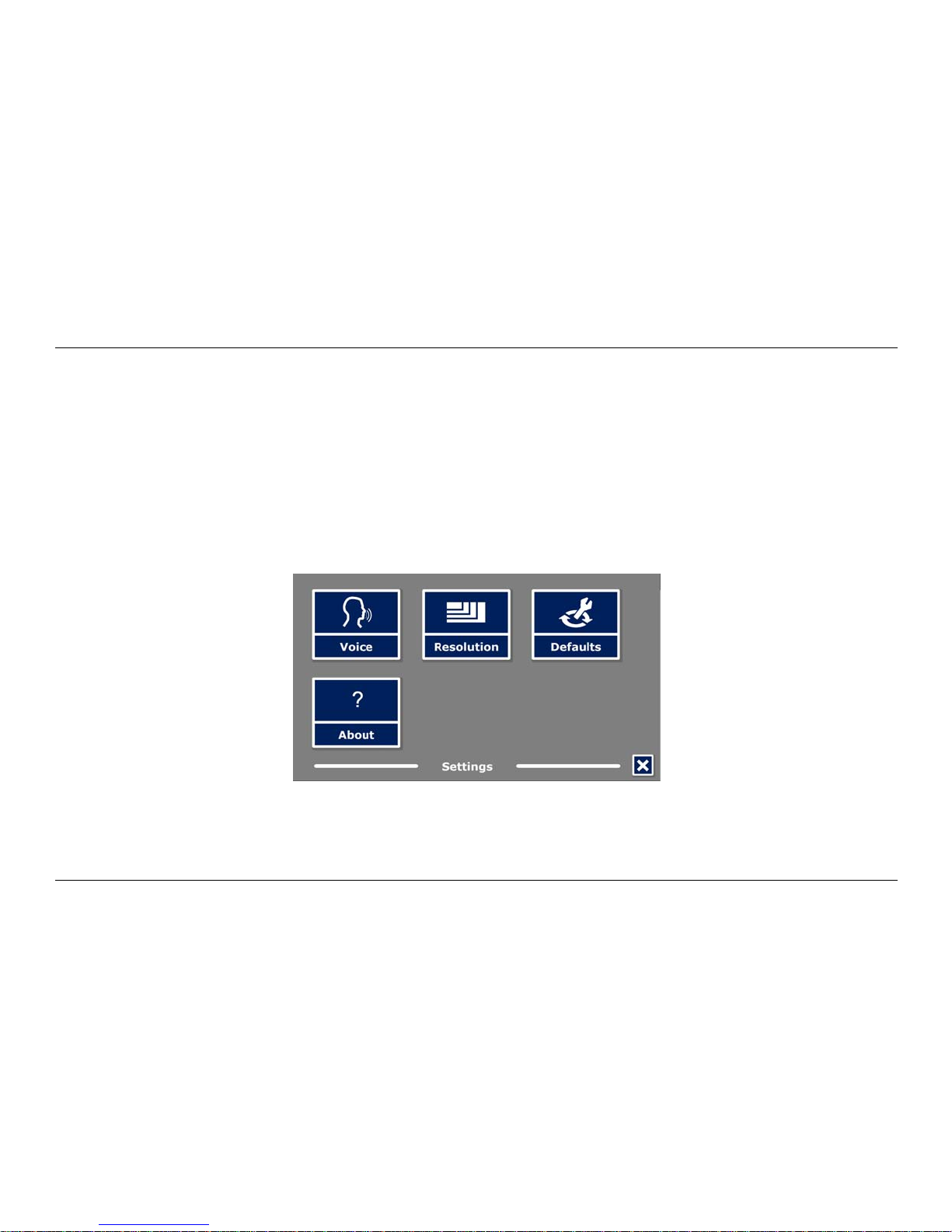
Select the “Settings” button to enter the Settings menu. The Settings menu contains four buttons:
- Voice
- Resolution
- Defaults
- About
Page 39
Optelec ClearReader+
English Page 37
Voice
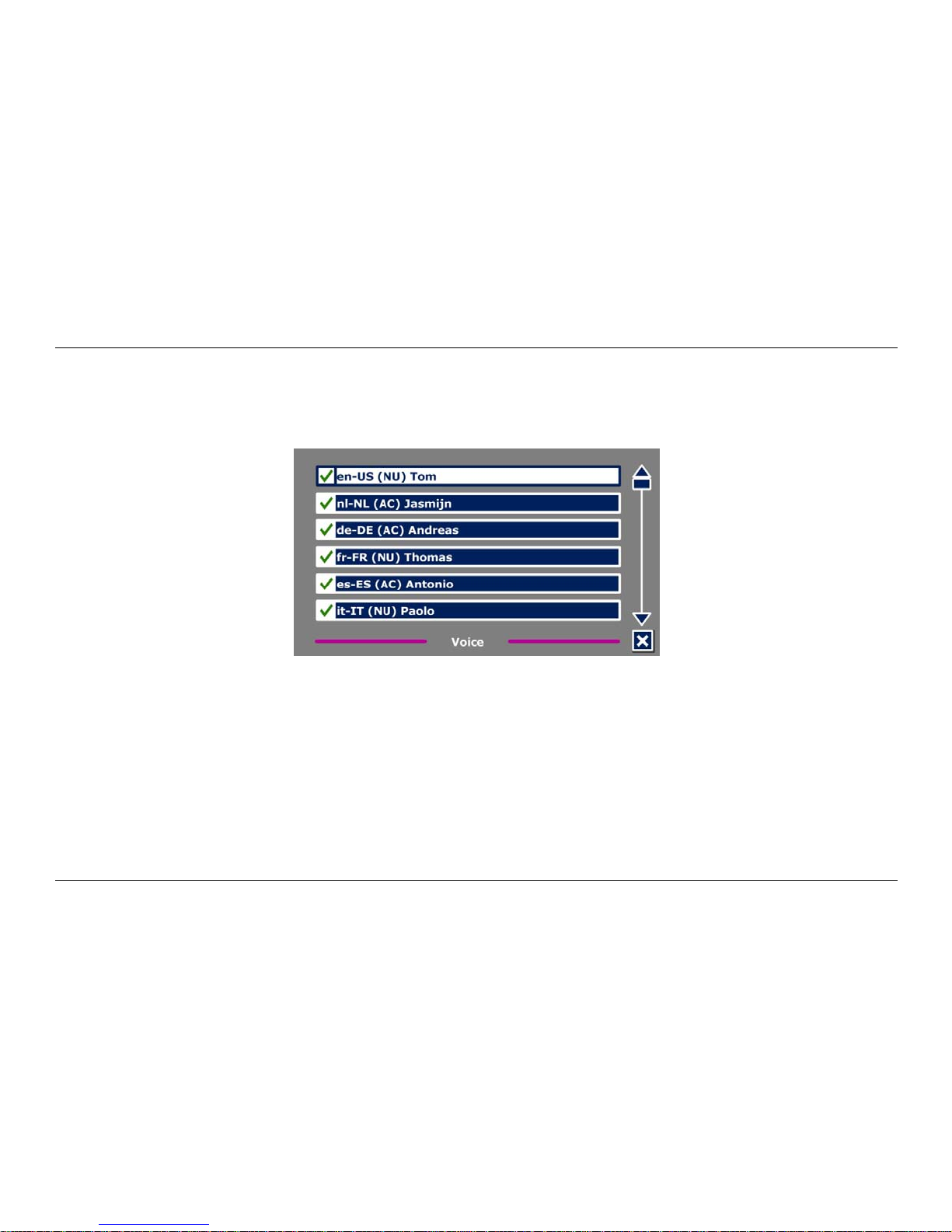
The Voice button in the settings menu opens a list with all available reading voices and languages.
Selecting this button will open the voices list.
To enable a reading voice, select it from the list by using the Back button or Forward button on the
ClearReader+ or the arrow keys on the feature pack. To select or deselect a voice, press the Play /
Pause button. A checkmark in front of the voice name will indicate if it is enabled. When the voice
is enabled, it will be available under the “Voice” button in the main menu. By deselecting a voice,
the voice will be removed from the available reading voices. The selected reading voices are
always displayed first in the list.
Page 40
Optelec ClearReader+
English Page 38
Resolution
This option lets you manually set the monitor resolution. It is recommended to only change the
resolution if the automatic detection fails. After changing the resolution, the ClearReader+ needs to
restart.
Restore defaults
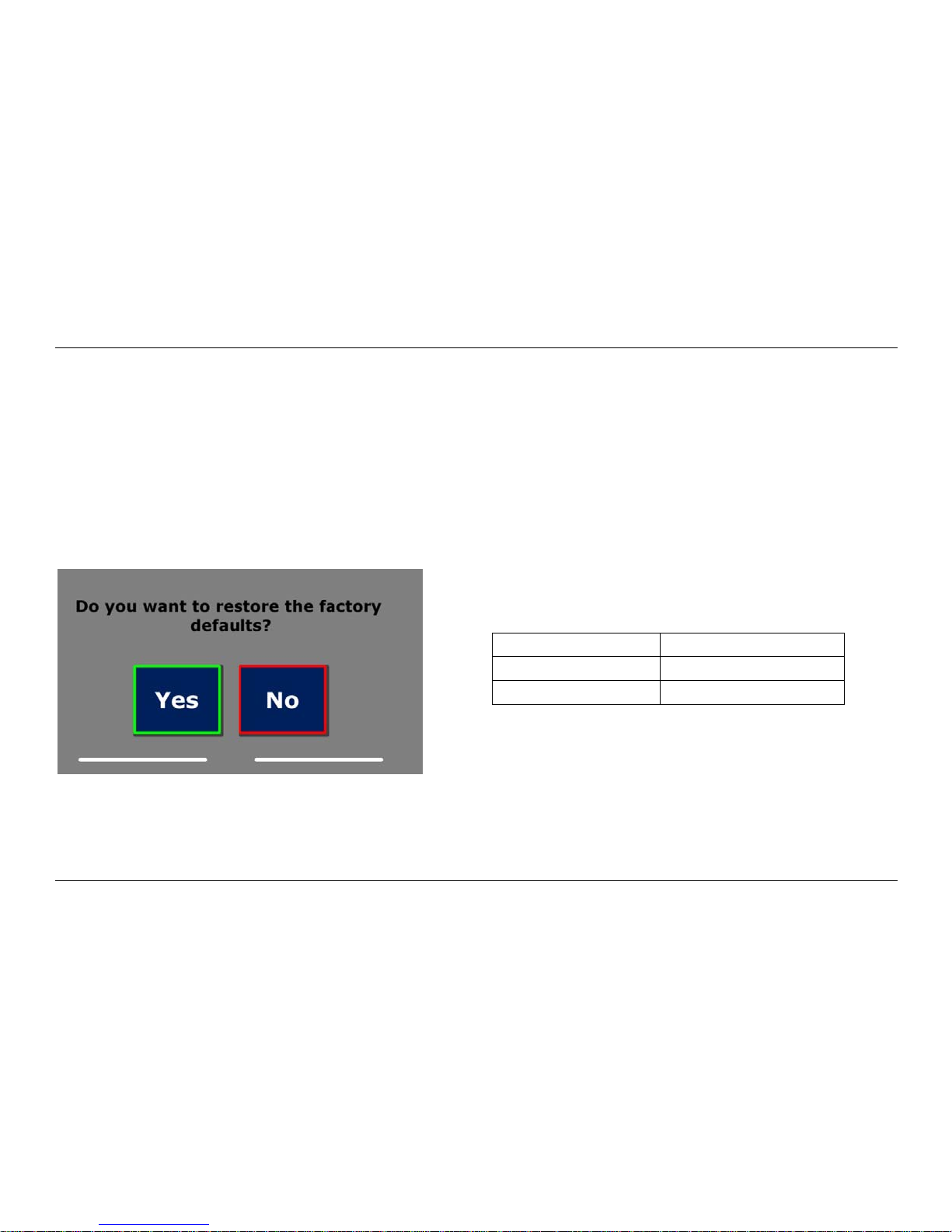
If you wish to restore the default settings, select this button. You will be prompted if you are sure
you want to restore the defaults. To restore the defaults, select “Yes”. To cancel restoring the
defaults, select “No”.
About
The About screen shows the Application version and camera interface version.
Default settings
View
High contrast on
Color
Black on white
Highlight
Word
Page 41

Optelec ClearReader+
English Page 39
6. Power and battery use
Checking the battery status
Press the Back and Forward buttons together to check the battery status. The ClearReader+ will
announce the status in percentage, where 100% means a fully charged battery. If the battery is
low, please charge the battery with the dedicated power supply.
Charging the ClearReader+ battery
To charge the ClearReader
+
, connect the mains adaptor supplied in the box to the power
connector located at the rear side of the unit. Plug the other side of the adaptor into a power
outlet.
Charging the ClearReader
+
takes approximately 3 hours. A fully charged ClearReader+ can
operate for approximately 5 hours. Please note that, for safety reasons, only the adaptor
supplied by Optelec should be used to charge the ClearReader+.
Extending the battery life
To ensure the battery pack maintains maximum capacity, disconnect the ClearReader+ from the
power source at least once a month and operate it on battery power until the battery pack is
empty.
Page 42

Optelec ClearReader+
English Page 40
7. Troubleshooting
If the adaptor does not power the ClearReader+.
Check the connections. Make sure that the power adaptor is firmly connected to the
ClearReader+ and to the power outlet.
If the adaptor still does not power the unit, contact your Optelec distributor.
If the battery does not power the ClearReader+.
The battery may be empty. Connect the power adaptor to charge the battery.
If the text you are reading does not make sense.
Make sure your reading language is corresponding with the language of your document.
If the text recognition takes unusually long before starting to read your document.
Make sure your reading language corresponds with the language of your document.
Page 43

Optelec ClearReader+
English Page 41
If the ClearReader+ does not read the whole line of a document / column / table.
The automatic column recognition may be on. Press and hold the Scan button for 2
seconds to disable the column recognition.
If the ClearReader+ does not respond to the Scan button.
Open the camera arm and try it again.
If the Scan button still does not respond, check if the unit is powered.
If the ClearReader+ does not respond to any button.
Make sure the battery is not empty. If the battery is empty, connect the power adaptor to
charge the battery.
Page 44

Optelec ClearReader+
English Page 42
Appendix A: Safety
Handle the ClearReader
+
with care. Rough handling will damage internal components.
Contact your Optelec distributor to service this equipment if necessary.
Do not open or remove any parts of the ClearReader+ as it will void the warranty.
Do not try to remove the battery.
Do not expose the ClearReader+ to excessive heat or direct sunlight to avoid the risk of
fire.
Do not use the ClearReader+ near inadequately shielded medical devices.
To avoid risk of electrical damage, keep your ClearReader+ away from fluids and
chemicals.
Always unplug the ClearReader
+
before cleaning. Use a soft cloth to clean the exterior.
Do not use cleaning agents or abrasive materials as they will damage your unit.
Caution: Please be aware of the risk of explosion if the battery is replaced by an incorrect
battery type. Please dispose the old battery according to the instructions.
Use of the ClearReader+ other than described in this manual will exclude it from warranty
conditions.
Page 45
Optelec ClearReader+
English Page 43
Appendix B: Technical information
Dimensions (W x H x D): 24 x 23 x 10 cm (9.4 x 9.1 x 3.9 inches)
– Depth, camera arm open: 27 cm (10.6 inches)
– Height, camera arm open: 25 cm (9.8 inches)
– Height, handle open: 27 cm (10.6 inches)
Weight: 2.46 kg (5.4 lbs)
Camera: High resolution camera
Earphone connection: 3.5 mm stereo jack
Battery type: Li-ion
Charging Time: 3 hours
Battery life: Approximately 5 hours continuous use
Operation conditions:
Relative humidity: <70%, no condensation
Temperature: 0 to 40 °C
Storage and transport conditions:
Relative humidity: <95%, no condensation
Temperature: -20 °C to 60 °C
This device bears the CE and FCC approval mark
Page 46

Optelec ClearReader+
English Page 44
Contact Information - Optelec Offices Worldwide
Optelec U.S. Ltd Optelec Canada Optelec Nederland BV
3030 Enterprise Court, Ste C 1832 Marie-Victorin Breslau 4
Vista, CA 92081 Longueuil, QC J4G 1Y9 2993 LT Barendrecht
U.S.A. Canada The Netherlands
T: +1 (800) 826-4200 T: +1 (450) 677-1171 T: +31 (0)88 678 3555
www.optelec.com www.optelec.com www.optelec.nl
Optelec Limited Optelec NV Optelec GmbH
2 Millfield House Baron Ruzettelaan 29 Fritzlarer Strasse 25
Woodshots Meadow 8310 Brugge 34613 Schwalmstadt
Croxley Green Business Park Belgium Germany
Watford WD18 8YX
United Kingdom
T: +44 1923 23 13 13 T: +32 (0)50 35 75 55 T: +49 6691 9617-0
www.optelec.co.uk www.optelec.be www.optelec.de
Optelec Corporate Headquarters
Optelec Holding Hoofdkantoor / Optelec, Siège social / Sede Optelec / Optelec oficinas centrales /
Optelec Unternehmenssitz
Breslau 4 – 2993 LT Barendrecht – The Netherlands –
T: +31 (0)88 678 3444 – www.optelec.com
Page 47

UDC-02131
Rev: A
 Loading...