

Page 1
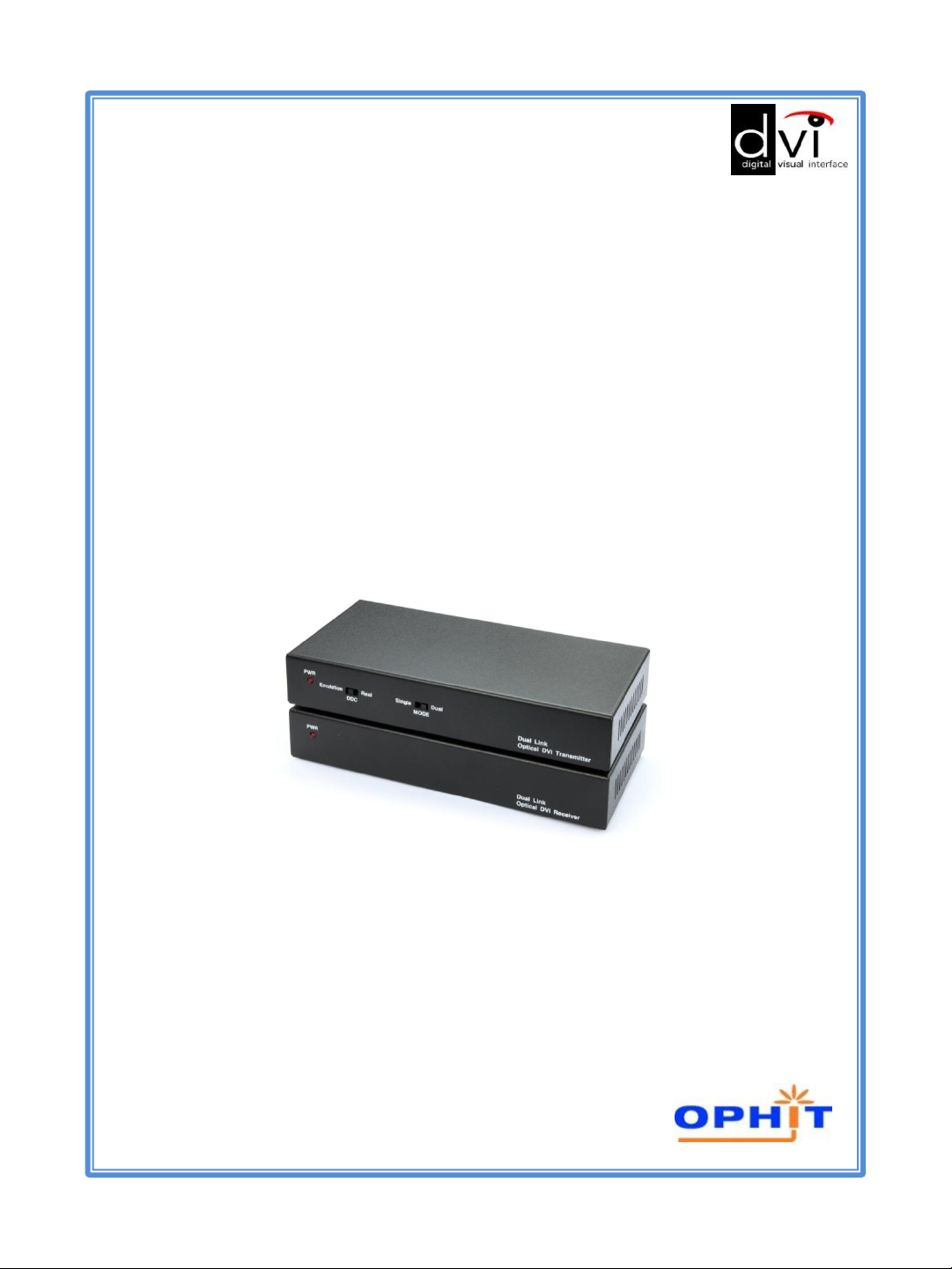
USER’S manual
DVI Optical
Dual link Extension System
DQL
Page 2

Table of Contents
1. Introduction ……………….....................................…2
2. Features ….…………………….............………………....2
3. Model name …………...............………………….………2
4. Panel Descriptions …..............………………….………3
5. Package contents .……….............…………….……….3
6. Installation .………………............……………………….4
7. Function Switch .………………............…………………….5
8. Specification ………………………..............……………..6
9. Precaution .……………………………..............………….7
10. Warranty .……………………………...…............……….8
11. Troubleshooting…………………………..............……9,10
12. Contact us.............................................................11
www.ophit.com
1
Page 3

Introduction
DQL with fiber optical system let your dual link flat panel display extend
up to 100M(330ft) away from the host. Maximum resolution is WQXGA.
Features
• High Speed and long distance transmission by LC type 7ch multi-mode
fiber optic cable
• Extends up to 100M(330ft)
• Self detecting function for EDID information
• Supports Single link and Dual link by selectable function switch
• Supports up to WQXGA (2560x1600) resolution for Dual link,
WUXGA(1920x1200) resolution for Single link
• Supports two mode for DDC
- Real : Uses one UTP cable for EDID information
- Emulation : Pseudo-DDC detection function for EDID information
Model Name
DQL
2
www.ophit.com
Page 4
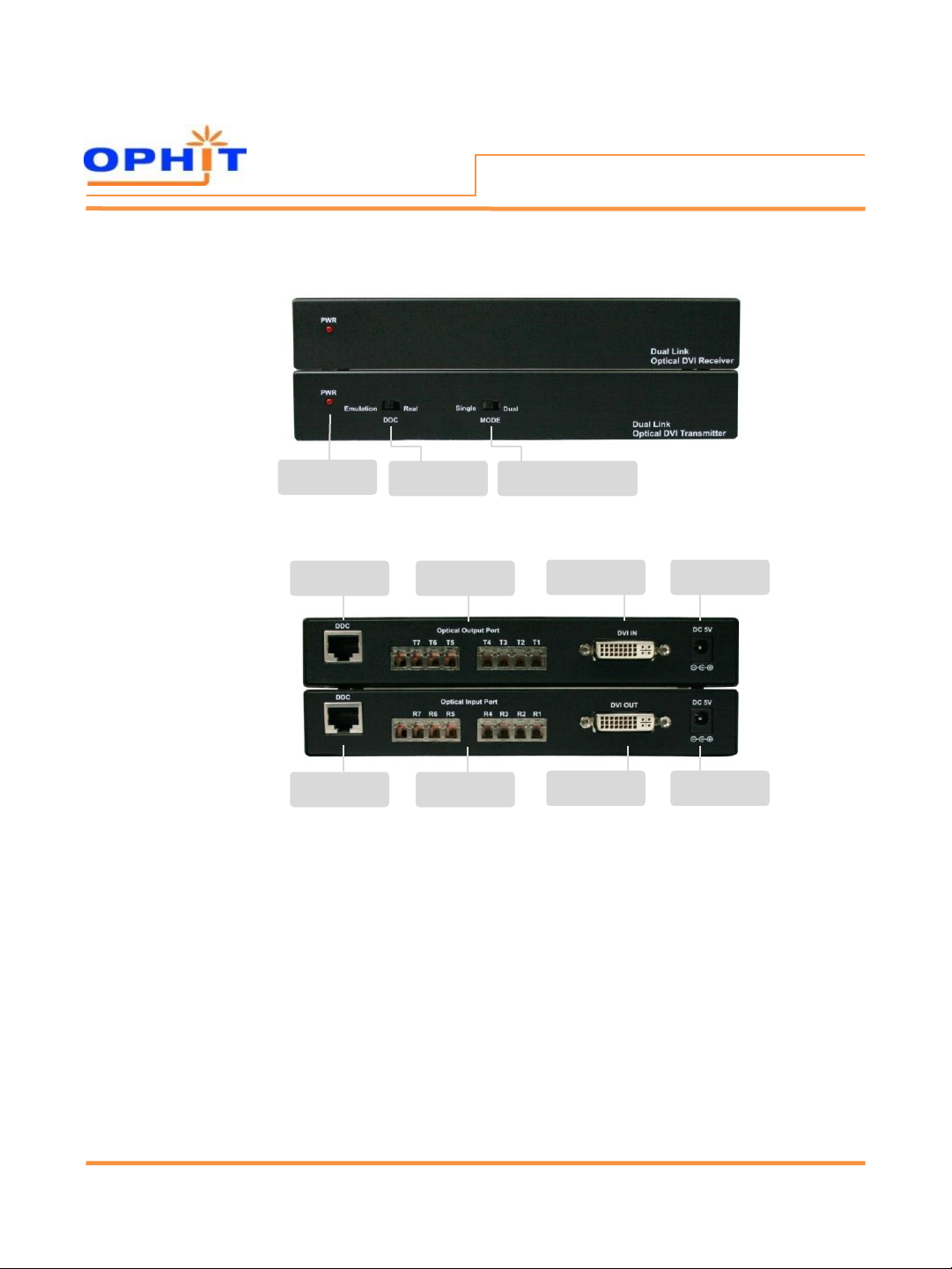
Receiver
Front
Transmitter
Front
Panel Descriptions
Power
LED indicator
UTP port for
DDC
DDC function
switch
Optical 7ch LC
port
Single/Dual mode
selecting switch
DVI Input
port
Transmitter
Rear
Receiver
Rear
UTP port for
DDC
Optical 7ch LC
port
DVI Output
port
Package contents
Before you start installing DQL, please check the package contents.
• DSL Transmitter & Receiver
• User’s Manual
• 2 x Power adapter(5V,2A)
Power jack
Power jack
www.ophit.com
3
Page 5
Installation
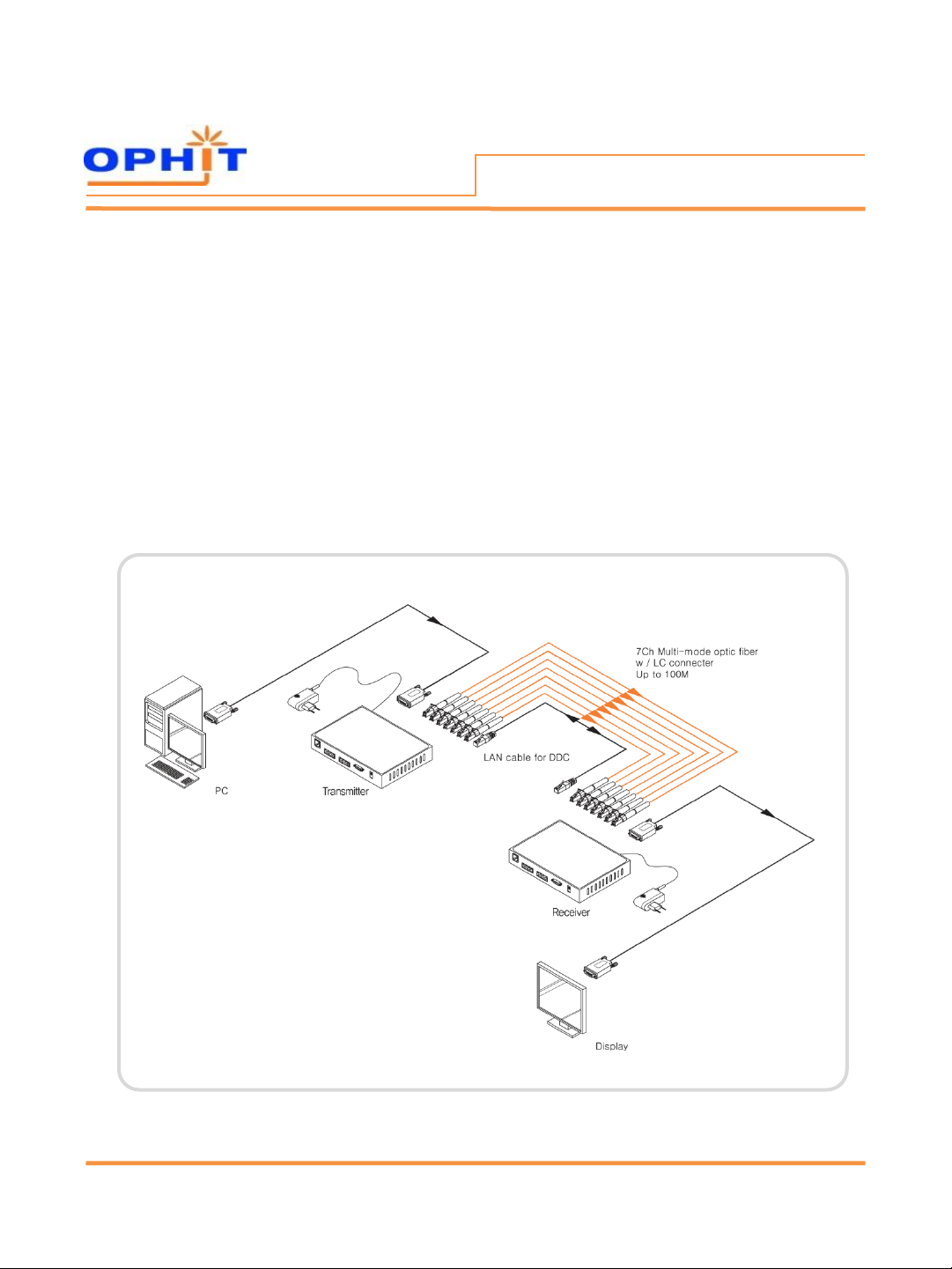
Installation
1. Connect a source device to DVI input port on DQL-TX.
2. Connect a display device to DVI output port on DQL-RX.
3. Connect 7ch of LC type optic fiber cables between optical port on TX and RX.
4. Connect UTP cable between TX and RX for DDC transmission in real time.
If you want to use emulation mode, you don’t need to connect UTP cable.
To get more information about Real/Emulation mode, please go to page 5.
5. Plug the power adapter to RX. TX will get it’s power from the source device.
In some cases if source device cannot provide enough power to TX, extra power
adapter may be required to TX.
4 www.ophit.com
Page 6

Function Switch
Function Switch
EDID Switch in front of Transmitter
-REAL : EDID data of connected display device is transmitted between TX and RX
in real time through UTP cable.
In REAL mode, it supports the HDCP.
-Emulation : Certain EDID data pre-set in the TX is used in signal transmission.
You don’t need to connect UTP cable for DDC transmission.
In EMULATION mode, it doesn't support HDCP.
MODE Switch in front of Transmitter
- Single : When you use Single link display, select ‘Single’ switch.
- Dual : When you use Dual link display, select ‘Dual’ switch.
Write EDID information into the TX
1) Power on your display.
2) Connect TX to the display using DVI cable.
3) DDC function switch on TX set to ‘Emulation’.
4) Plug DC +5[V] adapter in to the TX.
5) Check if LED blinks rapidly for a few seconds. EDID is well acknowledged
once the blinking stops.
6) Restart the system according to installation guide.
www.ophit.com
5
Page 7

Specifications
• Connector
- Using connector : DVI 24pin(female) & LC type
- Link : RJ-45 Jack
• Video Bandwidth : 1.65Gbps(Single link)
• Maximum Supporting Resolution
- Single Link : WUXGA (1920 x 1200)
- Dual Link : WQXGA (2560 x 1600)
• Power Consumption : Tx – 1.4W(Single link), 1.0W(Dual link)
Rx – 2.5W(Single link, Dual link)
• Power Supply : 100~240V with DC 5V 2A adaptor
• Dimension : 180W x 90D x 30H (mm)
• Environment
- Operating Temperature Range : 0 to 50°C
- Storage Temperature Range : -20 to 70°C
Specifications
www.ophit.com 6
Page 8

Precaution
WARNING
• Do not dismantle the housing or modify the product.
Dismantling the housing or modifying the product may result in electrical
shock or burn.
• Refer all servicing to qualified service personnel.
Do not attempt to service this product yourself as opening or removing
housing may expose you to dangerous voltage or other hazards.
• Keep the product away from liquids.
Spilling into the housing may result in fire, electrical shock, or equipment
damage. If an object or liquid falls/spills into the housing, unplug the
product immediately.
Have the product checked by a qualified service engineer before using it
again.
• Do not touch the Product with wet hands.
Touching the housing and plug with wet hands is dangerous and can
cause electrical shock.
www.ophit.com
7
Page 9

Warranty
We, OPHIT hereby warrant the final purchase of our product as follows.
In the case of troubles on our products, please contact the shop purchased.
One(1) year limited warranty
Our customers have right to be served with free charge when there is trouble
in this product during one(1) year from the day purchased.
Out of warranty services
When you request services (in the case of non manufacturing defect but the
troubles by misusage), may served with charge of follows.
• Defects of products caused by accident , disaster.
• Damages of products caused by the customer’s carelessness or
mistaken application.
• Damages of products caused by the application of parts or
products not supplied or sold by our company.
• Damages of products and related defects caused by not our staff
or the man or group not nominated by us for services.
www.ophit.com 8
Page 10
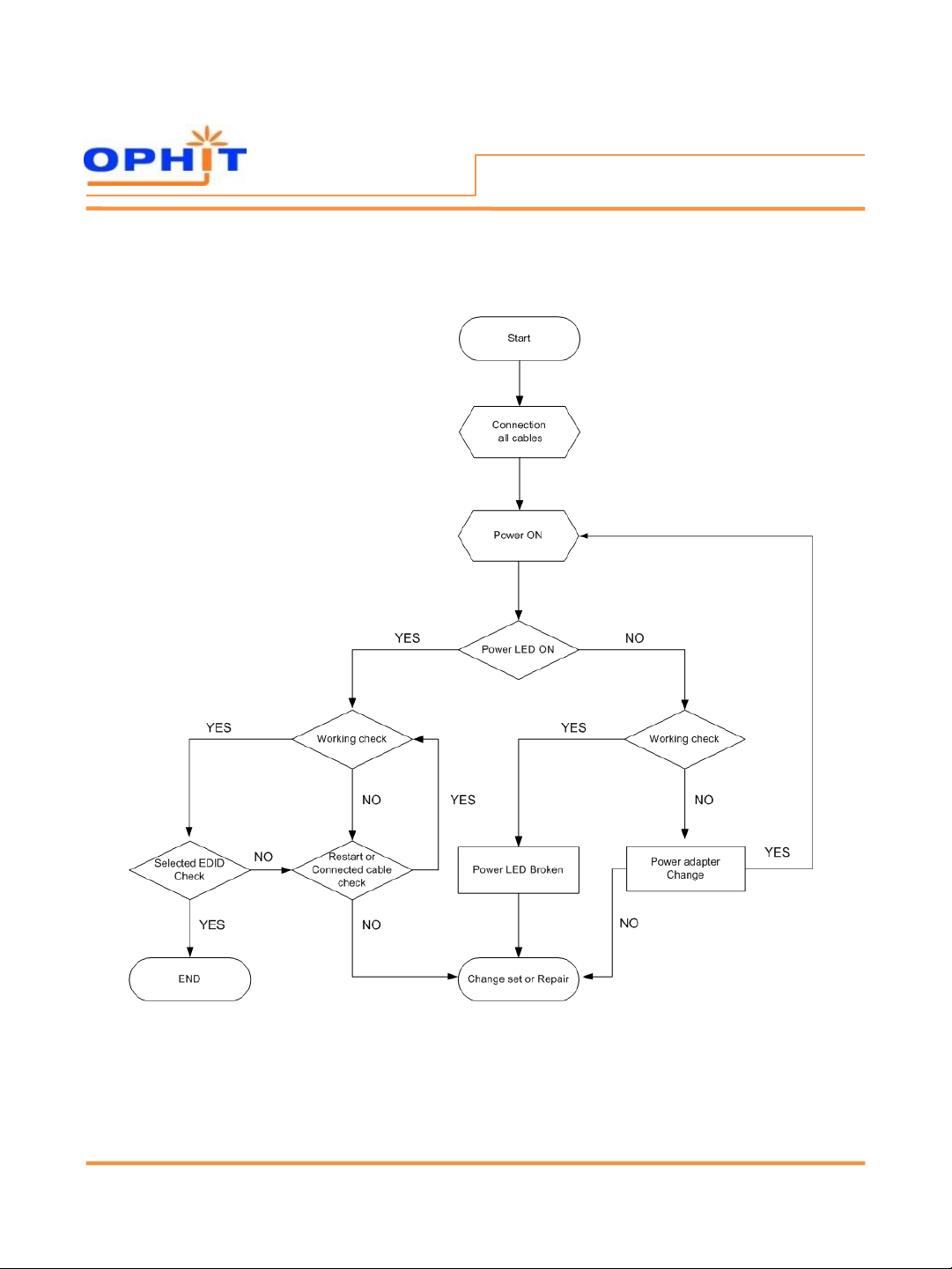
1.Troubleshooting Flow
Troubleshooting
www.ophit.com
9
Page 11
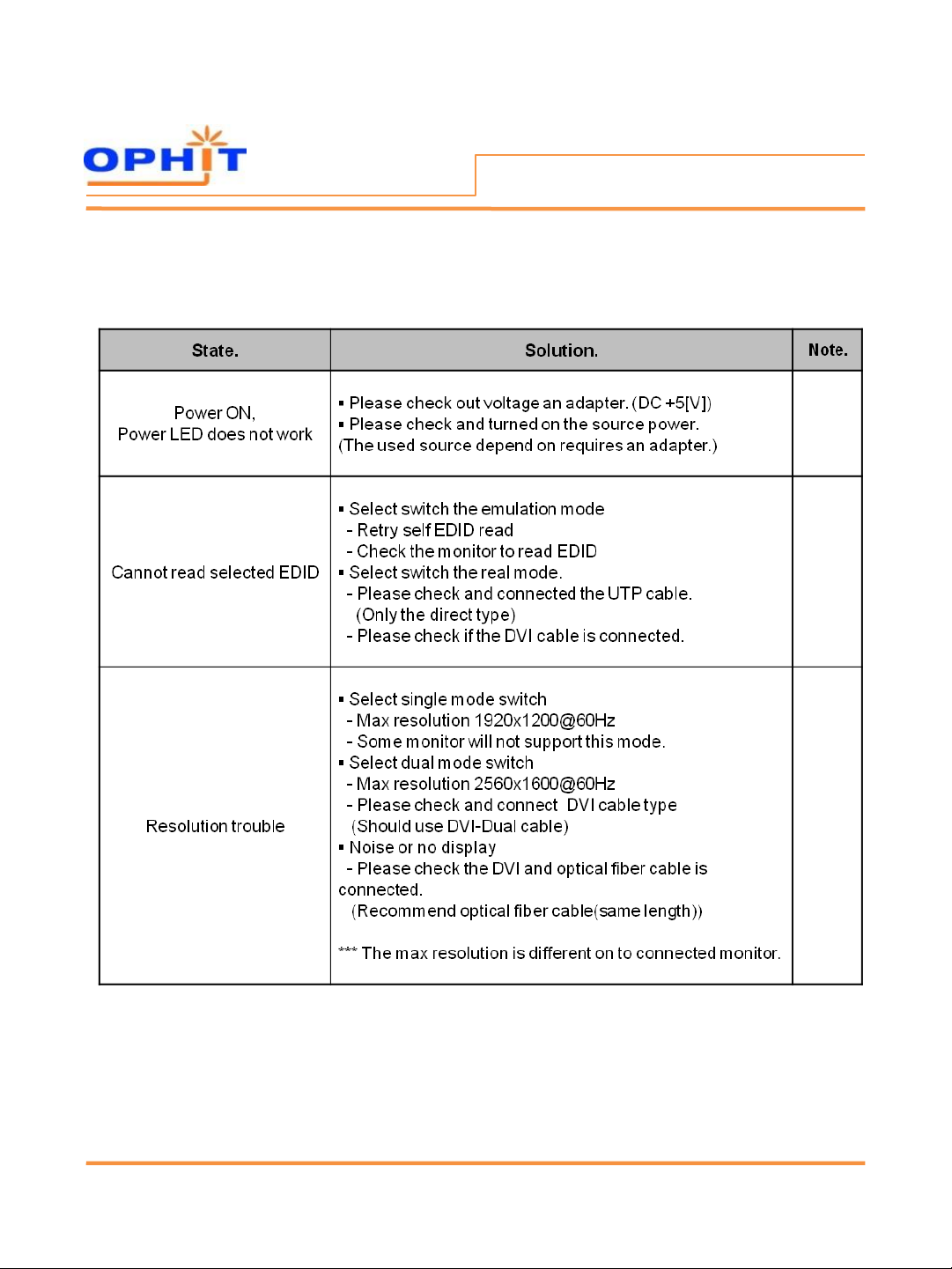
2. Troubleshooting Check List
Troubleshooting
10
www.ophit.com
Page 12

OPHIT CO., LTD.
www.ophit.com
Head office
908~911/103 Digital EmpireⅡ, 486 Sin-Dong, YoungtongGu,
Suwon-City, Kyunggi-Do 443-734, KOREA
TEL : +82-31-695-5543 FAX : +82-31-695-5545
E-mail : [email protected]
Factory
3F/5F, Suntechnovil, 5-27, Mangpo-Dong, Youngtong-Gu,
Suwon-City, Kyunggi-Do 443-440, KOREA
TEL : +82-31-205-4191 FAX : +82-31-205-4197
Contact us
www.ophit.com
Rev. 1.1
11
Page 13

Copyright ⓒ 2011 OPHIT All right reserved
 Loading...