

Page 1
Item No.:MT 201
DTR-LT
Installation Guide
Installation guide
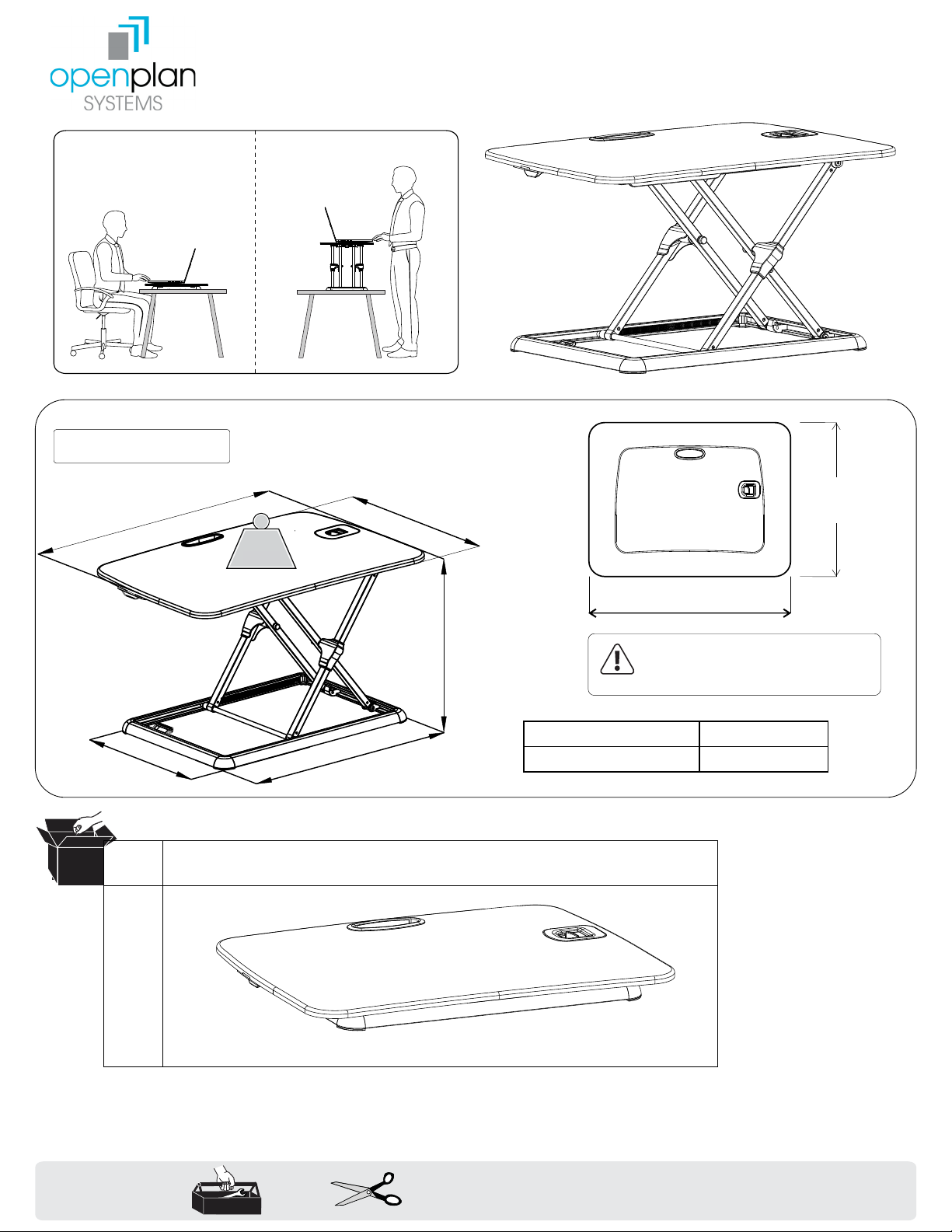
Technical Data
660mm
25.98”
410mm
16.14”
Spare part
NO.
MAX
0 - 17.6 lbs
0 -8 K G
544mm
21.42”
Table Size:
18.5”
470mm
40~400mm
1.57” - 15.75”
Accessory
>23.63”
>600mm
Please do n ot exce ed the ma ximum
WAR NIN G
Loading range
Height adjustment range
WAR NING be aring wei ght.
>400mm
0~8Kg
0 - 17.6 lbs
40-400mm
1.57” - 15.75”
>15.75”
TOOLS
A
x1
Page 2
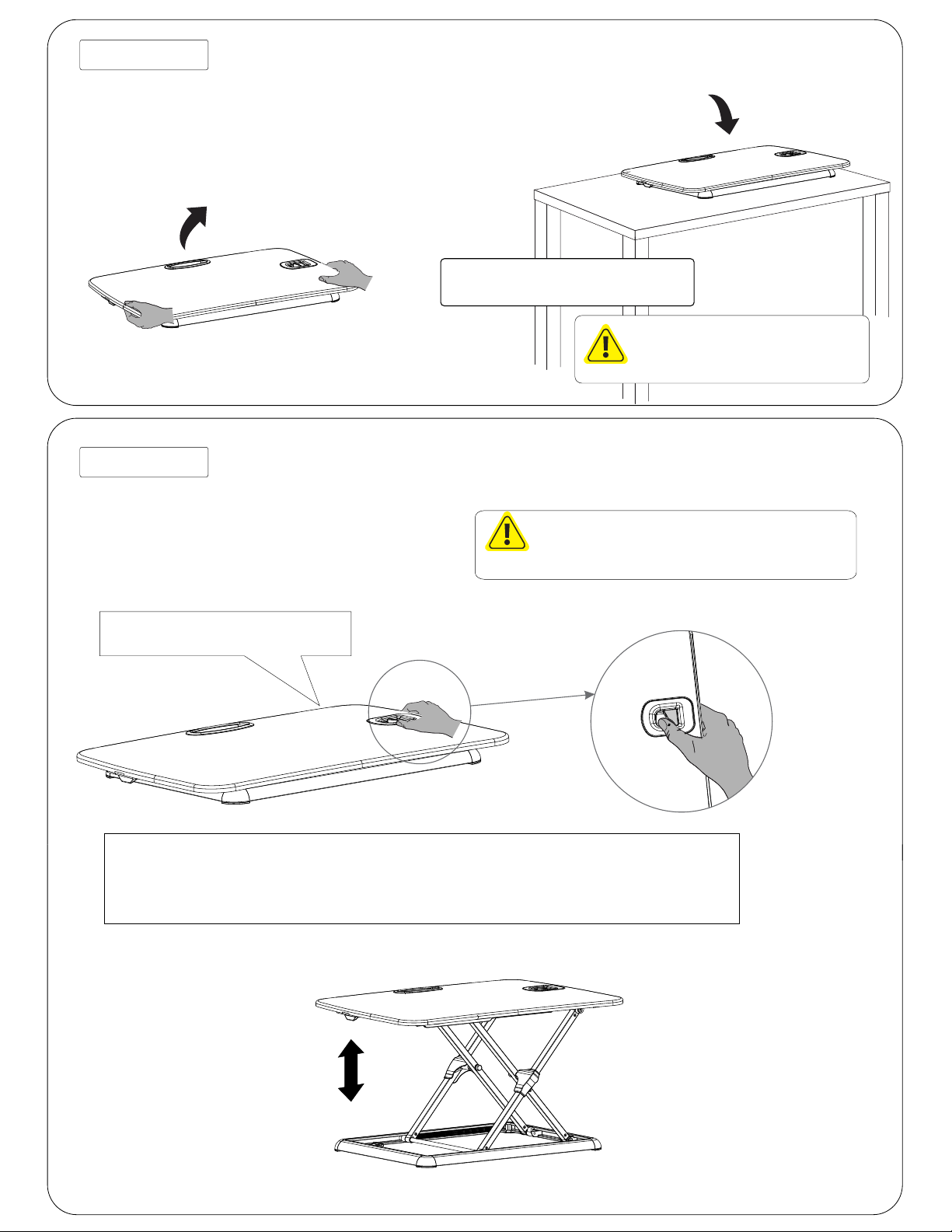
STE P 1
STE P 2
Pleas e take th e packa ging ca rton ap art,
Remove Desk Riser from packing, and
take ou t the pro duct an d put it on t he
place it on a solid work surface.
table .
Pleas e place t he prod uct pro perly
Make sure your Desk Riser is placed
accor ding to s ize of it , or it may h urt yo
on a supportive surface to prevent
cause d amage .
CAU TION
any accidents.
Please do not put hands near the supporting bars
in case of any injuries while the desk is lifting up
WAR NING
Pleas e press t he swit ch to adj ust it to a
Press and hold the switch to adjust your
desir ed heig ht acco rding t o your si tuation.
Desk Riser to your preferred height.
To raise your Desk Riser, press and hold the switch on the surface with your thumb, then lift the Desk
When lifting the workstation, press the switch by your thumb and up the tab le w it h ho ldi
Riser while holding both sides of the work surface. Let go of the switch and your Desk Riser will lock
sides of table edges, then it will get next height ,locked asthmatically when you h ea ri n
into place. To lower your Desk Riser, press and hold the switch on the surface with your thumb, then
When lowering the workstation, press the switch by your thumb and the loading w il l le
press down on the Desk Riser while holding both sides of the work surface. Let go of the switch and
from current height, locked it automatically when hearing the voice.
your Desk Riser will lock into place.
and down.
Page 3
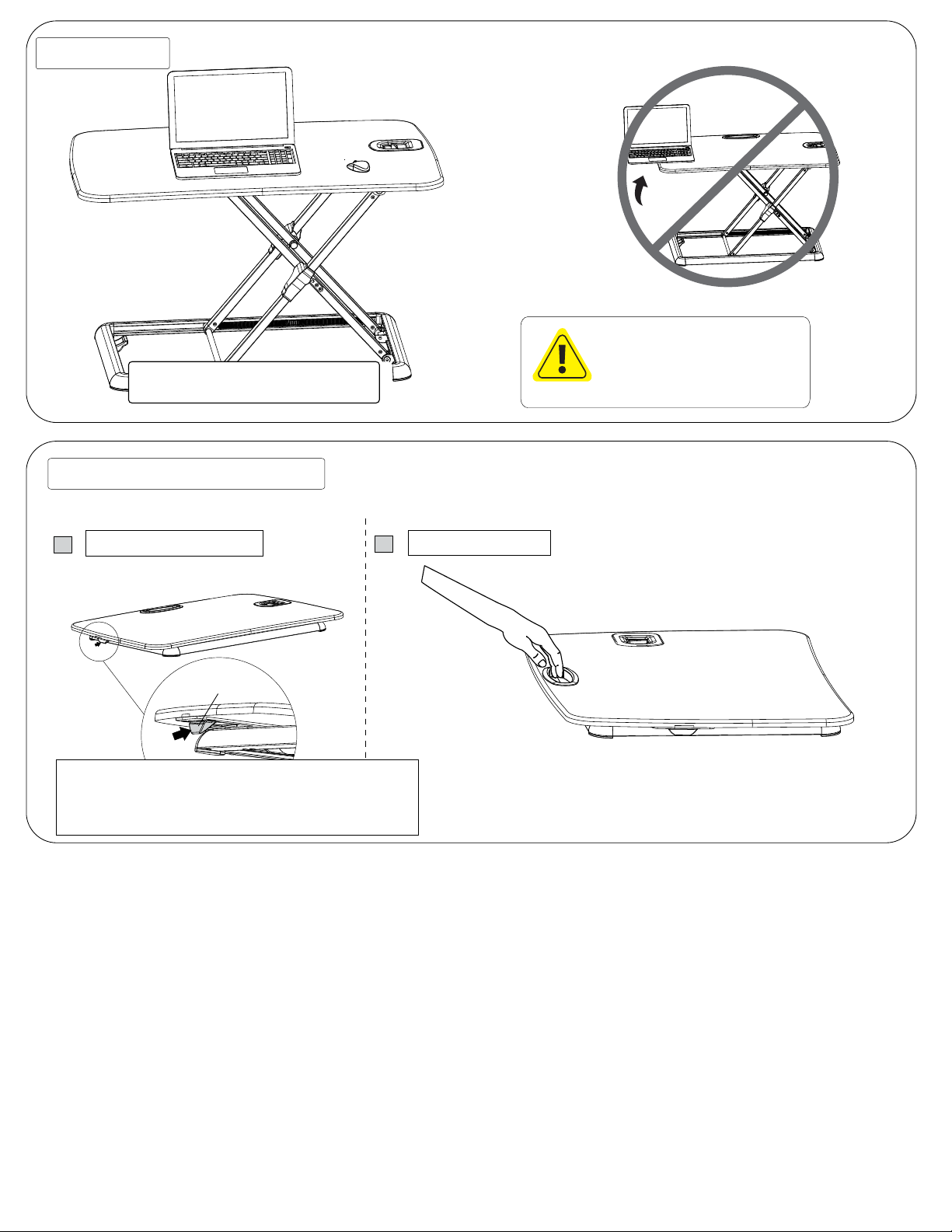
STE P 3
Place your devices on the workstation
Please pu t the dev ices on to the top of t
to test for stability.
worksta tion.
How to take the workstatio
How to take the workstation safely
CAUTION
Please m ak e sure all insta
Make sure all equipment is
equipm en ts are on the tab
placed safely within the work
not exceed t he edge, or i
surface to prevent any damage
hurt you or ca use damage
or injuries.
Close the insurance switch
1
Insuran ce swit ch
Please press the insurance switch and make sure it is
Please pr ess the i nsura nce switch and mak e sure it i s
closed to a void lo sing it s effec t befor e takin g it, or it will
closed to avoid losing its effect before taking it, or it will
make work stati on flic k suddenly. It wi ll decr ease the
make workstation flick suddenly. It will decrease the
potenti al risk s after c arry wo rkstati on.
potential risks after carry workstation.
Take the workstation
2
Page 4
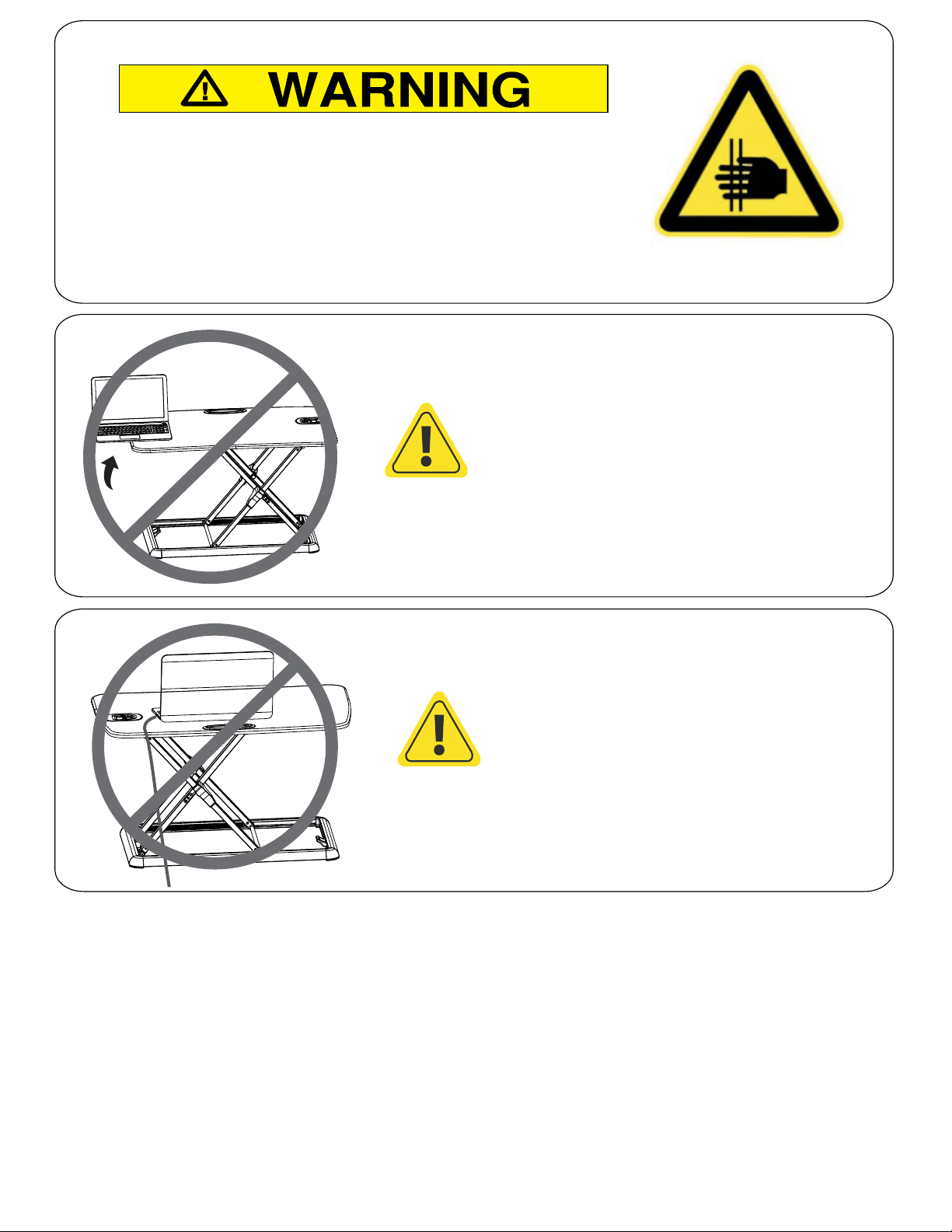
Hands Pinching
Do not place your hand near the struct.
Strut’s angle will change during the
desktop lifts and it may hurt you.
Make sure all equipment is placed safely
Please make sure all installed equipments
within the work surface to prevent any
are on the table, and not sticking out of
damage or injuries.
the edge, or it may harm or cause damage.
Attention
Attention
Please leave enough length of cable for
Please leave enough length of cable for
height adjustment function, or it may hurt
height adjustment function, or it may
you or cause damage.
hurt you or cause dama
 Loading...