

Page 1
Contents
Before using
Important Safeguards........................ 2
MiniDisc Recorder
Precautions ....................................... 3
Features............................................. 4
Supplied accessories......................... 4
Before operating this unit................. 5
System connections..........................6
MD-2321
Instruction Manual
Operation
Playing an MD.................................. 7
Recording to an MD....................... 12
Using the program function
(memory play) ............................. 19
Editing the contents of an MD........ 20
Naming a track or disc.................... 24
A few important notes
Precautions for handling
the MiniDisc (MD)...................... 26
Message list.................................... 26
Troubleshooting guide.................... 27
Rules for digital recording.............. 28
System limitations.......................... 29
Other informations
Control positions and names .......... 30
Specifications ................................. 31
Thank you for purchasing the Onkyo MD-2321 MiniDisc Recorder.
Please read this manual thoroughly before making
connections and plugging in the unit.
Following the instructions in this manual will enable
you to obtain optimum performance and listening
enjoyment from your new MD-2321.
Please retain this manual for future reference.
Page 2
1.
WARNING:
TO REDUCE THE RISK OF FIRE OR ELECTRIC SHOCK,
DO NOT EXPOSE THIS APPLIANCE TO RAIN OR
MOISTURE.
CAUTION:
TO REDUCE THE RISK OF ELECTRIC SHOCK, DO NOT
REMOVE COVER (OR BACK). NO USER-SERVICEABLE
PARTS INSIDE. REFER SERVICING TO QUALIFIED
SERVICE PERSONNEL.
Important Safeguards
Read Instructions — All the safety and operating instructions should
be read before the appliance is operated.
2. Retain Instructions — The safety and operating instructions should
be retained for future reference.
3. Heed Warnings — All warnings on the appliance and in the operating
instructions should be adhered to.
4. Follow Instructions — All operating and use instructions should be
followed.
5. Water and Moisture — The appliance should not be used near water
— for example, near a bathtub, washbowl, kitchen sink, laundry tub, in
a wet basement, or near a swimming pool, and the like.
6. Carts and Stands — The appliance should be used only with a cart or
stand that is recommended by the manufacturer.
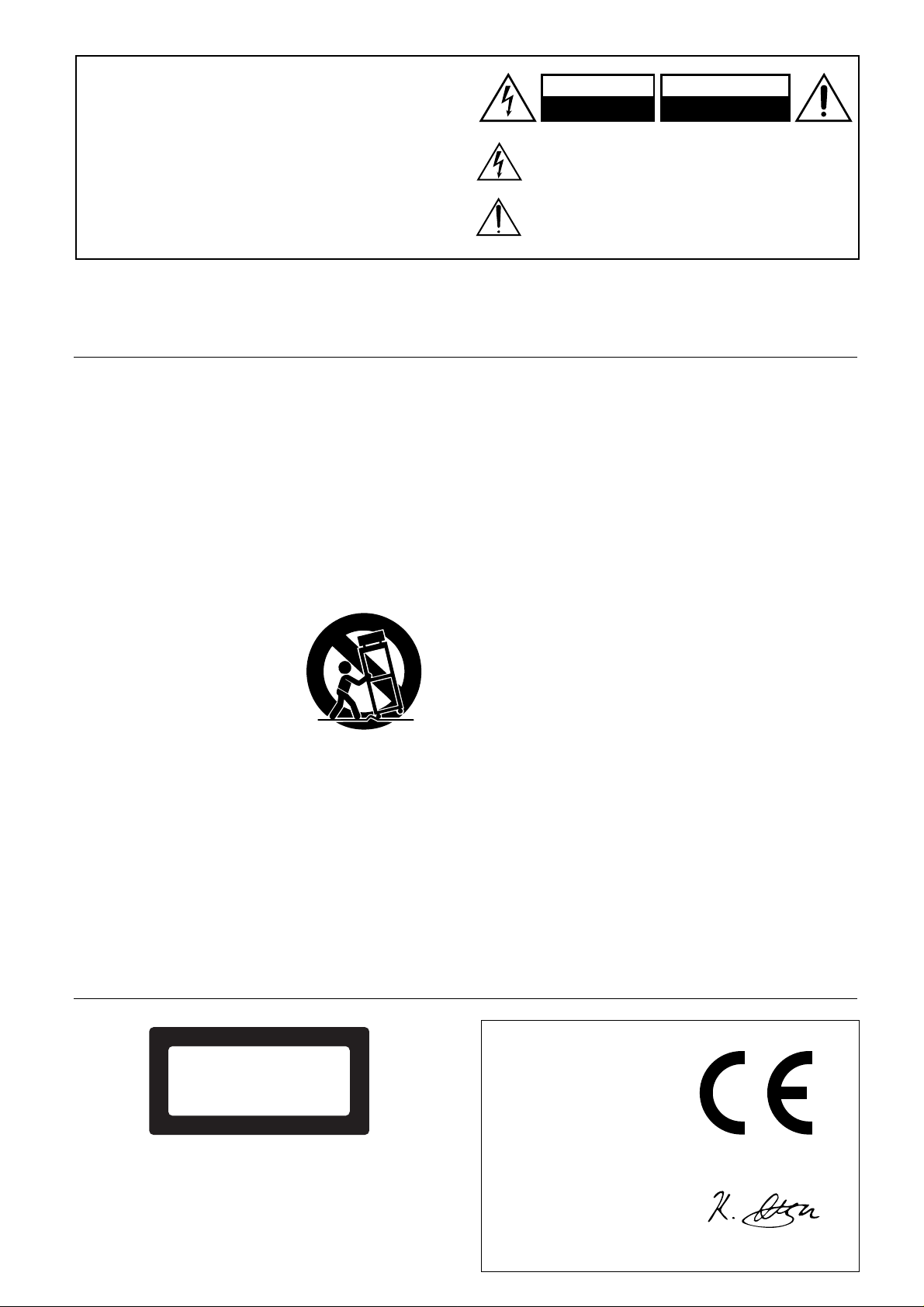
6A. An appliance and cart combination
should be moved with care. Quick
stops, excessive force, and uneven
surface may cause the appliance
and cart combination to overturn.
7. Wall or Ceiling Mounting — The appliance should be mounted to a
wall or ceiling only as recommended by the manufacturer.
8. Ventilation – The appliance should be situated so that its location or
position does not interfere with its proper ventilation. For example, the
appliance should not be situated on a bed, sofa, rug, or similar surface
that may block the ventilation openings; or if placed in a built-in installation, such as a bookcase or cabinet that may impede the flow of air
through the ventilation openings, there should be free space of at least
5 cm (2 in.) and open up behind the appliance.
9. Heat — The appliance should be situated away from heat sources such
as radiators, heat registers, stoves, or other appliances (including
amplifiers) that produce heat.
PORTABLE CART WARNING
S3125A
WARNING
RISK OF ELECTRIC SHOCK
DO NOT OPEN
The lightning flash with arrowhead symbol, within an equilateral
triangle, is intended to alert the user to the presence of uninsulated
“dangerous voltage” within the product’s enclosure that may be of
sufficient magnitude to constitute a risk of electric shock to persons.
The exclamation point within an equilateral triangle is intended to
alert the user to the presence of important operating and maintenance
(servicing) instructions in the literature accompanying the appliance.
10. Power Sources — The appliance should be connected to a power supply only of the type described in the operating instructions or as
marked on the appliance.
11. Polarization — If the appliance is provided with a polarized plug having one blade wider than the other, please read the following information: The polarization of the plug is a safety feature. The polarized plug
will only fit the outlet one way. If the plug does not fit fully into the
outlet, try reversing it. If there is still trouble, the user should seek the
services of a qualified electrician. Under no circumstances should the
user attempt to defeat the polarization of the plug.
12. Power-Cord Protection — Power-supply cords should be routed so
that they are not likely to be walked on or pinched by items placed
upon or against them, paying particular attention to the cords at plugs,
convenience receptacles, and the point where they exit from the appliance.
13. Cleaning — The appliance should be cleaned only as recommended
by the manufacturer.
14. Nonuse Periods — The power cord of the appliance should be
unplugged from the outlet when left unused for a long period of time.
15. Object and Liquid Entry — Care should be taken so that objects do
not fall and liquids are not spilled into the enclosure through openings.
16. Damage Requiring Service — The appliance should be serviced by
qualified service personnel when:
A. The power-supply cord or the plug has been damaged; or
B. Objects have fallen, or liquid has been spilled into the appliance;
or
C. The appliance has been exposed to rain; or
D. The appliance does not appear to operate normally or exhibits a
marked change in performance; or
E. The appliance has been dropped, or the enclosure damaged.
17. Servicing — The user should not attempt to service the appliance
beyond that described in the operating instructions. All other servicing
should be referred to qualified service personnel.
AVIS
RISQUE DE CHOC ELECTRIQUE
OUVRIR
NE PAS
“CL A SS 1 LASER
PRODUCT”
This label on the rear panel states that:
1. This unit is a CLASS 1 LASER PRODUCT and employs a laser
inside the cabinet.
2. To pre v ent the laser from being e xposed, do not remo v e the co v er.
Refer servicing to qualified personnel.
2
Declaration of Conformity
We,
ONKYO EUROPE
ELECTRONICS GmbH
INDUSTRIESTRASSE 20
82110 GERMERING,
GERMANY
declare in own responsibility, that the ONKYO product described
in this instruction manual is in compliance with the corresponding
technical standards such as EN55013, EN55020, EN61000-3-2, -3-3
and EN60065
GERMERING, GERMANY
K.OTSU
ONKYO EUROPE ELECTRONICS GmbH
Page 3

Precautions
1. Warranty Claim
You can find the serial number on the rear panel of this unit. In case
of warranty claim, please report this number.
2. Recording Copyright
Recording of copyrighted material for other than personal use is
illegal without permission of the copyright holder.
3. Power WARNING
BEFORE PLUGGING IN THE UNIT FOR THE FIRST TIME,
READ THE FOLLOWING SECTION CAREFULLY.
The voltage of the available power supply differs according to
country or region. Be sure that the power supply voltage in the area
where this unit will be used meets the required voltage (e.g., AC
230 V 50 Hz or AC 120 V 60 Hz) written on the rear panel.
4. Do not touch this unit with wet hands
Do not handle this unit or the power cord when your hands are wet
or damp. If water or any other liquid enters the case, take this unit
to an authorized service center for inspection.
5. Location of this unit
•
Place this unit in a well-ventilated location.
Take special care to provide plenty of ventilation on all sides of
the unit especially when it is placed in an audio rack. If ventilation is blocked, the unit may overheat and malfunction.
•
Do not expose this unit to direct sunlight or heating units as the
unit’s internal temperature may rise and shorten the life of the
pickup.
•
Avoid damp or dusty places and places directly affected by
vibrations from the speakers. In particular, avoid placing the
unit on or above one of the speakers.
•
Be sure this unit is placed in a horizontal position. Never place
it on its side or on a slanted surface as it may malfunction.
Do not place the unit near tuners or TV sets.
•
If placed next to a TV or tuner, this unit may cause reception
interference resulting in noise in the TV or tuner output.
6. Care
From time to time you should wipe off the front and rear panels
and the cabinet with a soft cloth. For heavier dirt, dampen a soft
cloth in a weak solution of mild detergent and water, wring it out,
and wipe away the dirt. Following this, dry the unit immediately
with a clean cloth. Do not use rough material, thinners, alcohol or
other chemical solvents or cloths since these may damage the finish or remove the panel lettering.
7. Points to remember
•
If this unit is brought from a cold environment to a warm one or
is in a cold room that is quickly heated, condensation may form
on the pickup, preventing proper operation. In this case, remove
the disc and leave the power ON for about one hour to remove
the condensation.
When transporting this unit, be careful not to bump it.
•
This unit contains a semiconductor laser system and is classified as
a “CLASS 1 LASER PRODUCT”. So, to use this model properly,
read this Owner’s Manual carefully. In case of any trouble, please
contact the store where you purchased the unit. To prevent being
exposed to the laser beam, do not try to open the enclosure.
DANGER:
INVISIBLE LASER RADIATION WHEN OPEN AND INTERLOCK FAILED OR DEFEATED. AVOID DIRECT EXPOSURE
TO BEAM.
CAUTION:
THIS PRODUCT UTILIZES A LASER. USE OF CONTROLS
OR ADJUSTMENTS OR PERFORMANCE OF PROCEDURES
OTHER THAN THOSE SPECIFIED HEREIN MAY RESULT IN
HAZARDOUS RADIATION EXPOSURE.
For U.S.A. Model
The laser is covered by a housing which prevents exposure during
operation or maintenance. However, this product is classified as a
Laser Product by CDRH (Center for Devices and Radiological
Health) which is a department of the Food and Drug Administration. According to their regulations 21 CFR section 1002.30, all
manufacturers who sell Laser Products must maintain records of
written communications between the manufacturer, dealers and
customers concerning radiation safety. If you have any complaints
about instructions or explanations affecting the use of this product,
please feel free to write to the address on the back page of this
manual. When you write us, please include the model number and
serial number of your Mini Disc recorder.
In compliance with Federal Regulations, the certification, identification and the period of manufacture are indicated on the rear
panel.
FCC INFORMATION FOR USER
CAUTION:
Changes or modifications not expressly approved by the manufacturer for compliance could void the user's authority to operate the
equipment.
NOTE:
This equipment has been tested and found to comply with the limits
for a Class B digital device, pursuant to Part 15 of the FCC Rules.
These limits are designed to provide reasonable protection against
harmful interference in a residential installation. This equipment
generates, uses, and can radiate ratio frequency energy and, if not
installed and used in accordance with the instructions, may cause
harmful interference to radio communications. However, there is no
guarantee that interference will not occur in a particular installation.
If this equipment does cause harmful interference to radio or television reception, which can be determined by turning the equipment
off and on, the user is encouraged to try to correct the interference by
one or more of the following measures:
Reorient or relocate the receiving antenna.
•
Increase the separation between other equipment and the receiver .
•
•
Connect the equipment into an outlet on a circuit different from
that to which the receiver is connected.
•
Consult the dealer or an experienced radio/TV technician for help.
3
Page 4
Precautions
For British model
Replacement and mounting of an AC plug on the power supply cord
of this unit should be performed only by qualified service personnel.
•
IMPORTANT
The wires in the mains lead are coloured in accordance with the
following code:
Blue : Neutral
Brown : Live
As the colours of the wires in the mains lead of this apparatus may
not correspond with the coloured markings identifying the terminals in your plug, proceed as follows:
The wire which is coloured blue must be connected to the terminal
which is marked with the letter N or coloured black.
The wire which is coloured brown must be connected to the terminal which is marked with the letter L or coloured red.
•
IMPORTANT
A 5 amp fuse is fitted in this plug. Should the fuse need to be
replaced, please ensure that the replacement fuse has a rating of 5
amps and that it is approved by ASTA or BSI to BS1362. Check for
the ASTA mark or the BSI mark on the body of the fuse.
IF THE FITTED MOULDED PLUG IS UNSUITABLE FOR THE
SOCKET OUTLET IN YOUR HOME THEN THE FUSE
SHOULD BE REMOVED AND THE PLUG CUT OFF AND
DISPOSED OF SAFELY. THERE IS A DANGER OF SEVERE
ELECTRICAL SHOCK IF THE CUT OFF PLUG IS INSERTED
INTO ANY 13 AMP SOCKET .
If in any doubt, please consult a qualified electrician.
For Canadian model
Modele pour les Canadien
•
For models having a power cord with a polarized plug:
CAUTION:
WIDE BLADE OF PLUG TO WIDE SLOT, FULLY INSERT.
THIS DIGITAL APPARATUS DOES NOT EXCEED THE
CLASS B LIMITS FOR RADIO NOISE EMISSION FROM DIGITAL APP ARATUS SET OUT IN THE RADIO INTERFERENCE
REGULATIONS OF THE CANADIAN DEPARTMENT OF
COMMUNICATIONS.
Sur les modèles dont la fiche est polarisée:
•
ATTENTION:
TRIQUES, INTRODUIRE LA LAME LA PLUS LARGE DE LA
FICHE DANS LA BORNE CORRESPONDANTE DE LA PRISE
ET POUSSER JUSQU’AU FOND.
L'INTERFÉRENCE RADIO ÉLECTRIQUE GÉNÉRÉE PAR CET
APPAREIL NUMÉRIQUE DE TYPE B NE DÉPASSE PAS LES
LIMITES ÉNONCÉES DANS LE RÈGLEMENT SUR LES PERTURBATIONS RADIO ÉLECTRIQUES, SECTION APPAREIL
NUMÉRIQUE, DU MINISTÈRE DES COMMUNICATIONS.
TO PREVENT ELECTRIC SHOCK, MATCH
POUR ÉVITER LES CHOCS ÉLEC-
Features
Onkyo Sonic Performance and Onkyo Quality at a Very
■
Competitive Price
Front-panel Analog Stereo/Mono Switch
■
2 Digital Inputs (1 Optical, 1 Coaxial)
■
1 Digital Optical Output
■
■
Built-in Sampling Rate Converter
■
Convenient Jog Dial for Track Selection & Character Input
Brushed Aluminum Front Panel
■
Compatible Full-Function Remote Controller
■
Supplied accessories
Check that the following accessories are supplied with this unit.
The number of each supplied accessory is indicated in parentheses.
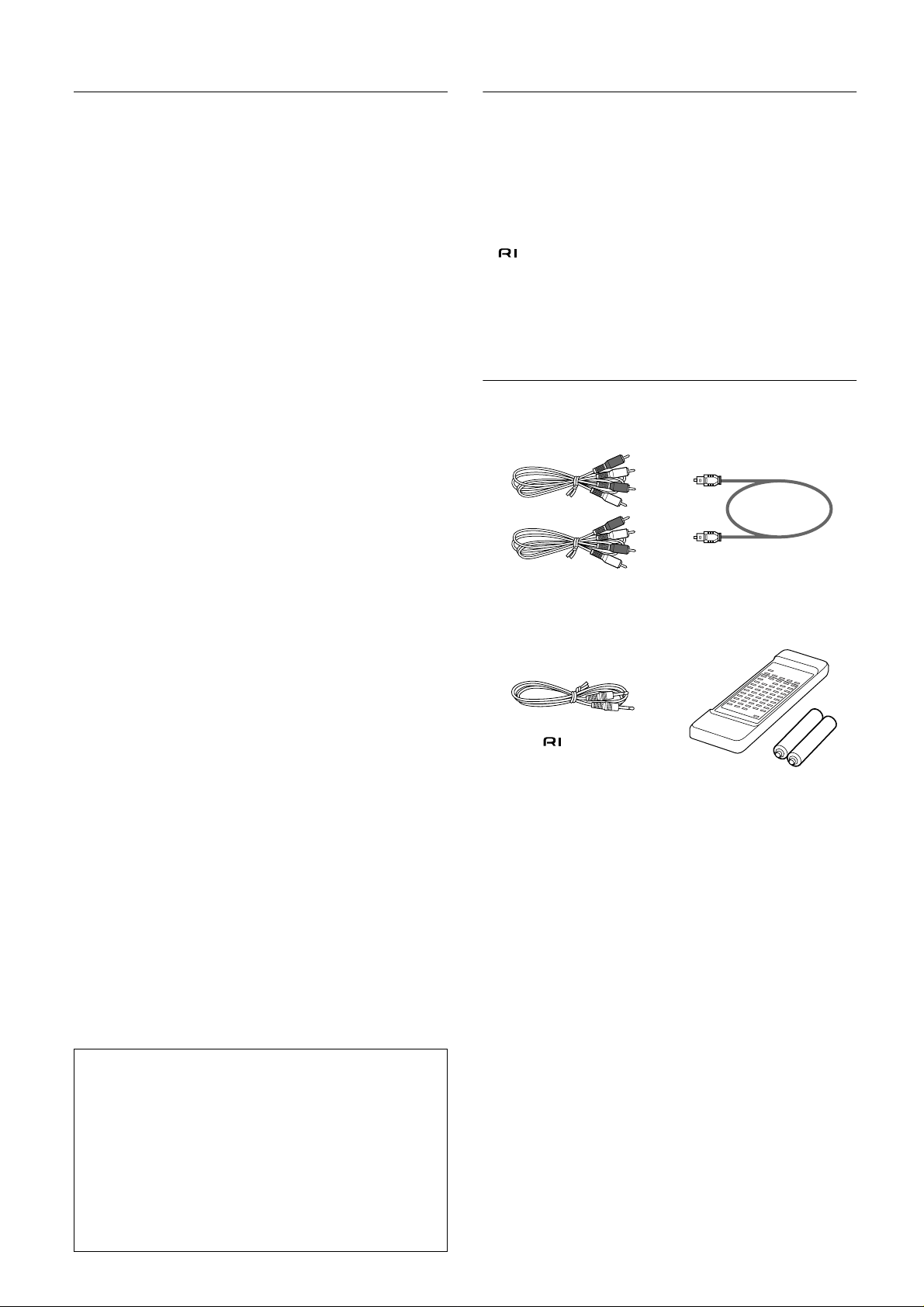
Audio connection cable (2) Optical cable (1)
cable (1)
Remote controller (1)
Dry batteries UM-3 (2)
Memory Preservation
This unit does not require memory preservation batteries. A
built-in memory power back-up system preserves the contents
of the memory during power failures and even when the unit is
unplugged. The unit must be plugged-in to charge the back-up
system.
The memory preservation period after the unit has been
unplugged varies depending on climate and placement of the
unit. On the average, memory contents are protected over a
period of a few weeks after the last time the unit was
unplugged. This period is shorter when the unit is exposed to a
highly humid climate.
4
Page 5
Before operating this unit
1
2
3
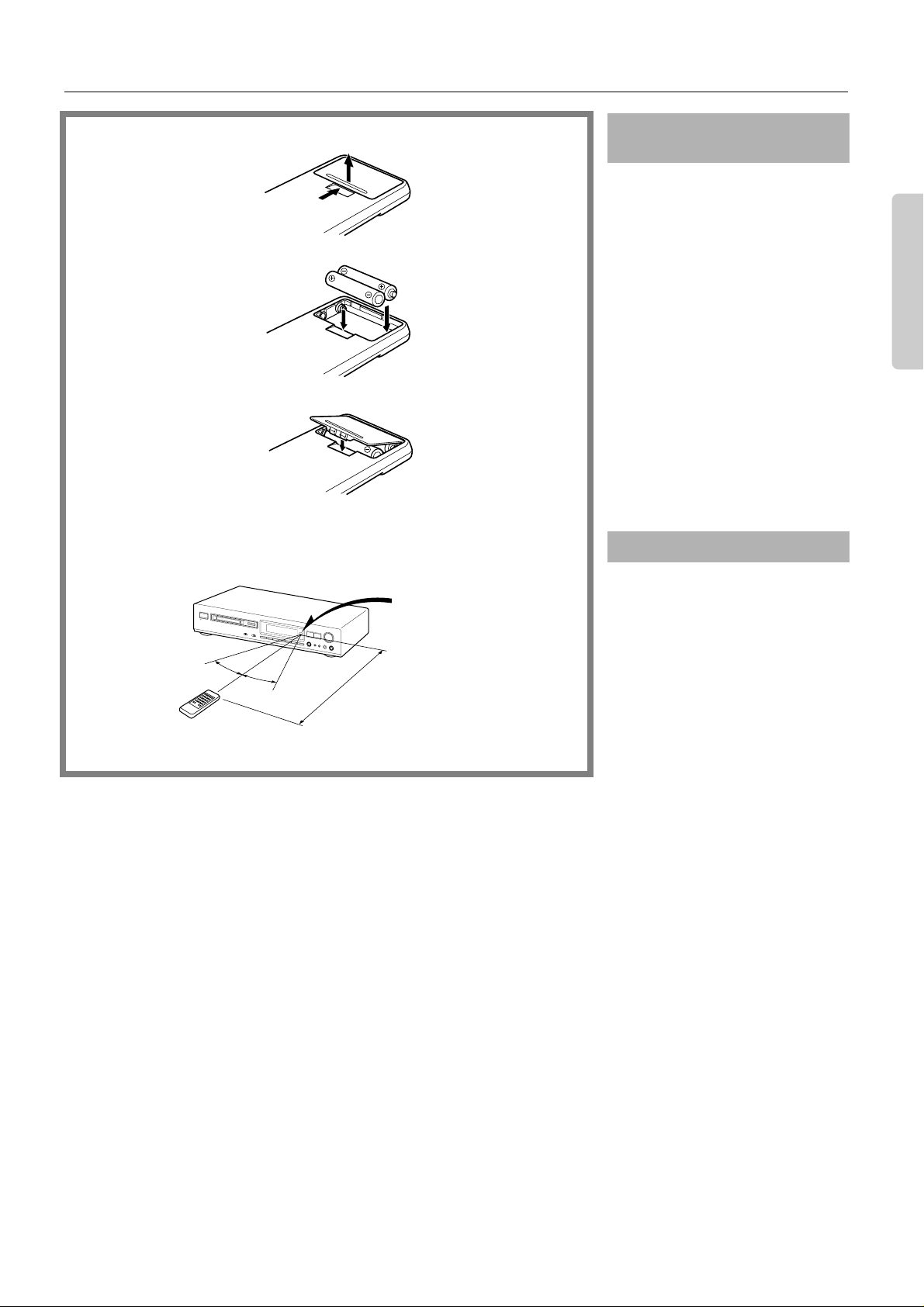
Inserting the remote controller batteries
Remove the battery compartment cover by
opening it as shown in the illustration.
Load two R6 (UM-3) AA size batteries into
the remote controller with the plus (+) and
minus (–) terminals positioned as indicated
by the diagram inside the battery compartment. Close the battery compartment cover .
• Remove dead batteries immediately to
avoid corrosion.
• To avoid potential corrosion, never mix
old batteries with new ones.
• The manganese batteries supplied with
this unit have a service life of approximately six months, depending on frequency of usage.
• This unit comes equipped with R6
(UM-3) AA manganese batteries, but
we recommend that you use long-life
alkaline batteries LR6 (AM-3) AA
when replacing the batteries.
30°
RC-339MD
30°
MD-2321
approx. 5m
Remote control
sensor
Using the remote controller
The following information will be helpful
for the optimum operation of the RC339MD.
• Place the MD-2321 away from direct
bright light, which can prevent proper
operation of the remote controller.
• Make sure audio rack doors do not have
coloured glass. If the MD-2321 is
placed behind such a door, the RC339MD may not operate properly.
• Using other remote controllers in the
same room as the MD-2321 may interfere with the operation of the RC339MD.
5
Page 6
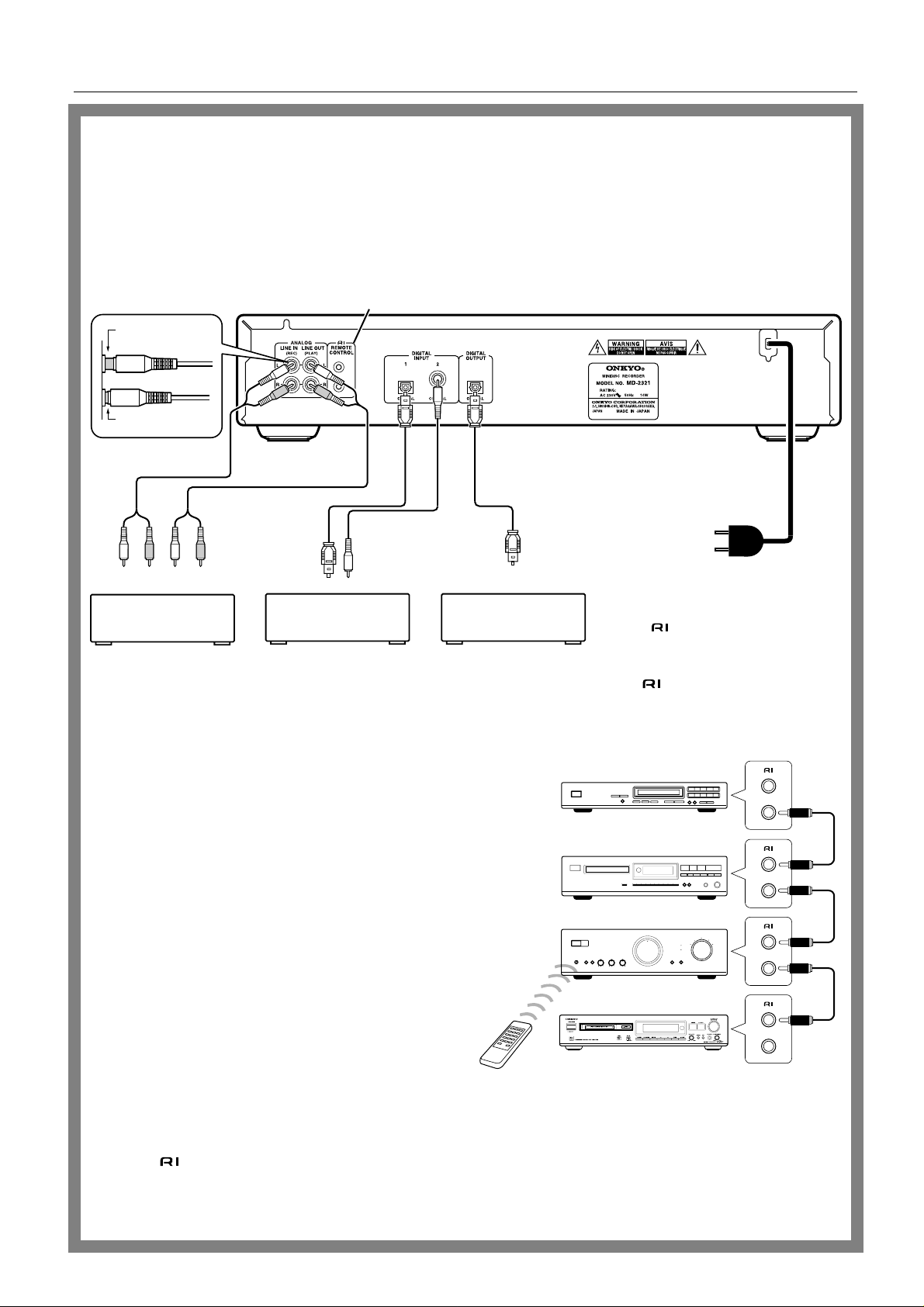
System connections
Connecting other components
• Do not plug in the AC power cord until all other connections have been made.
• On each pair of input or output jacks, the jack marked R corresponds to the right channel, and the jack marked L to the
left channel. Refer to the amplifier’s instruction manual for further information on connections.
• Do not place the MD recorder on the amplifier or receiver.
• Do not fold optical cables into a short length or wind them up into a coil with a small radius.
• Avoid bundling the audio connection cables with the power cord or speaker cables. Doing so may degrade sound reproduc-
tion.
• Insert the plugs and connectors securely. Remember that improper connection can result in noise, poor performance, or
damage to the equipment.
Improper
connection
Insert completely
4
Analog input Analog output
DIGITAL IN
LRLR
1235
Amplifier without
(PLAY)(REC)
OUT
CD player, DAT, etc.
A Connection with the amplifier
Connect the MD-2321 to the MD (or TAPE) jacks of your
amplifier.
B Connection via the digital input terminal (DIGITAL
INPUT)
You can perform digital recording on the MD-2321 if a CD
(Compact Disc) player or DAT (Digital Audio Tapedeck)
equipped with a digital (OPTICAL) output terminal is available. For digital recording, you need to connect the equipment to either DIGITAL IN 1 or 2 terminal. Use an optical
cable to connect DIGITAL INPUT 1, and use a coaxial cable
to connect DIGITAL INPUT 2. These terminals can also be
used for connecting an amplifier which is equipped with a
digital output terminal.
Note:
OPTICAL
INPUT
Amplifier, Tuner amplifier
with digital inputsdigital inputs
Note:
• The upper and lower remote control jacks have the
same function.
• Remote control operation is not possible when only the
remote control cable is connected – the audio cables must
also be connected.
4
To AC outlet
Connecting an Onkyo product
with connectors enables you
to use the System function.
• If you attempt to perform digital recording using a digital
input terminal that is not connected properly, “D.In
Unlock” will appear.
• Terminal protection caps are attached to the DIGITAL IN
terminals. Remove the cap for the terminal you wish to use
when connecting the MD-2321 to digital equipment.
Replace the caps if you are not using the DIGITAL IN terminals.
C Connection via the digital output terminal (DIGITAL
OUTPUT)
Connect this terminal to DIGITAL INPUT of an amplifier or
tuner amplifier to enjoy clearer and dynamic sound.
D Connections for remote control
When the MD-2321 is connected to an amplifier with the
Onkyo jack, pressing the MD button on the amplifier’s
remote controller enables you to operate the MD recorder.
E Connecting the AC power cord and turning the
power on
1. Insert the AC power cord into a wall outlet.
2. Press the STANDBY/ON button.
The display will light.
Note:
To insert the AC power cord into an AC outlet on the rear panel
of another component, use the UNSWITCHED outlet.
6
Page 7
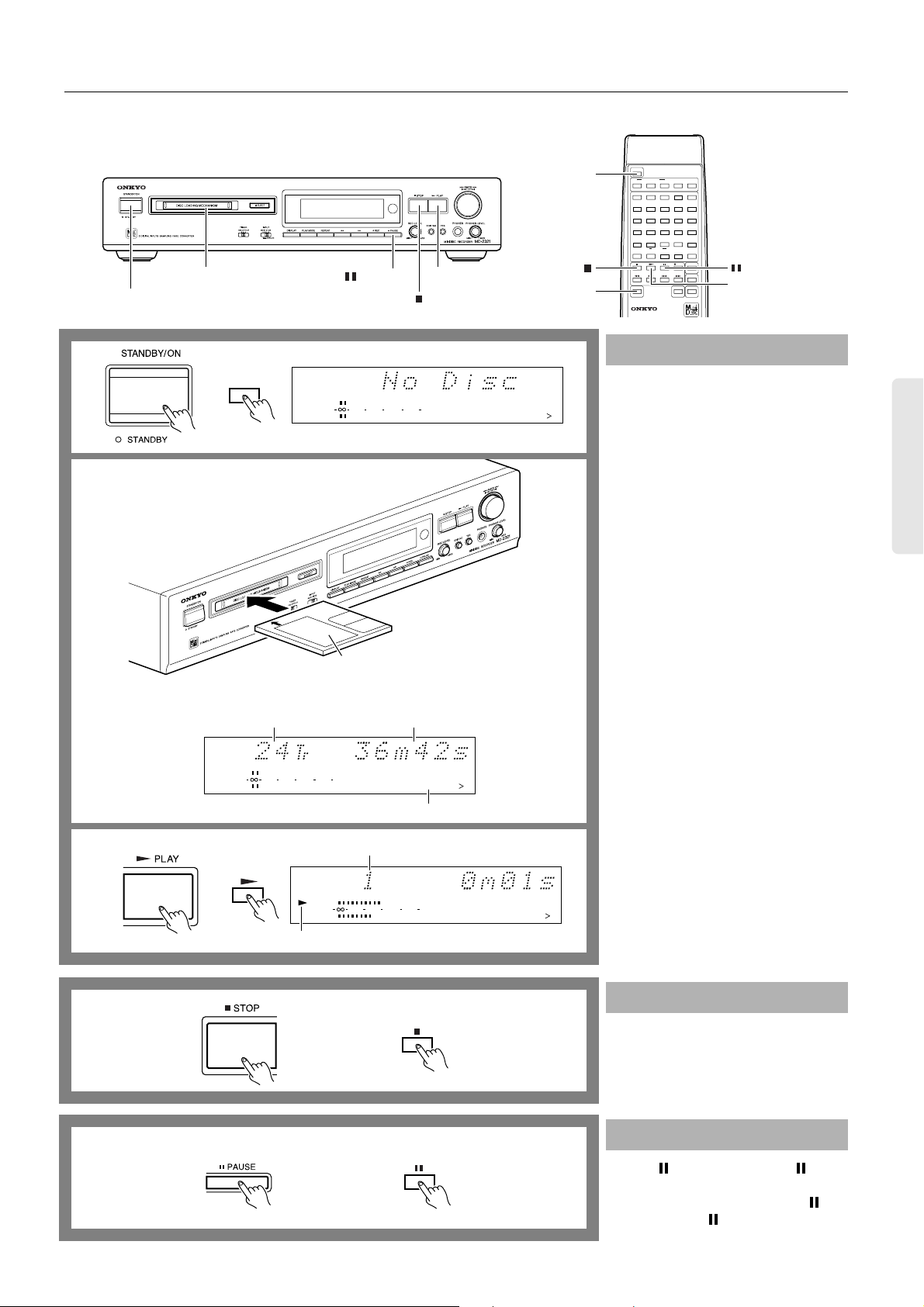
Playing an MD
RC-339MD
1
1
L
R
PAUSE
6
3
STOP
010 22040
SCROLL
12345
678910
11 12 13 14 15
15
2
1
1
Remote controller
POWER
DIGITAL IN
POWER
PLAY MODE
CONTINUE
RANDOM MEMORY
BCDE
1A2345
FGHI J
678910
KLMNO
11 12 13 14 15
PQRST
16 17 18 19 20
UVWXY
21 22 23 24 25
.,
Z
REPEAT
M.SCAN
A-B A-SPACE
>25
()
/?!
SCROLL DISPLAY
REMOTE CONTROL RC-339MD
CLEAR
REC
ENTER
NAME
3
Normal playback
1. Press the STANDBY/ON button.
The STANDBY indicator will turn off.
2. Insert an MD.
The MD recorder reads TOC (Table Of
Contents) information on the MD to
display the total number of tracks and
2
total playing time.
•
When an MD recorded with a disc name
(title) is inserted, the disc name is displayed. If the disc name is too long and
you cannot view the entire name, press
the SCROLL button on your remote
controller to scroll the display.
3. Press the ® PLAY button (or the
®
button on the remote controller).
The first track of the disc starts playing.
Insert an MD with its label side up
into the MD recorder in the direction
indicated by the arrow.
The total number of tracks
DIGITAL IN
1
L
R
6
The total playing time
010 22040
12345
678910
11 12 13 14 15
15
Current track number
3
Remote controller
Playing track number
TRACK
DIGITAL IN
1
L
R
010 22040
6
12345
678910
11 12 13 14 15
15
PLAY indicator
Stopping playback
Remote controller
Press the ■ STOP button (or the ■ button
on the remote controller).
Remote controller
Pausing playback
Press the PAUSE button (or the button
on the remote controller).
To resume playback, press the ® or button (or the ® or button on the remote
controller).
7
Page 8
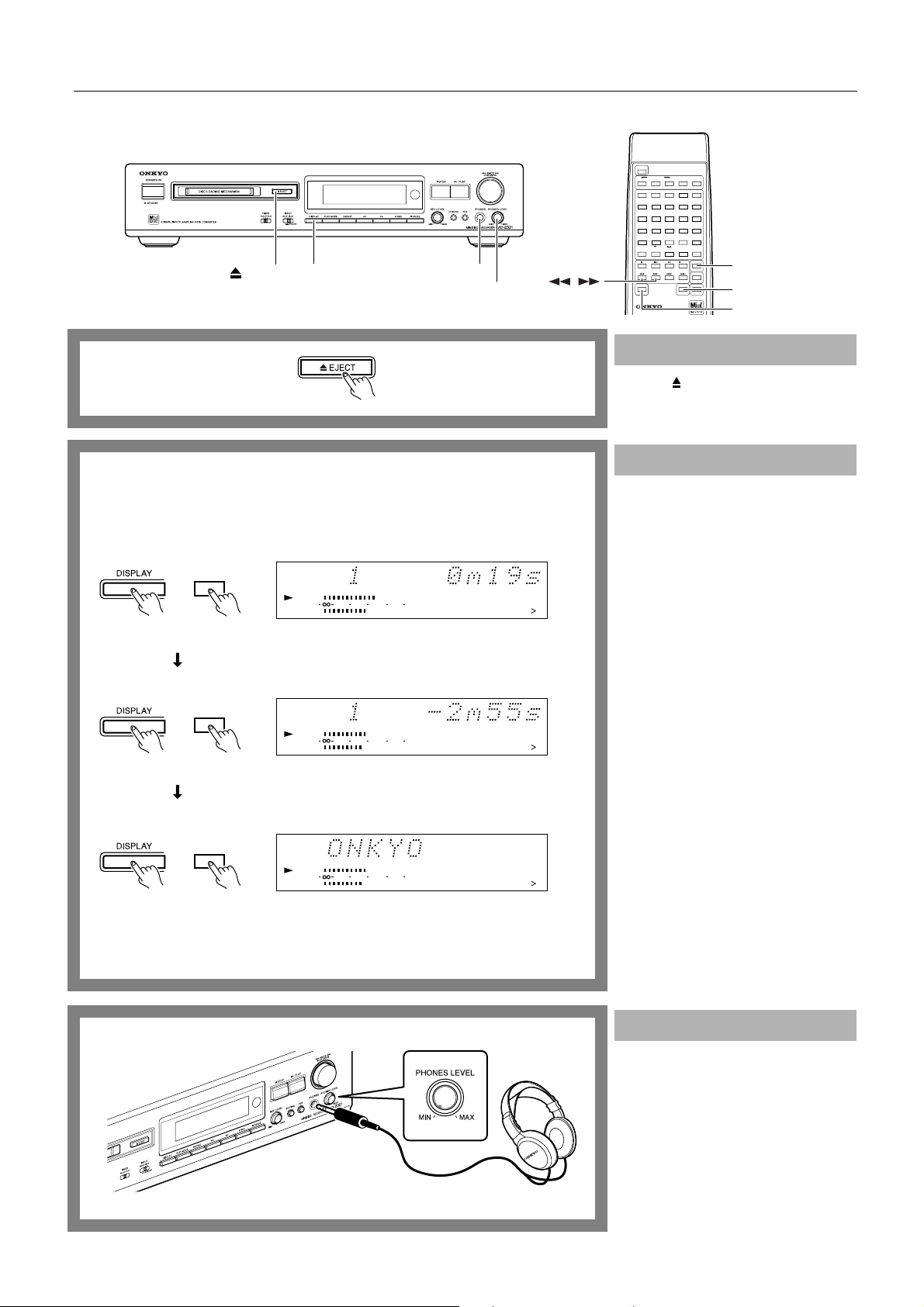
Playing an MD
Remote controller
DISPLAY
DISPLAY
DISPLAY
EJECT
DISPLAY PHONES
PHONES LEVEL
Playing track number and elapsed time
TRACK
DIGITAL IN
1
L
R
Playing track number and remaining playing time
TRACK
DIGITAL IN
1
L
R
Track name (“No Name” when not set)
TRACK
DIGITAL IN
1
L
R
010 22040
6
010 22040
6
10 22040
6
0
12345
678910
11 12 13 14 15
12345
678910
11 12 13 14 15
12345
678910
11 12 13 14 15
RC-339MD
POWER
PLAY MODE
CONTINUE
RANDOM MEMORY
BCDE
1A2345
FGHI J
678910
KLMNO
11 12 13 14 15
PQRST
16 17 18 19 20
UVWXY
21 22 23 24 25
.,
Z
REPEAT
M.SCAN
A-B A-SPACE
>25
()
/?!
,
SCROLL DISPLAY
REMOTE CONTROL RC-339MD
CLEAR
REC
ENTER
NAME
CLEAR
DISPLAY
SCROLL
Ejecting a MiniDisc
Press the EJECT button.
The MiniDisc is ejected and “Eject”
appears on the display.
Changing the display mode
When the MD recorder is playing...
Each press of the DISPLAY button
changes the display in the following
sequence:
The number and elapsed time of the current
track
↓
15
The number and remaining playback time
of the current track
↓
Track name (“No Name” appears if the
track is not named.)
When the MD recorder is stopped...
Each press of the DISPLAY button
changes the display in the following
sequence:
15
Total number of tracks on the MD and its
total playing time
↓
Time remaining for recording on the MD
(Not displayed if it is a premastered MD)
↓
Disc name (“No Name” appears if the disc
is not named.)
15
If the track or disc name is too long to
display...
You can scroll the name by pressing the
SCROLL button on the remote controller.
Press the SCROLL button again to stop
scrolling the name.
To exit display scroll mode, press the
CLEAR button on the remote controller.
8
Listening with headphones
Plug the headphones into the PHONES
jack and adjust the sound level using the
PHONES-LEVEL knob.
• Turn the knob clockwise to increase the
sound level; turn it counterclockwise to
decrease the sound level.
Page 9
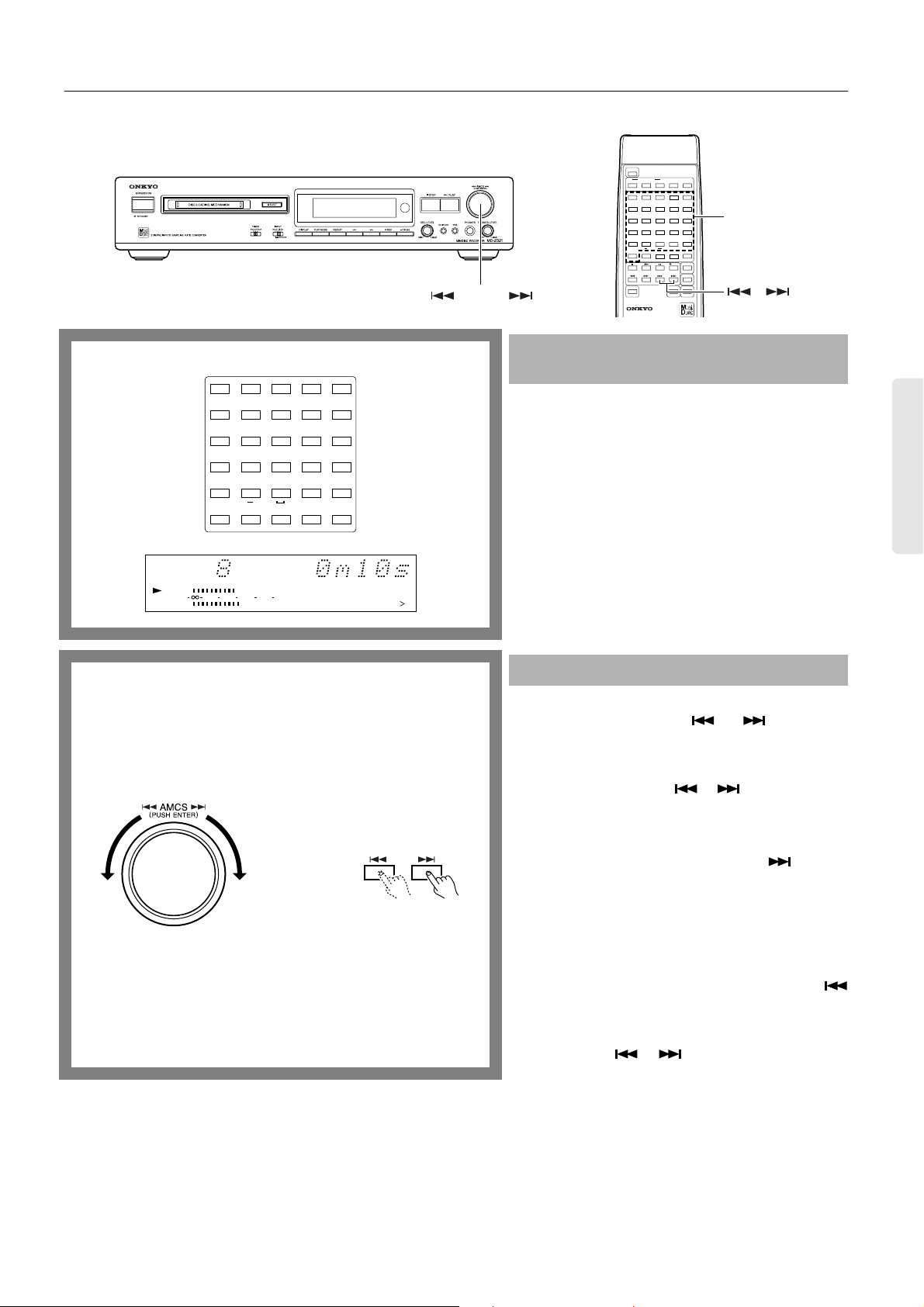
Playing an MD
AMCS
RC-339MD
POWER
PLAY MODE
CONTINUE
RANDOM MEMORY
BCDE
1A2345
FGHI J
678910
KLMNO
11 12 13 14 15
PQRST
16 17 18 19 20
UVWXY
21 22 23 24 25
.,
Z
REPEAT
A-B A-SPACE
>25
()
/?!
REC
SCROLL DISPLAY
REMOTE CONTROL RC-339MD
Number buttons
M.SCAN
CLEAR
ENTER
NAME
,
TRACK
DIGITAL IN
Remote controller
12345
FGHI J
678910
KLMNO
11 12 13 14 15
PQRST
16 17 18 19 20
UVWX Y
21 22 23 24 25
Z
REPEAT
>25
/?!
1
L
R
A-B A-SPACE
6
010 22040
.,
M.SCAN
()
11 12 13 14 15
8910
Selecting a playing track using the number
buttons
Press the number button on the remote controller to
select the track you want to play.
Note:
To play a track numbered 26 or more...
Press the [>25] button first. Set a value for the 10th place and
then the 1st place using the number buttons in this order.
(You can enter “0” by pressing the [10] button.)
Ex.
To select the 30th track:
[>25] + [3] + [10]
To select the 100th track:
15
[>25] + [>25] + [1] + [10] + [10]
The [>15] indicator lights up during playback of a track
numbered 16 or higher.
Changing the playing track using the AMCS
During play, you can change the playing track by turning the
AMCS knob (or by pressing the and buttons on the
remote controller).
If the MD recorder is stopped, turn the AMCS knob to select
the track number you wish to play, and press the knob. (On
the remote controller, use the or button to select the
track, then press the ® button.)
Remote controller
To play the next track or a later track...
Turn the AMCS knob clockwise (or press the button on
the remote controller several times) until the desired track is
located.
To start playback again from the beginning of a track
that is currently playing, or to play the previous track or
an earlier track...
Turn the AMCS knob counterclockwise (or press the
button on the remote controller several times) until the
desired track is located.
In Memory playback mode (see page 19), turn the AMCS
knob (or press the or button) to select tracks in the
stored sequence.
9
Page 10
Playing an MD
RC-339MD
Remote controller
M. SCAN
DIGITAL IN
Flashes
POWER
PLAY MODE
CONTINUE
RANDOM MEMORY
CONTINUE
1
, ,
2
BCDE
1A2345
FGHI J
678910
KLMNO
11 12 13 14 15
PQRST
16 17 18 19 20
UVWXY
21 22 23 24 25
.,
Z
REPEAT
A-B A-SPACE
>25
()
/?!
REC
SCROLL DISPLAY
REMOTE CONTROL RC-339MD
M.SCAN
CLEAR
ENTER
NAME
1
M. SCAN
2
Music Scan
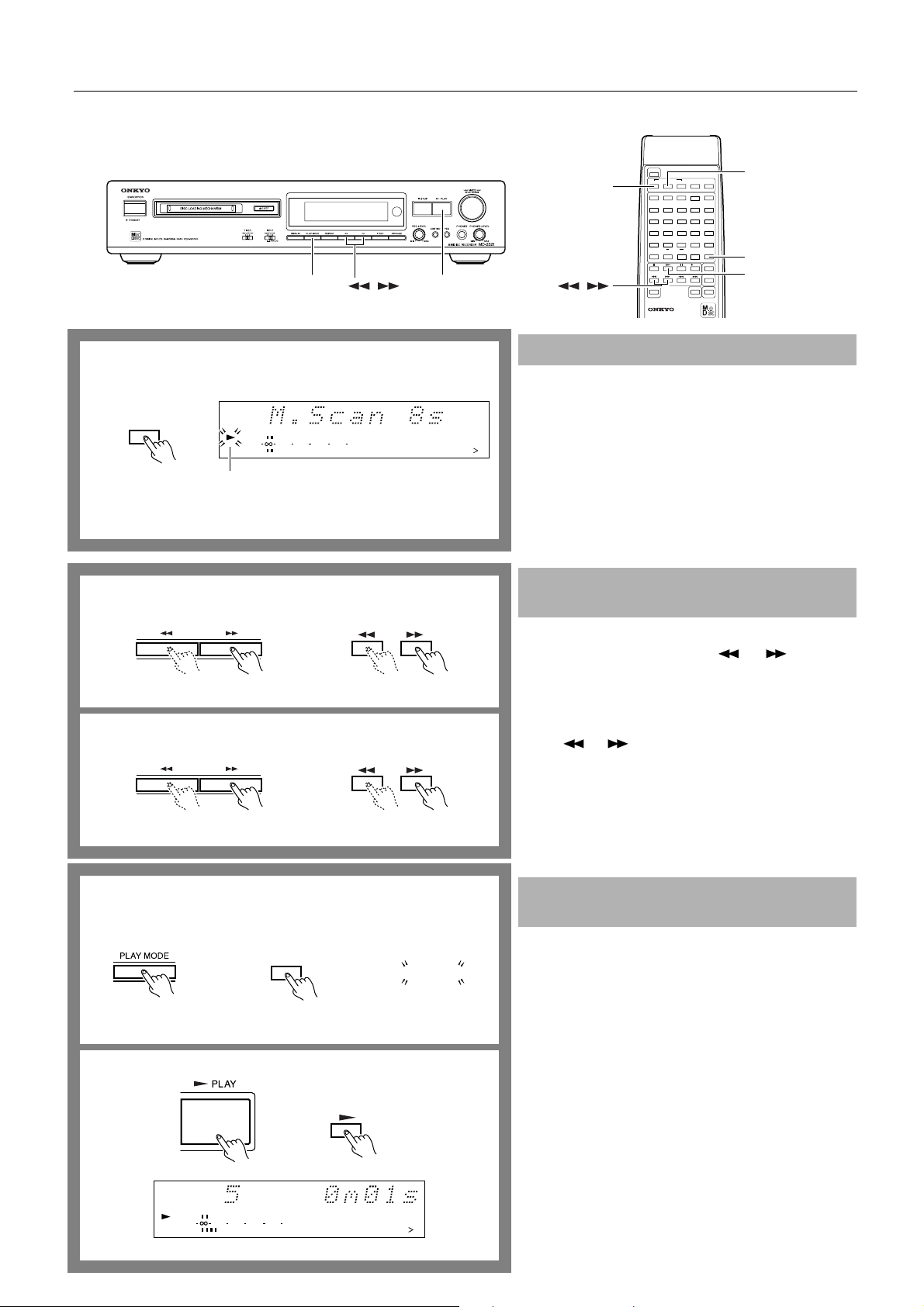
The following function is available only when you use the
remote controller.
1
L
R
010 22040
6
12345
678910
11 12 13 14 15
When you press the M.SCAN button while the MD
recorder is either playing or stopped, the beginning
15
(eight seconds) of each track on the disc is played back in
sequence.
The ® indicator flashes during music scan.
Press the ® or M.SCAN button on the remote controller
while the beginning of a track is playing to contiunue playing back the track.
Searching for a part to play (Search play-
Remote controller
Remote controller
back)
Searching for a part to play by cueing
During playback, hold down the or button and
release it when the part you want to hear starts to play.
Searching for a part to play using the time display (at pause,
high-speed search)
When playback is temporarily stopped (paused), keep pressing the or button and release it when the playing
time of the part you want to hear is displayed. Press the
® PLAY button (or the ® button on the remote controller)
to start playing from that position.
Note:
• “Over” indicates that the end of the last track has been
reached.
10
1
Playing tracks in random order (Random
playback)
Remote controller
RANDOM
RANDOM
2
Remote controller
TRACK
DIGITAL IN
1
L
R
010 22040
6
RANDOM
12345
678910
11 12 13 14 15
15
1. When the MD recorder is stopped, press the PLAY
MODE button several times until “RANDOM”
appears on the display.
The display changes as shown below each time you press
the PLAY MODE button:
Random playback (RANDOM indicator lights up.)
Memory playback (MEMORY indicator lights up.)
Normal playback (No indicator appears.)
↓
↓
To select random mode using the remote controller, press
the RANDOM button.
2. Press the ® PLAY button (or the ® button on the
remote controller).
To exit random mode
When the MD recorder is stopped, press the PLAY MODE
button several times until “RANDOM” disappears from the
display. (Or, press the CONTINUE button on the remote
controller.)
Page 11

Playing an MD
REPEAT
Remote controller
REPEAT
Remote controller
REPEAT
REPEAT
REPEAT
REPEAT 1
RC-339MD
POWER
PLAY MODE
CONTINUE
RANDOM MEMORY
BCDE
1A2345
FGHI J
678910
KLMNO
11 12 13 14 15
PQRST
16 17 18 19 20
UVWXY
21 22 23 24 25
.,
Z
REPEAT
M.SCAN
A-B A-SPACE
>25
/?!
SCROLL DISPLAY
REMOTE CONTROL RC-339MD
()
REC
CLEAR
ENTER
NAME
A-B
REPEAT
Playing a track(s) or desired section repeatedly
To play all tracks on the disc repeatedly, press the
REPEAT button once.
• If you press the REPEAT button during Memory play-
back...
Only the programmed tracks will be played repeatedly in
the programmed order.
• If you press the REPEAT button during Random
playback...
The contents of the entire disc will be repeatedly played
in random order.
To play the current track repeatedly, press the REPEAT
button twice.
Note:
In Memory Playback or Random Playback, you cannot
repeat the currently-playing track. (The “REPEAT 1” function does not work.)
To stop the repeat...
Press the REPEAT button once or twice until the “REPEAT”
indicator disappears.
Remote controller
A-B
A-B
DIGITAL IN
DIGITAL IN
To repeat the desired section of a track...
1. While the track is playing, press the A-B button on the
remote controller to specify the beginning of the section you wish to repeat playing (Point A).
2. While the track is still playing, press the A-B button
1
L
R
010 22040
6
45
678910
11 12 13 14 15
15
again to specify the end of the repeat section (Point B).
The section between A and B of the track will repeat.
NOTE:
• You cannot specify the repeat section over two or more
consecutive tracks.
• After you set Point A, if the song reaches the end before
you set Point B, the Point A setting is cancelled and nor-
1
L
R
010 22040
6
45
678910
11 12 13 14 15
15
mal playback resumes.
To stop the repeat of the section...
Press the REPEAT button several times until the “REPEAT”
indicator disappears. Alternatively, press the ■ button or AB button.
11
Page 12

Recording to an MD
12345
678910
11 12 13 14 15
010 22040
R
6
L
15
DIGITAL IN
1
Number of tracks on MD Total recorded time
Insert an MD with its label side up
into the MD recorder in the direction
indicated by the arrow.
Digital recording technique uses an optical digital cable to
input signals from a digital recording source.
• This MD recorder contains a sampling frequency rate con-
verter for digital input signals which converts the sampling
frequency of digital input signals to 44.1 kHz before
recording.
This converter can handle the following sampling frequencies:
44.1 kHz (CD player)
32 kHz (DAT, satellite broadcasting)
48 kHz (DAT, satellite broadcasting)
1 6 4532
1
Recording from a digital source
1. Press the STANDBY/ON button.
The STANDBY indicator will turn off.
2. Load a recordable MD. To check the time remaining for recording...
When the MD recorder is stopped, press the DISPLAY
2
3
DIGITAL IN
1
L
R
010 22040
6
12345
678910
11 12 13 14 15
15
button. Each press of the DISPLAY button changes the
display as follows:
The number of tracks on the disc and the total recorded
time→ Available recording time on the disc → Disc name
(“No Name” appears if the disc is not named.)
3. Set the INPUT selector to the “D1” or “D2” position.
D1: Select this if you have connected the recording
source equipment to DIGITAL INPUT 1 (OPTICAL).
D2: Select this if you have connected the recording
source equipment to DIGITAL INPUT 2 (COAXIAL).
Note:
Make sure which of the digital input terminals the supplied optical cable is connected to. If you attempt to perform digital recording using a digital input terminal that
is not connected, “D.In Unlock” will appear.
4. Select the position (track number) on the disc at which
you wish to start recording.
• To record while erasing the existing tracks on the
disc...
Turn the AMCS knob to select the track number from
which you wish to start recording. (The selected track
number will flash.) The MD recorder will record new
data while erasing the selected track and subsequent
tracks.
• To record by erasing all existing tracks on the disc...
Select Track 1 via the AMCS knob or after erasing the
entire contents of the disc. (See “Erasing a track” on
page 20.)
If a new disc is used for recording, or if you wish to
record over the existing track(s) on the disc, ignore this
step and proceed to step 5.
4
TRACK
DIGITAL IN 1
L
R
12
010 22040
6
12345
678910
11 12 13 14 15
15
Flashes
Page 13

Recording to an MD
5
TRACK
DIGITAL IN 1
L
R
010 22040
6
12345
678910
11 12 13 14 15
6
TRACK
DIGITAL IN
TOC
L
R
010 22040
6
If you stop recording while erasing the songs that follow the specified
song (overwrite recording), the unerased part will be recorded as a
new track. During overwrite recording, the “TRACK” indicator lights
up.
When you start recording from the top of a song
123456
↓↓
12 3 45
Recording start point
↑↑
Newly recorded song
Recording end point
When you start recording in the middle of a song
123456
↓↓
12 56
Recording start point
34
↑↑
Recording end point
Newly recorded song
12345
678910
5. Press the ● REC button.
The MD recorder is now in recording standby mode.
• If “Protected” appears on the display, the record-pro-
tect tab of the MD is open. Before starting the recording procedure, close the tab. (See page 18.)
If “D. In Unlock” appears...
15
The digital input source is not connected properly. Check
the connection of the digital input source.
When you record while erasing existing data, the
“TRACK” indicator and the number indicators of the
track selected in Step 4 and subsequent tracks flash.
6. Press the ® PLAY button and start playing the
recording source immediately.
The MD recorder will automatically stop when the
recordable time on the disc expires.
If the Rec source is “CD” or “MD”, track numbers are
recorded automatically.
Note:
For automatic track number recording, the recording
source must be able to transmit digital signals, including
those for identifying the beginning and end of each track.
If your recording source does not have this capability,
track numbers will not be recorded automatically. In this
case, turn the Level Sync On.
To manually record a track number...
While recording, press the ● REC button when you wish
to mark a track number.
If you wish to mark two or more track numbers sequentially, provide a sufficient interval between each press of
the ● REC button. Too short (about 4 seconds or less) an
interval may lead to a failure in marking track numbers.
To stop recording temporarily...
Press the PAUSE button (or the button on the remote
controller). To resume recording, press the ® PLAY but-
ton again (or press the ® button on the remote controller).
To stop recording...
Press the ■ STOP button.
To eject the MD...
Press the ■ button, then the EJECT button.
Caution:
The indicator flashes: If you press the button or
TOC
the STANDBY/ON button while the MD recorder is still
writing the recorded contents onto the disc. During this
period, do not disconnect the power cord or allow the MD
recorder to vibrate. Doing so may prevent normal recording onto the MD.
If the MD recorder’s power cord is connected to the
SWITCHED service power outlet on the rear panel of
another device, do not turn off the power to the device.
If you cannot record combined data (page 13) successfully, switch to analog recording (page 14).
Useful functions for digital recording
If “Auto Cut” appears during digital recording...
This message appears if the MD-2321 detects more than 30
seconds of silence on the source during digital recording. If
this occurs, the MD recorder will stop recording and enter
recording standby mode after recording about five seconds
of silence on the disc.
To resume recording, press the ® button.
If “Smart Space” appears during digital recording...
This message appears if three to thirty seconds of silence in
the source is encountered during digital recording. If this
occurs, the MD recorder will insert about five seconds of
silence and standby to record the subsequent sound.
13
Page 14

Recording to an MD
12345
678910
11 12 13 14 15
010 22040
R
6
L
15
DIGITAL IN
1
Number of tracks on MD Total recorded time
Insert an MD with its label side up
into the MD recorder in the direction
indicated by the arrow.
Analog recording technique uses audio connection cables to
input signals from the recording source.
• If “Protected” appears on the display , the record-protect tab
of the MD is open. Before you start the recording procedure, close the tab. (See page 18.)
• Data is recorded after the already-recorded area unless you
specify a recording start point.
1 8 4 7632
1
Recording from an analog source
1. Press the STAND-BY/ON button.
The STAND-BY indicator will turn off.
2. Load a recordable MD. To check the time remaining for recording...
When the MD recorder is stopped, press the DISPLAY
2
3
ANALOG IN
L
R
010 22040
6
12345
678910
11 12 13 14 15
15
4
TRACK
ANALOG IN
L
R
010 22040
6
6
12345
678910
11 12 13 14 15
Flashes
15
button. Each press of the DISPLAY button changes the
display as follows:
The number of tracks on the disc and the total recorded
time→ Available recording time on the disc → Disc name
(“No Name” appears if the disc is not named.)
• If “Protected” appears on the display, the record-protect
tab of the MD is open. Before you start the recording procedure, close the tab. (See page 18.)
3. Set the INPUT selector to the “Analog”, “MO (monaural)” or “ST (stereo)” position.
The input source is now set to “Analog”.
Monaural recording enables you to record about twice the
duration of stereo recording.
Note:
• Make sure that the INPUT selector on the MD-2321
and the REC selector on the amplifier are set to an
appropriate recording source.
• Do not change the INPUT selector setting during
recording.
4. Select the position (track number) on the disc at which
you wish to start recording.
• To record while erasing the existing tracks on the
disc...
Turn the AMCS knob to select the track number from
which you wish to start recording. (The selected track
number will flash.) The MD recorder will record new
data while erasing that track and subsequent tracks.
• To record by erasing all existing tracks on the disc...
Select Track 1 via the AMCS knob or after erasing the
entire contents of the disc. (See “Erasing a track” on
page 20.).
If a new disc is used for recording, or if you wish to
record over the existing track(s) on the disc, ignore this
step and proceed to step 5.
5. Play the recording source.
6. Press the ● REC button.
The MD recorder is now in recording standby mode.
When you record while erasing already-existing data, the
“TRACK” indicator and the number indicators for the
track selected in Step 4 and the subsequent tracks flash.
TRACK
14
ANALOG IN
L
R
010 22040
6
12345
678910
11 12 13 14 15
15
Page 15

Recording to an MD
7
TRACK
ANALOG IN
L
R
8
TRACK
DIGITAL IN
L
TOC
R
1
ANALOG IN
L
TOC
R
2
ANALOG IN
L
TOC
R
3
ANALOG IN
TOC
L
R
6
–6〜–2
6
6
6
6
7. Using the REC LEVEL knob, adjust the recording level.
Adjust the position of the REC LEVEL knob so that the
indicator occasionally enters the -6 to -2 dB range.
When adjustment of the recording level is complete, stop
playing the source.
8. Press the ® PLAY button to start recording on the MD2321 and start playing the recording source immediately.
The TOC indicator appears as soon as recording starts.
The MD recorder will automatically stop when recordable time on the disc expires.
The track numbers are recorded automatically.
010 22040
12345
678910
11 12 13 14 15
Since the interval between tracks is detected based on the
sound level, some tracks may not be numbered correctly
in the following cases:
• Recorded condition of the cassette tape is bad (noise
between tracks).
• Low sound level in quiet music.
• Interval between tracks is extremely short.
• Tuner’s reception is bad (noise).
To disable this function refer to the explanation below on
this page.
To manually record a track number
While recording, press the ● REC button when you wish
to mark a track number.
If you wish to mark two or more track numbers sequentially, provide a sufficient interval between each press of
the ● REC button. Too short (about 4 seconds or less) an
interval may lead to a failure in marking track numbers.
To stop recording temporarily...
Press the PAUSE button (or the button on the remote
controller). To resume recording, press the ® P LAY button
again (or press the ® button on the remote controller).
To stop recording...
Press the ■ STOP button.
010 22040
010 22040
010 22040
010 22040
12345
678910
12345
678910
11 12 13 14 15
12345
678910
11 12 13 14 15
12345
678910
11 12 13 14 15
15
15
15
To eject the MD...
Press the ■ STOP button, then the EJECT button.
Caution:
The indicator flashes: If you press the button or
TOC
the STAND-BY/ON button while the MD recorder is still
writing the recorded contents onto the disc. During this
period, do not disconnect the power cord or allow the MD
recorder to vibrate. Doing so may prevent normal recording onto the MD.
If the MD recorder’s power cord is connected to the
SWITCHED service power outlet on the rear panel of
another device, do not turn off the power to the device.
To disable the automatic track numbering function...
Perform the following steps prior to Step 2 or Step 6:
1. Press the EDIT/NO button. “LevelSync?” appears on the display.
2. Press the YES button. If the function is currently turned on, “On→Off?” appears on the display.
3. Press the YES button. “LvlSyncOff” appears on the display. Now the tracks will not be numbered during recording.
• Press the EDIT/NO button any time if you wish to
cancel the setting.
To enable the automatic track numbering function...
Perform the following steps prior to Step 2 or Step 6:
1. Press the EDIT/NO button. “LevelSync?” appears on the display.
2. Press the YES button. If the function is currently turned off, “Off→On?” appears on the display.
3. Press the YES button. “LvlSyncOn” appears on the display.
15
Page 16

Recording to an MD
Synchro recording
If you connect an Onkyo -compatible device to the MD-2321, you can start recording on the MD recorder by pressing one button on
the connected device, or start recording on the connected device by pressing one button on the MD recorder. This operation is possible
when the recording device is in record standby mode.
1
2
(Onkyo CD player
bearing the mark)
DIGITAL IN
TOC
REC
YESINPUT
EDIT/NO
CD Synchro recording
When your MD-2321 is configured into a system with an
ONKYO CD player bearing the mark, you can operate
the MD recorder and synchronize with the CD player.
1. Set the MD recorder to recording standby mode.
Refer to “Recording from an analog source” on pages 14
and 15 or “Recording from a digital source” on pages 12 and
13 for more information on how to set the MD recorder to
recording standby mode and prepare it for recording.
For digital CD Synchro recording.
Connect the CD player’s (optical or coaxial) digital output terminal to the MD-2321’s DIGITAL INPUT.
2. Start playing the CD.
The unit starts recording as soon as the CD starts playing.
If your cassette deck is also in recording standby mode, it
starts recording simultaneously.
When playback of the CD is complete, the MD recorder
(MD-2321)
1
L
R
010 22040
6
12345
678910
11 12 13 14 15
15
stops recording and enters recording standby mode.
To stop CD Synchro recording...
Press the ■ button on the CD player. The MD recorder then
enters recording standby mode.
Note:
For analog recording, set the input selector of the amplifier to
“CD.” If you change the input selector to a different setting
during recording, the MD recorder will stop recording and
enter recording standby mode.
16
1
Signal Synchro recording
Even if your recording source is a portable MD player or not
Onkyo -compatible player, you can still perform synchronized recording. Signal-synchronized recording records
data from the end of the recorded area.
The Auto Cut and Smart Space functions (page 13) are
enabled only when analog input is recorded.
2
3
1. Use the INPUT selector to select MO, ST, D1, or D2,
according to the connected device.
Analog connection: Select MO (monaural) or ST (stereo).
DIGITAL INPUT 1 OPTICAL connection: Select D1
DIGITAL INPUT 2 COAXIAL connection: Select D2.
You can perform Signal Synchro recording with both digital and analog recording sources.
2. Press the EDIT/NO button repeatedly until “Signal
Rec?” appears.
3. Press the YES button.
“Complete” appears and the unit waits for signal input.
Note:
If “Signal Rec?” does not appear when you press the
EDIT/NO button, first press the ■ STOP button, then try
again.
If no signal is input for approx. 30 seconds, the MD
recorder will enter recording standby mode.
Recording starts as soon as the unit receives signals from
the recording source while “Signal Wait” is displayed.
Page 17

Recording to an MD
RC-339MD
PLAY
POWER
PLAY MODE
CONTINUE
RANDOM MEMORY
BCDE
1A2345
FGHI J
678910
KLMNO
11 12 13 14 15
PQRST
16 17 18 19 20
UVWXY
21 22 23 24 25
.,
Z
REPEAT
A-B A-SPACE
>25
()
/?!
REC
SCROLL DISPLAY
REMOTE CONTROL RC-339MD
M.SCAN
CLEAR
ENTER
NAME
A-SPACE
Synchronized recording to a cassette tape
1
(Cassette Tape Deck)
AUTO
SPACE
REC
PAUSE
2
deck (MD Synchro recording)
When the MD-2321 is configured into a system that includes
an Onkyo cassette tape deck bearing the mark, synchronized recording from the MD recorder to the cassette tape
deck is possible.
1. Insert a cassette tape in the cassette tape deck and set
the cassette tape deck to recording standby mode.
See the cassette tape deck instruction manual for more
information on how to set the tape deck to recording
standby mode.
2. Press the ® PLAY button on the MD recorder (or the
® button on the remote controller).
The cassette tape deck starts recording as soon as the MD
starts playing.
When the MD program is completed, the cassette tape
deck stops recording and enters recording standby mode
again.
To stop MD Synchro recording...
Press the ■ STOP button on the MD recorder. The cassette
tape deck enters recording standby mode.
1
Remote controller
A-SPACE
2
Remote controller
A-SPACE
TRACK
DIGITAL IN
TRACK
DIGITAL IN
Using the Auto Space function
The Auto Space function automatically inserts three seconds
of silence between tracks when you are recording data on
1
L
R
1
L
R
010 22040
6
010 22040
6
12345
678910
11 12 13 14 15
12345
678910
11 12 13 14 15
15
15
another MD recorder or a connected cassette tape recorder.
This function is useful, for example, when you want the auto
track locate function of a cassette player to work properly.
1. Press the A-SPACE button on the remote controller.
The current setting appears on the display (e.g., A-Space
Off).
2. To revert to the previous setting, press the A-SPACE
button again while the current setting is shown on the
display.
When you start recording, a silent section of about 3 seconds will be inserted between the recorded tracks.
To cancel the Auto Space function...
Follow Steps 1 and 2 above to select “A-Space Off”.
17
Page 18

Recording to an MD
1
Using an audio tImer
You can use a commercially available audio timer for recording and playing.
1. Load an MD.
• If the disc contains recorded material, new data will be
recorded following the existing tracks.
2. Set the TIMER switch on the MD-2321 to “REC” for
recording or “PLAY” for playback.
• Set the audio timer approximately one minute earlier than
actual recording start time. The MD recorder may require
some time to write and read the TOC information after it
is activated by the timer.
• Refer to the accompanying instruction manual for infor-
mation on how to set your audio timer.
2
3
MD-2321
Timer
To wall outlet
3. Plug in the AC power cord of the MD-2321 to the
audio timer.
• If the MD becomes full during recording, recording stops
immediately and the MD recorder enters STAND-BY
mode.
Note:
After using the audio timer for recording, be sure to energize the MD recorder (by plugging in its AC power cord
to a wall outlet or the UNSWITCHED outlet of another
system component) for two or three days. If the MD
recorder is not energized sufficiently after the audio timer
recording, the recorded materials may be lost.
Checking the contents of recording
• When recording is completed the first recorded track number
flashes. Press the ® PLAY button to start playing the track.
• To play from the beginning of the MD immediately after
recording is stopped, press the ■ STOP button again. Then,
press the ® PLAY button (or the ® button on the remote controller) to start playback.
Storage period for backup data
The recorded contents will be backed-up inside the MD-2321 even
if the MD recorder’s power cord is accidentally unplugged or if a
power failure occurs before (when is lit) or while (when
is flashing) the contents are being stored to disc. You can
TOC
restore data that was backed up during such an accident or power
failure by pressing the STANDBY/ON button after plugging in the
power cord or immediately after the power failure is solved. Note,
however, that the MD-2321 can maintain data in the backup memory for approximately an hour. We recommend that after a power
failure, you perform the above procedure immediately after the
power is restored.
If the power continues to be down for one hour or more, recorded
contents may be lost.
TOC
Protecting recordings from accidental erasure
You can prevent your MDs from being recorded. Slide the recordprotect tab on an MD to open the slot. To make the MDs recordable
again, slide back the record-protect tab to close the slot.
Record-protect tab
Back
Record-protect hole
Surface
18
Page 19

Using the program function (memory play)
• You can program up to 25 tracks.
• If the total playing time of the programmed tracks exceeds 1000 minutes, the MD-2321 displays “---m--s”.
• Too short a song cannot be programmed. (“Too Short” appears.)
RC-339MD
POWER
PLAY MODE
CONTINUE
RANDOM MEMORY
BCDE
1A2345
FGHI J
678910
KLMNO
11 12 13 14 15
PQRST
16 17 18 19 20
UVWXY
21 22 23 24 25
.,
Z
REPEAT
A-B A-SPACE
>25
()
/?!
REC
1
2
3
SCROLL DISPLAY
REMOTE CONTROL RC-339MD
1. When the MD recorder is stopped,
1
Remote controller
MEMORY
MEMORY
press the PLAY MODE button several times until “MEMORY” appears
on the display,
Alternatively, press the MEMORY button on the remote controller.
2. Using the AMCS knob, select the
tracks in the order you want to play.
2
Remote controller
12345
FGHI J
678910
KLMNO
11 12 13 14 15
PQRST
16 17 18 19 20
UVWX Y
TRACK
DIGITAL IN
21 22 23 24 25
Z
REPEAT
>25
/?!
1
L
R
10 22040
6
MEMORY
.,
A-B A-SPACE
()
M.SCAN
Turn the AMCS knob until the track
number you want to program appears
(the track playing time is displayed).
Press the AMCS knob to program the
track.
To play a track numbered 26 or
higher...
Press the [>25] button first. Use the
numeric buttons to set a value for the
10th place, then the 1st place. (Press the
[10] button to enter “0”.)
E.x.,
To select the 30th track
[>25] + [3] + [10]
To select the 100th track
[>25] + [>25] + [1] + [10] + [10]
3. Press the ® PLAY button (or the
Programmed track number
TRACK
DIGITAL IN
1
L
R
010 22040
6
MEMORY
4
®button on the remote controller) to
start Memory playback.
When the playback of all programmed
tracks concludes, the MD recorder
stops. The programmed tracks are
retained in memory.
DIGITAL IN
TRACK
Total playing time of programmed tracks
1
L
R
6
MEMORY
010 22040
4
Programmed track
To exit Memory playback mode:
When the MD recorder is stopped, press
the PLAY MODE button several times
until “MEMORY” disappears from the display. (Or, press the CONTINUE button on
the remote controller.)
All data in the memory will be erased.
3
Playing track number
Remote controller
TRACK
DIGITAL IN
1
L
R
PLAY indicator
MEMORY
010 22040
6
4
Clearing the last track stored:
Press the ■ or CLEAR button on the
remote controller.
The last track programmed in memory is
cleared.
Re-programming:
Cancel the program setting, then repeat the
procedure from Step 2.
1CONTINUE
2
M.SCAN
CLEAR
ENTER
NAME
3
19
Page 20

Editing the contents of an MD
The MD-2321 features various editing functions that enable
you to erase tracks, divide or combine tracks, and move a
track to a new location on the disc.
Note that you cannot edit the contents of premastered MDs.
Also, you cannot edit the disc if its record-protect slot is open
(i.e., “Protected” is displayed).
Before starting the editing procedure, close the slot. (See
page 18.)
1
Track number
TRACK
DIGITAL IN
1
L
R
010 22040
6
2
TRACK
DIGITAL IN
1
L
R
010 22040
6
3
DIGITAL IN
1
TOC
L
R
010 22040
6
12345
678910
11 12
Flashes
12345
678910
11 12
12345
678910
11
3
1
2
Erasing a track
Perform the following steps to erase a track
while the unit is stopped or paused.
1. Turn the AMCS knob until the track
number you want to erase is displayed.
2. Press the EDIT/NO button several
times until “Erase?” appears on the
display.
• To cancel the operation...
Press the EDIT/NO button again, or
press the ■ STOP button.
3. Press the YES button.
The selected track is erased. When the
track is erased, “Complete” appears on
the display.
• When a track is erased, the subsequent
track numbers advance. For example, if
you erase track 2, track 3 is renumbered
as track 2; track 4 is renumbered as
track 3, and so on.
Note:
While the TOC indicator is lit or flashing,
do not move or unplug the MD recorder.
To erase all tracks on an MD...
1. Press the ■ STOP button.
2. Press the EDIT/NO button several times
until “ All Erase?” appears on the display.
To cancel the operation, press the
EDIT/NO button or the ■ STOP button.
3. Press the YES button. “All Erase??”
appears for confirmation.
The track number flashes on the display.
4. Press the YES button again. When all tracks on the MD are erased, “Complete” followed by “Blank Disc” appears on the display.
Note:
• To erase part of a track, first divide the
track into parts, then erase the part. (See
page 21 for more information on how to
divide tracks.)
• While the TOC indicator is lit or flash-
ing, do not move or unplug the MD
recorder.
20
Lights when completed.
Page 21

Editing the contents of an MD
1
2
TRACK
DIGITAL IN 1
L
R
3
4
TRACK
DIGITAL IN
1
L
R
Dividing point
5
DIGITAL IN
1
L
TOC
R
3, 5
4
21
Dividing a track
1. During playback, press the PAUSE
button at the point where you wish to
divide the track.
2. Press the EDIT/NO button several
times until “Divide?” appears on the
display.
• To cancel the operation...
010 22040
6
010 22040
6
11 12
11 12
8910
8910
Press the EDIT/NO button again, or
press the ■ STOP button.
3. Press the YES button.
The MD recorder repeatedly plays a
part approximately four seconds before
and after the dividing point.
“Rehearsal” and “Position OK?” alternately flash on the display.
4. Turn the AMCS knob while listening
to the part being played to fine-adjust
the point where you wish to divide the
track.
The dividing point is represented by 0.5
seconds of silence.
You can move the dividing point in the
range of –128 to +127. (One step corresponds to approximately 0.06 seconds.)
5. Press the YES button or AMCS knob
to execute the operation.
After the track is divided, “Complete”
appears on the display.
• When a track is divided, the subsequent
tracks are renumbered accordingly. For
example, if you divide track 2 into two
parts, the latter part is renumbered as
Play
010 22040
6
11 12 13
910
track 3; track 3 is renumbered as track
4; track 4 is renumbered as track 5, and
so on.
Note:
While the TOC indicator is lit or flashing,
do not move or unplug the MD recorder.
Lights when completed.
21
Page 22

Editing the contents of an MD
1
2
TRACK
DIGITAL IN
1
L
R
3
4
DIGITAL IN
1
L
TOC
R
Lights when completed.
3, 4, 5
1
2
Combining tracks
You can combine two adjacent tracks into
one. Note, however, that you cannot combine an analog monaural track with another
type of track (e.g., recorded via analog stereo, Digital 1, Digital 2).
This function is available while the unit is
stopped, paused or playing.
1. Turn the AMCS knob to select the
larger number of the two adjacent
tracks you wish to combine.
• If both tracks have titles, the first track’s
010 22040
6
12345
678910
11 12 13
title will be used for a combined track.
• If only the first track has a title, that title
will be used.
• If only the latter track has a title, that
title will be erased.
2. Press the EDIT/NO button several
times until “Combine?” appears on
the display.
• To cancel the operation...
Press the EDIT/NO button again, or
press the ■ STOP button.
3. Press the YES button again.
The part at which the two tracks are to
be combined plays (for 8 seconds)
repeatedly, with “Rehearsal” and “Track
OK?” alternately showing on the display.
4. Press the YES button to combine the
tracks you have selected.
When the tracks are combined, “Complete” appears on the display, and the
subsequent track numbers advance. For
010 22040
6
11 12 13
8
910
example, if you combine track 3 with
track 2, track 4 is renumbered as track
3; track 5 is renumbered as track 4, and
so on.
Note:
While the TOC indicator is lit or flashing,
do not move or unplug the MD recorder.
22
Page 23

Editing the contents of an MD
1
2
TRACK
DIGITAL IN
1
L
R
3
TRACK
DIGITAL IN
1
L
R
4
TRACK
DIGITAL IN
1
L
R
3, 5
1, 4
2
Moving a track
This function is available while the unit is
stopped or paused.
1. Turn the AMCS knob until the track
number you want to move appears on
the display.
2. Press the EDIT/NO button several
times until “Move?” appears on the
display.
To cancel the operation...
010 22040
6
010 22040
6
010 22040
6
12345
678910
11 12 13 14
12345
678910
11 12 13 14
12345
678910
11 12 13 14
Press the EDIT/NO button again, or
press the ■ STOP button.
3. Press the YES button.
The selected track number and the
default destination track number (#1)
appear on the display.
4. Turn the AMCS knob to select the
desired destination track number.
5. Press the YES button or AMCS knob
to execute the operation.
When the track is moved, “Complete”
appears on the display, and the tracks
are renumbered accordingly. For example, if you move track 3 to track 1, the
original track 1 is renumbered as track
2; track 2 is renumbered as track 3, and
so on.
Note:
While the TOC indicator is lit or flashing,
do not move or unplug the MD recorder.
5
DIGITAL IN
TOC
1
L
R
010 22040
6
12345
910
67
11 12 13814
Lights when completed.
23
Page 24

Naming a track or disc
You can name tracks and discs using the AMCS knob on the front panel or the
character buttons on the remote controller. You may name tracks at any time.
However, the MD-2321 must be stopped when you name a disc.
You can enter up to 100 characters for each track name and a disc title.
The characters being entered are cancelled if the playing or recording track is
changed.
2
3, 64
1, 5
RC-339MD
POWER
PLAY MODE
CONTINUE
RANDOM MEMORY
BCDE
1A2345
FGHI J
678910
KLMNO
11 12 13 14 15
PQRST
16 17 18 19 20
UVWXY
21 22 23 24 25
.,
Z
REPEAT
A-B A-SPACE
>25
()
/?!
REC
SCROLL DISPLAY
REMOTE CONTROL RC-339MD
,
5
M.SCAN
CLEAR
CLEAR
ENTER
ENTER
NAME
2, 6
4
1
2
3
4
Remote controller
NAME
Remote controller
DISPLAY
DISC
DIGITAL IN
DISC
DIGITAL IN
DISC
DIGITAL IN
To name a trackTo name a disc
Naming a track or disc
1. Turn the AMCS knob to select a track you wish to
name.
• To name a disc, skip step 1 and go to step 2.
Note:
If you wish to name a track while recording or playing it,
start with Step 2 below during recording or playback.
Note that if recording or playback is complete before you
finish entering the entire name, the characters you input
so far will be cancelled.
2. Press the EDIT/NO button several times until “Name
1
L
R
010 22040
6
12345
678910
11 12 13 14 15
15
In?” appears on the display.
Alternatively, press the NAME button on the remote controller. (In this case, the “Name In?” display will be
skipped.)
When you name a track, the TRACK indicator will turn on.
To cancel the operation...
Press the ■ STOP, or press the YES b utton while pressing
and holding down the EDIT/NO button.
1
L
R
010 22040
6
12345
678910
11 12 13 14 15
3. Press the YES button.
15
A blinking cursor appears.
4. Press the DISPLAY button repeatedly to select a character input mode.
You can enter upper case letters, lower case letters, and
numbers and symbols. Each press of the DISPLAY button
changes the type of character you can enter as follows:
Upper case letters (A, B, C...)
←
↓
1
L
R
010 22040
6
123 45
678 910
11 12 13 14 15
15
Lower case letters (a, b, c...)
↓
Numbers and symbols (1, 2, 3...)
↓
Easy title ( ; )
(Refer to the table below.)
Preset titles for easy titling
In Easy Titling mode, you can enter the following titles by simply choosing one.
BALLAD
BLUES
CLASSIC
DANCE
FUSION
JAZZ
LIVE
POPS
REGGAE
ROCK
SOUL
TECHNO
VOCAL
African
American
Asian
British
Euro
24
German
Japanese
Anthology
Best of
(One space will be added
following “of”.)
Collection
Favorite
Happy
Heavy
Hit songs
Omnibus
Selection
Special
Super
Space ( )
Page 25

Naming a track or disc
5
DISC
DIGITAL IN
1
L
R
010 22040
6
6
DIGITAL IN
1
L
TOC
R
Lights when completed.
010 22040
6
Remote controller
PLAY MODE
CONTINUE
RANDOM MEMORY
ABCDE
12345
FGHI J
678910
KLMNO
11 12 13 14 15
PQRST
16 17 18 19 20
UVWX Y
21 22 23 24 25
Z
REPEAT
>25
/?!
12345
678910
11 12 13 14 15
.,
A-B A-SPACE
()
M.SCAN
15
Remote controller
NAME
12345
678910
11 12 13 14 15
15
5. Enter a track name or disc name using the AMCS
knob.
Turn the AMCS knob to select a character and press the
AMCS knob to enter it. Follow the same procedure to
enter the entire name.
To enter a name using the remote controller...
You can enter numbers (1 to 9, 0 by the 10 button), uppercase and lowercase letters, and symbols (only those indicated below the buttons) using the remote controller.
Use the and buttons on the remote controller to
select characters and press the ENTER button or the
button to confirm the entry.
To change the type of characters entered...
Go back to step 4 and change the character input mode.
Then, select and enter characters using the AMCS knob.
To correct the entered character...
Select the character you want to correct using the and
buttons (the selected character blinks), then reenter
the character you want.
To insert a character...
Select the character before which you want to insert a
character using the and buttons (the selected
character blinks).
Turn the AMCS knob counterclockwise ( blinks) and
press the AMCS knob (the cursor blinks). Finally, enter
the character you want.
To erase a character...
Select the character that you want to erase using the
and buttons (the character blinks) and press the
EDIT/NO button on the front panel or CLEAR button on
the remote controller.
To insert a space...
Turn AMCS knob to display ( ) and press the knob to set.
6. Press the YES button.
Alternatively, press the NAME button on the remote controller.
“Complete” appears on the display.
Note:
While the TOC indicator is lit or flashing, do not move or
unplug the MD recorder.
1
DISC
DIGITAL IN
1
L
R
010 22040
6
12345
678910
11 12 13 14 15
15
2
DIGITAL IN
1
TOC
L
R
6
Lights when completed.
010 22040
12345
678910
11 12 13 14 15
15
at one time
1. Press the EDIT/NO button repeatedly to display
“Name Erase?” while the MD-2321 is stopped.
Note:
Once the disc name and all track names are erased, they
cannot be restored.
2. Press the YES button to erase all track names and the
disc name, or press the ■ STOP button to cancel the
operation.
25
Erasing the disc name and all track names
Page 26

Precautions for handling
Message list
the MiniDisc (MD)
The MD is housed in a cartridge, so you can handle it without worrying about dust and fingerprints. Even so, a dirty or warped cartridge may cause malfunction. Always remember the following
precautions so you can enjoy high-quality sound for a long time.
Do not touch the disc in the cartridge directly with your fingers.
Do not open the shutter by hand. Doing so may damage the disc.
Storage location
Avoid storing MDs in a place subject to direct sunlight, high temperature, or high humidity.
When the unit is not to be used for an extended period
Remove the MD from the unit to avoid dust entering the MD cartridge. When the MD is in the unit, the shutter of the MD cartridge
remains open.
Regular care
Wipe off dust and dirt accumulated on the cartridge surf ace using a
dry cloth.
Removing a halfway-inserted MD
If the “self-rock function” is activated and the MD cannot be
removed, push the MD further into the MD recorder and then press
the button to remove the MD.
The following table explains the various messages that appear in
the display.
Message Meaning
All Erase!! An attempt was made to record onto a faulty MD.
Blank Disc A new recordable MD or a recordable MD without
disc or track names is inserted.
Cannot Copy An attempt was made to make a second copy from
a digitally dubbed MD (see “Rules for Digital
Recording” on page 28, 29).
Cannot Edit An attempt was made to edit the disc during MEM-
ORY or RANDOM play.
Cannot Rec An attempt was made to record onto a premastered
(read-only) disc.
D. In Unlock The digital equipment (CD player, DAT, etc.) has
not been connected properly.
Disc Error The disc is abnormal (scratched or missing a TOC).
Disc Full The disc is full (see “System Limitations” on page 29).
Impossible The disc could not be edited.
Shutter Cartridge
Memory Full An attempt was made to record a 26th track.
Name Full The number of characters has reached the limit for
input to one MD.
No Change The disc or track name was not changed.
No Disc There is no disc in the unit.
No Track The inserted disc has a disc title but no tracks.
Over In pause mode (when playing is paused), the
(Fast Forward) button was pressed to the end of the
disc.
Protected The inserted disc is record-protected.
Retry The first recording attempt failed due to a distur-
bance or scratch on the MD, and a second record-
ing is being made.
Retry Error The recording attempt failed due to a consecutive
disturbance or scratches on the MD.
Sorry Am attempt was made to combine tracks that can-
not be combined or to divide a track at the begin-
ning.
26
Page 27

Troubleshooting guide
If you encounter difficulty while using your unit, use this troubleshooting guide as an aid to remedy the problem. Because the unit contains a
microcomputer to provide advanced functions, it may malfunction due to external noise or static electricity. If this happens, disconnect the
power cord and then plug it in again after about five seconds. You must also be sure that the system components are properly connected.
If the MD recorder still does not operate correctly, disconnect the power plug, then plug it in again while pressing EDIT/NO button and YES
button simultaneously.
Note that any TOC information held in this MD recorder will be erased by this operation.
If the problem persists even after you try this remedy, or if the problem is not listed in the table, disconnect the power cord and then consult
the shop from which you purchased the unit or your nearest ONKYO service station, informing them of your name, address, phone number,
type of unit, and the details of the problem.
• The unit does not operate or operates poorly.
Cause: The disc may be damaged (“Disc Error” appears).
Remedy: Take the disc out and insert it again. If “Disc
Error” remains, replace the disc. (See page 26
“Precautions for handling the MiniDisc (MD)”)
• The unit does not play.
Cause: Moisture has formed inside the unit.
Remedy: Take the MD out and leave the unit in a warm
place for several hours until the moisture evaporates (See below).
Cause: The unit is not on.
Remedy: Insert the AC power cord (main lead) plug into
the wall outlet (the mains) securely.
Cause: The disc is inserted in the wrong direction.
Remedy: Slide the MD into the disc compartment with the
label side up and the arrow pointing toward the
opening until the unit grips the MD (See page 7).
Cause: The disc may not be recorded (the track numbers do
not appear).
Remedy: Replace the disc with one that has been recorded.
• The sound has a lot of static.
Cause: Strong magnetism from a television or a similar
device is interfering with operations.
Remedy: Move the unit away from the source of strong
magnetism.
• The unit does not record.
Cause: The disc is record-protected (“Protected” appears).
Remedy: Close the record-protect slot (See page 18).
Cause: The unit is not connected properly to the sound
source.
Remedy: Make connections properly to the sound source.
Cause: The analog recording level is too low.
Remedy: Turn the REC LEVEL control knob to adjust the
recording level properly.
Cause: A premastered disc is inserted.
Remedy: Replace it with a recordable disc.
Cause: There is not enough time left on the disc.
Remedy: Replace it with another recordable disc with
fewer recorded tracks.
Cause: There has been a power failure or the power cord has
been disconnected.
Remedy: The contents of the recording may be lost perma-
nently. After connecting the power cord or imme-
diately after power has been restored, press the
STANDBY/ON button. (See page 18 “Storage
Period of Backup Data”.)
Cause: An attempt was made to record from a digital input
source, but the source is not connected by the optical
cable (“D. In Unlock” appears).
Remedy: Connect the digital input source using the optical
cable or set the INPUT button to ANALOG
“MO” or “ST”.
• The disc name or track name cannot be entered.
Cause: The disc is record-protected (“Protected” appears).
Remedy: Close the record-protect slot (See page 18).
Cause: A premastered (read-only) disc is inserted (“Cannot
Rec” appears).
Remedy: Replace it with a recordable disc.
If the unit does not operate properly even after you attempt the prescribed remedies, unplug and then plug in the power cord again.
Condensation
This is the same phenomenon that causes windows to mist with water drops in a heated room during the winter.
The MD recorder also sometimes gets dew (water drops) on the optical lens inside the player under the following conditions.
• Immediately after you turn a heater on.
• If the MD recorder is placed in a room full of steam or dampness.
• If you suddenly bring the MD recorder in from the cold outside into a warm room.
If the MD recorder is exposed to dew condensation
You can leave it as it is. Sometimes the recorder cannot read the signal sent from the disc by laser and the recorder doesn’t work.
Depending on the surrounding conditions, you can remove the disc and leave the po wer on for one hour at the longest. The dew will evaporate and the recorder will work properly. If it doesn’t work after several hours, please consult the nearest ONKYO authorized service
center.
27
Page 28

Rules for digital recording
Guide to the Serial Copy Management System
Since your MD unit uses the Serial Copy Management System (SCMS), MDs recorded through the digital input terminal cannot be used to
make subsequent copies to other MDs through the digital output terminal. The following diagram sho ws a system for making copies through
the digital or analog terminals.
Rule 1
You can record digital source (CD, prerecorded MD, and DAT
equipment with a sampling frequency of 44.1 kHz) to a recordable
MD through the digital input terminal.
However, you cannot make subsequent copies from a recordable
MD to other recordable MDs through the digital output terminal.
Subsequent copies can be made only through an analog output terminal.
CD player DAT deck
MD recorder
Digital output terminal
Optical cable or
coaxial digital
connecting cable
Digital input terminal
MD
MD recorder
A recordable MD
recorded through
the digital input
terminal
Recording
Rule 2
You can record the digital input signal of a digital satellite broadcast onto a recordable MD via the digital input terminals on an MD
recorder that is capable of handling a sampling frequency of
32 kHz or 48 kHz. You can then record the contents of this
recorded MD (first-generation) onto another recordable MD via the
digital input terminals on the MD recorder to create a second-generation digital copy.
Note, however, that with some BS tuners, second-generation digital
copying may not be possible.
Playing
Optical cable or
coaxial digital
connecting cable
Recording
MD
BS tuner
Digital output terminal
Digital input terminal
MD recorder
First-generation MD
recorded via
digital-to-digital
connection
Playing
Digital output terminal
Optical cable or
coaxial digital
connecting cable
Digital input terminal
Recording
MD recorder
MD recorder
Line (analog)
output terminal
Audio connecting
cord
Line (analog)
input terminal
Play back
Optical cable or
coaxial digital
connecting cable
Recording
MD
Play back
Digital output terminal
Optical cable or
coaxial digital
connecting cable
Digital input terminal
Recording
MD recorder
Digital output terminal
Digital input terminal
MD recorder
Secondgeneration MD
recorded via
digital-to-digital
connection
MD recorder
Line (analog)
output terminal
Audio connecting
cable
Line (analog)
input terminal
MD recorder
28
Page 29

Rules for digital recording
System limitations
Rule 3
A recordable MD with material recorded from analog sources
(analog records or FM programs, etc.) through the line input terminal can be copied to another recordable MD through the digital
output terminal.
However, you cannot make subsequent copies from the recordable
MD to other recordable MDs through the digital output terminal.
Subsequent copies can be made only through an analog output terminal.
Record player Tuner
CD player Cassette deck
DAT deck
Playing
Audio connecting
cord
Recording
MD
MD recorder
MD recorder
Microphone amplifier
Line (analog)
output terminal
Line (analog)
input terminal
A recordable MD
recorded through the
analoginput terminal
The recording system in your MiniDisc recorder is radically different from those used in cassette and DAT decks and is characterized
by the limitations described below. Note, however, that these limitations are due to the inherent nature of the MD recording system
itself and not to mechanical causes.
• “Disc Full” lights up even before the disc has reached the
maximum recording time (60 or 74 minutes)
When 255 tracks have been recorded on the disc, “Disc Full” lights
up regardless of the total recorded time. More than 255 tracks cannot be recorded on the disc. To record new tracks, erase unnecessary tracks or use another MD.
• “Disc Full” lights up before the maximum number of tracks
is reached
Fluctuations in emphasis within tracks are sometimes interpreted
as track intervals, incrementing the track count and causing the
“Disc Full” indication to light up.
• The remaining recording time does not increase even after
you erase numerous short tracks
Tracks under 12 seconds in length are not counted and so erasing
them may not lead to an increase in the recording time.
• Some tracks cannot be combined with others
Track combination may become impossible when tracks are edited.
• The total recorded time and the remaining time on the disc
may not total the maximum recording time (60 or 74 minutes)
Recording is done in minimum units of two seconds each, no matter how short the material. The contents recorded may thus be
shorter than the maximum recording capacity. Disc space may also
be further reduced by scratches.
Playing
Optical cable or
coaxial digital
connecting cable
Recording
MD
Playing
Digital output terminal
Optical cable or
coaxial digital
connecting cable
Digital input terminal
MD recorder
Digital output terminal
Digital input terminal
MD recorder
MD recorder
A recordable MD
recorded through
the digital input
terminal
Line (analog)
output terminal
Audio connecting
cord
Line (analog)
input terminal
• Tracks created through editing may exhibit sound dropout
during searching operations
• Track numbers are not recorded correctly
Incorrect assignment or recording of track numbers may result (1)
when CD tracks are divided into several smaller tracks during digital recording, or (2) when certain CDs are recorded with both the
LEVEL-SYNC indicator on and the automatic track marking function on.
• TOC indicator appears for a long time
If the inserted recordable disc is brand new, the TOC indicator
appears on the display longer than used discs.
Recording
MD recorder
When MD recorders are connected using analog terminals, the
number of dubbings is not limited.
29
Page 30

Control positions and names
a
b
cd
TRACKDISC
ANALOG IN
DIGITAL IN
ml jkihgfe
12 3 4 5 6 7 8
TOC
2
1
L
R
6
MEMORY
010 2 OVER2040
RANDOM
REPEAT 1
12345
678910
11 12 13 14 15
15
Front panel
If there is a protective film on the surface of the display, which is making it difficult to read
the display, remove it.
For more information about a button or control, turn to the page number listed in square
brackets [ ].
1. Stand-by indicator (STANDBY) [5]
2. Stand-by/On button (STANDBY/
ON) [7, 12, 14]
3. Disc slot [7, 12, 14, 18]
4. Eject button ( EJECT) [8]
5. Remote sensor [5]
6. Stop button (■STOP) [7]
7. Play button (®®®®PLA Y) [7, 10, 13, 15,
17, 19]
8. AMCS knob ( AMCS )
[9, 12, 14, 19-25]
9. Phones level control knob
(PHONES LEVEL) [8]
10. Headphone jack (PHONES) [8]
11. Yes button (YES) [15, 16, 20-25]
12. Edit/No button (EDIT/NO)
[15, 16, 20-25]
13. Rec level control knob
(REC LEVEL) [15]
14. Pause button ( PAUSE)
[7, 13, 15, 21]
15. REC button (●REC) [13, 15, 16]
16. FF/FR buttons ( , ) [10, 25]
17. Repeat button (REPEAT) [11]
18. Play mode button (PLAY MODE)
[10, 19]
19. Display button (DISPLAY) [8, 24]
20. Input button (INPUT) [12, 14, 16]
21. Timer button (TIMER) [18]
9101112131415161718192021
Display
a. DISC indicator
b. TRACK indicator
c. Input setting indicator
d. Time/Title display
e. Track number display
f. REPEAT indicator
g. RANDOM indicator
h. Memory indicator
i. Peak level meter
j. Pause indicator
k. TOC indicator
l. REC indicator
m. Play indicator
30
Page 31

Control positions and names
POWER
PLAY MODE
CONTINUE
RANDOM MEMORY
BCDE
1A2345
FGHI J
678910
KLMNO
11 12 13 14 15
PQRST
16 17 18 19 20
UVWX Y
21 22 23 24 25
Z
REPEAT
>25
/?!
SCROLL DISPLAY
REMOTE CONTROL RC-339MD
.,
A-B A-SPACE
()
REC
M.SCAN
CLEAR
ENTER
NAME
1
2
3
4
5
6
7
8
9
10
11
12
13
Remote controller
You can use the following buttons to control your MD recorder.
1. POWER button [7]
2. PLAY MODE buttons [10, 19]
3. Number buttons [9, 19, 25]
4. REPEAT button [11]
5. A-B REPEAT button [11]
6. A.SPACE button [17]
7. M.SCAN button [10]
8. CLEAR button [19, 25]
9. ENTER button [25]
10. NAME button [24, 25]
11. DISPLAY button [8, 24]
12. Operation buttons
■ :Stop button [7]
® :Play button [7]
:Pause button [7, 13, 21]
●REC :Rec button [13, 15, 16]
:Fast Reverse button [10, 25]
:Fast Forward button [10, 25]
:Down button [9]
:Up button [9]
13. SCROLL button [8]
Specifications
System: MiniDisc digital audio system
Recording system: Magnetic field modulation overwrite
system
Signal read out system: Optical non-contact
Recording time: Max. 74 min. (STEREO) (when using
MDW-74)
Max. 148 min. (MONAURAL)
Number of revolutions: About 400-900 rpm
(constant linear velocity)
Error correction system: Advanced Cross Interleave Reed-
solomon code
Sampling frequency: 44.1 kHz
Number of channels: 2 (stereo)
Frequency response: 10 Hz - 20 kHz
Signal to noise ratio: 98 dB or more when playing
Output level: 2.0 V r.m.s.
Power supply rating: AC 230 V, 50 Hz
AC 120 V, 60 Hz
Power consumption: 14W
Dimensions (W× H ×D): 435 × 91 × 307 mm
(17-1/8" × 3-9/16" × 12-1/16")
Weight: 4.2 kg (9.3 lbs.)
Specifications and features are subject to change without notice.
31
Page 32

SN 29342638
Sales & Product Planning Div. : 2-1, Nisshin-cho, Neyagawa-shi, OSAKA 572-8540, JAPAN
Tel: 0720-31-8111 Fax: 0720-33-5222
ONKYO U.S.A. CORPORATION
200 Williams Drive, Ramesy, N.J. 07446, U.S.A.
Tel: 201-825-7950 Fax: 201-825-8150 E-mail: onkyo@onkyousa.com
ONKYO EUROPE ELECTRONICS GmbH
Industriestrasse 20, 82110 Germering, GERMANY
Tel: 089 84 93 20 Fax: 089 84 93 226 E-mail: info@onkyo.de
ONKYO EUROPE FRANCE BRANCH
Domaine Technologique de Saclay 4, Rue René Razel, SACLAY-91892
ORSAY CEDEX, FRANCE Tel: (1) 69 33 14 00 Fax: (1) 69 41 35 84
ONKYO CHINA LIMITED
Units 2102-7, Metroplaza Tower I, 223 Hing Fong Road, Kwai Chung,
N.T., HONG KONG Tel: 852 2429 3118 Fax: 852 2428 9039
HOMEPAGE
http://www.onkyo.co.jp/
Printed in Japan
I9807-1
E
 Loading...