

Page 1
ONER
TM
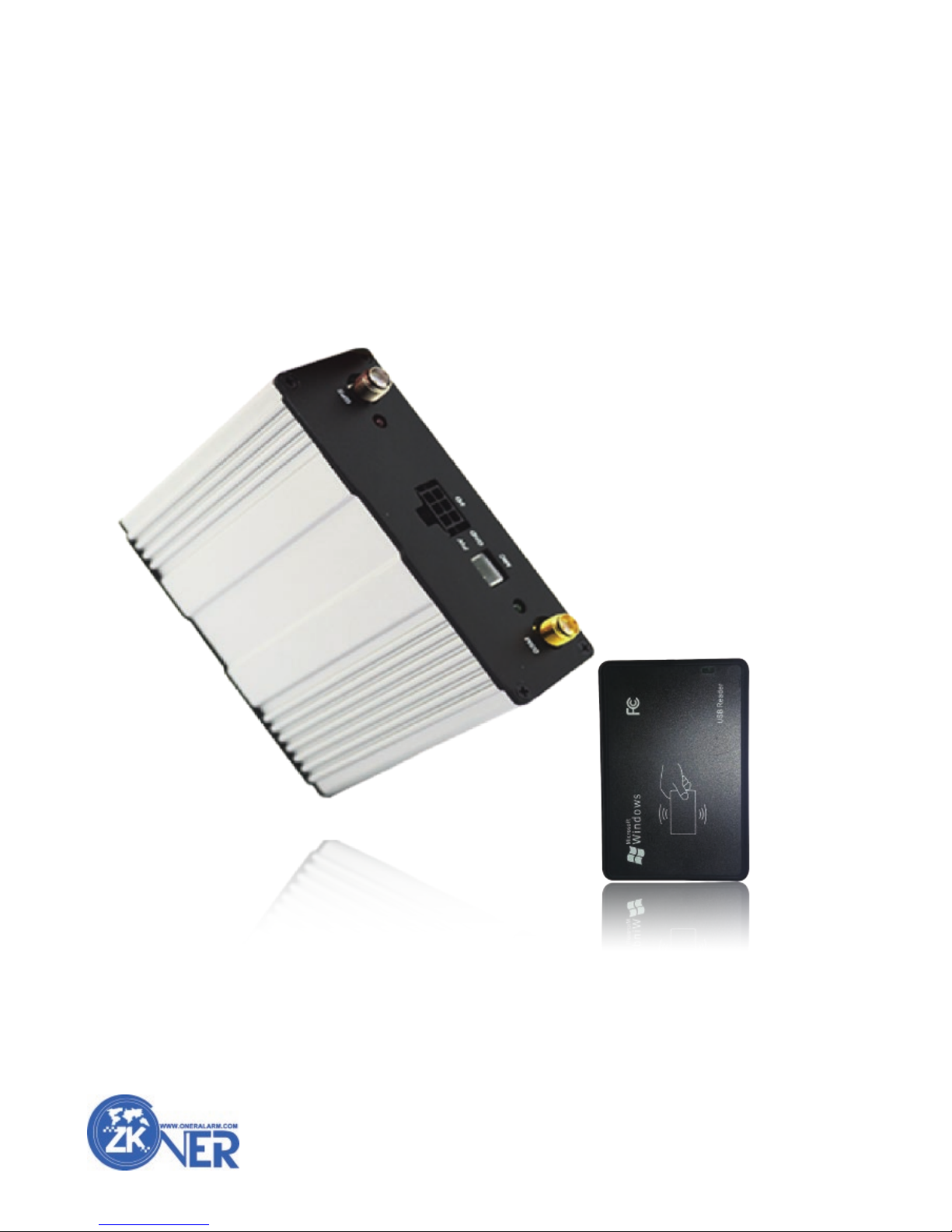
GPS Vehicle Tracker
CT02-RFID
User Manual
Page 2

CONTENT
1 Summary..................................................................................1
Introduce............................................................................................1
Features & Benetfits..........................................................................1
Technical Specification......................................................................2
Packing Content................................................................................2
2 Getting Starts..........................................................................3
Product View.......................................................................................3
SIM Card Installation..........................................................................3
Device Connection...............................................................................4
LED Light Status..................................................................................4
3 Operation & Installation.........................................................5
Operation-RFID....................................................................................5
Installation-Relay..................................................................................6
Installation-Engine Detecting................................................................6
Installation-Car Door Detecting............................................................6
4 Command List.........................................................................7
RFID Setting.........................................................................................7
A Switch Baudrate............................................................................7
B RFID Mode...................................................................................7
C IC Setting......................................................................................7
Online Tracking Parameter Setting......................................................7
A Set ID............................................................................................7
B Set APN........................................................................................7
C Set IP............................................................................................7
D Set GPRS.....................................................................................7
E Set Interval.....................................................................................7
I
SERVICE & SUPPORT
If you have any problem, please allow us to handle it before you send back the tracker
Please select the most suitable way to contact with ONER.
Please visit our web: http://www.oneralarm.com/plus/list.php?tid=12 and leave message;
Please call us (86-020-87633569), our technician will answer your questions;
Please send email to infooneralarm.com with email title (technical support) and write down
the details of the problem you met in the email content;
Please add after-sales team what’s app (+86-13427646119), 7*24hrs online
ONER GPS Vehicle Tracker
User Manual
Page 3

Real Time Tracking................................................................................8
A Live Track.......................................................................................8
B Map Link Inquiry.............................................................................8
C Detail Address Inquiry....................................................................8
Alert Setting..........................................................................................8
A Alert Notification No.......................................................................8
B Over Speed Alert...........................................................................8
C Geo-fence Alert.............................................................................8
D Low Power Alert............................................................................8
E .External Power Cut Alert..............................................................8
Vehicle Control.....................................................................................9
Engine Control....................................................................................9
Other Functions.....................................................................................9
A RTC Setting...................................................................................9
B Working Time Setting....................................................................9
C SIM Card Balance Inquiry.............................................................9
D LBS Tracking................................................................................9
E Car Status Inquiry........................................................................9
F Voice Monitoring.........................................................................10
G Power Saving Mode....................................................................10
H Modify Password.........................................................................10
I Time Zone Setting.......................................................................10
J Firmware Version Inquiry............................................................10
K IMEI Inquiry.................................................................................10
L Reboot.........................................................................................10
M Milage Setting..............................................................................10
5 Appendix..............................................................................................11
Installation Diagram.........................................................................11
Trouble Shooting..............................................................................11
II
ONER GPS Vehicle Tracker
User Manual
Page 4

1
Introduce
CT02-RFID is designed for fleet company specially, except providing the location, direction, speed and
history of your vehicles. You can manage all your cars and drivers via RFID to reduce the problems like
doing private jobs, low working effective, etc, and the historical and detail reports will help fleet owner to
make management plan.
This device is cost-effect and highly recommended to use in fleet management, logistic and car rental
service companies.What is more, support multiple tracking applications, it can offer comprehensive service
while doing tracking and management.
Features
Real time tracking
LBS tracking
Track by interval
Detail address inquiry
Google map link inquiry
Remote engine cut
SOS emergency alert
Geo-fence alert
Overspeed alert
External power cut alert
Low power alert
Power saving mode
Working time setting
Milage calculation & setting
RFID driver identify
Engine detecting and report
SIM card balance inquiry
Voice Monitoring (option)
Benefits
Improve working effective;
Reduce the chance of driver doing private jobs;
Reduce bad driving behavior, improve vehicle security;
Improve productivity and service;
Reduce management cost;
ONER GPS Vehicle Tracker
User Manual
1
Summary
Summary
Introduce
Features & Benefits
Technical specification
Packing content
Page 5
Power supply
Backup Battery
Dimension
Weight
Operating temperature
Humidity
Frequency
GPS Chipset
GPS Sensitivity
GPS Frequency
C/A Code
Channels
Position Accuracy
Velocity Accuracy
Time Accuracy
Default datum
Reacquisition
Hot start
Warm start
Cold start
Altitude Limit
Velocity Limit
Interface
LED
6V-35V / 1.5A
850mAh
73mm x 86mm x 30mm
145g
-20° to 55° C
5% to 95% Non-condensing
GSM850/900/1800/1900Mhz
Latest GPS SIRF-Star III chipset
-158Db
L1, 1575.42 MHz
1.023 MHz chip rate
20 channel all-in-view tracking
10 m, 2D RMS
0.1 m/s
1 us synchronized to GPS time
WGS-84
0.1 sec., average
1 sec., average
38 sec., average
42 sec., average
18,000 m (60,000 feet) max.
515 m/second (1000 knots) max.
3 input and 1output
2 LED lights to show working status.
Technical Specification
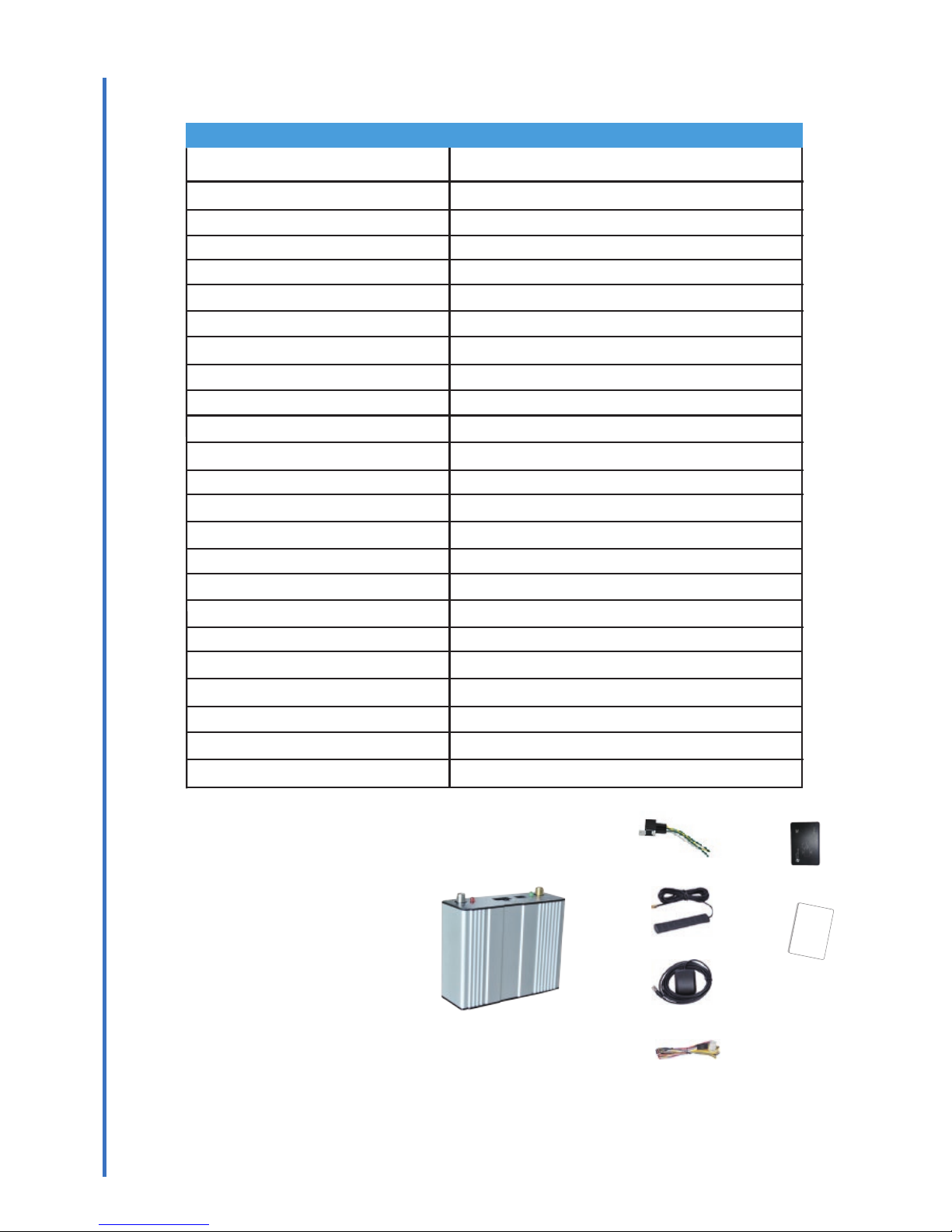
Packing Content(standard)
1 GPS tracker
2 Relay
3 GSM antenna
4 GPS antenna
5 Power I/O cable
6 RFID
7 IC card
For more info about accessories, please visit http://www.oneralarm.com
Summary
2
ONER GPS Vehicle Tracker
User Manual
1
2
3
4
5
6
7
IC
Page 6
2
3
Getting Starts
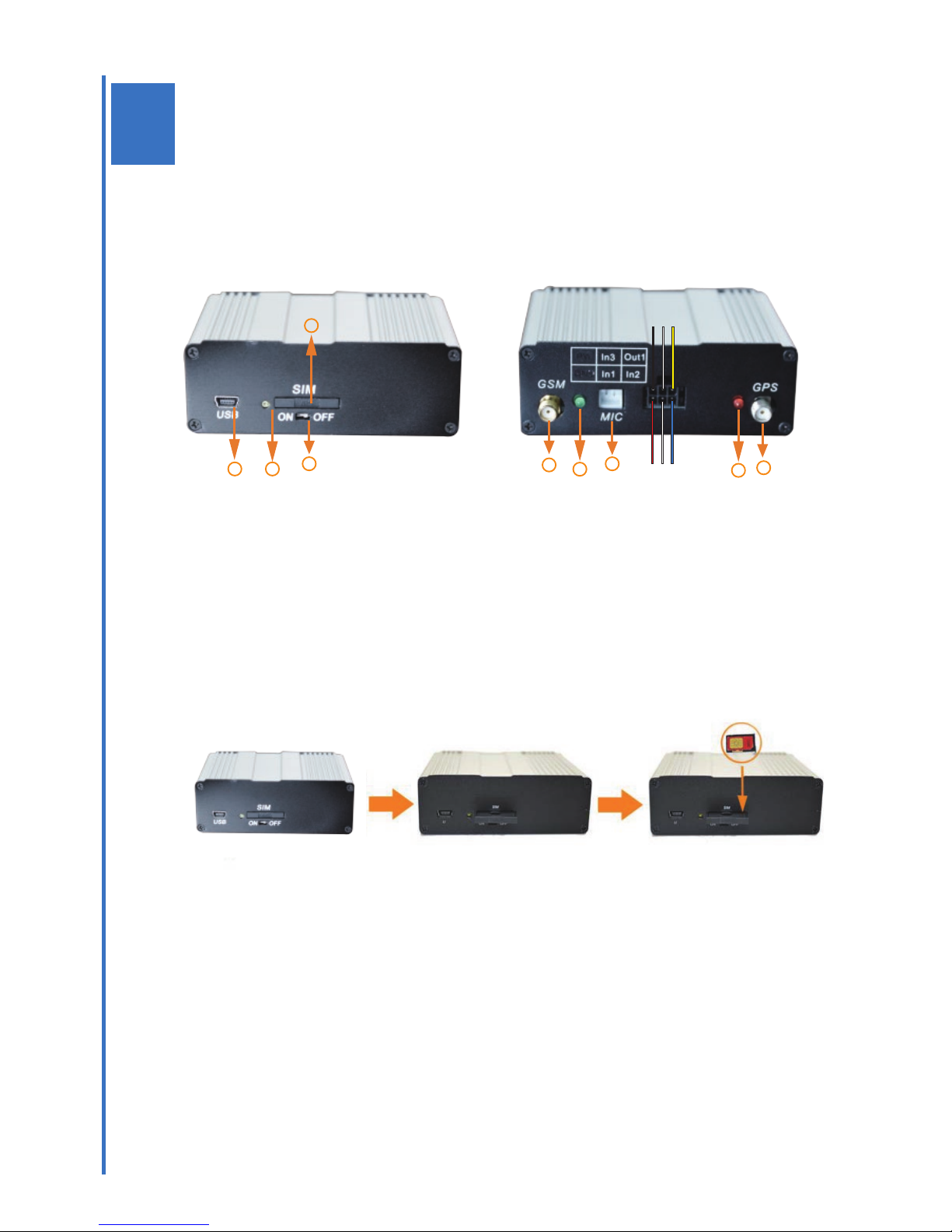
Press SIM button
Remove SIM card slot Insert SIM card, make sure
chipset of SIM face down.
Getting Starts
Product View
SIM Installation
Device Connection
LED lights status
This product is very easy to operate, before using, please read this guide.
Product View
SIM Card Installation
Check that the SIM card’s credit,make sure it can send and receive SMS.
Check that the SIM card has active GPRS function.
If you require the function of sending a SMS location report to the authorized phone number when it
makes a call to device,make sure the SIM card supports displaying caller ID.
ONER GPS Vehicle Tracker
User Manual
1 2
3
4
PW
GND
5
6
7
8
9
1. USB Port 2. SIM Slot Button 3. Swtich
4. SIM Card Slot 5. GSM Antenna Port 6. GPS Antenna Port
7. MIC Port. 8. GSM LED Light 9. GPS LED Light
I/O interface
GND GND IN3 OUT1
PW PW IN1 IN2
SIM
USB
ON
OFF
SIM
USB
ON
OFF
Page 7
LED STATUS DESCRIPTION
GSM LED Light Off Power off
(Green) Blinking fast Initializing
Blinking slow Signal searching....
Blinking 0.5sec,off 1.5sec Working
Standby Failure
Getting Starts
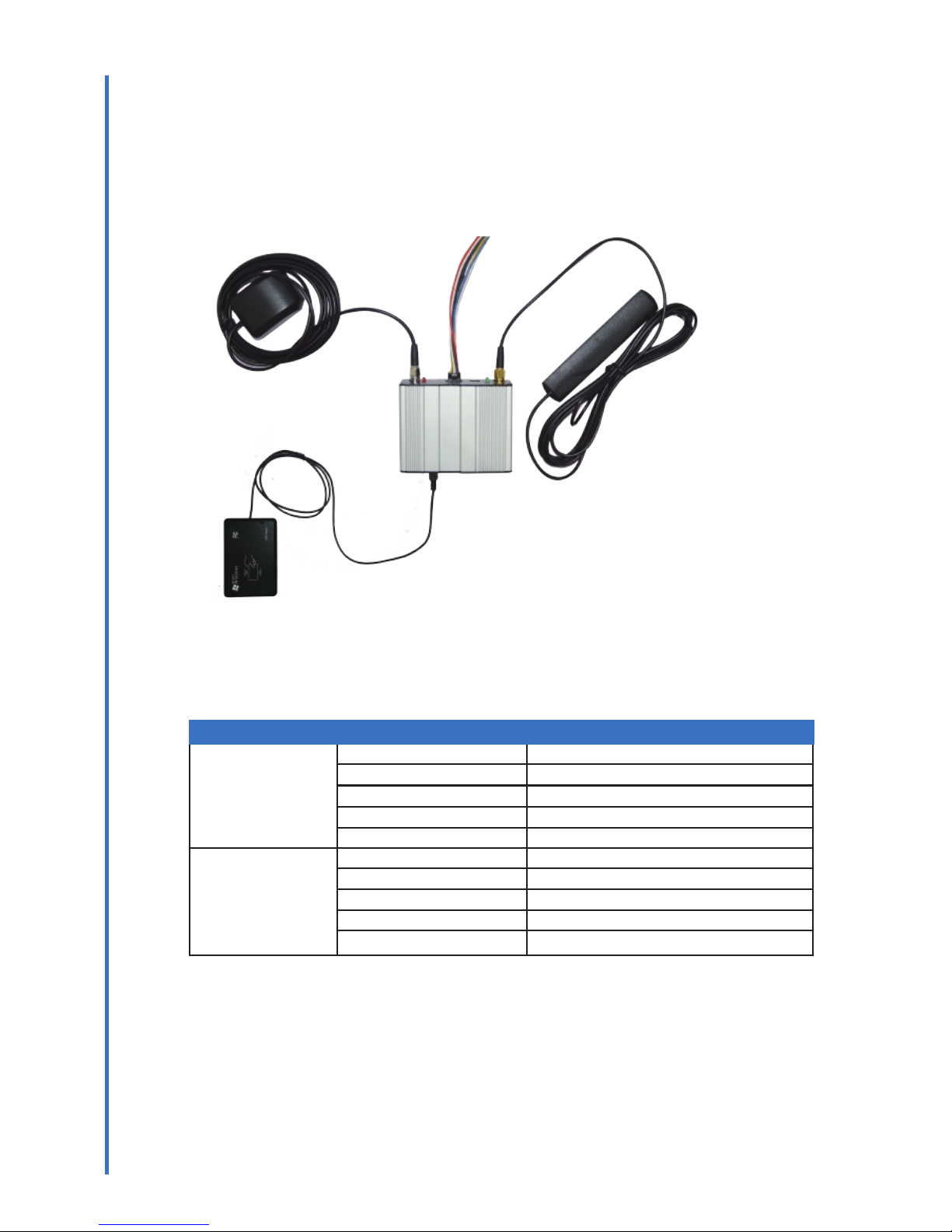
Device Connection
1.Connect GSM/GPS antennas to device;
2. Connect RFID to USB port of device;
2.Power I/O cable connect to I/O interface, and then connect GND and power cable to
negative and positive of power source(12V,2A),when LED lights of tracker start blinking,
that mean connection complete.
LED Light Status
The below table show the status of LED lights, you can know if it work as normal accordingly
GPS LED Light Off Power off
(Red) Blinking fast Initializing
Blinking slow Signal searching....
Blinking 0.5sec,off 1.5sec Working
Standby Failure
ONER GPS Vehicle Tracker
User Manual
4
Page 8
3
Operation & Installation
Operation-RFID
Installation-Relay
Installation-Acc Detecting
Installation-Car Door Detecting
ONER GPS Vehicle Tracker
User Manual
5
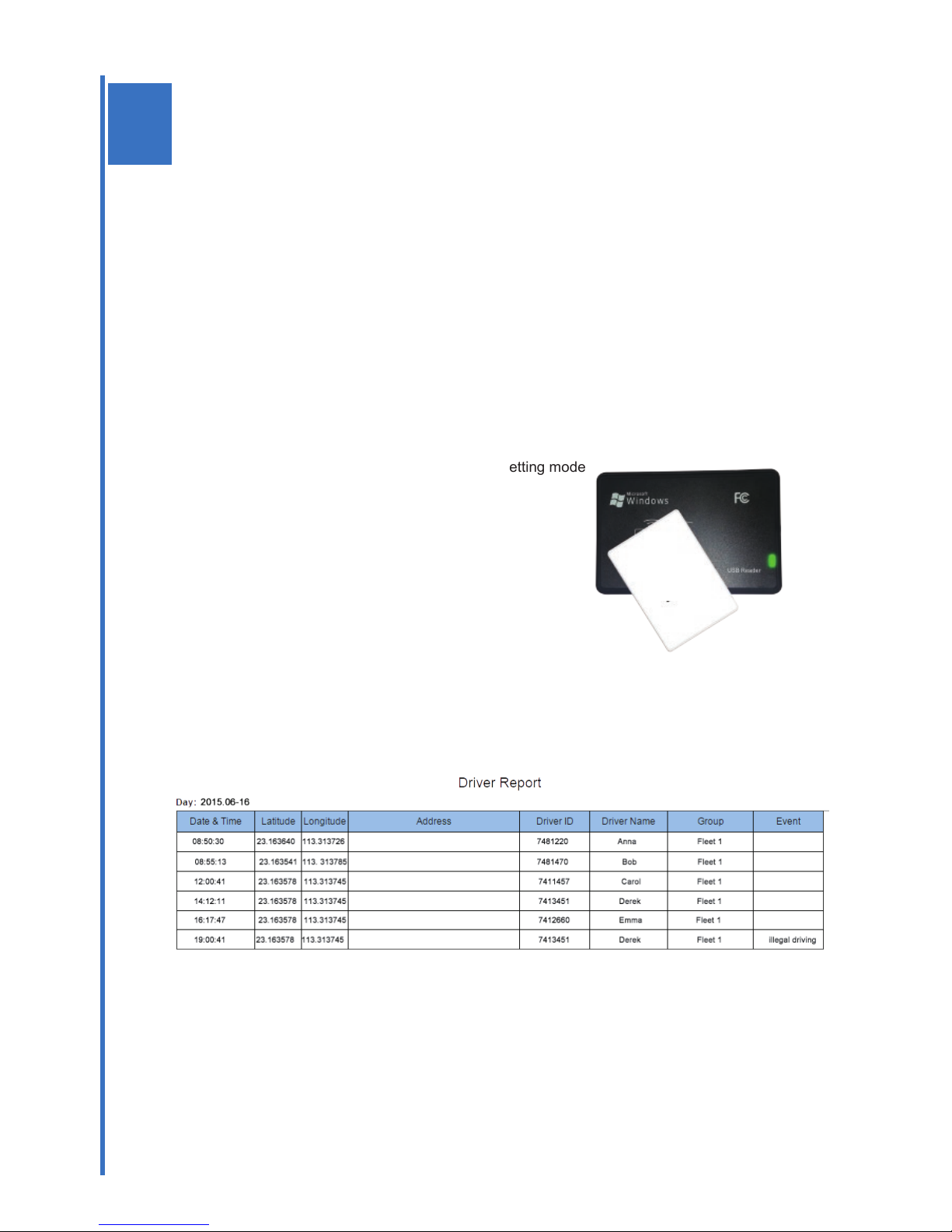
Operation-RFID
1) Connect RFID to tracker, insert SIM card,
connect GSM/GPS antennas and external power
switch on the tracker;
2)Send follows commands to active RFID mode,
enter IC card setting mode
W000000,BTL
W00000,RFID,1
W00000,ICSET,1
When LED light of RFID is stand by, enter IC card setting mode
3)Swipe IC Card to store ID number to device
if RFID make a long sound “ di ”, mean
storing ID number to device successed.
If RFID makes sound like“ di di di”,
it means setting failed, please try again.
4) after storing all IDs, please send command
”W000000,ICSET,0”to leave IC card setting
mode, and then you can start to use RFID.
5) Driver swipes IC card and starts the car at workint time, driver info will be sent to tracking
system as well as location info, and these info will be shown in the driver report; What if driver
starts the car at non working time, illegal driving will be shown in the report, which can be a
prove to driver using car for private purpose, it can help to reduce doing private jobs .
IC
Page 9
Operation & Installation
ONER GPS Vehicle Tracker
User Manual
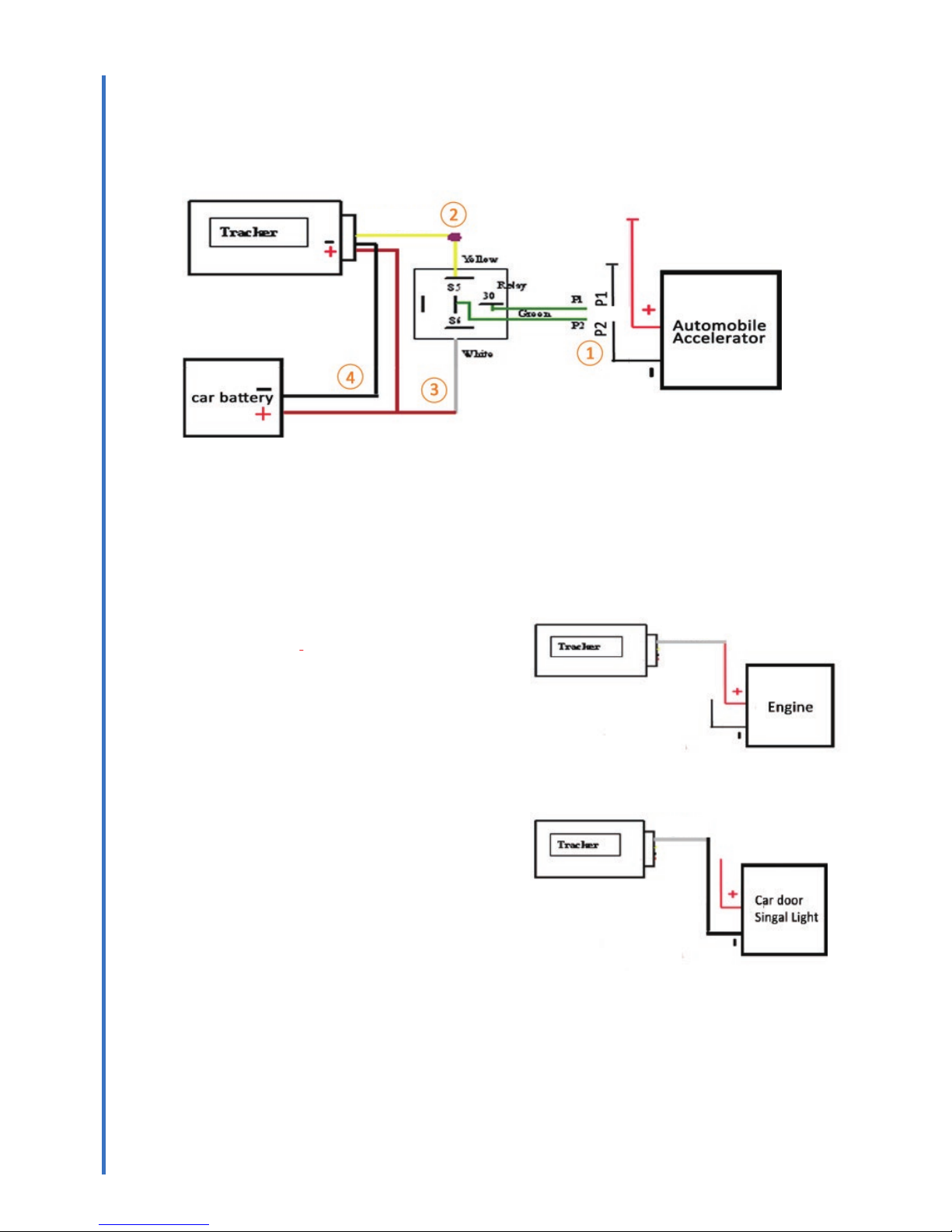
Installation-Relay
Before installing, please identify acelrator line and cut it to 2 parts ( P1,P2)
Important Info:
The location and color of acelerator line each car are different, please try to find it according to the
video,
(https://youtu.be/ITiAVMYlOM8 ),we suggest that you can hire some technicans to do it for you
1)
Connect 2 green cables of relay to the cut parts (P1 & P2) of negative line from accelerator
2)Connect yellow cable of relay to OUT1 cable (yellow) of tracker;
3)Connect white cable of relay and I/O cable (red, positive) of tracker to power cable of car
battery ( positive, red)
4)Connect I/O cable of tracker ( black, GND) to power cable ( negative).
Installation-Engine Detecting
Get to kown engine status, if any one starts engine illegally, you can get alert.
1) Before installation, please identify power line of
engine( see video: https://youtu.be/ITiAVMYlOM8,
or ask technician for help)
2)Connect tracker I/O cable (IN2,white) to power
line of engine.
6
Installation-Car Door Detecting
Get to kown car door status, if any one open car door illegally, you can get alert.
1) Before installation, please identify power line
(negative) of car door signal light
2)Connect tracker I/O cable (IN3,white) to power
line of car door signal light.
IN2
IN3
OUT1
Page 10
4
W******,010,ID ******=000000
(Set ID) ID=SIM card No.,no country code,max 15 digits
I.E.:W000000,010,08451220
W******,011,APN,username,password Get APN from sim card provider,if no username& password,
(Set APN) just put APN. ******=000000
I.E.: W000000,011,web.gprs.mtnnigeria.net,web,web
W******,012,IP,Port ******=000000
(Set IP,Port) IP=115.126.3.75, Port=9509 (onergps)
IP=115.126.3.15, Port=9999 (24h-tracking)
I.E.:W000000,012,115.126.3.75,9059
W******,013,X ******=000000
(Set GPRS) X=0 close(default),X=1 activeTCP, X=2,active UDP
I.E.:W000000,013,1
W******,014,XXXXX ******=000000 XXXXX=00000,close(default)
(Set time interval) XXXXX=00001-65535,unit:10sec
I.E.:W000000,014,00006 interval: 60sec
W******,045,X (option) ******=000000. X=0,close(default)
(set distance interval) X=1-65535meter. I.E.:W000000,045,100
Command List
RFID Setting
Online Tracking Parameter setting
Real Time Tracking
Alert Setting
Vehicle Controls
Other Functions
Command list
Important Info:
1. Commands should be sent one by one, the next one can be sent after getting reply
from previous command.
2. Command format can not be modified, no space between letter and number,”W”must be in CAPS
format.
3.******=000000(default password)
Online Tracking Parameter Setting
To set parameter, add it to the system, and you can do online tracking.
Command Description
ONER GPS Vehicle Tracker
User Manual
7
W******,BTL
(switch baudrate)
RFID Setting
Switch baudrate from 115200 to 9600, and then you can
use RFID. ******=000000
I.E.: W000000,BTL
W******,RFID,X
(RFID Mode)
To active RFID.
******=000000. X=0, inactive (default), X=1, active
I.E.: W000000,RFID,1
W******,ICSET,X
(IC setting)
To set IC card numbers to device, after sending this
command, LED light of RFID will be stand by, you can
start to swipe cards to set number to device.
******=000000. X=0, close(default)X=1,active
I.E.: W000000,ICSET,1
Command Description
Page 11

W******,000 To get current location info. ******=000000
(Live track) I.E.:W000000,000
ID=21451100,ACC=ON, 23.163678N,113.313711E,
0.0KM/H,10KM,2015.08.11 08:05
W******,100 To get Google map link of location. ******=000000
(Map Link Inquiry ) I.E.: W000000,100
http://maps.google.com/maps?f=q&hl=en&q=6.46022,3.314953&ie=UTF8&z=16&iwloc
=addr&om=1
W******,111 To get detail address, first need to set device to work
(Detail Address Inquiry) in the tracking system.
I.E.: W000000,111 Reply:No.512,guangzhou
dadao bei, tianhe district.
W******,003,3,1,T1,T2,T3 When Alert active, alert message will be sent to these No. .
(Alert Notification No.) Support setting 3 numbers. ******=000000
T1,T2,T3=phone number,max 16 digits
when set 1 number only, others enter 0
I.E.W000000,003,3,1,08455101,0,0
W******,005,XX When car is moving over the speed limit, alert active
(Overspeed Alert) ******=000000. XX=00 close(default)
XX=01-12 ,Unit:10KM/H
I.E: W000000,005,08 Speed limit: 80KM/H
W******,006,XX To set an area (current location as central point, set radius),
(Geofence Alert) when the car leaves this area, alert active.
******=000000.XX=00, close (default)
XX=01,30m;XX=02,50m; XX=03,100m;
XX=04,200m; XX=05,300m;XX=06,500m;
XX=07,1000m;XX=08,2000m;
W******,004,n When power is lower than the preset value, alert active,
(Low Power Alert) can be used to car battery detecting
******=000000.n=0-24V,n=0, close(default)
I.E.: W000000,004,3 power voltage<3V, alert active
W******,008,X When external power of tracker is removed, alert active,
(External Power Cut Alert) that mean some one finds device in the car, and remove it
******=000000. X=0,close (default),X=1,active
I.E.: W000000,008,1
Command list
Real Time Tracking
To do real time tracking to car, and get location info, map link or detail address.
Command Description
Alert Setting
To set multiple alerts and notification No. When alert actives, alert message will be sent to these numbers.
Command Description
ONER GPS Vehicle Tracker
User Manual
8
Page 12

W******,020,1,X ******=000000. X=0, enable car moving, X=1,stop car
(Stop Car/Enable Car Moving) I.E.: W000000,020,1,1 W000000,020,1,0
9
W******,020,X,1 ******=000000. X=4,unlock,X=5, lock
(Car Door Lock/Unlock) I.E.: W000000,020,5,1 lock car door
W000000,020,4,1 unlock car door
Other Functions
W******,053,hh:mm:ss,DD/MM/YYYY To set device real time clock timing, device will adjust the
(RTC Setting) time according to the clock when there is no gps signal.
******=000000.hh:mm:ss=hour:minute:second.
DD/MM/YYYY=day/month/year
I.E.: W000000,053,01:01:05,05/12/2015
W******,054,X,h1:m1,h2:m2 To set working time. authorized driving SMS will be sent
(Working Time Setting) one time when car start at working time; illegal driving alert
Note: working time feature works according to will be sent each time the car starts at non-working time.
GPS time, default GPS time is GMT time ,in support setting 3 working time.
order to make it work correctly, please set ******=000000, X=1,2,3; h1:m1=start time, h2:m2=end time
GPS time as local time I.E.: W000000,054,1:08:00,09:30
(check command timezone setting.page10)
W******,018,T,X To get balance of SIM card in the tracker
(SIM Balance Inquiry) ******=000000, T=SIM service center No.
x=code to get balance.
I.E.: W000000,018,10086,101.
China mobile SIM service center number:10086
Code to get balance of SIM Card: 101
W******,009,XXXX To set car status change ( engine on/off, door open/close)
(Car Status Detecting) to send notification or not .******=000000
1st X=send SMS or not when engine is on
2nd X=send SMS or not when engine is off
3rd X=send SMS or not when car door is open
4th X=send SMS or not when car door is close
X=0,close (default) X=1,active
I.E: W000000,009,1100 Send SMS when engine on and
car door open only
W******,019,X Switch to LBS tracking, it still can track with GPS
(LBS Tracking) ******=000000 .x=0,close(default),x=1,active
I.E.: W000000,019,1
Command list
Vehicle Controls
Command Description
Command Description
ONER GPS Vehicle Tracker
User Manual
Page 13

W******,001,XXXXXX ******=000000;XXXXX=new password, 6digits
(Modify Password) I.E. W000000,001,123456. new password: 123456
W******,030,T (option) To set monitoring number, call the tracker by that number, it
(Voice Monitoring) can answer automatically and then can hear coversation,
need to connect MIC.
******=000000. T=0 close (default),T=phone number
I.E.:W000000,030,0842221
W******,026,XX Trackers do not get shake or any operation during the
(Power Saving Mode) preset time, enter ppwer saving mode. close GPS,GPRS,
you can recovery it by commands .
******=000000 ;XX=00,close(default); XX=01-99mins
I.E. W000000,026,03
W******,032,T Default time zone: GMT. ******=000000.x=[1, 65535] to
(Time Zone Setting) set time difference in minute to GMT.For those ahead
of GMT, just input the time difference in minute directly.
‘-‘is required for those behind GMT
I.E. W000000,032,480 (zone +8)
W000000,032,-60 (zone -1)
W******,600 ******=000000
(Firmware Version Inquiry) I.E: W000000,600
W******,601 ******=000000
(IMEI Inquiry) I.E.:W000000,601
W******,900### ******=000000
(REBOOT) I.E.W000000,900###
10
W******,046,D To modify milage
(milage setting) ******=000000. D=0-999999km
I.E.: W000000,046,2330 New milage=2330km
Other Functions
Command Description
ONER GPS Vehicle Tracker
User Manual
Command list
Page 14
5
Appendix
11
ONER GPS Vehicle Tracker
User Manual
Appendix
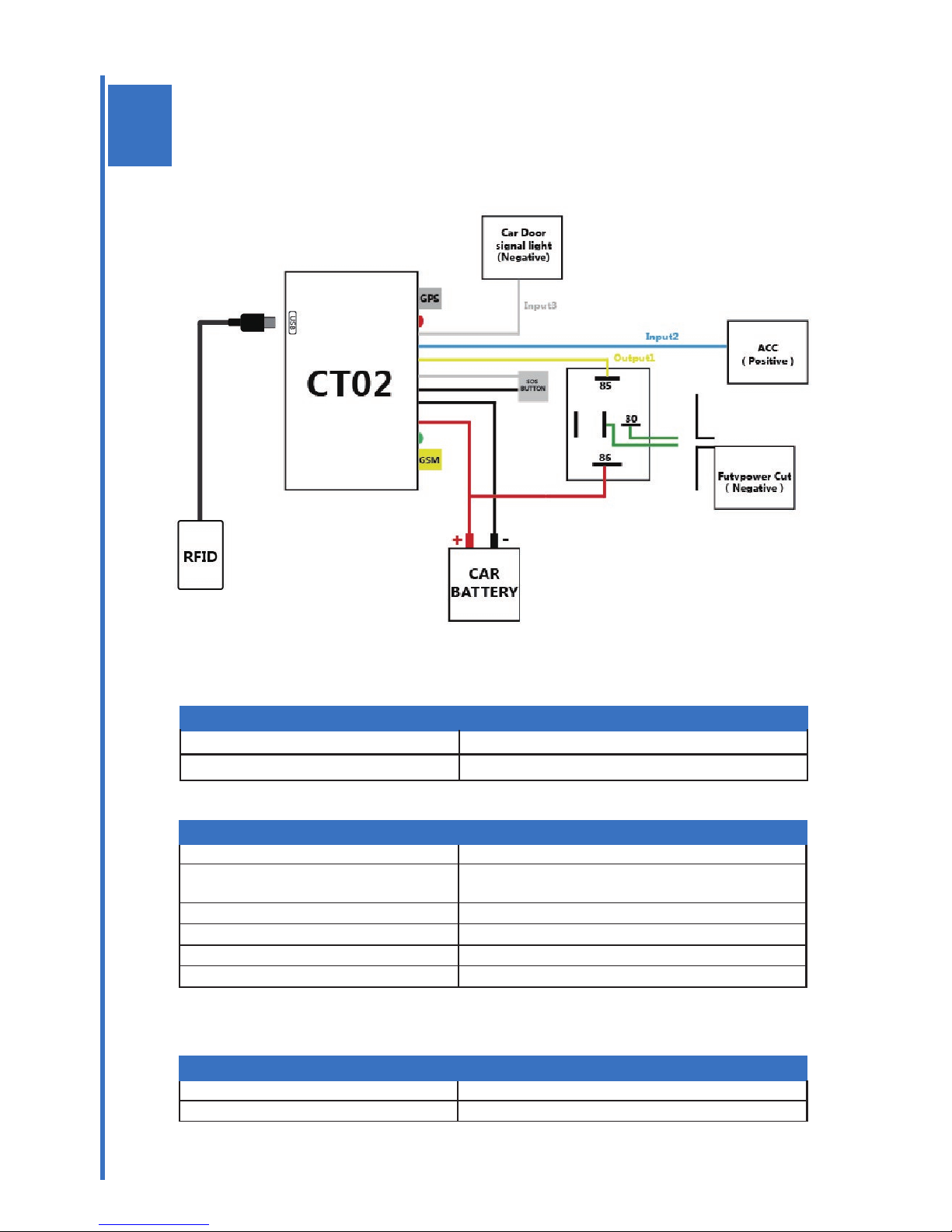
Installatin Diagram
Trouble shooting
Installation diagram
Trouble Shooting
Problem: Unit will not turn on
Possible Cause: Resolution:
Wiring was not connected properly Check and make sure wiring connection is in order.
No enough power Connect to outer power supply.
Problem: Unit will not respond to SMS
Possible Cause: Resolution:
GSM Network is busy Wait for SMS. Some GSM networks slow down
Wrong password or SMS format Write correct password or SMS format.
The SIM in device has run out of credit Replace or top up the SIM card.
No SIM card Insert a working SIM card.
SIM card has expired Replace SIM card
SIM has PIN code set Remove PIN code and deleting the code
SIM is warped or damaged Inspect SIM, clean the contacts or try another SIM
Problem: SMS received starts with “ Last......”
Possible Cause Resolution:
tracker is at an inner palce Wait for the target to come out
Battery is low Connect the tracker with the outer power supply.
 Loading...