

Page 1
Wi-Fi® Smoke + Carbon Monoxide Alarm
INSTALLER SETUP GUIDE
Page 2
2 3
Installing 1 Onelink hardwired alarm with multiple
BRK standard hardwired alarms
1. Install as you would
non Onelink alarms,
interconnecting with
standard BRK wiring
harness.
2. Push Test button
on Onelink alarm.
All interconnected
alarms should
sound.
3. Pushing the Test button on
the standard hardwired alarms
will cause all interconnected
hardwired alarms to sound. Note:
To get the Onelink alarm to sound
when pushing the Test button
on standard hardwired alarms
you may have to hold it down
for up to 70 seconds depending
on alarm model. This is only
true during manual testing. During a smoke or CO event the
Onelink alarm will activate in the normal time frame.
Installing 2 or more Onelink hardwired or
battery powered alarms
Jobsite Prep
We recommend prepping your alarms for installation before
bringing them to the jobsite.
A Note about Onelink Alarms Setup
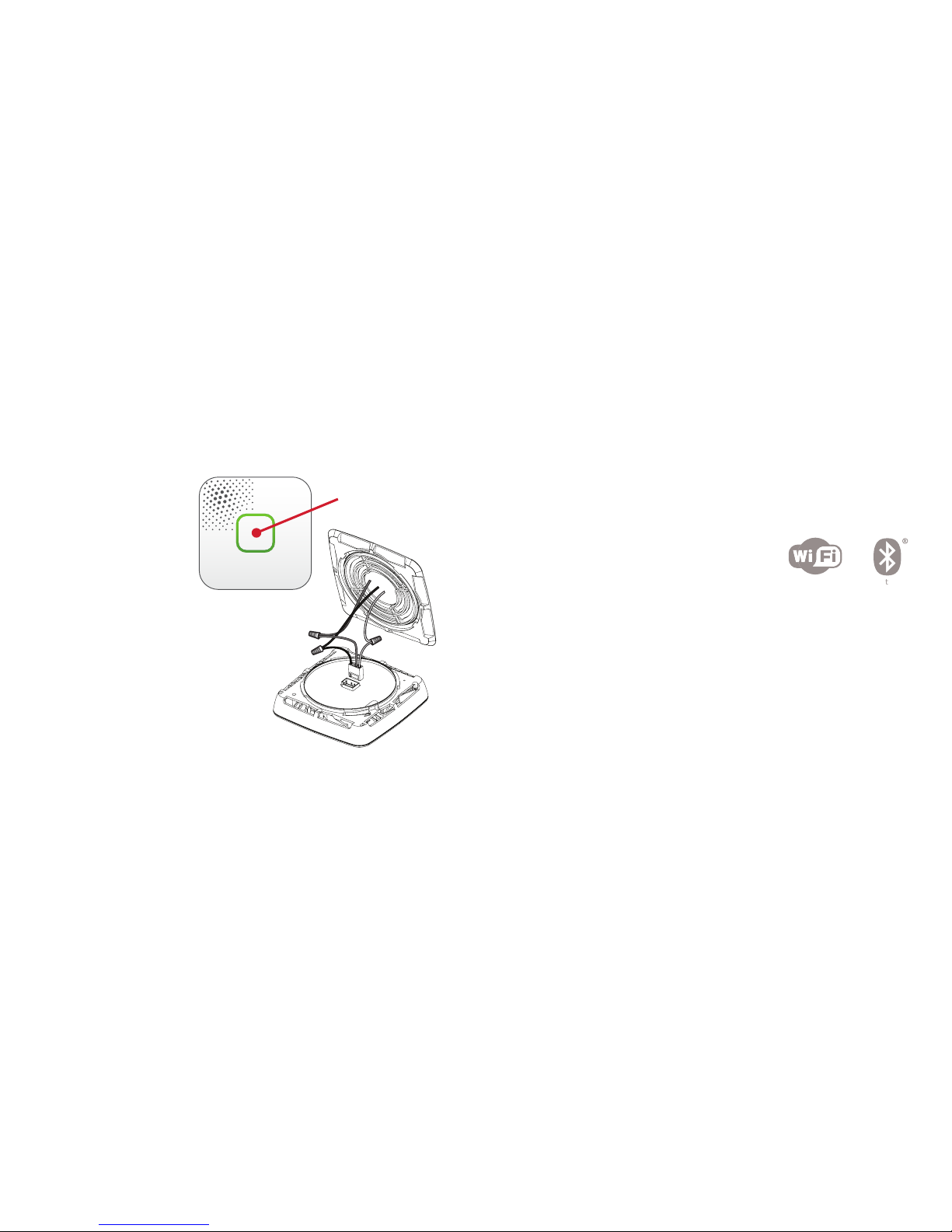
Onelink alarms use wireless Bluetooth to
interconnect and must be paired. They
also require internet access to the cloud to
complete the setup. We recommend pairing
alarms for multiple residences in one location such as your oce
on a table rather than a jobsite standing on a ladder.
Why? To complete the setup you need a wireless router, an
internet connection, an iOS device with iOS 9 or later, an iPhone
5 or later and you need to scan a code from the side of the
alarm. You must have a valid account with an Internet Provider
to have access to the cloud. Or instead of a router you can also
use a hot spot on another iOS device or your vehicle if it is so
equipped. Again these devices must have a valid account and be
able to access the cloud.
Note: You do not need to have the hardwired alarms connected
to electrical power to complete this process. However, whether
setting up a hardwired or battery powered alarm, once you
Bluetooth
Test Button
Page 3
4 5
rotate the mounting bracket on the alarm, the alarm is activated
and cannot be turned o without permanently disabling the
alarm. You can remove the bracket for installation. The alarm
remains activated and paired. Therefore it is best to install alarms
shortly after being activated and as close as possible to the
time the homeowner will occupy the home so the end user has
maximum longevity and use of their alarm.
How to Pair Alarms
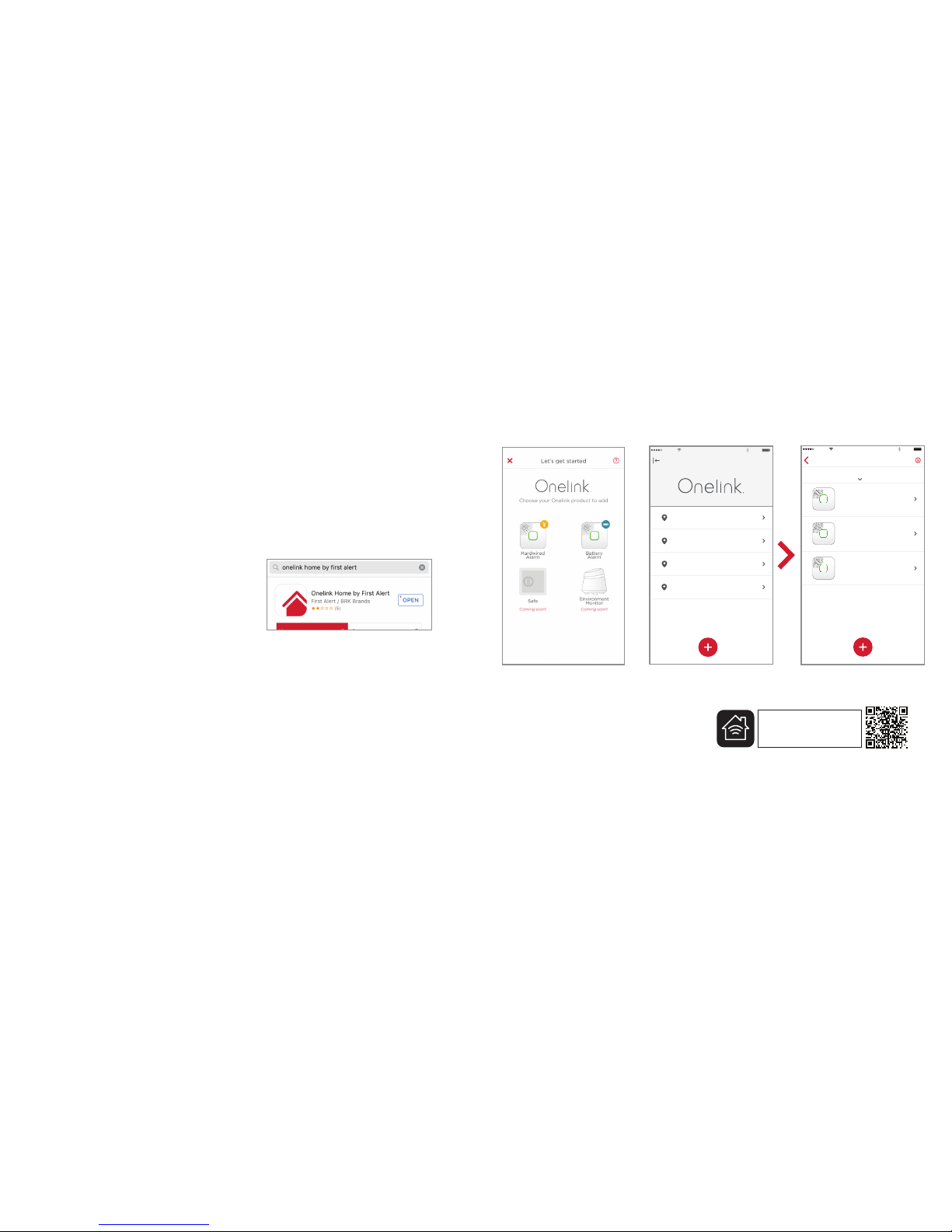
1. Download the free App onto
your iOS device from the App
Store. Search for “Onelink
Home by First Alert”. Installers
only need one App to set up
multiple homes or apartments.
See image at right.
2. Open App and follow instructions
for setting up and pairing devices. You need to choose
whether you are setting up the hardwired AC10-500 or the
battery powered DC10-500 version on the App. For installers
who are setting up multiple devices in multiple homes you
need to assign a name to each home in the App and then pair
the alarms to that home (maximum of 10 homes). This will
keep alarms separate from other homes you set up. See App
screens shown for an example of what this might look like.
3. Each alarm has a unique
8 digit alphanumeric
product code that is shown
on the side of the alarm
underneath the QR code. It
will be similar to the label
shown at the right.
Carrier 100%11:27 AM
123 Main Street
10547 Elm Street
125 Main Street
10552 Elm Street
Carrier 100%11:27 AM
123 Main Street
Master Bedroom
Hallway
Basement
Pull down to update accessory list
Multiple Homes Setup Multiple Alarms per Home
Choose Alarm Type
AC10-A9CC
XXX-XX-XXX
Onelink App Download
Onelink App Screens
Page 4
6 7
We suggest you write down this code along with the jobsite
name, address and alarm number sequence (x of x). We
have provided a label you can use to ax to the side of each
carton where this information can be recorded to aid in the
proper distribution and installation at the jobsite. Put alarm
back in original carton for safety and transportation to the
jobsite.
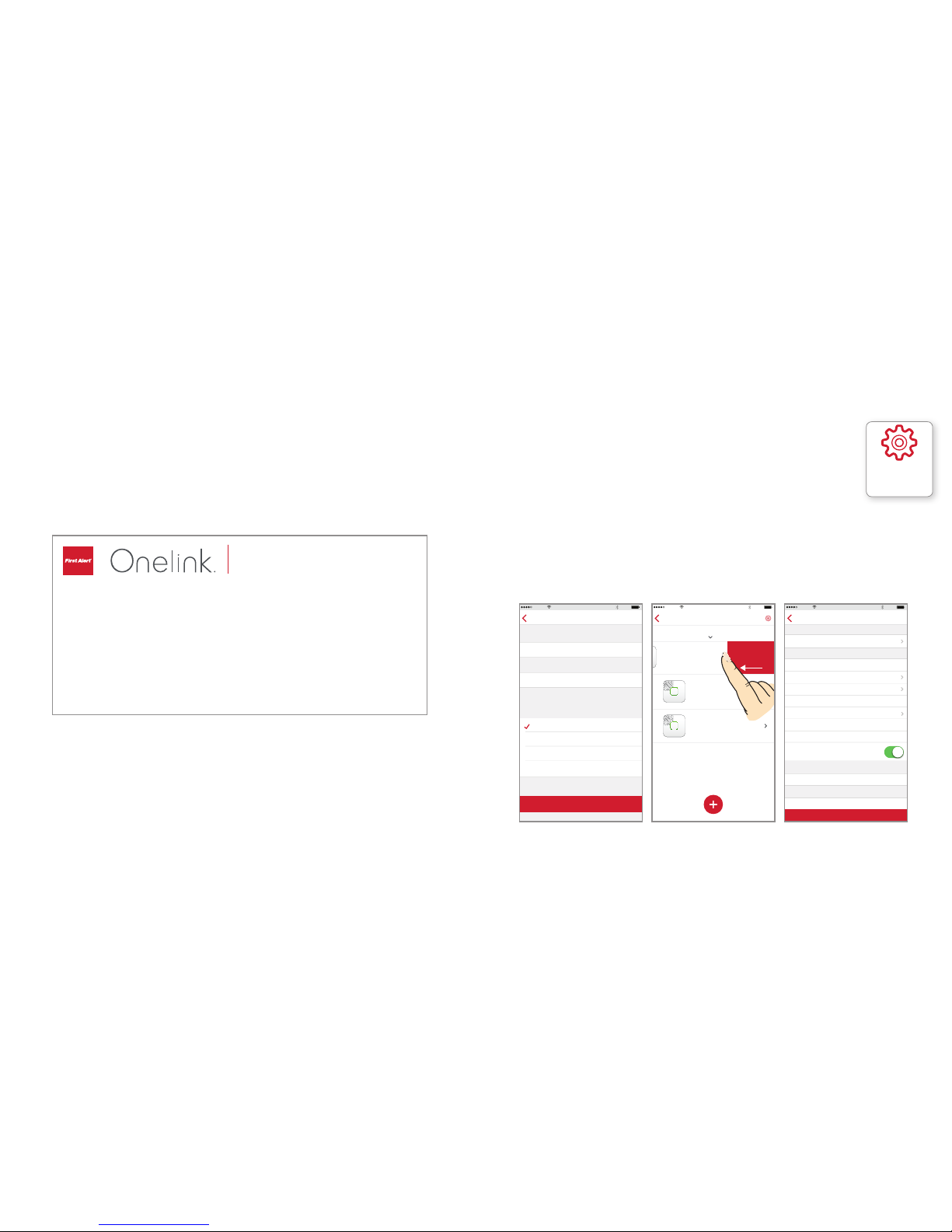
4. Once setup is complete you must unpair alarms and delete
these homes from your Apple device.
Why? Unpairing keeps you from getting push notifications
whenever an event occurs in all the homes you have set up.
This also clears the alarms and unregisters them from the
cloud. Now the Homeowner can pair alarms to their
Apple devices once they occupy their new home and
begin receiving push notifications and controlling
their alarms.
You can unpair alarms either by going to the “Home
Settings” screen and “delete home” (easiest), swiping
left on each alarm so “unpair device” is visible or by going
to the “Settings” screen for each alarm and select “unpair
device” at bottom of screen. They are still interconnected
so the Building Inspector can test alarms. If needed, install
Onelink hardwired alarms to standard hardwired alarms as
noted in first section of this guide.
VOICE ALARM
Language
English
FIRMWARE
Serial Number
4F705F2E-5CFC-4CE(-AE23-9F7FABB15049
Announcement
Child’s Bedroom
Room
Nick’s Room
Home
123 Main Street
Receive Push Notifications
Carrier 100%11:27 AM
Settings
PRODUCT INFORMATION
Identify
Names Used by Siri
Device Identifier
AC10-60F3
Battery Life 95%
Firmware Version 1.00.081.5000.052.01
unpair device
Jobsite ______________________________
Address _____________________________
Alarm ____ of ____Prod Code _____-_____
JOBSITE LOCATION
INFORMATION
Deerfield Subdivision
123 Main Street
AC10 A9CC 2 3
Sample Completed Jobsite Sticker
Carrier 100%11:27 AM
123 Main Street
Master Bedroom
Hallway
Basement
Pull down to update accessory list
unpair device
CHANGE HOME NAME
123 Main Street
Carrier 100%11:27 AM
Home Settings
The primary home is used by Siri to route commands
if home is not specified
delete home
USERS
Manage Users
123 Main Street
125 Main Street
10547 Elm Street
10552 Elm Street
Adding a user will allow access to all accessories
within this home
PRIMARY HOME
“Settings”
Symbol
Page 5
INSTALLER SETUP GUIDE
©2016 BRK Brands, Inc. All rights reserved. Distributed by BRK Brands, Inc., Aurora, Illinois 60504. First Alert®
is a registered trademark of The First Alert Trust. BRK Brands, Inc. is a subsidiary of Jarden Corporation
(NYSE: JAH). Wi-Fi® is a registered trademark of Wi-Fi Alliance. App Store is a service mark of Apple Inc.
Apple, iPhone, iPad, iPad Air, and iPod touch are trademarks of Apple Inc., registered in the U.S. and other
countries. The Bluetooth® word mark and logos are registered trademarks owned by Bluetooth SIG, Inc. and
any use of such marks by BRK Brands, Inc., is under license. Other trademarks and trade names are those of
their respective owners. This product is intended for non-professional do it yourself installation. If you would
like information about a professionally installed and monitored system, please contact First Alert Professional
at 1-800-921-6025. First Alert Professional is not aliated with BRK Brands, Inc.
M08-0565-000
 Loading...