

Page 1
Reserva Room Signage
User Guide
Page 2
Title
Page
No.
I Reserva Room Signage Overview 03
II Features 03
III Room Sign Interface 04
Reserva Features (only available on interactive Reserva Room Signs)
02 Book a new appointment 07
03 Confirm the appointment 08
04 Extend the appointment 10
05 Delete the appointment 11
Reserva Room Signage – User Guide
2
Contents:
Page 3

I. Reserva Overview:
The Reserva range of dedicated meeting room signage offers a compact and attractive
door side display with optional multi-touch functionality. Signage is dynamically
linked to your calendaring system e.g. Microsoft Exchange and clearly displays
availability of the room and future bookings.
II. Features:
3
Reserva supports the following media actions:
Book an appointment – An appointment can be booked directly from the
Reserva room sign either immediately or within the next 30 days.
Confirm an appointment– This functionality automatically removes
appointments when attendees do not turn up. Shortly before the appointment
is schedule to begin a ‘Confirm’ button will appear which the attendee must
press. If the ‘Confirm’ button is not pressed after 10 minutes of the
appointment start time it will be deleted from calendar.
Extend or shorten a appointment – should an appointment over run or finish
early you can simply shorten or extend the appointment directly from the
Reserva room sign.
Cancel the appointment – a current appointment can also be removed from the
calendar directly from the Reserva room sign. Please note this functionality is
disabled as standard to restrict one user deleting another users appointment
without their permission.
Each of the features above can be enabled or disabled from the Reserva
software as well as range of other advanced settings.
I. Installation steps:
Before configuring your Reserva Room Signs you must first install the Reserva
software. Once installed you will need to configure the Reserva software with the
necessary settings for the calendar/ timetabling system to be used e.g. Microsoft
Exchange. For more information please see the Reserva Installation and User Guide
document.
Page 4
4
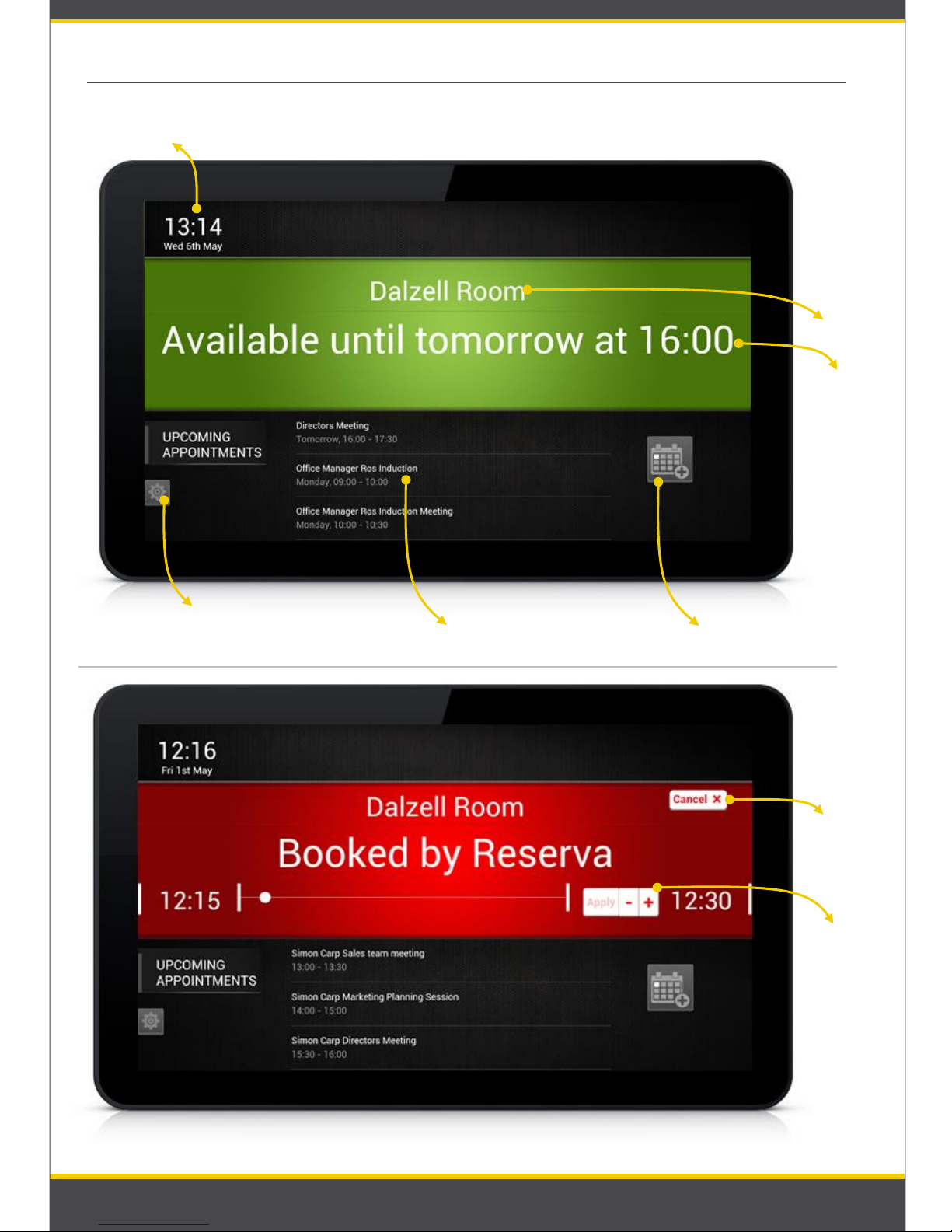
Current
Time and Date
Room name
Live room
status
Button: book a new
appointment
List of upcoming
appointments
Buttons:
extend or
shorten the
current
appointment
Button:
cancel current
appointment
Setup button
III. Reserva – Room Sign Interface
*Please note that if features are disabled in Reserva software the corresponding buttons will not be visible
Page 5
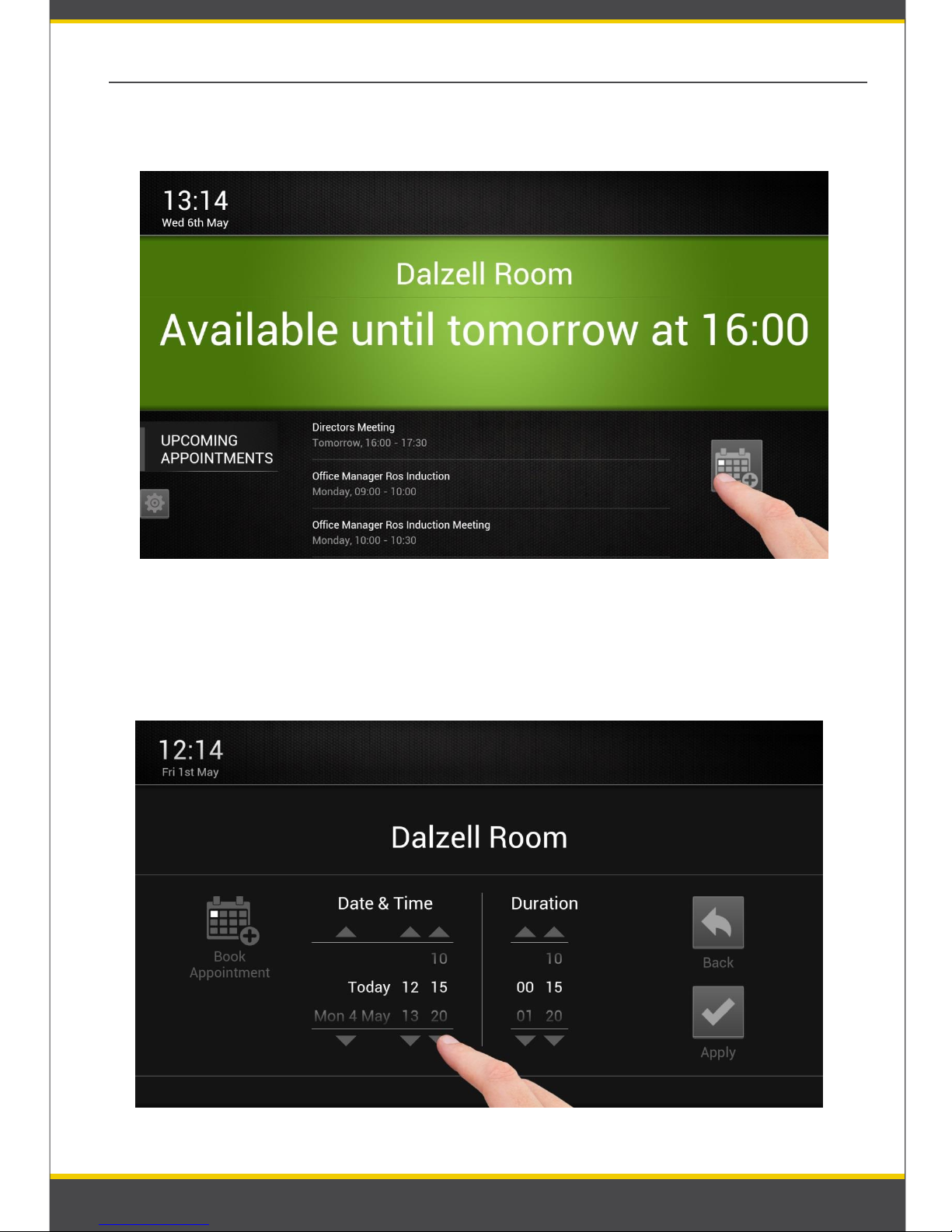
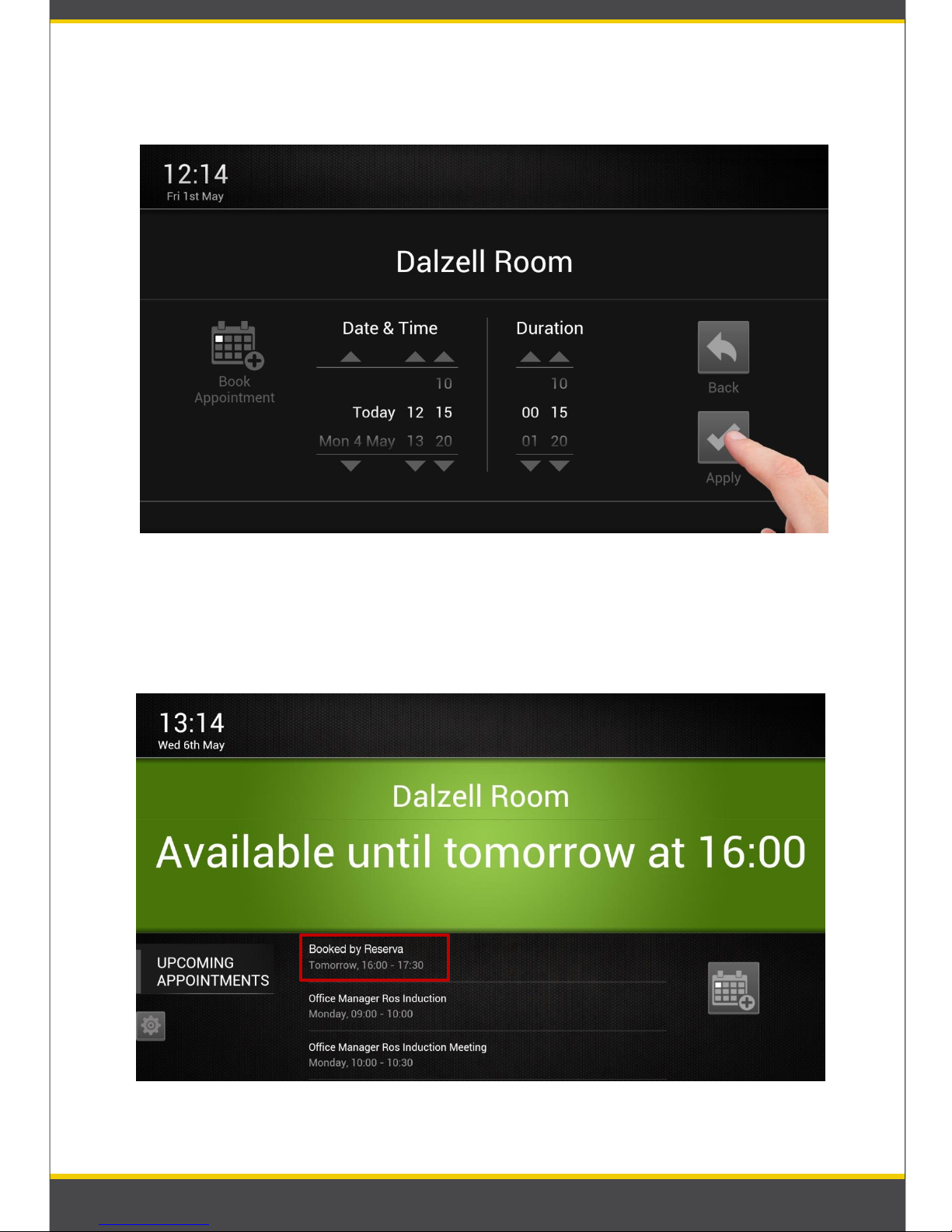
❶ Tap on Book button to book new appointment.
02. Book a new appointment with Reserva
❷ Booking screen will appear, date and time default to next available time slot.
5
Picture 5: Book New appointment
Picture 6: Set Date & Time
Page 6
6
❺ Booked appointment will be displayed in the upcoming meetings list.
(Refer: Picture 8)
Picture 7: Book appointment
❸ Set your appointment start Date & Time (Refer: Picture 6).
❹ Tap on ‘Confirm’ button to book the appointment.
Picture 8: Booked by Reserva
Page 7
7
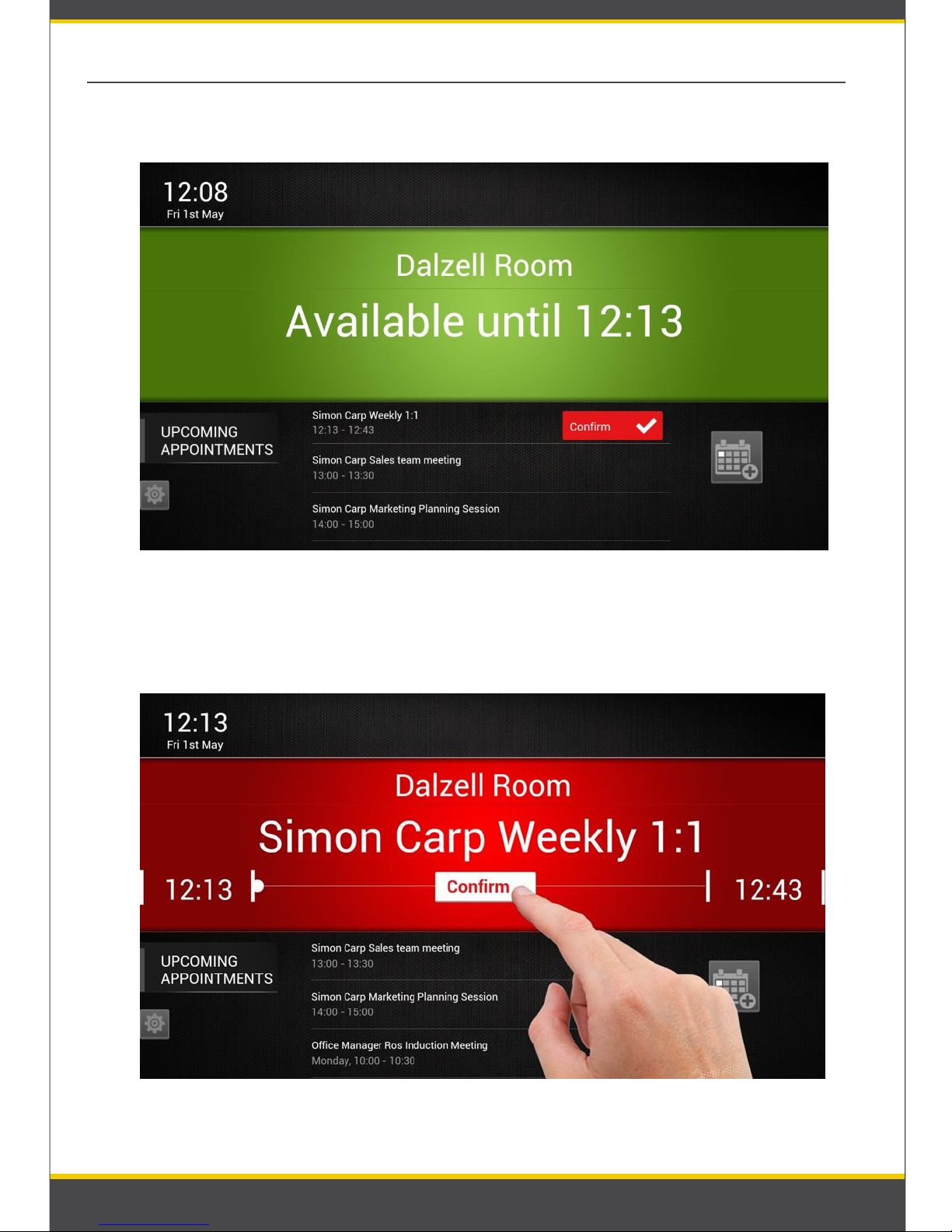
❷ If meeting starts before ‘Confirm’ has been pressed, status turns to red and the
confirm button remains visible and flashing for a further 10 minutes.
03. Confirm the appointment
❶ User may be asked to Confirm the appointment before it starts (Refer: Picture 9)
Picture 9: Confirm the meeting ‘Booked by Reserva’
Picture 10: Confirm the appointment
Page 8
8
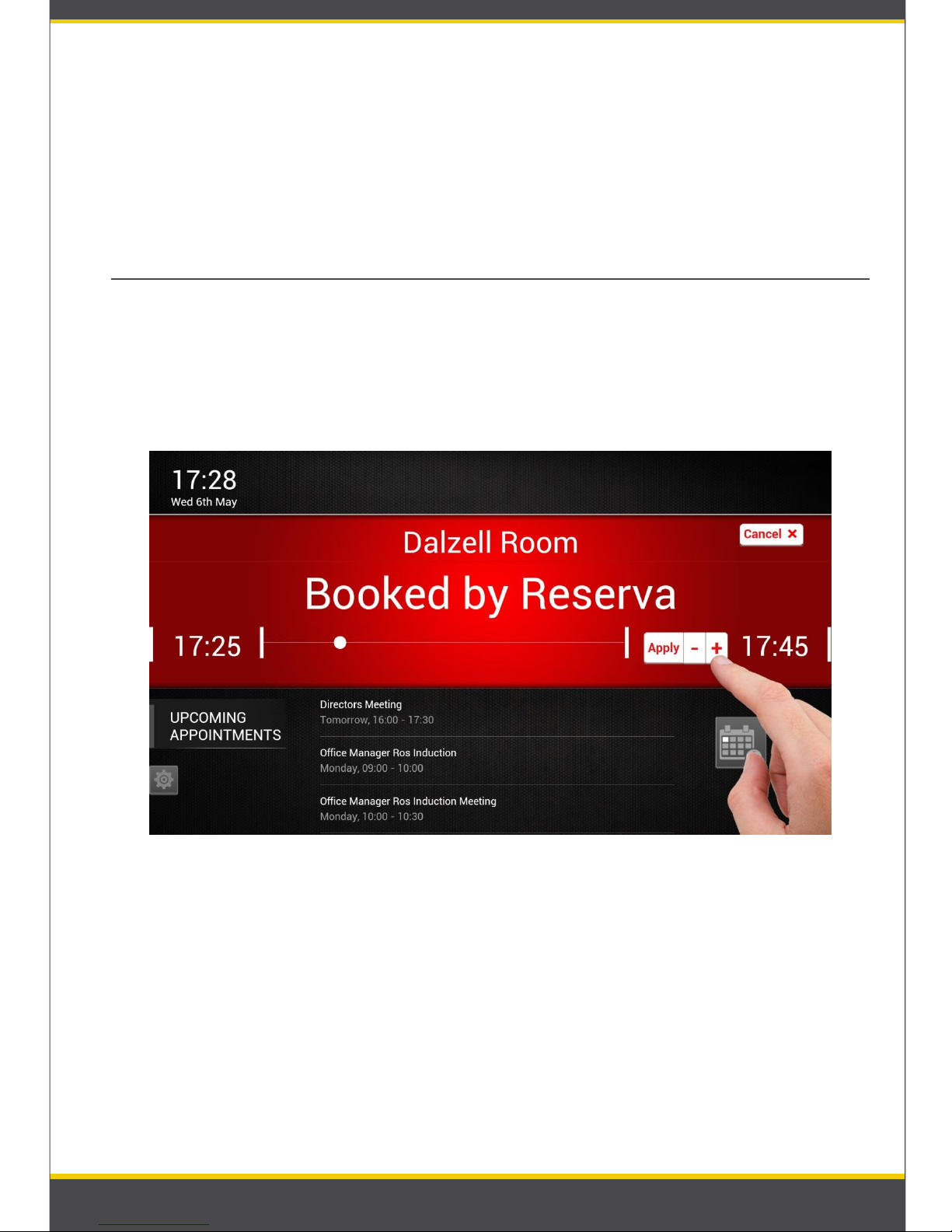
❸ Tap on ‘Confirm’ button to confirm attendance. (Refer: Picture 7)
Please note: If the user fails to confirm the appointment it will be automatically
cancelled from the calendar and the status will revert back to available.
04. Extend or shorten an appointment
❶ Tap on ‘+’ button to add time to appointment, tap ‘-’ to shorten the
appointment. Please note that to prevent double booking a user cannot extend a
appointment into an existing meeting. The user is also unable to shorten a
meeting beyond the current time. (Refer: Picture 11)
Picture 11: Extend meeting
❷ Tap on ‘Apply’ button to confirm the changes
Page 9
9
05. Delete the meeting
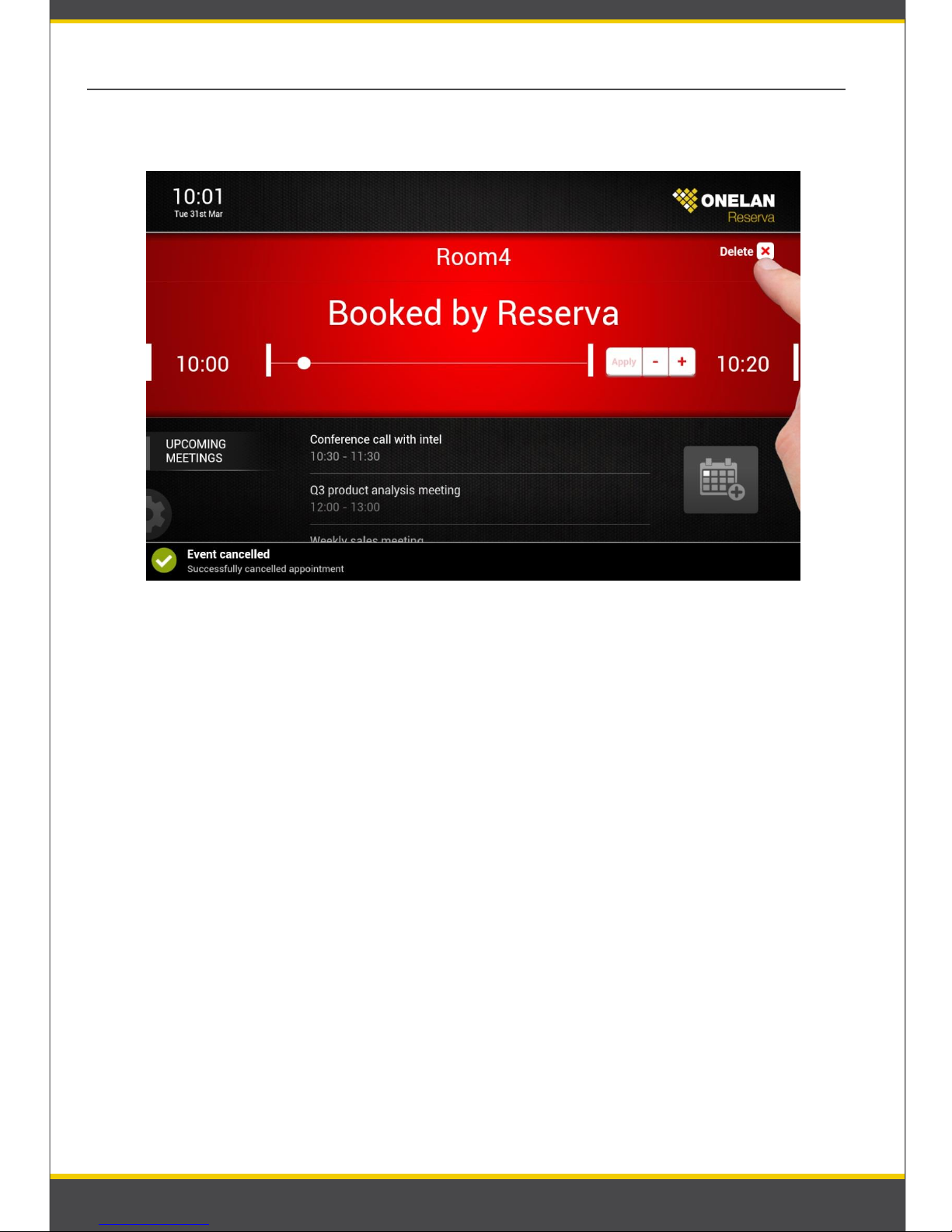
❶ Tap on ‘Delete’ button to cancel the current appointment.
Picture 12: Delete appointment
Note: Delete functionality is disabled as standard in Reserva software to prevent
one user deleting another users’ appointment without their permission.
Page 10

ONELAN Limited,
Andersen House, Newtown Road
Henley-on-Thames, Oxfordshire.
RG9 1HG, UK
Tel : +44(0)1491 411400
Fax : +44(0)1491 579254
Sales enquiries : [email protected]
Technical support : [email protected]
 Loading...