

Page 1
O!music
User Manual
for OM955-2 & OM955
Page 2

PACKAGE CONTENTS ---------------------------------------------------------------03
OVERVIEW ----------------------------------------------------------------------------05
Step 1 - POWER UP -------------------------------------------------------------------08
Step 2 - CONNECT -------------------------------------------------------------------10
Step 3 - CONTROL -------------------------------------------------------------------16
Step 4 - PLAY & LISTEN --------------------------------------------------------------18
TROUBLESHOOTING -----------------------------------------------------------------23
SPECIFICATIONS ----------------------------------------------------------------------25
CONTENTS
1
Page 3

2
WELCOME
• Become a portable stand for reading and typing
• Comfortable viewing angles for watching and browsing
• Output 92dB Loudest Sound & Ultra Clear
• One touch wireless reconnection
• Sound-Blaster Your Music,Movies,Games
• Control your music with feel and touch
• Theater & Arcade On The Go
• Up to 22 hours playback (varies by volume level and audio content)
• Placement on any magnetic area (e.g. refrigerator, partition ...)
• Smart rubber pad avoids damaging magnetic storage media
• Attachable on O!music powow case (OM955-1:optional) as a stand
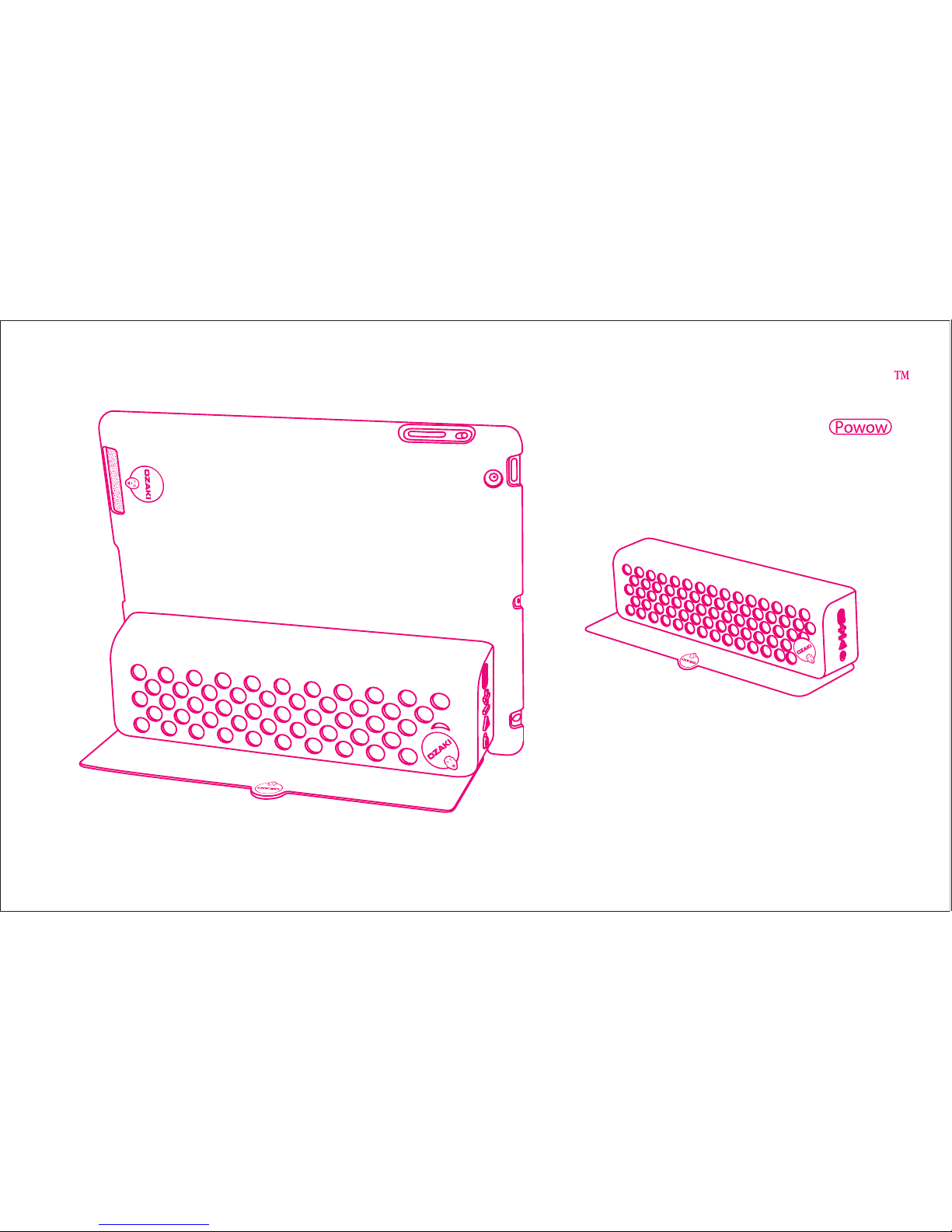
O!music powow
O!music powow+ : O!music powow with O!music powow case
Thank you for purchasing O!music powow.
OZAKI’s new O!music powow is a portable wireless speaker especially designed for the new generation Music
Players, Smart Phones and Tablets. It allows your devices to work freely without having any trouble with the
cables or docking stations while listening to the music. It’s amazing to bring this quality sound anywhere with
you so you enjoy the movie, the exciting games and of course the music at all time. It’s even smarter with the
O!music powow iPad case! It turns your iPad to a portable Theater & Arcade.
Powow! Start playing! Start listening!
It accompanies you at anywhere and everywhere!
Page 4
3
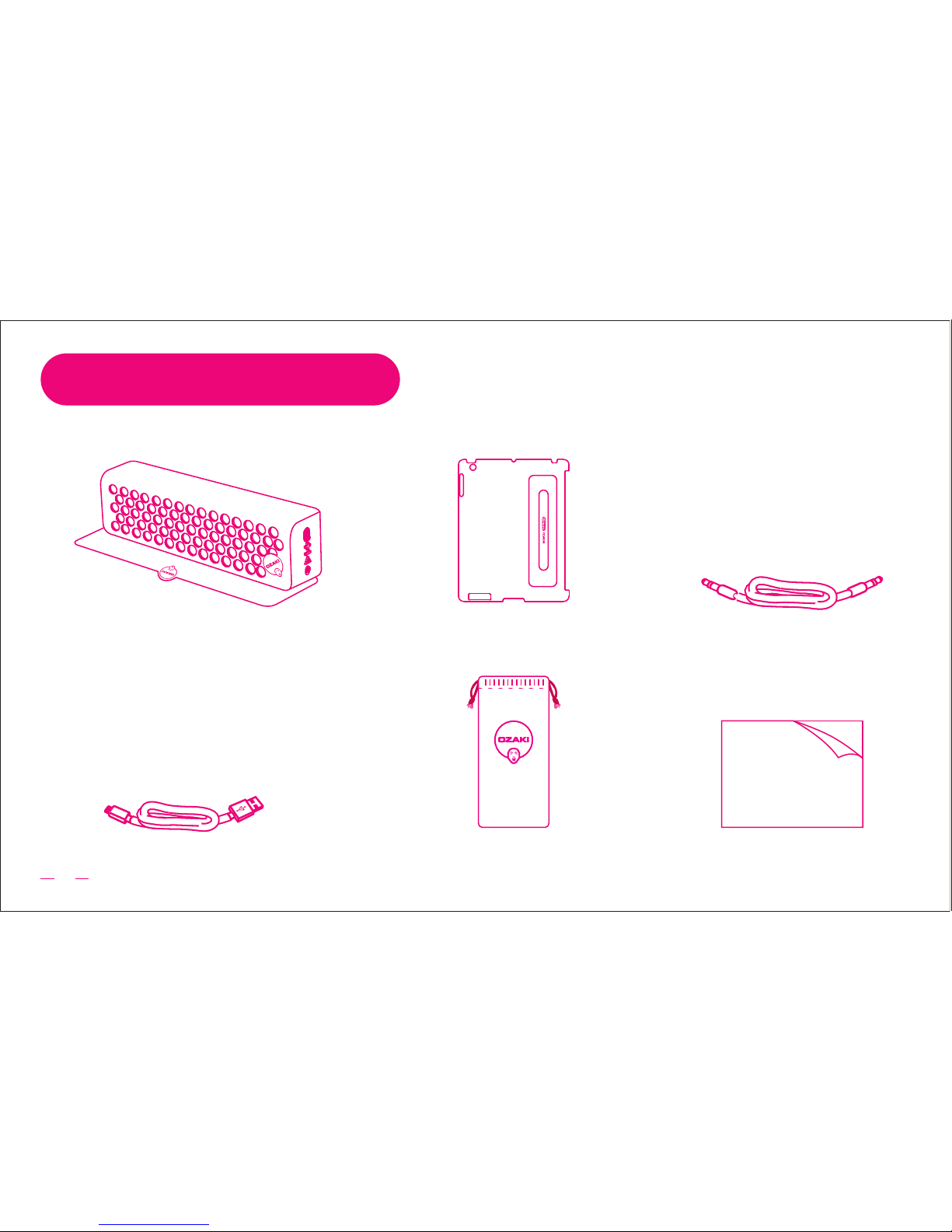
Micro-USB charging cable
3.5mm stereo cable
PACKAGE CONTENTS
O!music powow+ ( OM955-2 )
O!music powow case for
iPad (3rd generation) & iPad 2
O!music powow Magnetic Portable
Soundbar( integrated Magnet design )
User ManualCarrying bag
User Manual
Page 5
4
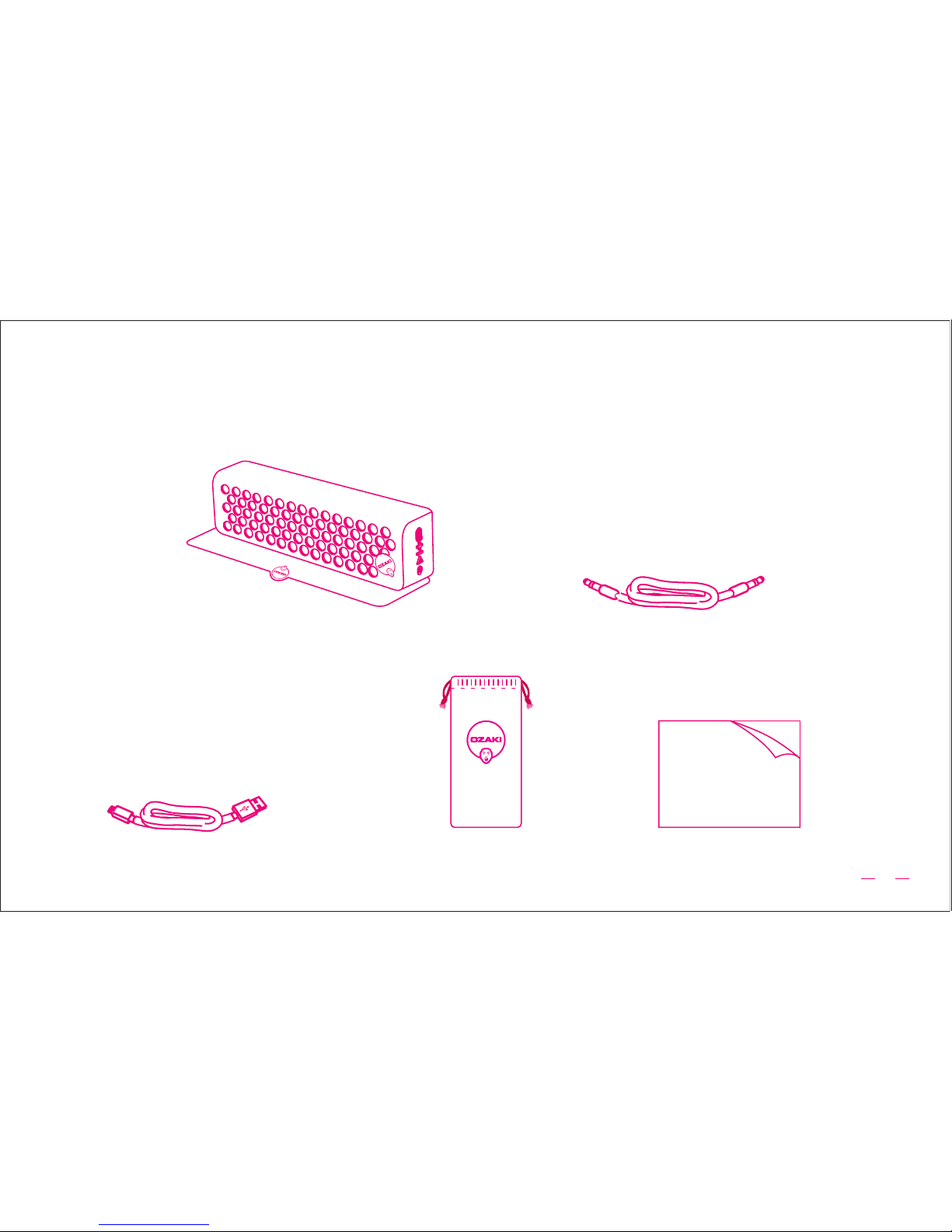
3.5mm stereo cable
O!music powow ( OM955 )
Micro-USB charging cable
O!music powow Magnetic Portable
Soundbar( integrated Magnet design )
User Manual
Carrying bag
User Manual
Page 6
5
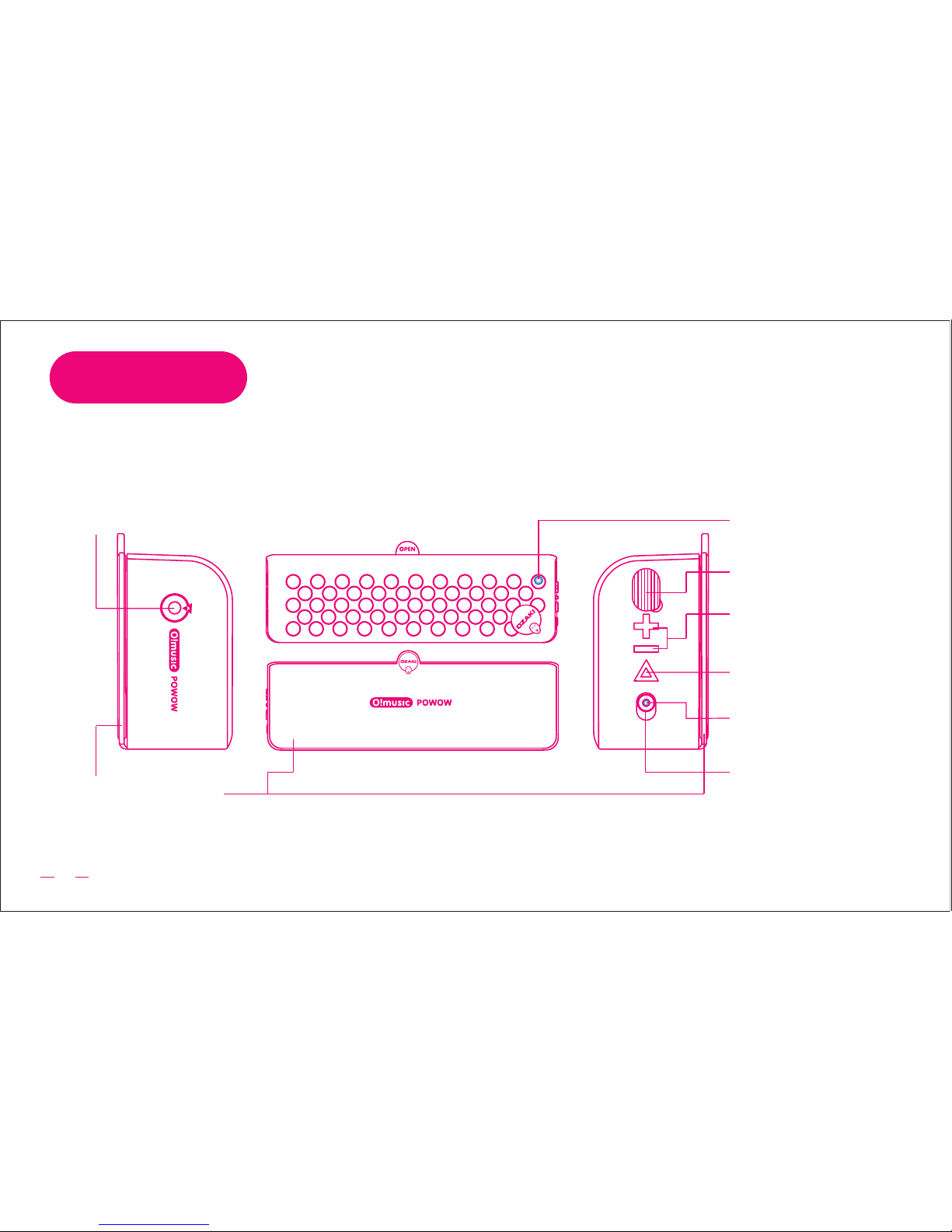
O!music powow
OVERVIEW
Micro USB(Charge)
Smart rubber pad
Volume Controls
Power Status LED
Power ON/
OFF
Bluetooth® lndicator
Pairing / Play /
Pause Button
O!music powow Magnetic Portable Soundbar
3.5mm STEREO lnput
Page 7
6
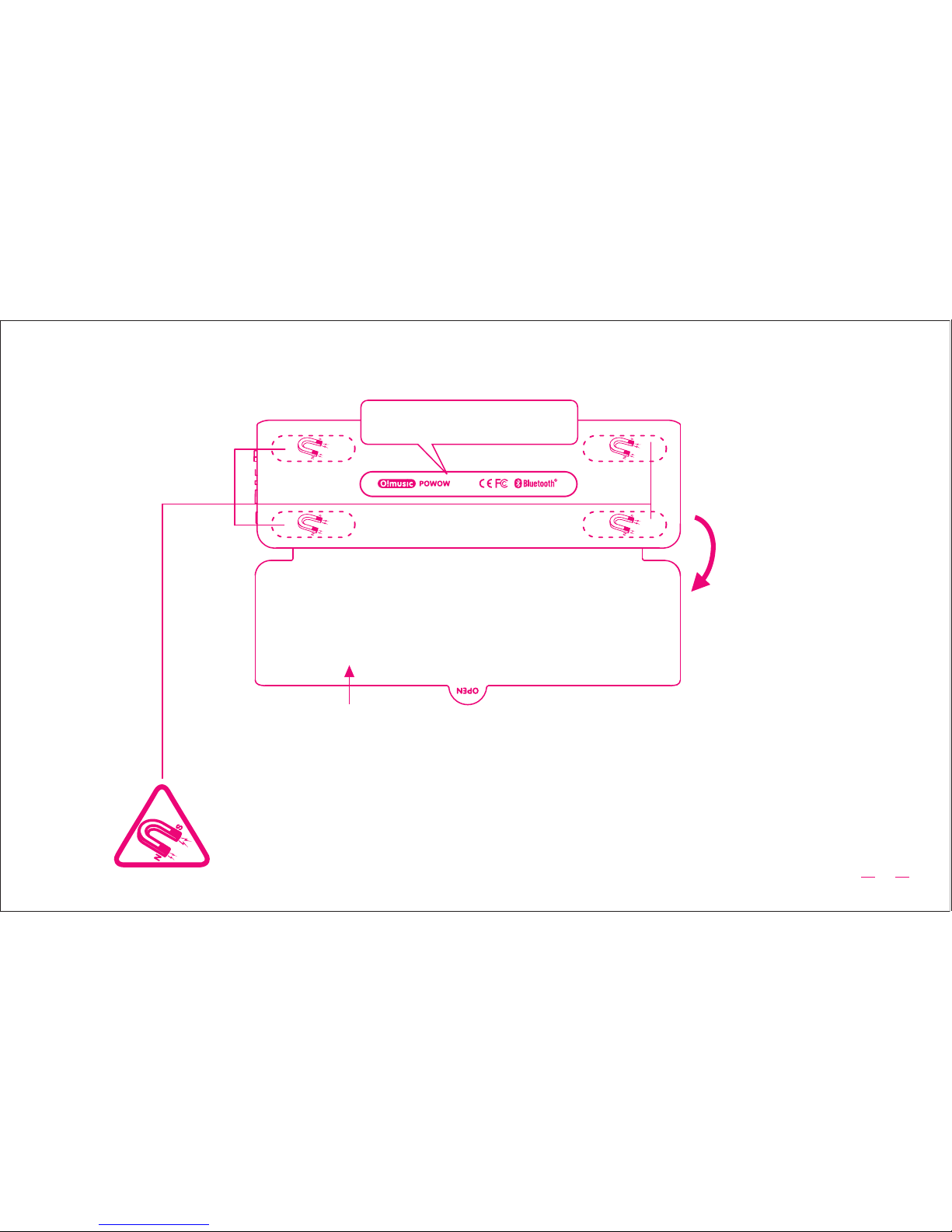
• Always keep magnets away from any sort of storage device, including desktop or laptop
computers, VHS tapes, and credit cards.
• People with pacemakers must absolutely not be anywhere near a magnet let
alone handle them.
OPEN
Attached O!music Powow
case here
Smart rubber pad
Close: Avoids damaging magnetic storage media
Open: Avoids vibration when play powerful game
Page 8
7
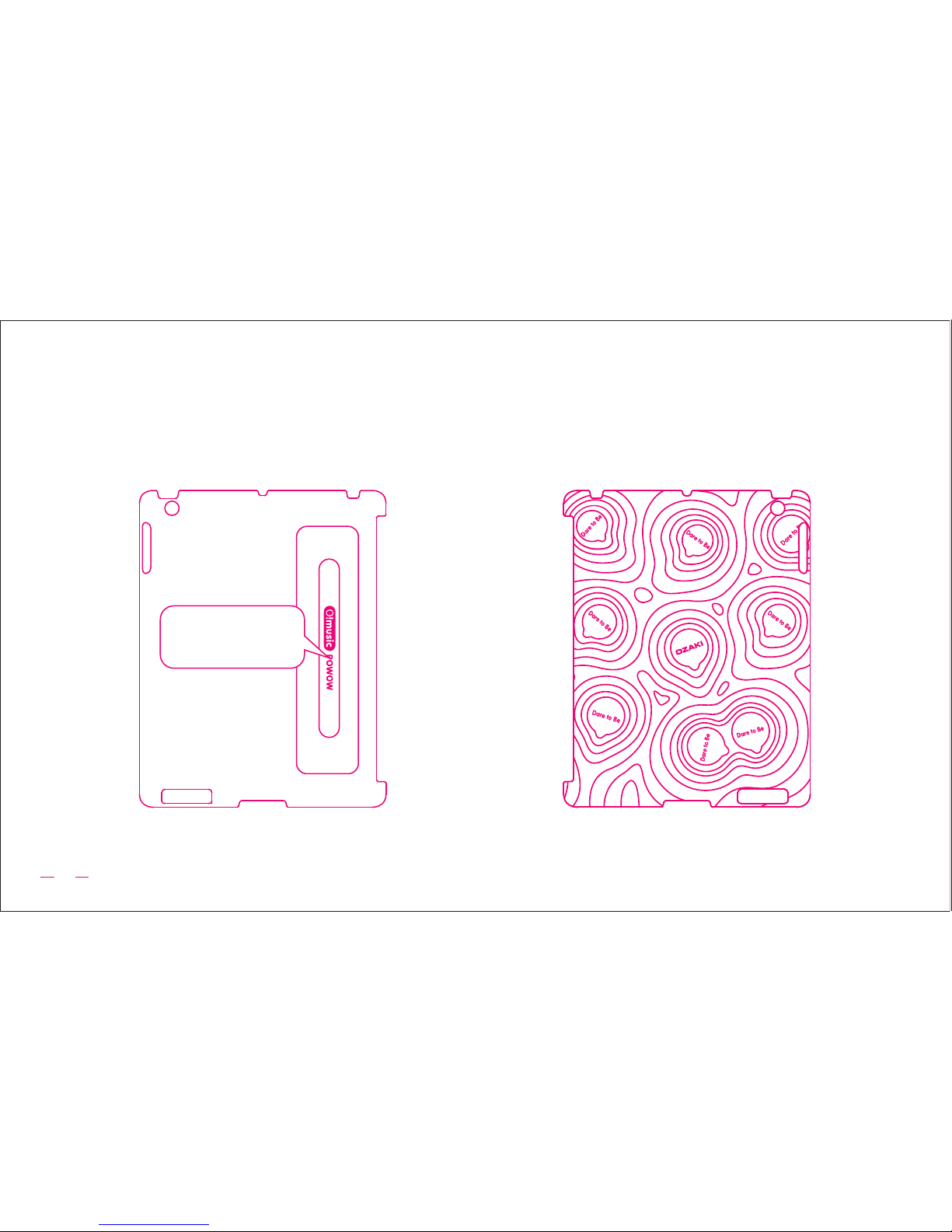
powow case iPad Smart Cover
Enhancer - Front
powow case iPad Smart Cover
Enhancer- Back
Attached
O!music powow
here
O!music powow case
Page 9
8
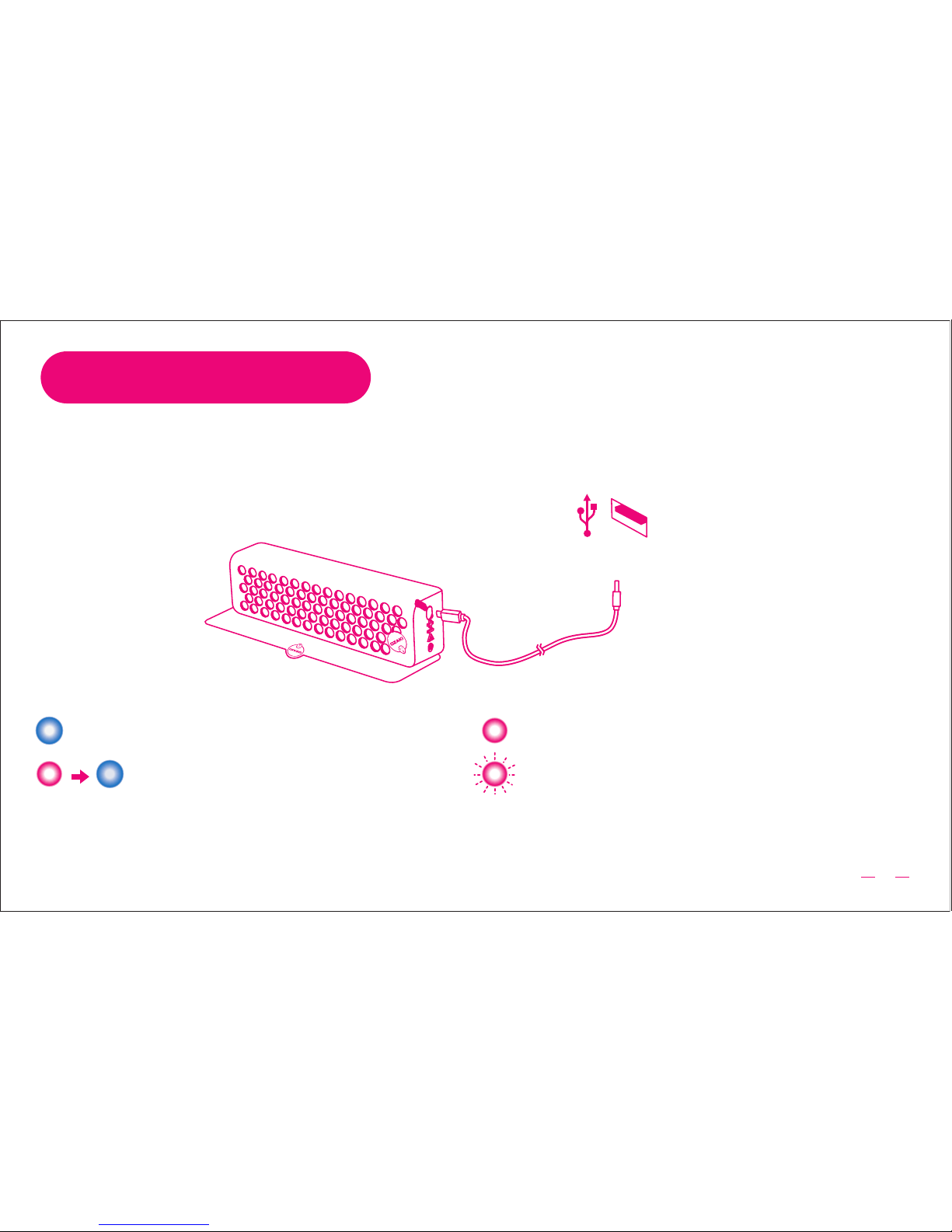
1 CHARGE O!music powow
Step 1 - POWER UP
For best listen experience, please fully charge your O!music powow before use.
Power ON : Solid blue
Power Indicator :
Recharge : Solid red
Low Battery: Flashing red
NOTE:
• It’s will takes around 6 hours for fully charge O!music powow before rst time use.
• It’s will takes around 4 hours for fully charge O!music powow.
Fully Charge: Turns blue
power source
DC 5V/0.5A ~ 1A
Page 10
2 POWER ON O!music powow
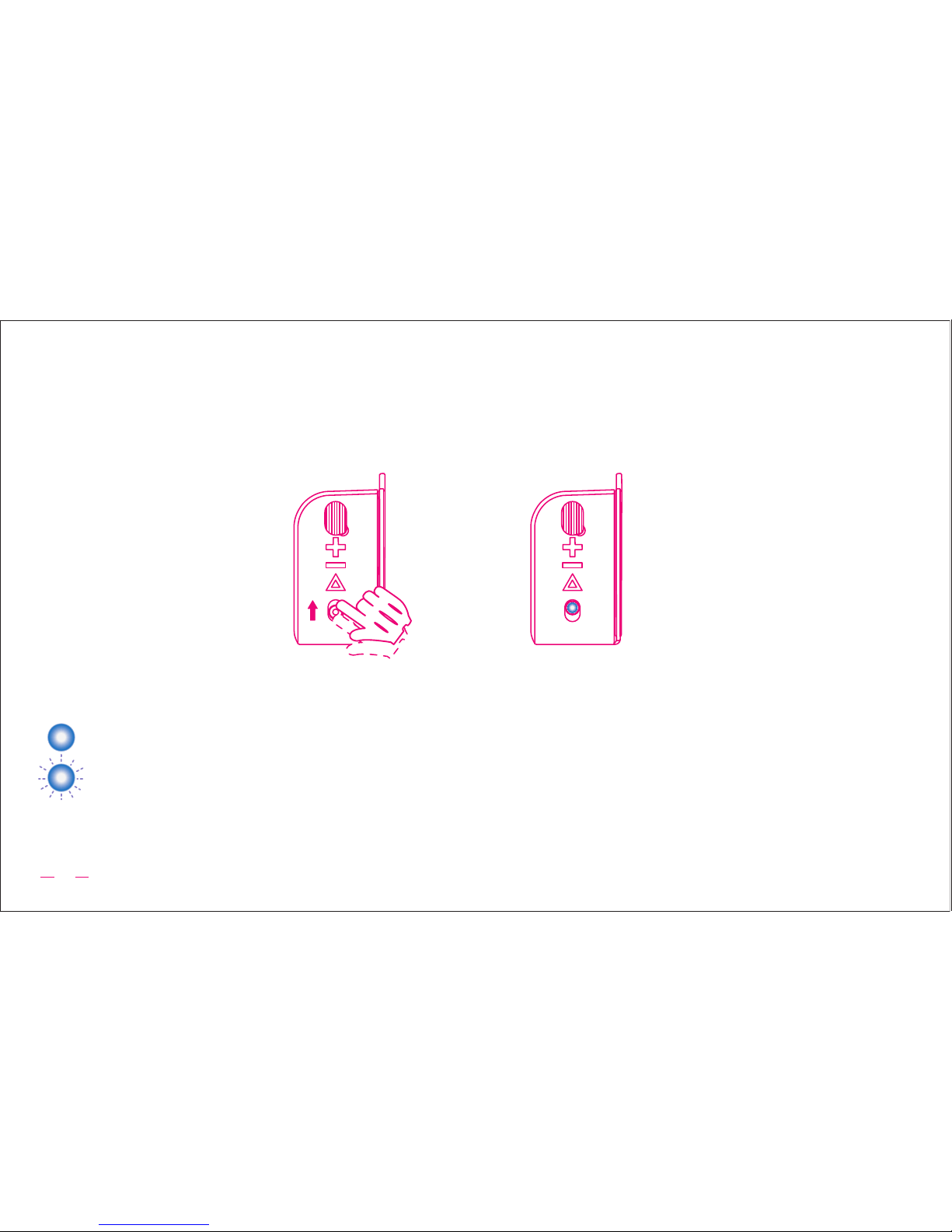
Turn the power switch on the left side of O!music powow to the upper position.
Turn ON the Power( Wait 3 seconds for startup )
Power Indicator :
Power ON : Solid blue
System Standby : Flashing blue
NOTE:
• O!music powow goes to standby mode automatically after 5 minutes not use
9
Page 11
BLUETOOTH®
( OPTION 1 )
3.5mm stereo
( OPTION 2 )
Step 2 - CONNECT
Enjoy your O!music via Bluetooth
®
or via 3.5mm stereo input.
10
TM
OR
Page 12
11
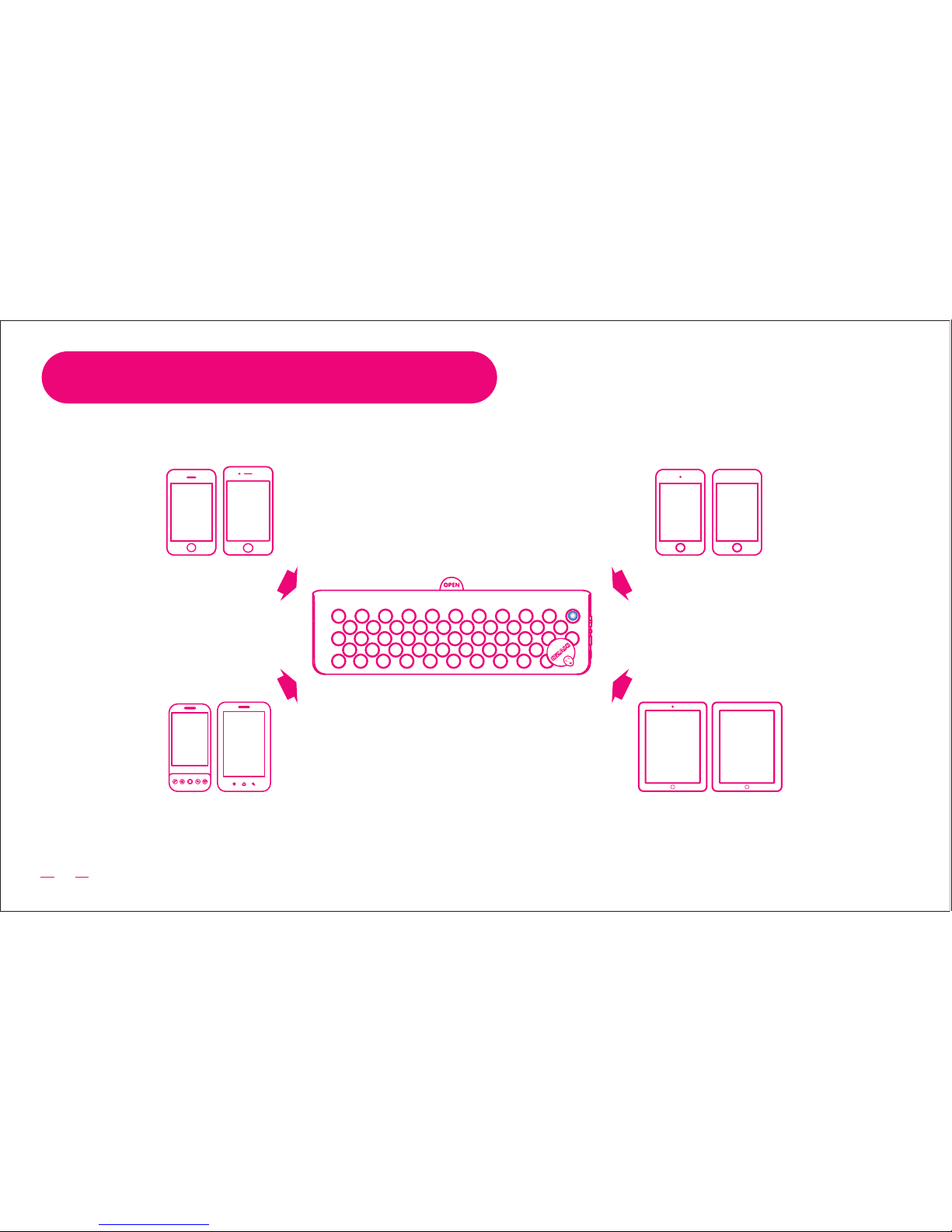
OPTION 1 - Connect Bluetooth
®
O!music powow
Phones Music Players
TabletsAndroid devices
Wireless audio streaming from any Bluetooth
®
devices within 10 meters distance
Page 13
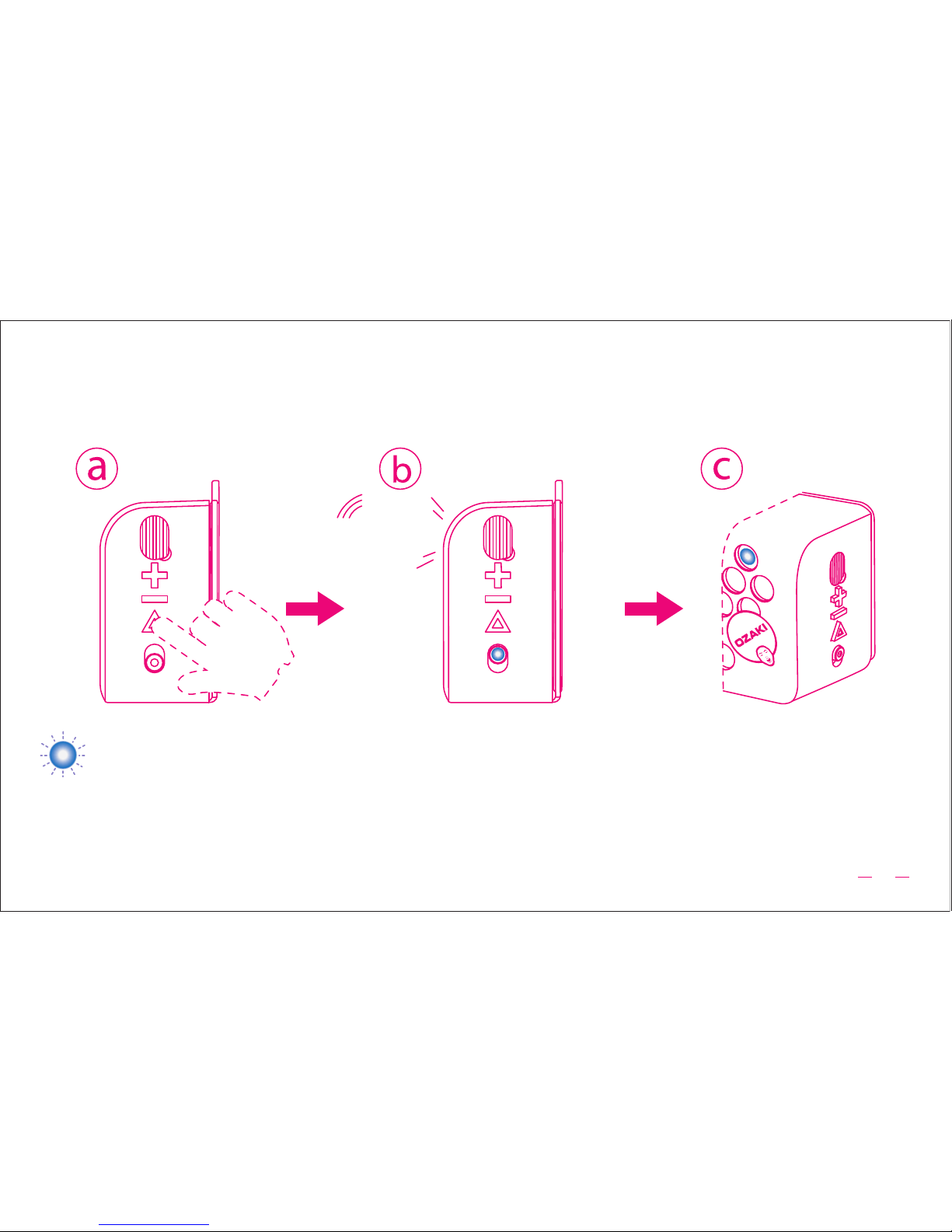
1.1 Prepare your O!music powow for pairing
a. Press the Pairing / Play / Pause Button for 2 seconds
b. Then you will hear 2 short beeps
c. Wait for the Bluetooth® Indicator to ash blue that it is ready for pairing
Bluetooth
®
Indicator :
Beep
12
Page 14

1.3 Make the Bluetooth® Connection with your Android device
a. Turn on the Bluetooth® on your iOS device
Go to SETTINGS -> GENERAL -> BLUETOOTH® -> ENABLE BLUETOOTH
®
b. Go to your iOS device’s Bluetooth® settings-> Waiting for search Bluetooth® devices ->
When “O!music by OZAKI” appears - > Click it
c. The “O!music by OZAKI” will show “ Connected “ of the Bluetooth® settings on your iOS device.
Then the Bluetooth® indicator will glows solid blue.
1.2 Make the Bluetooth® Connection with your iOS device
a. Turn on the Bluetooth® on your Android device
Go to APPLICATION -> SETTINGS -> WIRELESS AND NETWORK -> BLUETOOTH® SETTINGS ->
ENABLE BLUETOOTH
®
b. Go to your Android device’s Bluetooth® settings-> Waiting for scanning Bluetooth® devices ->
When “O!music by OZAKI” appears - > Click it
c. The “O!music by OZAKI” will show “ Paired “ of the Bluetooth® settings on your Android device.
Then the Bluetooth® indicator will glows solid blue.
13
Page 15
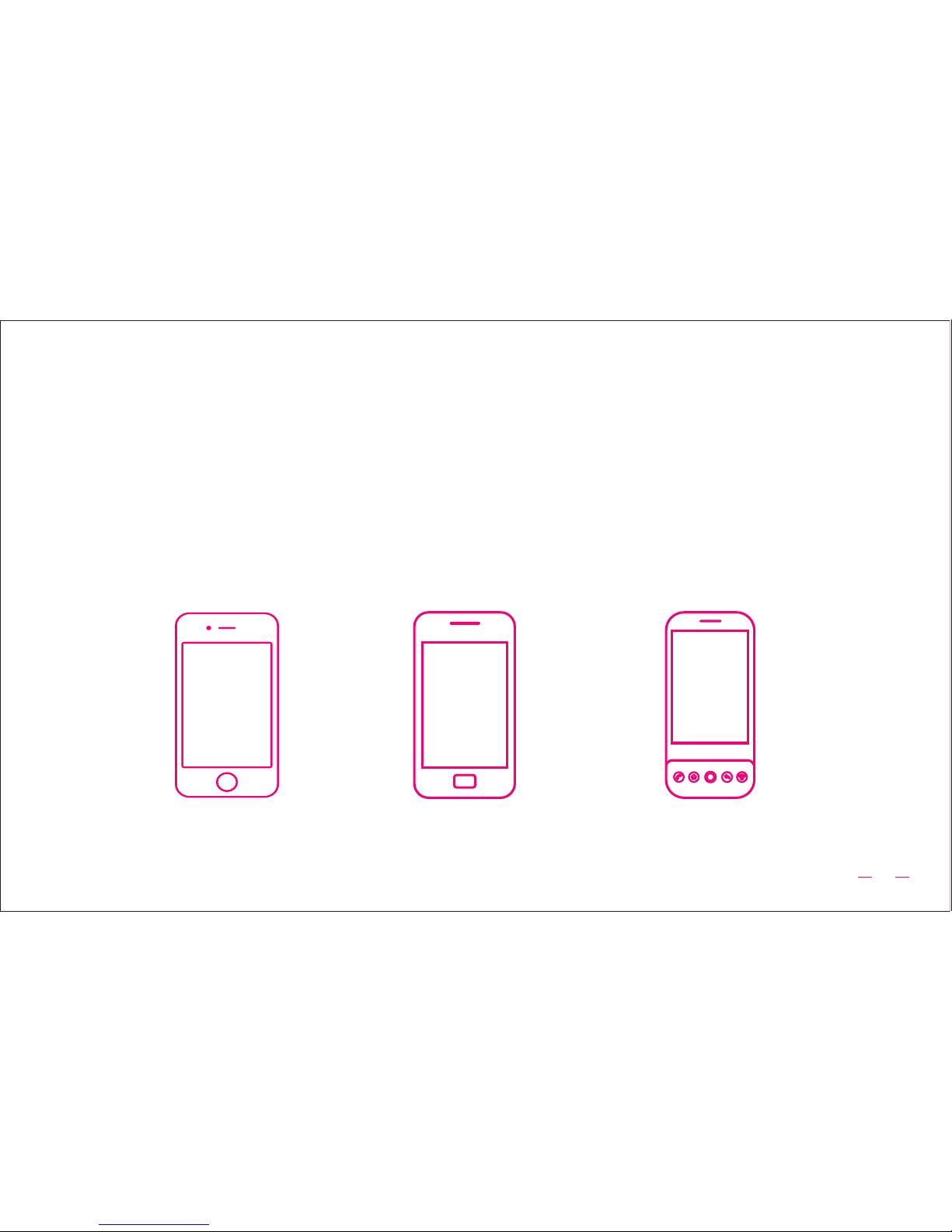
1.4 Make the Bluetooth® Connection with Other Cell
Phones or Bluetooth® device
14
NOTE:
• Not all cell phones support all Bluetooth® proles. Your cellphone must be support Bluetooth®
function
• If your cell phone or media player does not support Bluetooth®, you can connect with a 3.5mm
stereo input, See section OPTION 2 - Connect 3.5mm stereo input
• This is a one-time setting per Bluetooth® device. If you want to pair your O!music powow with
another Bluetooth® device, repeat steps 1.1 to 1.4
iOS device Android device Other Cell Phones or
Bluetooth® device
Page 16
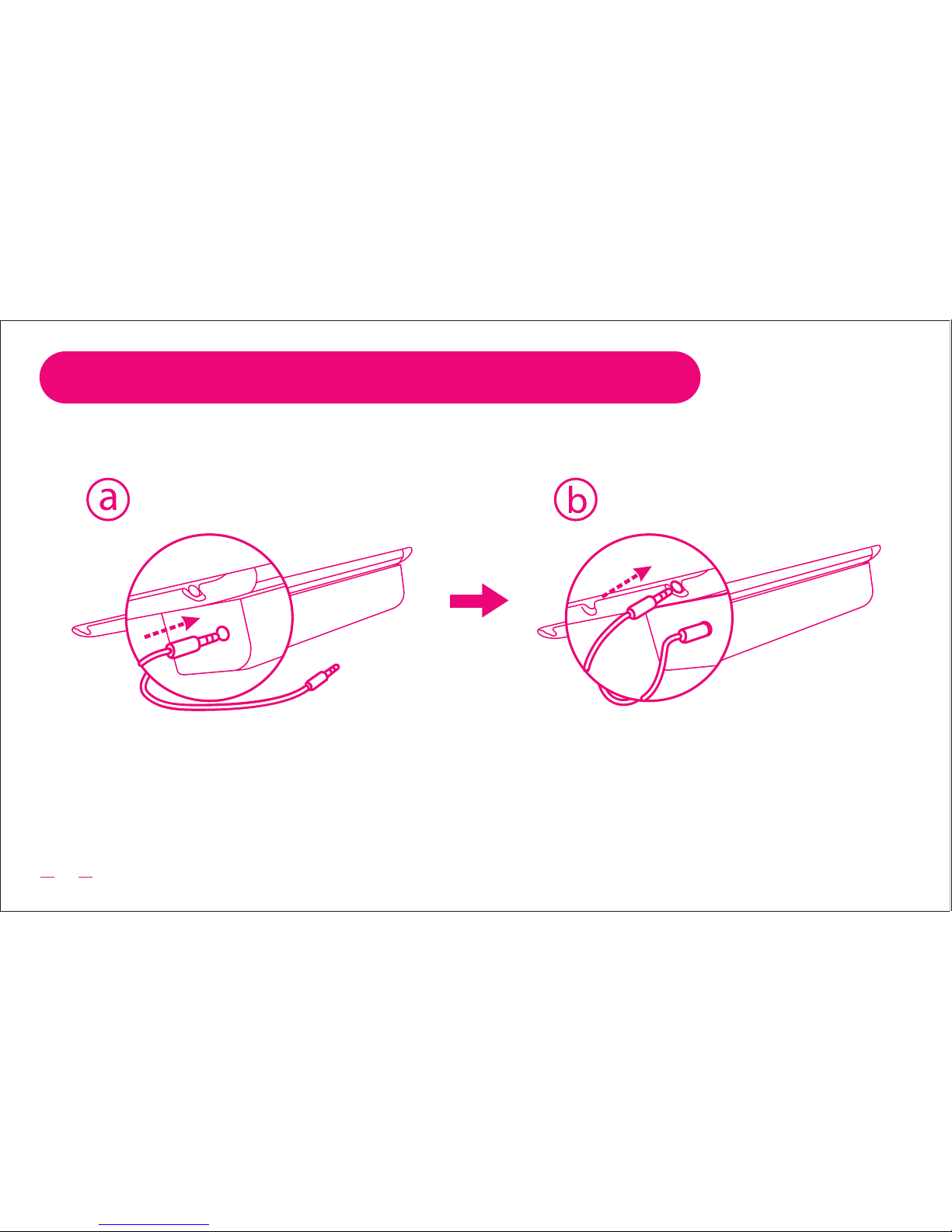
OPTION 2 - Connect 3.5mm stereo input
a. You can connect to powow via 3.5mm stereo input. Plug one end of the
3.5mm stereo cable into your device’s headphone jack or audio output.
b. Plug the other end of the 3.5mm stereo cable into the 3.5mm stereo
input on the left of O!music powow.
15
Page 17
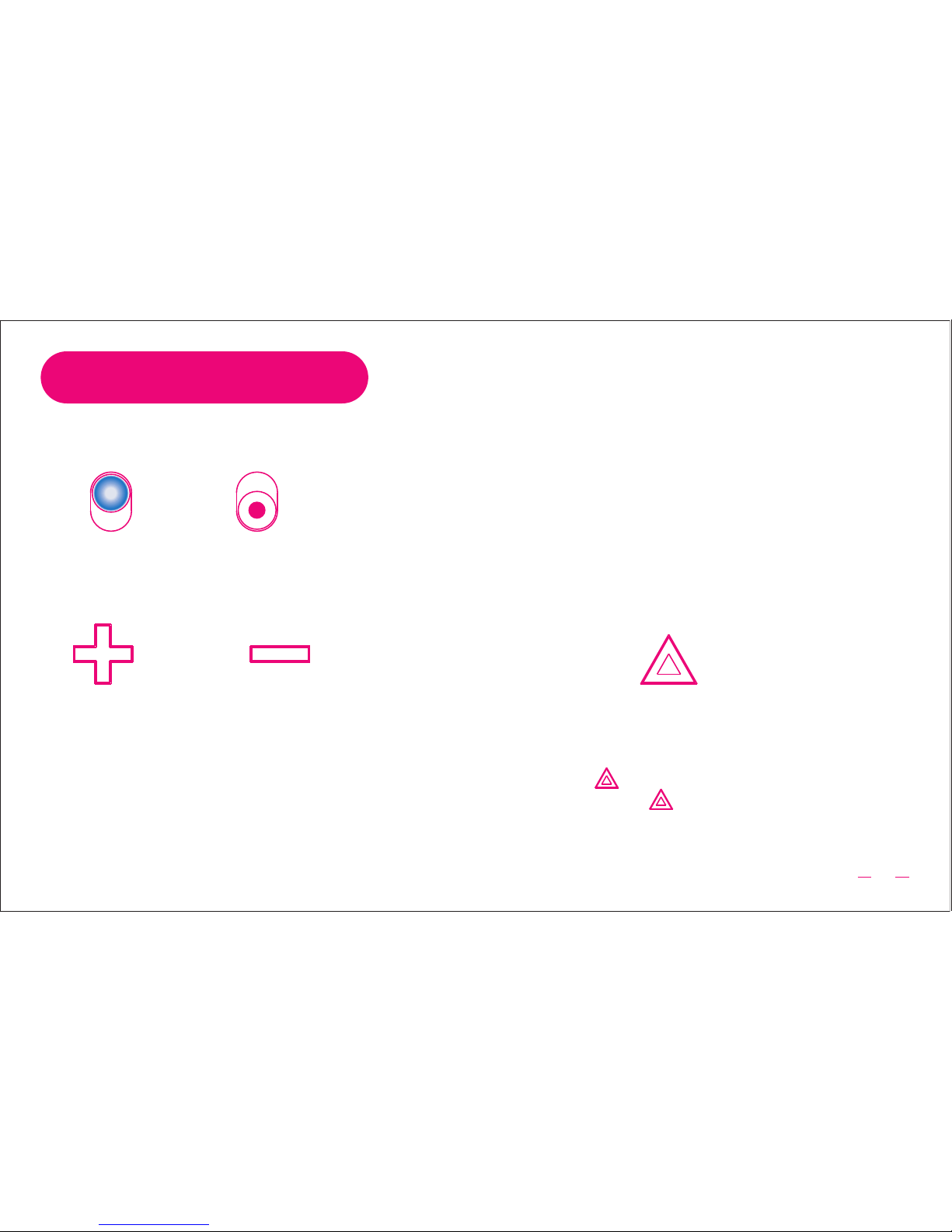
NOTE:
• Pairing - Press about 2 seconds
• Play & Pause - Press to Play or Pause
your audio
Power on/off switch
Power On Power Off
“+” Button “-” Button
Step 3 - CONTROL
Volume Control Button
NOTE:
• Your will hear a short beep when
the volume is Max.,
• Your will hear a short beep when
the volume is Min.,
Pairing / Play / Pause Button
Pairing/ Play / Pause
16
Page 18
17
Beep
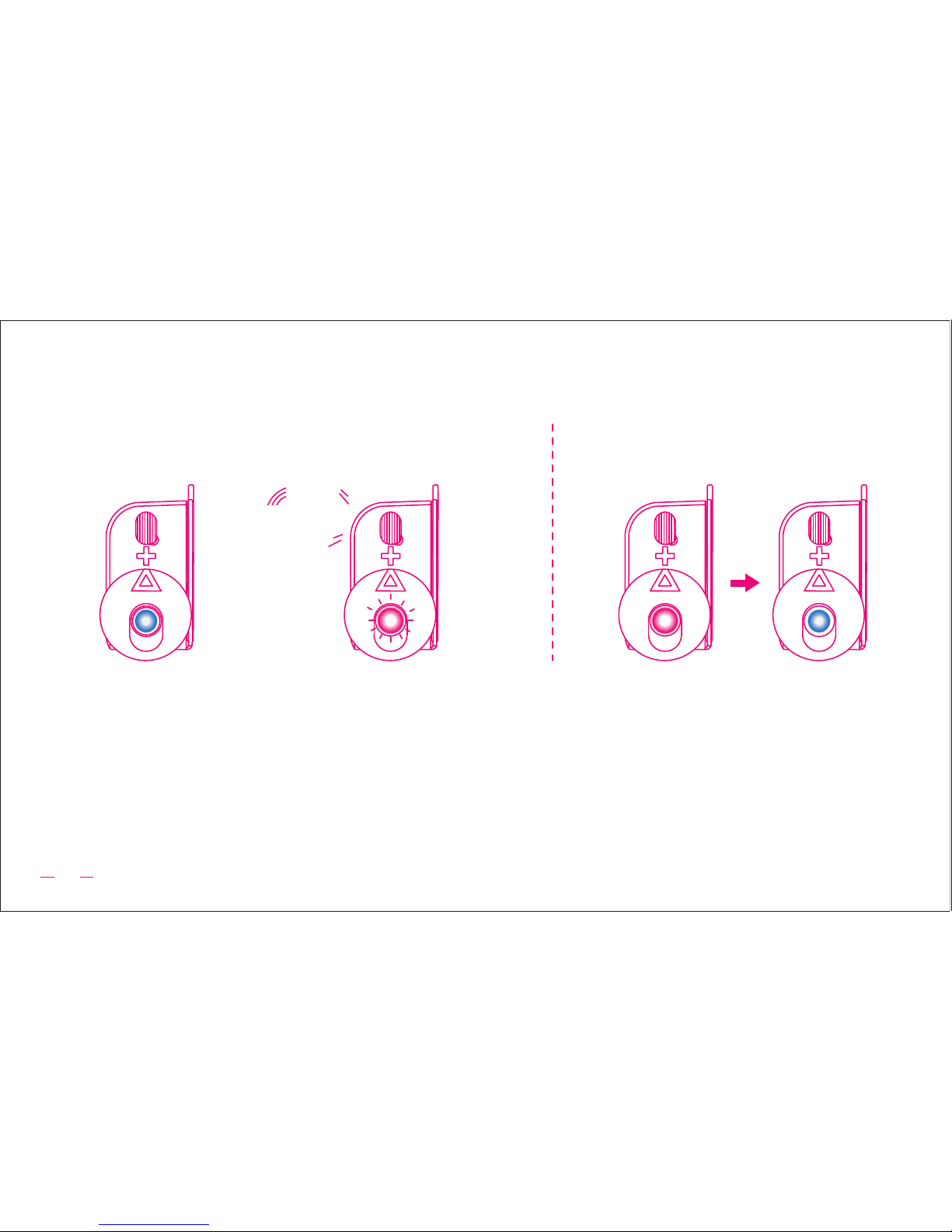
NOTE:
• When battery is upper around 16% - The Power indicator will solid blue.
• When battery is below around 15% - The Power indicator will ash red and you will hear the sound
alert(three short DIs) every 30 seconds until automatic power off.
• When Battery is Fully charge - The Power indicator will turns blue. It's offer up to 22 hours playback
(varies by volume level and audio content).
• Extend battery life - Please turn the O!music powow to the “OFF” position when not in use.
Battery Status
When battery is upper
around 16%
When battery is below
around 15%
When Battery is Fully charge
Operating Mode Charging Mode
Page 19
18
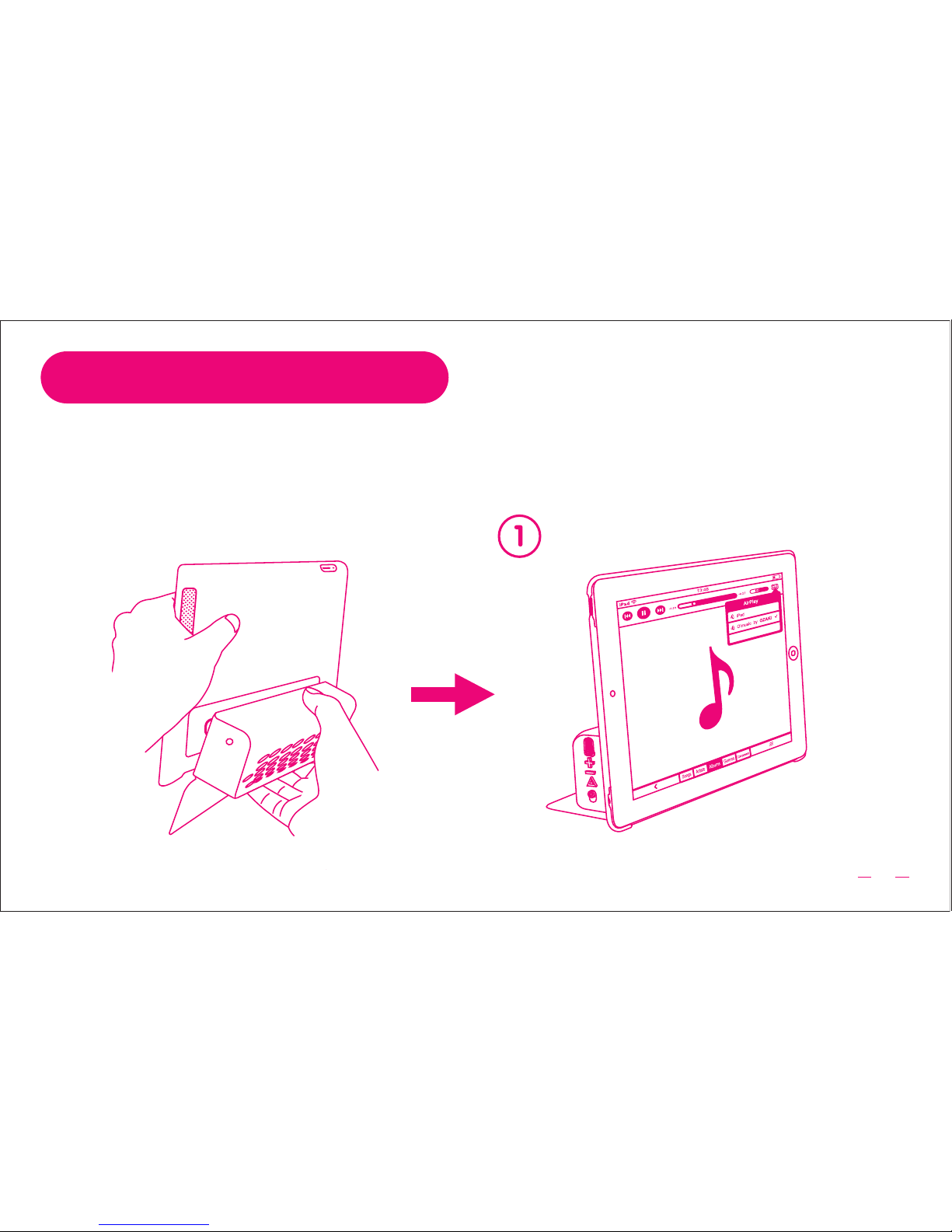
Step 4 - PLAY & LISTEN
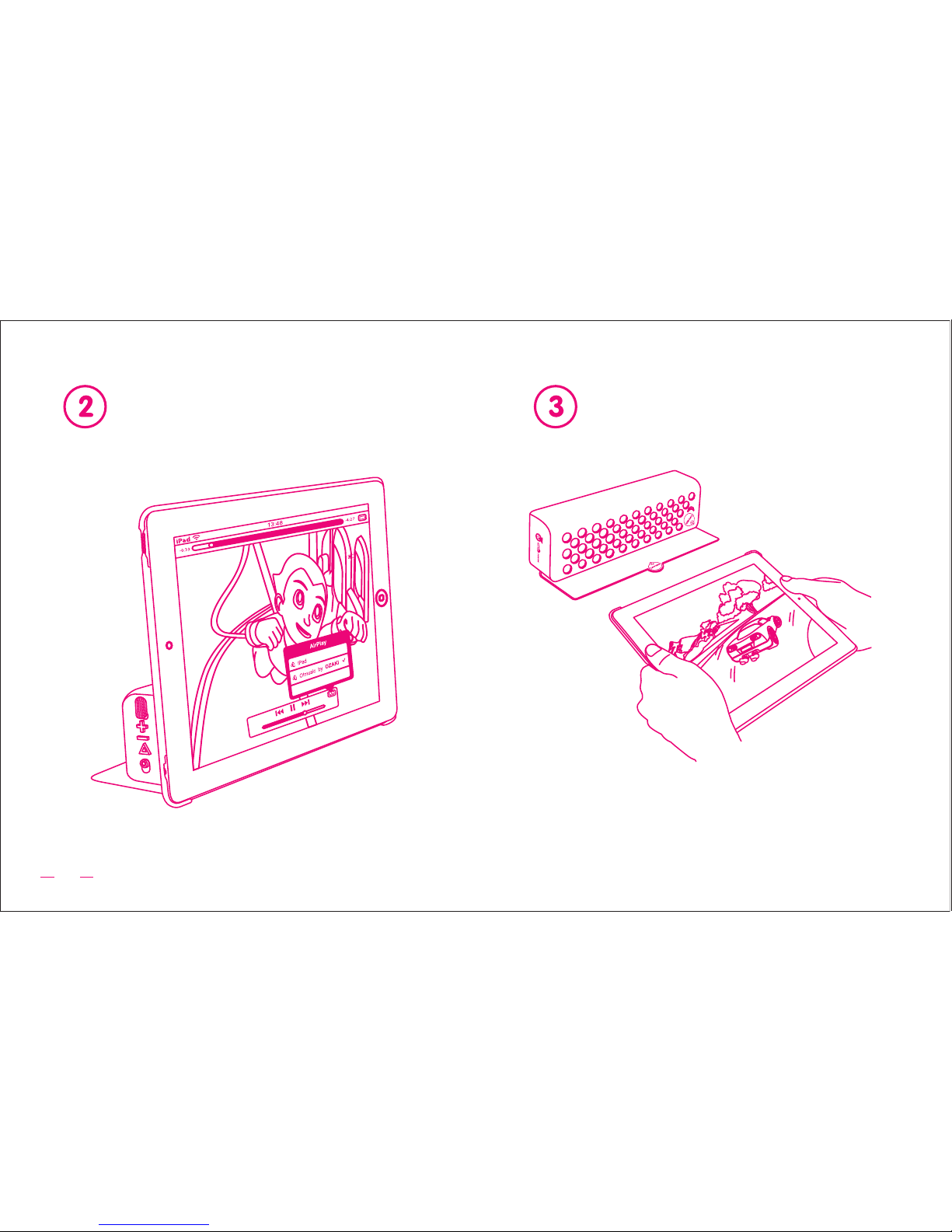
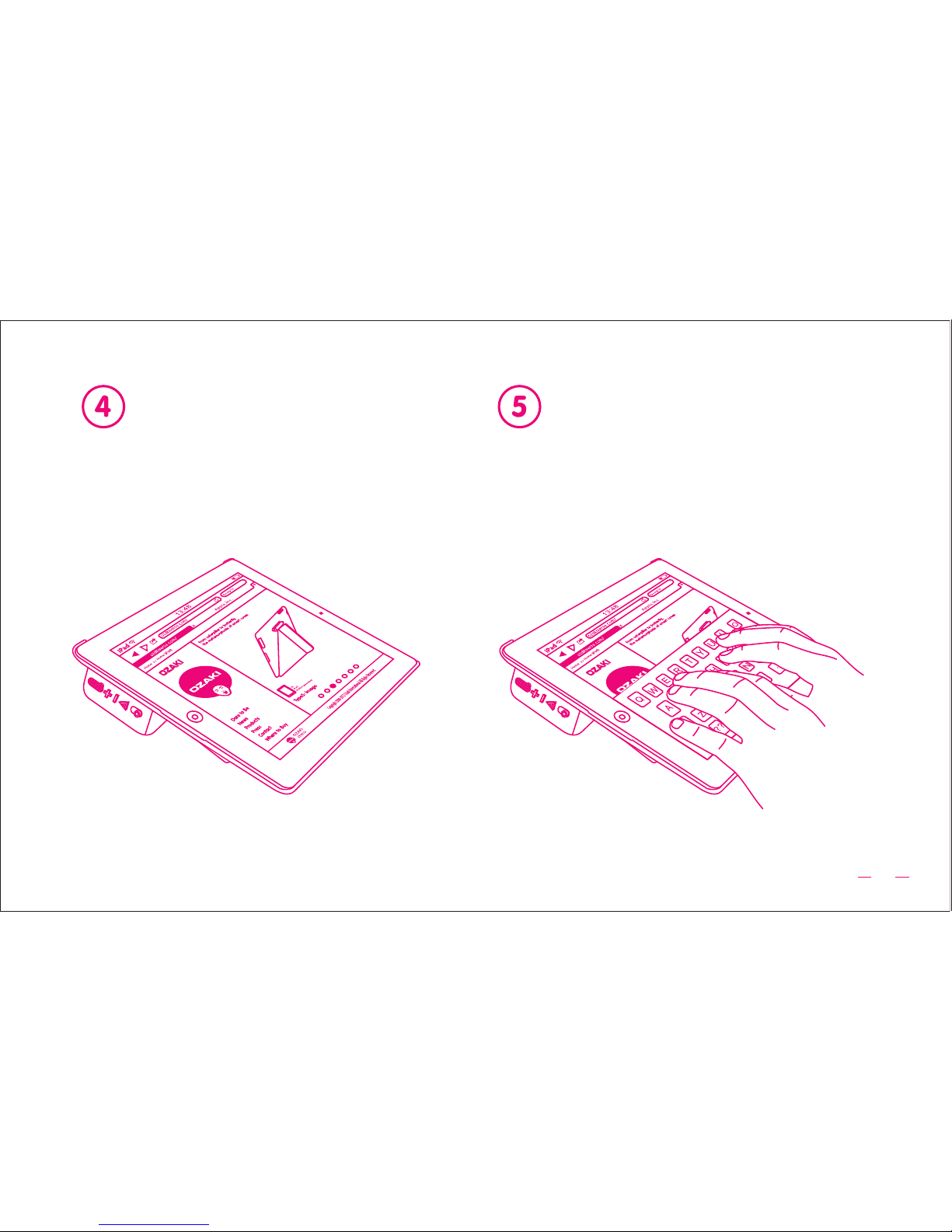
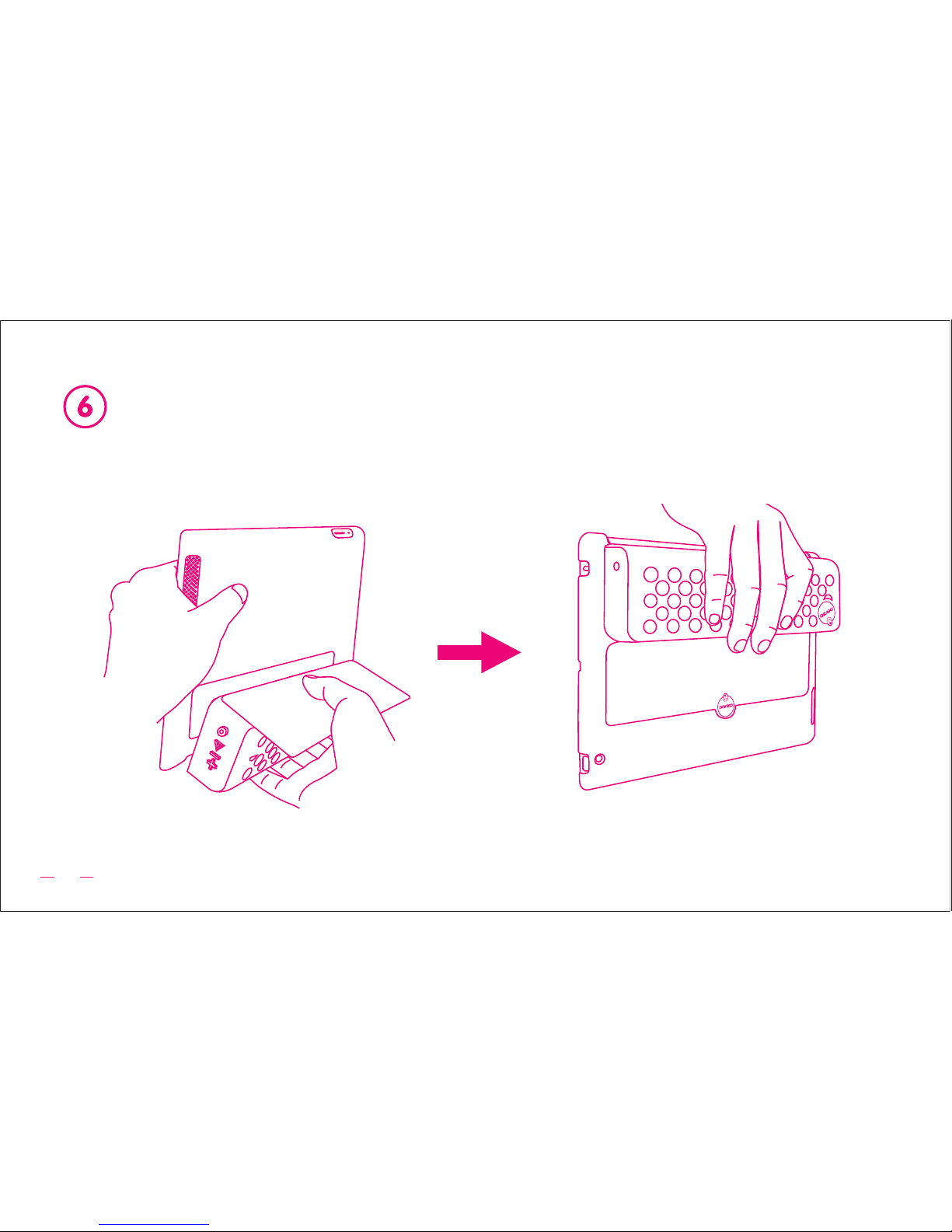
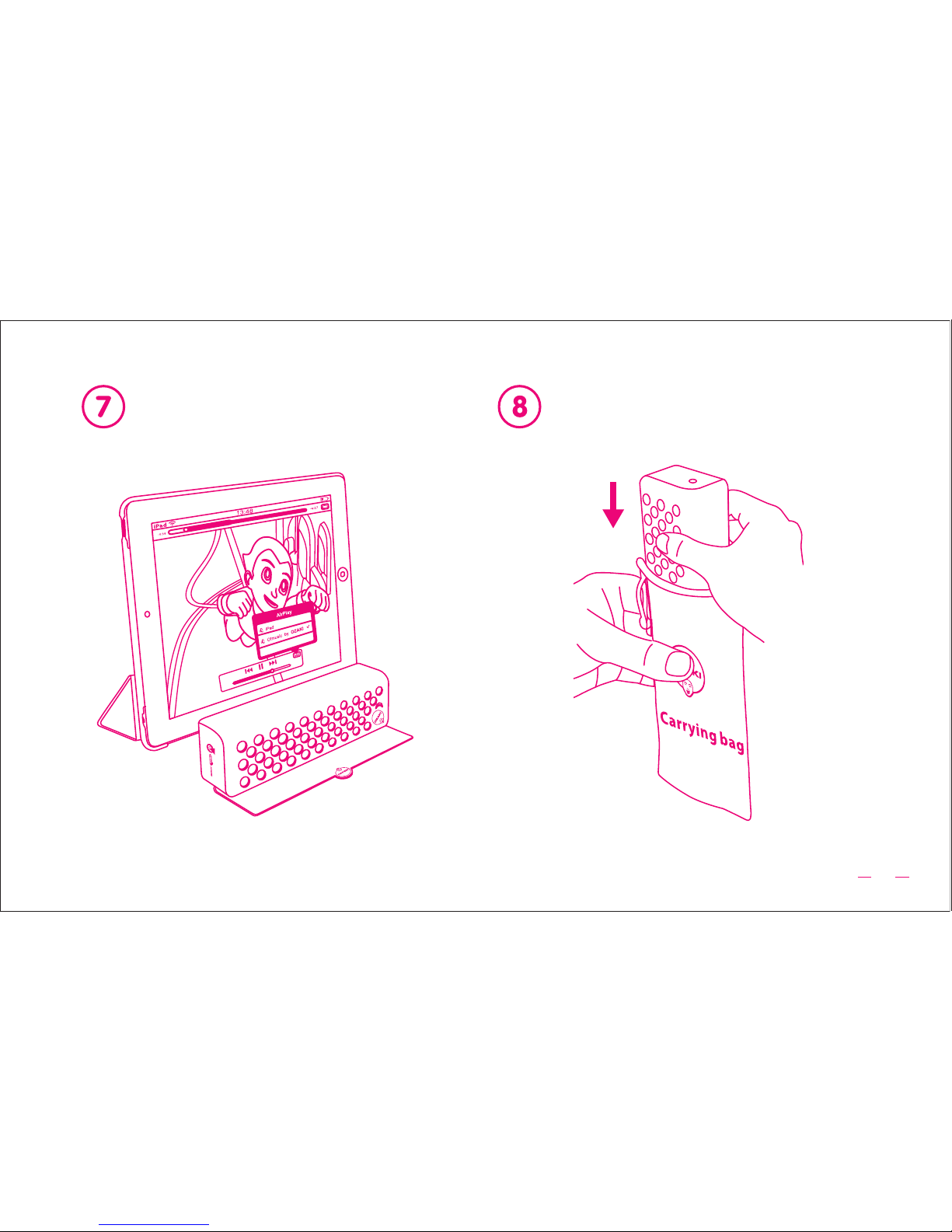
1 OM955-2 O!music powow+
You can attached the O!music powow case from different viewing angles.
Separate the O!music powow case on various places.
Listen Music
Page 20
19
Watch Movies
Play Games
Page 21
20
Browsing
Typing
Page 22
21
Portable
Page 23
22
Separate Storage
Page 24
23
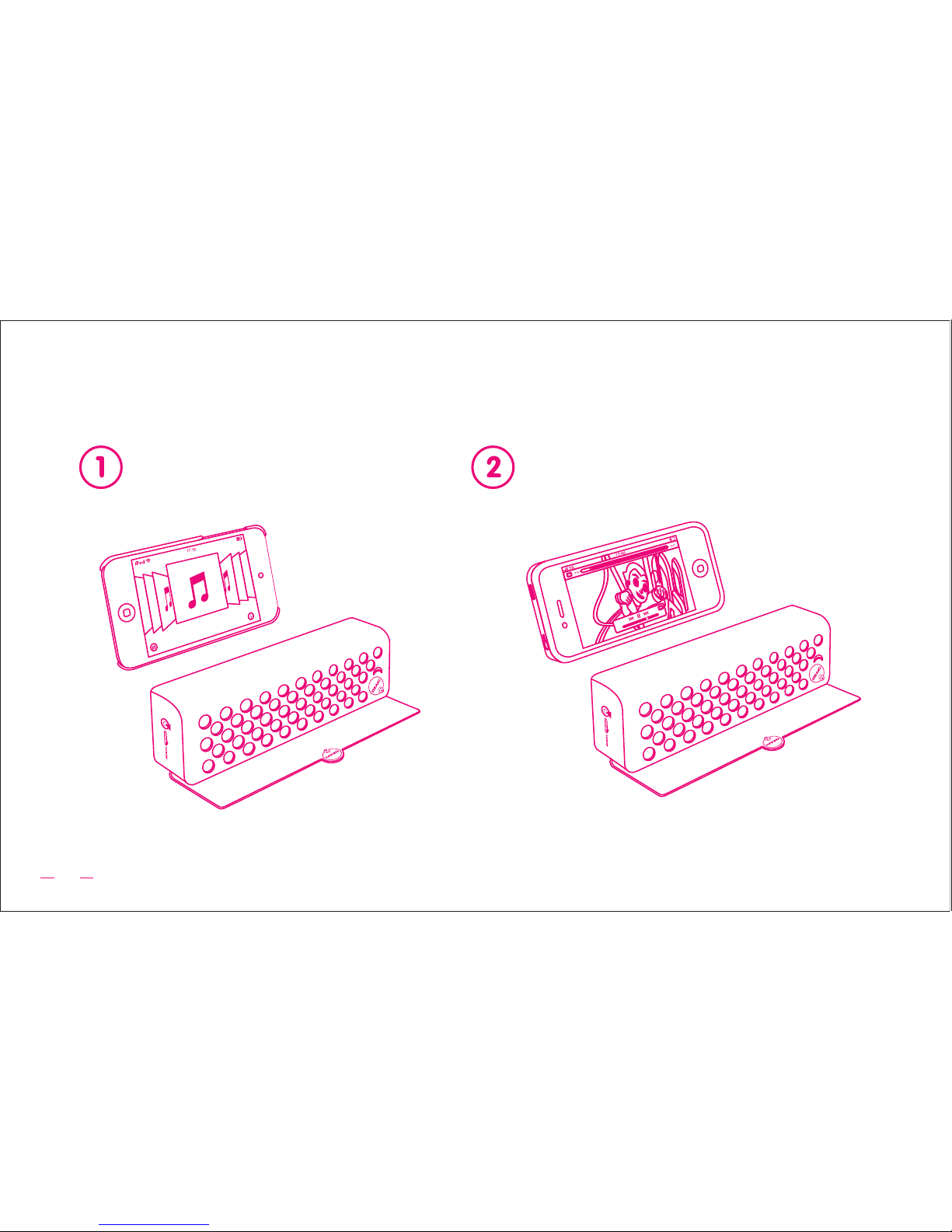
2 OM955 O!music powow
You can watch video or listen music in various environments.
Watch MoviesListen Music
Page 25
24
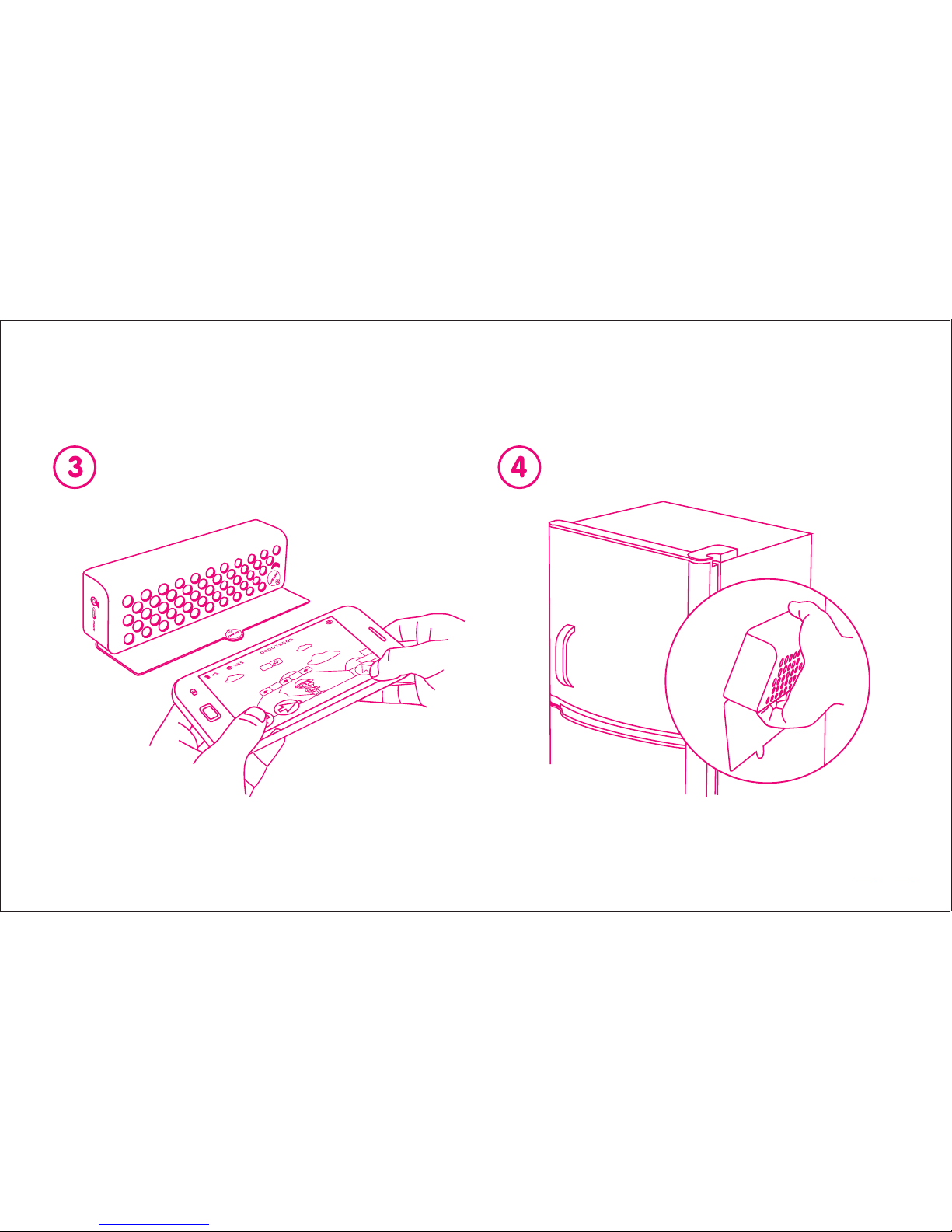
Play Games Placement on any magnetic area
(e.g. refrigerator, partition...)
Page 26

TROUBLESHOOTING
25
Q: The Speaker stops responding and Power Indicator ashes red for 1 second!
A: Battery is low and must be recharged.
Q: When power switch is ON but the Power Indicator is off!
A: Battery is empty. Connect Micro-USB cable to a wall charger and fully recharge the speaker.
Q: Unable to pair with Bluetooth
®
!
A: 1 Please make sure your iPad, iPhone, iPod touch or other Bluetooth® device is turning on the Bluetooth
®
2 Follow “OPTION 1 - Connect Bluetooth®“ instruction in this manual (page 11)
Q: When signal loss or dropouts via Bluetooth
®
!
A: 1 Please move O!music powow closer to your iPad, iPhone, iPod touch or other Bluetooth® device.
Its will reconnect via Bluetooth® automatic.
2 If Not, Press the Pairing Button 1 second then reconnect.
Q: The Power Indicator is ON but there is no sound!
A: If connected via Bluetooth
®
, try turn OFF the speaker and turn ON again. Please check the
O!music or Bluetooth® device volume Level.
If connected via 3.5mm cable, check the 3.5mm stereo cable is rmly connected to your iPad,
iPhone or iPod touch.
Q: The Speaker doesn’t recharge.
A: Check the Micro-USB cable is rmly connected and that the wall charger or USB port of PC is not faulty.
Page 27

26
• Height: 245 mm
• Width: 190 mm
• Depth: 12 mm
• Weight: 100 g
• Bluetooth
®
2.1 + EDR technology
• Support Advanced Audio Distribution
Prole (A2DP) 1.2
• Wireless Range: 10m (33 ft.)
• Height: 215 mm
• Width: 65 mm
• Depth: 35 mm
• Weight: 410 g
• Wireless (Bluetooth
®
)
• Wire (3.5mm stereo input)
• Charge ( Micro-USB cable for charging only)
Bluetooth
®
Audio
O!music powow case
SPECIFICATIONS
Connections
• AMP Output Power: 2W x 2
• Driver Output Power: 3W x 2
• Driver Unit: 2" x 2 Full-range
Frequency Response: 80Hz ~ 20 KHz
• Input Impedance: ≥4.7K ohm
• Input Sensitivity : 1000mV
Power and Battery
• Power Source request: DC 5V, 500mA wall charger
via Micro-USB cable ( wall charger not included )
• Built-in rechargeable lithium-polymer battery
• Battery Life: About 22Hours of continuous play
when Battery is Fully charge. (varies by volume
level and audio content)
• Fully Charge: About 4Hours
O!music powow
Size and Weight
Size and Weight
Page 28

WARNING
Always keep magnets away from any sort of storage device, including desktop or laptop
computers, VHS tapes, and credit cards.
People with pacemakers must absolutely not be anywhere near a magnet let alone
handle them.
SAFETY INSTRUCTION
• The speaker must be placed on a at and rm surface.
• Please press buttons gently.
• When you unplug, hold the plug and pull out. Do not drag the cable.
• Please remember to switch speaker off when you don’t use it.
• Keep the speaker in a ventilate place and away from heat source or direct sunlight.
• Do not pour water, liquid or rubbish on the speaker.
• Do not use this product for other purpose to avoid any inconvenience happening.
• Please do NOT attempt to change the internal rechargeable lithium-ion battery yourself.
• The battery used in the speaker may present a risk of re, explosion or chemical burn if mistreated.
27
Page 29

FCC Statement
This equipment has been tested and found to comply with limits for a Class B digital device ,pursuant
to Part 15 of the FCC rules. These limits are designed to provide reasonable protection against harmful
interference in residential installations. This equipment generates, uses, and can radiate radio frequency
energy, and if not installed and used in accordance with the instructions, may cause harmful interference
to radio communications.
FCC Compliance Statement:
However, there is no guarantee interference will not occur in a particular installation. If this equipment
does cause interference to radio or television equipment reception, which can be determined by turning
the equipment off and on, the user is encouraged to try to correct the interference by one or more of the
following measures:
-Reorient or relocate the receiving antenna-Move the equipment away from the receiver-Plug the
equipment into an outlet on a circuit different from that to which the receiver is connected.
-Consult the dealer or an experienced radio/television technician for additional suggestions You are
cautioned that any change or modications to the equipment not expressly approve by the party
responsible for compliance could void Your authority to operate such equipment.
28
Page 30

 Loading...