

Page 1
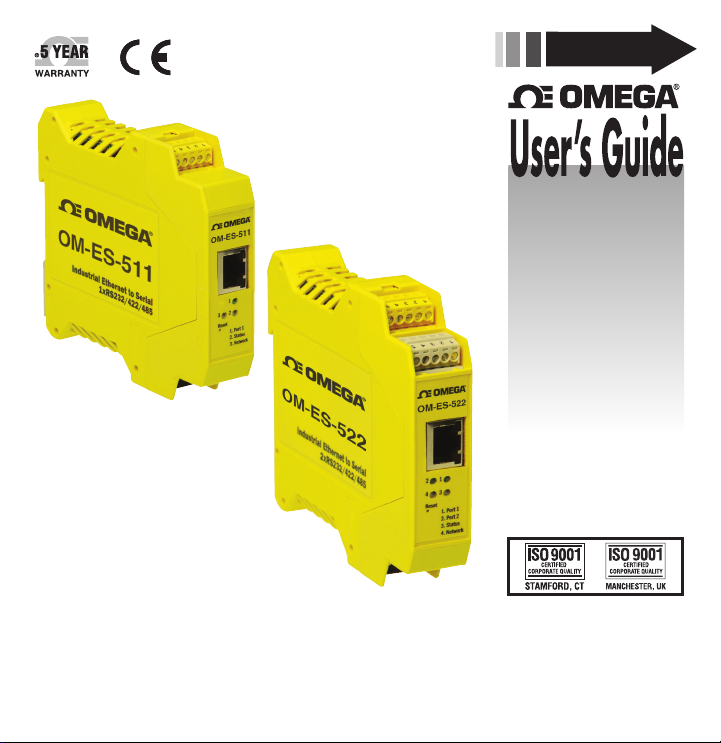
OM-ES-511
QUICK START
Shop online at
omega.com
e-mail: [email protected]
For latest product manuals:
omegamanual.info
OM-ES-522
®
OM-ES-500 SERIES
Industrial Ethernet-to-Serial
Device Servers
Page 2

OMEGAnet
U.S.A.: Omega Engineering Inc., One Omega Drive, P.O.Box 4047
ISO 9001 Certied Stamford, CT 06907-0047 USA
Toll-Free: 1-800-826-6342 TEL: (203) 359-1600
FAX: (203) 359-7700 e-mail: [email protected]
Canada: 976 Bergar, Laval (Quebec) H7L 5A1, Canada
U.S.A. and Canada: Sales Service: 1-800-826-6342/1-800-TC-OMEGA
Engineering Service: 1-800-872-9436/1-800-USA-WHEN
Mexico/ TEL: 001 (203) 359-1660 FAX: 001 (203) 359-7700
Latin America: e-mail: [email protected]
China: 1698 Yi Shan Road, Unit 102, Min Hang District, Shanghai, China 201103 P.R.C.
Benelux: Toll-Free: 0800 099 3344 TEL: +31 20 347 21 21
Czech Republic: Frystatska 184, 733 01 Karviná, Czech Republic
France: Toll-Free: 0805 541 038 TEL: 01 57 32 48 17
Germany/Austria: Daimlerstrasse 26, D-75392 Deckenpfronn, Germany
Toll-Free: 0800 8266342 TEL: +49 (0) 7056 9398-0
FAX: +49 (0) 7056 9398-29 e -mail: [email protected]
United Kingdom: OMEGA Engineering, Ltd., One Omega Drive, River Bend Technology Centre
ISO 9001 Certied Northbank, Irlam, Manchester M44 5BD United Kingdom
Toll-Free: 0800-488-488 TEL: +44 (0) 161 777-6611
FAX: +44 (0) 161 777-6622 e -mail: [email protected]
It is the policy of OMEGA Engineering, Inc. to comply with all worldwide safety and EMC/EMI regulations that
apply. OMEGA is constantly pursuing certication of its products to the European New Approach Directives.
OMEGA will add the CE mark to every appropriate device upon certication.
The information contained in this document is believed to be correct, but OMEGA accepts no liability for any errors it contains,
and reserves the right to alter specications without notice.
WARNING: These products are not designed for use in, and should not be used, for human applications.
For immediate technical or application assistance:
Customer Service: 1-800-622-2378/1-800-622-BEST
®
Online Service
omega.com
Servicing North America:
Servicing China:
Servicing Europe:
Internet e-mail
®
®
®
Page 3

Contents
1. Box Contents Check List 4
2. Hardware 5
3. Network IP Addressing 6
4. Connecting your OM-ES-500 Series Device 7
5. Installing your OM-ES-500 Series Device on Windows 8
6. Configuring your OM-ES-500 Series Device 10
7. Default Settings 12
8. Pin outs 13
9. LED information 14
For more information, please refer to Product Manual on CD
Information on Product Accreditations, Safety, and correct disposal of this product can be found on the Product CD
3
Page 4
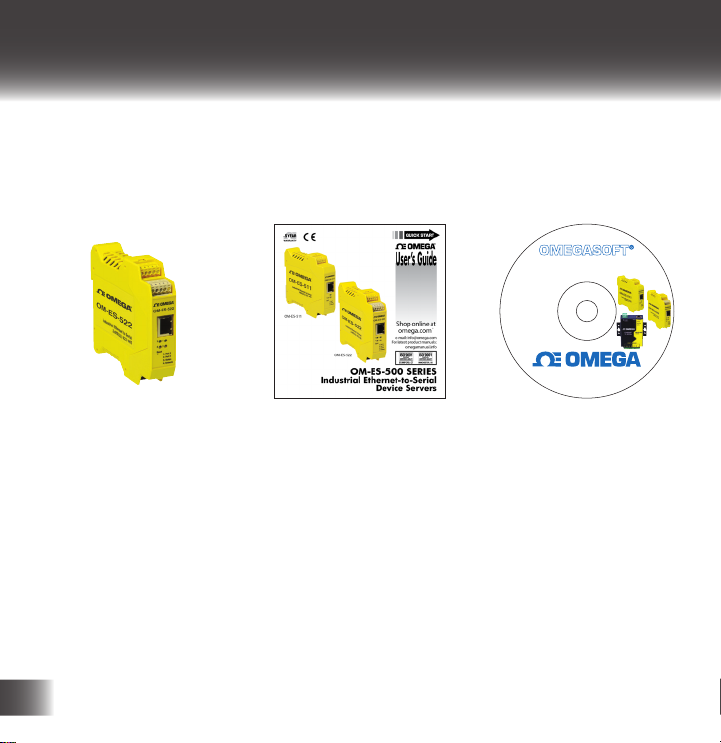
1. Box Contents Check List
Thank you for purchasing an OM-ES-500 Series Ethernet to Serial
product. This quick start guide will help you set up your ES device so that
you can begin experiencing the benefits of Ethernet to Serial technology.
Utility Software for OM-ES Series
Ethernet-to-Serial Device Servers
Includes:
• Software
• User Manuals
© COPYRIGHT 2013 OMEGA ENGINEERING, INC.
omega.com
800-DAS-IEEE (800-327-4333)
Rev. _____
OM-ES-511
OM-ES-522
OM-ES-020
®
Ethernet to Serial
Quick Start Guide
Product CD
Device
NB: Image shown is an OM-ES-522 1x RS232/422/485 and is an example. The same steps can be applied to all other products in the OM-ES-500 Series
4
Page 5
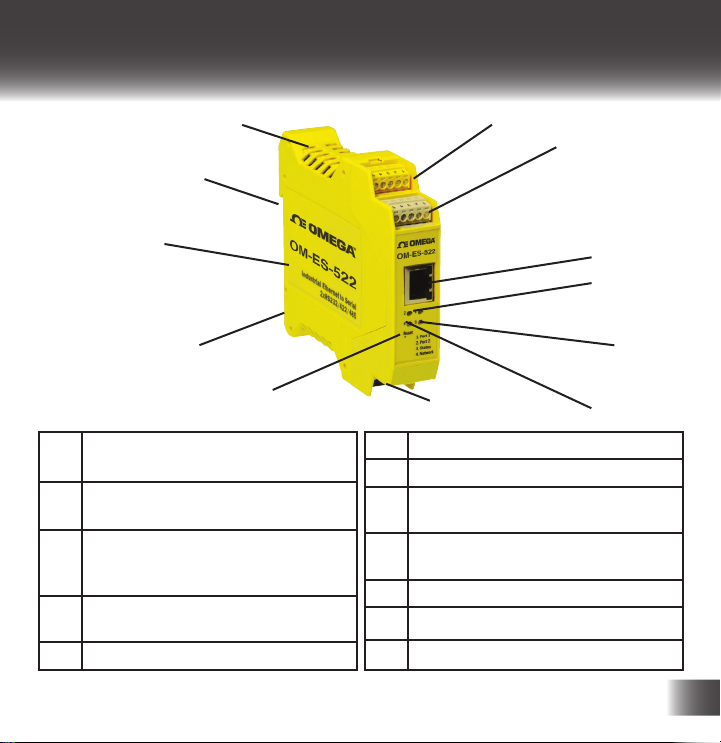
2. Hardware
12
11
10
9
8
1. Port 1 - Yellow removable screw
terminal block
2. Port 2 - Grey removable screw
terminal block (OM-ES-522)
3. Power Input - Black removable
screw terminal block +5VDC to
+30VDC
4. Ethernet port connection - 10BaseT
/ 100BaseTX
5. Serial Port(s) LED
1
2
4
5
3
6. Ethernet Port LED
7. Status LED
8. Reset button
to press)
9. IP-30 rated non-conducting
polyamide case
10. DIN Rail mount
11. Earth to DIN rail
12. Ventilation
(use unfolded paperclip
7
6
5
Page 6

3. Network IP Addressing
The OM-ES-500 Series device is shipped in “DHCP Mode".
• On connecting to the network, the device automatically checks if it is
connected to a DHCP Server. If this is the case, the DHCP server will
allocate an IP address automatically to the OM-ES-500 Series device.
• If no DHCP Server is detected (e.g. you are using a direct cable
connection to the PC), the OM-ES-500 Series device will default to an
IP address of 192.168.127.254 within 60 seconds.
Please ensure the PC you’re using for configuration can communicate
with the 192.168.127.xxx IP range.
6
Page 7

4. Connecting your OM-ES-500 Series Device
1. Connect the OM-ES-500 Series device to your local network or use a
direct cable connection using a standard straight-through or crossover
Ethernet cable and plugging into the Ethernet port connection.
2. Connecting to Power: Connect the power adapter or a DC power line
(+5 to +30VDC) to the OM-ES-500 Series power terminal block or
jack connection. If using your own power supply please check input
requirements on page 5 - Hardware.
The OM-ES-500 Series devices feature dual power supply inputs, only
one power supply need be connected to ensure the device is powered
up and working.
3. Confirm the device beeps as it is turned on.
4. When the Status LED turns steady green (after 5-60 seconds), the
device is ready to use.
5. Connect the serial cable from your serial device to the serial port on
the OM-ES-500 Series device. Refer to Section 8 of this Quick Start
Guide for pin outs.
Make a note of device MAC address (on side panel, 00-0a-4f-XX-XX-XX)
as you will need it to identify the device on your network later.
7
Page 8
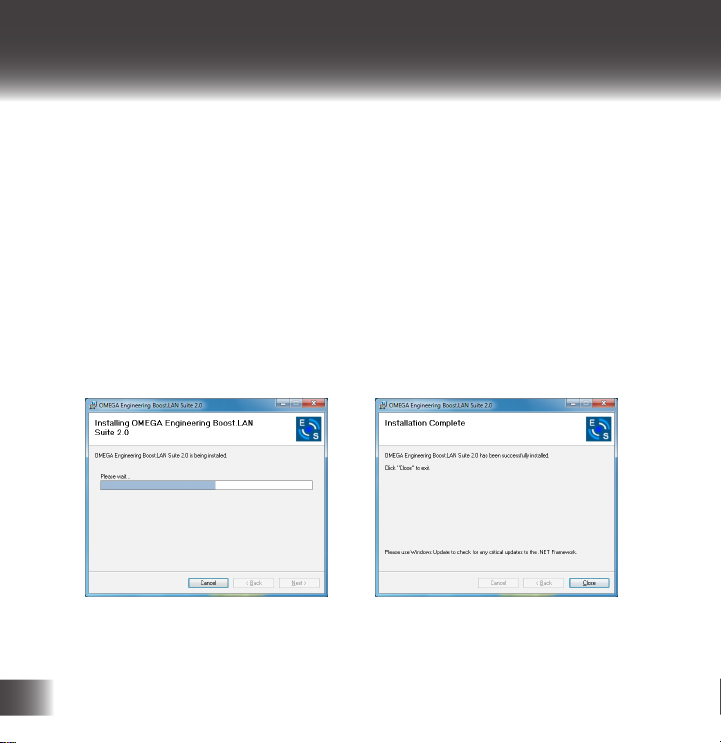
5. Installing your OM-ES-500 Series Device on
Windows
1. Insert the CD into your PC. This should launch the Boost.LAN
Navigation Page automatically.
Note: If the navigation page does not auto load, go to Start gMy Computer gRight Click
the CD and select Explore. Locate the “Setup.exe” program on the CD and double click to
launch. If installing the software in Windows 2000 launch the “SetupW2k.exe” program on
the CD.
2. Click “Install” to launch the Boost.LAN Setup.exe
3. Follow the on screen instructions to install the Boost.LAN software.
Note: Boost.LAN software requires the Microsoft .NET framework to be
installed on your machine. If it is not already installed, the Setup.exe will install
it automatically. Please follow on screen instructions and reboot if prompted to
continue installation.
4. When installation is complete, you should see an icon labelled Boost.
LAN Manager on the desktop. Double click the link to open the
application
8
Page 9
5. Installing your OM-ES-500 Series Device
Continued...
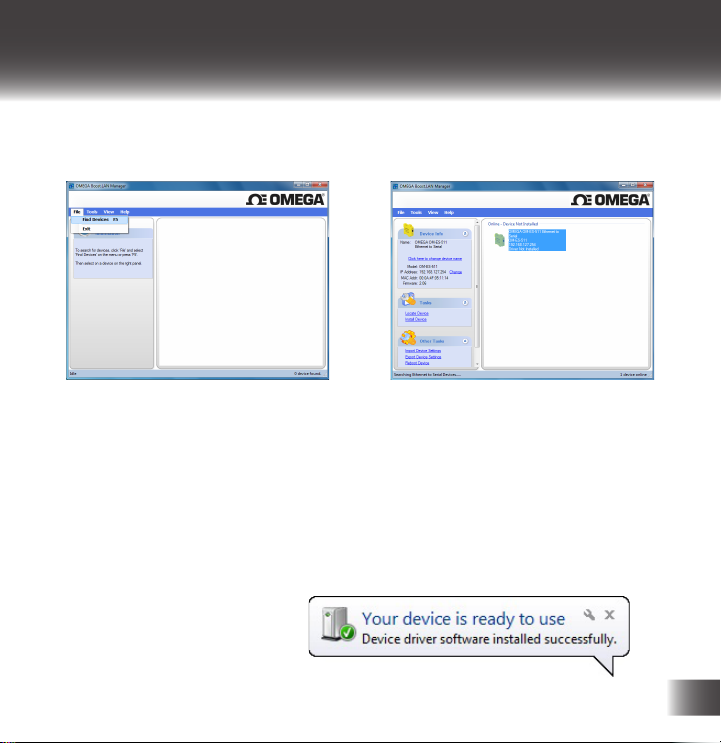
5. Click on the “File -> Find Devices” button in the top left hand side
of the window.
6. You can find your Omega OM-ES-500 Series device by selecting a
device and matching it with the corresponding MAC address available
on the left hand panel.
7. Once found, select the device and scroll to the “Tasks” section on
the left hand panel
8. Click Install Device.
9. When the device is installed a pop up box will appear saying “Your
new hardware is installed and ready to use.”
9
Page 10
6. Configuring your OM-ES-500 Series Device
Changing Port Type
ES Industrial devices can operate either as:
• RS232
• RS422 Full Duplex mode with 2 twisted pairs or RS485 Full Duplex
using 2 pairs of wire.
• RS485 Half Duplex autogating mode using on 1 pair of wires
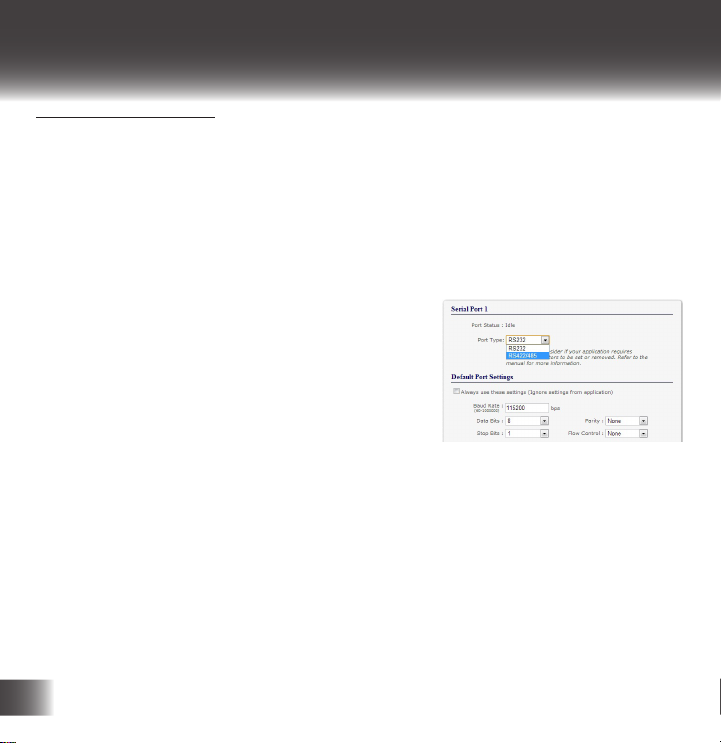
By default the OM-ES-500 Series device
port type is set to RS232. The port type can
be changed on the Serial Port pages of the
web configuration page. To get to the web
configuration page, type the IP address of
your device into a web browser.
When the RS422/485 port type is selected an additional drop down box
appears allowing the user to set the duplex mode.
• Select “RS422 full-duplex mode” for RS422 or RS485 Full Duplex
communications.
• Select “RS485 half-duplex autogating mode” for RS485 Half Duplex
communications.
When setting RS422 or RS485 mode, as well as configuring the
software, the case of the OM-ES-500 Series device needs opening and
10
Page 11

6. Configuring your OM-ES-500 Series Device
Continued...
the hardware needs configuring by setting the jumpers inside. For more
detailed information on configuring your Ethernet to Serial device,
including the hardware jumper configuration, please see the product
manual on the CD which came with your ES device.
Firewall Exceptions and Port Numbers
When using the OM-ES-500 Series devices with a firewall you may need
to manually add the exception entries and port numbers to the firewall
list. Listed below are the default port numbers and the firewall exceptions.
Program Name Default Port Number
Device Web Server 80
Serial Port 1 9001
Serial Port 2 9002
Firmware Upgrade
Default Windows Firewall Exception entries:
• Boost.LAN Suite
• Boost.LAN Suite (Device discovery) (except Windows XP
32 & 64 bits)
• UPnP Framework (Windows XP 32 & 64 bits)
• Network Discovery (Windows 7 or later)
67 (BOOTP Server)
68 (BOOTP Client)
69 (TFTP Port)
11
Page 12
7. Default Settings
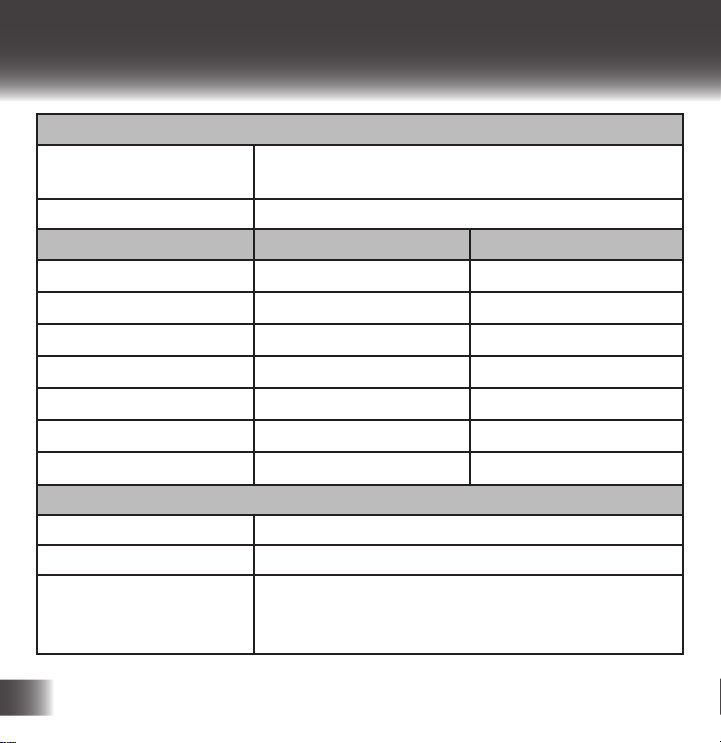
Network Settings
Device Network
Address
Web Server Port 80
Port Settings RS232 RS422/485
Baudrate 115200 115200
Databits 8 8
Stop Bits n n
Parity 1 1
Flow Control None None
Duplex Mode N/A Full Duplex
Protocol Settings Telnet Mode (Server) Telnet Mode (Server)
TCP/UDP Port Numbers
Device Web Server 80 (TCP)
Serial Ports 1-8 9001-9008 (TCP)
Firmware Upgrade 67 (UDP) - BOOTP Server
DHCP mode
68 (UDP) - BOOTP Client
69 (UDP) – TFTP Port
12
Page 13

8. Pin Outs
Port 1 -
Yellow
RS232 Sig GND CTS RxD RTS TxD
RS485 FD Sig GND RxD- RxD+ TxD+ TxD-
RS485 HD Sig GND Data+ Data-
Power Input -
Black
Input +5V to +30V DC 60mA@24V 1.4W Typical 120mA@24V
Ports 1 and 2 are software selectable as either RS232, RS422 or RS485:
• Port 1 terminal = yellow
• Port 2 terminal = grey
• Power terminal = black
Grounding:
• Correctly Wired grounds help cut down on electromagnetic radiation
• 5 pin terminals allow a ground on the 5th pin of each block
• Functional earth included in integral DIN rail mount allows the DIN
rail to be used as an earth
Pin 1 Pin 2 Pin 3 Pin 4 Pin 5
Power
GND
+Vin A +Vin B
2.9W Max
Power
GND
Func GND
13
Page 14
9. LED Information
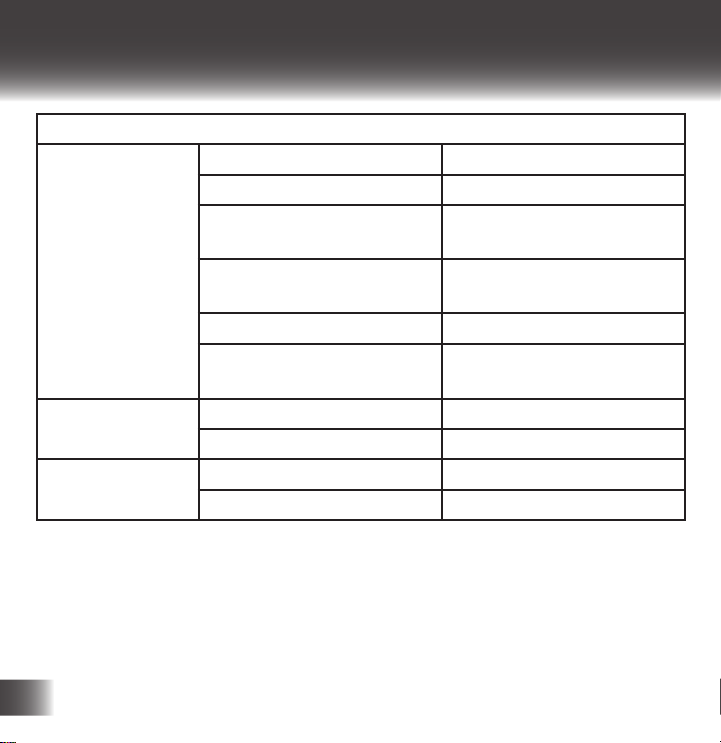
LED Information
Status LED Green Light on Device Ready
Flashing Yellow Changing Settings
Flashing between Red &
Green
Flashing between Green
& Red/Yellow
Flashing Green/Red Performing Hard Reset
Flashing between Green
& Yellow
Serial Port LED Green light on Port Open
Flashing light on Data RX/TX
Ethernet LED Green light on Link established
Flashing Green Data RX/TX
For further configuration details, or technical information on the
OM-ES-500 Series product, please refer to Product Manual on CD
Querying IP
IP Address Diagnostic
Initialization diagnostic
14
Page 15

OMEGA ENGINEERING, INC., warrants this unit to be free of defects in materials and workmanship for a period
WARRANTY/DISCLAIMER
of 61 months from date of purchase. OMEGA’s WARRANTY adds an additional one (1) month grace period to the
normal ve (5) year product warranty to cover handling and shipping time. This ensures that OMEGA’s customers
receive maximum coverage on each product.
If the unit malfunctions, it must be returned to the factory for evaluation. OMEGA’s Customer Service Department
will issue an Authorized Return (AR) number immediately upon phone or written request. Upon examination by
OMEGA, if the unit is found to be defective, it will be repaired or replaced at no charge. OMEGA’s WARRANTY does
not apply to defects resulting from any action of the purchaser, including but not limited to mishandling, improper
interfacing, operation outside of design limits, improper repair, or unauthorized modication. This WARRANTY is
VOID if the unit shows evidence of having been tampered with or shows evidence of having been damaged as a
result of excessive corrosion; or current, heat, moisture or vibration; improper specication; misapplication; misuse
or other operating conditions outside of OMEGA’s control. Components in which wear is not warranted, include but
are not limited to contact points, fuses, and triacs.
OMEGA is pleased to oer suggestions on the use of its various products. However, OMEGA neither assumes
responsibility for any omissions or errors nor assumes liability for any damages that result from the use of its
products in accordance with information provided by OMEGA, either verbal or written. OMEGA warrants only
that the parts manufactured by the company will be as specied and free of defects. OMEGA MAKES NO OTHER
WARRANTIES OR REPRESENTATIONS OF ANY KIND WHATSOEVER, EXPRESSED OR IMPLIED, EXCEPT THAT
OF TITLE, AND ALL IMPLIED WARRANTIES INCLUDING ANY WARRANTY OF MERCHANTABILITY AND FITNESS
FOR A PARTICULAR PURPOSE ARE HEREBY DISCLAIMED. LIMITATION OF LIABILITY: The remedies of purchaser
set forth herein are exclusive, and the total liability of OMEGA with respect to this order, whether based on
contract, warranty, negligence, indemnication, strict liability or otherwise, shall not exceed the purchase price
of the component upon which liability is based. In no event shall OMEGA be liable for consequential, incidental
or special damages.
CONDITIONS: Equipment sold by OMEGA is not intended to be used, nor shall it be used: (1) as a “Basic Component”
under 10 CFR 21 (NRC), used in or with any nuclear installation or activity; or (2) in medical applications or used
on humans. Should any Product(s) be used in or with any nuclear installation or activity, medical application,
used on humans, or misused in any way, OMEGA assumes no responsibility as set forth in our basic WARRANTY/
DISCLAIMER language, and, additionally, purchaser will indemnify OMEGA and hold OMEGA harmless from any
liability or damage whatsoever arising out of the use of the Product(s) in such a manner.
Direct all warranty and repair requests/inquiries to the OMEGA Customer Service Department. BEFORE RETURNING ANY PRODUCT(S) TO OMEGA, PURCHASER MUST OBTAIN AN AUTHORIZED RETURN (AR) NUMBER FROM
OMEGA’S CUSTOMER SERVICE DEPARTMENT (IN ORDER TO AVOID PROCESSING DELAYS). The assigned AR
number should then be marked on the outside of the return package and on any correspondence. The purchaser is
responsible for shipping charges, freight, insurance and proper packaging to prevent breakage in transit.
FOR WARRANTY RETURNS, please have the following
information available BEFORE contacting OMEGA.
1. Purchase order number which the product
was PURCHASED,
2. Model and serial number of the product
under warranty, and
3. Repair instructions and/or specic problems
relative to the product.
OMEGA’s policy is to make running changes, not model changes, whenever an improvement is possible. This aords
customers the latest technology and engineering. OMEGA is a registered trademark of OMEGA ENGINEERING, INC.
© COPYRIGHT 2013 OMEGA ENGINEERING, INC. All rights reserved. This document may not be copied, photocopied,
translated, or reduced to any electronic medium-readable form, in whole or in part, without the prior written consent of
OMEGA ENGINEERING, INC.
RETURN REQUESTS/INQUIRIES
FOR NON-WARRANTY RETURNS, consult OMEGA
for current repair charges. Have the following
information available BEFORE contacting OMEGA.
1. Purchase Order number to cover the COST of the
repair,
2. Model and serial number of the product and
3. Repair instructions and/or specic problems
relative to the product.
Page 16

Where Do I Find Everything I Need for
Process Measurement and Control?
OMEGA... Of Course!
Shop online at omega.com
TEMPERATURE
Thermocouple RTD & Thermister Probes
Connectors, Panels & Assemblies
Wire: Thermocouple, RTD & Thermister
Calibrators & Ice Point References
Recorders, Controllers & Process
Monitors
Infrared Pyrometers
PRESSURE, STRAIN AND
FORCE
Transducers & Strain Gages
Load Cells & Pressure Gages
Displacement Transducers
Instrumentation & Accessories
FLOW/LEVEL
Rotameters Gas Mass Flowmeters & Flow
Computers
Air Velocity Indicators
Turbine/Paddlewheel Systems
Totalizers & Batch Controllers
PH/CONDUCTIVITY
pH Electrodes Testers & Accessories
Benchtop/Laboratory Meters
Controllers, Calibrators, Simulators &
Pumps
Industrial pH & Conductivity Equipment
DATA ACQUISITION
Data Acquisition & Engineering Software
Communications-Based Acquisition
Systems
Plug-in Cards for Apple, IBM, &
Compatibles
Data Logging Systems
Recorders, Printers, & Plotters
HEATERS
Heating Cable
Cartridge & Strip Heaters
Immersion & Band Heaters
Flexible Heaters
Laboratory Heaters
ENVIRONMENTAL
MONITORING AND
CONTROL
Metering & Control Instrumentation
Refractometers
Pumps & Tubing
Air, Soil & Water Monitors
Industrial Water & Wastewater Treatment
pH Conductivity & Dissolved Oxygen
Instruments
SM
MQS5060/0213
 Loading...