

Page 1
MADE IN
Shop online at
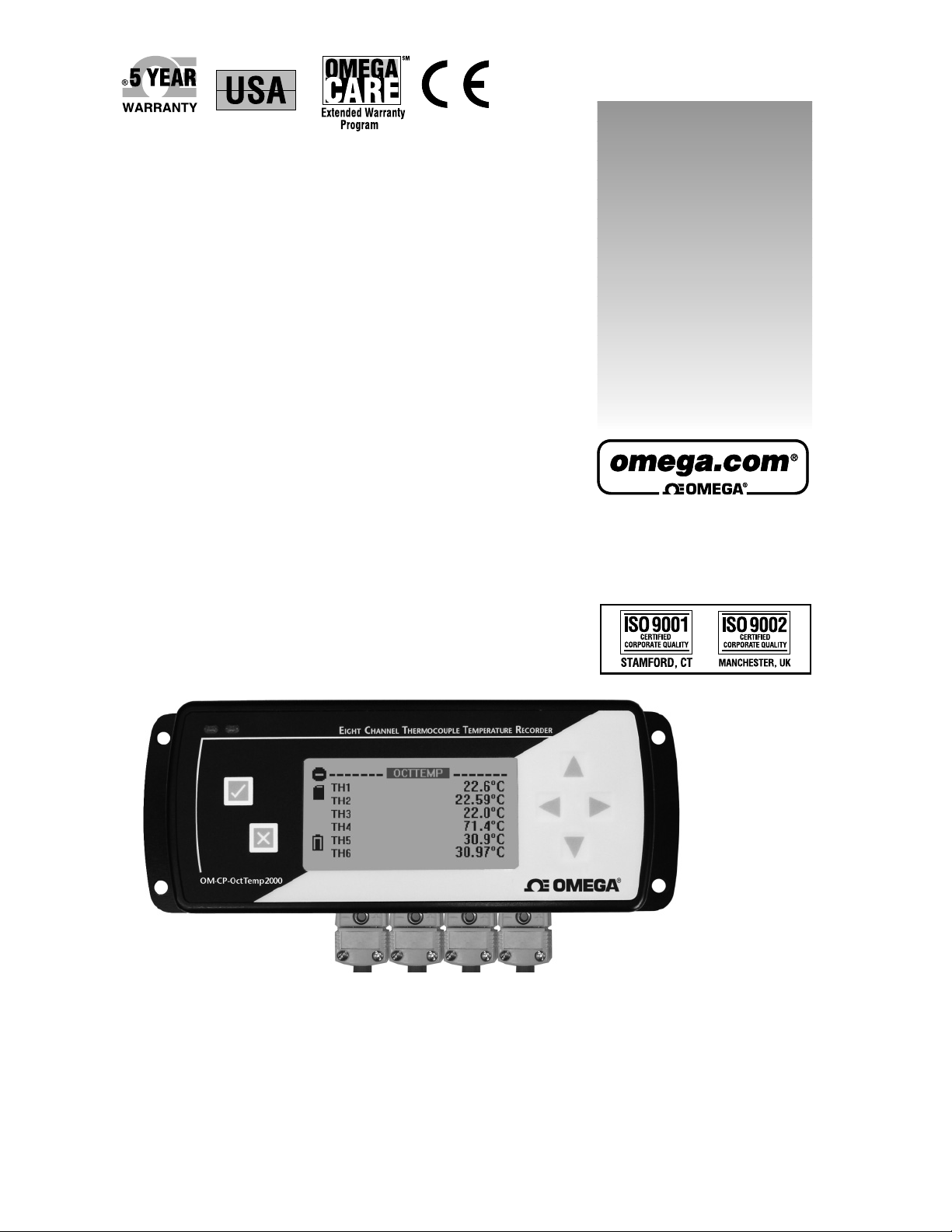
OM-CP-OCTTEMP2000
8-Channel Thermocouple
Datalogger with LCD Display
Page 2

OMEGAnet®Online Service Internet e-mail
omega.com [email protected]
Servicing North America:
U.S.A.: One Omega Drive, Box 4047
ISO 9001 Certified Stamford, CT 06907-0047
Tel: (203) 359-1660
FAX: (203) 359-7700
e-mail: [email protected]
Canada: 976 Bergar
Laval (Quebec) H7L 5A1, Canada
Tel: (514) 856-6928
FAX: (514) 856-6886
e-mail: [email protected]
For immediate technical or application assistance:
U.S.A. and Canada: Sales Service: 1-800-826-6342/1-800-TC-OMEGA
Customer Service: 1-800-622-2378/1-800-622-BEST
Engineering Service: 1-800-872-9436/1-800-USA-WHEN
Mexico: En Espan˜ol: (001) 203-359-7803
e-mail: [email protected]
FAX: (001) 203-359-7807
[email protected]
®
®
®
Servicing Europe:
Czech Republic: Frystatska 184, 733 01 Karvina´, Czech Republic
Tel: +420 (0)59 6311899
FAX: +420 (0)59 6311114
Toll Free: 0800-1-66342
e-mail: [email protected]
Germany/Austria: Daimlerstrasse 26, D-75392 Deckenpfronn, Germany
Tel: +49 (0)7056 9398-0
FAX: +49 (0)7056 9398-29
Toll Free in Germany: 0800 639 7678
e-mail: [email protected]
United Kingdom: One Omega Drive, River Bend Technology Centre
ISO 9002 Certified Northbank, Irlam, Manchester
M44 5BD United Kingdom
Tel: +44 (0)161 777 6611
FAX: +44 (0)161 777 6622
Toll Free in United Kingdom: 0800-488-488
e-mail: [email protected]
It is the policy of OMEGA Engineering, Inc. to comply with all worldwide safety and EMC/EMI
regulations that apply. OMEGA is constantly pursuing certification of its products to the European New
Approach Directives. OMEGA will add the CE mark to every appropriate device upon certification.
The information contained in this document is believed to be correct, but OMEGA accepts no liability for any
errors it contains, and reserves the right to alter specifications without notice.
WARNING: These products are not designed for use in, and should not be used for, human applications.
Page 3

Data Logger Manual
Table of Contents
Section 1: Overview ......................................................................................................................................................2
Other Documentation ........................................................................................................................................2
Contacting Us ....................................................................................................................................................2
Section 2: Introducing the OM-CP-OCTTEMP2000 .....................................................................................................3
Device Overview ................................................................................................................................................3
Display Overview ...............................................................................................................................................4
Specifi cations .....................................................................................................................................................5
Section 3: Device Function ...........................................................................................................................................7
Channel Options ................................................................................................................................................7
Show or Hide Channels on the Main Screen .......................................................................................................7
Change Channel Display Size .............................................................................................................................7
Change Channel Units .......................................................................................................................................8
Statistics .............................................................................................................................................................9
View Channel Statistics .......................................................................................................................................9
Clear Channel Statistics ......................................................................................................................................9
Time and Date Information ................................................................................................................................9
Push-button Start .............................................................................................................................................10
Section 4: Device Menus .............................................................................................................................................11
Device Status Menu .........................................................................................................................................11
Device Setup Menu ..........................................................................................................................................12
Section 5: Software Features ......................................................................................................................................13
Enable and Disable Channels ............................................................................................................................13
Name Channels ...............................................................................................................................................14
Change Device ID ............................................................................................................................................15
Section 6: Battery Information ...................................................................................................................................16
Section 7: Computer Interface ...................................................................................................................................17
Warranty/Disclaimer ...................................................................................................................................................18
Revised 09/04/09
Page 1
Page 4

OMEGA OM-CP-OCTTEMP2000
Section 1: Overview
1.1 Other Documentation
Other documents which may be of interest to you are the Software Operating Manual and Data Logger Quick Start
Guide. To obtain the most current versions of both of these documents please visit our website
(www.omega.com).
1.2 Contacting Us
For additional sales, service, and support you may contact our offi ce directly:
OMEGA Engineering, INC.
One Omega Drive
Stamford, Connecticut 06907-0047
P.O. Box 4047
(800)-848-4286 or (203)-359-1660
Fax: (203)-359-7700
Page 2
Page 5
Section 2: Introducing the OM-CP-OCTTEMP2000
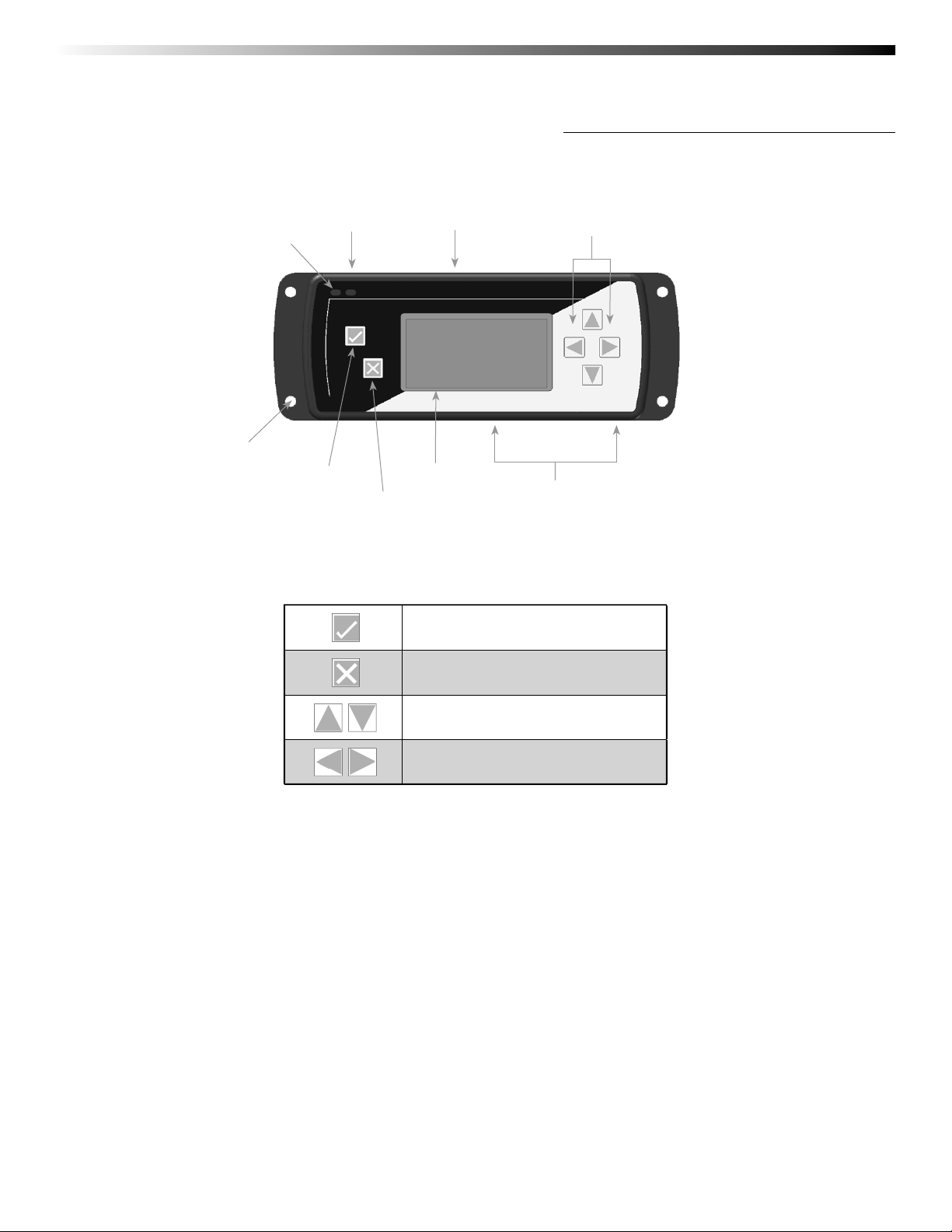
1.2 Device Overview
Data Logger Manual
Status
LEDs
Mounting
ng
Holes
9-12VDC
Input
OK Key
Cancel Key
Keypad Functions
Communications
Port
LCD
Directional
Key Pad
Channel
Inputs
OK Key
Cancel Key
Up/Down Directional Keys
Left/Right Directional Keys
Page 3
Page 6
OMEGA OM-CP-OCTTEMP2000
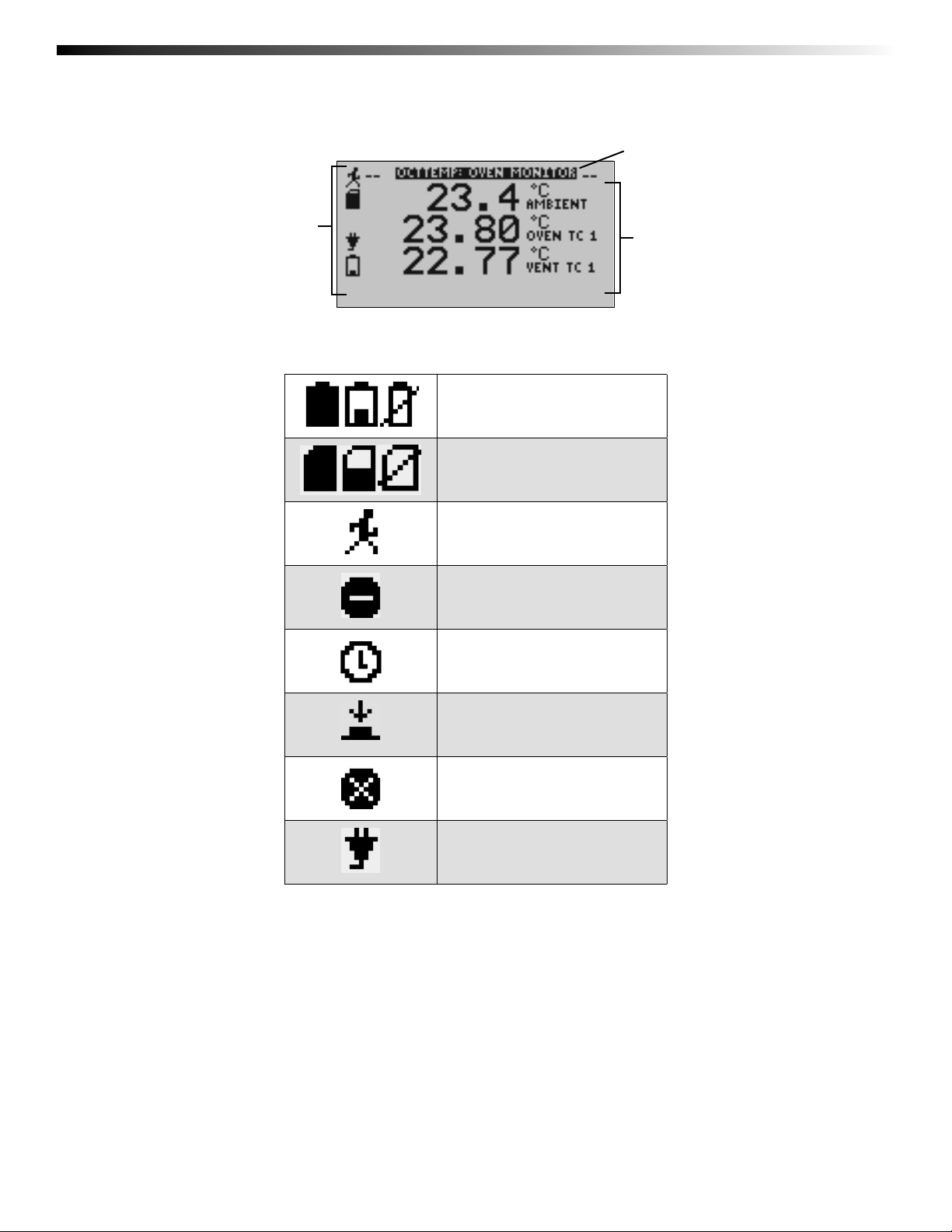
2.2 Display Overview
Screen
Title
Status Indicators
Status
Indicators
Screen
Content
Battery Power
(Full, Half-full, Empty)
Memory Remaining
(Empty, Half-full, Full)
Device is running
Device is stopped
Delay Start
Push-button (Manual) Start
Device reset has occurred
External power present
Page 4
Page 7
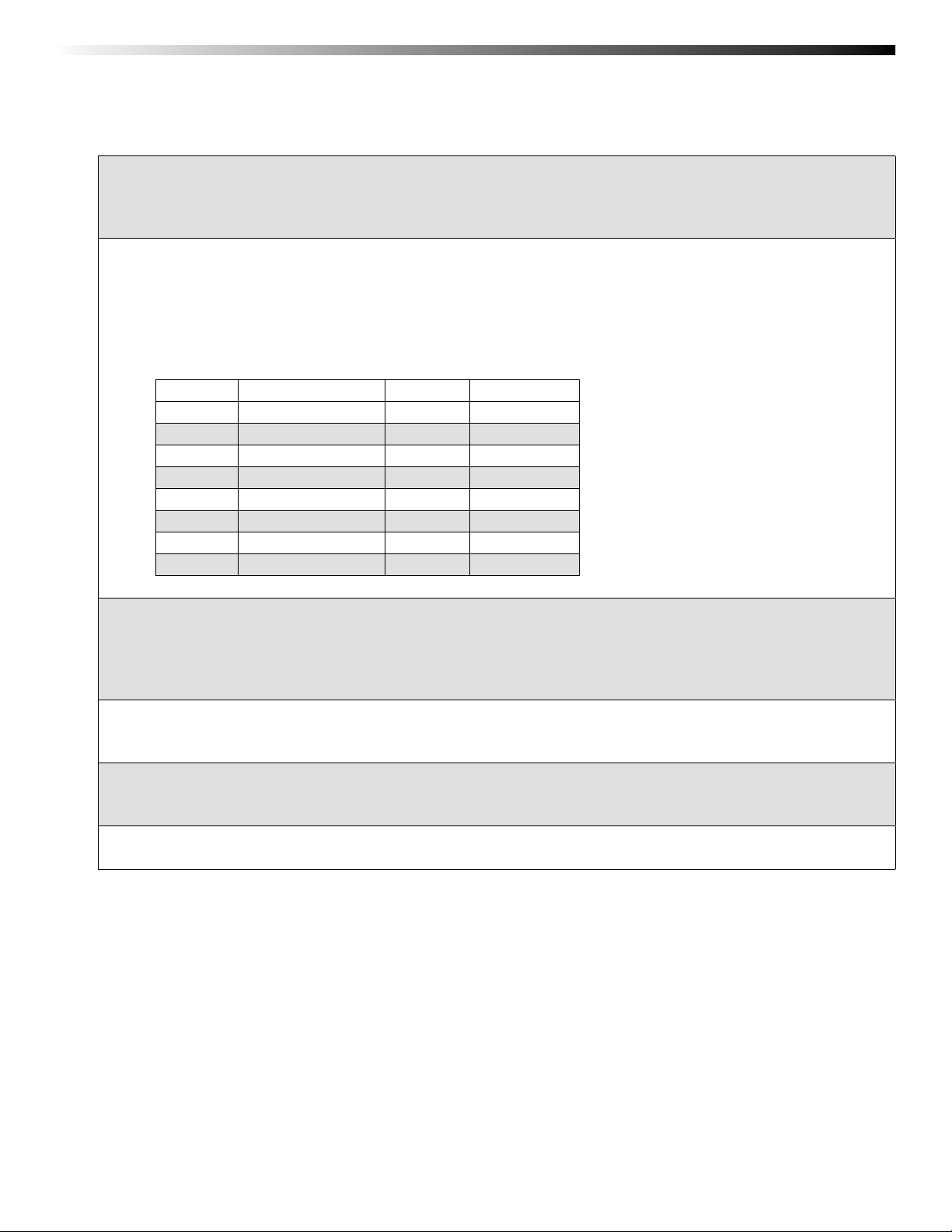
2.3 Specifi cations
Internal Temperature Channels
Range: -20 to +60°C
Resolution: 0.1°C
Accuracy: ±0.5°C (0 to +50°C)
Thermocouple Channels
Types: J, K, T, E, R, S, B, and N
Connection: Female sub-minature (SMP)
Cold Junction Compensation: Automatic, based on internal channel
Maximum Thermocouple Resistance: 1000
Thermocouples:
Type Range Resolution Accuracy
J -200 to +760°C 0.1°C ± 0.5°C
K -200 to +1370°C 0.1°C ± 0.5°C
T -200 to +400°C 0.1°C ± 0.5°C
E -200 to +980°C 0.1°C ± 0.5°C
R -50 to +1760°C 0.1°C ± 2.0°C
S -50 to +1760°C 0.1°C ± 2.0°C
B +50 to +1820°C 0.1°C ± 2.0°C
N -200 to +1300°C 0.1°C ± 0.5°C
Data Logger Manual
Ω < 100Ω recommended
Dot-Matrix LCD
Dimensions: 2.5” x 1.375” (63mm x 35mm)
Text: Confi gurable channel text size
Indicators: Power, status, memory
Backlight: Confi gurable with auto shut-off and contrast adjustment
Start/ Stop Modes
Software programmable start time and date, up to six months in advance, or manual (push-button) start.
Programmable stop time.
Memory
500,000 readings per channel with all channels enabled; 4,000,000 total readings; software confi gurable memory
wrap
Reading Rate
4 readings per second (4Hz) up to 1 reading every 24 hours
Page 5
Page 8

OMEGA OM-CP-OCTTEMP2000
Calibration
Digital calibration through software. Calibration date automatically recorded within device. NIST traceable
certifi cate available.
Power Supply
Primary Source: 9V lithium or alkaline battery, user replaceable
Secondary Source: 7.5 - 24V DC external, 100mA max
Battery Life
Eighteen month battery life with display off. Three months typical with continuous display use.
Data Format
Time and date stamped, °C, °F, K, °R, µV, mV, V
Time Accuracy
±1 minute per month
Computer Interface
PC serial or USB (interface cable required); 115,200 baud
Software
Windows 95/98/ME/NT/2000/XP/Vista based software
Operating Environment
-20 to +60°C, 0 to 95%RH non-condensing
Dimensions
7.24” x 2.7” x 1.14”
Weight
15oz.
Enclosure
Black anodized aluminum
Page 6
Page 9
Section 3: Device Function
3.1 Channel Options
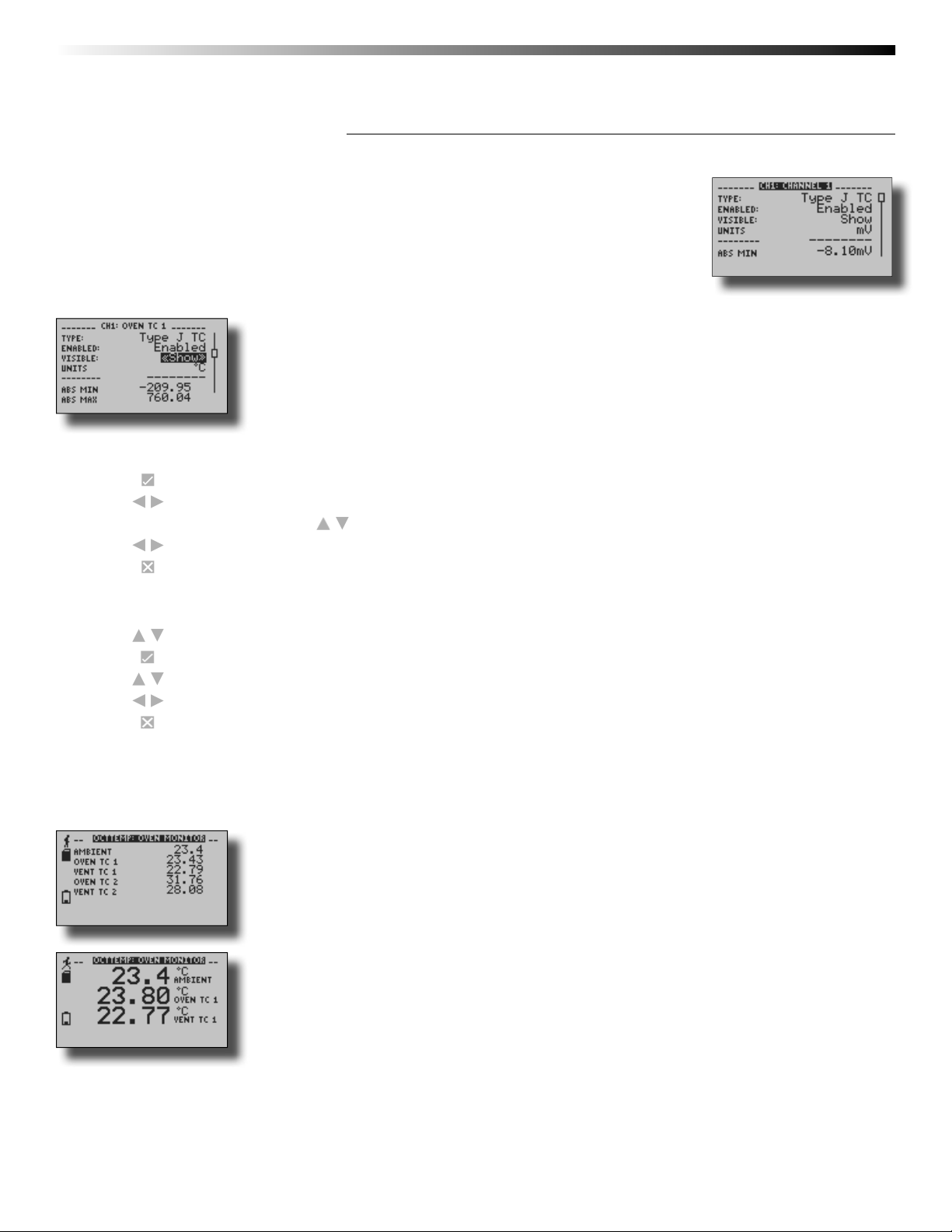
Each of the OM-CP-OCTTEMP2000’s channels have several options that are confi gurable
by the user through the device’s display screen menus and the software.
3.2 Show or Hide Channels on the Home Screen
The user may choose to either show or hide channels on the home screen.
To change channel visibility from the Home Screen:
1. Press to view fi rst channel screen
2. Use to view additional channels
3. On desired channel screen use to highlight Visible
4. Use to choose Show or Hide
5. Press to return to the Home Screen
Data Logger Manual
—OR—
1. Use to highlight desired channel
2. Press to view channel screen
3. Use to highlight Visible
4. Use to choose Show or Hide
5. Press to return to the Home Screen
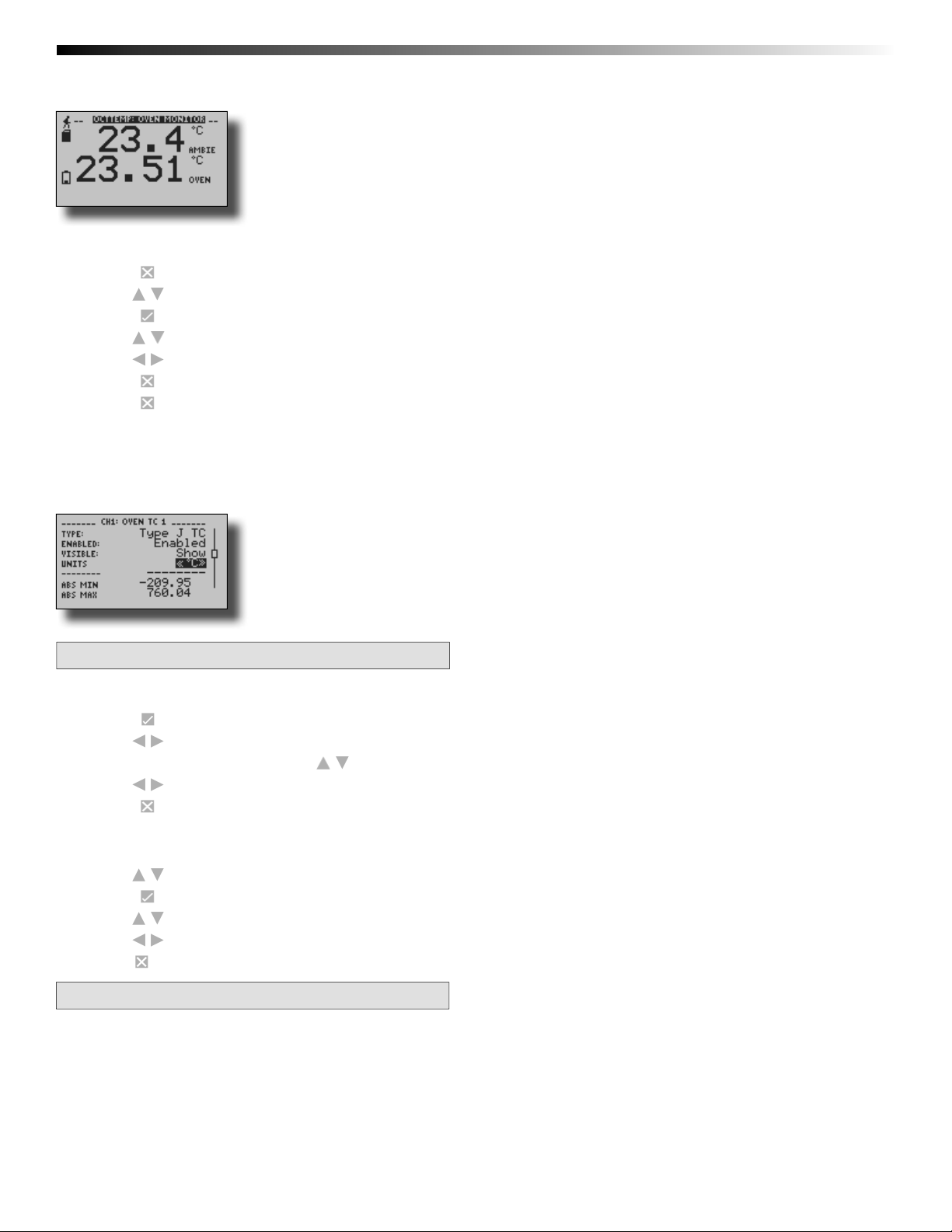
3.3 Change Channel Display Size
Channels may be viewed in a number of different sizes. The smallest size allows for an overview of several channels at once,
while the largest gives at-a-glance access to one or two channels.
Small Font
Medium Font
Page 7
Page 10
OMEGA OM-CP-OCTTEMP2000
Large Font
To change channel display size from the Home Screen:
1. Press to enter the Main Menu
2. Use to highlight Setup Menu
3. Press to enter the Setup Menu
4. Use to highlight Channel Size
5. Use to choose the desired channel size
6. Press once to return to the Main Menu
7. Press again to return to the Home Screen
3.4 Change Channel Units
Channels can be customized to display readings in a variety of convenient units. Units available for selection will vary according
to channel type.
Note: Changing display units will not affect logged data.
To change channel display from the Home Screen:
1. Press to view fi rst channel screen
2. Use to view additional channels
3. On desired channel screen use to highlight Units
4. Use to choose the desired unit option
5. Press to return to the Home Screen
—OR—
1. Use to highlight desired channel
2. Press to view channel screen
3. Use to highlight Units
4. Use to choose the desired unit option
5. Press to return to the Home Screen
Note: Hit X to update all channels.
Page 8
Page 11
Data Logger Manual
3.5 Statistics
Statistical information is generated based on the data measured by each channel.
Note: Information is only generated while the data logger is
running and the reset does not affect statistics on download.
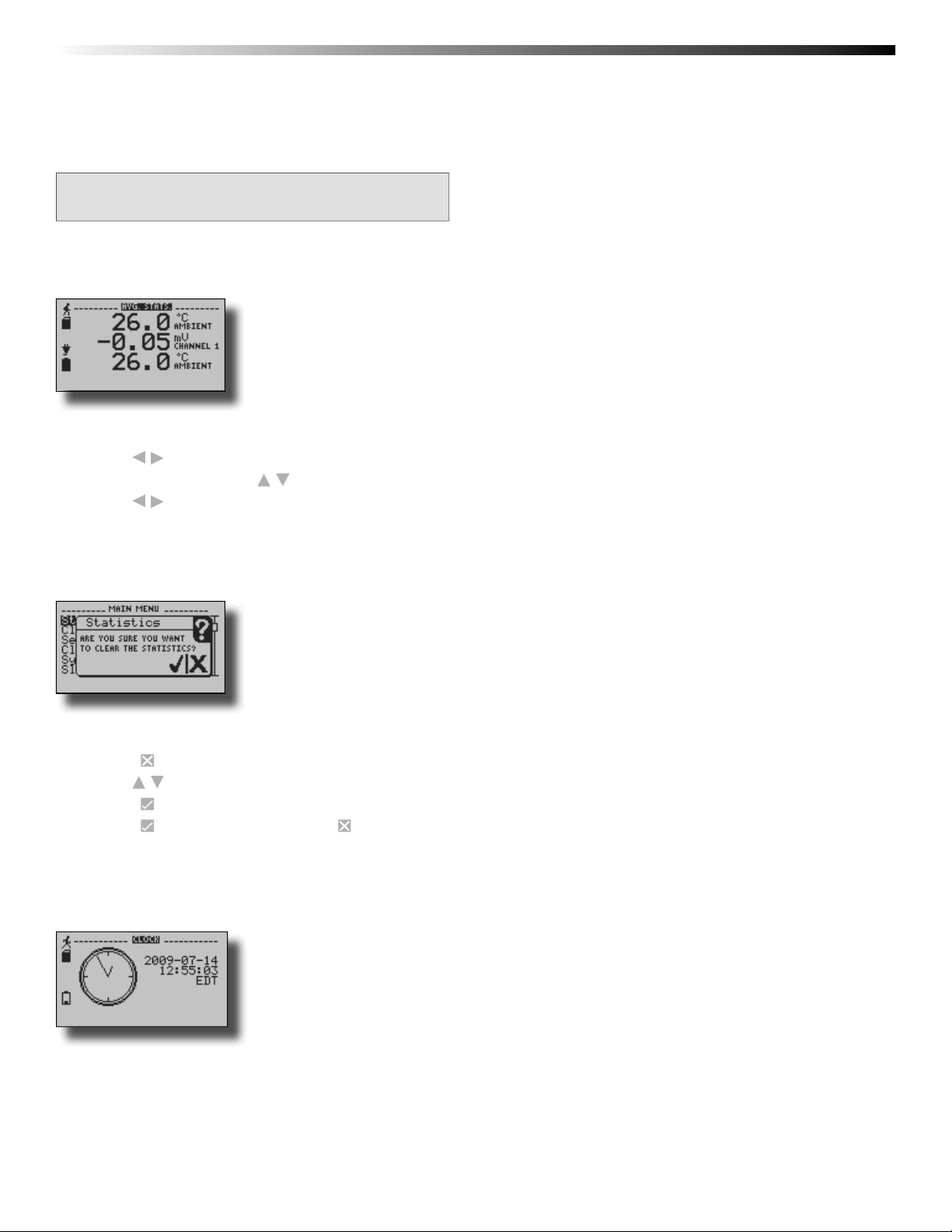
3.6 View Channel Statistics
Minimum, maximum, and average values are calculated for each channel and displayed in the statistics screens.
To view channel statistics from the Home Screen:
1. Use to view desired statistic screen
2. In statistics screen use to view statistics for each channel
3. Use to scroll back to the Home Screen
3.7 Clear Channel Statistics
Statistics may be cleared and reset at any time.
To clear channel statistics from the Home Screen:
1. Press to enter the Main Menu
2. Use to highlight Clear Statistics
3. Press to select Clear Statistics
4. Press to confi rm statistics clear, to cancel
3.8 Time and Date Information
Current time and date information is available on the LCD. System time is automatically synchronized with your
computer’s clock.
Page 9
Page 12
OMEGA OM-CP-OCTTEMP2000
To view time and date information from the Home Screen:
1. Press to enter the Main Menu
2. Use
3. Press to select Clock and view time and date information
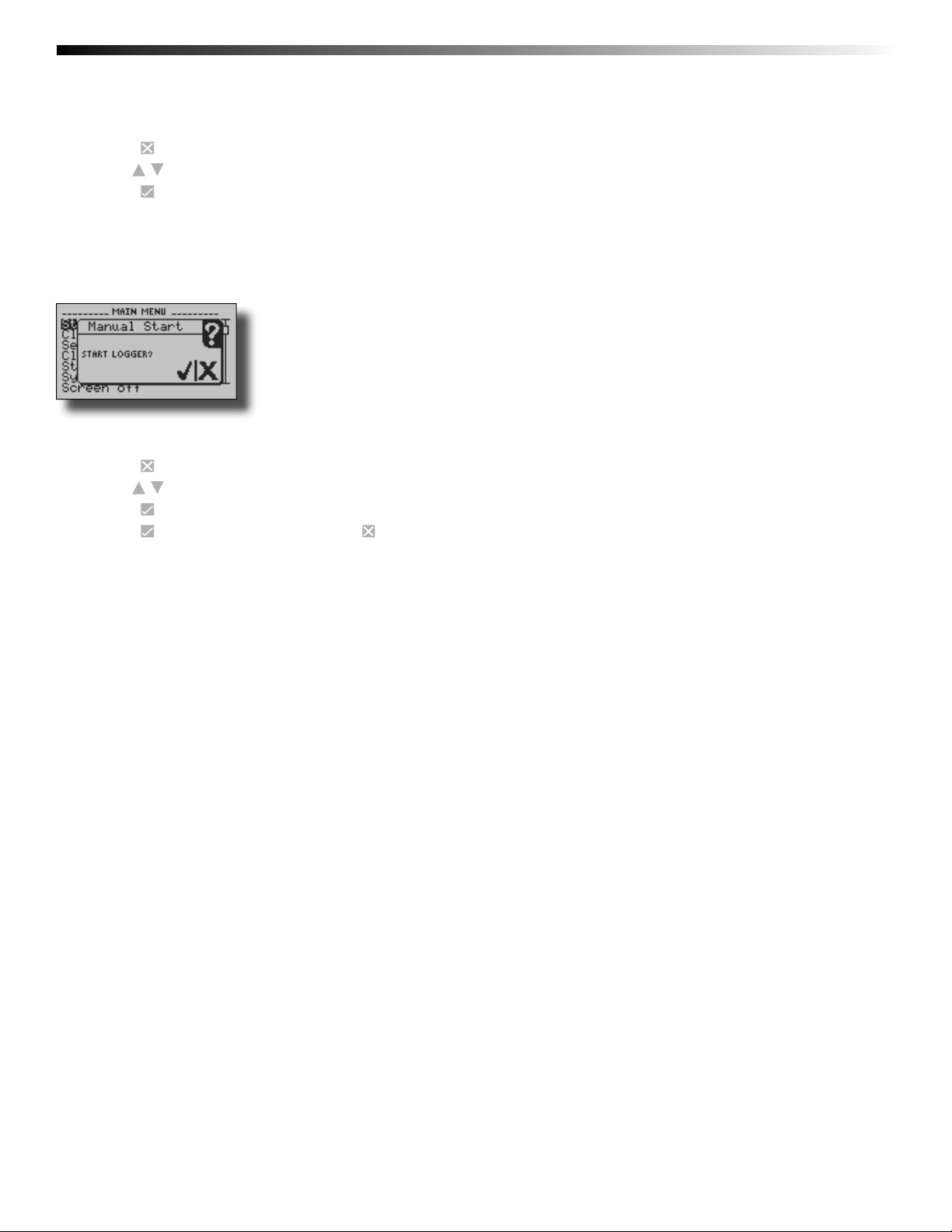
3.9 Manual (Push-button) Start
Devices set to start in Manual (Push-button) mode can be started through the device’s display screens at the user’s
convenience.
To manually start device from the Home Screen:
1. Press to enter the Main Menu
2. Use to highlight Start Device
3. Press to select Start Device
4. Press to confi rm device start, press to cancel
to highlight Clock
Page 10
Page 13
Data Logger Manual
Section 4: Device Menus
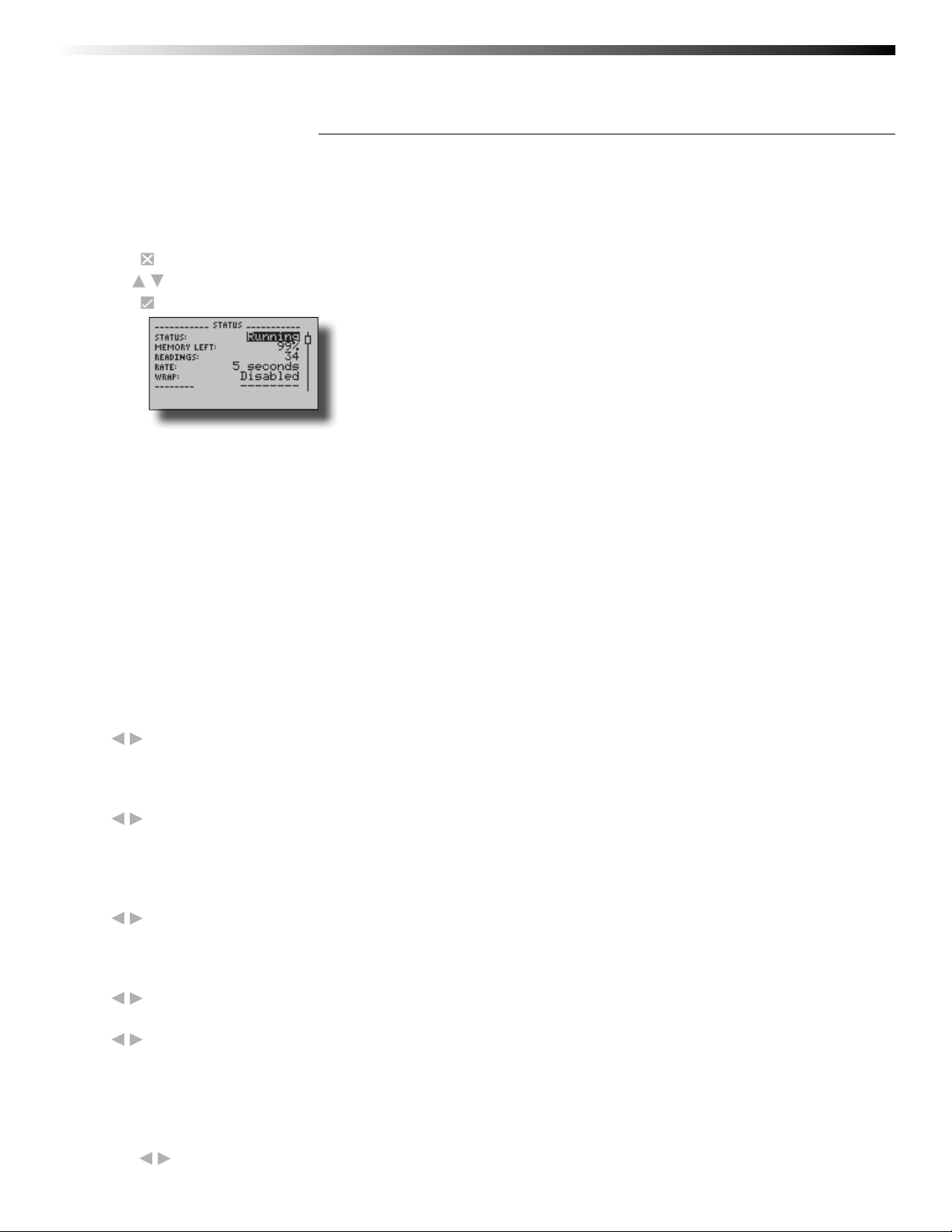
4.1 Device Status Menu
Information such as current recording status, reading rate, stop date and time, and calibration information can be
found in the Device Status Menu.
To access the Device Status Menu from the Home Screen:
1. Press to enter the Main Menu
2. Use to highlight Status
3. Press to enter the Device Status Menu
Status – Device’s current recording status.
Running - device is actively recording data
Stopped - device is not actively recording data
Delay - device is in Delay Start mode (start scheduled for future)
Manual - device is in Manual (push-button) Start mode
Memory Left – Percentage of memory available to store readings
Readings – Number of readings currently stored in device’s memory
Rate – Reading rate (confi gurable using data logger software)
Wrap – Memory wrap (confi gurable using data logger software)
Enabled - when memory is full device will overwrite oldest data
Disabled - when memory is full device will stop recording data
Start Date/Time – Date and time device began recording data
Stop Date/Time – Date and time device will stop recording data (due to full memory or other user confi gured
parameter)
Display – Options for display visibility
Use to select
Auto - display turns off after two minutes of inactivity
On - display always on
Backlight – Options for use of display backlight
Use to select
Auto - backlight turns off after fi ve seconds of inactivity
On - backlight always on
Off - backlight always off
LED – Options for use of status LEDs
Use to select
Enabled - status LEDs fl ash to indicate reading status
Disabled - LEDs off
Contrast – Set screen contrast value
Use to set desired contrast value
Battery Type – User defi ned based on the type of battery currently installed in the device
Use to select Lithium or Alkaline battery
Battery Life – Percentage of battery power remaining
Battery Voltage – Voltage supplied to the device by the battery
External Power – Presence of external power supply
External Voltage – Voltage supplied to the device by external power supply
Display – Options for display visibility
Use to select
Page 11
Page 14
OMEGA OM-CP-OCTTEMP2000
Auto - display turns off after two minutes of inactivity
On - display always on
Backlight – Options for use of display backlight
Use to select
Auto - backlight turns off after fi ve seconds of inactivity
On - backlight always on
Off - backlight always off
LED – Options for use of status LEDs
Use to select
Enabled - status LEDs fl ash to indicate reading status
Disabled - LEDs off
Contrast – Set screen contrast value
Use to set desired contrast value
Battery Type – User defi ned based on the type of battery currently installed in the device
Use to select Lithium or Alkaline battery
Battery Life – Percentage of battery power remaining
Battery Voltage – Voltage supplied to the device by the battery
External Power – Presence of external power supply
External Voltage – Voltage supplied to the device by external power supply
Reading Date/Time – Date and time of last recorded reading
Cal Date – Date of last device calibration
Cal Due – Date device is due for recalibration
Note: It is important to keep your device properly calibrated to ensure
accurate readings. Contact Omega for further information regarding
calibration services.
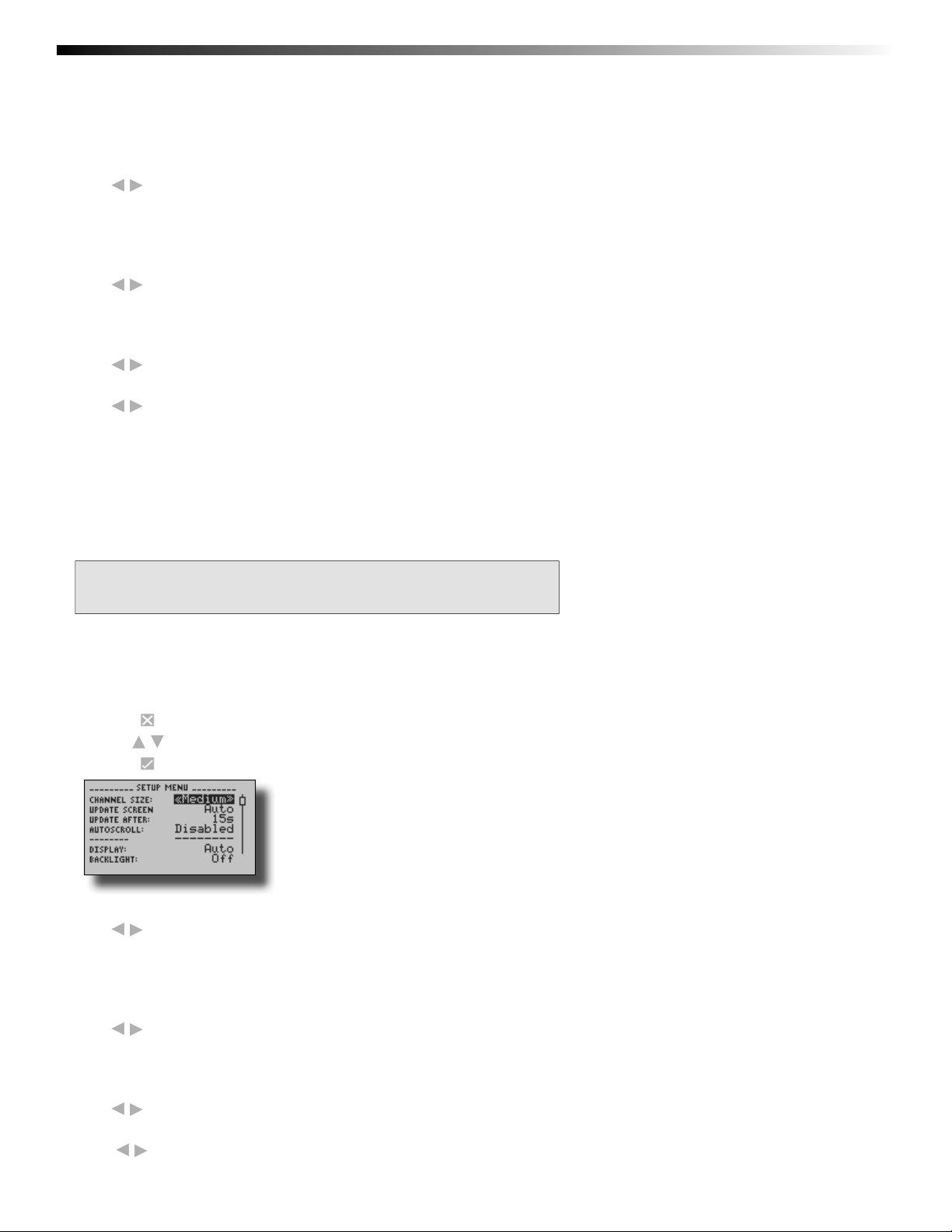
4.2 Device Setup Menu
Functions in the Device Setup Menu allow you to change home screen, display, and battery options.
To access the Device Setup Menu from the Home Screen:
1. Press to enter the Main Menu
2. Use to highlight Setup Menu
3. Press to enter the Setup Menu
Channel Size – Options for channel font size displayed on Home Screen.
Use to select font size
Small - up to six channels displayed on Home Screen
Medium - up to three channels displayed on Home Screen
Large - up to two channels displayed on Home Screen
Update Screen – Frequency of Home Screen Update
Use to select
Auto - Home Screen updates at user defi ned interval
Reading - Home Screen updates each time a reading is taken
Update After – User defi ned Home Screen update frequency
Use to set desired frequency
Auto-Scroll – When device is idle, screen view alternates between home and statistics screens
Use to Enable/ Disable auto-scroll
Page 12
Page 15
Data Logger Manual
Section 5: Software Features
This section details several features of the data logger software that are particularly useful with the
OM-CP-OCTTEMP2000 device. For further information regarding the software, please visit
www.omega.com.
5.1 Enable and Disable Channels
The user may choose to enable or disable channels using the software. Data from disabled channels will
be visible on the LCD, but readings will not be recorded to the device’s memory. Disabling a thermocouple
channel also disables it’s corresponding ambient temperature channel.
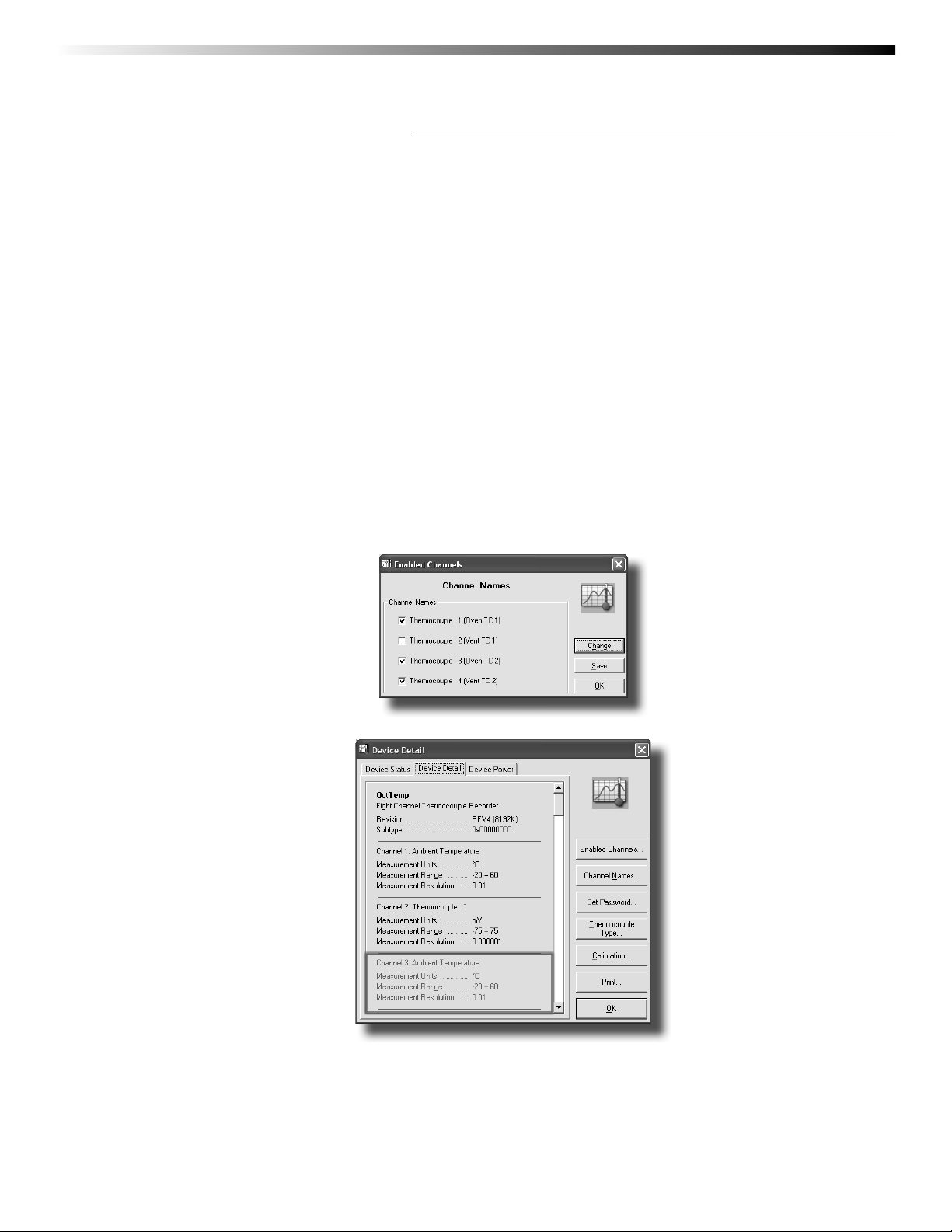
To enable/disable channels in the software:
1. In the Device drop down menu select Identify Device and Read Status to view the Device Status screen
2. Select the Device Detail tab
3. Click Enabled Channels to show the Enabled Channels Screen
4. To edit the enabled channels click Change
5. Check the boxes next to channels to be enabled
6. Click Save to save changes
7. Click OK to return to the Device Detail screen
8. Click OK to return to the software’s main screen
Notice that disabled thermocouple and ambient channels appear greyed-out on the Device Detail screen.
Page 13
Page 16
OMEGA OM-CP-OCTTEMP2000
5.2 Name Channels
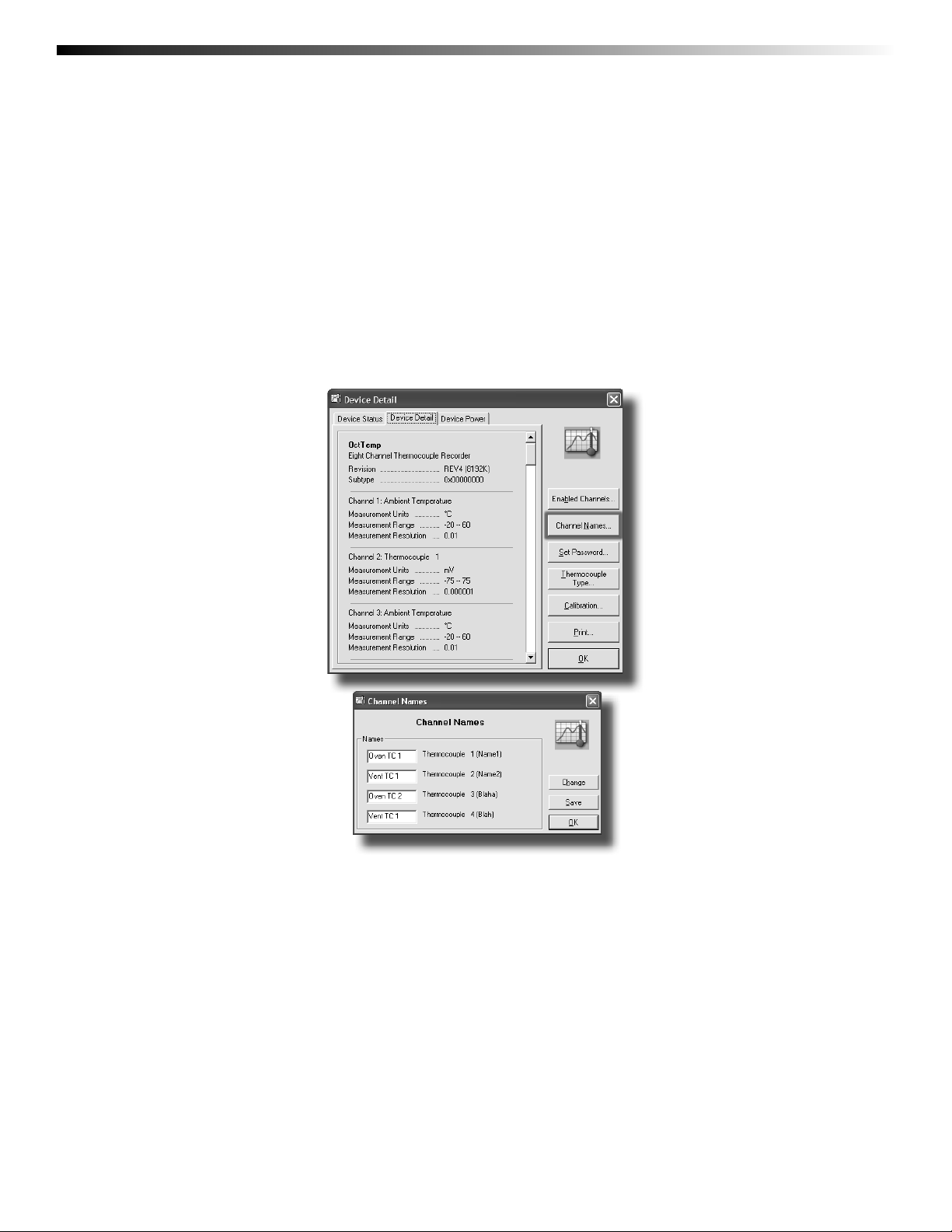
Each channel can be given an unique name for easy identifi cation. Channel names are visible on the LCD and are used
throughout the software and data fi les.
To name channels in the software:
1. In the Device drop down menu select Identify Device and Read Status to view the Device Status screen
2. Select the Device Detail tab
3. Click Channel Names to show the Channel Names Screen
4. To edit the channel names click Change
5. Type desired channel name in text box next to each channel
6. Click Save to save changes
7. Click OK to return to the Device Detail screen
8. Click OK to return to the software’s main screen
Page 14
Page 17
Data Logger Manual
5.3 Change Device ID
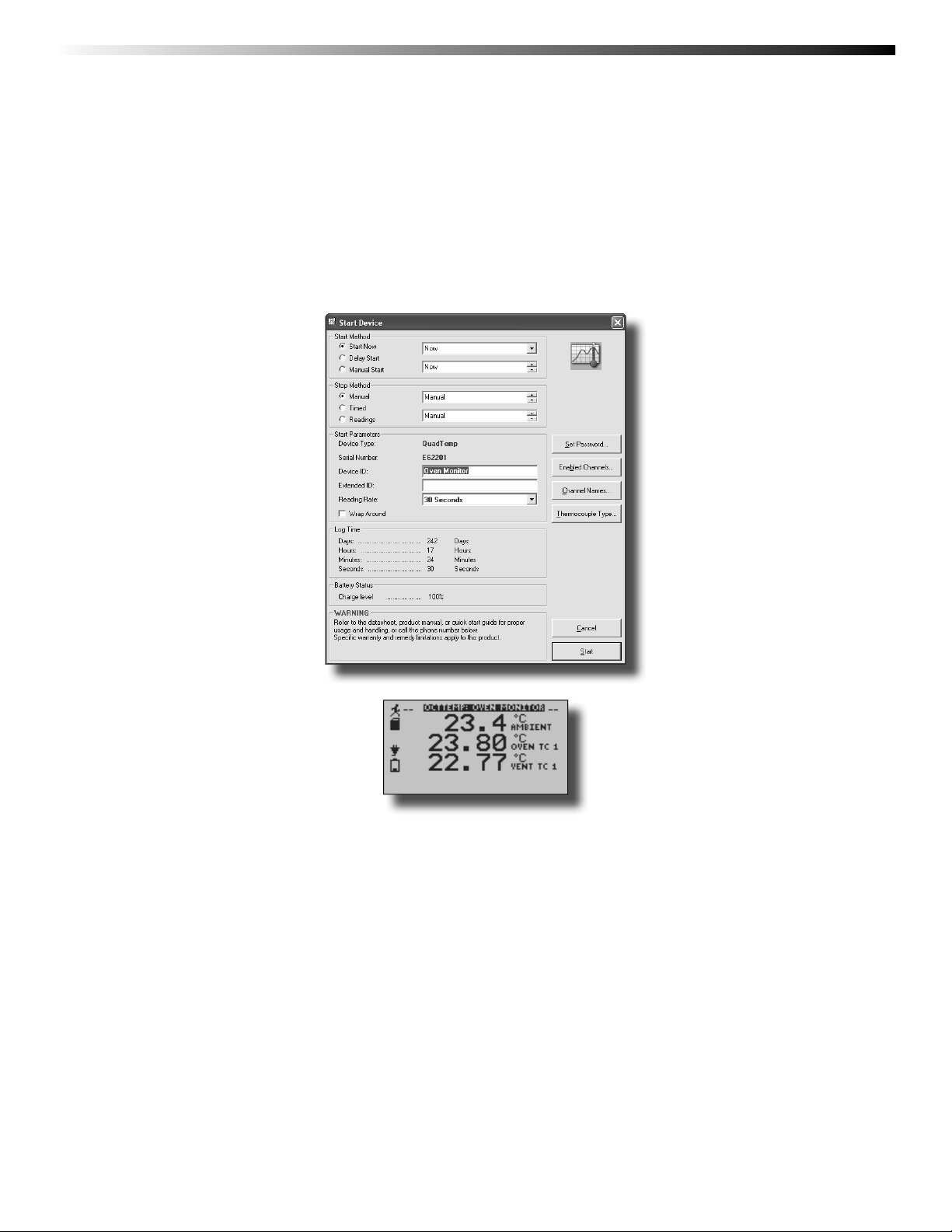
Each OM-CP-OCTTEMP2000 can be given a device ID allowing for easy identifi cation among multiple devices. Device
IDs are displayed on the Home Screen of the LCD and are used throughout the software and data fi les.
To change Device ID in the software:
1. In the Device drop down menu select Start Device to view the Start Device screen
2. In the Device ID entry fi eld type the desired Device ID name
3. Select other desired start functions
4. Click Start to start the device and save Device ID information
Device type and user defi ned Device ID are displayed on the Home Screen.
Page 15
Page 18
OMEGA OM-CP-OCTTEMP2000
Section 6: Battery Information
BATTERY WARNING
This data logger contains a lithium battery. Do not cut the battery open, incinerate, or recharge. Do not heat
lithium batteries above the specifi ed operating temperature.* Dispose of the battery in accordance with local
regulations.
*See the individual specifi cation sheets at www.omega.com.
Battery Replacement
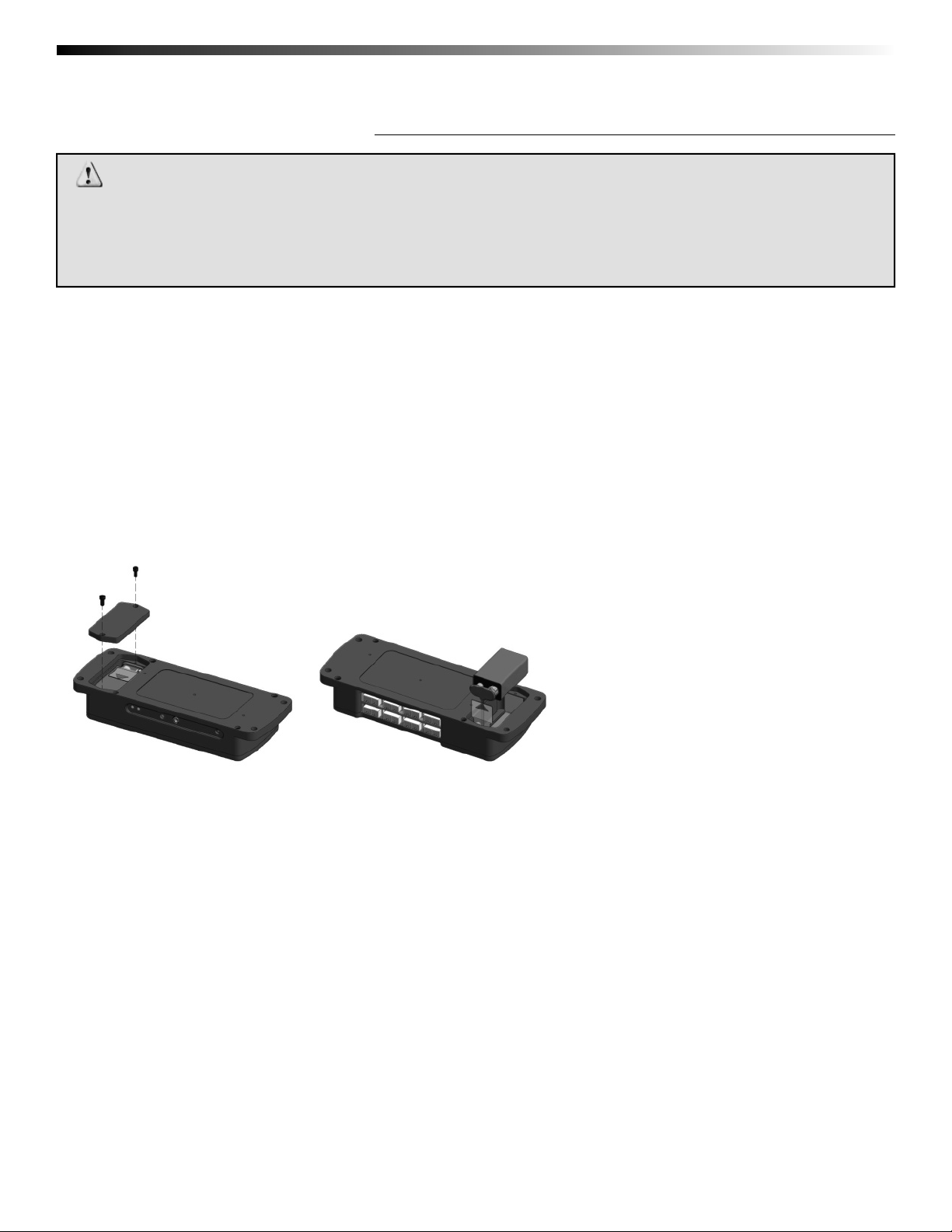
This product does not have any user-serviceable parts except the battery which should be replaced periodically. The battery life is affected by battery type, ambient temperature, sample rate, sensor selection, off-loads and LCD usage. The
device has a battery status indicator on the LCD. If the battery indication is low, or if the device seems to be inoperable, it
is recommended that the battery be replaced.
To replace the battery, locate the battery compartment cover on the back of the unit. Remove the two (2) 3/32 hex
screws and expose the battery compartment. Use the pull tab to remove battery from compartment. Remove the old 9V
battery from the battery clips and replace with a new 9V battery. We recommend using 9V lithium battery. An alkaline
battery is acceptable, but will yield a shorter battery life.
Page 16
Page 19
Data Logger Manual
Section 7: Computer Interface:
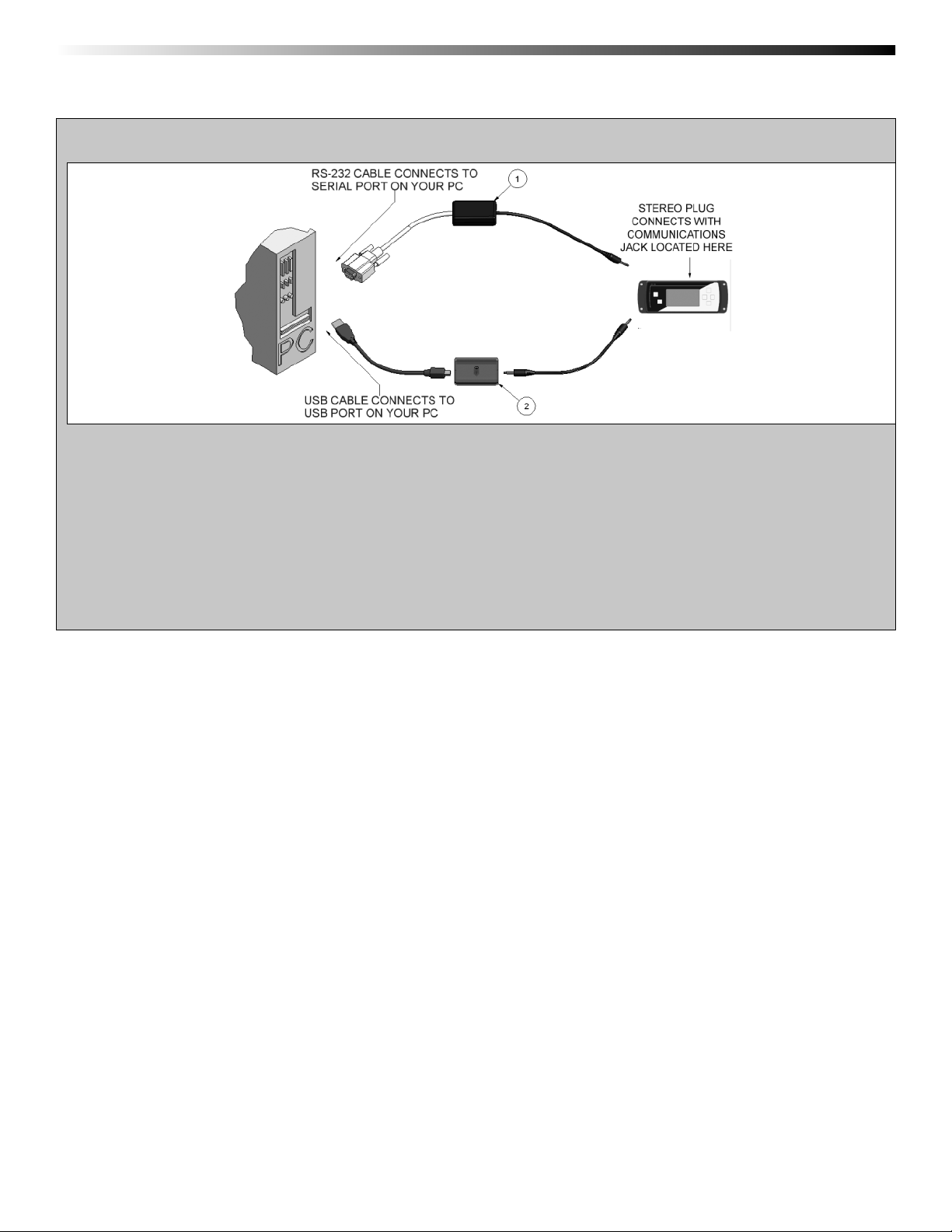
OM-CP-IFC110
OM-CP-IFC200
1. Fully insert the male connector of the OM-CP-IFC110 interface cable into the female receptacle of the data logger.
Insert fully the RS232 connector into the Serial Port.
OR
2. Fully insert the male connector of the OM-CP-IFC200 interface cable into the female receptacle of the data logger.
Fully insert the female USB connector into the USB. (Please see the OMEGA Datalogger Software
manual for further information)
Note: Most OMEGA data loggers can use both OM-CP-IFC110 and OM-CP-IFC200 interface cables. For interface cable data
logger clarifi cation contact technical support at 1-800-848-4286.
Page 17
Page 20

WARRANTY/DISCLAIMER
OMEGA ENGINEERING, INC. warrants this unit to be free of defects in materials and
workmanship for a period of 61 months from date of purchase. OMEGA’s WARRANTY adds
an additional one (1) month grace period to the normal five (5) year product warranty to
cover handling and shipping time. This ensures that OMEGA’s customers receive maximum
coverage on each product.
If the unit malfunctions, it must be returned to the factory for evaluation. OMEGA’s Customer
Service Department will issue an Authorized Return (AR) number immediately upon phone or
written request. Upon examination by OMEGA, if the unit is found to be defective, it will be
repaired or replaced at no charge. OMEGA’s WARRANTY does not apply to defects resulting
from any action of the purchaser, including but not limited to mishandling, improper
interfacing, operation outside of design limits, improper repair, or unauthorized modification.
This WARRANTY is VOID if the unit shows evidence of having been tampered with or shows
evidence of having been damaged as a result of excessive corrosion; or current, heat, moisture
or vibration; improper specification; misapplication; misuse or other operating conditions
outside of OMEGA’s control. Components in which wear is not warranted, include but are not
limited to contact points, fuses, and triacs.
OMEGA is pleased to offer suggestions on the use of its various products. However,
OMEGA neither assumes responsibility for any omissions or errors nor assumes
liability for any damages that result from the use of its products in accordance with
information provided by OMEGA, either verbal or written. OMEGA warrants only
that the parts manufactured by the company will be as specified and free of
defects. OMEGA MAKES NO OTHER WARRANTIES OR REPRESENTATIONS OF ANY
KIND WHATSOEVER, EXPRESSED OR IMPLIED, EXCEPT THAT OF TITLE, AND ALL
IMPLIED WARRANTIES INCLUDING ANY WARRANTY OF MERCHANTABILITY AND
FITNESS FOR A PARTICULAR PURPOSE ARE HEREBY DISCLAIMED. LIMITATION OF
LIABILITY: The remedies of purchaser set forth herein are exclusive, and the total
liability of OMEGA with respect to this order, whether based on contract, warranty,
negligence, indemnification, strict liability or otherwise, shall not exceed the
purchase price of the component upon which liability is based. In no event shall
OMEGA be liable for consequential, incidental or special damages.
CONDITIONS: Equipment sold by OMEGA is not intended to be used, nor shall it be used: (1)
as a “Basic Component” under 10 CFR 21 (NRC), used in or with any nuclear installation or
activity; or (2) in medical applications or used on humans. Should any Product(s) be used in or
with any nuclear installation or activity, medical application, used on humans, or misused in
any way, OMEGA assumes no responsibility as set forth in our basic WARRANTY/DISCLAIMER
language, and, additionally, purchaser will indemnify OMEGA and hold OMEGA harmless from
any liability or damage whatsoever arising out of the use of the Product(s) in such a manner.
RETURN REQUESTS/INQUIRIES
Direct all warranty and repair requests/inquiries to the OMEGA Customer Service Department.
BEFORE RETURNING ANY PRODUCT(S) TO OMEGA, PURCHASER MUST OBTAIN AN
AUTHORIZED RETURN (AR) NUMBER FROM OMEGA’S CUSTOMER SERVICE DEPARTMENT
(IN ORDER TO AVOID PROCESSING DELAYS). The assigned AR number should then be
marked on the outside of the return package and on any correspondence.
The purchaser is responsible for shipping charges, freight, insurance and proper packaging to
prevent breakage in transit.
FOR WARRANTY
the following information available BEFORE
contacting OMEGA:
1. Purchase Order number under which
the product was PURCHASED,
2. Model and serial number of the product
under warranty, and
3. Repair instructions and/or specific
problems relative to the product.
OMEGA’s policy is to make running changes, not model changes, whenever an improvement is possible.
This affords our customers the latest in technology and engineering.
OMEGA is a registered trademark of OMEGA ENGINEERING, INC.
© Copyright 2007 OMEGA ENGINEERING, INC. All rights reserved. This document may not be copied, photocopied,
reproduced, translated, or reduced to any electronic medium or machine-readable form, in whole or in part, without
the prior written consent of OMEGA ENGINEERING, INC.
RETURNS, please have
FOR NON-WARRANTY REPAIRS,
consult
OMEGA for current repair charges. Have the
following information available BEFORE
contacting OMEGA:
1. Purchase Order number to cover the
COST of the repair,
2. Model and serial number of the
product, and
3. Repair instructions and/or specific problems
relative to the product.
Page 21

Page 22

Where Do I Find Everything I Need for
Process Measurement and Control?
OMEGA…Of Course!
Shop online at omega.com
sm
TEMPERATURE
䡺⻬
Thermocouple, RTD & Thermistor Probes, Connectors, Panels & Assemblies
䡺⻬
Wire: Thermocouple, RTD & Thermistor
䡺⻬
Calibrators & Ice Point References
䡺⻬
Recorders, Controllers & Process Monitors
䡺⻬
Infrared Pyrometers
PRESSURE, STRAIN AND FORCE
䡺⻬
Transducers & Strain Gages
䡺⻬
Load Cells & Pressure Gages
䡺⻬
Displacement Transducers
䡺⻬
Instrumentation & Accessories
FLOW/LEVEL
䡺⻬
Rotameters, Gas Mass Flowmeters & Flow Computers
䡺⻬
Air Velocity Indicators
䡺⻬
Turbine/Paddlewheel Systems
䡺⻬
Totalizers & Batch Controllers
pH/CONDUCTIVITY
䡺⻬
pH Electrodes, Testers & Accessories
䡺⻬
Benchtop/Laboratory Meters
䡺⻬
Controllers, Calibrators, Simulators & Pumps
䡺⻬
Industrial pH & Conductivity Equipment
DATA ACQUISITION
䡺⻬
Data Acquisition & Engineering Software
䡺⻬
Communications-Based Acquisition Systems
䡺⻬
Plug-in Cards for Apple, IBM & Compatibles
䡺⻬
Datalogging Systems
䡺⻬
Recorders, Printers & Plotters
HEATERS
䡺⻬
Heating Cable
䡺⻬
Cartridge & Strip Heaters
䡺⻬
Immersion & Band Heaters
䡺⻬
Flexible Heaters
䡺⻬
Laboratory Heaters
ENVIRONMENTAL
MONITORING AND CONTROL
䡺⻬
Metering & Control Instrumentation
䡺⻬
Refractometers
䡺⻬
Pumps & Tubing
䡺⻬
Air, Soil & Water Monitors
䡺⻬
Industrial Water & Wastewater Treatment
䡺⻬
pH, Conductivity & Dissolved Oxygen Instruments
M4817/0909
M4597/1207
DOC-MAN1100-02
DOC-MAN050A-02
 Loading...