

Page 1
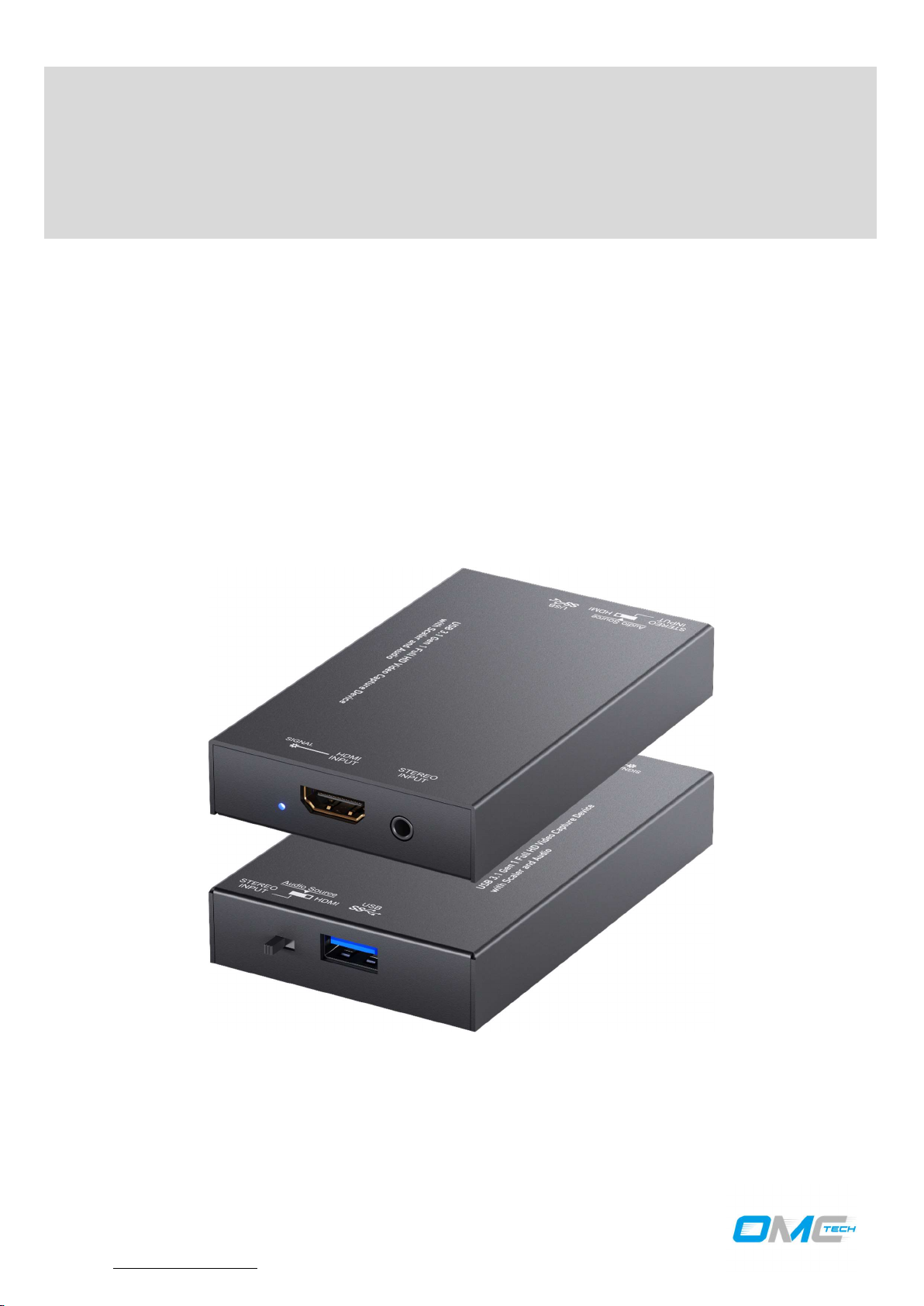
VCHU301
USB 3.1 Gen 1 Full HD Video Capture Device with Scaler
and Audio
User Manual
Made in Taiwan
OMC TECH CORPORATION
1798 Technology Drive, STE 298
San Jose, CA 95110
TEL: 408-520-9688
Email: [email protected]
Page 2

TABLE OF CONTENTS
INTRODUCTION .................................................................................................................... 1
FEATURES ............................................................................................................................ 1
PACKAGE CONTENTS .......................................................................................................... 1
SPECIFICATIONS .................................................................................................................. 2
PANEL DESCRIPTIONS ........................................................................................................ 3
CONNECTION DIAGRAM ...................................................................................................... 3
VIDEO STREAMING .............................................................................................................. 4
TROUBLESHOOTING .......................................................................................................... 13
USB PIN DEFINITION .......................................................................................................... 14
WARRANTY ......................................................................................................................... 15
SERVICE CONTACT……………………………………………………………………….....15
Page 3

-1-
INTRODUCTION
1. Video quality is related to the capability of
a
computer and software setting.
The VCHU301 USB 3.1 Gen 1 Full HD Video Capture Device with Scaler and Audio provides a
professional way to capture HDMI video signals. It adopts USB 3.1 Gen 1 (USB 3.0) interface, which can
realize high-speed transmission. Users can capture Full HD (1080p60) video by this capture device. Besides,
VCHU301 can capture and display original uncompressed HDMI video with more realistic color rendition.
VCHU301 also uses large-volume image buffer technology, which effectively avoids the video tearing. The
high sampling rate and high sampling accuracy assure images with high sharpness, rich details, and fewer
color edges.
FEATURES
Supports HDMI output resolution scaler with audio embedding
HDMI video and audio streams over USB 3.1 Gen 1
Supports UVC 1.0
Supports input and output video resolution up to 1080p 60Hz
Auto-detection on video format to ensure plug-play operations
Recording Video Format: H.264 (Software Compression)
Works on multiple operating system platforms (Windows 7/8.1/10, Mac and Linux OS)
Compatible with most 3rd party software such as OBS Studio and AMCap
Supports USB 3.1 (MJPG/YUY2) and USB 2.0 (MJPG)
Low Latency
System Requirements (Recommended)
- Windows® 7(SP1) / Windows 8.1 / Windows 10
- PC: Intel® CoreTM i5-4440 3.10GHz + NVIDIA® GeForce® GTX 660 or higher
- Laptop: Intel® Core i7-4810MQ + NVIDIA GeForce GTX 870M or higher
- 4GB RAM or higher
!
○
2. Please use the included USB 3.0 certified cable in the box to protect the device and avoid
further compatible issues.
PACKAGE CONTENTS
1x VCHU301
1x
1x User Manual
USB 3.0 A to A Cable (host to device)
Page 4

-2-
SPECIFICATIONS
Role of usage
Video
Capture Device
Input Video bandwidth
150MHz
Audio Format
2 Channel, 44.1 and 48KHz sample rate, up to 16bit PCM
Recording Mode
Software Compression
Firmware update
Feasible via USB Port
OS Support
Mechanical
102 x 62 x 17mm [
4" x
2.4
" x 0.6"]
140 x 113 x 24mm [5.5" x 4.4" x 0.9"]
405 x 275 x 255mm [1'3" x 10.8" x 10"]
Via USB
Model Name VCHU301
Technical
Output Video bandwidth
Video support Up to 1080p60
Audio Input HDMI Embedded Audio & Stereo audio Input
Recording Video Format YUY2 (USB3.1 Gen 1), MJPG (USB2.0/3.1 Gen 1)
ESD protection
PCB stack-up 6-layer board [impedance control — differential 100Ω; single 50Ω]
Input 1x HDMI + 1x 3.5mm
Output 1x USB
HDMI connector Type A [19-pin female]
USB connector
Software compatibility
(not complete list)
Human body model — ±15kV [air-gap discharge] & ±8kV [contact
OBS Studio (Windows, Linux), AM Cap (Windows), Pot player (Windows),
Skype (Windows, OS X), Hangout (Windows), TeamViewer (Windows)
Up to 350MBps (USB)
discharge]
USB 3.1 Type A (SuperSpeed USB)
Windows 7 /8.1 /10, Mac and Linux OS
Housing Metal enclosure
Dimensions
[L x W x H]
Weight
Power supply
Power consumption
Operation temperature
Storage temperature -20~60°C [-4~140°F]
Relative humidity 20~90% RH [no condensation]
Model
Package
Carton
Model
Package
3 Watts [max]
0~40°C [32~104°F]
Page 5
-3-
PANEL DESCRIPTIONS
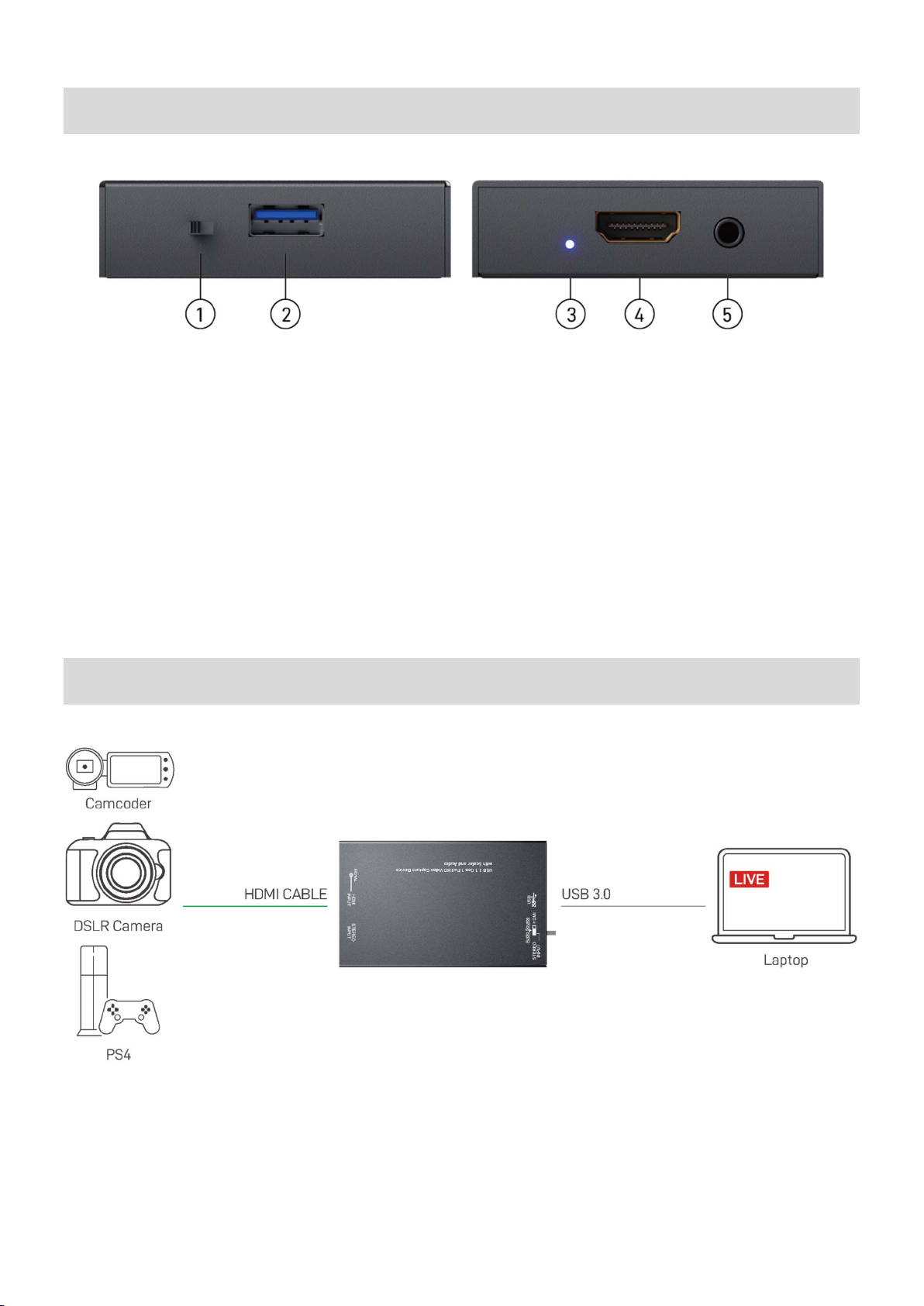
1. AUDIO SWITCH: [left] Audio from stereo audio in, [right] Audio from HDMI
2. USB OUT: Connect to a USB host (PC, NB, MAC…)
3. LED INDICATOR: Input signal indicator LED
4. HDMI IN: Connect to HDMI source
5. STEREO AUDIO IN: Connect to analog stereo audio source
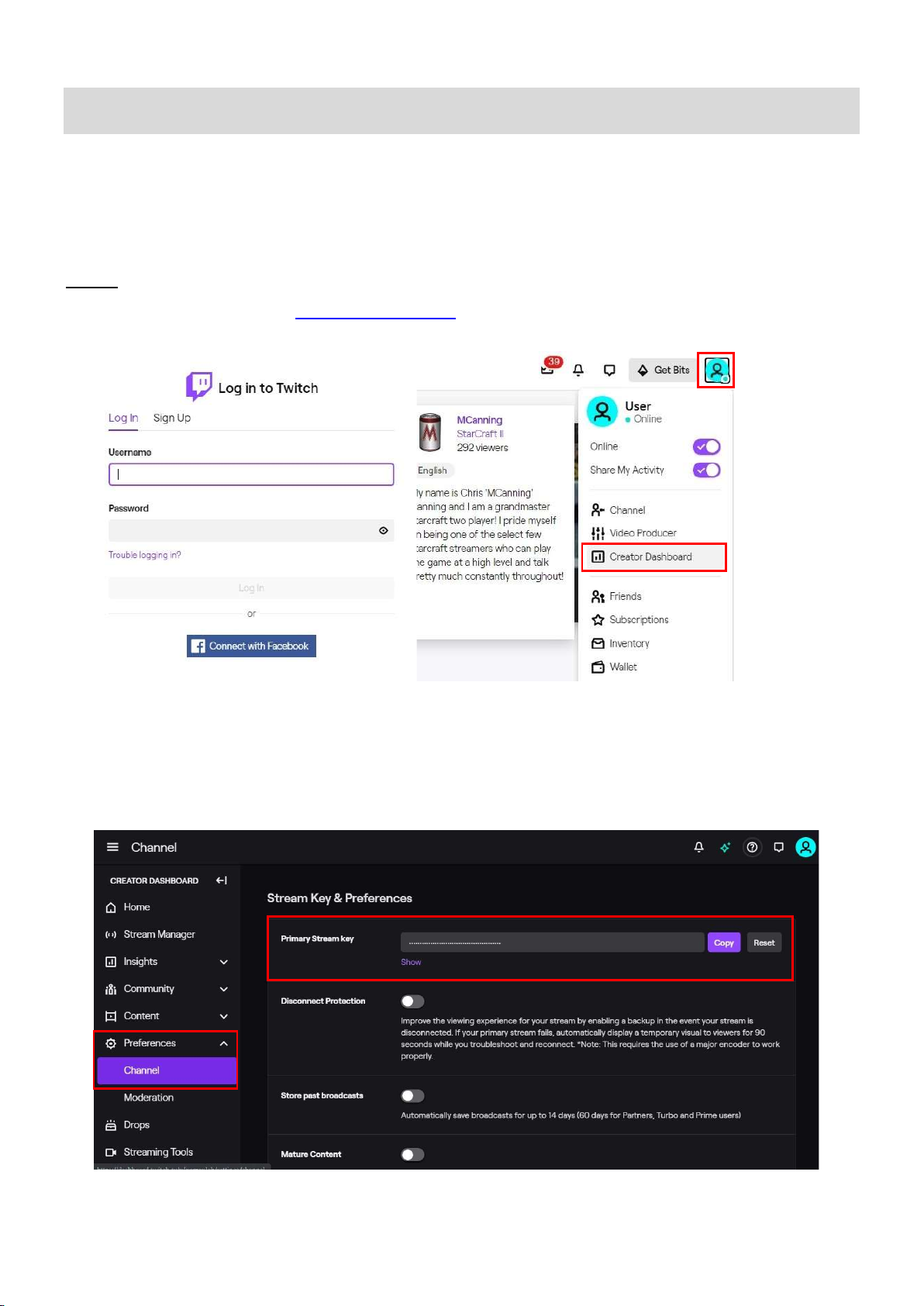
CONNECTION DIAGRAM
Page 6
-4-
VIDEO STREAMING
Create a Video Streaming
Users can create video streams on the streaming service platform. The below steps show how to complete the video
streaming settings from Twitch and YouTube.
Twitch
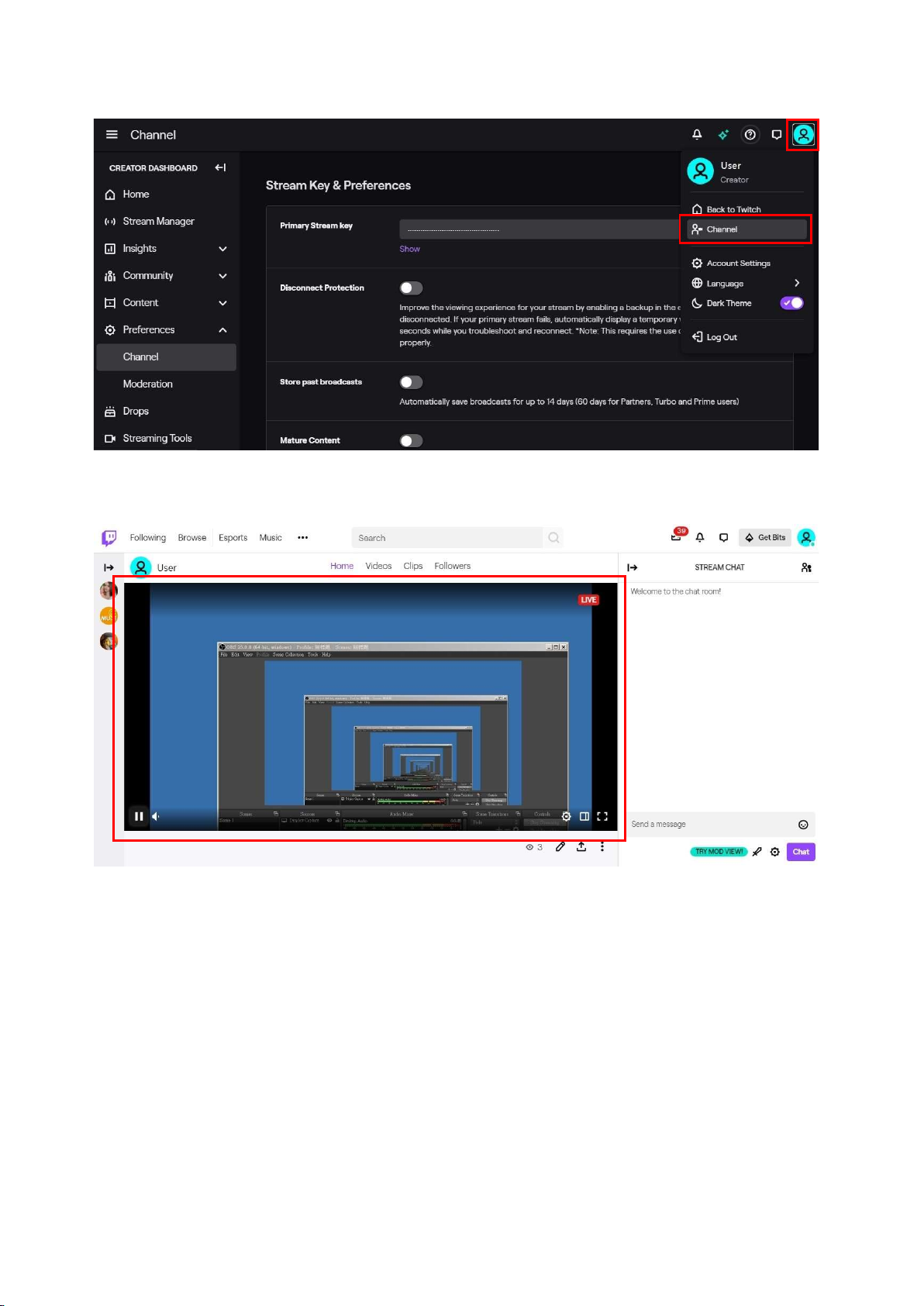
1. Browse the Twitch website (https://www.twitch.tv/) and log in, then select "Creator Dashboard" from your
account drop-down menu at the top right of the screen.
2. Find "Preferences" in the left menu, and click "Channel", then you will see "Primary Steam key" on the screen.
Copy the "Primary Steam key" and paste it into the "Stream Key" field in the OBS, then click "Start Streaming"
in the software.
* Please refer to steps 4-6 of the OBS software control program.
Page 7
-5-
3. Go back to Twitch and select "Channel" from your account drop-down menu.
4. At this point, you will see the player start live streaming.
Page 8
-6-
YouTube
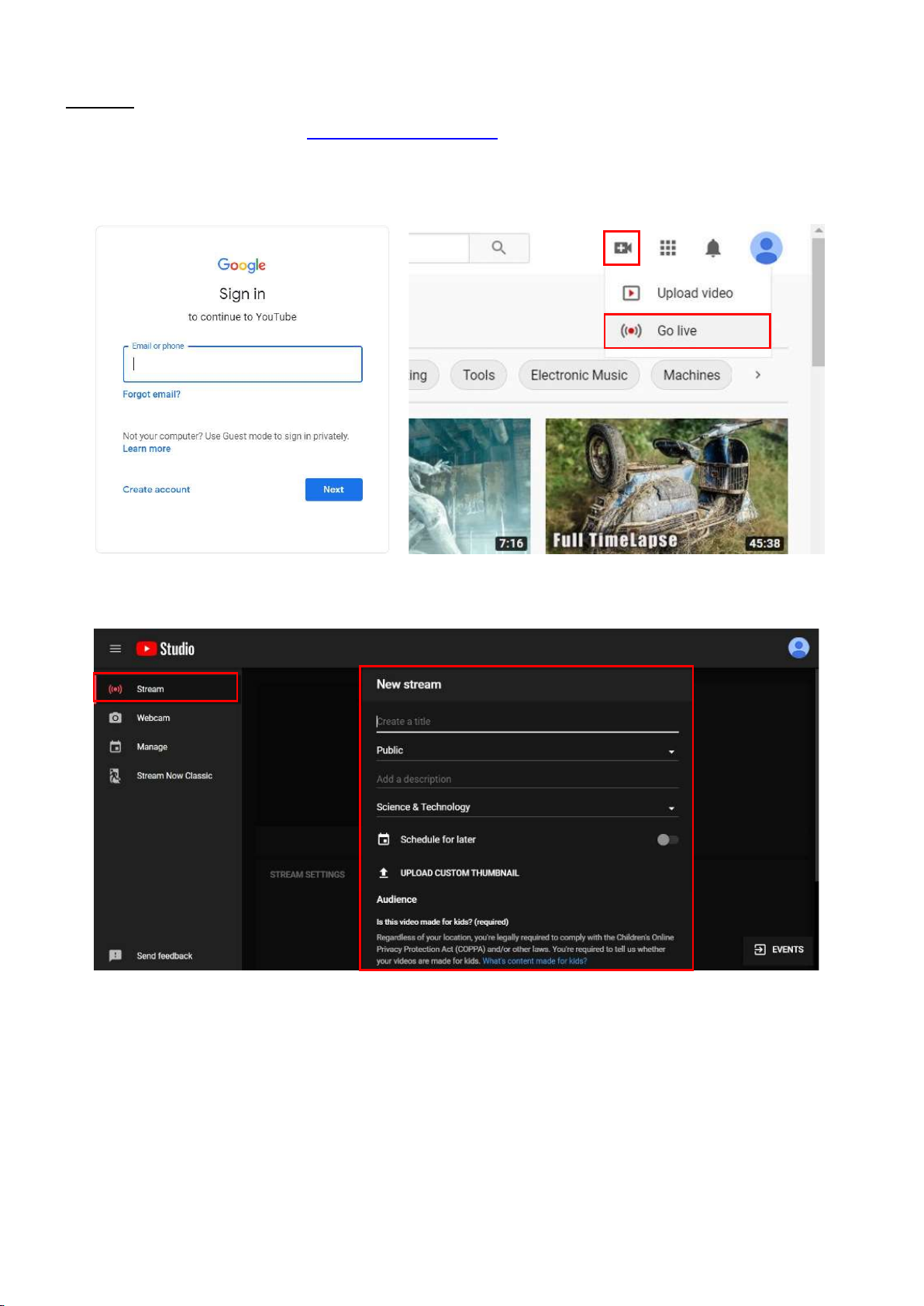
1. Browse the YouTube website (https://www.youtube.com/) and log in, then click "Go live" from the "Create"
icon menu at the top right of the screen.
* If your account is using YouTube for the first time to create a video stream, you need to wait 24 hours to enable
the function.
2. Click "Stream" in the left menu and fill in the live video’s relevant information to create a new stream.
Page 9
-7-
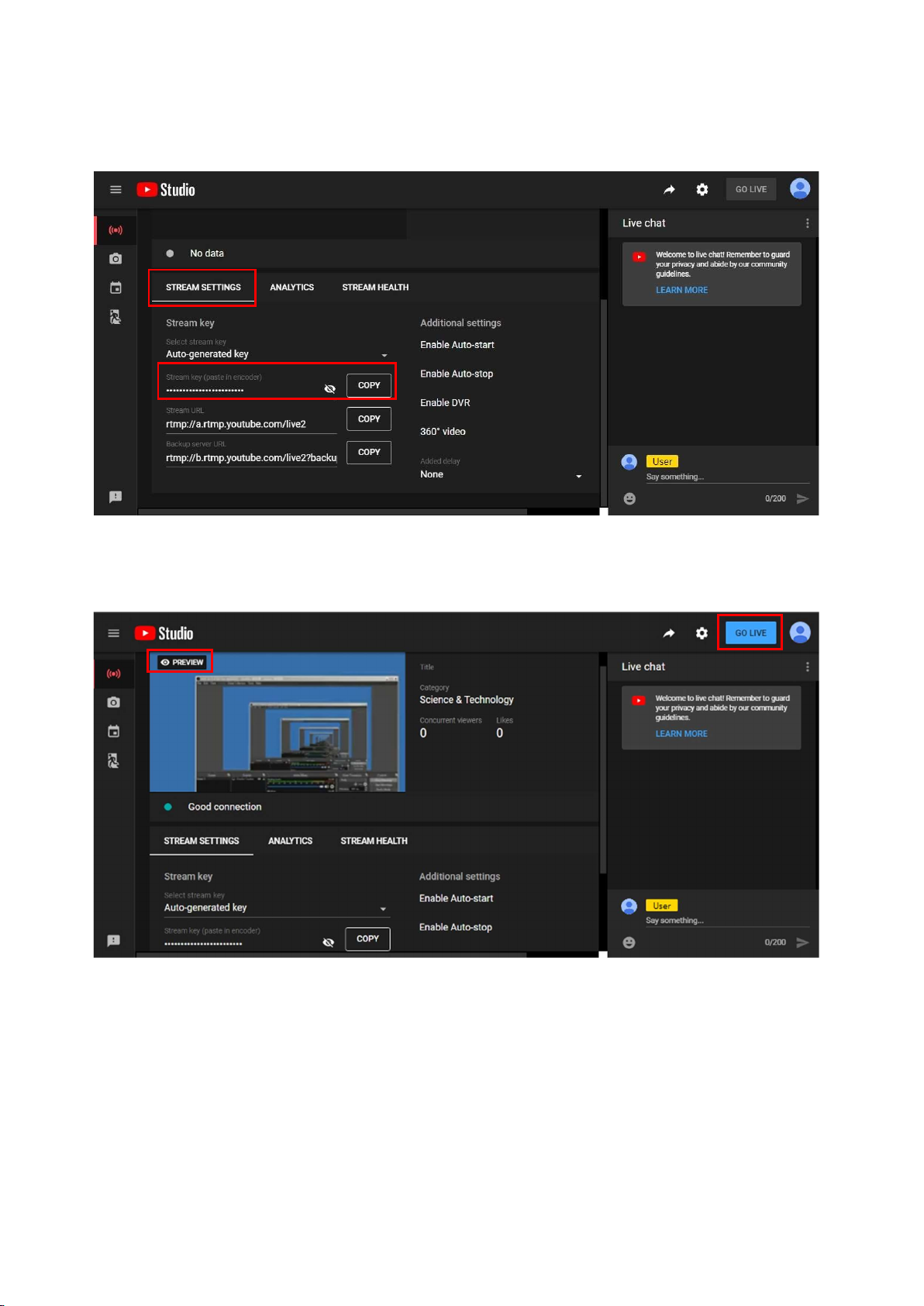
3. You will see "Stream key" from the “STREAM SETTINGS” below. Copy the "Stream key" and paste it into the
"Stream key" field in the OBS, then click "Start Streaming" in the software.
* Please refer to steps 4-6 of the OBS software control program.
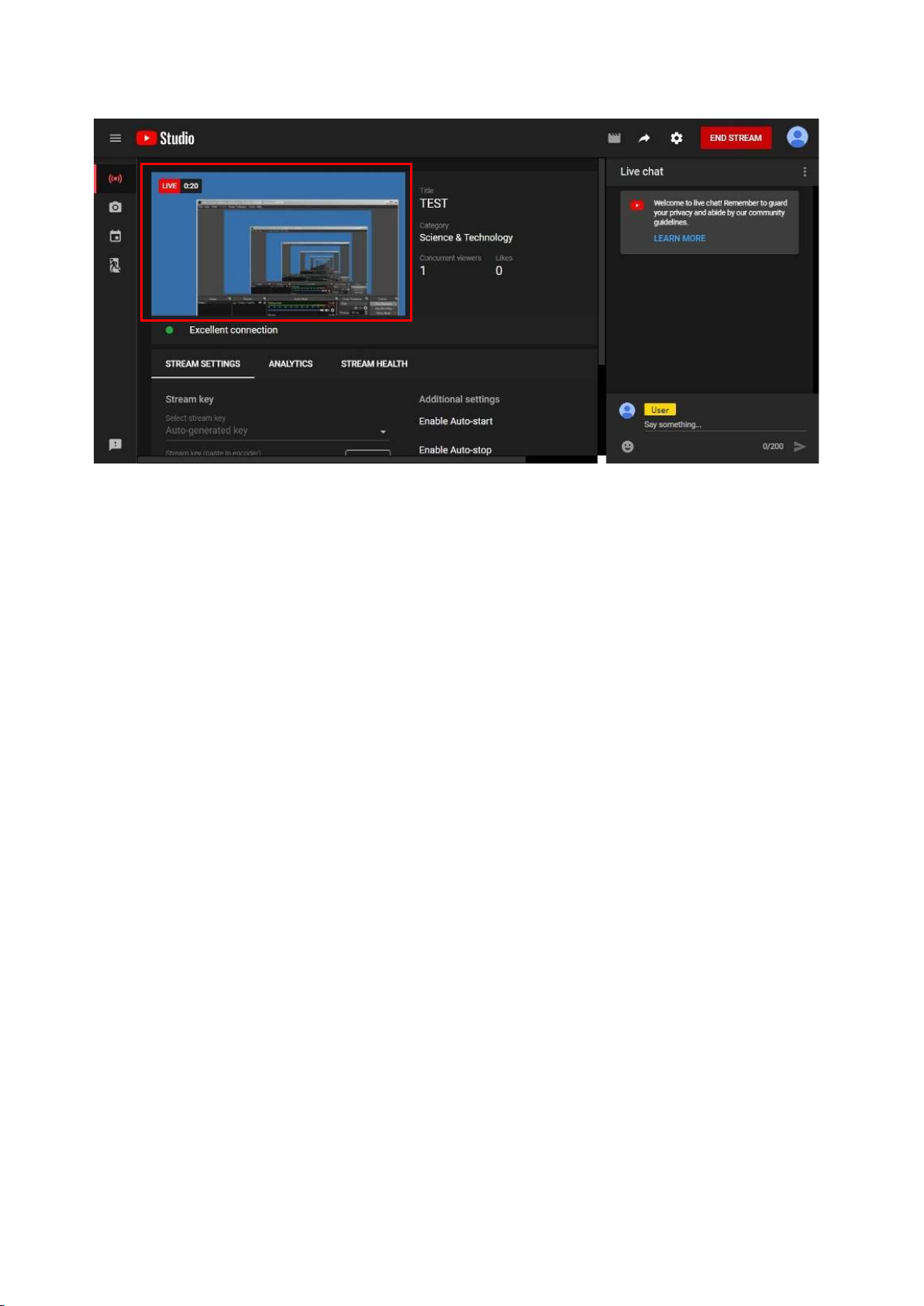
4. Next, go back to YouTube, and then wait for 30-60 seconds. The player will display the live preview.
Simultaneously, the "GO LIVE" button at the top right will turn blue, and then please press this button.
Page 10
-8-
5. The player on YouTube will start live streaming.
Page 11
-9-
Stream and record videos with OBS
OBS is a popular USB capture freeware and has excellent compatibility. Please start with OBS if users are not
familiar with the USB capture device.
Download the software
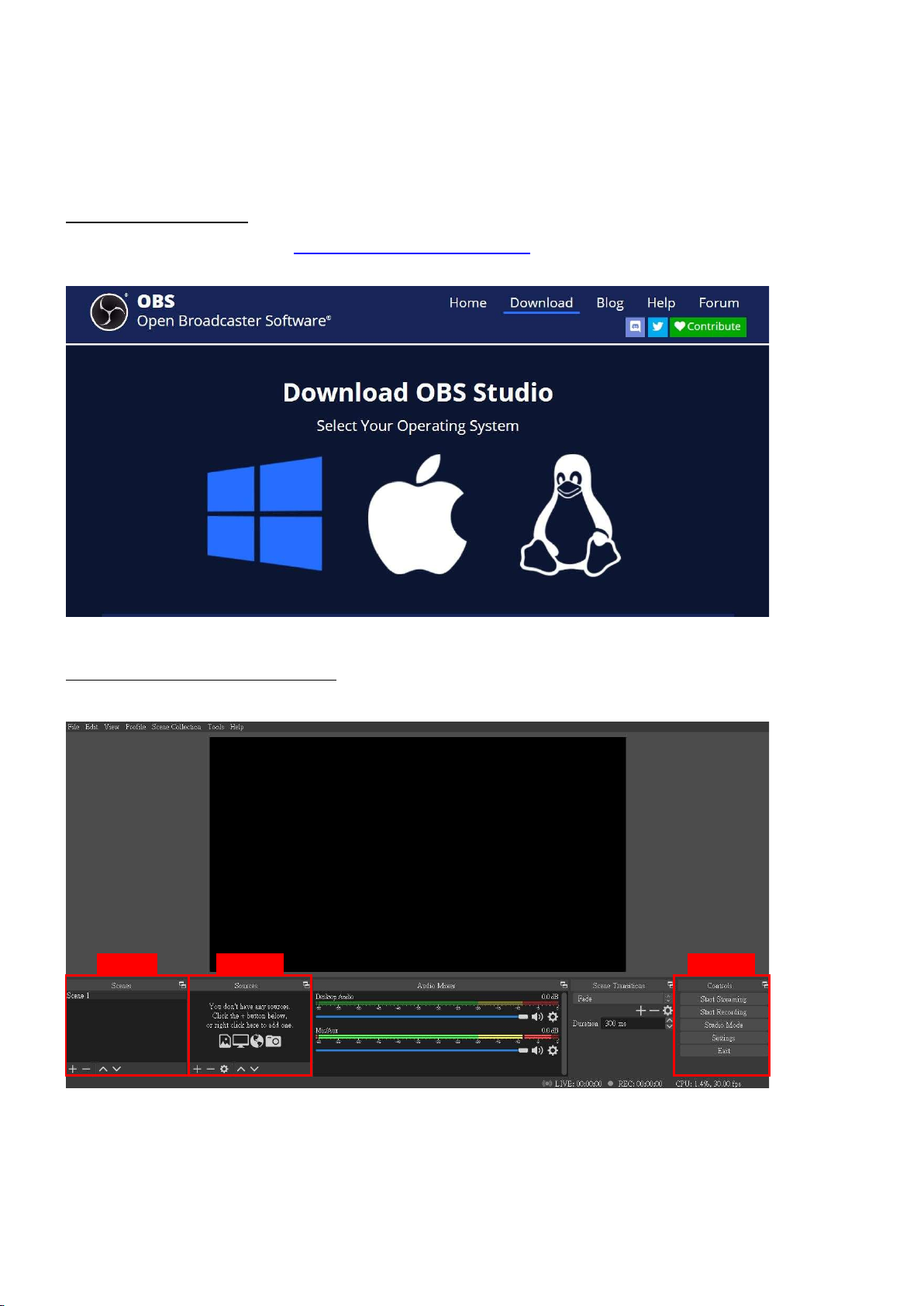
Browse the OBS official website (https://obsproject.com/download), then select the suitable computer operating
system and start downloading.
Start the software control program
After downloading the software, please open it and follow the below steps to complete the video streaming settings.
Step1
Step2-3
Step4-7
Page 12
-10-
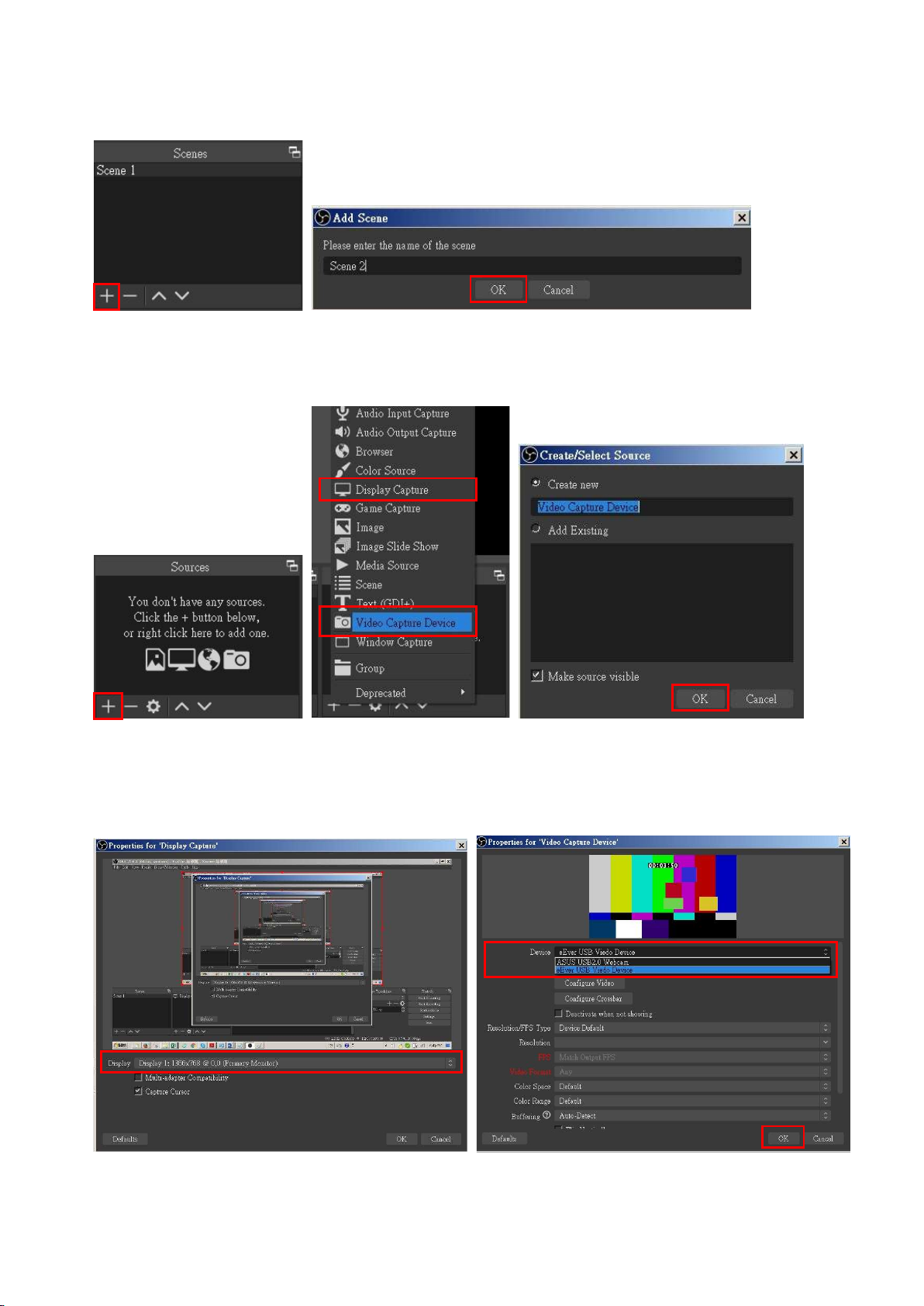
1. First, find the "Scenes" window, click "+" in the lower-left corner, and then enter the scene’s name to create a
new scene.
2. Find the "Source" window, click "+" in the lower-left corner, and then select "Display Capture" or "Video
Capture Device" to create a new source.
3. Next, you can set display capture properties. If you select "Display Capture" in step 2, you can select the primary
monitor or other extended monitor as the display source. If you select "Video Capture Device" in step 2, you
can select a USB video device as the display source. After all settings are completed, and then click “OK”.
Page 13
-11-
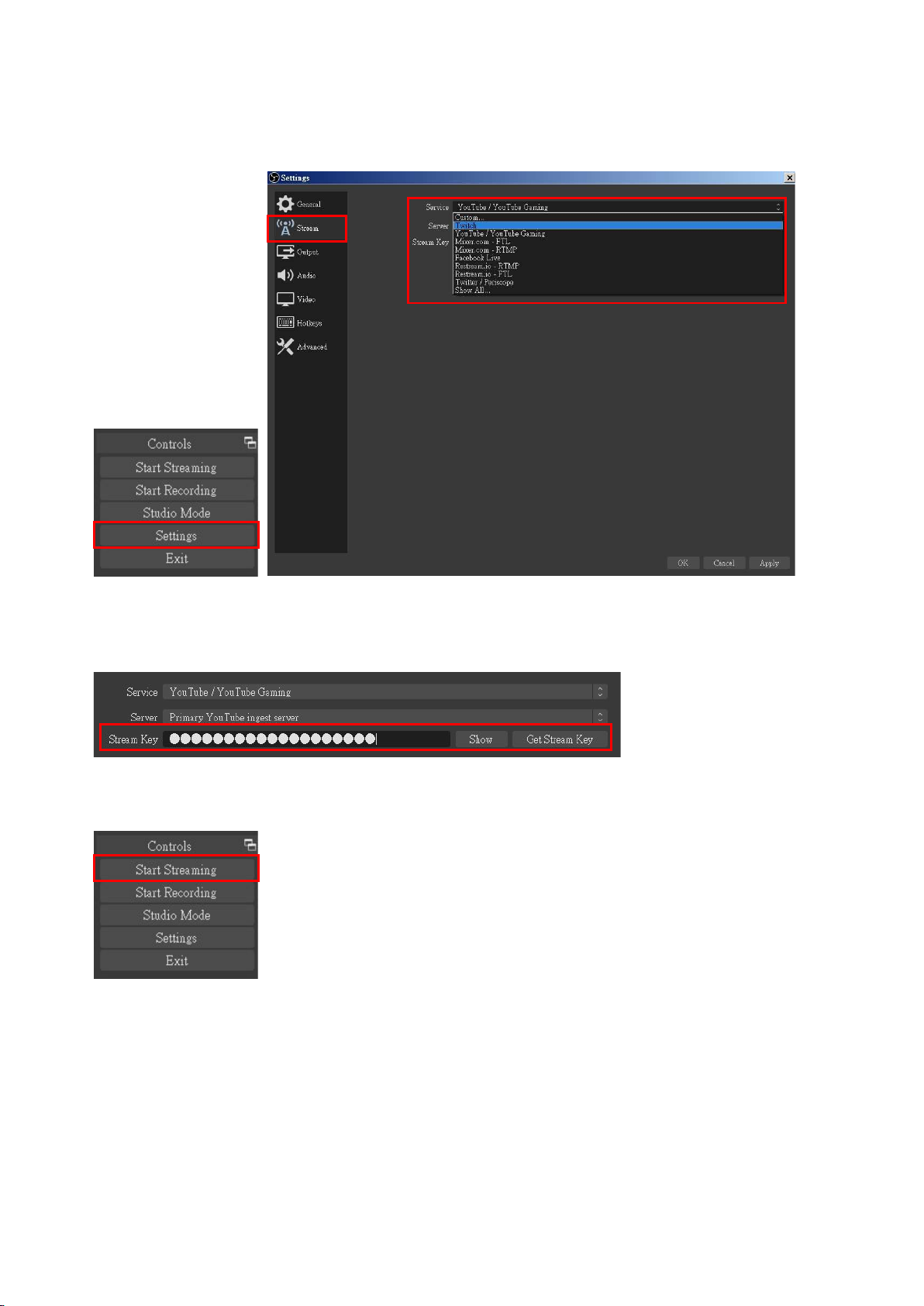
4. Click "Settings" and then select "Stream" to perform streaming settings. Users can choose service providers,
including Twitch, YouTube, etc.
5. Paste the stream key provided by the service provider into the "Stream Key" field, then click "Apply" and "OK"
after setting. Besides, users can lick "Get Stream Key" at this step to open the service provider website.
6. Please click "Start Streaming". The screen after clicking "Start Streaming" will be displayed in the live video.
Page 14
-12-
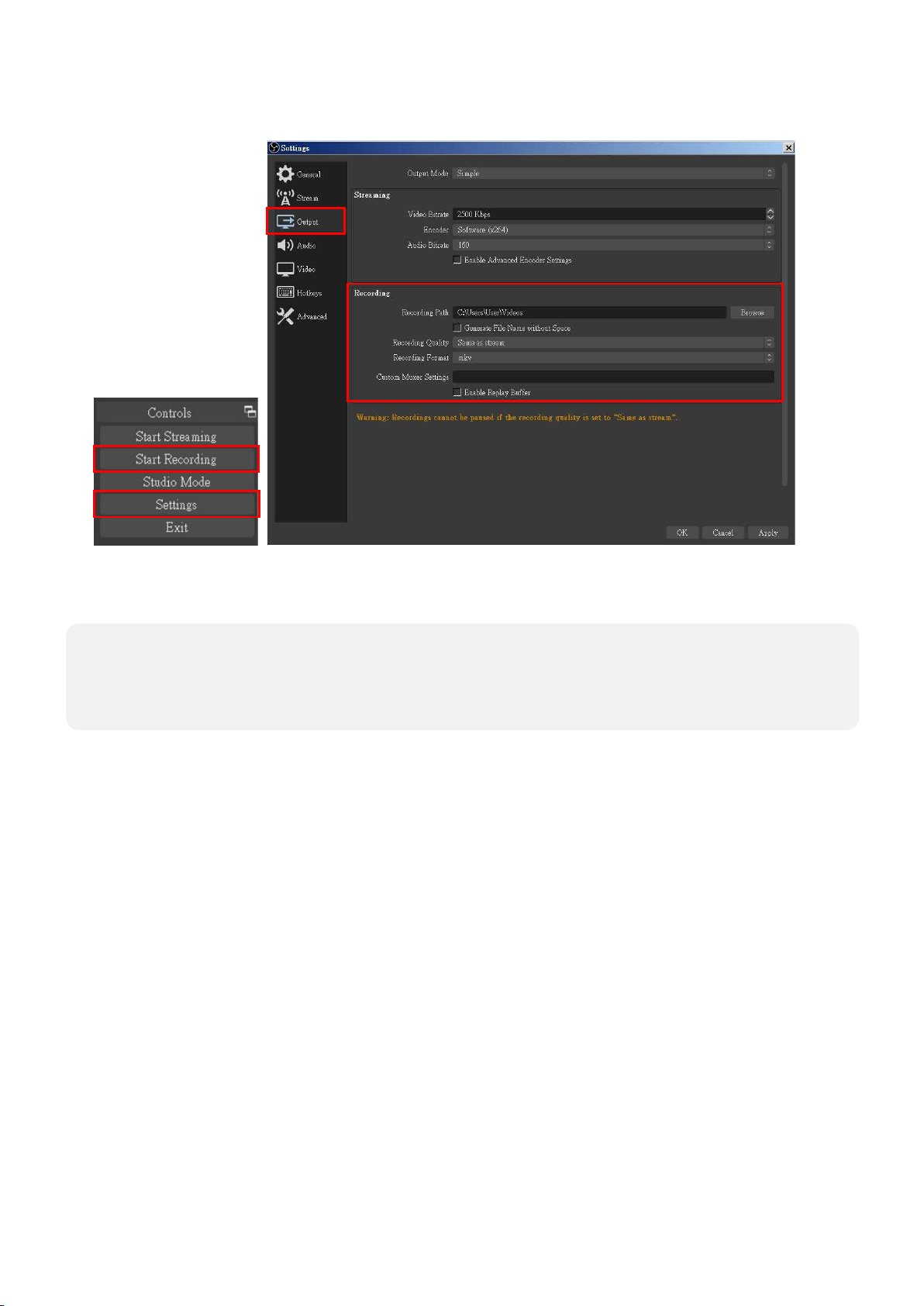
7. On the other hand, users can also click "Start Recording" to record videos with OBS. Besides, you can click
The procedures are based on the interface that each website provides when the manual is
media.
"Settings" and then select "Output" to set “Recording Path” and “Recording Format”.
!
○
written. The most recent way to make live streaming happen is supposed to be very likely as
the above procedures but subject to change by the website interface update from the social
Page 15

-13-
TROUBLESHOOTING
Our USB device has done comprehensive tests before shipment. Most of the incompatibilities we
have experienced are not from the USB capture device itself but the sophisticated software and hardware
combination of PC or laptop. Please follow the following suggestions to see any helps.
1. OBS is a popular USB capture freeware and has excellent compatibility. Please download it and start
with OBS if users are not familiar with the USB capture device.
https://obsproject.com/download
2. The USB device supports HDCP mechanism to protect legal content from pirates. If any HDMI input
with HDCP protection, OSD will display a message to indicate HDCP existence. No capture will be
legally allowed if HDCP is detected. Please use non-HDCP protected HDMI sources or disable HDCP
in order to get a USB device work. A device like PS4 supports such a feature to turn HDCP off.
3. Due to OS and computer hardware complexities, different USB ports on PCs or laptops may have
different performance or limitation. Please try all USB ports to see if there are any differences.
4. Please must use the USB cable inbox. We do not guarantee the overall performance when the USB
capture box works with some other USB cables.
5. HDMI cable quality may also play an essential role when capturing. Please be sure that the HDMI
cable can do 1080P@60 HDMI signal transmission or better. Try different cables when the device is
not able to work as expected.
6. If audio has noise, please adjust the sampling frequency setting on PCs or laptops. If the default
sampling rate is 48000 Hz, please select 44100 Hz and vice versa. The path of setting sampling
frequency on windows 10 is:
Start → Setting → System → Sound → Device properties → Additional device properties →
Advanced
Page 16
-14-
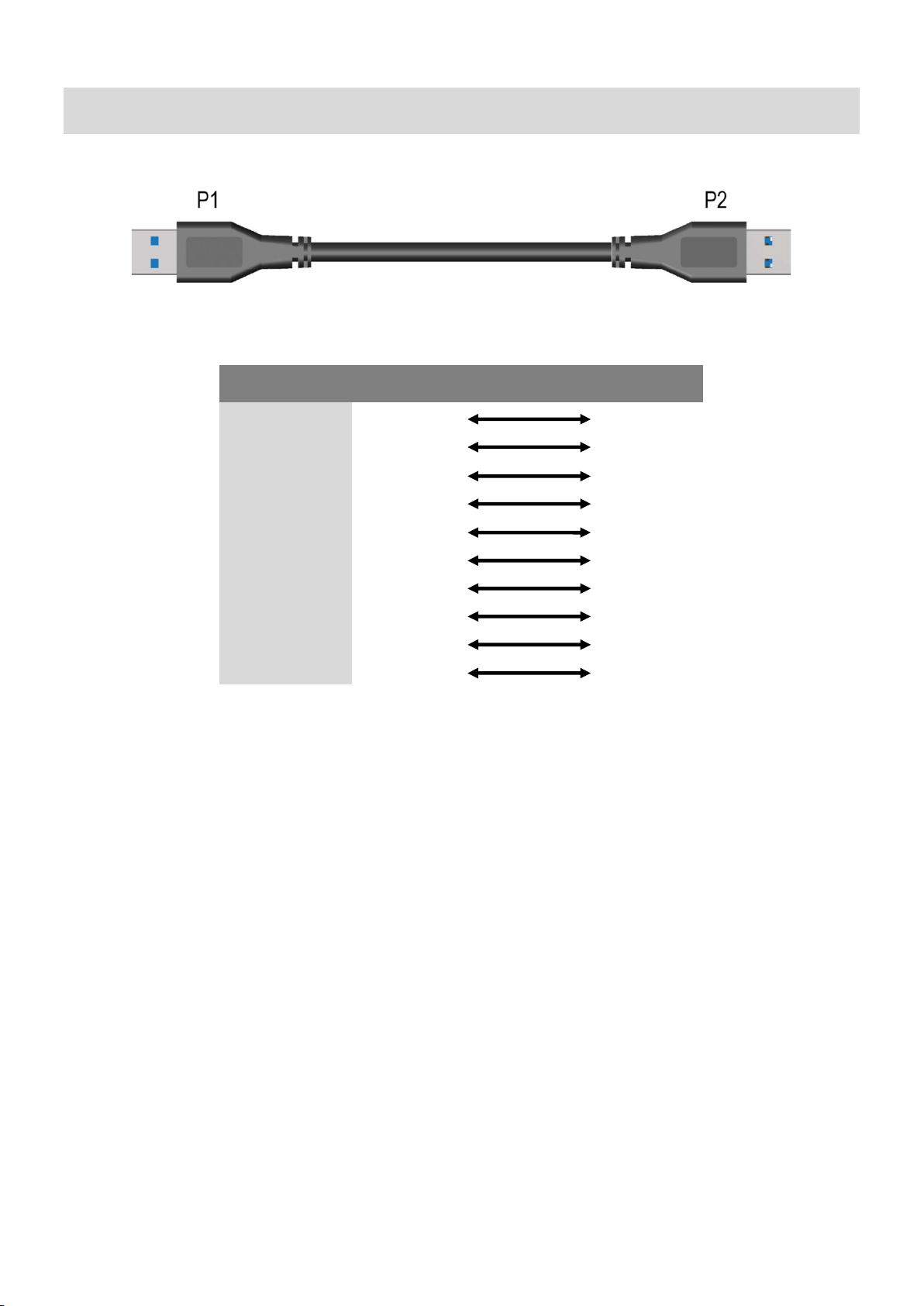
USB PIN DEFINITION
P1 P2
VBUS
D-
D+
GND
SSRX-
SSRX+
GND
SSTXSSRX+
Shield
1
2
3
4
5
6
7
8
9
SHELL
1
2
3
4
5
6
7
8
9
SHELL
Page 17

-15-
WARRANTY
The SELLER warrants the VCHU301 USB 3.1 Gen 1 Full HD Video Capture Device with Scaler and Audio
free from defects in the material and workmanship for one year from the date of purchase from the SELLER
or an authorized dealer. Should this product fail to be in good working order within one year warranty
period, The SELLER, at its option, repair or replace the unit, provided that the unit has not been subjected
to accident, disaster, abuse or any unauthorized modifications, including static discharge and power surge.
This warranty is offered by the SELLER for its BUYER with the direct transaction only. This warranty is void
if the warranty seal on the metal housing is broken.
The unit that fails under conditions other than those covered will be repaired at the current price of
parts and labor in effect at the time of repair. Such repairs are warranted for 90 days from the day of
reshipment to the BUYER. If the unit is delivered by mail, customers agree to ensure the unit or assume
the risk of loss or damage in transit. Under no circumstances will a unit be accepted without a return
authorization number.
The warranty is in lieu of all other warranties expressed or implied, including without limitations, any
other implied warranty or fitness or merchantability for any particular purpose, all of which are expressly
disclaimed.
Proof of sale may be required in order to claim warranty. Customers outside Taiwan are responsible
for shipping charges to and from the SELLER. Cables and power adapters are limited to a 30-day warranty
and must be free from any markings, scratches, and neatly coiled.
The content of this manual has been carefully checked and is believed to be accurate. However, The
SELLER assumes no responsibility for any inaccuracies that may be contained in this manual. The SELLER
will NOT be liable for direct, indirect, incidental, special, or consequential damages resulting from any
defect or omission in this manual, even if advised of the possibility of such damages. The technical
information contained herein regarding the VCHU301 features and specifications is subject to change
without further notice.
SERVICE CONTACT
OMC TECH CORPORATION
1798 Technology Dive, STE 298
San Jose, CA 95110
TEL: 408-520-9688
e-mail: [email protected]
http://www.omctech.com
 Loading...