

Page 1

...easy to operate with ProHomeIPC
IP Camera IC 600
Quick Start Guide
Page 2

Do you need detailed descriptions on how
to use the app and operate the camera?
Visit us at www.olympia-vertrieb.de
Or scan this QR code.
Page 3

Contents
Before You Start . . . . . . . . . . . . . . . . . . . . . . . . . . . . . . . . . . . . . .4
Safety Instructions . . . . . . . . . . . . . . . . . . . . . . . . . . . . . . . . . . . .5
Intended Use . . . . . . . . . . . . . . . . . . . . . . . . . . . . . . . . . . . . . . . . . . . .7
General Overview . . . . . . . . . . . . . . . . . . . . . . . . . . . . . . . . . . . . .9
Package Contents . . . . . . . . . . . . . . . . . . . . . . . . . . . . . . . . . . . . . . . .9
System Requirements . . . . . . . . . . . . . . . . . . . . . . . . . . . . . . . . . . 10
Camera - Front . . . . . . . . . . . . . . . . . . . . . . . . . . . . . . . . . . . . . . . . 11
Camera - Rear . . . . . . . . . . . . . . . . . . . . . . . . . . . . . . . . . . . . . . . . . 12
Camera - Underside . . . . . . . . . . . . . . . . . . . . . . . . . . . . . . . . . . . . 13
Inserting the MicroSD Memory Card (Option) . . . . . . . . . . . . . . 14
Positioning the Camera . . . . . . . . . . . . . . . . . . . . . . . . . . . . . . . . . 15
Mounting the Camera on the Ceiling. . . . . . . . . . . . . . . . . . . . . . 15
Connecting the Camera - Network Cable . . . . . . . . . . . . . . . . . . 16
Connecting the Camera . . . . . . . . . . . . . . . . . . . . . . . . . . . . . . . . . 16
Connecting the Smartphone and Camera . . . . . . . . . . . . . . .17
Installing the ProHomeIPC App . . . . . . . . . . . . . . . . . . . . . . . . . . 17
Establishing a Connection . . . . . . . . . . . . . . . . . . . . . . . . . . . . . . . 18
Page 4

BEFORE YOU START
Detailed Operating Instructions . . . . . . . . . . . . . . . . . . . . . . . . . . . . 20
Appendix . . . . . . . . . . . . . . . . . . . . . . . . . . . . . . . . . . . . . . . . . . . . . . . . . 20
Technical Data . . . . . . . . . . . . . . . . . . . . . . . . . . . . . . . . . . . . . . . . . . . . . . . 20
Troubleshooting . . . . . . . . . . . . . . . . . . . . . . . . . . . . . . . . . . . . . . . . . . . . . 22
Guarantee and Service . . . . . . . . . . . . . . . . . . . . . . . . . . . . . . . . . . . . . . . 24
Information on Disposal . . . . . . . . . . . . . . . . . . . . . . . . . . . . . . . . . . . . . . 24
Cleaning and Service . . . . . . . . . . . . . . . . . . . . . . . . . . . . . . . . . . . . . . . . . 25
Information on Conformity . . . . . . . . . . . . . . . . . . . . . . . . . . . . . . . . . . . . 25
Legal Notice . . . . . . . . . . . . . . . . . . . . . . . . . . . . . . . . . . . . . . . . . . . . . . . . . 26
Before You Start
Read the operating manual thoroughly and observe all the
information contained when using the IP camera. Keep the
operating manual in a safe place for future reference.
Pay attention to this symbol. Texts which are highlighted by
this symbol provide helpful information on handling the IP
camera.
4
IP CAMERA IC 600
Page 5
SAFETY INSTRUCTIONS
Safety Instructions
Read and observe all the safety information to protect yourself and
the environment from any harm.
The following warnings indicate potentially dangerous situations
which could lead to serious injuries or even fatal injuries if the information is ignored.
WARNING! Risk of fatal injury from electric shock! NEVER use
the device if you suspect damage to the power cable or power
plug or there are visible signs of damage to the power cable or
power plug.
WARNING! Risk of suocation! Children can swallow small
parts, packaging and protective foils. Keep the device and
packaging out of reach of children.
NEVER complete any repairs to the device yourself. Never open
the device because it contains no components which you may
service yourself. In the event of a fault, contact our Service
Department.
IP CAMERA IC 600
5
Page 6

SAFETY INSTRUCTIONS
The following warnings indicate potentially dangerous situations
which could lead to minor or slight injuries if the information is ignored.
CAUTION! This device can be used by children from the age of
8and persons with restricted physical, sensory or mental
capabilities or a lack of experience and knowledge as long as
they are supervised or have been instructed with regard to safe
use of the device and are aware of the potential risks involved
with its use. Children must never play with the device. Cleaning
and user maintenance may not be completed by children
without any supervision.
CAUTION! Risk of hearing damage! The audio signals are
emitted through a loudspeaker. Pay attention that a reasonable
loudspeaker volume is set for transmitting the audio signals.
The following warnings indicate potentially dangerous situations
which could lead to property damage if the information is ignored.
IMPORTANT! Do not use the camera in prohibited areas! Prohibited
areas could include public buildings or spaces, for example. Please
observe local laws and regulations!
6
IP CAMERA IC 600
Page 7

SAFETY INSTRUCTIONS
IMPORTANT! Risk of property damage through environmental inu-
ences! Prevent environmental inuences such as exposure to smoke,
dust, vibration, chemicals, moisture, heat and direct sunlight.
IMPORTANT! Only use original accessories. Only connect accessories
approved by the manufacturer to the camera and only us the power
adapter supplied.
IMPORTANT! Repairs to this device may only be completed by proper-
ly qualied service personnel.
Intended Use
The IP camera (subsequently referred to as camera) is designed to
perform video surveillance (CCTV) by day and night. The camera is
exclusively intended for use in closed rooms.
When installing and selecting the area of application of the camera,
pay attention to the personal rights of third-parties and that the respective, applicable local laws and regulations are not violated.
IP CAMERA IC 600
7
Page 8

SAFETY INSTRUCTIONS
A condition for complying with the intended use is that the equipment
is installed correctly and the information in the manual is observed
and maintained. Any other use is considered unintended use.
The camera is not suitable for use in wet rooms or potentially explosive areas.
Monitoring of third-parties is not permitted without having obtained
the respective, explicit authorisation and could have legal consequences.
Unauthorised modications or reconstructions are not permitted.
The camera is exclusively intended for private use and operation in
closed rooms.
8
IP CAMERA IC 600
Page 9

GENERAL OVERVIEW
General Overview
This section provides information on the package contents of the
camera, the system requirements to operate it with the ProHomeIPC
app and contains a summary of the functions and operating elements
available on the camera.
Package Contents
Please check the contents of the package carefully. If anything is missing or has been damaged during transport, DO NOT put the camera
into operation!
IP Camera IC 600 1
Power adapter 1
Holder 1
Network cable 1 x Cat.5e (RJ45)
Operating manual 1
IP CAMERA IC 600
9
Page 10

GENERAL OVERVIEW
System Requirements
You need a web-capable smartphone which has the Android
(from 4.4) or iOS (from 7) operating system and the latest version of our ProHomeIPC app.
10
IP CAMERA IC 600
Page 11
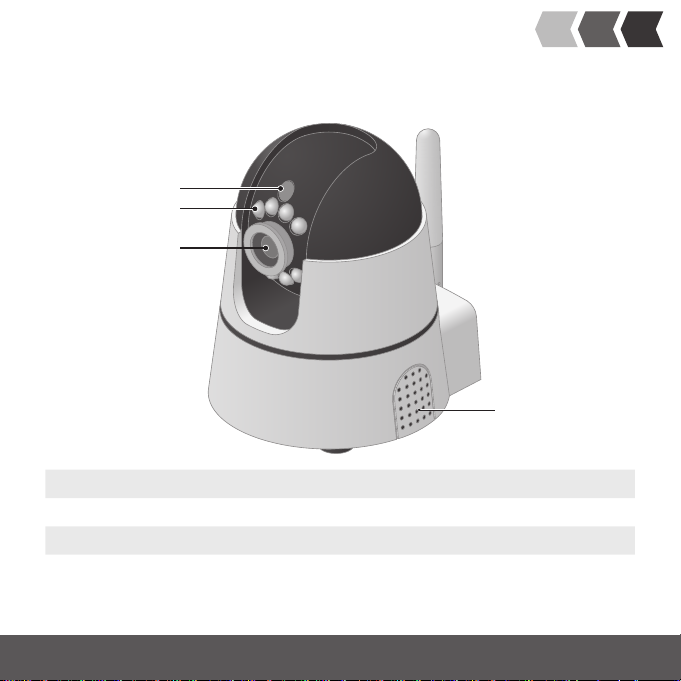
Camera - Front
1
2
3
1 Brightness sensor
2 Infrared LEDs
3 Lens
4 Microphone / Loudspeaker
GENERAL OVERVIEW
4
IP CAMERA IC 600
11
Page 12

GENERAL OVERVIEW
Camera - Rear
3
1
2
1 Aux output (3.5 mm connector)
2 Network connection (LAN)
3 WLAN receiving antenna
4 I/O port
5 MicroSD card slot
6 Power adapter connection port
12
IP CAMERA IC 600
4
5
6
Page 13
GENERAL OVERVIEW
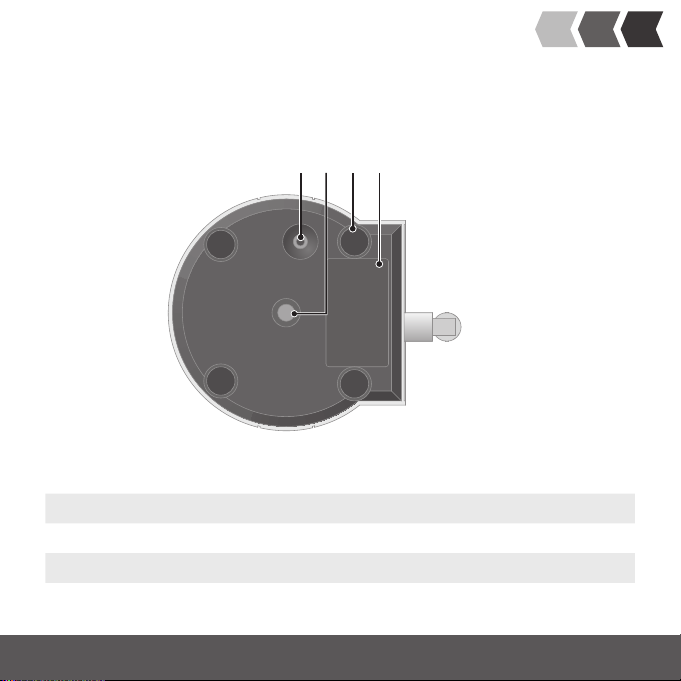
Camera - Underside
1 2 3 4
1 Reset key
2 Internal thread for mounting bracket
3 Rubberised base unit legs
4 Rating plate with QR code
IP CAMERA IC 600
13
Page 14

GENERAL OVERVIEW
Connecting the Camera
This section provides information on how to position and connect the
camera and insert a microSD memory card in it.
Inserting the MicroSD Memory Card (Option)
In order to be able to make recordings and save them, you must
insert a microSD memory card in the camera. Use a microSD memory
card with a maximum memory capacity of 32GB.
Insert a microSD memory card in the microSD memory card slot at the
rear of the camera. Pay attention that the microSD memory card is
inserted the right way around.
The microSD memory card latches audibly in place.
No microSD memory card is enclosed in the camera package
supplied.
14
IP CAMERA IC 600
Page 15

GENERAL OVERVIEW
Positioning the Camera
When the camera is put into operation for the rst time, it must be
connected to a network connection port (LAN) on your router via the
network cable. Therefore, when putting the camera into operation for
the rst time, it should be located near your router.
After putting the camera into operation for the rst time and
conguring it, you can install the camera at the location where
it should perform the video surveillance. It is essential to
observe local laws and regulations!
Mounting the Camera on the Ceiling
You can mount the camera on any ceiling using the mounting bracket
contained in the package supplied.
1 Use the mounting bracket supplied as the template for the posi-
tion of the holes.
2 Drill two suciently large holes in the ceiling.
3 Insert the dowels in the drill holes.
4 Assemble the mounting bracket using suitable screws.
5 Fit the camera on the mounting bracket. Use the internal thread
on the underside of the camera.
IP CAMERA IC 600
15
Page 16

GENERAL OVERVIEW
Connecting the Camera - Network Cable
Connect the network cable to the network connection porton the
camera and a free network connection port (LAN) on the router.
A condition for putting the camera into operation is the
unambiguous identication of your camera within your
network. If you have not altered the default setting of your
router, this will occur automatically. In the case of most
routers, the DHCP function is activated at the factory. More
detailed information on the DHCP function is provided in the
operating manual supplied with your router.
Connecting the Camera
1 Connect the power cable to the power connection port and a
properly installed power socket.
One LED on the network connection port signals when a
connection exists to the network (lights up orange) and the
other that data is being transmitted (ashes green).
16
IP CAMERA IC 600
Page 17

CONNECTING THE SMARTPHONE AND CAMERA
IMPORTANT! Property damage is possible! The camera could be dam-
aged if you move the servomotors by hand or interrupt the movement. Avoid moving the servomotors by hand or interrupting the
movement of the camera.
2 The servomotors of the camera are controlled automatically. Wait
until the process has nished.
Connecting the Smartphone and Camera
Installing the ProHomeIPC App
1 Download the ProHomeIPC app from the App Store or Google
Play Store.
2 Enable the ProHomeIPC app access to the camera of your smart-
phone or tablet PC and mobile internet. This simplies connecting the camera and ProHomeIPC app and also provides remote
access to the camera via the smartphone or tablet PC.
If you want to scan the QR code, you require access to the camera on
your smartphone or tablet PC.
IP CAMERA IC 600
17
Page 18
CONNECTING THE SMARTPHONE AND CAMERA
Access to the camera and mobile internet can also be enabled
or refused later in the setting options provided by your
smartphone or tablet PC. More detailed information is provided in the operating manual supplied with your smartphone or
tablet PC.
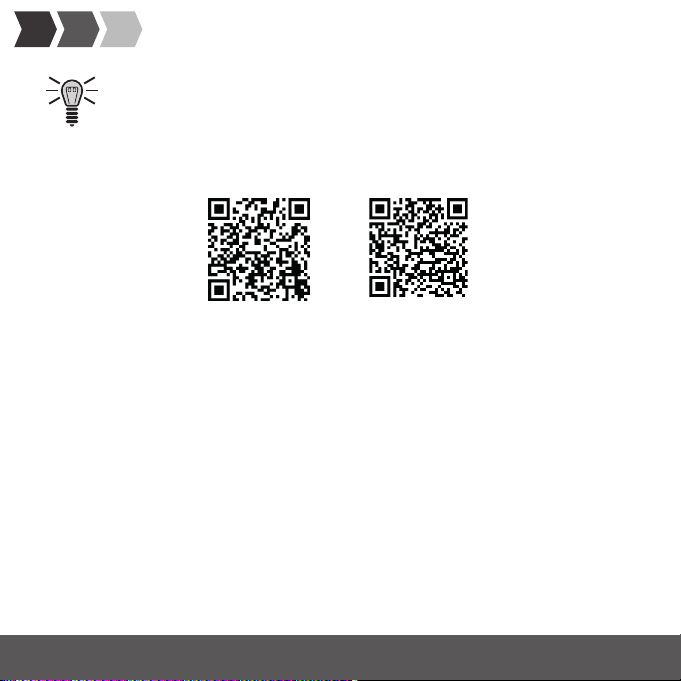
Apple App Store
Google Play Store
Establishing a Connection
The following conditions must be ful lled in order that you can use
the camera:
• You have downloaded the ProHomeIPC app and installed it
on your smartphone or tablet PC.
• You have positioned and connected the camera.
• Your smartphone or tablet PC is in the same network as the
camera.
18
IP CAMERA IC 600
Page 19

CONNECTING THE SMARTPHONE AND CAMERA
1 Start the ProHomeIPC app.
2 Touch Add Device or Click here.
3 Touch QRCode or Scan.
4 Scan the QR code on the rear of the camera using your smart-
phone or tablet PC. The camera is displayed (with its unambiguous
user identier and IP address).
If you touched the
matically searches for all the cameras available in the network. If your
smartphone or tablet PC is connected within the same network as the
camera, the camera is displayed (together with the unambiguous user
identier and IP address).
Scan option in Step 3, the ProHomeIPC app auto-
5 Enter the camera's password.
When the default settings are set, the password is admin.
6 Touch Save or OK. Your camera is now listed in the overview of
cameras available.
The rst time you attempt to select your camera, you will be requested to change the camera's password for reasons of security. We urgently recommend that you change the camera's password in order to
prevent unauthorised access to your camera, and thus your privacy,
by third parties.
IP CAMERA IC 600
19
Page 20

DETAILED OPERATING INSTRUCTIONS
Detailed Operating Instructions
The way to use the ProHomeIPC app and operate the camera is explained in the detailed operating manual.
The detailed operating manual is available on our website at
www.olympia-vertrieb.de.
Appendix
Technical Data
Weight Approx. 300 g
Dimensions (W x H x D) 95x 100x 125 mm
Permissible ambient conditions
Transmission frequency 2.4 GHz (WLAN)
Transmission power
(max.)
Power supply
Lens / Sensor 1/5" CMOS sensor (colour), f:3.6 mm
0°C to +55°C at 20% to 80% rel. humidity
63.1 mW (WLAN)
Input: 100 - 240V, 50/60Hz, 0,5A / Output:
5V, 2000mA / 5W
20
IP CAMERA IC 600
Page 21

APPENDIX
Resolution 1280 x 720 Pixel
Image compression H.264
Light sensitivity 0.5lux
Image refresh rate 15fps(VGA), 30fps(QVGA)
Night vision 12IR LEDs, range up to 15meters
Angle of vision 60°
Motion detection Yes
Microphone / Loudspeaker
Ports microSD, I/O
LAN
WLAN 802.11b, 802.11g, 802.11n
Encryption WEP, WPA and WPA2
Yes/Yes
10Base-TEthernet /100Base-TX Fast
Ethernet
IP CAMERA IC 600
21
Page 22

APPENDIX
Troubleshooting
My camera is not detected within the network.
Check all the cable connections. Observe the information in Section
"Connecting the Camera".
Check the network settings. The DHCP function must be activated in
the router. Your camera can only be found automatically in the network when the DHCP function is switched on.
Reset your camera to its default factory settings. Use a thin object to
press in the opening on the rear of the camera for approx. 10seconds. Ensure that the user identier and password correspond to the
default settings.
My camera is detected within the network but I cannot access it.
Check the entries for the user identier and password. The default
settings are provided on the rear of the camera.
Reset your camera to its default factory settings. Use a thin object to
press in the opening on the rear of the camera for approx. 10seconds. Ensure that the user identier and password correspond to the
default settings.
22
IP CAMERA IC 600
Page 23

APPENDIX
My camera does not respond at all or only very slowly to input via
the ProHomeIPC app.
The connection to the network is slow or faulty. Check the network
settings.
The mobile internet connection available is of dierent quality in different localities. Move to a dierent location and try again.
The data volume is used up within the scope of your mobile phone
contract and the speed of the mobile connection has been slowed by
your provider. Contact your mobile phone provider.
Reduce the image quality of the image transmission.
Reset your camera to its default factory settings. Use a thin object to
press in the opening on the rear of the camera for approx. 10seconds. Ensure that the user identier and password correspond to the
default settings.
IP CAMERA IC 600
23
Page 24

APPENDIX
Guarantee and Service
Dear Customer,
we are pleased that you have chosen this equipment.
In the case of a defect, please return the device together with the
receipt and original packing material to the point-of-sale.
Information on Disposal
The adjacent symbol indicates that old electrical and electronic
apparatus no longer required must be disposed of separate
from domestic waste in accordance with legal directives.
Packaging materials must be disposed of according to local
regulations.
24
IP CAMERA IC 600
Page 25
APPENDIX
Cleaning and Service
1 Disconnect the camera from the power outlet before cleaning it!
2 Clean the surface of the housing with a soft, lint-free cloth. Never
use any chemicals or scouring agents.
Information on Conformity
Olympia Business Systems Vertriebs GmbH, Zum Kraft-
werk1, 45527 Hattingen hereby declares that these devices
full the basic requirements and other relevant provisions
stipulated in the Directive 2014/53/EU. The CE Mark on the
devices conrms conformity.
Detailed information on the Declaration of Conformity
is available at http://productip.com/?f=62061
IP CAMERA IC 600
25
Page 26

APPENDIX
Legal Notice
Apple and the Apple logo are trademarks of Apple Inc., registered in
the U.S. and other countries. App Store is a service mark of Apple Inc.
Android is a trademark of Google Inc. Google Play is a trademark of
Google Inc.
26
IP CAMERA IC 600
Page 27

APPENDIX
IP CAMERA IC 600
27
Page 28

Download the ProHomeIPC app:
v1.0, 08.2017 Art. No. 6010
600 IC IP camera
 Loading...