

Page 1

USER
MANUAL
OLIVE VME110 MODEM
Page 2

1
Contents
Introduction ........ . ........... 2
Computer Specification............... 3
Operation Guide.................. 4
Care and maintenance... ............ 30
Important Safety Information............. 33
Page 3

2
Introduction
Connect the Olive V-ME110 modem with USB port on your
PC/laptop/netbook, next you can enjoy various functions as below:
1. Surf the internet
2. Sending & receiving SMS
3. Storing the phone number on Phonebook
4. Using Olive VME110 as USB Flash Disk.
5. Software upgrade feature for updated version.
6. Application Installation of Google Chrome, Vivanews
Desktop Alert (for Windows only), Picasa.
Page 4
3
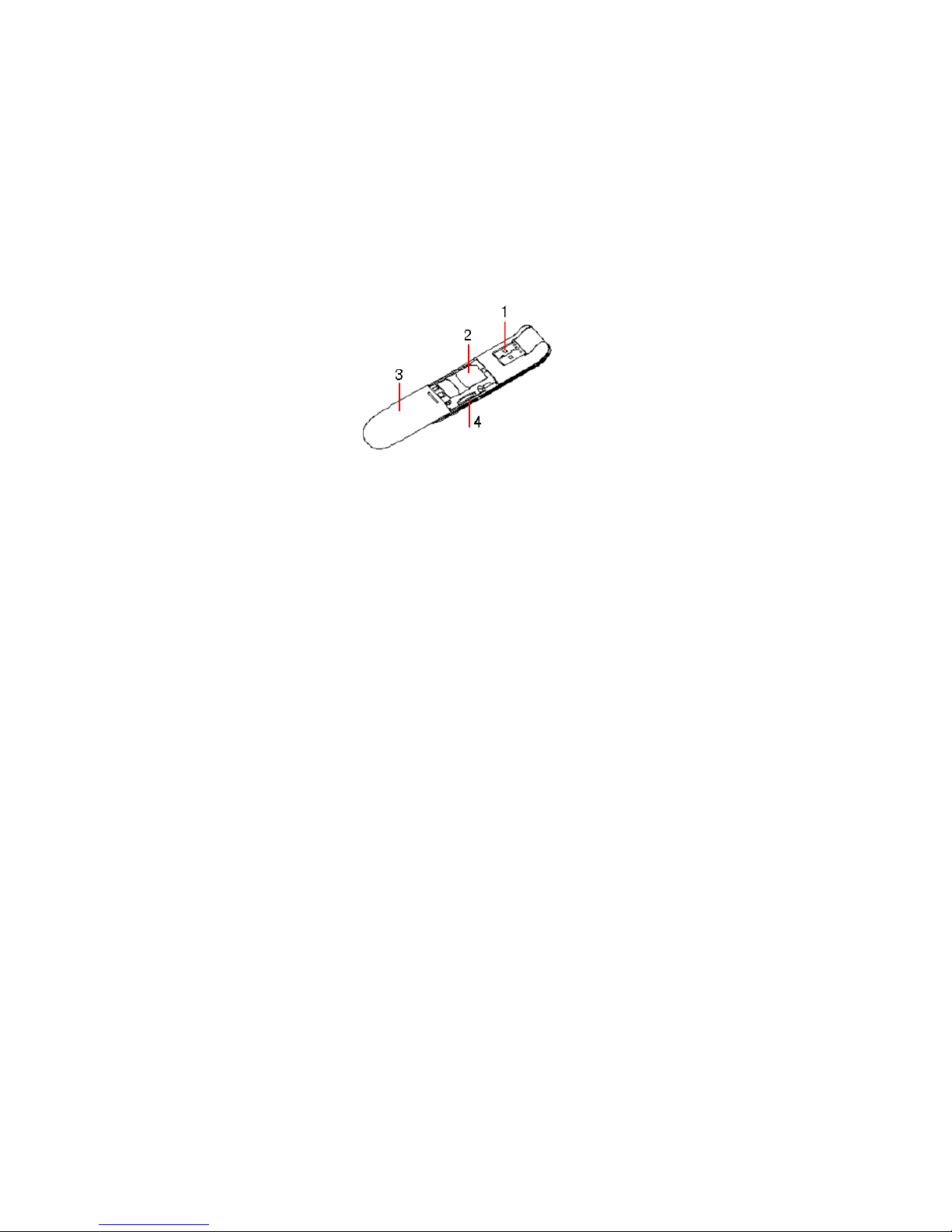
V-ME110 Images
note: above modem images may vary from the actual units.
Additional information:
1. USB port connector
2. Indicator Lamp
When connected to computer:red light active
When used as modem: yellow light active
3. T-Flash slot, to place T-Flash/Micro SD card.
Computer Specification
1) Has USB Port for USB modem connection
2) Supported Operating System:
a) Windows 2000//XP/Vista/Windows 7
Page 5

4
b) Mac : Leopard 10.5, Snow Leopard 10.6
c) Linux : Ubuntu, Redhat, Susee, Fedora
3) PC configuration should comply with the supported operating
system above.
4) Monitor resolution: above 800x600 pixel
Note: If the PC has lower specifications, then the performance of Olive V-ME110 UI may not be optimum.
Operational Guide
For Windows Operating System
Software Installation (dialer & driver):
1) Connect Olive V-ME110 with PC USB port.
2) When connecting Olive V-ME110 to PC (if PC is supporting
autorun function), then pop-up window for installation will
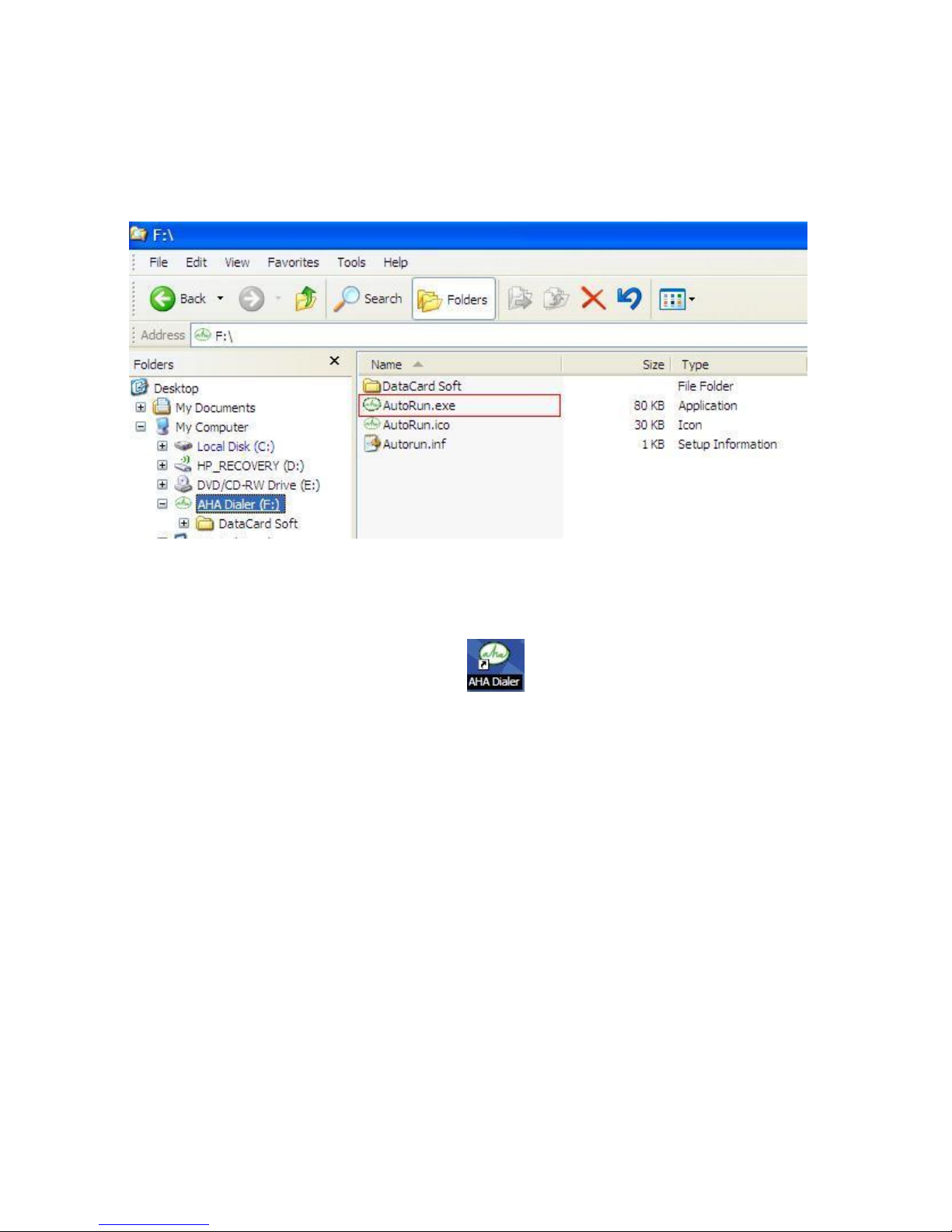
appear. If autorun is not functioning, then open the directory
where Olive VME110 installer file (e.g.: AHA Dialer (F:))
available with Windows Explorer, find autorun.exe file and
double-click the file for starting installation process.
Page 6
5
Notes: after installation process finished, then dialer directory will be disappear from windows explorer.
3) Software Installation process will start.
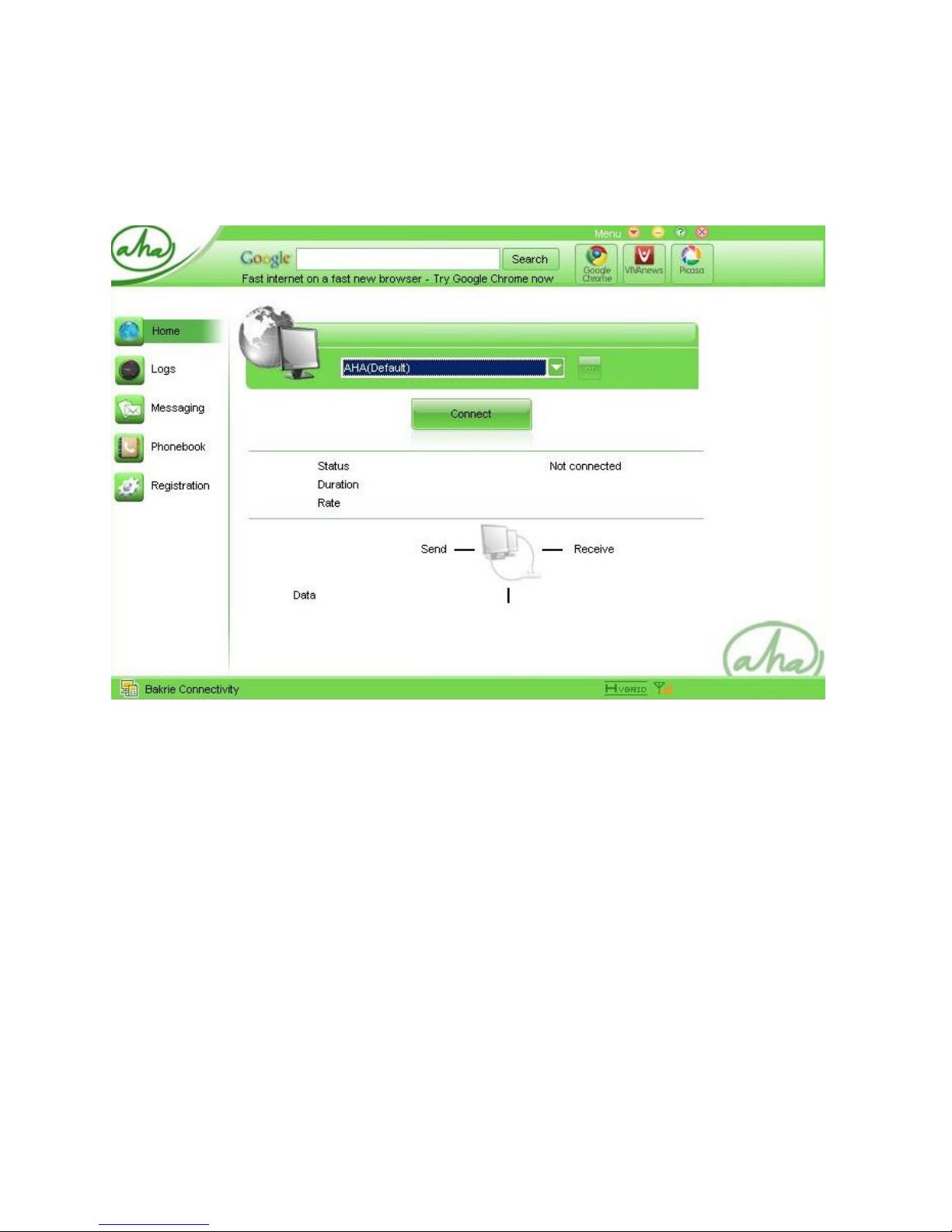
4) Afterwards, then AHA dialer icon and dialer window will
appear on desktop.
Page 7
6
5) Modem installation process of Olive VME110 is finished and
you can use it for connection to the internet.
Olive VME110 modem activation:
Before you can utilize Olive VME110 modem, please finalize
following steps below:
1) Initiate & finalize AHA number registration.
Page 8

7
2) Ensure you have activated the internet package. Note: if you
are activating Olive VME110 modem for the first time, you will
get default internet package as per Bakrie Connectivity
network setting.
3) Ensure that you are using computer specification & operating
system as required by Olive VME110 modem.
AHA number registration
1) Ensure the dialer is on active status (network signal detected).
Has to be on HYBRID or CDMA 1X status, if it’s on EVDO
status, then you must change into HYBRID or CDMA 1X.
(To change network, go to Menu – Setting – Network select
either HYBRID (EVDO & CDMA 1X) or CDMA 1X)
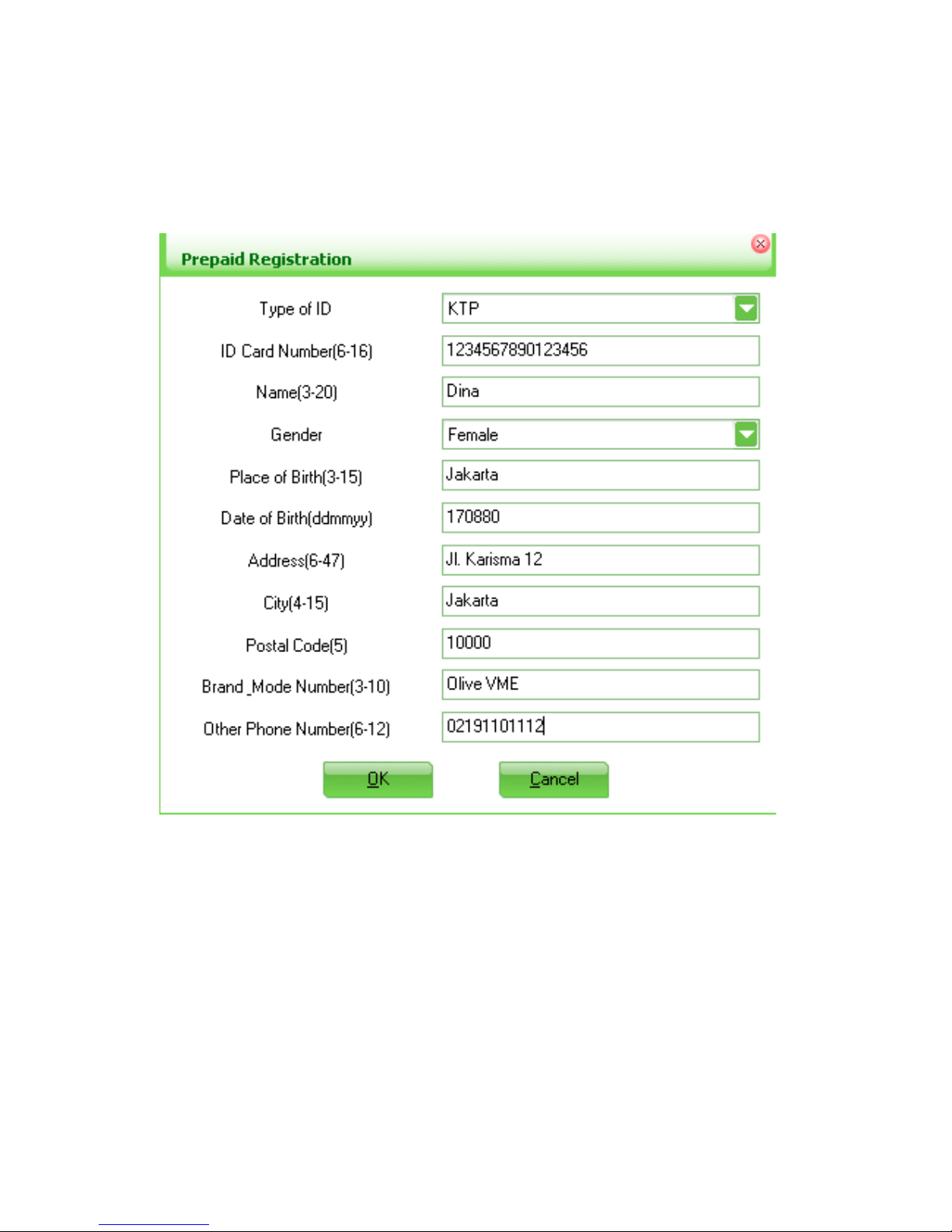
2) Initiate prepaid registration by clicking the Registration icon
and filling all required data.
Page 9
8
3) Afterwards, click OK button, then Registration menu will send it
to 4444 number.
4) Wait for SMS reply from 4444 number stating that prepaid
registration is done and finished.
Page 10

9
Note: Prepaid registration needs to be done only once at the time of activating AHA internet connection.
Starting Internet Connection:
1) Ensure you have opened the Modem Olive VME110 dialer
window (under Home menu) and modem has detected
networks (default network setting will be “HYBRID”).
2) Ensure you have finalized & activated AHA prepaid
registration.
3) Click Connect button to start internet connection.
Disconnect internet connection:
1) Click Disconnect button to stop internet connection.
Using Google Search Function in AHA Dialer:
1) Ensure you are in active internet connection.
2) You can find Google Search Box in AHA Dialer, then input to
be searched wording phrase or sentence. Click “Search”
button, to start searching.
3) AHA Dialer will open default browser in computer dan
Page 11

10
automatically opens Google search function & present search
result.
Software Upgrade feature:
1) Ensure you’re connected to the internet.
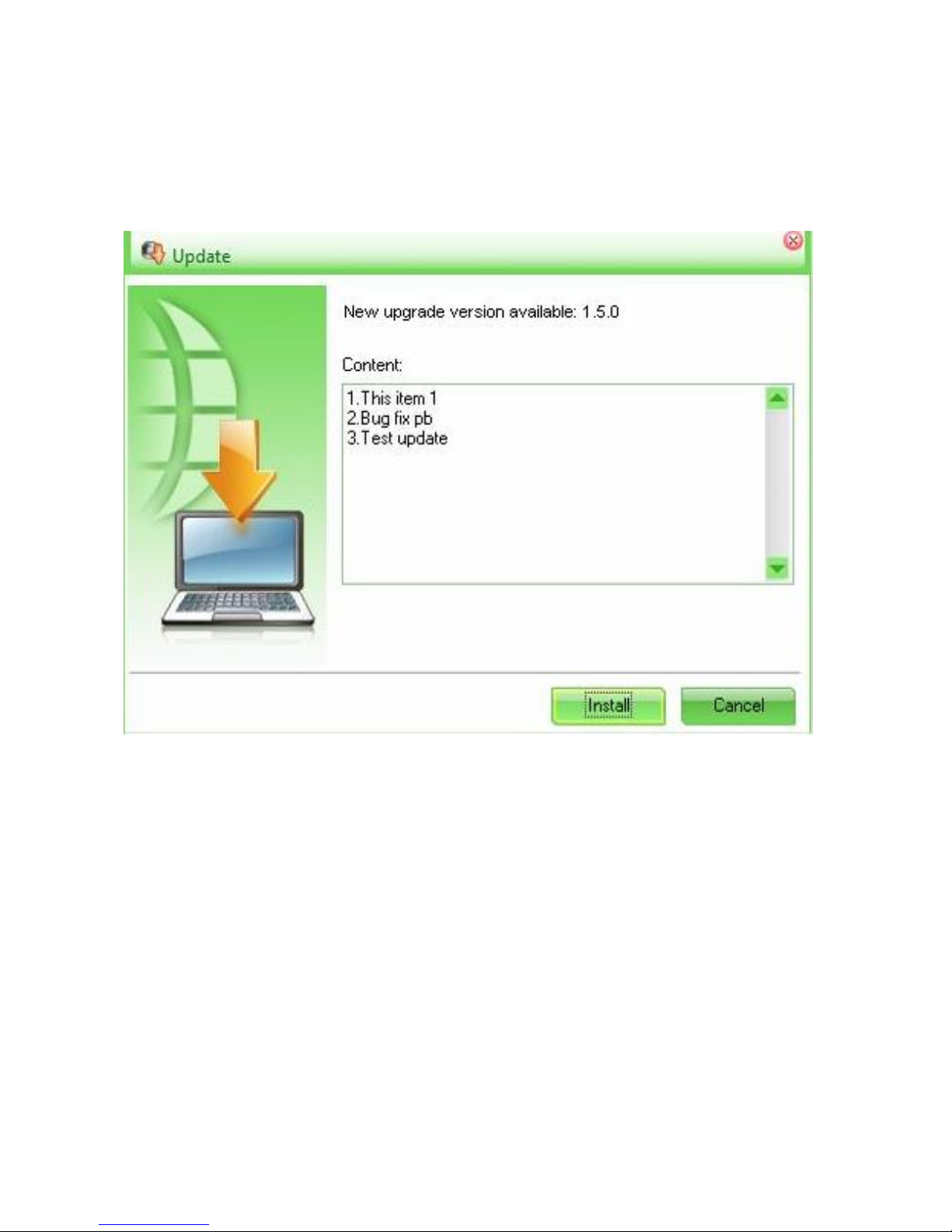
2) Once connected, if dialer detects for new version of software,
then upgrade window will appear automatically as below:
Page 12
11
3) Click Install button to start software upgrade process or click
Cancel button to cancel the upgrade. Once upgrade is
finished, PC will need to be restarted for usage of new
software.
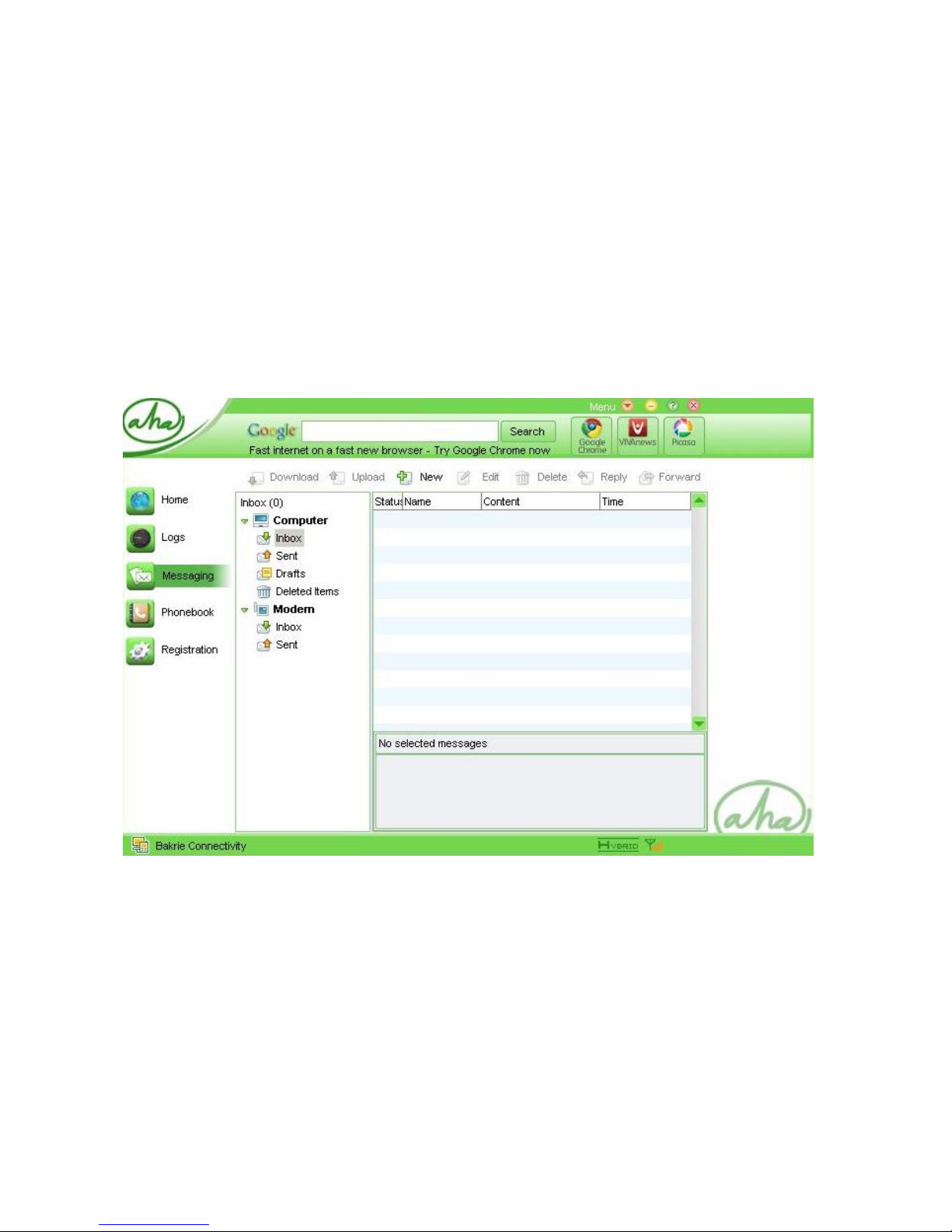
4) If you choose to Cancel, you may upgrade the dialer at a later
point time by clicking the Menu button on the upright corner of
Page 13
12
your dialer.
Sending SMS
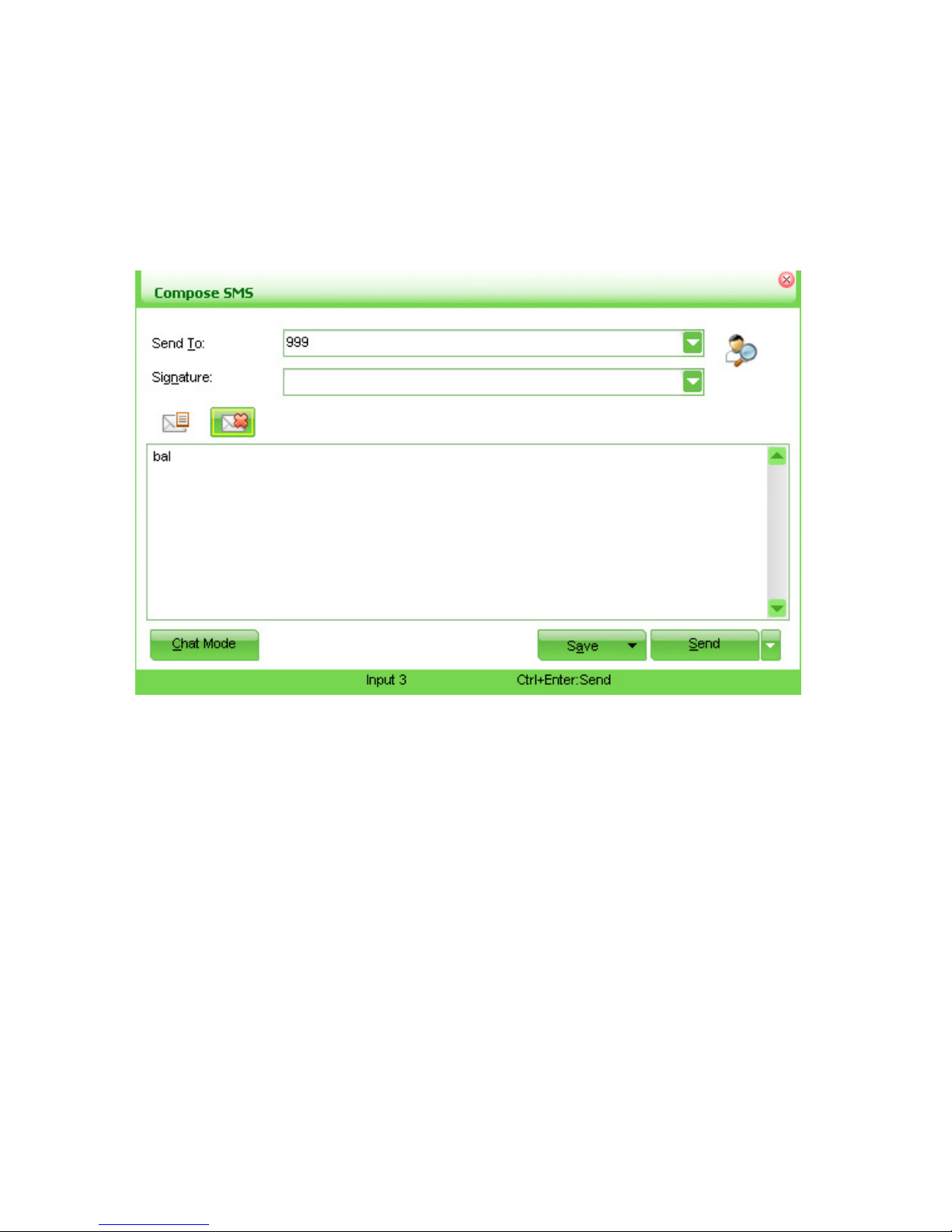
1) Select Messaging-Computer or Messaging-Modem menu
If Messaging-Modem menu selected, AHA dialer will request
to download any SMS available on the RUIM Card to the inbox
Menu.
Page 14
13
2) Press New button, to compose New SMS.
3) Once opened, input destination number on “Send to” part, then
input message and click “Send” button to send the message.
Receiving SMS:
1) There will be an indicator of New Incoming Message appearing
on the dialer.
2) See on the Inbox section of Messaging menu for New
Page 15

14
Incoming Messages.
To check internet connection record:
1) Select Logs menu, it will display all internet connection records
based on data traffic usage.
2) Note: any data available in Logs menu, are indicative only
therefore can not be used as reference.
Using Olive VME110 as USB Flash Disk
1) Ensure you’re have a T-Flash/Micro SD card and is placed on
T-Flash/Micro SD slot. Then connect Olive VME110 modem to
USB PC port.
2) If you are connecting Olive VME110 modem to computer for
first time, computer will detect as a new hardware and initiate
Olive VME110 software (dialer & driver) installation.
3) After installation menu finished, if AHA Dialer menu appears,
please quit from dialer (you’re not using Olive VME110 as
modem).
4) Computer will detect Olive VME110 as a USB Flash Disk which
Page 16

15
will appear on extra drive of PC.
Removing Software (Dialer & Driver):
1) Ensure that you’re not using dialer or not connected to internet
and you have quitted from modem dialer menu.
2) Find and click Uninstall icon of menu AHA dialer, on program
list. Or open menu “Add/Remove Program” located at Control
Panel, find and select AHA dialer program and click “remove”
to proceed uninstall process.
Install Application
For VME110, you can install Google Chrome Browser, Picasa &
Vivanews. For installation, please ensure you are connected to the
internet since it requires downloading the applications before
installation.
Google Chrome Browser
1) Click Google Chrome icon, then the dialer will activate your
default browser in your PC to open download link of Google
Chrome application.
Page 17

16
2) Click Run button to run application installation or Save to
download to PC.
3) Afterwards, install Google Chrome browser application.
Picasa
1) Click Picasa icon, then the dialer will activate your default
browser in your PC to open download link of Picasa
application.
2) Click Run button to run application installation or Save to
download to PC.
3) Afterwards, install Picasa application.
Vivanews
1) Click Vivanews icon, then the dialer will activate your default
browser in your PC to open download link of Vivanews
application.
2) Click Run button to run application installation or Save to
download to PC.
3) Afterwards, install Vivanews browser application.
Page 18

17
For Mac Operating System
Software Installation (dialer & driver)
1) Connect Olive V-ME110 to USB port on your Mac.
2) When connecting Olive V-ME110 modem to your Mac (if your
Mac supports autorun), then pop-up window where Olive
VME110 modem installer file available will appear, find AHA
Dialer Install 1.0.8.pkg file and do double-click the file to start
installation file.
3) Follow all installation file, input username & password if
required.
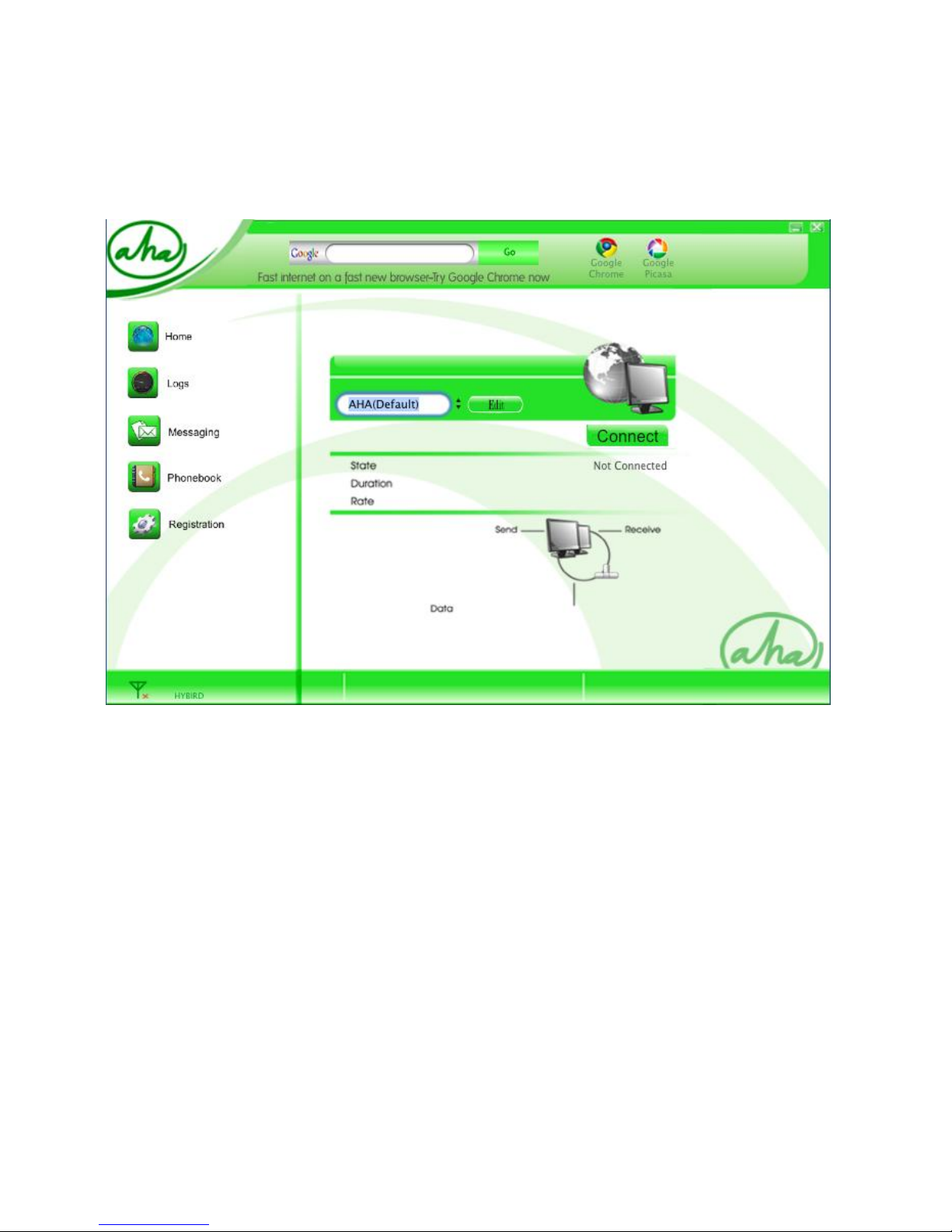
4) Once installed, then AHA dialer
icon will appear on
desktop and dialer window will appear on desktop.
Page 19
18
5) Modem installation process of Olive VME110 finished and you
can use it for internet.
Olive VME110 modem activation:
Before you can utilize Olive VME110 modem, please finalize
following steps below:
1) Initiate & finalize AHA number registration.
Page 20

19
2) Ensure you have activated the internet package. Note: if you
are activating Olive VME110 modem for the first time, you will
get default internet package as per Bakrie Connectivity
network setting.
3) Ensure that you are using computer specification & operating
system as required by Olive VME110 modem.
AHA number registration:
1) Has to be on HYBRID or CDMA 1X status, if it’s on EVDO
status, then you must chang into HYBRID or CDMA 1X.
(To change network, go to Edit, select either HYBRID or
CDMA 1X)
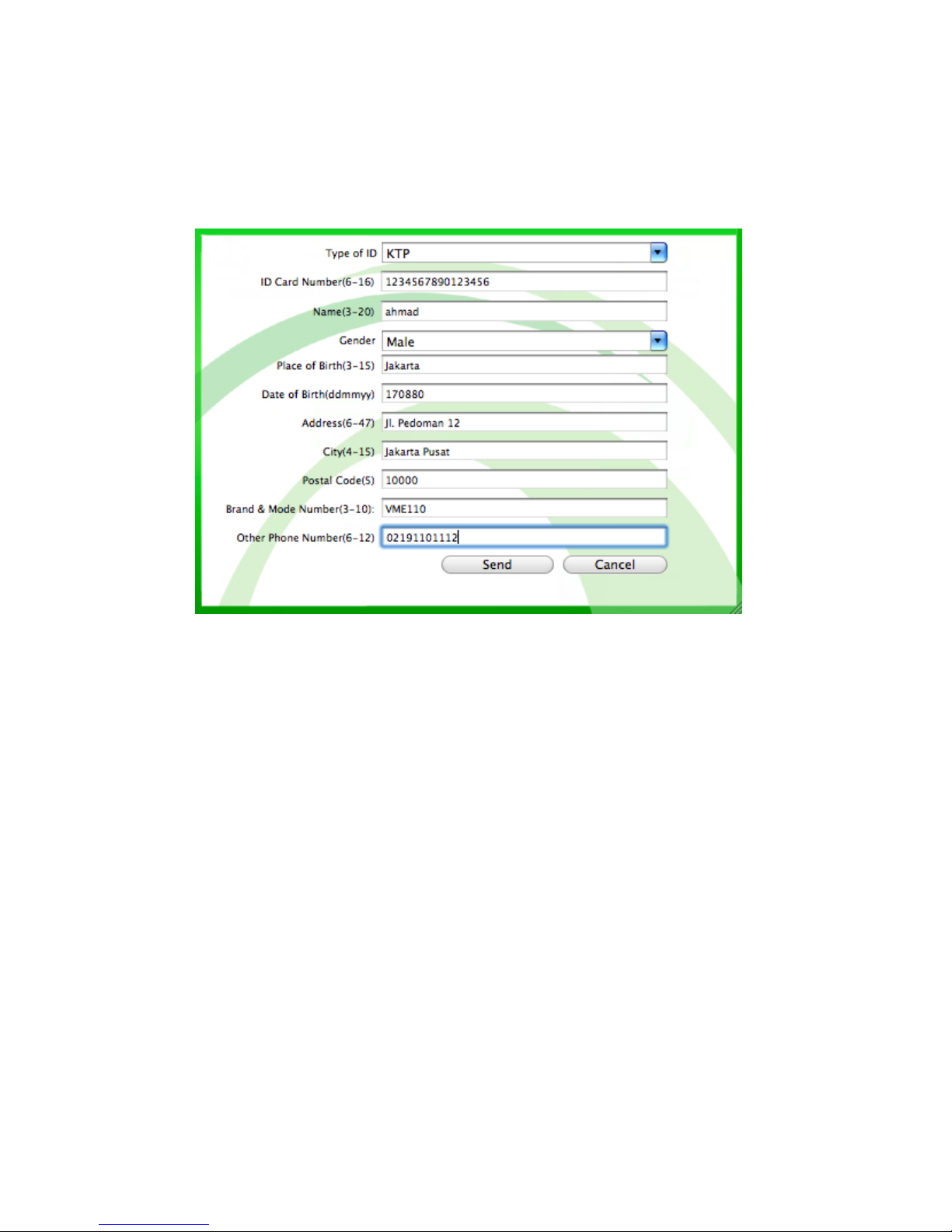
2) Initiate prepaid registration by opening Prepaid Registration
menu by filling all required data:
Page 21
20
3) Afterwards, click Send button, then Registration menu will
send it to 4444 number.
4) Wait for SMS reply from 4444 number stating which declares
that prepaid registration has done and finished.
Note: Prepaid registration needs to be done only once at the time of activating AHA internet connection.
Starting Internet Connection:
1) Ensure you have opened the Modem Olive VME110 dialer
window and modem has detected networks (default network
Page 22

21
setting will be “HYBRID”).
2) Ensure you have finished & activated AHA internet connection.
3) Click Connect button to start internet connection.
Disconnect internet connection:
1) Click Disconnect button to stop internet connection
Using Google Search Function in AHA Dialer:
1) Ensure you are in active internet connection.
2) You can find Google Search Box in AHA Dialer, then input to
be searched wording phrase or sentence. Click “Search”
button, to start searching.
3) AHA Dialer will open default browser in Mac dan automatically
opens Google search function & present search result.
Software Upgrade feature:
1) Ensure that you have internet connection established.
2) Once connected, if dialer detects for new version of software,
then upgrade window will appear.
Page 23
22
3) Click Update button to start software upgrade process or click
Cancel button to cancel the upgrade.
Sending SMS
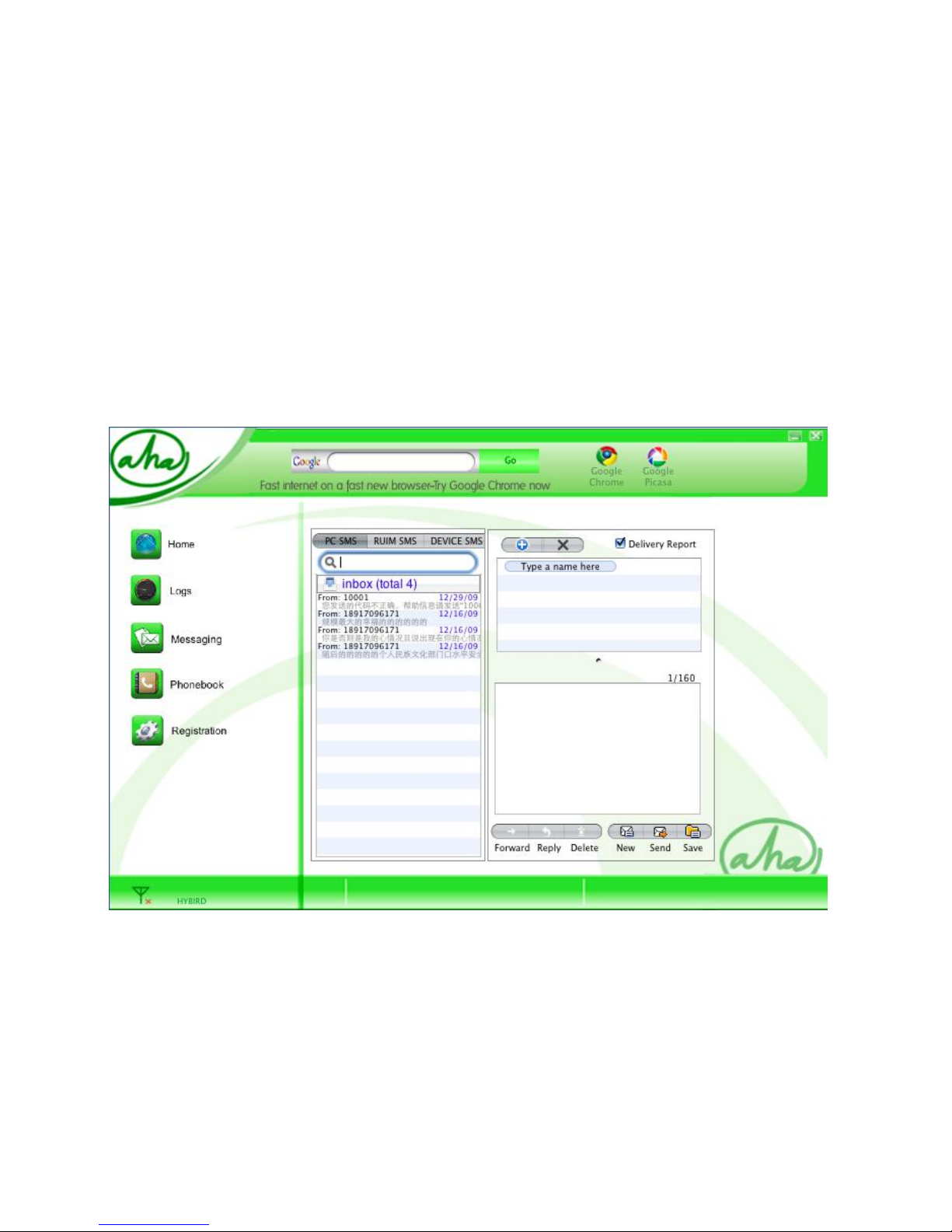
1) Click Messaging button, it will open below menu.
2) Click New button, then input message and input destination
number then click “Send” button to send message.
Page 24

23
Receiving SMS:
1) There will be an indicator of New Incoming Message appearing
on the dialer.
2) See on the Inbox section of Messaging menu for New
Incoming Messages.
To check internet connection record:
1) Select Logs menu, it will display all internet connection records
based on data traffic usage.
2) Note: any data available in Logs menu, are indicative only
therefore can not be used as reference.
Removing Software:
1) Ensure that you’re not using the dialer or not connected to
internet and you have exit from modem dialer menu.
2) Click & hold AHA dialer icon on Programs List and drop to
Trash for removal.
Install Application
Page 25
24
For VME110, you can install Google Chrome Browser, Picasa &
Vivanews. For installation, please ensure you are connected to the
internet since it requires downloading the applications before
installation.
Google Chrome Browser
1) Click Google Chrome icon, then the dialer will activate your
default browser in your Mac to open download link of Google
Chrome application.
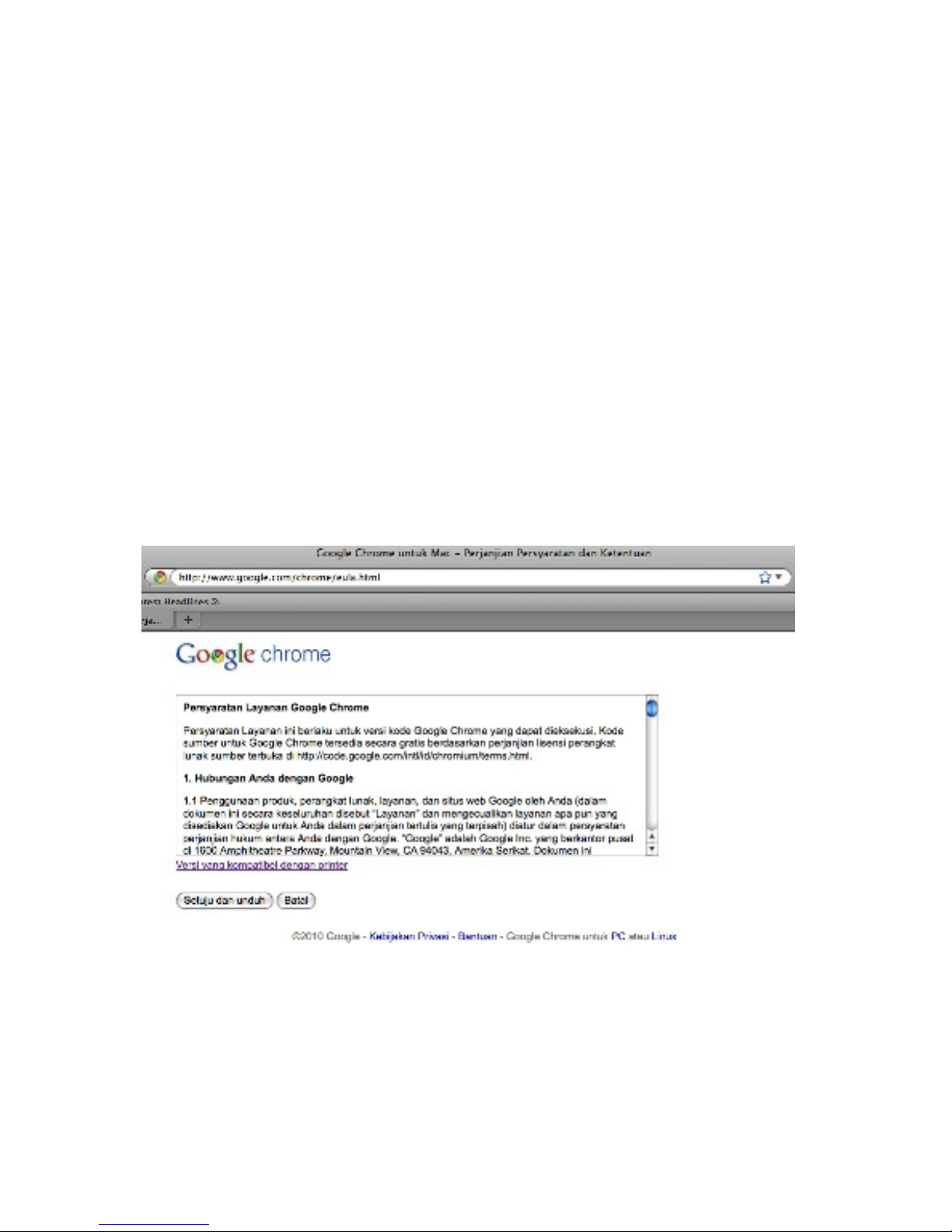
2) Click “Setuju dan Unduh” button to download application to
Page 26
25
computer, or “Batal” to cancel.
3) After finished downloading, please start Google Chrome
browser installation.
Picasa
1) Click Picasa button, then the dialer will activate your default
browser in your Mac to open download link of Picasa
application.
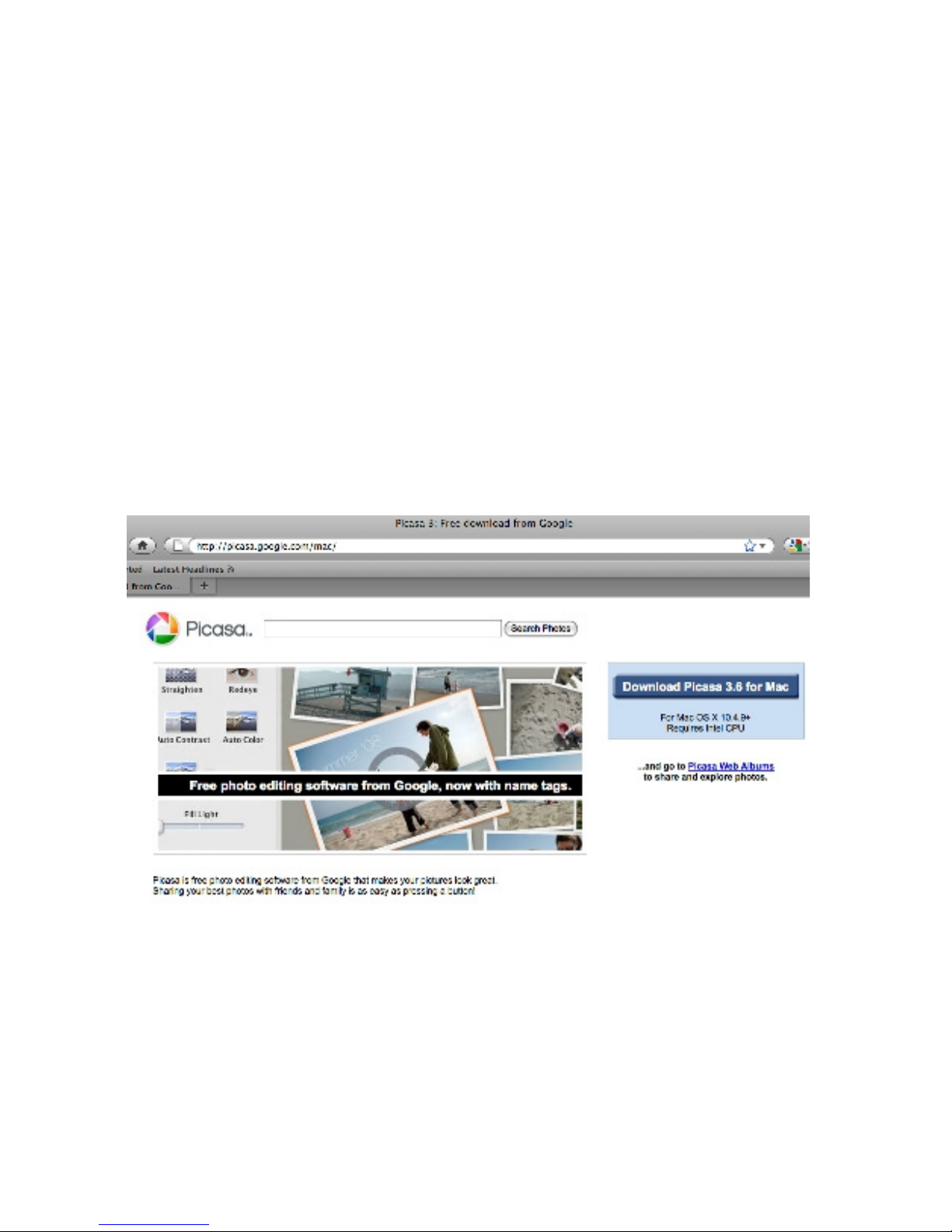
2) Click button Download Picasa 3.6 for Mac to download the
application to computer.
Page 27

26
3) After finished downloading, please start Picasa installation.
For Linux Operating System
Olive VME110 modem supports following Linux Operating System:
Ubuntu, Redhat, Susee, Fedora. Olive VME110 driver, is not yet
supporting for other Linux operating system. AHA Dialer menu is
not available for Linux Operating System, therefore command-line
will be used for driver configuration & connection setting of Olive
VME110 modem.
Before utilizing Olive VME110 modem Linux, ensure that AHA
number has been registered and internet package has been
activated via AHA Dialer menu on other computer with Windows &
Mac operating system.
Please find the driver installation, connection setting &
disconnecting setting for Ubuntu Linux:
1) Connect Olive VME110 modem to Linux computer. Linux will
detects Olive VME110 modem as CDROM and displays
Page 28

27
AHA Dialer icon in desktop. Select and eject the
CDROM via mouse’s right-click.
2) Activate Terminal menu, for initiating manual configuration. Do
following steps:
a) Type: $sudo lsusb, then press Enter button
b) If Linux asks for password, input correct password used in
the computer.
c) If success, then following status will appear: Bus 002
Device 002: ID 201e:2009.
3) Check the modem driver to see whether it has installed or not,
type: $ls /dev/ttyUSB* then press Enter button. If “No such
file or directory” displayed, that means driver modem has not
been installed. If “/dev/ttyUSB0 /dev/ttyUSB1 /dev/ttyUSB2”
displays, that means modem driver has been installed. If the
modem has been installed, you can go to number 6 steps.
4) Jika modem has not been installes, type following command:
$sudo modprobe usbserial vendor=0x201e
product=0x2009
Page 29

28
a) Above command to load proper module in order to help
Linux kernel to detect modem driver.
b) For some linux kernel version, it doesn’t support the
“modprobe” command. Please upgrade into supported
version to run modprobe command.
5) Redo steps number 3. If succeeded, following status will be
displayed: “/dev/ttyUSB0 /dev/ttyUSB1 /dev/ttyUSB2”
6) Make Internet connection configuration file, as below:
a) Type: $sudo gedit /etc/wvdial.conf, then file editor will
open wvdial.conf file.
b) Input every following command into wvdial.conf file:
[Dialer Defaults]
Init = ATZ
Init = ATQ0 V1 E1 S0=0 &C1 &D2 +FCLASS=0
Modem Type = USB Modem
Baud = 115200
Modem= /dev/ttyUSB0
(pastikan bahwa USB0, atau USB1, atau USB2, adalah
port USB yang terhubung dengan modem)
Page 30

29
Phone = #777
Username = [email protected]
Password = aha
New PPPD = yes
Stupid Mode = 1
c) Finally, type Control-O button to save configuration file
followed by Control-X button to exit the editor..
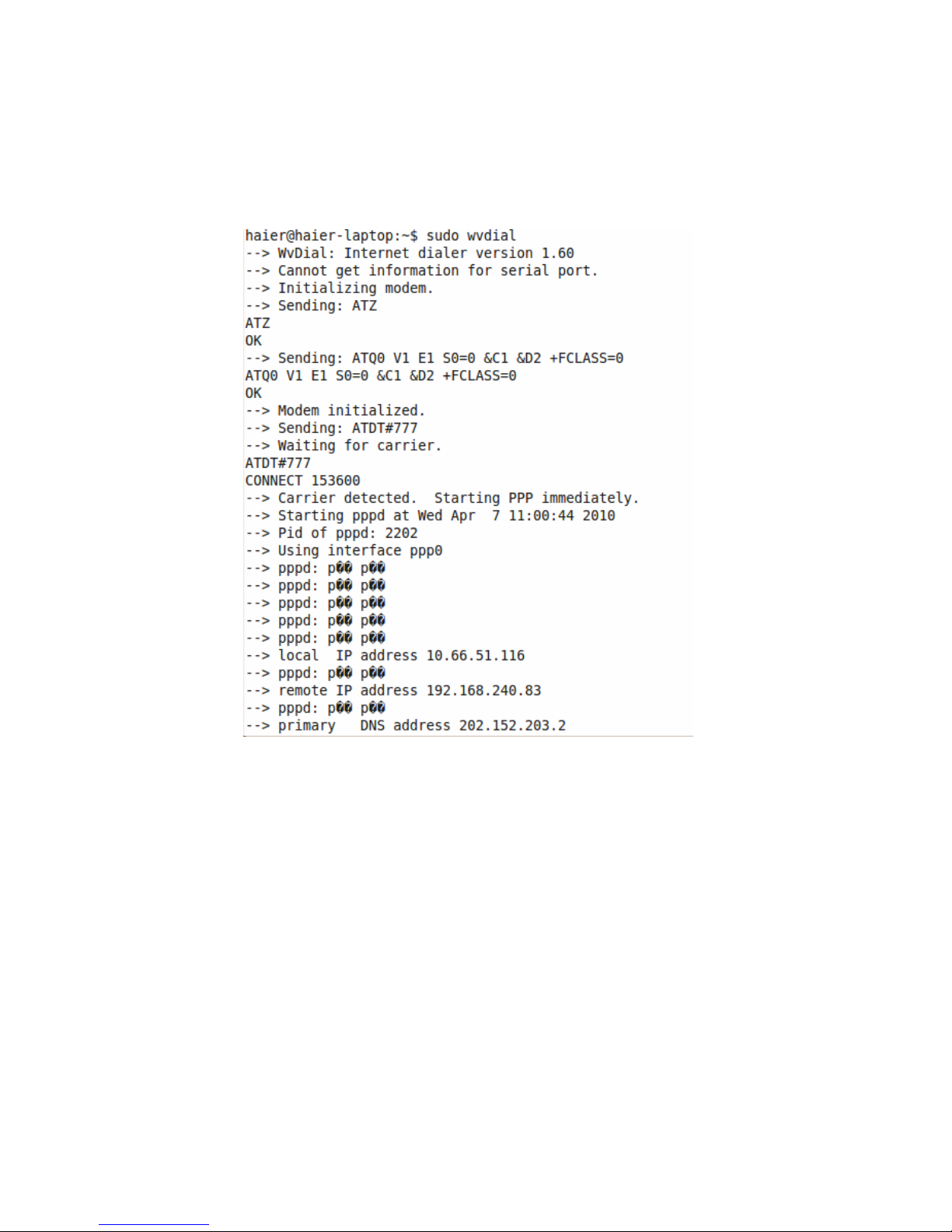
7) Initiate internet connection process, via typing command:
$sudo wvdial, if following status displays, then internet is
connected successfully:
Page 31
30
8) Do not close Command Prompt menu during connection. Open
internet browser in Linux Ubuntu.
9) To disconnect, close or exit from internet browser then back to
Command Prompt menu. Type command:
∧
C, to disconnect.
Internet connection will be disconnected.
10) For later internet connection process, redo steps number 1, 2,
Page 32

31
3, 7, 8, 9.
Care and maintenance
If your radio card has abnormal conditions, please check it with the
following table.
Common problems Check item
Cannot automatically
install the driver &
Dialer tool in the first
time
Maybe the computer does not open
the auto run function. Please go to “My
Computer”->CD Rom which name is
“V-ME110 Dialer”, open it and run the
autorun.exe manually.
Cannot install driver
successfully
Please try to uninstall it and then install
it again.
Cannot find the
device by Dialer tool
Please check whether it can find the
device from Device Manager. If not,
please check whether you can see the
CD “V-ME110 Dialer” from “My
Computer”. If so, then eject the CD.
Cannot search signal
from Dialer tool
Please check whether the number you
used is activated or not. Please
contact your operator whether the
parameters are configured correctly.
Page 33

32
Common problems Check item
Cannot connect to
internet by Dialer tool
Please check whether it can search
signal by Dialer first. Please check
whether the Modem configuration of
PC is correct or not.
Cannot connect to
Internet / modem
disconnect
In some PCs or laptops, it may
requires to disconnect LAN or WiFi
connection first before using modem.
Assure there is no local LAN Cable
connected and WIFI is set to Off. If
LAN or WIFI is connected to another
node, the computer may prioritize
those and disconnect the dongle
Modem.
Your radio card is a product of superior design and craftsmanship
and should be treated with care. The suggestions below will help
you to fulfill any warranty obligations and to enjoy this product for
many years.
- Keep the radio card and all its parts and accessories out of
small children's reach.
Page 34

33
- Keep the radio card dry. Precipitation, humidity, and all
types of liquids or moisture can contain minerals that will
corrode electronic circuits.
- Do not use or store the radio card in dusty, dirty areas.
- Do not store the radio card in hot areas. High temperatures
can shorten the life of electronic devices, and warp or melt
certain plastics.
- Do not store the radio card in cold areas. When it warms
up (to its normal temperature), moisture can form inside,
which may damage electronic circuit boards.
- Do not attempt to open the radio card. Non-expert handling
may damage it.
- Do not drop, knock, or shake the radio card. Rough
handling can break internal circuit boards.
- Do not use harsh chemicals, cleaning solvents, or strong
detergents to clean the radio card.
- Do not paint the radio card. Paint can prevent proper
operation.
All of the above suggestions apply equally to your radio card or any
Page 35

34
accessory. If any of them is not working properly, take it to your
nearest qualified service facility. The personnel there will assist you
and, if necessary, arrange for service.
Important safety information
Traffic safety
Do not use the radio card while driving a vehicle. Do not place the
radio card on the passenger seat or where it can break loose in a
collision or sudden stop.
Operating environment
Remember to follow any special regulations in force in any area
and always power off your radio card whenever it is forbidden to
use it, or when it may cause interference or danger. Note that the
radio card may cause similar interference as any cellular terminal
(e.g. mobile phone) and must not be used in areas where the use
of any such device is prohibited.
Use the radio card in its normal operating positions.
Electronic devices
Most modern electronic equipment is shielded from radio
Page 36

35
frequency (RF) signals. However, certain electronic equipment may
not be shielded against the RF signals from your radio card.
Pacemakers
Pacemaker manufacturers recommend that a minimum separation
of 20 cm (6 inches) be maintained between a radio card and a
pacemaker to avoid potential interference with the pacemaker.
These recommendations are consistent with the independent
research by and recommendations of wireless technology
research.
Persons with pacemakers:
You should always keep the radio card more than 20cm (6 inches)
from their pacemaker when the radio card is powered on. You
should not carry the radio card in a breast pocket. If you have any
reason to suspect that interference is taking place, power off your
radio card immediately.
Hearing aids
Some digital radio cards may interfere with some hearing aids. In
Page 37

36
the event of such interference, you may want to consult your
service provider.
Other medical devices
Operation of any radio transmitting equipment, including radio
cards, may interfere with the functionality of inadequately protected
medical devices.
Consult a physician or the manufacturer of the medical device to
determine if they are adequately shielded from external RF energy
or if you have any questions.
Power off your radio card in health care facilities when any
regulations posted in these areas instruct you to do so. Hospitals
or health care facilities may be using equipment that could be
sensitive to external RF energy.
Emergency Call
You can use your phone for emergency calls. However,
connections in call conditions cannot be guaranteed. You should
never rely solely on the phone for essential communications.
Children Safety
Put your phone, battery, and charger in places beyond the reach of
Page 38

37
children. Do not allow children to use the phone, battery, or charger
without guidance.
Do not allow children to put the battery in mouth, for electrolyte in
the battery is poisonous.
Do not allow children to touch the small fittings. Otherwise,
suffocation or gullet jam can be caused if children swallow the
small fittings.
 Loading...