

Page 1

- 1 -
V-G8000 User Manual
Mobile phone
Thank you for using our V-G8000 Mobile Phone.
To guarantee the best performance, please read this manual carefully
and keep it for further use.
We reserve the right to make modifications on print errors or update
specifications without prior notice.
Page 2

- 2 -
CONTENTS
Security Requirements ·········································· 1
Phone Overview (Picture for reference only) ·························· 2
Description of Keys ············································ 3
Getting Started ··············································· 4
Inserting SIM card and Battery···································· 4
Taking out the battery ·········································· 5
Charging the Battery ··········································· 6
Security number ·············································· 7
General Features ·············································· 8
Turn on the phone ············································ 8
To make Domestic calls ········································· 9
To reject a call ················································ 9
To answer a call ··············································· 9
To end a call conversation ······································ 10
Emergency calls ············································· 10
To make an international call ···································· 10
To dial from contacts ·········································· 10
To dial from the Call list ········································ 11
Page 3

- 3 -
To hold / unhold a Call ········································ 11
Call options ················································· 11
Power off ·················································· 12
Menu ······················································ 12
Phonebook ················································· 16
1. New contact ·············································· 17
2. View contacts ············································· 17
3. Search ··················································· 17
4. View groups ·············································· 17
4. Special numbers ··········································· 18
6. Advanced ················································ 19
7. Memory status ············································ 20
Messages (SMS) ·············································· 20
1. Create message ············································ 20
2. Inbox ··················································· 22
3. Outbox ·················································· 23
4. Draftbox ················································· 23
5. Templates ················································ 24
6. Message settings ··········································· 24
7. Memory status ············································ 26
Page 4

- 4 -
Calls ······················································· 26
1. Incoming calls ············································· 26
2. Outgoing calls ············································· 27
3. Missed calls ··············································· 27
4. Call duration ·············································· 27
Settings ···················································· 28
1. General ·················································· 28
2. Display ·················································· 30
3. Sounds ·················································· 31
4. Call setup ················································ 33
5. Network settings ··········································· 34
6. Factory default ············································ 34
FM Radio ··················································· 35
Organizer ··················································· 37
1. Calculator ················································ 37
2. Calendar ················································· 37
Games ····················································· 37
Alarm ······················································ 38
SIM Tool Kit ················································· 38
Maintenance ················································ 39
Page 5
- 1 -
Security Requirements
These instructions are intended for safe and effective use of your phone. Please
follow these guidelines. Failure to do so might cause the product to malfunction or
even a potential hazard to your health.
Do not use your mobile phone while driving. Park the car before making a call.
Turn off your phone when refueling.
Do not use your phone near a gas station, flammable, or chemical substances.
Warning! It may explode when exposed to fire.
Do not use your phone during a flight, it is dangerous.
Do not use your phone near medical equipments like pacemaker and hearing
aids without requesting permission from the physician or medical staff.
Radio signals may affect the performance of the phone.
Do not touch any exposed parts of the antenna during a call; otherwise it will
affect the call reception and will waste battery power.
Do not attempt to disassemble or modify the phone by yourself. Only
authorized personnel should perform this service.
Page 6
- 2 -
When you connect accessories to your phone, please read the safety
guidelines carefully.
Do not use unauthorized products.
Please use only the original accessories or products that are authorized by
our company.
Keep the phone out of children's reach.
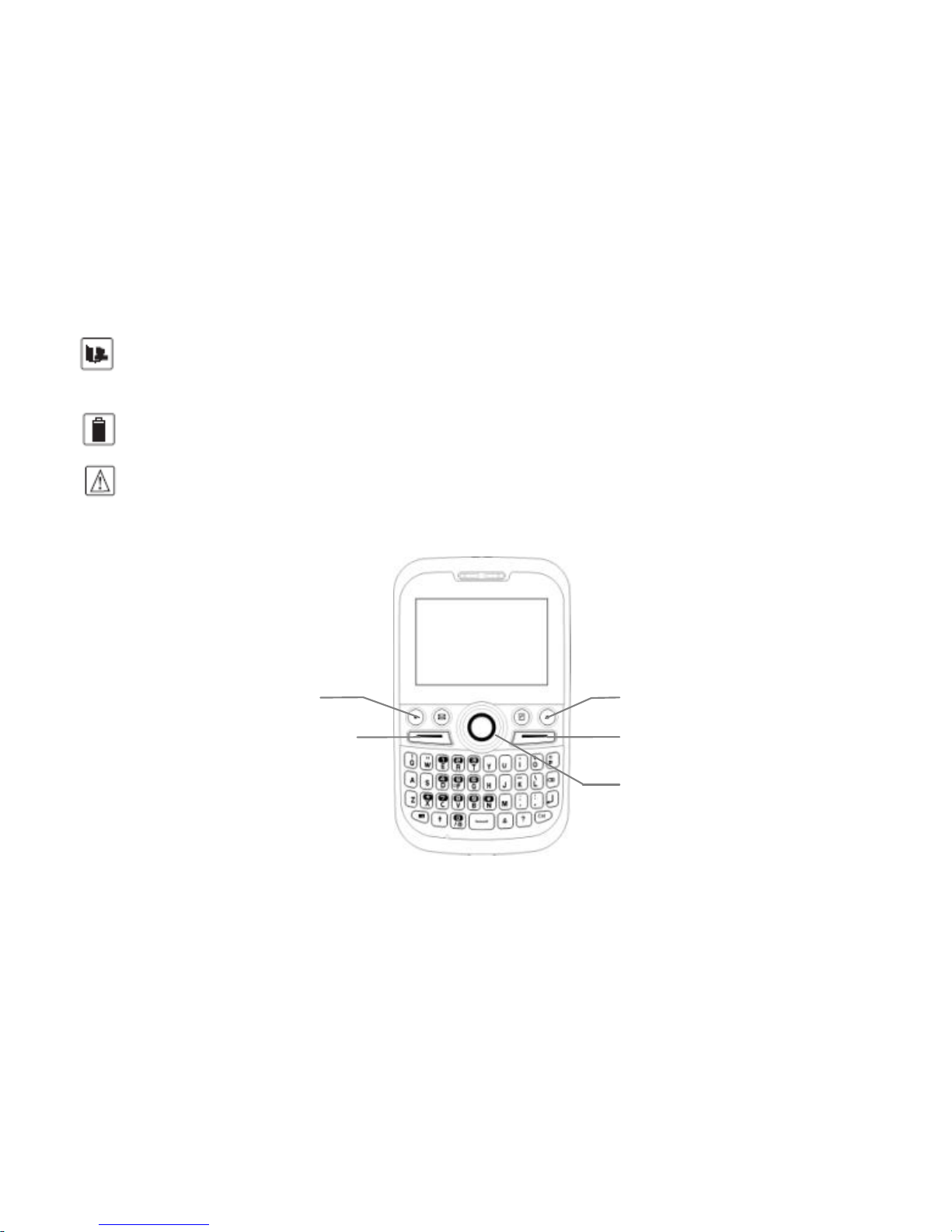
Phone Overview (Picture for reference only)
Left Soft key
Answer/Dial key
Right Soft key
End/Power key
Navigation key
Page 7
- 3 -
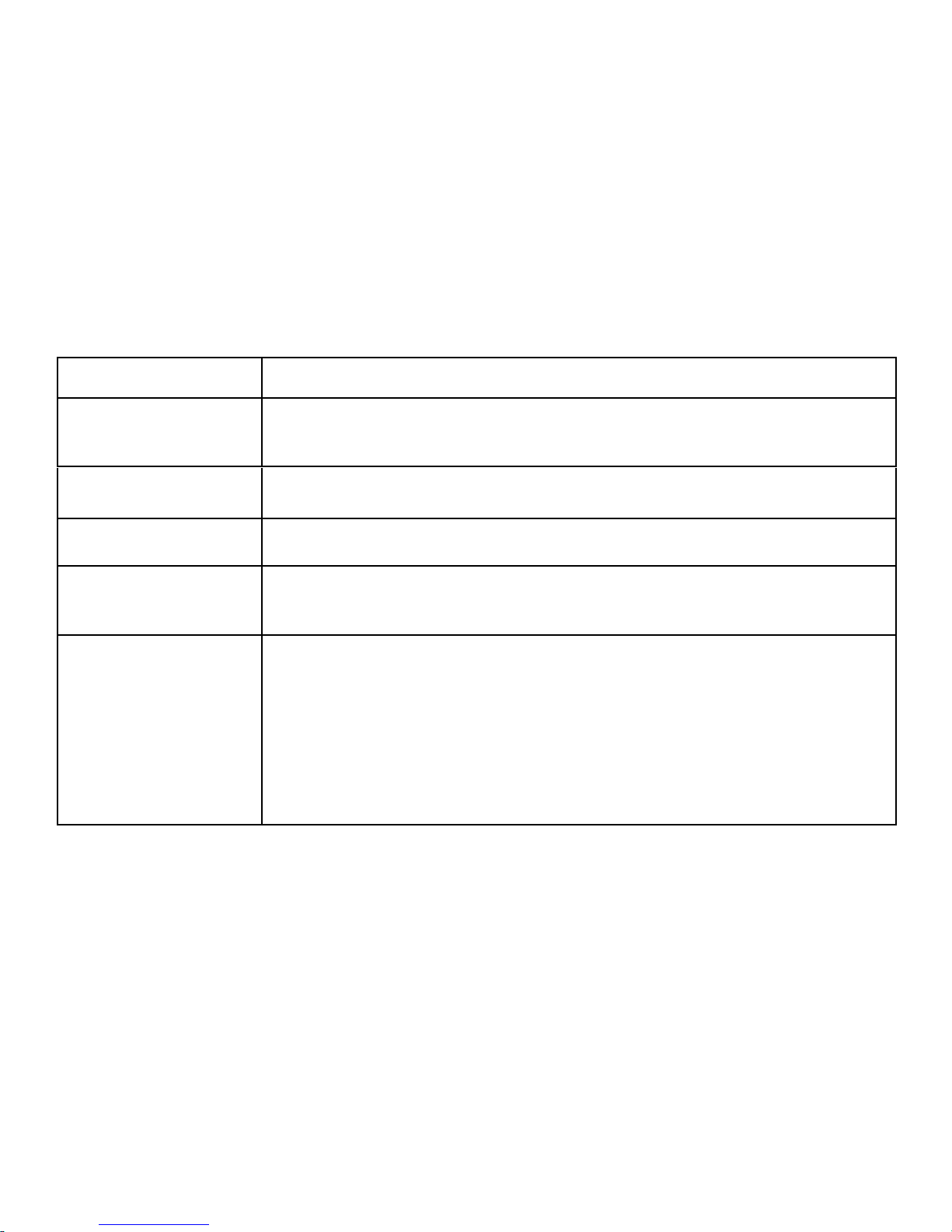
Description of Keys
Key
Description
Left Soft key
Activates/selects the menu function at the left bottom side of
the LCD screen.
Right Soft key
Activates FM Radio.
Answer/Dial key
Dial and answer calls. In standby mode, press to view dialed calls.
End/Power key
Ends or reject calls; Power on/Power off; In the menu
programming, press to return to standby mode.
Navigation key
In standby mode, press;
Left – Date & time setting.
Right – Create message.
Down – Contact list.
Up-Adjust Volume
Page 8
- 4 -
Getting Started
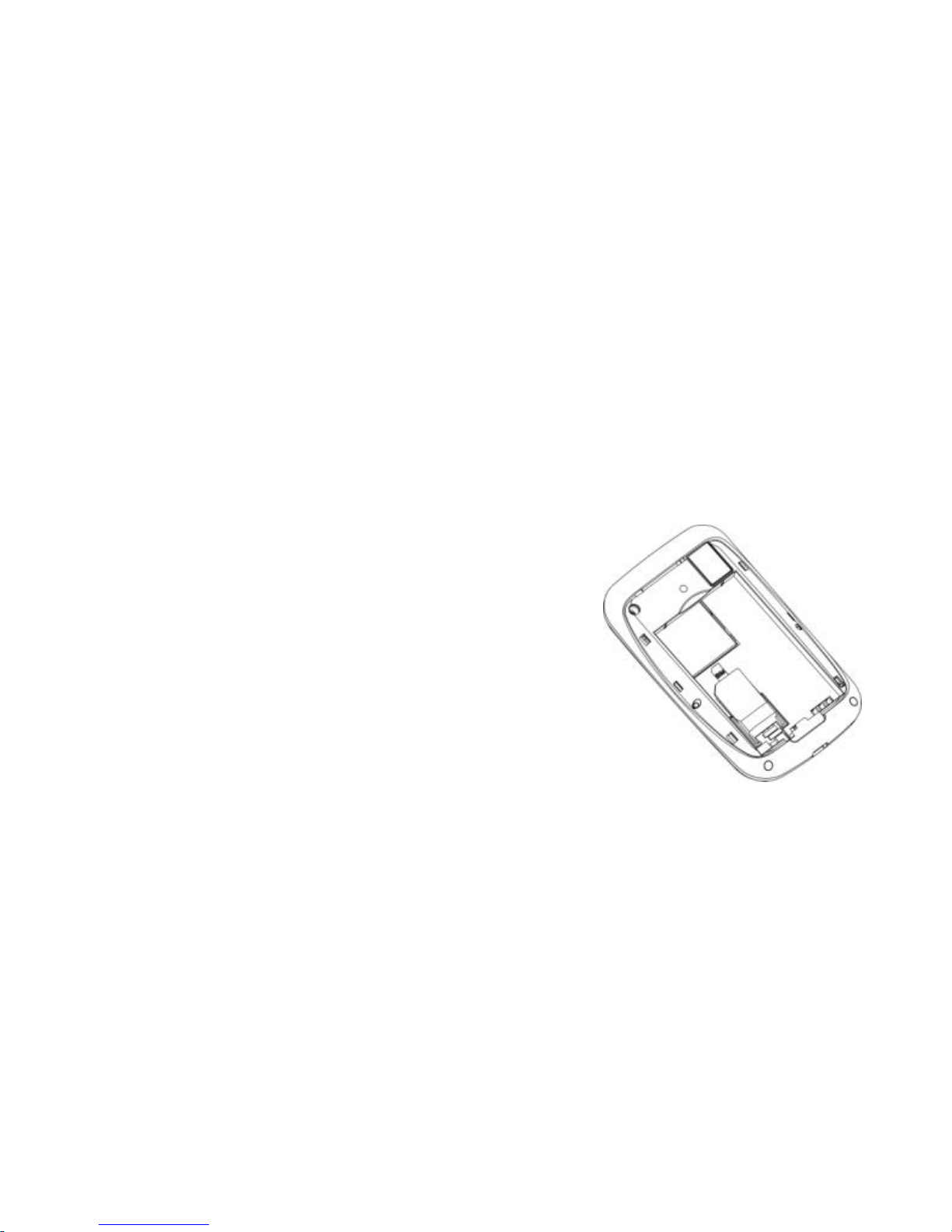
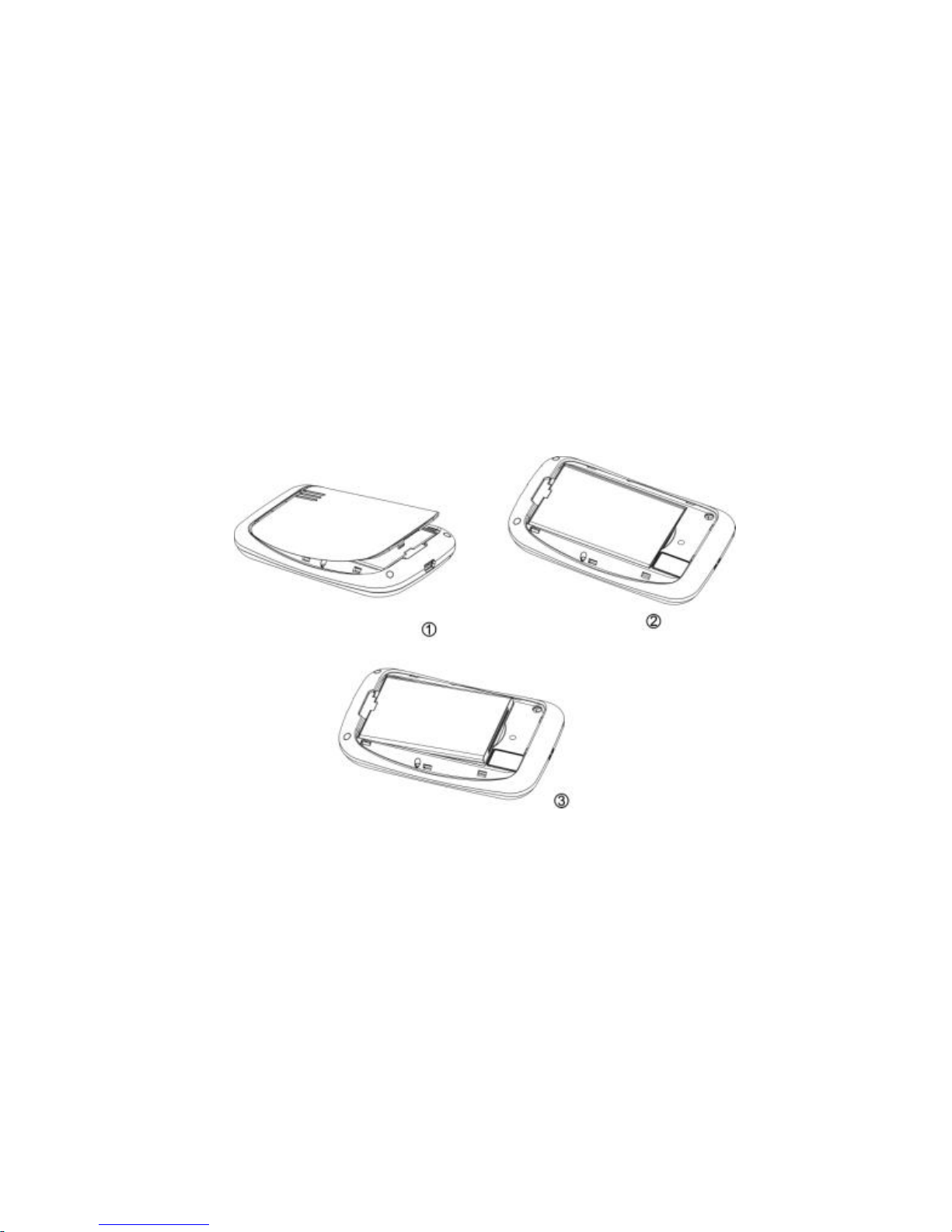
Inserting SIM card and Battery
WARNING!
Keep SIM Card out of children's reach.
Any abrasions or bend might easily cause damage. Please take extra care.
Make sure the phone is power off when you remove the SIM Card.
Remove the battery cover by sliding downward.
Insert the SIM Card into the sim card slot with the
contacts facing down.
Put the battery into place. Make sure that the
charge pins are in contact with the battery
terminals.
Slide the battery cover until it locks.
Page 9
- 5 -
Taking out the battery
Remove the battery cover. Insert your fingernail at the bottom slot of the
battery compartment and then pull out the battery.
Page 10
- 6 -
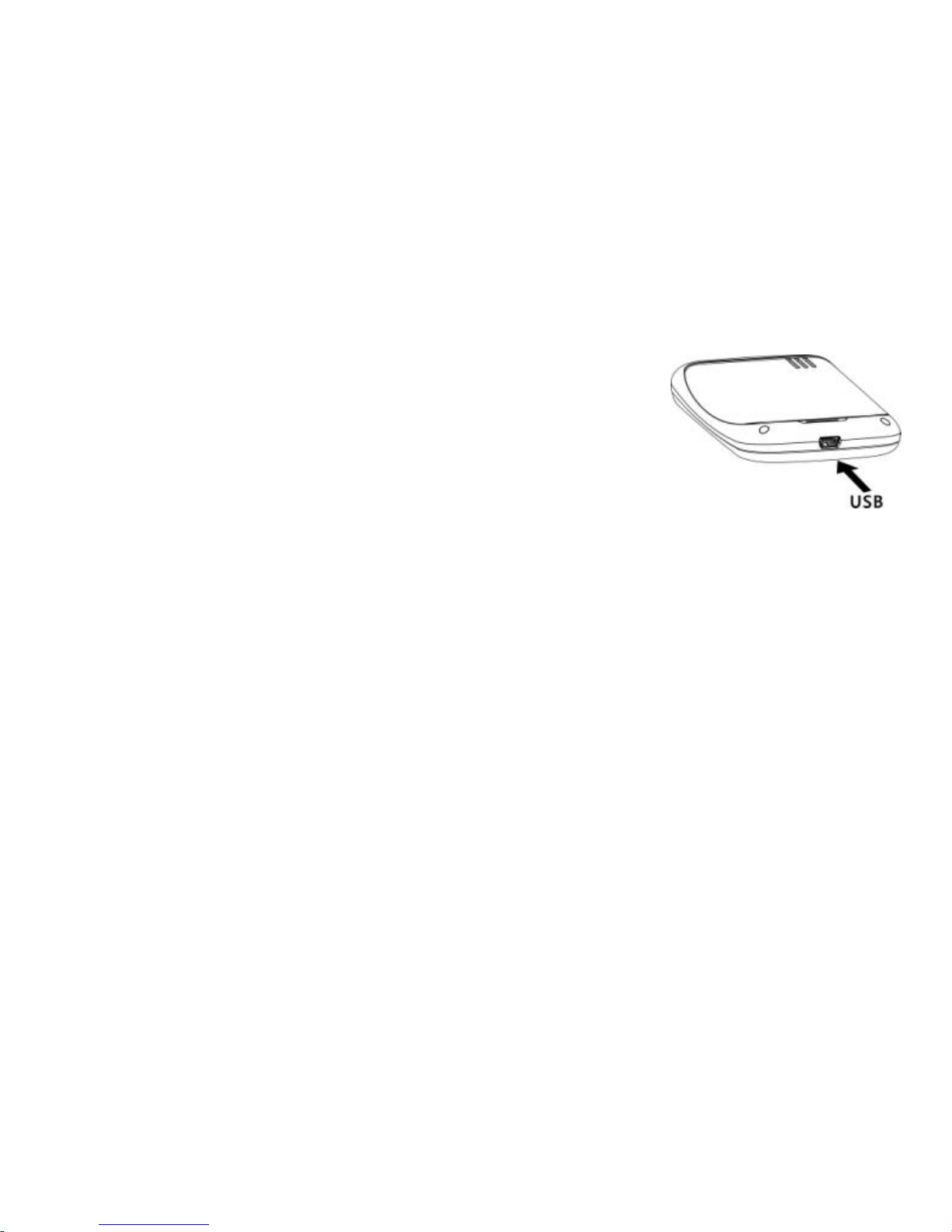
Charging the Battery
Insert the connector of the charger into the USB slot.
(Note: Ensure that the charger connector is plugged in).
Plug the charger into the AC wall outlet.
When the power comes on, “Charging…” will be
displayed on the LCD screen, and the battery
indicator will start to scroll. It will only stop after the
battery comes to full charge. If a battery is completely discharged, it may take a
few minutes before the charge indicator appears on the LCD screen.
After charging is completed, disconnect charger from phone and the socket of
the alternating current.
Notice:
When charging, please place the phone in an environment that has a normal
room temperature and good ventilation. It is recommended to charge the
phone in an environment with a temperature that ranges from 5℃~40℃. Please
ensure to use only the charger offered by the manufacturer. Using unauthorized
charger may cause danger and violate the authorization of the phone and the
guarantee.
Page 11

- 7 -
When the phone automatically turns off or sends the alarm of power shortage,
please charge the battery in time.
The duration of the standby and talk time of the phone offered by manufacturer
is based on ideal working environment. It may vary according to the network
condition, working environment, and application methods.
Warnings!
Do not take the battery out when it is being charged.
To ensure best performance, please use original accessories. Using any unauthorized
accessories may affect your mobile phone’s performance.
Personal data and settings in your phone and SIM card might be lost when you take
out the battery.
Security number
PIN
PIN (Personal Identification Number), usually provided to a SIM Card by the network
operator.
If you enter the wrong PIN three times in a row, it will be locked. You need to enter
your PUK (Personal Unblocking Key) number to unlock. Please contact your network
operator for more information.
Page 12

- 8 -
PIN2
PIN2 is provided in some SIM. If you enter the wrong PIN three times in a row, it will
be locked. You need to enter your PUK2 number to unlock. Please contact your
network operator for more information.
PUK
PUK (Personal Unblocking Key) is used to unlock the PIN. PUK is provided to a SIM
card. If you lose or forget the password, contact your network operator.
Phone code
Protects your phone against unauthorized usage. You can turn on the Phone code
for your personal security use.
General Features
Turn on the phone
1. Press and hold Power key to turn on the phone. The LCD screen will turn on.
2. If SIM card is not properly installed, a warning prompt will appear on the screen.
Press and hold Power key to turn off, and re-insert the SIM card properly.
3. If you have set a phone password, you will be asked to enter your password.
4. If your SIM card is protected by PIN, the phone will instruct you
to enter the PIN number.
5. You will be asked to enter the PUK number if SIM card is locked.
Page 13

- 9 -
6. The phone will search for network automatically once turned on.
Note:
If the phone has found an authorized network operator, the name of the network and
signal intensity will be displayed.
If not, you can only use the emergency calls and other non-communication service.
To make Domestic calls
In standby mode, enter a phone number (with region code and area code), Press
Clear key to delete a wrong entry. Then press Dial key to dial the number. When the
call gets connected, the call status will be displayed.
To reject a call
When you have an incoming call, press End call or End key to reject it.
To answer a call
When a call comes in, phone will ring and/or vibrate. It will show the caller's name if
the network supports it. The caller’s name display depends on whether you have
saved the number in your phonebook. Press Dial key to answer, or press Options ->
Accept.
Page 14

- 10 -
To end a call
When you have finished talking, press End key to end a call
Also, you can press End key if you want to terminate a call after you have dialed it.
Emergency calls
You do not need to own a SIM card to make emergency calls.
Emergency calls may differ with different network operators, please contact your
network operator to get your local emergency call number.
To make an international call
To make an international call, press and hold 0 key until a + sign appears.
Then enter the country/region code, area code (without the first zero), and the
phone number.
After you have entered the + sign, enter the country code and the number you want
to dial. For example, 91 for India, 49 for Germany, 44 for UK, 46 for Sweden.
Ex.: Dial +9198XXXXXXXX, when making an international call to India.
As you dial a common international call, you don’t have to enter the 0 of the city
code.
To dial from contacts
Find the number you want to call in your phone book, press Dial key to automatically
Page 15

- 11 -
dial the displayed contact.
To dial from the Call list
All the numbers that you have dialed are saved in the calls record. When the call
memory is full, the old numbers are automatically deleted. To scroll the call list:
1. In standby mode, press Dial key. The call records will display starting from the most
recently called number. Press Dial key to automatically dial the displayed record.
2. Or, press Up or Down key to scroll the list and then press Dial key to
automatically dial the selected record.
To hold/unhold a call
During the call, press "2” and then send key to hold/unhold the call.
Call options
While in a phone conversation, press Left soft key to enter the calling options or
press Right soft key to activate the Handsfree mode.
In the call options, you can
Mute
Hold
End
View contacts
Page 16

- 12 -
Power off
In standby mode, press and hold Power key to turn off your phone.
Menu
Phonebook
1. New contact
2. View contacts
3. Search
4. View groups
1. Family
2. Friends
3. Office
4. Others
5. Special numbers
1. My numbers
2. Voice mail
6. Advanced
1. Speed dial
2. Choose contacts list
3. Copy
4. Delete all contacts
7. Memory status
Page 17

- 13 -
Messages
1. Create message
2. Inbox
3. Outbox
4. Draftbox
5. Templates
6. Message settings
7. Memory status
Calls
1. Incoming calls
2. Outgoing calls
3. Missed calls
4. Call duration
Settings
1. General
1. Language
2. Time and date
Page 18

- 14 -
1. Date & time settings
2. Date display format
3. Date separator
4. Time display format
3. Answer mode
1. Normal answer
2. Any key answer
4. Security
1. PIN protection
2. Phone lock
3. Keypad locking settings
4. Change password
2. Display
1. Idle display
1. Time and date
2. Idle text
3. Wallpaper
2. Backlight
3. Sounds
1. Ringtones
Page 19

- 15 -
1. Incoming call
2. Message
3. Key tone
2. Volume
1. Call
2. Ring tone
3. Key tone
3. Alert type
1.Ring only
2.Vibrate only
3.Vibrate and ring
4. Call setup
1. Call divert
2. Call barring
3. Call waiting
4. Auto redial
5. Caller ID
5. Network settings
1.Automatic mode
2.Manual mode
Page 20

- 16 -
6. Factory default
FM Radio
Organizer
1. Calculator
2. Calendar
Games
1.Docker
2.Minesweeper
Alarm
SIM Tool Kit
Phonebook
It Stores your contact list in the SIM and Phone memory.
Page 21

- 17 -
1. New contact
Add contacts to the Phone memory.
1. In the Contacts display, select New contact.
2. Input the name and then press OK key.
3. Input the number and then press OK key.
4. The new contact will be saved automatically in the phone memory.
5. Repeat steps 1 to 4 to add more contacts.
2. View contacts
Note: To display the contacts on the screen, set the ‘Advanced/Choose contacts
list’option to SIM only, Phone only, or All contacts.
1.In the Contacts display, select View contacts.
2. Input the first letter of a name, and the search will jump to the first entry
beginning with that letter.
3. Press Up or Down key to scroll through the list.
3. Search
Search your desired contacts in the phonebook list.
4. View groups
You can store the phonebook records into groups and
Page 22

- 18 -
designate a distinctive ring tone for each group.
1. In the Contacts display, select View groups.
2. Select; Family, Friends, Office, or Others.
3. Press Ok.
4. Select; Group member -> Options -> Add member.
5. Select the record from the phonebook and press Add.
To assign a Ring tone in a Group
1. Select the group; Family, Friends, Office, or Others.
2. Select Alert tone.
3. Use Up or Down key to scroll through the ring tone list and then press Ok key
to confirm the selection.
4. Special numbers
1. In the Contacts display, select Special numbers.
2. From the options, select; My numbers or Voice mail.
In‘My numbers’ menu, you can store your SIM card number.
The‘Voice mail’ menu allows you to connect to the voice mail message
server to retrieve your voice mail messages.
The voice mail service requires subscription to the mobile network. Please
call your local network operator for details.
Page 23

- 19 -
6. Advanced
1. In the Contacts display, select Advanced.
2. Select; Speed dial, Choose contact list, Copy, or Delete all contacts.
Speed dial
1. Select the speed dial memory.
2. Press Set/Change and then select the phonebook record you wish to store in
the selected speed dial memory.
3. Press Ok key.
To make a Speed dial call;
In standby mode, press the Speed dial key and then press
Dial key to automatically dial out the stored number.
Choose contacts list
To set the contacts display on the View Contacts menu.
1. Select; SIM only, Phone only, or All contacts.
2. Press Ok key.
Copy
To copy all phone contacts to SIM or vice versa.
1. Select; Copy to phone or Copy to SIM
2. Press Ok key.
Page 24

- 20 -
Delete all
To delete all of phone or SIM contacts.
1. Select; Delete all phone contacts or Delete all SIM contacts.
2. Press Ok key.
7. Memory status
It displays the memory condition of the SIM and phone.
1. In the Contacts display, select Memory status.
2. The memory status will display, press Back key to return to the previous menu.
Messages (SMS)
SMS is a network service, which enables you to send, receive, and edit text messages
from your mobile phone.
1. Create message
In the Message window, select ‘Create message’ menu. Before you start, make
sure that the number of the service center is set. The
number is supplied by the service provider and is usually saved on the SIM card.
If you have entered a wrong letter or number, press Clear to erase
the last entry or press and hold Clear to erase the complete message.
Page 25

- 21 -
Using traditional text input Abc, abc, ABC,123 or eng
Check what is shown at the top of the display. Press the respective key to get the
desired character. The characters available depend on the Phone language settings.
Since it is an easy pad, there are different keys for every character.
To move the cursor, press Up-Down, Left-Right keys.
To delete the character to the left of the cursor, press Clear key. Press and hold Clear
key to delete all characters.
To change the text input, press key repeatedly until the desired input comes; Abc,
abc,ABC,123 or eng is displayed at the top of the screen.
After completing the message, press Options and then select;
Send – To send the message by inserting the recipient number or by selecting a
number from the Contact list.
Save - to store the message in the Archive.
Send to many - to send the message to two or more recipients. You can add up to 5
recipients.
Insert Contact- To insert the contact from the phonebook.
Insert Templates- To insert the templates from the Messages.
Note: You can cancel the write message operation at any time by pressing End
key and return to standby mode.
Page 26

- 22 -
2. Inbox
You can check the received messages in the Inbox menu. A closed and opened
envelope icon indicates the messages you have and haven’t read.
When you receive a new message, your phone will ring and or vibrate. Press the left
soft key to read the message. You can also go to the Inbox menu to read the
messages.
When the inbox gets full, a message will prompt you to inform that the message
memory is full. To continue receiving messages, delete some messages. If a new
message comes in and is too long for the current memory capacity, some of the
message content may not be displayed and might be lost.
After viewing a message, press Options key and then select;
Reply: To reply to the message sender.
Forward: To forward the message.
Call: To call the message sender.
Extract number: To save the number of the message sender into the SIM or
phone memory.
Delete: To delete the current inbox message.
Delete all: To delete all the messages.
Page 27

- 23 -
3. Outbox
The Outbox automatically stores the messages you have sent when the ‘Auto save
SMS’in the Message settings is set to On.
After viewing a message in the Outbox, press Options key and then select;
Send: To re send the message to the same recipient.
Forward: To forward the message.
Call: To call the number of the message recipient.
Extract number: To save the telephone number of the message recipient into
the SIM or phone memory.
Delete: To delete the current outbox message.
Delete all: To delete all the messages.
4. Draftbox
The Draftbox stores the messages that you saved.
After viewing a message in the Draftbox, press Options key and then select;
Forward: To forward the message.
Edit: To edit the content of the message.
Delete: To delete the current draftbox message.
Delete all: To delete all the messages.
Page 28

- 24 -
5. Templates
The Templates menu contains pre-drafted messages. You can choose a template
message and then press Options -> Press Send - to send the message instantly.
Or, edit the template message before sending.
6. Message settings
Include options for changing the settings of message services such as; Service Center,
Validity Period, Auto save SMS, Delivery report, Preferred Storage, and Broadcast
message.
Service Center:
1. In the Message settings display, select Service Center .
2. Press Ok key to view/change the service center number, then press Ok key to
confirm.
Note: The Service Center number is usually assigned by your SIM card provider.
Validity period
1. In the Message settings display, select Validity period.
2. Press Ok key to view/change the length of time for which the network should
attempt to deliver your message.
3. Press Ok key to confirm.
Page 29

- 25 -
Auto save SMS
1. In the Message settings display, select Auto save SMS.
2. Select “On” to automatically save the message in the Outbox memory,
otherwise select “Off” option.
Delivery report
1. In the Message settings display, select Delivery report.
2. Set to "On" to request the network to send a reply back information to the
receiver, or select "Off" option.
Preferred storage
1. In the Message settings display, select Preferred storage.
2. Select; SIM or Phone.
3. Press Ok key to confirm.
Broadcast message
Request the network to send text messages on the selected
topics. The availability of this service depends on the network
operator.
Page 30

- 26 -
In the broadcast message options, select Receive mode.
Set to“On”to receive, otherwise set to “Off.”
7. Memory status
In the Message set up, select Memory status.
Press Ok key to display the total and used capacity for both SIM and Phone memory.
Calls
This phone can record Incoming calls, Outgoing calls, Missed calls, and Call duration.
1. Incoming calls
Shows the answered incoming calls. It shows the number or the name, if the caller's
number is identified with the name and number that is stored in the Phonebook
memory, date, and time of the call.
1. In the Calls display, select Incoming calls.
2. The incoming calls list will display, select the record you wish to view.
3. Press Options and then; Call, Send SMS, Delete, Save number, Delete all, or
Show number.
4. Press Ok key.
Page 31

- 27 -
2. Outgoing calls
Shows the list of phone numbers that you have most recently dialed or attempted to
call.
1. In the Calls display, select Outgoing calls.
2. Select the record you wish to view.
3. Press Options and then;
Call, Send SMS, Delete, Save number, Delete all, or Show number.
4. Press Ok key.
3. Missed calls
Shows the latest records of unanswered incoming calls, if available from the network.
1. In the Calls display, select Missed calls.
2. Select the record you wish to view.
3. Select Options and then;
Call, Send SMS, Delete, Save number, Delete all, or Show number.
4. Press Ok key.
4. Call duration
Shows the elapsed time of incoming calls, Outgoing calls, and the last call.
1. In the Calls display, select Call duration.
2. The LCD screen will display the Outgoing duration, Incoming duration, and
Page 32

- 28 -
the Last call duration.
3. Press Reset key to reset the time duration back to zero.
Settings
In Settings, you can set the general functionality of the phone according to your
preference.
1. General
1. In the Settings display, select General.
2. Select; Language, Time and date, Answer mode, or Security.
Language
Sets the language display on the phone.
Time and date
Sets the time and date and display format.
1. Select; Date & time settings. Date display format, Date separator, or Time
display format.
2. Press Ok key.
Date and Time settings
Sets the time and date.
1. Input the current date.
2. Press Down key once.
Page 33

- 29 -
3. Input the time
4. Press Ok key.
Date display format
1. Select the preferred date display format.
2. Press Ok key.
Date separator
1. Select the preferred date display setting.
2. Press Ok key.
Time display format
1. Select the time display format; 12 or 24 Hours.
2. Press Ok key.
Answer mode
1. Select; Normal answer or Any key answer.
2. Press Ok key.
Security
1. Select; PIN protection, Phone lock, Keypad locking settings, or Change
password.
2. Press Ok key.
PIN protection
1. Select; SIM lock, Change PIN1, or Change PIN2.
Page 34

- 30 -
2. Press Ok key.
Phone lock
1. Select; On or Off.
2. Press Ok key.
Keypad Locking Settings
1. Select the desired keypad lock time, otherwise set to “Off.”
2. Press Ok key.
Change password
1. Enter the old password and then press Ok key.
2. Enter the new password and then press Ok key.
3. Enter the confirm password and then press Ok key.
2. Display
1. In the Settings display, select Display.
2. Select; Idle display or Backlight.
Idle display
Turns on/off the time and date display, enables/disables the
idle text display, and sets the wallpaper.
1. Select; Time and date, Idle text, or Wallpaper.
2. Press Ok key.
Page 35

- 31 -
Time and date
1. Select; Enable or Disable.
2. Press Ok key.
Idle text
1. Select; Enable or Disable. When enabled, input the greetings you wish to
display.
2. Press Ok key.
Wallpaper
1. On the wallpaper display, press Ok key to view the picture.
2. Press Right or Left key to scroll through the wallpaper files.
3. Press Ok key to confirm the selection.
Backlight
You can set the backlight time as 5 sec,15 sec,30 sec,45 sec or Always on.
3. Sounds
1. In the Settings display, select Sounds.
2. Select; Ringtones, Volume, or Alert type.
Ringtones
Sets the incoming call ring, message tone, and key tone.
1. Select; Incoming call, Message, or Key tone.
Page 36

- 32 -
2. Press Ok key.
Incoming call
1. Press Up or Down key to scroll through the ring tones.
2. Press Ok key to confirm the selection.
Message
1. Press Up or Down key to scroll through the SMS tones.
2. Press Ok key to confirm the selection.
Key tone
1. Select; On or Off.
2. Press Ok key.
Volume
Sets the volume level of the call, ring tone, and key tone.
1. Select; Call, Ring tone, or Key tone.
2. Press Ok key.
3. Press Left or Right key to adjust the volume level to your desired setting.
4. Press Ok key to confirm.
Alert type
1. Select; Ring only, Vibrate only, or Vibrate and ring.
2. Press Ok key to confirm.
Page 37

- 33 -
4. Call setup
1. In the Settings display, select Call setup.
2. Select; Call divert, Call barring, Call waiting, Auto redial, or Caller ID.
Call divert
1. Select; All calls, If busy, If no reply, or If out of reach.
2. Press Ok key.
3. Select; Check status, Activate, or Deactivate. To activate, enter the call
divert phone number.
4. Press Ok key.
Call barring
1. Select; All outgoing calls, All international calls, Only here and home, All
incoming calls, or Incoming calls if abroad.
2. Press Ok key.
3. Select; Check status, Activate, or Deactivate.
4. Press Ok key to confirm.
Call waiting
1. Select; Check status, Activate, or Deactivate.
2. Press Ok key to confirm.
Auto redial
Page 38

- 34 -
1. Select; Enable or Disable.
2. Press Ok key to confirm.
Caller ID
1. Select; Set by network, Hide number, or Show number.
2. Press Ok key to confirm.
5. Network settings
1. In the Settings display, select Network settings.
2. Select; Automatic mode or Manual mode.
3. Press Ok key.
6. Factory default
1. In the Settings display, select Factory default.
2. The LCD display will prompt “Enter phone code.”
3. Input the number code (the factory default number setting is 0000.)
4. Press Ok key.
Note: After restoring to the factory default setting, all the current settings will
return to the factory preset conditions.
Page 39

- 35 -
FM Radio
Note: The FM radio function can only be activated after inserting the headset.
Use only the headset type that comes with this phone.
FM Channel manual search
In the FM radio display, use Left or Right arrow keys to scan for
an active FM channel station.
To save an active FM channel
1. After scanning an active FM channel, press Options -> Save channel.
2. Input a name and then press Ok key.
FM Channel Auto Search
1. In the FM radio display, press Options -> Auto search.
2. The phone will automatically search for clear FM channels and store
them all in the FM Channel memory.
Note: This operation may take a few minutes.
Play FM Radio in the background
While tuned in to a current channel, press Options -> Play in background.
Page 40

- 36 -
You can open the Menu programming options while listening to the radio.
Changing channels
While tuned in to a current channel, press * or # key to
change channel, Or;
1. Press Options -> Channel list.
2. Select the desired channel and then press Options -> Play.
Select band function
You can input the channel band of your favorite FM station.
1. In the FM radio display, press Options -> Select band.
2. Input the channel band.
For example for 91.1 Mhz, enter: 911
3. Press Ok key.
Adjusting the receiver volume
While tuned in to a current channel, press Up or Down key to increase or
decrease the receiver volume.
Listening to the FM radio over the phone speaker
Page 41

- 37 -
1. While tuned in to a current FM channel, press Options ->Loud speaker.
2. Select On to listen to the radio on the phone speaker.
Important: While tuned in, do not unplug the headphone.
Organizer
1. Calculator
The calculator in your phone only performs basic calculation.
To use;
1. Input the first set of numbers (up to 9 digits including the decimal).
2. Press the arithmetic operation.
Up key: +, Down key: -, Right key: /, Left key: X
3. Input the second set of numbers (up to 9 digits including the decimal).
4. Press Equals key to display the result.
2. Calendar
Select to display the calendar menu.
Games
Your phone is equipped with games; Docker and Minesweeper.
To access the Games;
1. Select Games from the Menu.
Page 42

- 38 -
2. Select the game you want to play.
3. Select;
Start - To start playing the game, or
Games Help-To familiarize yourself with the controls before playing the
game.
3. Press Ok key to confirm.
Alarm
You can set three alarm times options in your phone.
Setting the Alarm clock
1. Select Alarm from the Menu.
2. Select; Alarm 1, 2, or 3.
3. Press Right or Left key to select; Off, Once, Mon~Fri, or Everyday.
4. Press Down key once.
5. Input the alarm time.
6. Press Down key again.
7. Press Right or Left key to select the Alarm tone.
8. Press Ok key to confirm the setting.
SIM Tool Kit
Different Services provided by the operator.
Page 43

- 39 -
Maintenance
Battery instructions
When the phone automatically turns off or indicates the battery low information,
please charge the battery in time.
1.For the first few times, please charge the full battery.
2.When the battery is fully charged, disconnect the charger from the phone.
Overcharging will shorten the life of the battery.
3.Do not expose your products to extreme high or low
temperatures. Do not expose the battery to temperatures
above+40℃.
4.Do not use damaged battery.
5.Do not expose your mobile phone to direct sunlight or in hot
areas. High temperatures can shorten the life of an electronic
device.
6.Do not expose the battery into fire or throw it away. Return the
Worn out battery to the provider or put it in the appointed
recycling place.
Follow these guidelines to protect your products:
1.Keep the products out of children's reach.
Page 44

- 40 -
2.Keep your product dry. Do not expose it to liquid or moisture.
3.Do not short-circuit the battery, as this can cause excessive heat to bring
about fire.
4.Do not attempt to disassemble the phone and battery by yourself.
5.Prevent any liquid from leaking into your phone.
6.Please use original accessories only. Using any unauthorized accessory may
affect your mobile phone’s performance.
Warning!
1. The performance of your phone depends on your local network operator’s
card and how you actually use it.
2. We are not responsible for any damages due to inappropriate usage.
3. We reserve the right to make any modifications in this manual without prior
notice.
 Loading...