

Page 1
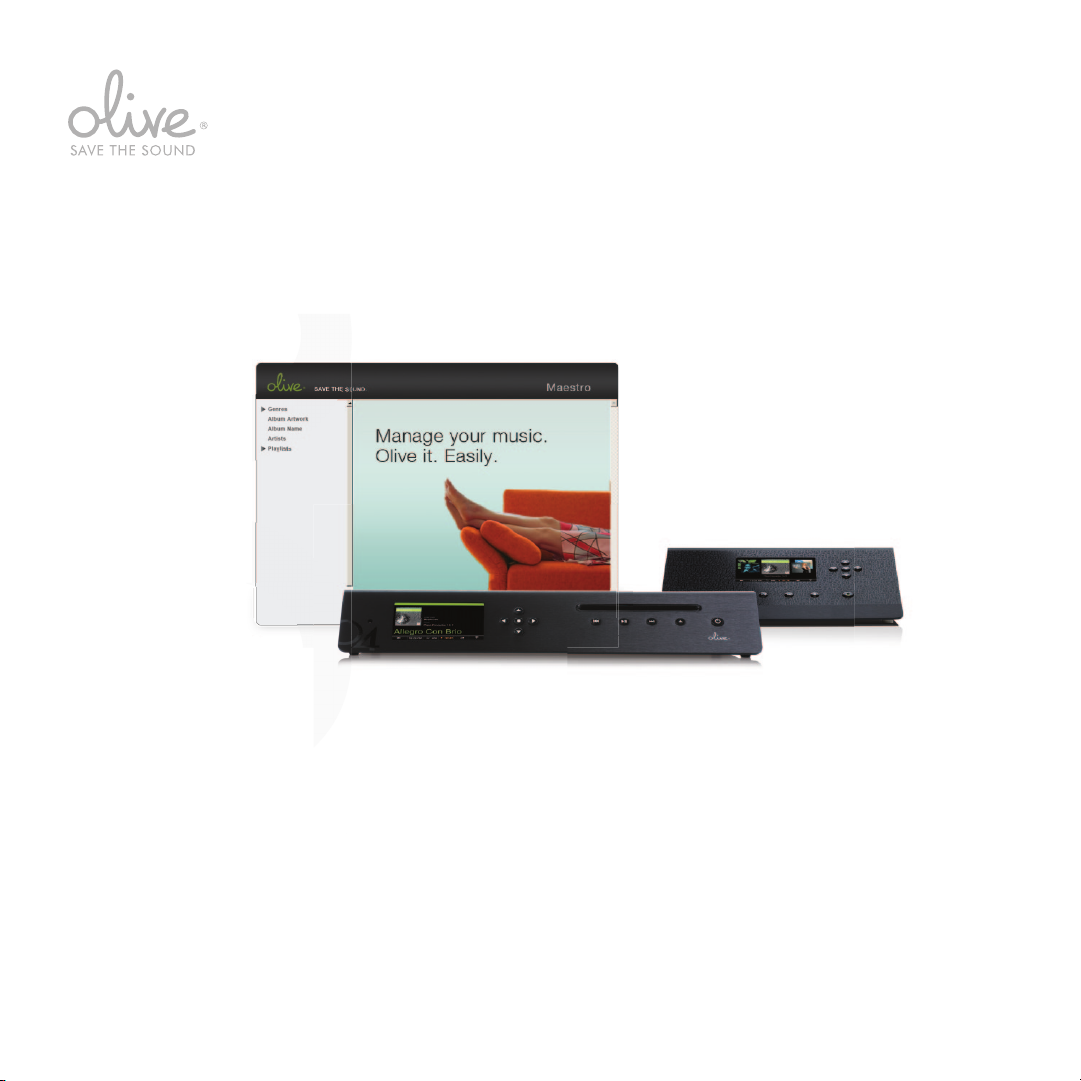
O L I V E M A E S T R O G U I D E
O L I V E 4 | 4 H D
Page 2

Contents
Maestro Overview ................................................ .................... ................................................
1
Connecting to Maestro ... ........................................................... .................... .........................
2
Managing your Music ........................................... .................... ...............................................
3
Creating Playlists ........................... ........................................................... .................... .............
3.1
Editing Genre .................................. ............................................................................... ..............
3.2
Editing Metadata ............................................... ........................................................... ..............
3.3
4
Maestro & Apple
®
............ ........................................................... ..............................................
4
5
6
6
7
7
8
JAZZ
2
O LI V E M AE S T R O G U ID E
Page 3

WELCOME
Maestro is a music management software program
which allows you to further organize and edit your
music collection. Manage the music on your Olive
4/4HD (not Olive 2) from your computer using the
features in this guide.
O LI V E M AE S T R O G U ID E
3
Page 4
1 Maestro Overview
As you edit music information, you are also changing it in your Olive Music Library. With large music collections and/
or network bandwidth limitations, these processes may be time consuming. Please note that Maestro may appear to
run slowly. Please be patient. Your music will thank you.
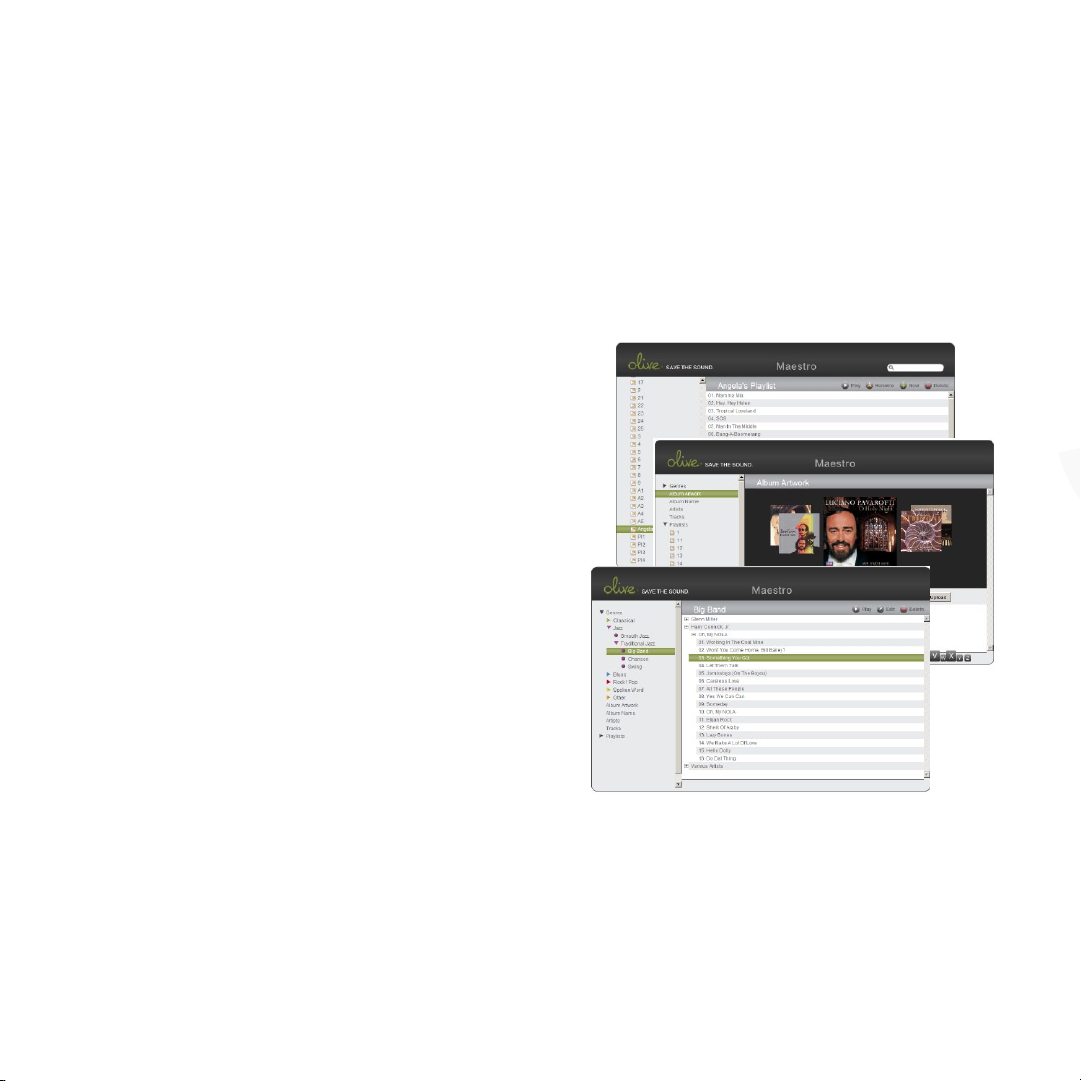
CREATING PLAYLISTS From the Playlists screen, create
a playlist by clicking the + New button in the top right.
Drag and drop tracks from anywhere within your library
into your new playlist.
ADD/CHANGE ALBUM ARTWORK Update or add album
artwork within your music library by clicking Album
Artwork in the left column. First download or scan the
album artwork as a JPEG le and save it to your computer. You will then nd and upload your selected album
artwork in Maestro.
CHANGE ALBUM GENRE Create a new sub-genre of
music or move music to different genres. From within
Genres on the left, click the + New button to create a
new genre title.
EDIT METADATA Add or change music information. For
example, with classical music, the composer and work
elds of a track may be pre-tagged with the artist and
album title elds. Select a track, or highlight several, click
Edit on the right and adjust track information where desired.
MERGE TWO ALBUMS INTO ONE Combine multiple CDs
from a box set into one album for continuous playback.
Similar to creating a playlist, simply drag and drop tracks
to combine albums.
4
O LI V E M AE S T R O G U ID E
Page 5
2 Connecting to Maestro
1
0:25 PM
10:43 PM
IP ADDRESS
NETWORK SETUP
INTERNET
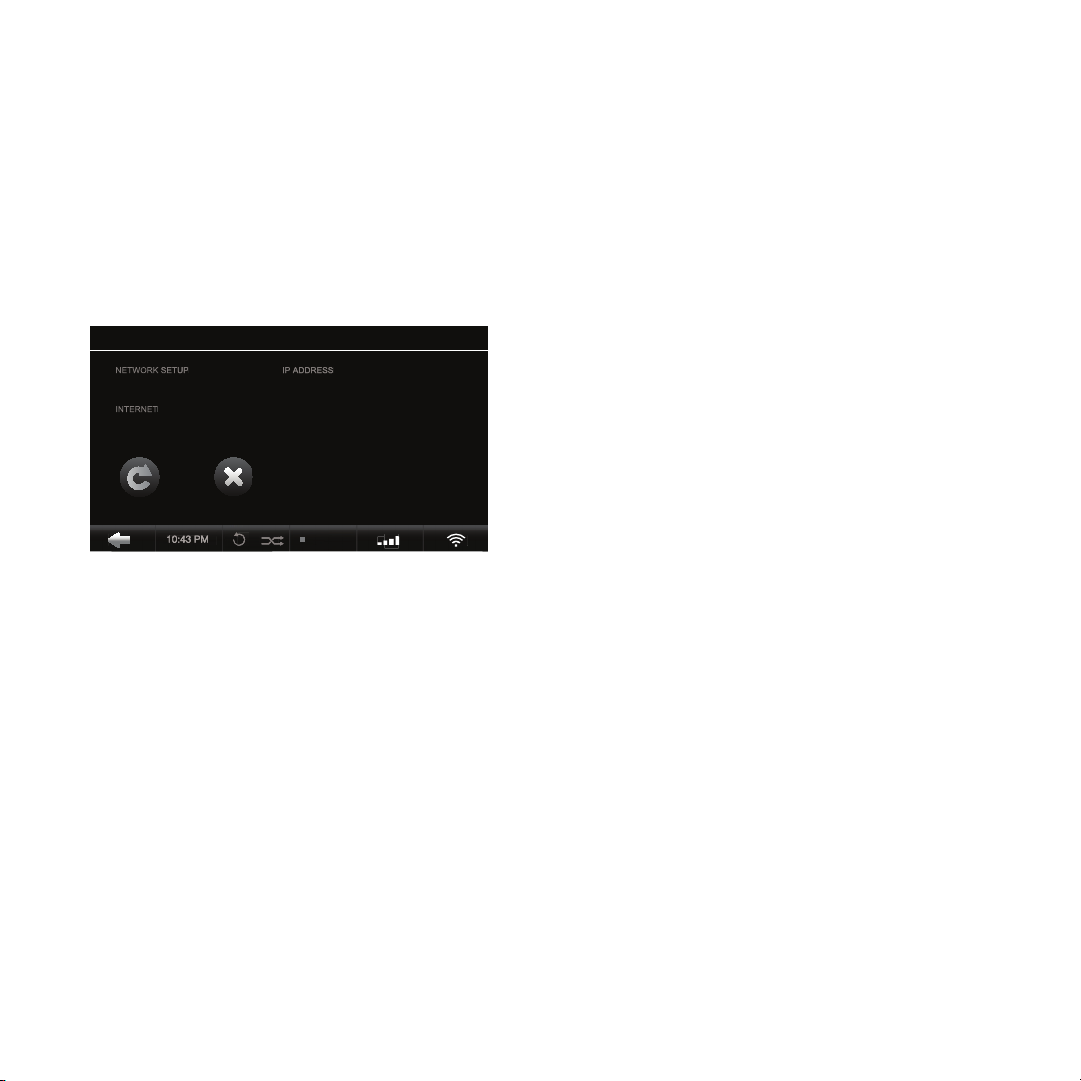
Before launching the Maestro application, your Olive 4/4HD must be connected to the network and you must obtain
your Olive 4/4HD IP address. Your Olive 4/4HD must be powered on but can also be in standby mode. You can not
play music while editing with Maestro. Follow the steps below to launch Maestro.
1. NOTE YOUR OLIVE IP ADDRESS
NETWORK SETUP
WIRELESS xx.x.x.xx
AVAILABLE
REFRESH CLOSE
10:25 PM
Settings > Network Settings > Network Information
2. LAUNCH FIREFOX (only Firefox is fully supported on Maestro*).
3. ENTER OLIVE IP ADDRESS INTO FIREFOX:
http://xx.x.x.xx:8163/maestro.php
(Replace the xx.x.x.xx with the Olive 4HD IP address)
4. GET STARTED! Once the Maestro homepage appears you are ready to go.
Download the browser for free at www. refox.com
*
Your PC/Mac must be in the same network as your Olive.
O LI V E M AE S T R O G U ID E
5
Page 6
3 Managing your Music
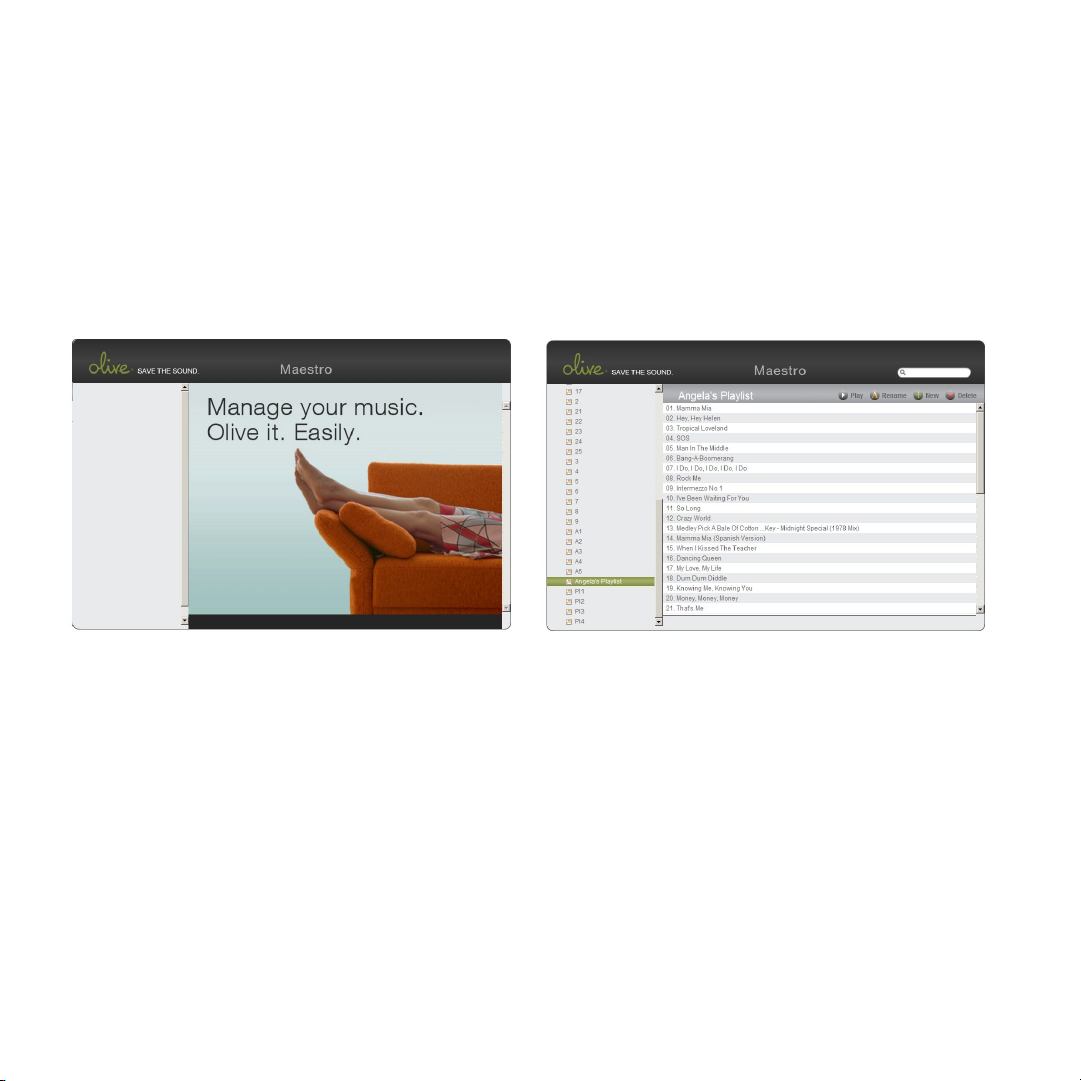
1. EXPAND CONTENTS Select Genre, Album Artwork, Album Name, Artists or Playlist to expand contents (3-0).
Continue to expand your selection until the editing buttons appear.
2. EDIT, DELETE, PLAY First select an album. Then choose from the top right menu bar.
3-0 3-1
3.1 Creating Playlists
1. ADD NEW PLAYLIST Go to the top left in the function bar and press + NEW to create a new playlist (3-1).
2. SEARCH MUSIC Browse your library to drag and drop songs into your new playlist in the left column.
3. DRAG & DROP Highlight and drag each selection, then drop into the playlist.
4. CONFIRMATION A conrmation pop-up screen will appear once a track has been added to the playlist.
6
O LI V E M AE S T R O G U ID E
Page 7
3.2 Editing Genre
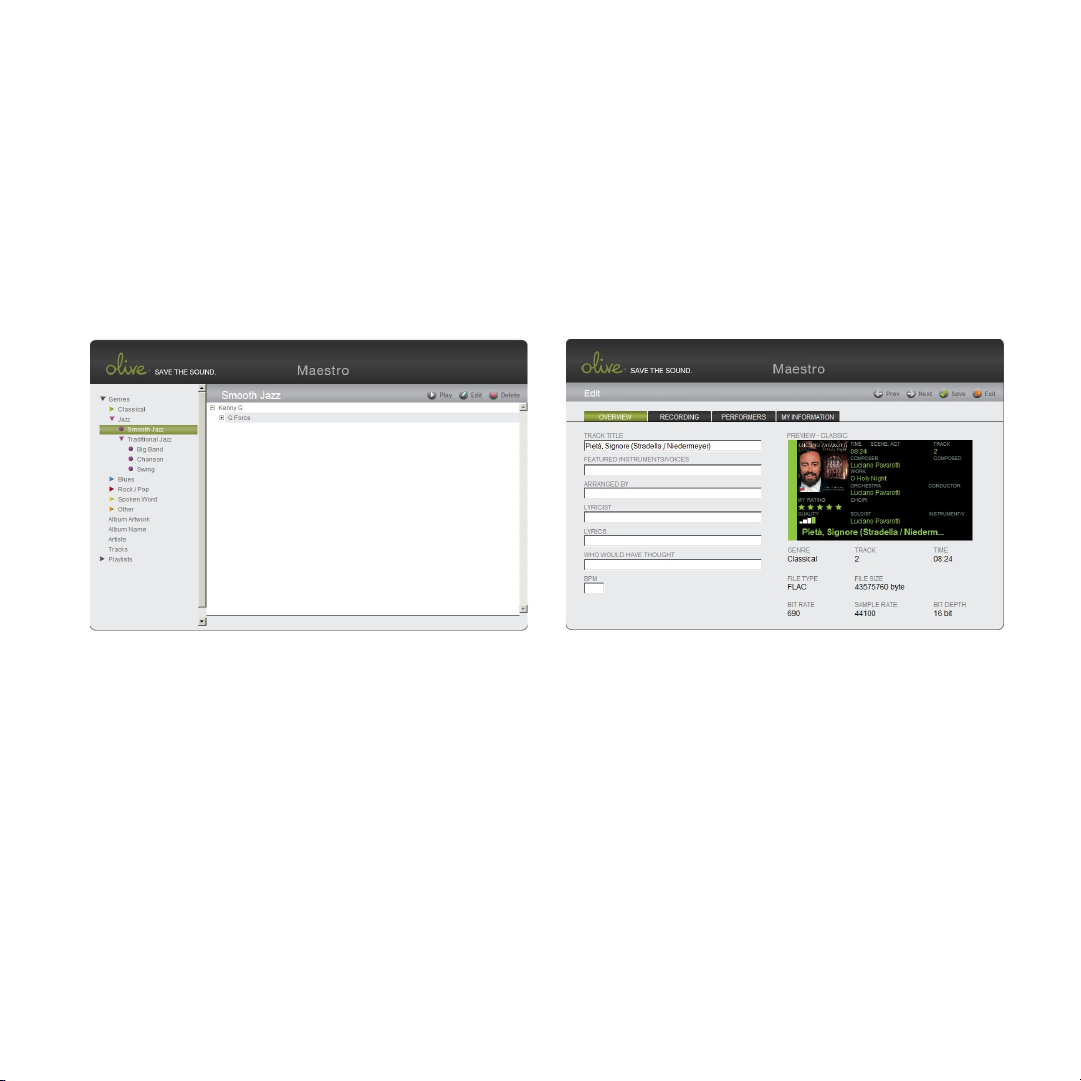
1. Select Genre to expand contents and continue expanding until editing icons appear.
2. Once the tracks are displayed, click + New to create and title a new sub-genre.
3. Once the sub-genre appears in the left column you’re ready to browse your music.
4. Drag and drop tracks or albums from your music collection into the new sub-genre.
RHYTHM
3-2 3-3
3.3 Editing Metadata
Before starting you should decide whether you want to edit tag information for a single track or for a whole album
(changing the tag information of a whole album has the advantage of applying your changes to all tracks at once).
1. Highlight the track or album you wish to edit.
2. Choose Edit from the action bar in the upper right.
3. Once the editing screen appears (above) begin editing attributes.
4. Save changes and click on the tabs above to edit more attributes.
O LI V E M AE S T R O G U ID E
7
Page 8
4 Maestro & Apple
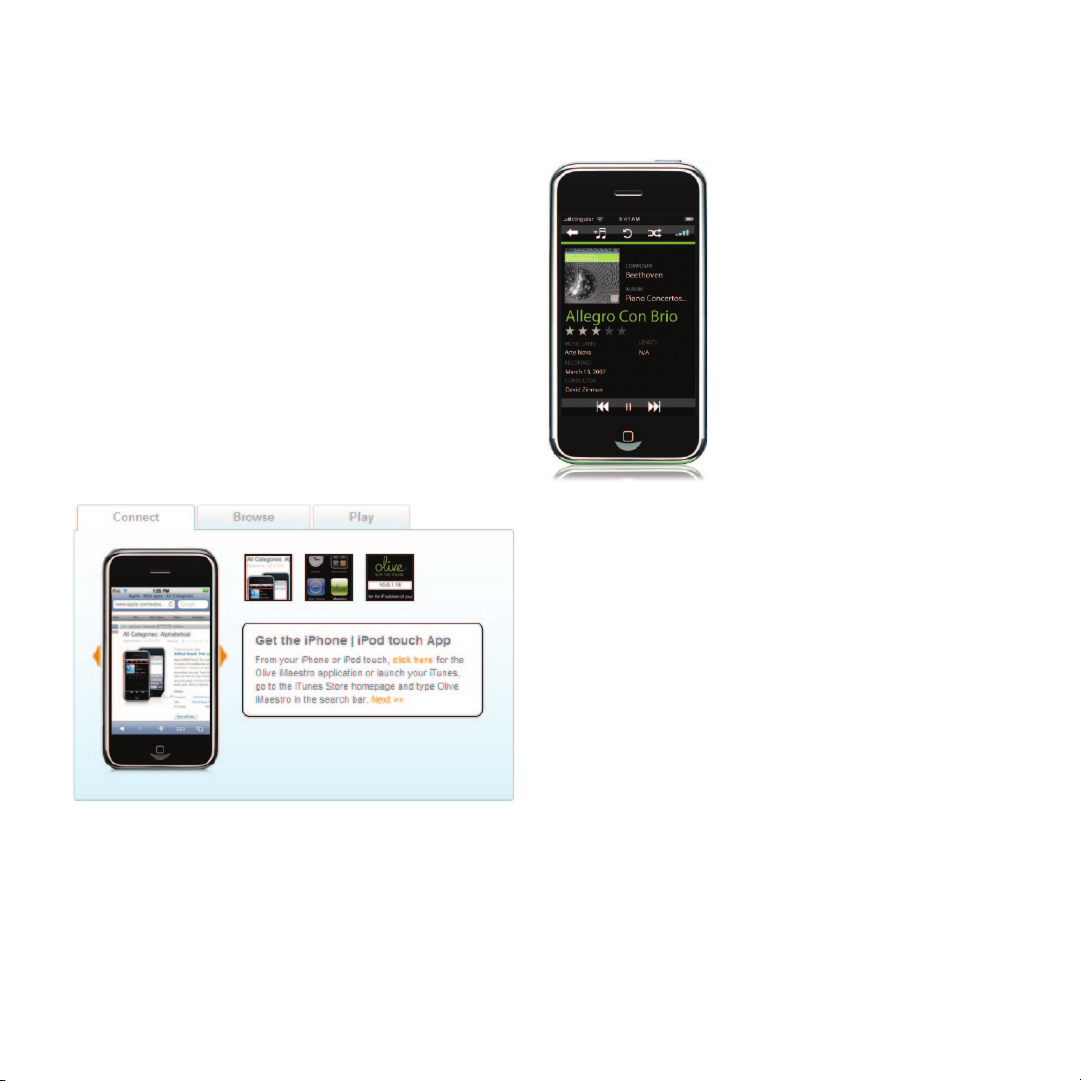
With our free app, your iPhone or iPod touch becomes
a touchscreen remote! Olive’s free iMaestro application
for your Apple® iPhone™ or iPod™ Touch gives you
the easiest way to control your Olive Music Server from
anywhere in your home.
From your kitchen, bedroom or favorite spot on the living
room couch, iMaestro gives you portable access to the
touchscreen navigation that you love on your Olive 4.
®
Olive iMaestro
Application.
Download from the
Apple Store or from our
website www.olive.us.
iMaestro Key Features:
•
Browse your music and internet radio stations.
•
Select any Olive Music Server in the network.
•
Set play modes for your music (shuffl e/repeat).
•
Create playlists with a few ngertips.
•
Adjust the volume or mute your music.
8
O LI V E M AE S T R O G U ID E
 Loading...