

Page 1
Q U I C K S T A R T G U I D E
O L I V E 4 H D
Page 2

Contents
1
Package Contents ...................... ....................... .................................. ....................... ..............
2
Setup & First Steps .................. .................................. ....................... .................................. .....
2.1
Connecting your Olive 4HD ................................ ....................... .................................. ........
2.2
Navigation Basics ................................ ....................... .................................. ....................... .....
2.3
Connecting to your Network ........ .................................. ....................... ..............................
3
Importing Music ............ ....................... .................................. ....................... .............................
3.2
Ripping CDs ............................. ....................... .................................. ....................... ...................
3.2
Importing from a PC or Mac ...................... .................................. ....................... .................
3.3
Importing from an External USB Hard Drive ............ ....................... ............................
4
Music Library ............... .................................. ....................... .................................. .....................
4.1
Finding Music ............... .................................. ....................... .................................. ....................
4.2
Play Modes ................... ....................... .................................. ....................... ................................
4.3
Playlists ......... ....................... .................................. ....................... .................................. ................
4.4
Deleting Music .. ....................... .................................. ....................... .................................. ........
4.5
Burning CDs ............... ....................... .................................. ....................... .................................
4.6
Editing Music Information ................................ ....................... .................................. ............
5
Internet Radio ........... .................................. ....................... .................................. ....................... .
6
Remote Control ................ ....................... .................................. ....................... ..........................
7
Music Streaming over your Network ............ .................................. ....................... ..........
7.1
Network Music Player ..... .................................. ....................... .................................. .............
7.2
Streaming from PC/Mac/NAS to the Olive 4HD ............. ....................... ...................
7.3
Your Music in iTunes & Windows Media Player ............................. ....................... ....
8
Support ............ .................................. ....................... .................................. ....................... ............
8.1
Software updates ............. ....................... .................................. ....................... .........................
8.2
Recovery ...................... .................................. ....................... .................................. ......................
8.3
Backup .. ....................... .................................. ....................... .................................. .......................
8.4
Restore ... ....................... .................................. ....................... .................................. ......................
8.5
Tips & Tricks ............. ....................... .................................. ....................... .................................. .
8.6
Handling & Care .......................... ....................... .................................. ....................... ..............
9
Legal ............... .................................. ....................... .................................. ....................... ...............
4
4
4
6
8
9
9
10
10
11
11
11
11
12
12
12
13
13
14
14
14
14
14
14
14
14
15
15
15
16
2
Q UI C K S TA RT G U ID E | O L I V E 4 HD
Page 3

WELCOME
Congratulations and thank you for your purchase of the
Olive 4HD music server. This Quick Start Guide summarizes
the most important functionality of your Olive 4HD, and
highlights a few useful tips and tricks so you can take full
advantage of its capabilities.
WARNING To avoid injury or damage to the product, please read all operating instructions in
this guide and the safety information listed in the complete User Guide in the support section
at www.olivehi.com before using the Olive 4HD. More questions? Simply send us an email to
info@olivehi.com. We look forward to hearing from you.
3
Q UI C K S TA RT G U ID E | O L I V E 4 HD
Page 4
1 Package Contents
Your Olive 4HD comes with the following items:
1. Quick Start Guide
2. Power Cable
3. WiFi Antenna
4. Remote Control & Batteries
2 Setup & First Steps
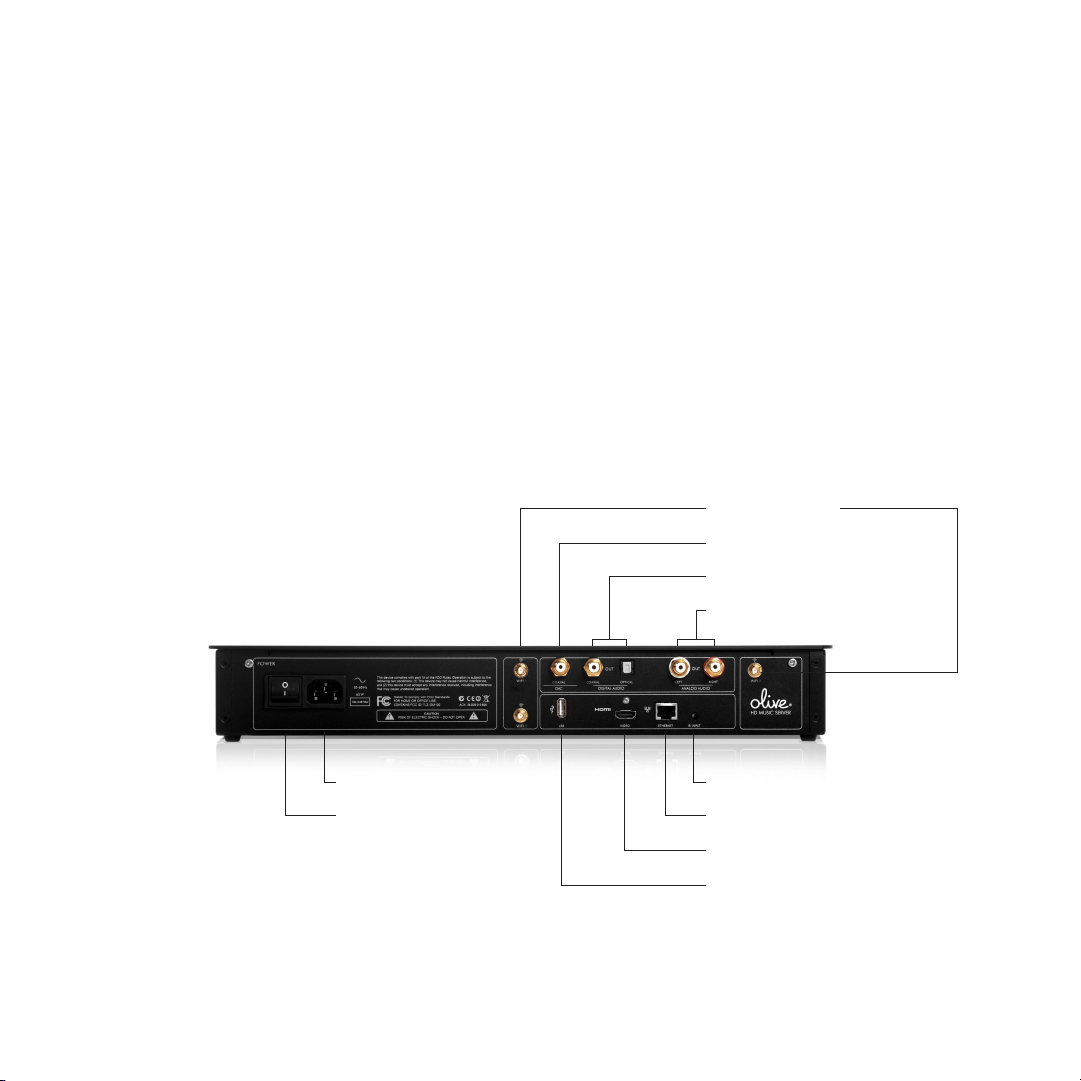
2.1 Connecting your Olive 4HD
3. WiFi (802.11n)
4. Digital Input
5. Digital Audio Outputs
6. Analog Audio Outputs
4
Q UI C K S TA RT G U ID E | O L I V E 4 HD
1. Power Connector
2. Power Switch
7. IR Input
8. Ethernet Connector (Gigabit)
9. HDMI
10. USB Port
Page 5

2.1 Connecting your Olive 4HD
1. CONNECTING TO YOUR NETWORK
The Olive 4HD can be connected wirelessly or wired to
your router.
WIRELESS: Attach the WiFi antenna that came with
your Olive 4HD to the main connector marked “WiFi 1”.
This antenna should be positioned upright for best
performance. We recommend to attach additional WiFi
antennas to the connectors* “WiFi 2” and “WiFi 3” in
case the reception is not optimal. For best performance
please use WiFi antennas that are on a wire and can
be positioned exibly (WiFi antennas must have a SMA
Connector).
WIRED: If you have a wired connection please use the
Ethernet Connector (8) for connection to your router.
For more information about connecting to your network
please refer to page 8.
2. CONNECTING TO YOUR AMPLIFIER/RECEIVER
Connect the Analog (6) or Digital (5) outputs to the
corresponding inputs on your receiver.
4. OTHER CONNECTIVITY
USB (10): To backup and restore of your music library
(page 14-15) or import from an external USB drive (page
10).
DIGITAL INPUT (4): Connect the digital audio output of
an additional source (e.g. TV) to take advantage of the
high-resolution DAC of the Olive 4HD. To switch to the
source simply go to SOURCES in the main menu and
select DIGITAL INPUT.
IR INPUT (7): For connecting an external IR Receiver in
case the Olive 4HD is inside a cabinet.
5. STARTING UP YOUR OLIVE 4HD
Connect the Power Cord to the Power Connector (1)
and to the power outlet on your wall. Turn on the Power
Switch (2) and your Olive 4HD will start up. Booting to the
Startup Screen usually takes between 30-45 seconds.
The original version of the Olive 4HD has only 2 WiFi-antenna
*
connectors.
3. CONNECTING TO YOUR TV
The Olive 4HD can be connected via HDMI (9) to your TV.
It replicates the user interface that you would otherwise
see on the LCD of the Olive 4HD.
i
To switch between the LCD and the TV interface simply press
both the LEFT and RIGHT navigation buttons shortly (page 6).
5
Q UI C K S TA RT G U ID E | O L I V E 4 HD
Page 6
2.2 Navigation Basics
1
0:25 PM
10:43 PM
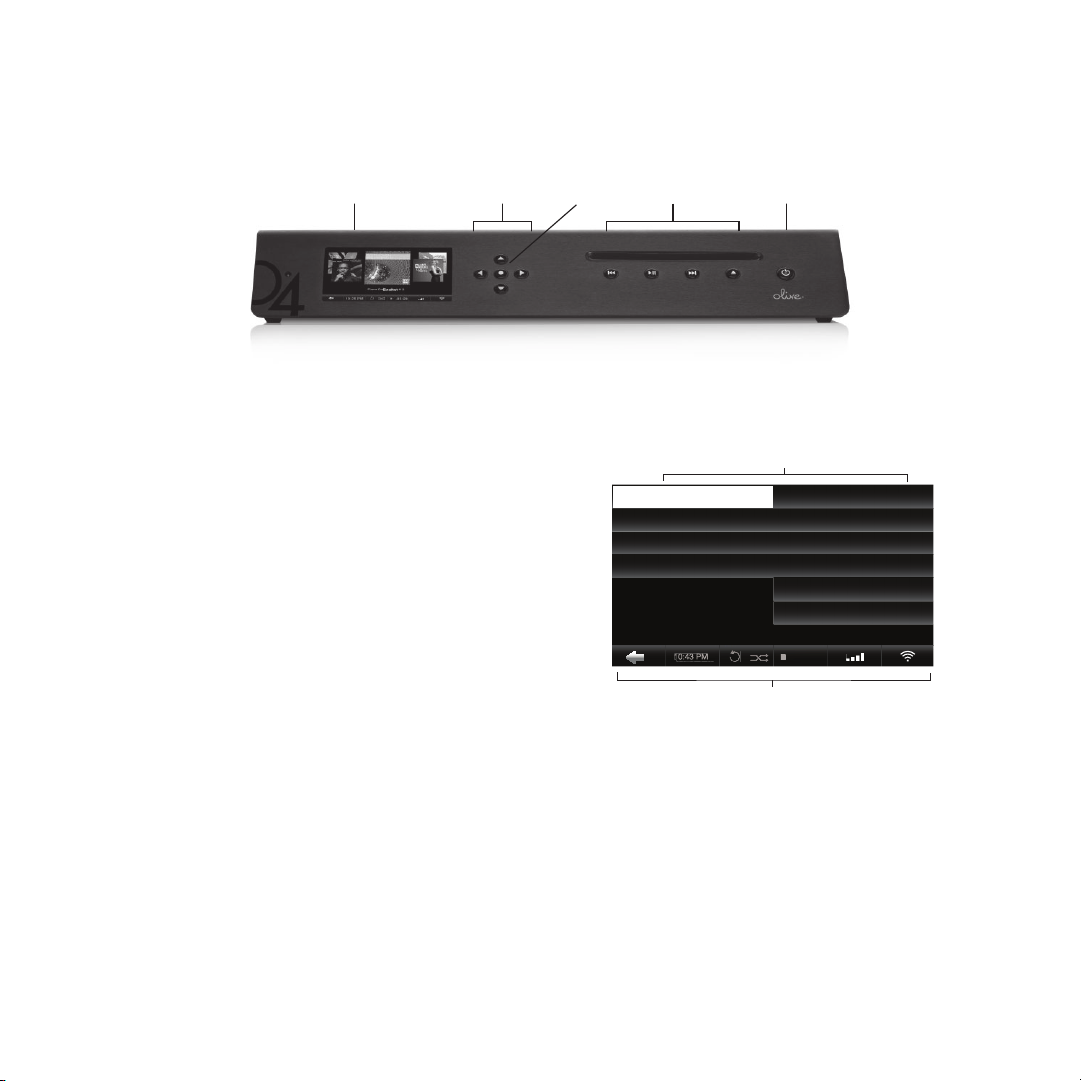
2 Navigation
Buttons1 Touchscreen
ACCESSING THE MENU
Once the Startup Screen appears, tap on the touchscreen (1) or press the Sleep/Wake Button (5) to get to
the main menu.
i
We recommend using the Sleep/Wake Button on the front of
the device to put your Olive 4HD to sleep (or wake it). Only
switch off your Olive 4HD with the Power Switch on the backside if you do not intend to use it for an extended period of time
(e.g. going on vacation). We also recommend that you unplug
the Power Cord when leaving for a long period of time.
TOUCHSCREEN OR BUTTONS?
Navigate your Olive 4HD with both the Touchscreen (1)
and the buttons. The Navigation Buttons (2) allow you
to move up/down and left/right in the menu. The Select
Button (3) is a dynamic button and gives you access to
different functions depending on where you are in the
menu. The Player Buttons (4) allow you to start playback
of your music and skip between tracks.
i
Keep the play/pause button pressed for a few seconds to stop
the music playback.
i
Keep the left navigation button pressed to quickly jump back to
the main menu at all times.
3 Select
Button
4 Player
Buttons
5 Sleep/ Wake
Button
To navigate with the touchscreen, simply tap on the item
on the screen.
6 Menu Panels
MUSIC LIBRARY GENRES
MUSIC SOURCES ALBUM ARTWORK
INTERNET RADIO ALBUM NAME
SETTINGS ARTISTS
TRACKS
PLAYLISTS
10:25 PM
7 Navigation Bar
NAVIGATION CONCEPT
The user interface on the touschscreen is split into three
areas: two Menu Panels (6) and the Navigation Bar (7).
The Left Menu Panel shows the main categories, the
Right Menu Panel displays the items that can be found
under each category. Select an item in the left panel to
see what can be found in each category. Select an item in
the right panel and the navigation will shift to the left to reveal the items that can be found in the selected category.
6
Q UI C K S TA RT G U ID E | O L I V E 4 HD
Page 7

2.2 Navigation Basics
The Navigation Bar (7) is always visible and allows you to
access key functionality at all times.
Tap to navigate to the left in the menu structure.
10:25PM
Adjust the time and date.
Set your play mode to repeat and/or shufe.
-03:29
The Neworks icon shows the current network connection
status and allows you to access the network setup wizard.
i
A white network logo indicates you have network connection
and internet access. An orange network logo indicates you are
connected to the network, but have no internet connection. For
more information about connecting to your network please refer
to page 8.
Shows the remaining playback time of the current
track. Tap to access the different play screens.
Set the volume or mute your Olive.
Wirelessly connected to your network.
Wired connection to your network.
Not connected to the network.
THE MAIN MENU
Here is what you will nd in each main category:
MUSIC LIBRARY Access all the music that is stored on
your Olive 4HD. Browse by genre, album, artist, track or
playlist.
MUSIC SOURCES Play music that is stored on an ex-
ternal source such as a PC, Mac or NAS* or start music
playback from a source that is connected to the Digital
Input.
INTERNET RADIO Browse internet radio stations from all
over the world. This feature only appears if the Olive 4HD
is connected to the internet (page 13).
SETTINGS Access all system settings, including network
setup, software update, backup & restore and more.
*
PC, Mac or NAS must be in same network as Olive 4HD and
music must be shared with a fully UPnP DLNA compliant
software package. We support Tversity for PC and Twonky
Media for Macintosh.
7
Q UI C K S TA RT G U ID E | O L I V E 4 HD
Page 8

2.3 Connecting to your Network
To start the network setup wizard simply tap on the
network logo in the lower right corner of the Navigation
Bar or go to SET TINGS > NETWORK SETTINGS >
NETWORK SETUP. Please follow these simple steps:
1. CHOOSE YOUR NETWORK CONNECTION
Select wired or wireless and the setup mode (automatic
or manual). We recommend using the automatic mode
as it covers most of the network scenarios.
2. CHOOSE YOUR NETWORK
If you have chosen a wired (and automatic) connection the system will automatically setup the connection
and you are done. If you have chosen wireless, the next
screen will show you a list of available networks. Please
select your network and press SAVE.
3. CHOOSE YOUR ENCRYPTION
If you have an open network, the Olive 4HD will
automatically setup the connection and you are done. If
your network is secured with a password, an entry mask
will appear. Please enter your password (case sensitive)
and press SAVE. The Olive 4HD will now setup the
connection and you are done.
What if the Olive 4HD does not connect to the network?
Here are a few things to consider:
DISTANCE The Olive 4HD should not be more than 20 to
30 feet away from your router (wireless connection only).
ANTENNA Make sure to connect the main antenna to the
“WiFi 1” connector on the back and position it upright.
You can attach additional WiFi antennas to optimize the
reception.
LOCATION If your Olive 4HD is placed inside a cabinet
you might have to use an external antenna to get reception.
NETWORK CONGESTION Make sure no other WiFi de-
vices are directly next to the Olive 4HD. Microwaves and
wireless phones can also prevent wireless devices from
communicating with each other.
What if the Olive 4HD connects to the network but gets
no internet access?
This is usually related to the DNS settings. Please email
support@olivehi.com for assistance in setting up your
connection.
i
In rare instances the network login can take several minutes and
can happen after the network conrmation window appears
(indicating rst that the network connection has failed).
8
Q UI C K S TA RT G U ID E | O L I V E 4 HD
Page 9
3 Importing Music
3.1 Ripping CDs
To import CDs into your Olive 4HD library please follow
these simple steps:
i
The Olive 4HD only supports regular Audio CDs. SA-CD and
DVD Audio is not supported.
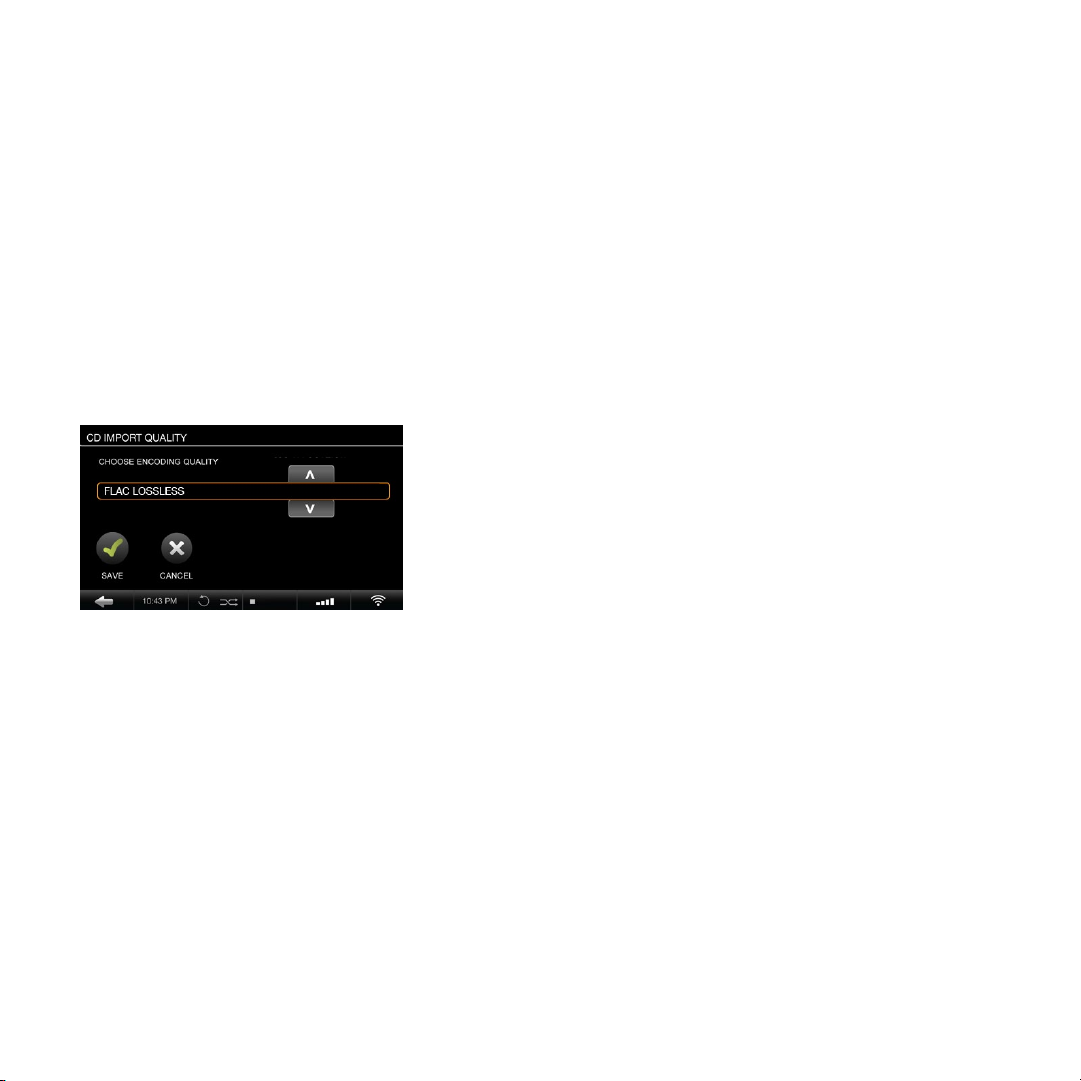
1. SELECT THE AUDIO FORMAT
Go to SETTINGS > CD SETTINGS > CD IMPORT
QUALITY and select the quality of the encoding. We
recommend FLAC as it preserves the original CD quality
while reducing the storage requirement to about 50% of
uncompressed music (WAV). Once you set the quality, it
will apply to all CDs that you rip.
2. INSERT THE CD
A pop-up screen will appear, displaying the album title,
artist and the album artwork.
If the CD is not recognized (i.e. the title of the album and
artist show up as “unknown”) we recommend connecting the Olive 4HD to the internet to browse the online CD
database. If the CD is still not recognized you can edit the
information through the Maestro web interface (page 12)
later on. Please do not edit the information until the CD is
fully transcoded.
3. RIP THE CD
Tap on the IMPORT button and the CD will be ripped. You
can check the import status in the main menu under CD
IMPORT STATUS.
The CD ripping is done in two stages: 1) Copying the
music in uncompressed format onto the hard drive (takes
5-7 minutes per CD); 2) Transcoding the music into the
format you have selected in step 1 (takes 20-25 minutes
per CD).
If you have selected the uncompressed WAV format,
the ripping process is complete after the CD has been
copied to the HDD.
i
The transcoding of CDs takes a lot of processing power and we
recommend to pause after importing 20 to 30 CDs so the Olive
4HD can nish the transcoding process. During transcoding the
navigation of the Olive 4HD can appear slow as only limited
processing power is available.
i
Your Olive 4HD needs to be connected to the internet in order
to get album artwork. If album artwork is not available, an Olive
logo will appear as a placeholder.
9
Q UI C K S TA RT G U ID E | O L I V E 4 HD
Page 10
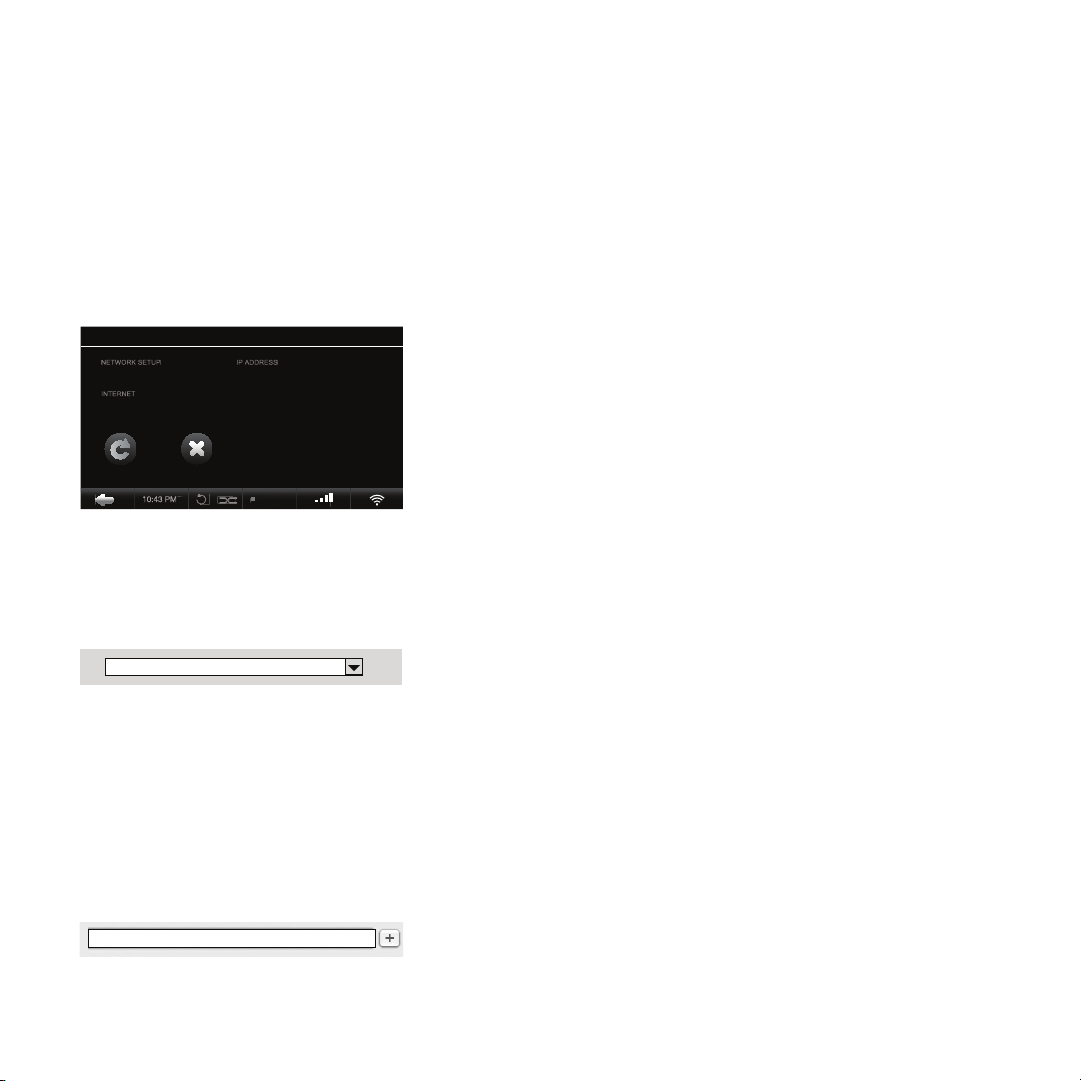
3.2 Importing Music from a PC or MAC
1
0:25 PM
10:43 PM
IP ADDRESS
NETWORK SETUP
INTERNET
WHAT YOU NEED
1) Please make sure the PC is connected to the same
network as the Olive 4HD. We recommend a wired
connection if you are transfering large music libraries.
2) Note the IP address of your Olive 4HD (SETTINGS >
NETWORK CONNECTION > NETWORK INFO).
NETWORK SETUP
WIRELESS xx.x.x.xx
AVAILABLE
REFRESH CLOSE
10:25 PM
IMPORTING FROM A PC (Windows Operating System)
1. Press the WINDOWS + R keys on your keyboard.
2. Enter “\\” into the pop-up window, followed by the Olive
4HD IP address you noted above.
\\ x x.x.x.xx
3. Click OK and an “Import” folder will appear in your
network environment.
IMPORTING FROM A MAC
1. Go to GO > CONNECT TO SERVER in the main menu
on your desktop (or press COMMAND + K).
2. Enter the IP address of your Olive 4HD, preceded by
“smb://” into the pop-up window and click OK.
Drag and drop your complete music folder from your PC/
Mac into the Import folder. Once the music is copied over
into the Import folder, the Olive 4HD will import it into the
local library and categorize it. This can take several hours
for large libraries.
Your music will only show up in the local library if the Olive
4HD has successfully imported it from the Import folder.
Once the music is completely imported into the library the
Import folder will be empty.
i
The Olive 4HD will only import music formats that are supported
(FLAC, WAV, MP3 and AAC). Please be aware that music in
WAV Format does not have metadata and will show up as
“Unknown” artist/album/track on your Olive 4HD.
i
For large libraries we recommend that you split the library into
several tranches before dragging it into the “Import” folder.
3.3 Importing Music from an USB Drive
The Olive 4HD also allows you to import music from
an external USB hard drive. The hard drive must be
formattedtMPORT MUSIC and follow the on-screen
instructions.
Special HD music content is available on encrypted USB sticks
i
through Olive’s content partners. Please visit www.olivehi .com
for details and availability in your region.
smb: //x x.x.x.xx
3. An “Import” folder will pop-up.
10
Q UI C K S TA RT G U ID E | O L I V E 4 HD
Page 11
4 Music Library
4.1 Finding Music
Select MUSIC LIBRARY from the main menu and browse
your music alphabetically by genre, artist, album, track,
or album artwork. Choose the SEARCH function in each
category and simply enter a few letters of the word (e.g.
“CAL” for “Hotel California”). The Olive 4HD will now only
display music that includes the search term.
4.2 Play Modes
Pressing the play/pause button allows you to play your
music in different ways depending on where you are in
the navigation.
TO PLAY: HIGHLIGHT:
All albums ...........
One album ...........
All tracks ..............
One artist .............
the ALBUMS category & press play/pause.
the album name & press play/pause.
the TRACKS category & press play/pause.
the artist & press play/pause
All albums of this ar tist will be played.
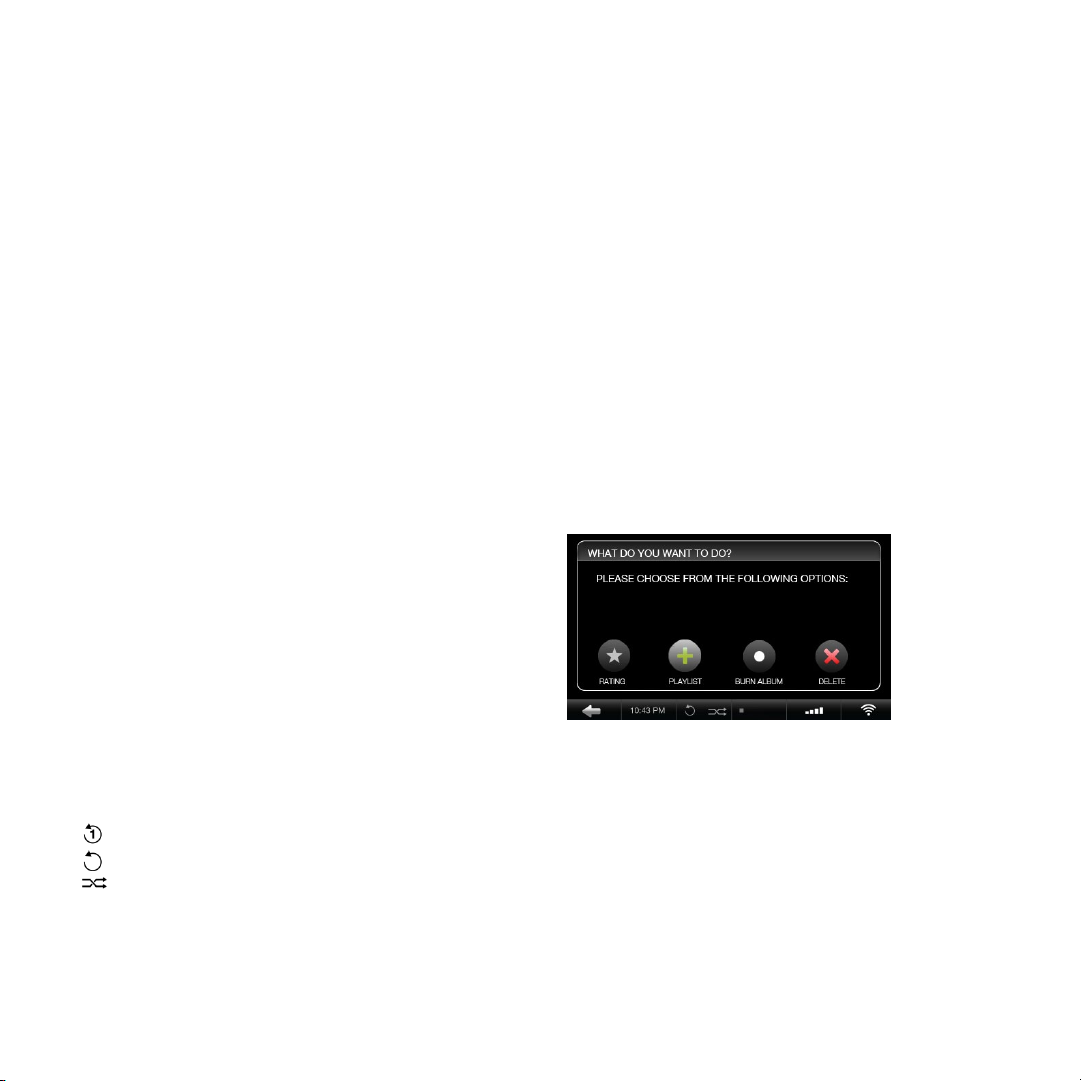
4.3 Playlists
To create a playlist simply follow these steps:
1. ADD PLAYLIST
Go to MUSIC LIBRARY > PLAYLISTS >
ADD PLAYLIST and enter the name of your playlist.
2. PLAY TRACK
Play the track you want to add to the playlist and press
the SELECT Button.
3. ADD TO PLAYLIST
Select ADD TO PLAYLIST in the pop-up window.
Choose the playlist you created in step 1 and press
SAVE.
Shufe and Repeat can only be activated if music is
playing. Simply choose your music playback mode
above, then set the play mode by tapping the shufe/
repeat icon in the Navigation Bar.
REPEAT Tap once for repeating only one song.
REPEAT ALL Tap twice to repeat all songs.
SHUFFLE Can only be activated if repeat is set to
ALL SONGS or OFF.
11
Q UI C K S TA RT G U ID E | O L I V E 4 HD
4. REPEAT STEPS
Choose the next track and repeat step 2 and 3 until your
playlist is complete.
The playlist appears in your music library under the
PLAYLISTS menu.
Page 12
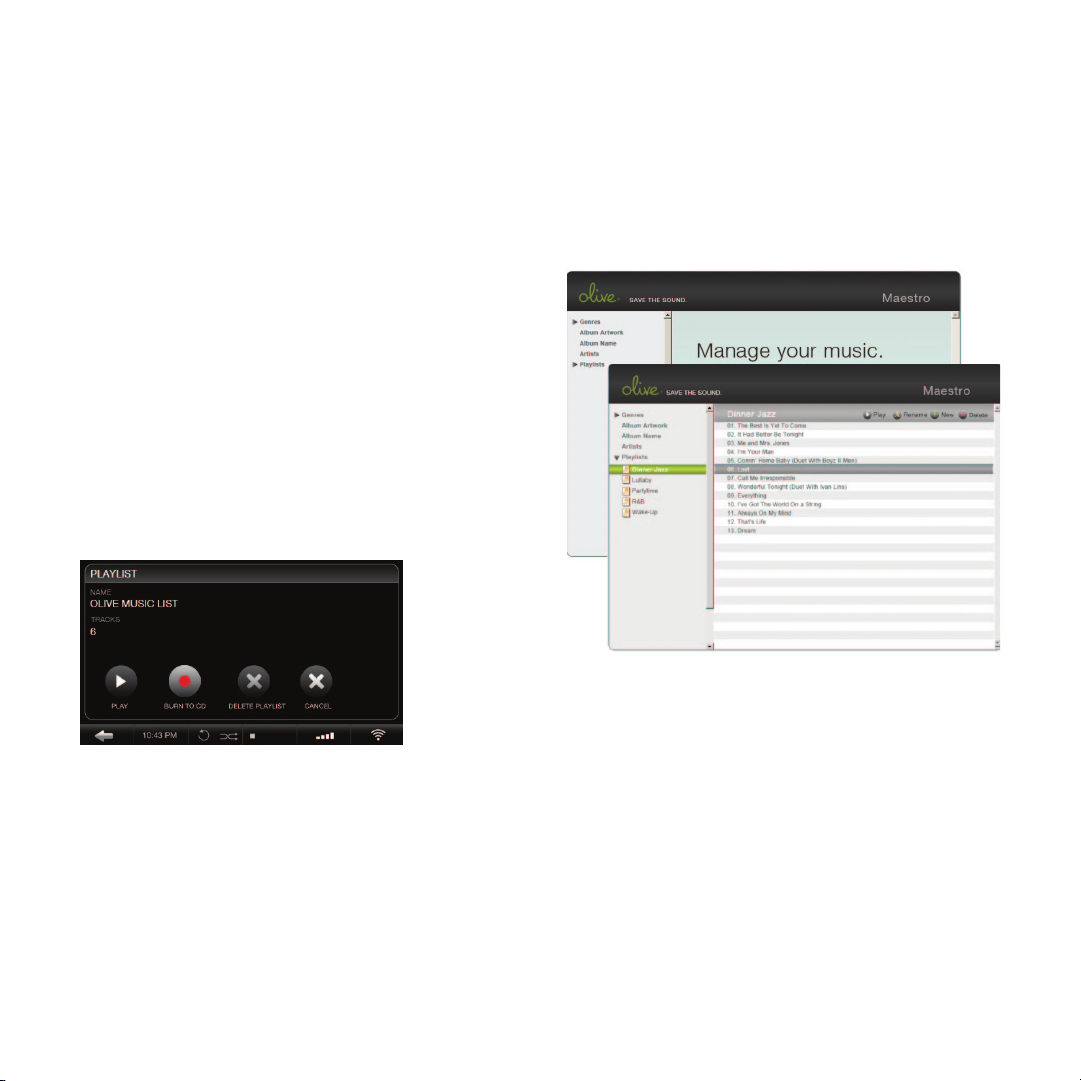
4.4 Deleting Music
4.6 Editing Music Information
To delete music simply play the track and press the
SELECT Button. Choose DELETE in the pop-up window
and then select to delete the track or the complete album.
To delete a playlist simply highlight the speci c playlist
and press the SELECT Button. Choose DELETE in the
pop-up window.
4.5 Burning CDs
You can burn CDs both from albums as well as playlists. To
burn an album to CD play a track and press the SELECT
Button. Choose BURN ALBUM and insert a blank CD
when prompted. To burn a playlist to CD, highlight the
speci c playlist and press the SELECT Button. Choose
BURN TO CD and insert a blank CD when prompted.
To edit the metadata of your music (album title, artist,
tracks, artwork etc.) the Olive 4HD features a special
web-interface called Maestro.
To access this interface please launch the web-browser
on your PC/Mac and enter the following address:
12
Q UI C K S TA RT G U ID E | O L I V E 4 HD
http://xx.x.x.xx:8163/maestro.php
(Replace the xx.x.x.xx with the Olive 4HD IP address).
Visit the support section at www.olivehi .com for more
details on the iMaestro application.
i
Your PC/Mac must be in the same network as your Olive.
Currently only the Firefox browser is supported with Maestro.
Download the browser for free at www. refox.com.
Page 13
5 Internet Radio
0:25 PM
10:43 PM
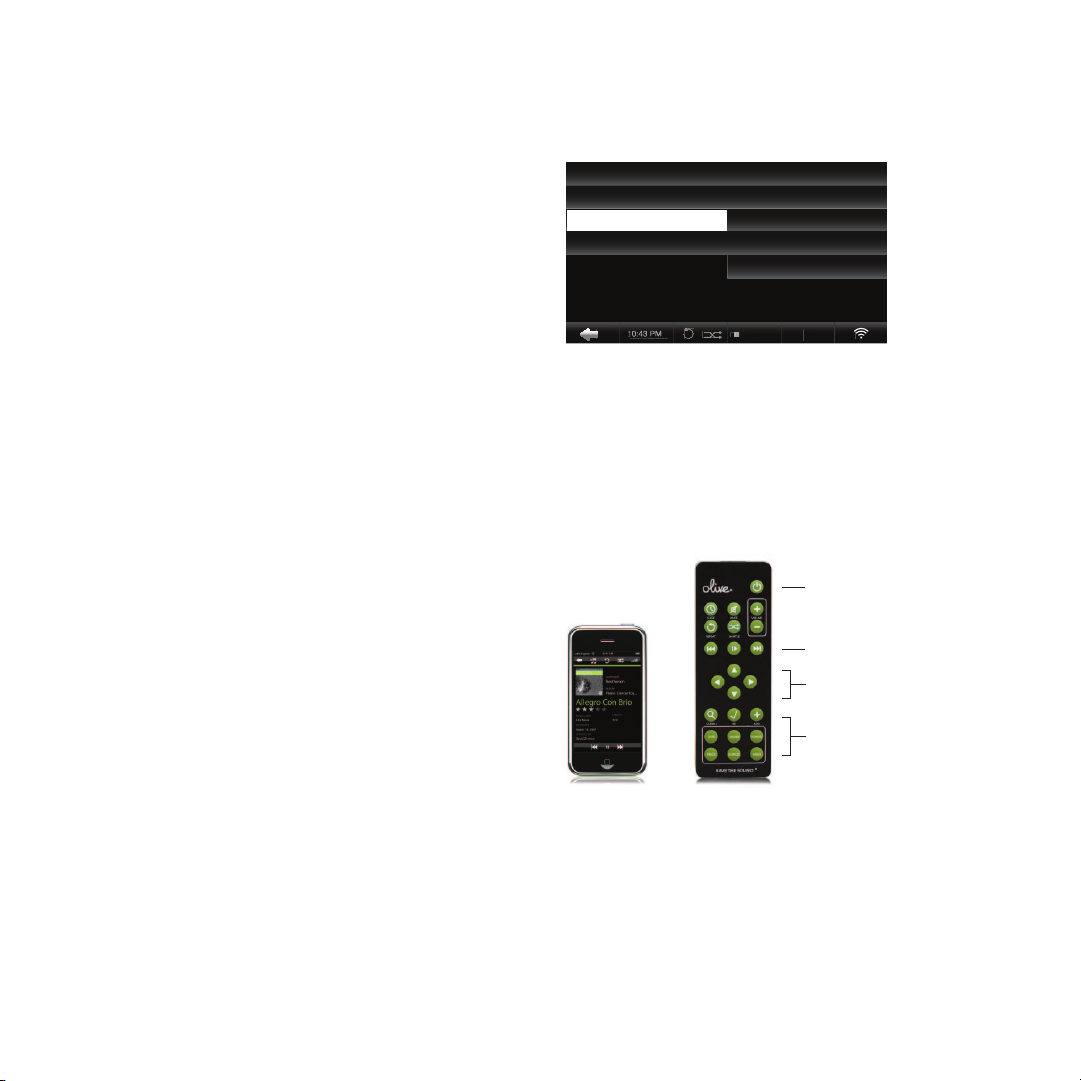
Internet radio will appear as a separate category in the
main menu if the Olive 4HD is connected to the internet.
Stations are categorized into genre, region and public &
info. To add a station to your FAVORITES you have to play
the station, then press the SELECT Button and choose
OK in the pop-up window.
You can also add your own radio station. Select ADD
NEW STATION, enter the station name and then the web
address. The stream must be in .pls, .mp3 or .m3u format.
6 Remote Control
Your Olive 4HD comes with a standard infrared remote
control to allow you to control key functions convenient-
®
ly from your couch. If you have an Apple
iPod™ Touch you can also use Olive’s free iMaestro remote control application. Simply enter the App Store on
your iPhone™/iPod™ Touch, go to SEARCH and enter
“iMaestro.”
iPhone™ or
MUSIC LIBRARY FAVORITES
MUSIC SOURCES GENRES
INTERNET RADIO REGIONS
SETTINGS PUBLIC & INFO
ADD NEW STATION
10:25 PM
Sleep/Wake Button
Player Buttons
Navigation Buttons
Shortcut Buttons
13
Q UI C K S TA RT G U ID E | O L I V E 4 HD
Page 14

7 Music Streaming
8 Support
7.1 Network Music Player
Olive offers its own network music player to allow the
streaming of music from the Olive 4HD to additional
rooms. Therefore, 3rd party network players are not
actively supported.
7.2 Streaming from a PC/MAC/NAS to Olive 4HD
The Olive 4HD incorporates local storage to allow quick
and reliable access to your music content. Therefore we
recommend consolidating your music onto the Olive 4HD
hard drive, where it is safe from usual computer problems
(malware/viruses etc.). Olive provides limited support to
streaming from external sources, currently focusing on
Tversity (PC) and Twonky Media (Mac).
7.3 Your Music in iTunes & Windows Media Player
Music stored on your Olive 4HD can be accessed in most
UPnP DLNA compatible software such as iTunes and
Windows Media Player. The Olive 4HD library will appear
as a separate music source in these software packages.
i
Some software packages (e.g. iTunes) do not support the
FLAC format and this music will therefore not be accessible.
8.1 Software Updates
Olive constantly updates the software for your product so
check regularly if a new update is available. Simply go to
SETTINGS > SYSTEM SERVICES and select SOFTWARE
UPDATE. If you do not have internet access at home you
can also upload the software update via a USB stick.
8.2 Recovery
A recovery erases the hard drive of your Olive 4HD and
installs the operating system and CD database from
scratch. All music and playlists are lost, therefore, this
should only be done if you have rst spoken with Olive’s
support team. To do a recovery you need a USB stick
with at least 4GB of memor y. Please contact us at
support@olivehi.com on how to perform a recovery.
8.3 Backup
It is always a good idea to backup your music regularly.
To do so please format a USB hard drive in FAT32 and go
to SETTINGS > SYSTEM SERVICES and select BACKUP.
Follow the on-screen instruction and connect the USB
hard drive only when prompted. A pop-up window will
conrm when the backup process has started.
14
Q UI C K S TA RT G U ID E | O L I V E 4 HD
i
The backup process will erase all data stored on your external
hard drive, and replace it with the backup les. Make sure you
are using a dedicated hard drive for this process.
i
The capacity of the USB hard drive should be at least as big the
amount of capacity used on on your Olive 4HD (see SETTINGS
> ABOUT YOUR OLIVE).
Page 15

8.4 Restore
The restore process will erase all music on your Olive
4HD and will overwrite it with the music from your backup. Go to SETTINGS > SYSTEM SERVICES and select
RESTORE. Follow the on-screen instructions and connect the USB hard drive only when prompted. A pop-up
window will conrm when the restore has started.
CAUTION Never unplug the USB hard drive during back-
up or restore. It can damage your Olive 4HD and erase
your music. Turn off your Olive 4HD (Power Switch on
backside) when the process is complete and disconnect
the USB hard drive.
i
The backup and restore process can take several hours depending on the capacity of your Olive 4HD. We therefore, recommend that you perform it overnight.
i
During the backup and restore process your Olive 4HD cannot
perform any other operations.
8.5 Care & Handling
TURN OFF OTHER STEREO COMPONENTS before
switching off the Master Power Switch on your Olive 4HD.
Turn down amplier/receiver volume before pressing the
Sleep/Wake Button to avoid a volume surge that could
impact other components.
WHEN PLANNING NOT TO USE YOUR OLIVE for long
periods of time (e.g. vacation, etc.) disconnect the Power
Cable from the wall outlet. Always grab the plug, never
the cable itself.
NEVER PUSH OBJECTS of any kind through the product
openings. Never spill liquid of any kind on the product.
Contact Olive support if something drops into the case.
DO NOT CLEAN YOUR OLIVE WITH aerosol sprays,
chemical solvents, alcohol or abrasives. Do not remove
dust with air pressure.
8.6 Tips & Tricks
IS YOUR OLIVE NOT RESPONDING? Please keep the
Left arrow button pressed. It should unfreeze the navigation. If this does not work, press and hold the Sleep/
Wake Button on the front for about 5 seconds. The system will restart. Allow 40-60 seconds for the main menu
to reappear and for network connections to re-establish.
If this happens regularly please contact us.
THE T V INTERFACE DOES NOT WORK. Make sure you
have updated your Olive 4HD software to the latest version. Also check if your TV is set to a manual resolution of
480P and automatic scaling is switched off. Try connecting the Olive 4HD to another HDMI connector on your TV
and make sure the correct source is selected.
TOUCHSCREEN NOT RESPONDING? Please calibrate
the touchscreen under SETTINGS > SYSTEM SERVICES
> CALIBRATE TOUCHSCREEN. Use a stylus pen for accuracy.
Visit us online at www.olivehi.com for a complete list of FAQs
or email us at support@olivehi.com if you cannot nd an
answer to your question.
15
Q UI C K S TA RT G U ID E | O L I V E 4 HD
Page 16

9 Legal
9.1 Regulation
USA This equipment has been tested and found to comply
with the limits for a Class B digital device, pursuant to part 15
of the FCC Rules. These limits are designed to provide reasonable protection against harmful interference in a residential
installation. This equipment generates, uses and can radiate
radio frequency energy and, if not installed and used in accor-
dance with the instructions, may cause harmful interference
to radio communications. However, there is no guarantee that
interference will not occur in a particular installation. If this
equipment does cause harmful interference to radio or television reception, which can be determined by turning the equip-
ment off and on, the user is encouraged to try to correct the
interference by one or more of the following measures: Reorient or relocate the receiving antenna; Increase the separation
between the equipment and receiver; Connect the equipment
into an outlet on a circuit different from that to which the receiver is connected; Consult the dealer or an experienced au-
dio technician for help. Modications not expressly approved
by the manufacturer may void the user’s authority to operate
the equipment under FCC rules.
CANADA This Class B digital apparatus complies with Ca-
nadian ICES-003 and RSS-210. Operation is subject to the
following two conditions: (1) this device may not cause interference, and (2) this device must accept any interference,
including interference that may cause undesired operation of
the device. Industr y Canada: The installer of this radio equipment must ensure that the antenna is located or pointed such
that it does not emit RF eld in excess of Health Canada limits
for the general population; consult Safety Code 6, obtainable
from Health Canada’s Web site www.hc-sc.gc.ca.
EUROPE EU Declaration of Conformity Olive declares that
this product complies with the requirements and other relevant provisions of the R&TTE Directive (1999/5/EC). A copy
of the full Declaration of Conformance may be obtained at
www.olive.us/euro/compliance. In France, operation is limited
to indoor use within the band 2.454-2.4835 GHz. (Attention.
En France, l’utilisation en intérieur est limitée à la bande de
fréquences 2,454-2,4835 GHz.).
RF EXPOSURE REQUIREMENTS To comply with FCC and EU
exposure essential requirements, a minimum separation distance of 20cm (8 inches) is required between the equipment
and the body of the user or nearby persons.
9.2 Disclaimer
DATA LOSS The manufacturer of this device shall not be liable
for damage or loss of data including but not limited to music
recorded to storage devices. It is the customer’s responsibility
to maintain the original media and/or appropriate backup
copies within the specic rights of the media’s copyright
holder.
MANUAL DISCL AIMER At the time of printing, the screen shot
images in this manual matched the interface screens. However,
since these products have the capability of downloading
software updates and enhancements on a regular basis, the
resulting screen updates may no longer match the images in
this manual. Check the Olive website for more information on
software updates.
9.3 Environment
RECYCLING INFORMATION This symbol on the product or on
its packaging indicates that this product shall not be treated
as household waste. Instead please deliver it to the applicable
collection point for the recycling of electrical and electronic
equipment. By recycling this product correctly, you will help
conser ve natural resources and prevent potential negative
environmental consequences. For more detailed information
about recycling of this product, please contact your local city
ofce, your household waste disposal service or the store
where you purchased the product.
9.4 Labels
TRADEMARKS + SERVICE MARKS The Olive logo is
a trademark of Olive Media, Inc. Other product names
mentioned herein are used for identication purposes only
and may be trademarks of their respective companies. MPEG
Layer-3 audio coding technology licensed from Fraunhofer
IIS and Thomson. Supply of this product does not convey
a license nor imply any right to distribute content created
with this product in revenue-generating broadcast systems
(terrestrial, satellite, cable and/or other distribution channels),
16
Q UI C K S TA RT G U ID E | O L I V E 4 HD
Page 17

9.6 Warranty
streaming applications (via Internet, intranets and/or other
networks), other content distribution systems (pay-audio or
audio-on-demand applications and the like) or on physical
media (compact discs, digital versatile discs, semiconductor
chips, hard drives, memory cards and the like). An independent
license for such use is required. For details, please visit http://
mp3licensing.com. Supply of this implementation of AAC
technology does not convey a license nor imply any right to
use this implementation in any nished end-user or readyto-use nal product. An independent license for such use is
required. Music recognition technology and some data are
provided based on FreeDB. For more information, visit www.
freedb.org.
9.5 Licensing
LPGL LIBRARY + GPL PACKAGE WRITTEN OFFER This
product contains Linux 2.6.12, which is made available
under the GNU GPL license version 2 (hereafter called “The
Program”). Olive Media, Inc. hereby offers to deliver or make
available, upon request, for a charge no more than the cost
of physically performing source distribution, a complete
machine-readable copy of the corresponding source code of
“The Program” on a medium customarily used for software
interchange. This offer is valid for a period of three years after
the date of purchase of this product.
MUSIC AS INTELLECTUAL PROPERTY Intellectual property,
including music, is subject to worldwide copyright protection.
In most countries it is permitted to make a copy of a sound
storage medium (e.g. CDs) that has been legally acquired or
of music data (e.g. from the Internet) for personal use, except
for CDs with copy protection. In no case is it permitted to
offer these copies for commercial sale or to pass them to
third parties. Always make sure that the music you acquire
is properly licensed, i. e. that the party offering them also
possesses the rights to the titles being offered.
For consumers, who are covered by consumer protection laws
or regulations in their country of purchase or, if dif ferent, their
country of residence, the benets conferred by this warranty
are in addition to all rights and remedies conveyed by such
consumer protection laws and regulations. This warranty does
not exclude, limit or suspend any rights of consumers arising
out of non-conformity with a sales contract. Some countries,
states and provinces do not allow the exclusion or limitation
of incidental or consequential damages or allow limitations on
how long an implied warranty or condition may last, so the
limitations or exclusions described below may not apply to
you. This warranty gives you specic legal rights, and you may
also have other rights that vary by country, state or province.
This limited warranty is governed by and construed under the
laws of the country in which the product purchase took place.
Olive Media, Inc. (“Olive”) warrants this hardware product
against defects in materials and workmanship for a period of
one (1) year from the date of delivery. If a defect exists, Olive
will, at its option: Repair the product at no charge, using new
or refurbished replacement parts, or exchange the product
with a product that is new or which has been manufactured
from new or serviceable used parts and is at least function-
ally equivalent to the original product. A replacement product
assumes the remaining warranty of the original product or 90
days, whichever provides greater coverage. When a product
or part is exchanged, any replacement item becomes your
property, while the replaced item becomes Olive property. The
following exclusions and limitations apply: Olive is not liable for
any damage to or loss of any programs, data, or other information stored on any media not covered by this warranty; Recovery and reinstallation of system and application software and
user data are not covered under this Olive Limited Hardware
Warranty.
This warranty and remedies set for th above are exclusive and
in lieu of all other warranties, remedies and conditions, whether oral and written, express or implied. Olive specically disclaims any and all implied warranties, including, without limita-
tion, warranties of merchantability and tness for a particular
purpose. If olive cannot law fully disclaim implied warranties
under this limited warranty, all such warranties, including war-
ranties of merchantability and tness for a particular purpose
are limited in duration to the duration of this warranty. Olive is
not responsible for direct, special, incidental or consequential
17
Q UI C K S TA RT G U ID E | O L I V E 4 HD
Page 18

damages resulting from any breach of warranty or condition,
or under any other legal theory, including but not limited to
lost prots, downtime, goodwill, damage to or replacement of
equipment and property, any costs of recovering, reprogram-
ming, or reproducing any program or data stored in or used
with olive products, and any failure to maintain the condentiality of data stored on the product. Olive specically does not
represent that it will be able to repair any product under this
warranty or make a product exchange without risk to or loss
of programs or data.
9.7 Copyright
Both the product described in this user guide and this documentation are protected by copyright law. Copyright remains
with the author. Software and documentation may not be
copied, reproduced, translated or distributed in any form, not
even in part, without prior written consent by the copyright
owner. The authors decline any liability with regard to the software described herein. They do not make any warranties for
the correctness of the contents of this documentation, nor are
they liable for any direct or indirect damages which may arise
from the use of, or the inability to use, either the software or
the accompanying documentation, even if the possibility of
such damages may have been brought to their attention. The
authors do not assume responsibility for any bugs or defects
in the sof tware. This restriction of liability extends also to their
distributors and retailers.
18
Q UI C K S TA RT G U ID E | O L I V E 4 HD
6th Edition Olive Media, Inc.
© February 2010
Olive Media Inc.
555 Howard Street
San Francisco, CA 94105
USA
Email: support@olivehi.com
Web: www.olivehi.com
Page 19

 Loading...