

Page 1
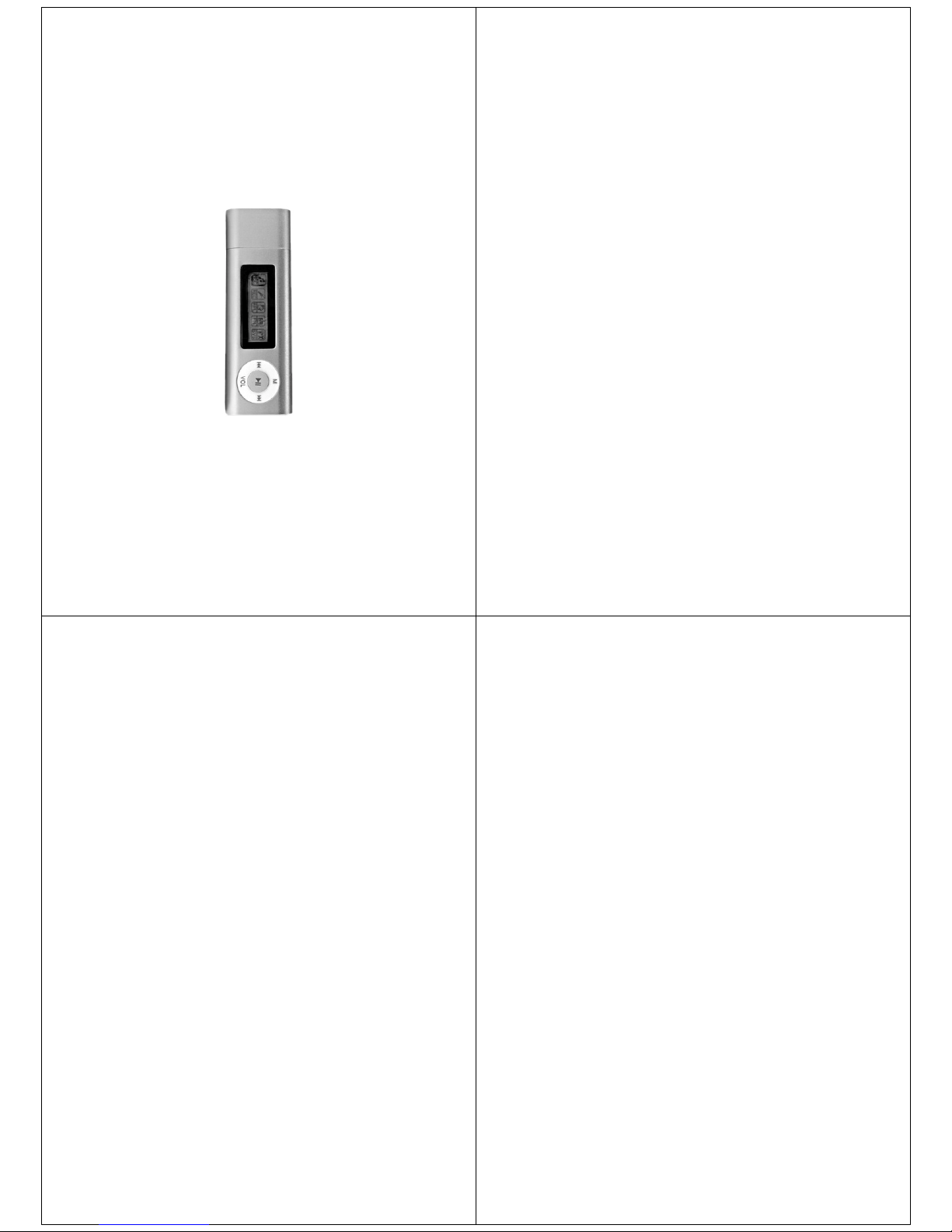
USER MANUAL
MODEL: OM108S
Functions
Sleek appearance & comfortable feel
Supports MP3, WMA & WAV formats
Removable electronic hard disk
No need management program, can operate the files directory in the
“removable disk” through “My Computer”
Record/Repeat
It can store WAV and ACT voice files through MIC record, and choose
single repeat and full repeat, make it real digital repeat function
7 EQ Modes
Natural, Rock, Pop, Classic, Soft, Jazz, Super Bass
LCD with 7 different backlights
Multi play mode
Normal, loop once, play folder, loop all, random play, intro play.
Auto Power Off
Notice
Congratulations on purchasing your new MP3 Player. Please read the
manual before using the mp3 player, the manual will teach you how to
operate this product correctly.
Table of Contents
Standard accessory………………………………………………………1
- Appearance and buttons………………………………………………....2
- LCD Display………………………………………………………….…...2
- Power………………………………………….……………………….……2
Basic function ……………………………………………………………3
- Volume Adjustment………………………………………………………5
- Power on/off ………………………………………………………………5
- Button operation …………………………………………………………5
- Key function definition……………………………………………………5
- Key movement definition …………………………………………………5
Playing music……………………………………………………………6
- EQ mode …………………………………………………………………6
- Display lyric synchronously………………………………………………7
Record mode ……………………………………………………………7
Play recording……………………………………………………………9
System setting……………………………………………………………9
File reading ………………………………………………………………12
Other settings……………………………………………………………13
- Delete file…………………………………………………………………13
- Loop mode ………………………………………………………………13
- Play speed ………………………………………………………………14
- Repeat mode ……………………………………………………………15
- A-B repeat…………………………………………………………………15
How to use FM radio……………………………………………………16
How to use USB…………………………………………………………18
FAQ………………………………………………………………………19
Notice Item for usage …………………………………………………20
Technology and specification …………………………………………21
Page 2
Overview
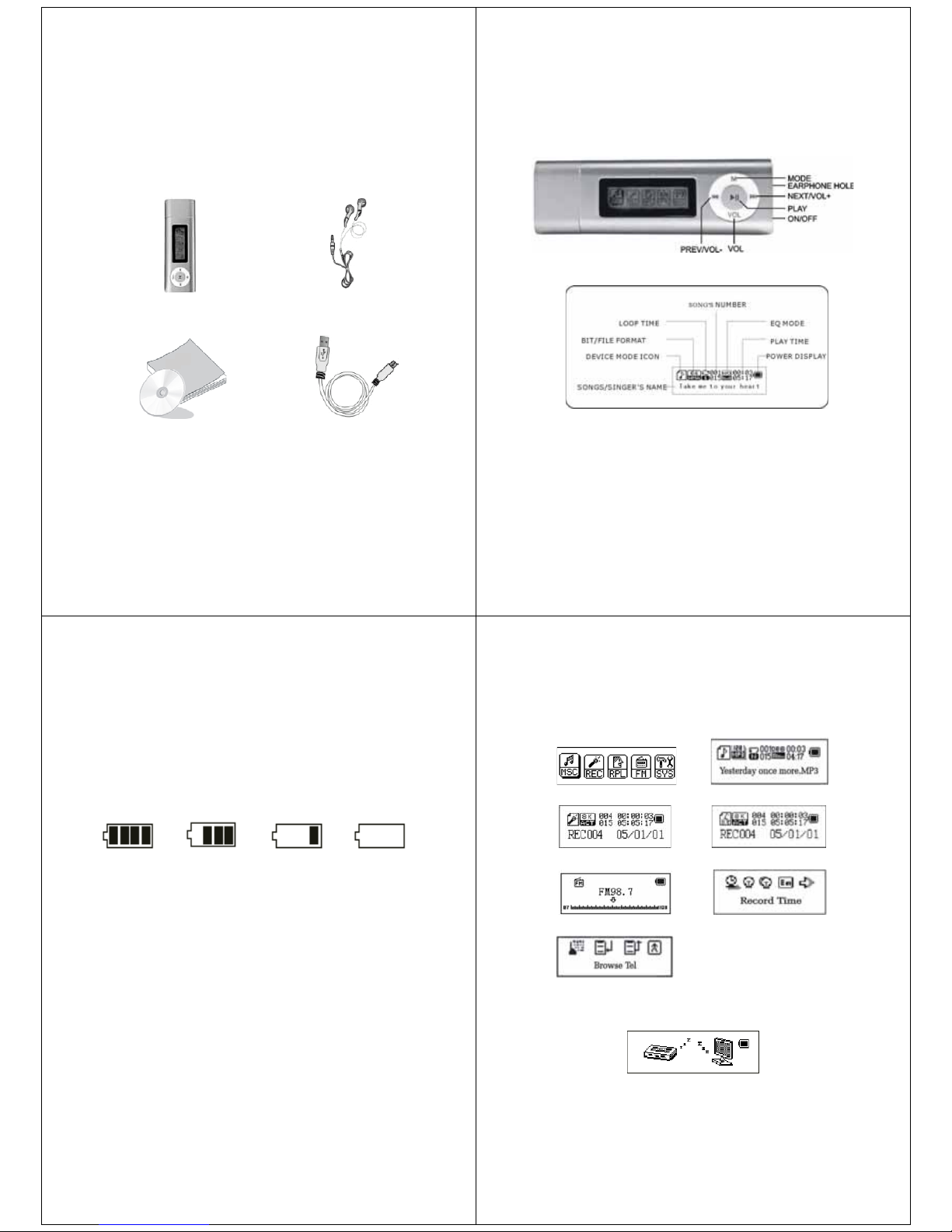
Standard accessory
Please check if the box of your “digital music player” has accessories as
follows:
Digital music player Earphone
User’s manual USB cable
-1-
Appearance and buttons
LCD Display
Power
The usable time depends on volume magnitude, playing files and button
operation.
-2-
The player can, also conserve battery life by activating the “auto off”
feature in settings
The unit has an indicator with 4 statuses for showing amount of battery
left.
Power indicator:
Full Some be used A little empty
Basic functions
Enter into menu
By pressing the MODE button you can enter the different menus, from
main menu, to sub menu while playing a music file.
Browse operation
o While music is playing by pressing either the fast backward or
forward you will be able to skip to the next or previous song.
Enter into different function mode
From main menu you can enter into different function modes.
Main menu: press the MODE button for around 5 sec to enter
-3-
Main menu Music mode
Record mode Play mode
FM mode System mode
Tel book E-book
USB mode while connected to the PC:
-4-
Page 3
Volume adjustment
Press VOL then: Short press “
” button to decrease volume.
Short press “
” button to increase volume.
Power on/off
In the power off status, long press
button to power on.
In the power on status, long press
button to power off.
Button operation
Key function definition
1.
Button: ON/OFF/PLAY/PAUSE
2. “MODE” or “M”: enter into main menu
3. “VOL”: enter into volume adjustment interface.
4. “
”: next item, fast forward, VOL+, fast increase.
5. “
”: last item, fast backward, VOL-, fast decrease.
6. “USB “: USB port.
7. “ON/OFF”: Power button.
8. “Earphone hole”: earphone standard hole.
Key movement definition
Press button includes short press, long press, hold or single press.
Short press: press the button once.
Long press: press and hold button for at least 2 seconds.
Single press: effect last until let go.
-5-
Hold: holding the button down, have effect while holding. Such as “fast
forward, fast backward”.
Playing music
1. Insert the earphone into Headphone socket.
2. Long press the “PLAY” button to turn on and enter into “music mode”.
Then short press “PLAY” button to start playing.
3. Select music mode: “
” select the previous
“
” select the next music
4. Volume control: Press VOL to enter into volume interface. Press
“
”or “ ” to adjust volume.
EQ mode
1. In music mode
2. Short press MODE to enter into submenu.
3. Press
to select “EQ mode” menu.
4. Short press MODE to enter into “EQ mode” choosing menu.
5. Kinds of EQ
NOR Rock Pop
Classical Soft Jazz
DBB
6. Press
to choose, short press MODE to confirm.
-6-
Display lyric synchronously
The player support “*.LRC” file, Display lyric synchronously
How to use lyric file
Keep the lyric file’s name same as song’s name.
How to know if lyric is available
If the song matched with lyric, the picture “
” which in top left cover of
music mode will change into “
”
1. Lyric found.
2. Long press MODE to enter into lyric interface
3. Lyric displaying
4. Short press MODE to back to music mode
5. Browse lyric manually: Short press volume button can browse lyric.
Record mode
1. In main menu
2. Press “
” or “ ” to select record mode.
3. Click mode key to enter the record state.
4. Short press “PLAY” begin to record
5. Other operation is same as the “long record”, only need to press
PLAY
The recorded voice be stored in current folder which set in “Record
stop submenu/main folder”
-7-
If display “full space” on the screen, indicate that there is no room to
record new record file. Please delete other file to release space.
If display “full folder”, indicate that there is 99 files. Please change to
another folder.
During recording, only use the “
” button.
Select record mode
1. Ensure you are in stop mode.
2. Short press MODE to enter into record submenu.
3. Press
to choose “record mode” submenu. Short press MENU to
enter into this item:
Fine record Wav format, good quality
Long record act format, common quality
Fine voice control Wave format, voice control record, have no voice
will pause to record.
Long voice record act format, voice control record, have no voice will
pause to record.
1. Short press
to choose proper record mode, and short press
MODE to confirm.
2. Press
begin to record
3. Long press
to stop and save record
-8-
Page 4
Play recording
1. Enter into main menu.
2. Press
to select voice mode.
3. Click mode key to enter the voice state.
4. Click
key to play recording, and click again to pause.
5. Choose recorded files.
: choose last record file
: choose next record file
6. Control volume: Short press VOL to enter into volume interface. Short
press “
” or “ ” to decrease or increase volume
System setting
How to enter
1. Enter into main menu
2. Press “
” to choose “system setting”
3. Short press MODE to enter into “system setting”
Simple description of parameter item
Record time: set the date and time of record files when storing recorded
voice.
Backlight time: the time of keep backlight on before turning off after
period of inactivity.
Backlight colour: Colour setting when the backlight is on.
-9-
Language selection: set different language.
Power off set: set a countdown timer (minutes), the unit will
automatically turn off when the timer gets to zero.
Repeat set: set working status of repeating.
Contrasts adjust: set the contrast for the display.
Storage status: check memory status.
Exit: exit this interface.
Detailed explanation
“Record time” setting
1. System set interface
2. Short press MODE to enter into record time interface
3. Short press “VOL”, start to set from year, year begin to flash.
4. Press “
” to adjust larger figure (:“ ” is contrast)
5. After finish adjusting, press MODE to confirm exit
“Backlight time” set
1. System set interface
2. Press
to choose “backlight time”
3. Short press MODE to enter into backlight time interface
4. Press
or to adjust the time
5. After finish adjusting, press MODE to confirm exit
-10-
“Backlight mode” setting
The method of operating refer to “backlight time” setting
“Language option” setting
The method of operating refer to “voice effect mode” setting
“Power off” setting
The method of operating refer to “voice effect mode” setting
Notice: “save battery mode” indicate: can set the time like this(unit:
second), in stop status, begin to count from haven’t any button
operation, turn off automatically when the time come to save battery;
the figure 0 indicate this function is off
“Repeat” setting
The method of operating refer to “voice effect mode” setting
Notice: “manual mode” indicate that A-B repeat can’t cut sentence
automatically. Only setting by person to do it.
“Automatic mode” indicate that A-B can cut sentence automatically.
(apply for English recite having no music)
“Contrast adjustment”
The method of operating refer to “backlight time” setting
“Online mode”
The method of operating refers to “voice effect mode” setting. Some
operate system (pre Windows 2k SP4) cannot support one USB with
-11-
two disk. Therefore, use “different space” function, need to choose
which disk to use currently. That is “single common disk” or “single
encrypt disk”. So that can display the disk chosen after connect with the
computer.
“Storage status”
The figure here indicates disk’s overall capability. Per centum indicates
that the space ratio has been used.
“Firmware version”
Can see the player’s current firmware version.
File reading
1. Enter into main menu, press
or to choose “file reading”.
2. Short press M enter into submenu:
3. Press
or to choose the file which you will read, short press
begin to play file’s content.
-12-
Page 5
Notice: While playing files, when status is set to “manual play”, press
or to change files. When status is set to “automatic
play”, the unit will change to next file automatically.
Other settings
Delete file (submenu)
In music mode, play mode and FM mode the user may delete a
corresponding file.
1. In stop interface
2. Short press MODE button to enter into submenu.
3. Press “
” or “ ” to choose “single file” or “all file” in menu.
4. Short press MODE to enter into delete interface.
5. Press
to change “NO” into “YES”.
6. Press MODE to confirm and begin to delete.
Loop mode (play submenu)
While playing music or recording files, the user can choose different
play modes (such as repeat, folder)
In the first item of play submenu is “play mode”. When choice is
confirmed, unit will play according to the rules set.
Repeat
Normal: Automatically play next file when current file has finished, until
all files has been played.
-13-
Repeat One: Repeat the current file.
Folder: Play all music in the current folder.
Repeat Folder: Repeat all music in the current folder.
Repeat All: Repeat all music file in the device.
SHUFFLE
Random: Randomly play files in the current folder.
INTRO
Intro: play the first 10 seconds of all music of current folder.
Play speed
The unit can play MP3 files at different speeds faster or slower, but this
function does not affect voice recorded files.
1. Playing music
2. Short press MODE to enter into play submenu
3. Press
to choose “play speed” menu item
4. Short press MODE to enter into “play speed” to choose menu
5. Press
to accelerate play speed, press to slow down the
speed
Notice: when setting “play speed” this will affect all file until it is turned
off.
-14-
Repeat mode (play submenu)
Through play submenu to enter.
A-B repeat
1. Play music or play recorded sound.
2. Short press MODE to enter into “repeat mode”
Repeat mode: repeat picture “A” flash, waiting for confirming start point
“A”
3. Press
to make sure start port “A”
Repeat picture “B” flash, waiting for confirming start point “B”
4. Press
to make sure start port “B”
Follow read function (play record does not have this function)
1. A-B section in repeat status.
2. Short press
to enter into follow read mode
3. When repeat picture change into follow read picture, can begin to
take down user’s voice, the time length is A-B repeat time.
4. After the time come, play the original voice again. Then can press
to enter into this function.
-15-
Repeat times (play submenu)
1. Choose “repeat times” setting interface.
2. Short press M button to enter into adjust interface, press “
” or “ ”
to adjust times.
3. After adjusting, press M to confirm and exit.
Repeat interval (play submenu)
The method of operating refers to “EQ mode” setting.
The interval time length (unit: second) between current play and last
play depend on repeat interval.
How to use FM radio
FM mode menu
1. In main menu, press “
” or “ ” to choose FM mode, short press
MENU to enter.
2. In FM mode, you can short press MENU to enter into FM mode
menu.
-16-
Page 6
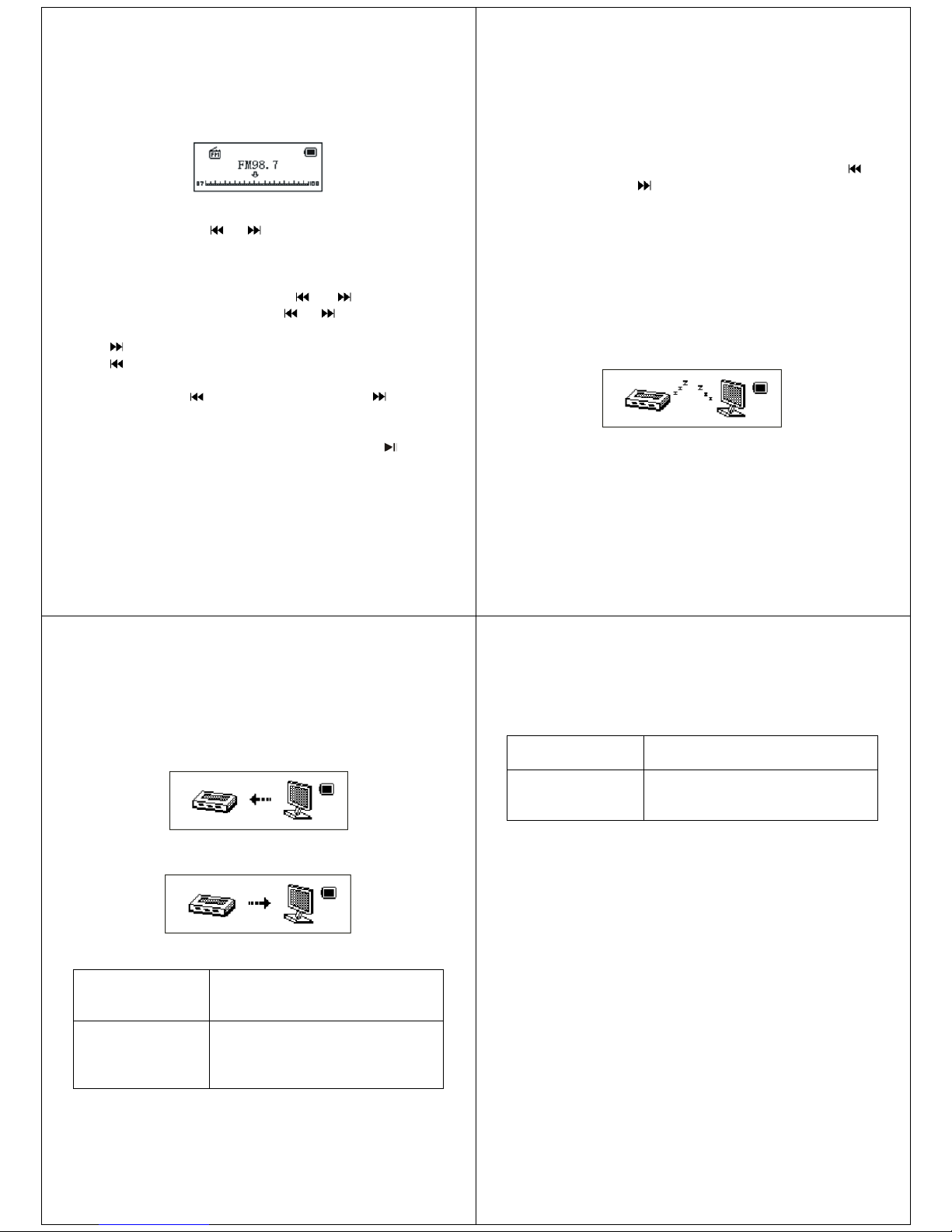
Automatic search
In FM mode menu, press “
” or “ ” for 2 seconds, to search forwardly
or backwardly, and stop in relative frequency. If you need to save, short
press MENU to enter into FM mode submenu to choose “save the
channel”. Short press MENU can store this channel orderly. If need to
search channel continuously, can press “
” or “ ” again. If during
searching want to stop, can short press “
” or “ ” to stop searching.
Fine adjusting
Press
button: forward
Press
button: backward
Manual search
You can short press
to search last channel, press to search
next channel.
Listening to radio
If there is more than one channel be saved, can short press
to listen
to next channel. If no channel are saved then the unit can be listened in
-17-
either automatic or manual search mode.
Control volume
Short press VOL to enter into volume adjust interface, press
to
decrease volume, press
to increase volume.
How to use USB
The unit supports Windows 2000 and above (does not need drivers),
Mac OS 10.3 and above, Linux Red Hat 8.0 and above.
The player can be played without battery. In “waiting status”, short press
MODE to exit main menu. Then choose working mode to enter.
The player supports suspend mode
After connecting with PC, player has three display modes:
1. Waiting status
-18-
2. Data downloading
3. Data uploading
FAQ
Cannot power on
Check the battery, if it has been fully
charged.
Be sure to turn on the device
No sounds could be
heard
Adjust the volume, check the connection
of the earphone and be sure the
earphone can work properly
Be sure the MP3 file can work
-19-
Screen display
improperly
Please select the right language
according to the song
Cannot download
music properly
Check the USB connection
Be sure you have install the drivers
Check the space of your device
Notice Item for usage
Safety and usage
1. Please don’t use and store MP3 in dusty, wet, high temperature,
strong magnetic environment. Please pay more attention when using
MP3 in pool, bathroom and kitchen.
2. When go out with MP3, especially when doing sports, such as
running, please fix MP3 firmly on your body in case off unit falling off
from high place or crashed by heavy objects. 3. Don’t use alcohol to
clean MP3, to clean the unit, please use a damp cloth.
4. When use USB cable to connect computer with MP3, please insert in
correct direction.
5. After MP3 player has been connected to the computer, please do not
move the USB cable around, else it might affect the operation of the
MP3.
-20-
Page 7
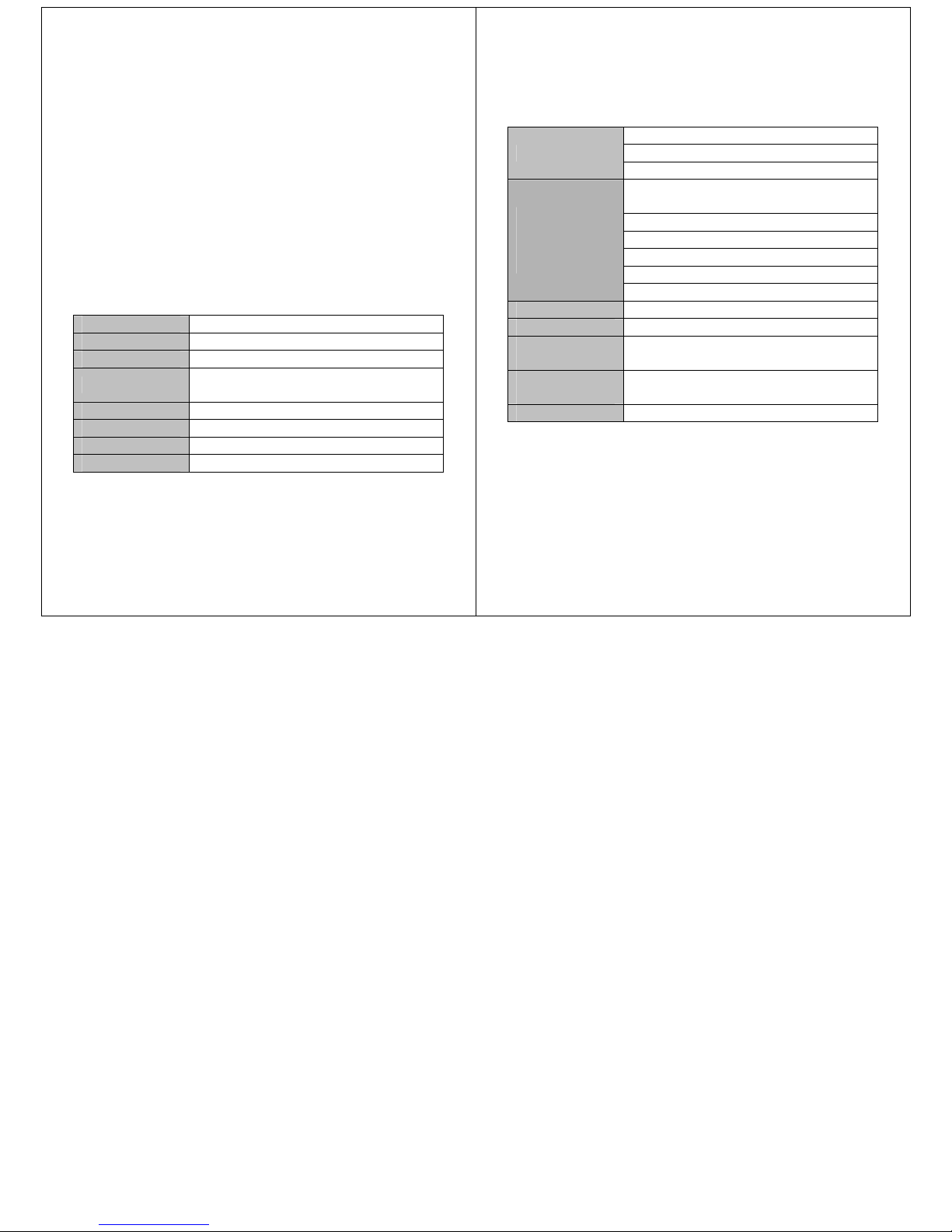
6. Before Removing MP3 from computer make sure it is “safely
removed from system” first.
7. When recording, the background noise shouldn’t be too loud else the
recorded sound will not sound as good.
Earphone
1. Walk safely: When crossing the road, please put down earphone in
case accident happen.
2. Avoid playing music at high volume, this can lead to lose of hearing
over time.
Technology and Specification
Size 87mm×29mm×12.4mm
Weight 35g
Screen Display Double color display
Connection PC
High speed USB2.0 (Read 1000KB, Write
800KB)
Flash Memory Flash Memory˖128MB-4GB*
FM frequency range 76MHz – 96MHz / 87MHz – 108MHz
Frequency response 20Hz~20KHz
Power Maximum play time is 10 hours
-21-
Record
Sampling rate:8KHz
Record format: WAV(32k bps)ǃACT(8K bps)
Record time: 35 hours(ACT,128M Flash)
MP3
WMA
WMV
ASF
Earphone maximum output: (L) 10mW+ (R)
10mW (320hm)
MP3 Bit rate: 8k bps 320k bps
WMA,WMV,ASF Bit rate: 5k bps 384k bps
Frequency reaction: 20Hz to 20KHz
Noise rate: 85dB
Distortion: <0.05%
Music form MP1, MP2, MP3, WMA, WMV, ASF, WAV
Using temperature -5 ---40
Nine countries
language display
Simple Chinese, English, Complex Chinese,
Germany, France, Italy and so on
Support operate
system
Windows SE / ME / 2K / XP, Mac 0S 10, Linux
2.4.2
Accessory User’s manual, earphone, CD, USB cable
* Some of the listed capacity is used for formatting and other functions, and
thus is not available for data storage.
-22-
 Loading...