

Page 1

MP309 User manual
1
Contents
PREFACE 2
FOR YOUR SAFETY 3
1 ABOUT YOUR PHONE ....................................................................................................................... 5
1.1 M
OBILE PHONE SCHEMATIC DESCRIPTION
................................................................................................ 5
2 GETTING STARTED 5
3 BASIC FUNCTION 9
3.1 P
OWER ON AND OFF
............................................................................................................................ 9
3.2 M
AKE A CALL
.................................................................................................................................... 10
3.3 M
AKE AN EXTENSION CALL
.................................................................................................................. 10
3.4 M
AKE AN INTERNATIONAL CALL
............................................................................................................ 10
3.5 M
AKE A CALL FROM CONTACTS
............................................................................................................. 10
3.6 R
EDIAL A CALL BY CALL LOGS
................................................................................................................ 11
3.7 A
NSWER A CALL
................................................................................................................................ 11
3.8 C
ALL OPTIONS
................................................................................................................................... 11
4 STK 12
5MESSAGE 12
5.1 W
RITE MESSAGE
................................................................................................................................ 12
5.2 Inbox ......................................................................................................................................... 12
5. 3 Outbox: .................................................................................................................................... 13
5.4 D
RAFTS
........................................................................................................................................... 13
5.5 S
ENTBOX
.......................................................................................................................................... 13
5.6 Templates ................................................................................................................................. 13
5.7 Broadcast message .................................................................................................................. 14
5.8 Voice mail server ...................................................................................................................... 14
6 CALL LOGS 14
6.1 M
ISSED CALLS
................................................................................................................................... 15
6.2 D
IALED CALLS
.................................................................................................................................... 15
6.3 R
ECEIVED CALLS
................................................................................................................................ 15
6.4 R
EJECTED CALLS
................................................................................................................................ 15
6.5 D
ELETE ALL
....................................................................................................................................... 16
6.6 C
ALL TIMERS
..................................................................................................................................... 16
7 MULTIMEDIA 16
7.1 CAMERA 16
7.2 V
IDEO CAMERA
................................................................................................................................. 17
7.3 A
UDIO
............................................................................................................................................. 17
7.4 V
IDEO PLAYER
................................................................................................................................... 18
7.5FM
RADIO
........................................................................................................................................ 19
Page 2

MP309 User manual
2
7.6 S
NAKE
............................................................................................................................................. 19
8 CONTACTS 20
9 SETTINGS 21
9.1 C
ALL SETTINGS
.................................................................................................................................. 21
9.2 P
HONE SETTINGS
............................................................................................................................... 24
9.3 D
ISPLAY SETTINGS
.............................................................................................................................. 24
9.4 S
ECURITY
......................................................................................................................................... 25
10 FILE MANAGER 27
11 TOOLS 27
11.1 A
LARM
.......................................................................................................................................... 27
11.2 C
ALENDAR
..................................................................................................................................... 27
11.3 C
ALCULATOR
................................................................................................................................... 28
11.4 R
ECORDER
..................................................................................................................................... 28
11.5 B
LUETOOTH
.................................................................................................................................... 28
11.6 I
NTERNET
....................................................................................................................................... 29
11.6.1 I
NPUT
URL ................................................................................................................................. 29
11.6.2 BOOKMARKS................................................................................................................................ 30
11.6.3 H
ISTORY
..................................................................................................................................... 30
11.6.4 O
FFLINE PAGES
............................................................................................................................ 30
11.6.5
SETTINGS
.................................................................................................................................... 30
11.7 T
ORCH
........................................................................................................................................... 31
FCC ID: 2ACZA-MP309
Preface
Thank you very much for your choice of this product designed by Ole!.
Our phone complies with the Telecommunication industries standards.
GSM network is a global cellular communications system of international
standards.
Page 3

MP309 User manual
3
Allow you to receive an international telephone call in your homeland.
However, before using these advanced network functions, you must, first,
apply for these required services.
In order to use your cell phone better, we suggest you to carefully read
this statement to know all the functions well.
Note: Due to the cellular network settings and the provided services,
some functions may not be available, please inquire your local service
providers.
For your safety
Read these simple guidelines. Breaking the rules may be dangerous or
illegal. Further detailed information is given in this manual.
ROAD SAFETY
Always keep your hands free to operate the vehicle while driving. Park
the vehicle before using your phone.
SWITCH OFF IN AIRCRAFT
Using of wireless telephones in aircraft may disrupt the operation of the
aircraft. It is dangerous and illegal. Make sure to switch off the phone
before boarding.
Page 4

MP309 User manual
4
SWITCH OFF IN HOSPITALS
Follow any restrictions or rules. Switch off the phone near medical
equipment.
SWITCH OFF WHEN REFUELING
Switch off the phone at gas station or any fuel or chemicals depot.
SWITCH OFF NEAR BLASTING POINT
Don’t use the phone where blasting is in progress. Observe restrictions
and follow regulations or rules.
INTERFERENCE
All radiotelephones may be susceptible to interference, which could
affect the phone performance.
USE NORMALLY
Use in the normal position explained in the product documentation.
Don't touch the antenna unnecessarily.
ENHANCEMENTS AND BATTERIES
Use only the approved enhancements and batteries. Do not connect
incompatible products.
Page 5
MP309 User manual
5
EMERGENCY CALLS
Make sure the phone is switched on and in service. Type the emergency
number, and then press the call key. Do not end the call until permitted
1 About your phone
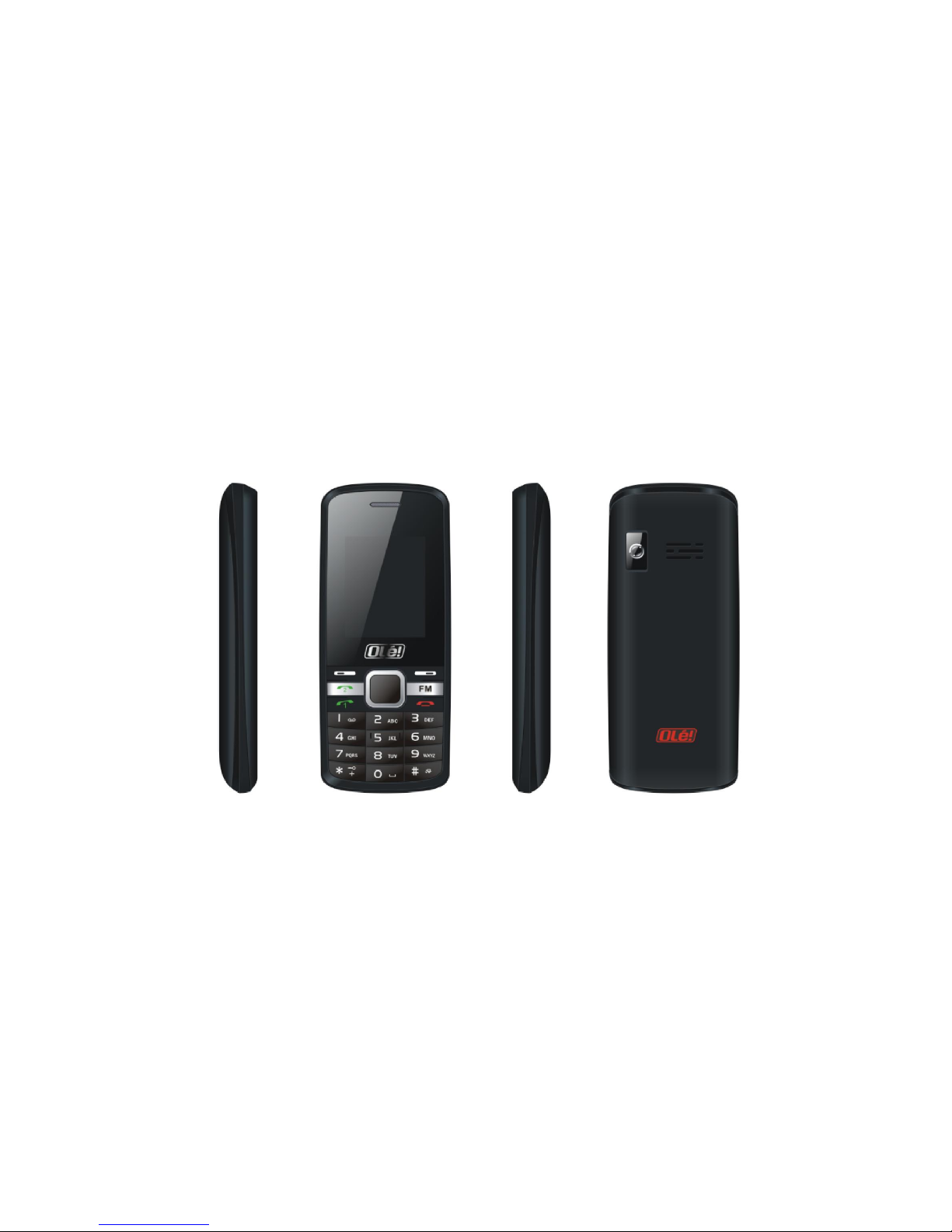
1.1
Mobile phone schematic description
2 Getting started
What is a SIM card
When registering your mobile phone number, you will need to have a
SIM card (Subscriber Identity Module) provided by the network operator.
The SIM card has information reserved for your use. It includes your
phone number, PIN (Personal Identification Number), PUK (password to
Page 6

MP309 User manual
6
unlock PIN), IMSI (International Mobile Subscriber Identity) number,
network information, phone book data, SMS data and so on. If it is lost,
contact your network operator immediately for assistance.
PIN code
PIN is the password provided by your network operator. It is usually 4
digits. When you input the PIN code, the screen displays “*” to replace
the number entered.
PIN is used to access the SIM card. If the PIN protection function is
enabled, the screen will display “Enter PIN” each time the phone is
switched on. You can deactivate this feature but putting to risk
unauthorized use of the phone. Some network operators do not permit
deactivating such control.
Note: If you enter the PIN incorrectly three times in a row, the SIM card
will be locked. Please contact your network operator immediately for
decoding. Attempting to further decode may result in the permanent
failure of the SIM card.
PUK code
PUK (Personal Unblocking Key, 8‐digit) unlocks a locked PIN. If you enter
the PUK incorrectly ten times in a row, the SIM card will become invalid.
Please contact your network operator for a new SIM card.
Installing the SIM card
1. Press and hold the power/ending key to turn off the phone.
2. Remove the battery cover and then the battery.
3. Insert the SIM card into the card holder. Make sure that the metal
contacts face the phone.
4. Re‐install the battery. Place the battery cover at the back of your
phone and slide it forward until the latch catches the cover.
Note: A SIM card can be easily damaged if its metal contacts are
scratched. Therefore, take special care when holding or inserting it and
keep it away within the reach of children.
Page 7

MP309 User manual
7
Charging the battery
The battery is not fully charged when this go out of factory. It takes three
charging‐discharging cycles for the battery to reach its peak performance.
The battery can be charged and discharged hundreds of times. However,
the capacity of the battery will be reduced each time it is
charged/emptied, and it will eventually wear out. When the talk time
and the standby time are noticeably shorter than normal, replace the
battery. Use original batteries and charging devices only.
Unplug the charger from the outlet and the phone when not in use. Do
not leave a fully‐charged battery connected to a charger because
overcharging may shorten the lifetime of the battery. If unused, a
fully‐charged battery will lose its charge over time.
If the battery is completely discharged, the charging may not start
immediately when you plug in the connector. Wait 10 to 15 minutes for
the phone to begin charging. Use the battery only for its intended
purposes. Never use any charger or battery that is already damaged.
Do not short‐circuit the battery. An accidental short circuit may occur
when a metallic object such as a coin, clip or pen causes the direct
connection of the positive (+) and negative (‐) terminals of the battery,
for example, when you carry a spare battery in your pocket or purse.
Short circuit may damage the battery and the connecting object.
Storage at too high or low temperatures will result in the gradual
capacity loss. As a result the operating time of your mobile phone may
be considerably reduced, even though the battery is fully charged.
Do not dispose of batteries into the fire as they may explode. Batteries
may also explode if damaged. Dispose of unwanted batteries and phones
as permitted in the law in your countries.
Note: The actual operation time of a battery varies based on the
operation mode, network settings and call settings.
Charge a battery according to the following steps:
Page 8

MP309 User manual
8
1. Connect the charger to the connection jack of the phone in proper
direction, and connect the charger to a main socket.
2. The phone displays "Charger Connected!" and starts charging after
properly connected. The battery icon displays the charging process. In
switch‐off state, the phone dynamically displays the charging process.
3. When the battery is fully charged, the charging process stops
automatically, and the battery icon indicates full grid on the screen.
After the battery is fully charged, remove the charger from the phone
and socket as soon as possible.
Note:
Do not change the parts and accessories of the battery or take off the
battery cover for safety.
Use only original batteries and charging devices. Otherwise it may
result some damages to health and property.
Do not charge batteries in too high or too low temperature.
Do not use the phone while charging.
After pulling out the battery, date and time will be reset to default
values (factory settings).
T-Flash card
T‐Flash card is a kind of multimedia memory card
Switching the Phone on and off
To switch on and off the phone, please press and hold the power on/off
key on the top of the handset. If you switch the phone ON without
inserting the SIM card, then the phone will remind you to Insert SIM
Card.
Even though INSERT SIM CARD displays on screen user can still use all
other features except SIM features.
Then the following notices will appear on the screen in sequence after
inserting the SIM card and switching on the phone:
Enter the phone lock password—if you have set phone lock password
on.
Enter PIN—if you have set SIM card password on.
Search the network—the phone will automatically search the network
until it connects to the appropriate network
Page 9

MP309 User manual
9
3 Basic Function
3.1 Power on and off
1. Press and hold the power key at the top side to turn on/off the phone.
2. Please input password and press left soft key, if mobilephone requires
password.
3. Type PIN code and press left soft key to confirm, if mobilephone is
required to input PIN code. PIN is personal identify numeric code, in
order to avoid using your simcard illegally, usually PIN code is provided
by the network operator for SIM card.
Note:
1.Please contact the nearest authorized service center in case you forgot
your phone password.
2.Delete character ahead of cursor in case you typed the wrong
keystroke when inputting the password.
3. Screen indicates type again, if PIN code was wrongly inputted. Screen
indicates input PUK code, if wrongly typed three times. If PUK code is
correct, then, back to PIN code input interface and preset new PIN code
(PUK CODE as PIN unlocking code provided by carrier). Mobilephone will
display SIM card will be not used any more, if typed PUK code ten times
wrong.
Page 10

MP309 User manual
10
4. Please contact your network operator or service provider, if SIM card is
inserted correctly but, still, indicates “insert SIM Card”.
5. On standby mode, press left soft key and then press the right soft key
to lock screen.
Press “*”key and then press the right soft key to release lock.
3.2 Make a call
Enter the area code followed by the phone number. Press dial key to
make a call.
3.3 Make an extension call
When making an extension call, press and hold “*” key to get “P” that is
a prefix of extension numbers. It will dial automatically in several
seconds.
Sequence: area code—telephone exchange numbers—P—extension
numbers, then press dial key.
3.4 Make an international call
Enter the country code, the area code and the phone number, press dial
key. “+” is needed when inputting country code, and it can be done by
pressing and holding “*” key.
3.5 Make a call from contacts
Enter contacts, select the phone number, then, press dial key to make a
call.
Page 11

MP309 User manual
11
3.6 Redial a call by call logs
In standby mode, press the Dialing key to find the recent call lists, scroll
to the number or name, select, then, press dial key.
3.7 Answer a call
An incoming call will be displayed on screen whenever there phone calls.
The number will appear on screen. If this number is not saved in the
phonebook, the caller’s number will be displayed on screen instead.
Press left soft key or dial key to answer it. Press right soft key can set to
silence。
If an incoming call arrives when you are active with the other operations,
a new window will pop out to inform you of the call. If you missed a call,
a missed call log will appear when you return to the homescreen.
3.8 Call options
During a call, press center (ok) key to open or close hands free function.
You can set call options as you desire. The functions of Call Waiting, Call
Hold may need the support of network provider. There are options, like
“add new call”, “hold”, “start recording”, “mute”, “adjust volume”,
“phone book”, “call logs” and “message”. This should be supported by
the current network.
Page 12

MP309 User manual
12
4 STK
In addition to the functions available in the phone, your SIM card may
provide additional services that you can access in the Sim Tool Kit (STK).
It will be shown only if it is supported by your SIM card. The name and
contents of the menu are dependent on the available services.
You may contact your service provider for more detailed information.
5Message
5.1 Write message
New SMS
Create a new short message.
1. Enter text.
2. Press the menu key (Options) and select the required items, including
insert template, add contact info, add phiz, save to drafts, exit.
5.2 Inbox
The message inbox displays the number of messages received. The
phone displays the newly received messages and will prompt you to
read or not.
Press left soft keystroke to enter message option list.
‐‐‐Reply: reply to sender;
‐‐‐Delete: delete chosen messages and press left soft keystroke to
Page 13

MP309 User manual
13
confirm.
‐‐‐Call: Call the contact number
‐‐‐Lock: Lock on this message
‐‐‐Move: Move the message to the phone or sim card
‐‐‐Copy: Copy the message to the phone or sim card
‐‐‐Mark: Select particular message/messages.
‐‐‐Sort: Do sorting operations.
‐‐‐Add sender to: Save the number to phone book or simcard
‐‐‐Add to blacklist: include selected contact/number to blacklist list
5. 3 Outbox:
The message is automatically stored in the draft box when sending of
message fails.
5.4 Drafts
The messages which are typed but will be sent in some later period are
stored in the Draft Messages.
5.5 Sentbox
These are the SMS and MMS sent successfully.
5.6 Templates
There are several short sentences or phrases which are frequently used
Page 14

MP309 User manual
14
that are stored in the template. You may use, edit or remove it.
5.7 Broadcast message
Broadcast messages are messages that your network operator
broadcasts to all users within a particular area, such as weather forecast
and transportation conditions. This is network dependent.
5.8 Voice mail server
This is network dependent. You may set your mailbox to store voice
messages which you can listen at later period. Please contact your
network provider to inquire and obtain the voice mail box number.
6 Call logs
These are the most recent dialed, received and missed calls. Your phone
can store/save up to 20 Dialed calls, 20 Received calls and 20 Missed
calls.
1. Missed, received and dialed calls can be viewed separately from the
phone.
2. You can also browse the call history :
Details: Telephone details
Call: Choose left‐soft key to view.
Write message: To send SMS/MMS
Add to contacts: Save the number to phone or SIM card.
Page 15

MP309 User manual
15
Add to blacklist: include the contact name or number to blacklist.
Delete: you can choose to delete calls or not.
Delete all: Delete all call records
Mark: Selected call records.
6.1 Missed calls
You can view the recent 20 missed calls in this menu. You can also view
each phone number and date of call. You can save or delete from the
phone book.
6.2 Dialed calls
You can check the recent 20 dialed calls in this menu. You can view
certain phone number, the date and time you dialed.
6.3 Received calls
You can check the recent 20 received calls in this menu. You can also
view phone number, date and times answered.
6.4 Rejected calls
These are the record of calls you preferred not to be answered or
ignored.
Page 16

MP309 User manual
16
6.5 Delete all
You can delete unanswered, answered and dialed phone records
separately. Or you can delete all from the record.
6.6 Call timers
You can check total time and the last call time (dialed phone and
answered phone).
1. Last call: the recent one.
2. Dialed phone number
3. Received phone number
4. Reset all time: reset to 0.00 after you delete phone time log.
7 Multimedia
7.1Camera
Choose "camera" and enter. More options will be displayed when you
do.
Camera function options:
1) Store photos: Set the storage location.
2) DV mode: Switch to the Video recorder function
Page 17

MP309 User manual
17
3) Effect: Total six modes selection.
4) Settings: You can set the size, quality, banding, shutter sound, auto
save and storage.
7.2 Video camera
You can record a video.
Enter video recorder, press left soft key to display some options:
View video directory, DC mode, Effect and Settings. After setting, press
center key to start or pause recording. And then, press right soft key to
stop and save. at the same time press the left/right soft key to return
the screen in video preview status.
7.3 Audio
Audio player allows you to play mp3 audio files.
The music file will be added to the current playlist. You can choose
songs to play and do setting.
Play: Play the music files.
Move up: To move the selected song up in the playlist
Move down: To move the selected song down in the playlist.
Music player interface press Left soft key to do the following operations.
1. Music list: Open the music list by default.
Page 18

MP309 User manual
18
2. Add: Add new song to the playlist
3. Set as ringtone: To use the selected song to be your incoming and
alarm ringtone.
4. Shuffle: Open random playback function
5. Repeat: To play, again, the current songs.
6. Settings: Set equalizer, BT stereo output, BT stereo headset.
7. Exit: Stop and go out from the music player
7.4 Video Player
Video player allows you to browse or process video recording files.
Play: Play the video files.
Move up: To move the selected video up in the playlist
Move down: To move the selected video down in the playlist.
Select Video Player submenu to access movie list and you can access
“Option” for the following operations:
Local play list: Open the Local play list
Shuffle: Open random playback function
Repeat: Play, again, the current video being viewed
Settings: Set the video play mode including reset or help.
Details: View the details of video.
Page 19

MP309 User manual
19
Exit: Stop and go out from the video player
7.5FM radio
This option allows you to listen to FM radio. Plug in the headset to enter
FM radio. The headset serves as your FM antenna.
Auto search and save: Automatic searching of channels and saving of
stations.
Channel list: All channels searched and saved.
Save: Choose FM stations to save.
Manual search: Manual searching of channels.
Open speaker: Switch audio from Headset to Loudspeaker.
Background play: Set as background audio.
Record: Saving of the FM stations you are listening with.
Timing record: Recording time of your favorite FM channels
Record file list: Display the recorded files.
Storage: Set the storage location
Help: Guide how to operate the FM functions.
Note: Make sure there is enough free internal memory space when
recording or there is memory card inserted to store the recordings.
7.6 Snake
Enter the menu and select the “Snake” game. You can use the up
Page 20

MP309 User manual
20
key/down key/right key/left key to move.
Ok key to pause and start.
8 Contacts
The phone provides two kinds of storage media: SIM card and phone.
The phone can store up to 250 entries. The capacity of the phone book in
your SIM card depends on the type of SIM card provided by your
network operator.
In idle screen, press the right soft key mention in NAMES to directly
access the phone book.
The phone book allows quick search. Input what you want to search.
Enter the first letter, then, all the records starting with such letter will be
displayed.
Add new contact: You can add a new phone number to SIM card or
phone.
Caller groups: A caller group is the combination of phone settings used
to identify a particular group of records. The phone provides five call
groups: SIM1, SIM2, Family, Friends, Business, Classmates.You can
manage and edit the details of caller groups using Group setting option.
The small icon on the left of the phone book list indicates whether the
Page 21

MP309 User manual
21
record is stored on the SIM card or the phone. Press left soft key to select
following options.
New: Add a new phone number to SIM card or phone
Write message: Send SMS after selecting a particular number.
Call: Make a call to the current phone number.
Delete: Delete the record.
Delete multiple: Delete all marked or selected contacts.
Copy: Copy the contact from the current storage to the other storage.
Others: Allow you to set own number, service number or check
memory status;
9 Settings
9.1 Call settings
Dual SIM setting
Set Dual SIM open, Only SIM1 open, Only SIM2 open or Flight mode.
When you are on a flight where the use of mobile phones is prohibited,
select flight mode so that the phone will not connect to any network.
However, alarm and calendar reminder will remain on. You can still use
the entertainment features such as audio player and camera in flight
mode.
Warning: In specific areas where the use of phone is prohibited (such as
in airplane), please remember to disable the automatic switch‐on
function before entering the areas to prevent unexpected accidents.
Call divert
Page 22

MP309 User manual
22
You can set the conditions under which calls should be diverted to your
voice mail box or another number.
Call forwarding unconditional: All calls are diverted.
Call forwarding on busy: A call is diverted if another call is in progress.
Call forwarding on no reply: A call is diverted if not answered.
Divert all voice calls: All calls are diverted.
Divert if unreachable: A call is diverted if the phone is switched off or is
out of coverage area.
Cancel all divert: Cancel all call diverted settings.
Call waiting
Activate: If activated, an incoming call is signaled by a call waiting tone
when you are on another call. The number/name of the incoming call is
displayed.
Off: Cancel the call waiting function.
Query status: Inquire the current status.
Call barred
Restrict the dialing or receiving of certain calls. To activate or cancel call
barring, you have to enter the network password provided by your
network operator.
Outgoing calls: If all calls are activated, no calls can be made. If
Page 23

MP309 User manual
23
International calls are activated, no international calls can be made. If
International calls except to home PLMN is activated, only local calls or
calls to the home country (that is, the country to which the network
operator belongs) can be made.
All outgoing calls: No outgoing calls.
All incoming calls: No incoming calls
Incoming calls: If all calls are activated, no calls can be received. Active all:
Allow you to activate all call barring services by inputting your password.
ISD calling: If International calls are activated, no international calls can
be made.
International roaming: When roaming is activated, you will not receive
calls outside your home network.
Cancel all barring: Cancel all restrictions. Password from your network
operator is required.
Change password: Change barring password. The original barring
password is required.
Others
Call time reminder: If activated, the phone beeps at the interval time you
set during a call.
Vibration is active: The phone vibrates when receiving calls.
Reply SMS to rejected calls: You may opt to send message to a r
Page 24

MP309 User manual
24
ejected call.
Auto record voice call:It automatically records calls.
9.2 Phone Settings
9.2.1 Time and date
Set time:Setting of time.
Set data: Set the current date
Time format: Format for the time.
Date display type: Set on display type
9.2.2. Language settings
Select the language desired. There are different languages to choose
with.
9.2.3 Shortcut settings
Set all shortcut keys
9.2.4. Auto power on/off
Set time to power on/off the phone automatically.
9.2.5. Restore factory settings
Reset the phone to default values (factory settings).
The phone password is required, which is "1234" by default.
9.3 Display settings
Wallpaper settings: Set the standby image of the phone.
Page 25

MP309 User manual
25
Idle display setting: Set Idle display.
Contrast: Set the backlight brightness.
Keypad backlight time: Set the Keypad backlight time
Auto keypad lock : Keypad lock prevents the unneccessary phone usage.
9.4 Security
The phone provides several security options to protect your phone from
misuse.
1. PIN
Open: Requires PIN code every time the phone is opened.
Update: Requires you to type the PIN code before you can modify.
Close: enter the correct PIN code.
Warning: Be careful in using this function. Forgetting of set password
may result to permanent SIM damages. Please consult your network
operator. Typing of wrong password for 3 times will require for PUK and
typing of PUK for 10 times PUK will result to SIM permanent damage.
2. Modify PIN2:
PIN2 (Personal Identification Number2) is for some special functions
(such as setting of fixed number, setting calls billing, etc). You will be
required to enter personal identification number.
Warning: Please be careful in using this function. Mistyping of Pin
will result to SIM card permanent blocking.
3. Phone locked
If the phone lock is activated, the phone lock password is required when
switching ON the phone. The default password is "1234". If the phone is
Page 26

MP309 User manual
26
locked, only emergency calls can be made.
4. Modify the cell phone password
The password of mobile phones can be reset
5. Privacy
To prevent others from getting personal data from your phone. Y
ou need to enter the password. The default password is “1234”.
You may change it to other preferred code.
5. Lock screen by end‐key
Locking of screen using the end key function.
6. Fixed dial number
You can set a “fixed dialed number” with the chosen key.
7. Blacklist
This is to prevent a particular number from calling you.
9.5 User Profiles
This allows you to select, use or customize the volume and tones of your
phone. You may set how your keypad sounds when you press a key.
Select and customize the most suitable profile as you desire. The
available modes are Normal, Silent, Meeting, Indoor, Outdoor.
9.6 Connections
Automatic or manual option.
Page 27

MP309 User manual
27
10 File manager
It provides you the functions such as browsing media files, checking
storage space and formatting function.
When browsing the media files, you can manage the selected files such
as view, rename, copy, move, delete etc.
11 Tools
11.1 Alarm
User can set alarm clock with three options to choose from. Scroll the
alarm options and select or edit settings. You can set and enable the
alarm, message, time, ringtone, snooze minutes and alert type.
11.2 Calendar
You can enter events in the calendar. In the calendar interface, press the
up, down, left and right directions keys to go to different days.
Add new schedule: Add new event schedule.
View schedule: View or edit event memos for a particular day.
All schedules: View all events memo.
Clear today’s tasks:Delete events memo.
Clear all:Delete all events memo.
Page 28

MP309 User manual
28
Go to date: Enter a specific date to be located and the cursor quickly
goes to it.
Weekly: Weekly calendar days.
Daily: Shows daily calendar schedule.
11.3 Calculator
The phone can be used as calculator for some simple arithmetic
operation.
Press number key to enter the number. Press and scroll up, down, left or
right key to enter plus, minus, multiplication or division. Press the right
soft key to erase or correct a number;Press OK key to get the result
11.4 Recorder
The record formatsupports wav. A call may also be recorded
and saved to the phone or memory card.
11.5 Bluetooth
1. Power: Allow you to switch on/off Bluetooth.
2. Bluetooth visibility: Allow you to find all other Bluetooth hands‐free
devices within the allowable range of Bluetooth and list all items; You
can connect and match the hands‐free device in the list (the green
Page 29

MP309 User manual
29
Bluetooth connection icon would appear in the status column on the
top of screen).
3. Paired device: It displays the various devices connected to the
Bluetooth.
4. My Bluetooth name: View or modify the device name
5. Bluetooth file storage: Set where to store the received files or
messages.
6. About: To display the device names, bluetooth device address and
services supported by the device.
11.6 Internet
The Internet is a combination between wireless Internet communication
and application platform.
Note: 1. Your Internet service provider may not support some functions.
In order to guarantee the normal operation of the browser line, please
activate special functions of your SIM card such as GPRS. Contact your
Network Operator for needed assistance and set‐up.
2. Browsing the web will cost you some amount or expenses.
11.6.1 Input URL
Input web page address and surf from the internet.
Page 30

MP309 User manual
30
11.6.2 Bookmarks
You can edit the bookmark as you prefer. Set specific operation as
follows: add new bookmarks‐>choose add new bookmark‐>enter the
new bookmark address‐>name made after the preservation.
11.6.3 History
Record the web addresses you have visited.
11.6.4 Offline pages
Record the web addresses your have saved.
11.6.5 settings
This is network supported function. Your network operator may
configure the internet set‐up over the air. The phone can connect to the
designated network automatically or to a roaming network when you are
outside the coverage of your regular network. You can manually select
the local network system beyond regular network.
Account settings
Internet account: SIM card browser port information set.
Homepage Setup
Set the home page type: under the launch function, you can choose the
homepage to be the default page.
Content settings
Page 31

MP309 User manual
31
Download image: turn on the function and the download page image
will be shown.
Font size: you can set the font size of interface.
Restore default settings
Reset your phone to its original parameters.
11.7 Torch
In the menu, you can choose to open or close the flashlight function.
Warning Statement
Changes or modifications not expressly approved by the party
responsible for compliance could void the user’s authority to operate the
equipment. This equipment has been tested and found to comply with
the limits for a Class B digital device, pursuant to Part 15 of the FCC Rules.
These limits are designed to provide reasonable protection against
harmful interference in a residential installation.
This equipment generates uses and can radiate radio frequency energy
and, if not installed and used in accordance with the instructions, may
cause harmful interference to radio communications.
However, there is no guarantee that interference will not occur in a
particular installation. If this equipment does cause harmful interference
to radio or television reception, which can be determined by turning the
equipment off and on,
Page 32

MP309 User manual
32
the user is encouraged to try to correct the interference by one or more
of the following measures:
‐‐ Reorient or relocate the receiving antenna.
‐‐ Increase the separation between the equipment and receiver.
‐‐ Connect the equipment into an outlet on a circuit different from that
to which the receiver is connected.
‐‐ Consult the dealer or an experienced radio/TV technician for help.
15.19 Labelling requirements.
This device complies with part 15 of the FCC Rules. Operation is subject
to the following two conditions:
(1) This device may not cause harmful interference,
(2) this device must accept any interference received, including
interference that may cause undesired operation.
SAR tests are conducted using standard operating positions accepted by
the FCC/IC with the phone transmitting at its highest certified power
level in all tested frequency bands, although the SAR is determined at
the highest certified power level, the actual SAR level of the phone while
operating can be well below the maximum value, in general, the closer
you are to a wireless base station antenna, the lower the power output.
The SAR limit of (FCC/IC) is 1.6 W/kg averaged over one gram of tissue.
Device types: MP309 has also been tested against this SAR limit. The
highest SAR value reported under this standard during product
Page 33

MP309 User manual
33
certification for use at the ear is 1.436W/kg and when properly worn on
the body is 0.633W/kg. This device was tested for typical body‐worn
operations with the back of the handset kept 1.5cm from the body. To
maintain compliance with FCC RF exposure requirements, use
accessories that maintain a 1.5m separation distance between the user's
body and the back of the handset. The use of belt clips, holsters and
similar accessories should not contain metallic
components in its assembly.
Non‐compliance with the above restrictions may result in violation of RF
exposure guidelines. Use Conditions:
This device complies with Industry Canada licence‐exempt RSS
standard(s): Operation is subject to the following Two conditions:
(1) this device may not cause interference, and
(2) this device must accept any interference, including interference that
may cause undesired operation of the device. CAN ICES‐3 (B)/NMB‐3(B)
Le présent appareil est conforme aux CNR d’Industrie Canada
applicables aux appareils radio exempts de licence.
L’exploitation est autorisée aux deux conditions suivantes :
(1) l’appareil ne doit pas produire de brouillage, et
(2) l’utilisateur de l’appareil doit accepter tout brouillage
radioélectrique subi, même si le brouillage est susceptible d’en
compromettre le fonctionnement.
Page 34

MP309 User manual
34
Note: The manufacturer is not responsible for any radio or TV
interference caused by unauthorized modifications to this equipment.
Such modifications could void the user’s authority to operate the
equipment.
 Loading...