

Page 1

Page 2

OkiData 321 Turbo Printer Setups
There are 4 steps to properly setup your OkiData 321 Turbo Printer:
1. Proper Driver Installation in Windows
2. Performing the proper GSI Service Bu l letin
3. Programming the Menu on the 321 Turbo
4. Setting the Top of Form on the 321 Turbo
1. Proper Driver Installation in Windows
The default driver that may load when installing the Okidata 321 may be the Okidata 320
driver. Saleslifter Pro needs the OkiData 321 Turbo /d (IBM) driver. This driver handles longer
forms and doesn’t have issues with left hand margins.
Under no circumsta nces sho uld yo u use the O kid ata 320 dr iver . Yo u M UST use the O kiD ata 321
Turbo /d (IBM) driver.
Once this driver is installed you should right click on the driver in windows control panel and
then left click on properties to enter the properties for this driver. Click on the Advanced Tab at
the top then a b o ut ha lf w a y down the w indow will b e a s etting f o r “ P r int D ire ctly to the P r inte r” .
You should choose that setting the click Apply and OK then that window will close leaving you
back at the installed printer window where you see your icons that show the installed printers.
2. Performing the proper GSI Service Bulletin
See next page
Page 3
GSI Technical Service Bulletin # 5
Date: 09-16-04
Operating System:
Problem:
OkiData 321 printer stops at 11 or 11½ inches when printing long contracts
Solution: Under no circumstances should you use an Oki Data 320 Driver. You must use the
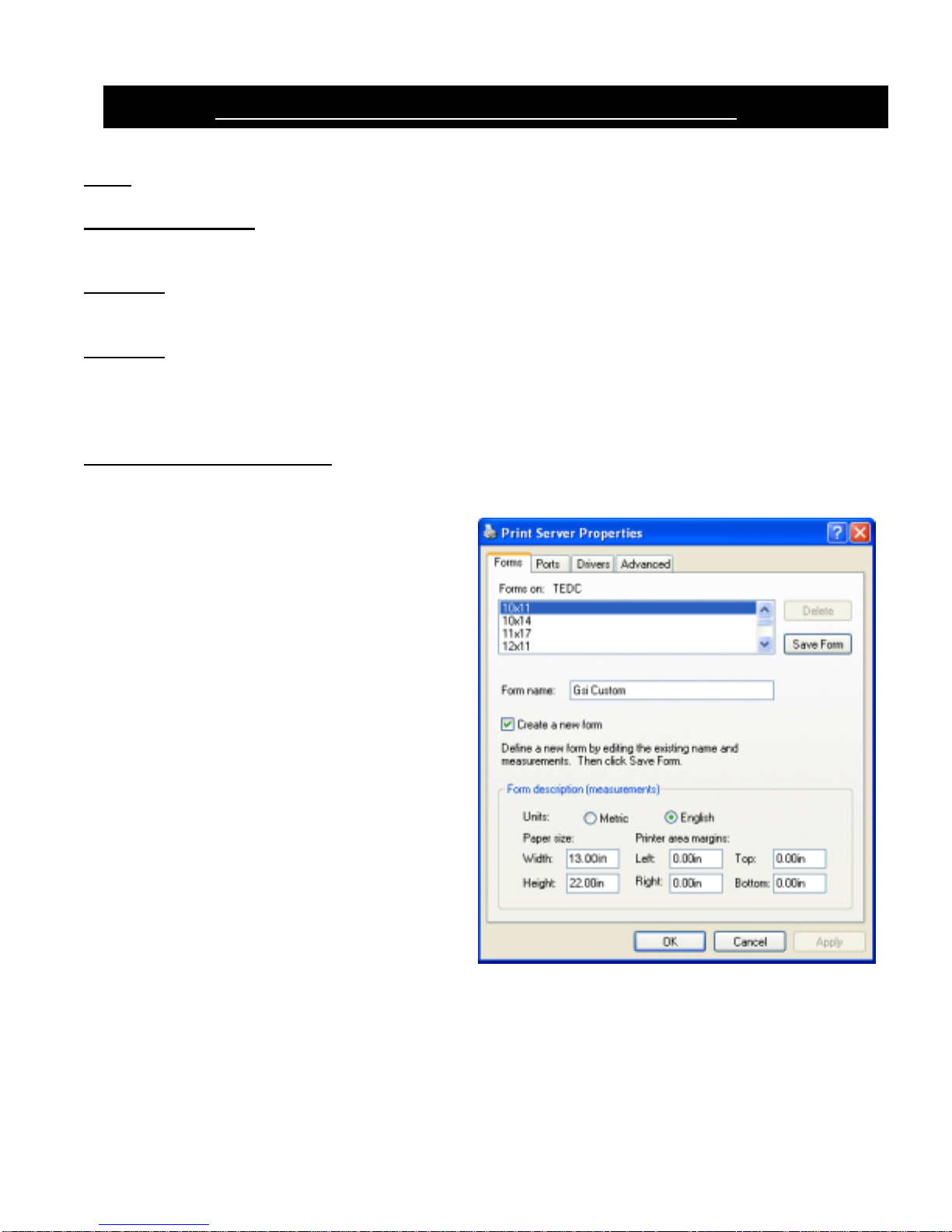
321 Turbo /d IBM driver. A new paper type needs to be created in Windows XP. This
solution has been tested with the OkiData 321 Turbo /d IBM driver installed.
Creating a New Paper Type:
1. Click on the Start Button
2. Click on Control Panel
3. Double Click on Printers and Faxes
4. You should now get the window with the
installed printers
5. At the top of the window click on File
6. Then Click on Serv er Properties
7. Click to put a check mark in the Box that
says Create a New Form
8. Enter GSI Custom into the Form
Description For: field
9. At the bottom of the window change Paper
Size Width to 13.00in
10. Then change the Paper Size Height to
22.00in
11. Then click on the Save Form Button
12. After you click Save Form the OK button
will change to Close, then click Close
You should now be able to print long
contracts from Saleslifter Pro.
Windows XP Professional, Home, 2000
Page 4
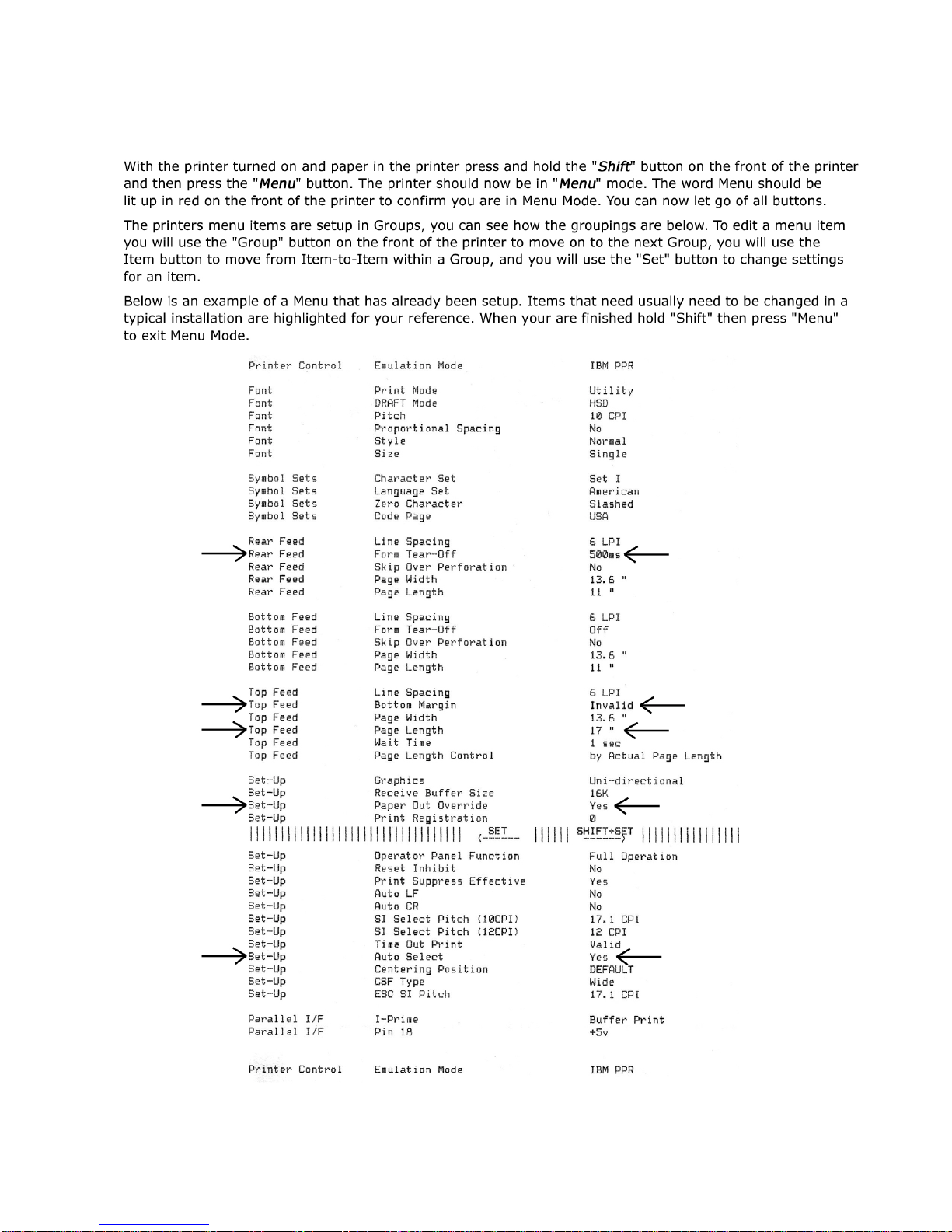
3. Programming the Menu on the OkiData 321 Turbo
Page 5

4. Setting the Top of Form on the Ok iData 321 Turbo
Feed a single sheet of paper into the top of the printer as if it was a form.
Hold the “Shift” button down on the front of the printer with your left hand
While holding the “Shift” button with your left hand press and hold with your right hand the “Micro
Feed Down” button. You will hear the printer clicking as it micro feeds the paper back down into
the printer. You should hold this position until it stops feeding down, then you can let go of all
buttons.
You can now press the FF/LOAD button and the piece of paper will get kicked out.
Your Top of Form is now set.
 Loading...