

Page 1
Scout SPX-SJX-SKX FAQ
AppNotes.v20180726_ AG
For any further questions, please e-mail us at [email protected], or call us at 973-377-9000 #2 or ext. 7852 from 8AM to 5PM EST
Topic:
This list compiles frequently asked questions about the Scout SPX-SKX-SJX Series:
a) How do I calibrate my unit
b) How do I switch between units of measure
c) How do I turn on the units of measure
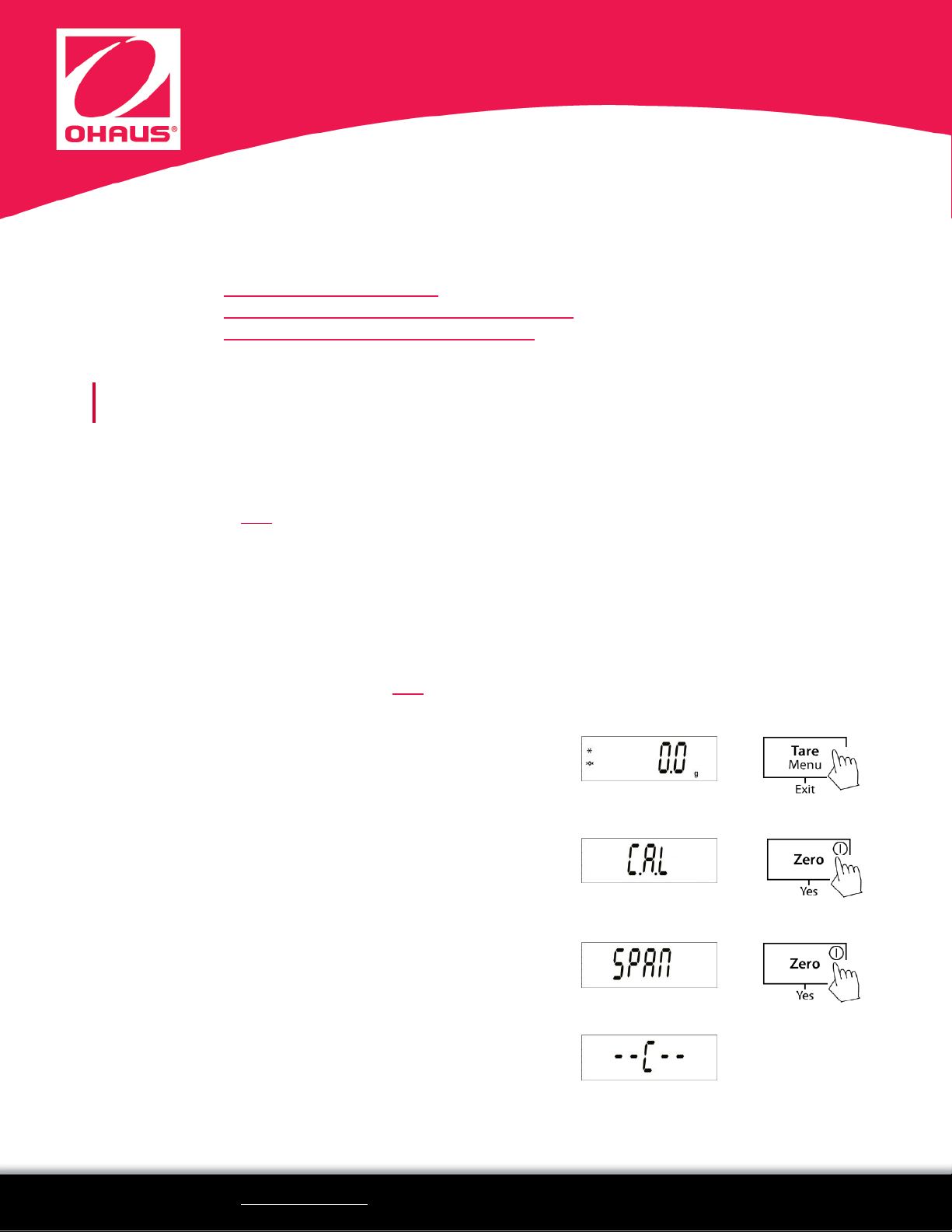
1. Press and hold [MENU] until MENU is displayed.
2. Release the button once MENU is displayed.
3. CAL is displayed - press [YES]
4. SPAN is displayed – with nothing on the pan, press [YES]
--C-- flashes while the 0 value is stored
. . .
How to Calibrate
The Scout has two methods of calibration: Span and Linearity. Following is a quick guide on how to
perform a Span calibration. Span calibration uses two calibration points: zero and a specified calibration
weight (usually full scale capacity).
You can also click here to view a short video on this topic.
Before or during calibration:
a) Have the appropriate calibration masses ready
b) Clear any obstructions around the pan; make sure the transportation lock under the pan and the
security switch under the unit are unlocked
c) The unit is on for at least 5 minutes to warm up and stabilize
d) The unit is level
e) The location is stable: avoid vibrations, drafts, electromagnetic fields and extreme temperatures
You can also download the user manual here – refer to Section 3.3: Calibration Operation and the spec
table for available calibration mass requirements.
Page 2
Scout SPX-SJX-SKX FAQ
AppNotes.v20180726_ AG
For any further questions, please e-mail us at [email protected], or call us at 973-377-9000 #2 or ext. 7852 from 8AM to 5PM EST
How to Switch Between Units of Measure
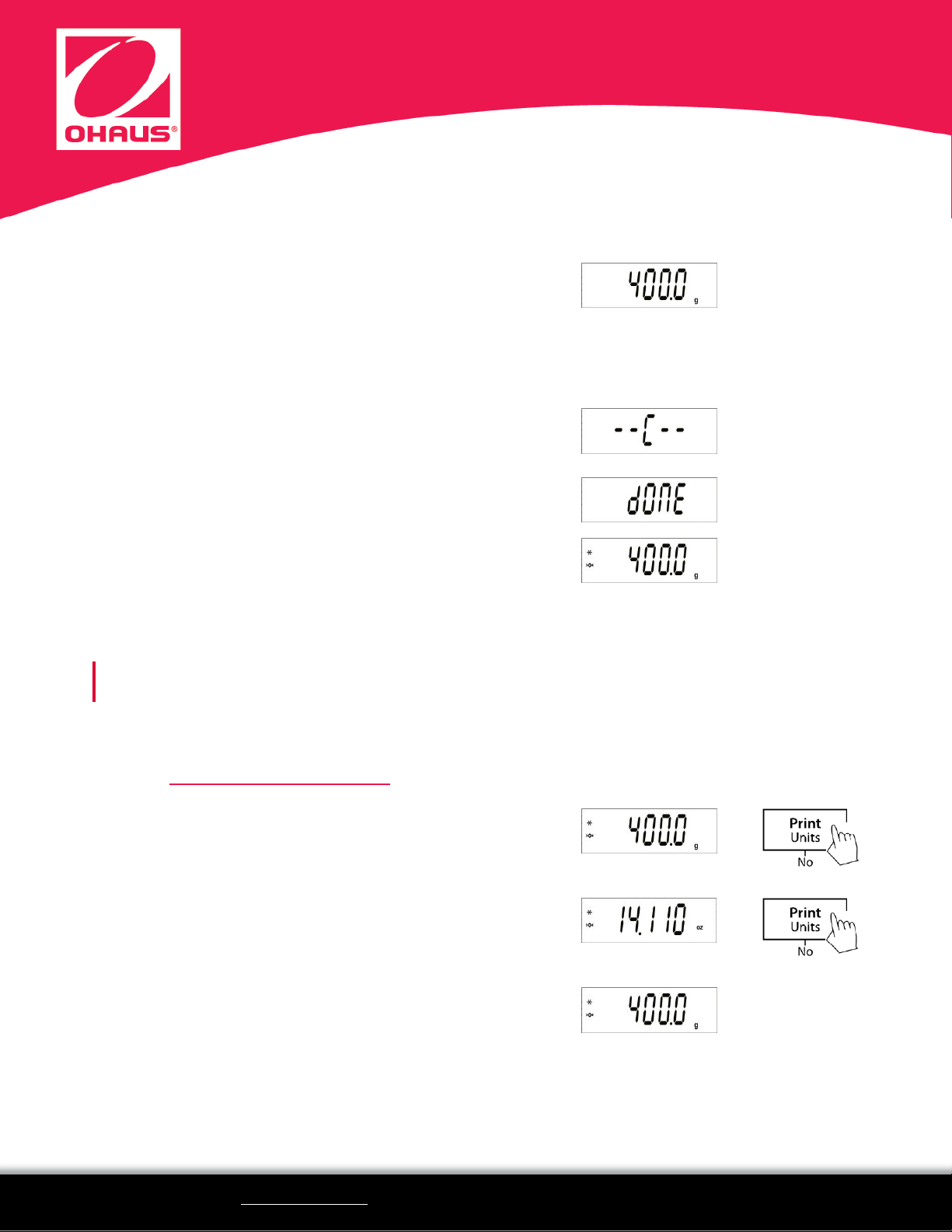
5. The span value is displayed – place the specified
calibration mass on the pan (in this example: 400g)
Optionally, you can press [NO] at this time to toggle through
other available span values.
As the balance detects the correct calibration mass on the
pan, --C-- flashes while the span value is stored
DONE flashes when calibration is complete.
The balance returns to the active weighing mode.
Note: To abort calibration, press [EXIT] instead before the process is DONE (CAL-E will flash before returning to the active weighing
mode; the original calibration data is retained).
1. Press and hold [PRINT Unit] to scroll through the enabled
units of measure.
In this example, the scale is scrolling through grams (g) and
ounces (oz).
2. Release the button once the desired unit of measure is
displayed.
In this example, back to grams ("g").
. . .
. . .
Long-press [PRINT Units] to scroll through the enabled units of measure.
If the desired unit of measure is not displayed, make sure it is enabled in the UNIT Menu (see previous
section: How to turn on units of measure).
Page 3
Scout SPX-SJX-SKX FAQ
AppNotes.v20180726_ AG
For any further questions, please e-mail us at [email protected], or call us at 973-377-9000 #2 or ext. 7852 from 8AM to 5PM EST
How to Turn On Units of Measure
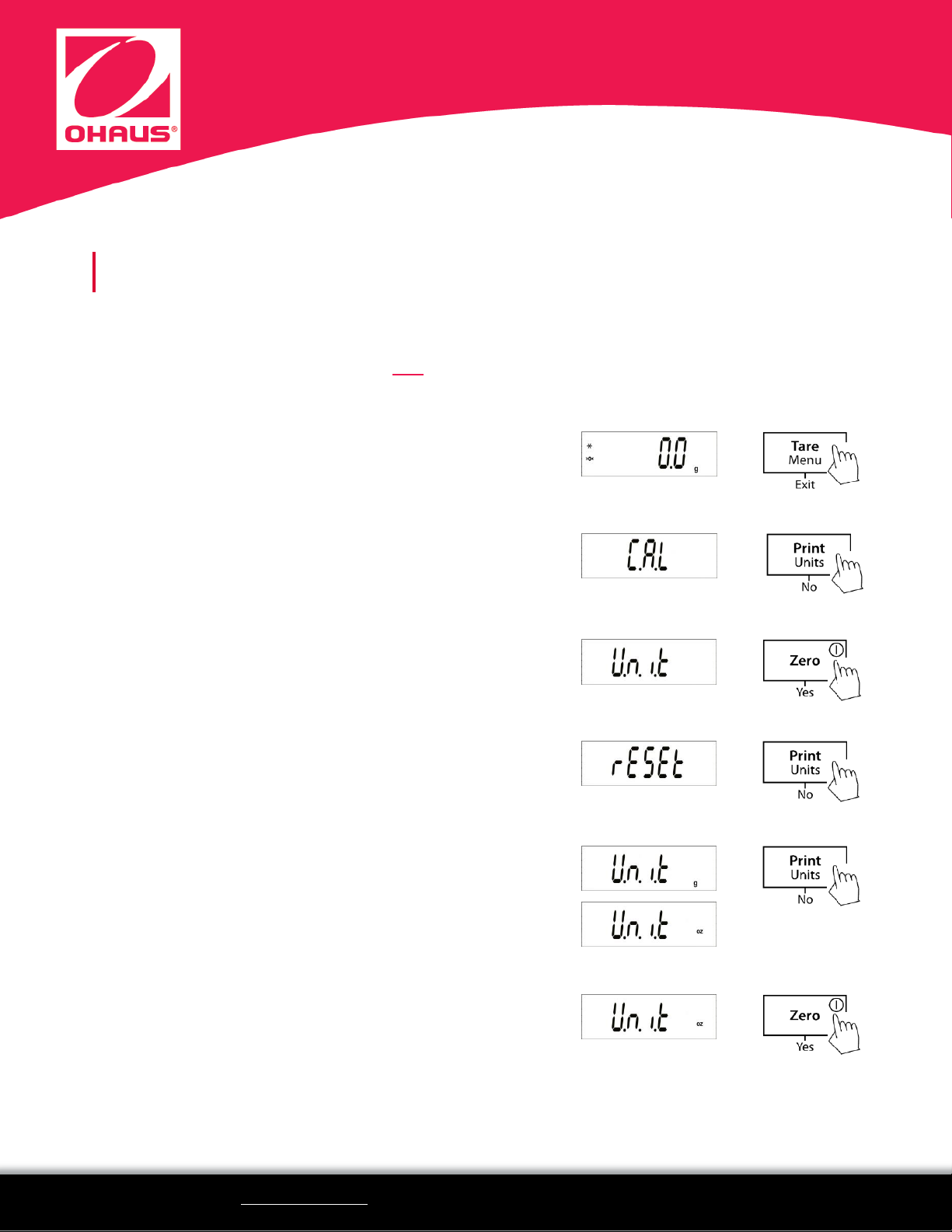
1. Press and hold [MENU] until MENU is displayed.
2. Release the button once MENU is displayed.
3. CAL is displayed - press [NO] repeatedly until UNIT is
displayed.
4. UNIT is displayed – press [YES]
5. RESET is displayed – press [NO]
6. UNIT g is displayed – press [NO] repeatedly to toggle
through the available units of measure
(this example: g and oz)
7. When the desired unit is displayed (example: oz) – press
[YES] to select and change the setting of this unit
xxx
. . .
xxx
Enabling or disabling the units of measure can be accomplished in the UNIT menu (note: available units
vary by model).
You can also download the user manual here – refer to Sections 4.1 Menu Navigation and 4.5: Unit Menu
Page 4
Scout SPX-SJX-SKX FAQ
AppNotes.v20180726_ AG
For any further questions, please e-mail us at [email protected], or call us at 973-377-9000 #2 or ext. 7852 from 8AM to 5PM EST
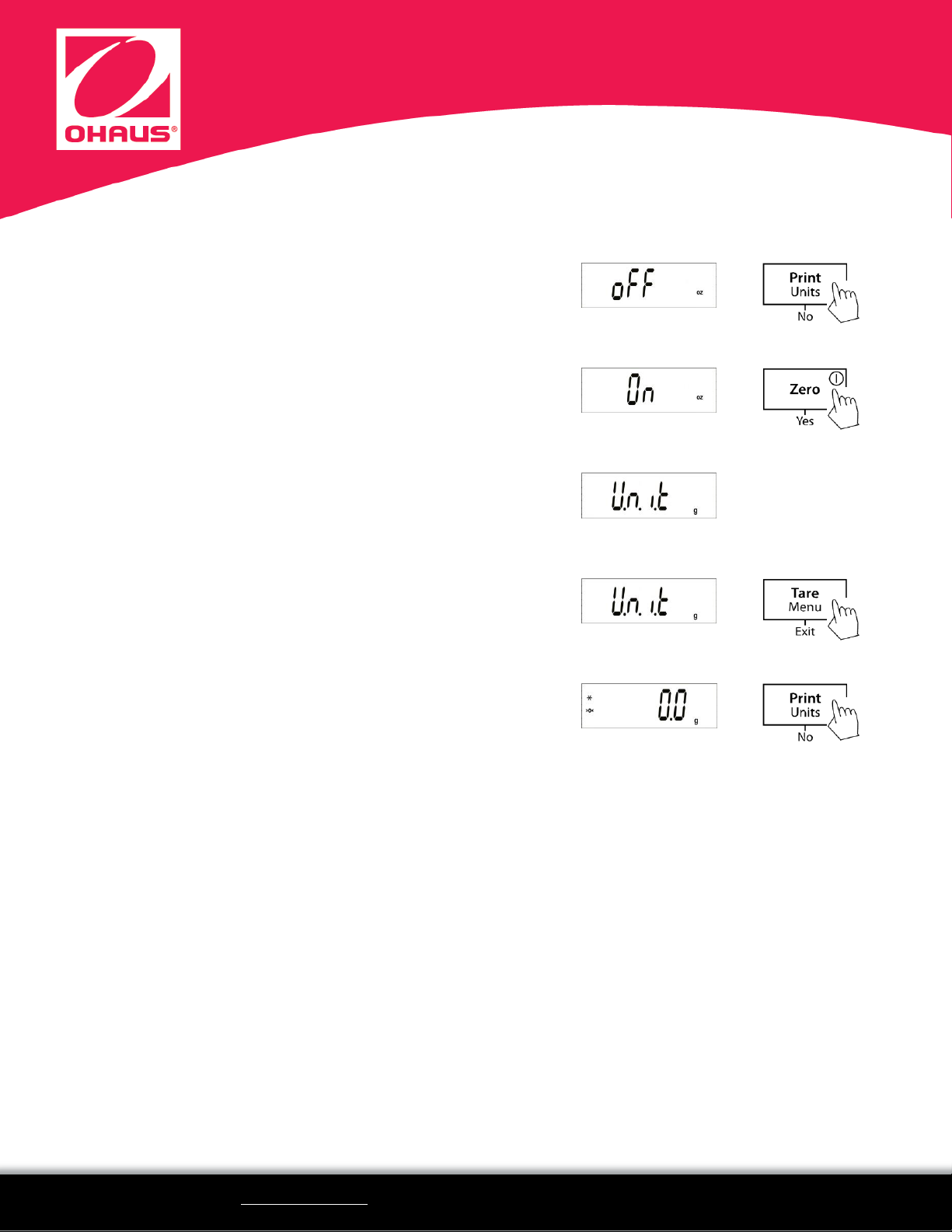
8. OFF or ON is displayed – press [NO] to change the setting*
9. When ON is displayed – press [YES] to select this setting.
This unit of measure is now enabled and can be displayed
when switching units during normal operations.
UNIT x (next unit) is displayed.
You can press [NO] or [YES] again to toggle or select
another unit to enable/disable (repeat from step 6 to 9).
10. When finished setting the units – press [EXIT] to return to
the active weighing mode
11. You can now long-press [UNITS] to scroll through the
enabled units of measure
* Note: if, for example, gram is the actively used unit (the unit displayed before going into the menu), you will not be able to change the
settings of this unit. Long-press [UNITS] to change to another enabled unit first before going into the menu and disabling grams.
. . .
 Loading...