

Page 1
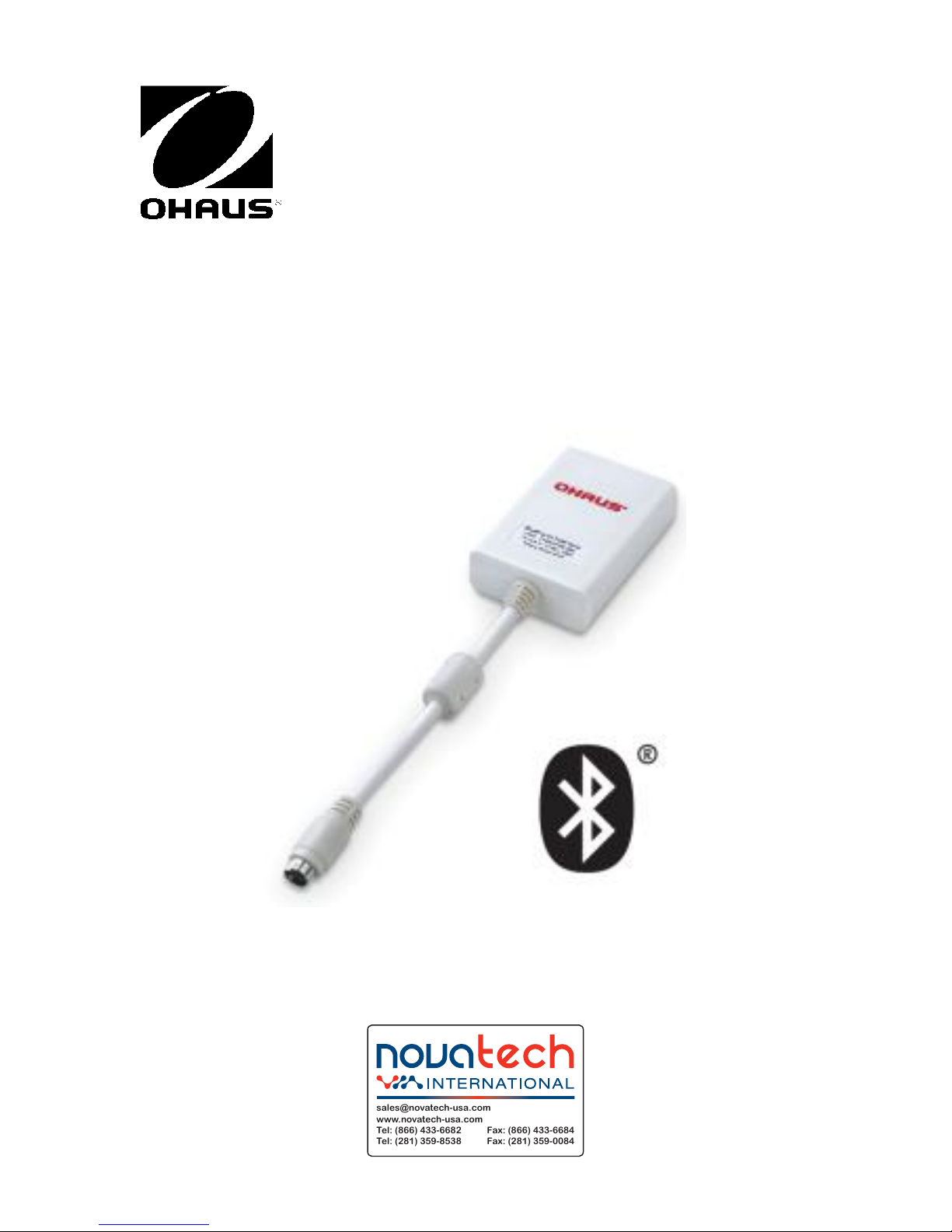
Scout
TM
Bluetooth® Interface
INSTRUCTION MANUAL
sales@novatech-usa.com
www.novatech-usa.com
Tel: (866) 433-6682 Fax: (866) 433-6684
Tel: (281) 359-8538 Fax: (281) 359-0084
Page 2

(866) 433-6682 • (281) 359-8538 • [email protected] • www.novatech-usa.com
Page 3
Bluetooth® Interface EN-1
INTRODUCTION
This Interface Kit is for use with Ohaus Scout STX, SPX, SKX and SJX series
products.
INTERFACE INSTALLATION
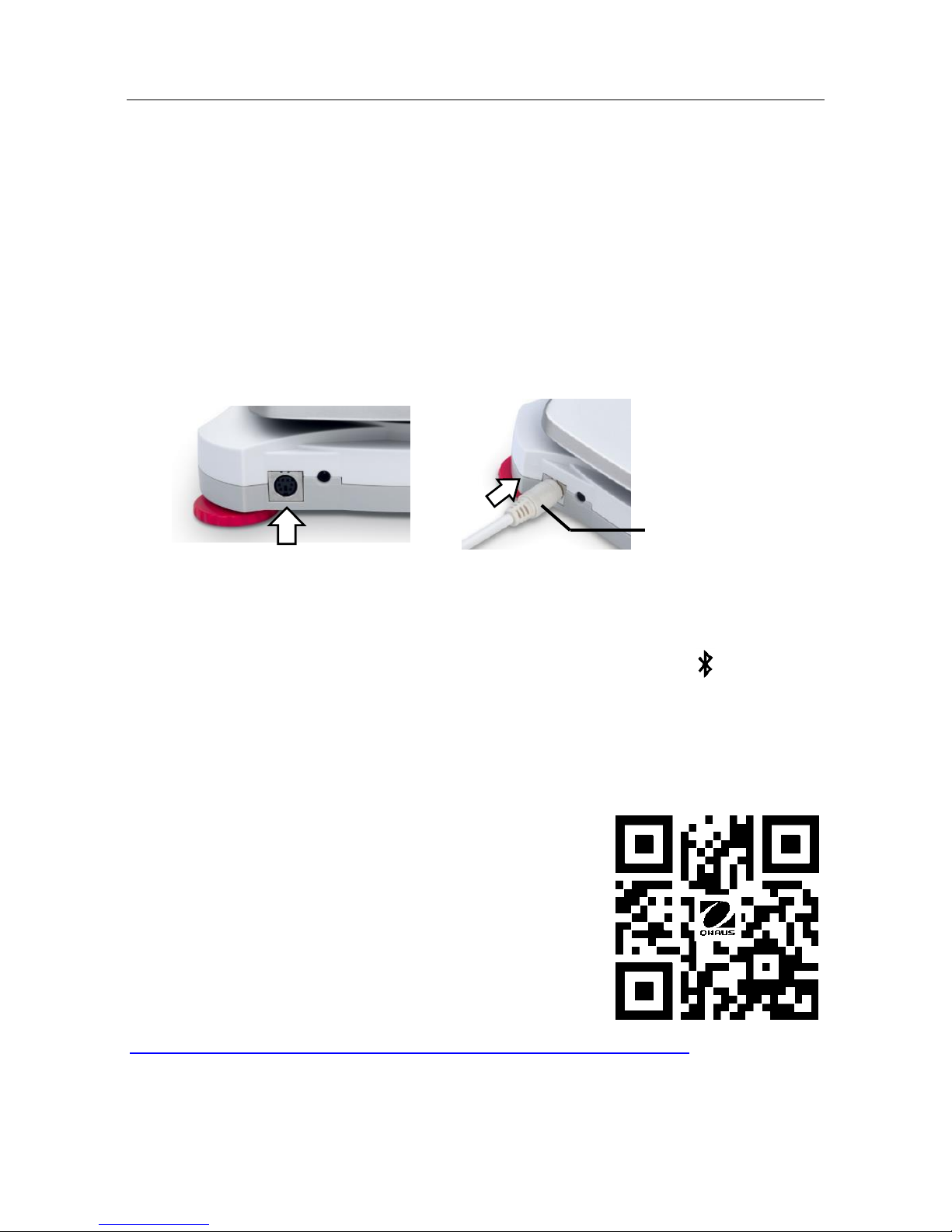
Install the Interface module on the mini DIN port (round connector) located at the
rear side of the balance as shown. During this process, please make sure the
balance is powered off.
Notes:
Please make sure the small triangle mark (▲) on the round connector is at
the bottom and then plug in.
The appearance of your model may be different.
SETUP
Upon installation of the interface, the balance will recognize the Bluetooth
®*
Interface and add relevant items to the menu. The display will show " " icon in the
upper right corner. The Device ID and Bluetooth address will be shown in the menu.
Bluetooth Interface Kit can be forward compatible with the Mobile or Tablet Devices
for Android
TM*
version 4.3 and Bluetooth 4.0. Please double check your Devices'
system version before connection.
OPERATION
Bluetooth APP installation: install the apk file on your
Mobile or Tablet for AndroidTM.
The apk file can be obtained either by scanning the QR
code or by going to the below link and from there
download it. Then unzip the file to install it.
http://dmx.ohaus.com/WorkArea/showcontent.aspx?id=4294974211
* Android is a trademark of Google Inc.
The Bluetooth® word mark and logos are registered trademarks owned by Bluetooth SIG,
Inc. and any use of such marks by OHAUS is under license.
Mini DIN port
(Round connector)
(866) 433-6682 • (281) 359-8538 • [email protected] • www.novatech-usa.com
Page 4
EN-2 Bluetooth® Interface
CONNECTION
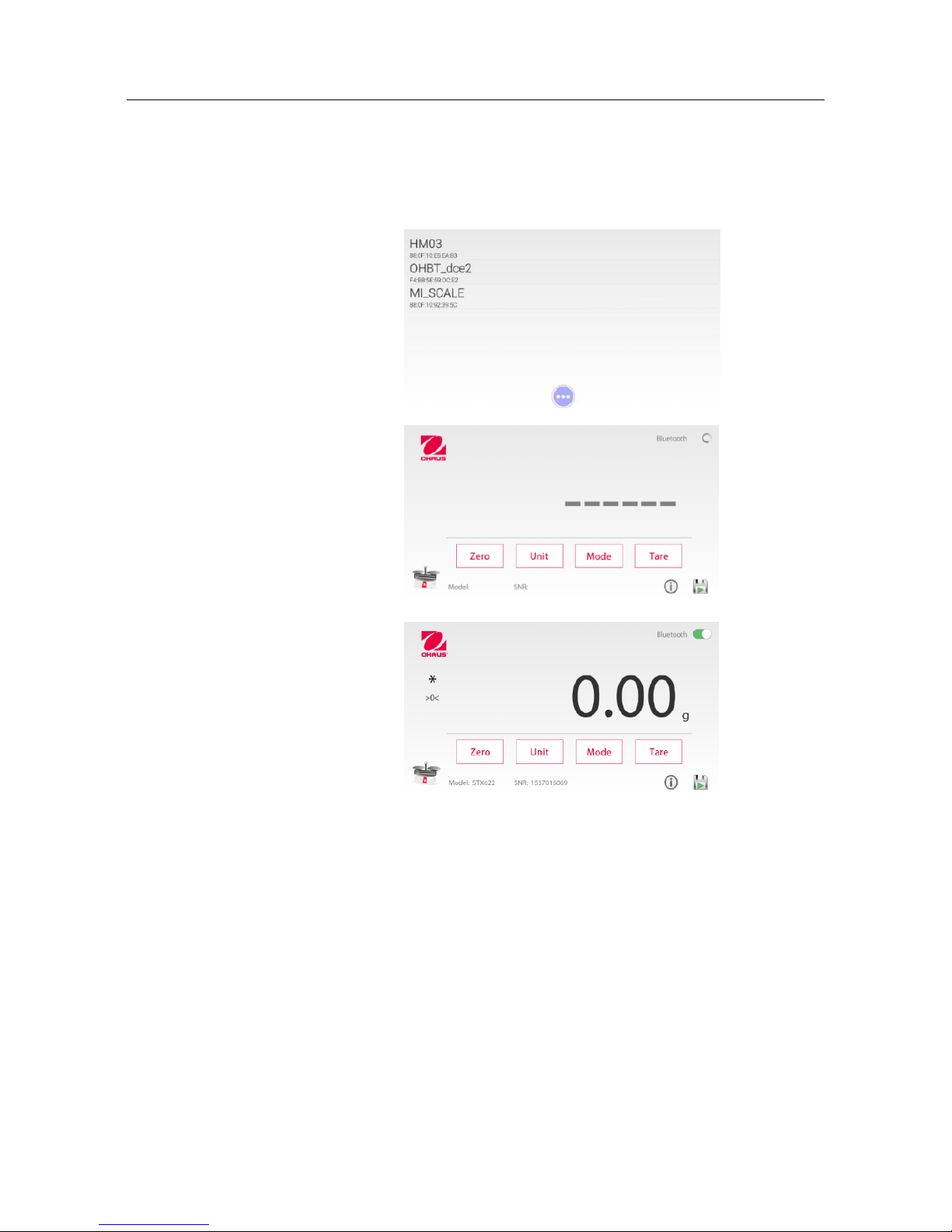
Once the APP is installed, the Bluetooth APP icon will be shown on your Mobile or
Tablet device. Open the APP and it will scan the ambient Bluetooth device
automatically. Click the correct Bluetooth device and start connecting.
Scanning. The display will then
show the list of available
Bluetooth devices.
Select your Bluetooth device &
establish the connection.
Note: check the Bluetooth Device
ID or Mac address on the data
label of the Bluetooth Interface
Kit.
Connected successfully:
(866) 433-6682 • (281) 359-8538 • [email protected] • www.novatech-usa.com
Page 5
Bluetooth® Interface EN-3
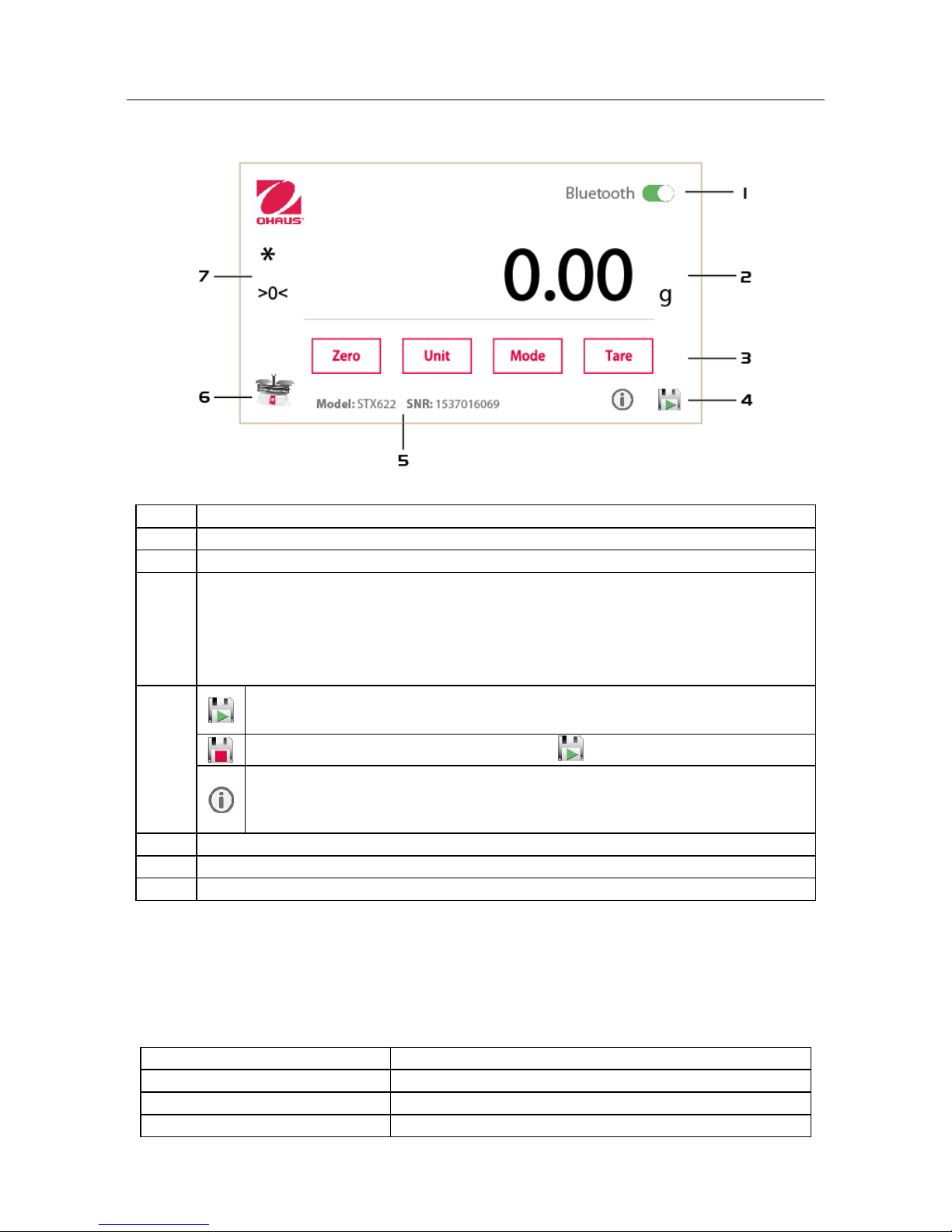
APP MAN INTERFACE
Note: the display content might be different in different revisions.
Item
Description
1
Bluetooth Status, click to disconnect the Bluetooth interface
2
Weighing Display Area
3
Keys to operate the Balance
Zero: Zero the balance
Unit: Change the weighing unit
Mode: Change the application mode
Tare: Tare the balance
4
Start to collect the stable data (including zero & loading
values) from the balance.
Stop saving (it will show up after has been pressed.)
Show the storage path of saved file
Note: The saved file will be named as "YYYY_MM_DD_HH-MM-
SS.txt" (e.g. 2016_12_08_16-30-12.txt).
5
Model name of the Balance; SNR of the Balance
6
Application mode icon: Press the icon to change the application mode
7
Stable (*), Net (Net) or Center of Zero (>0<)
DEVELOPMENT
To develop your own Application, please use the following UUIDs to connect to the
Bluetooth Interface, and use the interface commands (listed below) to communicate
with the balance.
GATT
UUID
BluetoothGattDescriptor
00002902-0000-1000-8000-00805f9b34fb
BluetoothGattService
2456e1b9-26e2-8f83-e744-f34f01e9d701
BluetoothGattCharacteristic
2456e1b9-26e2-8f83-e744-f34f01e9d703
(866) 433-6682 • (281) 359-8538 • [email protected] • www.novatech-usa.com
Page 6
EN-4 Bluetooth® Interface
The following Interface Commands will be acknowledged by the Balance. They are
case sensitive.
Command
Function
IP
Immediate Print of displayed weight (stable or unstable).
P
Print displayed weight (stable or unstable).
CP
Continuous Print.
SP
Print on Stability.
SLP
Auto Print stable non-zero displayed weight.
SLZP
Auto Print stable non-zero weight and stable zero reading.
xP
Interval Print x = Print Interval (1-3600 sec) 0P ends interval Print
0P
Turn off Auto Print
H
H x “text” Enter Header line , where x = line number 1 to 5, “text” = header
text up to 24 alphanumeric characters
F
F x “text” Enter Footer line , where x = line number 1 to 2, “text” = footer
text up to 24 alphanumeric characters
Z
Same as pressing Zero Key
T
Same as pressing Tare Key.
xT
Establish a preset Tare value in displayed unit. x = preset tare value.
Sending 0T clears tare (if allowed).
PT
Prints Tare weight stored in memory.
PM
Print current application mode (weighing mode).
xM
Set current application mode to x. x depends on application
1M: WEIGH, 2M: COUNT,3M: PERCENT, 4M: CHECK, 5M: DYNAMIC, 6M:
TOTAL, 7M:DENSITY, 8M: HOLD, 9M:MOLE
M
Scroll to the next enabled mode.
PU
Print Current weighing unit: g, kg, lb, oz, etc….
xU
Set balance to unit x: g, kg etc.
1U: g, 2U: kg,3U: ct, 4U: N, 5U: oz, 6U: ozt, 7U: dwt, 8U: lb, 9U:lb:oz, 10U:
grn, 11U: thk, 12U: tsg, 13U:ttw , 14U: tola, 15U:c
U
Scroll to the next enabled unit.
ON
Brings out of Standby
OFF
Goes to Standby.
C
Begin Span Calibration
AC
Abort Calibration.
PSN
Print Serial Number.
PV
Print Version: print name, software revision and LFT ON (if LFT is set ON).
x#
Set Counting APW (x) in grams. (must have APW stored)
P#
Print Counting application APW.
x%
Set Percent application reference weight (x) in grams. (must have reference
weight stored)
P%
Print Percent application reference weight.
xCO
Set Checkweighing Over Limit in grams x.
xCU
Set Checkweighing Under Limit in grams x.
PCO
Print Checkweighing Over Limit.
PCU
Print Checkweighing Under Limit.
xMM
Set Molar Mass in g/mol .
PMM
Print Molar Mass
xS
0 = print unstable data, 1 = print stable only
xFMT
0 = New Scout print format (default) ; 1 = Scout Pro print format 1;
2 = Scout Pro print format 2; 3 = for certain POS system.
xRL
0 = disable response; 1 = enable response.
(866) 433-6682 • (281) 359-8538 • [email protected] • www.novatech-usa.com
Page 7

Bluetooth® Interface EN-5
COMPLIANCE
This device complies with Part 15 of the FCC Rules. Operation is subject to the
following two conditions: (1) this device may not cause harmful interference, and (2)
this device must accept any interference received, including interference that may
cause undesired operation.
This equipment has been tested and found to comply with the limits for a Class B
digital device, pursuant to Part 15 of the FCC Rules. These limits are designed to
provide reasonable protection against harmful interference in a residential
installation. This equipment generates, uses and can radiate radio frequency
energy and, if not installed and used in accordance with the instructions, may cause
harmful interference to radio communications. However, there is no guarantee that
interference will not occur in a particular installation. If this equipment does cause
harmful interference to radio or television reception, which can be determined by
turning the equipment off and on, the user is encouraged to try to correct the
interference by one or more of the following measures:
- Reorient or relocate the receiving antenna.
- Increase the separation between the equipment and receiver.
- Connect the equipment into an outlet on a circuit different from that to which the
receiver is connected.
- Consult the dealer or an experienced radio/TV technician for help.
Please note that changes or modifications not expressly approved by the party
responsible for compliance could void the user’s authority to operate the equipment.
This device complies with Industry Canada license-exempt RSS standard(s).
Operation is subject to the following two conditions: (1) this device may not cause
interference, and (2) this device must accept any interference, including
interference that may cause undesired operation of the device.
(866) 433-6682 • (281) 359-8538 • [email protected] • www.novatech-usa.com
Page 8
EN-6 Bluetooth® Interface
DISPOSAL
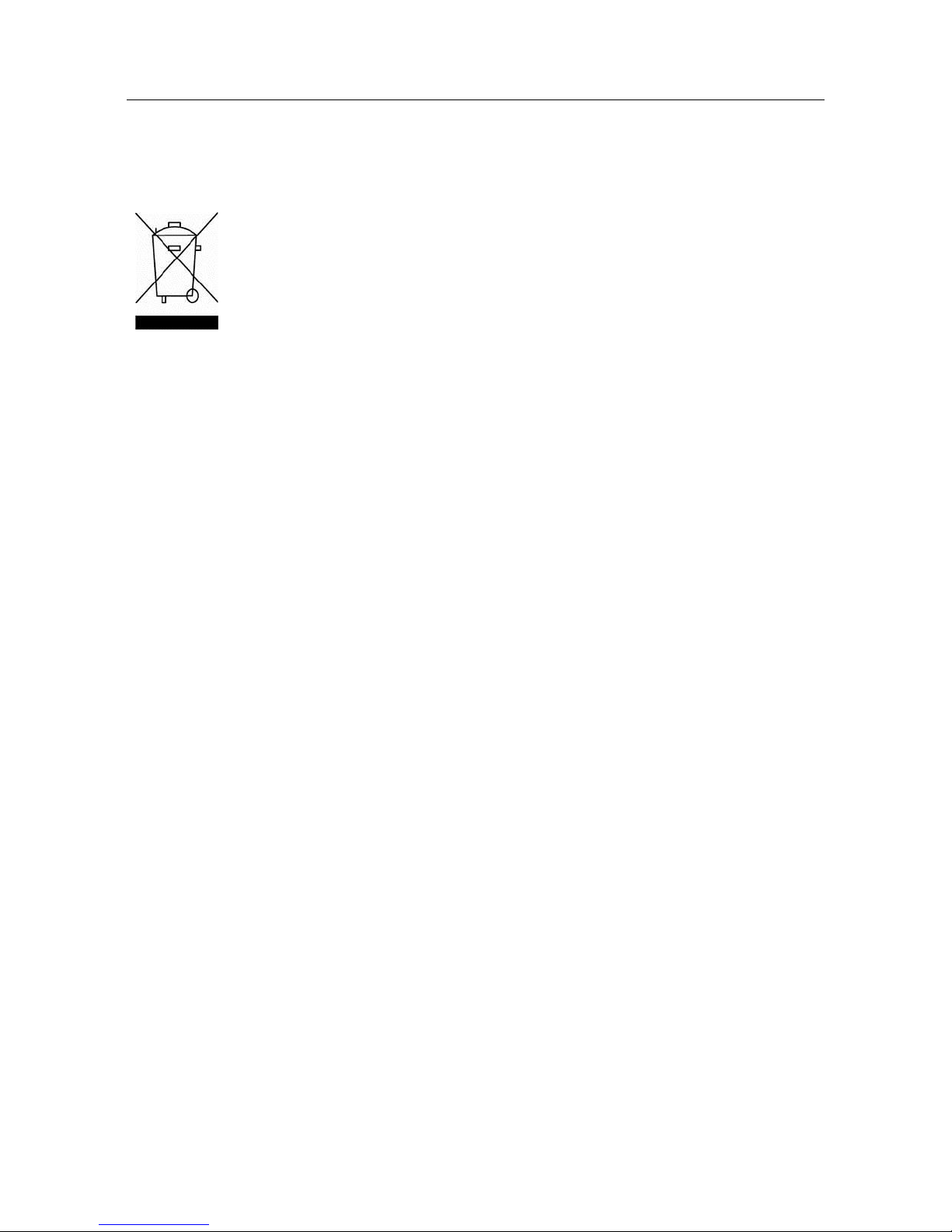
In conformance with the European Directive 2002/96/EC on Waste
Electrical and Electronic Equipment (WEEE) this device may not be
disposed of in domestic waste. This also applies to countries outside
the EU, per their specific requirements.
Please dispose of this product in accordance with local regulations at
the collecting point specified for electrical and electronic equipment. If
you have any questions, please contact the responsible authority or
the distributor from which you purchased this device.
Should this device be passed on to other parties (for private or
professional use), the content of this regulation must also be related.
For disposal instructions in Europe, refer to www.OHAUS.com/weee.
Thank you for your contribution to environmental protection.
(866) 433-6682 • (281) 359-8538 • [email protected] • www.novatech-usa.com
Page 9

(866) 433-6682 • (281) 359-8538 • [email protected] • www.novatech-usa.com
Page 10
OHAUS Corporation
7 Campus Drive
Suite 310
Parsippany, NJ 07054 USA
Tel: +1 973 377 9000
Fax: +1 973 944 7177
With offices worldwide/ Con oficinas en todo el mundo/ Avec des bureaux dans le
monde entier/ Mit Niederlassungen weltweit/ Con uffici in tutto il mondo /
世界各地的办事处 /전세계 사무소 / С офисами по всему миру / 世界中にオフィス
を持つ
www.ohaus.com
*30296497*
P/N 30296497 C © 2016 OHAUS Corporation, all rights reserved / todos los derechos
reservados/ tous droits réservés/ Alle Rechte vorbehalten / Tutti i diritti riservati /版权所有
/모든 권리 보유 / Все права защищены /すべての権利予約
Printed in China / Impreso en China/ Imprimé en Chine / Gedruckt in China / Stampato in Cina
/ 在中国印刷的 / 중국에서 인쇄 / Отпечатано в Китае /中国で印刷されます
sales@novatech-usa.com
www.novatech-usa.com
Tel: (866) 433-6682 Fax: (866) 433-6684
Tel: (281) 359-8538 Fax: (281) 359-0084
 Loading...