

Page 1

‘
OGO O78 User Manual
(Version 1.0)
The content of this manual is correct. But some of the manual may be
different from the mobile phone because of the difference of software,
SIM cards or service provider. Some features require phone support,
please check carefully for use。 The company retains the right to amend
the technical specifications without notice.
Important safety precautions ............................................................. 2
Use and Care ............................................................................... 4
Operating Environment .............................................................. . 5
Electronic devices .............................................................. ......... 5
Pacemakers ................................................................................. 5
SIM AT Service ............................................................................ 5
Potentially explosive environments ............................................ 6
Other important safety information ............................................. 6
Special features of your phone .......................................................... 7
Features ............................................................... ........................ 7
Your phone ......................................................................................... 7
Get started .......................................................................................... 8
Display ............................................................... ................................. 9
Layout .......................................................................................... 9
Icons .............................................................. .............................. 9
Enter text .......................................................................................... 10
Overview of menu functions ............................................................ 11
1.1. Phonebook ............................................................... ........... 12
1.2. Call History ......................................................................... 12
1.3. Messages center ................................................................. 13
1.4. OGO mails ......................................................................... 13
1.5. Opera Mini .......................................................................... 14
1.6. Nimbuzz ............................................................... ............... 14
1.7. Synchronization .................................................................. 14
1.8. Service ................................................................................ 14
1.9. Doc viewer .......................................................................... 15
1.10. Bluetooth ........................................................................... 15
1.11 Private menu ..................................................................... 15
1.12. Settings .............................................................. ............... 16
2.1. Audio Player .............................................................. ......... 18
2.2. Video player ....................................................................... 18
2.3. Camera ................................................................................ 19
1
Page 2
2.4. Video recorder .............................................................. ..... 19
2.5. FM radio ............................................................................. 20
2.6. Games ................................................................................ 20
2.7. Sound recorder ................................................................. 20
2.8. Image Viewer .............................................................. ....... 20
2.9. Photo editor ............................................................... ........ 20
2.10. Melody composer ............................................................ 20
2.11. Sound effects ................................................................... 20
2.12. File manager .................................................................... 20
3.1. Answer machine ............................................................... . 20
3.2. Tasks ................................................................................... 20
3.3. Calendar .............................................................................. 21
3.4. Unit converter ............................................................... ..... 21
3.5. Currency converter ........................................................... 21
3.6. Alarm ............................................................... .................... 21
3.7. Stopwatch .......................................................................... 22
3.8. World clock........................................................................ 22
3.9. Calculator ........................................................................... 22
3.10. E-book reader ................................................................... 22
3.11. User profiles ..................................................................... 22
3.12. Mobile tracker .............................................................. .... 22
4.1. Java ..................................................................................... 23
4.2. Snaptu ............................................................... .................. 23
4.3. News hunt .......................................................................... 23
4.4. OGO Zones ............................................................... .......... 23
4.5. Instant Messaging .............................................................. 2 3
4.6. OGO account...................................................................... 23
Important safety precautions
This section contains important information on the safe and
efficient operation of your mobile device.
For your safety, please refer to the guideline prior to using the
phone.
Note: Failure to comply with the following precautions may
be dangerous or illegal.
Drive safely at all times
Do not use a hand-held phone while driving. Park the vehicle first.
Switch off the phone when refueling
Do not use the phone at a refueling point (service station) or near fuels or
chemicals.
Switch off in an aircraft
Wireless phones can cause interference. Using them in an aircraft is both
illegal and dangerous.
Switch off the phone near all medical equipment
Hospitals or health care facilities may be using equipment that could be
sensitive to external radio frequency energy. Follow any regulations or
rules in force.
Interference
All wireless phones may be subject to interference, which could affect
their performance.
2
Page 3

Be aware of special regulations
Meet any special regulations in force in any area and always switch off
your phone whenever it is forbidden to use it, or when it may cause
interference or danger.
Water resistance
Your phone is not water-resistant. Keep it dry.
Sensible use
Use only in the normal position (held to the ear). Avoid unnecessary
contact with the antenna when the phone is switched on.
Keep your phone away from small children
Keep the phone and all its parts, including accessories, out of the reach
of small children.
Accessories and batteries
Use only approved batteries and accessories, such as headsets and PC
data cables. Use of any unauthorized accessories could damage you and
your phone and may be dangerous.
If jewelry, keys, beaded chains, or other conductive materials touch
exposed battery terminals, this could complete an electrical circuit (short
circuit), become very hot, and could cause damage or injury. Be careful
when handling a charged battery, particularly when placing it inside a
pocket, purse, or other container with metal objects.
Never use a charger or battery that is damaged in any way.
Use the battery only for its intended purpose.
If you use the phone near the network’s base station, it uses less power.
Talk and standby time are greatly affected by the signal strength on the
cellular network and the parameters set by the network operator.
Battery charging time depends on the remaining battery charge, the
type of battery, and the charger used. The battery can be charged and
discharged hundreds of times, but it will gradually wear out. When the
operation time is noticeably shorter than normal, it is time to buy a new
battery.
If left unused, a fully charged battery will discharge itself over time.
Use only approved batteries, and recharge your battery only with
approved chargers. Disconnect the charger from the power source
when it is not in use. Do not leave the battery connected to a charger
for more than a week, since overcharging may shorten its life.
Extreme temperatures will affect the charging capacity of your battery:
it may require cooling or warming first.
Do not leave the battery in hot or cold places because the capacity and
lifetime of the battery will be reduced. Try to keep the battery at room
temperature. A phone with a hot or cold battery may not work
temporarily, even when the battery is fully charged.
Do not short-circuit the batter y. Accidental short-ci rcuiting ca n occur
when a metallic object like a coin, clip or pen causes a direct
connection between the + and – terminals of the battery (metal strips
on the battery). For example, do not carry a spare battery in a pocket or
bag where the battery may contact metal objec ts. Short-circuiting the
terminals may damage the battery or the object causing the shortcircuiting.
Dispose of used batteries in accordance with local regulations. Always
recycle. Do not dispose of batteries in a fire.
The phone could explode if the battery is replaced with an incorrect
type.
Dispose of used batteries according to the manufacturer’s instructions.
At very high volumes, prolonged listening to a headset can damage
your hearing.
To avoid risk of personal injury, do not dispose of your battery in a fire.
Do not throw your battery or mobile device in the trash.
Charger Operation
Please, read this manual before using the charger, for the correct
operation of the appliance.
Important Safety Instructions
The charger should be used for Li-Ion accumulators charging only.
Do not charge other types of accumulators with this charger.
Do not expose the charger to moisture or rain.
Do not disassemble the charger or the network adapter.
Unplug the network adapter when not in use.
Do not connect this charger with the appliances or peripheral devices,
which are not indicated in this booklet.
3
Page 4

It is not recommended to discharge the Li-Ion accumulator before
charging.
For pluggable equipment, the socket-outlet shall be installed near the
equipment and shall be easily accessible. The only way to turn off
the charger is to unplug it.
Recycling of accumulators
Accumulators should be disposed in accordance with established rules.
It is forbidden to throw away accumulators along with domestic garbage.
If possible, use specialized organizations services for accumulators
recycling.
Damaged Products
If your mobile device or battery has been submerged in water, punctured,
or subjected to a severe fall, do not use it until you take it to authorized
and/or Qualified Service Center. Do not attempt to dry it with an external
heat source, such as a microwave oven.
Choking Hazards
Your mobile device or its accessories may include detachable parts,
which may present a choking hazard to small children. Keep your mobile
device and its accessories away from small children.
Road safety
Your wireless phone gives you the powerful ability to communicate by
voice, almost anywhere, anytime. But an important responsibility
accompanies the benefits of wireless phones, one that every user must
uphold. When driving a car, driving is your first responsibility. When using
your wireless phone while driving, follow local regulations in the country
or region you are in.
Use and Care
Your phone is a product of superior design and craftsmanship and should
be treated with care. The suggestions below will help you fulfill any
warranty obligations and allow you to enjoy this product for many years.
Keep the phone and all its parts and accessories out of the reach of
small children and pets. They accidentally damage these things or
choke on small parts.
Keep the phone dry. Precipitation, humidity, and liquids contain
minerals that corrode electronic circuits.
Do not use the phone with a wet hand. Doing so may cause an electric
shock to you or damage to the phone.
Do not use or store the phone in dusty, dirty areas, as its moving parts
may be damaged.
Do not store the phone in hot areas. High temperatures can shorten
the life of electronic devices, damage batteries, and warp or melt
certain plastics.
Do not store the phone in cold areas. When the phone warms up to its
normal operating temperature, moisture can form inside the phone,
which may damage the phone’s electronic circuit boards.
Do not drop, knock, or shake the phone. Rough handling can break
internal circuit boards.
Do not use harsh chemicals, cleaning solvents, or strong detergents to
clean the phone. Wipe it with a soft cloth slightly dampened in a mild
soap-and-water solution.
Do not paint the phone. Paint can clog the device’s moving parts and
prevent proper operation.
Do not put the phone in or on heating devices, such as a microwave
oven, stove, or radiator. The phone may explode when overheated.
When the phone or battery gets wet, phone repairs are no longer
guaranteed by the manufacturer's warranty, even if the warranty for
your phone has not expired.
If your phone has a flash or light, do not use it too close to the eyes of
people or animals. This may cause damage to their eyes.
Use only the supplied or an approved replacement anten na.
Unauthorized antennas or modified accessories may damage the
phone and violate regulations governing radio devices.
Do not attempt to open the phone’s casing. Non-expert handling of the
phone may cause damages to your phone.
If the phone or any of its accessories are not working properly, take
them to your nearest qualified service center. The personnel there will
assist you, and if necessary, arrange for the phone to be repaired.
Using the earpieces or stereo headset for extended time can cause a
serious damage to your hearing. Exposing sound higher than 100db for
a long time, you will get possible ear damage that could results from
extensive usage of audio playback. You are strongly advised to check
4
Page 5

the volume level to medium before using.
Do not use the phone while charging the phone. You may be electric-
shocked if you use the phone while charging the phone with the USB
data cable or the battery charger. Make sure to disconnect the USB
data cable or the charger before using the phone.
Don’t expose your phone to water, rain, extreme humidity, sweat, or
other moisture.
Extreme heat or cold ;Avoid temperatures below -10°C/14°F or above
40°C/104°F
Don’t expose your phone to dust, dirt, sand, food, or other
inappropriate materials.
Operating Environment
Remember to follow any special regulations in force in the area you are
in, and always switch off your phone whenever it is forbidden to use it,
or when it may cause interference or danger. When connecting the
phone or any accessory to another device, read its user’s guide for
detailed safety instructions. Do not connect incompatible products.
Operation of any radio-transmitting equipment, including cellular
phones, may interfere with inadequately protected medical devices.
Consult a doctor or the manufacturer of the medical device if you have
any questions. Other electronic equipment may also be subject to
interference.
As with other mobile radio-transmitting equipment, you are advised that
for satisfactory operations and personal safety, the equipment should
only be used in the normal operating position.
Always switch off the phone when refueling (service station). You are
reminded of the need to observe restrictions on the use of radio
equipment in fuel depots (fuel storage and distribution areas), chemical
plants or where blasting operations are in progress.
Do not store or carry flammable liquids, gases or explosive materials in
the same compartment as the phone, its parts or accessories.
Switch off your cellular phone when in aircraft. The use of cellular
phones in aircraft is illegal and may be dangerous to the operation of
the aircraft or disrupt the cellular network. Failure to observe these
instructions may lead to the suspension or denial of cellular telephone
services to the offender, legal action or both.
As with other mobile radio transmitting equipment, users are advised
that for the satisfactory operation of the equipment and for the safety of
personnel, it is recommended that the equipment should only be used
in the normal operating position (held to your ear with the antenna
pointing over your shoulder).
Electronic devices
Most modern electronic equipment is shielded from radio frequency (RF)
signals. However, certain electronic equipment may not be shielded
against the RF signals from your wir eless phone. Consult the
manufacturer to discuss alternatives.
Pacemakers
Pacemaker manufacturers recommend that a minimum distance of 15 cm
(6 inches) be maintained between a wireless phone and a pacemaker to
avoid potential interference with the pacemaker. These recommendations
are consistent with the independent research and recommendations of
Wireless Technology Research. If you have any reason to suspect that
interference is taking place, switch you’re your phone immediately.
Hearing aids
Some digital wireless phones may interfere with some hearing aids. In
the event of such interference, you may wish to consult your hearing aid
manufacturer to discuss alternatives.
SIM AT Service
SIM Card provides several value-added services.
These functions will only display and work on the menu of the phone
when your SIM card is supported. The content and the terms of the
function lists will depend on your network service provider.
Please contact your network service provider (a network operator or the
service provider) in regards with availability of an y services related to the
SIM card, ap plication information and the costs.
Other medical devices
If you use any other personal medical devices, consult the manufacturer
of your device to determine if it is adequately shielded from external RF
energy. Your physician may be able to assist you in obtaining this
information. Switch off your phone in health care facilities when
5
Page 6

regulations posted in these areas instruct you to do so.
Health and safety information
Vehicles
RF signals may affect improperly installed or inadequately shielded
electronic systems in motor vehicles. Check with the manufacturer or its
representative regarding your vehicle. You should also consult the
manufacturer of any equipment that has been added to your vehicle.
Posted facilities
Switch off your phone in any facility where posted notices require you to
do so.
Potential l y exp l o sive environme n t s
Switch off your phone when in any area with a potentially explosive
atmosphere, and obey all signs and instructions. Sparks in such areas
could cause an explosion or fire resulting in bodily injury or even death.
Users are advised to switch off the phone while at a refueling poin t
(service station). Users are reminded of the need to observe r estrictions
on the use of radio equipment in fuel depots (fuel storage and distribution
areas), chemical plants, or where blasting operations are in progress.
Areas with a potentially explosive atmosphere are often but not always
clearly marked. They include the areas below decks on boats, chemical
transfer or storage facilities, vehicles using liquefied petroleum gas, such
as propane or butane, areas where the air contains chemicals or particles,
such as grain, dust or metal powders, and any other area where you
would normally be advised to turn off your vehicle engine.
Emergency calls
This phone, like any wireless phone, operates using radio signals,
wireless, and landline networks as well as user-programmed functions,
which cannot guarantee connection in all conditions. Therefore, you
should never rely solely on any wireless phone for essential
communications like medical emergencies. To make or receive calls, the
phone must be switched on and in a service area with adequate signal
strength. Emergency calls may not be possible on all wireless phone
networks or when certain network s ervices and/ or phone features are in
use. Check with local service providers.
To make an em ergency call:
1. Key in the emergency number for your present location. Emergency
numbers may vary by location.
2. Press the Send Key.
3. Inform your location. Do not end the call until given permission to do so
Certain features like Call Barring may need to be deactivated before you
can make an emergency call. Consult this document and your local
cellular service provider.
Other important safety information
Only qualified personnel should service the phone or install the phone
in a vehicle. Faulty installation or service may be dangerous and may
invalidate any warranty applicable to the device.
Check regularly that all wireless phone equipment in your vehicle is
mounted and operating properly.
Do not store or carry flammable liquids, gases, or explosive materials in
the same compartment as the phone, its parts, or accessories.
For vehicles equipped with an air bag, remember that an air bag
inflates with great force. Do not place objects, including installed or
portable wireless equipment, in the area over the air bag or in the air
bag deployment area. Improperly ins talled wireless equipment could
result in serious injury if the air bag inflates.
Switch off your phone before boarding an aircraft. It is dangerous and
illegal to use wireless phones in an aircraft because they can interfere
with the operation of the aircraft.
Failure to observe these instructions may lead to the suspension or
denial of telephone services to the offender, or legal action, or both.
Qualified service
Only qualified service personnel may repair your phone.
It is highly recommended to have a repair service by qualified service
personnel. Use only the approved accessories and batteries
.
6
Page 7
y
y
y
V
y
y
Special features of your phone
Features
• Touch screen
Use your finger to operate phone
You can long tap the home screen to add widgets and change the
wallpaper,also you can delete these applications by dragging the icons.
• Camera and Camcorder
Use 3M Camera on your phone to take a photo
• Motion Sensor
Operate phone by shaking phone, or control the main display by the
detection of Motion sensor
• Private menu
Using private menu to protect your personal information confidentially,
including call record, SMS, phonebook and file manager.
• Music player
Play music files using your phone as a music player.
• Bluetooth
Transfer media files and personal data and connect to other devices
using free, wireless Bluetooth technology.
• Multimedia Message Service (MMS)
Send and receive MMS messages with a combination of text, images,
video, and audio.
• E-mail
Send and receive e-mails with image, video, and audio attachments.
• Java
Enjoy Java™-based embedded game and download new games.
• Alarm
Use your phone as an alarm clock to wake you up in the morning or
notify you of an impending event.
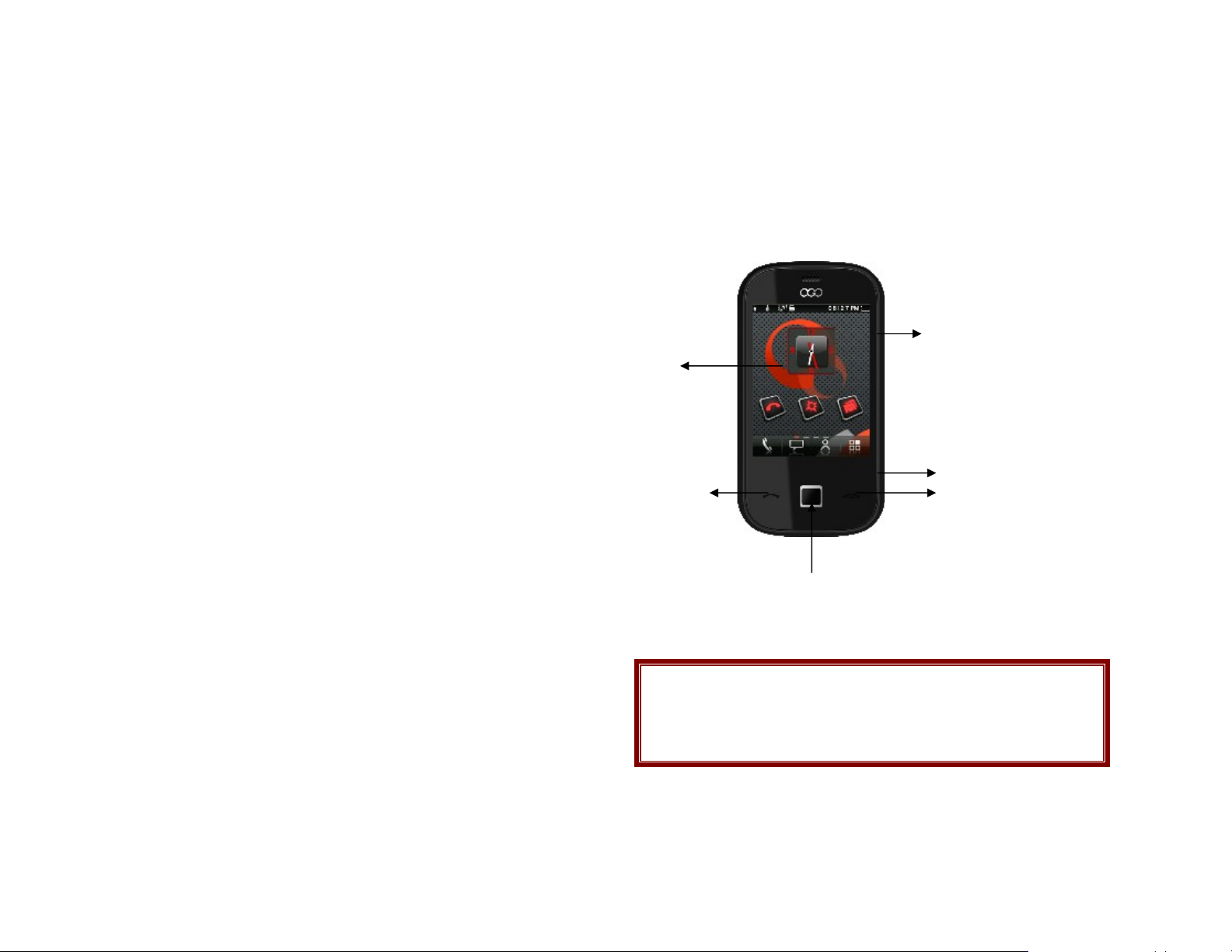
Your phone
Main Display
Send ke
Home ke
Home key (optical mouse); Simulate the navigation keys, used it to
highlight menu.
Note: All the illustrations, simulated screen and related images used
in this manual are for reference only. There may be slight
difference between the handset and keys and content of display
used in this manual and those of your handset. Please refer to
your handset for actuality
Move the cursor location and so on.
olume ke
Camera ke
End ke
7
Page 8

Get started
First steps to operating your phone
SIM card information
When you subscribe to a cellular network, you receive a plug-in SIM
(Subscriber Identity Module) card loaded with your subscription details,
such as your PIN, and available optional services.
Install and charge the phone
1. Remove the battery cover and the battery.
If the phone is already on, first turn it off by pressing and holding on/off
key
2. Insert the SIM card.
Make sure that the gold-colored contacts on the card are face down.
3. Install the battery.
4. Replace the battery cover.
5. Plug the charger into the phone.
6. Plug the charger into a standard AC wall outlet.
7. When the phone is completely charged (the battery icon
becomes still), unplug the charger from the power outlet.
8. Remove the charger from the phone.
9. Switch th e Pho n e On/ Of f
10. Enter Your Pin (Access Codes)
11. Dial the Phone Number Required
Low battery indicator
When the battery is low a warning tone sounds, the battery low message
displays and the empty battery icon blinks. If the battery level becomes
too low, the phone automatically turns off. Recharge your battery.
Note: Whe n the battery is discharged completely, and not used for a
while, the phone will not display the charging icon for a moment
while charging. The phone will display the charging icon after
that transition period.
Power On or Off
Press and hold Power On/Off button to turn it on and off
Enter your SIM card PIN, if requested.
Access Codes
There are access codes for your SIM card. These codes help you to
protect the phone against unauthorized use.
When requested for any of the code explained below, key-in the
appropriate code (displayed as asterisks) and press the OK key.
PIN
The Personal Identification Number or PIN (4-8digits) protects your SIM
card against unauthorized use. The PIN comes with the SIM card; see
the SIM card instruction provided with your card.
If you enter an incorrect PIN three times in succession, the code will be
disabled and cannot be used until you re- enable it by entering the PUK.
PUK
The 8-digit PUK (Personal Unblocking Key) is required to change a
disabled PIN. The PUK may be supplied with the SIM card. If not, or in
case you have lost it, please contact your service provider.
To re-enable your PIN, proceed as follows.
1. Key-in the PUK and press the OK key.
2. Enter a new PIN of your choice and press the OK key.
3. When the Confirm New PIN message is displayed, key-in the
same code again and press the OK key.
If you enter an incorrect PUK ten times in succession, the SIM card
becomes invalid. Please contact your service provider for a new card.
Pin Password
The 4 ~ 8 digits of password is required when you use the Call barring
function. You can obtain the password from your service provider when
you subscribe to this function.
8
Page 9

Display
Layout
Icons
Display various icons
Operator
Display operator name
Shortcut
Soft Key Function Indicators
.
Note: All the illustrations, simulated screen and related images used in
this manual are for reference only. There may be slight difference
between the handset and keys and content of display used in this
manual and those of your handset. Please refer to your handset for
actuality
show the current functions
assigned to the soft keys.
Icons
Vertical bars indicate the signal strength of the GSM network
signal. Five bars indicate that your current p osition has the best
reception.
Dual SIM are Active
SIM1 insert only
SIM2 insert only
Indicates the battery charge level.
Indicates your phone is locked.
Indicates that the alert type of your phone is set as ring.
Indicates that the alert type of your phone is set as ring and vibr
ate.
Indicates that the alert type of your phone is set as vibrate then
ring.
Indicates that the alert type of your phone is set as light.
Indicates that the alert type of your phone is set as vibrate.
Indicates that the alert type of your phone is se t as headset.
Indicates the alarm clock is set.
Indicates a missed call.in SIM 1 or SIM 2
Indicates new text message(s). in SIM 1 or SIM 2
Indicates new multimedia message(s).
Indicates you are using Bluetooth.
* Depending on your country or service provider, the icons shown on the display
may vary.
9
Page 10

y
Enter text
.
Text
Text can be written with slider closed. A multitap/T9 touch keyboard is
available. Big keys allow you to edit text by finger press in the same way
as with classical keyboard.
Delete text
S
mbol input
Change input method
ABC, Smart Abc, Number, and Symbol modes
You can ente r text using ABC mode, T9 mode, Number mode, and
Symbol mode. You can toggle select cases by tapping appropriate touch
sensitive key.
You can enter t ext by tap ping touch sens i t ive keys.
In T9 mode, Press the appropriate t ouch sensit ive key until the character
or the word you want appears on the screen.
10
Page 11

Overview of menu functions
To access Menu mode, press [Menu] in Idle mode.
1.11. Private menu
1.1. Phonebook
1.1.1 Phonebook List
1.1.2 Caller Group
1.2 Call History
1.2.1 All Calls
1.2.2 Dialed calls
1.12 Settings
1.2.3 Received calls
1.2.4 Missed calls
1.3 Messages
1.3.1 Write Message
1.3.2 Inbox
1.3.3 Draft
1.3.4 Outbox
1.3.5 Sent me s sages
1.3.6 Broadcast messages
1.3.7 Template
1.3.8 Message settings
1.4. OGO Mail
1.5. Opera Mini
1.6. Nimbuzz
1.7. Synchronization
1.7.1 Sync Now
1,7,2 Edit Account
1.7.3 Sync Log
1.8. Service
1.8.1 SIM1 STK
1.8.2 SIM2 STK
1.8.3 WAP
1.8.4 Data account
1.9. Doc viewer
1.10 Bluetooth
2.1 Audio Player
2.2 Video player
2.3 Camera
2.4 Video recorder
2.5 FM radio
2.6 Games
2.7 Sound recorder
2.8 Image viewer
2.9 Photo editor
2.10 Melody Composer
2.11 Sound effects
2.12 File manager
3.1 Answer machine
3.2 Task
3.3 Calendar
1.11.1 Phonebook
1.11.2 Message
1.11.3 File manager
1.11.4 Call log
1.11.4 Change password
1.12.1 Dual SIM settings
1.12.2 Phone setup
1.12.3 Call setup
1.12.3 Network setup
1.12.4 Security setup
1.12.5 Connectivity
1.12.6 Restore factory setting
1.12.7 Sound effect
3.4 Unit converter
3.5 Currency converter
3.6 Alarm
3.7 Stopwatch
3.8 World clock
3.9 Calculator
3.10 Ebook reader
3.11 User Profile
3.11.1 General
3.11.2 Meeting
3.11.3 Outdoor
3.11.4 Indoor
3.11.5 Silent
3.11.6 Headset
3.11.7 Bluetooth
3.12 Mobile Tracker
4.1 Java
4.1.1 Java Application
4.1.2 Java setting
4.1.3 Java default Security
4.2Snaptu
4.3 News hunt
4.. OGO Zone
4.5 Instant Message
4.6 OGO account
11
Page 12

1.1. Phonebook
You can store phone numbers on your SIM card and in your phone’s
memory. The SIM card and phone’s memory are physically separate, but
they are used as a single entity called Phonebook. To access this menu,
press [Menu] in Idle mode and select Phonebook.
1.1.1
Add New Contact
Use this menu to add a new contact to Phonebook, SIM1 and SIM2,
private phonebook
Smart Search
1.1.2
Allows you to search the phonebook by partial numbers you have
entered. You can only input series numbers to search, and search result
will display the list with matched numbers. Then, select the one you
would like to dial.
1.1.3 Black List
Use this menu to filter and block incoming calls
1.1.4
Mark
Use this menu to mark several or all connects to send messages.
1.1.5
Setting
Your phone provides you various setting options to personalize your
phone, including,
Preferred Storage: You can choose your preferred storage in phone,
SIM1, SIM2, or All.
My vCard: You can edit your vCard information and share to others from
this option. Edit my vCard: Enter the submenu , and you may input your
vCard information. Send my vCard: Allows you to send your vCard via
SMS, MMS or file transfer
Special number: Allows you to get the own number, servic e dial num ber
and SOS number for two SIM card
Memory Status: You can check what percentage of the phone’s internal
memory is unoccupied and how many name and number entries can still
be stored in SIM card’s and Phone’s me mory.
Copy contacts: You can copy all phonebook data from SIM card to
Phone or from Phone to SIM or copy between SIM card1 and SIM card2.
It is a useful function if you want to back up your phonebook data from a
SIM card to your phone and vice versa.
Delete Contacts: You can delete all phonebook data in SIM card1, SIM
card2 or Phone. In addition, you can delete the phonebook data one by
one.
Move Contacts: You can move phonebook data in different storage
location
1.2. Call History
Use this menu to view the calls you have dialed, received, or missed, and
the length of the calls. You can also check the cost of your calls, if the
SIM card supports this function.
To access this menu, press [Menu] in Idle mode and select Call History.
1.2.1 Missed Calls
This menu displays the most recent received calls that you did not
answer.
1.2.2 Dialed Calls
This menu displays the most recent calls you have dialed.
1.2.3 Received Calls
This menu displays the most recent calls you have received.
1.2.4 Delete Call Lists
This menu lets you delete all call data of each category at once.
1.2.5 Advanced
Call times
This menu displays the time log for calls made and received.
Note: The actual t ime invo iced for calls by y our serv ice prov ider ma y
vary, depending on network features, rounding-off for billing
purposes and so forth.
Call Cost
This network feature displays the cost of calls. Note that this is not
intended to be used for billing purposes.
Note: Not all SIM cards support this feature. The number of items in
these lists depends on the contents of your SIM card.
12
Page 13

Text message Counter
You can view the numbers of sent and received SMS.
GPRS Counter
You can view how many GPRS message has be en sent and receiv ed,
and reset the co unter.
1.3. Messages center
Use the Messaging menu to send and receive short messages and
multimedia messages. You can also use a voice-mail, and cell broadcast
message features. To access this menu, press [Menu] in Idle mode and
select Messages. Message functions are available depending on
network services that your service provider supports.
1.3.1
Write message
Text Message
Use this menu to create and send a message.
Note: If you receive a call while you are writing a message, the
message will be backed-up and after the call finishes, the
phone will display [write message] mode. You can finish the
message without losing the data
Multimedia message
Use this menu to create and send a multimedia message.
Multimedia Message Service (MMS) delivers messages containing a
combination of text, image, video, and audio, from phone to phone or
from phone to e-mail.
Note: • The maximum size allowed for a message can differ,
depending on your service provider.
• Depending on the file type or DRM (Digital Rights
Management) system, some files may not be able to be
forwarded.
1.3.2 Inbox
This folder stores all of the messages you have received, except for emails.
1.3.3 Drafts
This folder stores messages you have saved to send at a later time.
1.3.4 Outbox
You can view the messages that the phone has failed to send
1.3.5 Sent Message
You can view the sent messages you have saved
1.3.6 Delete messages
This folder helps you to delete all messages in selected folder as Inbox,
Outbox, Sent, Draft and Delete All Folders.
1.3.7 Broadcast Message
This network service allows you to receive the broadcast messages on
various topics such as weather, traffic, local district code, local hospitals,
taxis or pharmacy in your area.
For more information about broadcast message topics, please contact
your service provider.
Note: This service may not be available on all networks. For more
information about the available subjects, please contact your
network service provider.
1.3.8 Template
Use this menu to make and use templates of frequently used
messages.
1.3.9
Message Settings
Within the Message Settings sub-menu, you can define default values
on common parameters for mobile-originated messages.
1.4. OGO mails
The E-Mail application allows you to send and receive e-mails. The
application supports text and attachments. The e-mail application could
be either normal POP3 e-mail client or IMAP4 based e-mail service.
13
Page 14

Note: If current incoming protocol is set to IMAP4, and the phone is
not currently connected to the network, when before entering
this screen, shall popup a confirmation screen for the user with
message “Do you want to c onnec t to t he net work? ”. If the us er
selects “Yes”, then can send list folder request to network;
otherwise, directly enter this screen, and all popup hint
displays “0 mails.”
Email Profile
This folder helps you to configure various servers and Profile related
settings.
Send and Receive
In order to exchange the email, the user has to provide appropriate
settings (described in section Email Profile).
Write Email
This menu allows you to write an email.
Inbox
This folder stores the list of emails you have received.
Outbox
This folder displays the list of saved sent e-mails.
Sent
This folder displays the list of sent mails.
Drafts
This folder displays the list of e-mail Draft you saved.
Clear Mailbox
This folder helps you to delete all mails in selected folder.
Delete marked Email
This folder help you to delete the marked mail in selected folder
Template
This folder help you for Email template
1.5. Opera Mini
It embedded t he Java Opera Mi ni English v ersion whic h can help you to
browser website more faster and easily
1.6. Nimbuzz
It support the social networking Java version, Via Nimbuzz, you can log
on your MSN, Skype, yahoo message, and Java support the Java
minimize, while there is incoming message, you can minimize the Java
application then to message center.
1.7. Synchronization
Use this menu to sync you phonebook, Calendar and Task with the Sync
ML server, it max support 3 account.
1.8. Service
Service describe in the following are supported by your service provider.
Service describe in the following are supported by your service provider.
If you cannot connect either one of those services, you might contact with
your service provider for further information.
1.8.1
SIM Tool Kit
In addition to the functions available in the phone, your service provider
may offer additional applications such as weather or stock market
information via the SIM card. This function is only supported when SIM
card inserted.
To set the STK service
• In Service menu, choose STK, press OK
1.8.2
WAP
The Wireless Application Protocol (WAP) on your phone allows you to
access the wireless web. Using the web browser, you can access up-todate information and a wide variety of media content, such as
wallpapers, ring tones, and music files.
To access this menu, press [Menu] and select Services then WAP.
14
Page 15

Data account
1.8.3
This menu allows you to change the settings for the GSM and GPRS
network services. For further details, contact your service provider.
1.9. Doc viewer
Use this menu to read the PDF, Word, Excel file which stored in Memory
card or in phone, and you can page up/down by volume key while
reading the exactly file.
1.10. Bluetooth
Your phone is designed to be compliant with Bluetooth technology V1.2.
Bluetooth technology enables wireless connections between electronic
devices. The Bluetooth connection can be used to listen to stereo music,
send images, Video, texts and vCards.
Options Description
Power On/Off Turn on/off the Bluetooth feature.
Inquiry Audio Device Search the devices that are
available.
Remote Control Select to control your PC by Bluetooth (media player,
mouse control, slide show)
My device Select to connect to devices that
you predefined.
Active Device Activate the selected device.
Settings Allows you to set the following
Options : Visibility, Change Device
Name, Authentification, Audio path
and FTP Setting
Making a Bluetooth connection
To make a Bluetooth connection, first make
sure you switch on the Blu etooth feature in the option
On/Off. Then select My devices.
Connect with an audio device
Choose <Inquiry Audio Device>. When the list of device(s)
appears, select the one you want to make a connection
with. Once you select a device and a connection
is made, you are prompted to enter a passkey in order
to pair with the device. This passkey is supplied by the
manufacturer of the other Bluetooth device, refer to
its documentation for further infor mation. The
passkey feature ensures that only legitimate
connections are allowed to connect either to your
device or the selected device.
If you do not use the Bluetooth feature for some time, you
should deactivate it in order to conserve battery power.
1.11 Private menu
Your phone allows you to hide call records, messages, phonebook
(includes caller groups), . It can help you keep your personal data
protected. Access of private menu requires password. The default
password for Private Menu is “1122”. You will be able to change the
password under the Private Menu. Moreover, you can move the selected
call records, messages, and contact lists to non-private menu.
To save call records to Private Menu
When you ent er Call Record menu, you will see information for dialed,
received, and missed calls. Simply press Options to move any selected
record to the Private Menu.
To save SMS or MMS to Private Menu
You may move any SMS or MMS from Inbox, Outbox, Sent, and Draft to
the Private Menu. When you read full message from any mailboxes,
you can move selected message to private menu by pressing Options.
To save phonebook list to Private Menu
You may save any phonebook list contacts information to Private Menu.
15
Page 16

1.12. Settings
1.12.1 Dual SIM settings
This feature control the available SIM card
Dual SIM ope n:
Only SIM1/SIM2 Open:
Flight mode: SIM1 and SIM2 shielding network
Phone setup
1.12.2
Time and date
This menu allows you to set the date and time items as below
• Set Home City
• Set foreign City
• Set The Time
• Time Format
• Set the Date
• Date Format
• Auto-update of Date and Time
Schedule power on/off
This menu all ows yo u to set the sc heduled power on and off, you max t o
set 5 schedule power on/off.
Pref. Input method
Set the preferred input method for editor.
Display setup
Set the display of mobile phone
• Wallpaper
• Slide Unlock Style
• Screen Saver
• Themes
• Font Settings
• Show own number
Open the two-card SIM1 and SIM2 shows the network
Open a single card, SIM1 or SIM2 shows the network
• Screen switch effect
• LCD Backlight
Greeting text
This menu al low to set the status f or greeting text and al low to edit the
greeting text message while power on.
Auto update of date and time
This menu allow to set whether to update date and time with network
(This feature depend on network, some of them maybe not support).
Touch screen affect
This menu allow you to set the touch vibration.
Motion sensor
This menu allow you to set the motion sensor for Image viewer,
Messaging, Audio player, Video player, Wallpaper and FM radio.
1.12.3
Call settings
The following Call Setup features are network services. Please contact
your network service provider to check availability and subscribe to the
feature.
Smart Divert
This provide f eature to call divert between SIM card 1 or SIM c ard 2 in
case of call divert while not reachable
SIM1 Divert Number: Set number that need to divert from SIM1 to
SIM2 Divert Number: Set number that need to divert from SIM2 to
Remind When Power: When user power on the mobile, this status
will remind which function is on or off.
SIM1 Call Setting
This option allows you to customize SIM1 call settings.
SIM1 Setting provides several options as follows:
• Call Waiting: Allows you to enable call waiting function.
• Call Divert: Allows you to set the call condition by which calls
are diverted to another number.
16
Page 17

• Call Barring: Allows you to restrict incoming calls and outgoing
calls from your phone.
• Caller ID: Allows you to either send or hide your ID during calling
or sending out the message. Your phone is defaulted in Set by
Network, which means your ID is det ermined by you r service
provider.
• Line Switch (Line1/ Line2): This is a network service to select
phone line 1 or 2, which is the subscriber number for making
calls within ALS Setting submenu.
SIM2 Call Setting
• This option allows you to customize SIM2 call settings.
Option list of SIM2 setting is same as SIM1 Setting
Call Time Display
If you want, you can set the phone to display the call time.
Call Time Reminder
You can set the call time reminder. Options are Off, Single, and Periodic.
Auto Redial
This option allows you to set redial automatically when the call receiver is
busy.
Reject by SMS
This option allows you to set whether to send “call you latter” message
while reject an incoming call.
1.12.4 Network setup
Network Setup helps you in Network Selection, selection of Preferred
Network, and GPRS connection for Dual SIM
Network Selection
The Network Sel ection feature enables you t o select automatically or
manually the network used when roaming outside of your home
network.
Note: You can select a network other than your home network only if
it has a valid roaming agreement with your home network.
1.12.5 Security
Use this menu to protect the phone against unaut horized use by
managing the several access codes of your phone and SIM card.
There are six types of security setting categories, and you can optimize
security mode by choosing sub menus in “Security Setup” in “Settings”
menu. These security settings will help you to keep privacy and to
prevent other people from using the phone without your permission.
SIM1 Setting
This function allows you to activate password to protect your phone
against unauthorized use.
Your phone provides the following selections for your option:
• PIN Lock: This function allows you to lock the phone with a
specific SIM card. The feature is designed to prevent the use of
your SIM cards by means of another person’s phone if your SIM
cards lost. You can switch on or off to activate the PIN Lock
function.
• Fixed Dial: This function dials only the numbers in the fixed
dialing number (FDN). To save and edit numbers on the list, you
need the PIN2 code.
• Barred Dial: Allows you to switch on or off restricted call function.
However, you need to check if your SIM supports this function.
• Change Password: Allows you to change PIN code and phone
lock password.
SIM2 Setting
This funct i on al l ows you to act i v a t e pas sword to prote ct your phone ag ai n
st unauthorized use. Option list is same as SIM1 Settings
Phone Lock
You can switch on or off to activate the phone lock function to protect
your phone. If you switch Phone Lock on, you need to enter the
password to set t h e req u e s t on . The def aul t password is “1122”.
17
Page 18

1.12.6 Restore factory settings
You can restore to factory setting with this menu
• My Play List: Allows you to create 5 play lists according to your
• Tracks: Allows you to sort your music by the track type, such as
1.12.7 Sound effects
Allows you to include a sound effect to the selected slide show from the
three provided audio files.
Audio effect
Allow you to choose or edit the different audio effect, such as Equalizer,
Reverb effect 3D surround
Bass enhan cement
Option for enable or disable the bass enhancements.
• Settings: Allows you to turn on auto refresh play list, to change
2.1. Audio Player
Your phone provides you a friendly music player device for entertainment
purpose. You may enter the music player via main menu or use the side
quick key for quick access. Another way to access the music player is
through the navigation up key. You may listen to the music, speech, or
even listen to an English lesson in MP3 and AAC format. You may also
download the music content via USB or other connection. Music tracks
must be saved in My Music folder in File Manager in order to be
automatically detected and added into the default play list. You may
listen to the music through the headset or loudspeaker. The user-friendly
interface is specially designed to enable users to control, play, pause,
and stop the music player as you wish.
Play the music
In the Music Player menu, you may select List to access the following
setting. If you are a first-time user, select Play List to add music
tracks from your memory card. Your music player will automatically
detect and add all the music tracks into the default play list. When you
use the music player next time, select any music track to access the
following options:
• Now Playing: Allows you to play the selected song immedia tely.
2.2. Video player
Supply the function of quick View video files. Press the option key to
enter the animation player and enter the following menu:
z Player: play video files specified; by the upper and lower keys to
personal preference, in addition to the default play list. Select
one song in any play list, and access the following options:
pop, hip-hop, etc.
the skin, equalizer, etc. In the Music Player menu, choose
setting. The setting options include:
Player Settings
Refresh List Auto: You can choose to refresh play list
automatically or not.
Repeat: You can choose to repeat all songs, one songs or turn
off this function.
Shuffle: This function is to mix the music tracks with different
order.
Background Play: This function allows the phone to play the
music continuously if you go back to the idled mode.
Display Set t ings
Skin: Allows you to choose two available skins.
Specrtum Display Style: Allow you to choose Specrtum
Display Style1 or style2 or shut off.
Lyrics Display: Your phone supports lyrics display in steps
during music playing. However, you will need to save lyrics
in .lrc format with unicode coding in My Music folder.
Sound effect
Audio effect: Allows you to change the following settings
Equalizer, Reverb effect, 3D surround.
Play speed: Allows you to change the play speed: Normal,
Fast, Fastes t, Slowest, Slow
18
Page 19

change the playback speed, press the left and right key to support
the fast forward and fast back. The upper and lower of side keypad
control voice volume .
z transmission: through MMS, e-mail, Bluetooth to send video fi les.
z name: the re-naming the video files.
z Delete: delete the video files.
z Delete all files: Remove all the video files.
z sort: all the video files can be sorted. Optional for by name, type,
time, size and “no”.
z storage path: you could choose the storage path for mobile phone
or memory card .
Note: It supports MP4, 3GP, AVI and other formats. Although some video
format is MP4, AVI and other formats, they are not played because of the
larger difference between the internal encoding format, they need the
conversion software provided by random or other tripartite software to
transfer to the format identified by this system.
2.3. Camera
You can use the camera module embedded in your phone to take
photos. Before taking a picture, you can set your camera settings on
screen by using navigation keys or sensitive keys
Taking and Saving a Photo
1. Choose [Camera] menu.
To access this menu, press [Menu] in Idle mode and select [Camera]
menu. Or by the camera button
2. Set your camera by using [Option]. Turn your handset in Landscape
position for better usage. 240x320 resolution is used for wallpaper
portrait position.
3. The [camera] key on the side of the phone has a two-stage action.
Pressing half way automatically sets the focus. Pressing fully
releases the shutter.
4.
To save the picture, press save sensitive key.
5. If you want to send the picture by MMS promptly, select the [OK] key.
You can attach the picture automatically. This function is not
available if continuous shot is activated.
6. If you want to take more pictures, select the [Cancel] soft key (right).
The screen will display the camera preview and picture is not saved.
7. If you want to view the image, you can access the Image Viewer
menu.
These settings can be also accessed via menu
Scene Mode
This menu allow you to take photos with different scene: Auto/Night
Cont. Shot
Single shot/Multi Shot
Image Size
320x240/640x480/1280x960/1600x1200/2048x1536
Image Quality
Low/Normal/High
Delay timer
Off/5 sec/10 sec/15 sec
Effect Settings
Normal/ Grayscale/ Sepia/Sepia green/Sepia blue
Shutter sound
Off/ Sound 1/ Sound 2/ Sound 3
White Balance :
Auto / Daylight / Tungsten / Fluorescent / Cloudy/Incandescent
EV
EV -2\ EV -1.5\ EV -1\ EV -0.5\ EV 0\ EV +0.5\ EV +1\ EV+1.5\ EV +2
Anti-flicker:
50Hz/60Hz
Storage (Phone/ Memory Card):
Allows you to select the storage for saving images.
Switch to video recorder
You may switch to video recorder by this menu
Photos
You may switch to photo album by this menu
Restore Default:
This menu allows you to restore to the camera’s default settings.
2.4. Video recorder
19
Page 20

With this phone, you may record a video with the Video Recorder menu.
Recording and Saving a Video
1. Choose [Video Recorder] menu.
2. Set your video recorder by using [Option] or alphanumeric keys.
3. After setting the view, start to record a video by pressing the [OK]
key or camera key
4. The video will be saved automatically by pressing the [Stop] soft key
(right).
5. If you want to view the recorded file, you can access it via the Video
Player menu.
2.5. FM radio
The FM Radio application turns the mobile phone into a portable FM
Radio device. It primarily provides users the interface to a single-chip
electronically tuned stereo FM radio for listening to live-broadcast
stations. You must connect the earphone to your phone as it works as
an antenna.
To listen to the radio:
Connect the earphone to your phone. When entering the main screen,
a default frequency is selected and it’s power off for the first time of ent
rance.
2.6. Games
This phone prov i d es yo u em b edded Java games
2.6.1 Gravity
2.6.2 Kalia
2.6.3 Suppandi
2.6.4Tennis
2.7. Sound recorder
With this menu, you can record sound in AMR, WAV and AWB format
and use it as voice memo, ring tone, MMS attachment.
2.8. Image Viewer
You can see your photos in your phone by choosing [Image viewer]It will
display the photos with thumbnail, image name, and image size.
2.9. Photo editor
You can choose the pictures from photos folder to edit,
Photos of artists: select the picture from the picture folder,you can
change the picture size, shear the main screen , cut manually and so
on , after cutting , you can send, save, apply the map basket, add text,
rotate, remove red eye and so on ; It can also be used directly to change
the picture size.
Image title: You can choose 2 or 4 or 9 pictures splicing.
2.10. Melody composer
You can create an Melody file. You can use this melody as your Ring
Tone, MMS attachment.
2.11. Sound effects
Allows you to include a sound effect to the selected slide show from the
three provided audio files.
Audio effect
Allow you to choose or edit the different audio effect, such as Equalizer,
Reverb effect 3D surround
Bass enhancement
Option for enable or disable the bass enhancements.
2.12. File manager
Use this menu to manage stored files in the phone or the micro SD Card.
3.1. Answer machine
Answer machine
You can use the mobile phone as an answering machine. It allow to set
Auto answer , storage, auto pick up time, and record duration.
3.2. Tasks
This feature can be increased tasks under the category, select a cat
egory are: Other, conferences, courses, dates, telephone and Day. A
20
Page 21

total of 10 tasks is available, users can browse add, edit, delete re
cords, delete and transfer all Calendar according to their need.
z View: View or edit tasks.
z Add: add a new task.
z Editor: View or editλ tasks.
z Delete: delete the current task.
z Delete all: delete all tasks.
Send calendar: the adoption of SMS, MMS, Bluetooth transmission,
which can also be saved to the phone or m emory card.
3.3. Calendar
This feature allows you to keep track of your schedule and tasks saved in
the calendar. You can also switch on the alarm with the task for
reminding.
To make a note and reminder in Calendar for the first time:
1. In Organizer menu, choose Calendar.
2. Use the navigation left/right/up/down keys to select a day in the
calendar.
3. Select Options, choose Add Task and press OK to start editing
your new task.
4. Input the start and end time of your task, and describe the task
contents in Note.
5. In Note, you can use templates stored in Options by selecting
Edit.
6. After you finish editing the contents of your task, select Options
and Save to save your note.
7. Choose Reminder to turn on or off.
8. Choose Once/ Everyday/ Weekly/ Monthly/ Yearly in Repeat.
9. Press Done to save the task.
Your phone provides the following selections for your option:
• Add Task: To add a new task in a specified date.
• View: To view the task stored in a specified date.
• Jump To Date: To jump to a specific date.
• Delete Task: To delete a specific task, multiple tasks or all tasks.
• Mark: Allows you to mark multiple/ all task to delete.
• Send vCalendar: To send the task by SMS, MMS, or save it To
File.
To quick jump to a specific date you desire, you may:
1. In Organizer menu, choose Calendar and press OK.
2. Press Options, select Jump To Date and press OK.
3. Press OK, and use the navigation up/down/left/right keys to quick
jump to the date you wish.
3.4. Unit converter
This feature helps you to convert either the weight, length, temperature,
volume and other measurements to a different unit.
• With User Definer converter, you can customize the conversion
Rate, Source Data, input the Converter Name, and get the
Result.
3.5. Currency converter
It allow to calculate the currency exchange
3.6. Alarm
This function allows you to set the alarm to ring at the time specified. The
alarm clock works even when the phone is switched off.
1. In the menu, choose Alarm Clock and press OK.
2. Press Edit to set alarm time.
3. To set the alarm, directly input the hours and minutes via numeric
keys, using either 12-hour or 24-hour time format. You can
change the time format from 24-hour to 12-hour in Time Format
under Date and Time submenu of Settings menu.
4. Choose Once/ Mon-Fri/ Mon-Sat/ Everyday in Repeat option for
your ring mode, and press Done.
21
Page 22

5. In Audio Tone option, you may customize the alarm tone from
Audio selections provided or from an FM Radio channel. Press
the navigation left/right keys to switch between Audio/ Radio
options.
3.7. Stopwatch
This function is designed to store the timepiece, which is to start or stop
for exact timing.
To use stopwatch
1. From the main menu Page 3
2. Select Stopwatch, and p ress OK. You can choose different
record methods and view records.
• Split Timing: When you select this, the timepiece will be
saved and continue to count when you press Split. The 2nd
timepiece is recorded based on the continuous timing. You can
stop and resume anytime.
• Lap Timing: When you select this, the timepiece will be saved
and start the new timing when you press Lap. The 2nd
timepiece is recorded in new timing. You can stop and resume
anytime.
• View record: You can view those timepieces you have
recorded or delete the records.
3.8. World clock
World Clock
You can select a world city via the navigation left and right keys. When
the cross points out a certain city, it will show the local date and time.
Also, you may press Options to turn on/off Daylight Saving Time for a
foreign region and Set Home City you have selected in the pervious
menu.
3.9. Calculator
The calculator applies simple calculate function such as addition, subtract
ion, multiplications and division .
3.10. E-book reader
You can read any file in TXT format saved in the memory card. Just copy
the file in the folder of [eBook] in the memory card under the directory
[File management], and run the ebook feature. If the file is not in the
folder, just “open the electronic book” through the options of the file, and
the file will be moved to the folder automatically.
3.11. User profiles
This menu allows you to set the ring tone, alert type, ring volume, answer
mode and backlight, etc when you receive an incoming call or a new
message so that you can adapt the use of your phone to different types
of call environments.
Select
and press [Option] soft key (left) to access the following options:
Activate Activate the selected profile.
Customize Allows you to set the selected mode
3.12. Mobile tracker
When the function is activated, the IMSI number of current used SIM is re
corded. If the mobile phone is lost, and other SIM replaced, the mobile ph
one will send a SMS to the user defined phone numbers with the informat
ion of mobile phone (IMEI number/owner name/new IMS number of the n
ew SIM).Default password is 1122
While Mobile tracker is activated and SIM card is replaced, mobile tracker
will send SMS to number 1 and number 2 with the following message
Mobile Tracker Alert!: The sender of this SMS is using your phone.
Phone IMEI: XXXXXXXXXXXXXXX
1. General
2. Meeting
3. Outdoor
4. Silent
5. Indoor
6. Headset
7. Bluetooth
22
Page 23

Owner: xxxxxx
You may reply following message to do following actions
Note:
Following ***** means the password for mobile tracker
4.1. Java
Java Applications
our mobile phone features a Java run-time environment, which allows
Y
you to run Java applications, such as games downloaded from the
Network. You can setup audio, network profile, and free data space.
Java Setting
Use this menu to set the Java setting: Java audio, Backlight, Java
vibration and Java network
Java default security
Use this menu to set the Java security settings
Note: This featur e required for se rver configurat i on
4.6. OGO account
It support to launch a register to mail account.
Disclaimer:
• Copyright©2010 OGO
• Talk time and standby time depends on network, handset
• OGO does not take any responsibility on any third party
• OGO does not take any responsibility of printing mistakes in
• OGO does not take any responsibility for any financial loss
• OGO reserves all right to modify the specifications of the
4.2. Snaptu
It is the soc ial networking: Snaptu, you can use it to get lots information.
4.3. News hunt
It is the social networking: News hunt, you can use it to get lots
information.
4.4. OGO Zones
It is an embedded Java Applications which to download Java application
via interne.
4.5. Instant Messaging
Use the instant messaging to logging social network, such as MSN/
Skype / Yahoo messenger/ AIM. Etc.
feature usage and environmental condition.
applications.
this user guide.
which has occurred by using this handset, for example by
using GPRS and security data loss.
product at the time of production, so some features
mentioned in this user guide may not match with what
handset su pport.
23
 Loading...