

Page 1

1
+ 300Mbps Long Range Ceiling Mount Dual Concurrent
300 + 300Mbps Long Range Ceiling Mount Dual Concurrent Access Point
Wireless-AN 300
Access Point
AP5
Wireless-AN
V1.0
Page 2

2
Table of Contents
1.1 Features and Benefits ..................................................................................................................................................................................... 3
1.2 Package Contents ............................................................................................................................................................................................ 4
1.3 System Requirements ..................................................................................................................................................................................... 5
1.4 Applications ....................................................................................................................................................................................................... 5
1 Before you Begin ............................................................................................................................................................... 7
1.1 Considerations for Wireless Installation .................................................................................................................................................. 7
1.2 Computer Settings (in Windows XP/Windows 7) ................................................................................................................................. 8
1.3 Computer Settings in Apple Mac OS X ................................................................................................................................................. 11
1.4 Hardware Installation ................................................................................................................................................................................... 12
2 Configuring Your Access Point ...................................................................................................................................... 15
2.1 Default Settings ............................................................................................................................................................................................. 15
2.2 Web Configuration ....................................................................................................................................................................................... 16
3 Building a Wireless Network .......................................................................................................................................... 18
3.1 Access Point Mode ....................................................................................................................................................................................... 18
3.2 WDS AP Mode ............................................................................................................................................................................................... 18
3.3 WDS Bridge Mode ........................................................................................................................................................................................ 18
3.4 Repeater mode .............................................................................................................................................................................................. 19
Appendix A – FCC Interference Statement .......................................................................................................................... 20
Appendix B – CE Interference Statement ............................................................................................................................. 21
Europe – EU Declaration of Conformity ............................................................................................................................................................. 21
Page 3

3
Introduction
The
AP5
is a high-powered, long-range dual-band concurrent wireless 802.11ac/b/g/n access point with four major
functional modes. The AP5 is designed to operate in numerous environments from large homes, small and medium-sized
businesses, multiple-floor offices, hotels and other venues to larger enterprise deployments. Its high-powered, long-range
characteristics make it a cost-effective alternative to ordinary access points that don’t have the range and reach to connect
to a growing number of wireless users who wish to connect to a large home or business network.
The AP5 supports the 2.4GHz frequency band under 802.11 b/g/n mode while at the same time providing 5GHz band for
communicating or transferring files in a less congested network frequency band.
The AP5 delivers up to 6x faster wireless speeds and 7x extended coverage than legacy 802.11ac/b/g wireless devices.
Even though the AP5 has been designed and engineered for traffic heavy and demanding business environments it is also
quite at home in larger house scenarios because it efficiently extends the wireless range of an existing home router,
especially in very architecturally-challenging structures to provide whole home connectivity.
To protect sensitive data during wireless transmissions, the AP5 offers different encryption settings for wireless
transmissions including industry-standard WPA and WPA2 encryption. The AP5 also includes MAC address filtering to
allow network administrators to offer network access only to known computers and other devices based on their MAC
addresses.
1.1 Features and Benefits
Features Benefits
High Speed Data Rate Up to 300 Mbps for Capable of handling heavy data payloads such as HD multimedia
Page 4

4
each band (2.4GHz / 5GHz) streaming.
10/100/1000 Gigabit Ethernet Support up to 1000Mbps wired networking speed.
IEEE 802.11n Compliant and Backwards
Compatible with 802.11 a/b/g devices
Multi-Function Allowing users to select any one of the following modes: Access
Support Multiple SSID in AP mode (up to 8
in each frequency band)
WPA/WPA2/IEEE 802.1x Support Powerful data security.
MAC Address Filtering in AP Mode For more secure network connections with known users and devices.
User Isolation Support (AP mode) Offers an additional layer of protection within the network by
Power-over-Ethernet (IEEE802.3at/af) Allows installers to deploy the access point in locations via a PoE
Save User Settings Enables network administrators to save their device settings so
Fully compatible with IEEE 802.11 a/b/g/n devices.
Point, WDS AP, WDS Bridge, and Repeater depending on their
specific networking deployment need.
Allow clients to access different networks through a single access
point and assign different policies and functions for each SSID
through the built in software.
isolating specific client users.
connection (Ethernet cable) where a power outlet may not be
available.
firmware upgrades do not permanently delete previous device
settings.
SNMP Remote Configuration Management Allows remote connection to configure or manage the AP5 easily.
QoS (WMM) support Prioritizes bandwidth-intensive and sensitive data traffic.
1.2 Package Contents
The AP5 package contains the following items (all items must be in package to issue a refund):
Page 5

5
AP5 Access Point
12V/2A 100V~240V Power Adapter
RJ-45 Ethernet LAN Cable
Wall Mount Kit
Quick Installation Guide
1.3 System Requirements
The following are the Minimum System Requirements in order configure the device.
Computer with an Ethernet interface or wireless network capability
Windows OS (XP, Vista, 7), Mac OS, or Linux-based operating systems
Web-Browsing Application (i.e.: Internet Explorer, Firefox, Safari, or another similar browser application)
1.4 Applications
Wireless LAN (WLAN) products are easy to install and highly efficient. The following list describes some of the many
applications made possible through the power and flexibility of WLANs:
a) Difficult-to-Wire Environments
There are many situations where wires cannot be installed or deployed easily or cannot be hidden from view. Older
buildings, sites with multiple buildings, and/or areas make the installation of a Ethernet-based LAN impossible,
impractical or expensive.
b) Temporary Workgroups
Create temporary workgroups/networks in more open areas within a building – auditoriums, amphitheater
classrooms, ballrooms, arenas, exhibition centers, temporary offices where one wants either a permanent or
Page 6

6
temporary Wireless LAN established.
c) The Ability to Access Real-Time Information
Doctors/Nurses, Point-of-Sale Employees, and/or Warehouse Workers can access real-time information while dealing
with patients, serving customers, and/or processing information.
d) Frequently Changing Environments
Set up networks in environments that change frequently (i.e.: Show Rooms, Exhibits, etc.).
e) Small Office and Home Office (SOHO) Networks
SOHO users need a cost-effective, easy and quick installation of a small network.
f) Wireless Extensions to Existing Ethernet-based Networks
Devices like the AP5 enable network administrators, installers and end-users to extend the range and reach of an
existing Ethernet-based network.
g) Training/Educational Facilities
Training sites at corporations or students at universities use wireless connectivity to ease access to information,
information exchanges, and learning.
Page 7

7
1 Before you Begin
This section will guide you through the installation process. Placement of the AP5 is essential to maximize the access
point’s performance. Avoid placing the AP5 in an enclosed space such as a closet, cabinet, or stairwell.
1.1 Considerations for Wireless Installation
The operating distance of all wireless devices cannot be pre-determined due to a number of unknown obstacles in the
environment that the device is deployed in. These could be the number, thickness, and location of walls, ceilings, or other
objects that the AP5’s wireless signals must pass through. Here are some key guidelines to allow the AP5 to have optimal
wireless range.
Keep the number of walls and/or ceilings between the AP5 and other network devices to a minimum. Each wall
and/or ceiling can reduce the signal strength, resulting in lower signal strength.
Building materials makes a difference. A solid metal door and/or aluminum stubs may have a significant negative
effect on the signal strength of the AP5. Locate your wireless devices carefully so the signal can pass through a
drywall and/or open doorways. Materials such as glass, steel, metal, concrete, water (example: fish tanks), mirrors, file
cabinets and/or brick can also diminish wireless signal strength.
Interference from your other electrical devices and/or appliances that generate RF noise can also diminish the AP5’s
signal strength. The most common types of devices are microwaves or cordless phones.
Page 8
8
1.2 Computer Settings (in Windows XP/Windows 7)
In order to use the AP5, you must first configure the TCP/IPv4 connection of your Windows OS computer system.
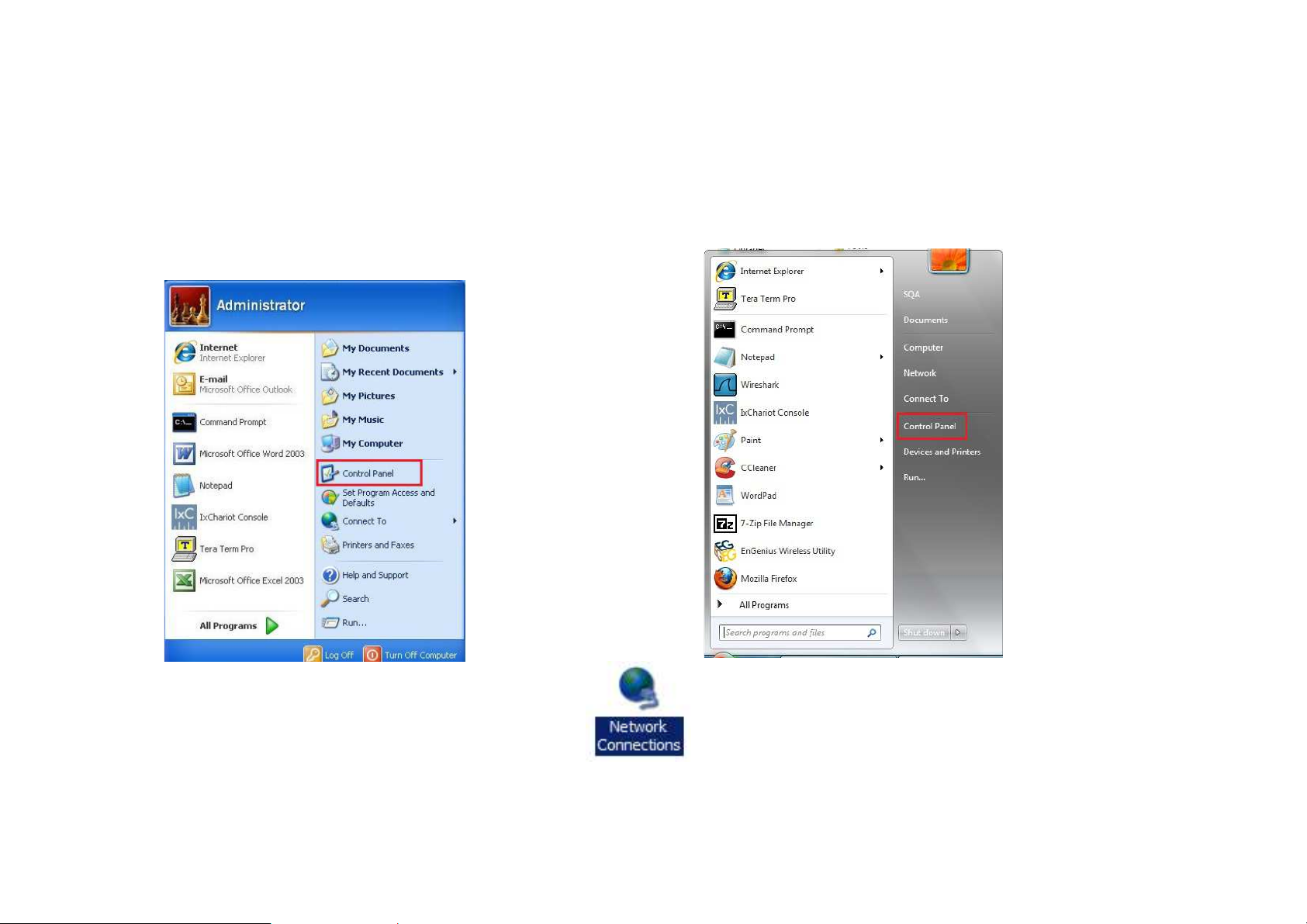
Click Start button and open Control Panel.
Windows XP Windows 7
Page 9
9
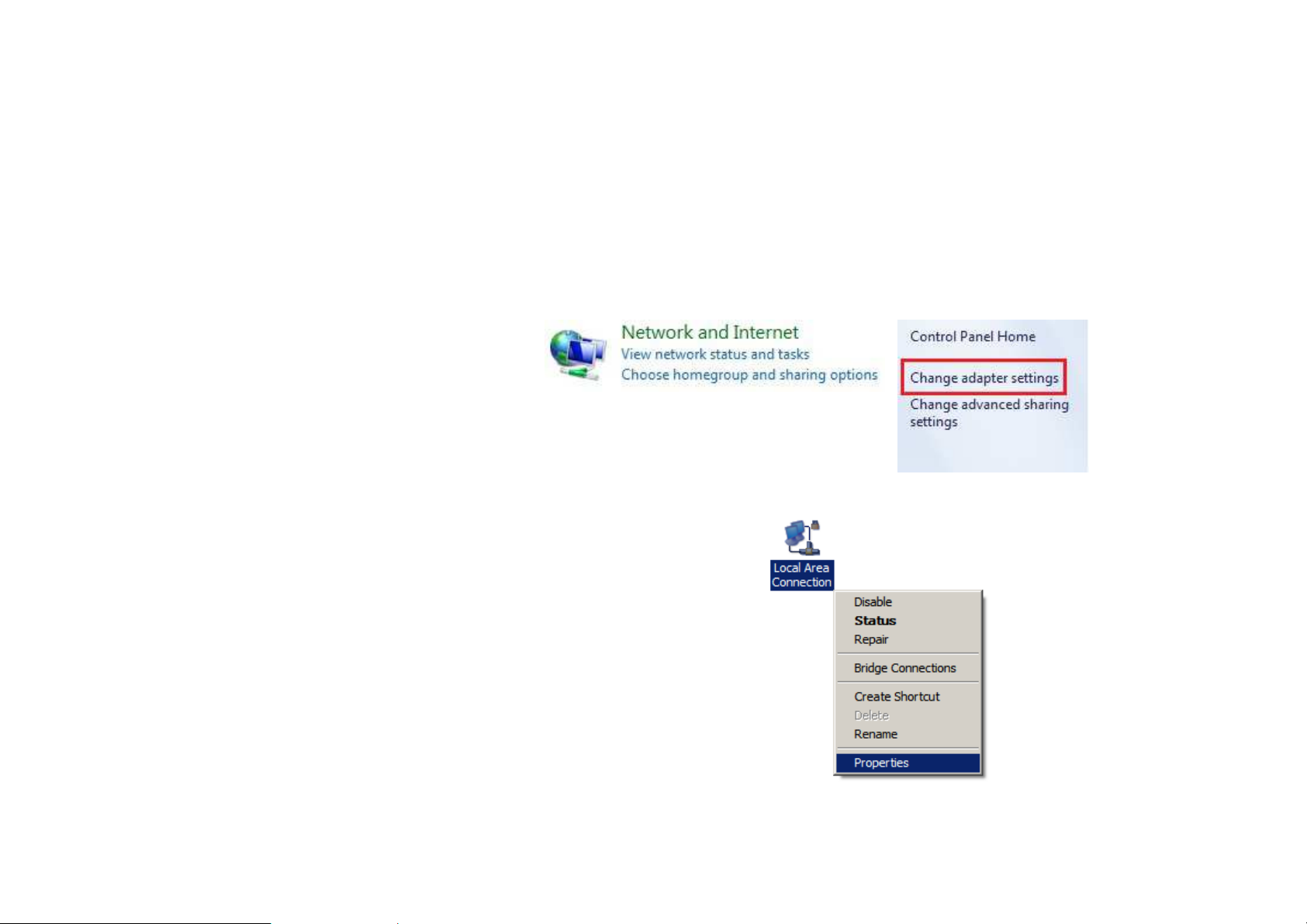
In Windows XP, click Network Connections
In Windows 7, click View Network Status and Tasks in the Network and Internet section, then select Change
adapter settings
Right click on Local Area Connection and select Properties
Page 10
10
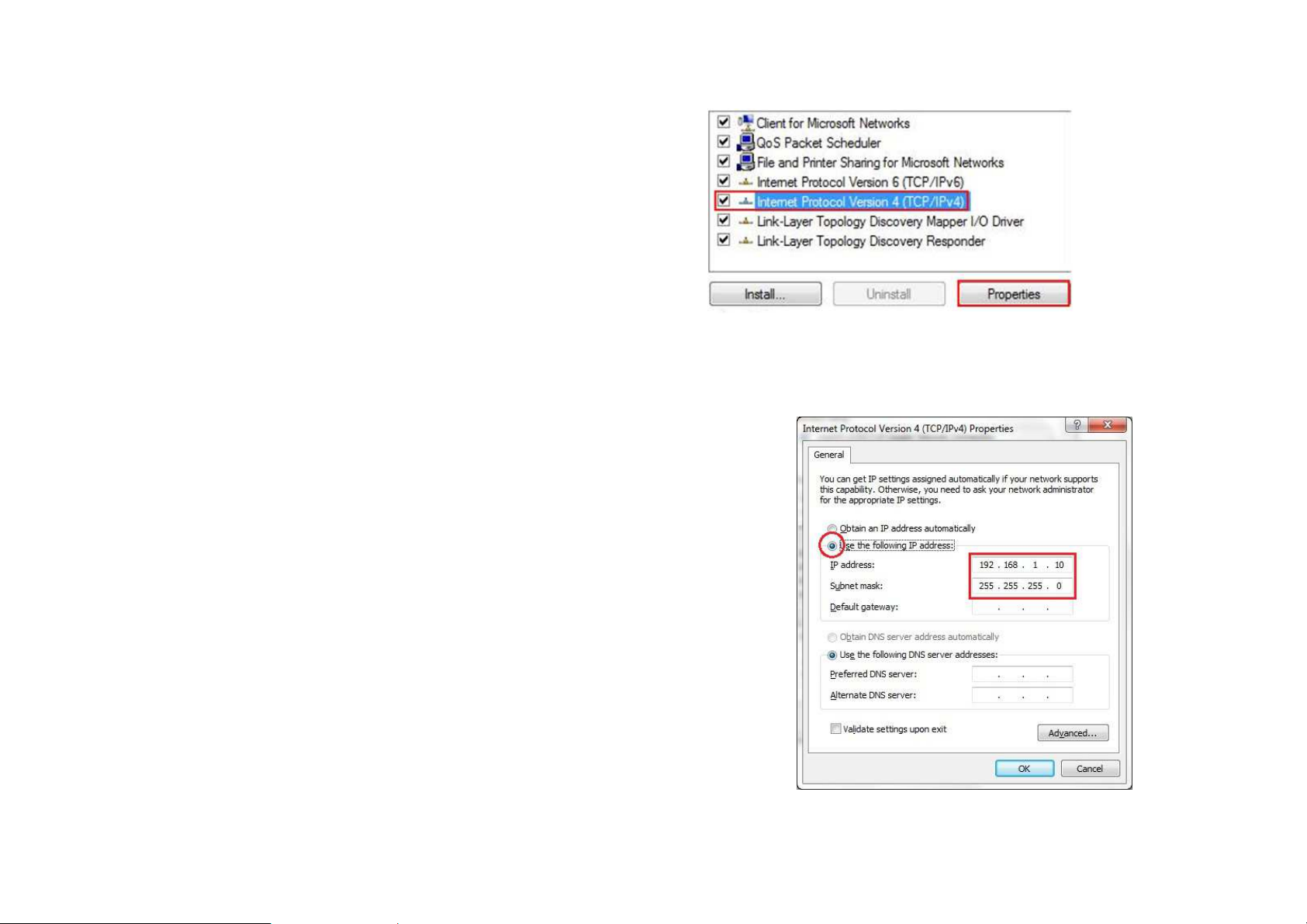
Select “Internet Protocol Version 4 (TCP/IPv4)” and then select
Properties
Select Use the following IP address and enter an IP address that is
different from the AP5 and subnet mask then click OK.
Note: Ensure that the IP address and subnet mask are on the same subnet as
the device.
For example: AP5 IP address: 192.168.1.1
PC IP address: 192.168.1.2 – 192.168.1.255
PC subnet mask: 255.255.255.0
Page 11
11
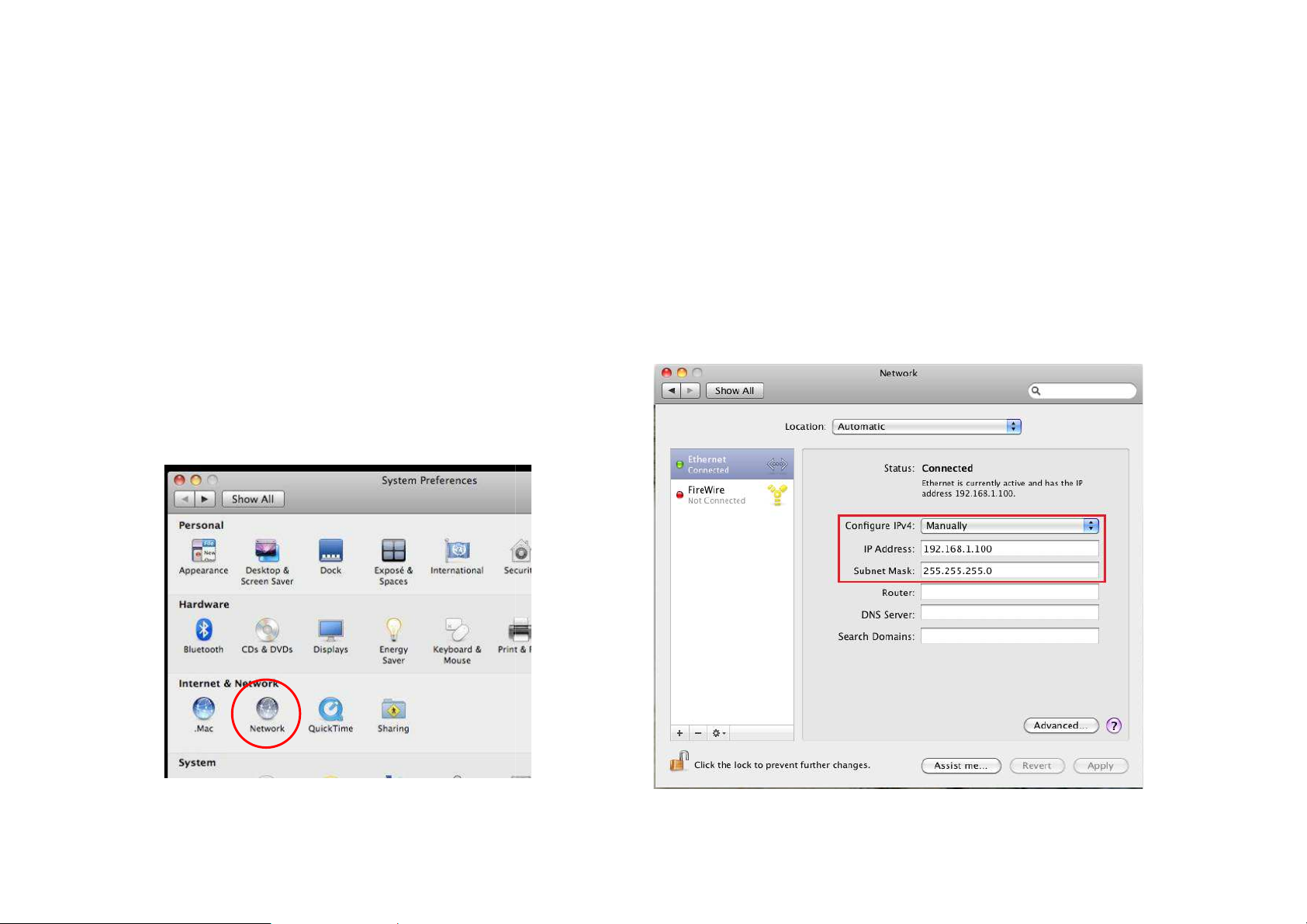
Computer Settings in Apple Mac OS X
can be opened in the
Internet & Network
that is different from the
Ensure that the IP address and subnet mask are on the same subnet as the device.
192.168.1.25
PC subnet mask: 255.255.255.0
or selecting it in the Apple Menu)
1.3
Go to System Preferences (
Select Network in the
Highlight Ethernet
In Configure IPv4, select Manually
Enter an IP address
Applications folder
section
AP5 and subnet mask then press OK
Note:
For example: AP5 IP address: 192.168.1.1
PC IP address: 192.168.1.2 –
Click Apply when done.
5
Page 12
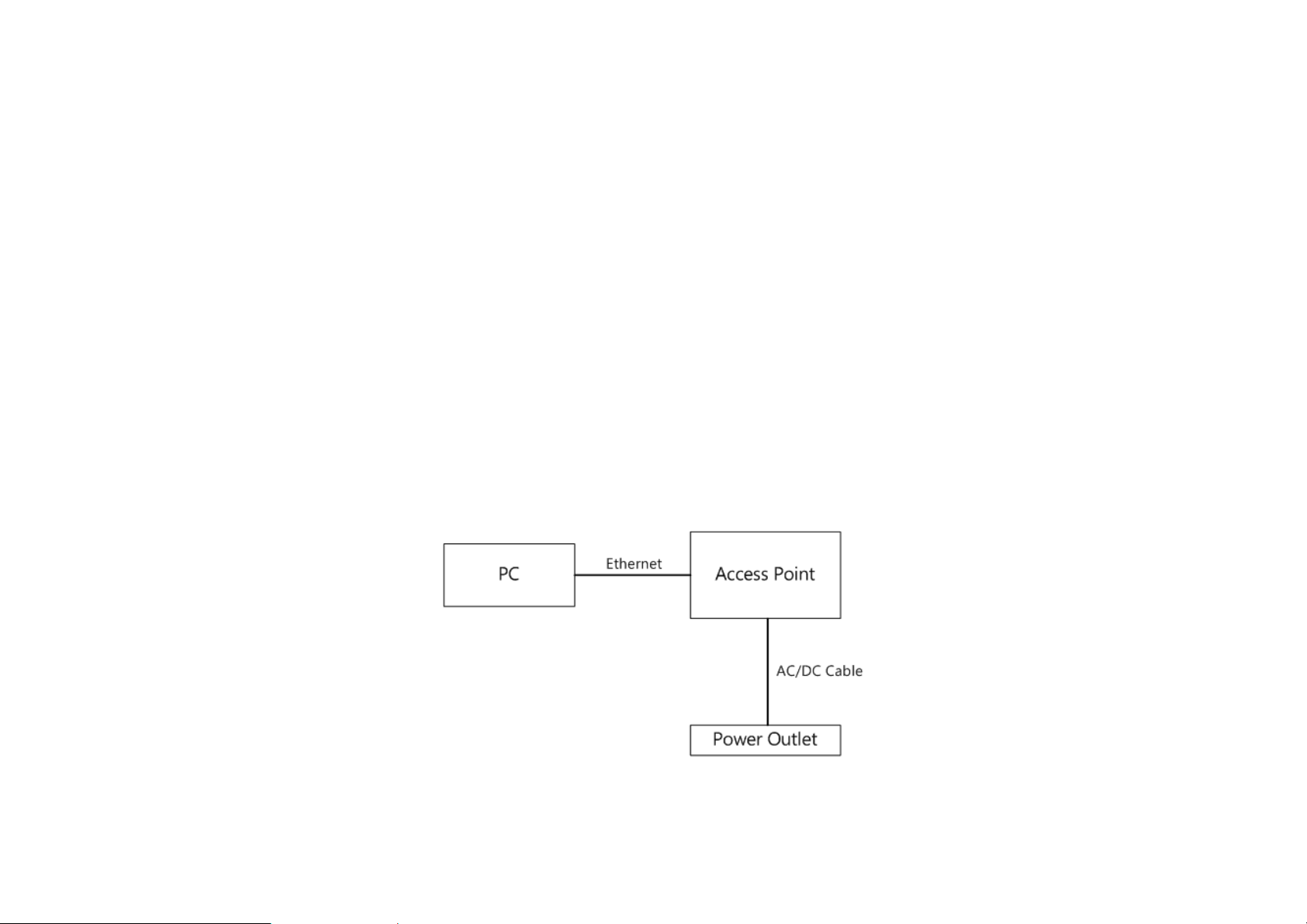
12
1.4 Hardware Installation
1. Ensure that the computer in use has an Ethernet Controller (RJ-45 Ethernet Port). For more information, verify with your
computer’s user manual.
2. Connect one end of the Category 5e Ethernet cable into the RJ-45 port of the AP5 and the other end to the RJ-45 port
of the computer. Ensure that the cable is securely connected to both the AP5 and the computer.
3. Connect the Power Adapter DC connector to the DC-IN port of the AP5 and the Power Adapter to an available
electrical outlet. Once both connections are secure, verify the following:
a) Ensure that the
b) Ensure that the
c) Ensure that the
d) Once all three lights are on, proceed to set up the access point using the computer.
This diagram depicts the hardware configuration.
POWER
2.4GHz/5GHz WLAN
LAN (Computer/AP5 Connection)
light is on (it will be orange).
light is on (it will be green for 5G, blue for 2.4G).
light is on (it will be blue).
Page 13
13
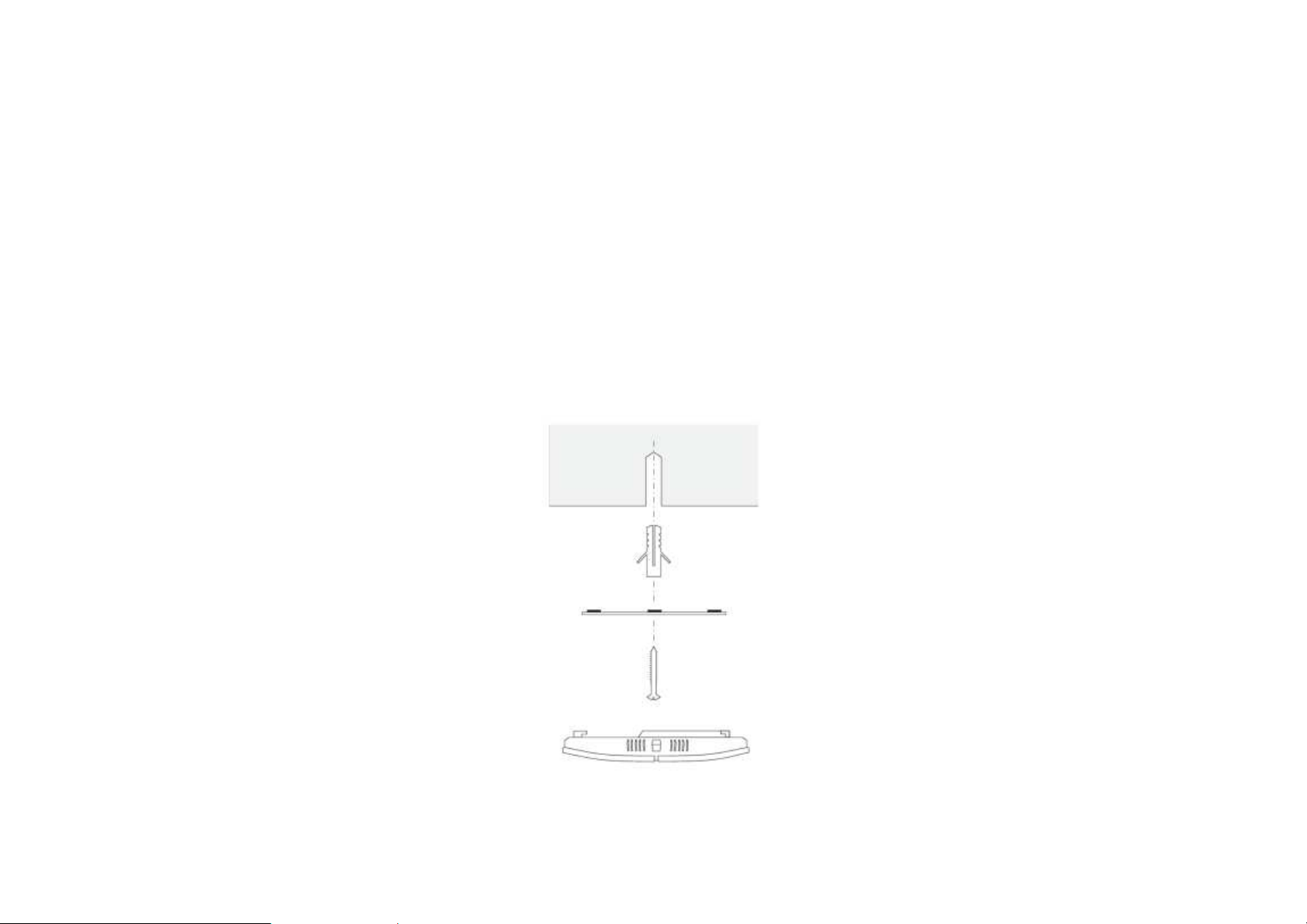
Mounting the AP5
Using the provided hardware, the AP5 can be attached to a ceiling.
To attach the AP5 to a ceiling or wall using the mounting bracket:
1) Attach the mounting bracket to the wall or ceiling using the provided ceiling mounting hardware kit.
2) Insert the provided short screws into the bottom cover of the AP5.
Leave enough of the screws exposed to ensure that the unit can be attached to the mounting bracket.
If extra space is required, use the provided spacers and long screws from the T-Rail mounting hardware kit to increase the
space between the unit and the mounting bracket.
3) Mount the AP5 on the mounting bracket.
Page 14
14
Front Panel
Reset Button
One click for reset the device. Press over 10 seconds for reset to factory default.
LED Lights
LED lights for
WPS, WLAN 5
G
, WLAN
2.4
G, Ethernet port and Power.
Rear Panel
Power
DC IN for Power.
Ethernet Port
Ethernet port for RJ
-
45 cable.
Ceiling (Wall) Mount Hole
Using the provided hardware, the
AP5 can be attached to a ceiling or wall.
Kensington Security Slot
To protect your
AP5
, use the Kensington security slot to attach a cable lock
.
Note
: To protect your AP5, use the Kensington security slot to attach a cable lock (cable lock is not included).
Page 15

15
IP Address
192.168.
1.1
Username / Password
admin / admin
Operation
Mode
AP / AP
2 Configuring Your Access Point
This section will show you how to configure the device using the web-based configuration interface.
2.1 Default Settings
Please use your Ethernet port or wireless network adapter to connect the Access Point.
Default Settings
Page 16
16
2.2 Web Configuration
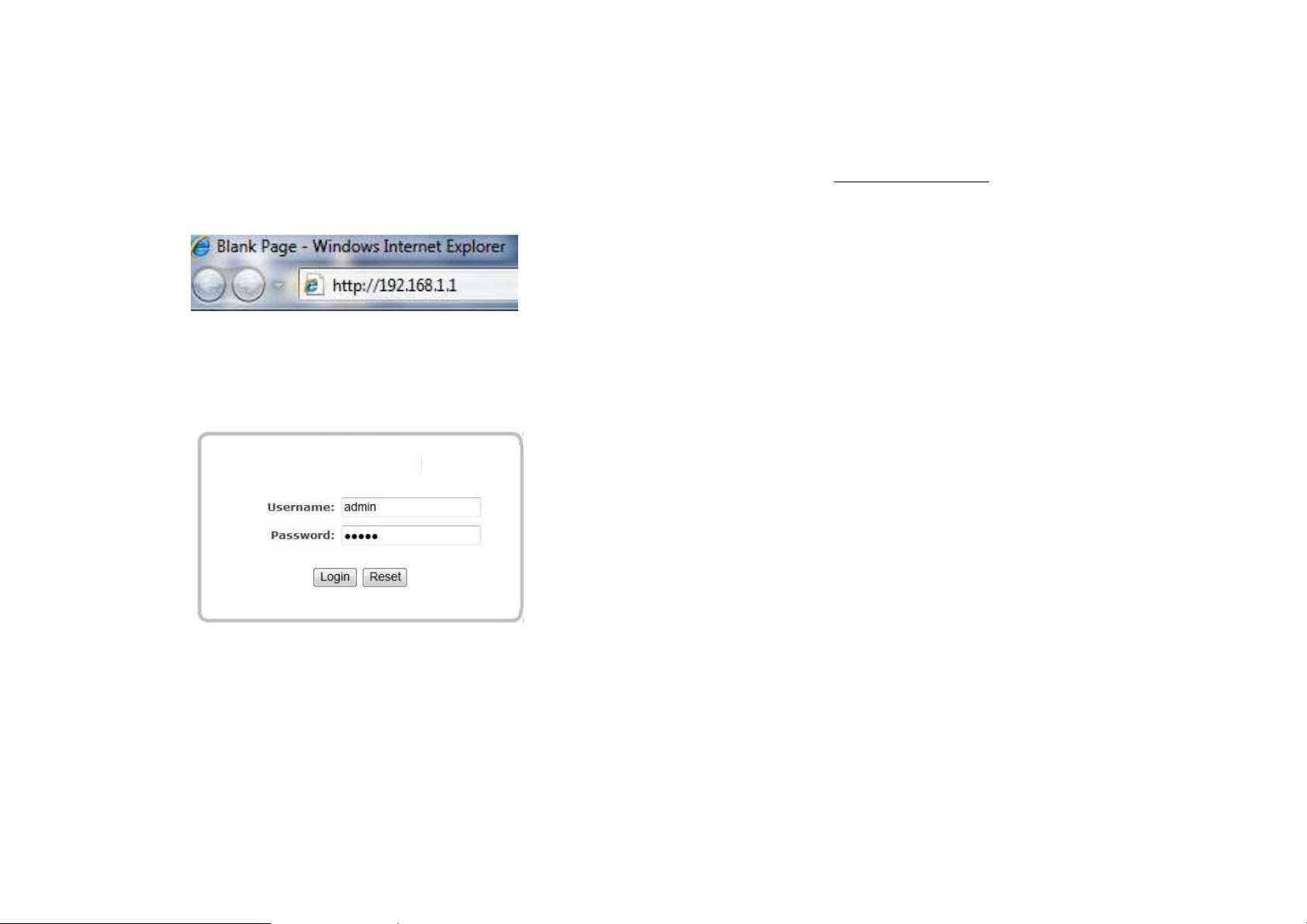
Open a web browser (Internet Explorer/Firefox/Safari) and enter the IP Address
Note: If you have changed the default LAN IP Address of the Access Point, ensure you enter the correct IP Address.
The default username and password are
admin
. Once you have entered the correct username and password, click the
http://192.168.1.1
Login
button to open the web-base configuration page.
Page 17
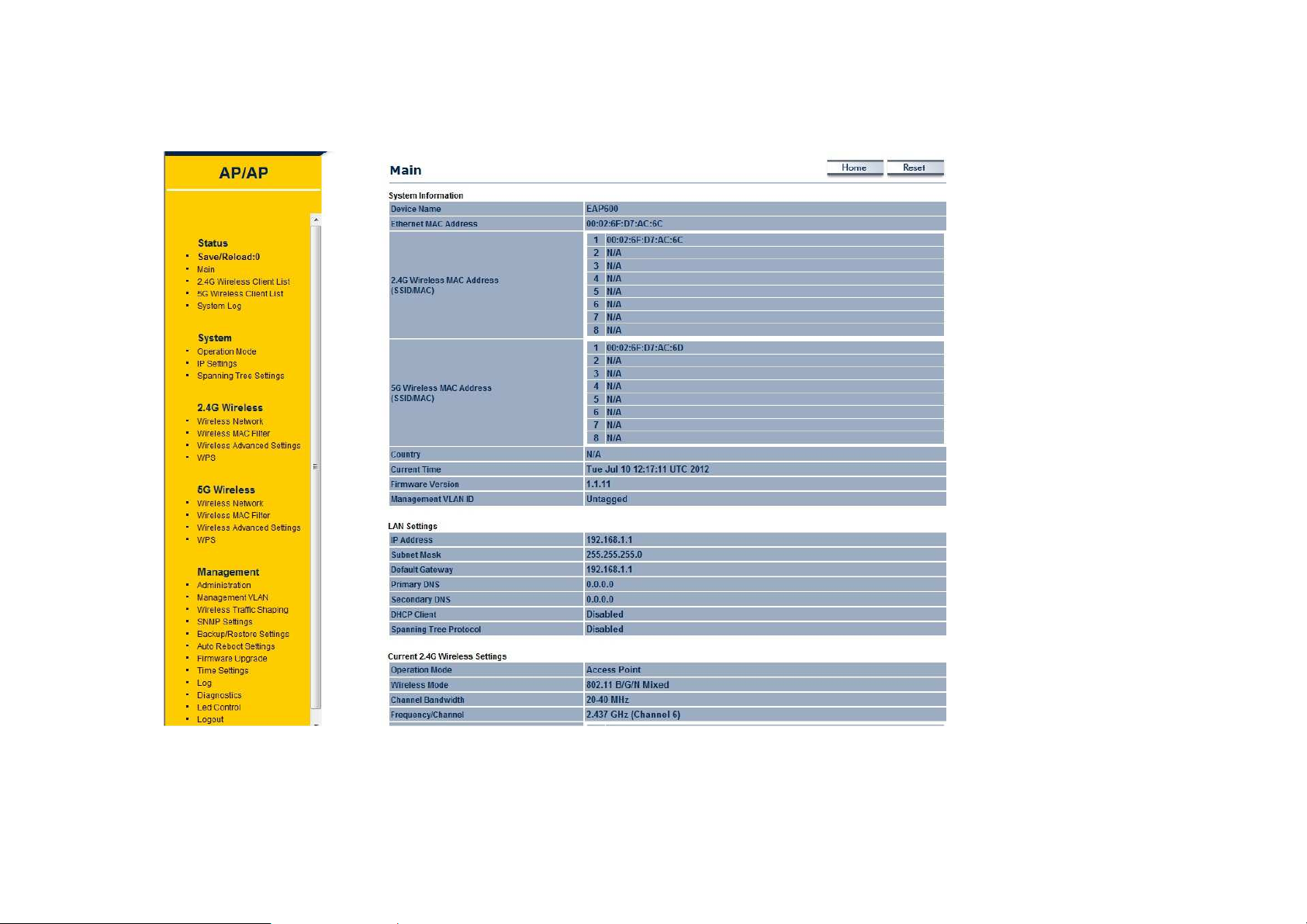
17
If successful, you will be logging in and see the AP5 User Menu.
Page 18

18
3 Building a Wireless Network
The AP5 has the ability to operate in various modes. This chapter describes the operating modes of the AP5.
3.1 Access Point Mode
In Access Point Mode, AP5 behaves likes a central connection for stations or clients that support IEEE 802.11ac/b/g/n
networks. The stations and clients must be configured to use the same SSID (Service Set Identifier) and security password
to associate with the AP5. The AP5 supports up to eight SSIDs at the same time for secure access.
3.2 WDS AP Mode
The AP5 also supports WDS AP mode. This operating mode allows wireless connections to the AP5 using WDS technology.
In this mode, configure the MAC addresses in both Access Points to enlarge the wireless area by enabling WDS Link
settings. WDS supports four AP MAC addresses.
3.3 WDS Bridge Mode
In WDS Bridge Mode, the AP5 can wirelessly connect different LANs by configuring the MAC address and security settings
of each AP5 device. Use this mode when two wired LANs located a small distance apart want to communicate with each
other. The best solution is to use the AP5 to wirelessly connect two wired LANs, as shown in the following figure.
WDS Bridge Mode can establish four WDS links, creating a star-like network.
Page 19

19
Note: WDS Bridge Mode does not act as an Access Point. Access Points linked by WDS are using the same frequency channel. More Access
Points connected together may lower throughput. This configuration can be susceptible to generate endless network loops in your network,
so it is recommended to enable the Spanning Tree function to prevent this from happening.
3.4 Repeater mode
The Repeater mode is used to regenerate or replicate signals from a wireless router or other access point/station that is
unable to reach certain areas in a building. When this mode is activated in the AP5, the AP5 receives the wireless signal
from an existing router or AP and relays it to other devices within its range so they can join the network.
Page 20

20
Appendix A – FCC Interference Statement
Federal Communication Commission Interference Statement
This equipment has been tested and found to comply with the limits for a Class B digital device, pursuant to Part 15 of the FCC Rules.
These limits are designed to provide reasonable protection against harmful interference in a residential installation. This equipment
generates, uses and can radiate radio frequency energy and, if not installed and used in accordance with the instructions, may cause
harmful interference to radio communications. However, there is no guarantee that interference will not occur in a particular
installation. If this equipment does cause harmful interference to radio or television reception, which can be determined by turning the
equipment off and on, the user is encouraged to try to correct the interference by one of the following measures:
- Reorient or relocate the receiving antenna.
- Increase the separation between the equipment and receiver.
- Connect the equipment into an outlet on a circuit different from that
to which the receiver is connected.
- Consult the dealer or an experienced radio/TV technician for help.
FCC Caution: Any changes or modifications not expressly approved by the party responsible for compliance could void the user's
authority to operate this equipment.
This device complies with Part 15 of the FCC Rules. Operation is subject to the following two conditions: (1) This device may not
cause harmful interference, and (2) this device must accept any interference received, including interference that may cause
undesired operation.
This transmitter must not be co-located or operating in conjunction with any other antenna or transmitter.
Operations in the 5.15-5.25GHz band are restricted to indoor usage only.
IMPORTANT NOTE:
FCC Radiation Exposure Statement:
This equipment complies with FCC radiation exposure limits set forth for an uncontrolled environment. This equipment should be
installed and operated with minimum distance 30cm between the radiator & your body.
Page 21

21
Appendix B – CE Interference Statement
Europe – EU Declaration of Conformity
This device complies with the essential requirements of the R&TTE Directive 1999/5/EC. The following test methods have been
applied in order to prove presumption of conformity with the essential requirements of the R&TTE Directive 1999/5/EC:
- EN60950-1
- Safety of Information Technology Equipment
- EN50385
- Generic standard to demonstrate the compliance of electronic and electrical apparatus with the basic restrictions related to
human exposure to electromagnetic fields (0 Hz - 300 GHz)
- EN 300 328
- Electromagnetic compatibility and Radio spectrum Matters (ERM); Wideband Transmission systems; Data transmission
equipment operating in the 2,4 GHz ISM band and using spread spectrum modulation techniques; Harmonized EN covering
essential requirements under article 3.2 of the R&TTE Directive
EN 301 893
Broadband Radio Access Networks (BRAN); 5 GHz high performance RLAN; Harmonized EN covering essential requirements of
article 3.2 of the R&TTE Directive
EN 301 489-1
Electromagnetic compatibility and Radio Spectrum Matters (ERM); ElectroMagnetic Compatibility (EMC) standard for radio
equipment and services; Part 1: Common technical requirements
- EN 301 489-17
- Electromagnetic compatibility and Radio spectrum Matters (ERM); ElectroMagnetic Compatibility (EMC) standard for radio
equipment and services; Part 17: Specific conditions for 2,4 GHz wideband transmission systems and 5 GHz high performance
RLAN equipment
This device is a 5GHz wideband transmission system (transceiver), intended for use in all EU member states and EFTA countries,
except in France and Italy where restrictive use applies.
In Italy the end-user should apply for a license at the national spectrum authorities in order to obtain authorization to use the device
for setting up outdoor radio links and/or for supplying public access to telecommunications and/or network services.
This device may not be used for setting up outdoor radio links in France and in some areas the RF output power may be limited to 10
mW EIRP in the frequency range of 2454 – 2483.5 MHz. For detailed information the end-user should contact the national spectrum
Page 22

22
tímto prohlašuje, že tento
dalšími příslušnými ustanoveními sm
[fabrikantens navn]
overholde
[Name des Herstellers]
den grundlegenden Anforderungen und den übrigen einschlägigen Bestimmungen der Richtlinie
1999/5/EG befindet.
Käesolevaga kinnitab
avust direktiivi 1999/5/EÜ põhinõuetele ja nimetatud direktiivist tulenevatele
teistele asjakohastele sätetele.
[name of manufacturer]
essential requirements and other relevant provisions of Directive 1999/5/EC.
Por medio de la presente
los requisitos esenciales y cualesquiera otras disposiciones aplicables o exigibles de la
Directiva 1999/5/CE.
ΜΕ ΤΗΝ ΠΑΡΟΥΣΑ
ΣΥΜΜΟΡΦΩΝΕΤΑΙ ΠΡΟΣ
∆ΙΑΤΑΞΕΙΣ ΤΗΣ Ο∆ΗΓΙΑΣ
[nom du fabricant]
exigences essentielles et aux autres dispositions pertinentes de la directive 1999/5/C
[nome del costruttore]
requisiti essenziali ed alle altre disposizioni pertinenti stabilite dalla direttiva 1999/5/CE.
[name of manufacturer
atbilst Direkt
[manufacturer name]
kitas 1999/5/EB Direktyvos nuostatas.
[naam van de fabrikant]
met de essentiële eisen en de andere relevante bepalingen van richtlijn 1999/5/EG.
sem tal
essenzjali u ma provvedimenti o
je ve shodě se základními požadavky a
r de væsentlige krav og øvrige relevante krav i direktiv 1999/5/EF.
in Übereinstimmung mit
[seadme tüüp = type of
is in compliance with the
cumple con
est conforme aux
è conforme ai
[type of equipment /
atitinka esminius reikalavimus ir
in overeenstemming is
ħtiġ
authority in France.
0560
Česky
[Czech]
Dansk
[Danish]
Deutsch
[German]
Eesti
[Estonian]
English
Español
[Spanish]
Ελληνική
[Greek]
Français
[French]
Italiano
[Italian]
Latviski
[Latvian]
Lietuvių
[Lithuanian]
Nederlands
[Dutch]
Malti
[Maltese]
[Jméno výrobce]
Undertegnede
typebetegnelse]
Hiermit erklärt
equipment] vast
Hereby,
Par la présente
Con la presente
Ar šo
iekārtas tips]
noteikumiem.
Šiuo
Hierbij verklaart
Hawnhekk, [i
[typ zařízení]
erklærer herved, at følgende udstyr [udstyrets
, dass sich das Gerät [Gerätetyp]
[tootja nimi = name of manufacturer] seadme
, declares that this [type of equipment]
[nombre del fabricante] declara que el [clase de equipo]
[name of manufacturer] ∆ΗΛΩΝΕΙ ΟΤΙ [type of equipment]
ΚΑΙ ΤΙΣ ΛΟΙΠΕΣ ΣΧΕΤΙΚΕΣ
déclare que l'appareil [type d'appareil]
E.
dichiara che questo [tipo di apparecchio]
/ izgatavotāja nosaukums] deklarē, ka
deklaruoja, kad šis [equipment type]
dat het toestel [type van toestel]
-manifattur], jiddikjara li dan [il-mudel tal-prodott] jikkonforma malrajn relevanti li hemm fid-Dirrettiva 1999/5/EC.
Page 23

23
gyártó neve
követelményeknek és az 1999/5/EC irányelv egyéb elõírásainak
[nazwa
wymogami oraz pozostałymi stosownymi postanowieniami Dyrektywy 1999/5/EC.
[Nome do fabricante]
essenciais e outras disposições da Directiva 1999/5/CE.
izjavlja, da je ta
relevantnimi določili direktive 1999/5/ES.
týmto vyhlasuje, že
príslušné ustanovenia Smernice 1999/5/ES.
manufacturer]
tyyppinen laite on direktiiv
muiden ehtojen mukainen.
[Swedish]
[företag]
egenskapskrav och övriga relevanta bestämmelser som framgår av direktiv 1999/5/EG.
jest zgodny z zasadniczymi
está conforme com os requisit
v skladu z bistvenimi zahtevami in ostalimi
spĺňa základné požiadavky a všetky
[type of equipment = laitteen tyyppimerkintä]
in 1999/5/EY oleellisten vaatimusten ja sitä koskevien direktiivin
står I överensstämmelse med de väsentliga
Magyar
[Hungarian]
Polski
[Polish]
Português
[Portuguese]
Slovensko
[Slovenian]
Slovensky
[Slovak]
Suomi
[Finnish]
Svenska
Alulírott, [
Niniejszym
[Ime proizvajalca]
[Meno výrobcu]
[Valmistaja =
Härmed intygar
] nyilatkozom, hogy a [... típus] megfelel a vonatkozó alapvetõ
.
producenta] oświadcza, że [nazwa wyrobu]
declara que este [tipo de equipamento]
[tip opreme]
[typ zariadenia]
vakuuttaa täten että
att denna [utrustningstyp]
os
 Loading...