

Page 1

User manual
Océ
VL3622/VL4222/VL5022
Network Scan/Fax/Network
Fax Operations
Page 2

Océ-Technologies B.V.
Copyright
2008,Océ-Technologies B.V. Venlo, The Netherlands.
All rights reserved. No part of this work may be reproduced, copied, adapted, or
transmitted in any form or by any means without written permission from Océ.
Océ-Technologies B.V. makes no representation or warranties with respect to the
contents hereof and specically disclaims any implied warranties of
merchantability or tness for any particular purpose.
Further, Océ-Technologies B.V. reserves the right to revise this publication and to
make changes from time to time in the content hereof without obligation to notify
any person of such revision or changes.
Edition 2008-07
GB
Page 3

VL3622/VL4222/VL5022 Contents-1
Contents
1 Introduction
1.1 About this manual ........................................................................................................................... 1-4
1.1.1 Contents............................................................................................................................................ 1-4
1.1.2 Functions covered in this manual ..................................................................................................... 1-5
Network Scan functions.................................................................................................................... 1-5
G3 fax function.................................................................................................................................. 1-5
Network Fax function ........................................................................................................................ 1-5
1.1.3 Representation of product name ...................................................................................................... 1-5
1.1.4 Explanation of manual conventions .................................................................................................. 1-6
Safety advices................................................................................................................................... 1-6
Sequence of action ........................................................................................................................... 1-6
Tips.................................................................................................................................................... 1-6
Special text markings........................................................................................................................ 1-6
1.2 User manuals................................................................................................................................... 1-8
1.2.1 Printed manual .................................................................................................................................. 1-8
Quick Guide – Copy/Print/Fax/Scan/Box Operations....................................................................... 1-8
1.2.2 User manual DVD manuals ............................................................................................................... 1-8
User manual – Copy Operations....................................................................................................... 1-8
User manual – Enlarge Display Operations....................................................................................... 1-8
User manual – Print Operations (IC-207) .......................................................................................... 1-8
User manual – Box Operations ......................................................................................................... 1-8
User manual – Network Scan/Fax/Network Fax Operations ............................................................ 1-8
User manual – Fax Driver Operations ............................................................................................... 1-8
User manual – Network Administrator .............................................................................................. 1-8
2 Before using Network Scan/Fax/Network Fax functions
2.1 Information before saving documents.......................................................................................... 2-3
2.1.1 Transmission functions ..................................................................................................................... 2-3
Function type..................................................................................................................................... 2-3
Precautions for using fax function (G3)............................................................................................. 2-3
Precautions for using network fax..................................................................................................... 2-3
Precautions for using Internet fax ..................................................................................................... 2-4
Precautions for using IP Address Fax............................................................................................... 2-4
2.1.2 User authentication ........................................................................................................................... 2-5
Machine authentication..................................................................................................................... 2-5
External server authentication........................................................................................................... 2-5
Account track.................................................................................................................................... 2-6
2.1.3 Limitation on file name ...................................................................................................................... 2-7
2.2 Overview........................................................................................................................................... 2-8
2.2.1 Available Network Scan functions..................................................................................................... 2-8
Scan to E-Mail................................................................................................................................... 2-8
FTP TX............................................................................................................................................... 2-8
SMB TX ............................................................................................................................................. 2-9
Save in User Box............................................................................................................................... 2-9
WebDAV TX..................................................................................................................................... 2-10
Web Service .................................................................................................................................... 2-10
2.2.2 Available Fax functions ................................................................................................................... 2-11
G3 fax transmission/reception........................................................................................................ 2-11
Polling.............................................................................................................................................. 2-11
2.2.3 Available Network Fax functions..................................................................................................... 2-12
Internet Fax ..................................................................................................................................... 2-12
IP Address Fax................................................................................................................................ 2-12
Page 4

Contents-2 VL3622/VL4222/VL5022
3 Control panel/touch panel
3.1 Control panel.................................................................................................................................... 3-3
3.2 Touch panel...................................................................................................................................... 3-5
3.2.1 Screen layout..................................................................................................................................... 3-5
Icons on the touch panel................................................................................................................... 3-6
3.2.2 Display with/without optional settings............................................................................................... 3-7
Without fax kit.................................................................................................................................... 3-7
With fax kit......................................................................................................................................... 3-7
3.2.3 Display and operation of the left panel.............................................................................................. 3-8
Job List .............................................................................................................................................. 3-8
Job List - Delete ................................................................................................................................ 3-9
Job List - Job Details......................................................................................................................... 3-9
Check Job - Check Job Settings .................................................................................................... 3-13
Check Job - Check Job Settings - Destination Settings................................................................. 3-14
Check Job - Check Job Settings - Scan Settings........................................................................... 3-14
Check Job - Check Job Settings - Original Settings....................................................................... 3-15
Check Job - Check Job Settings - Communication Settings ......................................................... 3-15
Check Job - Check Job Settings - Check E-Mail Settings ............................................................. 3-15
4 Registration of basic information
4.1 To begin operation .......................................................................................................................... 4-3
4.1.1 Required environment and equipment .............................................................................................. 4-3
4.1.2 Network connection and settings...................................................................................................... 4-3
Network connection .......................................................................................................................... 4-3
Network settings................................................................................................................................ 4-3
Specifying the E-Mail address of the machine.................................................................................. 4-4
4.1.3 Connecting a modular cable ............................................................................................................. 4-4
4.2 Address Registration....................................................................................................................... 4-5
4.2.1 Address Book .................................................................................................................................... 4-5
4.2.2 Group................................................................................................................................................. 4-5
4.3 Optional settings.............................................................................................................................. 4-6
Fax/Scan programs ........................................................................................................................... 4-6
Setting display contents.................................................................................................................... 4-6
4.4 Using Web services ......................................................................................................................... 4-7
4.4.1 Settings required for using Web services.......................................................................................... 4-7
4.4.2 Installing the driver of this machine on the computer ....................................................................... 4-7
Pre-installation checking ................................................................................................................... 4-7
Installation procedure........................................................................................................................ 4-7
5 Transmitting data
5.1 Operation flow.................................................................................................................................. 5-3
5.1.1 Scan/Network Fax ............................................................................................................................. 5-3
5.1.2 Fax (G3) ............................................................................................................................................. 5-6
5.1.3 Recalling a program........................................................................................................................... 5-9
5.1.4 Broadcasting ................................................................................................................................... 5-12
5.2 Menu tree in Fax/Scan mode........................................................................................................ 5-16
Address Book tab............................................................................................................................ 5-16
Direct Input tab................................................................................................................................ 5-16
Job History tab ................................................................................................................................ 5-17
Address Search tab......................................................................................................................... 5-18
Off-Hook tab.................................................................................................................................... 5-18
Scan Settings .................................................................................................................................. 5-19
Original Settings .............................................................................................................................. 5-21
Communication Settings ................................................................................................................. 5-22
5.3 Initial screen for fax/scan operations.......................................................................................... 5-23
5.3.1 Screen layout................................................................................................................................... 5-23
Page 5

VL3622/VL4222/VL5022 Contents-3
5.3.2 Address Book.................................................................................................................................. 5-24
Search - Address Type.................................................................................................................... 5-24
Search - Index................................................................................................................................. 5-24
Search - Detail Search .................................................................................................................... 5-25
Detail Search - Search Option ........................................................................................................ 5-25
5.3.3 Direct Input...................................................................................................................................... 5-26
5.3.4 Direct Input - Fax............................................................................................................................. 5-26
5.3.5 Direct Input - E-Mail ........................................................................................................................ 5-27
5.3.6 Direct Input - User Box ................................................................................................................... 5-27
5.3.7 Direct Input - Internet Fax ............................................................................................................... 5-27
RX Ability (Destination).................................................................................................................... 5-28
5.3.8 Direct Input - IP Address Fax.......................................................................................................... 5-28
5.3.9 Direct Input - PC (SMB)................................................................................................................... 5-29
Host Name ...................................................................................................................................... 5-29
File Path........................................................................................................................................... 5-29
User Name ...................................................................................................................................... 5-29
Password......................................................................................................................................... 5-29
Reference ........................................................................................................................................ 5-29
Next Destination.............................................................................................................................. 5-29
5.3.10 Direct Input - FTP............................................................................................................................ 5-30
Host Name ...................................................................................................................................... 5-30
File Path........................................................................................................................................... 5-30
User Name ...................................................................................................................................... 5-30
Password......................................................................................................................................... 5-30
Detailed Settings ............................................................................................................................. 5-31
Next Destination.............................................................................................................................. 5-31
5.3.11 Direct Input - WebDAV.................................................................................................................... 5-31
Host Name ...................................................................................................................................... 5-31
File Path........................................................................................................................................... 5-31
User Name ...................................................................................................................................... 5-31
Password......................................................................................................................................... 5-31
Detailed Settings ............................................................................................................................. 5-32
Next Destination.............................................................................................................................. 5-32
5.3.12 Direct Input - Web Service.............................................................................................................. 5-33
Search ............................................................................................................................................. 5-33
5.3.13 Job History (G3) .............................................................................................................................. 5-33
5.3.14 Address Search - Search................................................................................................................ 5-34
5.3.15 Address Search - Advanced Search............................................................................................... 5-34
Name ............................................................................................................................................... 5-34
E-Mail Addr. .................................................................................................................................... 5-34
Fax Number..................................................................................................................................... 5-35
Last Name ....................................................................................................................................... 5-35
First Name....................................................................................................................................... 5-35
City .................................................................................................................................................. 5-35
Company Name .............................................................................................................................. 5-35
Department...................................................................................................................................... 5-35
OR/AND/STARTS WITH/ENDS WITH ............................................................................................. 5-35
5.3.16 Off-Hook (G3) .................................................................................................................................. 5-36
Manual transmission ....................................................................................................................... 5-36
5.4 Scan Settings................................................................................................................................. 5-37
5.4.1 Basic - Original Type....................................................................................................................... 5-37
Text.................................................................................................................................................. 5-37
Text/Photo....................................................................................................................................... 5-37
Photo............................................................................................................................................... 5-37
Dot Matrix Original .......................................................................................................................... 5-37
5.4.2 Basic - Simplex/Duplex................................................................................................................... 5-38
1-Sided............................................................................................................................................ 5-38
2-Sided............................................................................................................................................ 5-38
Cover + 2-Sided.............................................................................................................................. 5-38
5.4.3 Basic - Resolution ........................................................................................................................... 5-38
Page 6

Contents-4 VL3622/VL4222/VL5022
5.4.4 File Type .......................................................................................................................................... 5-39
File Type .......................................................................................................................................... 5-39
Scan Settings .................................................................................................................................. 5-39
Encryption - Encryption Level, Password, Document Permissions, and Detail Settings................ 5-40
Encryption - Password .................................................................................................................... 5-40
Encryption - Document Permissions ............................................................................................... 5-40
Encryption - Detail Settings - Printing Allowed/Enable copying of text,
images and other content................................................................................................................ 5-41
Encryption - Detail Settings - Changes Allowed ............................................................................. 5-42
Stamp Composition......................................................................................................................... 5-43
5.4.5 Scan Settings - Density................................................................................................................... 5-43
5.4.6 Scan Settings - Separate Scan ....................................................................................................... 5-44
5.4.7 Background Removal ...................................................................................................................... 5-44
5.4.8 Erase - Frame Erase ........................................................................................................................ 5-45
5.4.9 Book Scan - Book Copy.................................................................................................................. 5-45
Book Spread.................................................................................................................................... 5-45
Separation ....................................................................................................................................... 5-45
Front Cover...................................................................................................................................... 5-46
Front + Back Covers........................................................................................................................ 5-46
Book Erase - Frame Erase............................................................................................................... 5-46
Binding Position............................................................................................................................... 5-46
5.4.10 Application - Scan Size ................................................................................................................... 5-47
Standard .......................................................................................................................................... 5-47
Custom Size .................................................................................................................................... 5-47
5.4.11 Application - Annotation.................................................................................................................. 5-48
Selecting an annotation user box .................................................................................................... 5-48
5.4.12 Application - Stamp/Composition - Date/Time ............................................................................... 5-48
Date Format..................................................................................................................................... 5-48
Time Format..................................................................................................................................... 5-48
Pages............................................................................................................................................... 5-48
Text Size .......................................................................................................................................... 5-49
Print Position - Print Position........................................................................................................... 5-49
Print Position - Fine-Tune - Adjust Position .................................................................................... 5-49
5.4.13 Application - Stamp/Composition - Page Number ......................................................................... 5-50
Starting Page Number..................................................................................................................... 5-50
Starting Chapter Number ................................................................................................................ 5-50
Page Number Type.......................................................................................................................... 5-50
Text Size .......................................................................................................................................... 5-50
Print Position - Print Position........................................................................................................... 5-51
Print Position - Fine-Tune - Adjust Position .................................................................................... 5-51
5.4.14 Application - Stamp/Composition - Stamp ..................................................................................... 5-52
Stamp Type/Preset Stamps ............................................................................................................ 5-52
Pages............................................................................................................................................... 5-52
Text Size .......................................................................................................................................... 5-52
Print Position - Print Position........................................................................................................... 5-53
Print Position - Fine-Tune - Adjust Position .................................................................................... 5-53
5.4.15 Application - Stamp/Composition - Header/Footer ........................................................................ 5-54
Recall Header/Footer....................................................................................................................... 5-54
Check/Change Temporarily............................................................................................................. 5-54
Check/Change Temporarily - Header Settings/Footer Settings...................................................... 5-55
Check/Change Temporarily - Header Settings/Footer Settings - Text ........................................... 5-55
Check/Change Temporarily - Header Settings/Footer Settings - Date/Time.................................. 5-55
Check/Change Temporarily - Header Settings/Footer Settings - Other ......................................... 5-56
Check/Change Temporarily - Pages ............................................................................................... 5-56
Check/Change Temporarily - Text Size........................................................................................... 5-56
Check/Change Temporarily - Print Position.................................................................................... 5-57
5.4.16 Application - Send & Print ............................................................................................................... 5-58
Send & Print..................................................................................................................................... 5-58
Copies.............................................................................................................................................. 5-58
Simplex/Duplex ............................................................................................................................... 5-58
Staple............................................................................................................................................... 5-58
Staple - Position Setting.................................................................................................................. 5-58
Page 7

VL3622/VL4222/VL5022 Contents-5
5.4.17 Application - TX Stamp (G3/IP/I-FAX) ............................................................................................. 5-59
TX Stamp......................................................................................................................................... 5-59
Printing a TX stamp......................................................................................................................... 5-59
5.4.18 Neg./Pos. Reverse .......................................................................................................................... 5-60
To enable [Neg./Pos. Reverse]........................................................................................................ 5-60
5.4.19 Document Name (E-Mail/User Box/SMB/FTP/WebDAV/I-FAX)...................................................... 5-60
5.5 Original Settings............................................................................................................................ 5-61
5.5.1 Special Original - Mixed Original..................................................................................................... 5-61
5.5.2 Special Original - Z-Folded Original................................................................................................ 5-61
5.5.3 Special Original - Long Original ...................................................................................................... 5-61
5.5.4 Direction Settings - Original Direction............................................................................................. 5-61
5.5.5 Direction Settings - Binding Position .............................................................................................. 5-62
5.6 Communication Settings .............................................................................................................. 5-63
5.6.1 Line Settings (G3)............................................................................................................................ 5-63
Overseas TX .................................................................................................................................... 5-63
ECM OFF......................................................................................................................................... 5-63
V. 34 OFF ........................................................................................................................................ 5-64
Check Dest. & Send........................................................................................................................ 5-64
Select Line....................................................................................................................................... 5-64
5.6.2 E-Mail Settings (E-Mail/I-FAX)......................................................................................................... 5-65
About E-Mail settings...................................................................................................................... 5-65
Document Name ............................................................................................................................. 5-65
Subject ............................................................................................................................................ 5-65
From ................................................................................................................................................ 5-66
Body ................................................................................................................................................ 5-66
5.6.3 URL Notification Setting (User Box/FTP/SMB/WebDAV)................................................................ 5-67
URL notification............................................................................................................................... 5-67
Detail Search................................................................................................................................... 5-67
Direct Input...................................................................................................................................... 5-67
5.6.4 Communication Method Settings (G3)............................................................................................ 5-68
Timer TX .......................................................................................................................................... 5-68
Polling RX - Normal......................................................................................................................... 5-69
Polling RX - Bulletin......................................................................................................................... 5-70
F-Code TX ....................................................................................................................................... 5-71
Password TX ................................................................................................................................... 5-72
Polling TX - Normal ......................................................................................................................... 5-72
Polling TX - Bulletin......................................................................................................................... 5-73
5.6.5 E-Mail Encryption (E-Mail)............................................................................................................... 5-73
5.6.6 Digital Signature (E-Mail)................................................................................................................. 5-74
5.6.7 Fax Header Settings (G3/IP/I-FAX).................................................................................................. 5-74
5.7 Redialing (G3/IP)............................................................................................................................ 5-75
5.7.1 Redial .............................................................................................................................................. 5-75
5.7.2 Manual redialing.............................................................................................................................. 5-75
5.7.3 Fax Retransmit (G3)......................................................................................................................... 5-76
6 Receiving data (G3/IP/I-FAX)
6.1 Receiving data (G3: When the external phone is not connect) ................................................... 6-3
6.1.1 Auto RX (fax only).............................................................................................................................. 6-3
6.2 Receiving data (G3: When the external phone is connect).......................................................... 6-4
6.2.1 Manual RX (phone only) .................................................................................................................... 6-4
6.3 Receiving data (I-FAX) .................................................................................................................... 6-5
Automatic reception.......................................................................................................................... 6-5
Manual reception............................................................................................................................... 6-5
6.4 Receiving data (IP) .......................................................................................................................... 6-6
6.5 In-memory proxy reception............................................................................................................ 6-6
6.5.1 In-memory proxy reception............................................................................................................... 6-6
6.5.2 Forwarding jobs stored in the memory (G3)...................................................................................... 6-6
Page 8

Contents-6 VL3622/VL4222/VL5022
6.6 Recording data upon reception ..................................................................................................... 6-7
6.6.1 To output in reduced printing............................................................................................................ 6-7
6.6.2 To output in reduced printing according to the paper size ............................................................... 6-7
Step 1: Selecting the optimal paper size........................................................................................... 6-8
Step 2: Selecting paper for actual printing........................................................................................ 6-8
Printing limitations ........................................................................................................................... 6-11
6.6.3 To output in full size......................................................................................................................... 6-12
6.6.4 Recording method for received data............................................................................................... 6-13
6.7 Reception information................................................................................................................... 6-14
Printed inside the original................................................................................................................ 6-14
Printed outside the original.............................................................................................................. 6-14
7 Useful functions (G3/IP/I-FAX)
7.1 Memory RX (G3/IP/I-FAX) ............................................................................................................... 7-3
7.2 PC-FAX reception (G3) .................................................................................................................... 7-3
7.3 TSI distribution (G3)......................................................................................................................... 7-4
7.4 Confidential communication (G3)................................................................................................... 7-5
Settings necessary for confidential reception ................................................................................... 7-5
Performing confidential reception ..................................................................................................... 7-5
Performing confidential transmission ................................................................................................ 7-5
7.5 Relay distribution (G3)..................................................................................................................... 7-6
7.5.1 Relay distribution............................................................................................................................... 7-6
7.5.2 To enable relay distribution ............................................................................................................... 7-6
7.5.3 Transmitting faxes to a relay distribution station............................................................................... 7-7
7.6 Polling TX/RX (G3) ........................................................................................................................... 7-8
7.6.1 Polling TX........................................................................................................................................... 7-8
7.6.2 Polling RX .......................................................................................................................................... 7-8
7.7 Bulletin (G3) ...................................................................................................................................... 7-9
7.8 Sending/receiving data using extension lines (G3) ...................................................................... 7-9
7.9 Forwarding fax (G3) ......................................................................................................................... 7-9
8 Explanation of reports/lists
8.1 Types of reports/lists ...................................................................................................................... 8-3
8.1.1 Reports .............................................................................................................................................. 8-3
8.1.2 List ..................................................................................................................................................... 8-4
8.2 Common lists ................................................................................................................................... 8-5
8.2.1 Address Book List ............................................................................................................................. 8-5
To print it out ..................................................................................................................................... 8-5
Output example................................................................................................................................. 8-6
Items to be printed out ...................................................................................................................... 8-6
8.2.2 Group List .......................................................................................................................................... 8-7
To print it out ..................................................................................................................................... 8-7
Output example................................................................................................................................. 8-7
Items to be printed out ...................................................................................................................... 8-8
8.2.3 Program List ...................................................................................................................................... 8-8
Output example................................................................................................................................. 8-9
Items to be printed out ...................................................................................................................... 8-9
8.3 Reports/lists common to G3/IP/I-FAX......................................................................................... 8-10
8.3.1 Activity report .................................................................................................................................. 8-10
Output example............................................................................................................................... 8-10
Items to be printed out .................................................................................................................... 8-10
8.3.2 TX Result report............................................................................................................................... 8-11
8.3.3 Broadcasting TX report ................................................................................................................... 8-12
Page 9

VL3622/VL4222/VL5022 Contents-7
8.3.4 Job Settings List.............................................................................................................................. 8-12
To print it out................................................................................................................................... 8-12
Fax settings list ............................................................................................................................... 8-13
Relay list.......................................................................................................................................... 8-14
RX user box by sender (TSI)............................................................................................................ 8-14
List of confidential and bulletin user boxes..................................................................................... 8-15
8.4 Reports output in G3 Fax operations .......................................................................................... 8-16
8.4.1 Polling TX report.............................................................................................................................. 8-16
8.4.2 Polling RX report ............................................................................................................................. 8-16
8.4.3 Sequential polling RX report............................................................................................................ 8-16
8.4.4 TX reservation report....................................................................................................................... 8-17
8.4.5 Polling TX reservation report........................................................................................................... 8-17
8.4.6 Broadcasting TX reservation report ................................................................................................ 8-17
8.4.7 One-destination polling RX reservation report................................................................................ 8-18
8.4.8 Sequential polling RX reservation report......................................................................................... 8-18
8.4.9 Confidential RX report..................................................................................................................... 8-18
8.4.10 Bulletin TX report............................................................................................................................. 8-19
8.4.11 Relay report..................................................................................................................................... 8-19
8.4.12 Relay request filing report ............................................................................................................... 8-19
8.4.13 PC-FAX TX error report................................................................................................................... 8-20
8.5 Reports output in Internet fax operations................................................................................... 8-21
8.5.1 Network Fax RX Error Report.......................................................................................................... 8-21
8.5.2 Print MDN Message ........................................................................................................................ 8-21
8.5.3 Print DSN Message......................................................................................................................... 8-21
8.5.4 Print E-mail Message Body............................................................................................................. 8-22
8.5.5 E-Mail Subject/Text List.................................................................................................................. 8-23
To print it out................................................................................................................................... 8-23
Output example............................................................................................................................... 8-23
8.6 Reports output in IP operations................................................................................................... 8-24
8.6.1 Network fax RX error report ............................................................................................................ 8-24
9 User mode settings
9.1 Menu trees in User mode ............................................................................................................... 9-3
9.1.1 One-Touch/User Box Registration.................................................................................................... 9-3
9.1.2 User Settings..................................................................................................................................... 9-5
9.1.3 Recall Scan/Fax Program.................................................................................................................. 9-6
9.2 One-Touch/User Box Registration ................................................................................................ 9-7
9.2.1 Displaying the One-Touch/User Box Registration screen ................................................................ 9-7
9.2.2 Address Book - E-Mail...................................................................................................................... 9-8
No...................................................................................................................................................... 9-8
Name ................................................................................................................................................. 9-8
Index.................................................................................................................................................. 9-9
E-Mail Address.................................................................................................................................. 9-9
9.2.3 Address Book - User Box ................................................................................................................. 9-9
No.................................................................................................................................................... 9-10
Name ............................................................................................................................................... 9-10
Index................................................................................................................................................ 9-10
User Box.......................................................................................................................................... 9-11
9.2.4 Address Book - Fax ........................................................................................................................ 9-12
No.................................................................................................................................................... 9-12
Name ............................................................................................................................................... 9-12
Index................................................................................................................................................ 9-13
Address ........................................................................................................................................... 9-13
Line Settings.................................................................................................................................... 9-14
Page 10

Contents-8 VL3622/VL4222/VL5022
9.2.5 Address Book - PC (SMB)............................................................................................................... 9-15
No. ................................................................................................................................................... 9-16
Name ............................................................................................................................................... 9-16
Index................................................................................................................................................ 9-16
User ID............................................................................................................................................. 9-16
Password......................................................................................................................................... 9-16
Host Address................................................................................................................................... 9-17
File Path........................................................................................................................................... 9-17
Reference ........................................................................................................................................ 9-17
9.2.6 Address Book - FTP ........................................................................................................................ 9-18
No. ................................................................................................................................................... 9-19
Name ............................................................................................................................................... 9-19
Index................................................................................................................................................ 9-19
Host Address................................................................................................................................... 9-20
File Path........................................................................................................................................... 9-20
User ID............................................................................................................................................. 9-20
Password......................................................................................................................................... 9-20
Anonymous...................................................................................................................................... 9-20
PASV................................................................................................................................................ 9-20
Proxy................................................................................................................................................ 9-20
Port Number .................................................................................................................................... 9-20
9.2.7 Address Book - WebDAV ................................................................................................................ 9-21
No. ................................................................................................................................................... 9-22
Name ............................................................................................................................................... 9-22
Index................................................................................................................................................ 9-22
User ID............................................................................................................................................. 9-22
Password......................................................................................................................................... 9-23
Host Address................................................................................................................................... 9-23
File Path........................................................................................................................................... 9-23
Proxy................................................................................................................................................ 9-23
SSL Settings.................................................................................................................................... 9-23
Port Number .................................................................................................................................... 9-23
9.2.8 Address Book - IP Address Fax ...................................................................................................... 9-24
No. ................................................................................................................................................... 9-24
Name ............................................................................................................................................... 9-24
Index................................................................................................................................................ 9-25
Host Address................................................................................................................................... 9-25
Port Number .................................................................................................................................... 9-25
9.2.9 Address Book - Internet Fax............................................................................................................ 9-26
No. ................................................................................................................................................... 9-26
Name ............................................................................................................................................... 9-26
Index................................................................................................................................................ 9-27
E-Mail Address ................................................................................................................................ 9-27
RX Ability (Destination) .................................................................................................................... 9-27
9.2.10 Group............................................................................................................................................... 9-28
Name ............................................................................................................................................... 9-28
Select Group.................................................................................................................................... 9-28
Check Program Settings ................................................................................................................. 9-29
9.2.11 E-Mail Settings - E-Mail Subject (E-Mail/I-FAX) .............................................................................. 9-30
Subject........................................................................................................................
..................... 9-30
9.2.12 E-Mail Settings - E-Mail Body (E-Mail/I-FAX) .................................................................................. 9-31
Body ................................................................................................................................................ 9-31
9.2.13 Scan/Fax Program........................................................................................................................... 9-32
Register Scan/Fax Program ............................................................................................................ 9-32
Register Program - Name................................................................................................................ 9-32
Register Program - Address............................................................................................................ 9-33
Register Program - URL Notif. Destination ..................................................................................... 9-33
Check Program Settings ................................................................................................................. 9-33
Check Program Settings - Check Address ..................................................................................... 9-34
Check Program Settings - Check Scan Settings ............................................................................ 9-34
Page 11

VL3622/VL4222/VL5022 Contents-9
Check Program Settings - Check Original Settings........................................................................ 9-34
Check Program Settings - Communication Settings ...................................................................... 9-35
Check Program Settings - Check E-Mail Settings.......................................................................... 9-35
Check Program Settings - Check URL Notif. Destination............................................................... 9-35
Check Program Settings - RX Ability (Destination) ......................................................................... 9-36
Delete .............................................................................................................................................. 9-36
9.2.14 Create User Box - Confidential User Box (G3)................................................................................ 9-36
9.2.15 Create User Box - Bulletin Board User Box (G3) ............................................................................ 9-36
9.2.16 Create User Box - Relay User Box (G3) .......................................................................................... 9-36
9.2.17 Limiting Access to Destinations - Apply Levels/Groups to Destinations........................................ 9-37
Address Book.................................................................................................................................. 9-37
Group .............................................................................................................................................. 9-37
Program........................................................................................................................................... 9-38
9.3 User Settings ................................................................................................................................. 9-39
9.3.1 Displaying the User Settings screen ............................................................................................... 9-39
9.3.2 Custom Display Settings - Scan/Fax Settings................................................................................ 9-39
Default Tab ...................................................................................................................................... 9-39
Program Default .............................................................................................................................. 9-40
Address Book Index Default ........................................................................................................... 9-40
Shortcut Key 1/Shortcut Key 2 ....................................................................................................... 9-41
Default Address Book ..................................................................................................................... 9-41
9.3.3 Custom Display Settings - FAX Active Screen (G3/IP/I-FAX) ......................................................... 9-42
TX Display ....................................................................................................................................... 9-42
RX Display ....................................................................................................................................... 9-42
9.3.4 Custom Display Settings - Search Option Settings
(E-Mail/Box/SMB/FTP/WebDAV/G3/IP/I-FAX) 9-43
9.3.5 Scan/Fax Settings ........................................................................................................................... 9-43
Black Compression Level................................................................................................................ 9-43
Default Scan/Fax Settings............................................................................................................... 9-44
10 Administrator mode settings
10.1 First specify these settings .......................................................................................................... 10-3
10.1.1 E-Mail .............................................................................................................................................. 10-3
Administrator’s E-Mail address ....................................................................................................... 10-3
TCP/IP setting ................................................................................................................................. 10-3
E-Mail TX (SMTP) ............................................................................................................................ 10-3
10.1.2 User boxes ...................................................................................................................................... 10-3
Create User Box.............................................................................................................................. 10-3
10.1.3 SMB TX ........................................................................................................................................... 10-3
TCP/IP setting ................................................................................................................................. 10-3
SMB Client Setting.......................................................................................................................... 10-3
10.1.4 FTP TX............................................................................................................................................. 10-3
TCP/IP setting ................................................................................................................................. 10-3
FTP Settings.................................................................................................................................... 10-3
10.1.5 G3 FAX ............................................................................................................................................ 10-4
Header Information.......................................................................................................................... 10-4
Line Parameter Setting.................................................................................................................... 10-4
10.1.6 Internet Fax ..................................................................................................................................... 10-4
Network Fax Function Setting......................................................................................................... 10-4
Header Information.......................................................................................................................... 10-4
E-Mail address of the machine ....................................................................................................... 10-4
Machine Setting .............................................................................................................................. 10-4
TCP/IP setting ................................................................................................................................. 10-4
E-Mail Settings ................................................................................................................................ 10-4
10.1.7 IP Address Fax................................................................................................................................ 10-4
Network Fax Function Setting......................................................................................................... 10-4
Header Information.......................................................................................................................... 10-4
TCP/IP setting ................................................................................................................................. 10-4
SMTP TX/RX Settings ..................................................................................................................... 10-4
Page 12

Contents-10 VL3622/VL4222/VL5022
10.2 Menu tree in Administrator mode ................................................................................................ 10-5
10.2.1 System Settings............................................................................................................................... 10-5
10.2.2 Network Settings (2/2)..................................................................................................................... 10-6
10.2.3 Fax Settings..................................................................................................................................... 10-6
10.2.4 Security Settings.............................................................................................................................. 10-9
10.3 Administrator Settings (E-Mail/User Box/SMB/FTP/WebDAV) ............................................... 10-10
10.3.1 Displaying the Administrator Settings screen................................................................................ 10-10
10.3.2 System Settings - Restrict User Access........................................................................................ 10-10
Restrict Access to Job Settings - Registering and Changing Addresses ..................................... 10-10
Restrict Access to Job Settings - Change the "From" Address (E-Mail) ...................................... 10-11
Restrict Operation - Restrict Broadcasting ................................................................................... 10-11
10.3.3 System Settings - Stamp Settings - Header/Footer Settings ....................................................... 10-12
Name ............................................................................................................................................. 10-12
Header Settings/Footer Settings ................................................................................................... 10-12
Header Settings/Footer Settings - Text......................................................................................... 10-13
Header Settings/Footer Settings - Date/Time............................................................................... 10-13
Header Settings/Footer Settings - Other....................................................................................... 10-13
Pages............................................................................................................................................. 10-14
Text Size ........................................................................................................................................ 10-14
Print Position Settings ................................................................................................................... 10-14
10.3.4 System Settings - Reset Settings - Job Reset - Next Job - Reset Data After Job ....................... 10-15
10.3.5 Security Settings - Security Details............................................................................................... 10-15
Manual Destination Input............................................................................................................... 10-15
10.4 Administrator Settings (G3) ........................................................................................................ 10-16
10.4.1 System Settings - Power Save Settings - Enter Power Save Mode ............................................. 10-16
10.4.2 System Settings - Output Settings................................................................................................ 10-16
Output Tray Settings...................................................................................................................... 10-17
Shift Output Each Job ................................................................................................................... 10-17
10.4.3 System Settings - Restrict User Access........................................................................................ 10-17
Restrict Access to Job Settings - Changing Job Priority.............................................................. 10-17
Restrict Operation - Restrict Broadcasting ................................................................................... 10-17
10.4.4 System Settings - Stamp Settings - Fax TX Settings.................................................................... 10-18
10.4.5 System Settings - Reset Settings - Job Reset - Next Job - Reset Data After Job ....................... 10-18
10.4.6 System Settings - Skip Job Setting - Fax ..................................................................................... 10-18
10.4.7 Fax Settings - Header Information ................................................................................................ 10-19
Sender ........................................................................................................................................... 10-19
Sender Fax No............................................................................................................................... 10-20
10.4.8 Fax Settings - Header/Footer Position.......................................................................................... 10-20
Header Position ............................................................................................................................. 10-20
Print Receiver’s Name................................................................................................................... 10-21
Footer Position .............................................................................................................................. 10-22
10.4.9 Fax Settings - Line Parameter Setting........................................................................................... 10-22
Dialing Method............................................................................................................................... 10-22
Receive Mode................................................................................................................................ 10-23
Number of RX Call Rings............................................................................................................... 10-23
Number of Redials......................................................................................................................... 10-24
Redial Interval................................................................................................................................ 10-24
Line Monitor Sound ....................................................................................................................... 10-24
Line Monitor Sound Vol................................................................................................................. 10-25
10.4.10 Fax Settings - TX/RX Settings....................................................................................................... 10-25
Duplex Print (RX)............................................................................................................................ 10-25
Letter/Ledger over A4/A3 .............................................................................................................. 10-26
Print Paper Selection..................................................................................................................... 10-26
Print Paper Size...............................................................................................................
.............. 10-27
Incorrect User Box No. Entry......................................................................................................... 10-27
Tray Selection for RX Print ............................................................................................................ 10-28
Min. Reduction for RX Print........................................................................................................... 10-28
Print Separate Fax Pages.............................................................................................................. 10-29
File After Polling TX ....................................................................................................................... 10-29
No. of Sets (RX) ............................................................................................................................. 10-30
Page 13

VL3622/VL4222/VL5022 Contents-11
10.4.11 Fax Settings - Function Settings................................................................................................... 10-30
Function ON/OFF Setting - F-Code TX......................................................................................... 10-30
Function ON/OFF Setting - Relay RX............................................................................................ 10-31
Function ON/OFF Setting - Relay Printing .................................................................................... 10-31
Function ON/OFF Setting - Destination Check Display Function................................................. 10-32
Function ON/OFF Setting - Confirm Address (TX) ........................................................................ 10-32
Memory RX Setting ....................................................................................................................... 10-33
Closed Network RX....................................................................................................................... 10-33
Forward TX Setting........................................................................................................................ 10-34
Incomplete TX Hold....................................................................................................................... 10-34
PC-Fax RX Setting ........................................................................................................................ 10-35
TSI User Box Setting..................................................................................................................... 10-36
TSI User Box Setting - TSI User Box Registration........................................................................ 10-36
TSI User Box Setting - TSI User Box Registration - TSI use box settings.................................... 10-37
10.4.12 Fax Settings - PBX Connection Setting ........................................................................................ 10-37
10.4.13 Fax Settings - Report Settings ...................................................................................................... 10-38
Activity Report............................................................................................................................... 10-38
TX Result Report ........................................................................................................................... 10-38
Sequential TX Report .................................................................................................................... 10-39
Timer Reservation TX Report ........................................................................................................ 10-39
Confidential RX Report.................................................................................................................. 10-39
Bulletin TX Report ......................................................................................................................... 10-40
Relay TX Result Report ................................................................................................................. 10-40
Relay Request Report ................................................................................................................... 10-40
PC-Fax TX Error Report ................................................................................................................ 10-41
Broadcast Result Report............................................................................................................... 10-41
TX Result Report Check................................................................................................................ 10-42
10.4.14 Fax Settings - Job Settings List .................................................................................................... 10-42
10.4.15 Fax Settings - Multi Line Settings ................................................................................................. 10-43
Line Parameter Setting - Dialing Method ...................................................................................... 10-43
Line Parameter Setting - Number of RX Call Rings ...................................................................... 10-43
Line Parameter Setting - Line Monitor Sound............................................................................... 10-44
Line Parameter Setting - Line Monitor Sound volume.................................................................. 10-44
Function Settings - PC-FAX TX Setting ........................................................................................ 10-44
Multi Line Setting........................................................................................................................... 10-45
Sender Fax No. ............................................................................................................................. 10-45
10.4.16 Security Settings - Security Details............................................................................................... 10-46
Manual Destination Input .............................................................................................................. 10-46
Restrict Fax TX.............................................................................................................................. 10-46
Hide Personal Information............................................................................................................. 10-46
Display Activity Log....................................................................................................................... 10-47
10.4.17 Security Settings - Stamp Settings ............................................................................................... 10-47
Apply Stamps - Printing................................................................................................................ 10-47
Apply Stamps - Sending ............................................................................................................... 10-47
10.5 Administrator Settings (IP/I-FAX) .............................................................................................. 10-48
10.5.1 System Settings - Power Save Settings - Enter Power Save Mode ............................................. 10-48
10.5.2 System Settings - Restrict User Access ....................................................................................... 10-48
Restrict Access to Job Settings - Changing Job Priority.............................................................. 10-48
Restrict Access to Job Settings - Change the "From" Address ................................................... 10-48
Restrict Operation - Restrict Broadcasting................................................................................... 10-48
10.5.3 System Settings - Stamp Settings - Fax TX Settings ................................................................... 10-48
10.5.4 Network Settings - Network Fax Settings..................................................................................... 10-48
Network Fax Function Settings..................................................................................................... 10-48
SMTP TX Settings ......................................................................................................................... 10-48
SMTP RX Settings......................................................................................................................... 10-48
10.5.5 Fax Settings - Header Information................................................................................................ 10-48
10.5.6 Fax Settings - Header/Footer Position.......................................................................................... 10-48
10.5.7 Fax Settings - Line Parameter Setting (IP) .................................................................................... 10-48
Number of Redials......................................................................................................................... 10-48
Redial Interval................................................................................................................................ 10-48
10.5.8 Fax Settings - TX/RX Settings....................................................................................................... 10-49
Page 14

Contents-12 VL3622/VL4222/VL5022
10.5.9 Fax Settings - Function Settings ................................................................................................... 10-49
Function ON/OFF Setting - Destination Check Display Function ................................................. 10-49
Memory RX Setting........................................................................................................................ 10-49
10.5.10 Fax Settings - Report Settings - Output Settings.......................................................................... 10-49
Activity Report ............................................................................................................................... 10-49
TX Result Report............................................................................................................................ 10-49
Sequential TX Report..................................................................................................................... 10-49
Broadcast Result Report ............................................................................................................... 10-49
TX Result Report Check ................................................................................................................ 10-49
Network Fax RX Error Report........................................................................................................ 10-49
MDN Message (I-FAX) ................................................................................................................... 10-50
DSN Message (I-FAX).................................................................................................................... 10-50
Print E-Mail Message Body (I-FAX) ............................................................................................... 10-50
10.5.11 Fax Settings - Job Settings List .................................................................................................... 10-51
10.5.12 Fax Settings - Network Fax Settings............................................................................................. 10-51
Black Compression Level.............................................................................................................. 10-51
Internet Fax Self RX Ability (I-FAX) ................................................................................................ 10-51
Internet Fax Advanced Settings (I-FAX)......................................................................................... 10-52
10.5.13 Security Settings - Security Details............................................................................................... 10-52
Manual Destination Input............................................................................................................... 10-52
Restrict Fax TX .............................................................................................................................. 10-52
Hide Personal Information............................................................................................................. 10-52
Display Activity Log....................................................................................................................... 10-52
11 Web Connection
11.1 Using Web Connection.................................................................................................................. 11-3
11.1.1 Operating environment.................................................................................................................... 11-3
11.1.2 Accessing Web Connection ............................................................................................................ 11-3
11.1.3 Web browser cache......................................................................................................................... 11-4
With Internet Explorer...................................................................................................................... 11-4
With Netscape Navigator................................................................................................................. 11-4
With Mozilla Firefox ......................................................................................................................... 11-4
11.1.4 Structure of pages........................................................................................................................... 11-5
11.2 Logging on and logging off........................................................................................................... 11-7
11.2.1 Login and logout operations............................................................................................................ 11-7
When user authentication and account track settings are not specified ........................................ 11-7
When user authentication and account track settings are specified............................................... 11-9
11.2.2 Logout............................................................................................................................................ 11-10
11.2.3 Login.............................................................................................................................................. 11-11
Options that can be selected when logged on to Web Connection.............................................. 11-11
Logging on as a public user .......................................................................................................... 11-11
Logging on as a registered user.................................................................................................... 11-12
Logging on to Administrator mode................................................................................................ 11-13
Logging on as a user box administrator........................................................................................ 11-14
11.3 Overview of User mode............................................................................................................... 11-15
11.3.1 Information..................................................................................................................................... 11-15
11.3.2 Job................................................................................................................................................. 11-16
11.3.3 Box ................................................................................................................................................ 11-17
11.3.4 Direct Print..................................................................................................................................... 11-18
11.3.5 Store Address................................................................................................................................ 11-19
11.4 Overview of Administrator mode ............................................................................................... 11-20
11.4.1 Maintenance .................................................................................................................................. 11-20
11.4.2 Security.......................................................................................................................................... 11-22
11.4.3 Box ................................................................................................................................................ 11-23
11.4.4 Print Setting................................................................................................................................... 11-24
11.4.5 Store Address................................................................................................................................ 11-25
11.4.6 Network ......................................................................................................................................... 11-26
Page 15

VL3622/VL4222/VL5022 Contents-13
12 Fax/Scan function troubleshooting
12.1 Cannot send data .......................................................................................................................... 12-3
12.1.1 G3 Fax............................................................................................................................................. 12-3
12.1.2 Internet fax/IP address fax/network fax/scan transmission
(E-Mail/SMB/FTP/WebDAV/Web service) 12-4
12.2 Cannot receive data...................................................................................................................... 12-5
12.2.1 G3 Fax............................................................................................................................................. 12-5
12.2.2 Internet fax/IP address fax .............................................................................................................. 12-6
12.3 Displaying an error message ....................................................................................................... 12-7
12.3.1 G3 Fax............................................................................................................................................. 12-7
12.3.2 If the HDD Ready indicator indicates an HDD malfunction............................................................. 12-7
12.3.3 Network fax error code table........................................................................................................... 12-8
Transmission System Error Code.................................................................................................... 12-8
Reception system error code.......................................................................................................... 12-9
12.4 When the message "Contact your Service Rep." appears (Service Call) .............................. 12-10
13 Appendix
13.1 Product specifications.................................................................................................................. 13-3
13.1.1 Scanning functions.......................................................................................................................... 13-3
13.1.2 Fax functions................................................................................................................................... 13-3
13.2 Tips ................................................................................................................................................. 13-4
13.2.1 About the number of pages stored in the memory ......................................................................... 13-4
13.2.2 Giving a scan command from a computer (Web service) ............................................................... 13-4
13.3 Entering text................................................................................................................................... 13-5
13.3.1 Enlarging the keyboard ................................................................................................................... 13-7
13.3.2 To type text ..................................................................................................................................... 13-8
13.3.3 List of Available Characters............................................................................................................. 13-8
13.4 Scanning glossary......................................................................................................................... 13-9
13.5 Internet fax glossary ................................................................................................................... 13-14
13.6 Fax glossary................................................................................................................................. 13-15
14 Index
Page 16

Contents-14 VL3622/VL4222/VL5022
Page 17

1
Introduction
Page 18

Page 19

VL3622/VL4222/VL5022 1-3
Introduction
1
1 Introduction
Thank you for purchasing this machine.
This user manual describes the operating instructions, precautions for proper operation, and simple
troubleshooting of the network scan/fax/network fax operations of VL3622/VL4222/VL5022. In order to allow
functionality of this product fully and to use it effectively, please read this user manual as necessary.
In order to operate the machine safely and properly, be sure to read the Quick Guide –
Copy/Print/Fax/Scan/Box Operations.
For descriptions on trademarks and copyrights, refer to the accompanying Quick Guide –
Copy/Print/Fax/Scan/Box Operations.
Illustrations shown in the user manual may differ from actual machine.
Page 20

1
Introduction
1-4 VL3622/VL4222/VL5022
1.1 About this manual
This document is a user manual on the network scan, fax and network fax operations of
VL3622/VL4222/VL5022.
The following describes the contents of this manual and representation of the product name.
This manual is intended for persons with basic knowledge of computers and this machine. For details on the
Windows or Macintosh operating systems, or software applications, refer to the respective manuals.
1.1.1 Contents
This manual consists of the following chapters:
- Chapter "1 Introduction"
- Chapter "2 Before using Network Scan/Fax/Network Fax functions"
This chapter describes topics to be kept in mind before using the fax/scan functions of the machine.
- Chapter "3 Control panel/touch panel"
This chapter describes the function of keys on the control panel and usage of the touch panel.
- Chapter "4 Registration of basic information"
This chapter describes the registration procedure required before using the fax/scan functions of the
machine.
- Chapter "5 Transmitting data"
This chapter describes the flow of operations for sending network-scanned data, G3 faxes, and
network faxes, as well as available setting items. Flow charts are used to explain key operations. Refer
to the flow chart for flow of each operation. It also introduces the menu tree of items that can be
specified to use the fax/scan function. Clicking the link of the menu tree displays the page that
describes the setting screen.
- Chapter "6 Receiving data (G3/IP/I-FAX)"
This chapter provides an overview of G3 fax and network fax reception.
- Chapter "7 Useful functions (G3/IP/I-FAX)"
This chapter describes useful G3 fax and network fax functions.
- Chapter "8 Explanation of reports/lists"
This chapter introduces reports automatically printed when the fax/scan functions are used as well as
lists that can be printed in the Utility mode.
- Chapter "9 User mode settings"
This chapter describes setting items in User mode among settings in Utility mode that are related to the
fax/scan functions. In User mode, destination registrations and related items can be specified. Clicking
the link described at the beginning of the chapter displays the page that describes the Utility mode.
- Chapter "10 Administrator mode settings"
This chapter describes setting items in Administrator mode among settings in Utility mode that are
related to the fax/scan functions. In Administrator mode, line parameters and others can be specified.
Clicking the link described at the beginning of the chapter displays the page that describes the Utility
mode.
- Chapter "11 Web Connection"
This chapter describes the overview of the utility software that allows you to configure the machine
using a Web browser from a computer on a network.
- Chapter "12 Fax/Scan function troubleshooting"
This chapter covers action for handling error messages and transmission failure.
- Chapter "13 Appendix"
This chapter provides a glossary as well as instructions for entering text.
- Chapter "14 Index"
This chapter describes the specifications of the machine and the characters which can be entered on
the control panel.
Page 21
VL3622/VL4222/VL5022 1-5
Introduction
1
1.1.2 Functions covered in this manual
Network Scan functions
This function transmits image data scanned on the machine via a network. The following transmission
methods are available for the Network scan functions.
- Scan to E-Mail
- Scan to SMB
- Scan to FTP
- Scan to WebDAV
- Save in User BOX
- Web Service
G3 fax function
This function transmits image data scanned on the machine via a telephone line.
Network Fax function
This function transmits image data scanned on the machine via a network. Like the G3 fax function, data
transmission/reception is performed mostly between compatible devices. Similar functionality can be used
with less communication cost by communicating via a network connection. The following transmission
methods are available for the Network Fax functions.
- Internet Fax
- IP Address Fax
1.1.3 Representation of product name
In this manual, an abbreviation for the applicable transmission method appears after a function name used
as a headline.
Product name Representation
VL3622/VL4222/VL5022 This machine, 501/421/361
Microsoft Windows NT 4.0 Windows NT 4.0
Microsoft Windows 2000 Windows 2000
Microsoft Windows XP Windows XP
Microsoft Windows Vista Windows Vista
Combination of OS Windows NT 4.0/2000/XP
Transmission method Abbreviation
G3 fax G3
Internet Fax I-FAX
IP Address Fax IP
Scan to E-Mail E-Mail
Scan to FTP FTP
Scan to SMB SMB
Scan to WebDAV WebDAV
Save in User BOX BOX
When the G3 fax, IP address fax, and Internet fax functions are cited in combination
G3/IP/I-FAX
Page 22

1
Introduction
1-6 VL3622/VL4222/VL5022
1.1.4 Explanation of manual conventions
The marks and text formats used in this manual are described below.
Safety advices
6 DANGER
Failure to observe instructions highlighted in this manner may result in fatal or critical injuries in fact
of electrical power.
% Observe all dangers in order to prevent injuries.
7 WARNING
Failure to observe instructions highlighted in this manner may result in serious injuries or property
damage.
% Observe all warnings in order to prevent injuries and to ensure safe use of the machine.
7 CAUTION
Failure to observe instructions highlighted in this manner may result in slight injuries or property
damage.
% Observe all cautions in order to prevent injuries and to ensure safe use of the machine.
Sequence of action
1 The number 1 as formatted here indicates the first step of a
sequence of actions.
2 Subsequent numbers as formatted here indicate subsequent
steps of a sequence of actions.
?
Text formatted in this style provides additional assistance.
% Text formatted in this style describes the action that will
ensure the desired results are achieved.
Tips
2
Note
Text highlighted in this manner contains useful information and tips to ensure safe use of the machine.
2
Reminder
Text highlighted in this manner contains information that should be reminded.
!
Detail
Text highlighted in this manner contains references for more detailed information.
Special text markings
[Stop] key
The names of keys on the control panel are written as shown above.
MACHINE SETTING
Display texts are written as shown above.
An illustration inserted
here shows what operations
must be performed.
Page 23

VL3622/VL4222/VL5022 1-7
Introduction
1
2
Note
The machine illustrations shown in this manual can vary and depend on the machine configuration.
Page 24

1
Introduction
1-8 VL3622/VL4222/VL5022
1.2 User manuals
This machine is provided with printed manuals and PDF manuals on the User manual DVD.
1.2.1 Printed manual
Quick Guide – Copy/Print/Fax/Scan/Box Operations
This user manual contains operating procedures and descriptions of the most frequently used functions,
allowing the machine to immediately be used.
In addition, this manual contains notes and precautions that should be followed for safe use of the machine
as well as descriptions on trademarks and copyrights.
Be sure to read this manual before using the machine.
1.2.2 User manual DVD manuals
The user manual DVD is included with this machine. In the initial screen, select the user manual to be viewed,
and then check the details for the various functions.
User manual – Copy Operations
This user manual contains descriptions of Copy mode operations and machine maintenance.
Refer to this user manual for details on paper and originals, copy procedures using convenient Application
functions, replacing consumables and troubleshooting operations such as clearing paper misfeeds.
User manual – Enlarge Display Operations
This user manual contains details on operating procedures in Enlarge Display mode.
Refer to this manual for details on using copy, scanner, G3 fax and network fax operations in Enlarge Display
mode.
User manual – Print Operations (IC-207)
This user manual contains details on the printing functions that can be specified with the standard built-in
image controller.
Refer to this user manual for details on operating procedures for using the printer functions.
User manual – Box Operations
This user manual contains operating procedures for using the user boxes on the optional hard disk.
Refer to this user manual for details on saving data in user boxes, retrieving data from user boxes and
transferring data.
User manual – Network Scan/Fax/Network Fax Operations
This user manual contains details on the network scan, G3 fax, and network fax operations.
Refer to this manual for details on using network scan function by E-Mail or FTP, G3 fax, Internet fax and IP
address fax operations.
In order to use the fax functions, the optional fax kit must be purchased separately.
User manual – Fax Driver Operations
This user manual contains details of the fax driver functions that can be used to send a fax directly from a
computer.
Refer to this user manual for operating procedures on using the PC-FAX functions.
In order to use the fax functions, the optional fax kit must be purchased separately.
User manual – Network Administrator
This user manual contains descriptions on setting methods for each function utilizing network connection,
mainly using the Web Connection.
Refer to this user manual for details on using network functions.
Page 25

2
Before using Network
Scan/Fax/Network Fax
functions
Page 26

Page 27

VL3622/VL4222/VL5022 2-3
Before using Network Scan/Fax/Network Fax functions
2
2 Before using Network Scan/Fax/Network Fax functions
2.1 Information before saving documents
2.1.1 Transmission functions
Function type
This machine can send and receive scanned images over the network or telephone line. This user manual
contains descriptions of the following functions.
2
Reminder
When turning off the [main power switch] and turning it on again, wait for 10 seconds or longer after
power-off, and then turn on the power again. The machine may not operate correctly if it is turned on
immediately after being turned off.
Precautions for using fax function (G3)
The telephone line types which can be connected to this machine are as follows:
- Subscribed telephone line (Including fax network)
- PBX (two-wire private branch exchange)
Check the telephone line for the following:
- You cannot connect a business phone as an external telephone.
- If a digital dedicated line is multiplexed in an enterprise network, fax transmission speed may be limited,
or the Super G3 fax may not be available.
With the factory default settings, a communication error occurs at rare conditions. This is caused by the
multiplexed device being set to the lowest possible band for voice transmission. These limitations vary
depending on network configurations. For details, contact your network administrator.
!
Detail
In order to use the G3 fax function, it is necessary to equip with the optional FAX kit.
Precautions for using network fax
The following conditions are required to use the network fax function.
- The machine is connected to the network. (required)
The machine can be used in a TCP/IP network connection. First, connect the cable for connecting to the
network.
For details, refer to "Network connection and settings" on page 4-3. To use this machine on a network,
settings such as the IP address of the machine must be specified. For details, refer to the User manual –
Network Administrator.
Function type Options
Network Scan functions • Scan to E-Mail
• FTP TX
•SMB TX
• Save in User Box
•WebDAV TX
•Web Service
Fax function • G3 fax transmission/reception
• Polling
Network Fax function • Internet fax (I-FAX)
• IP Address Fax
Page 28

2
Before using Network Scan/Fax/Network Fax functions
2-4 VL3622/VL4222/VL5022
Precautions for using Internet fax
The following conditions are required to use the Internet Fax function.
- This machine is connected to a network, enabling to send/receive E-Mail messages.
- In "Network Fax Function Setting" of Administrator Settings, the Network Fax function is set to "ON".
When an E-Mail message is sent, the attachment file may be damaged depending on the network conditions.
Always check the attached file for damage.
Even if the TX Result screen or Activity Report screen indicates "----", due to a problem in an Internet
pathway, the E-Mail message may not be delivered to the recipient. "----" indicates that a message is sent
to the server successfully. If the machine receives a message disposition notification (MDN), "OK" appears
in the TX Result screen or the Activity Report screen. To send/receive an important data, use the G3 fax
function.
!
Detail
In order to use the Internet fax function, it is necessary to equip with the optional IC-207, and the hard
disk.
To use the Internet Fax function, setting by a service engineer is required. For details, contact your
service representative.
2
Note
For details on "Network Fax Function Settings", refer to the User manual – Network Administrator.
Precautions for using IP Address Fax
You cannot add an extension telephone line if the IP Address Fax function is used.
The IP Address Fax function is available only between the compatible models of Océ. We cannot guarantee
proper operation other than the compatible models.
!
Detail
In order to use the IP address fax function, it is necessary to equip with the optional FAX kit, IC-207,
and the hard disk.
To use the IP Address Fax function, setting by a service engineer is required. For details, contact your
service representative.
Page 29

VL3622/VL4222/VL5022 2-5
Before using Network Scan/Fax/Network Fax functions
2
2.1.2 User authentication
This machine can be set so that an account or user name and a password must be entered in order to use
the machine. Contact the administrator for authorized account or user name.
Machine authentication
% Enter the user name and password, and then touch [Login] or press the [Access] key.
External server authentication
% Specify the user name, password and authenticating server, and then touch [Login] or press the
[Access] key.
Page 30
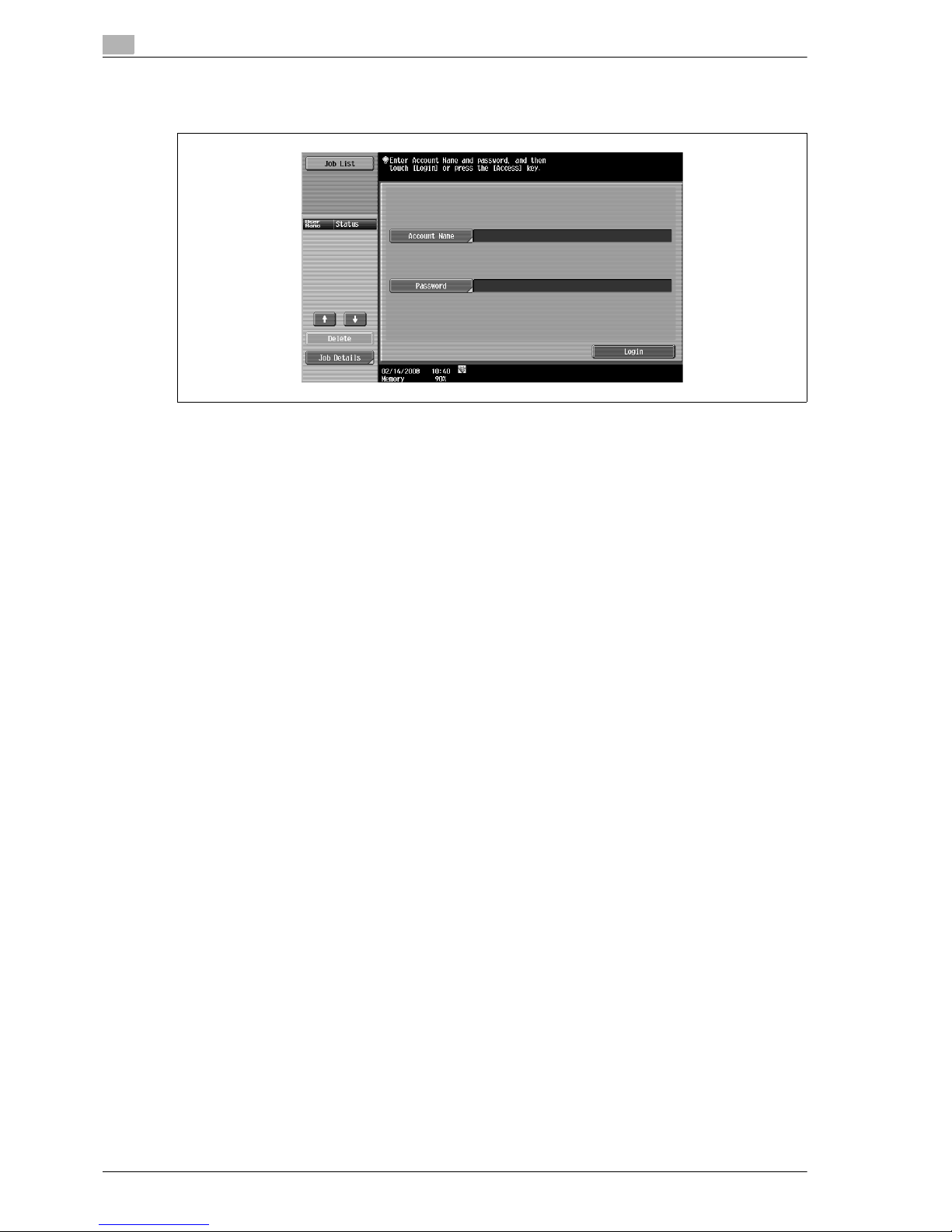
2
Before using Network Scan/Fax/Network Fax functions
2-6 VL3622/VL4222/VL5022
Account track
% Enter the account name and password, and then touch [Login] or press the [Access] key.
!
Detail
If "Prohibit Functions When Auth. Error" in Administrator mode is set to "Mode 2" and a user enters an
incorrect password the specified number of times, that user is locked out and can no longer use the
machine. Contact the administrator to cancel operation restrictions.
Page 31
VL3622/VL4222/VL5022 2-7
Before using Network Scan/Fax/Network Fax functions
2
2.1.3 Limitation on file name
Document data to be saved can be named.
A name can contain a maximum of 30 characters.
The name can also be changed after it is saved.
The name can be specified when the data is saved; however, if the data is saved without a name specified,
a preset name is applied.
Preset names are created by combining the following elements.
As an example, the name "CKMBT_50107102315230" is used.
!
Detail
"S" appears for documents saved in the Fax/Scan mode screen or the User Box screen.
Item Description
C This letter indicates the mode when the document was saved.
C: Copy
S: Fax/Scan
P: Print
KMBT_501 This represents the name of the device that scanned the data. The factory default is
"KMBT_(product name)". This name can be changed with the "Device Name" parameter in the "Administrator/Machine Settings"-"Input Machine Address" in Administrator Settings. A name of up to 10 characters can be specified.
07102315230 This indicates the year (last two digits of A.D.), month, day, hour and minutes when the
data was scanned. The last digit is a serial number if the document is part of a series
of scans.
_0001 This indicates the page when multi-page data is scanned. This number does not ap-
pear in "File Name" indication; however, it is added automatically as part of the name
when the file is transmitted. Consider this when creating a file name so that it meets
the naming requirements of the server receiving the files, for example, when data is
sent by FTP.
.TIF This is the extension for the specified data format. This text does not appear in "File
Name"; however, it is added automatically as part of the name when the file is transmitted.
Page 32
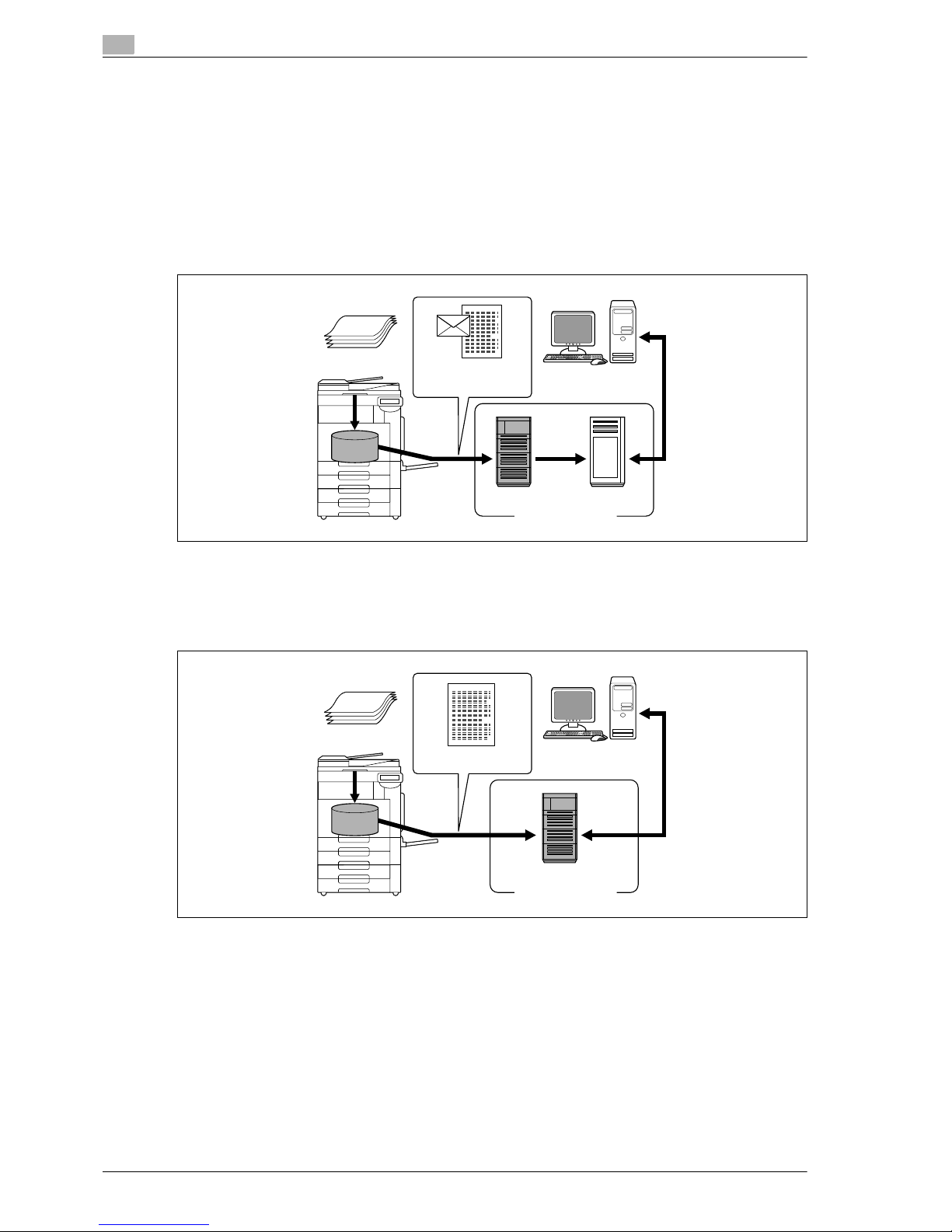
2
Before using Network Scan/Fax/Network Fax functions
2-8 VL3622/VL4222/VL5022
2.2 Overview
2.2.1 Available Network Scan functions
"Scanning" refers to the operation of reading images of an original fed through the ADF or placed on the
original glass. The Scan functions can be used to temporarily store the scan data on the internal memory of
the machine and transmit the data over the network.
Scan to E-Mail
Scanned data can be sent to a specified E-Mail address. Select the destinations from the touch panel of the
machine for sending the scanned data as an E-Mail attachment.
FTP TX
Scanned data can be uploaded to a specified FTP server. Enter the FTP server address, login password and
other information from the touch panel of this machine.
The data uploaded to the FTP server can be downloaded from a computer on the network.
E-Mail reception
POP serverSMTP server
Internet
E-Mail and scan data
Original
Machine
Memory
Original
Machine
Memory
Scan data
Download
FTP server
Internet
Page 33
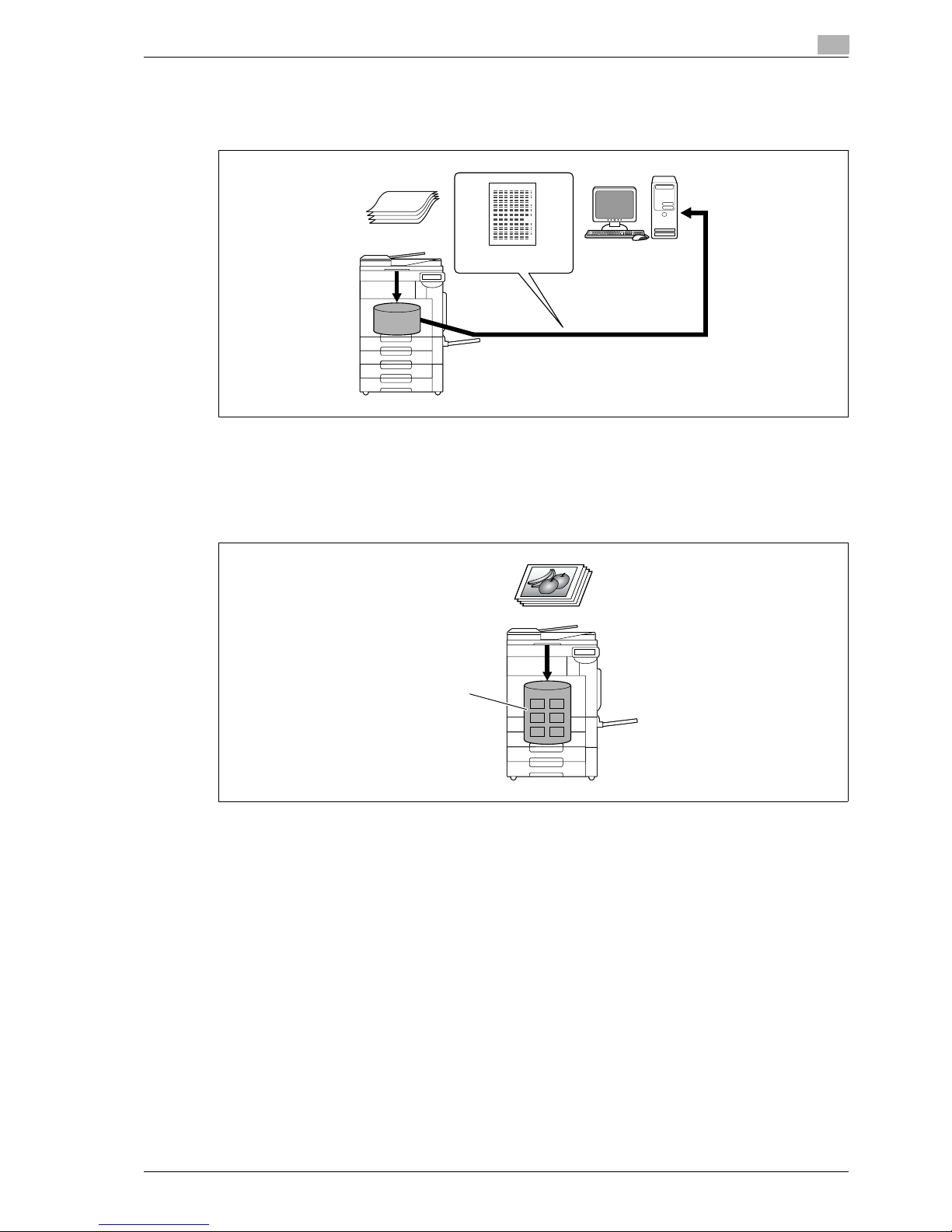
VL3622/VL4222/VL5022 2-9
Before using Network Scan/Fax/Network Fax functions
2
SMB TX
Scanned data can be sent to a shared folder on a specified computer. Enter the host name, file path and
other information from the touch panel of the machine.
Save in User Box
Scanned data can be saved in a user box created on the optional hard disk, allowing the data to be reused.
The file name can be entered from the touch panel of this machine when the data is saved.
Other data such as received fax data can also be stored in user boxes. For details, refer to the User manual
– Box Operations.
Save to a shared folder
Scan data
Original
Machine
Memory
Hard disk
Machine
Page 34

2
Before using Network Scan/Fax/Network Fax functions
2-10 VL3622/VL4222/VL5022
WebDAV TX
Scanned data can be uploaded to a specified server. Enter the server address, login password and other
information from the touch panel of the machine.
The data uploaded to the server can be downloaded from a computer on the network.
Web Service
If a driver is installed with the machine recognized by a computer on the network (Windows Vista), it is
possible to give a scan command from the computer or to perform scanning according to the purpose from
the machine and to send the scanned data to the computer.
Scan data
Download
Server
Internet
Original
Machine
Memory
Windows Vista
Scanning instruction
Original
Scan data
Page 35

VL3622/VL4222/VL5022 2-11
Before using Network Scan/Fax/Network Fax functions
2
2.2.2 Available Fax functions
G3 fax transmission/reception
This machine can send/receive G3 fax. Select the destinations from the touch panel of the machine for
broadcast the data. Also, you can add data using edit function available with the Scan function.
Polling
By sending a polling command, you can receive original data from other fax machines (polling RX). Also, you
can save original data to be transmitted upon receiving polling command from other fax machines (polling
TX). You can save data to either the Polling TX User Box or Bulletin Board User Box for polling TX.
Receiver Sender
SenderReceiver
Viewing
Bulletin board
Polling
Registering
Page 36

2
Before using Network Scan/Fax/Network Fax functions
2-12 VL3622/VL4222/VL5022
2.2.3 Available Network Fax functions
Internet Fax
The Internet Fax function sends and receives scanned originals as an attached file (TIFF format) via the
intranet (enterprise networks) or Internet. This communication via intranet or internet largely reduces the
communication cost as compared with general fax messages. Specify the destination E-Mail address to send
the E-Mail message.
IP Address Fax
This function enables fax transmission over an IP network. Specify the destination host name or IP address
to send a fax.
The differences between IP Address fax and G3 fax or Internet fax are as follows.
- The SMTP protocol is used for sending and receiving of the image data.
- Available only within an intranet (enterprise networks).
- Unlike Internet fax, no mail server is required.
POP
server
SMTP
server
Intranet/Internet
Internet
receiving
Original
E-Mail +
attached file
(TIFF format)
Transmitting a fax by specifying an IP address or host name of the destination.
Intranet
SMTP
Page 37

3
Control panel/touch panel
Page 38

Page 39
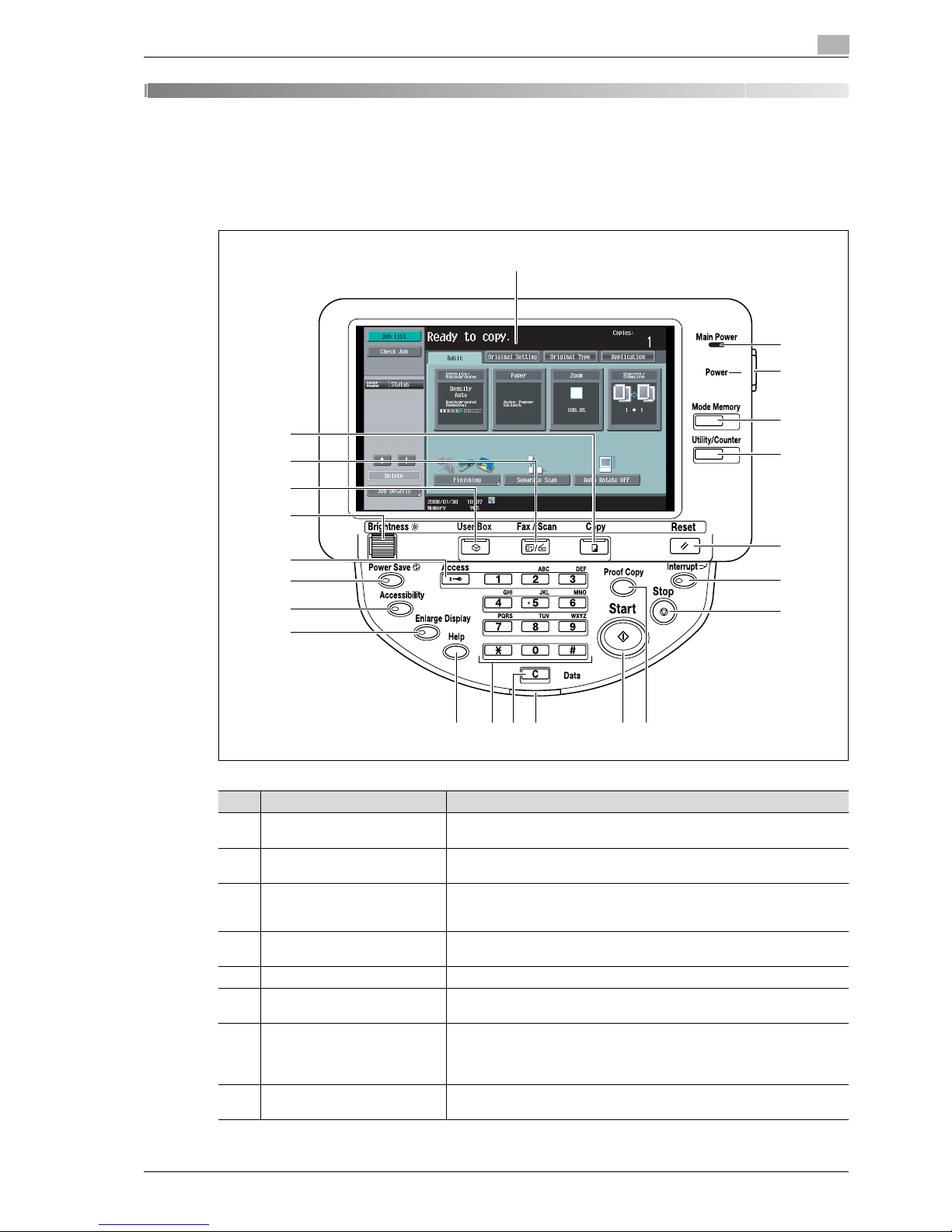
VL3622/VL4222/VL5022 3-3
Control panel/touch panel
3
3 Control panel/touch panel
3.1 Control panel
Use the control panel for fax/scan operation. The following describes the keys and switches provided on the
control panel.
22
21
20
19
18
17
16
15
2
3
4
5
6
7
8
14 13 12 11 10 9
1
No. Part name Description
1 Touch panel Displays various setting screens and messages. Specify the various set-
tings by directly touching the panel.
2 Main power indicator Lights up in green when the machine is turned on with the main power
switch.
3 [Power] (auxiliary power) key Press to turn on/off machine operations, for example, copying, printing or
scanning. When turned off, the machine enters a state where it conserves
energy.
4 [Mode Memory] key Press to register (store) a desired copy/scan setting mode or to recall the
registered copy/scan mode.
5 [Utility/Counter] key Press to display the Utility mode and the Meter Count screen.
6 [Reset] key Press to clear all settings (except registered settings) entered in the control
panel and touch panel.
7 [Interrupt] key Press to enter the Interrupt mode. While the machine is in the Interrupt
mode, the indicator on the [Interrupt] key lights up in green and the message "Now in Interrupt mode." appears on the touch panel. To cancel the
Interrupt mode, press the [Interrupt] key again.
8 [Stop] key Pressing the [Stop] key during scanning temporarily stops the scan oper-
ation.
Page 40
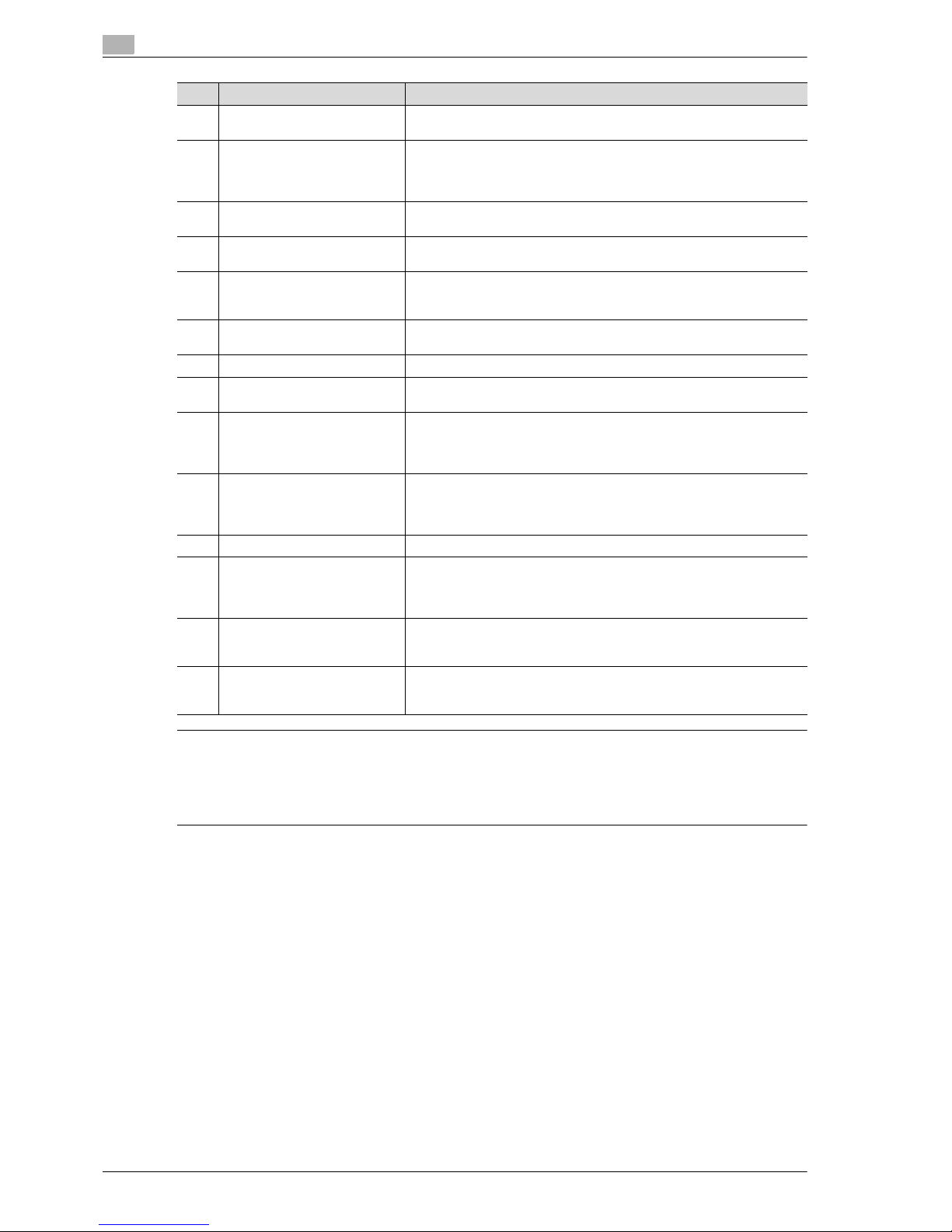
3
Control panel/touch panel
3-4 VL3622/VL4222/VL5022
7 CAUTION
Do not apply extreme pressure to the touch panel, otherwise it may be scratched or damaged.
% Never push down on the touch panel with force, and never use a hard or pointed object to make a
selection on the touch panel.
9 [Proof Copy] key Press to print a single proof copy to be checked before printing a large
number of copies.
10 [Start] key Press to start scanning. When the machine is ready to start scanning, the
indicator on the [Start] key lights up in blue. If the indicator on the [Start]
key lights up in orange, scanning cannot be started.
Press to restart a stopped job.
11 Data indicator Flashes in blue while a print job is being received.
Lights up in blue when data is being printed.
12 [C] key Press to erase a value (such as the number of copies, a zoom ratio, or a
size) entered using the keypad.
13 Keypad Use to enter the number of copies to be printed.
Use to enter the zoom ratio.
Use to enter the various settings.
14 [Help] key Press to display the Help screen. The Help screen can display description
and operating procedure of each function.
15 [Enlarge Display] key Press to enter Enlarge Display mode.
16 [Accessibility] key Press to display the screen for specifying settings for user accessibility
functions.
17 [Power Save] key Press to enter Power Save mode. While the machine is in Power Save
mode, the indicator on the [Power Save] key lights up in green and the
touch panel goes off. To cancel Power Save mode, press the [Power Save]
key again.
18 [Access] key In order to use this machine while the user authentication or account track
settings are applied, enter the user name and password (for user authentication) or the account name and password (for account track), and then
press this key. Also press this key to log off.
19 [Brightness] dial Use to adjust the brightness (contrast) of the touch panel.
20 [User Box] key Press to enter User Box mode.
While the machine is in User Box mode, the indicator on the [User Box] key
lights up in green. For details on the box function, refer to the User manual
– Box Operations.
21 [Fax/Scan] key Press to enter Fax/Scan mode.
While the machine is in Fax/Scan mode, the indicator on the [Fax/Scan]
key lights up in green.
22 [Copy] key Press to enter Copy mode. (As a default, the machine is in Copy mode.)
While the machine is in Copy mode, the indicator on the [Copy] key lights
up in green. For details, refer to the User manual – Copy Operations.
No. Part name Description
Page 41
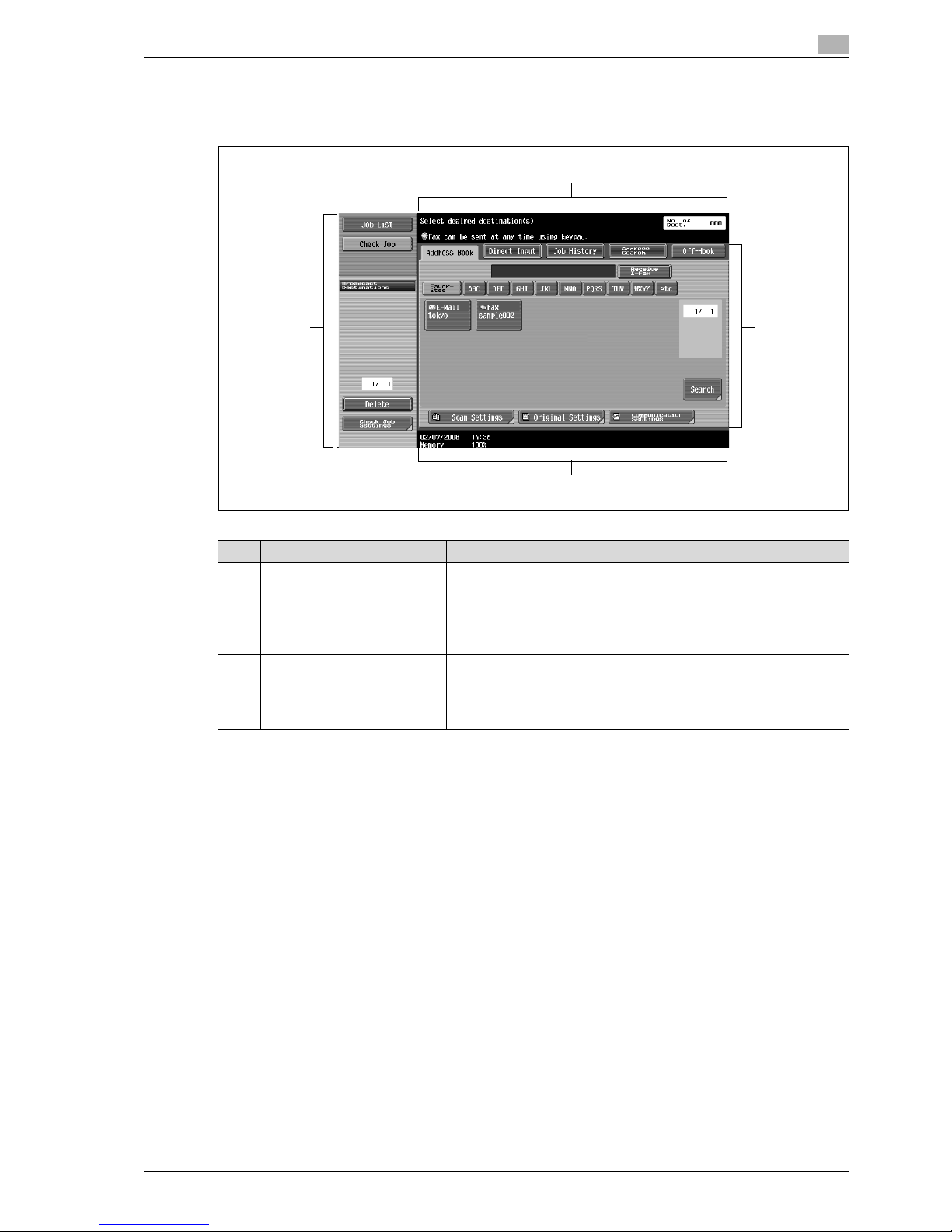
VL3622/VL4222/VL5022 3-5
Control panel/touch panel
3
3.2 Touch panel
3.2.1 Screen layout
1
2
3
4
No. Part name Description
1 Message display area Displays the status of the machine and details on operations.
2 Functions/settings display area Displays softkeys to select functions. This area is for specifying the set-
tings of various functions. Touch softkeys to display the corresponding
screen for specifying the settings.
3 Icon display area Displays icons indicating the status of jobs and the machine.
4 Left pane The softkeys, such as [Job List] showing the jobs being processed or to
be processed, and [Check Job] showing the result of the specified settings, appear in this area.
For details on the left pane, refer to "Display and operation of the left panel" on page 3-8.
Page 42

3
Control panel/touch panel
3-6 VL3622/VL4222/VL5022
Icons on the touch panel
The status of the machine may appear in the icon display area. The following are the icons that appear on the
touch panel.
Icon Description
Indicates that data is being sent from the machine, regardless of the current mode.
Indicates that data is being received by the machine, regardless of the current mode.
If the warning screen was closed when a warning occurred, touch this button to display the warning screen again.
Appears when there is a message indicating that consumables must be replaced or
the machine requires maintenance. Touch this icon to display the message, and then
perform the replacement or maintenance procedure.
Appears when an error occurs with the connection to the POP server.
Indicates that paper is not loaded in the paper tray.
Indicates that very little paper remains in the paper tray.
Indicates that Enhanced Security mode is set to ON.
Indicates that an external memory is installed.
Page 43

VL3622/VL4222/VL5022 3-7
Control panel/touch panel
3
3.2.2 Display with/without optional settings
Items appear in the screen vary depending on with or without optional fax kit installed to the machine.
Without fax kit
No fax address or fax menu appears.
With fax kit
The Job History tab appears to enable selection from destinations in the transmission history. Also, the OffHook tab appears, enabling dialing in off-hook mode. Also you can specify the fax transmission settings in
the Direct Input tab and [Communication Settings].
Page 44
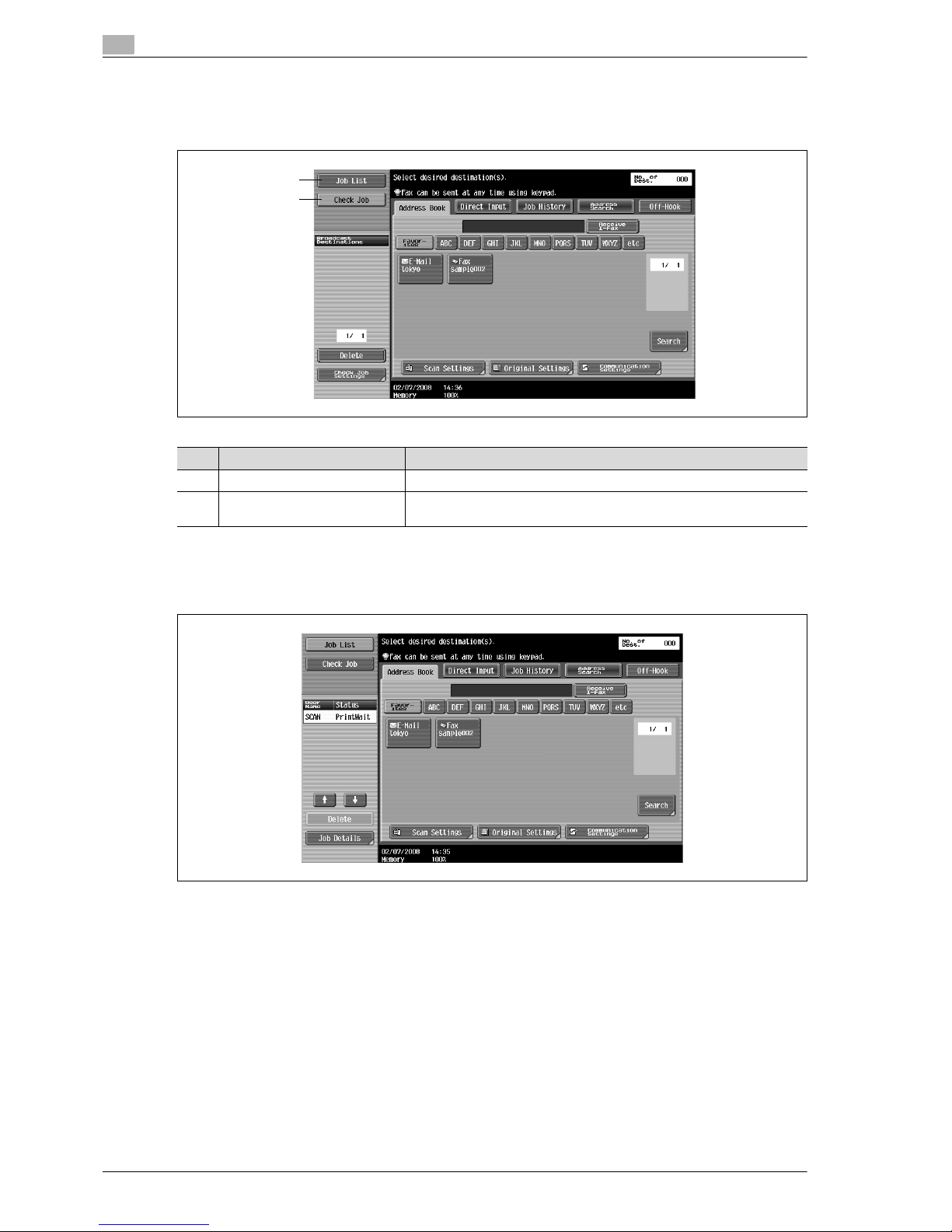
3
Control panel/touch panel
3-8 VL3622/VL4222/VL5022
3.2.3 Display and operation of the left panel
In the left pane of the touch panel, the keys to check the job status and settings appear. The following are
the keys that appear in the left panel in Fax/Scan mode.
Job List
Queued operation, such as saving document data to a user box or printing/sending documents, is called a
job. Touch [Job List] to display the jobs being processed.
1
2
No. Part name Description
1 [Job List] Jobs that are being processed and the job history can be checked.
2 [Check Job] Information on the selected user box, scan, printing and transmission set-
tings of documents can be checked.
Page 45

VL3622/VL4222/VL5022 3-9
Control panel/touch panel
3
Job List - Delete
A job being processed can be cancelled by deleting it from the list. Select the job from the job list, and then
touch [Delete]. Check the message that appears, and then delete the job.
Job List - Job Details
Touch [Job Details], and a history list appears in the right area, along with a list of jobs being processed.
Check job details as necessary. Jobs are classified into the following four categories:
Item Description
[Print] Lists print jobs for copying, printing from a computer, and printing received faxes.
[Send] Lists fax and scanner transmission jobs.
[Receive] Lists fax reception jobs.
[Save] Lists jobs for saving documents in user boxes.
Page 46

3
Control panel/touch panel
3-10 VL3622/VL4222/VL5022
Current Jobs in the Print page
!
Detail
If user authentication settings have been applied, the document name cannot be viewed by other users.
Document names do not appear on the screen for secured documents.
If Change Job Priority in Administrator settings is set to "Restrict", the print job priority control is not
available.
If interruption is enabled in Change Job Priority setting, touching this softkey interrupts the printing job
to print another job with the higher priority. The interrupted job is automatically printed once the
interrupting job is finished.
Job History in the Print page
!
Detail
If user authentication settings have been applied, the document name cannot be viewed by other users.
Document names do not appear on the screen for secured documents.
Item Description
List items No.: Job identification number assigned when the job is queued.
User Name: User or account name who queued the job.
Status: Job status (Receiving, PrintWait, Printing, StopPrint, Print Err, Job Stored)
Document Name: File name to be printed.
Time Stored: Time when the job is queued.
Org.: Number of originals.
Copies: The number of copies to be printed.
Touch to switch pages when there are more jobs than seven that can be
displayed at one time.
[Delete] Deletes the selected job.
[Increase Priority] Allows to change printing job priority.
[Release Held Job] Allows to change settings of a stored job, or print or delete the job.
[Check Job Set.] Allows to view the settings of the selected job. Touch either [ Back] or
[Forward ] to check the settings.
[Detail] Allows to check the job status, user name, document name, output tray, queued
time, number of original pages, and number of copies to be printed. Touch [Delete]
to delete the job.
Item Description
List items No.: Job identification number assigned when the job is queued.
User Name: User or account name who queued the job.
Document Name: File name to be printed.
Time Stored: Time when the job is queued.
Org.: Number of originals.
Copies: The number of copies to be printed.
Result: Result of a job (Job Complete, Deleted Due To Error, Deleted by User, Reset
Modes).
Touch to switch pages when there are more jobs than seven that can be
displayed at one time.
[Deleted Jobs]/[Finished
Jobs]/[Active Jobs]
Touch the softkey to display each category of job.
[Detail] Displays the results of the job, error details, user name, document name, output tray,
queued time, number of original pages, and number of copies to be printed.
Page 47
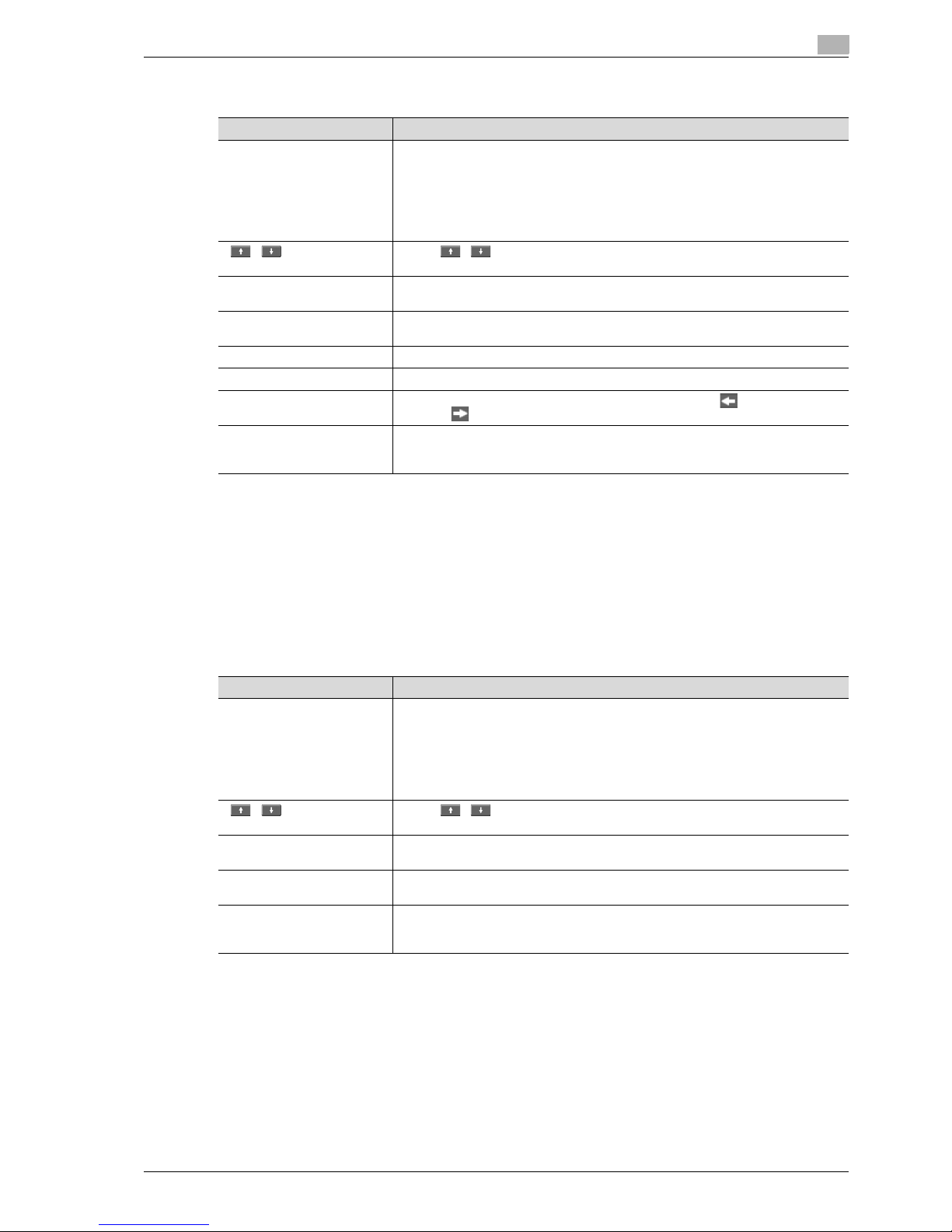
VL3622/VL4222/VL5022 3-11
Control panel/touch panel
3
Current Jobs in Send page
!
Detail
If user authentication settings have been applied, the document name cannot be viewed by other users.
Document names do not appear on the screen for secured documents.
The external server information in [Detail] is available only if the external server authentication is applied.
"TWAIN" is indicated for jobs sent by the Web service.
Job History in the Send page
!
Detail
If user authentication settings have been applied, the document name cannot be viewed by other users.
Document names do not appear on the screen for secured documents.
The external server information in [Detail] is available only if the external server authentication is applied.
"TWAIN" is indicated for jobs sent by the Web service.
Item Description
List items No.: Job identification number assigned when the job is queued.
Address type: Type of the destination (fax, E-Mail, FTP, PC (SMB), WebDAV, TWAIN,
others).
Status: Job status (Transferring, Waiting, Dialing, Waiting To Redial)
Destination: Fax number, E-Mail address and user box name of the recipient.
Time Stored: Time when the job is queued.
Org.: Number of originals.
Touch to switch pages when there are more jobs than seven that can be
displayed at one time.
[Timer TX Job] Displays the status of the reserved transmission in the memory. Touch [Delete] to de-
lete the job.
[L1] [L2] These softkeys appear if the optional fax multi line has been installed. Displays the
list of the selected line.
[Delete] Deletes the selected job.
[Redial] Select the job marked "Waiting To Redial" status for redialing.
[Check Job Set.] Allows to view the settings of the selected job. Touch either [ Back] or
[Forward ] to check the settings.
[Detail] Displays the job status, user name, document name, destination type, destination,
queued time, transmission time, number of original pages, and external server information. Touch [Delete] to delete the job.
Item Description
List items No.: Job identification number assigned when the job is queued.
Address type: Type of the destination (fax, E-Mail, FTP, PC (SMB), WebDAV, TWAIN,
others).
Destination: Fax number, E-Mail address and user box name of the recipient.
Time Stored: Time when the job is queued.
Org.: Number of originals.
Result: Result of a job (Job Complete/Deleted Due To Error/Deleted by User).
Touch to switch pages when there are more jobs than seven that can be
displayed at one time.
[Deleted Jobs]/[Finished
Jobs]/[All Jobs]
Touch the softkey to display each category of job.
[Comm. List] Displays the Scan list, Fax TX list, and Fax RX list. At each list screen, the activity re-
port, TX report, and RX report can be printed.
[Detail] Displays the job results, error details, user name, document name, destination type,
queued time, transmission time, number of original pages, and external server information.
Page 48

3
Control panel/touch panel
3-12 VL3622/VL4222/VL5022
Current Jobs in the Receive page
!
Detail
If user authentication settings have been applied, the document name cannot be viewed by other users.
Document names do not appear on the screen for secured documents.
Job History in the Receive page
!
Detail
If user authentication settings have been applied, the document name cannot be viewed by other users.
Document names do not appear on the screen for secured documents.
Item Description
List items No.: Job identification number assigned when the job is queued.
User Name: User or account name who queued the job.
Status: Job status (Receiving, Dialing (only with polling reception), Print Wait, Printing, StopPrint, Print Err, Saving to Memory)
Document name: Displays the name of the received or saved document.
Time Stored: Time when the job is queued.
No. of Originals: The number or original pages received.
Touch to switch pages when there are more jobs than seven that can be
displayed at one time.
[Delete] Deletes the selected job.
[Redial] Select the job marked "Waiting To Redial" status for redialing.
[Forward] Forwards the fax which has been received and stored in the memory. Specify the re-
cipient either by selecting from the address book or by entering them directly.
[Detail] Displays the job status, user name, document name, output tray, queued time, trans-
mission time, and number of original pages. Touch [Delete] to delete the job.
Item Description
List items No.: Job identification number assigned when the job is queued.
User Name: User or account name who queued the job.
Document name: Displays the name of the received or saved document.
Time Stored: Time when the job is queued.
Org.: Number of originals.
Result: Result of a job (Job Complete/Deleted Due To Error/Deleted by User/Reset
Modes).
Touch to switch pages when there are more jobs than seven that can be
displayed at one time.
[Deleted Jobs]/[Finished
Jobs]/[All Jobs]
Touch the softkey to display each category of job.
[Comm. List] Displays the Scan list, Fax TX list, and Fax RX list. At each list screen, the activity re-
port, TX report, and RX report can be printed.
[Detail] Displays the results of the job, error details, user name, document name, output tray,
queued time, transmission time, and number of original pages.
Page 49

VL3622/VL4222/VL5022 3-13
Control panel/touch panel
3
Current Jobs in the Save page
!
Detail
If user authentication settings have been applied, the document name cannot be viewed by other users.
Document names do not appear on the screen for secured documents.
Job History in the Save page
!
Detail
If user authentication settings have been applied, the document name cannot be viewed by other users.
Document names do not appear on the screen for secured documents.
Check Job - Check Job Settings
When touch [Check Job], [Check Job Settings] appears.
Touch [Check Job Settings] to check the following settings:
- Destination Settings
- Scan Settings
- Original Settings
- Communication Settings
- Check E-Mail Settings
Item Description
List items No.: Job identification number assigned when the job is queued.
User Name: User or account name who queued the job.
Status: Job status (Receiving, Saving to Memory).
Document Name: Displays the name of the saved document.
Time Stored: Time when the job is queued.
Org.: Number of originals.
Touch to switch pages when there are more jobs than seven that can be
displayed at one time.
[Delete] Deletes the selected job.
[Detail] Displays the job status, user name, document name, user box, queued time, and
number of original pages. Touch [Delete] to delete the job.
Item Description
List items No.: Job identification number assigned when the job is queued.
User Name: User or account name who queued the job.
Document Name: Displays the name of the saved document.
Time Stored: Time when the job is queued.
Org.: Number of originals.
Result: Result of a job (Job Complete/Deleted Due To Error/Deleted by User/Reset
Modes).
Touch to switch pages when there are more jobs than seven that can be
displayed at one time.
[Deleted Jobs]/[Finished
Jobs]/[Active Jobs]
Touch the softkey to display each category of job.
[Communication List] Displays the Scan list, Fax TX list, and Fax RX list. At each list screen, the activity re-
port, TX report, and RX report can be printed.
[Detail] Displays the job result, error details, user name, document name, user box queued
time, and number of original pages.
Page 50
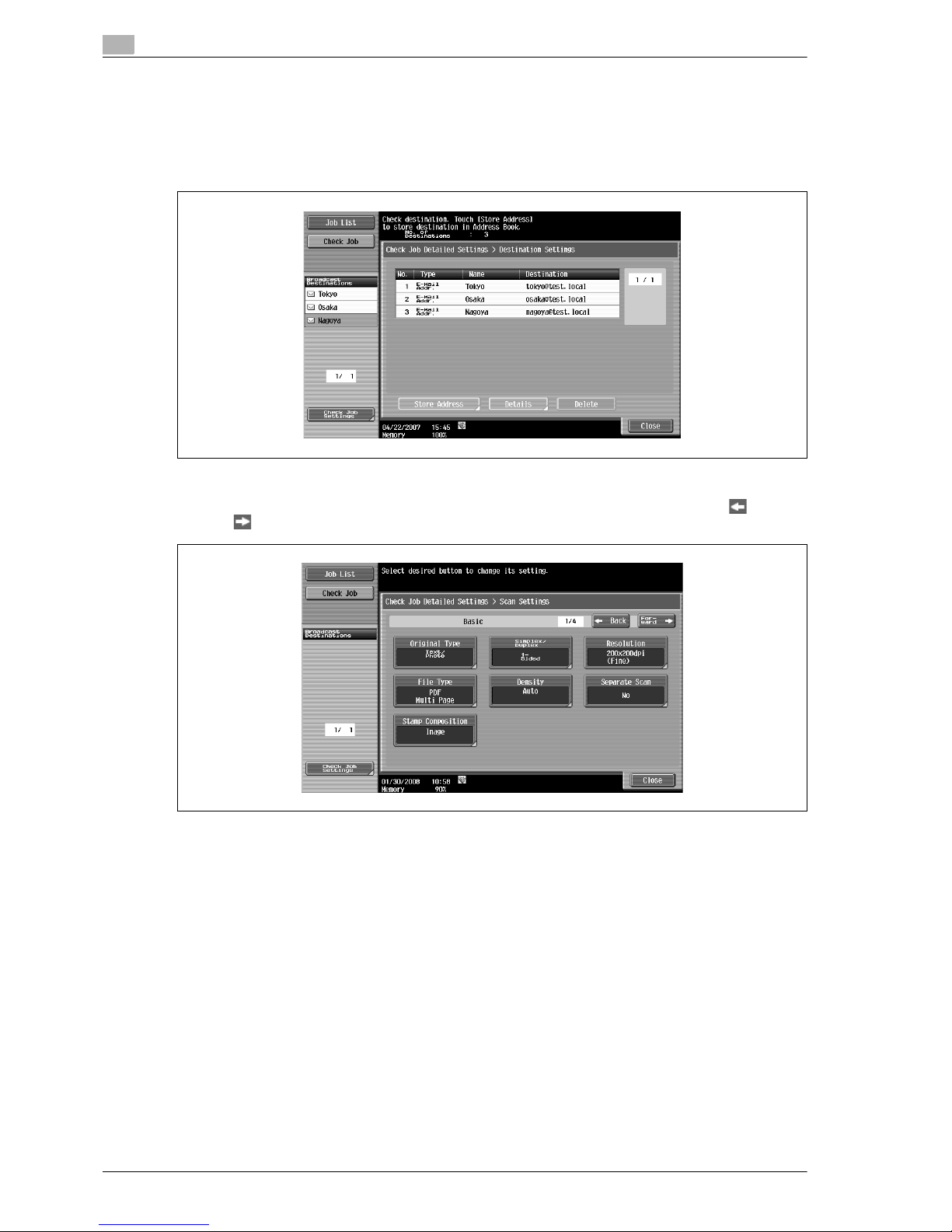
3
Control panel/touch panel
3-14 VL3622/VL4222/VL5022
Check Job - Check Job Settings - Destination Settings
This screen displays the list of registered destinations.
- To add a destination to the list, touch [Store Address].
- To view the details of the destination on the screen, select the destination, and then touch [Details].
- To delete a destination, select the destination, and then touch [Delete].
Check Job - Check Job Settings - Scan Settings
The basic scan setting, scan settings, and application settings can be checked. Touch either [ Back] or
[Forward ] to check the settings.
Page 51
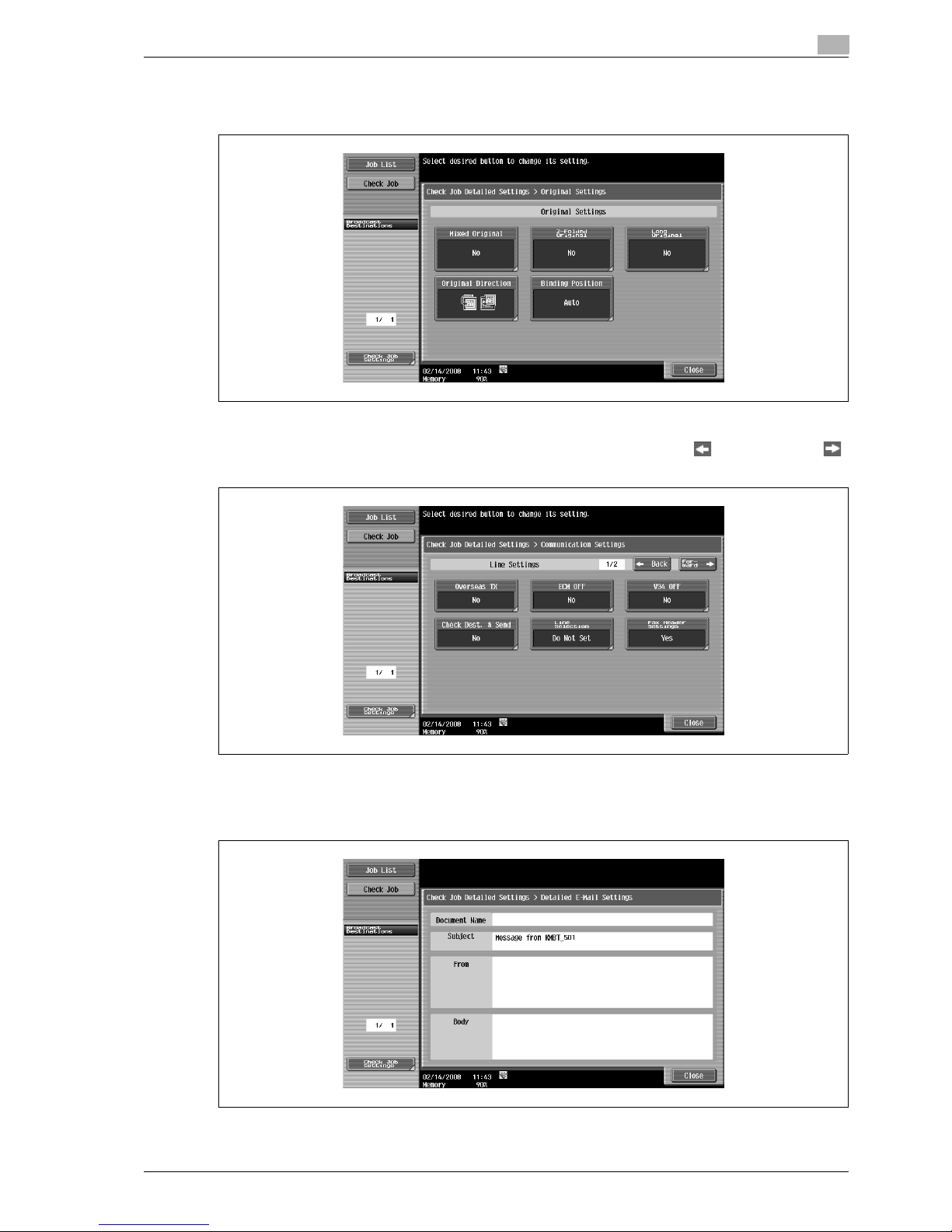
VL3622/VL4222/VL5022 3-15
Control panel/touch panel
3
Check Job - Check Job Settings - Original Settings
The original settings can be checked.
Check Job - Check Job Settings - Communication Settings
The line setting and transmission method settings can be checked. Touch either [ Back] or [Forward ]
to check the settings.
Check Job - Check Job Settings - Check E-Mail Settings
The document name, subject, From address and message body for sending E-Mail messages can be
checked.
Page 52

3
Control panel/touch panel
3-16 VL3622/VL4222/VL5022
Page 53

4
Registration of basic
information
Page 54

Page 55
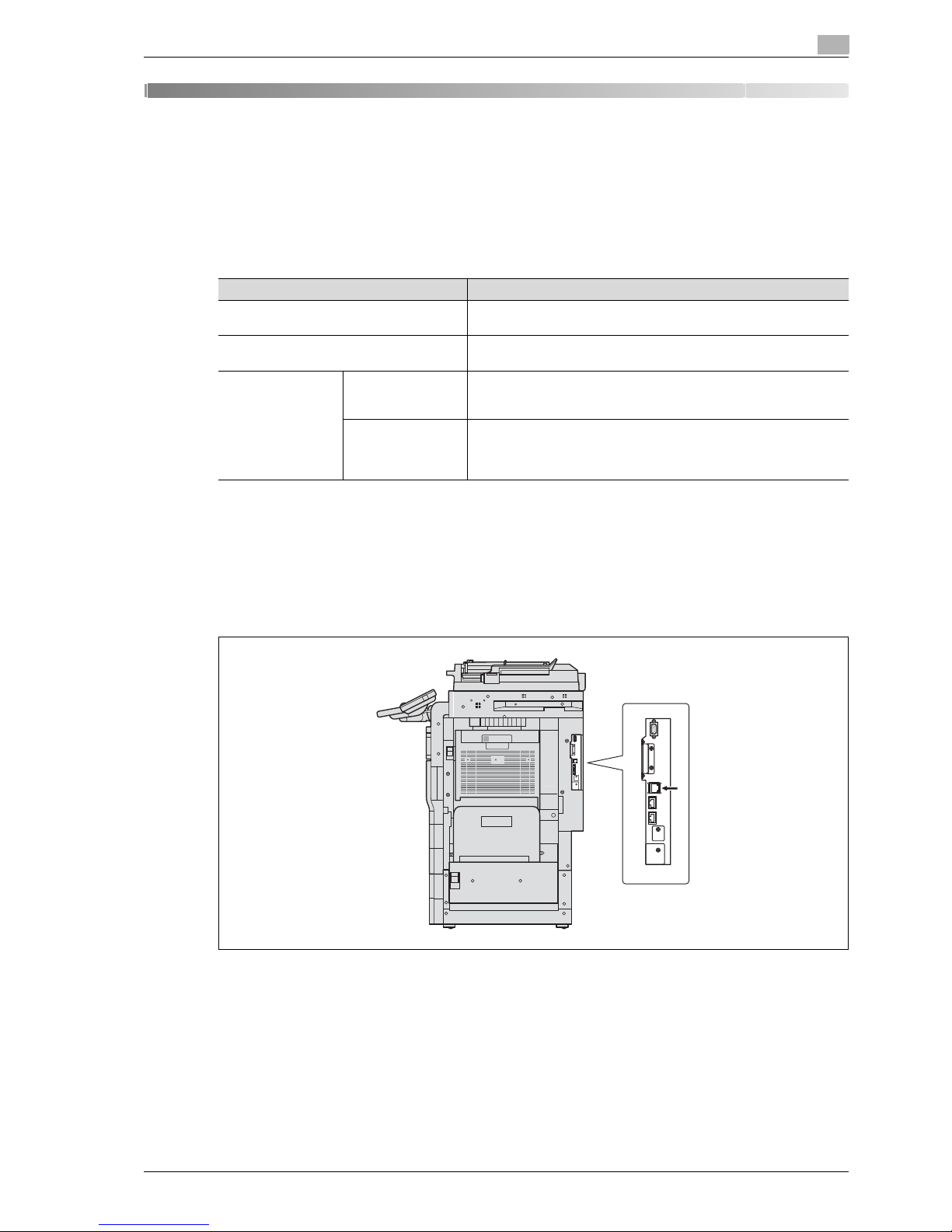
VL3622/VL4222/VL5022 4-3
Registration of basic information
4
4 Registration of basic information
4.1 To begin operation
When starting operation of the product for the first time, register the following.
4.1.1 Required environment and equipment
The following table shows environment and equipment required to enable respective functions.
4.1.2 Network connection and settings
To use the function to transmit image data via a network connection such as network scan and network fax
functions, connecting this machine to the network and settings for network use are required.
Network connection
Connect a UTP cable (category 5 or later recommended) from the network to the Ethernet connector on the
machine.
Network settings
Assign an IP address to the machine and complete settings for the SMTP server, etc. For details, refer to the
User manual – Network Administrator.
Description Environment and equipment
Network scan function • Network connection
• Network settings
G3 fax function • Installation of the fax kit (optional)
• Connecting a modular cable
Network fax function
Internet fax • Installation of the IC-207 (optional) and hard disk (optional)
• Network connection
• Network settings
IP address fax • Installation of the fax kit (optional), IC-207 (optional) and hard disk
(optional)
• Network connection
• Network settings
Page 56

4
Registration of basic information
4-4 VL3622/VL4222/VL5022
Specifying the E-Mail address of the machine
To send scanned data as an E-Mail message or to use the Internet fax function, register the E-Mail address
on the machine beforehand. This E-Mail address is used when sending and receiving data. Generally, it is
recommended that the E-Mail address registered for the administrator be used.
If the E-Mail address registered for the administrator is not specified, the E-Mail address of the sender must
be entered for each Scan to E-Mail operation. Scan to E-Mail operations are not possible without address
entry.
!
Detail
When user authentication is enabled, the E-Mail address specified for each user is used as the sender’s
address.
For details on specifying the E-Mail address of this machine, refer to the User manual – Network
Administrator.
4.1.3 Connecting a modular cable
When sending/receiving faxes via a phone line, modular cable connection is needed. To use the G3 fax
function, an optional fax kit must be installed. Also, to use two lines, the optional fax multi line must be
installed.
Connect a modular cable connected to the phone line to a specified connector. For the connector location
for cable connection, refer to the User manual – Copy Operations.
Page 57

VL3622/VL4222/VL5022 4-5
Registration of basic information
4
4.2 Address Registration
Register the destination (address) of scanned/faxed data. Use one of the following registration methods.
- Using the touch panel of the machine
- Using Web Connection from a computer on the network
4.2.1 Address Book
The following types of destination information can be registered in the Address Book. For details on
registering destinations in Address Book, refer to "One-Touch/User Box Registration" on page 9-7.
- E-Mail
- User Box
- Fax
- PC (SMB)
- FTP
- WebDAV
- IP Address Fax
- Internet Fax
!
Detail
Destinations in Address Book cannot be registered by Web service. Specify the destination by directly
entering the address.
4.2.2 Group
A set of addresses registered in the Address Book can be registered as a group. Group registration is useful
for sending a message to more than one address at the same time.
Page 58

4
Registration of basic information
4-6 VL3622/VL4222/VL5022
4.3 Optional settings
Depending on the use, additional settings are also available.
Fax/Scan programs
The destination and scan settings can be registered together as a single program. This is convenient for
frequently scanning documents and sending data under the same conditions. Use the touch panel of the
machine to specify the settings.
2
Note
For details, refer to "Scan/Fax Program" on page 9-32.
Setting display contents
Set the contents to be displayed when the [Fax/Scan] key is touched on the control panel.
2
Note
For details, refer to "Custom Display Settings - Scan/Fax Settings" on page 9-39.
Page 59

VL3622/VL4222/VL5022 4-7
Registration of basic information
4
4.4 Using Web services
It is possible to give a scan command from a computer (Windows Vista) on the network or to perform
scanning according to the purpose from the machine and to send the scanned data to the computer. This
section describes settings that should be specified on the computer in advance.
4.4.1 Settings required for using Web services
The following settings are required for using Web services:
- Install the driver of the machine on the computer.
- Specify settings for Web services on the machine.
!
Detail
Settings for Web services on this machine can be specified in the Administrator Settings screen. For
details, refer to the User manual – Network Administrator.
4.4.2 Installing the driver of this machine on the computer
Pre-installation checking
Before installation, check that "Network discovery" is enabled in [Network and Sharing Center] accessed
from [Control Panel].
Installation procedure
1 Click the [Start] button, and then select [Network].
Devices connected to the network are listed.
2 Right-click the scanner icon on the machine, and then select [Install].
– Depending on the settings on the computer, the UAC (User Account Control) dialog box may
appear. Check the contents, and then continue.
– The driver software is installed automatically. When the confirmation dialog box appears, click the
[Close] button.
3 On the control panel of the machine, select [Web Service] and check that the connection destination is
displayed.
Page 60

4
Registration of basic information
4-8 VL3622/VL4222/VL5022
Page 61

5
Transmitting data
Page 62

Page 63

VL3622/VL4222/VL5022 5-3
Transmitting data
5
5 Transmitting data
5.1 Operation flow
5.1.1 Scan/Network Fax
This section describes the flow of steps for sending scanned data and using Internet fax operations.
1 Press the [Fax/Scan] key.
2 Specify a recipient.
– On the Address Book tab (p. 5-24)
– On the Direct Input tab (p. 5-26)
Page 64
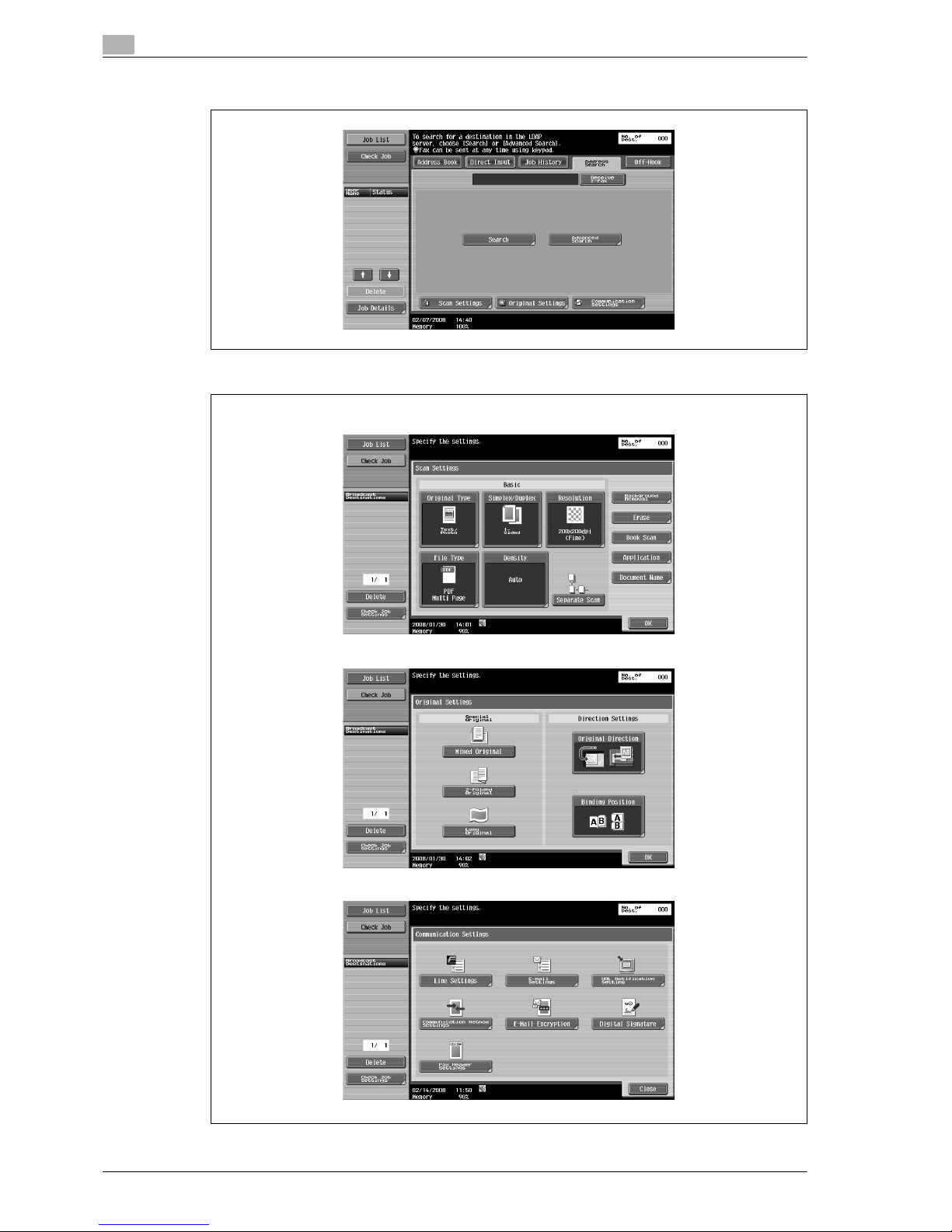
5
Transmitting data
5-4 VL3622/VL4222/VL5022
– On the Address Search tab (p. 5-34)
3 Specify scan settings (p. 5-37), original settings (p. 5-61), and communication settings (p. 5-63).
Scan Settings
Original Settings
Communication Settings
Page 65
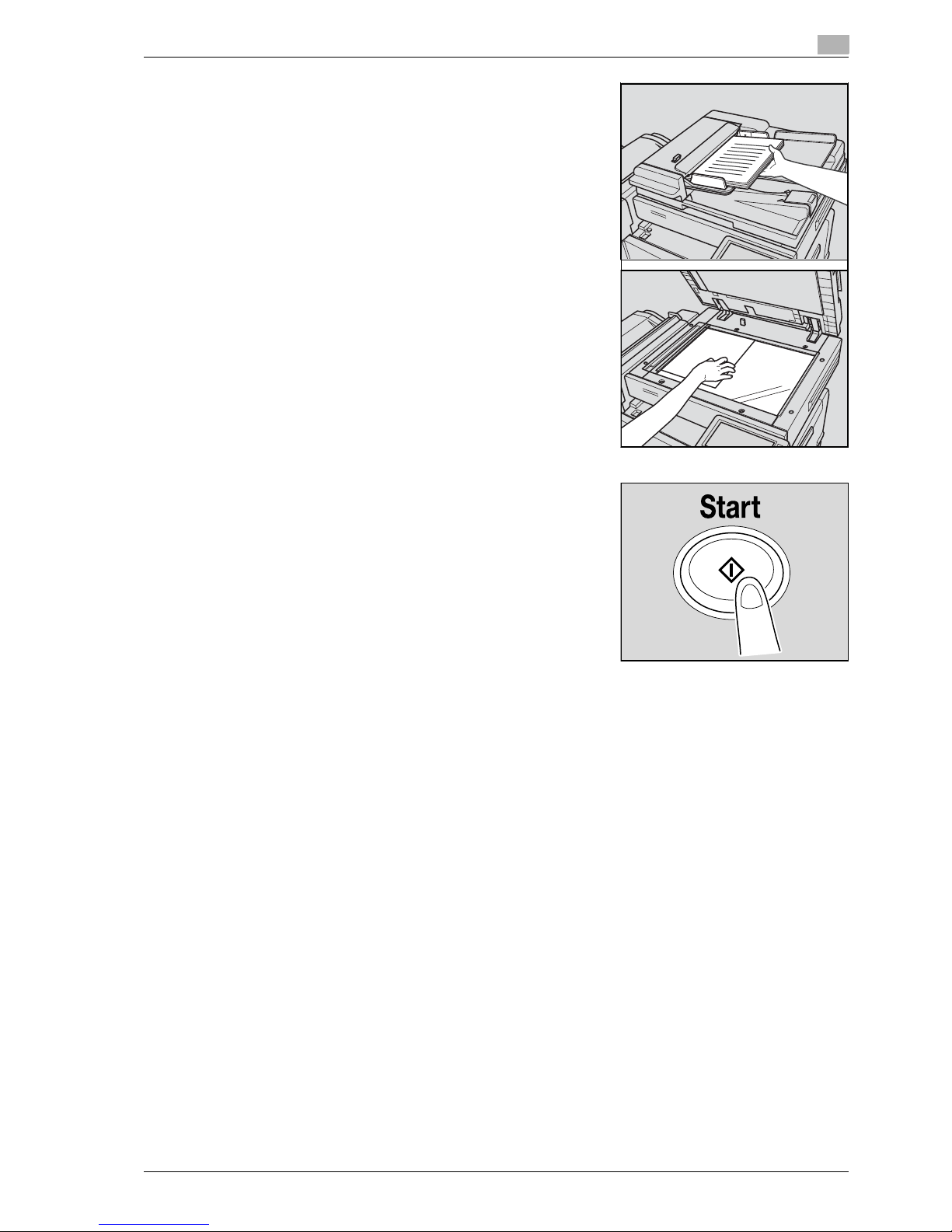
VL3622/VL4222/VL5022 5-5
Transmitting data
5
4 Position the original.
5 Press the [Start] key.
Page 66

5
Transmitting data
5-6 VL3622/VL4222/VL5022
5.1.2 Fax (G3)
This section describes the flow of steps for using G3 fax operations.
1 Press the [Fax/Scan] key.
2 Specify a recipient.
– On the Address Book tab (p. 5-24)
– On the Direct Input tab (p. 5-26)
Page 67
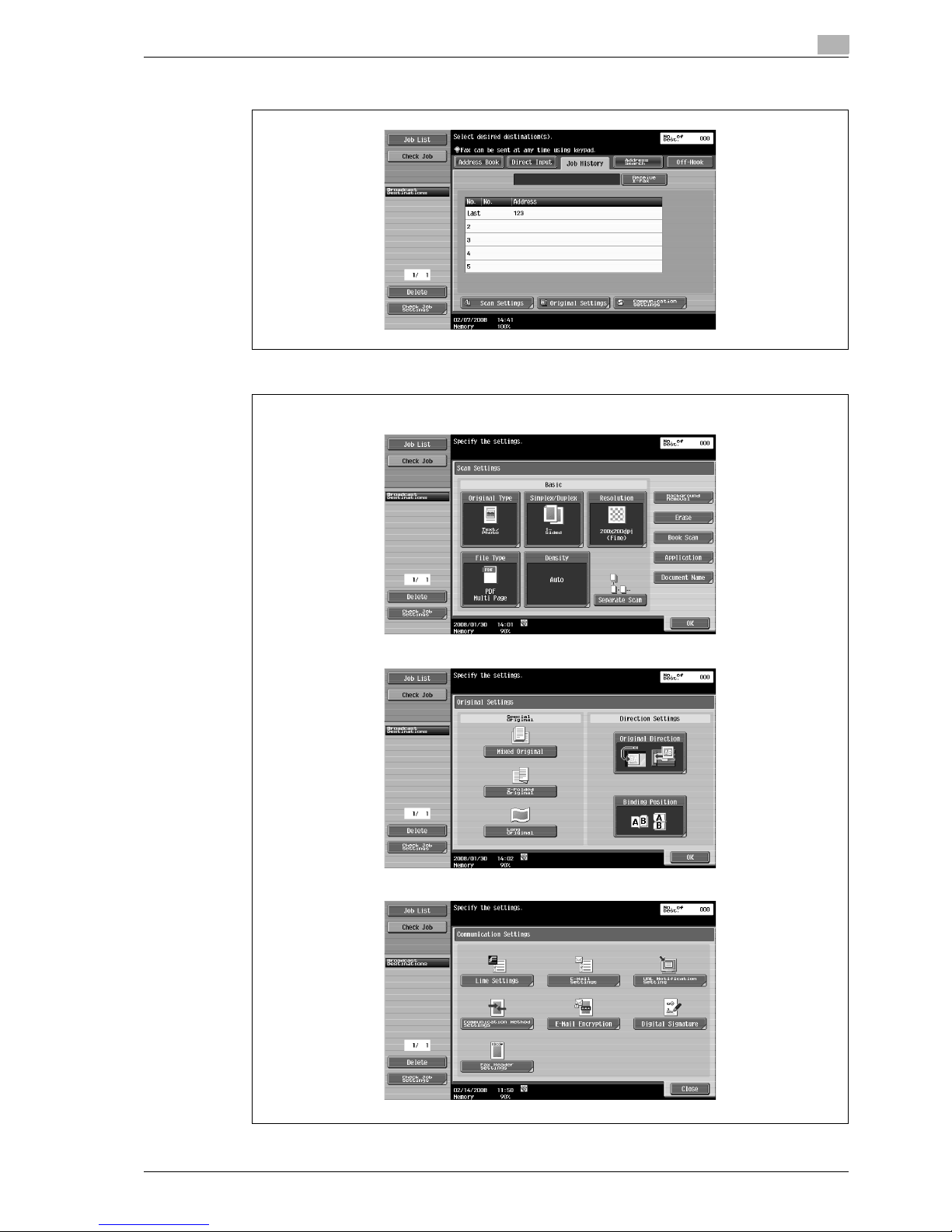
VL3622/VL4222/VL5022 5-7
Transmitting data
5
– On the Job History tab (p. 5-34)
3 Specify scan settings (p. 5-37), original settings (p. 5-61), and communication settings (p. 5-63).
Scan Settings
Original Settings
Communication Settings
Page 68
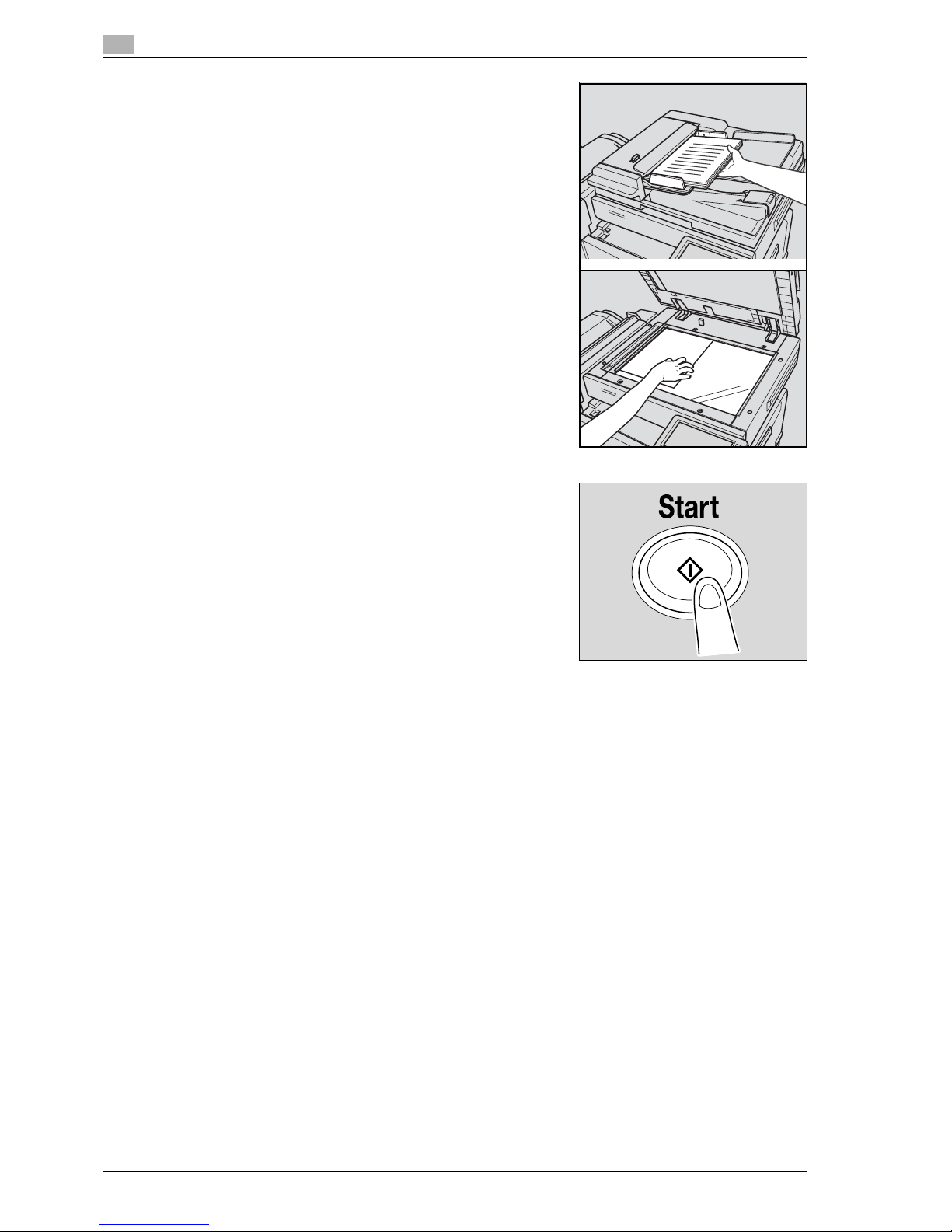
5
Transmitting data
5-8 VL3622/VL4222/VL5022
4 Position the original.
5 Press the [Start] key.
Page 69
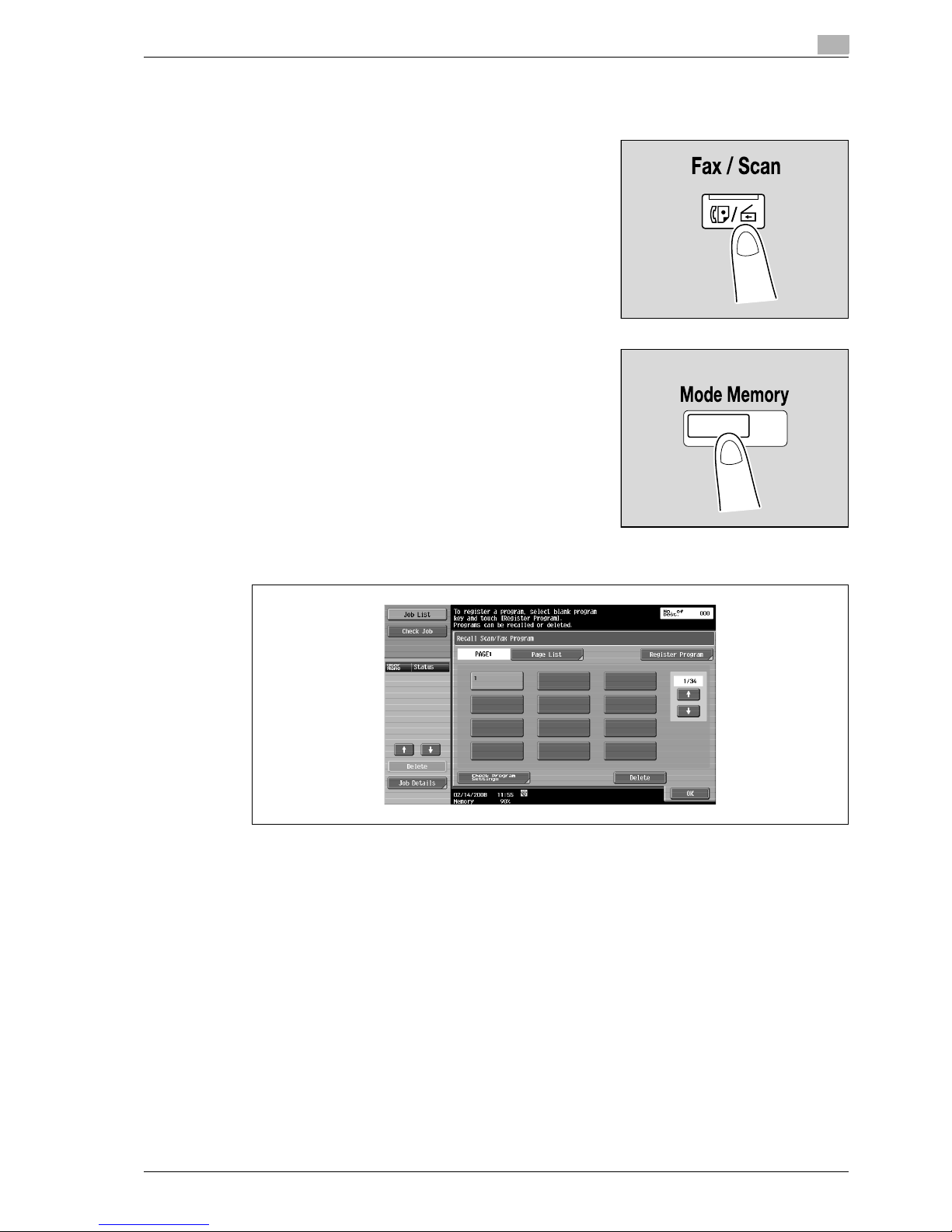
VL3622/VL4222/VL5022 5-9
Transmitting data
5
5.1.3 Recalling a program
This section describes the flow of steps for recalling a registered fax/scan program.
1 Press the [Fax/Scan] key.
2 Press the [Mode Memory] key.
3 Select a program, and then touch [OK].
Page 70

5
Transmitting data
5-10 VL3622/VL4222/VL5022
4 Specify scan settings (p. 5-37), original settings (p. 5-61), and communication settings (p. 5-63).
Scan Settings
Original Settings
Communication Settings
Page 71
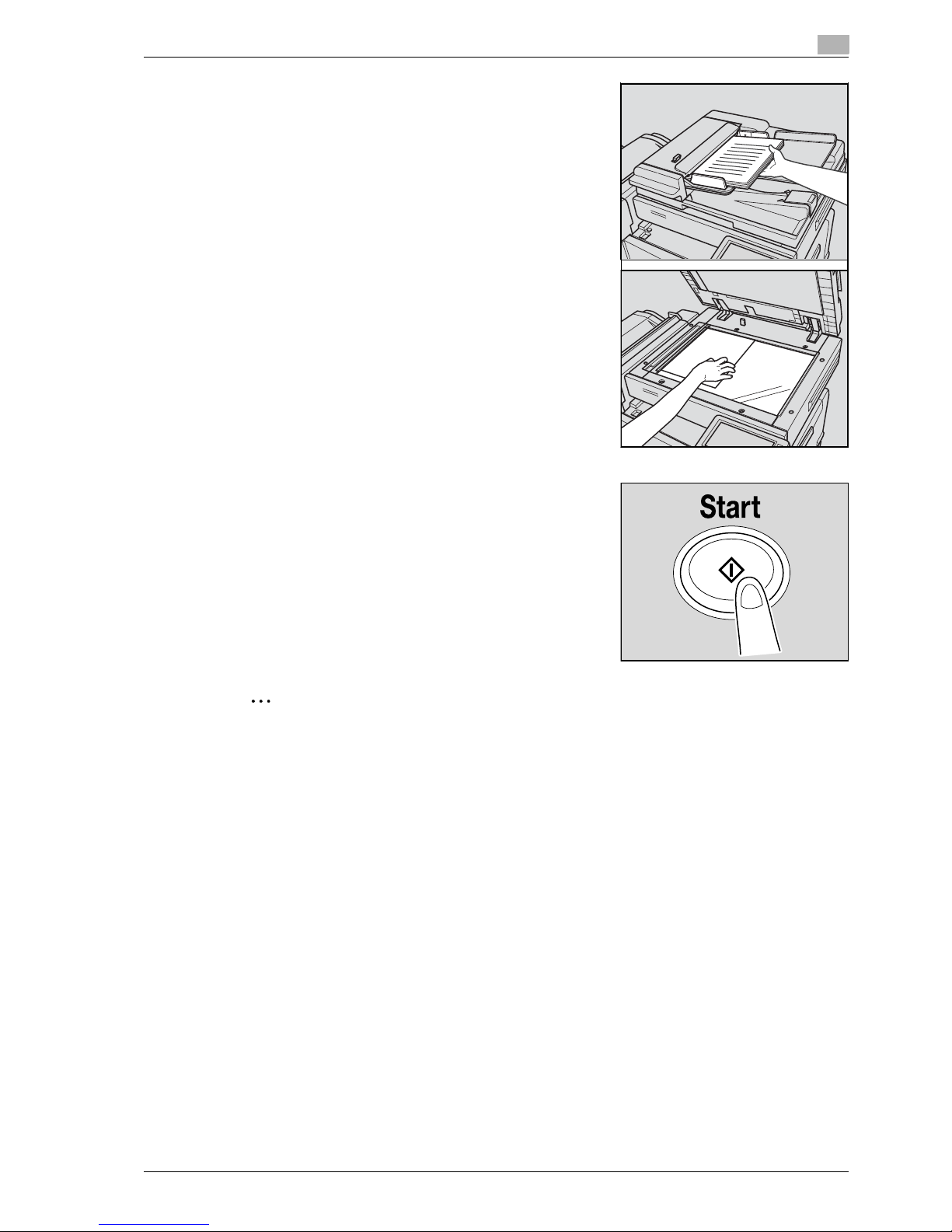
VL3622/VL4222/VL5022 5-11
Transmitting data
5
5 Position the original.
6 Press the [Start] key.
2
Note
For details and the procedure of program registration, refer to "Register Scan/Fax Program" on
page 9-32.
Page 72

5
Transmitting data
5-12 VL3622/VL4222/VL5022
5.1.4 Broadcasting
This section describes the procedure for transmitting data to multiple recipients at the same time.
1 Press the [Fax/Scan] key.
2 Specify two or more recipients.
– On the Address Book tab (p. 5-24)
– On the Direct Input tab (p. 5-26)
Page 73

VL3622/VL4222/VL5022 5-13
Transmitting data
5
– On the Job History tab (p. 5-33)
– On the Address Search tab (p. 5-34)
Page 74
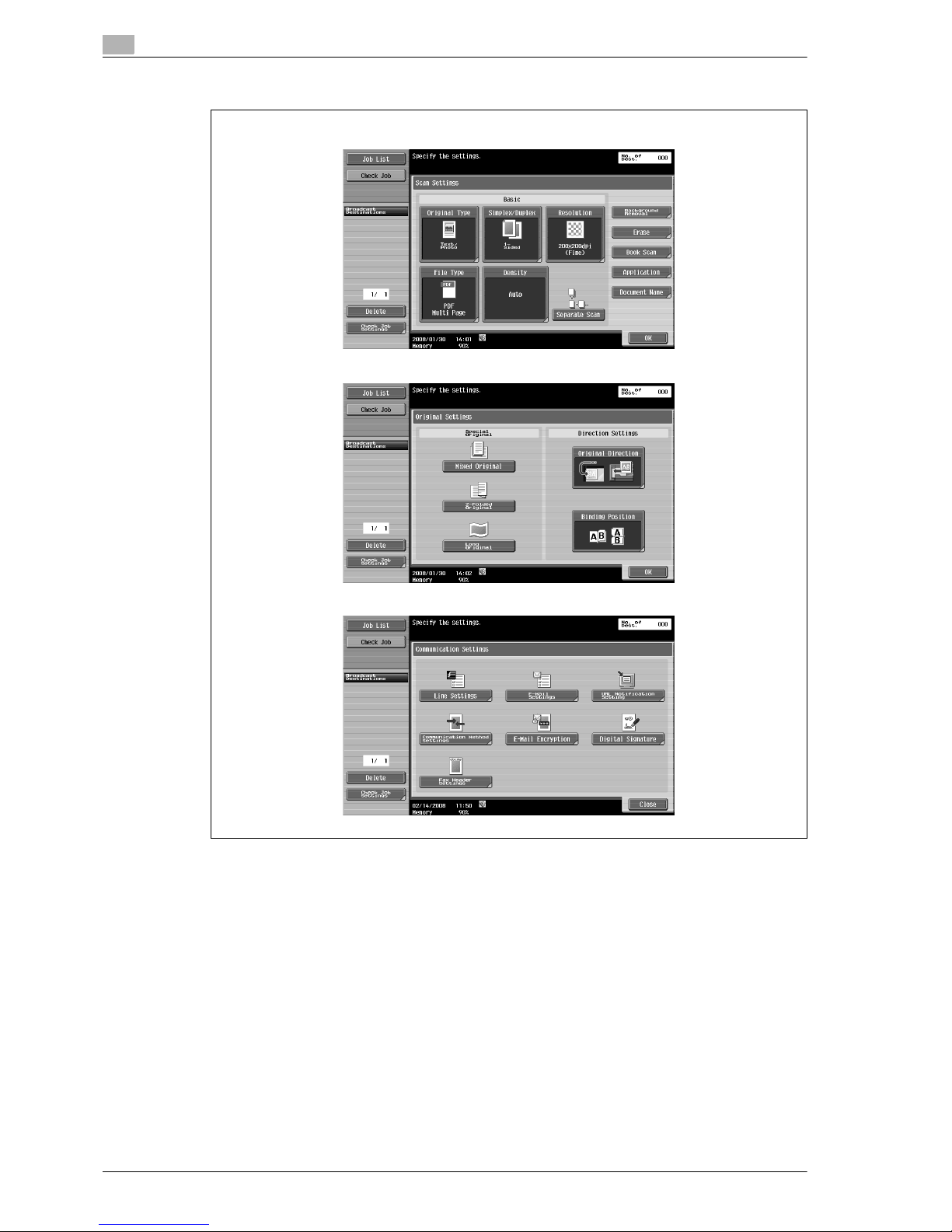
5
Transmitting data
5-14 VL3622/VL4222/VL5022
3 Specify scan settings (p. 5-37), original settings (p. 5-61), and communication settings (p. 5-63).
Scan Settings
Original Settings
Communication Settings
Page 75
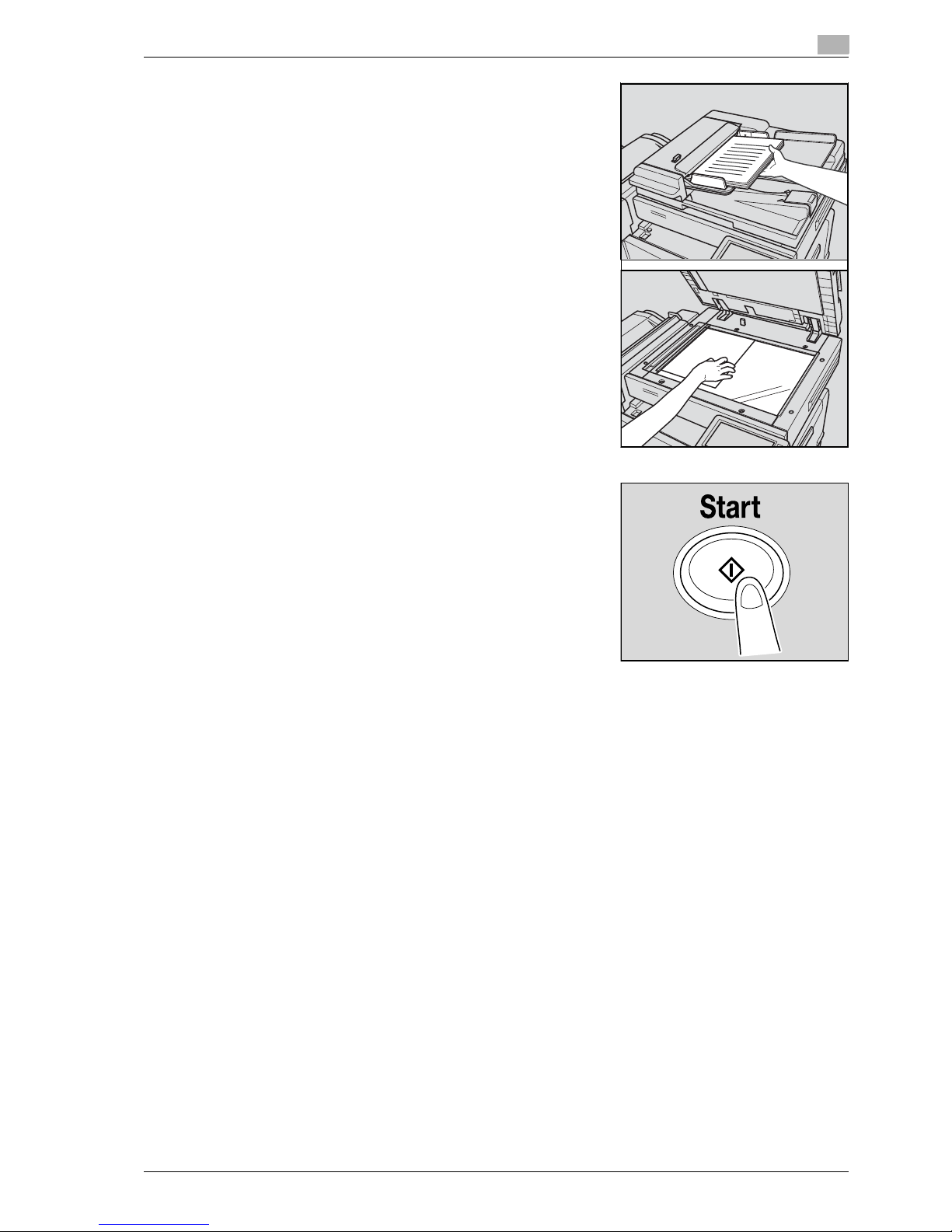
VL3622/VL4222/VL5022 5-15
Transmitting data
5
4 Position the original.
5 Press the [Start] key.
Page 76

5
Transmitting data
5-16 VL3622/VL4222/VL5022
5.2 Menu tree in Fax/Scan mode
The functions and settings that can be operated in Fax/Scan mode are structured as shown below.
Address Book tab
2
Note
For details, refer to "Address Book" on page 5-24.
Operations available on the Address Book tab are as follows:
!
Detail
Search (p. 5-24)
Scan Settings (p. 5-37)
Original Settings (p. 5-61)
Communication Settings (p. 5-63)
Direct Input tab
2
Note
For details, refer to "Direct Input" on page 5-26.
Operations available on the Direct Input tab are as follows:
Page 77

VL3622/VL4222/VL5022 5-17
Transmitting data
5
!
Detail
Fax (p. 5-26)
E-Mail (p. 5-27)
User Box (p. 5-27)
Internet Fax (p. 5-27)
IP Address Fax (p. 5-28)
PC (SMB) (p. 5-29)
FTP (p. 5-30)
WebDAV (p. 5-31)
Web Service (p. 5-33)
Scan Settings (p. 5-37)
Original Settings (p. 5-61)
Communication Settings (p. 5-63)
Job History tab
2
Note
For details, refer to "Job History (G3)" on page 5-33.
Operations available on the Job History tab are as follows:
!
Detail
Job History (p. 5-33)
Scan Settings (p. 5-37)
Original Settings (p. 5-61)
Communication Settings (p. 5-63)
Page 78
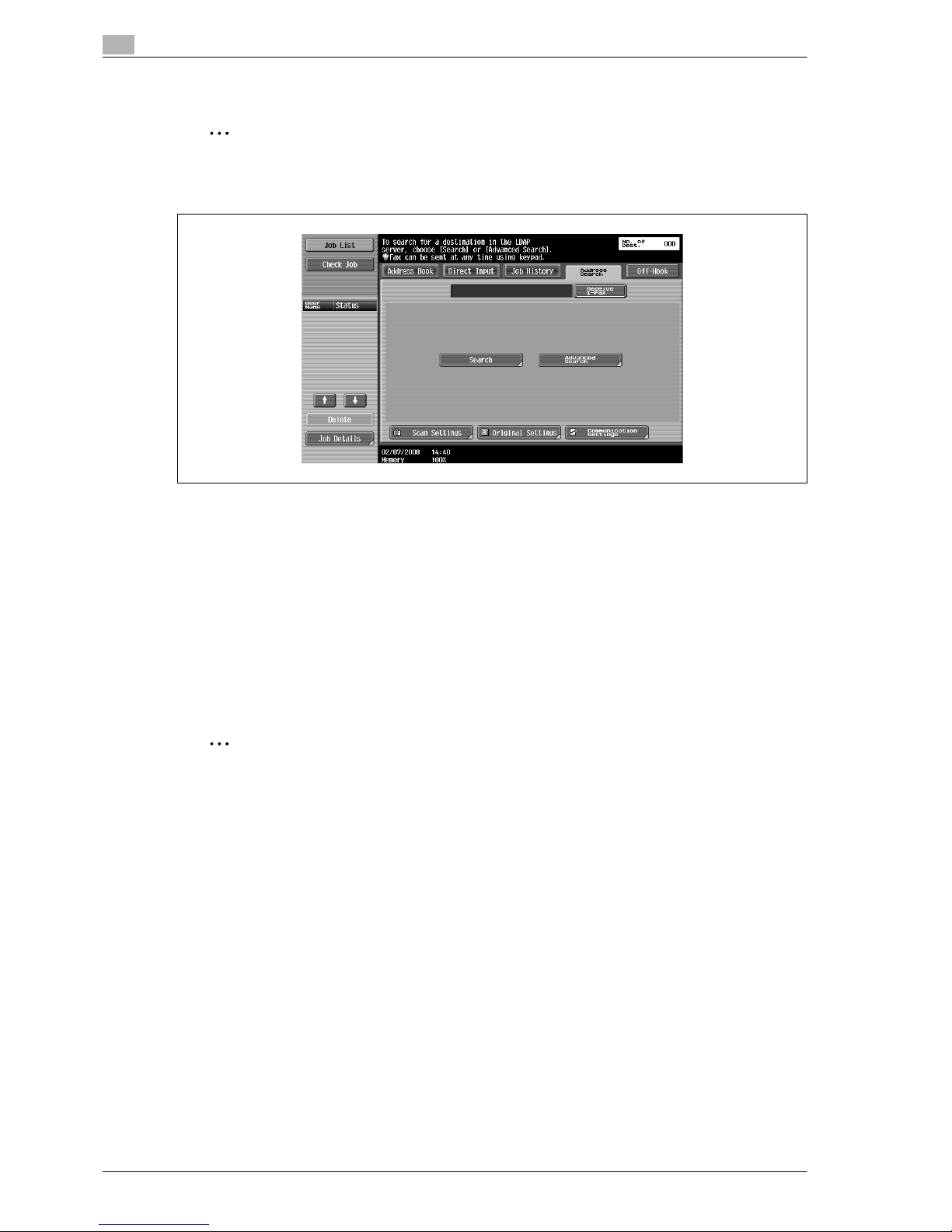
5
Transmitting data
5-18 VL3622/VL4222/VL5022
Address Search tab
2
Note
For details, refer to "Address Search - Search" on page 5-34.
Operations available on the Address Search tab are as follows:
!
Detail
Search (p. 5-34)
Advanced Search (p. 5-34)
Scan Settings (p. 5-37)
Original Settings (p. 5-61)
Communication Settings (p. 5-63)
Off-Hook tab
2
Note
For details, refer to "Off-Hook (G3)" on page 5-36.
Page 79

VL3622/VL4222/VL5022 5-19
Transmitting data
5
Scan Settings
2
Note
For details, refer to "Scan Settings" on page 5-37.
Operations available on the Scan Settings screen are as follows:
First-level menu Second-level menu Third-level menu Fourth-level menu
Original Type (p. 5-37)
Simplex/Duplex (p. 5-38)
Resolution (p. 5-38)
File Type (p. 5-39) File Type (p. 5-39)
Scan Setting (p. 5-39)
Encryption (p. 5-40)
Stamp Composition
(p. 5-43)
Density (p. 5-43)
Separate Scan (p. 5-44)
Background Removal
(p. 5-44)
Erase (p. 5-45) Frame Erase (p. 5-45)
Book Scan Book Copy (p. 5-45)
Page 80

5
Transmitting data
5-20 VL3622/VL4222/VL5022
Application Scan Size (p. 5-47)
Annotation (p. 5-48)
Stamp/Composition Date/Time (p. 5-48) Date Format
Time Format
Pages
Text Size
Print Position
Page Number (p. 5-50) Starting Page Number
Starting Chapter Number
Page Number Type
Text Size
Print Position
Stamp (p. 5-52) Stamp Type/Preset
Stamps
Pages
Text Size
Print Position
Header/Footer (p. 5-54) Recall Header/Footer
Check/Change Temporarily
Send & Print (p. 5-58) Copies
Simplex/Duplex
Staple
TX Stamp (p. 5-59)
Neg./Pos.Reverse
(p. 5-58)
Document Name (p. 5-60)
First-level menu Second-level menu Third-level menu Fourth-level menu
Page 81
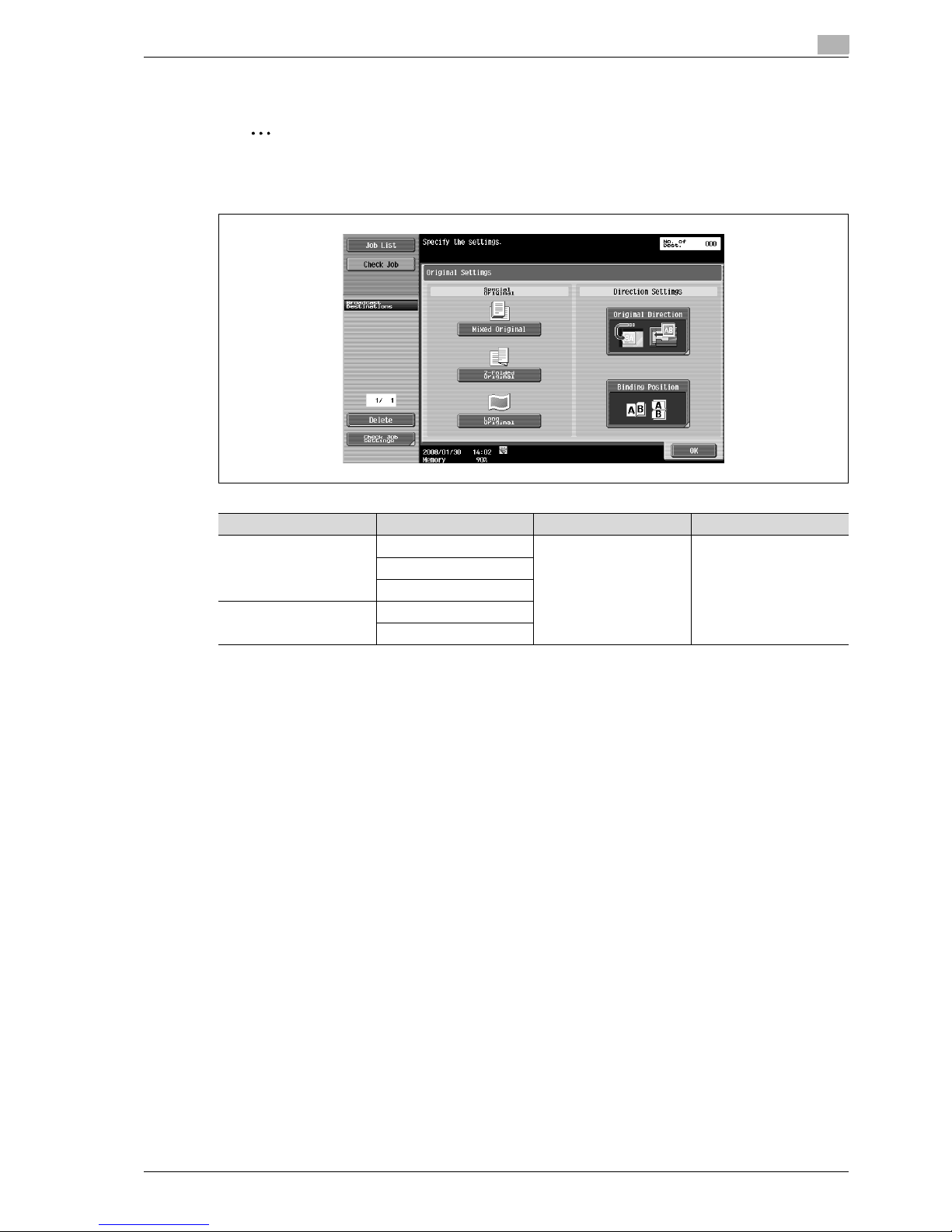
VL3622/VL4222/VL5022 5-21
Transmitting data
5
Original Settings
2
Note
For details, refer to "Original Settings" on page 5-61.
Operations available on the Original Settings screen are as follows:
First-level menu Second-level menu Third-level menu Fourth-level menu
Special Original (p. 5-61) Mixed Original (p. 5-61)
Z-Folded Original (p. 5-61)
Long Original (p. 5-61)
Direction Settings
(p. 5-61)
Original Direction (p. 5-61)
Binding Position (p. 5-62)
Page 82
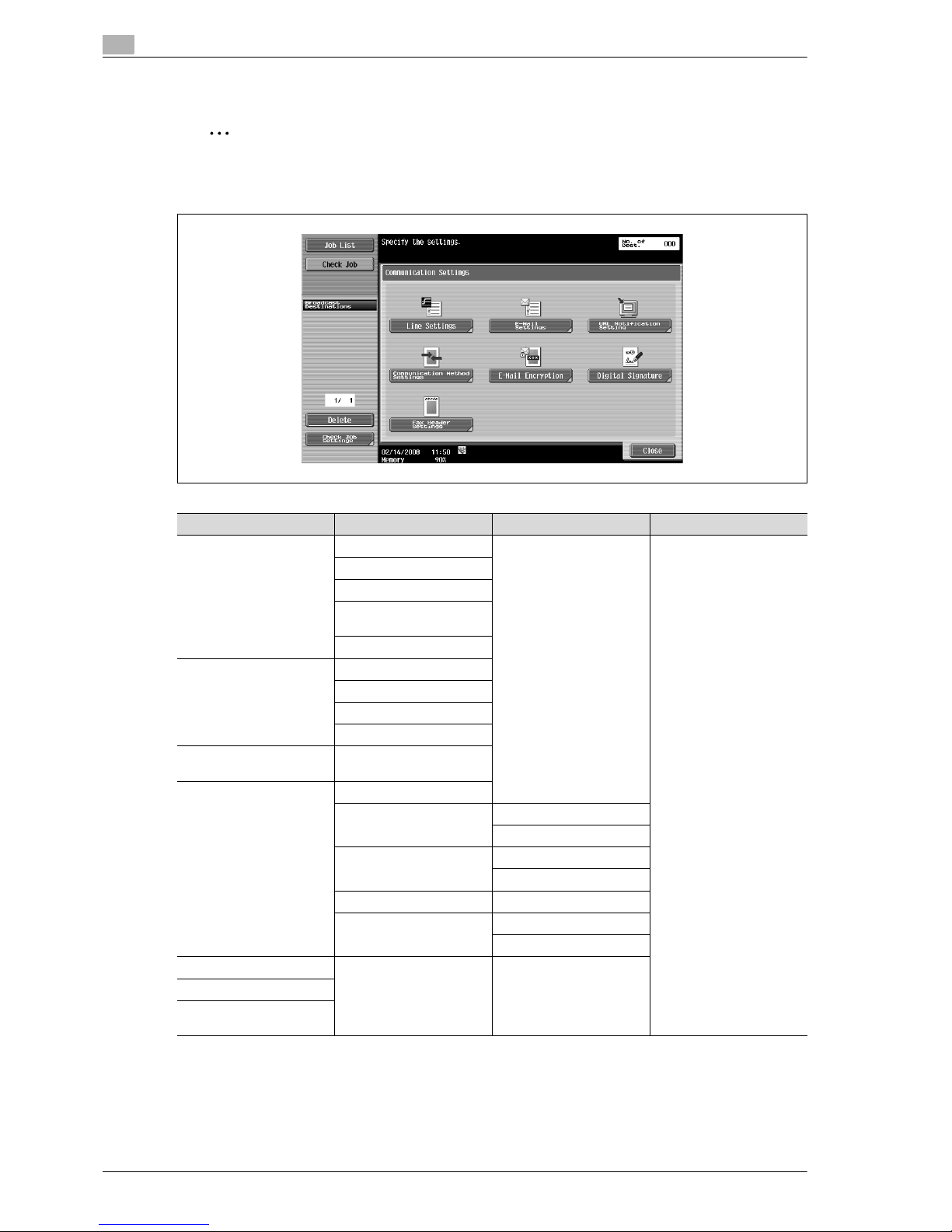
5
Transmitting data
5-22 VL3622/VL4222/VL5022
Communication Settings
2
Note
For details, refer to "Communication Settings" on page 5-63.
Operations available on the Communication Settings screen are as follows:
First-level menu Second-level menu Third-level menu Fourth-level menu
Line Settings (p. 5-63) Overseas TX (p. 5-63)
ECM OFF (p. 5-63)
V. 34 OFF (p. 5-64)
Check Dest. & Send
(p. 5-64)
Select Line (p. 5-64)
E-Mail Settings (p. 5-65) Document Name (p. 5-65)
Subject (p. 5-65)
From (p. 5-66)
Body (p. 5-66)
URL Notification Setting
(p. 5-67)
Communication Method
Settings (p. 5-68)
Timer TX (p. 5-68)
Polling RX Normal (p. 5-69)
Bulletin (p. 5-70)
F-Code TX (p. 5-71) SUB Address
Password
Password TX (p. 5-72)
Polling TX Normal (p. 5-72)
Bulletin (p. 5-73)
E-Mail Encryption (p. 5-73)
Digital Signature (p. 5-74)
Fax Header Settings
(p. 5-74)
Page 83
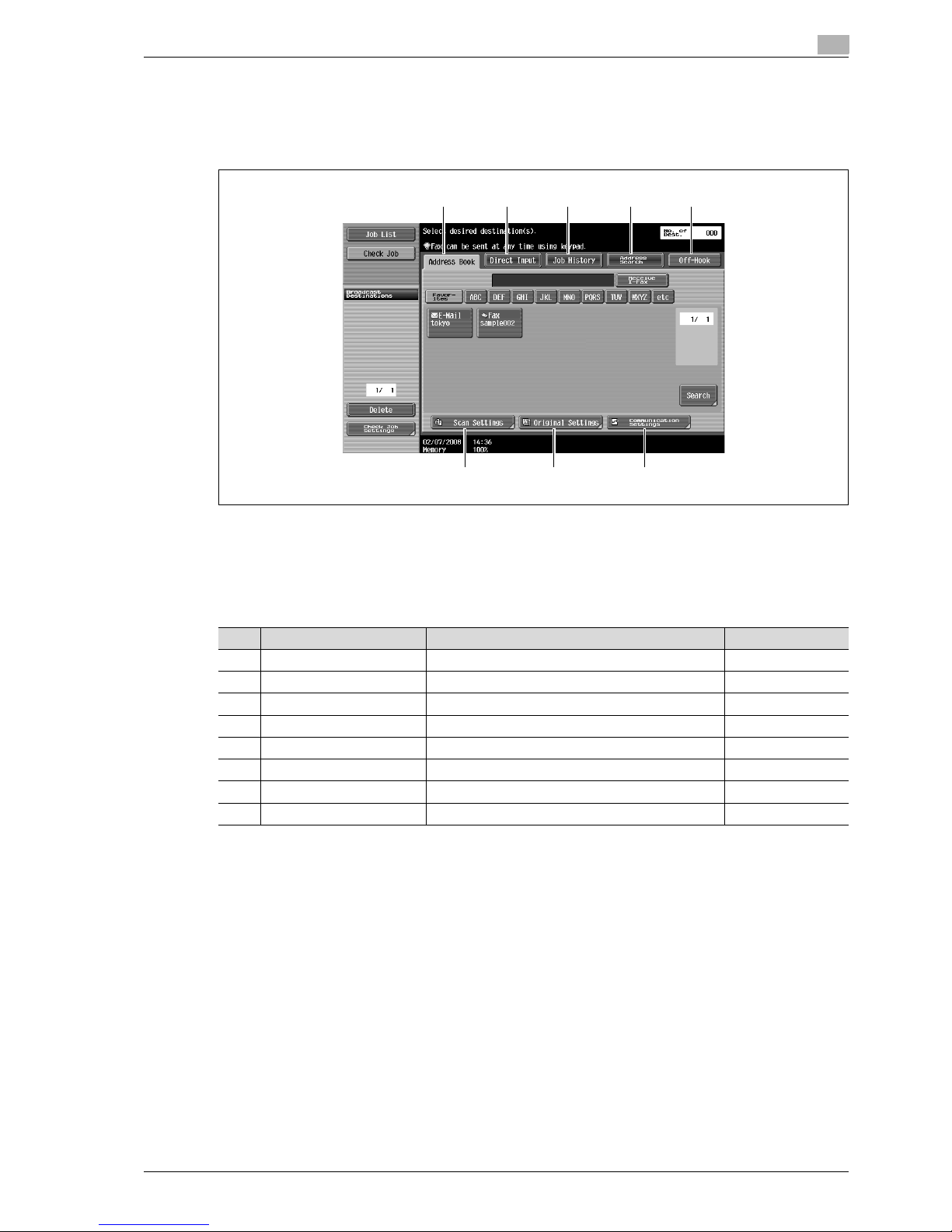
VL3622/VL4222/VL5022 5-23
Transmitting data
5
5.3 Initial screen for fax/scan operations
5.3.1 Screen layout
Touching [Fax/Scan] displays the following screen.
!
Detail
If manual destination input is restricted by "Security Settings" in Administrator mode, [Direct Input],
[Address Search] does not appear.
!
Detail
For details on the LDAP server settings, refer to "Enabling LDAP" in the User manual – Network
Administrator.
The display position of [Address Search] varies depending on the user settings. For details, refer to
"Default Address Book" on page 9-41.
When having set [Confirm Address (TX)] as ON, [Job History] and [Off-Hook] are not displayed. For
details on the [Confirm Address (TX)], refer to "Function ON/OFF Setting - Confirm Address (TX)" on
page 10-32.
1
2
3
45
67
8
No. Item Description Refer to
1 [Address Book] Select a recipient from the registered destinations. p. 5-24
2 [Direct Input] Enter and specify an unregistered destination directly. p. 5-26
3 [Job History] Select one from the fax destination history. p. 5-33
4 [Address Search (LDAP)] Search the LDAP server memory for the destination. p. 5-34
5 [Off-Hook] Enables off-hook dialing. p. 5-36
6 [Scan Settings] Specify details for scanning documents. p. 5-37
7 [Original Settings] Specify the type and orientation of the original. p. 5-61
8 [Communication Settings] Specify settings for communications operations. p. 5-63
Page 84
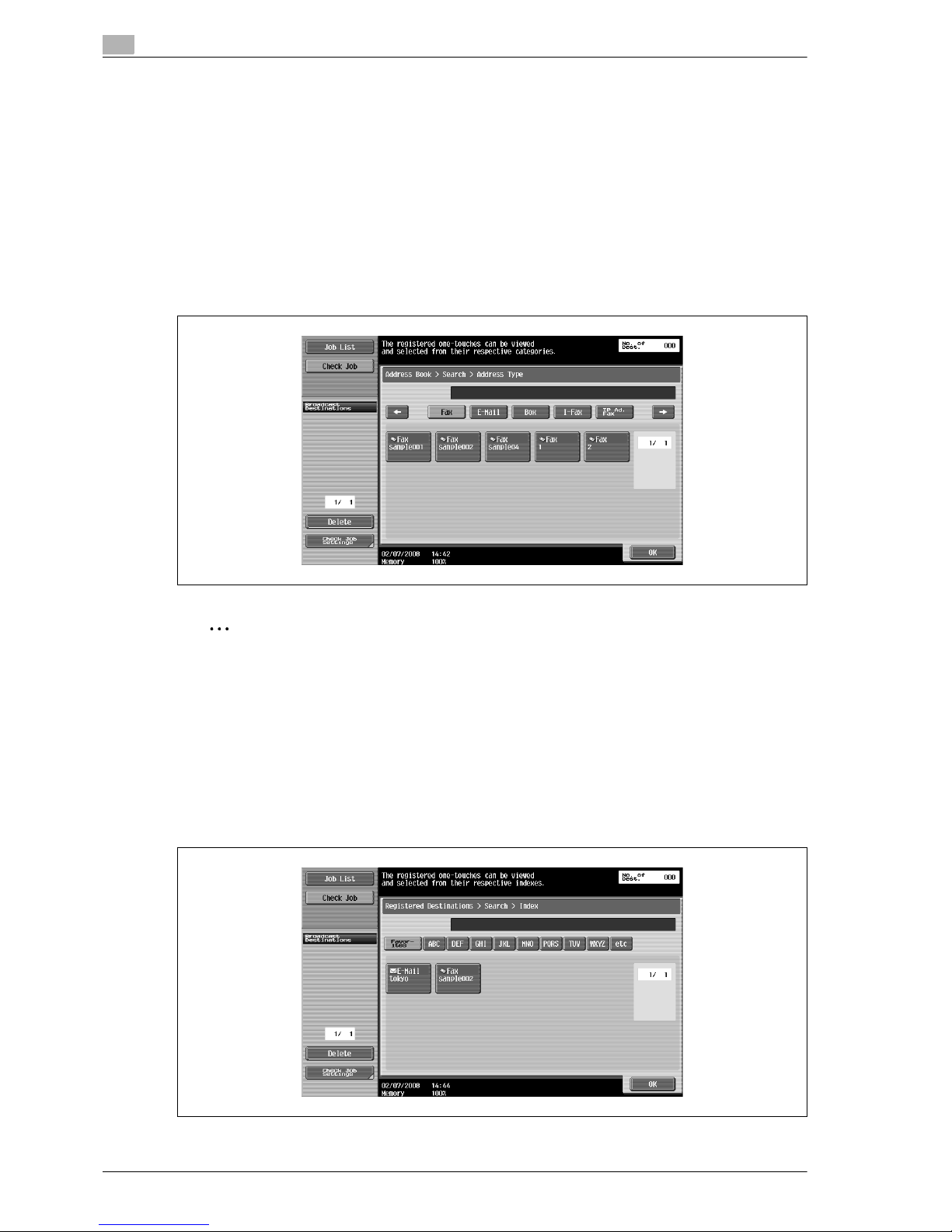
5
Transmitting data
5-24 VL3622/VL4222/VL5022
5.3.2 Address Book
The destination address can be searched. Search for the registered destination according to the following
method.
Search - Address Type
The destination types can be searched based on the type that was specified when the destination was
registered.
!
Detail
This button appears if [Default Address Book] (displayed by touching [Custom Display Settings] [Scan/Fax Settings] on the [User Settings] screen in the Utility mode) is set to "Index". (p. 9-41)
2
Note
For the method to register destinations in Address Book, refer to "One-Touch/User Box Registration"
on page 9-7.
Search - Index
The index is displayed based on the index that was specified when the destination was registered.
!
Detail
This button appears if [Address Book Default] (displayed by touching [Custom Display Settings] –
[Fax/Scan Settings] on the [User Settings]) is set to "Address Type". (p. 9-41)
Page 85
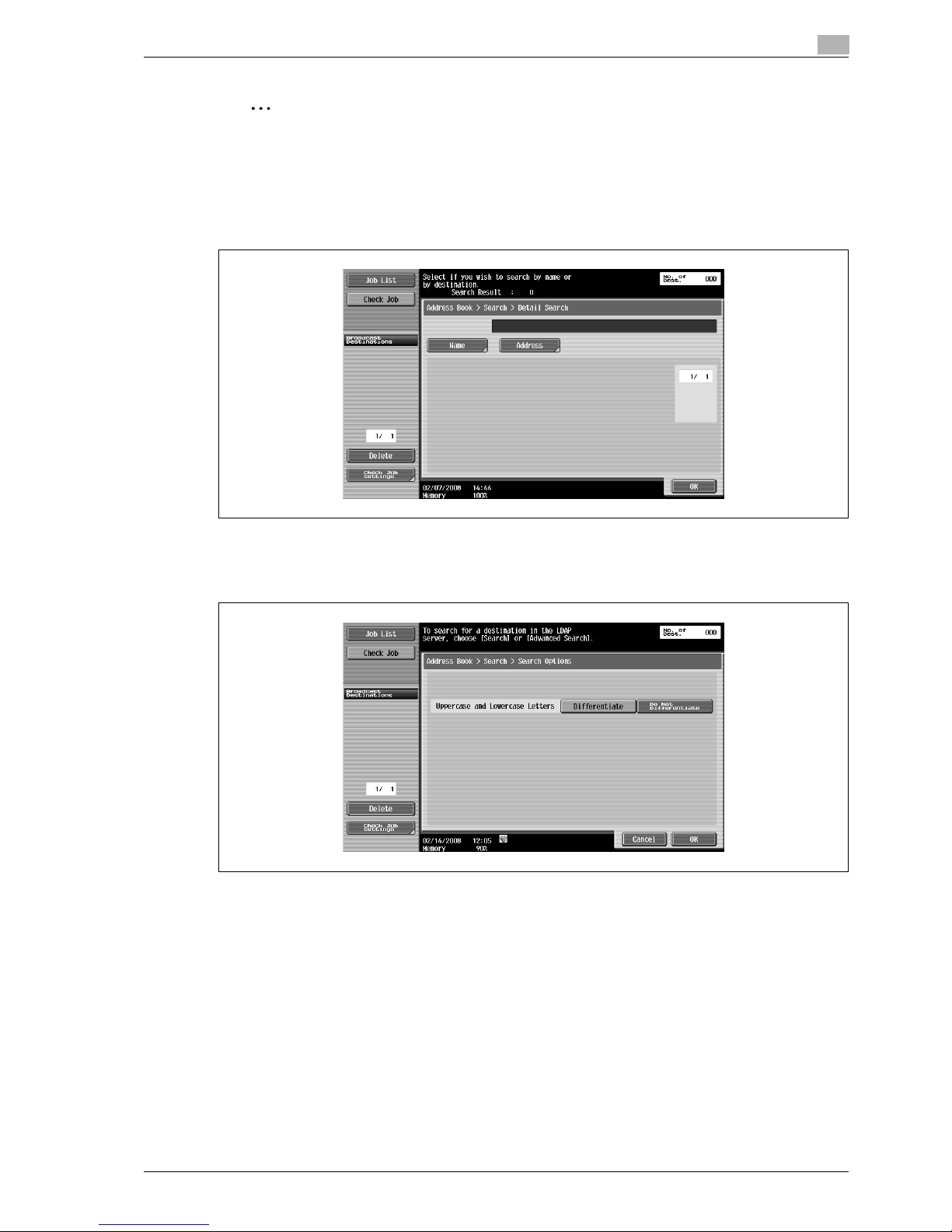
VL3622/VL4222/VL5022 5-25
Transmitting data
5
2
Note
For the method to register destinations in Address Book, refer to "One-Touch/User Box Registration"
on page 9-7.
Search - Detail Search
% Enter the destination name or part of the address to search for the corresponding address. Select
[Name] or [Address] and enter the search text.
Detail Search - Search Option
% When using [Detail Search], selection of the conditions will display the option article at the time of the
search. Choose the content to add at the time of the search, and touch [OK].
!
Detail
The settings for Search Option screen and option items to be displayed on the screen are specified in
the menu of [Search Option Setting]. For details, refer to "Custom Display Settings - Search Option
Settings (E-Mail/Box/SMB/FTP/WebDAV/G3/IP/I-FAX)" on page 9-43.
Page 86

5
Transmitting data
5-26 VL3622/VL4222/VL5022
5.3.3 Direct Input
An unregistered destination can be specified by directly entering it.
5.3.4 Direct Input - Fax
% Enter a Fax number from the touch panel.
– If [Confirm Address (TX)] is specified, the fax number entering screen will appear again when [OK]
is selected. Enter the fax number then touch [Send]
Page 87
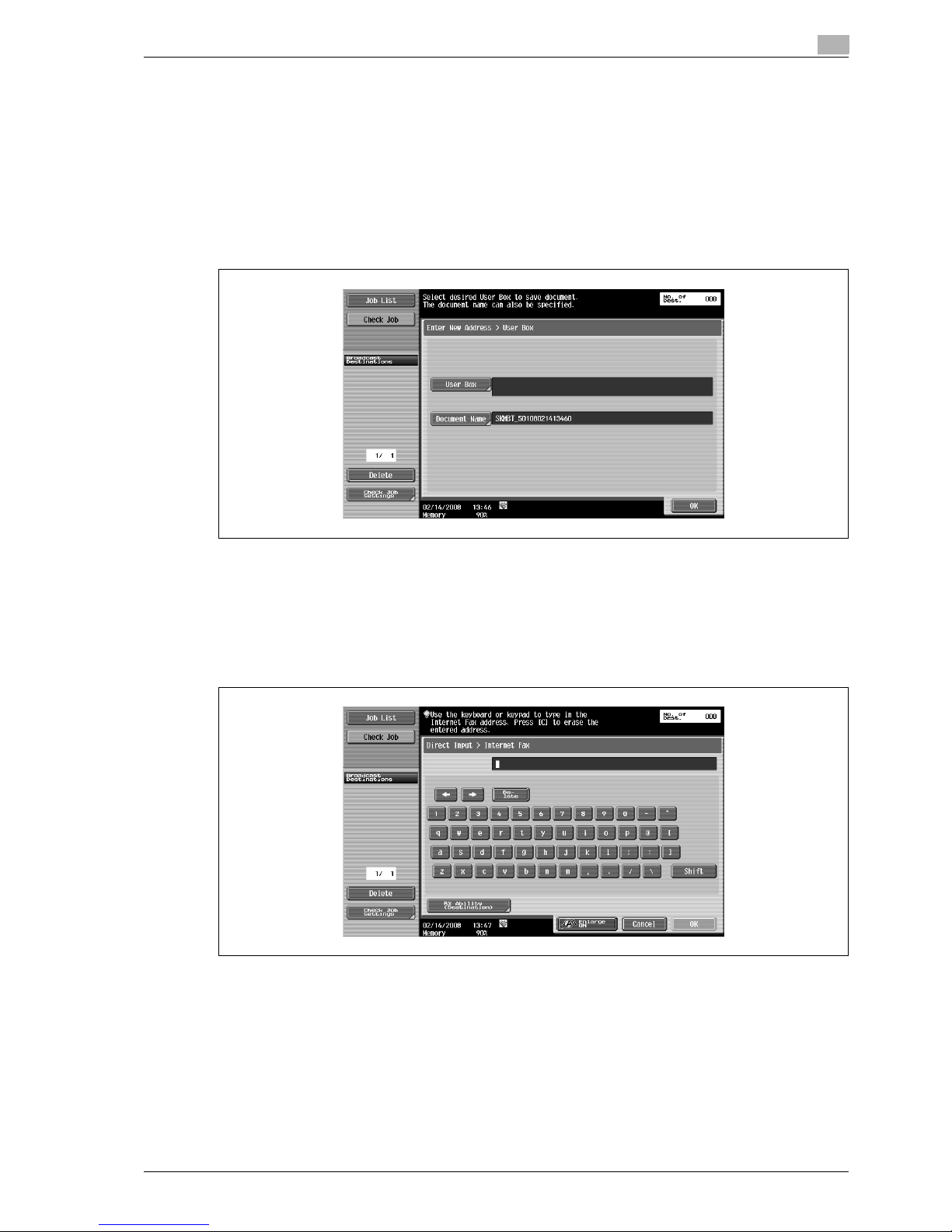
VL3622/VL4222/VL5022 5-27
Transmitting data
5
!
Detail
You cannot use the off-hook function when [Confirm Address (TX)] is set to "ON".
5.3.5 Direct Input - E-Mail
% Enter an E-Mail address from the touch panel.
5.3.6 Direct Input - User Box
% Select a user box type, and then specify a user box for saving the document.
!
Detail
For details on operating data saved in user boxes, refer to the User manual – Box Operations.
5.3.7 Direct Input - Internet Fax
% Enter an E-Mail address from the touch panel.
Page 88
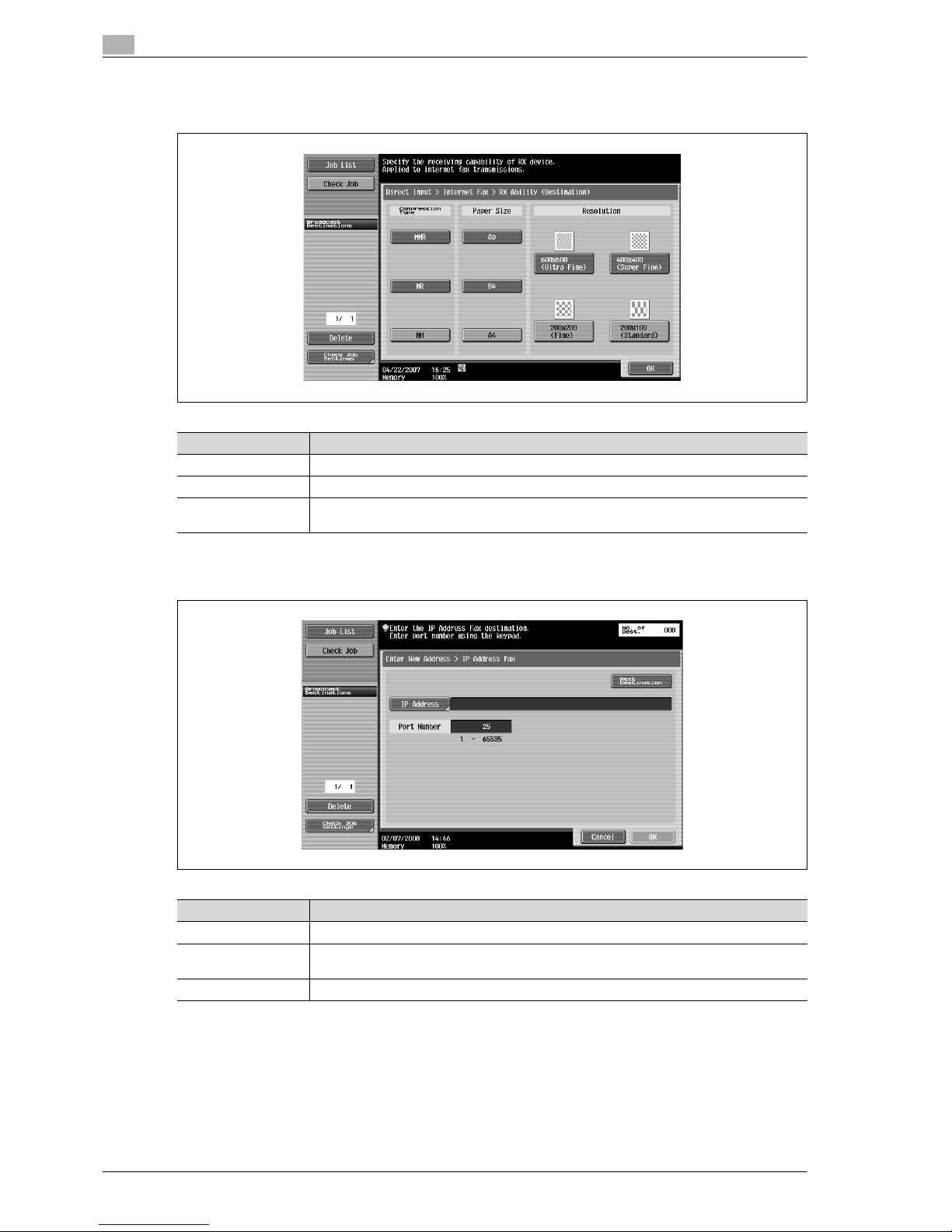
5
Transmitting data
5-28 VL3622/VL4222/VL5022
RX Ability (Destination)
% Select a receivable setting at the Internet fax destination. You can select multiple receivable settings.
5.3.8 Direct Input - IP Address Fax
% Specify the IP address fax destination.
Item Description
Compression Type MMR, MR, and MH can be selected.
Paper Size A3, B4, and A4 can be selected.
Resolution 600 e 600 dpi (ultra fine), 400 e 400 dpi (super fine), 200 e 200 dpi (fine), and 200 e 100 dpi
(standard) can be selected.
Item Description
IP Address Specify the host name or IP address for the destination.
Port Number Enter the port number to be used for transmission with the numeric keypad (range: 1 to
65535).
[Next Destination] Touch this button to add other destinations.
Page 89
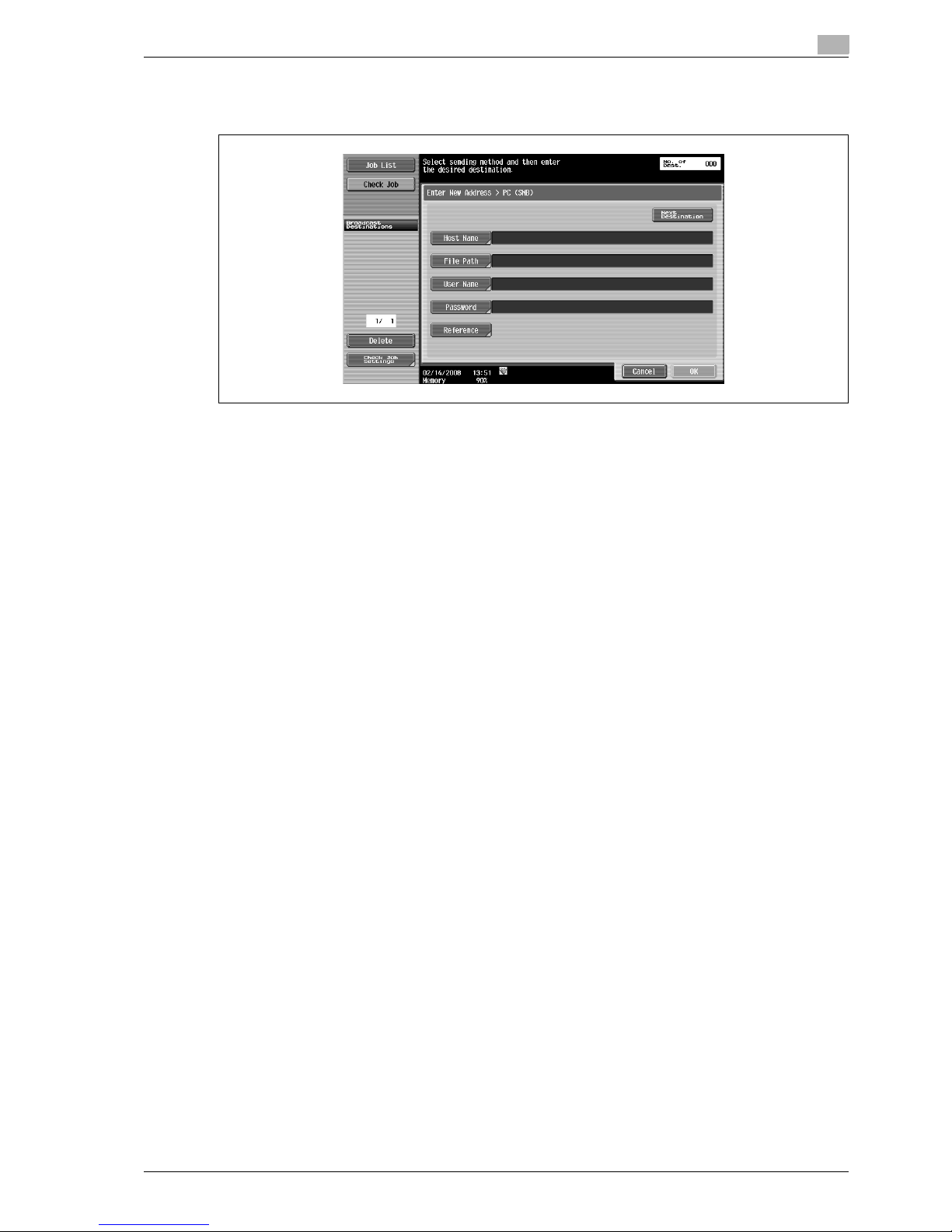
VL3622/VL4222/VL5022 5-29
Transmitting data
5
5.3.9 Direct Input - PC (SMB)
% Specify the PC (SMB) address directly.
Host Name
% Specify the host name (in uppercase letters) or IP address for the destination from the touch panel.
File Path
% Type the path to the destination folder in uppercase letters from the touch panel.
User Name
% Type the user name to log in from the touch panel.
Password
% Type the login password from the touch panel.
Reference
% The structure of the folders on the destination computer can be checked. This can be used to directly
specify the destination folder.
Next Destination
% Touch this button to add other destinations.
Page 90
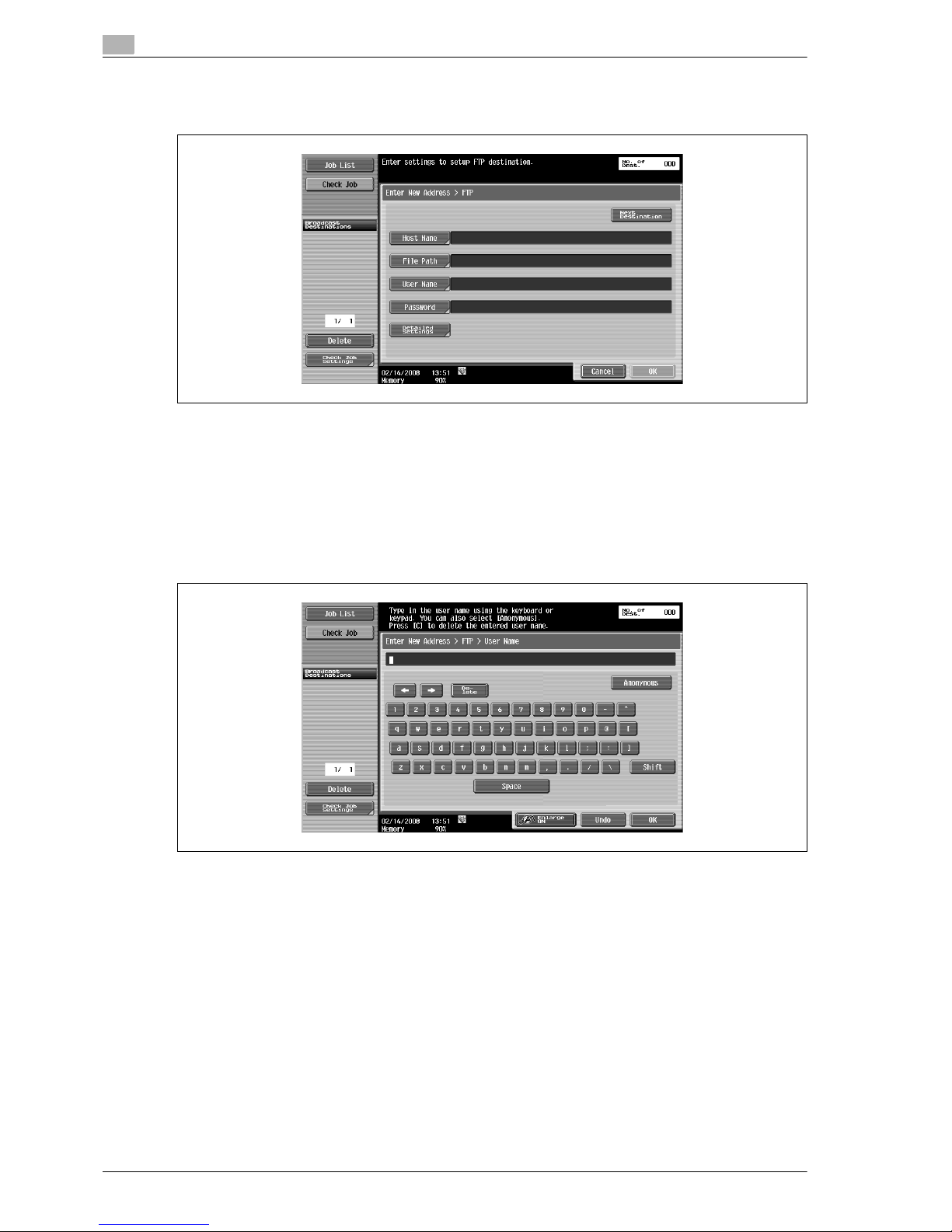
5
Transmitting data
5-30 VL3622/VL4222/VL5022
5.3.10 Direct Input - FTP
% Specify the FTP address directly.
Host Name
% Specify the host name or IP address for the destination from the touch panel.
File Path
% Specify the path to the destination folder from the touch panel.
User Name
% Type the user name to log in from the touch panel. Touching [Anonymous] inputs "anonymous".
Password
% Type the login password from the touch panel.
Page 91

VL3622/VL4222/VL5022 5-31
Transmitting data
5
Detailed Settings
% Specify more detailed settings.
Next Destination
% Touch this button to add other destinations.
5.3.11 Direct Input - WebDAV
% Specify the WebDAV address directly.
Host Name
% Specify the host name or IP address for the destination from the touch panel.
File Path
% Specify the path to the destination folder from the touch panel.
User Name
% Type the user name to log in from the touch panel.
Password
% Type the login password from the touch panel.
Item Description
Port Number Enter the port number.
PASV Specify whether or not the PASV mode is used.
Proxy Specify whether or not a proxy server is used.
Page 92
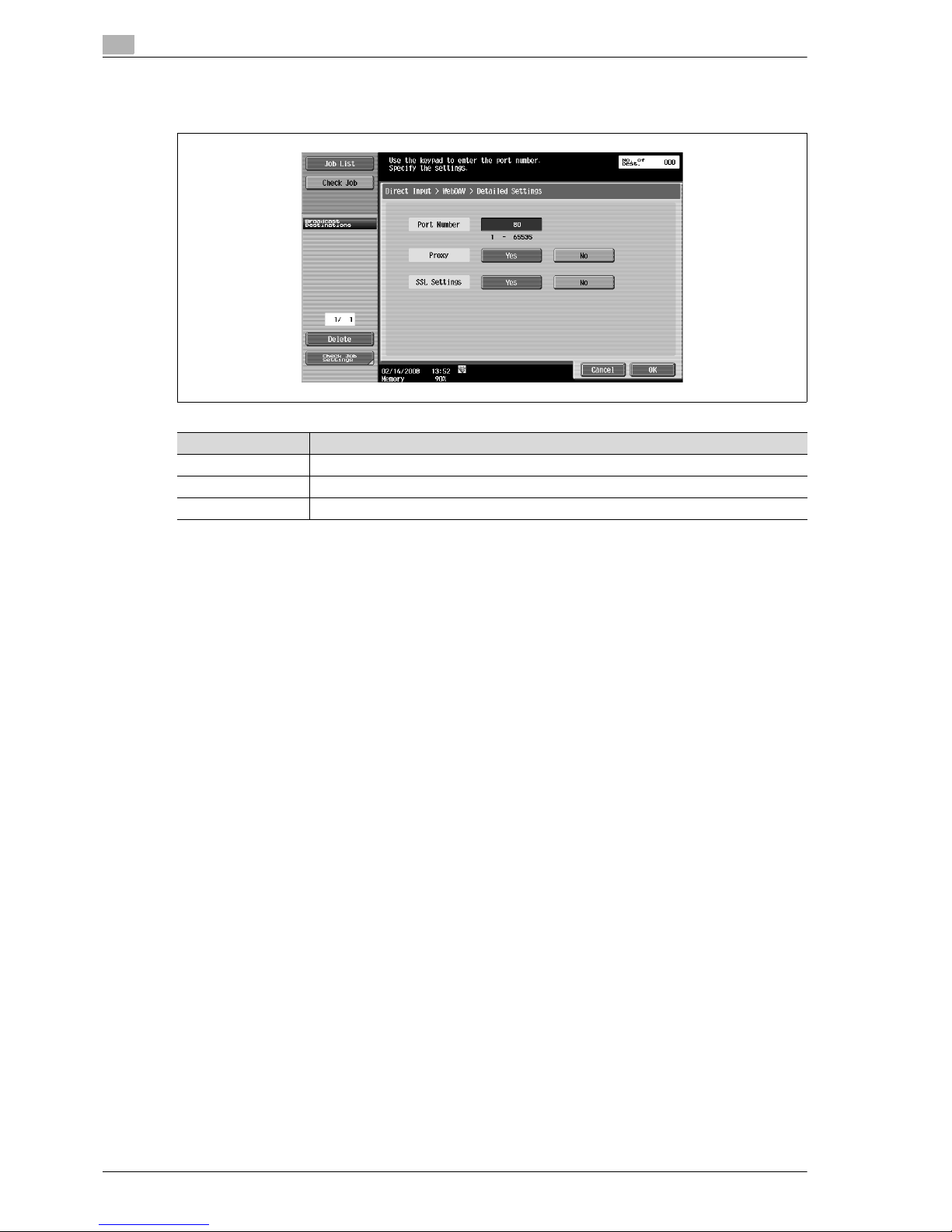
5
Transmitting data
5-32 VL3622/VL4222/VL5022
Detailed Settings
% Specify more detailed settings.
Next Destination
% Touch this button to add other destinations.
Item Description
Port Number Enter the port number.
Proxy Specify whether or not a proxy server is used.
SSL Settings Specify whether or not SSL is used for transmission.
Page 93
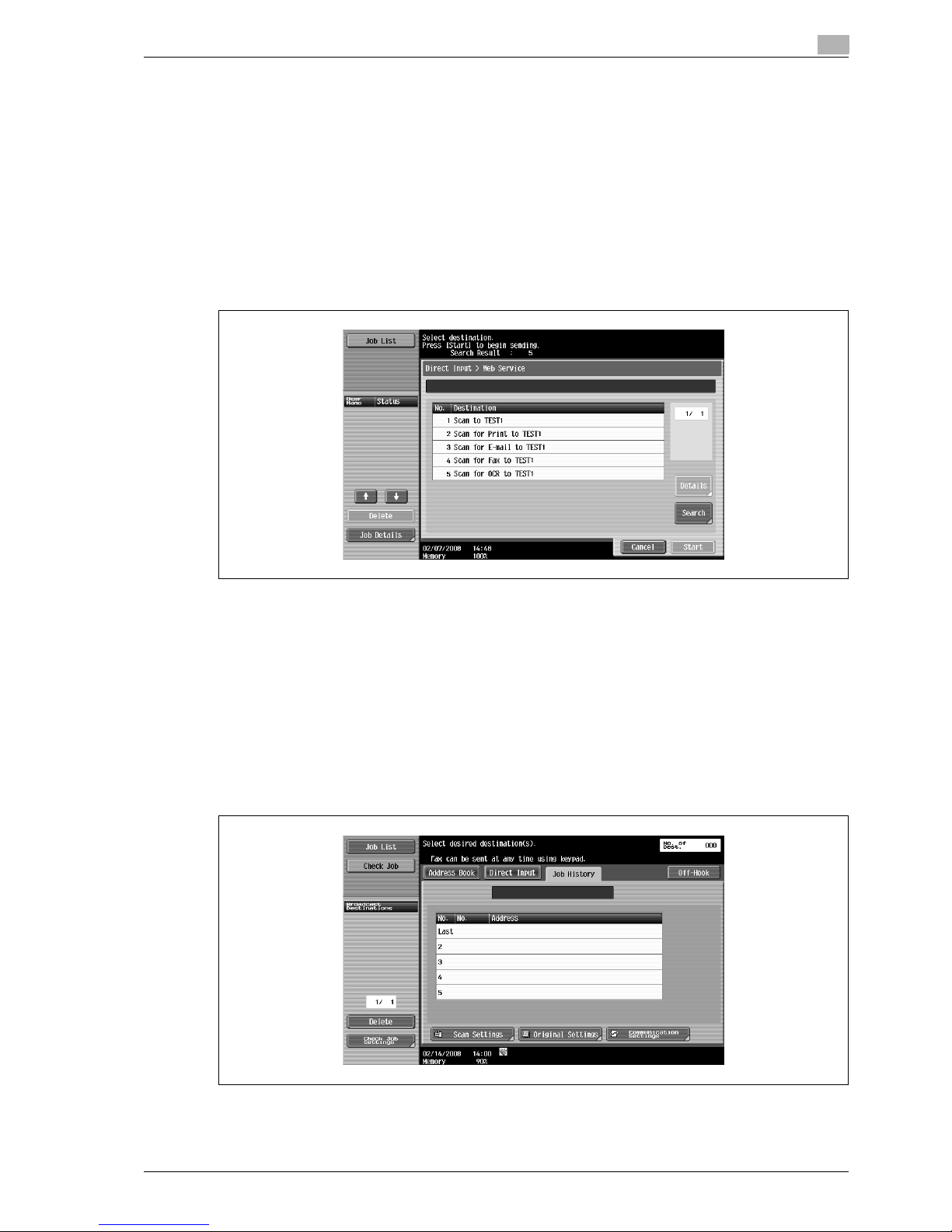
VL3622/VL4222/VL5022 5-33
Transmitting data
5
5.3.12 Direct Input - Web Service
This function sends scan data to a computer registered in advance on the network.
!
Detail
For details on settings to be specified in advance, refer to "Using Web services" on page 4-7.
It is also possible to give a scan command from the computer to the machine and save the data. For
details on the procedure, refer to "Giving a scan command from a computer (Web service)" on
page 13-4.
% Computers on the network in which the machine is registered as a Web service scanner are listed on
the screen as available destinations. Select a destination.
!
Detail
Displays the name of the destination and its URL.
Search
% Enter a keyword that is included in the destination name from the touch panel, and then search for the
destination.
5.3.13 Job History (G3)
% The destinations of the five latest fax transmissions are displayed. You can select a destination from
this history.
Page 94

5
Transmitting data
5-34 VL3622/VL4222/VL5022
5.3.14 Address Search - Search
% Enter a search keyword, and then touch [Start Search] to search data in the specified LDAP server for
the relevant address.
5.3.15 Address Search - Advanced Search
% Specify multiple search conditions to search for the target address.
Name
% Enter the name from the touch panel.
E-Mail Addr.
% Enter the E-Mail address from the touch panel.
Page 95

VL3622/VL4222/VL5022 5-35
Transmitting data
5
Fax Number
% Enter the Fax number from the touch panel.
Last Name
% Enter the last name from the touch panel.
First Name
% Enter the first name from the touch panel.
City
% Enter the city name from the touch panel.
Company Name
% Enter the company name from the touch panel.
Department
% Enter the department name from the touch panel.
OR/AND/STARTS WITH/ENDS WITH
% Select search conditions from [OR], [AND], [STARTS WITH], and [ENDS WITH].
Page 96
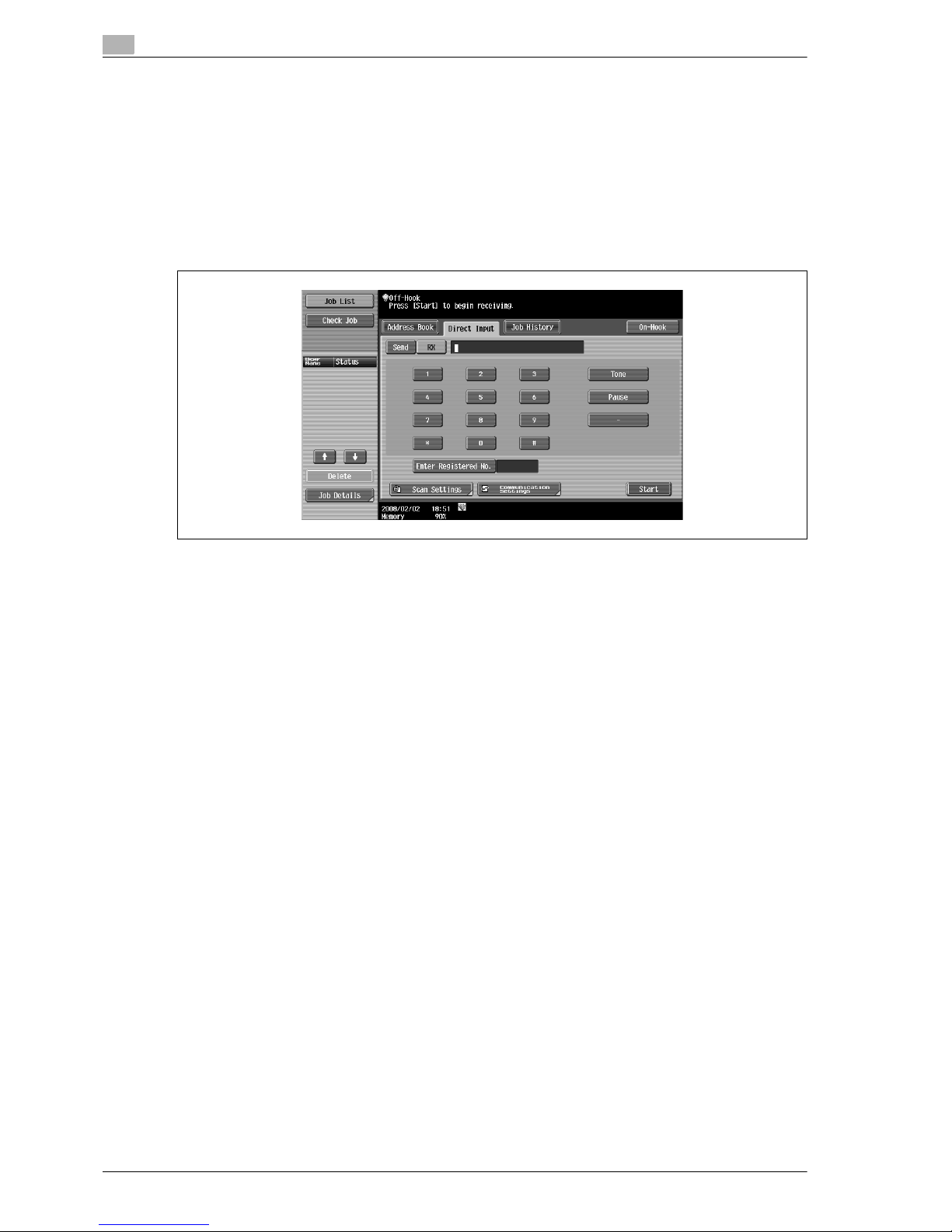
5
Transmitting data
5-36 VL3622/VL4222/VL5022
5.3.16 Off-Hook (G3)
% Use this button for manual transmission.
!
Detail
You cannot use the off-hook function when [Confirm Address (TX)] is set to "ON".
Manual transmission
% Set the original in place and specify settings for scanning as needed. Touching [Off-Hook] displays a
screen for specifying the destination.
– Touch [Send], specify the destination, and then touch [Start].
!
Detail
To specify the destination, select from [Address Book], [Direct Input], [Job History], or [Program].
Page 97

VL3622/VL4222/VL5022 5-37
Transmitting data
5
5.4 Scan Settings
% Touch [Scan Settings] to specify detailed settings for scanning.
5.4.1 Basic - Original Type
% Select the type according to the contents of the original. The original type can be selected from the
following:
Text
% Select this setting for a text-only original.
Text/Photo
% Select this setting for originals consisting of both text and photos (halftones).
Photo
% Select this setting for originals consisting of only photos (halftones).
Dot Matrix Original
% Select this setting for originals consisting of text that generally appears faint.
Page 98
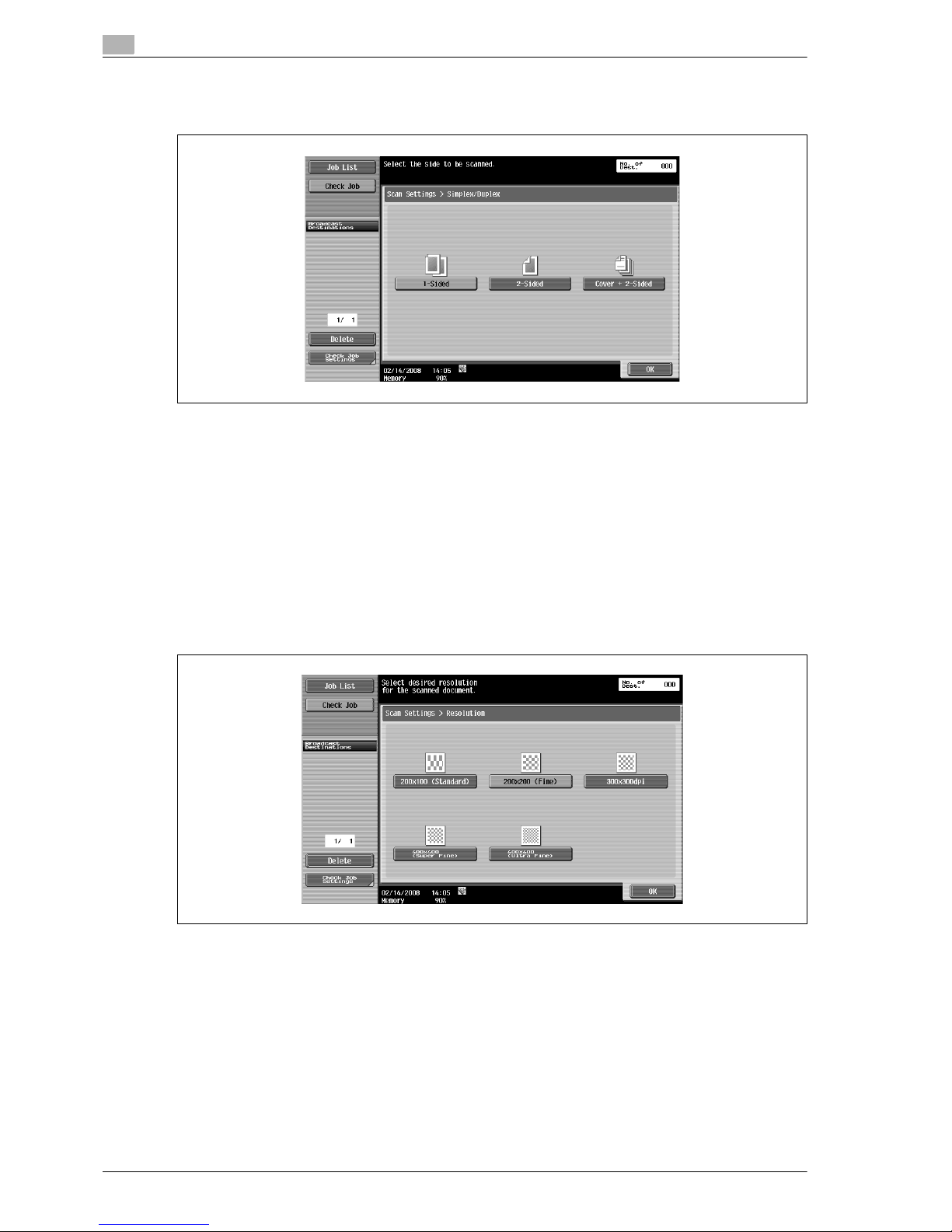
5
Transmitting data
5-38 VL3622/VL4222/VL5022
5.4.2 Basic - Simplex/Duplex
% Select a scanning mode to either scan one side or both sides of the original.
1-Sided
% Select this setting to scan one side of the original.
2-Sided
% Select this setting to scan both sides of the original.
Cover + 2-Sided
% Select this setting to scan one side of the first page as the cover page, and scan both sides of the
remaining pages.
5.4.3 Basic - Resolution
% Select the resolution for scanning.
!
Detail
When 300 x 300dpi is selected at the time of G3 fax / IP address fax / Internet fax transmitting, it is
changed automatically and transmitted by 200 x 200dpi.
Page 99

VL3622/VL4222/VL5022 5-39
Transmitting data
5
5.4.4 File Type
% Select the file type for saving the scan data.
File Type
The following file types are available.
!
Detail
Even if a file type is selected when saving a document in a user box, the file type must be specified
when downloading the data.
Scan Settings
In addition, the grouping of the saved data can be specified.
!
Detail
Even if "Single Page" is selected when saving a document in a user box, a page must be specified when
downloading the data.
Item Description
PDF Saves the data in the PDF format.
TIFF Saves the data in the TIFF format.
XPS Saves the data in the XPS format.
In order to save in XPS form, the optional hard disk is required.
Item Description
Single Page Creates a file in a format that allows data to be saved for each page when downloading data.
Multi Page Creates a single file from the entire scanned document.
Page 100

5
Transmitting data
5-40 VL3622/VL4222/VL5022
Encryption - Encryption Level, Password, Document Permissions, and Detail Settings
If the "PDF" is selected for "File Type", the encryption level can be specified.
Encryption - Password
% Enter the password necessary to open encrypted data (within 32 characters). For confirmation, enter
the password twice.
Encryption - Document Permissions
% Enter the password necessary to change document permissions (within 32 characters). For
confirmation, enter the password twice.
 Loading...