

Page 1

OBDSTAR User Manual
User Manual
Statement
This handbook is the manual of BMT-08. Without the written
permission from the manufacturer, any company or individual shall
not copy or backup it in any form (electronic, mechanical,
photocopying, recording or otherwise).This manual is only
operating instructions for BMT-08. If any result caused by using it
on other equipment, the company does not assume any
responsibility for it.
If not quality problems of BMT-08:such as equipment failure
caused by user abuse or misuse, unauthorized disassembly, repair
equipment yourself, not operate or maintain by the instructions,
lose it, the repair will not be free. Other product names
mentioned in this manual are in order to describe how to use BMT-
08, and their owners are still the original company.
This device complies with part 15 of the FCC Rules. Operation is
subject to the following two conditions(1) The device may not
cause harmful interference, and(2) this device must accept any
interference received, including interference that may cause
undesired operation.
Page 2

OBDSTAR User Manual
Content
Chapter 1 : Summary…………………………………………… 1
1.1 Features…………………………………………………1
1.1.1 Advantages………………………………………1
1.1.2 Durability………………………………………1
1.2 Introduction of the device………………………………2
1.2.1 The introduction of the main unit………………2
1.2.2 Intr oduction of acces sories…………………3
1.3 Hardware technical specification………………………4
1.4 Functions Setting………………………………………4
1.4.1 Functions Selection……………………………5
1.4.1.1 Battery Test……………………………5
1.4.2 System Setting…………………………………6
1.4.2.1 Language………………………………6
1.4.2.2 Font……………………………………7
1.4.2.3 Metric/Inch……………………………7
1.4.2.4 Data Logging…………………………8
1.4.3 System Information……………………………8
1.4.4 Device Self-test………………………………9
1.4.4.1 Keyboard Self-test……………………9
Chapter 2: How to update software for…………………………10
2.1 Update Tool software Installation……………………10
2.2 Register ………………………………………………13
2.3 Software Updating……………………………………14
Page 3

OBDSTAR User Manual
Chapter1:Summary
1.1 Features
1.1.1 Advantages
Providing multi-language environment so it can be used
in different countries and regions.
The main unit system uses ARM high-speed chip to keep
it running fast, stable, and anti-jamming.
Modern design and high-definition true color screen
realize the integration of automotive industry and
electronic information technologies and make auto
diagnosis and key programming easier, practical and
economical.
1.1.2 Durability
Integrity structure design makes it crack resistance, shock
resistance and durable .
Industrial design ensures the tool work stably under tough
environment, high and low temperatures.
1
Page 4
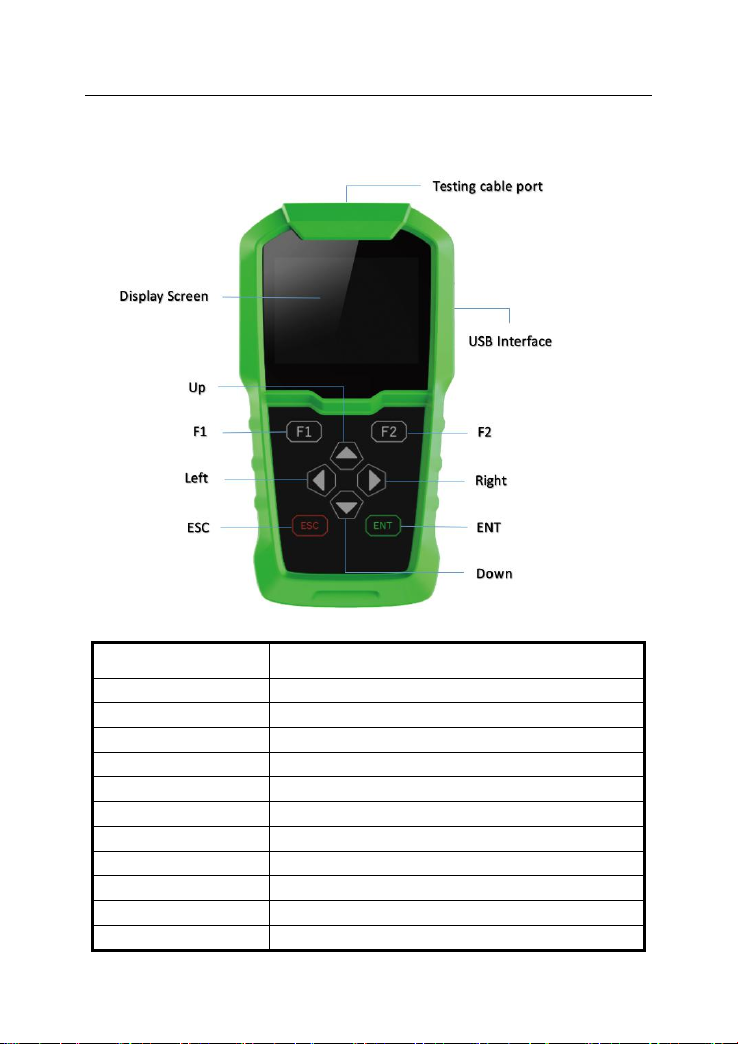
OBDSTAR User Manual
Name
Instruction
Testing cable port
Connect to the main test cable
Display Screen
Show information
USB Interface
Connect with USB cable
Up
Up
F2
Keyboard input option key
F1
Keyboard input option key
Right
To right
Left
To left
ESC
Exit or give up
ENT
Enter
Down
Down
1.2 Introduction of the device
12.1 The introduction of the main unit
2
Page 5
OBDSTAR User Manual
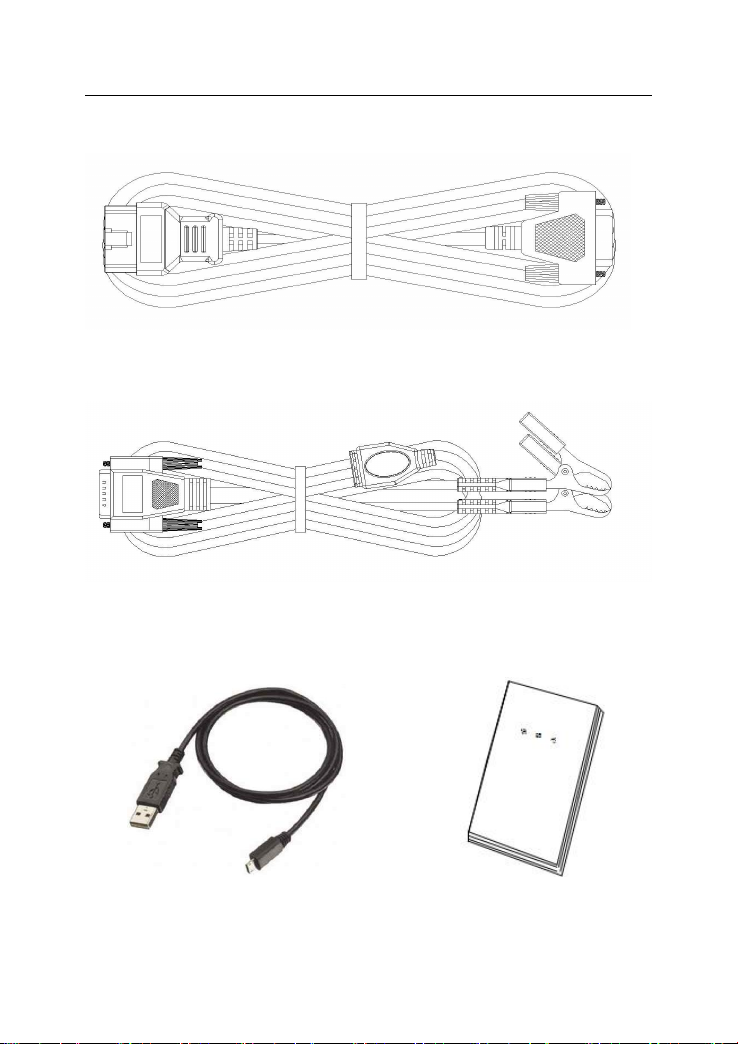
1.2.2 Introduction of accessories
Double clamp battery testing cable (Connect to car battery. Red--
positive/Black--negative)
OBD 16 pin testing cable (Connect to car diagnostic socket)
USB Cable(Connect PC to upgrade) User Manual
3
Page 6
OBDSTAR User Manual
Dimension: 165mm*86mm*28mm
CPU: Cortex M3
Operation Temperature: -10~60℃
Display Screen: 320×240 TFT
Working Range:6V~30V
Test Standards
Test Range
CCA
100~2000
DIN
100~1400
EN
100~2000
IEC
100~1400
SAE
100~2000
JIS
26A17~245H52
GB
30~200
BCI
100~2000
CA
100~2000
MCA
100~2000
1.3 Hardware technical specification
1.4 Functions Setting
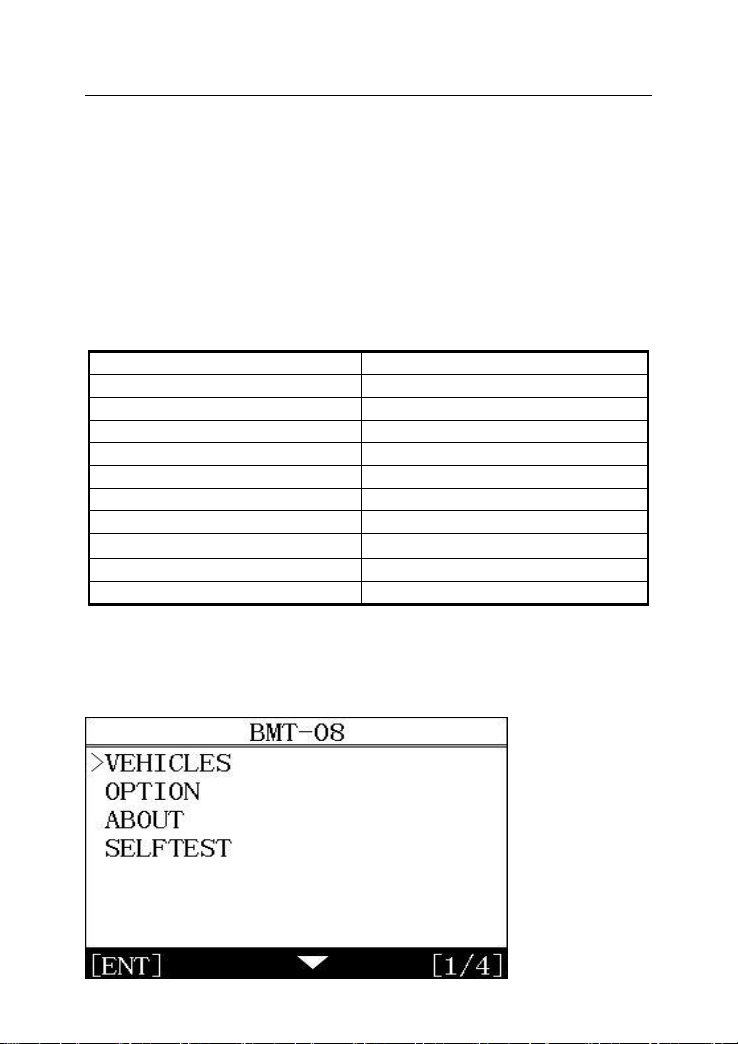
Power on,and then press ENT on the screen,then go to the
function setting, setting information as shown below:
4
Page 7
OBDSTAR User Manual
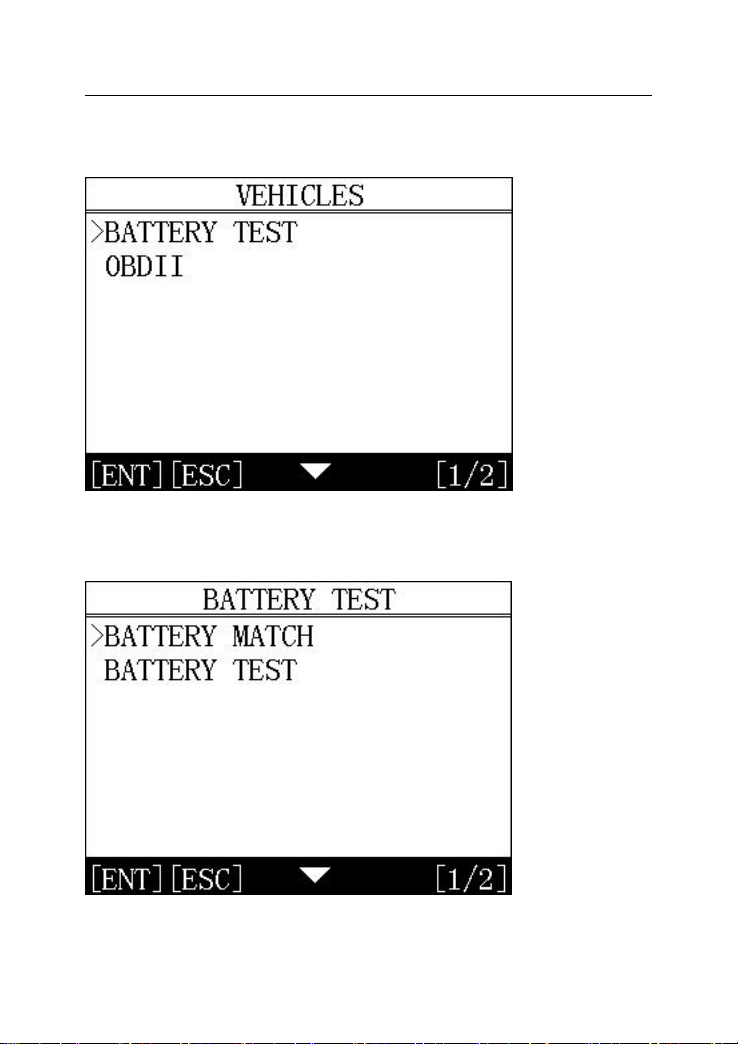
1.4.1 Vehicles
Press ENT to confirm.The diagram below.
1.4.1.1 Battery Test
Press ENT to confirm the entry.The diagram below:
Note: the number and function of different product configuration
software will be different ,Please contact the dealer for
confirmation of the number of software.
5
Page 8
OBDSTAR User Manual
1.4.2 System Setting
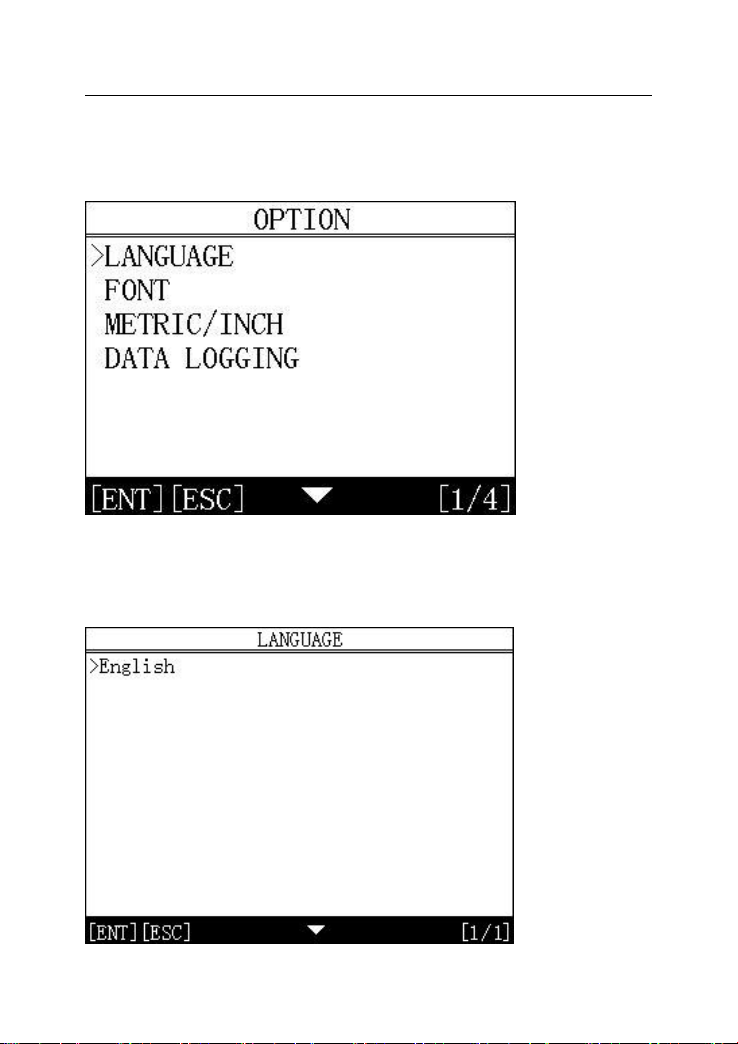
Select system setting, you can set the language,font, metric/English
system, data record, as shown below.
1.4.2.1 Language selection
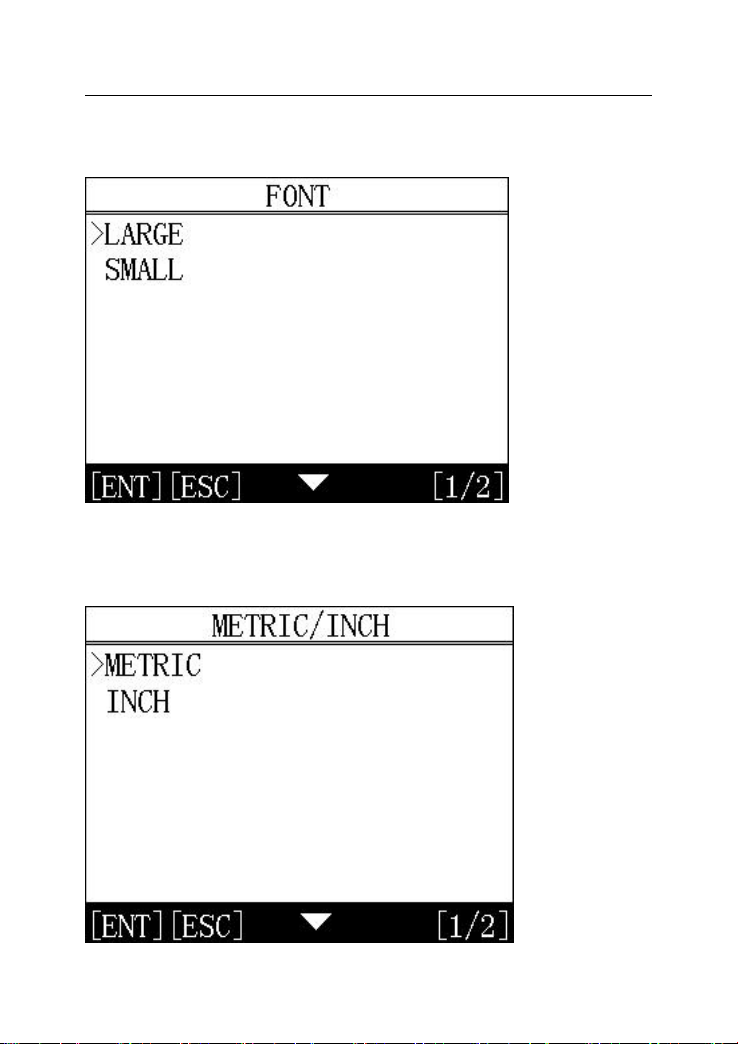
This device supports English. In the language directory, select
required language by Up and Down and press ENT to confirm it.
6
Page 9
OBDSTAR User Manual
1.4.2.2 Font
Choose large or small fonts
1.4.2.3 Metric/Inch
Optional metric or English system
7
Page 10
OBDSTAR User Manual
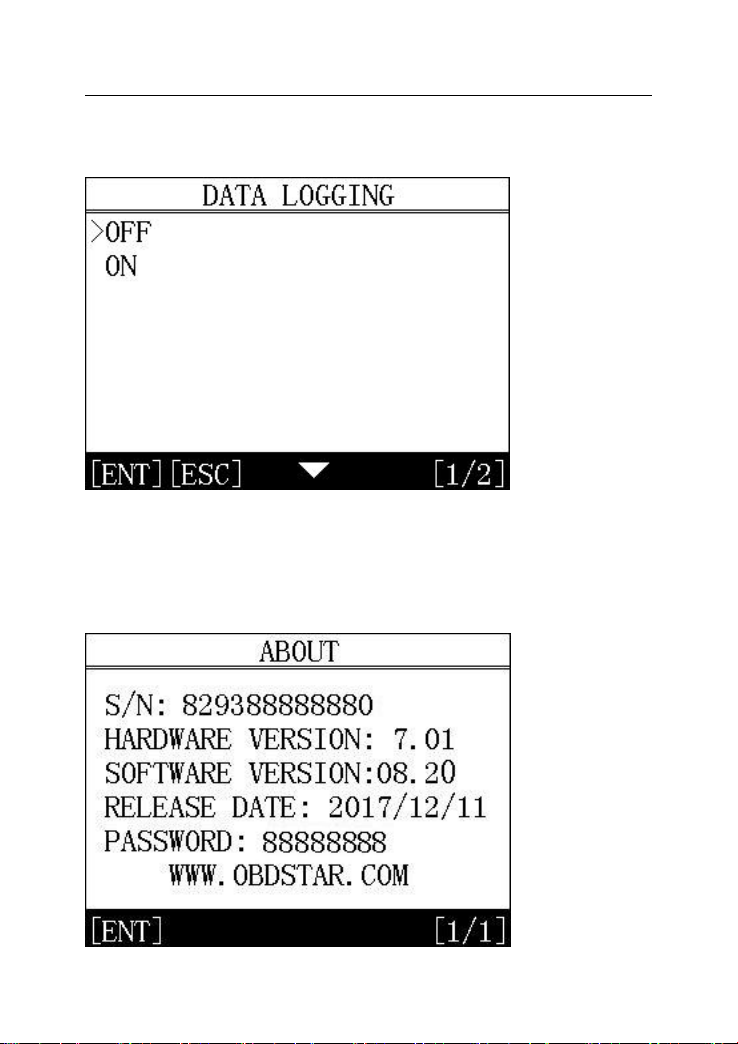
1.4.2.4 Data Logging
Optional to close or open
1.4.3 System Information
The system information includes the product serial number, the
hardware version, the software version, release date, registration
password.
8
Page 11
OBDSTAR User Manual
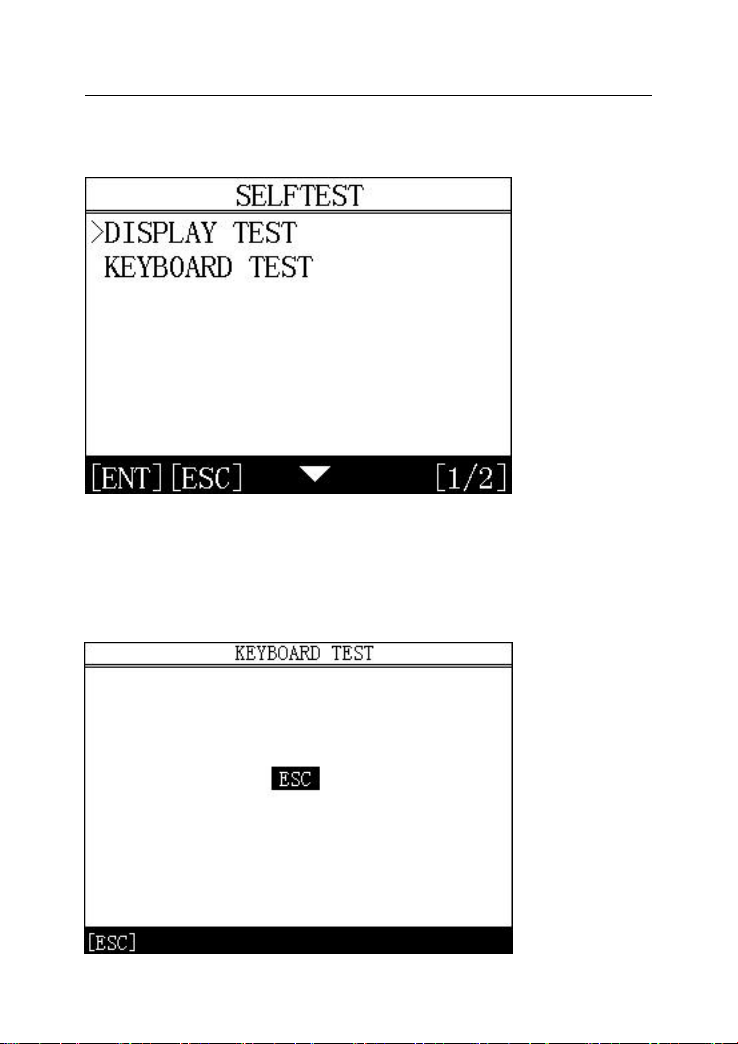
1.4.4 Device Self-test
Liquid crystal self-check or keyboard self-check can be selected.
1.4.4.1 Keyboard self-test
The machine self-check includes LCD display, keyboard test, such
as the lack of the display screen, keyboard malfunction, please
send BMT-08 to the manufacturer for maintenance
9
Page 12
OBDSTAR User Manual
Login our website:http://en.obdstar.com and click “One Key
Upgrade”.
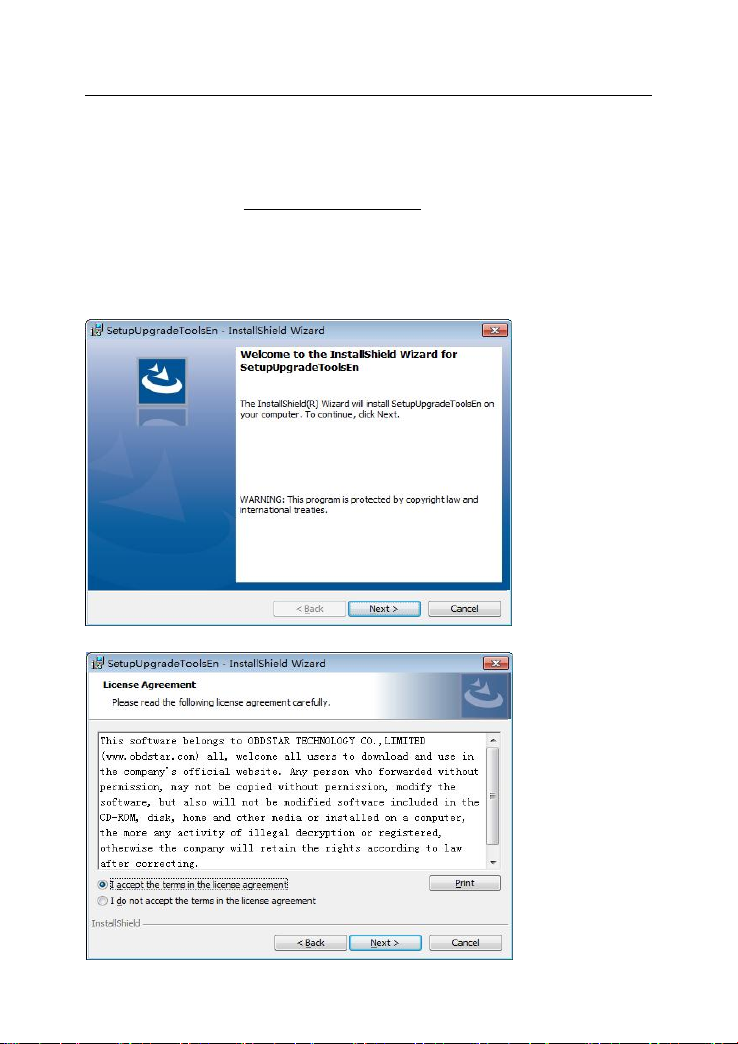
Download the update tool and diagnostic software,double
click,then go to the next step:
Step 1:Click “Next”
Step 2: Click “Next
Chapter 2: How to update software
2.1 Update tool software installation
10
Page 13
OBDSTAR User Manual
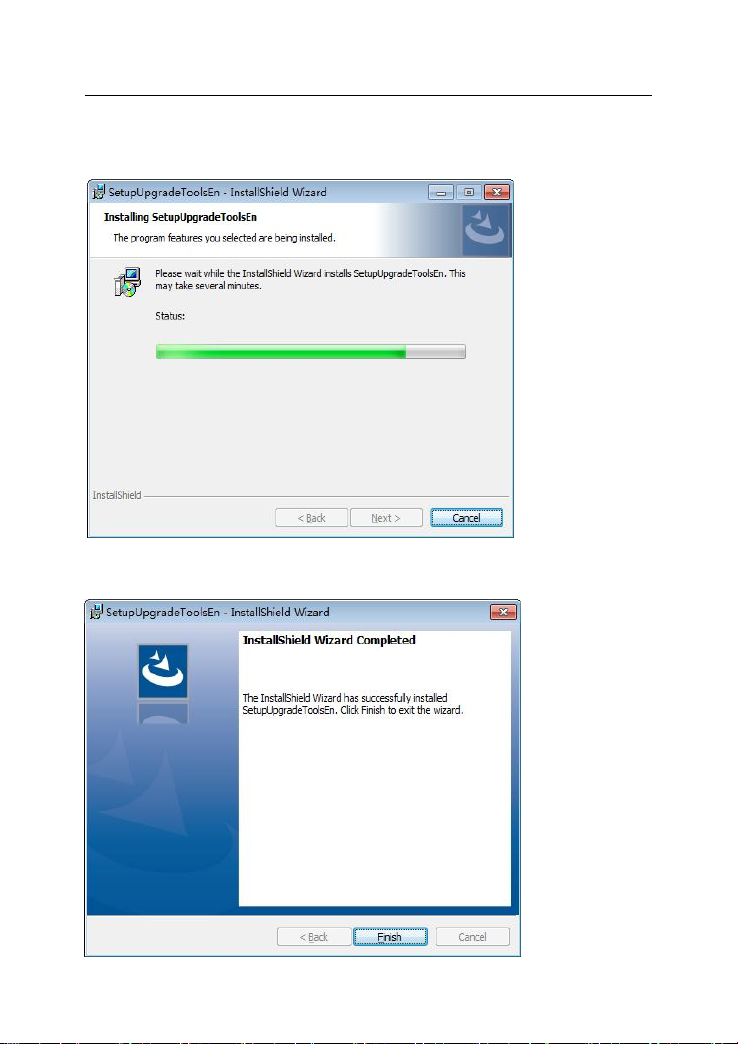
Step 3: Wait for several minutes then the installation
finished
Step 4: Click “Finish”
11
Page 14
OBDSTAR User Manual
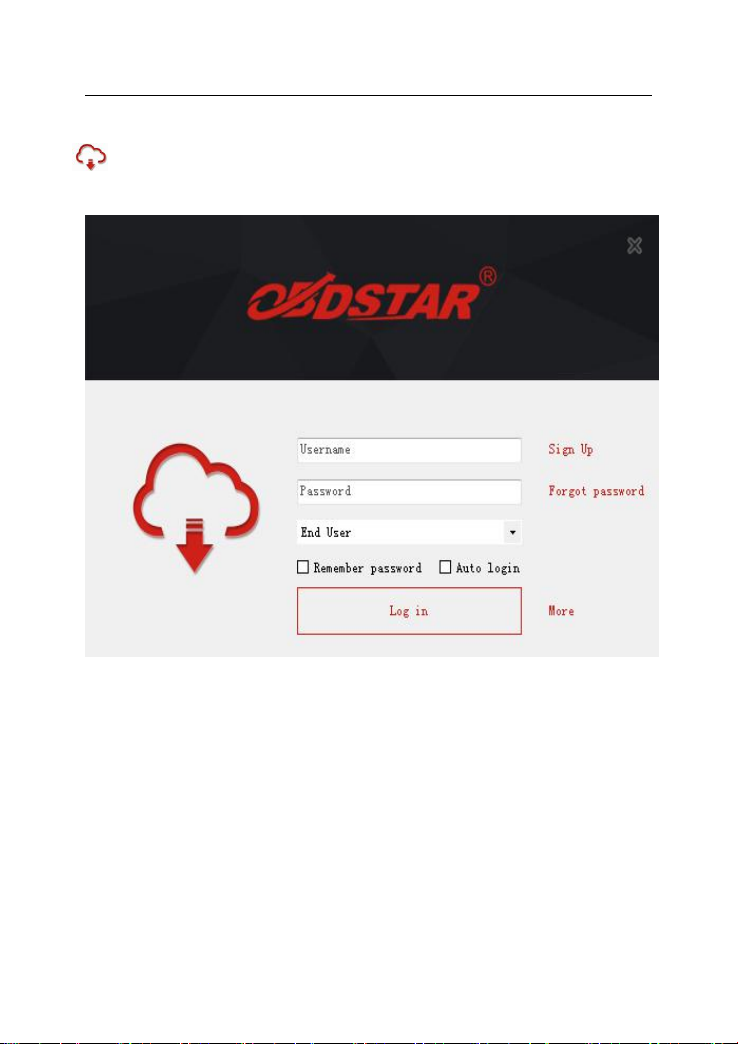
After Update Tool installation completed, click the Update
Tool software icon on desktop to start the update tools.
The main interface is as shown below:
12
Page 15
OBDSTAR User Manual
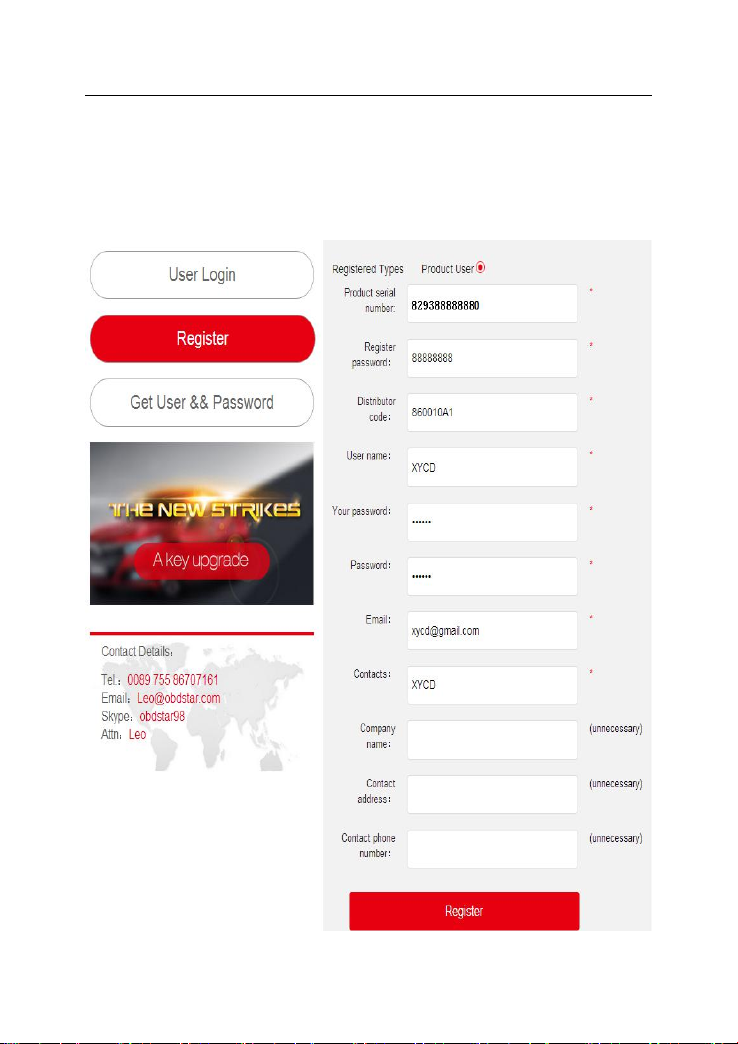
2.2 Register
Click ”Sign up” to fill in user information.Username can be
English characters or the combination of alphabet and numbers.
Serial number and register password can be referred to System
information in the device.( Figure 1.4.3)
13
Page 16
OBDSTAR User Manual
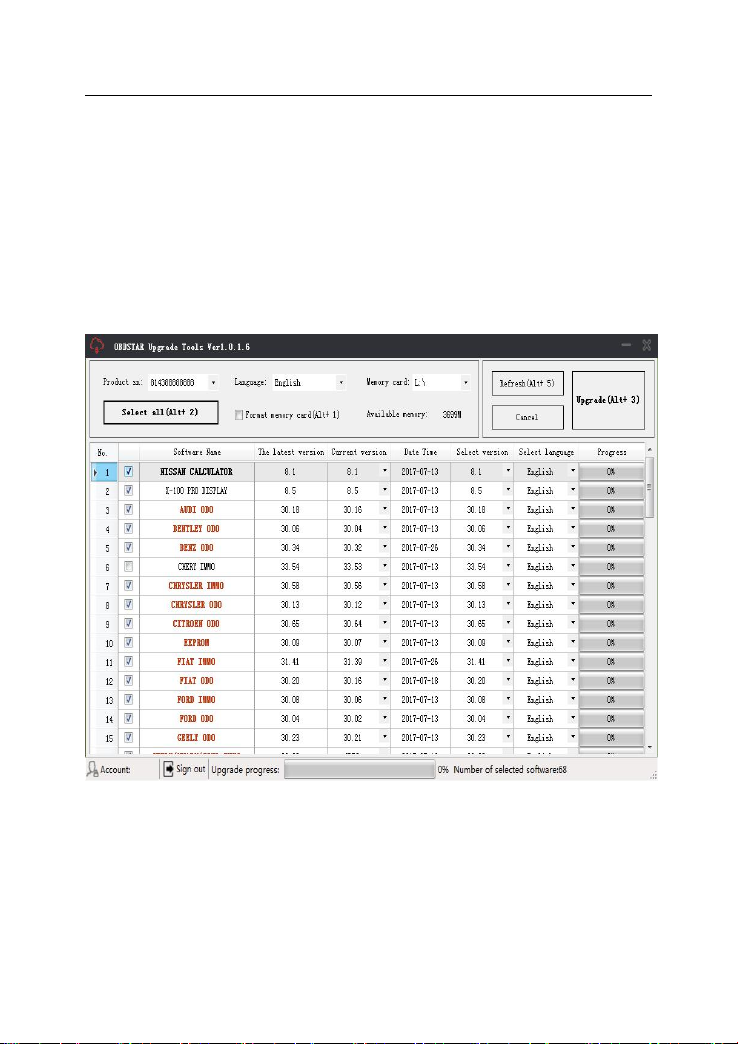
2.3 Software updating
Operation steps as following:
Step1:Connect device to computer via usb and make sure memory
cord can be detected normally.
Step2:Open one key update tool and login.
Step3:Click single software or select all to update.
(Note:It's better to click "Format memory card"while updating)
Step4:Wait for several minutes until the updating finished.
Note:For new update software and questions during
updating, please contact your distributor.
14
 Loading...