

Page 1
HOSTPOWER Wi-Fi
Android Quick Start Guide
OBDLink MX Wi-Fi
Android
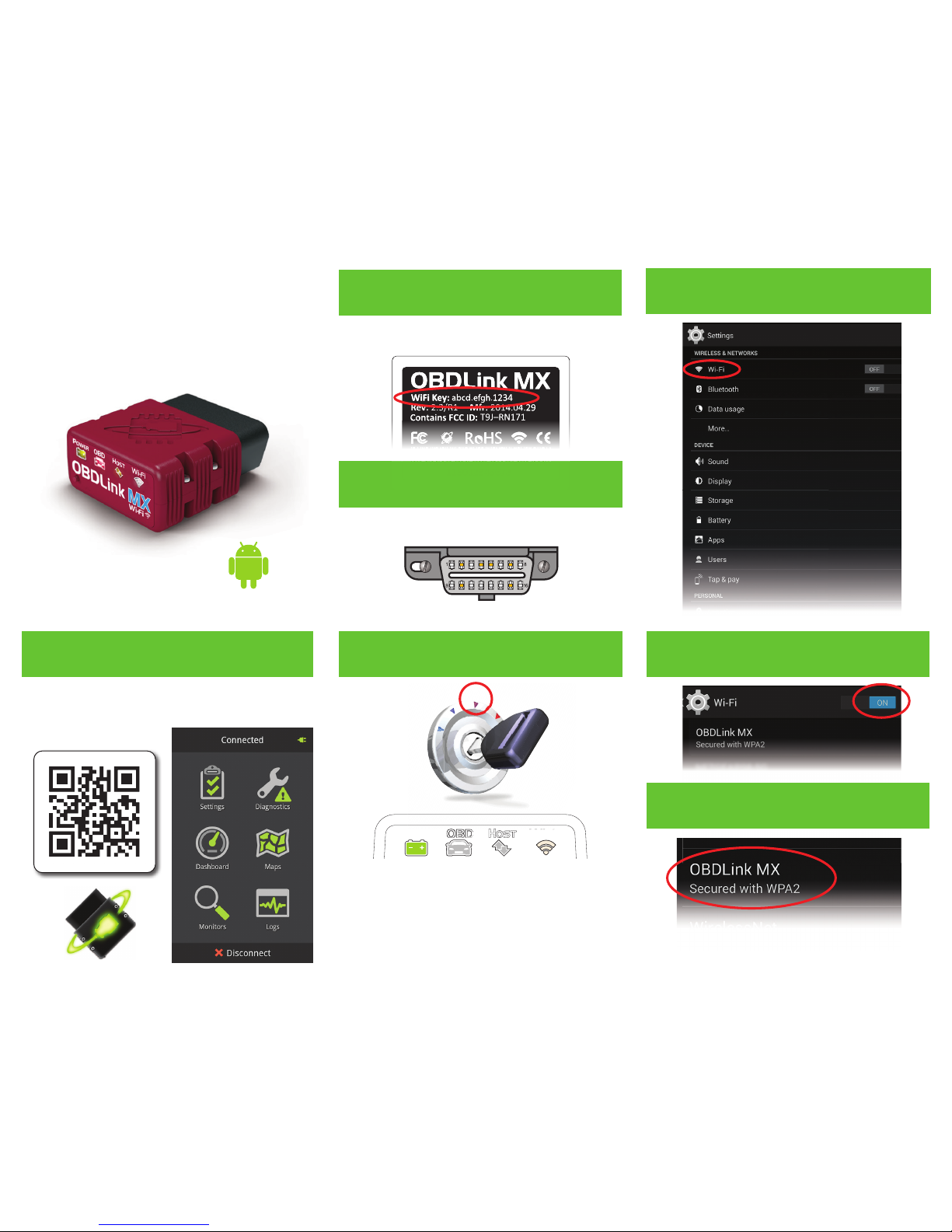
Scan the QR code or visit the URL from your Android
device to download the OBDLink app:
obdlink.com/app
Download & install OBDLink app
The DLC is usually found on the driver’s side, under
the dash.
LOCK
ACC
ON
START
– Can’t nd your DLC? Visit dlc-locator.com
The factory default Wi-Fi Key is found on the bottom
of MX Wi-Fi, is lowercase and includes periods.
‘POWER’ LED will turn ON, and the white ‘Wi-Fi’ LED
will emit a ash every 3 seconds.
– LEDs are o ? Check vehicle for blown fuses.
[instructions continue on reverse ]
Plug MX Wi-Fi into the diagnostic link
connector (DLC)
Turn ignition to Key On, Engine O
position
Write down the 14-digit Wi-Fi Key Open ‘Settings’ app, and tap ‘Wi-Fi’
Select ‘OBDLink MX’ from the list of
networks
Turn Wi-Fi on
1
2
3
4
5
7
6
Vehicles with push button start: press the button without
stepping on the brake pedal.
Page 2
Thank you for your purchase!
If you like OBDLink MX Wi-Fi,
please post your review on
OBD
H
OSTPOWER
Wi-Fi
9
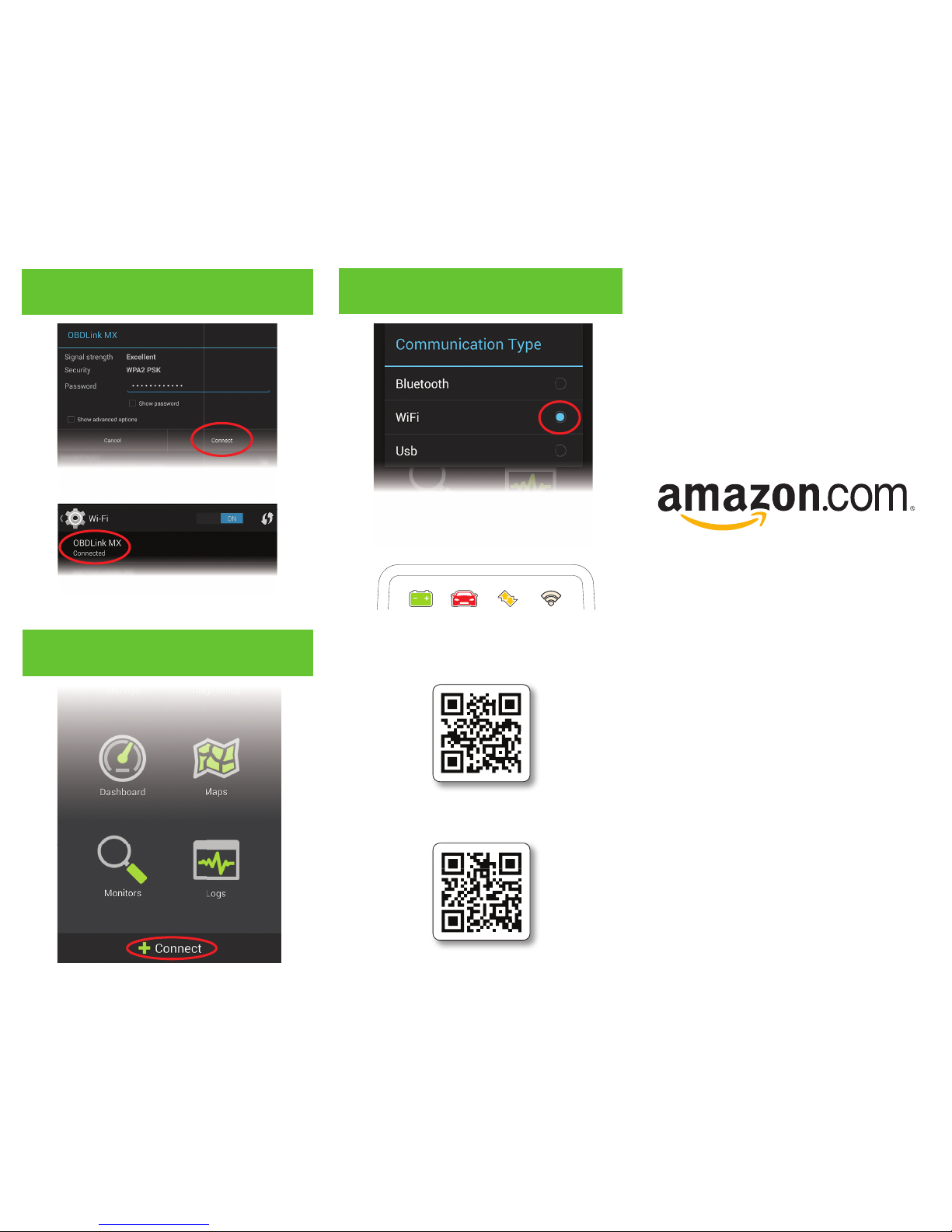
Launch OBDLink app, tap ‘Connect’
10
Choose ‘Wi-Fi’
– Need help? Go to obdlink.com/support
or scan the QR code
– For advanced configurations, go to obdlink.com/setup
or scan the QR code
Once the app establishes a connection with MX, the
‘Wi-Fi’ LED will turn on solid. Tap ‘Diagnostics’ to
start a scan.
The network status will change to ‘Connected,’ and
the ‘Wi-Fi’ LED will change to a slow blink.
Enter the Wi-Fi Key from step #2 in the
‘Password’ eld, and tap ‘Connect’
– Remember that the Password is lowercase and
includes periods.
8
 Loading...