

Page 1
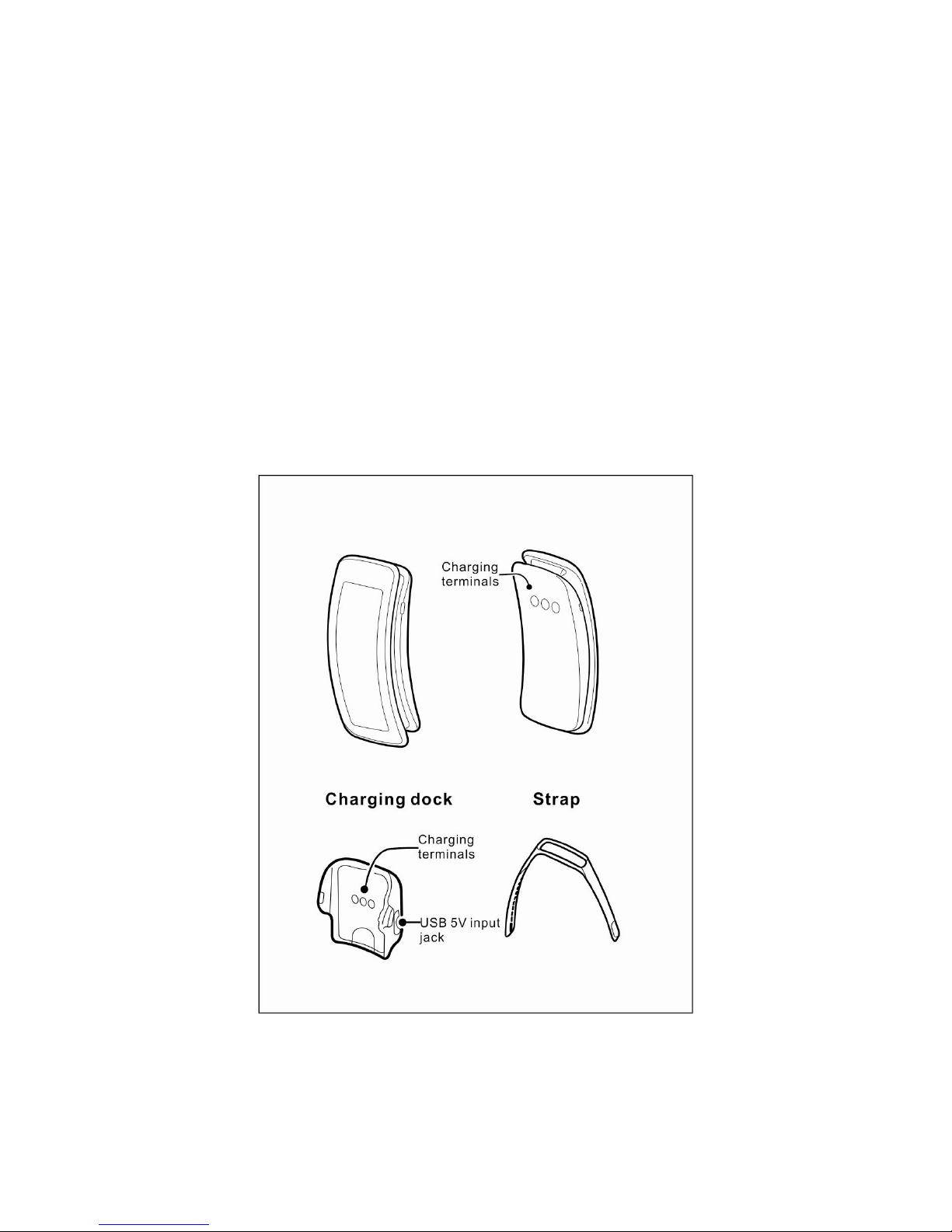
Oband T2 smart band
Quick Start Guide
About T2 Oband
Set your Oband tracker and manage your health by connecting
T2 to your smartphone.
Inserting and removing the tracker
Page 2
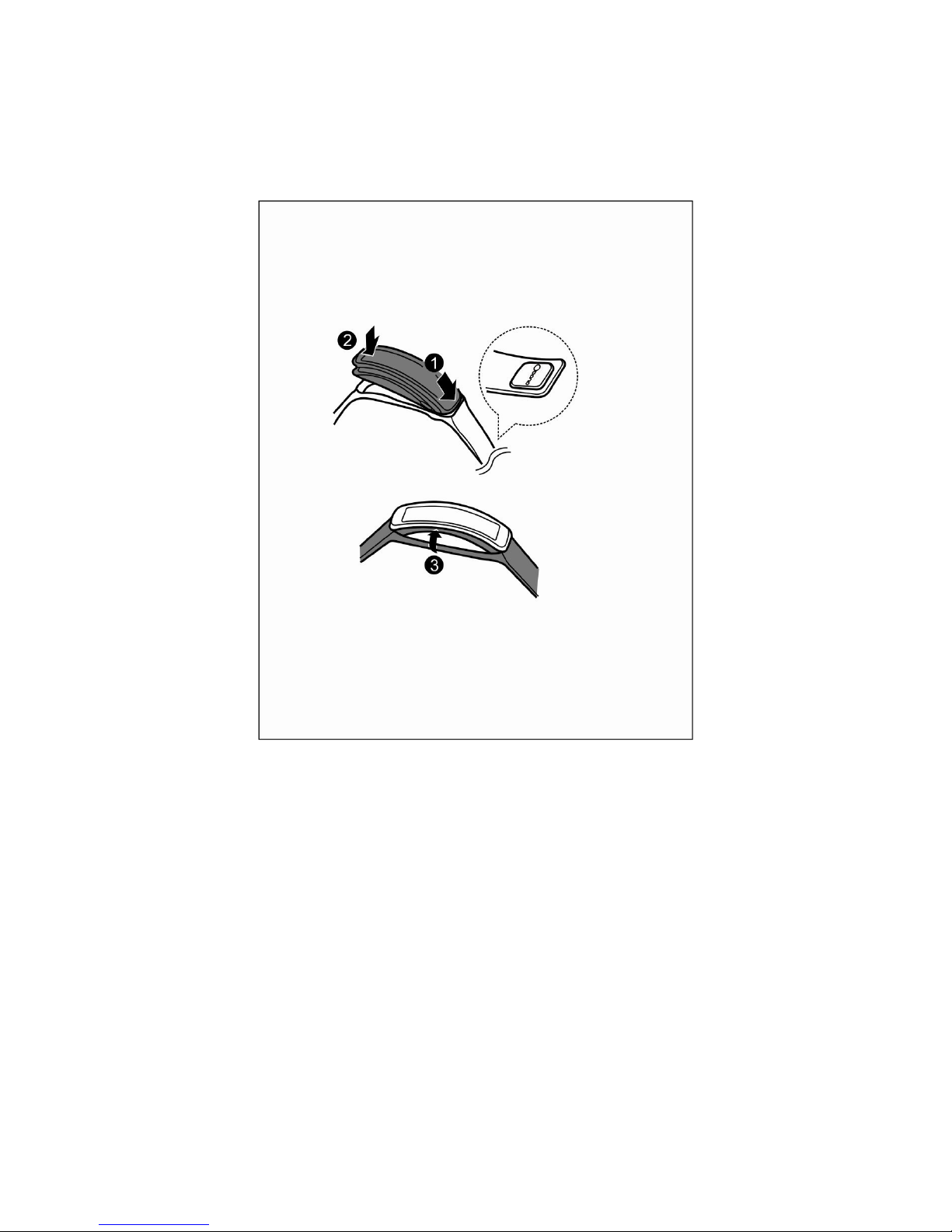
Hold the tracker in your hand with the panel facing up.
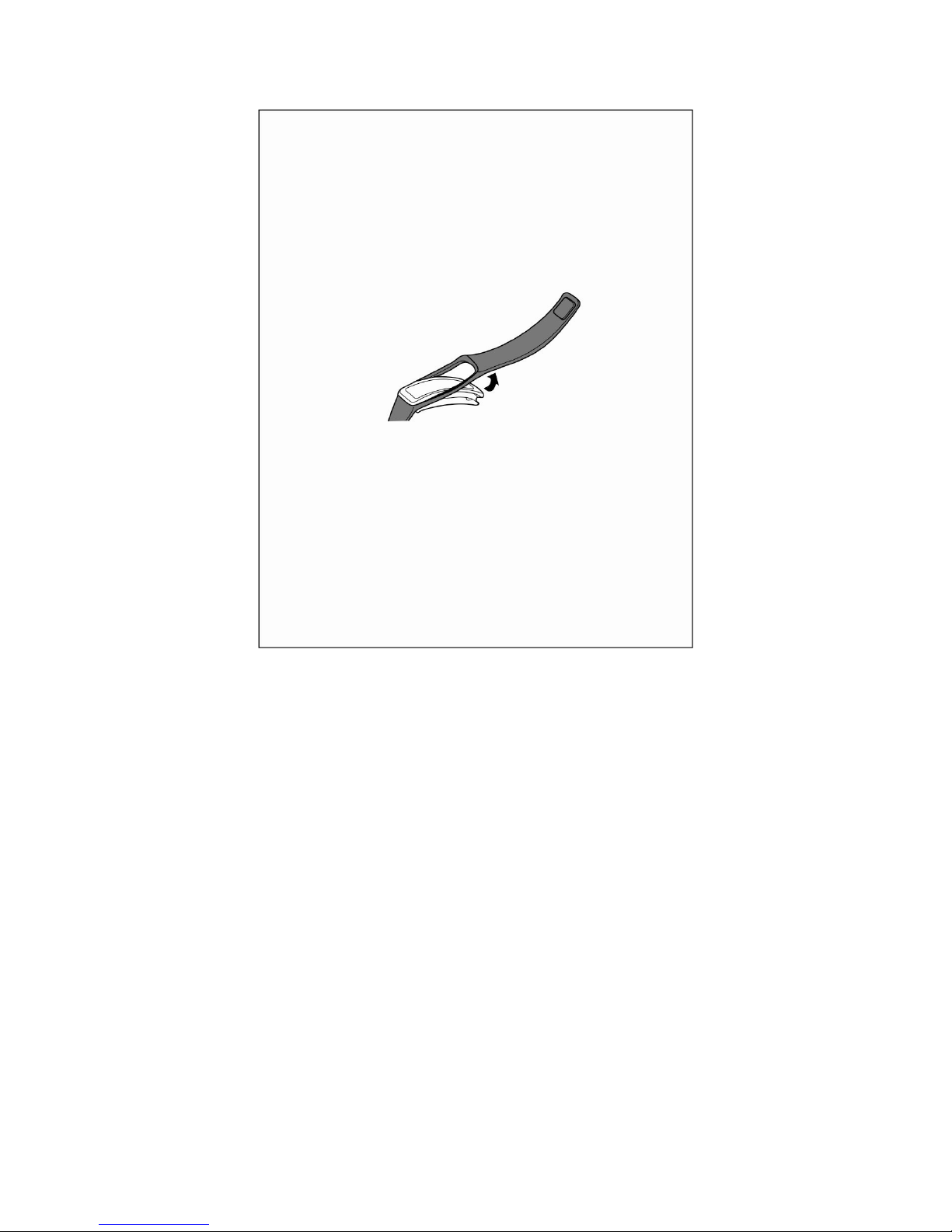
Lift the wristband upwards when you want to take out the
tracker.
Page 3
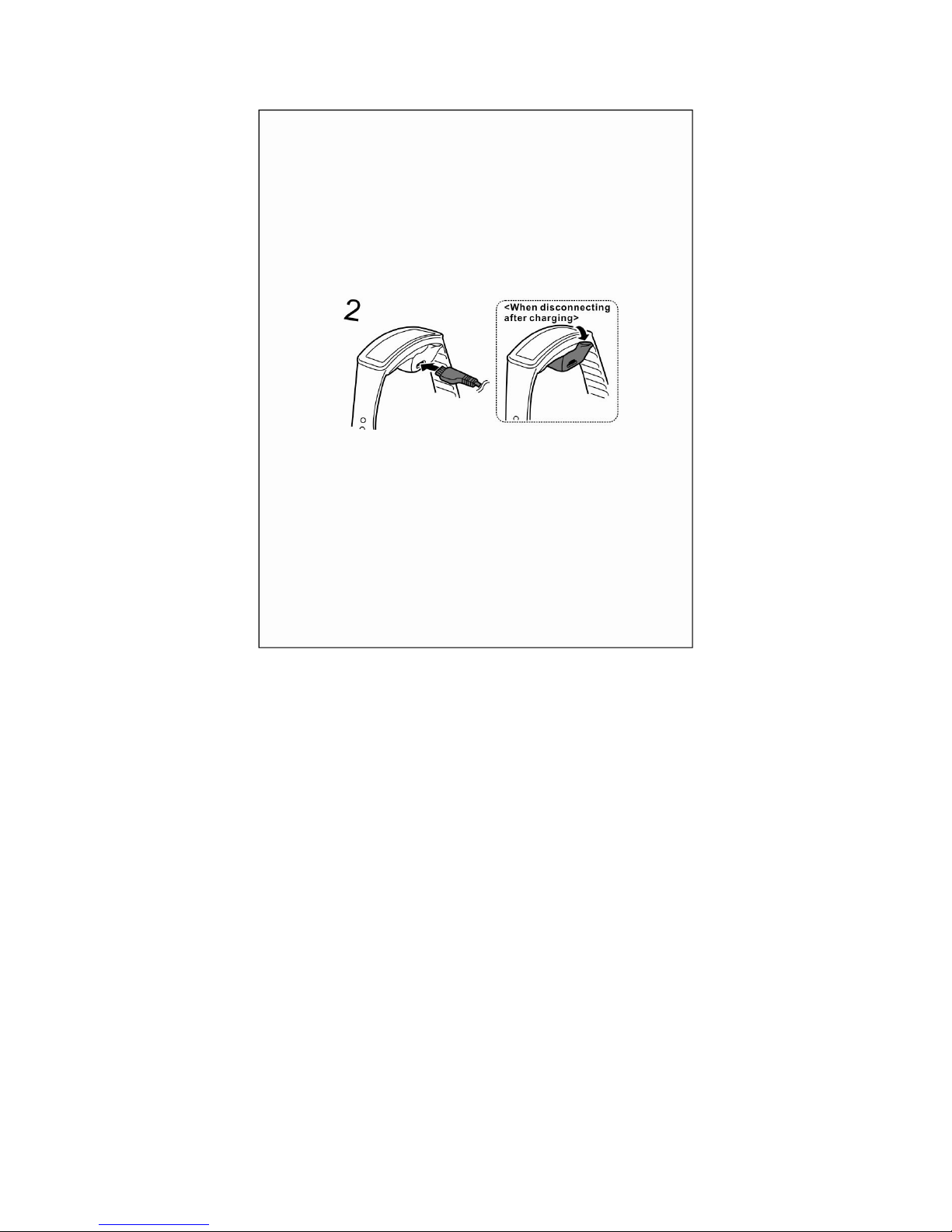
Charging your Obandband
It is recommended that you charge your Oband prior to first use.
Make sure the charging terminals facing to each other before
recharge.
Page 4
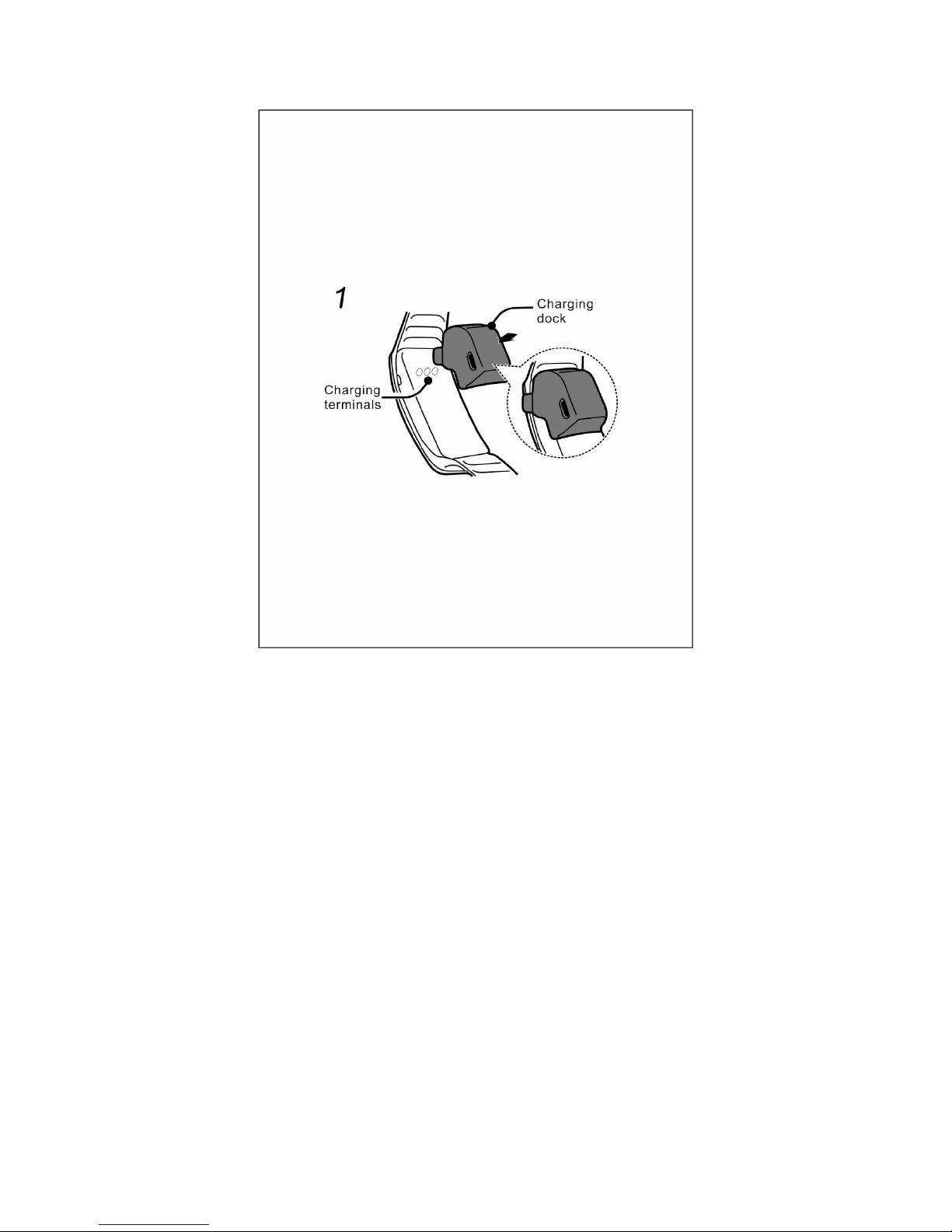
Make sure the charging dock is connected with tracker closely
and the USB cable isin good contact.
Page 5
Functions
y OLED display-Visual display of data and information.
y Display caller ID and message- The number and name of
incoming calls or SMS will be indicated on screen
y Vibration reminder- Vibration reminder of incoming calls,
SMS, long periods of sitting and alarm clock.
y Track exercise- Set a specific goal and measure the exercise
you do and calories burned.
Page 6

y Track sleep- Track the hours you sleep, as well as your
activity during sleep to help you understand your sleep
quality.
y Food record-Scan bar code or take photo of your food for
calories recording.
y Wateresistance- IPX6 water resistant level.
Note: All the data collected by T2 cannot be used as medical
data.
Using your Obandband
y You need to see if your phone is compatible with Oband
before first use. The system requires IOS 7.1+ and Android
4.3 +.
y Download the Hifit App from
http://www.oband.com.cn, or you
can find the Hifit App on Google Play store by searching
“Hifit”. If you already have the Hifit App installed, check for
available updates to make sure you have the latest version.
y EnableBluetoothin your smartphone settings and open the
Hifit App. If you don’t have aOband account, you need to
sign up by entering the email address or smartphone number
and password.Then you need to enteryourpersonal
informationto improve the accuracy of your calorieburn and
Page 7
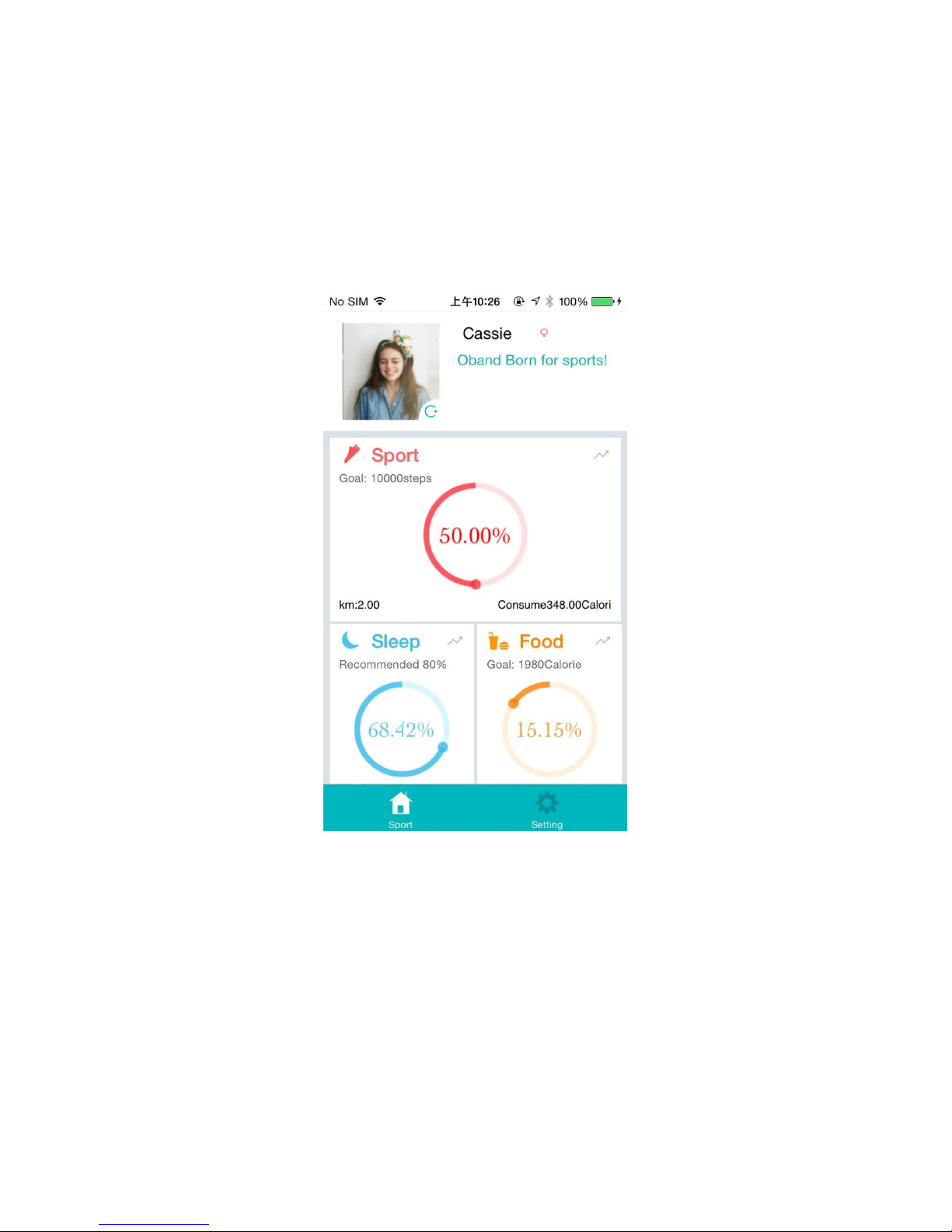
distance data.
y The Hifit App acts as the dashboard, you can read your data
of steps, sleep and calories. Sync your tracker before you
want to see the latestdata .
Page 8
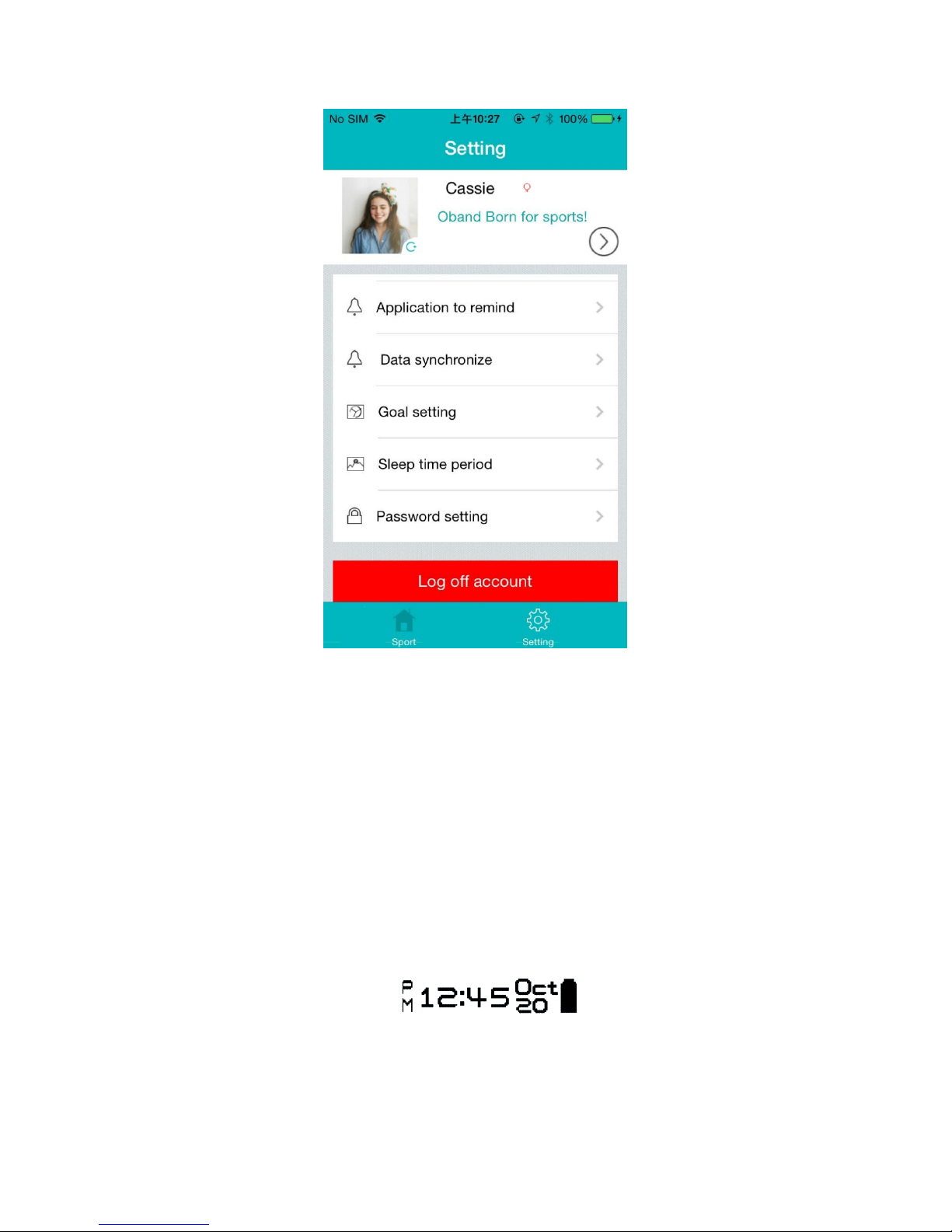
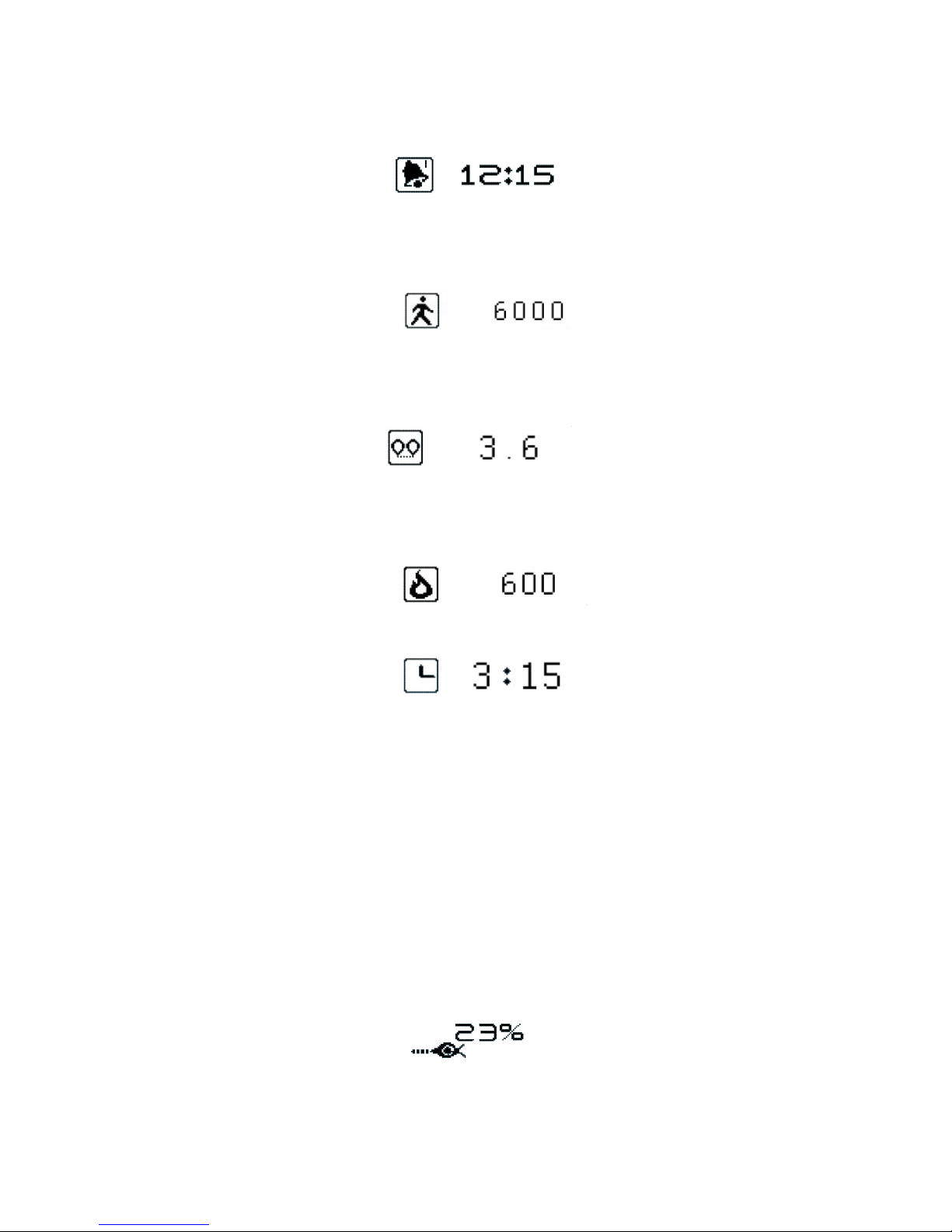
y Each mode can be switched by tapping the panel one time.
Totally, there are seven modes: home screen, alarm clock,
steps taken, travel distance, calories burned, exercisetime and
goal progress.
y Current time, month, date and remaining power are indicated
on the home screen.
y Four alarm clocks can be set on App, and the screen will
switch automatically into alarm mode when the specific time
Page 9
is up.
y Tracking number of steps you have taken, and automatic zero
clearing at0:00.
y Tracking your travel distance, and automatic zero clearing
at0:00.
y Display how many calories you have burn and automatic
zero clearing at0:00.
y Displaythe active time and automatic zero clearing at0:00.
y Show the daily goal progress. If the target is not yet
completed at 20:00 (default), it will display a crying face,
and the motor vibrates for 5 seconds at the same time. The
motor will not repeat vibrate every 30 minutes until you have
got the goal or more than 22:00. After you have reached the
target, the screen will display a smile face. And automatic
zero clearing at0:00.
y Sleeping mode: Set the sleeping time at Hifit App and sync
Page 10

with T2, and T2 wrist band will vibrate to remind you to
sleep at beginning time of sleeping period, and vibrate again
to remind you waking up at the end of sleeping time.
Note: This does not delete the previous day’s data, that data will
be uploaded toyour Oband Dashboard the next time you sync
your Oband.
Safety Information
y To prevent injury, fire, or explosion, read and adhere
toallsafety information before using the device.
y Use manufacturer-approved batteries, chargers, accessories,
and supplies.
y Do not expose the device to physical impact or damage.
y Prevent the multipurpose jack and battery terminals
fromcontacting conductive elements, such as metal
or liquids.
y Do not store your device in very hot or very cold areas. It is
recommended to use your device attemperatures form 5℃ to
35℃.
y Do not store your device near or in heaters,microwaves,
cooking equipment, or high pressurecontainers.
Page 11

y Do not touch the charger or the device with wet hands while
the device is charging.
y Do not use your device outdoor during a thunderstorm.
y Keep away the device in potentially explosive environments.
y Comply with all safety warning and regulationsregarding
mobile device usage while operatinga vehicle.
y If the device is cracked, broken, or becomes very hot, stop
using the device immediately and take itto our service center.
y Do not allow children or animals to chew or suckthe device.
y Do not poke eyes, ears, or other body parts with thedevice or
insert the device into the mouth.
y If the device has a camera flash or light, do not useit close to
the eyes of people or animals.
y Do not disassemble, modify, or repair your device.
x Any changes or modifications to your device can void
your manufacturer’s warranty. If your device needs
servicing, take your device to anour service center.
x Do not disassemble or puncture the battery, as this
cancause explosion or fire.
y If your experience skin problems after wearing thisdevice,
remove the device and consult a medicalprofessional.
y Do not paint or put stickers on your device.
Page 12

x Paint and stickers can clog moving parts and
preventproper operation.
x If you are allergic to paint or metal parts of the device,you
may experience itching, eczema, or swelling of theskin.
When this happens, stop using the device and consult
your physician.
y Allow only qualified personnel to service your device.
Allowing unqualified personnel to serviceyour device and
will void your manufacturer’swarranty.
Maintaining Water
y The device may be damaged if water or dust enters the
device. Follow these tips carefully to prevent damage tothe
device and to maintain the water-and dust-resistant
performance of the device.
y Do not immerse the device in water deeper than 1m or keep
it submerge for more than 30 minutes.
y Do not expose the device in water at high pressure,such as
ocean waves or a waterfall.
y If the device or your hands are wet, dry them
thoroughlybefore handing the device.
Page 13

y Do not expose the device to salt water, ionized water,or
soapy water.
y If the device is dropped or receives an impact, the water and
dust resistant features of the device may be damaged.
y If the device gets wet, dry it thoroughly with a clean,
softcloth.
Dust Resistance
Your device has been tested in a controlled environment and
shown to be water and dust resistantin certain circumstances
(meets requirements of classification IPX6 as described by the
internationalstandard IEC 60529 - Degrees of Protection
providedby Enclosures [IP Code]; test conditions:
15-35ºC,86-106kPa, 1 meter, for 30 minutes).Despite this
classification, your device is not impervious to waterdamage in
any situation.
Page 14

Data sheet Charging dock
Dialdialplatesize 56x23x13mm(LxWxH)
Dock size 25x24x14mm(LWxH)
Max band length 210mm Material
PC environmental protection
material
Min band length 160mm
Charging
method
USB port(in 1.5 hours)
Weight 20g System
requirement
IOS 7.1orabove Android 4.3 or
above Material PC. Medical Silicon
Battery Rubber
Compatible
working with
iPhone4S,iPhone5,iPhone5C,iPho
ne 5S,
New iPad,ipad4/mini,iPad Air;
Samsung GALAXY S3,GALAXY
S4,GALAXY S5,
GALAXY Note 2,GALAXY Note 3,
HTC Nexus 7,Nexus 5
Mi3,Mi4,Meizu MX3
Battery life Li-ion battery pack
Sync method 120~360 hours
Working Bluetooth 4.0
Temperature -10~50ºC
Water proof level IPX6
FCC Statement
This equipment has been tested and found to comply with the
limits for a Class B digital device, pursuant to part 15 of the
FCC rules. These limits are designed to provide reasonable
protection against harmful interference in a residential
installation. This equipment generates, uses and can radiate
radio frequency energy and, if not installed and used in
accordance with the instructions, may cause harmful
interference to radio communications. However, there is no
guarantee that interference will not occur in a particular
Page 15

installation. If this equipment does cause harmful interference to
radio or television reception, which can be determined by
turning the equipment off and on, the user is encouraged to try
to correct the interference by one or more of the following
measures:
-Reorient or relocate the receiving antenna.
-Increase the separation between the equipment and receiver.
-Connect the equipment into an outlet on a circuit different from
that to which the receiver is connected.
-Consult the dealer or an experienced radio/TV technician for
help.
To assure continued compliance, any changes or modifications
not expressly approved by the party Responsible for compliance
could void the user’s authority to operate this equipment.
(Example- use only shielded interface cables when connecting
to computer or peripheral devices).
This equipment complies with Part 15 of the FCC
Rules.Operation is subject to the following two conditions:
(1) This device may not cause harmful interference, and
(2) This device must accept any interference received, including
interference that may cause undesired operation.
Page 16

Caution!
The manufacturer is not responsible for any radio or TV
interference caused by unauthorized modifications to this
equipment. Such modifications could void the user authority to
operate the equipment.
 Loading...