

Page 1
DE
EN
FR
NL
ES
PT
IT
DA
NO
SV
FI
HU
PL
CS
SK
SL
HR
RO
BG
UK
RU
CN
InScenio EGC Controller
H
ome, Cloud
DE Geb
rauchsanleitun
g
HU Haszn
á
lati
ú
tmutat
ó
EN O
p
erating instructions PL Instrukcja użytkowania
F
R Notice d'em
p
loi
C
S Návo
d
k
p
ou
ž
ití
NL G
ebruiksaanwijzin
g
S
K Návod na použitie
E
S Instrucciones de uso
S
L Navo
dil
a za uporabo
P
T Instruções de uso HR Uputa o upotrebi
I
T Istruzion
i
d
'uso RO Instruc
ţ
iuni
de folosi
n
ţ
ă
D
A Brugsanvisnin
g
BG Упътване за употреба
N
O Bruksanvisnin
g
UK Пос
і
б
ник з експлуата
ц
і
ї
S
V Bruksanvisnin
g
RU Руководство по эксплуатации
F
I K
ä
y
ttöo
h
j
e
C
N
使用说明书
Page 2
2
DE
WARNUNG
WARNUNG
Trennen Sie alle elektrischen Geräte im Wasser vom Strom-
netz, bevor Sie ins Wasser greifen. Andernfalls drohen
schwere Verletzungen oder Tod durch Stromschlag.
Dieses Gerät kann von Kindern ab 8 Jahren und darüber so-
wie von Personen mit verringerten physischen, sensorischen
oder mentalen Fähigkeiten oder Mangel an Erfahrung und
Wissen benutzt werden, wenn sie beaufsichtigt oder bezüglich des sicheren Gebrauchs des Gerätes unterwiesen wurden und die daraus resultierenden Gefahren verstehen. Kinder dürfen nicht mit dem Gerät spielen. Reinigung und Benutzerwartung dürfen nicht von Kindern ohne Beaufsichtigung durchgeführt werden.
Sicherheitshinweise
Elektrischer Anschluss
• Schließen Sie das Gerät nur an, wenn die elektrischen Daten von Gerät und Stromversorgung übereinstimmen.
• Schließen Sie das Gerät nur an einer vorschriftsmäßig installierten Steckdose an.
Die Steckdose muss über eine Fehlerstrom-Schutzeinrichtung mit einem Bemessungsfehlerstrom von maximal 30 mA abgesichert sein.
• Schützen Sie Steckverbindungen vor Feuchtigkeit.
Sicherer Betrieb
• Tauchen Sie das Gerät niemals in Wasser oder andere Flüssigkeiten.
• Verwenden Sie das Gerät nicht, wenn elektrische Leitungen oder Gehäuse beschä-
digt sind.
• Eine beschädigte Anschlussleitung kann nicht ersetzt werden. Entsorgen Sie das
Gerät.
• Tragen oder ziehen Sie das Gerät nicht an der elektrischen Leitung.
• Verlegen Sie Leitungen so, dass sie vor Beschädigungen geschützt sind und das nie-
mand darüber fallen kann.
• Verwenden Sie keine Mehrfachsteckdosen.
• Wenden Sie sich bei Problemen an den autorisierten Kundendienst oder an OASE.
Page 3
DE
3
Produktbeschreibung
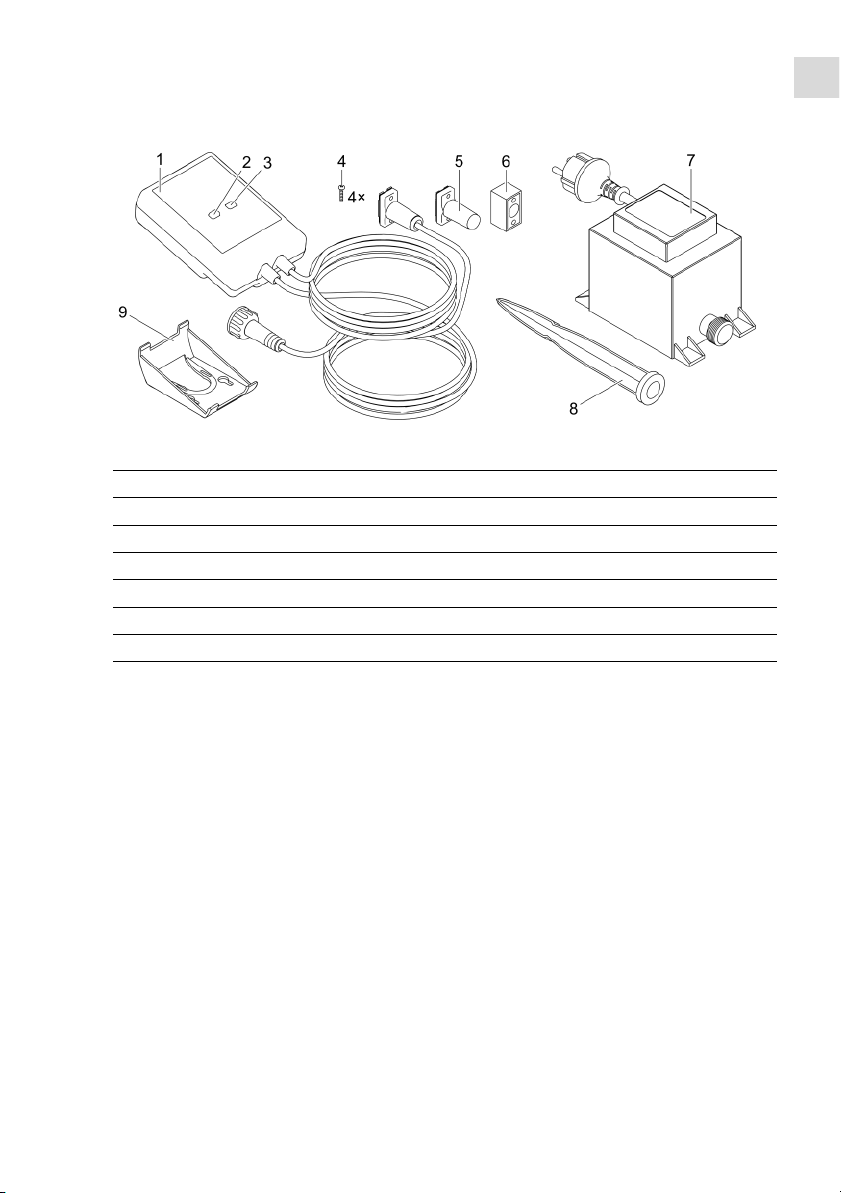
Übersicht
EGC0004
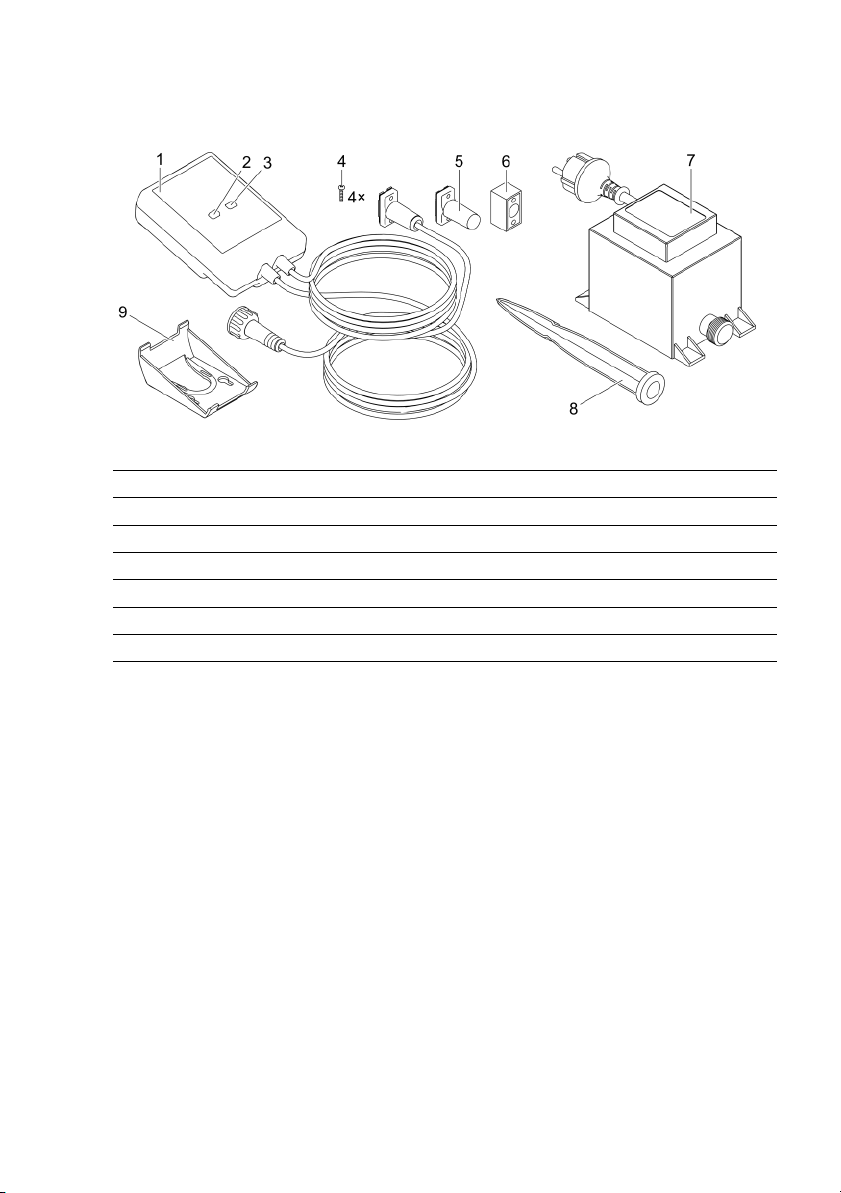
1
I
nScenio EGC Controller
2
W
PS/Reset-Taste
3
L
ED, Anzeige des Betriebszustands
4
S
chrauben zur Befestigung der Steckverbinder mit dem Kabelverbinder EGC
5
E
ndwiderstand EGC, wird am letzten Gerät im EGC-Netzwerk eingesteckt
6
K
abelverbinder EGC (47788)
7
T
rafo
8
E
rdspieß zur Bodenbefestigung
9
H
alterahmen zur Wandbefestigungoder Aufnahme von Erdspieß
Funktionsbeschreibung
InScenio EGC Controller ist ein Controller zur Vernetzung der OASE EGC-Geräte.
Die angeschlossenen Geräte werden über WLAN per Tablet, PC oder Smartphone mit
der OASE-App "Easy Control" gesteuert. Sie können bis zu zehn EGC-fähige OASE Endgeräte anschließen.
Den Controller gibt es in den Ausführungen Home und Cloud. Mit der Ausführung
Cloud können Sie EGC-fähige Endgeräte auch über das OASE Webportal kontrollieren. Das Webportal erreichen Sie unter
https://oec.oase-livingwater.com .
Das Easy Garden Control System (EGC) bietet im Garten und am Teich komfortable
Steuerungsmöglichkeiten und gewährleistet hohen Komfort und Sicherheit.
Informationen über EGC und seine Möglichkeiten erhalten Sie im Internet unter
www.oase-livingwater.com/egc-start .
Page 4
4
Bestimmungsgemäße Verwendung
Das in dieser Anleitung beschriebene Produkt ausschließlich wie folgt verwenden:
• Betrieb nur als Gerätesteuerung mit EGC-fähigen Endgeräten von OASE.
• Betrieb bei Umgebungstemperaturen von -20 °C … +45 °C.
• Betrieb unter Einhaltung der technischen Daten. (→ Technische Daten)
Für das Gerät gelten folgende Einschränkungen:
• Nicht für gewerbliche oder industrielle Zwecke verwenden.
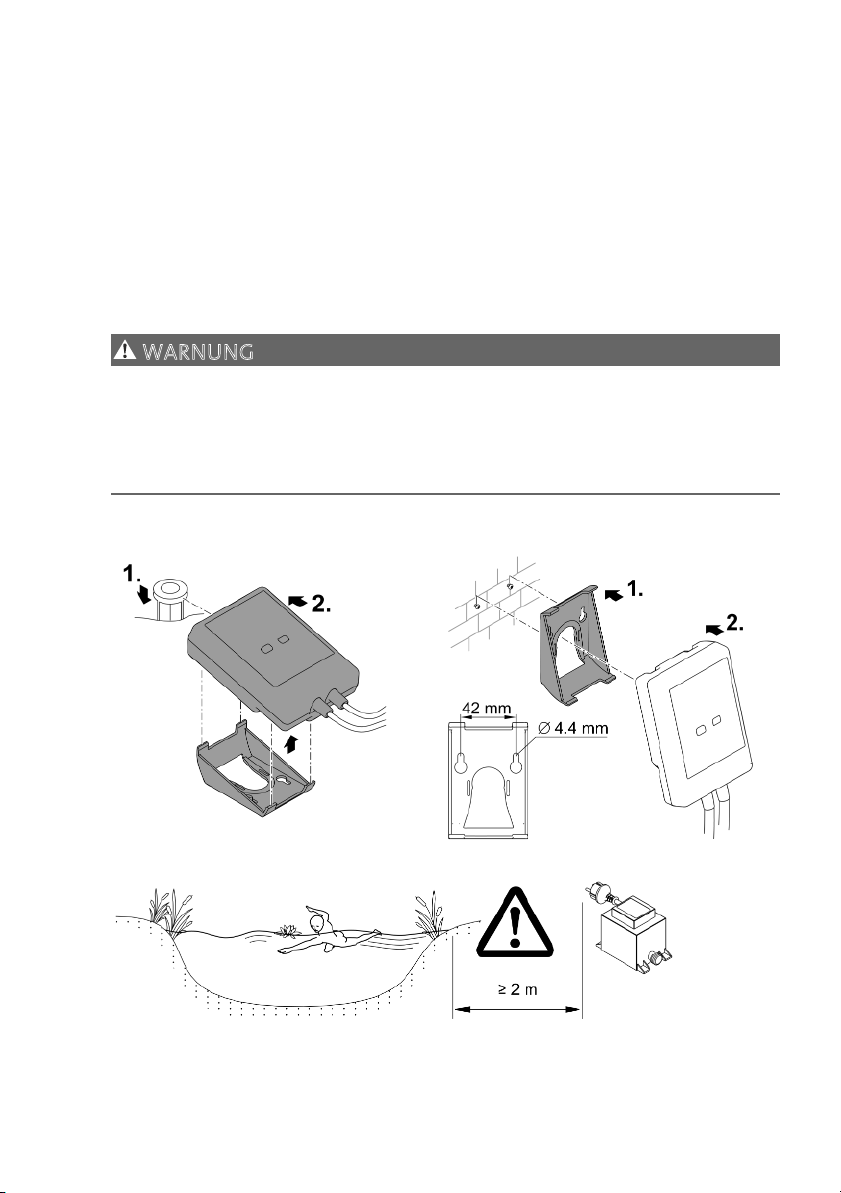
Aufstellen
WARNUNG
Der Trafo führt gefährliche elektrische Spannung und darf nicht direkt am Wasser
aufgestellt werden. Andernfalls drohen schwere Verletzungen oder Tod durch Stromschlag.
Stellen Sie den Trafo überflutungssicher in einem Abstand von mindestens 2 m
zum Wasser auf.
M
it Erdspieß aufstellen
A
n der Wand befestigen
EGC000
6
EGC0007
EGC0005
Page 5
DE
5
Anschließen
HINWEIS
Das Gerät wird beschädigt, wenn Wasser in die Steckverbinder eindringt.
Verschrauben Sie Steckverbinder miteinander (Buchse/Stecker), damit sie wasser-
dicht sind. Verschließen Sie offene Steckverbinder stets mit Schutzkappe und Gum-
midichtung.
Die Gummidichtung muss sauber sein und passgenau sitzen. Ersetzen Sie eine be-
schädigte Gummidichtung.
EGC-fähiges Gerät anschließen
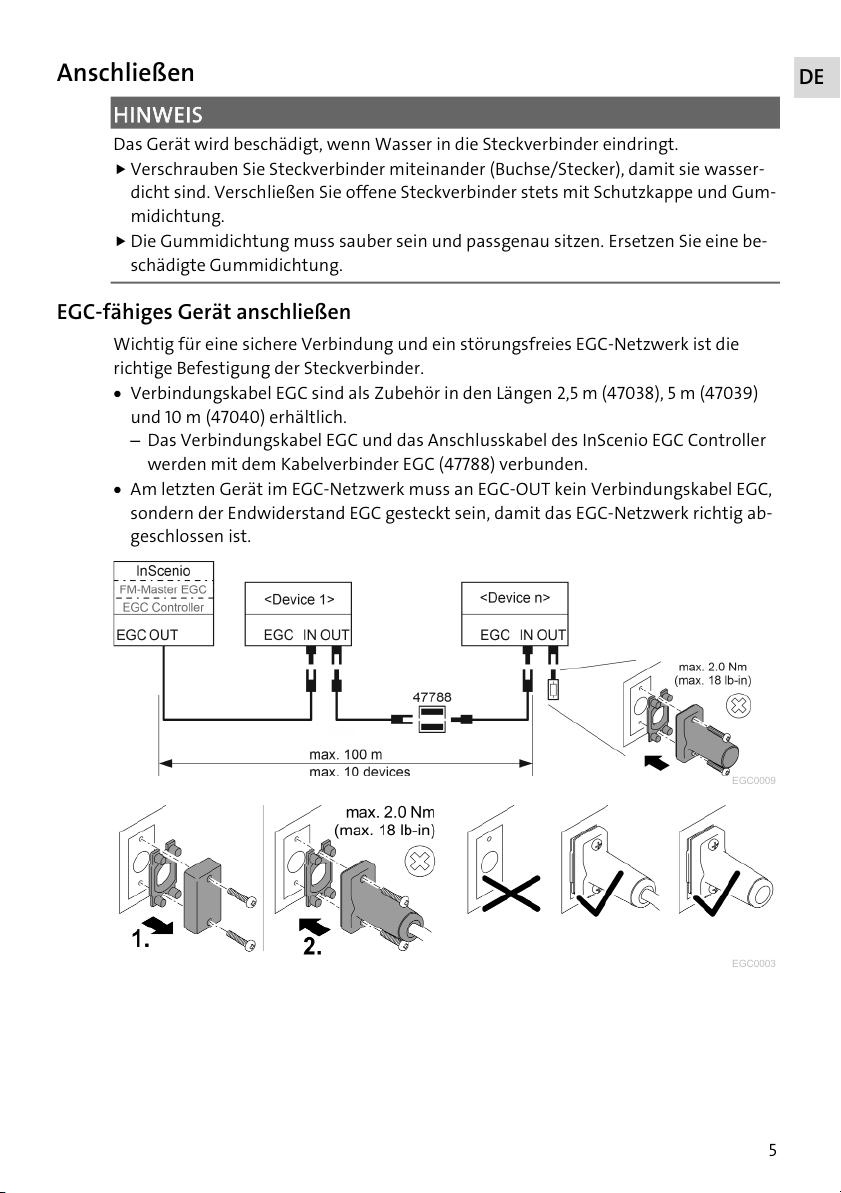
Wichtig für eine sichere Verbindung und ein störungsfreies EGC-Netzwerk ist die
richtige Befestigung der Steckverbinder.
• Verbindungskabel EGC sind als Zubehör in den Längen 2,5 m (47038), 5 m (47039)
und 10 m (47040) erhältlich.
– Das Verbindungskabel EGC und das Anschlusskabel des InScenio EGC Controller
werden mit dem Kabelverbinder EGC (47788) verbunden.
• Am letzten Gerät im EGC-Netzwerk muss an EGC-OUT kein Verbindungskabel EGC,
sondern der Endwiderstand EGC gesteckt sein, damit das EGC-Netzwerk richtig ab-
geschlossen ist.
EGC0009
EGC0003
Page 6
6
Inbetriebnahme
Führen Sie die Inbetriebnahme in dieser Reihenfolge durch:
1. Installieren Sie die App "Easy Control" auf Ihrem Smartphone/Tablet. (→ OASE-App
"Easy Control" installieren)
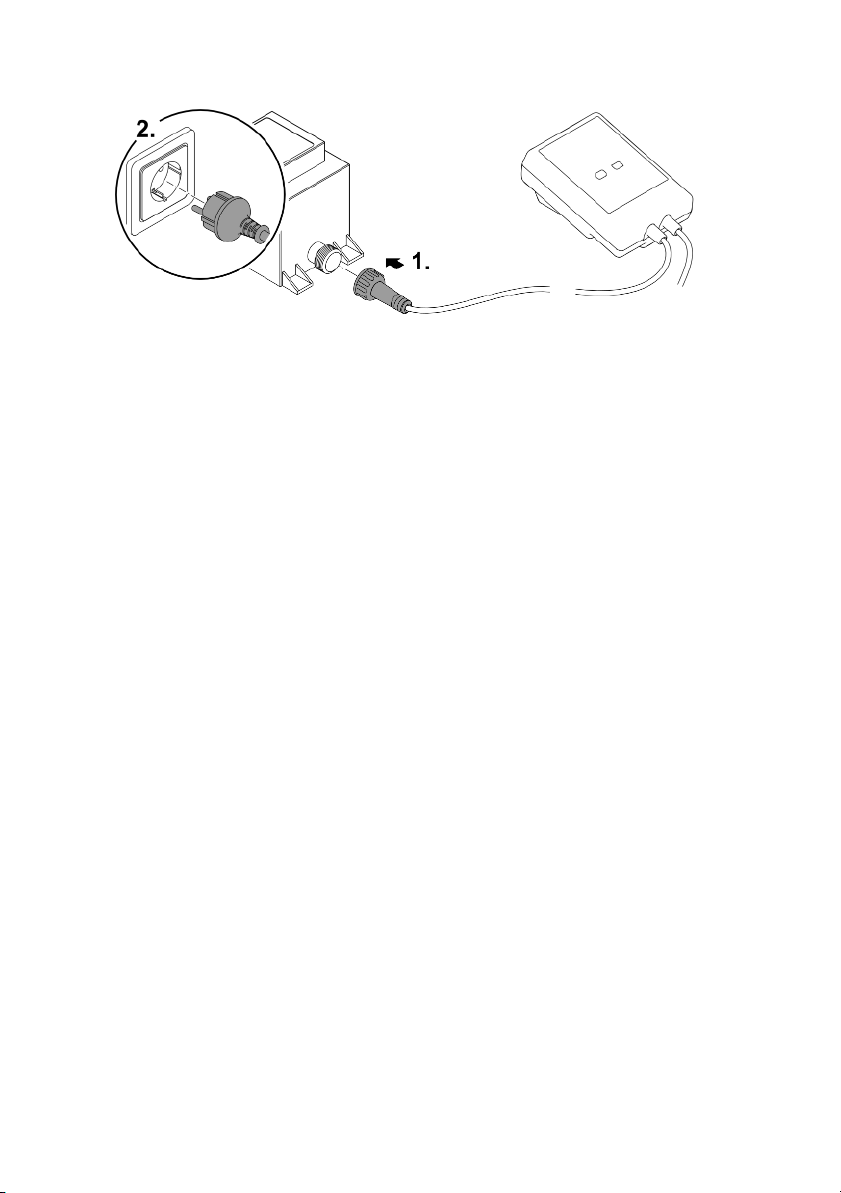
2. Verbinden Sie den InScenio EGC Controller mit dem Stromnetz. (→ Gerät einschalten)
3. Aktivieren Sie die WLAN-Verbindung in den Einstellungen Ihres Smartphones/Tablets, starten Sie die App und folgen Sie den Anweisungen.
Mögliche Verbindungsarten
Für die Bedienung müssen der InScenio EGC Controller und das Smartphone/Tablet
über WLAN verbunden sein.
W
LAN-Verbindung
B
eschreibung
I
nScenio EGC Controller und Smart-
p
hone/Tablet per WPS über das
W
LAN-Netzwerk des WLAN-Routers
v
erbinden.
• Das Smartphone/Tablet bleibt mit dem WLANNetzwerk verbunden und kann weiterhin auf das Internet zugreifen.
• EAC-fähige Endgeräte können über das CloudWebportal kontrolliert und
g
esteuert werden.
I
nScenio EGC Controller und Smart-
p
hone/Tablet direkt verbinden (Ac-
c
ess-Point)
• Der InScenio EGC Controller und das Smartphone/Tablet sind nicht mit dem WLAN-Netzwerk des
WLAN-Routers verbunden. Beide Geräte können auch
nicht auf das Internet zugreifen.
• EAC-fähige Endgeräte können nicht über das CloudWebportal kontrolliert und gesteuert werden.
I
nScenio EGC Controller und Smart-
p
hone/Tablet über den WLAN-Router
d
es Heimnetzwerks manuell verbin-
d
en.
• Das Smartphone/Tablet bleibt mit dem WLANNetzwerk verbunden und kann weiterhin auf das Internet zugreifen.
• EAC-fähige Endgeräte können über das CloudWebportal kontrolliert und gesteuert werden.
Page 7
DE
7
Betriebszustand anzeigen
F
arbe LED Zustand LED
B
eschreibung
A
us
I
nScenio EGC Controller ist ausgeschaltet
G
rün Leuchtet
I
nScenio EGC Controller ist betriebsbereit und im Access Point-
M
odus
Blinkt schnell
W
PS ist aktiv, InScenio EGC Controller wartet auf die Zugangs-
d
aten des Routers
Blinkt langsam
(2 Sekunden an,
1
Sekunde aus)
I
nScenio EGC Controller ist betriebsbereit und mit dem Router
v
erbunden
G
elb Leuchtet
I
nScenio EGC Controller startet oder befindet sich im Update-
M
odus
Blinkt schnell
F
irmware-Update wird durchgeführt
Blinkt langsam
(2 Sekunden an,
1
Sekunde aus)
I
nScenio EGC Controller sucht Verbindung zum Router
R
ot Blinkt
F
ehler
A
bhilfe:
• Stromversorgung trennen, 10 Sekunden warten, Stromver-
sorgung wiederherstellen
• InScenio EGC Controller auf Werkseinstellung zurücksetzen
• Firmware U
p
date durchführen
OASE-App "Easy Control" installieren
S
o gehen Sie vor:
i
OS
A
ndroid
1
. Öffnen Sie am Smartphone/Tablet die App "App Store" bzw.
"Goo
g
le Play".
2
. Suchen Sie die OASE-App ʺEasy Controlʺ.
3. Installieren Sie die App.
– Folgen Sie den Anweisungen während der Installation.
Nach erfolgreicher Installation wird das App-Symbol auf dem Display angezeigt.
Page 8
8
Gerät einschalten
EGC0008
Verbindung zum WLAN-Router via WPS herstellen
WPS (WIFI Protected Setup) ist ein Standard zum Aufbau einer WLAN-Verbindung per
Knopfdruck.
• Die Eingabe von Netzwerkname (SSID) und Passwort entfällt.
• Der WLAN-Router muss WPS unterstützen.
Voraussetzung:
• Die WLAN-Reichweite zwischen WLAN-Router und InScenio EGC Controller beträgt
nicht mehr als 80 m, ohne Störquellen und bei freier Sicht.
• Kompatibilität zum WLAN-Standard 802.11n+g und nur im Frequenzbereich
2,4 GHz.
So gehen Sie vor:
1. Drücken Sie am WLAN-Router die WPS-Taste, um WPS zu aktivieren.
– WPS ist nur eine begrenzte Zeit aktiv. Aktivieren Sie innerhalb dieser Zeit WPS
am InScenio EGC Controller.
– Beachten Sie auch die Angaben in der Bedienungsanleitung des WLAN-Routers.
2. Drücken Sie am InScenio EGC Controller kurz die WPS-Taste (max. 2 Sekunden), um
WPS zu aktivieren.
– Die LED blinkt schnell grün.
– WPS bleibt 2 Minuten aktiv.
Die Verbindung ist hergestellt, wenn die LED langsam grün blinkt (2 Sekunden an,
1 Sekunde aus).
Page 9
DE
9
Direkte WLAN-Verbindung herstellen (Access-Point)
Das Smartphone/Tablet und der InScenio EGC Controller sind direkt miteinander verbunden.
• Wählen Sie die direkte Verbindung, wenn kein WLAN-Netzwerk verfügbar ist, der
WLAN-Router kein WPS unterstützt oder die Entfernung zwischen WLAN-Router
und InScenio EGC Controller zu groß ist.
Voraussetzung:
• Die WLAN-Reichweite zwischen Smartphone/Tablet und InScenio EGC Controller
beträgt nicht mehr als 80 m, ohne Störquellen und bei freier Sicht.
S
o gehen Sie vor:
i
OS
A
ndroid
1
. Öffnen Sie am Smartphone/Tablet die Einstellungen.
2
. Aktivieren Sie das WLAN.
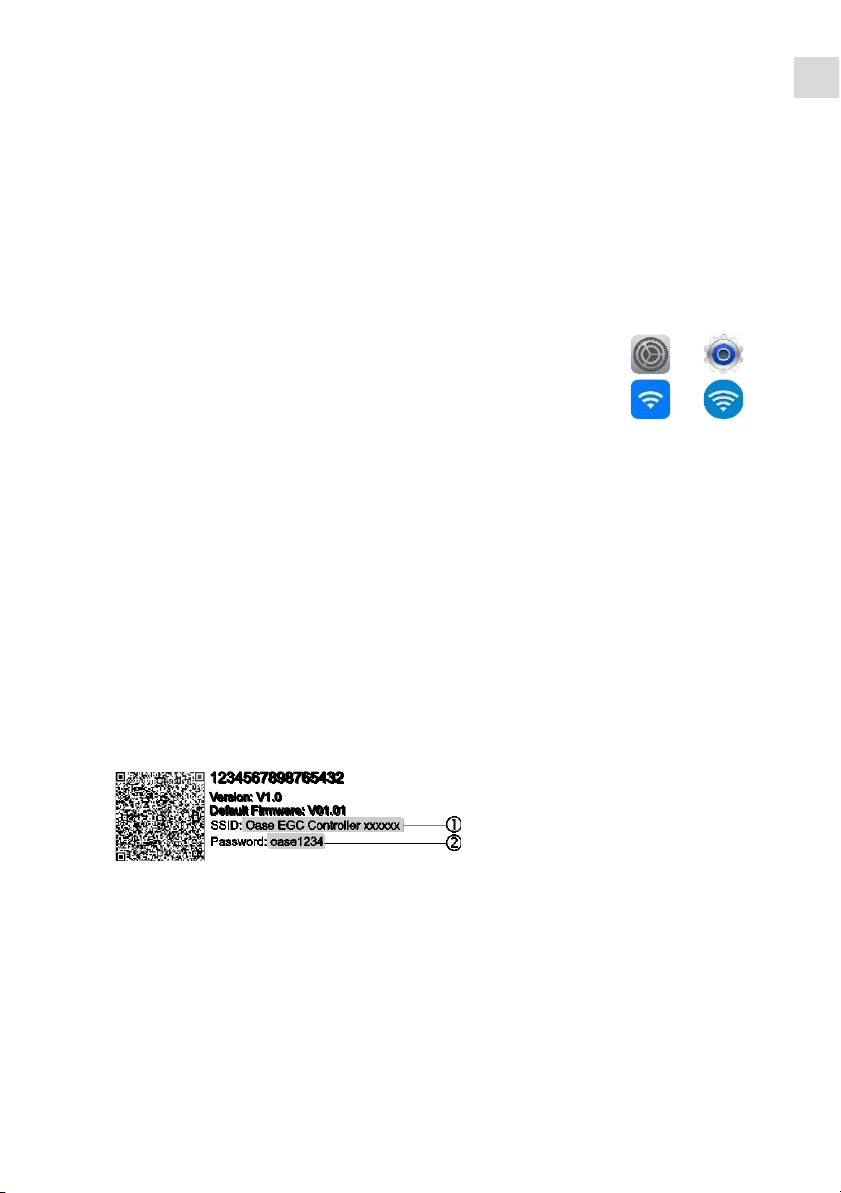
3. Wählen Sie aus der Netzwerkliste ʺOase EGC Controller xxxxxxʺ.
– Der Netzwerkname (SSID) steht auf dem Aufkleber am InScenio EGC Control-
ler.
– Die Buchstabenfolge "xxxxxx" im Netzwerknamen (SSID)
ist gerätespezifisch
und bezeichnet einen Teil der MAC-Adresse des InScenio EGC Controller.
4. Geben Sie das WLAN-Passwort ein.
– Das Standardpasswort
steht auf dem Aufkleber am InScenio EGC Controller.
– In der Werkseinstellung lautet das Standardpasswort
"oase1234".
5. Wählen Sie "Verbinden.
– Bei erfolgreicher Verbindung wird unter dem Netzwerknamen "Verbunden"
(Android) oder ein "" (iOS) angezeigt.
– Die Verbindung ist verschlüsselt und durch das Passwort gesichert.
– Andere WLAN-Verbindungen sind deaktiviert.
Die direkte WLAN-Verbindung zum InScenio EGC Controller ist hergestellt.
EGC0011
Page 10

10
Verbindung zum WLAN-Router manuell herstellen
Voraussetzung:
• Die WLAN-Reichweite zwischen WLAN-Router und InScenio EGC Controller beträgt
nicht mehr als 80 m, ohne Störquellen und bei freier Sicht.
• Kompatibilität zum WLAN-Standard 802.11n+g und nur im Frequenzbereich
2,4 GHz.
So gehen Sie vor:
1. Verbinden Sie das Smartphone/Tablet direkt mit dem InScenio EGC Controller (Access-Point). (→ Direkte WLAN-Verbindung herstellen (Access-Point))
2
. Öffnen Sie in der OASE-App "Easy Control" die Einstellungen.
3. Wählen Sie bei den Netzwerkverbindungen erst "Router" und dann "Manuell".
4. Geben Sie den Netzwerknamen (SSID) und das Passwort des WLAN-Routers ein.
5. Bestätigen Sie die Eingaben mit "Verbinden".
– Am InScenio EGC Controller wird der Verbindungsaufbau durch eine gelb blin-
kende LED angezeigt.
– Die Verbindung ist hergestellt, wenn die LED langsam grün blinkt (2 Sekunden
an, 1 Sekunde aus).
– Ggf. müssen Sie das Smartphone/Tablet manuell mit dem WLAN-Router verbin-
den.
Der InScenio EGC Controller ist jetzt mit dem Netzwerk des WLAN-Routers verbun-
den.
Gerät über das Cloud-Webportal steuern
Den InScenio EGC Controller in der Ausführung Cloud können Sie mit dem OASE
Cloud-Webportal verbinden. So können Sie angeschlossene Geräte auch von unterwegs kontrollieren und steuern.
In den Einstellungen der OASE-App "Easy Control" können Sie die Verbindung mit
dem Cloud-Webportal freigeben.
• Bei der Anmeldung im Cloud-Webportal müssen Sie sich einmalig registrieren.
• Um den InScenio EGC Controller im Cloud-Webportal hinzufügen zu können, müs-
sen Sie die Geräteseriennummer und das Gerätepassworts eingeben.
– Die Geräteseriennummer finden Sie in der OASE-App "Easy Control" in den Ein-
stellungen.
Voraussetzung:
• Der InScenio EGC Controller und das Smartphone/Tablet sind mit dem WLANNetzwerk Ihres WLAN-Routers verbunden.
• Der WLAN-Router ist mit dem Internet verbunden.
Page 11

DE
11
Reinigung und Wartung
Gerät reinigen
• Reinigen Sie das Gerät mit einem weichen, sauberen und trockenen Tuch.
Netzwerkeinstellungen zurücksetzen
Die Netzwerkeinstellungen werden auf den Auslieferungszustand zurückgesetzt. Gespeicherte Einträge aus der Gerätebibliothek und der Zeitschaltuhr bleiben erhalten.
So gehen Sie vor:
1. Halten Sie die Reset-Taste ca. 5 Sekunden gedrückt.
– Die LED am InScenio EGC Controller blinkt zuerst schnell grün und leuchtet dann
gelb, um das Löschen der Netzwerkeinstellungen zu quittieren.
– Die Netzwerkeinstellungen sind zurückgesetzt, wenn die LED am InScenio EGC
Controller grün leuchtet.
– Der InScenio EGC Controller startet im Access-Point-Modus und kann mit dem
Smartphone/Tablet direkt verbunden werden.
Netzwerkname (SSID) und Passwort des WLAN-Routers wurden gelöscht.
Das WLAN-Passwort des InScenio EGC Controller wurde auf die Werkseinstellung
zurückgesetzt.
Das Gerätepasswort wurde gelöscht.
Firmware aktualisieren
Um die Firmware des InScenio EGC Controller aktuell zu halten, müssen auf dem
Smartphone/Tablet automatische Updates der OASE-App erlaubt sein. Beim Start der
OASE-App wird automatisch geprüft, ob die Firmware aktuell ist. Folgen Sie den Anweisungen am Display, wenn das Firmware Update startet.
Voraussetzung:
• Die OASE-App ist aktuell und mit dem InScenio EGC Controller verbunden.
In den Einstellungen des InScenio EGC Controller können Sie prüfen, welche Firmware-Version installiert ist und ob eine aktuelle Version verfügbar ist.
So gehen Sie vor:
1. Starten Sie am Smartphone/Tablet die OASE-App und öffnen Sie die Einstellungen
für den InScenio EGC Controller.
2. Rufen Sie das Firmware Update auf.
3. Installieren Sie die aktuelle Firmware-Version, wenn ein Update verfügbar ist.
– Folgen Sie den Anweisungen auf dem Bildschirm.
– Bei einer Passwortabfrage verwenden Sie das Passwort "oase1234".
Page 12
12
Werkseinstellungen wiederherstellen
Der Auslieferungszustand des InScenio EGC Controller wird wiederhergestellt. Alle
eingegebenen Daten gehen verloren.
So gehen Sie vor:
1. Halten Sie die Reset-Taste ca. 15 Sekunden gedrückt.
– Die LED am InScenio EGC Controller blinkt zuerst schnell grün und leuchtet dann
schnell gelb, um das Löschen der Netzwerkeinstellungen zu quittieren.
– Die Werkseinstellungen sind wiederhergestellt, wenn die LED grün leuchtet.
– Der InScenio EGC Controller startet im Access-Point-Modus und kann mit dem
Smartphone/Tablet direkt verbunden werden.
Netzwerkname (SSID) und Passwort des WLAN-Routers wurden gelöscht.
Das WLAN Passwort des InScenio EGC Controller wurde auf Werkseinstellung zu-
rückgesetzt.
Das Gerätepasswort wurde gelöscht.
Die Geräteliste wurde gelöscht.
Störungsbeseitigung
S
törun
g
M
ögliche Ursache
A
bhilfe
W
LAN-Verbindung wird nicht
h
ergestellt, obwohl der Netz-
w
erkname in den WLAN-
E
instellungen angezeigt wird
D
as Smartphone/Tablet kann
d
ie eingetragenen Verbin-
d
ungsdaten für das Netzwerk
n
icht aktualisieren
i
OS:
• Netzwerk wählen und auf
tippen
• Auf „Dieses Netzwerk ignorieren“ tippen, um das Netzwerk zu entfernen
• Anschließend mit dem Netzwerk erneut verbinden
A
ndroid:
• Netzwerk wählen und auf
„Entfernen“ tippen, um das
Netzwerk zu entfernen.
• Anschließend mit dem Netzwerk erneut verbinden
D
er im Router eingestellte
W
LAN-Standard ist nicht kom-
p
atibel mit dem InScenio EGC
C
ontroller
InScenio EGC Controller unter-
s
tützt die WLAN-Standards
8
02.11n+g (nur im Frequenzbe-
reich 2,4 Ghz).
• Ggf. am Router den richtigen WLAN-Standard einstellen (siehe Bedienungsanleitun
g
des Routers)
I
nScenio EGC Controller rea-
g
iert nicht auf Befehle
W
LAN am Smartphone/Tablet
i
st deaktiviert
W
LAN am Smartphone/Tablet
a
ktivieren und Verbindung
z
um InScenio EGC Controller
herstellen
Page 13
DE
13
S
törun
g
M
ögliche Ursache
A
bhilfe
S
törung zwischen Smart-
p
hone/Tablet und InScenio
E
GC Controller
• Abstand zwischen Smartphone/Tablet und InScenio
EGC Controller reduzieren
• Anderen Standort zum Bedienen wählen
• Freie Sicht zwischen
InScenio EGC Controller und
Smartphone/Tablet schaffen
• Bei direkter WLANVerbindung (Access Point)
zwischen InScenio EGC Controller und Smartphone/Tablet einen anderen
WLAN-Kanal wählen
Z
u großer Abstand zwischen
S
martphone/Tablet und
I
nScenio EGC Controller
• Abstand reduzieren, max.
Reichweite von 80 m nicht
überschreiten
• Handelsüblichen Repeater
einsetzen, um die Reichweite zu erhöhen
S
tromversorgung des InScenio
E
GC Controller unterbrochen
S
tromversorgung herstellen
• LED leuchtet grün
• LED blinkt grün, wenn die
WLAN-Verbindung zum
Router hergestellt ist
E
mpfänger im InScenio EGC
C
ontroller defekt
Rücksprache mit OASE-Service
e
rforderlich
O
ASE-App "Easy Control" ist
v
eraltet
A
ktuelle OASE-App "Easy Con-
t
rol" auf dem Smart-
phone/Tablet installieren
B
etriebssystem des Smartpho-
n
es/Tablets ist veraltet
Betriebssystem aktualisieren
I
nScenio EGC Controller schal-
t
et zur falschen Uhrzeit
S
ystemzeit des InScenio EGC
C
ontroller stimmt nicht mit
d
er tatsächlichen Uhrzeit über-
e
in
S
ystemzeit auf die Uhrzeit des
Bediengeräts aktualisieren
H
inzugefügtes EGC-Gerät rea-
g
iert nicht auf Befehle
D
atenleitungunterbrochen EGC-Anschlüsseprüfen
E
GC-Gerät ohne Stromversor-
gung
S
tromversorgung herstellen
K
eine Verbindung zwischen
E
GC-Gerät und InScenio EGC
C
ontroller
D
atenleitung unterbrochen EGC-Anschlüsse prüfen
E
GC-Gerät ohne Stromversor-
gung
S
tromversorgung herstellen
L
ED leuchtet gelb
I
nScenio EGC Controller befin-
d
et sich im Firmware-Update-
M
odus
M
it dem WLAN
„
OASE_UPDATE_xxxxxx“ bzw.
„
OASE_UPDATE_EGC_xxxxxx“
Page 14
14
S
törun
g
M
ögliche Ursache
A
bhilfe
v
erbinden und über die App
d
as Firmware-Update starten
L
ED blinkt langsam gelb (2 Se-
k
unden an, 1 Sekunde aus)
I
nScenio EGC Controller sucht
e
ine WLAN-Verbindung zum
R
outer
• Abstand reduzieren, max.
Reichweite von 80 m nicht
überschreiten
• Störquellen beseitigen, die
das WLAN-Signal schwächen(z. B. andere Funkteilnehmer, Höhenunterschiede)
• WLAN-Router einschalten
• Am Router die WLAN-
Funktion aktivieren
• Ist der Router nicht mehr
vorhanden oder defekt, die
Netzwerkeinstellungen des
InScenio EGC Controller zurücksetzen, und den AccessPoint-Modus aktivieren
• InScenio EGC Controller mit
einem anderen Router verbinden
L
ED blinkt rot
I
nterner Fehler
• Stromversorgung trennen,
10 Sekunden warten, Stromversorgung wiederherstellen
• InScenio EGC Controller auf
Werkseinstellung zurücksetzen
G
erät startet nicht, LED blinkt
r
ot
K
eine Firmware gefunden Rücksprache mit OASE-Service
e
rforderlich
Page 15
DE
15
Technische Daten
InScenio EGC Controller
C
ontroller Anschlussspannung
V
DC 12
S
chutzart
IP 68
Länge 12-V-Kabel m 2
Länge EGC-Kabel m 2
Frequenz WLAN
G
Hz 2,4
M
ax. WLAN-Reichweite m
8
0
A
bmessungen mm
1
30 × 90 × 40
G
ewicht k
g
0
,9
T
rafo Netzspannun
g
V
AC 230
Netzfrequenz Hz
5
0
A
usgangsspannun
g
VDC1
2
Länge Netzkabel m 2
S
chutzart IP 44
A
bmessungen mm
8
0 × 40 × 60
G
ewicht k
g
0
,45
Ersatzteile
M
it Originalteilen von OASE bleibt das Gerät sicher und arbeitet weiter-
hin zuverlässig.
Ersatzteilzeichnungen und Ersatzteile finden Sie auf unserer Internet-
s
eite.
w
ww.oase.com/ersatzteile
Entsorgung
HINWEIS
Dieses Gerät darf nicht als Hausmüll entsorgt werden.
Entsorgen Sie das Gerät über das dafür vorgesehene Rücknahmesystem.
Machen Sie das Gerät durch Abschneiden der Kabel unbrauchbar.
Page 16
16
EU-Konformitätserklärung
Declaration of EU-conformity
e
rklärt, dass das Produkt
d
eclares that the product
Produkt / Product: Controller
Controller
T
yp / Type: InScenio EGC-Controller Home
InScenio EGC-Controller Cloud
d
en folgenden Richtlinien der Union entspricht:
c
omplies to the following directives of the Union:
2
014/53/EU, 2011/65/EU
Die vollständige EU-Konformitätserklärung ist unter der folgenden Internet-
a
dresse abrufbar:
The complete Declaration of EU-conformity is available at the following internet
a
ddress:
w
ww.oase-livingwater.com/ce
Page 17
EN
17
EN
WARNING
WARNING
Disconnect all electrical devices in the water from the power
supply before reaching into the water. Otherwise there is a
risk of severe injuries or death by electrocution.
This unit can be used by children aged 8 and above and by
persons with reduced physical, sensory or mental capabilities
or lack of experience and knowledge if they are supervised or
have been instructed on how to use the unit in a safe way
and they understand the hazards involved. Do not allow children to play with the unit. Only allow children to carry out
cleaning and user maintenance under supervision.
Safety information
Electrical connection
• Only connect the unit if the electrical data of the unit and the power supply match.
• Only plug the unit into a correctly installed outlet. Ensure that the outlet is fused
for a rated fault current of max. 30 mA by means of a fault current protection device.
• Protect the plug connections from moisture.
Safe operation
• Never immerse the unit in water or other liquids.
• Do not use the unit, if electrical lines or the housing are damaged.
• A damaged connection cable cannot be replaced. Dispose of the unit.
• Do not carry or pull the unit by its power cable.
• Route lines in such a way that they are protected from damage and do not present
a tripping hazard.
• Do not use multi-outlet strips.
• Should problems occur, please contact the authorised customer service or OASE.
Page 18
18
Product Description
Overview
EGC0004
1
I
nScenio EGC Controller
2
W
PS/Reset button
3
L
ED for displaying the operating status
4
S
crews for fastening the plug connectors to the cable connector EGC
5
T
erminal resistor EGC isplu
g
g
ed into the final unit of the EGC network
6
C
able connector EGC (47788)
7
T
ransformer
8
G
round stake for ground installation
9
R
etainingframe for fasteningto the wall or mountingtheground stake
Function description
InScenio EGC Controller is a controller for linking the OASE EGC units.
The connected units can be controlled via WLAN using a tablet, PC or smartphone
and the OASE app "Easy Control". You can connect up to ten EGC-capable OASE units.
The controller is available in the versions Home and Cloud. With the Cloud version, it
is possible to monitor EGC-capable units via the OASE web portal. You can access the
web portal at
https://oec.oase-livingwater.com .
The Easy Garden Control System (EGC) allows convenient control of units in the garden and pond, and ensures maximum convenience and reliability.
Information about EGC and the possibilities it offers can be found at
www.oase-livingwater.com/egc-start.
Page 19
EN
19
Intended use
Only use the product described in this manual as follows:
• Operation only as device control system with EGC-compatible OASE end devices.
• Operation only at ambient temperatures of -20 °C … +45 °C.
• Operate in accordance with instructions. (→ Technical data)
The following restrictions apply to the unit:
• Do not use for commercial or industrial purposes.
Installation
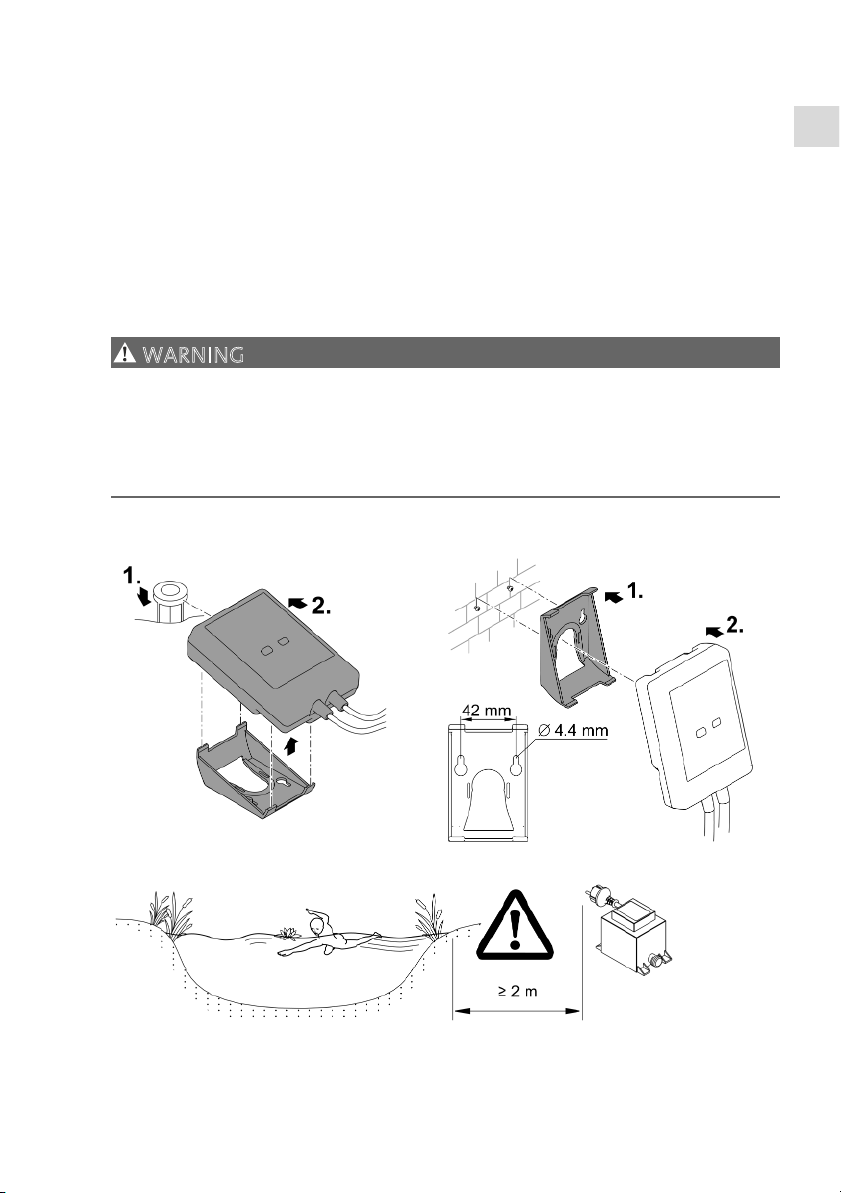
WARNING
The transformer is subject to dangerous voltage and must not be installed directly
adjacent to the water. Otherwise there is a risk of severe injuries or death by electrocution.
Install the transformer at a distance of at least 2 m from the water to ensure that it
is protected against flooding.
U
se a ground stake for installation Fasten to the wall
EGC000
6
EGC0007
EGC0005
Page 20
20
Connection
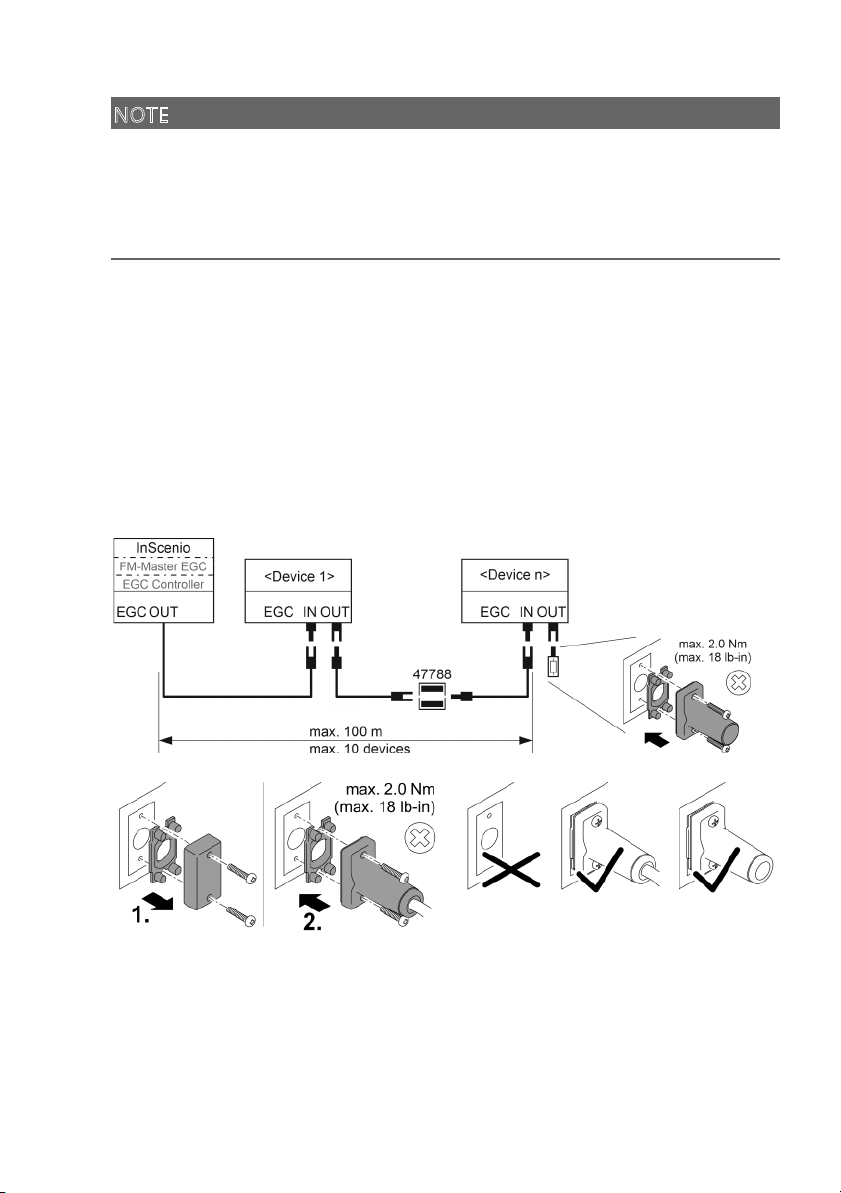
NOTE
The unit will be damaged, if water enters the plug connectors.
Screw the plug connectors to each other (socket/connector) so that they are water-
tight. Cover open plug connectors with a protection cap and rubber seal.
Ensure that the rubber seal is clean and fits exactly. Replace the rubber seal if it is
damaged.
Connecting an EGC-compatible device
The correct fastening of the plug connector is important for a secure connection and
an interference-free EGC network.
• The EGC connection cable is available as an accessory in the lengths 2.5 m (47038),
5 m (47039) and 10 m (47040).
– The EGC connection cable and the connection cable of the InScenio EGC Control-
ler are connected to the EGC cable connector. (47788).
• Ensure that on EGC-OUT of the last unit in the EGC network, the terminal resistor
EGC is installed instead of an EGC connection cable, to ensure that the EGC network is closed off properly.
EGC0009
EGC0003
Page 21
EN
21
Commissioning/start-up
Proceed as follows for start-up:
1. Install the app "Easy Control" on your smartphone/tablet. (→ Installing the OASE
app "Easy Control” )
2. Connect the InScenio EGC Controller to the power supply. (→ Switching on the
unit)
3. Activate the WLAN connection in the settings of your smartphone/tablet, start the
app and follow the instructions.
Possible connection methods
For operation, the InScenio EGC Controller and the smartphone/tablet must be connected via WLAN.
W
LAN connection
D
escription
C
onnecting the InScenio EGC Con-
t
roller and smartphone/tablet using
W
PS via the WLAN network of the
W
LAN router.
• The smartphone/tablet remains connected with the
WLAN network and can continue to access the internet.
• EGC-capable units can be monitored and controlled
via the Cloud web portal.
D
irectly connecting the InScenio EGC
C
ontroller and smartphone/tablet
(
Access-Point)
• The InScenio EGC Controller and the smartphone/tablet are not connected with the WLAN network of the
WLAN router. Both units cannot access the internet.
• EGC-capable units cannot be monitored and controlled via the Cloud web portal.
M
anually connecting the the In-
S
cenio EGC Controller and
s
martphone/tablet via the WLAN
r
outer of your home network.
• The smartphone/tablet remains connected with the
WLAN network and can continue to access the internet.
• EGC-capable units can be monitored and controlled
via the Cloud web
p
ortal.
Page 22
22
Operating status display
L
ED colour LED status
D
escription
O
ff
I
nScenio EGC Controller is switched off.
G
reen Lit
I
nScenio EGC Controller is ready for operation and in access
p
oint mode.
Flashing fast
W
PS is activated, InScenio EGC Controller is waiting for the
r
outer access data.
Flashing slowly
(2 seconds on,
1
second off)
I
nScenio EGC Controller is ready for operation and connected
t
o the router.
Y
ellow Lit
I
nScenio EGC Controller is startingupor is in update mode.
Flashing fast
F
irmware update in progress
Flashing slowly
(2 seconds on,
1
second off)
I
nScenio EGC Controller is searching for a connection to the
r
outer.
R
ed Flashing
M
alfunction
R
emedy:
• Disconnect from the power supply. Wait for 10 seconds
then reconnect.
• Reset InScenio EGC Controller to factory settings
• Carr
y
out a firmware update
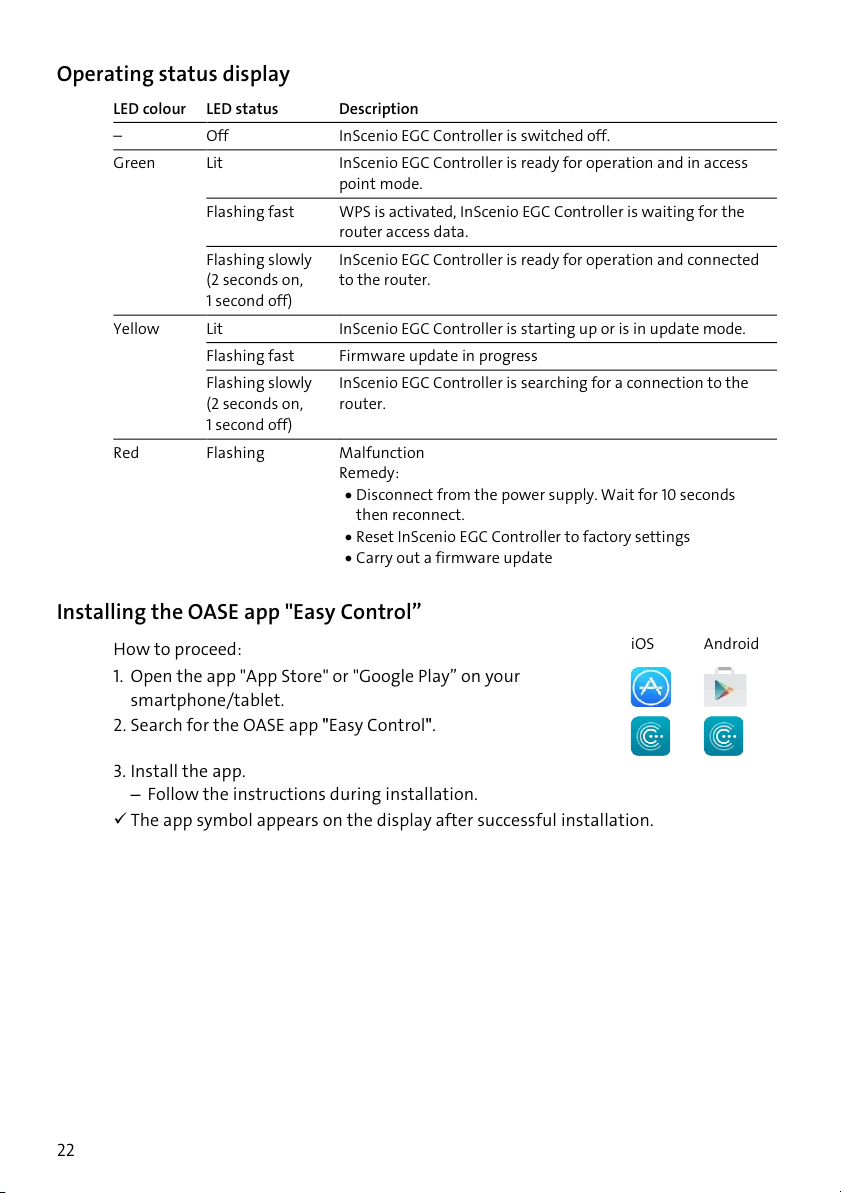
Installing the OASE app "Easy Control”
H
ow to proceed:
i
OS
A
ndroid
1
. Open the app "App Store" or "Google Play” on your
smart
p
hone/tablet.
2
. Search for the OASE app ʺEasy Controlʺ.
3. Install the app.
– Follow the instructions during installation.
The app symbol appears on the display after successful installation.
Page 23
EN
23
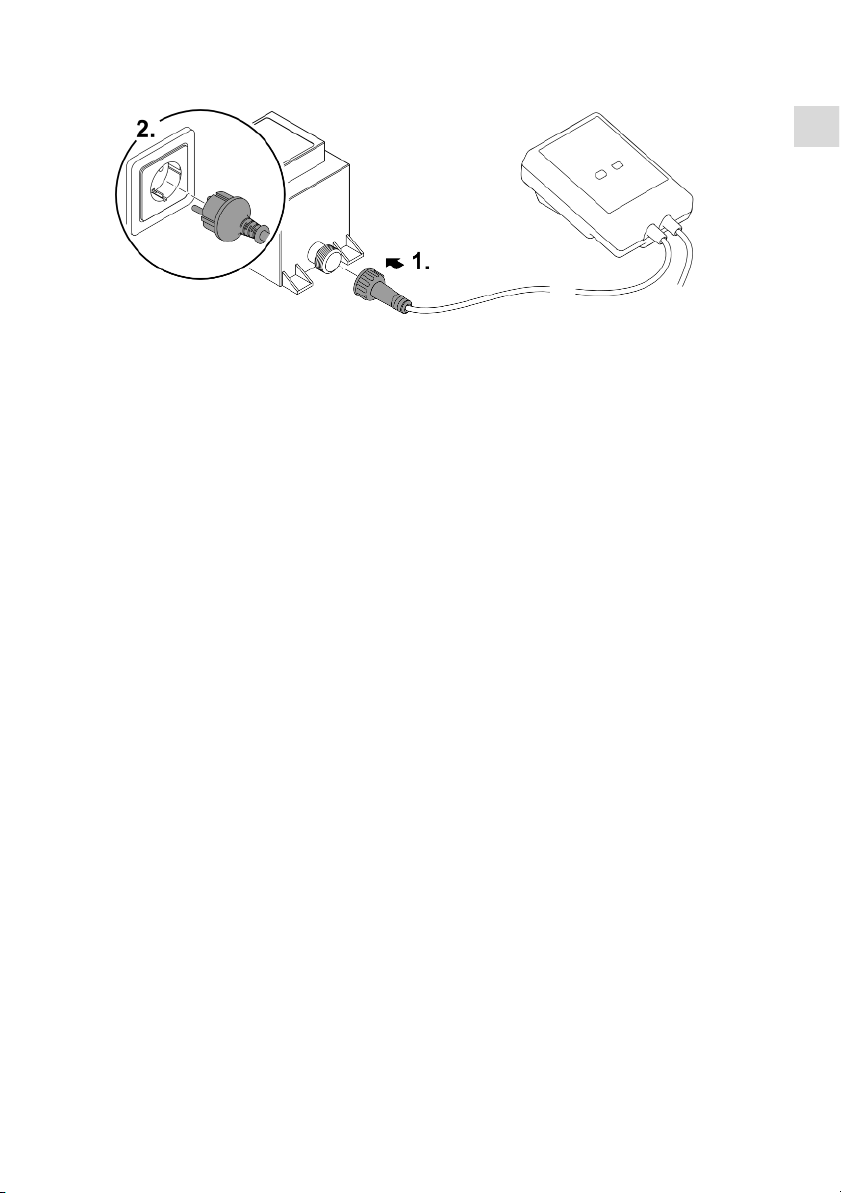
Switching on the unit
EGC0008
Establishing a connection to the WLAN router via WPS
WPS (WIFI Protected Setup) is a standard for establishing a WLAN connection at the
touch of a button.
• It is not necessary to enter the network name (SSID) and password.
• The WLAN router must support WPS.
Prerequisite:
• The range of the WLAN connection between the WLAN router and InScenio EGC
Controller can span a distance of up to 80 m provided there is unobstructed signal
transmission and there are no sources of interference.
• Compatibility with the WLAN standard 802.11n+g and only in the frequency range
2.4 GHz.
How to proceed:
1. Press the WPS key on the WLAN router to activate WPS.
– WPS is only active for a limited time. Activate WPS on the InScenio EGC Control-
ler during this time.
– Please also note the information in the operating manual of the WLAN router.
2. Briefly press the WPS key on the InScenio EGC Controller (max. 2 seconds) to activate WPS.
– The LED rapidly flashes green.
– The WPS remains active for 2 minutes.
The connection is established when the LED begins to flash green slowly (2 seconds
on, 1 second off).
Page 24
24
Establishing the direct WLAN connection (Access Point)
The smartphone/tablet and the InScenio EGC Controller are directly connected.
• Select the direct connection, if no WLAN network is available, the WLAN router
does not support WPS or the distance between the WLAN router and InScenio EGC
Controller is too long.
Prerequisite:
• The range of the WLAN connection between the smartphone/tablet and InScenio
EGC Controller can span a distance of up to 80 m provided there is unobstructed
signal transmission and there are no sources of interference.
H
ow to proceed:
i
OS
A
ndroid
1
. Open the settings on your smartphone/tablet.
2
. Activate the WLAN.
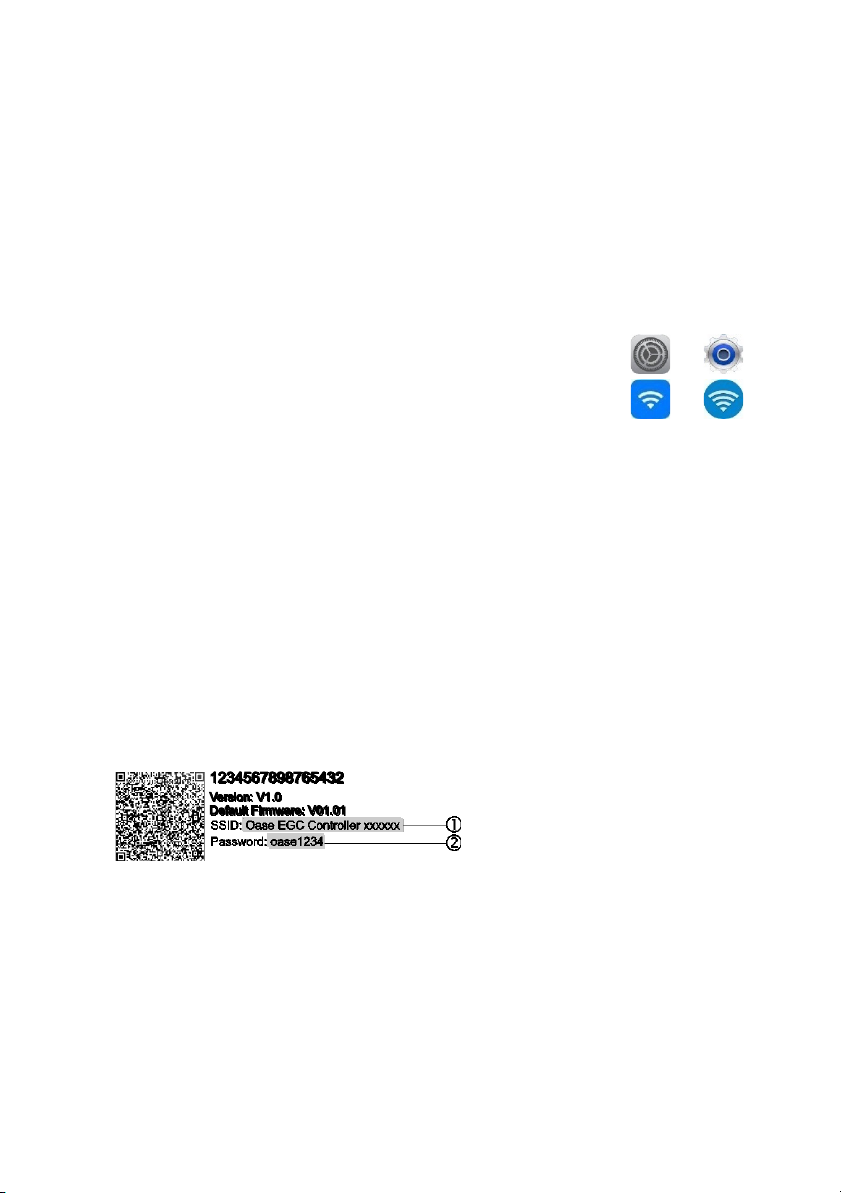
3. Select ʺOase EGC Controller xxxxxxʺ from the network list.
– The network name (SSID) is indicated on the label on the InScenio EGC Con-
troller.
– The sequence of letters "xxxxxx" in the network name (SSID)
is unit-specific
and represents part of the MAC address of the InScenio EGC Controller.
4. Enter the WLAN password.
– The default password
is indicated on the label on the InScenio EGC Controller.
– The factory-set default password is
"oase1234".
5. Select “Connect.”
– If the connection is successful, "Connected" (Android) or a "" (iOS) will appear
under the network name.
– The connection is encrypted and protected by the password.
– Other WLAN connections are deactivated.
The direct WLAN connection to the InScenio EGC Controller is established.
EGC0011
Page 25
EN
25
Manually establishing a connection to the WLAN router
Prerequisite:
• The range of the WLAN connection between the WLAN router and InScenio EGC
Controller can span a distance of up to 80 m provided there is unobstructed signal
transmission and there are no sources of interference.
• Compatibility with the WLAN standard 802.11n+g and only in the frequency range
2.4 GHz.
How to proceed:
1. Connect the smartphone/table directly with the InScenio EGC Controller (AccessPoint). (→ Establishing the direct WLAN connection (Access Point))
2
. Open the settings in the OASE app "Easy Control".
3. For the network connections, first select "Router", then “Manual”.
4. Enter the network name (SSID) and the password of the WLAN router.
5. Confirm your inputs with “Connect”.
– The InScenio EGC Controller indicates that it is establishing a connection with a
yellow flashing LED.
– The connection is established when the LED begins to flash green slowly (2 sec-
onds on, 1 second off).
– You may have to manually connect your smartphone/tablet with the WLAN
router.
The InScenio EGC Controller is now connected with the network of the WLAN
router.
Controlling the unit via the Cloud web portal
You can connect the InScenio EGC Controller in the Cloud version with the OASE
cloud web portal. This will allow you to control and monitor connected devices even
on the go.
You can enable the connection with the Cloud web portal in the the settings of the
OASE app "Easy Control”.
• You will have to register once when logging into the Cloud web portal.
• To add the InScenio EGC Controller to the Cloud web portal, enter the unit serial
number and unit password.
– You can find the unit serial number in the settings of the OASE app "Easy Con-
trol".
Prerequisite:
• The InScenio EGC Controller and the smartphone/tablet are connected with the
WLAN network of your WLAN router.
• The WLAN router is connected to the internet.
Page 26

26
Maintenance and cleaning
Cleaning the device
Clean the unit with a soft, clean and dry cloth. Never use aggressive cleaning agents
or chemical solutions. These can attach the housing surface or impair the function.
Resetting the network settings
The network settings are reset to the delivery default settings. Saved entries from the
device library and the timer are retained.
How to proceed:
1. Press and hold the reset button for approx. 5 seconds.
– The LED on the InScenio EGC Controller first flashes green rapidly, then turns yel-
low to acknowledge deletion of the network settings.
– The network settings have been reset when the green LED on the InScenio EGC
Controller is lit.
– The InScenio EGC Controller starts in access point mode and can be directly con-
nected to the smartphone/tablet.
The network name (SSID) and password of the WLAN router have been deleted.
The WLAN password of the InScenio EGC Controller has been reset to the factory
settings.
The unit password has been deleted.
Updating the firmware
To keep the InScenio EGC Controller firmware up to date, ensure that automatic updates of the OASE app are enabled on your smartphone/tablet. When the OASE app
is started, the program automatically checks whether the firmware is up to date. Follow the instructions on the display, if a firmware update is initiated.
Prerequisite:
• The OASE app is up to date and connected with the InScenio EGC Controller.
In the InScenio EGC Controller settings, you can check which firmware version is installed and whether a current version is available.
How to proceed:
1. Start the OASE app on your smartphone/tablet and open the settings for the InScenio EGC Controller.
2. Access the firmware update.
3. Install the current firmware version, if an update is available.
– Follow the instructions on the screen.
– If a password is requested, use the password "oase1234".
Page 27
EN
27
Restoring the factory default settings
The delivery default settings of the InScenio EGC Controller are restored. All entered
data will be lost.
How to proceed:
1. Press and hold the reset button for approx. 15 seconds.
– The LED on the InScenio EGC Controller first flashes green fast, then yellow fast
to acknowledge deletion of the network settings.
– The factory default settings have been restored when the green LED is lit.
– The InScenio EGC Controller starts in access point mode and can be directly con-
nected to the smartphone/tablet.
The network name (SSID) and password of the WLAN router have been deleted.
The WLAN password of the InScenio EGC Controller has been reset to the factory
setting.
The unit password has been deleted.
The device list has been deleted.
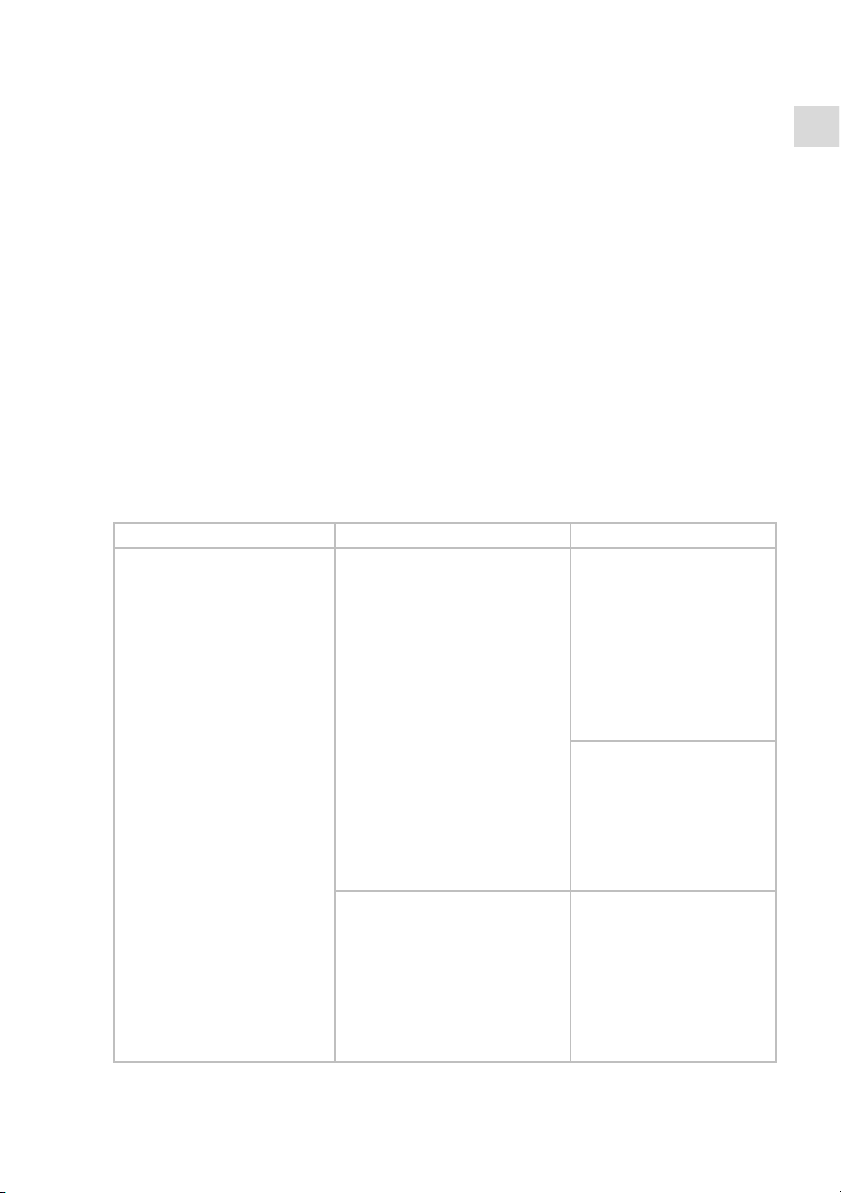
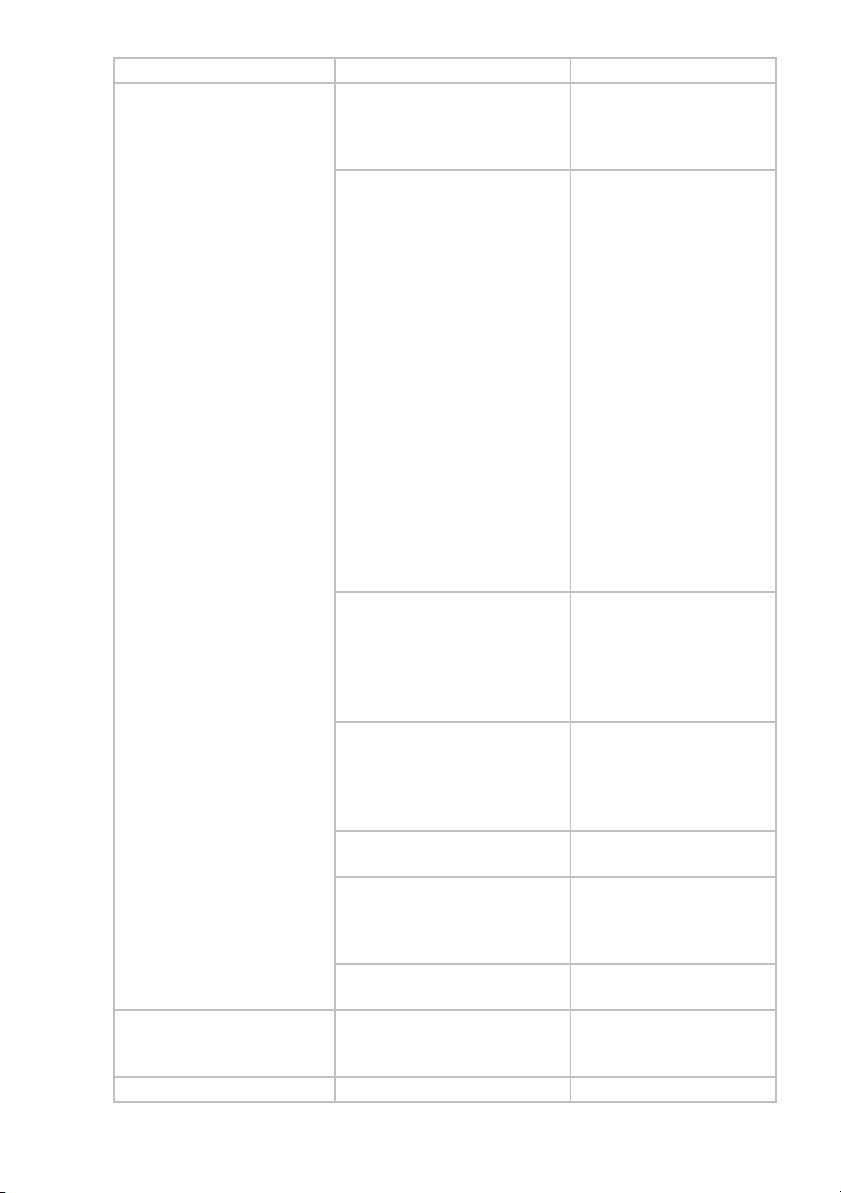
Malfunction remedy
Malfunction Cause Remed
y
The WIFI connection is not established although the network name is displayed in the
WIFI settings.
The smartphone/tablet cannot
update the entered connection
data for the network.
iOS:
• Select the network and
touch .
• Touch "Ignore this network" to remove the network.
• Then establish a connection with the network
a
g
ain.
Android:
• Select the network and
touch "Remove" to remove the network.
• Then establish a connection with the network
a
g
ain.
The WIFI standard set in the
router is not compatible with
the InScenio EGC Controller.
InScenio EGC Controller
supports the WIFI standard
802.11n+g+b (only in the
frequency range 2.4 Ghz).
• If necessary, select the
correct WIFI standard on
the router (see router operatin
g
manual)
Page 28
28
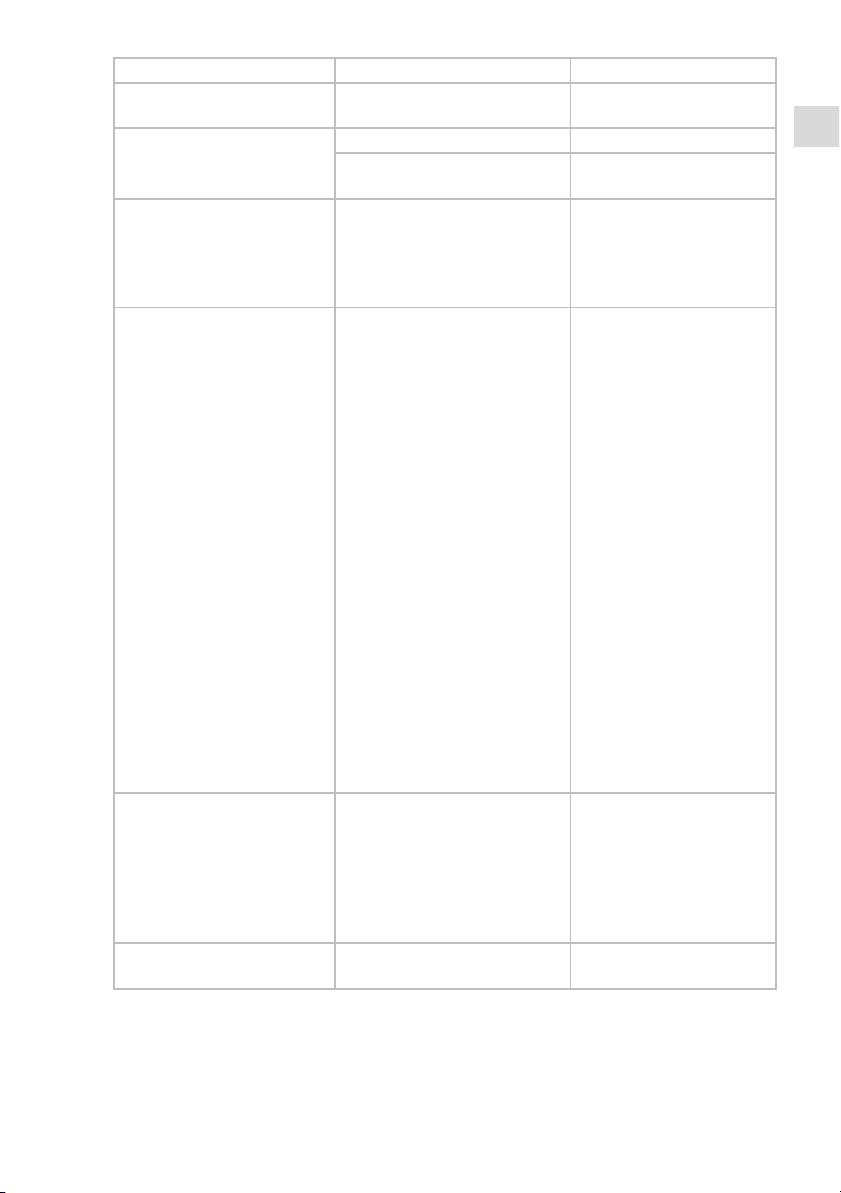
Malfunction Cause Remedy
The InScenio EGC Controller is
not reacting to commands.
WIFI on the smartphone/tablet
is deactivated.
Activate WIFI on the
smartphone/tablet and establish a connection to the
InScenio EGC Controller.
Sources of interference between
the smartphone/tablet and InScenio EGC Controller
• Reduce the distance between the
smartphone/tablet and
the InScenio EGC Controller.
• Select a different location for operating by
smartphone/tablet.
• Ensure that there are no
obstructions between
the InScenio EGC Controller and
smartphone/tablet.
• For a direct WIFI connection (access point) between the InScenio EGC
Controller and
smartphone/tablet, select a different WIFI
channel.
Too large a distance between
the smartphone/tablet and the
InScenio EGC Controller
• Reduce the distance, do
not exceed the max.
range of 80 m.
• Use an off-the-shelf repeater to increase the
ran
g
e.
The power supply of the InScenio EGC Controller is interrupted.
Establish power supply
• The green LED is lit.
• The green LED flashes
when the WIFI connection is established.
The receiver in the InScenio EGC
Controller is defective.
Contact the OASE service.
The "OASE Easy Control" app is
outdated.
Install the latest version of
the "OASE Easy Control"
app on your
smartphone/tablet.
The operating system of the
smartphone/tablet is outdated.
Update the operating system.
The InScenio EGC Controller
switches at the wrong time.
The system time of the InScenio
EGC Controller does not correspond to the actual time.
Update the system time to
the time on the operating
device.
The data cable is interrupted. Check the EGC connections.
Page 29
EN
29
Malfunction Cause Remedy
The added EGC device is not
reacting to commands.
The EGC device has no power
su
p
ply
Establish power supply
No connection between EGC
device and InScenio EGC Controller.
The data cable is interrupted. Check the EGC connections.
The EGC device has no power
su
p
ply
Establish power supply
Yellow LED is lit The InScenio EGC Controller is in
the firmware update mode.
Connect with the WIFI
„OASE_UPDATE_xxxxxx“ or
„OASE_UPDATE_EGC_xxxx
xx“ and use the app to start
the firmware update.
The yellow LED is flashing
slowly (2 seconds on, 1 second
off).
InScenio EGC Controller is
searching for a connection to
the router.
• Reduce the distance, do
not exceed the max.
range of 80 m.
• Remove any sources of
interference that may be
weakening the WIFI signal (e.g. other wireless
devices, differences in
height).
• Switch on the WIFI
router.
• Activate the WIFI function on the router.
• If the router is no longer
available or defective, reset the network settings
of the InScenio EGC Controller so that it can be
directly controlled in access point mode
• Connect the InScenio
EGC Controller to another router
Red LED is flashing. Internal error
• Disconnect from the
power supply, wait for 10
seconds and then reconnect.
• Reset the InScenio EGC
Controller to the factory
default settin
g
s.
The device does not start, red
LED flashing.
No firmware found. Manually start the firm-
ware update mode
Page 30
30
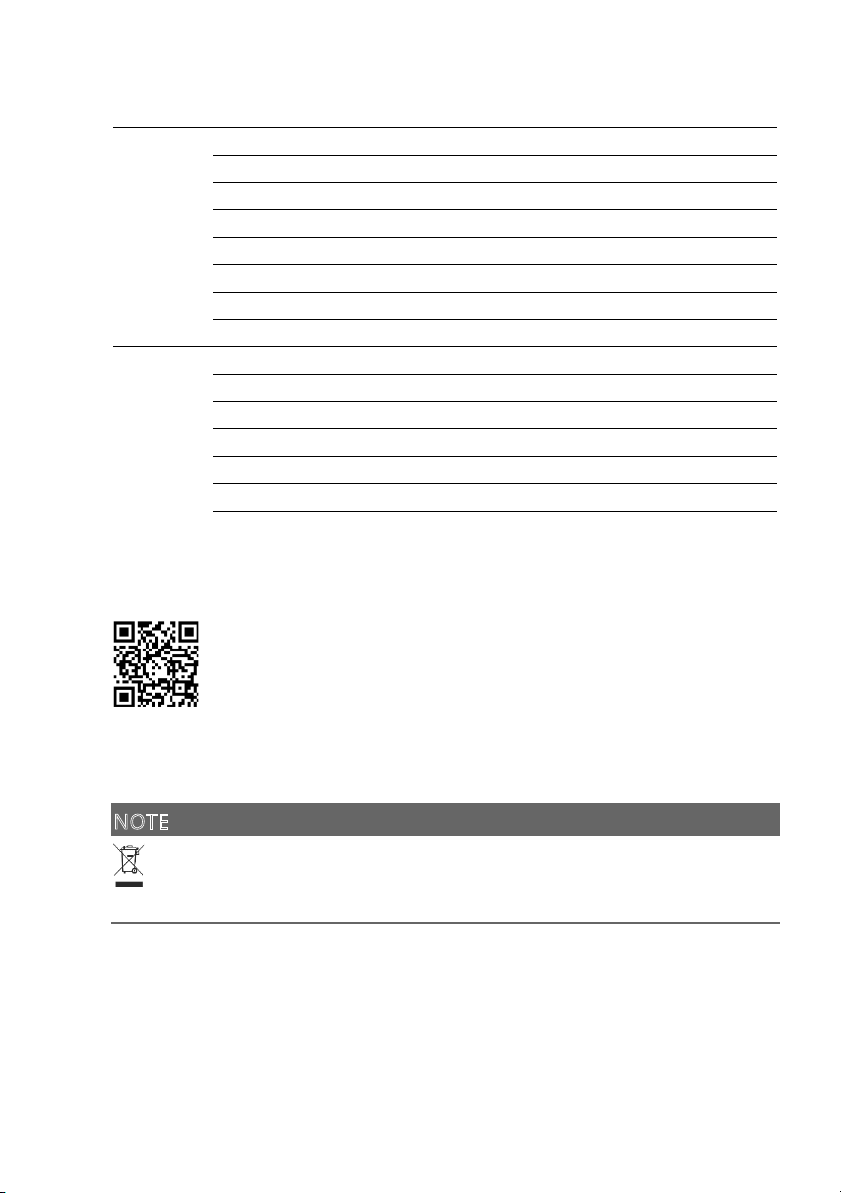
Technical data
InScenio EGC Controller
C
ontroller Connection voltage
V
DC 12
Protection t
y
p
e
IP 68
Length of 12-V-cable m 2
Length of EGC cable m 2
W
LAN frequenc
y
G
Hz 2.4
M
ax. WLAN range m
8
0
Dimensions mm
1
30 × 90 × 40
W
eight k
g
0
.9
T
ransformer Power su
p
ply
voltage
V
AC 230
M
ains frequency Hz
5
0
O
utput voltage
VDC1
2
Length of power cable m 2
Protection t
y
p
e IP 44
Dimensions mm
8
0 × 40 × 60
W
eight k
g
0
.45
Spare parts
T
he use of original parts from OASE ensures continued safe and reliable
o
peration of the unit.
Please visit our website for spare parts drawings and spare parts.
w
ww.oase.com/ersatzteile
Disposal
NOTE
Do not dispose of this unit with household waste.
Dispose of the unit by using the return system provided for this purpose.
Render the unit unusable by cutting the cables.
Page 31
EN
31
EU-Konformitätserklärung
Declaration of EU-conformity
e
rklärt, dass das Produkt
d
eclares that the product
Produkt / Product: Controller
Controller
T
yp / Type: InScenio EGC-Controller Home
InScenio EGC-Controller Cloud
d
en folgenden Richtlinien der Union entspricht:
c
omplies to the following directives of the Union:
2
014/53/EU, 2011/65/EU
Die vollständige EU-Konformitätserklärung ist unter der folgenden Internet-
a
dresse abrufbar:
The complete Declaration of EU-conformity is available at the following internet
a
ddress:
w
ww.oase-livingwater.com/ce
Page 32
32
FR
AVERTISSEMENT
AVERTISSEMENT
Débrancher tous les appareils électriques immergés avant de
pénétrer dans l'eau afin de prévenir tout risque de blessures
ou un danger de mort par électrocution.
Dans le cas où cet appareil serait utilisé par des mineurs de
moins de 8 ans ainsi que par des personnes souffrant d'un
handicap mental ou plus généralement par des personnes
manquant d'expérience, un adulte averti devra être présent,
qui renseignera le mineur ou la personne fragilisée concernée sur le bon emploi de ce matériel. Les enfants ne doivent
pas jouer avec cet appareil. Ne pas laisser un enfant sans surveillance pour le nettoyage ou l'entretien.
Consignes de sécurité
Raccordement électrique
• Ne brancher l'appareil que lorsque les caractéristiques électriques de l'appareil et
de l'alimentation correspondent.
• Raccorder l'appareil uniquement à une prise installée de manière réglementaire. La
prise doit être protégée par un dispositif différentiel avec un courant résiduel assigné maximal de 30 mA.
• Protéger les fiches de raccordement de l'humidité.
Exploitation sécurisée
• Ne jamais immerger l'appareil dans l'eau ou dans un autre liquide.
• Ne pas utiliser l'appareil en cas d'endommagement des câbles électriques ou du
boîtier.
• Un câble de raccordement endommagé ne peut pas être remplacé. Mettre l'appareil au rebut.
• Ne pas soulever ni tirer l'appareil par le câble électrique.
• Poser les câbles de manière à éviter tout risque d'endommagement et de trébuche-
ment.
• Ne pas utiliser de multiprises.
• En cas de problèmes, adressez-vous au service après-vente autorisé ou contactez
OASE.
Page 33
FR
33
Description du produit
Vue d'ensemble
EGC0004
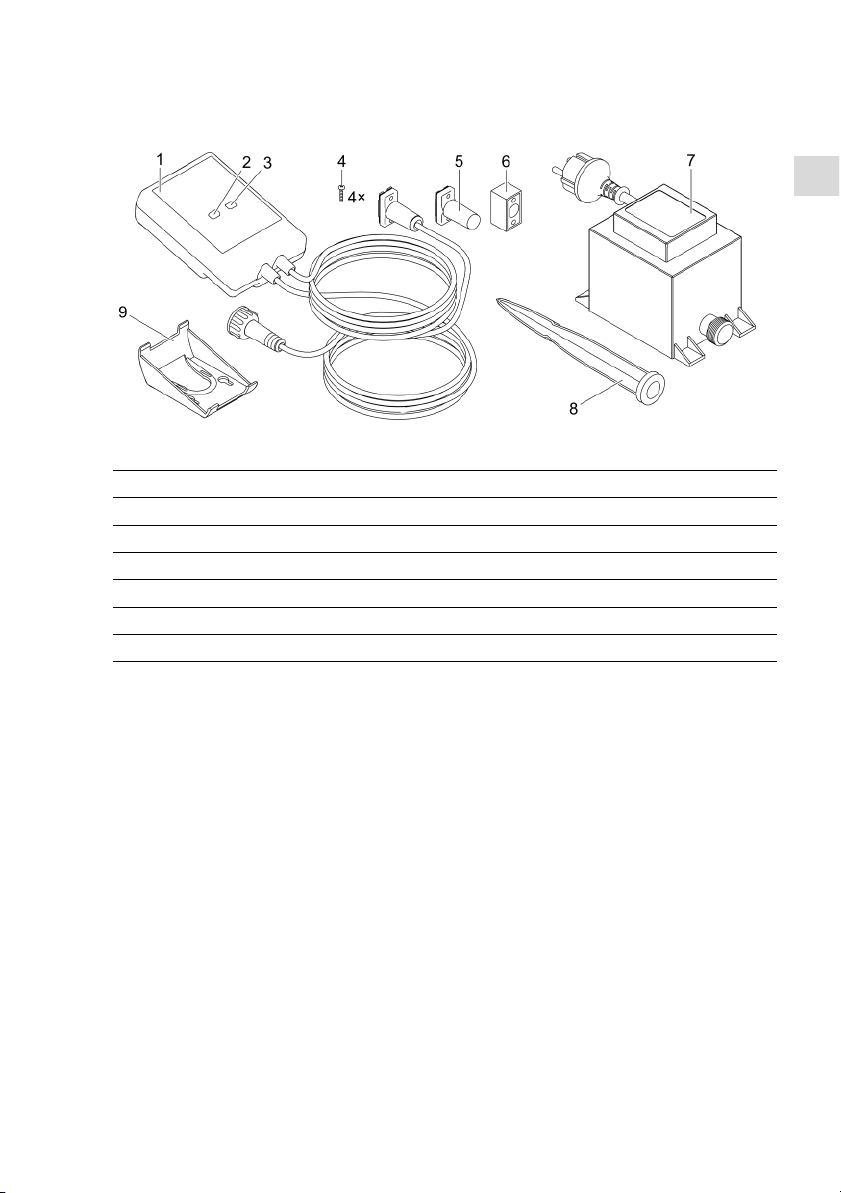
1
I
nScenio EGC Controller
2
B
outon WPS/Reset
3
L
ED, affichage de l'état de service
4
V
is de fixation des fiches au raccord de câble du système EGC.
5
R
ésistance terminale EGC enfichée dans le dernier a
p
p
areil du réseau EGC.
6
R
accord de câble EGC (47788)
7
T
ransformateur
8
P
iquet de fixation au sol
9
C
hâssis de fixationpour fixation murale ou su
p
p
ortpourpiquet
Description des fonctions
L'InScenio EGC Controller est un contrôleur de mise en réseau des appareils EGC
OASE.
Ce réseau permet de commander les appareils connectés au moyen d'une tablette,
d'un PC ou d'un smartphone avec l'application OASE « Easy Control ». Il est possible
de raccorder jusqu'à dix terminaux compatibles avec le système EGC OASE.
Le contrôleur existe dans les modèles Home et Cloud. Le modèle Cloud permet également de contrôler des terminaux compatibles avec le système EGC par l'intermédiaire du portail internet OASE. Pour avoir accès au portail internet, cliquer sur
https://oec.oase-livingwater.com .
Easy Garden Control System (EGC) offre des possibilités de commande agréables, que
ce soit dans le jardin ou au bord d'un étang, et garantit confort et sécurité.
Pour obtenir des informations concernant le système EGC et ses possibilités, cliquer
sur
www.oase-livingwater.com/egc-start.
Page 34
34
Utilisation conforme à la finalité
N'utilisez le produit décrit dans ce manuel que de la manière suivante :
• A utiliser uniquement en tant que commande d’appareil avec des terminaux adaptés EGC d’OASE.
• A utiliser à des températures ambiantes entre -20 °C et +45 °C.
• Exploitation dans le respect des données techniques. (→ Caractéristiques techni-
ques)
Les restrictions suivantes sont valables pour l'appareil :
• Ne pas utiliser à des fins commerciales ou industrielles.
Mise en place
AVERTISSEMENT
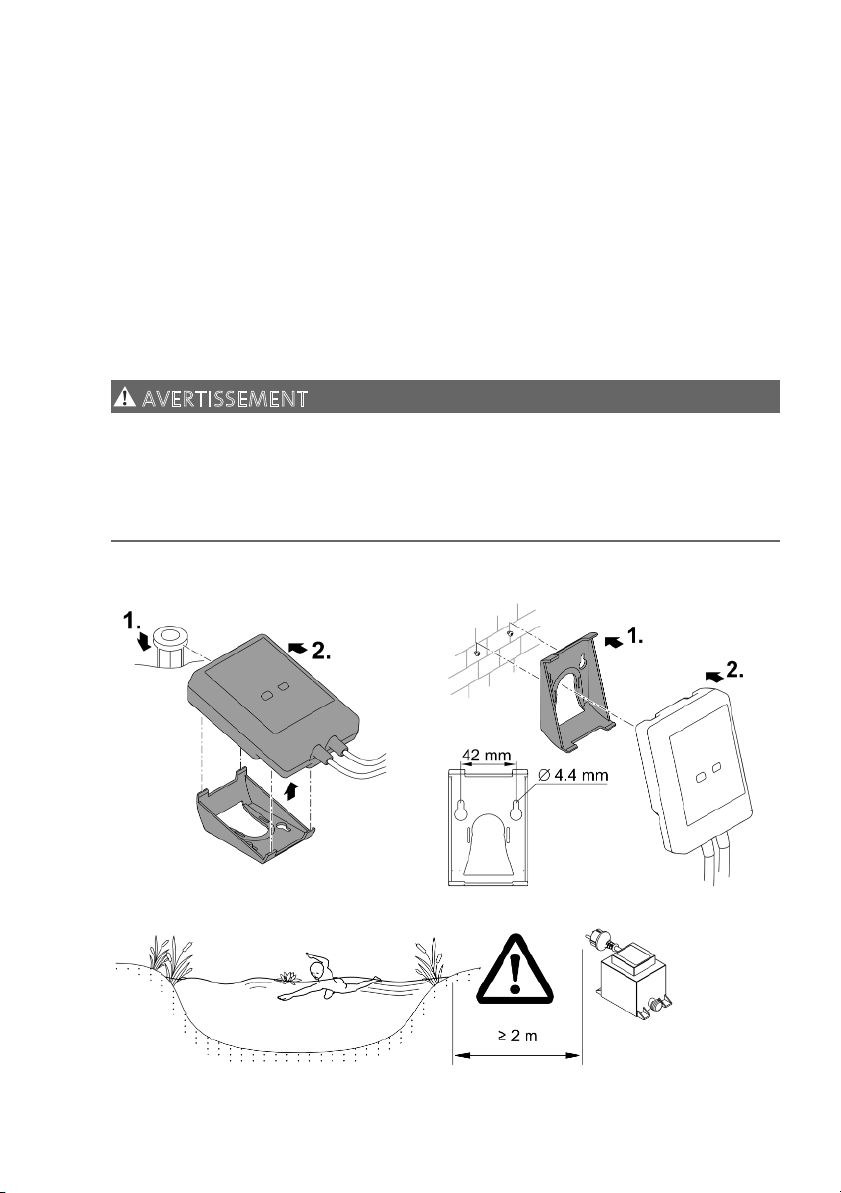
Le transformateur délivre une tension électrique dangereuse et ne doit pas être installé en contact direct avec l'eau afin d'éviter tout risque de blessure ou un danger de
mort par électrocution.
Installer le transformateur à au moins 2 m de l'eau pour le protéger contre les inon-
dations.
I
nstallation à l'aide du piquet Fixation murale
EGC000
6
EGC0007
EGC0005
Page 35
FR
35
Raccordement
REMARQUE
Une infiltration d'eau dans les fiches de raccordement entraîne un endommagement
de l'appareil.
Visser les fiches de raccordement (prise femelle/mâle) de manière étanche. Tou-
jours fermer les fiches de raccordement ouvertes avec un capuchon protecteur et
un joint en caoutchouc.
Le joint en caoutchouc doit être propre et parfaitement logé. Remplacer tout joint
en caoutchouc endommagé.
Raccorder un appareil adapté EGC
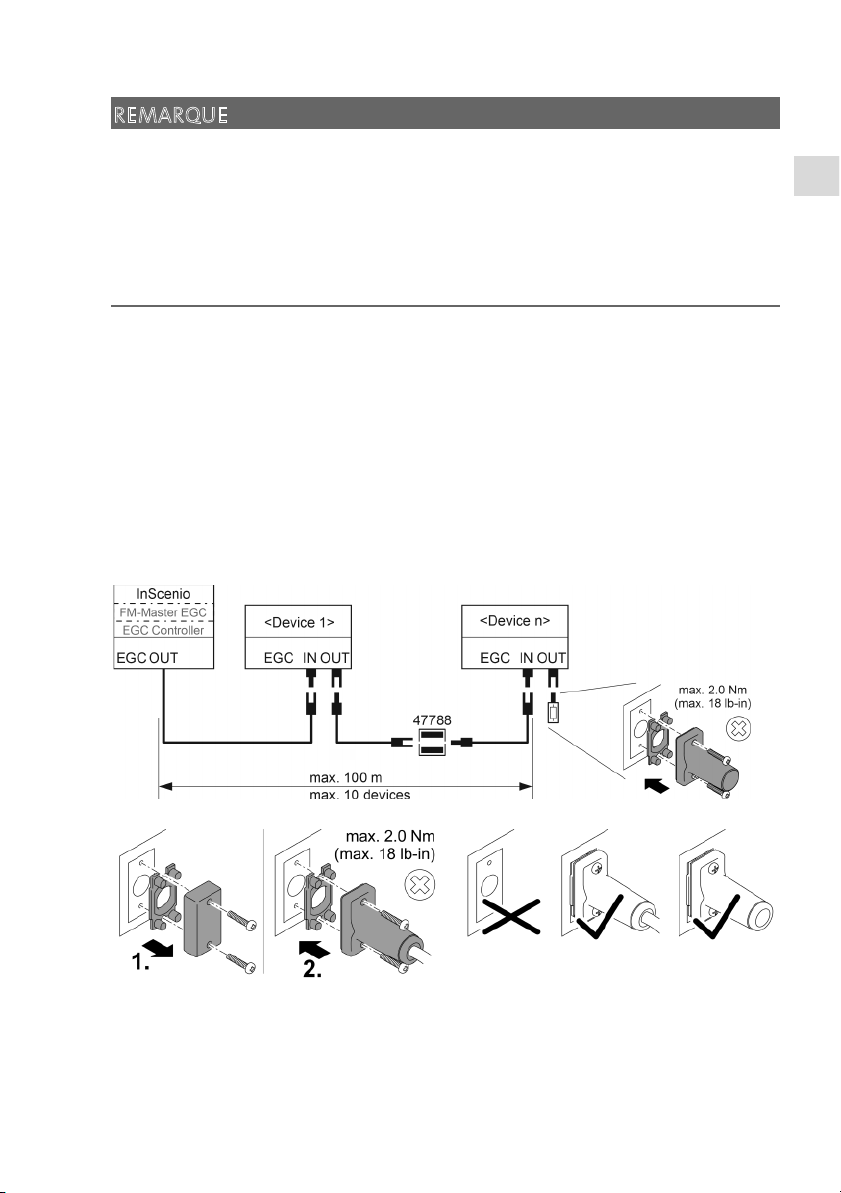
Fixer correctement le connecteur est primordial pour assurer une connexion sécurisée et le bon fonctionnement du réseau EGC.
• Le câble de raccordement EGC est un accessoire disponible dans différentes longueurs : 2,5 m (47038), 5 m (47039) et 10 m (47040).
– Le câble de connexion EGC et le câble de raccordement de l'InScenio EGC Control-
ler sont reliés par le raccord de câble EGC (47788).
• Sur le dernier appareil dans le résistance finale EGC ne brancher aucun câble de
raccordement EGC sur EGC-OUT mais la résistance finale EGC afin que le réseau
EGC soit branché correctement.
EGC0009
EGC0003
Page 36
36
Mise en service
Effectuer la mise en service dans l'ordre suivant :
1. Installer l'application « Easy Control » sur le smartphone/la tablette. (→ Installer
l'application OASE « Easy Control »)
2. Connecter l'InScenio EGC Controller au réseau électrique. (→ Mettre l'appareil en
circuit)
3. Activer la connexion WLAN dans les paramètres du smartphone/de la tablette, lancer l'application et suivre les instructions.
Types de connexion possibles
Le InScenio EGC Controller et le smartphone/la tablette doit être connecté(e) au
même WLAN pour l'utilisation.
C
onnexion WLAN
D
escriptif
C
onnecter l'InScenio EGC Controller
a
u smartphone/à la tablette via le ré-
s
eau WLAN émis par le routeur grâce
a
u standard WPS.
• Le smartphone/la tablette se connecte en continu au
réseau WLAN et a accès à Internet.
• Le portail internet permet de contrôler et commander
les terminaux com
p
atibles avec le système EAC.
C
onnecter directement l'InScenio
E
GC Controller au smartphone/à la
t
ablette (point d'accès)
• L'InScenio EGC Controller et le smartphone/la tablette
ne sont pas connectés au réseau WLAN émis par le
routeur. Les deux appareils n'ont pas accès à Internet.
• Le portail internet ne permet pas de contrôler ni commander les terminaux compatibles avec le système
EAC.
C
onnecter manuellement l'InScenio
E
GC Controller au smartphone/à la
t
ablette via le routeur WLAN du ré-
s
eau local.
• Le smartphone/la tablette se connecte en continu au
réseau WLAN et a accès à Internet.
• Le portail internet permet de contrôler et commander
les terminaux compatibles avec le système EAC.
Page 37
FR
37
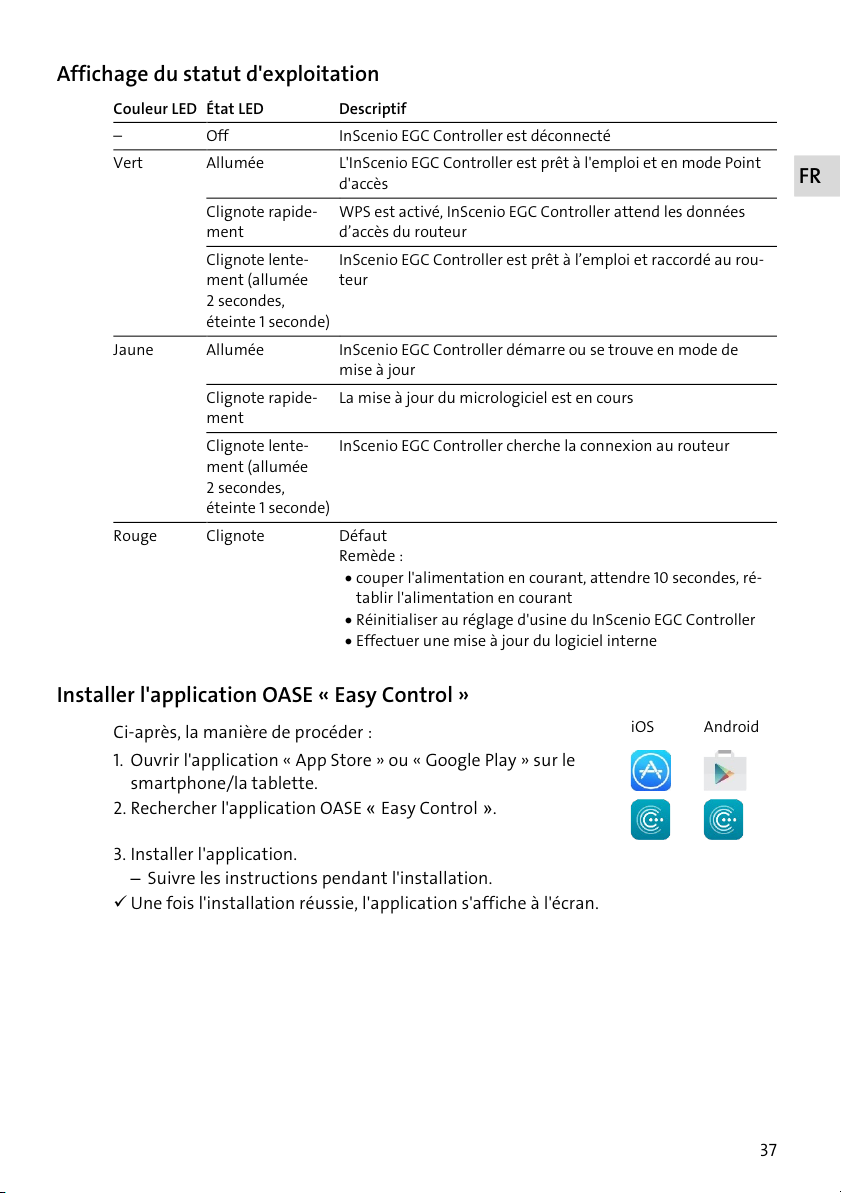
Affichage du statut d'exploitation
C
ouleur LED État LED
D
escriptif
O
ff
I
nScenio EGC Controller est déconnecté
V
ert
A
llumée
L
'InScenio EGC Controller est prêt à l'emploi et en mode Point
d
'accès
C
lignote rapide-
ment
W
PS est activé, InScenio EGC Controller attend les données
d
’accès du routeur
C
lignote lente-
ment (allumée
2 secondes,
é
teinte 1 seconde)
I
nScenio EGC Controller est prêt à l’emploi et raccordé au rou-
t
eur
J
aune
A
llumée
I
nScenio EGC Controller démarre ou se trouve en mode de
m
ise à jour
C
lignote rapide-
ment
L
a mise à jour du micrologiciel est en cours
C
lignote lente-
ment (allumée
2 secondes,
é
teinte 1 seconde)
I
nScenio EGC Controller cherche la connexion au routeur
R
ouge
C
lignote
D
éfaut
R
emède :
• couper l'alimentation en courant, attendre 10 secondes, ré-
tablir l'alimentation en courant
• Réinitialiser au réglage d'usine du InScenio EGC Controller
• Effectuer une mise à
j
our du logiciel interne
Installer l'application OASE « Easy Control »
C
i-après, la manière de procéder :
i
OS
A
ndroid
1
. Ouvrir l'application « App Store » ou « Google Play » sur le
smartphone/la tablette.
2
. Rechercher l'application OASE « Easy Control ».
3. Installer l'application.
– Suivre les instructions pendant l'installation.
Une fois l'installation réussie, l'application s'affiche à l'écran.
Page 38
38
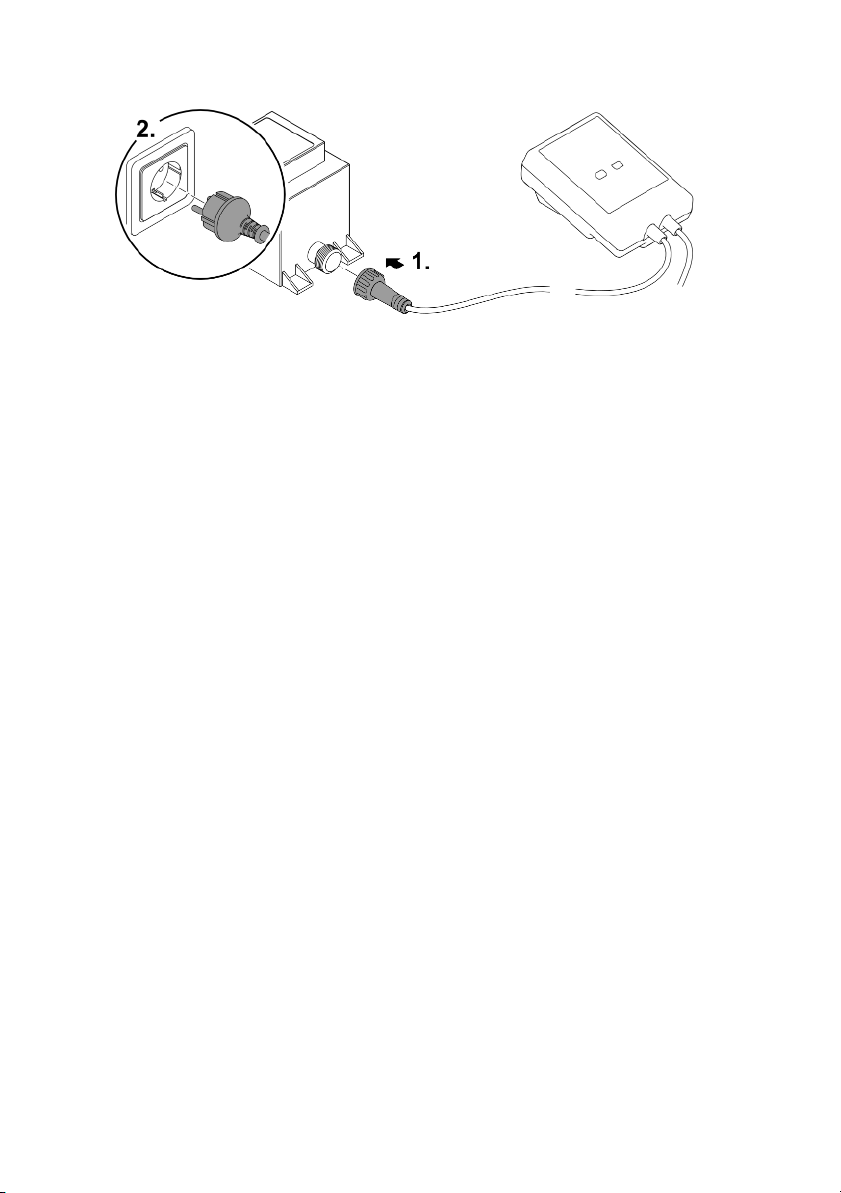
Mettre l'appareil en circuit
EGC0008
Établissement de la connexion au routeur WLAN via WPS
Le WPS (Wi-Fi Protected Setup) est un standard permettant d'établir une connexion
WLAN en appuyant sur un bouton.
• Il n'est plus nécessaire de saisir un nom de réseau (SSID) et un mot de passe.
• Le routeur WLAN doit être compatible avec le WPS.
Prérequis :
• La portée entre le routeur WLAN et l'InScenio EGC Controller est inférieure à 80 m
sans sources d'interférences et sans obstacle.
• Compatibilité avec le standard WLAN 802.11n+g et uniquement dans la gamme de
fréquences de 2,4 GHz.
Voici comment procéder :
1. Appuyer sur la touche WPS du routeur WLAN pour activer le WPS.
– Le WPS est activé pendant un temps limité. Pendant cette période, activer le WPS
sur l'InScenio EGC Controller.
– Tenir également compte des indications fournies dans la notice d'emploi du rou-
teur WLAN.
2. Appuyer brièvement (2 secondes max.) sur la touche WPS de l'InScenio EGC Controller pour activer le WPS.
– La LED clignote rapidement en vert.
– Le WPS reste actif 2 minutes.
La connexion est établie lorsque la LED clignote lentement en vert (allumée durant
2 secondes, éteinte durant 1 seconde).
Page 39
FR
39
Établir la connexion WLAN directe (point d'accès)
Le smartphone/la tablette et l'InScenio EGC Controller sont directement interconnectés.
• Sélectionner la connexion directe si aucun réseau WLAN n'est disponible, si le routeur WLAN n'est compatible avec aucun WLS ou si la distance entre le routeur
WLAN et l'InScenio EGC Controller est trop importante.
Prérequis :
• La portée WLAN entre le smartphone/la tablette et l'InScenio EGC Controller est inférieure à 80 m sans sources d'interférences et sans obstacle.
C
i-après, la manière de procéder :
i
OS
A
ndroid
1
. Afficher les paramètres du smartphone/de la tablette.
2
. Activer le réseau WLAN.
3. Sélectionner « Oase EGC Controller xxxxxx » dans la liste de réseaux.
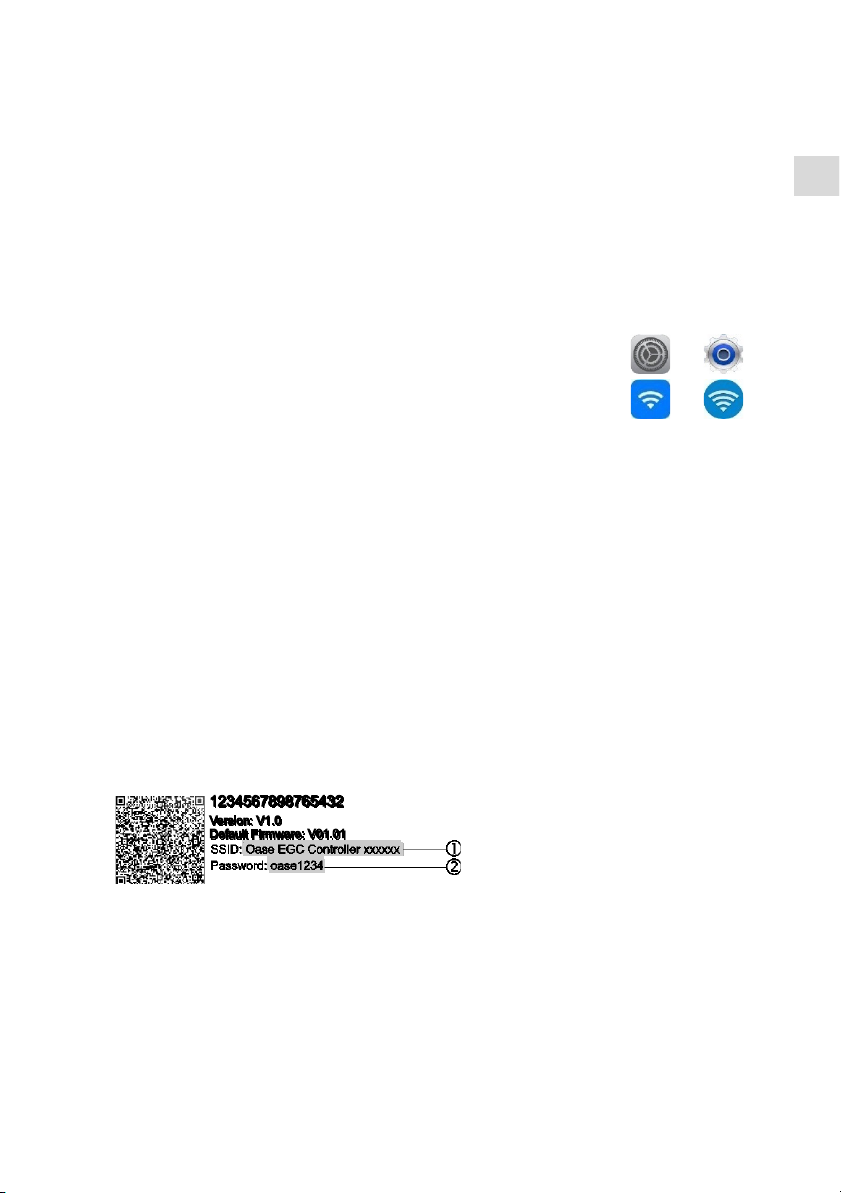
– Le nom de réseau (SSID) se trouve sur l'autocollant sur le InScenio EGC Con-
troller.
– La suite de lettres "xxxxxx" dans le nom de réseau (SSID)
est spécifique à l’ap-
pareil et désigne une partie de l’adresse MAC du InScenio EGC Controller.
4. Saisir le mot de passe du réseau WLAN.
– Le mot de passe par défaut
est indiqué sur l'étiquette de l'InScenio EGC Con-
troller.
– Le mot de passe par défaut
réglé en usine est « oase1234 ».
5. Sélectionner « Se connecter ».
– Toute connexion correcte engendre l'affichage de « Connecté » (Android) ou d'un
« » (iOS) sous le nom du réseau.
– La connexion est cryptée et protégée par le mot de passe.
– Les autres connexions WLAN sont désactivées.
La connexion WLAN directe à l'InScenio EGC Controller est établie.
EGC0011
Page 40

40
Établir manuellement la connexion au routeur WLAN
Prérequis :
• La portée entre le routeur WLAN et l'InScenio EGC Controller est inférieure à 80 m
sans sources d'interférences et sans obstacle.
• Compatibilité avec le standard WLAN 802.11n+g et uniquement dans la gamme de
fréquences de 2,4 GHz.
Voici comment procéder :
1. Connecter le smartphone/la tablette directement à l'InScenio EGC Controller (point
d'accès). (→ Établir la connexion WLAN directe (point d'accès))
2
. Afficher les paramètres de l'application OASE « Easy Control ».
3. Dans les connexions réseau, sélectionner tout d'abord « Routeur », puis « Manuel ».
4. Saisir le nom de réseau (SSID) et le mot de passe du routeur WLAN.
5. Confirmer les saisies en appuyant sur « Se connecter ».
– L'InScenio EGC Controller signale que la connexion est en cours par une LED
jaune clignotante.
– La connexion est établie lorsque la LED clignote lentement en vert (allumée du-
rant 2 secondes, éteinte durant 1 seconde).
– Au besoin, connecter manuellement le smartphone/la tablette au routeur
WLAN.
L'InScenio EGC Controller est désormais connecté au réseau émis par le routeur
WLAN.
Commander l'appareil via le portail internet
Il est possible de connecter le modèle Cloud de l'InScenio EGC Controller au portail internet OASE. Vous pouvez ainsi contrôler et commander des appareils raccordés lorsque vous êtes en voyage.
Les paramètres de l'application OASE « Easy Control » permettent d'activer la connexion au portail internet.
• Il est nécessaire de s'enregistrer à la première connexion au portail internet.
• Saisir le numéro de série et le mot de passe de l'appareil afin de pouvoir insérer
l'InScenio EGC Controller dans le portail internet.
– Le numéro de série de l'appareil est indiqué dans l'application OASE « Easy Con-
trol ».
Prérequis :
• L'InScenio EGC Controller et le smartphone/la tablette ne sont pas connectés au réseau WLAN émis par le routeur.
• Le routeur WLAN est connecté à Internet.
Page 41

FR
41
Nettoyage et entretien
Nettoyage de l'appareil
Nettoyer l'appareil avec un chiffon doux, propre et sec. N'utiliser en aucun cas des
produits de nettoyage agressifs ou des solutions chimiques qui risqueraient d'attaquer le boîtier ou d'entraver le fonctionnement.
Réinitialisation des réglages de réseau
Les réglages de réseau sont réinitialisés sur l'état à la livraison. Les saisies enregistrées de la bibliothèque d'appareil et de la minuterie sont conservées.
Voici comment procéder :
1. Maintenir le bouton Reset enfoncé pendant env. 5 secondes.
– La LED sur le InScenio EGC Controller clignote d'abord rapidement en vert puis
s'allume en jaune pour acquitter la suppression des paramètres du réseau.
– Les réglages de réseau ont été réinitialisés lorsque la LED sur InScenio EGC Con-
troller est allumée en vert.
– L'InScenio EGC Controller démarre en mode Point d'accès et peut être connecté
directement au smartphone/à la tablette.
Le nom de réseau (SSID) et le mot de passe du routeur WLAN ont été supprimés.
Le mot de passe WLAN de l'InScenio EGC Controller réglé en usine a été réinitialisé.
Le mot de passe de l'appareil a été effacé.
Mise à jour du micrologiciel
Pour maintenir le micrologiciel du InScenio EGC Controller à niveau, il est nécessaire
d'autoriser les mises à jour automatiques de l'application OASE sur le smartphone/la
tablette. Le système vérifie si le micrologiciel est à jour au démarrage de l'application
OASE. Suivre les instructions à l'écran lorsque la mise à jour du micrologiciel démarre.
Prérequis :
• L'application OASE est à jour et connectée à l'InScenio EGC Controller.
Dans les paramètres de l'InScenio EGC Controller, il est possible de vérifier quelle est
la version du micrologiciel installée et si une nouvelle version est disponible.
Voici comment procéder :
1. Lancer l'application OASE sur le smartphone/la tablette et afficher les paramètres
de l'InScenio EGC Controller.
2. Afficher la mise à jour du micrologiciel.
3. Installer la nouvelle version du micrologiciel si une mise à jour est disponible.
– Suivre les instructions à l'écran.
– En cas de demande, utiliser le mot de passe « oase1234 ».
Page 42
42
Restauration des réglages d'usine
L’état de livraison du InScenio EGC Controller est restauré. Toutes les données saisies
seront effacées.
Voici comment procéder :
1. Maintenir le bouton Reset enfoncé pendant env. 15 secondes.
– La LED sur le InScenio EGC Controller clignote d'abord rapidement en vert puis
s'allume rapidement en jaune pour acquitter la suppression des paramètres du
réseau.
– La restauration des réglages d'usine est achevée lorsque la LED est allumée en
vert.
– L'InScenio EGC Controller démarre en mode Point d'accès et peut être connecté
directement au smartphone/à la tablette.
Le nom de réseau (SSID) et le mot de passe du routeur WLAN ont été supprimés.
Le mot de passe WLAN de l'InScenio EGC Controller réglé en usine a été réinitialisé.
Le mot de passe de l'appareil a été effacé.
La liste d’appareils a été effacée.
Dépannage
Défaut Cause Remède
La connexion WIFI n'est pas
établie bien que le nom de réseau soit affiché dans les réglages WIFI.
Le smartphone/la tablette n'est
pas en mesure d'actualiser les
données de connexion saisies
pour le réseau.
iOS :
• Sélectionner le réseau et
taper sur
• Taper sur « Ignorer ce réseau » pour supprimer le
réseau
• Reconnecter ensuite avec
le réseau
Android :
• Sélectionner le réseau et
taper sur « Supprimer »
pour supprimer le réseau.
• Reconnecter ensuite avec
le réseau
Le standard WIFI réglé dans le
routeur est incompatible avec le
InScenio EGC Controller
InScenio EGC Controller est
compatible avec les standards WIFI 802.11n+g+b (exclusivement dans la plage
de fréquence 2,4 GHz).
• Éventuellement régler le
standard WIFI correct sur
le routeur (voir notice
d’emploi du routeur)
Page 43
FR
43
Défaut Cause Remède
Le InScenio EGC Controller ne
réagit pas aux ordres
WIFI est désactivé sur le smartphone/la tablette.
Activer le WIFI sur le smartphone/la tablette et établir
la connexion avec le InScenio EGC Controller
Sources d'interférences entre le
smartphone/la tablette et InScenio EGC Controller
• Réduire la distance entre
le smartphone/la tablette et le InScenio EGC
Controller
• Sélectionner un autre endroit pour l'utilisation
• Créer une vue dégagée
entre le InScenio EGC
Controller et le smartphone / la tablette
• Choisir un autre canal
WIFI lors d'une connexion WIFI directe (Access Point) entre le InScenio EGC Controller et le
smart
p
hone / la tablette.
Trop grande distance entre le
smartphone / la tablette et le
InScenio EGC Controller
• Réduire la distance, ne
pas dépasser la portée
max. de 80 m.
• Utiliser un répéteur
vendu couramment dans
le commerce pour augmenter la
p
ortée.
Alimentation en courant du InScenio EGC Controller coupée
Établir l’alimentation en
courant
• LED allumée en rouge :
• La LED clignote en vert
lorsque la connexion
WIFI est établie.
Récepteur défectueux dans le
InScenio EGC Controller
Absolument contacter le
SAV OASE
App "OASE Easy Control" n’est
plus actuel
Installer l’App "OASE Easy
Control" actuelle sur le
smartphone/la tablette
Le système d’exploitation du
smartphone/de la tablette n’est
p
lus actuel
Actualiser le système d’exploitation
Le InScenio EGC Controller
s'active à la mauvaise heure
L'heure du système du InScenio
EGC Controller ne coïncide pas
avec l'heure réelle
Actualiser l'heure du système sur l'heure de la boîte
de commande.
L’appareil EGC ajouté ne réagit pas aux ordres
Ligne de données interrompue Vérifier les raccords EGC.
Appareil ECG sans alimentation
en courant.
Établir l’alimentation en
courant
Ligne de données interrompue Vérifier les raccords EGC.
Page 44
44
Défaut Cause Remède
Pas de connexion entre l’appareil EGC et InScenio EGC
Controller
Appareil ECG sans alimentation
en courant.
Établir l’alimentation en
courant
La DEL jaune s’éclaire Le InScenio EGC Controller se
trouve en mode de mise à jour
du micrologiciel
Avec le WIFI, connecter
„OASE_UPDATE_xxxxxx“
ou
„OASE_UPDATE_EGC_xxxx
xx“ et démarrer la mise à
jour du micrologiciel via
l’A
p
p
.
La LED jaune clignote lentement (allumée 2 secondes,
éteinte 1 seconde)
InScenio EGC Controller cherche
une connexion WIFI au routeur
• Réduire la distance, ne
pas dépasser la portée
max. de 80 m.
• Remédier aux sources
d'interférences qui affaiblissent le signal WIFI
(par ex. d'autres abonnés
de réseau sans fil, différences de hauteur)
• Mettre le routeur WIFI en
marche
• Activer la fonction WIFI
au routeur
• Si le routeur n'est plus
présent ou défectueux,
réinitialiser les réglages
de réseau du InScenio
EGC Controller afin de
pouvoir directement l'activer en mode Access
Point
• Connecter le InScenio
EGC Controller avec un
autre routeur
La LED rouge clignote Défaut interne
• Couper l'alimentation en
courant, attendre 10 secondes, rétablir l'alimentation en courant
• Réinitialiser le InScenio
EGC Controller au ré-
glag
e d'usine
L'appareil ne démarre pas, la
LED rouge clignote
Micrologiciel introuvable Lancer manuellement le
mode de mise à jour du micrologiciel
Page 45
FR
45
Caractéristiques techniques
InScenio EGC Controller
C
ontrôleur Tension de raccordement
V
DC 12
Indice de protection
IP 68
Longueur de câble 12 V m 2
Longueur du câble EGC m 2
Fréquence du réseau WLAN
G
Hz 2,4
Portée max. du réseau WLAN m
8
0
Dimensions mm
1
30 × 90 × 40
Poids k
g
0
,9
T
ransforma-
t
eur
T
ension secteur
V
CA 230
Fréquence de réseau Hz
5
0
T
ension de sortie
VDC1
2
Longueur du câble secteur m 2
Indice deprotection IP 44
Dimensions mm
8
0 × 40 × 60
Poids k
g
0
,45
Pièces de rechange
L'appareil continue à fonctionner de manière sécurisée et fiable avec
d
es pièces d'origine OASE.
V
ous trouverez nos pièces de rechange et leurs schémas sur notre site
i
nternet.
w
ww.oase.com/ersatzteile
Recyclage
REMARQUE
Il est interdit de mettre cet appareil au rebut en l'évacuant vers la gestion des
o
rdures ménagères.
Mettre l'appareil au rebut par le biais du système de reprise prévu à cet ef-
fet.
Mettre l'appareil hors d'usage en sectionnant les câbles.
Page 46
46
EU-Konformitätserklärung
Declaration of EU-conformity
e
rklärt, dass das Produkt
d
eclares that the product
Produkt / Product: Controller
Controller
T
yp / Type: InScenio EGC-Controller Home
InScenio EGC-Controller Cloud
d
en folgenden Richtlinien der Union entspricht:
c
omplies to the following directives of the Union:
2
014/53/EU, 2011/65/EU
Die vollständige EU-Konformitätserklärung ist unter der folgenden Internet-
a
dresse abrufbar:
The complete Declaration of EU-conformity is available at the following internet
a
ddress:
w
ww.oase-livingwater.com/ce
Page 47
NL
47
NL
WAARSCHUWING
WAARSCHUWING
Ontkoppel alle elektrische apparaten in het water van het
voedingsnet, voordat u in het water grijpt. Anders bestaat
gevaar voor ernstig of dodelijk letsel door elektrische schokken.
Dit apparaat kan worden gebruikt door kinderen vanaf 8 jaar
en daarnaast door personen met verminderde fysieke, sensorische of mentale vermogens of een gebrek aan ervaring en
kennis, mits zij onder toezicht staan of geïnstrueerd werden
over het veilige gebruik van het apparaat en de gevaren begrijpen, die hiermee samenhangen. Kinderen mogen niet
met het apparaat spelen. Reiniging en onderhoud door de
gebruiker mogen niet worden uitgevoerd door kinderen, die
niet onder toezicht staan.
Veiligheidsinstructies
Elektrische aansluiting
• Sluit het apparaat alleen aan, wanneer de elektrische gegevens van het apparaat
en de voeding overeenkomen.
• Gebruik het apparaat uitsluitend op een volgens de voorschriften geïnstalleerde
contactdoos. De contactdoos moet beveiligd zijn via een aardlekschakelaar met
een vastgestelde lekstroom van maximaal 30 mA.
• Bescherm de stekkerverbindingen tegen vochtigheid.
Veilig gebruik
• Dompel het apparaat nooit onder in water of andere vloeistof.
• Gebruik het apparaat niet als elektrische snoeren of behuizing beschadigd zijn.
• Een beschadigd aansluitsnoer kan niet worden vervangen. Voer het apparaat af.
• Het apparaat niet aan de elektrische leiding dragen of aan de leiding trekken.
• Installeer de leidingen zodanig, dat deze tegen beschadigingen zijn beschermd en
niemand erover kan struikelen.
• Gebruik geen meervoudige contactdozen.
• Neem bij problemen contact op met de geautoriseerde klantenservice of met
OASE.
Page 48
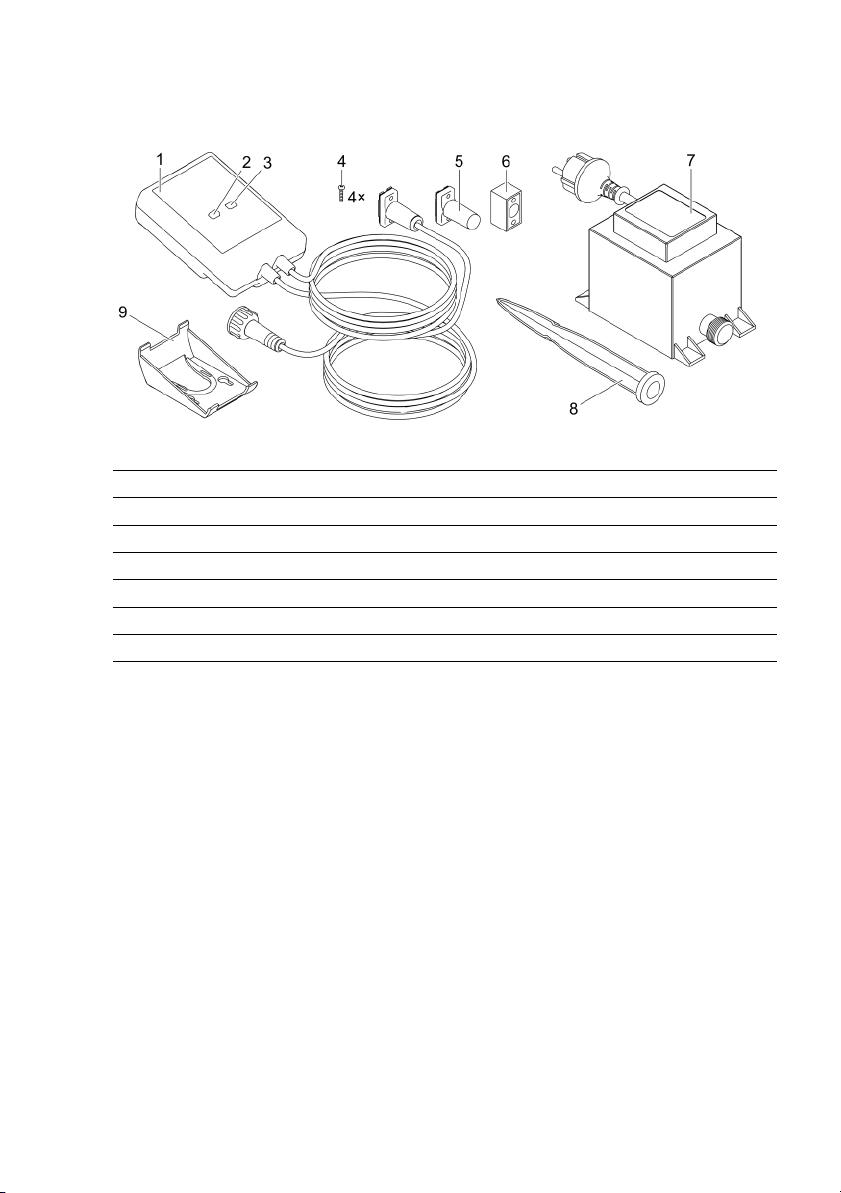
48
Productbeschrijving
Overzicht
EGC0004
1
I
nScenio EGC Controller
2
W
PS-/reset-kno
p
3
L
ED, weergave van de bedrijfsstatus
4
S
chroeven ter bevestiging van de stekkerverbinding met de kabelverbinder EGC.
5
E
indweerstand EGC, wordt in het laatste a
p
p
araat binnen het EGC-netwerkgeplaatst.
6
K
abelverbinder EGC (47788)
7
T
rafo
8
G
rondpen voor bodembevestiging
9
H
ouder voor wandbevestigingof opname vangrondpen
Functiebeschrijving
InScenio EGC Controller is een controller voor het opnemen in een netwerk van de
OASE EGC-apparaten.
De aangesloten apparaten worden aangestuurd via WLAN met tablet, PC of
smartphone via de OASE-app "Easy Control" aangestuurd. U kunt maximaal tien EGCcompatibel OASE eindapparaten aansluiten.
De controller is er in de uitvoeringen Home en Cloud. Met de uitvoering Cloud kunnen EGC-compatibele eindapparaten ook via het OASE-webportaal worden gecontroleerd. Het webportaal bereikt u via https://oec.oase-livingwater.com.
De Easy Garden Control System (EGC) zorgt in de tuin en bij de vijver voor comfortabele besturingsmogelijkheden en garandeert maximaal gemak en veiligheid.
Informatie over EGC en de mogelijkheden daarvan vindt u onder
www.oase-livingwater.com/egc-start.
Page 49
NL
49
Beoogd gebruik
Gebruik het in de gebruiksaanwijzing beschreven product uitsluitend op de volgende
manier:
• Gebruik uitsluitend als apparaatbesturing met EGC-compatibele eindapparaten
van OASE.
• Te gebruiken bij omgevingstemperaturen-20 °C … +45 °C.
• Gebruik onder naleving van de technische gegevens. (→ Technische gegevens)
De volgende inperkingen gelden voor het apparaat:
• Niet gebruiken voor commerciële of industriële doeleinden.
Plaatsen van het apparaat
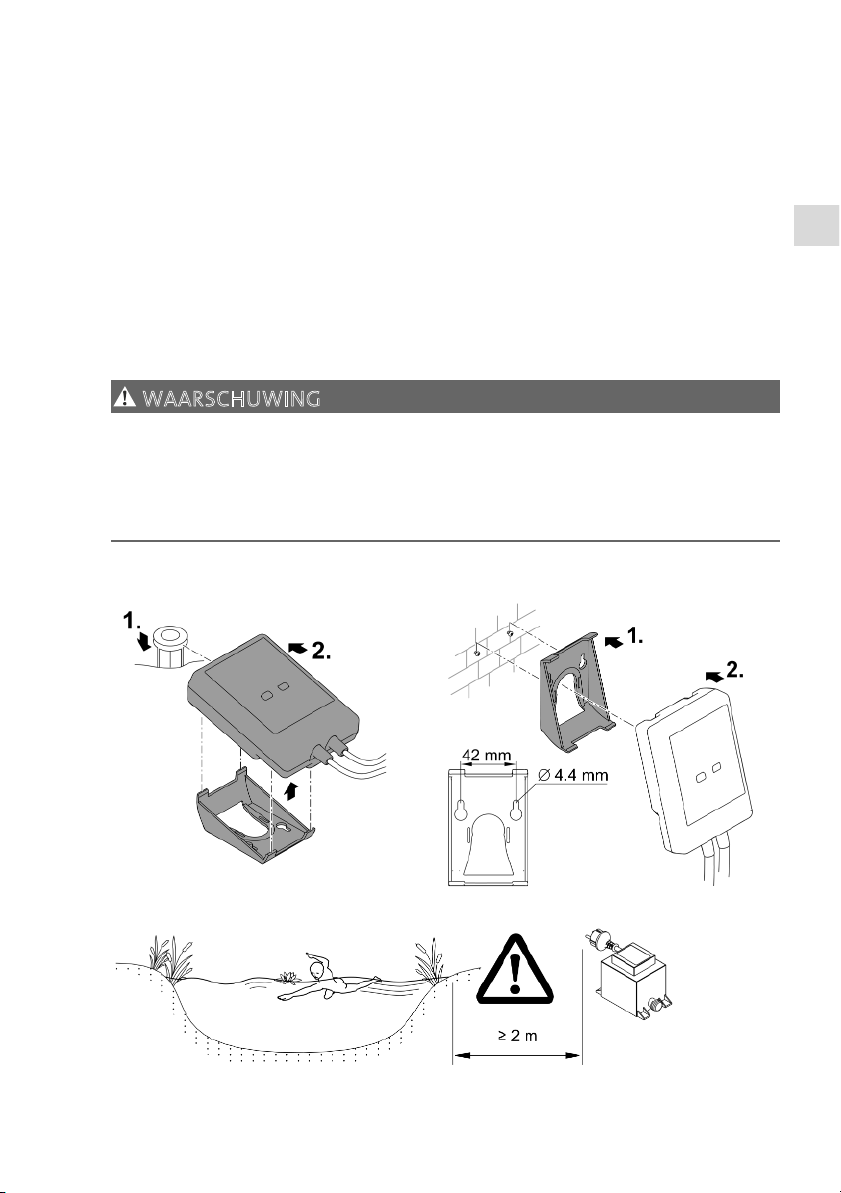
WAARSCHUWING
De transformator geleidt gevaarlijke elektrische spanning en mag niet vlak bij het
water worden opgesteld. Anders bestaat gevaar voor ernstig of dodelijk letsel door
elektrische schokken.
Plaats de transformator beschermd tegen overstroming op een afstand van ten
minste 2 m van het water.
M
et grondpen opstellen
A
an wand bevestigen
EGC000
6
EGC0007
EGC0005
Page 50
50
Aansluiten
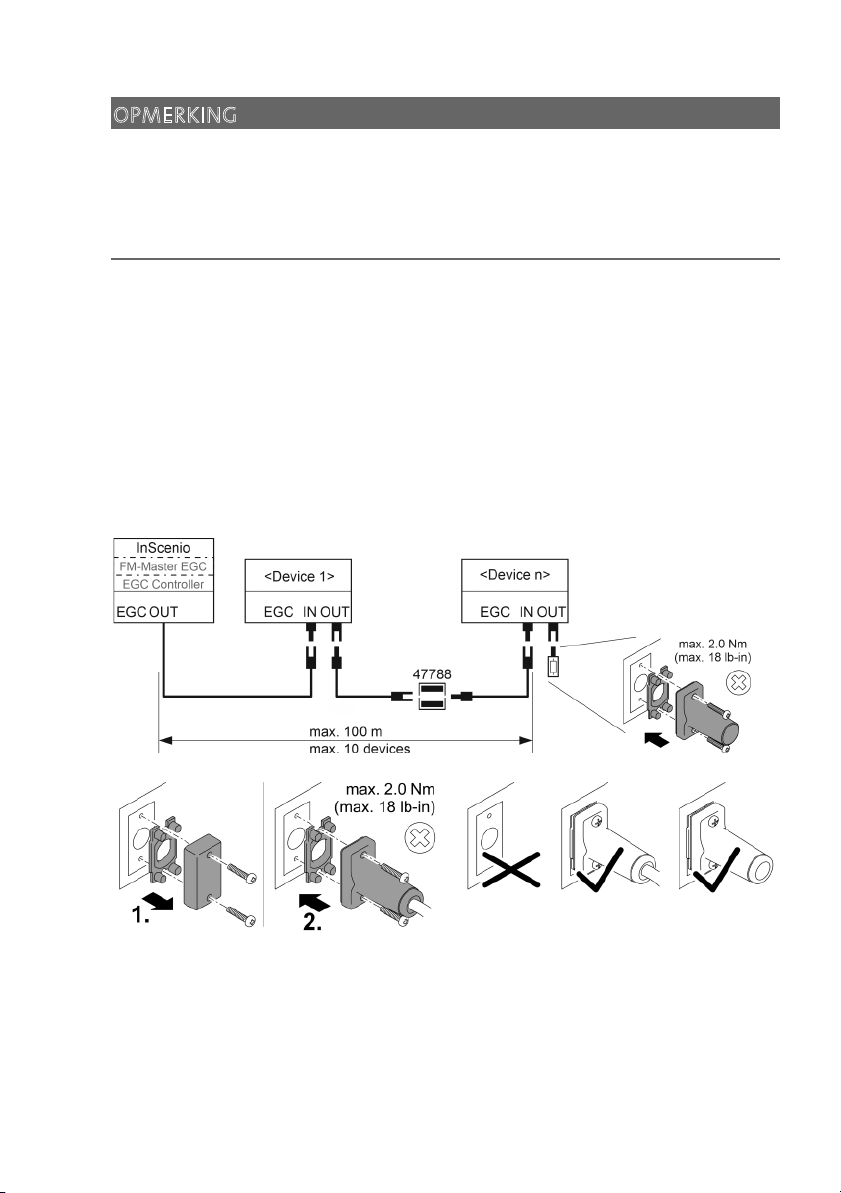
OPMERKING
Het apparaat wordt beschadigd als er water in de stekkeraansluiting dringt.
Schroef de stekkers aan elkaar (bus/stekker), zodat deze waterdicht zijn. Sluit de
open stekker met de beschermkap en de rubber afdichting.
De rubberafdichting moet schoon zijn en goed sluitend zitten. Vervang een bescha-
digde rubber afdichting.
EGC-compatibel apparaat aansluiten
Belangrijk voor een betrouwbare verbinding en een storingsvrij EGC-netwerk is de
juiste bevestiging van de connector.
• De verbindingskabels EGC zijn als toebehoren leverbaar in de lengte 2,5 m (47038),
5 m (47039) en 10 m (47040).
– De verbindingskabel EGC en de aansluitkabel van de InScenio EGC Controller
worden verbonden met de kabelverbinder EGC (47788).
• Op het laatste apparaat in het EGC-netwerk moet aan EGC-OUT geen verbindingskabel EGC, maar de eindweerstand ECG zijn aangesloten, zodat het EGC-netwerk
correct is afgesloten.
EGC0009
EGC0003
Page 51
NL
51
Ingebruikname
Voer de ingebruikneming in deze volgorde uit:
1. Installeer de app “Easy Control” op uw smartphone/tablet. (→ OASE-app "Easy
Control" installeren)
2. Verbind de InScenio EGC Controller met het stroomnet.(→ Apparaat inschakelen)
3. Activeer de WLAN-verbinding in de instellingen van uw smartphone/tablet, start
de app en volg de instructies.
Mogelijke wijzen van verbinding
Voor de bediening moeten de InScenio EGC Controller en de smartphone/tablet via
WLAN verbonden zijn.
W
LAN-verbindin
g
O
mschrijvin
g
I
nScenio EGC Controller en
s
martphone/tablet via WPS met het
W
LAN-netwerk van de WLAN-router
v
erbinden.
• De smartphone/tablet blijft met het WLAN-netwerk
verbonden en kan bovendien het internet benaderen.
• EAC-compatibele eindapparaten kunnen via het
Cloud-webportal worden
g
econtroleerd en bestuurd.
I
nScenio EGC Controller en smart-
p
hone/tablet direct verbinden (Acces
P
oint)
• InScenio EGC Controller en smartphone/tablet zijn
niet met het WLAN-netwerk van de WLAN-router verbonden. Beide apparaten hebben geen toegang tot internet.
• EAC-compatibele eindapparaten kunnen niet via het
Cloud-webportal worden gecontroleerd en bestuurd.
I
nScenio EGC Controller en
s
martphone/tablet via de WLAN-
r
outer van het thuisnetwerk hand-
m
atig verbinden.
• De smartphone/tablet blijft met het WLAN-netwerk
verbonden en kan bovendien het internet benaderen.
• EAC-compatibele eindapparaten kunnen via het
Cloud-webportal worden
g
econtroleerd en bestuurd.
Page 52
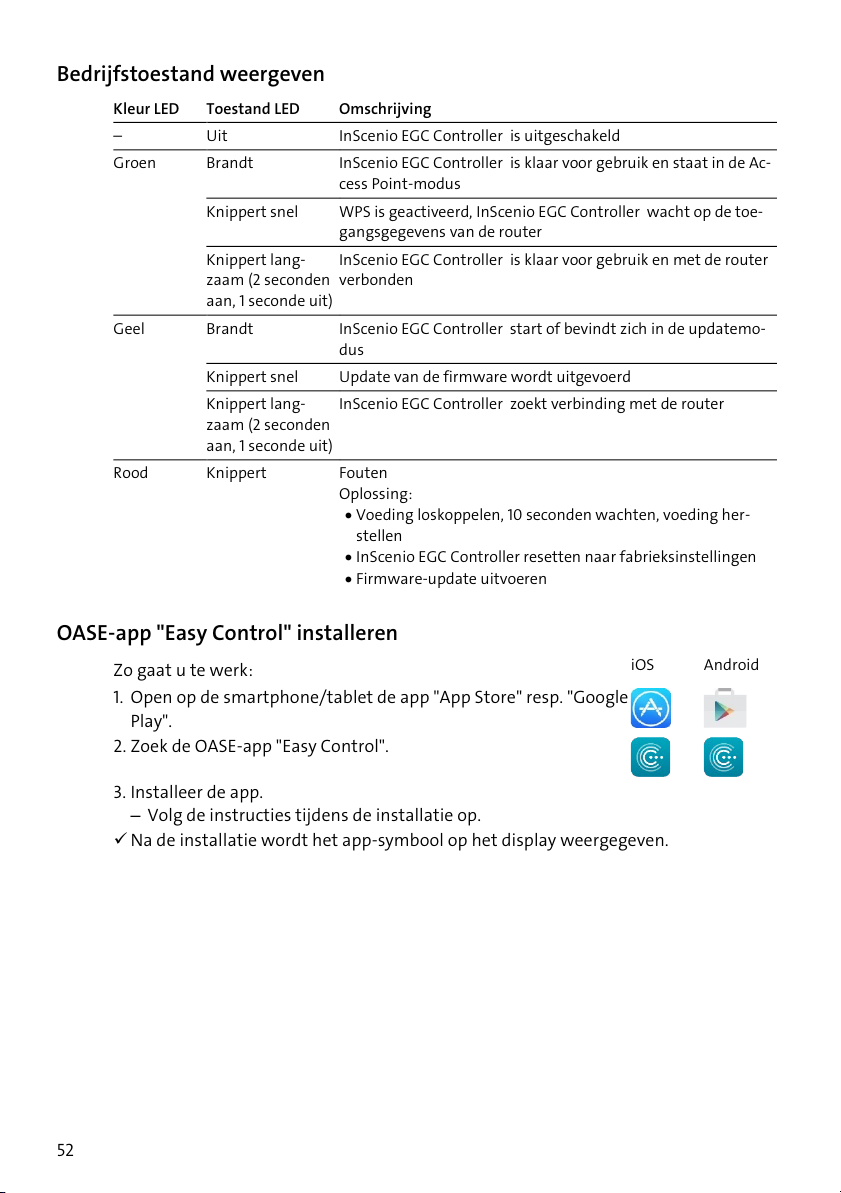
52
Bedrijfstoestand weergeven
K
leur LED Toestand LED
O
mschrijving
Uit
I
nScenio EGC Controller is uitgeschakeld
G
roen Brandt
I
nScenio EGC Controller is klaar voor gebruik en staat in de Ac-
c
ess Point-modus
Knippert snel
W
PS is geactiveerd, InScenio EGC Controller wacht op de toe-
g
angsgegevens van de router
Knippert lang-
z
aam (2 seconden
a
an, 1 seconde uit)
I
nScenio EGC Controller is klaar voor gebruik en met de router
v
erbonden
G
eel Brandt
I
nScenio EGC Controller start of bevindt zich in de updatemo-
d
us
Kni
p
p
ert snel
U
p
date van de firmware wordt uitgevoerd
Knippert lang-
z
aam (2 seconden
a
an, 1 seconde uit)
I
nScenio EGC Controller zoekt verbinding met de router
R
ood Knippert
F
outen
O
plossing:
• Voeding loskoppelen, 10 seconden wachten, voeding her-
stellen
• InScenio EGC Controller resetten naar fabrieksinstellingen
• Firmware-u
p
date uitvoeren
OASE-app "Easy Control" installeren
Z
o gaat u te werk:
i
OS
A
ndroid
1
. Open op de smartphone/tablet de app "App Store" resp. "Google
Pla
y
".
2
. Zoek de OASE-app "Easy Control".
3. Installeer de app.
– Volg de instructies tijdens de installatie op.
Na de installatie wordt het app-symbool op het display weergegeven.
Page 53
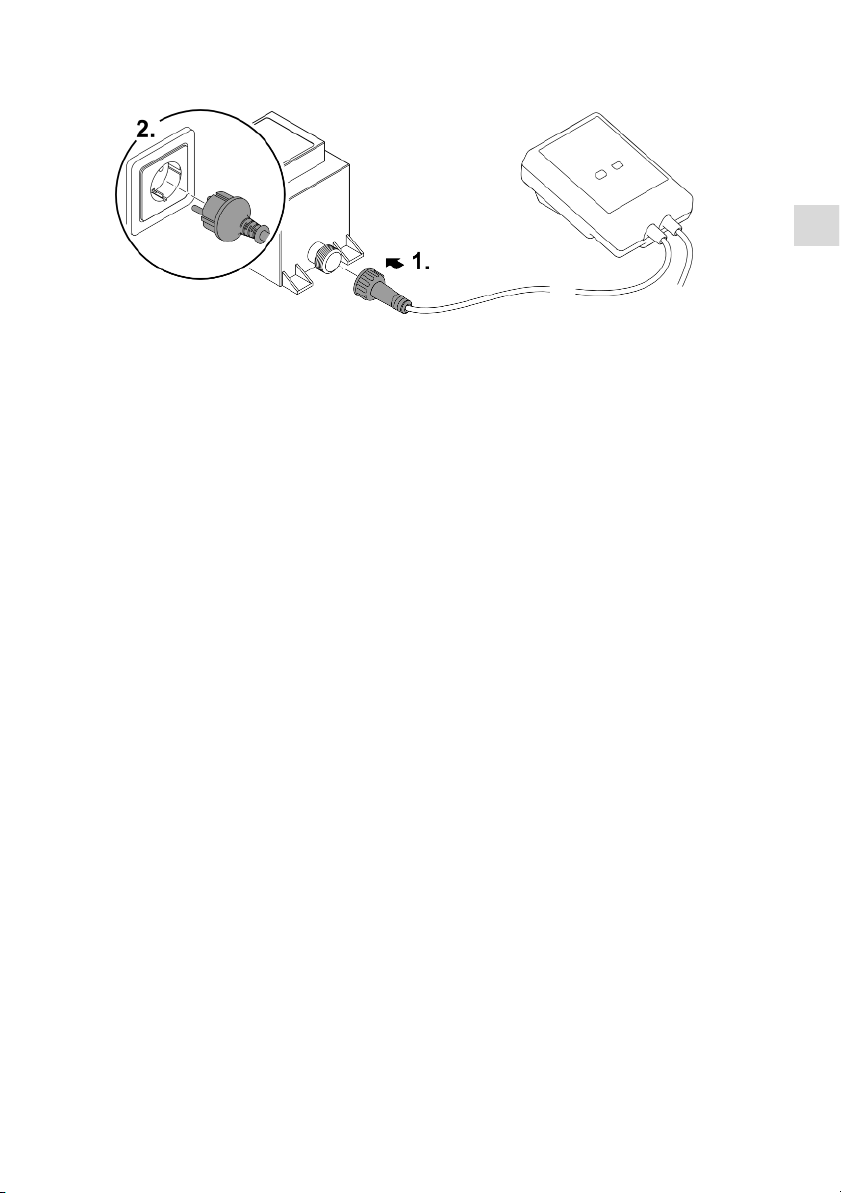
NL
53
Apparaat inschakelen
EGC0008
Verbinding met WLAN-router maken via WPS
WPS (Wi-Fi Protected Setup) is een standaard voor de opbouw van een veilige WLANverbinding per druk op de knop.
• De invoer van netwerknaam (SSID) en wachtwoord vervalt.
• De WLAN-router moet WPS ondersteunen.
Voorwaarde:
• Het WLAN-bereik tussen WLAN- router en InScenio EGC Controller is niet meer dan
80 m zonder storingsbronnen en bij vrij zicht.
• Compatibiliteit met WLAN-standaard 802.11n+g en alleen in het frequentiebereik
2,4 GHz.
Zo gaat u te werk:
1. Druk op de WLAN-router op WPS-knop om WPS te activeren.
– WPS is slechts een beperkte tijd actief. Activeer binnen deze periode WPS op In-
Scenio EGC Controller.
– Let ook op de informatie in de gebruiksaanwijzing van de WLAN-router.
2. Druk op InScenio EGC Controller kort op de WPS-toets (maximaal 2 seconden), om
WPS te activeren.
– De LED knippert snel groen.
– WPS blijft 2 minuten actief.
De verbinding is gemaakt, wanneer de LED langzaam groen knippert (2 seconden
aan, 1 seconde uit).
Page 54
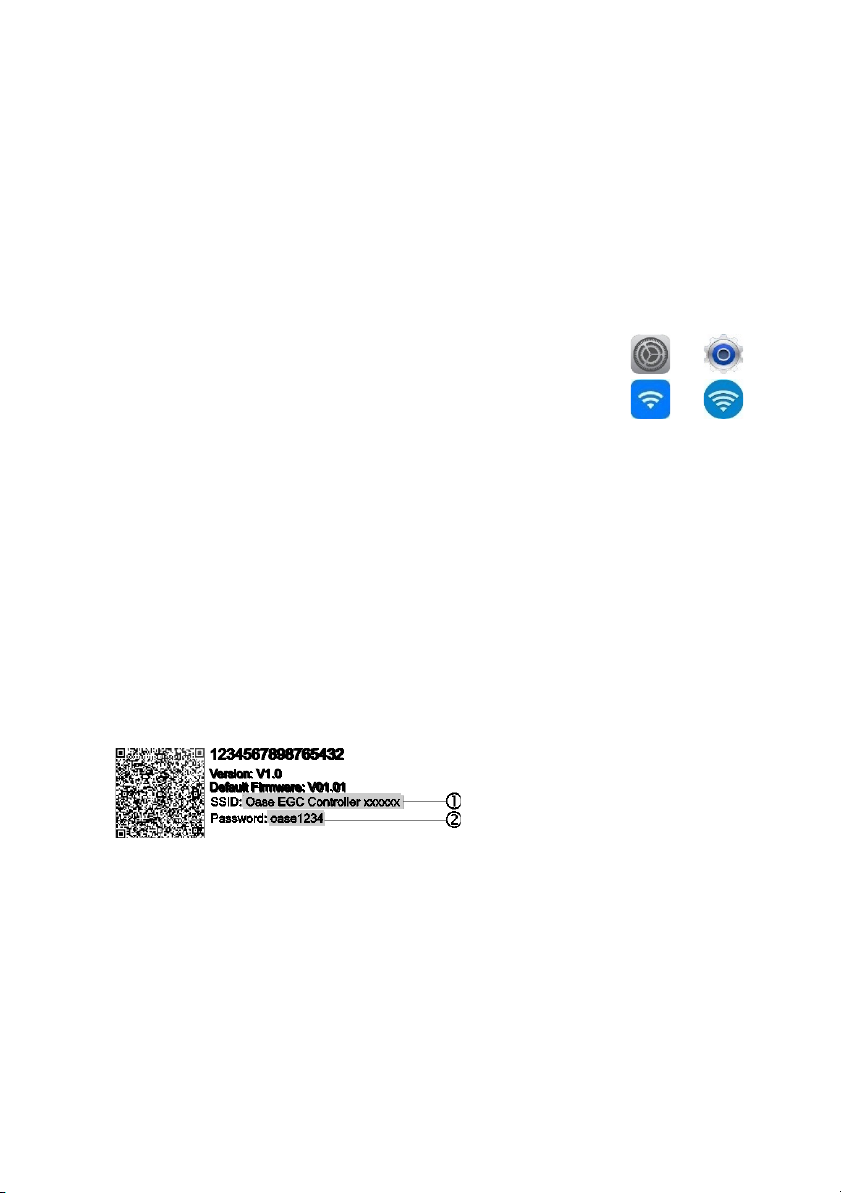
54
Directe WLAN-verbinding maken (Access-Point)
De smartphone/tablet en de InScenio EGC Controller zijn direct met elkaar verbonden.
• Kies de directe verbinding, wanneer geen WLAN-netwerk beschikbaar is, de WLANrouter geen WPS ondersteunt of de afstand tussen WLAN-router en InScenio EGC
Controller te groot is.
Voorwaarde:
• Het WLAN-bereik tussen smartphone/tablet en InScenio EGC Controller is niet
meer dan 80 m zonder storingsbronnen en bij vrij zicht.
Z
o gaat u te werk:
i
OS
A
ndroid
1
. Open op de smartphone/tablet de instellingen.
2
. Activeer de WLAN.
3. Kies uit de lijst met netwerken "Oase EGC Controller xxxxxx".
– De netwerknaam (SSID) staat op de sticker op de InScenio EGC Controller.
– De lettervolgorde "xxxxxx" in de netwerknaam (SSID) is apparaatspecifiek en
omvat een deel van het MAC-adres van de InScenio EGC Controller.
4. voer het WLAN-wachtwoord in.
– Het standaardwachtwoord
staat op de sticker op de InScenio EGC Controller.
– In de fabrieksinstelling is het standaardwachtwoord 'oase1234'.
5. Kies "Verbinden".
– Als de verbinding gemaakt is, wordt onder de netwerknaam "Verbonden"
(Android) of een "" (iOS) weergegeven.
– De verbinding is versleuteld en beveiligd met het wachtwoord.
– Andere WLAN-verbindingen zijn gedeactiveerd.
De directe WLAN-verbinding met de InScenio EGC Controller wordt gemaakt.
EGC0011
Page 55
NL
55
Verbinding met WLAN-router handmatig maken
Voorwaarde:
• Het WLAN-bereik tussen WLAN- router en InScenio EGC Controller is niet meer dan
80 m zonder storingsbronnen en bij vrij zicht.
• Compatibiliteit met WLAN-standaard 802.11n+g en alleen in het frequentiebereik
2,4 GHz.
Zo gaat u te werk:
1. Verbind de smartphone/tablet direct met de InScenio EGC Controller (AccessPoint). (→ Directe WLAN-verbinding maken (Access-Point))
2
. Open in de OASE-app "Easy Control" de instellingen.
3. Selecteer bij de netwerkverbindingen eerst "Router" en dan "Handmatig".
4. Voer de netwerknaam (SSID) en het wachtwoord van de WLAN-router in.
5. Bevestig de invoer met "Verbinden".
– Op InScenio EGC Controller wordt de opbouw van de verbinding door een geel
knipperende LED weergegeven.
– De verbinding is gemaakt, wanneer de LED langzaam groen knippert (2 seconden
aan, 1 seconde uit).
– Eventueel moet u de smartphone/tablet handmatig met de WLAN-router verbin-
den.
De InScenio EGC Controller is nu met het WLAN-netwerk verbonden.
Apparaat via het cloud-webportaal aansturen
De InScenio EGC Controller in de uitvoering Cloud kunt u met het OASE cloud-webportaal verbinden. U kunt aangesloten apparaten ook onderweg controleren en besturen.
In de instellingen van de OASE-app "Easy Control" kunt u de verbinding met het
cloud-webportaal vrijgeven.
• Bij de aanmelding in het cloud-webportaal moet u zich eenmalig registreren.
• Om de InScenio EGC Controller in het cloud-webportaal te kunnen toevoegen,
moet u het serienummer en het wachtwoord van het apparaat invoeren.
– Het serienummer vindt u in de OASE-app "Easy Control" in de instellingen.
Voorwaarde:
• De InScenio EGC Controller en de smartphone/tablet zijn met het WLAN-netwerk
van uw WLAN-router verbonden.
• De WLAN-router is met het internet verbonden.
Page 56

56
Reiniging en onderhoud
Apparaat reinigen
Reinig het apparaat met een zachte doek, schone en droge doek. Gebruik nooit aggressieve reinigingsmiddelen of chemische oplossingen, omdat hierdoor de behuizing kan worden beschadigd of de functie kan worden beïnvloed.
Netwerkinstellingen resetten
De netwerkinstellingen worden naar de uitleveringstoestand teruggezet. Opgeslagen
posities uit de apparaatbibliotheek en de tijdschakelklok blijven behouden.
Zo gaat u te werk:
1. Houd de reset-toets circa 5 seconden ingedrukt.
– De LED op de InScenio EGC Controller knippert eerst snel groen en brandt dan
geel om het wissen van de netwerkinstellingen te bevestigen.
– De netwerkinstellingen zijn gereset, wanneer de LED op de InScenio EGC Control-
ler groen brandt.
– De InScenio EGC Controller start in Access-Point-modus en kan met de
smartphone/tablet direct worden verbonden.
Netwerknaam (SSID) en wachtwoord van de WLAN-router zijn gewist.
Het WLAN-wachtwoord van de InScenio EGC Controller is naar de fabrieksinstel-
ling teruggezet.
Het wachtwoord van het apparaat werd gewist.
Firmware actualiseren
Om de firmware van de InScenio EGC Controller actueel te houden, moeten op de
smartphone/tablet automatische updates van de OASE-app ingeschakeld zijn. Bij het
starten van de OASE-app wordt automatisch gecontroleerd of de firmware actueel is.
Volg de instructies op het scherm, wanneer de firmware-update start.
Voorwaarde:
• De OASE-app is actueel en met de InScenio EGC Controller verbonden.
In de instellingen van de InScenio EGC Controller kunt u controleren, welke firmwareversie is geïnstalleerd en of een actuele versie beschikbaar is.
Zo gaat u te werk:
1. Start op de smartphone/tablet de OASE-app en open de instellingen voor de InScenio EGC Controller.
2. Roep de firmware-update op.
3. Installeer de actuele firmware-versie, wanneer een update beschikbaar is.
– Volg de instructies op het beeldscherm.
– Bij de vraag om het wachtwoord gebruikt u "oase1234".
Page 57
NL
57
Fabrieksinstellingen herstellen
De toestand van de InScenio EGC Controller bij levering wordt hersteld. Alle ingevoerde gegevens gaan verloren.
Zo gaat u te werk:
1. Houd de reset-toets circa 15 seconden ingedrukt.
– De LED op de InScenio EGC Controller knippert eerst snel groen en brandt dan
geel om het wissen van de netwerkinstellingen te bevestigen.
– De fabrieksinstellingen zijn gereset, wanneer de LED groen brandt.
– De InScenio EGC Controller start in Access-Point-modus en kan met de
smartphone/tablet direct worden verbonden.
Netwerknaam (SSID) en wachtwoord van de WLAN-router zijn gewist.
Het WLAN-wachtwoord van de InScenio EGC Controller is naar de fabrieksinstel-
ling teruggezet.
Het wachtwoord van het apparaat werd gewist.
De apparaatlijst werd gewist.
Storing verhelpen
S
torin
g
M
ogelijke oorzaak
O
p
lossin
g
W
LAN-verbinding werd niet
t
ot stand gebracht, hoewel de
n
etwerknaam in de WLAN-
i
nstellingen wordt weergege-
v
en.
S
martphone/tablet kan de in-
g
evoerde verbindingsgegevens
v
oor het netwerk niet actuali-
s
eren.
i
OS:
• Netwerk selecteren en op
tikken
• Op ‘Dit netwerk negeren'
tikken om het netwerk te
verwijderen
• Aansluitend opnieuw met
het netwerk verbinden
A
ndroid:
• Netwerk selecteren en op
'Verwijderen' tikken, om het
netwerk te verwijderen.
• Aansluitend opnieuw met
het netwerk verbinden
D
e in de router ingestelde
W
LAN-standaard is niet com-
p
atibel met de InScenio EGC
C
ontroller
InScenio EGC Controller onder-
s
teunt de WLAN-standaards
8
02.11n+g (alleen in het fre-
q
uentiebereik 2,4 GHz).
• Eventueel op de router de
juiste WLAN-standaard instellen (zie handleiding van
de router)
I
nScenio EGC Controller rea-
g
eert niet op commando's
W
LAN op smartphone/tablet is
g
edeactiveerd
W
LAN op smartphone/tablet
a
ctiveren en verbinding met
InScenio EGC Controller tot
s
tand brengen
Page 58
58
S
torin
g
M
ogelijke oorzaak
O
p
lossin
g
S
toring tussen smart-
p
hone/tablet en InScenio EGC
C
ontroller
• Afstand tussen smartphone/tablet en InScenio
EGC Controller verminderen
• Andere locatie voor het bedienen kiezen
• Vrij zicht tussen InScenio
EGC Controller en
smartphone/tablet realiseren
• Bij directe WLAN-verbinding
(Access Point) tussen InScenio EGC Controller en
smartphone/tablet een ander WLAN-kanaal kiezen
T
e grote afstand tussen
s
martphone/tablet en InSce-
n
io EGC Controller
• Afstand verminderen, max.
reikwijdte van 80 m niet
overschrijden
• Standaard repeater toepassen, om de reikwijdte te ver-
g
roten
V
oeding naar InScenio EGC
C
ontroller onderbroken
V
oeding aansluiten
• LED brandt groen
• LED knippert Groen, wan-
neer de WLAN-verbinding
met de router tot stand is
gebracht
O
ntvanger in de InScenio EGC
C
ontroller defect
Hierover contact opnemen
met de OASE-service
D
e OASE-app "Easy Control" is
v
erouderd
A
ctuele OASE-app "Easy Con-
t
rol"op de smartphone/tablet
i
nstalleren
H
et besturingssysteem van de
s
martphone/tablet is verou-
d
erd
Besturingssysteem actualiseren
I
nScenio EGC Controller scha-
k
elt op verkeerde tijdstip.
S
ysteemtijd van de InScenio
E
GC Controller komt niet over-
e
en met de werkelijke tijd
De systeemtijd op de tijd van
het bedieningsapparaat actualiseren
T
oegevoegd EGC-apparaat rea-
g
eert niet op commando's
G
egevensleidingonderbroken EGC-aansluitingen controleren
E
GC-apparaat zonder voeding Voeding aansluiten
G
een verbinding tussen EGC-
a
pparaat en InScenio EGC Con-
t
roller
G
egevensleidingonderbroken EGC-aansluitingen controleren
E
GC-apparaat zonder voeding Voeding aansluiten
L
ED brandt geel
I
nScenio EGC Controller be-
v
indt zich in de modus firm-
w
are-update
M
et het netwerk
„
OASE_UPDATE_xxxxxx“ of
„
OASE_UPDATE_EGC_xxxxxx“
Page 59
NL
59
S
torin
g
M
ogelijke oorzaak
O
p
lossin
g
v
erbinden en via de app de
f
irmware-update starten
L
ED knippert langzaam geel
(
2 seconden aan, 1 seconde uit)
I
nScenio EGC Controller zoekt
e
en WLAN-verbinding met de
r
outer
• Afstand verminderen, max.
reikwijdte van 80 m niet
overschrijden
• Storingen oplossen, die het
WLAN-signaal verzwakken
(bijv. andere draadloze deelnemer, hoogteverschillen)
• WLAN-router inschakelen
• Op de router de WLAN-
functie activeren
• Wanneer de router niet
meer aanwezig of defect is,
de netwerkinstellingen van
de InScenio EGC Controller
resetten en het Acces-Pointactiveren
• InScenio EGC Controller met
een andere router verbinden
L
ED knippert rood
I
nterne fout
• Voeding loskoppelen, 10 seconden wachten, voeding
herstellen
• InScenio EGC Controller resetten naar fabrieksinstellingen
A
pparaat start niet, LED knip-
p
ert rood
G
een firmware gevonden Hierover contact opnemen
met de OASE-service
Page 60
60
Technische gegevens
InScenio EGC Controller
C
ontroller Aansluitspanning
V
DC 12
Beschermingsgraad
IP 68
Lengte 12 V-kabel m 2
Lengte EGC-kabel m 2
Frequentie WLAN
G
Hz 2,4
M
ax.WLAN-reikwijdte m
8
0
A
fmetingen mm
1
30 × 90 × 40
G
ewicht k
g
0
,9
T
rafo Netspannin
g
V
AC 230
Netfrequentie Hz
5
0
Uitgangsspannin
g
VDC1
2
Lengte netspanningskabel m 2
Beschermingsgraad IP 44
A
fmetingen mm
8
0 × 40 × 60
G
ewicht k
g
0
,45
Reserveonderdelen
M
et originele onderdelen van OASE blijft het apparaat veilig en werkt
het weer betrouwbaar.
O
nderdelentekeningen en reserveonderdelen vindt u op onze website.
w
ww.oase.com/ersatzteile
Afvoer van het afgedankte apparaat
OPMERKING
Dit apparaat niet met het huishoudelijk afval afvoeren!
Verwijder het apparaat via het daartoe bedoelde retourstelsel.
Maak het apparaat, door het afsnijden van de kabels, onbruikbaar.
Page 61
NL
61
EU-Konformitätserklärung
Declaration of EU-conformity
e
rklärt, dass das Produkt
d
eclares that the product
Produkt / Product: Controller
Controller
T
yp / Type: InScenio EGC-Controller Home
InScenio EGC-Controller Cloud
d
en folgenden Richtlinien der Union entspricht:
c
omplies to the following directives of the Union:
2
014/53/EU, 2011/65/EU
Die vollständige EU-Konformitätserklärung ist unter der folgenden Internet-
a
dresse abrufbar:
The complete Declaration of EU-conformity is available at the following internet
a
ddress:
w
ww.oase-livingwater.com/ce
Page 62

62
ES
ADVERTENCIA
ADVERTENCIA
Separe todos los equipos eléctricos que se encuentran en el
agua de la red de corriente antes de tocar el agua. De lo contrario existe riesgo de lesiones graves o muerte por choque
eléctrico.
Este equipo puede ser utilizado por niños a partir de 8 años y
mayores así como por personas con capacidades físicas, sensoriales o mentales reducidas o que no dispongan de la experiencia y los conocimientos necesarios, si se les supervisan o
instruyen sobre el uso seguro del equipo y los peligros resultantes. Los niños no deben jugar con el equipo. Está prohibido que los niños ejecuten la limpieza y el mantenimiento
sin supervisión.
Indicaciones de seguridad
Conexión eléctrica
• Conecte el equipo sólo cuando los datos eléctricos del equipo coinciden con los datos de la alimentación de corriente.
• Conecte el equipo sólo a un tomacorriente instalado correctamente. El tomacorriente tiene que estar protegido con un dispositivo de protección contra corriente
de fuga máxima de 30 mA.
• Proteja las conexiones de enchufe contra la humedad.
Funcionamiento seguro
• Nunca sumerja el equipo en agua u otros líquidos.
• No emplee el equipo cuando las líneas eléctricas o la caja están dañadas.
• La línea de conexión dañada no se pueden sustituir. Deseche el equipo.
• No transporte ni tire el equipo por la línea eléctrica.
• Tienda las líneas de forma que estén protegidas contra daños y lesiones por tro-
piezo de personas.
• No use enchufes múltiples.
• En caso de problemas póngase en contacto con el servicio al cliente autorizado o
con OASE.
Page 63
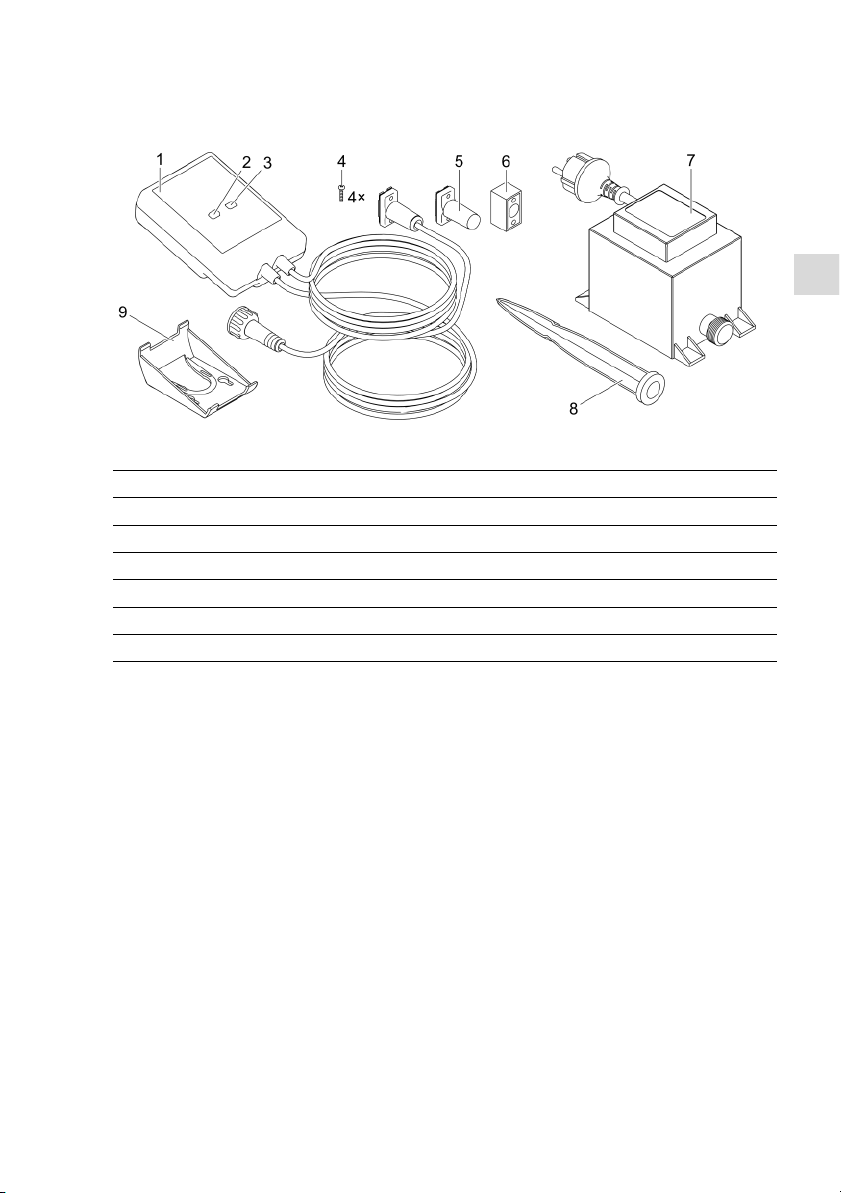
ES
63
Descripción del producto
Vista sumaria
EGC0004
1
I
nScenio EGC Controller
2
T
ecla WPS/Reset
3
L
ED, visualización del estado operativo
4
T
ornillos para fijar los conectores con el conector de cables EGC
5
R
esistencia terminal EGC, se enchufa en el último equipo en la red EGC
6
C
onector de cables EGC (47788)
7
T
ransformador
8
V
arilla de tierra para fijar en el suelo
9
M
arco del soportepara fijar a lapared opara alojar la varilla de tierra
Descripción del funcionamiento
InScenio EGC Controller es un controlador para conectar en red los equipos EGC de
OASE.
Los equipos conectados se controlan a través de la WLAN por una tableta, un ordenador o un teléfono inteligente con la aplicación “Easy Control” de OASE. Se pueden conectar hasta diez equipos finales de OASE compatibles con EGC.
Están a disposición los modelos Home y Cloud para el controlador. Con el modelo
Cloud se pueden controlar los equipos finales compatibles con EGC también a través
del portal web de OASE. El portal web está disponible en
https://oec.oase-livingwater.com .
El Easy Garden Control System (EGC) ofrece posibilidades de control confortables en
el jardín y en el estanque y garantiza una alta comodidad y seguridad.
Consulte las informaciones sobre EGC y sus posibilidades en Internet en www.oase-
livingwater.com/egc-start.
Page 64
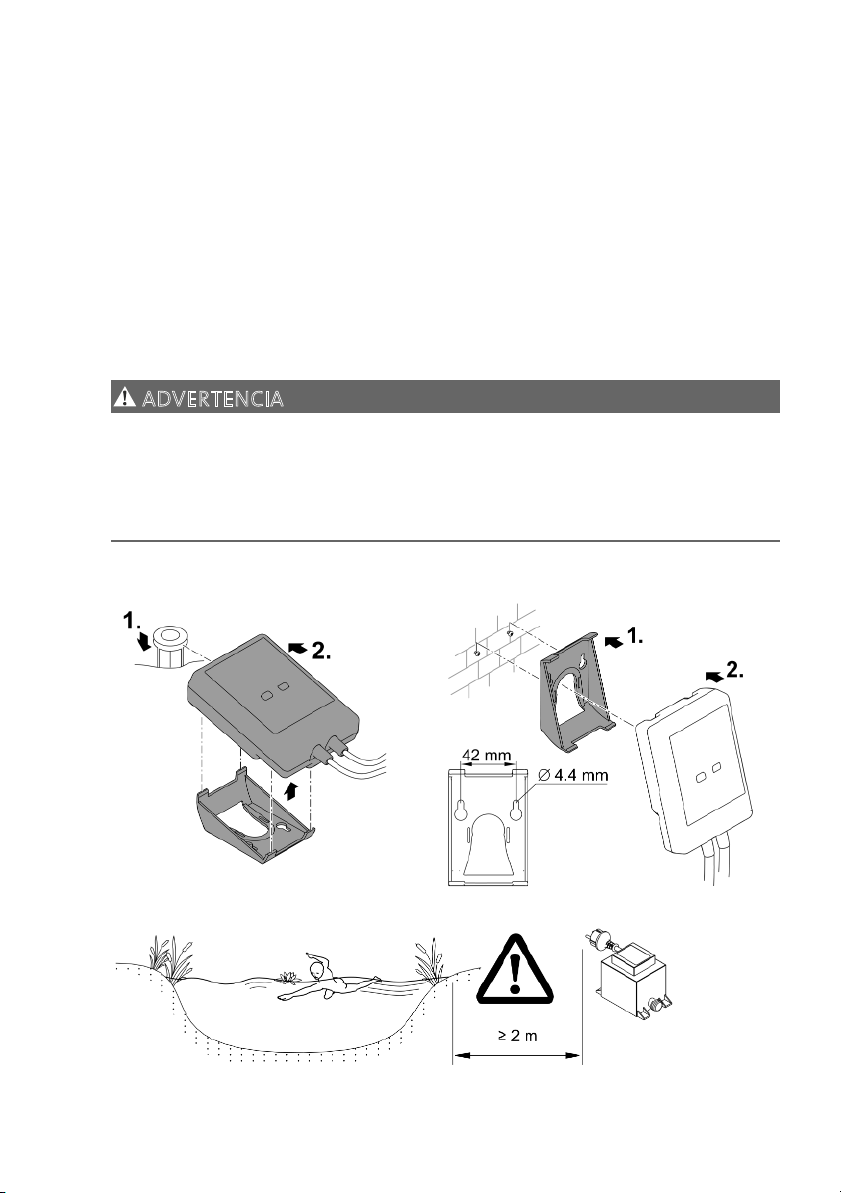
64
Uso conforme a lo prescrito
El producto descrito en estas instrucciones sólo se debe emplear de la forma siguiente:
• Funcionamiento sólo como control del equipo con equipos finales compatibles con
EGC de OASE.
• Operación sólo a temperaturas ambiente de -20 °C a +45 °C.
• Operación observando los datos técnicos. (→ Datos técnicos)
Para el equipo son válidas las siguientes limitaciones:
• No emplee el equipo para fines industriales.
Emplazamiento
ADVERTENCIA
El transformador conduce tensión eléctrica peligrosa y está prohibido instalarlo directamente en el borde del agua. De lo contrario existe riesgo de lesiones graves o
muerte por choque eléctrico.
Emplace el transformador protegido contra inundación a una distancia mínima de
2 m al agua.
E
mplazamiento con varilla de tierra Fijación en la pared.
EGC000
6
EGC0007
EGC0005
Page 65
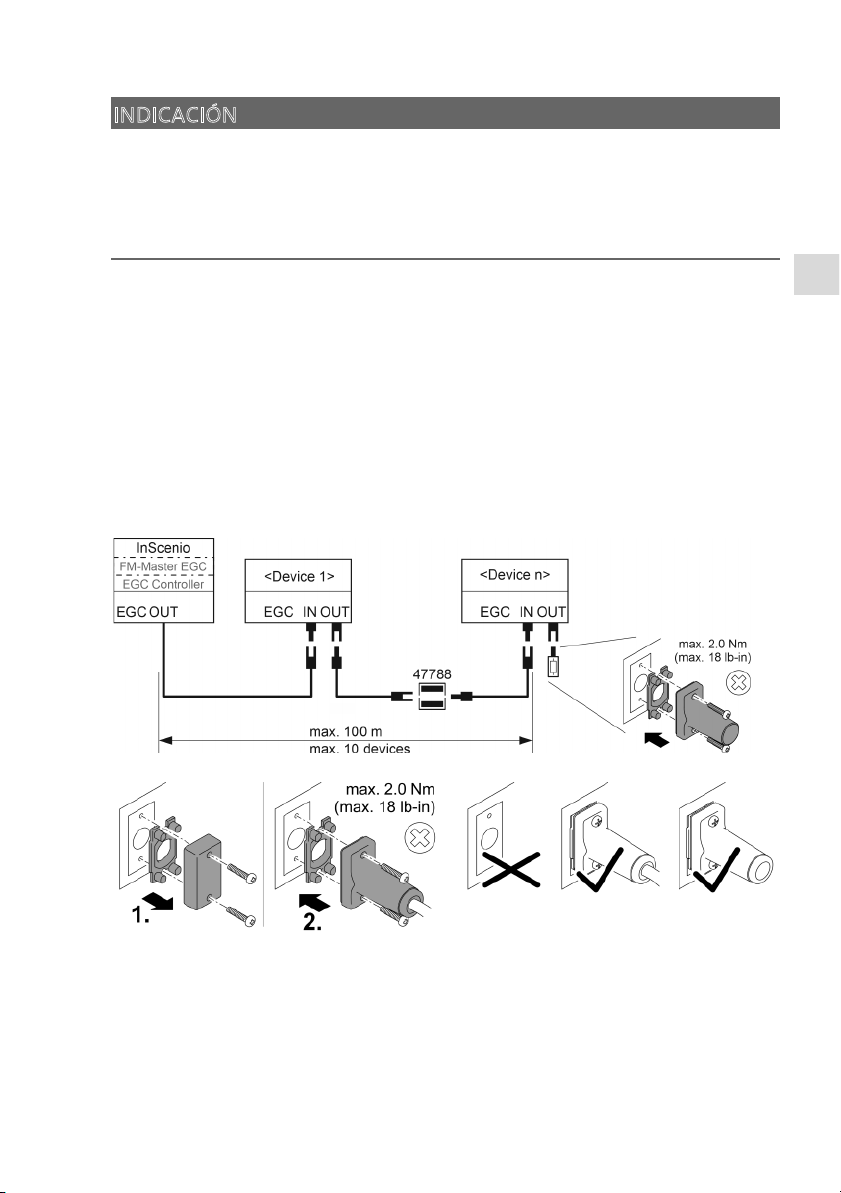
ES
65
Conexión
INDICACIÓN
El equipo se daña si entra agua en el conector.
Atornille los conectores (hembra/ macho) para garantizar que estén herméticos.
Cierre los conectores abiertos siempre con la tapa protectora y la junta de goma.
La junta de goma tiene que estar limpia y encajar perfectamente. Sustituya la junta
de goma dañada.
Conexión del equipo compatible con EGC
La fijación correcta de las clavijas de enchufe es importante para garantizar una conexión segura y una red EGC sin fallos.
• Los cables de conexión EGC están disponibles como accesorio en las longitudes:
2,5 m (47038), 5 m (47039) y 10 m (47040).
– El cable de conexión EGC y el cable de conexión del InScenio EGC Controller se
unen con el conector de cables EGC (47788).
• En el último equipo en la red EGC no se tiene que enchufar en EGC-OUT un cable de
conexión EGC, sino la resistencia terminal EGC para que la red EGC esté correctamente terminada.
EGC0009
EGC0003
Page 66
66
Puesta en marcha
Ejecute la puesta en marcha en esta secuencia:
1. Instale la aplicación "Easy Control" en su teléfono inteligente/ tableta.
(→ Instalación de la aplicación de OASE "Easy Control")
2. Conecte el InScenio EGC Controller con la red de corriente. (→ Conexión del equipo)
3. Active la conexión WLAN en los ajustes de su teléfono inteligente/ tableta, inicie la
aplicación y siga las instrucciones.
Posibles tipos de conexión
Para la operación tienen que estar conectados el InScenio EGC Controller y el teléfono
inteligente/ la tableta a través de WLAN.
C
onexión WLAN
D
escripción
C
onexión del InScenio EGC Controller
y
el teléfono inteligente/ la tableta
m
ediante el WPS a través de la red
W
LAN del router WLAN.
• El teléfono inteligente/ la tableta se mantiene conectado con la red WLAN y puede acceder a Internet.
• Los equipos finales compatibles con EAC se pueden
controlar a través del portal web en la nube.
C
onexión directa del InScenio EGC
C
ontroller y el teléfono inteligente/
l
a tableta (Access-Point)
• El InScenio EGC Controller y el teléfono inteligente/ la
tableta no están conectados con la red WLAN del
router WLAN. Ambos equipos tampoco pueden acceder a Internet.
• Los equipos finales compatibles con EAC no se pueden
controlar a través del portal web en la nube.
C
onexión manual del InScenio EGC
C
ontroller y el teléfono inteligente/
l
a tableta a través del router WLAN
d
e la red doméstica.
• El teléfono inteligente/ la tableta se mantiene conectado con la red WLAN y puede acceder a Internet.
• Los equipos finales compatibles con EAC se pueden
controlar a través del portal web en la nube.
Page 67
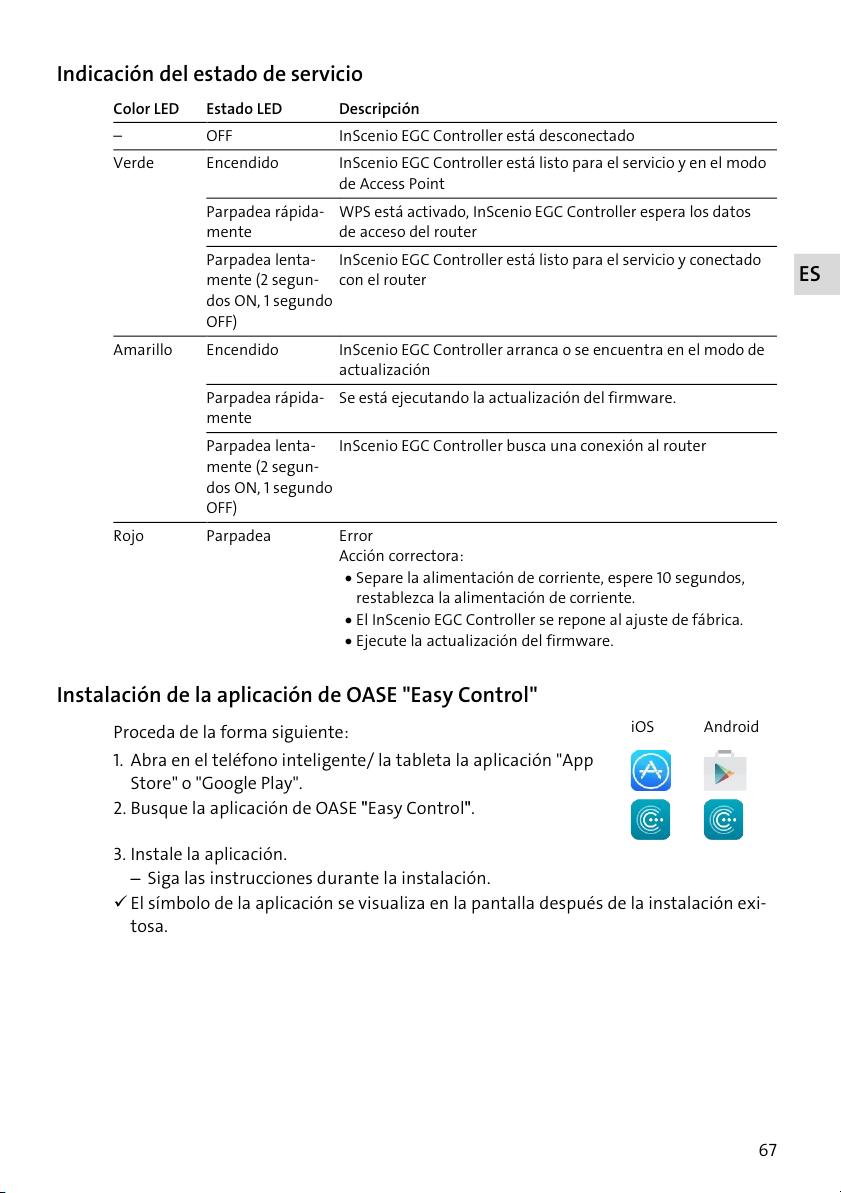
ES
67
Indicación del estado de servicio
C
olor LED Estado LED
D
escripción
O
FF
I
nScenio EGC Controller está desconectado
V
erde Encendido
I
nScenio EGC Controller está listo para el servicio y en el modo
d
e Access Point
Parpadea rápida-
mente
W
PS está activado, InScenio EGC Controller espera los datos
d
e acceso del router
Parpadea lenta-
mente (2 segun-
d
os ON, 1 segundo
O
FF)
I
nScenio EGC Controller está listo para el servicio y conectado
c
on el router
A
marillo Encendido
I
nScenio EGC Controller arranca o se encuentra en el modo de
a
ctualización
Parpadea rápida-
mente
S
e está ejecutando la actualización del firmware.
Parpadea lenta-
mente (2 segun-
d
os ON, 1 segundo
O
FF)
I
nScenio EGC Controller busca una conexión al router
R
ojo Parpadea
E
rror
A
cción correctora:
• Separe la alimentación de corriente, espere 10 segundos,
restablezca la alimentación de corriente.
• El InScenio EGC Controller se repone al ajuste de fábrica.
• E
j
ecute la actualización del firmware.
Instalación de la aplicación de OASE "Easy Control"
P
roceda de la forma siguiente:
i
OS
A
ndroid
1
. Abra en el teléfono inteligente/ la tableta la aplicación "App
Store" o "Goo
g
le Play".
2
. Busque la aplicación de OASE ʺEasy Controlʺ.
3. Instale la aplicación.
– Siga las instrucciones durante la instalación.
El símbolo de la aplicación se visualiza en la pantalla después de la instalación exi-
tosa.
Page 68
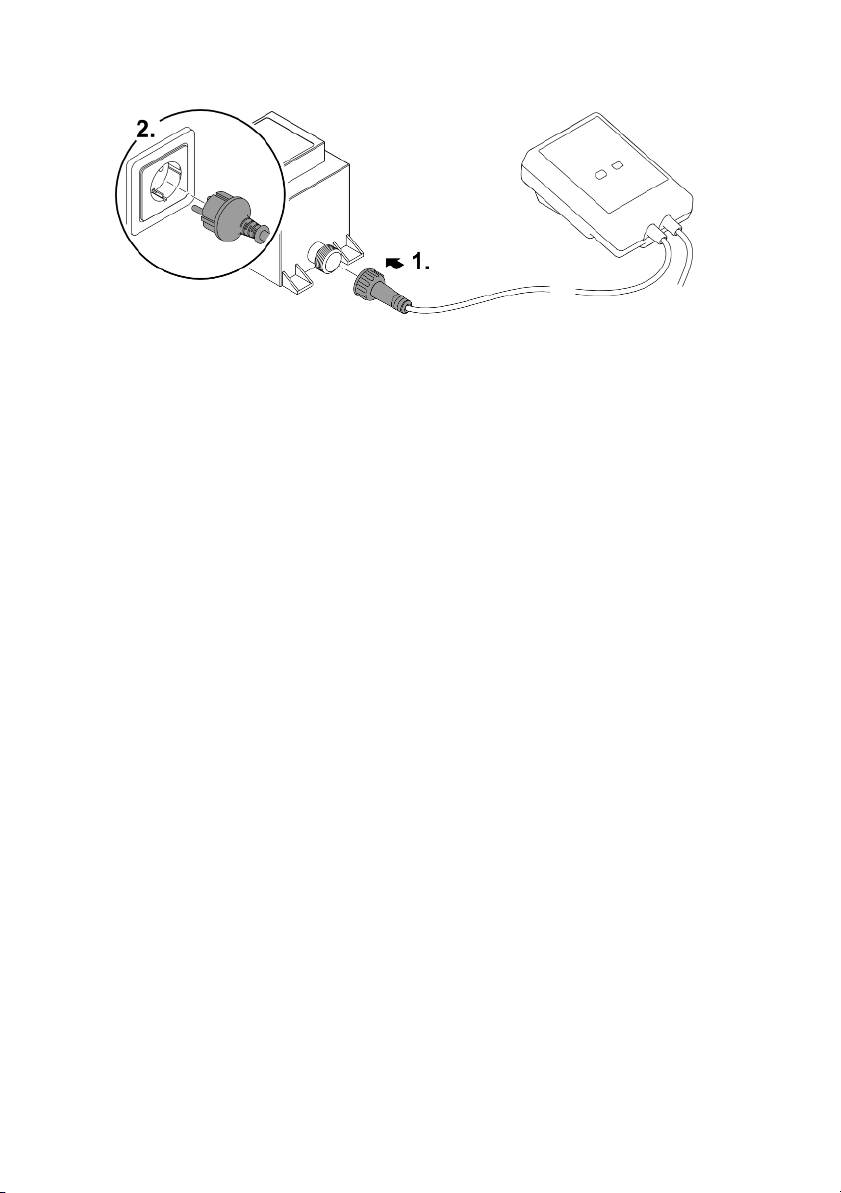
68
Conexión del equipo
EGC0008
Establecimiento de la conexión al router WLAN mediante WPS
WPS (WIFI Protected Setup) es un estándar para establecer una conexión WLAN pulsando un botón.
• No es necesario entrar el nombre de la red (SSID) y la palabra de acceso.
• El router WLAN tiene que apoyar el WPS.
Condición:
• El alcance de la WLAN entre el router WLAN y InScenio EGC Controller no excede
80 m sin fuentes de interferencia y vista libre.
• Compatibilidad con el estándar WLAN 802.11n+g y sólo en la gama de frecuencia de
2,4 GHz.
Proceda de la forma siguiente:
1. Pulse la tecla WPS en el router WLAN para activar WPS.
– El WPS sólo está activo un tiempo limitado. Active durante este tiempo el WPS
en el InScenio EGC Controller.
– Tenga en cuenta las especificaciones contenidas en las instrucciones de opera-
ción del router WLAN.
2. Pulse brevemente en InScenio EGC Controller la tecla WPS (como máx. 2 segundos)
para activar el WPS.
– El LED parpadea rápidamente verde.
– El WPS se mantiene activo 2 minutos.
La conexión está establecida cuando el LED parpadea lentamente verde (2 segun-
dos ON, 1 segundo OFF).
Page 69
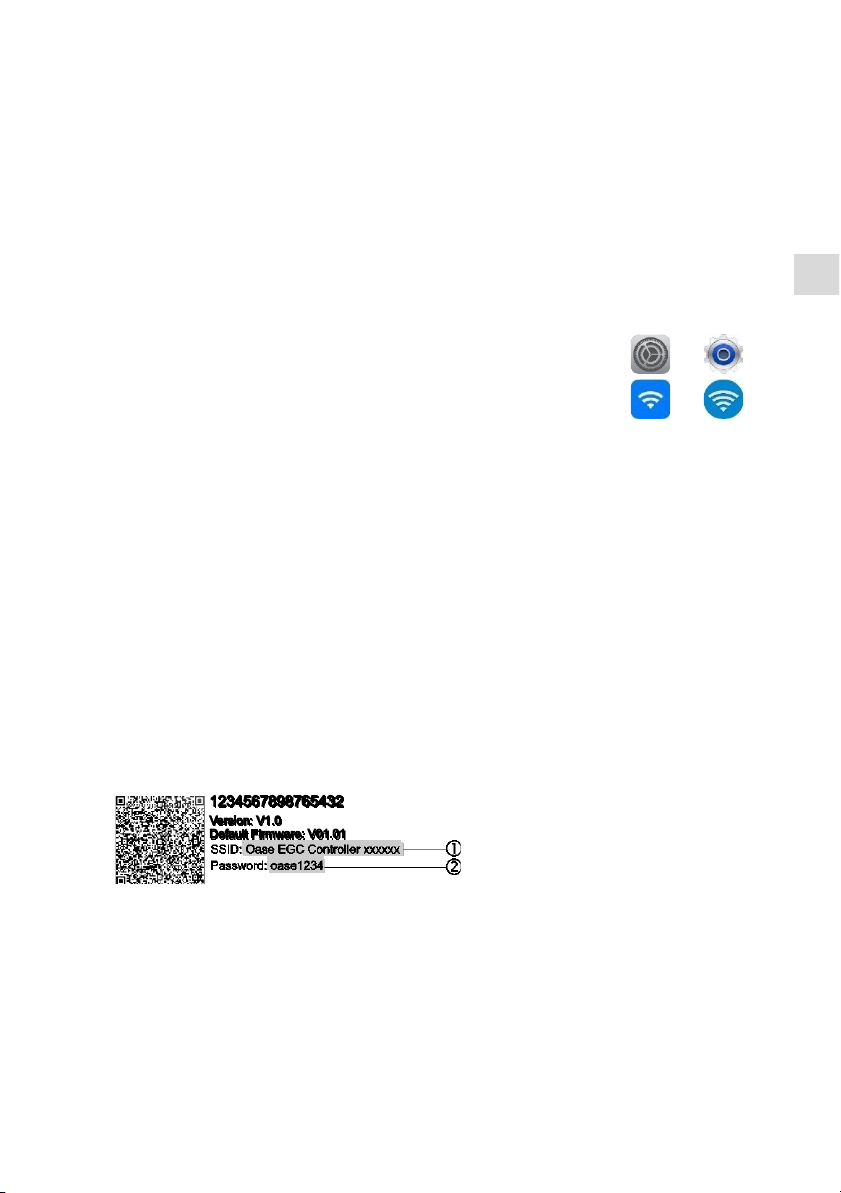
ES
69
Establecimiento de la conexión WLAN directa (Access-Point)
El teléfono inteligente/ la tableta y el InScenio EGC Controller están conectados directamente .
• Seleccione la conexión directa, si no está disponible ninguna red WLAN, el router
WLAN no apoya ningún WPS o la distancia entre el router WLAN y InScenio EGC
Controller es muy grande.
Condición:
• El alcance de la WLAN entre el teléfono inteligente/ la tableta y InScenio EGC Controller no excede 80 m sin fuentes de interferencia y vista libre.
P
roceda de la forma siguiente:
i
OS
A
ndroid
1
. Abra los ajustes en el teléfono inteligente/ la tableta.
2
. Active la WLAN.
3. Seleccione ʺOase EGC Controller xxxxxxʺ de la lista de redes.
– El nombre de la red (SSID) se encuentra en la etiqueta adhesiva en el InScenio
EGC Controller.
– La secuencia de letras "xxxxxx" en el nombre de la red (SSID)
es específica del
equipo y denomina una parte de la dirección MAC del InScenio EGC Controller.
4. Entre la palabra de acceso de la WLAN.
– La palabra de acceso estándar
se encuentra en la etiqueta adhesiva en el InS-
cenio EGC Controller.
– La palabra de acceso estándar en el ajuste de fábrica es
"oase1234".
5. Seleccione “Conectar”.
– Si la conexión se ha establecido con éxito se indica "Conectado" (Android) o un
"" (iOS) bajo el nombre de la red.
– La conexión está codificada y protegida mediante la palabra de acceso.
– Las otras conexiones WLAN están desactivadas.
La conexión WLAN directa al InScenio EGC Controller está establecida.
EGC0011
Page 70

70
Establecimiento de la conexión al router WLAN de forma manual
Condición:
• El alcance de la WLAN entre el router WLAN y InScenio EGC Controller no excede
80 m sin fuentes de interferencia y vista libre.
• Compatibilidad con el estándar WLAN 802.11n+g y sólo en la gama de frecuencia de
2,4 GHz.
Proceda de la forma siguiente:
1. Conecte el teléfono inteligente/ la tableta directamente con el InScenio EGC Controller (Access-Point). (→ Establecimiento de la conexión WLAN directa (AccessPoint))
2
. Abra los ajustes en la aplicación de OASE "Easy Control".
3. Seleccione en las conexiones de red primero "Router" y después "Manual".
4. Entre el nombre de red (SSID) y la palabra de acceso del router WLAN.
5. Confirme las entradas con "Conectar".
– En el InScenio EGC Controller se visualiza el establecimiento de la conexión me-
diante un LED amarillo parpadeante.
– La conexión está establecida cuando el LED parpadea lentamente verde (2 segun-
dos ON, 1 segundo OFF).
– Si fuera necesario se tiene que conectar el teléfono inteligente/ la tableta de
forma manual con el router WLAN.
El InScenio EGC Controller está conectado ahora con la red del router WLAN.
Controlar el equipo a través del portal web en la nube
El modelo Cloud del InScenio EGC Controller se puede conectar con el portal web en
la nube de OASE. De esta forma se pueden controlar y activar los equipos conectados
también desde fuera de casa.
En los ajustes de la aplicación de OASE "Easy Control" se puede autorizar la conexión
con el portal web en la nube.
• Usted se tiene que registrar una vez cuando se registra en el portal web en la nube.
• Para añadir el InScenio EGC Controller en el portal web en la nube se tiene que en-
trar el número de serie del equipo y la palabra de acceso del equipo.
– El número de serie del equipo se encuentra en los ajustes en la aplicación de
OASE "Easy Control".
Condición:
• El InScenio EGC Controller y el teléfono inteligente/ la tableta están conectados
con la red WLAN de su router WLAN.
• El router WLAN está conectado con Internet.
Page 71

ES
71
Limpieza y mantenimiento
Limpieza del equipo
Limpie el equipo con un paño suave, limpio y seco. No emplee por ninguna razón productos de limpieza o soluciones químicas agresivas, porque se puede corroer la carcasa o mermar el funcionamiento.
Reposición de los ajustes de la red
Los ajustes de la red se reponen al estado de suministro. Las entradas almacenadas
de la biblioteca del equipo y del temporizador se mantienen.
Proceda de la forma siguiente:
1. Mantenga pulsada la tecla Reset aprox. 5 segundos.
– El LED en el InScenio EGC Controller parpadea primero rápidamente verde y se
ilumina después amarillo para confirmar el borrado de los ajustes de la red.
– Los ajustes de fábrica se han repuesto cuando el LED en el InScenio EGC Contro-
ller se ilumina verde.
– El InScenio EGC Controller arranca en el modo de Access-Point y se puede conec-
tar directamente con el teléfono inteligente/ la tableta.
El nombre de la red (SSID) y la palabra de acceso del router WLAN fueron borrados.
La palabra de acceso de WLAN del InScenio EGC Controller fue repuesta al ajuste de
fábrica.
La palabra de acceso del equipo fue borrada.
Actualizar el firmware
Para mantener actualizado el firmware del InScenio EGC Controller se tienen que permitir actualizaciones automáticas de la aplicación OASE en el teléfono inteligente/ la
tableta. Al inicio de la aplicación OASE se comprueba si el firmware está actualizado.
Siga las instrucciones en la pantalla cuando comience la actualización del firmware.
Condición:
• La aplicación OASE está actualizada y conectada con el InScenio EGC Controller.
En los ajustes del InScenio EGC Controller se visualiza la versión del firmware instalada y si está disponible una versión más actual.
Proceda de la forma siguiente:
1. Inicie la aplicación OASE en el teléfono inteligente/ la tableta y abra los ajustes
para el InScenio EGC Controller.
2. Llame a la actualización de firmware.
3. Instale la versión de firmware actual si está disponible una actualización.
– Siga las instrucciones en la pantalla.
– Si se solicita una palabra de acceso use la palabra de acceso "oase1234".
Page 72
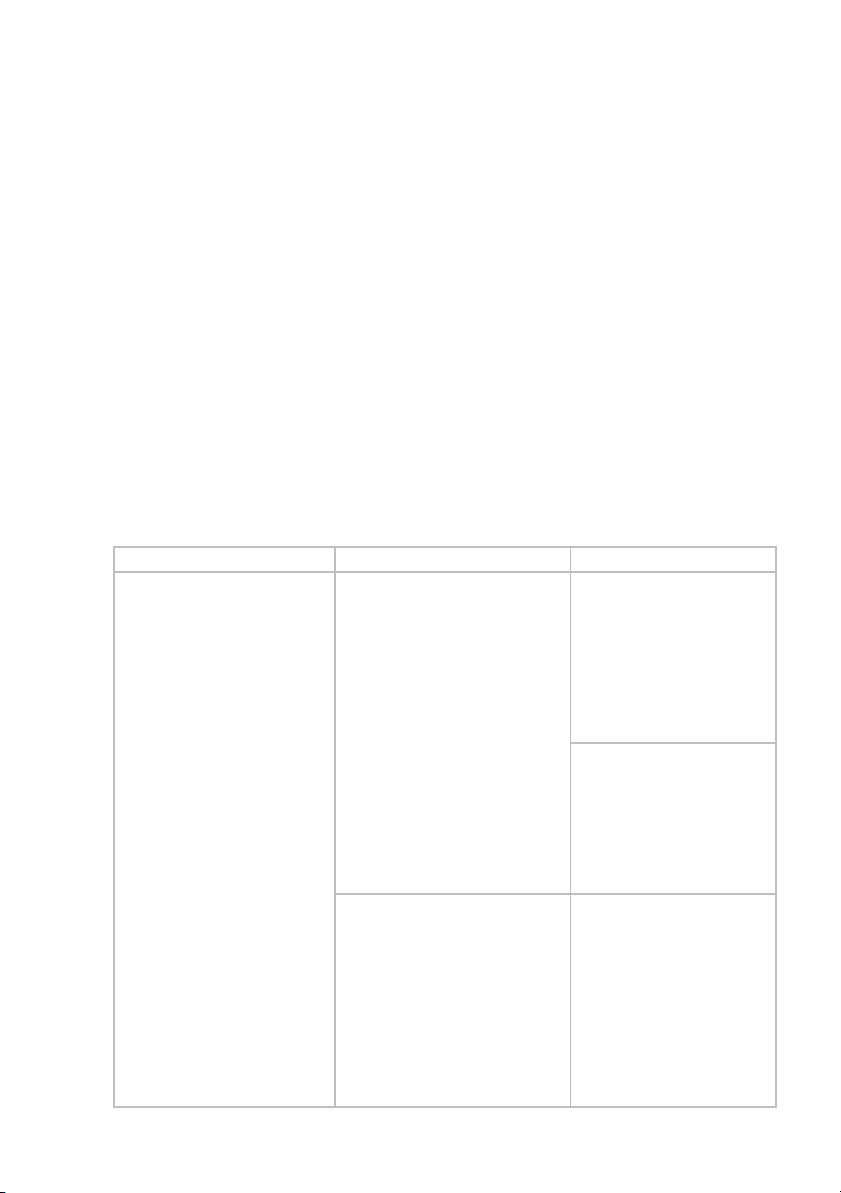
72
Restablecimiento de los ajustes de fábrica
El estado de suministro de InScenio EGC Controller se restablece. Todos los datos entrados se pierden.
Proceda de la forma siguiente:
1. Mantenga pulsada la tecla Reset aprox. 15 segundos.
– El LED en el InScenio EGC Controller parpadea primero rápidamente verde y se
ilumina después rápidamente amarillo para confirmar el borrado de los ajustes
de la red.
– Los ajustes de fábrica están restablecidos cuando el LED se ilumina verde.
– El InScenio EGC Controller arranca en el modo de Access-Point y se puede conec-
tar directamente con el teléfono inteligente/ la tableta.
El nombre de la red (SSID) y la palabra de acceso del router WLAN fueron borrados.
La palabra de acceso de WLAN del InScenio EGC Controller fue repuesta al ajuste de
fábrica.
La palabra de acceso del equipo fue borrada.
La lista de equipos fue borrada.
Eliminación de fallos
Fallo Causa Acción correctora
La conexión WIFI no se restablece a pesar que el nombre
de red se indica en los ajustes
WIFI.
El teléfono inteligente/ la tableta no puede actualizar los datos de conexión entrados para la
red.
iOS:
• Seleccione la red y pulse
.
• Pulse “Ignorar esta red”
para eliminar la red.
• Establezca después de
nuevo la conexión con la
red.
Android:
• Seleccione la red y pulse
en "Eliminar" para eliminar la red.
• Establezca después de
nuevo la conexión con la
red.
El estándar WIFI ajustado en el
router no es compatible con la
InScenio EGC Controller
El InScenio EGC Controller
apoya los estándares WIFI
802.11n+g+b (exclusivamente en la gama de frecuencia de 2,4 Ghz).
• Si fuera necesario, active
el estándar WIFI correcto
en el router (véase las
instrucciones de operación del router).
Page 73
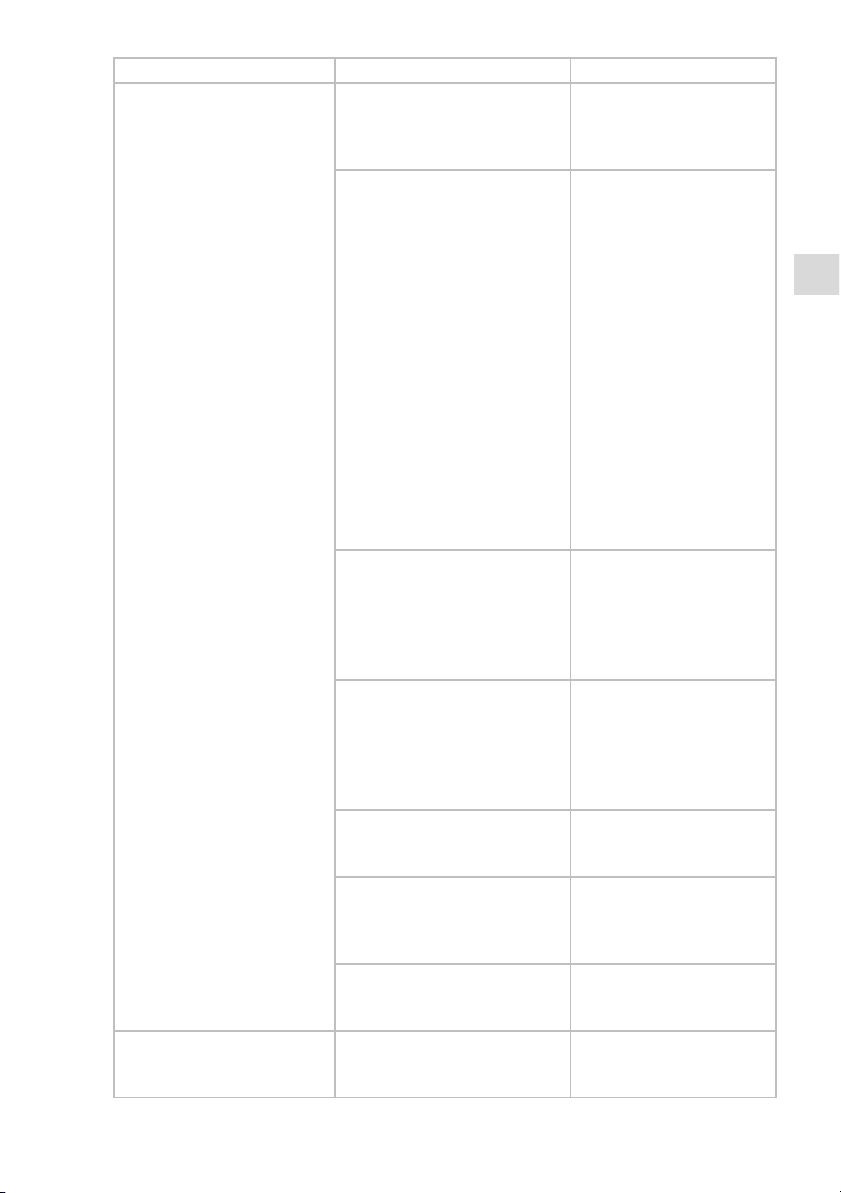
ES
73
Fallo Causa Acción correctora
La InScenio EGC Controller no
reacciona a los comandos.
WIFI en el teléfono inteligente/
la tableta está desactivada
Active WIFI en el teléfono
inteligente/ la tableta y establezca la conexión al InScenio EGC Controller
Fuentes de interferencias entre
el teléfono inteligente/ la tableta y el InScenio EGC Controller
• Reduzca la distancia entre el teléfono inteligente/ la tableta y el InScenio EGC Controller
• Seleccione otro lugar
para la operación
• Garantice una buena visibilidad entre la InScenio
EGC Controller y el teléfono inteligente/ la tableta.
• En caso de una conexión
WIFI directa (Access
Point) entre la InScenio
EGC Controller y el teléfono inteligente/ la tableta, seleccione otro canal WIFI
Distancia muy grande entre el
teléfono inteligente/ la tableta y
la InScenio EGC Controller
• Reduzca la distancia, no
sobrepase el alcance máximo de 80 m
• Emplee un repetidor comercial para aumentar el
alcance.
La alimentación de corriente del
InScenio EGC Controller está interrumpida.
Establezca la alimentación
de corriente
• El LED verde se ilumina
• El LED verde parpadea
cuando está establecida
la conexión WIFI.
Receptor en el InScenio EGC
Controller defectuoso
Póngase en contracto con el
personal de servicio de
OASE
La aplicación "OASE Easy Control" está obsoleta.
Instale la aplicación actual
"OASE Easy Control" en el
teléfono inteligente/ la tableta.
El sistema operativo del teléfono inteligente/ la tableta está
obsoleto.
Actualice el sistema operativo.
InScenio EGC Controller conmuta a la hora errónea
La hora del sistema del InScenio
EGC Controller no coincide con
la hora real
Actualice la hora del sistema a la hora del equipo
de mando.
Page 74
74
Fallo Causa Acción correctora
El equipo EGC añadido no
reacciona a los comandos.
Línea de datos interrumpida Compruebe las conexiones
EGC
Equipo EGC sin alimentación de
corriente
Establezca la alimentación
de corriente
Ninguna conexión entre el
equipo EGC y InScenio EGC
Controller.
Línea de datos interrumpida Compruebe las conexiones
EGC
Equipo EGC sin alimentación de
corriente
Establezca la alimentación
de corriente
El LED amarillo se ilumina La InScenio EGC Controller se
encuentra en el modo de actualización del firmware.
Conéctelo con la WIFI
„OASE_UPDATE_xxxxxx“ o
„OASE_UPDATE_EGC_xxxx
xx“ e inicie la actualización
del firmware a través de la
aplicación
El LED amarillo parpadea lentamente (2 segundos ON, 1 segundo OFF).
La InScenio EGC Controller
busca una conexión WIFI al router.
• Reduzca la distancia, no
sobrepase el alcance máximo de 80 m
• Elimine las fuentes de fallos que debilitan la señal
WIFI (p. ej. otros participantes de radio, diferencias de altura).
• Conecte el router WIFI.
• Active la función WIFI en
el router.
• Si el router ya no existe o
está defectuoso, reponga
los ajustes de red de la
InScenio EGC Controller
para poder activarlo directamente en el modo
Access-Point
• Conecte la InScenio EGC
Controller con otro router
El LED rojo parpadea. Error interno
• Separe la alimentación
de corriente, espere
10 segundos, restablezca
la alimentación de corriente.
• Reponga el InScenio EGC
Controller al ajuste de
fábrica.
El equipo no arranca, el LED
rojo parpadea
No fue encontrado ningún firmware.
Arrancar el modo de actualización del firmware de
forma manual
Page 75
ES
75
Datos técnicos
InScenio EGC Controller
C
ontrolador Tensión de conexión
V
CC 12
C
ategoría de protección
IP 68
Longitud cable de 12 V m 2
Longitud cable EGC m 2
Frecuencia WLAN
G
Hz 2,4
A
lcance máx. WLAN m
8
0
Dimensiones mm
1
30 × 90 × 40
Peso k
g
0
,9
T
ransforma-
d
or
T
ensión de red
V
CA 230
Frecuencia de red Hz
5
0
T
ensión de salida
VCC1
2
Longitud cable de red m 2
C
ategoría deprotección IP 44
Dimensiones mm
8
0 × 40 × 60
Peso k
g
0
,45
Piezas de recambio
El equipo se mantiene seguro y trabaja de forma fiable con las piezas
o
riginales de OASE.
C
onsulte los dibujos de piezas de recambio y las piezas de recambio en
nuestra página web.
w
ww.oase.com/ersatzteile
Desecho
INDICACIÓN
Está prohibido desechar este equipo en la basura doméstica.
Deseche el equipo a través del sistema de recogida previsto.
Corte los cables para inutilizar el equipo.
Page 76
76
EU-Konformitätserklärung
Declaration of EU-conformity
e
rklärt, dass das Produkt
d
eclares that the product
Produkt / Product: Controller
Controller
T
yp / Type: InScenio EGC-Controller Home
InScenio EGC-Controller Cloud
d
en folgenden Richtlinien der Union entspricht:
c
omplies to the following directives of the Union:
2
014/53/EU, 2011/65/EU
Die vollständige EU-Konformitätserklärung ist unter der folgenden Internet-
a
dresse abrufbar:
The complete Declaration of EU-conformity is available at the following internet
a
ddress:
w
ww.oase-livingwater.com/ce
Page 77
PT
77
PT
AVISO
AVISO
Antes de meter a mão na água, desconetar a ficha elétrica de
todos os aparelhos e que se encontram na água. Contrariamente, existe o risco de morte ou graves lesões por eletrocussão.
O aparelho pode ser utilizado por crianças com idade igual
ou superior a 8 anos e pessoas com capacidades físicas, sensoriais ou mentais reduzidas ou com falta de experiência ou
conhecimentos, enquanto vigiadas por adultos ou quando
foram informadas sobre o uso seguro do aparelho e entenderam os riscos remanescentes. Crianças não podem brincar
com o aparelho. A limpeza e a manutenção não podem ser
realizadas por crianças sem que sejam vigiadas por adultos.
Instruções de segurança
Conexão eléctrica
• Antes de conetar o aparelho, verifique que as características do aparelho correspondem às da rede elétrica.
• Ligue o aparelho só com uma tomada instalada de acordo com as normas vigentes.
A tomada deve ficar protegida por um disjuntor de corrente de avaria com valor
máximo de 30 mA - rated leakage current.
• Proteja os conetores contra humidade.
Operação segura
• Não mergulhe o aparelho na água ou noutros líquidos.
• O aparelho não pode ser utilizado quando apresenta fios defeituosos ou a carcaça
danificada.
• O cabo de alimentação defeituoso não pode ser substituído. Elimine todo o aparelho conforme as disposições legais obrigatórias.
• Não transporte nem puxe o aparelho pelo fio elétrico.
• Instale e posicione todos os fios elétricos de forma que não possam ser danificados
e ninguém possa tropeçar.
• Não utilize tomada múltipla.
• Em caso de problemas, dirija-se ao seu distribuidor autorizado ou à OASE.
Page 78
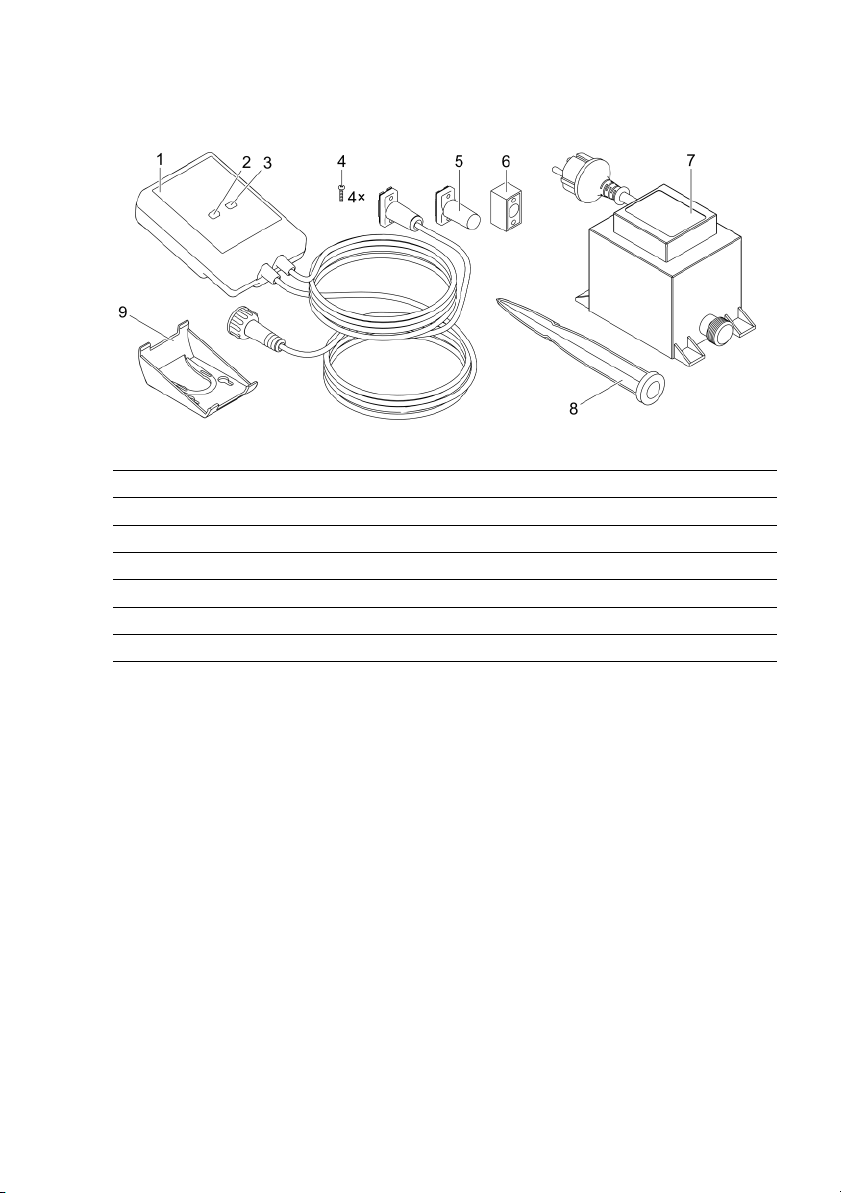
78
Descrição do produto
Descrição geral
EGC0004
1
I
nScenio EGC Controller
2
T
ecla WPS/Reset
3
L
ED, visualização do status operacional
4
P
arafusos de fixação entre os conetores e a junção EGC
5
R
esistência de aterramento EGC, deve ser conetada ao último aparelho, rede EGC
6
J
unção EGC (47788)
7
T
ransformador
8
E
speto para fixação à terra
9
Q
uadro de suportepara a fixação àparede ou a recepção do espeto de suporte
Descrição do funcionamento
InScenio EGC Controller é um controller destinado para conetar em rede os aparelhos OASE EGC.
Os aparelhos conetados são controlados através de WLAN mediante Tablet, PC ou
smartphone e o App OASE Easy Control. Pode ser conetado o máximo de dez terminais OASE compatíveis com EGC.
O controller existe com as variantes Home e Cloud. O modelo Cloud permite controlar terminais compatíveis com EGC através da webportal OASE. O Webportal é acessível sob
https://oec.oase-livingwater.com.
O Easy Garden Control System (EGC) é um método conveniente de controlo para o
jardim e lago e garante um elevado conforto e segurança.
Para mais informação sobre o EGC e a sua versatilidade, consultar a página
www.oase-livingwater.com/egc-start.
Page 79
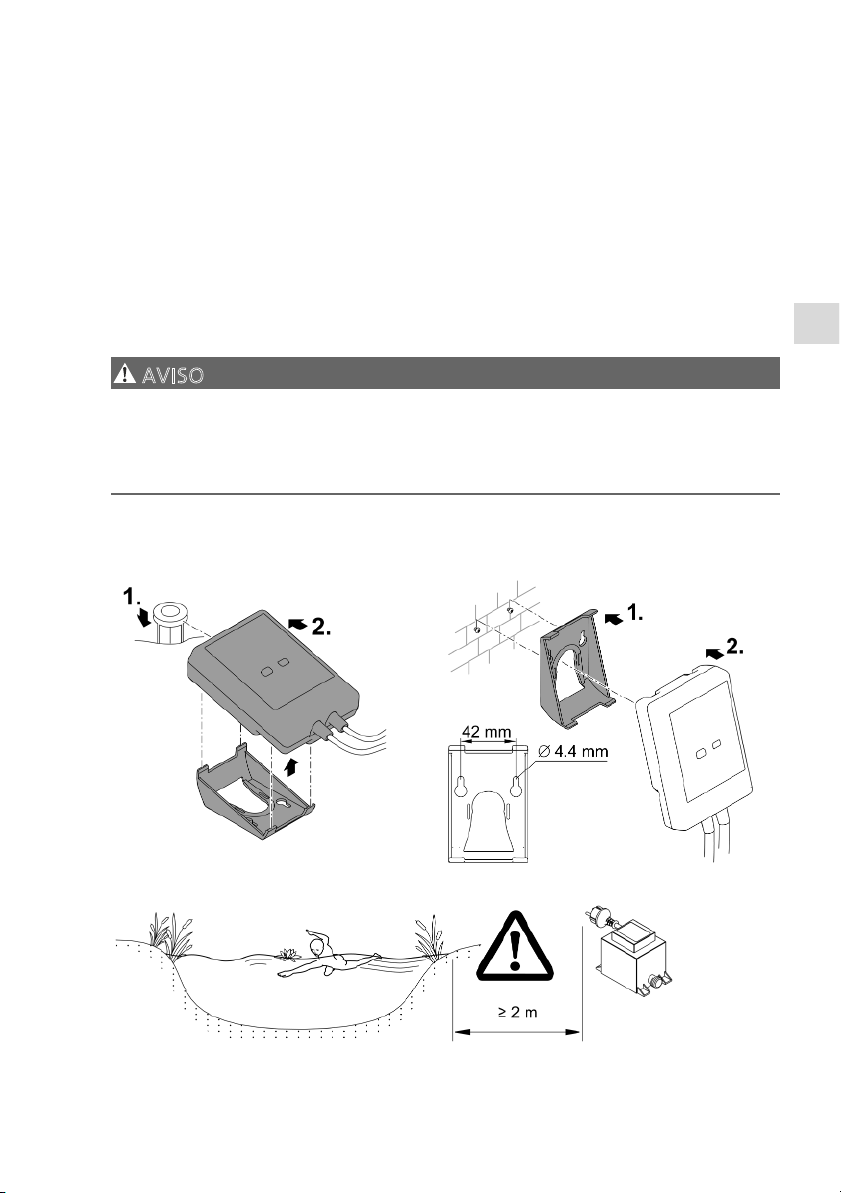
PT
79
Emprego conforme o fim de utilização acordado
O produto descrito nestas instruções pode ser utilizado só desta forma:
• A utilização está apenas permitida como sistema de controlo com aparelhos terminais EGC de OASE.
• Operação permitida para temperaturas ambientes de -20 °C a +45 °C.
• Operação, sendo observadas as características técnicas. (→ Dados técnicos)
O aparelho está sujeito a estas restrições:
• Não serve para utilizações industriais.
Instalação
AVISO
O transformador tem tensão elétrica perigosa, não podendo ser posicionado perto da
água. Contrariamente, existe o risco de morte ou graves lesões por eletrocussão.
O transformador não pode ser banhado nem mergulhado e deve apresentar uma
distância não inferior a 2 m à água.
I
nstalar o aparelho após a montagem ao
e
speto de suporte
Instalar o aparelho após a montagem à
parede
EGC000
6
EGC0007
EGC0005
Page 80
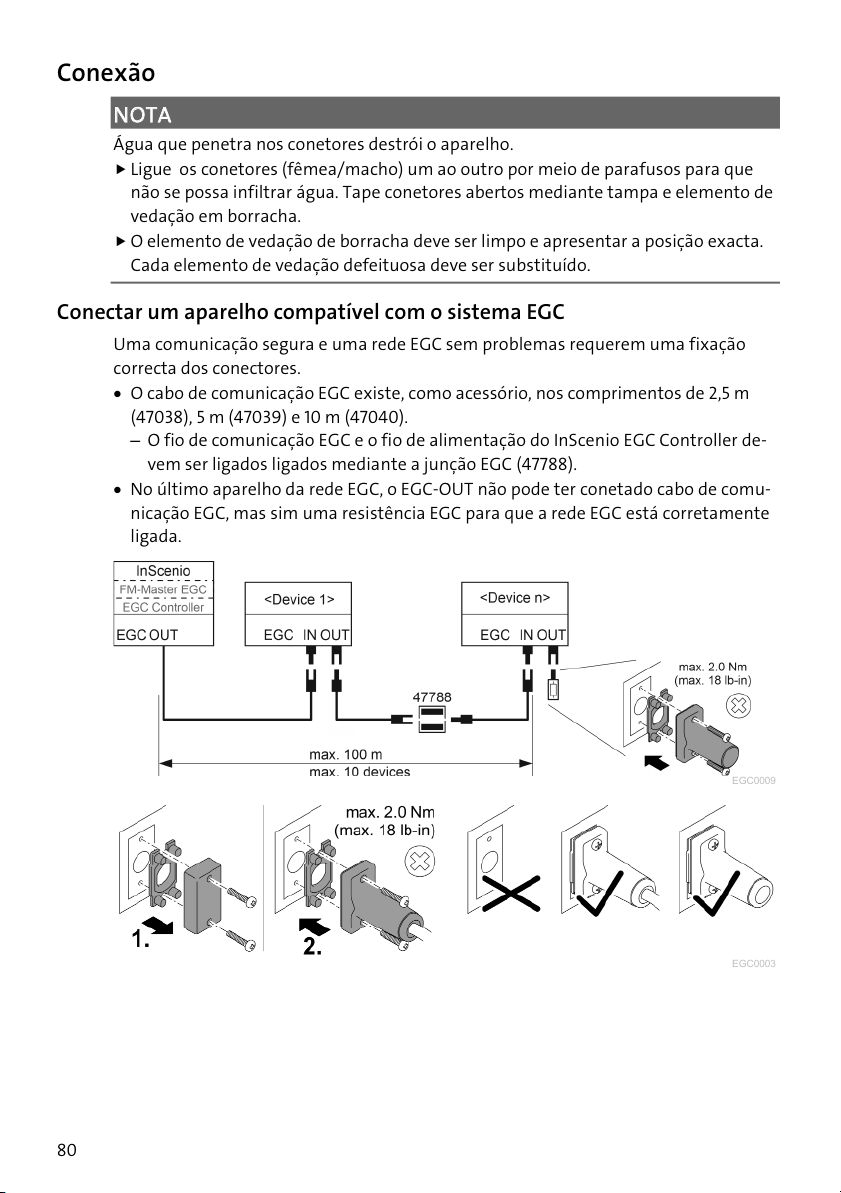
80
Conexão
NOTA
Água que penetra nos conetores destrói o aparelho.
Ligue os conetores (fêmea/macho) um ao outro por meio de parafusos para que
não se possa infiltrar água. Tape conetores abertos mediante tampa e elemento de
vedação em borracha.
O elemento de vedação de borracha deve ser limpo e apresentar a posição exacta.
Cada elemento de vedação defeituosa deve ser substituído.
Conectar um aparelho compatível com o sistema EGC
Uma comunicação segura e uma rede EGC sem problemas requerem uma fixação
correcta dos conectores.
• O cabo de comunicação EGC existe, como acessório, nos comprimentos de 2,5 m
(47038), 5 m (47039) e 10 m (47040).
– O fio de comunicação EGC e o fio de alimentação do InScenio EGC Controller de-
vem ser ligados ligados mediante a junção EGC (47788).
• No último aparelho da rede EGC, o EGC-OUT não pode ter conetado cabo de comu-
nicação EGC, mas sim uma resistência EGC para que a rede EGC está corretamente
ligada.
EGC0009
EGC0003
Page 81
PT
81
Colocação em operação
Coloque o aparelho em operação na ordem descrita:
1. Instale o App "Easy Control" no Smartphone/Tablet. (→ Instalar App OASE "Easy
Control" )
2. Conete o InScenio EGC Controller à rede elétrica. (→ Ligar o aparelho)
3. Ative a comunicação WLAN no Smartphone/Tablet e depois o App e siga as instruções.
Tipos de comunicação
Para a operação, o InScenio EGC Controller e o smartphone/tablet devem encontrarse em comunicação através do WLAN.
C
omunicação WLAN
D
escrição
L
igar o InScenio EGC Controller e o
s
martphone/tablet por meio de WPS
a
través da rede WLAN do roteador
W
LAN.
• O smartphone/tablet continua em comunicação com
a rede WLAN e pode aceder à internet.
• Os terminais compatíveis com EAC podem ser controlados e comandados através do Cloud-Webportal.
E
stabelecer comunicação direta entre
I
nScenio EGC Controller e
s
martphone/tablet (Access Point)
• O InScenio EGC Controller e o smartphone/tablet não
estão em comunicação com a rede WLAN do roteador
WLAN. Além disso, ambos os aparelhos não podem
aceder à Internet.
• Os terminais compatíveis com EAC não podem ser
controlados nem comandados através do Cloud-Web-
p
ortal.
C
omunicar manualmente InScenio
E
GC Controller e smartphone/tablet
a
través do roteador WLAN da rede
d
oméstica.
• O smartphone/tablet continua em comunicação com
a rede WLAN e pode aceder à internet.
• Os terminais compatíveis com EAC podem ser controlados e comandados através do Cloud-Webportal.
Page 82
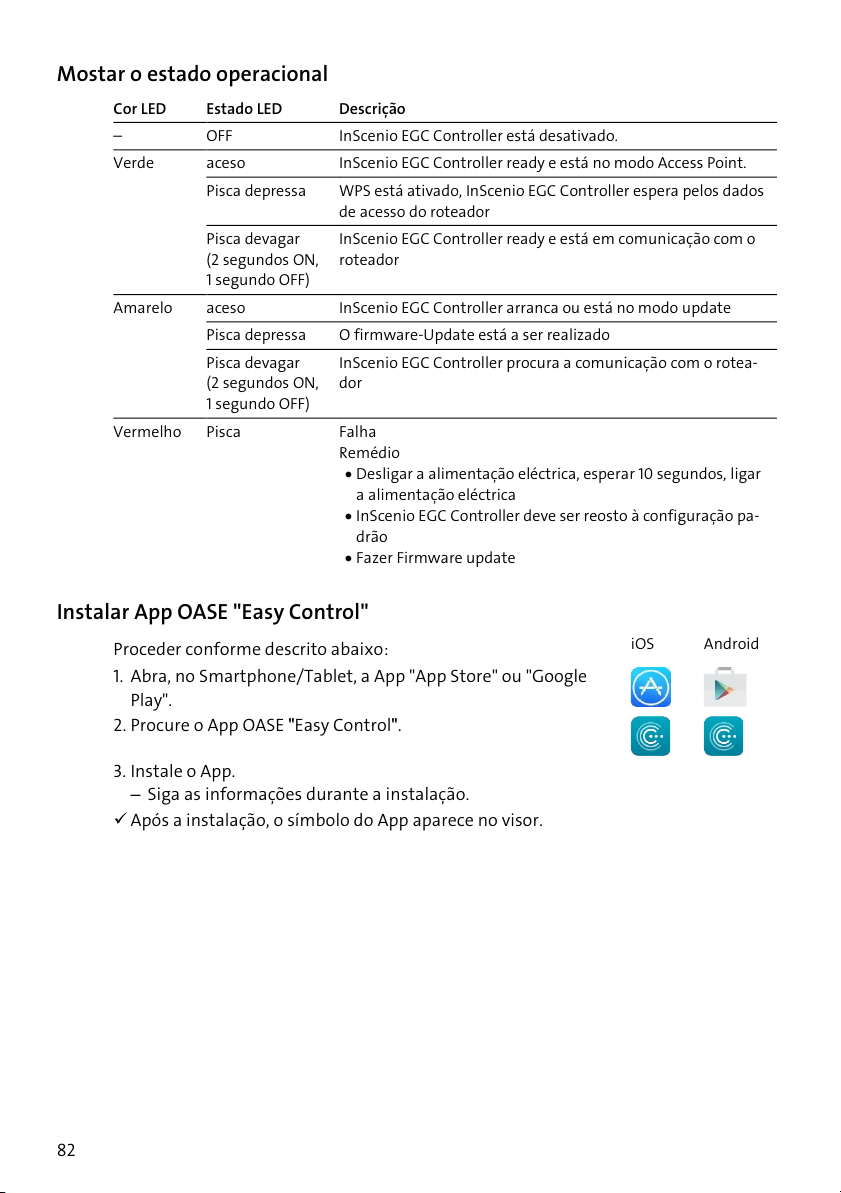
82
Mostar o estado operacional
C
or LED Estado LED
D
escrição
O
FF
I
nScenio EGC Controller está desativado.
V
erde
a
ceso
I
nScenio EGC Controller ready e está no modo Access Point.
Pisca depressa
W
PS está ativado, InScenio EGC Controller espera pelos dados
d
e acesso do roteador
Pisca devagar
(2 segundos ON,
1
segundo OFF)
I
nScenio EGC Controller ready e está em comunicação com o
r
oteador
A
marelo aceso
I
nScenio EGC Controller arranca ou está no modo update
Pisca depressa
O
firmware-Update está a ser realizado
Pisca devagar
(2 segundos ON,
1
segundo OFF)
I
nScenio EGC Controller procura a comunicação com o rotea-
d
or
V
ermelho Pisca
F
alha
R
emédio
• Desligar a alimentação eléctrica, esperar 10 segundos, ligar
a alimentação eléctrica
• InScenio EGC Controller deve ser reosto à configuração pa-
drão
• Fazer Firmware update
Instalar App OASE "Easy Control"
P
roceder conforme descrito abaixo:
i
OS
A
ndroid
1
. Abra, no Smartphone/Tablet, a App "App Store" ou "Google
Pla
y
".
2
. Procure o App OASE ʺEasy Controlʺ.
3. Instale o App.
– Siga as informações durante a instalação.
Após a instalação, o símbolo do App aparece no visor.
Page 83
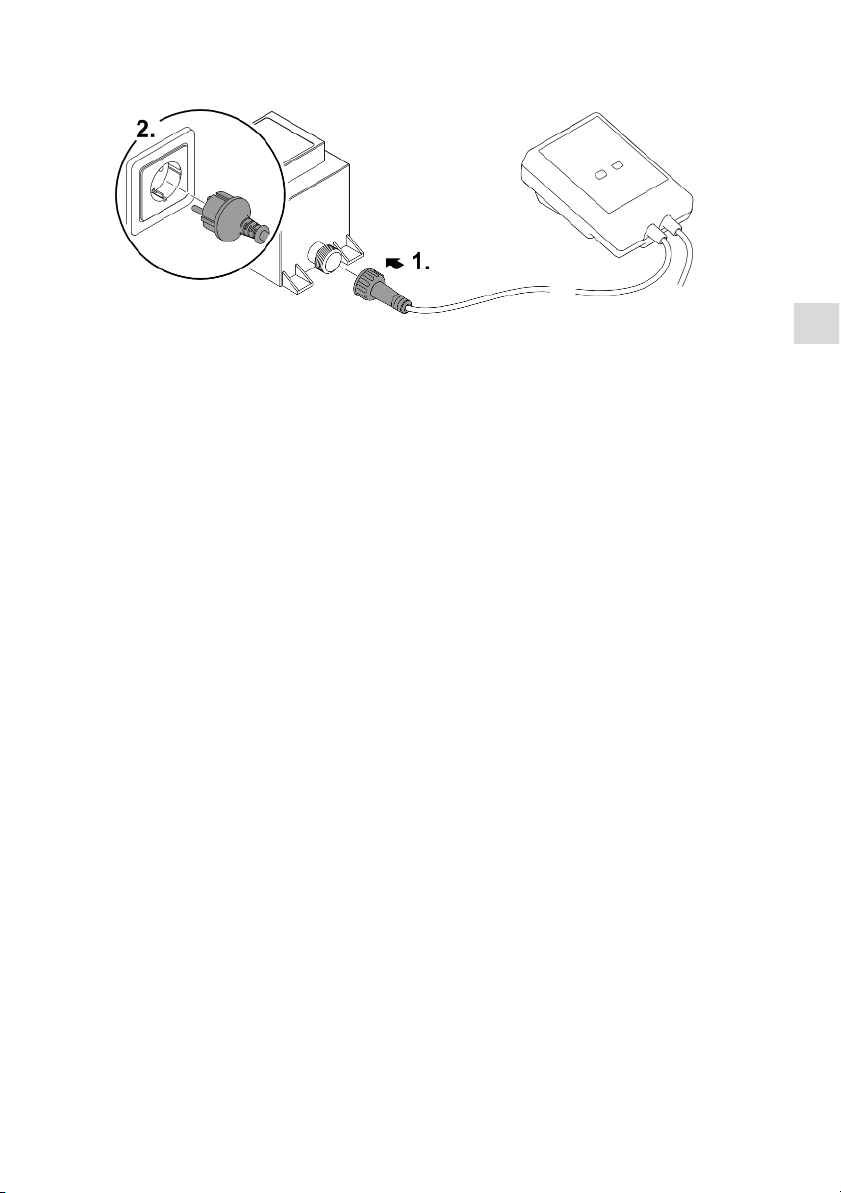
PT
83
Ligar o aparelho
EGC0008
Estabelecer a comunicação com o WLAN-Router, mediante WPS
WPS (Wi-FiI Protected Setup) é uma funcionalidade standard para estabelecer, premindo um botão, uma comunicação WLAN.
• Não são necessários nome da rede (SSID) e palavra-passe.
• O roteador WLAN deve ser compatível com WPS.
Condição prévia:
• O alcance de comunicação máximo WLAN, entre roteador WLAN e InScenio EGC
Controller é de 80 m, sem fontes de interferência e obstáculos.
• 802.11n+g é compatível com as funções standard WLAN e só na área de frequência
de 2.4 Ghz.
Proceder conforme descrito abaixo:
1. No roteador WLAN, premir a tecla WPS para ativar WPS.
– WPS funciona apenas por um tempo limitado. Nesse tempo, ativar WPS, no InS-
cenio EGC Controller.
– Devem ser ainda observadas as informações constantes nas instruções de uso do
roteador WLAN.
2. Carregue, no InScenio EGC Controller, brevemente na tecla WPS (não mais de 2 segundos) para ativar WPS..
– LED verde a piscar depressa.
– O WPS mantém-se activo durante 2 minutos.
A comunicação existe quando o LED verde passa a piscar devagar (2 segundos ON,
1 segundo OFF).
Page 84
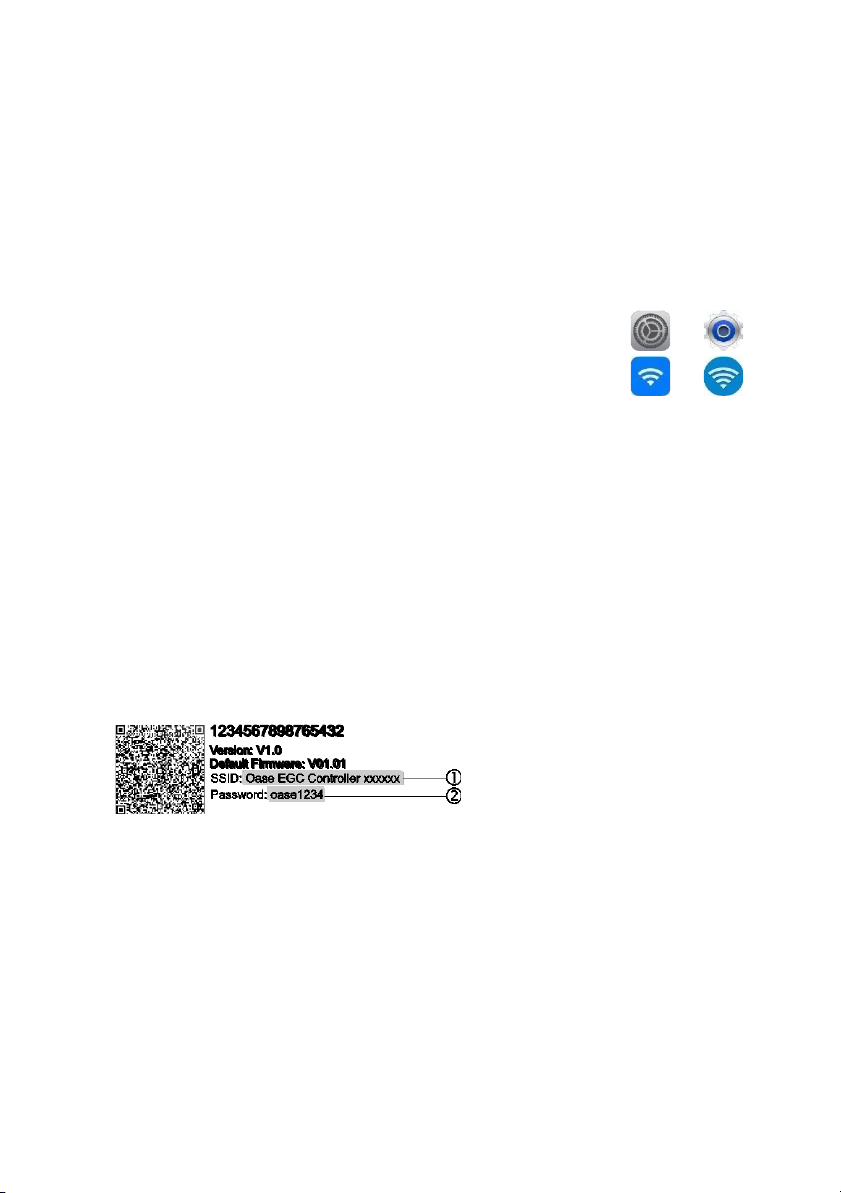
84
Estabelecer comunicação WLAN direta (Access Point)
Smartphone/Tablet e InScenio EGC Controller estão em comunicação direta entre si.
• Selecione a comunicação direta quando não há rede WLAN disponível, o roteador
WLAN não é compatível com WPS ou a distância entre roteador WLAN e InScenio
EGC Controller resulta excessiva.
Condição prévia:
• O alcance de comunicação máximo WLAN, entre Smartphone/Tablet e InScenio
EGC Controller é de 80 m, sem fontes de interferência e obstáculos.
P
roceder conforme descrito abaixo:
i
OS
A
ndroid
1
. Ative, no smartphone/tablet, as programações.
2
. Ative WLAN.
3. Selecione, na lista da rede, ʺOase EGC Controller xxxxxxʺ.
– O nome de rede (SSID) está sobre um autocolante, no InScenio EGC Controller.
– A ordem de letras "xxxxxx" do nome da rede (SSID) depende do aparelho e de-
signa parte do endreço MAC do InScenio EGC Controller.
4. Introduza a palavra-passe WLAN.
– A palavra-passe
está sobre o autocolante, no InScenio EGC Controller.
– A palavra-passe definida pelo fabricante é "oase1234".
5. Selecione "Comunicar"
– Após o estabelecimento da comunicação, aparece, debaixo do nome da rede.
"em comunicação" (Android) ou um „“ (iOS).
– A comunicação está codificada e protegida por uma palavra-passe.
– Outras comunicações WLAN estão desactivadas.
A comunicação WLAN direta com InScenio EGC Controller está estabelecida.
EGC0011
Page 85
PT
85
Estabelecer manualmente a comunicação com o roteador WLAN
Condição prévia:
• O alcance de comunicação máximo WLAN, entre roteador WLAN e InScenio EGC
Controller é de 80 m, sem fontes de interferência e obstáculos.
• 802.11n+g é compatível com as funções standard WLAN e só na área de frequência
de 2.4 Ghz.
Proceder conforme descrito abaixo:
1. Comunique diretamente o smartphone/tablet com o InScenio EGC Controller (Access Point). (→ Estabelecer comunicação WLAN direta (Access Point))
2
. Abra, no App OASE "Easy Control", as programações.
3. Nas comunicações com a rede, selecione primeiro "Roteador" e depois "Manual".
4. Introduza o nome de rede (SSID) e a palavra-passe do roteador WLAN.
5. Valide as entradas por "Comunicar".
– InScenio EGC Controller sinaliza o estabelecimento da comunicação pelo LED
amarelo com luz intermitente.
– A comunicação existe quando o LED verde passa a piscar devagar (2 segundos
ON, 1 segundo OFF).
– Se necessário, o smartphone/tablet deve ser manualmente posto em comunica-
ção com o roteador WLAN.
Depois, o InScenio EGC Controller está em comunicação com a rede do roteador
WLAN.
Controlar o aparelho mediante Cloud-Webportal
O InScenio EGC Controller, modelo Cloud, pode ser comunicado com o Cloud-Webportal OASE. Assim, os aparelhos em comunicação podem ser controlados e comandados à distância.
Com as programações da App OASE "Easy Control", a comunicação com o Cloud-Webportal pode ser liberada.
• Durante o log-in, no Cloud-´Webportal, o utente deve registar-se só uma vez.,
• Para juntar o InScenio EGC Controller no Webportal, são necessários os números
seriais dos aparelhos e a palavra-passe do aparelho.
– O número serial do aparelho encontra-se no App OASE "Easy Control", nas pro-
gramações.
Condição prévia:
• O InScenio EGC Controller e o Smartphone/Tablet estão em comunicação com a
rede WLAN do roteador WLAN.
• O roteador WELAN está em comunicação com a internet.
Page 86

86
Limpeza e manutenção
Limpar o aparelho
Limpar o aparelho com um pano macio, limpo e seco. Não utilizar detergentes agressivos ou solventes químicos, passíveis de destruir a carcaça ou influir negativamente
no funcionamento.
Repor os valores de ajuste da rede
Os valores de ajuste da rede são repostos ao estado de expedição. Permanecem mantidas as informações armazenadas do histórico do aparelho e do temporizador.
Proceder conforme descrito abaixo:
1. Manter premida por 5 segundos a tecla Reset.
– O LED do InScenio EGC Controller começa por acender a verde e depois a amarelo
para confirmar a eliminação a configuração da rede.
– A configuração da rede é reposta quando o ED do InScenio EGC Controller acende
a verde.
– O InScenio EGC Controller arranca no modo Access-Point e pode ser diretamente
posto em comunicação com o Smartphone/Tablet
O nome da rede (SSID) e a palavra-passe do roteador WLAN foram anulados.
A palavra-passe WLAN do InScenio EGC Controller foi reposta à configuração feita
pelo fabricante.
A palavra-passe do aparelho foi eliminada
Actualizar o firmware
Para manter atualizado o Firmware do InScenio EGC Controller, o Smartphone/Tablet
deve receber automaticamente Updates do App OASE. Durante a ativação do App
OASE é verificado se o Firmware ainda é atual. Siga as informações sobre o visor durante a ativação do Firmware Update.
Condição prévia:
• O App OASE tem a versão atual, estando em comunicação com o InScenio EGC Controller.
Na configuração do InScenio EGC Controller aparece a versão instalada do Firmware
e se está disponível uma versão atual.
Proceder conforme descrito abaixo:
1. Ative, no Smartphone/Tablet, o App OASE e abra a configuração para o InScenio
EGC Controller.
2. Abra o Firmeware Update..
3. Com a disponibilidade de um Update, instale a versão atual do Firmware.
– Siga as informações mostradas sobre o ecrã.
– Se necessário, introduza a palavra-passe "oase1234"
Page 87
PT
87
Restabelecer os valores programados pelo fabricante
O estado de expedição do InScenio EGC Controller é restabelecido. Todos os dados introduzidos perdem-se.
Proceder conforme descrito abaixo:
1. Manter premida por 15 segundos a tecla Reset.
– O LED do InScenio EGC Controller começa por acender a verde e depois a amarelo
para confirmar a eliminação a configuração da rede.
– O fim do restabelecimento dos valores é indicado pelo LED verde aceso.
– O InScenio EGC Controller arranca no modo Access-Point e pode ser diretamente
posto em comunicação com o Smartphone/Tablet
O nome de rede (SSID) e a palavra-passe do roteador WLAN estão anulados.
A palavra-passe WLAN do InScenio EGC Controller foi reposta à configuração feita
pelo fabricante.
A palavra-passe do aparelho foi eliminada
A lista de aparelhos foi eliminada
Eliminação de falhas
A
varia
C
ausasprováveis
R
esolução
A
comunicação WLAN não foi
e
stabelecida embora o nome
d
e network apareça nos ajus-
t
es WLAN.
O
smartphone/tablet não ac-
t
ualiza os dados de comunica-
ç
ão inscritos para o network
i
OS:
• Seleccionar a rede e premir
.
• Premir "ignorar esta rede"
para afastar a rede.
• Seguidamente, repetir a comunicação com a rede
A
ndroide:
• Seleccionar o network e premir "Anular" para afastar o
network.
• Seguidamente, repetir a comunicação com a rede
O
padrão WLAN ajustado no
R
outer não é compatível com o
I
nScenio EGC Controller
InScenio EGC Controller é compatível com as funções stan-
d
ard WLAN 802.11n+g (só na
á
rea de frequência 2.4 Ghz).
• Activar, no roteador, o padrão WLAN correcto (ver
instruções de operação do
roteador)
I
nScenio EGC Controller não
r
eage a comandos.
W
LAN está desativado no
s
martphone/tablet .
A
tivar WLAN no
s
martphone/tablet e estabele-
c
er comunicação com o InSce-
nio EGC Controller
Page 88
88
A
varia
C
ausas prováveis
R
esolução
I
nterferências entre
s
martphone/tablet e InScenio
E
GC Controller
• Reduzir a distância entre
smartphone/tablet e InScenio EGC Controller
• Procurar outro local para o
comando/controlo.
• Não pode haver obstáculos
entre o InScenio EGC Controller e o Smartphone/Tablet
• Com uma comunicação
WLAN direta (Access Point)
entre o InScenio EGC Controller e o Smartphone/Tablet, mudar de canal WLAN
D
istância excessiva entre
s
martphone/tablet e InScenio
E
GC Controller
• Reduzir a distância, não ultrapassar a distância máxima de de 80 m
• Utilizar um Repeater normal
p
ara aumentar o alcance
A
limentação eléctrica do InS-
c
enio EGC Controller falhou.
Estabelecer a alimentação elétrica.
• LED verde aceso
• LED verde a piscar, quando
existe a comunicação WLAN
com o roteador
R
eceptor no InScenio EGC Con-
t
roller falhou
C
onsultar o Serviço OASE
A
pp OASE "Easy Control" obso-
l
eto
Instalar App OASE atual "Easy
C
ontrol" no smartphone/tablet
O
sistema operativo obsoleto
d
o smartphone/tablet
A
ctualizar o sistema operativo
I
nScenio EGC Controller co-
m
uta a uma hora errada
A
hora do sistema do InScenio
E
GC Controller não coincide
c
om a hora efectiva
A
tualizar a hora do sistema
para a hora do aparelho de comando.
O
aparelho EGC adicionado
n
ão reage a comandos.
L
inha de dados interrompidaControlar os pontos de cone-
x
ão EGC
A
limentação eléctrica do apa-
r
elho EGC falhou
Estabelecer a alimentação elétrica.
C
omunicação ausente entre
a
parelho EGC e InScenio EGC
C
ontroller
L
inha de dados interrompida Controlar os pontos de cone-
x
ão EGC
A
limentação eléctrica do apa-
r
elho EGC falhou
Estabelecer a alimentação elétrica.
L
ED amarelo aceso
I
nScenio EGC Controller está
n
o modo Firmware update
Ligar com o WLAN
„
OASE_UPDATE_xxxxxx“ ou
„
OASE_UPDATE_EGC_xxxxxx“
Page 89
PT
89
A
varia
C
ausas prováveis
R
esolução
e
activar, mediante a apli-
c
ação, o firmware-update
L
ED amarelo a piscar devagar
(
2 segundos ON, 1 segundo
O
FF)
I
nScenio EGC Controller pro-
c
ura nova comunicação WLAN
c
om o Router
• Reduzir a distância, não ultrapassar a distância máxima de de 80 m
• Remover fontes de interferência que enfraquecem o
sinal WLAN (p. ex. ouras fontes de rádio, diferenças de
nível)
• Activar o WLAN-Router
• No Router, activar a função
WLAN
• Quando o roteador está defeituoso ou já não existe,, repor as programações de
rede do InScenio EGC Controller e ativar no modo
Acess-Point
• InScenio EGC Controller
deve ser posto em comunica
ç
ão com outro roteador
L
ED vermelho a piscar
E
rro interno
• Cortar a alimentação elétrica, esperar 10 segundos,
restabelecer a alimentação
elétrica
• InScenio EGC Controller
deve ser reposto aos valores
definidos pelo fabricante
O
aparelho não arranca, LED
v
ermelho a piscar
F
irmware não localizado
C
onsultar o Serviço OASE
Page 90
90
Dados técnicos
InScenio EGC Controller
C
ontrolador Tensão de conexão
V
DC 12
G
rau de proteção
IP 68
C
omprimento cabo 12 V m 2
C
omprimento cabo eléctrico EGC m 2
Frequência WLAN
G
Hz 2,4
A
lcance WLAN máximo m
8
0
Dimensões mm
1
30 × 90 × 40
Peso k
g
0
,9
T
ransforma-
d
or
T
ensão de rede
V
AC 230
Frequência Hz
5
0
T
ensão de saída
VDC1
2
C
omprimento cabo eléctrico m 2
G
rau deproteção IP 44
Dimensões mm
8
0 × 40 × 60
Peso k
g
0
,45
Peças de reposição
C
om peças de reposição originais da OASE, o aparelho permanece se-
g
uro e continua a operar perfeitamente.
O
s desenhos e mones das peças de reposição podem ser vistos na
nossa website
w
ww.oase.com/ersatzteile
Descartar o aparelho usado
NOTA
O
aparelho não poderá ser eliminado com o lixo doméstico.
O aparelho usado deve ser eliminado através do sistema de recolha seletiva
de lixo.
Corte anteriormente o cabo de alimentação o que torna o aparelho inutilizá-
vel.
Page 91
PT
91
EU-Konformitätserklärung
Declaration of EU-conformity
e
rklärt, dass das Produkt
d
eclares that the product
Produkt / Product: Controller
Controller
T
yp / Type: InScenio EGC-Controller Home
InScenio EGC-Controller Cloud
d
en folgenden Richtlinien der Union entspricht:
c
omplies to the following directives of the Union:
2
014/53/EU, 2011/65/EU
Die vollständige EU-Konformitätserklärung ist unter der folgenden Internet-
a
dresse abrufbar:
The complete Declaration of EU-conformity is available at the following internet
a
ddress:
w
ww.oase-livingwater.com/ce
Page 92
92
IT
AVVISO
AVVERTENZA
Scollegare dalla tensione elettrica tutti gli apparecchi prima
di immergere le mani nell'acqua. In caso contrario sussiste il
pericolo di morte o di gravi lesioni per folgorazione.
Questo apparecchio può essere utilizzato da bambini di età
superiore a 8 anni e da persone con capacità fisiche, sensoriali o mentali ridotte, se sono supervisionate o se sono state
istruite sull'uso sicuro dell'apparecchio e che sono in grado di
comprendere i pericoli che ne possono derivare. Ai bambini è
vietato giocare con l'apparecchio. La pulizia e la manutenzione utente non devono essere effettuate da bambini senza
opportuna supervisione.
Avvertenze di sicurezza
Allacciamento elettrico
• Eseguire l'allacciamento solo se i dati elettrici dell'apparecchio e dell'alimentazione
elettrica coincidono.
• Collegare l'apparecchio solo ad una presa installata secondo le norme. L'a presa di
corrente deve essere protette con un dispositivo di protezione per correnti di guasto con una corrente di taratura di max. 30 mA.
• Proteggere le connessioni a spina dall'umidità.
Funzionamento sicuro
• Mai immergere l'apparecchio in acqua o in altri liquidi.
• Non utilizzare l'apparecchio se i cavi elettrici o l'alloggiamento sono danneggiati.
• Un cavo di alimentazione danneggiato non può essere sostituito. Smaltire l’ap-
parecchio.
• Non trasportare o trascinare l'apparecchio afferrando il cavo di alimentazione.
• Posare i cavi al riparo da danni e in maniera tale che nessuno possa inciamparvi.
• Non utilizzare prese multiple.
• In caso di problemi rivolgersi all’assistenza clienti autorizzata o all'azienda OASE.
Page 93
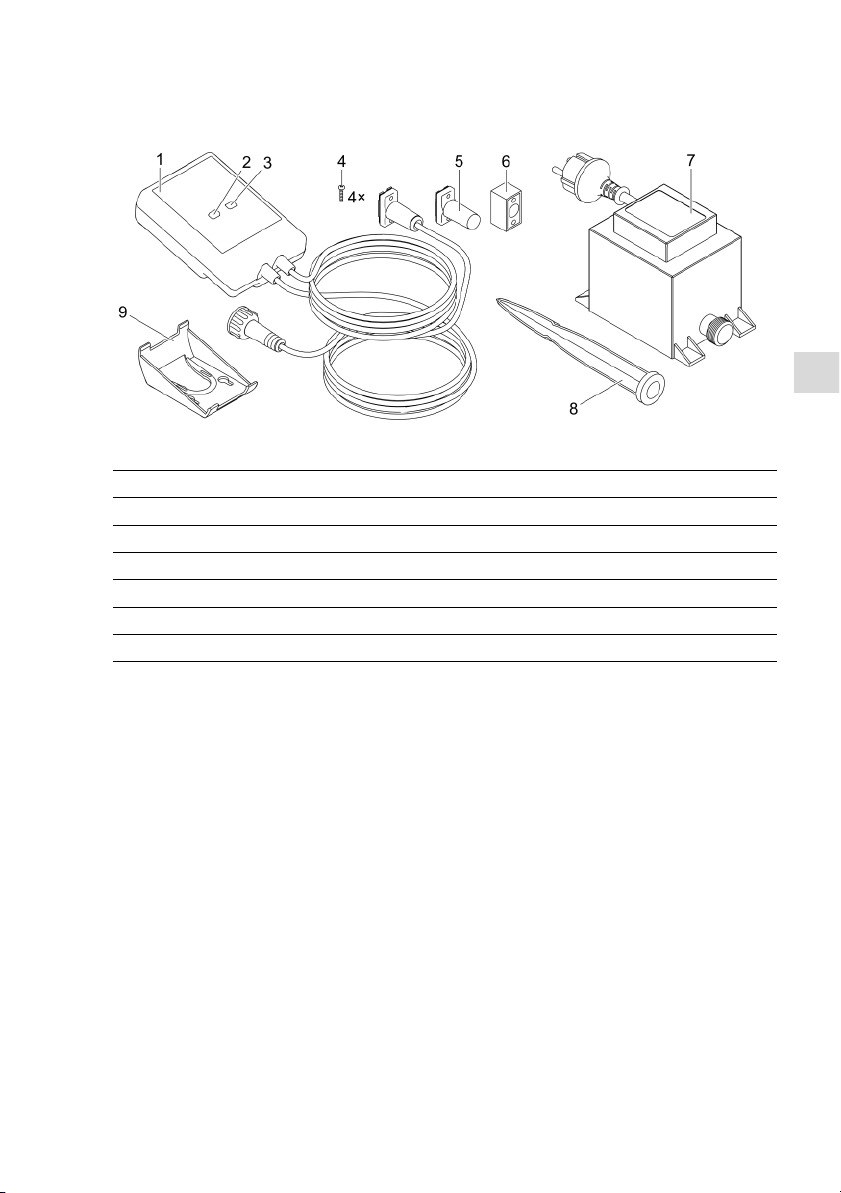
IT
93
Descrizione del prodotto
Prospetto
EGC0004
1
I
nScenio EGC Controller
2
T
asto di reset WPS
3
L
ED, visualizzazione delle condizioni di funzionamento
4
V
iti per il fissa
g
g
io dei connettori con il connettore per cavi EGC
5
R
esistenza terminale EGC, viene inserita nell’ultimo a
p
p
arecchio della rete EGC
6
C
onnettore per cavi EGC (47788)
7
T
rasformatore
8
P
icco di terra per il fissaggio sul fondo
9
T
elaio di fermoper il fissa
g
g
io a muro o l'allo
g
g
iamento delpicco di terra
Descrizione del funzionamento
InScenio EGC Controller è un controller per la messa in rete degli apparecchi EGC
OASE.
Gli apparecchi collegati vengono gestiti via WLAN tramite uno smartphone o un tablet con l'app OASE "Easy Control". E’ possibile collegare fino a dieci apparecchi terminali che supportano EGC OASE.
Il controller è disponibile nelle versioni Home e Cloud. Con la versione Cloud è possibile controllare unità terminali compatibili EGC anche tramite il portale web OASE. Il
portale web è disponibile al sito https://oec.oase-livingwater.com .
In giardino e nel laghetto l'Easy Garden Control System (EGC) offre agevoli possibilità
di controllo e garantisce un elevato comfort e una notevole sicurezza.
Informazioni sull'EGC e sulle sue possibilità, sono disponibili sul sito www.oase-li-
vingwater.com/egc-start.
Page 94
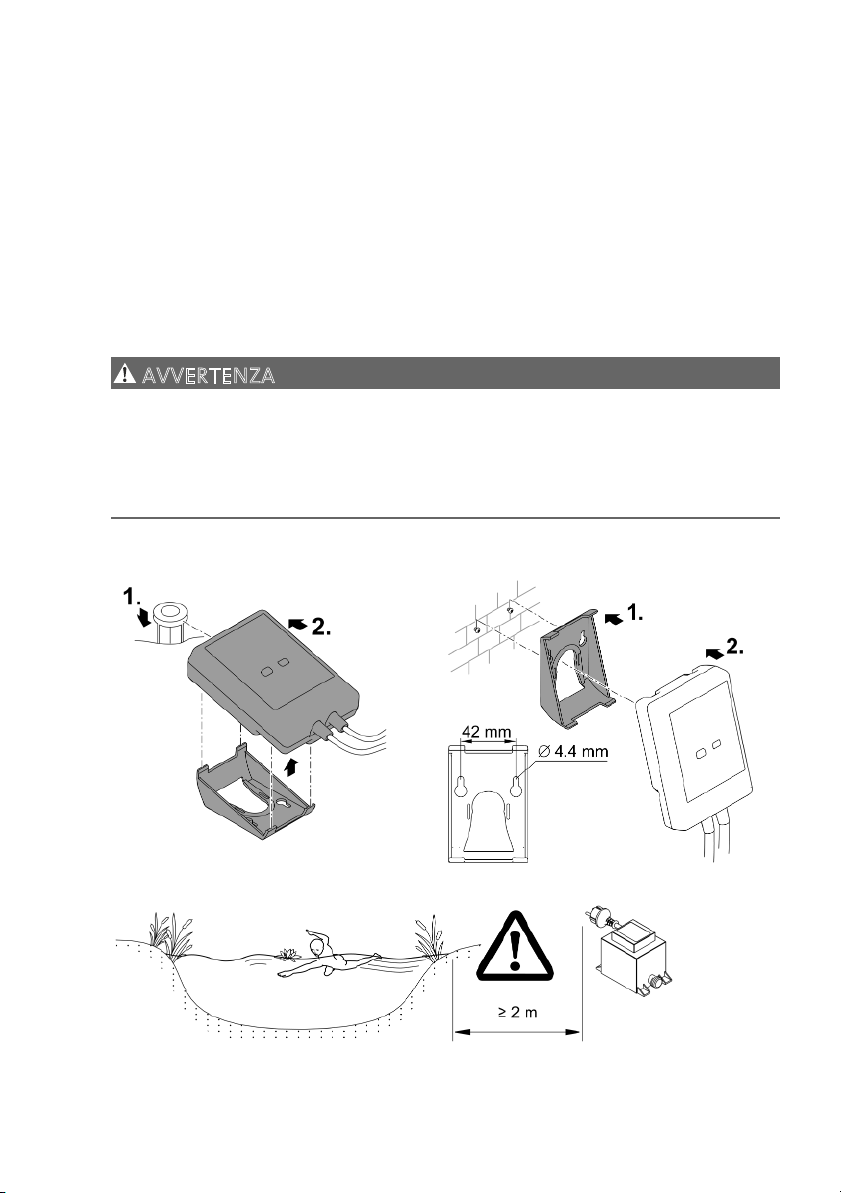
94
Impiego ammesso
Utilizzare il prodotto descritto nelle presenti istruzioni esclusivamente come segue:
• Funzionamento solo come sistema di comando per apparecchi con unità terminali
OASE compatibili EGC.
• Funzionamento solo con temperature ambiente comprese fra -20 °C e +45 °C.
• Funzionamento in conformità alle caratteristiche tecniche. (→ Dati tecnici)
Per l'apparecchio valgono le seguenti restrizioni:
• Non utilizzarlo per scopi commerciali o industriali.
Installazione
AVVERTENZA
Il trasformatore porta una tensione elettrica pericolosa e non deve essere installato
in vicinanza diretta dell’acqua. In caso contrario sussiste il pericolo di morte o di gravi
lesioni per folgorazione.
Installare il trasformatore ad una distanza minima dal laghetto di 2 metri, in una
posizione che non può essere raggiunta da acqua.
I
nstallare con picco di terra Fissare sulla parete
EGC000
6
EGC0007
EGC0005
Page 95
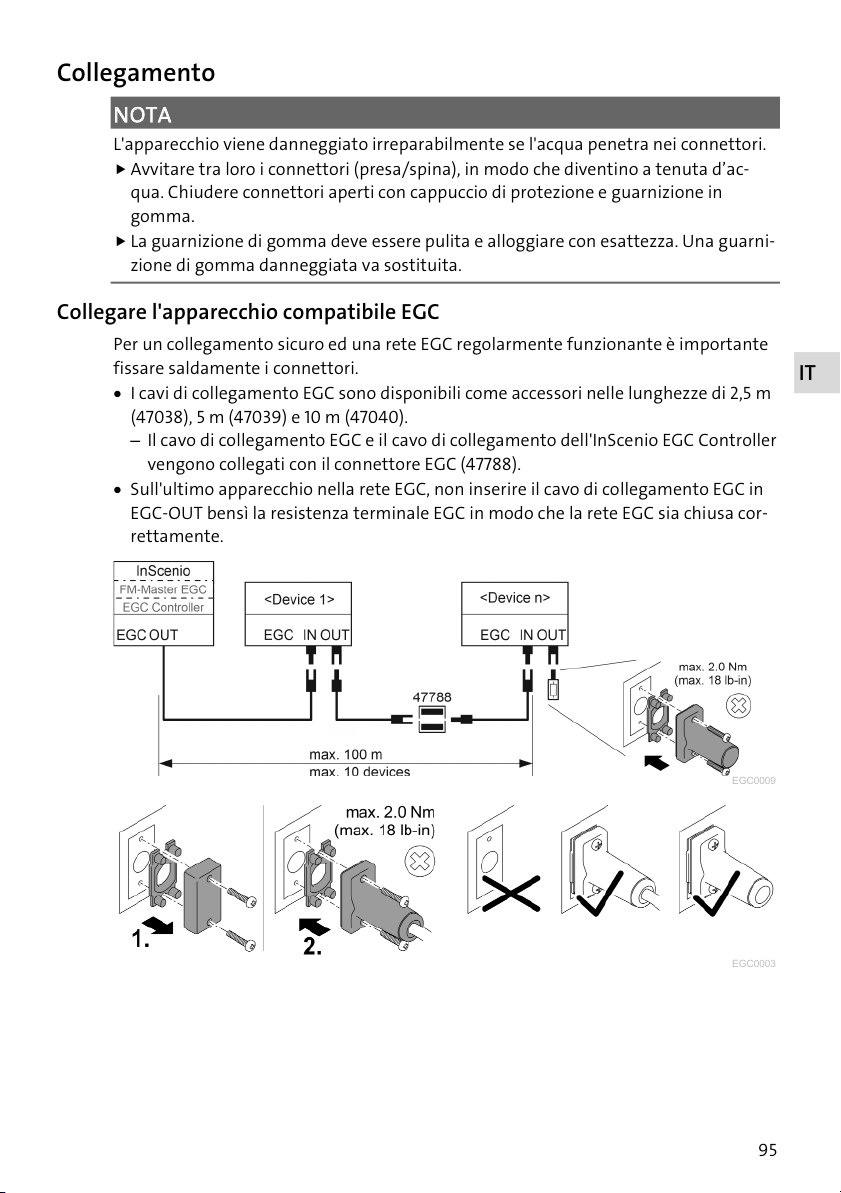
IT
95
Collegamento
NOTA
L'apparecchio viene danneggiato irreparabilmente se l'acqua penetra nei connettori.
Avvitare tra loro i connettori (presa/spina), in modo che diventino a tenuta d’ac-
qua. Chiudere connettori aperti con cappuccio di protezione e guarnizione in
gomma.
La guarnizione di gomma deve essere pulita e alloggiare con esattezza. Una guarni-
zione di gomma danneggiata va sostituita.
Collegare l'apparecchio compatibile EGC
Per un collegamento sicuro ed una rete EGC regolarmente funzionante è importante
fissare saldamente i connettori.
• I cavi di collegamento EGC sono disponibili come accessori nelle lunghezze di 2,5 m
(47038), 5 m (47039) e 10 m (47040).
– Il cavo di collegamento EGC e il cavo di collegamento dell'InScenio EGC Controller
vengono collegati con il connettore EGC (47788).
• Sull'ultimo apparecchio nella rete EGC, non inserire il cavo di collegamento EGC in
EGC-OUT bensì la resistenza terminale EGC in modo che la rete EGC sia chiusa cor-
rettamente.
EGC0009
EGC0003
Page 96
96
Messa in funzione
Mettere in funzione l'apparecchio procedendo nel modo seguente:
1. Installare l'app "Easy Control" sul vostro smartphone/tablet. (→ Installare l'app
OASE "Easy Control")
2. Collegare InScenio EGC Controller alla rete elettrica. (→ Avviare l'apparecchio)
3. Attivare il collegamento WLAN nelle impostazioni dello smartphone/tablet, avviare
l’app e seguire le istruzioni.
Possibili tipi di collegamento
Per poter gestire l'apparecchio, l’InScenio EGC Controller e lo smartphone/tablet devono essere collegati alla rete WLAN.
C
ollegamento WLAN
D
escrizione
C
ollegare l'InScenio EGC Controller e
l
o smartphone/tablet tramite la rete
d
omestica WLAN del router utiliz-
z
ando la funzione WPS.
• Lo smartphone/tablet rimane connesso alla rete wireless e continuerà ad avere accesso ad internet.
• Le unità terminali compatibili EAC possono essere gestite e controllate tramite il portale web in cloud.
C
ollegare direttamente l'InScenio
E
GC Controller e lo smartphone/ta-
b
let (access point)
• InScenio EGC Controller e lo smartphone/tablet non
sono collegati alla rete domestica WLAN del router.
Entrambi gli apparecchi non possono accedere a internet.
• Le unità terminali compatibili EAC non possono essere
gestite e controllate tramite il portale web in cloud.
C
ollegare manualmente l'InScenio
E
GC Controller e lo smartphone/ta-
b
let tramite il router della rete dome-
s
tica senza fili.
• Lo smartphone/tablet rimane connesso alla rete wireless e continuerà ad avere accesso ad internet.
• Le unità terminali compatibili EAC possono essere gestite e controllate tramite il portale web in cloud.
Page 97
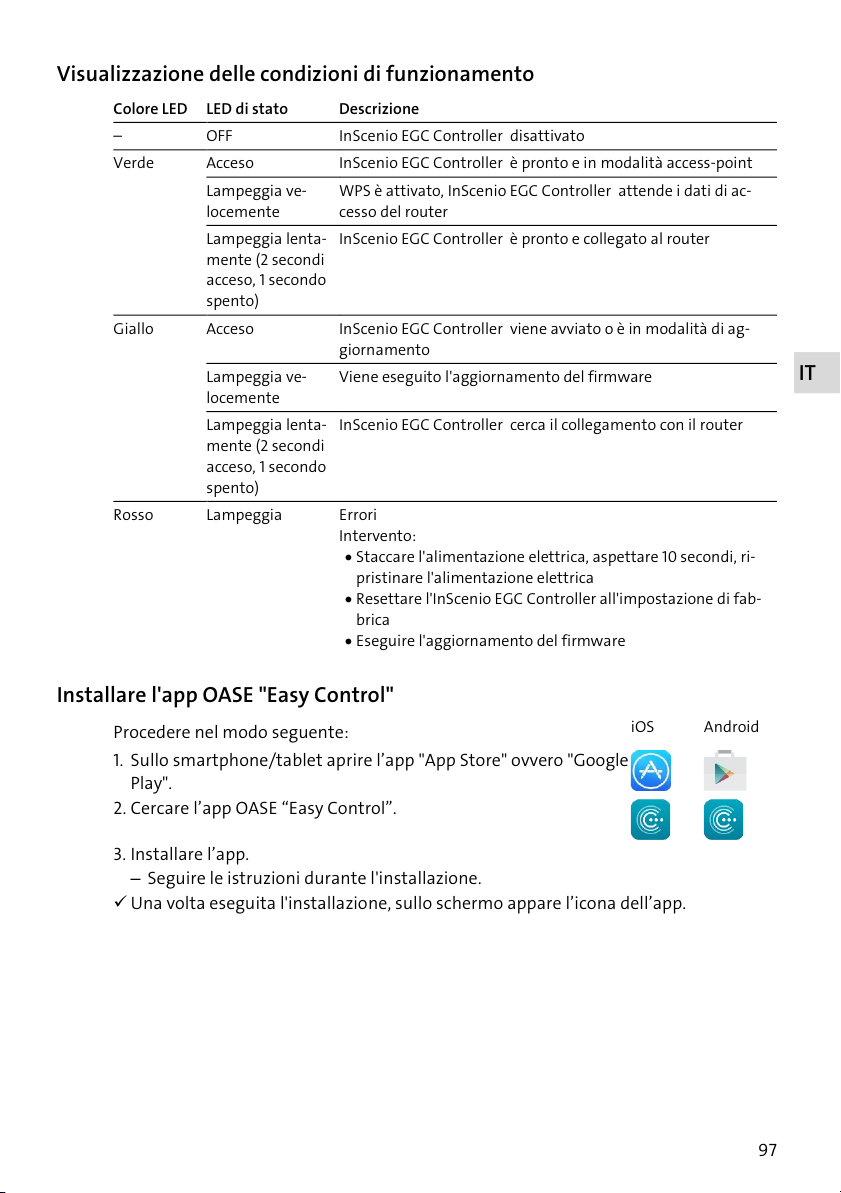
IT
97
Visualizzazione delle condizioni di funzionamento
C
olore LED LED di stato
D
escrizione
O
FF
I
nScenio EGC Controller disattivato
V
erde
A
cceso
I
nScenio EGC Controller è pronto e in modalità access-point
Lampeggia ve-
locemente
W
PS è attivato, InScenio EGC Controller attende i dati di ac-
c
esso del router
Lampeggia lenta-
mente (2 secondi
a
cceso, 1 secondo
s
pento)
I
nScenio EGC Controller è pronto e collegato al router
G
iallo
A
cceso
I
nScenio EGC Controller viene avviato o è in modalità di ag-
g
iornamento
Lampeggia ve-
locemente
V
iene eseguito l'aggiornamento del firmware
Lampeggia lenta-
mente (2 secondi
a
cceso, 1 secondo
s
p
ento)
I
nScenio EGC Controller cerca il collegamento con il router
R
osso Lampeggia
E
rrori
I
ntervento:
• Staccare l'alimentazione elettrica, aspettare 10 secondi, ri-
pristinare l'alimentazione elettrica
• Resettare l'InScenio EGC Controller all'impostazione di fab-
brica
• Ese
g
uire l'a
g
g
iornamento del firmware
Installare l'app OASE "Easy Control"
P
rocedere nel modo seguente:
i
OS
A
ndroid
1
. Sullo smartphone/tablet aprire l’app "App Store" ovvero "Google
Pla
y
".
2
. Cercare l’app OASE “Easy Control”.
3. Installare l’app.
– Seguire le istruzioni durante l'installazione.
Una volta eseguita l'installazione, sullo schermo appare l’icona dell’app.
Page 98
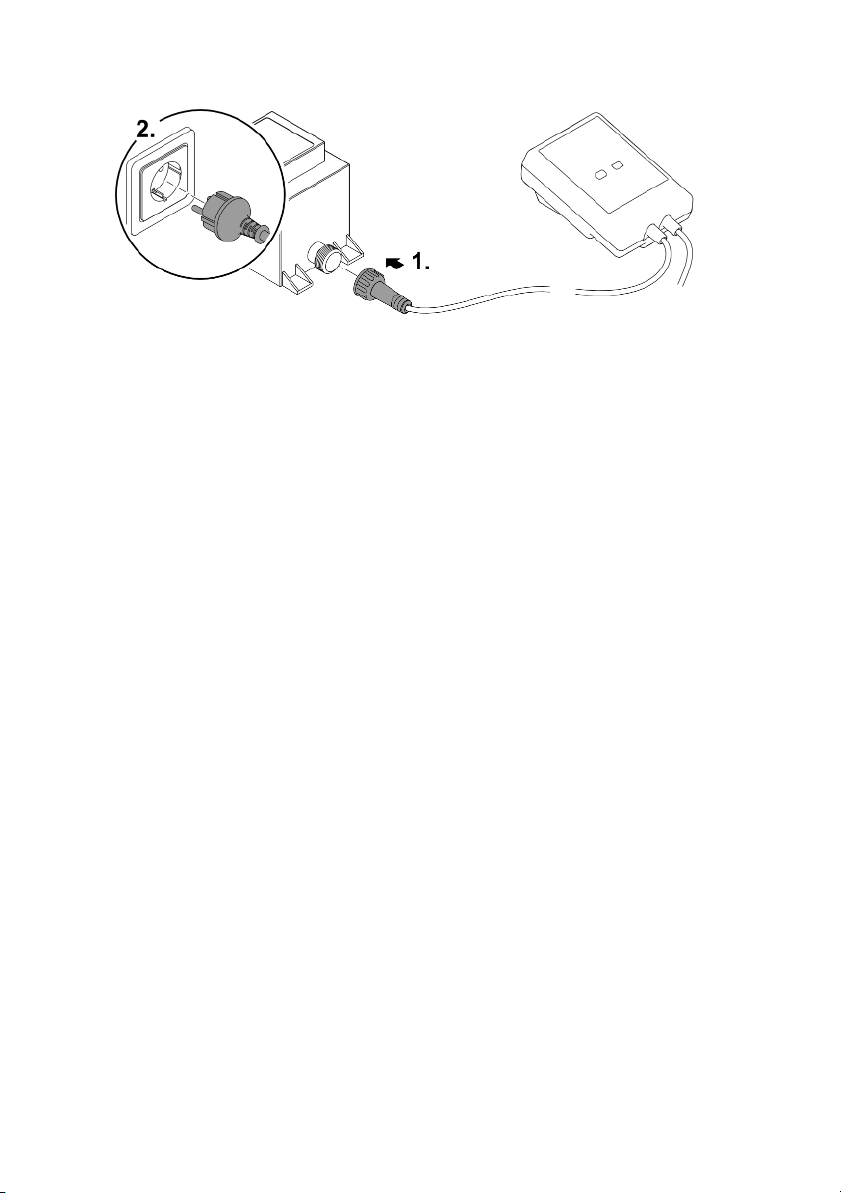
98
Avviare l'apparecchio
EGC0008
Instaurazione del collegamento verso il router WLAN tramite WPS
WPS (Wi-Fi Protected Setup) è uno standard per instaurare un collegamento WLAN
sicuro e affidabile premendo il pulsante.
• Non è necessario immettere il nome di rete (SSID) e la password.
• Il router WLAN deve supportare la funzione WPS.
Condizione:
• La portata WLAN fra router e InScenio EGC Controller non supera 80 m, senza fonti
di disturbo e se la vista è libera.
• E’ compatibile con lo standard WLAN 802.11n+g e solo nell'intervallo di frequenza di
2.4 Ghz.
Procedere nel modo seguente:
1. Premere il tasto WPS sul router per attivare WPS.
– WPS è attivo solo per un periodo di tempo limitato. Entro questo tempo attivare
WPS sull'InScenio EGC Controller.
– Osservare le indicazioni riportate nelle istruzioni d'uso del router WLAN.
2. Su InScenio EGC Controller premere brevemente il tasto (max. 2 secondi) per attivare il WPS.
– Il LED lampeggia velocemente di colore verde.
– Il WPS rimane attivo per 2 minuti.
Il collegamento è instaurato quando il LED lampeggia lentamente in verde (2 se-
condi acceso, 1 secondo spento).
Page 99
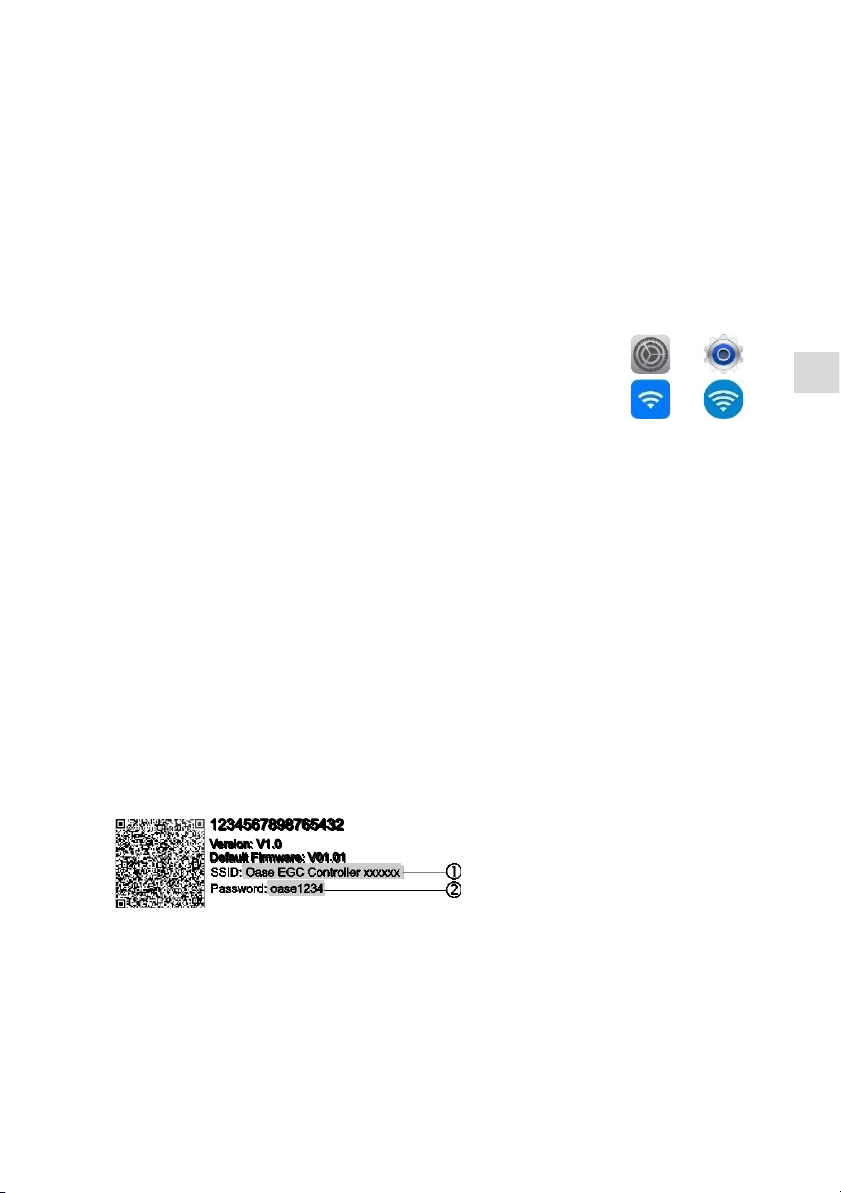
IT
99
Instaurare il collegamento diretto WLAN (modalità access-point)
Lo smartphone/tablet e l'InScenio EGC Controller sono collegati direttamente tra
loro.
• Selezionare la connessione diretta se non è disponibile una rete WLAN, se il router
WLAN non supporta WPS o se la distanza tra il router WLAN e InScenio EGC Controller è troppo grande.
Condizione:
• La portata WLAN smartphone/tablet e InScenio EGC Controller non supera 80 m,
senza fonti di disturbo e se la vista è libera.
P
rocedere nel modo seguente:
i
OS
A
ndroid
1
. Sullo smartphone/tablet aprire le impostazioni.
2
. Attivare il WLAN.
3. Selezionare ʺOase EGC Controller xxxxxxʺ nella lista delle reti disponibili.
– Il nome di rete (SSID) è riportato sull'etichetta adesiva dell'InScenio EGC Con-
troller.
– La sequenza di lettere "xxxxxx" riportata nel nome di rete (SSID)
è specifica
dell'apparecchio e indica una parte dell'indirizzo MAC dell’InScenio EGC Controller.
4. Immettere la password WLAN.
– La password standard è riportata sull'etichetta adesiva dell'InScenio EGC Con-
troller.
– La password standard impostata in fabbrica è
"oase1234".
5. Selezionare “Collega”.
– Una volta eseguito il collegamento sotto il nome di rete appare "Collegato" (An-
droid) o un "" (iOS).
– Il collegamento è codificato e protetto da password.
– Gli altri collegamenti WLAN sono disattivati.
Il collegamento WLAN diretto con InScenio EGC Controller è stato creato.
EGC0011
Page 100

100
Instaurazione manuale del collegamento al router WLAN
Condizione:
• La portata WLAN fra router e InScenio EGC Controller non supera 80 m, senza fonti
di disturbo e se la vista è libera.
• E’ compatibile con lo standard WLAN 802.11n+g e solo nell'intervallo di frequenza di
2.4 Ghz.
Procedere nel modo seguente:
1. Collegare lo smartphone/tablet direttamente con InScenio EGC Controller (accesspoint). (→ Instaurare il collegamento diretto WLAN (modalità access-point))
2
. Aprire le impostazioni dell’app OASE "Easy Control".
3. Nei collegamenti di rete scegliere prima “Router” e poi “Manuale”.
4. Inserire il nome di rete (SSID) e la password del router WLAN.
5. Confermare le immissioni con “Collega”.
– InScenio EGC Controller segnala l'instaurazione del collegamento per mezzo di
un LED lampeggiante in giallo.
– Il collegamento è instaurato quando il LED lampeggia lentamente in verde (2 se-
condi acceso, 1 secondo spento).
– Potrebbe rendersi necesario dover collegare lo smartphone/tablet manualmente
con il router WLAN.
InScenio EGC Controller ora sono collegati alla rete domestica WLAN del router.
Gestire l’apparecchio tramite il portale web cloud
E’ possibile collegare InScenio EGC Controller nella versione Cloud con il portale web
cloud. Così è possibile controllare e gestire apparecchi collegate anche da remoto.
Nell impostazioni dell’app Oase "Easy Control" è possibile rilasciare il collegamento
con il portale web cloud.
• La prima volta che ci si connette al portale web cloud si rende necessario registrarsi.
• Per poter aggiungere InScenio EGC Controller nel portale web cloud vanno immessi
il numero di serie e la password dell'apparecchio.
– Il numero di serie dell'apparecchio si trovano nelle impostazioni dell’app OASE
"Easy Control".
Condizione:
• InScenio EGC Controller e lo smartphone/tablet non sono collegati alla rete domestica WLAN del router.
• Il router WLAN è collegato a internet.
 Loading...