

Page 1
TV REMOTE
User Guide
Glencoe, Cologne, Mayer, New Germany, Plato
nuvera.net
Page 2

Table of Contents
Remote Reference Guide ................................................................................................................... 3
UR5L-9020L .............................................................................................................................................3
URC2060B0 .............................................................................................................................................4
Using the Menu Button ....................................................................................................................... 5
House icon features ..............................................................................................................................5
Shortcut buttons ...................................................................................................................................5
Channel Guide .......................................................................................................................................... 6
How to view the TV channel guide ......................................................................................................6
How to customize channel guide ........................................................................................................6
How to search for a specic show ......................................................................................................6
Favorites .................................................................................................................................................... 6
How to add or remove a channel to your favorites ..........................................................................6
Parental Controls .................................................................................................................................. 7
How to set your PIN for the rst time ................................................................................................7
Frequently Asked Questions .............................................................................................................. 7
What channel does my TV need to be on? .........................................................................................7
What can I do if my TV is not working? ..............................................................................................7
What can I do if my remote is not working? ......................................................................................7
Where can I nd additional information on programming my remote and/or set top box? ......7
DVR User Guide ...................................................................................................................................... 8
How to record TV programs .................................................................................................................8
My Recordings
Future Recordings
Set a Recording
Series Recording
DVR Questions and Answers ............................................................................................................ 9
How long of a period of time can DVR record ....................................................................................9
How many shows can be viewed/recorded on each DVR .................................................................9
2
nuvera.net
Page 3
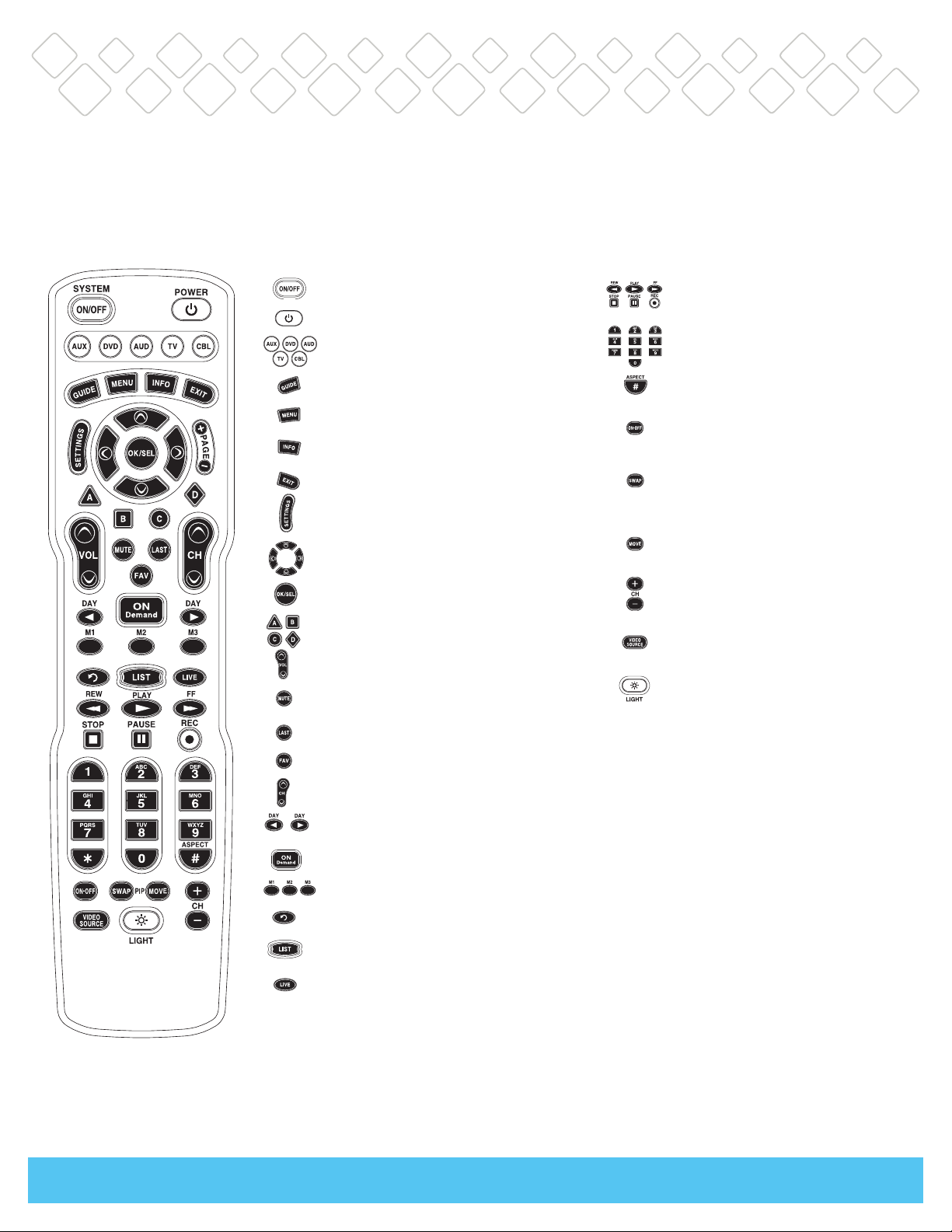
Displays sengs menu
Navigate to and highlight an item from the
on-screen choices
Selects highlighted screen opons
Make direct selecons from on-screen menus
Raises or lowers the sound level
Silences the audio. Press again to acvate. Press
again to restore the sound at the previous level
Returns to the previously tuned channel
Displays favorite channels
Selects and deselects screen items
Skip forward or backward a whole day in the
program guide
Provides direct access to On Demand channel
Custom-progammable Macros
Replays the previous few seconds of a program
Displays a list of programs you have recorded,
allowing you to select one for viewing
Displays live television programming
Perform standard VCR and DVD funcons when
Remote Reference Guide
UR5L-9020L
Turns up to five devices on or off simultaneously
Turns devices on or off
Used to select the component you want to
operate and signals remote control acvity
Displays the program guide lisngs
Displays the applicaons menu
Displays informaon about the program
currently playing or highlighted in the guide
Exit from the current screen
Displays sengs menu
Navigate to and highlight an item from the
on-screen choices
Selects highlighted screen opons
Make direct selecons from on-screen menus
Raises or lowers the sound level
Silences the audio. Press again to acvate. Press
again to restore the sound at the previous level
in VCR and DVD mode and Video-on-Demand
funcons when in CABLE mode
Enter numbers to tune to channels.
Also, make numeric entries on on-screen menus
Changes the HD screen viewing aspect rao
through the Cable STB
Opens or closes the PIP (Picture-in-Picture) window
through the Cable STB
Swaps the contents of the PIP (Picture-in-Picture)
window and the main viewing screen through the
Cable STB so that the PIP window displays on the
main screen
Moves the PIP (Picture-in-Picture) window to
another locaon on the screen through the
Cable STB
Selects the higher or lower channel in the
PIP (Picture-in-Picture) window through the
Cable STB
Selects the video source from available video
Components through the Cable STB
Press to backlight all keypad buons.
Press again to turn off (or simply wait 10
seconds for automac shut-off)
Returns to the previously tuned channel
Displays favorite channels
Selects and deselects screen items
Skip forward or backward a whole day in the
program guide
Provides direct access to On Demand channel
Custom-progammable Macros
Replays the previous few seconds of a program
Displays a list of programs you have recorded,
allowing you to select one for viewing
Displays live television programming
nuvera.net
3
Page 4
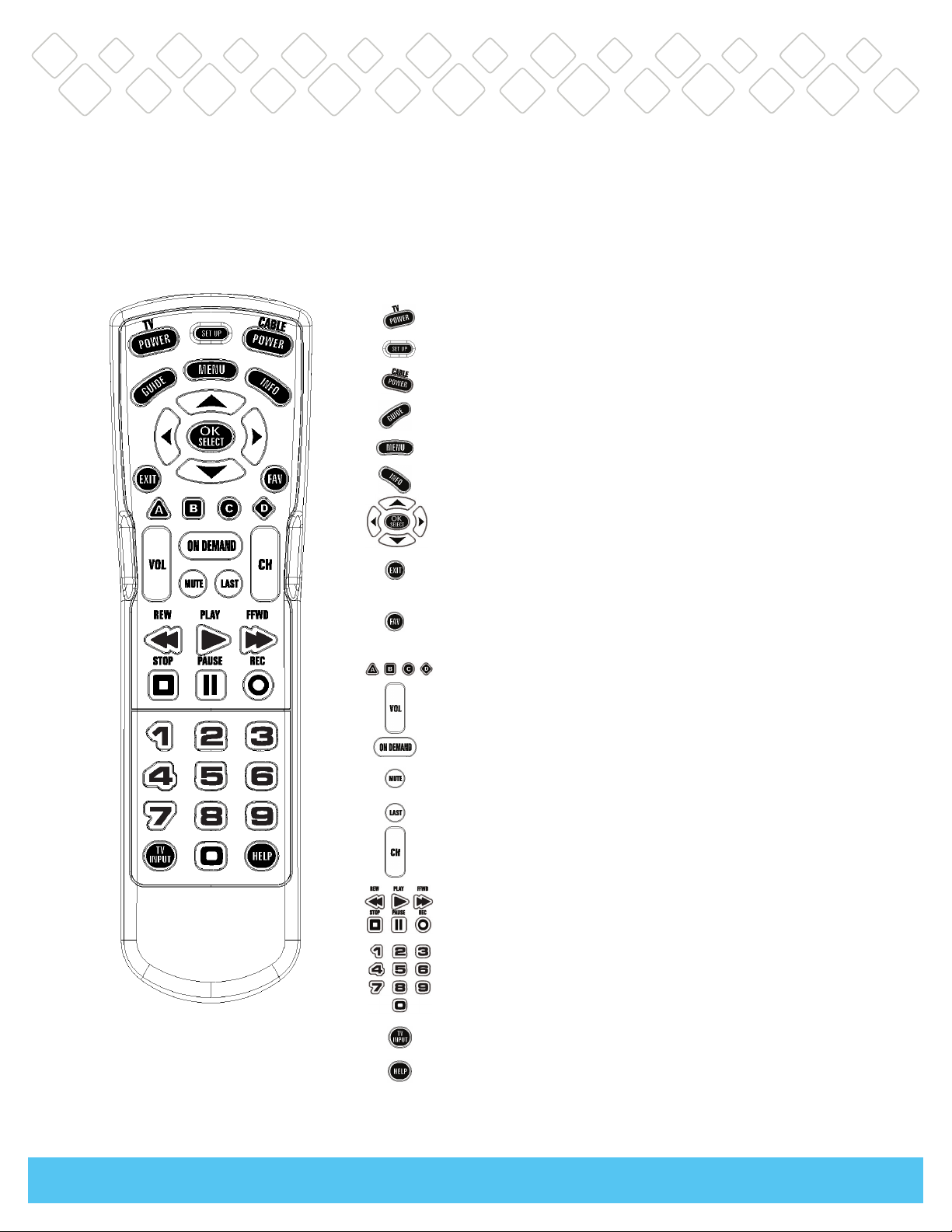
Remote Reference Guide
URC2060B0
Turns TV on or off
Hold for 3 seconds to enter programming
Turns cable box on or off
Displays program guide
Displays main cable menu
Displays Info for currently selected program
Use to navigate and select menu
and guide opons
Exits current menu and returns to current
program
Used to cycle through favorite channels set on
your cable box
Used for special funcons that display on your
cable menus
Turns volume up and down
Accesses On Demand program library
Use to turn volume off
Recall last channel viewed
Use to tune channel up or down
Controls playback of live and recorded TV
Allows for direct access to specific channel
Used to cycle through video inputs on TV
Use to access cable help menus
4
nuvera.net
Page 5

Using the Menu Button
Select the house icon to access:
1. Listings by Time
2. Listings by Channel
3. My Favorite Channels
4. Search
5. DVR Options
6. HDTV Options
7. Premium Channels
8. Music Channels
9. Parental Controls
10. Set Up – to personalize your guide
11. Local Weather
PPV and Messages are not available.
The arrow buttons allow you to move around the screen.
Select shortcut buttons to access:
1. DVR
2. HD Channel List
3. Favorites
4. Search
5. Movies
6. Sports
7. Kids Programs
8. Parental Controls
PPV is not available.
nuvera.net
5
Page 6

Channel Guide
How to view the TV channel guide
1. Press Guide to display the interactive channel guide.
2. Use the arrow keys to move through the schedule and press OK to select a show.
3. To move more quickly through the schedule, use the + Page - buttons to page up or
down.
How to customize channel guide
1. Press Menu.
2. Select the house icon.
3. Use the arrow keys to move to Setup.
4. Select from the options available to customize your guide.
How to search for a specific show
1. Press Menu.
2. Select the house icon.
3. Use the arrow buttons to go to the Search option.
4. Use the arrow buttons to go to your choice.
Favorites
How to add or remove a channel to your favorites
1. Press Menu.
2. Select the house icon.
3. Use the arrow buttons to select Setup.
4. Select Favorite Lists Setup. Select New.
5. Select the Heart icon to add or remove channels. To scroll through the list, use the
+ Page – buttons.
6. You can set up multiple favorite lists and label them.
7. Once set up, you can add to, delete from or rename your lists.
8. Use the Fav button to scroll through and view the channels you’ve selected.
6
nuvera.net
Page 7

Parental Controls
How to set your PIN for the first time
1. Press Menu.
2. Select the house icon.
3. Use the arrow buttons to select Parental Controls.
4. Enter a 4-digit code for your PIN. You will be asked to enter it a second time to
conrm.
5. You can select the type of controls you want to set – channels, ratings, content, etc.
by selecting those options.
Frequently Asked Questions
What channel does my TV need to be on?
Your TV needs to be on channel 3 to operate with the cable box.
What can I do if my TV is not working?
If the TV is not working, unplug the cable box for a few minutes. After plugging it back
in, it will take a few minutes to come back on.
What can I do if my remote is not working?
Try changing the batteries with two AA batteries. If this does not work, please call your
local Nuvera oce.
Where can I find additional information on programming my remote
and/or set-top box?
Additional user guides and information can be found at nuvera.net under Support.
nuvera.net
7
Page 8

DVR User Guide
How to record TV programs
1. Press Menu. A menu bar should appear on the bottom of the screen.
2. Use the right arrow button and select the DVR icon. Once the DVR icon is
highlighted, press OK.
3. A page should appear on your TV screen displaying four recording options (My
Recordings, Future Recordings, Set a Recording and Series Recordings). Select an
option, use the up or down arrows to highlight your selection and press OK.
My Recordings
1. Highlight My Recordings and press OK. A list of recordings you have already
recorded will appear.
2. Use the up or down arrows to select a program to watch or delete and press OK.
3. Once you press OK, a bar will appear at the bottom of the screen giving you options
to watch or delete a selected recording. Press Play to watch or X to delete.
Future Recordings
1. Highlight Future Recordings and press OK. Once you press OK, you should see a list
of scheduled recordings.
Set a Recording
1. Highlight Set a Recording and press OK.
2. Once you press OK, a screen will appear with options to set a start time, end time,
and date of program to be recorded.
3. Once you have selected your start and end times and date, use the down arrow to
highlight Continue and press OK.
4. After you press OK, a list of channels should appear. Using the up and down
arrows, select the channel you wish to record (you can also input the channel
number on the remote and it will go to that channel in the list).
5. Once you have highlighted the channel you want to record, press OK.
6. Select the Record icon and press OK. Once you press OK, a new page will appear
asking you to conrm. Press OK.
8
nuvera.net
Page 9

Series Recording
1. Press Guide.
2. Find the channel in the guide you want to record.
3. Use the right arrow button to nd the show you want to record.
4. Highlight your show, press Record (a red dot will appear in the guide next to your
show).
5. Press Record again and a new screen will appear giving you the option to set up a
series recording. After you have input your options, highlight Continue and press
OK. Your series recording has been set.
DVR Questions and Answers
How long of a period of time can DVR record?
The amount of recording time varies depending on the video format (standard or hi
def) and channels recorded. The device used today has 250 GB of hard drive.
Standard-Denition can record 80 - 150 hours and Hi-Denition can record 20 - 30
hours.
How many shows can be viewed/recorded on each DVR?
You can view and/or record 2 channels at one time.
nuvera.net
9
 Loading...