

Page 1
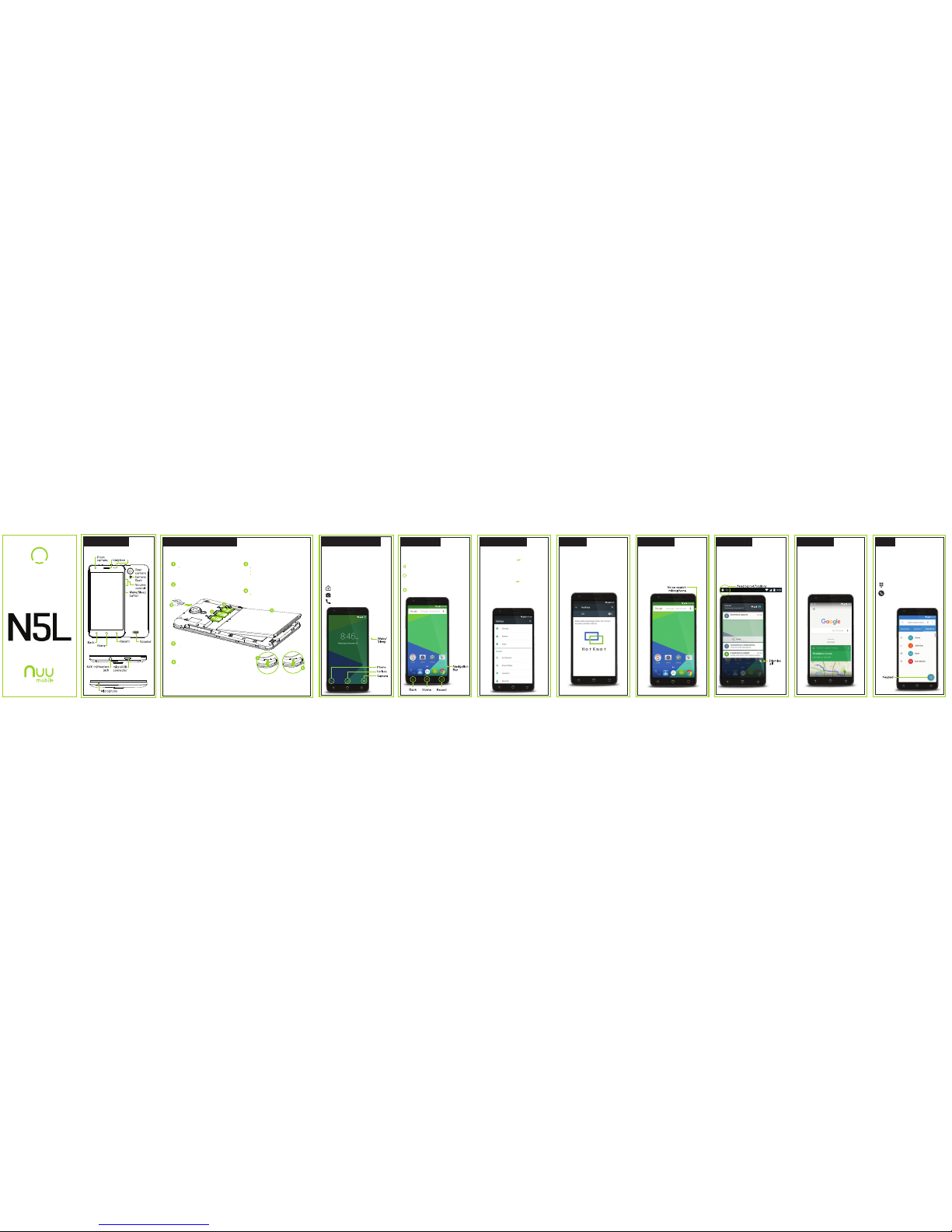
Air Gestures: Settings Personal: Air
Gestures. Switch between photos, and
more – all without touching your screen.
Simply hold your finger near the proximiy
sensor to perform Air Gestures.
SmartWake: Settings Personal:
SmartWake. Instantly access your
most-used functions – directly from your
lock screen.
While the phone is locked, tap, trace, or
swipe your screen to enable SmartWake.
Make and receive phone calls via the
following methods:
Speed Dial: one-touch dialing for favorites
and numbers you call frequently.
Recent: view call log. Tap an entry to
redial.
Contacts: view your contacts. Tap a
contact to call.
Keypad: manually enter phone
numbers.
Incoming Call: slide right to answer,
slide left to send to voicemail.
*Please do not charge your phone while making a
phone call.
Phone
Google Now is your personal digital
assistant. It uses location reporting and
history to provide you with easy access to
weather, traffic, scores, and other
need-to-know information. You may turn it on
or off at any time by tapping the Google™
search bar on any Home screen.
Google Now
™
Receive alert notifications on arrival of new
messages, calendar events, alarms, and other
ongoing events. When a notification arrives, the
corresponding icon will appear at the top of the
screen.
To expand a notification, drag-n-drop the icon
by slowly swiping downward. When finished,
either swipe it away or tap the dismiss all
button.
Notifications
You can speak to your phone to search, get
directions, send messages, and perform
other common tasks such as send emails or
open apps.
To activate voice search, tap the microphone
icon located at the top of any home screen.
Voice Search
Share data, links, photos, videos and more
using HotKnot, a file transfer technology from
MediaTek.
Select the media you wish to share and
simply hold the screens of two
HotKnot-enabled devices less than one
centimeter apart and the media will appear
on both screens.
HotKnot
™
To move between Home screens, swipe left or
right. The Navigation bar shows which Home
screen you have selected, and is located at the
bottom of every Home screen.
Back: tap at any time to return to the
previous screen.
Home: tap at any time to return to the
central Home screen. Press and hold to
access recent apps.
Recent: tap to see previously opened
applications
Basic Controls
To turn on your phone, press and hold the
Wake/Sleep button until the NUU logo appears
on the screen. The first time you turn on your
phone you will prompted to complete initial setup.
Simply follow the on-screen instructions.
To power off or reboot your phone, press and
hold the Wake/Sleep button, then select your
desired action/response from the list.
To Lock, press the Wake/Sleep button.
Swipe up to unlock your phone.
Swipe to the left to enable camera.
Swipe to the right to enable phone.
Welcome to Your N5L
Your phone is equipped with gesture controls to
quickly and easily access features and settings.
Gesture Controls
Getting Started
With Your
www.nuumobile.com
N5L Overview
Front/Back
Top
Bottom
Proximity
Sensor
Setting up Your Phone
Follow these step-by-step instructions to set up your N5L.
Power off the phone and remove battery before inserting any cards!
Warning: SIM cards are small enough to become a choking hazard,
so please keep them away from children. SIM cards are also quite
delicate. Please be careful when handling your card.
Remove the back cover by prying
the upper corner of your device
with your fingers.
Power off the phone and remove
battery before inserting memory
card.
After installing the SIM card, memory
card, and battery, align the cover and
snap it closed. Make sure you press all
around the edge to ensure a secure fit.
Plug in the microUSB connector to
charge the phone or transfer data.
Orient SIM card to match diagram on slot.
SIM 1 (Micro) supports 4GLTE connections.
SIM 2 (Micro) supports 4GLTE connections.
Align the battery contacts, then insert the
battery contact-first.
Remove Back C over
Insert microSD
™
Memory Card
Replace Back Cover
Charge/Sync
Insert SIM (Dual SIM Standby)
Insert the Battery
Page 2
Panorama
Questions? Let us help. We're here to
support you.
Phone: Toll Free: 844-NUU-3365
507-529-1441
U.S. hours: M-F 8:00am-4:30pm CT
See our website for after-hours
support.
Email: [email protected]
Warranty Information
Limited Two Year Warranty Information
NUU Limited (hereafter referred to as NUU), warrants this device to be free from defects in workmanship and materials, under normal
use and conditions, for a period of two (2) year from the date of original purchase. Removable lithium-polymer battery is covered under
warranty for a period of one (1) year from date of original purchase. If you are experiencing any problems with the operation or function
of your product, please make sure you have downloaded our full owner’s manual from our website for reference or contact the
authorized local distributor. Should this fail to resolve the matter and service is still required by reason of any defect or malfunction
during the warranty period, NUU will repair or, at its discretion, replace this product without charge. This decision is subject to
verification of the defect or malfunction upon delivery of this product to a designated factory service center. The product must
include proof of purchase, including date of purchase. To obtain the Warranty Service, Customer must contact the authorized
local distributor within the applicable warranty period to obtain warranty service authorization. Dated proof of original purchase from
the authorized reseller will be required. NUU is not responsible for Customer’s products or parts received without a warranty service
authorization. Products or parts shipped by Customer to local distributor must be sent prepaid and packaged appropriately for safe
shipment, and it is recommended that they be insured or sent by a method that provides for tracking of the package.
THIS WARRANTY SHALL NOT BE EXTENDED, ALTERED OR VARIED EXCEPT BY A WRITTEN INSTRUMENT DULY SIGNED BY
NUU WARRANTIES EXCLUSIVE. IF THIS PRODUCT DOES NOT OPERATE AS WARRANTED ABOVE, CUSTOMER’S SOLE REMEDY
FOR BREACH OF THAT WARRANTY SHALL BE REPLACEMENT OR REPAIR OF THE PRODUCT OR PART OR REFUND OF THE
PURCHASE PRICE PAID, AT NUU. THIS WARRANTY IS IN LIEU OF ALL OTHER WARRANTIES (OR CONDITIONS), EXPRESSED OR
IMPLIED, INCLUDING (WITHOUT LIMITATION), ANY WARRANTIES OF MERCHANTABILITY, NON-INFRINGEMENT, OR FITNESS
FOR A PARTICULAR PURPOSE. NUU SHALL NOT BE LIABLE FOR LOSS OF PROFITS OR ANY SPECIAL, INCIDENTAL, OR
CONSEQUENTIAL DAMAGES WHICH THE PURCHASER MAY SUSTAIN. IN NO EVENT SHALL NUU’S LIABILITY EXCEED THE
PURCHASE PRICE OF THE DEFECTIVE PRODUCT. NUU NEITHER ASSUMES NOR AUTHORIZES ANY OTHER PERSON TO
ASSUME FOR IT ANY OTHER LIABILITY IN CONNECTION WITH THE SALE, INSTALLATION, MAINTENANCE OR USE OF ITS
PRODUCTS. NUU SHALL NOT BE LIABLE UNDER THIS WARRANTY IF ITS TESTING AND EXAMINATION DISCLOSE THAT THE
ALLEGED DEFECT OR MALFUNCTION IN THE PRODUCT DOES NOT EXIST OR WAS CAUSED BY CUSTOMER’S OR ANY THIRD
PERSON’S MISUSE, NEGLECT, IMPROPER INSTALLATION OR TESTING, UNAUTHORIZED ATTEMPTS TO OPEN, REPAIR, OR
MODIFY THE PRODUCT, WATER DAMAGE, OR ANY OTHER CAUSE BEYOND THE RANGE OF THE INTENDED USE, OR BY
ACCIDENT, FIRE, LIGHTNING, OTHER HAZARDS, OR ACTS OF GOD. THIS WARRANTY DOES NOT COVER PHYSICAL DAMAGE
TO THE SURFACE OF THE PRODUCT, INCLUDING CRACKS OR SCRATCHES ON OUTSIDE CASING. THIS WARRANTY DOES
NOT APPLY WHEN THE MALFUNCTION RESULTS FROM THE USE OF THIS PRODUCT IN CONJUNCTION WITH ACCESSORIES,
OTHER PRODUCTS, OR ANCILLARY OR PERIPHERAL EQUIPMENT AND NUU DETERMINES THAT THERE IS NO FAULT WITH THE
PRODUCT ITSELF. THIS WARRANTY DOES NOT APPLY TO ANY MALFUNCTION OR FAILURE OF THE PRODUCT OR PART DUE
TO ANY COMMUNICATION SERVICE CUSTOMER MAY SUBSCRIBE TO OR USE WITH THE PRODUCT. WARRANTY IS VOID IF
THE WARRANTY STICKER IS REMOVED.LIMITATION OF LIABILITY: TO THE FULL EXTENT ALLOWED BY LAW, NUU ALSO
EXCLUDES FOR ITSELF AND ITS SUPPLIERS ANY LIABILITY, WHETHER BASED IN CONTRACT OR TORT (INCLUDING
NEGLIGENCE), FOR INCIDENTAL, CONSEQUENTIAL, INDIRECT, SPECIAL, OR PUNITIVE DAMAGES OF ANY KIND, OR FOR LOSS
OF REVENUE OR PROFITS, LOSS OF BUSINESS, LOSS OF INFORMATION OR DATA, OR OTHER FINANCIAL LOSS ARISING OUT
OF OR IN CONNECTION WITH THE SALE, INSTALLATION, MAINTENANCE, USE, PERFORMANCE, FAILURE, OR INTERRUPTION
OF THIS PRODUCT, EVEN IF NUU OR ITS AUTHORIZED RESELLER HAS BEEN ADVISED OF THE POSSIBILITY OF SUCH
DAMAGES, AND LIMITS ITS LIABILITY TO REPLACEMENT, REPAIR, OR REFUND OF THE PURCHASE PRICE PAID, AT NUU’S
DISCRETION. THIS DISCLAIMER OF LIABILITY FOR DAMAGES WILL NOT BE AFFECTED IF ANY REMEDY PROVIDED HERE-IN
SHALL FAIL OF ITS ESSENTIAL PURPOSE.
Disclaimer: Some countries, states, or provinces do not allow the exclusion or limitation of implied warranties or the limitation of
incidental or consequential damages for certain products supplied to consumers, or the limitation of liability for personal injury, so the
above limitations and exclusions may be limited in their application to you. When the implied warranties are not allowed to be excluded
in their entirety, they will be limited to the duration of the applicable written warranty. This warranty gives you specific legal rights which
may vary depending on local law.
NUU Service Center: 3111 19th Street NW Rochester, MN 55901-6606 USA Phone: 1-844-688-3365
Warranty Registration
Customer Support
FCC Information
FCC STATEMENT
This device complies with Part 15 of the
FCC Rules. Operation is subject to the
following two conditions:
1. This device may not cause harmful
interference, and
2. This device must accept any interference
received, including interference that may
cause undesired operation. Changes or
modifications not expressly approved by
the party responsible for compliance
could void the user’s authority to operate
the equipment.
NOTE: This equipment has been tested and
found to comply with the limits for a Class B
digital device, pursuant to Part 15 of the
FCC Rules. These limits are designed to
provide reasonable protection against
harmful interference in a residential
installation. This equipment generates, uses
and can radiate radio frequency energy and,
if not installed and used in accordance with
the instructions, may cause harmful
interference to radio communications.
However, there is no guarantee that
interference will not occur in a particular
installation. If this equipment does cause
harmful interference to radio or television
reception, which can be determined by
turning the equipment off and on, the user is
encouraged to try to correct the interference
by one or more of the following measures:
Reorient or relocate the receiving antenna.
Increase the separation between the
equipment and receiver. Connect the
equipment into an outlet on a circuit different
from that to which the receiver is connected.
Consult the dealer or experienced radio/TV
technician for help.
FCC RF Warning Statement: The device
has been evaluated to meet general RF
exposure requirement. The device can be
used in portable exposure condition without
restriction.
Register Your Device
Thank you for choosing NUU mobile. To
receive helpful tips and faster tech support,
register your device online at
www.nuumobile.com
www.nuumobile.com
Learn more about NUU Mobile products,
features and accessories at
Google Play
™
The Google Play store allows you to download
apps, music, movies, and games directly to
your device.
To access the Google Play store go into
All Apps and tap the Google Play icon.
To access your purchased content, select a
category then tap the Drawer icon.
Google Maps
™
See where you are on a map or get directions
to where you want to go by tapping the
Google Maps icon. Select mode of
transportation by tapping the then type
the address or destination in the search box.
Google Chrome
™
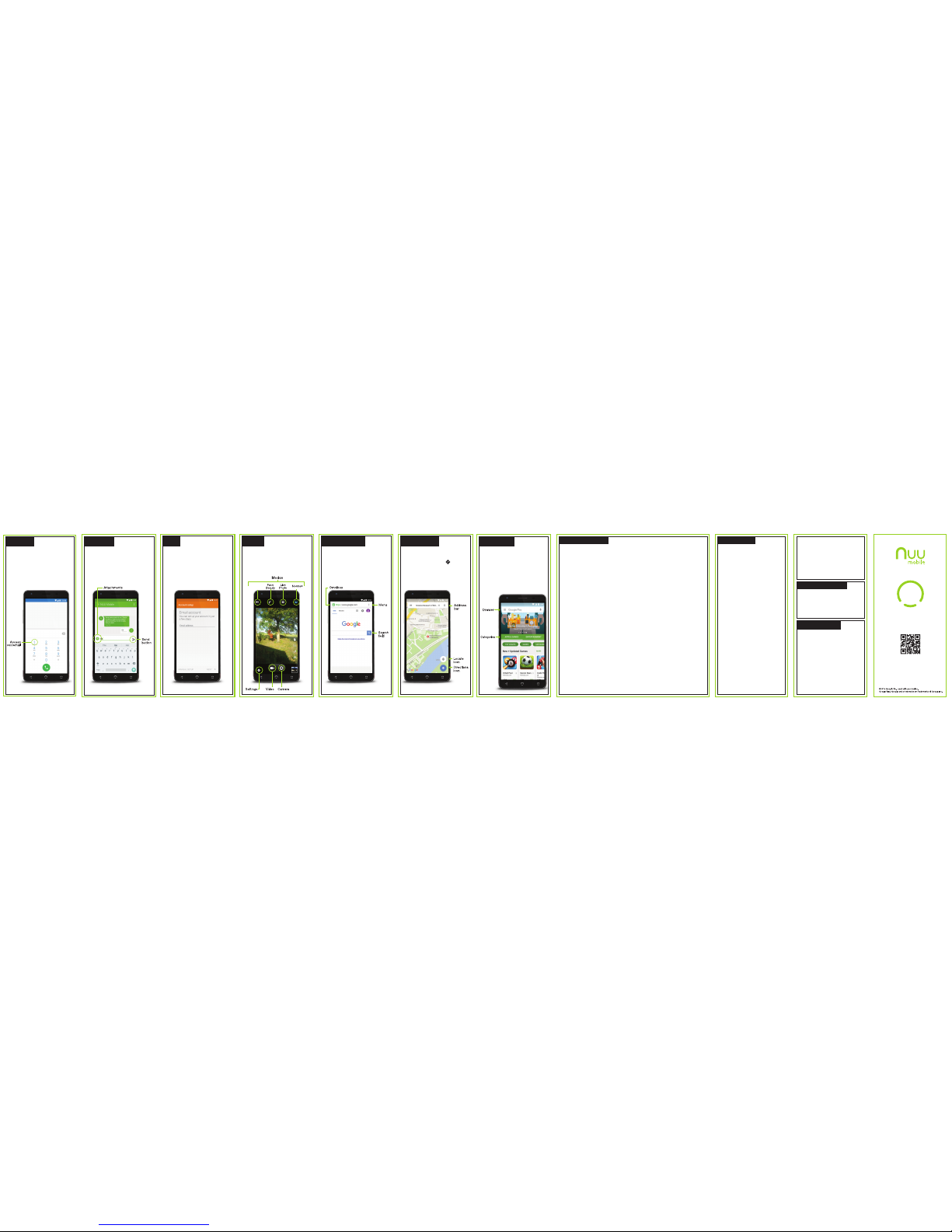
Browse the web with Google Chrome by
tapping the Google Chrome icon. Type an
address or search term into the Omnibox to
get started.
Use Menu to access a new tab, bookmarks,
history, reload a page, request a desktop
version of the site, and change other
settings
Use the built-in camera to take pictures or
record videos. To access the camera from
the lock screen, swipe from right to left. From
the Home screen, tap the camera icon.
Camera
You can set up your account in just a few
steps.
To access email go into All Apps, tap the
email icon than simply follow the on-screen
instructions.
Email
Send an SMS or MMS to another mobile
phone user by tapping the Messages icon.
Type name or phone number in the field or
select someone from Frequents or All
Contacts.
Type your messages, add desired
attachments, then tap Send.
Messaging
To access your voicemail, press and hold 1
on the keypad.
Voicemail number and setup will vary by
provider.
Voicemail
*Please do not charge your phone while playing games.
 Loading...