

Page 1
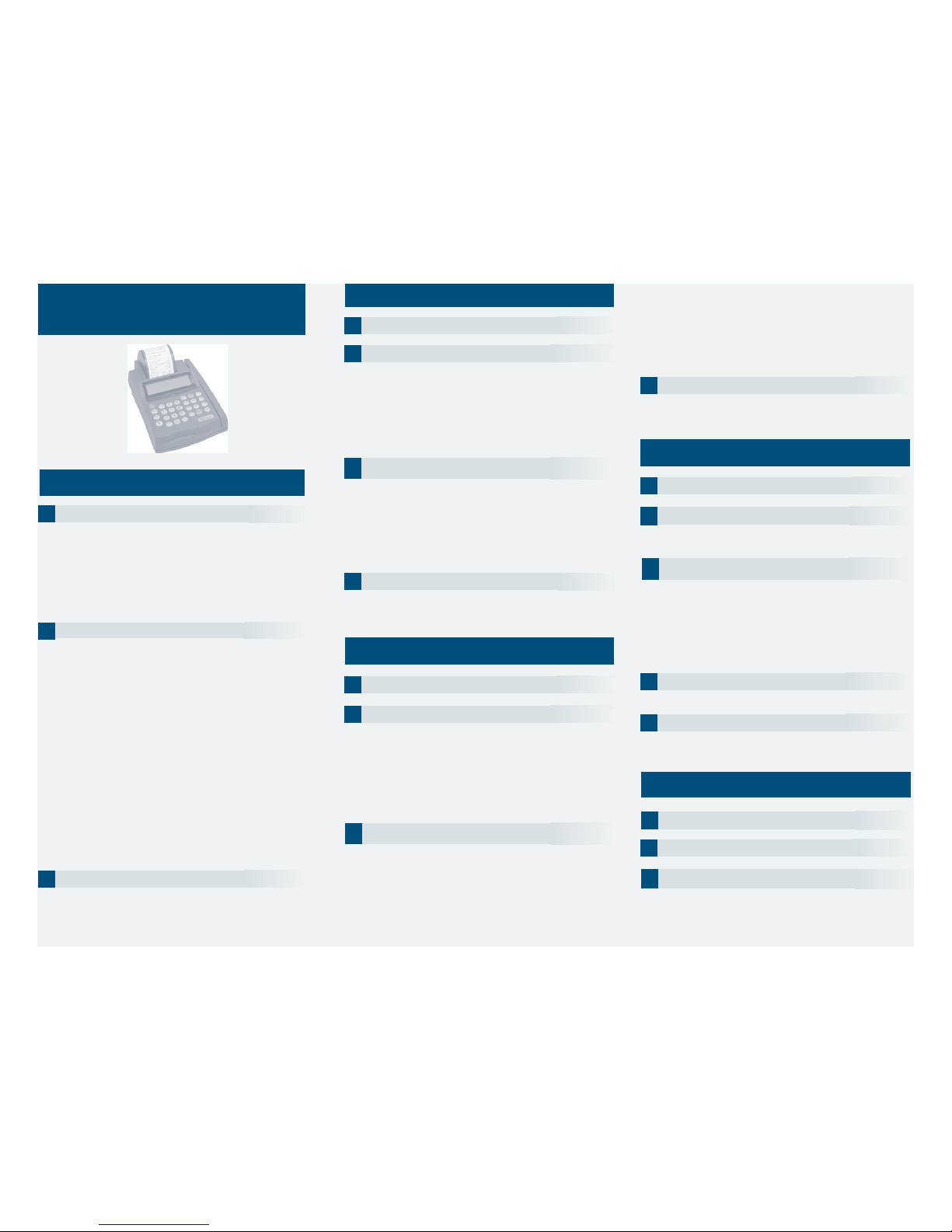
Credit Sale
1
Swipe card through vertical slot as shown on terminal.
N OT E : If the magnetic stripe cannot be read by the terminal,
a sales slip must be imprinted with the credit card info r m a t i o n
to verify that the card was present at the time of the transaction.
Failure to imprint the card may result in a chargeback.
For manual entry:
•Key in card number and press the ENTER key.
•Key in the expiration dates and press the ENTER key.
(Example: for December 2001, enter 1201)
2
Key in dollar amount of transaction,then press the ENTER key.
NOTE:Prompting messages vary based on card type
and setup. Terminal may display the following prompts:
•Invoice Number? Key the appropriate information, press the
ENTER key.
•Clerk ID? Key the appropriate information, press the
ENTER key.
•Order Number? Key the appropriate information, press the
ENTER key.
•Type of Order? Choose the appropriate option.
1. Mail/Phone Order
2. Recurring
3. Installment
4. Unknown
5. Card Present
•If Option 1. Mail/Phone Order, or Option 5. Card Present was
chosen the following prompts might appear.
•Enter ZIPCode. Key the appropriate information, press the
ENTER key.
•Enter House No.#. Key the appropriate information, press the
ENTER key.
3
Transaction complete—Sale captured.
•Receipt prints if transaction is approved.
•Terminal displays transaction response, then returns to the IDLE prompt.
•Have customer sign receipt and place in cash register drawer.
Credit Return/Refund
1
To u ch the RETURN ▲ k ey on the terminal.
2
Swipe card through vertical slot as shown on terminal.
N OT E : If the magnetic stripe cannot be read by the terminal,
a sales slip must be imprinted with the credit card info r m a t i o n
to verify that the card was present at the time of the transaction.
Failure to imprint the card may result in a chargeback.
For manual entry:
•Key in card number and press the ENTER key.
•Key in the expiration dates and press the ENTER key.
(Example: for December 2001, enter 1201)
4
Transaction complete—Return/Refund captured.
•Receipt prints if transaction is approved.
•Terminal displays transaction response, then returns to the IDLE prompt.
•Have customer sign receipt and place in cash register drawer.
Debit Sale
2
Swipe card through vertical slot as shown on terminal.
NOTE:All debit card transactions must be swiped;debit card
numbers may not be entered manually.
Debit Return/Refund
3
Swipe card through vertical slot as shown on terminal.
N OT E : All debit card transactions must be sw i p e d ;debit card
numbers may not be entered manually.
1
Press the PAYMT/MODE key.
NURIT 2085
QUICK REFERENCE GUIDE
F L I P 0 0 1
R E TAIL/DIRECT MARKETING
ETC TYPE 7 APPLICAT I O N
4
Customer enters PIN to complete transaction.
•To end hit the ENTER key.
3
Key in dollar amount of transaction,then press the
ENTER key.
NOTE:Prompting messages vary based on card type
and setup. Terminal may display the following prompts:
•Invoice Number? Key the appropriate information, press the
ENTER key.
•Clerk ID? Key the appropriate information, press the
ENTER key.
•Order Number? Key the appropriate information, press the
ENTER key.
1
Press the PAYMT/MODE key.
3
Key in debit sale amount of transaction,then press the
ENTER key.
NOTE:Prompting messages vary based on card type
and setup.Terminal may display the following prompts:
• Cashback Amount? Key the appropriate information, press the
ENTER key.
•Invoice Number? Key the appropriate information, press the
ENTER key.
•Clerk ID? Key the appropriate information, press the
ENTER key.
5
Transaction complete—Debit Sale captured.
•Receipt prints if transaction is approved.
•Terminal displays transaction response, then returns to the IDLE prompt.
•Have customer sign receipt and place in cash register drawer.
2
Press the RETURN key.
Credit Ticket Only/Forced
1
To u ch the FORCED ▼ k ey on the terminal.
2
Swipe card through vertical slot as shown on terminal.
NOTE:When given the approval code by an operator, you
must complete a Credit Ticket Only/Forced transaction to
enter the item into the terminal and print a receipt for the
customer to sign.
For manual entry:
•Key in card number and press the ENTER key.
•Key in the expiration dates and press the ENTER key.
(Example: for December 2001, enter 1201)
3
Key in dollar amount of transaction,then press the
ENTER key.
NOTE:Prompting messages vary based on card type
and setup.Terminal may display the following prompts:
•Enter Auth Code? Key the appropriate information, press the
ENTER key.
•Invoice Number? Key the appropriate information, press the
ENTER key.
•Clerk ID? Key the appropriate information, press the
ENTER key.
4
Transaction complete—Ticket Only/Forced capture.
•Receipt prints if transaction is approved.
•Terminal displays transaction response, then returns to the IDLE prompt.
•Have customer sign receipt and place in cash register drawer.
•Order Number? Key the appropriate information, press the
ENTER key.
•Type of Order? Choose the appropriate option.
1. Mail/Phone Order
2. Recurring
3. Installment
4. Unknown
5. Card Present
Page 2

Amex:
Diners:
Discover:
VISA/MC:
Customer Support:
Card Name
Merchant Number
Phone Number
Additional Terminal Functions
E T C - 0 4 3
ViewTerminal Totals.
Press the REVIEW key on the terminal.
Terminal Display s :
Scroll Totals < >
C r e d i t : 0 . 0 0
D e b i t : 0 . 0 0
To t a l : 0 . 0 0
•Highlight the credit or debit totals by hitting the FORCED
q key or the RETURNp key.
•Press the MENU ESC key to return to the IDLE prompt.
Reprint Receipt.
P r e s s the A L P H A / C O P Y key on the terminal.
Terminal Display s :
Receipt Copy:
1 . Last receipt
2 .A ny receipt
3 . Last with SGN
•Choose the appropriate print option by hitting the number or
use the F O R C E Dq key or the R E T U R Np key to scroll from
one option to the next, then press the E N T E Rk e y .
Void a Transaction.
Press the VO I Dukey on the terminal until you have the
appropriate transaction type.
• Key in card number and press the ENTER key.
• Key in the expiration dates and press the ENTER key.
(Example: for December 2001, enter 1201)
•Key in the original dollar amount of transaction and press
the ENTER key.
• Invoice Number. Key in the original invoice number and
press the ENTER key.
View a Transaction.
Press the REVIEW key on the terminal.
Terminal Display s :
Scroll Totals < >
C r e d i t : 0 . 0 0
D e b i t : 0 . 0 0
To t a l : 0 . 0 0
•Highlight the credit or debit totals by hitting the F O R C E Dq
key or the RETURN p key.
•Once you have the transaction type you desire to review,
press the E N T E R k e y.
•Use the F O R C E D q key or the RETURNp key to scroll
from one transaction to the next.
•Use the VO I Du key or the VERIFYt key to scroll through
a individual transaction.
•Press the MENU ESC key to return to the IDLE prompt.
Close Batch.
Press the BAT C H / A LT key on the terminal.
N OT E : All reports must be printed prior to settlement.
Terminal Responses
D e f i n i t i o n s :
• Call Center
– Operator should call the credit authorization center.
• D e cl i n e d
–The authorization for the transaction has been declined.
• Invalid Card #
– The credit card presented is not acceptable for payment.
• Invalid Tran Type
– Incorrect transaction attempted.
• Invalid Merch #
– Invalid merchant # for the transaction attempted.
• I nvalid Amount
–Authorization request must be for at least $1.00.
• Inv Batch Seq
– Improper procedures have created an invalid terminal condition.
• Force $XXXXX.XX
– The batch was closed with an error condition.
• Invalid $XXXXX.XX
– An invalid cardholder # was detected in the batch during
the close process.
• Close $XXXXX.XX
– The response for a normal close transaction.
5
Customer enters PIN to complete transaction.
•To end hit the ENTER key.
6
Transaction complete—Debit Return/Refund captured.
• Receipt prints if transaction is approved.
•Terminal displays transaction response, then returns to the IDLE prompt.
•Have customer sign receipt and place in cash register drawer.
4
Key in debit refund amount of transaction, then press the
ENTER key.
NOTE:Prompting messages vary based on card type
and setup. Terminal may display the following prompts:
•Enter Auth Code? Key the appropriate information, press the ENTER k e y.
•Invoice Number? Key the appropriate information, press the ENTER k e y.
•Clerk ID? Key the appropriate information, press the ENTER k e y.
Address Verification (AVS
)
Visa and MasterCard offer the Address Verification Service
(AVS) to merchants.This service reduces chargebacks by
allowing merchants to check customers’addresses and/or
ZIP codes against their credit card account numbers while
performing authorizations.
Address verification is usually performed for manually
entered sales,mail/phone orders and other transactions in
which the credit card is not present.If your terminal
prompts for AVS address or ZIP code verification,please
follow these steps.
Transaction complete. Sale captured.
•Receipt prints if transaction is approved. Wail till finished.
•Have customer sign receipt and place in cash register drawer.
•Terminal displays transaction response. Press Clear.
If address information was entered, a one-character verification
response code is returned along with the approval code. Please
consult your financial institution for a current list of verification
response codes and information regarding the use of these codes.
A- Address matches, ZIPcodes does not match.
E - Ineligible transaction.
N - Address and ZIPcode do not match.
R - Re-enter, system unavailable.
S - Service not supported.
U - Address information not available.
W - Nine digit ZIPcode matched, address does not match.
X - Exact match of address and nine digit ZIP code.
Y - Five digit ZIP code matches, address does not.
If your terminal prompts House No.#?
Enter only the first five numeric digits (or up to the first space)
of the customers home address; do not attempt to enter any
alpha characters for street names.
Example: If address is ... You enter ...
One Main Street 1
123 First Ave. 1 2 3
23 Main St., No. 56 2 3
4567 Main St, Apt. 89 4 5 6 7
34567 Main St., Apt. C-12 3 4 5 6 7
•Press ENTER.
If your terminal prompts for AVS ZIP?
•Enter the customers 5 or 9 digit ZIPcode, press ENTER.
 Loading...