

Page 1

1
Smart phone
Brand Name: NUQLEO
Model Name: Quadrant
FCC ID: JJMQUADRANT
Page 2

- 2 -
CONTENTS
How Introduction ...................................................................................................... - 5 -
Introduction phone keys ........................................................................................... - 5 -
Introduction widgets .................................................................................................. - 5 -
Information Function ................................................................................................. - 5 -
Contact Features ....................................................................................................... - 9 -
Call History Features .............................................................................................. - 11 -
Paste the text / copy Features ............................................................................... - 12 -
E-mail Features ....................................................................................................... - 12 -
Desktop Features .................................................................................................... - 14 -
Bluetooth Function .................................................................................................. - 18 -
Wifi Features ............................................................................................................ - 18 -
FM Function ............................................................................................................. - 18 -
Flight mode Function .............................................................................................. - 19 -
Black unlock ............................................................................................................. - 20 -
Restore to factory default ....................................................................................... - 20 -
Storage Settings ...................................................................................................... - 20 -
GPS Settings ............................................................................................................ - 21 -
English language switching phone ....................................................................... - 21 -
Replacement mobile phone input method ........................................................... - 23 -
Android phone data cable links ............................................................................. - 23 -
Introduce cross-screen display .............................................................................. - 24 -
Browser Features .................................................................................................... - 24 -
Q/A - 26 -
1. How to turn off the software running in the background too much .............. - 26 -
2. How to quickly set up Email .............................................................................. - 26 -
3. How do I view the capacity of SD card case ................................................... - 26 -
4. How to save electricity JK808 ........................................................................... - 27 -
5. How JK808 lock screen, to prevent others from using .................................. - 27 -
6. Why does not the USB data cable links your computer ................................ - 27 -
7. How to install a program on a non-Android Market ....................................... - 27 -
8. In browsing the web or other applications, how to switch to other applications -
27 -
9. How to enter the silent mode quickly ............................................................... - 27 -
10. How to forward SMS / MMS ............................................................................ - 28 -
11. how to paste and copy text .............................................................................. - 28 -
12. download and install the application installation path can be set to SD card . -
28 -
13. In the phone program group is installed too many applications, how to solve 28 -
14. Contacts are sorted, can change ................................................................... - 28 -
Page 3

- 3 -
15. Contacts whether to support the group ......................................................... - 28 -
16. contacts and SMS storage capacity limits the number of ........................... - 28 -
17. How to set the SD card, personalized ring tones ......................................... - 29 -
18. How to sync the phone contacts to the original JK808 ............................... - 29 -
19. How to use the JK808 access Wifi (WLAN).................................................. - 29 -
20. How to Find Contact ......................................................................................... - 29 -
21. how to download applications for the JK808 ................................................ - 29 -
22. What are commonly used android forum ...................................................... - 29 -
23. How do I delete the downloaded software .................................................... - 30 -
24. How to view mobile phone version information ............................................ - 30 -
25. How do I copy SIM card contact information ................................................ - 30 -
26. why the message has a different time and date display ............................. - 30 -
27.JK808 whether to support the Java................................................................. - 30 -
Page 4

- 4 -
Basic terms
Root:
Super Android system is the administrator user account, which has the
authority to control the whole system, and only have the privileges to the
original system can be refreshed for the revision of the various systems;
APK:
Android application types, with the cab and the Windows Mobile platform,
like exe files, the user can be installed directly;
Eclari :
The name of one of the Android platform, version, and the
corresponding version number is 4.2.1, JK808 use this version;
Webkit:
Core Android platform, browser, and now Apple's Safari, Google's
Chrome and FireFox are using this kernel as a web page rendering
mechanism;
GPhone:
To use Google Android mobile phone operating system developed
collectively, JK808, etc.;
ActiveSync:
Push email solution to support Microsoft proprietary technology,
pre-primary mailbox servers at Microsoft (Exchange server) to provide support,
and now Google's Gmail also provided support
G-Sensor :
Is the acceleration sensors for mobile phones can provide the
direction of gravity sensors, which begin with the letter G represents the gravity,
the latter Snesor meant to represent the sensor
Page 5
- 5 -
How Introduction
Introduction phone keys
Menu button: Click on the program display the corresponding menu item, the
user can choose the corresponding sub-menu functions;
Home button: Click on the background into the current application will, and
enter the main interface; Note that using this key will not really exit the
application, the application will continue to run in the background;
Back button: Click to fall back to previous step of the operation of the interface;
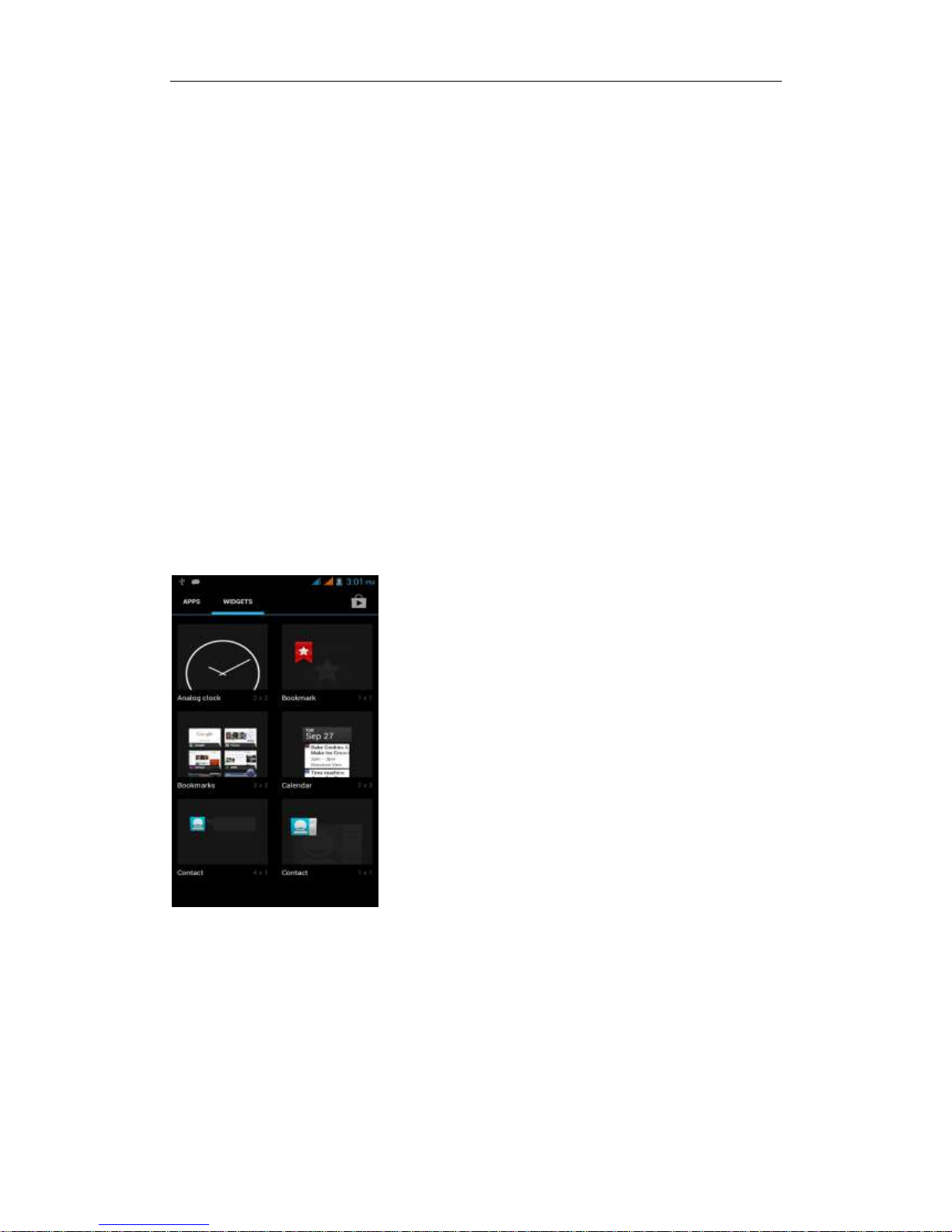
Introduction widgets
1, add widgets to the main screen: in the widgets interface - > Long press a
widget can add to the main screen
2, change the position of widgets: in the main interface, Long press a widget,
sliding the widget can change the position of the widget in the main screen
3. Delete widgets: in the main interface, Long press a widget, the top of the
main screen will be delete ", sliding the widget to delete , when there is red ",
can let go, the widget is deleted
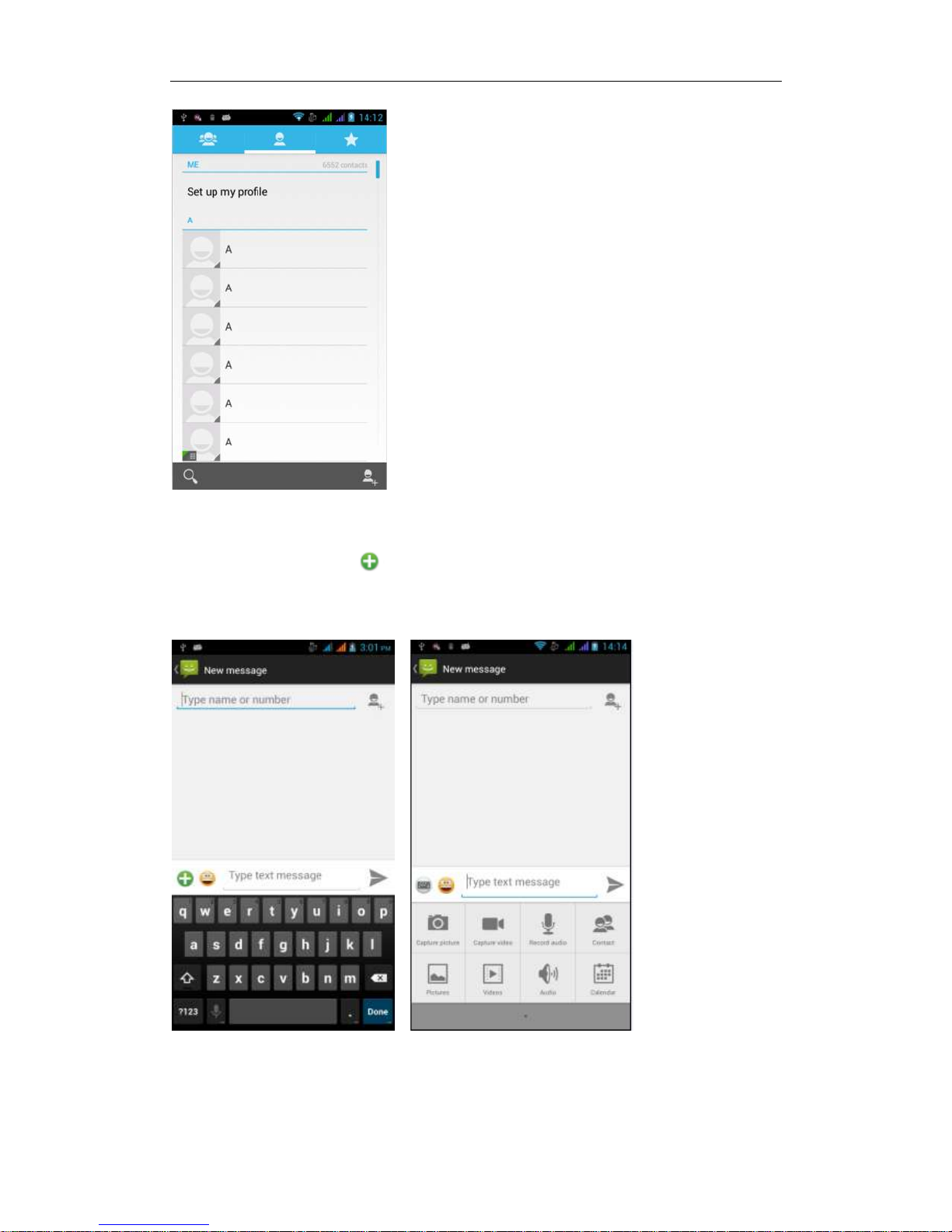
Information Function
To sort the information by contacts, the conversational arrangement, user
understanding of the history of the entire communication information,
information sorted according to first contacts, including contact name for the
first numbers, then letters
(A-Z)
Page 6
- 6 -
Send MMS
New information -"click , add "function - " to select the desired additional
content;
New information-click the menu button -add theme
Page 7
- 7 -
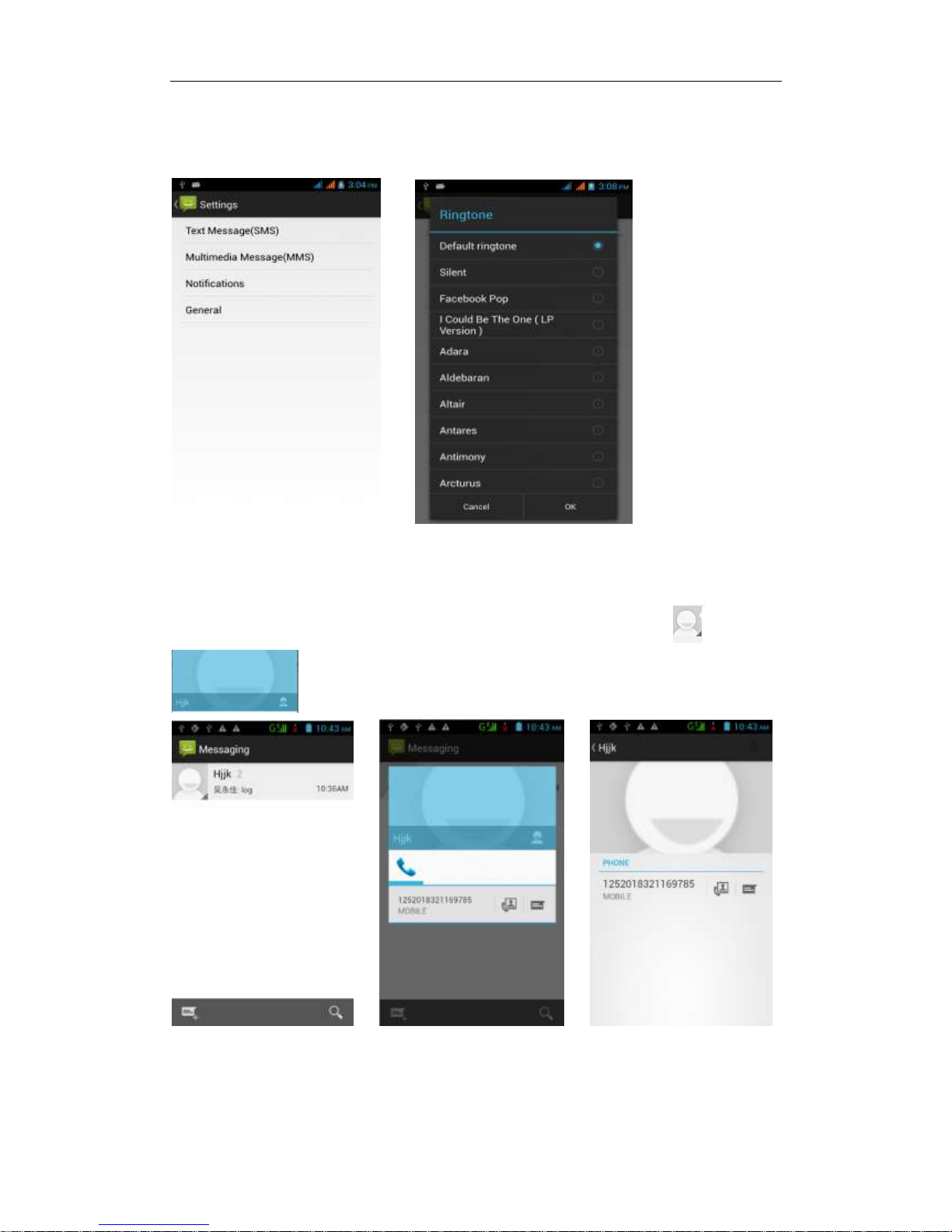
Replacement SMS reminder tone
Access to the information interface - "click the menu button, select "Settings
"function - Select "Notifications"function -Select " Ringtone"function;
View the sender information
Access to the information screen - "Select the message - " click - "click
,can view the sender information
Page 8
- 8 -
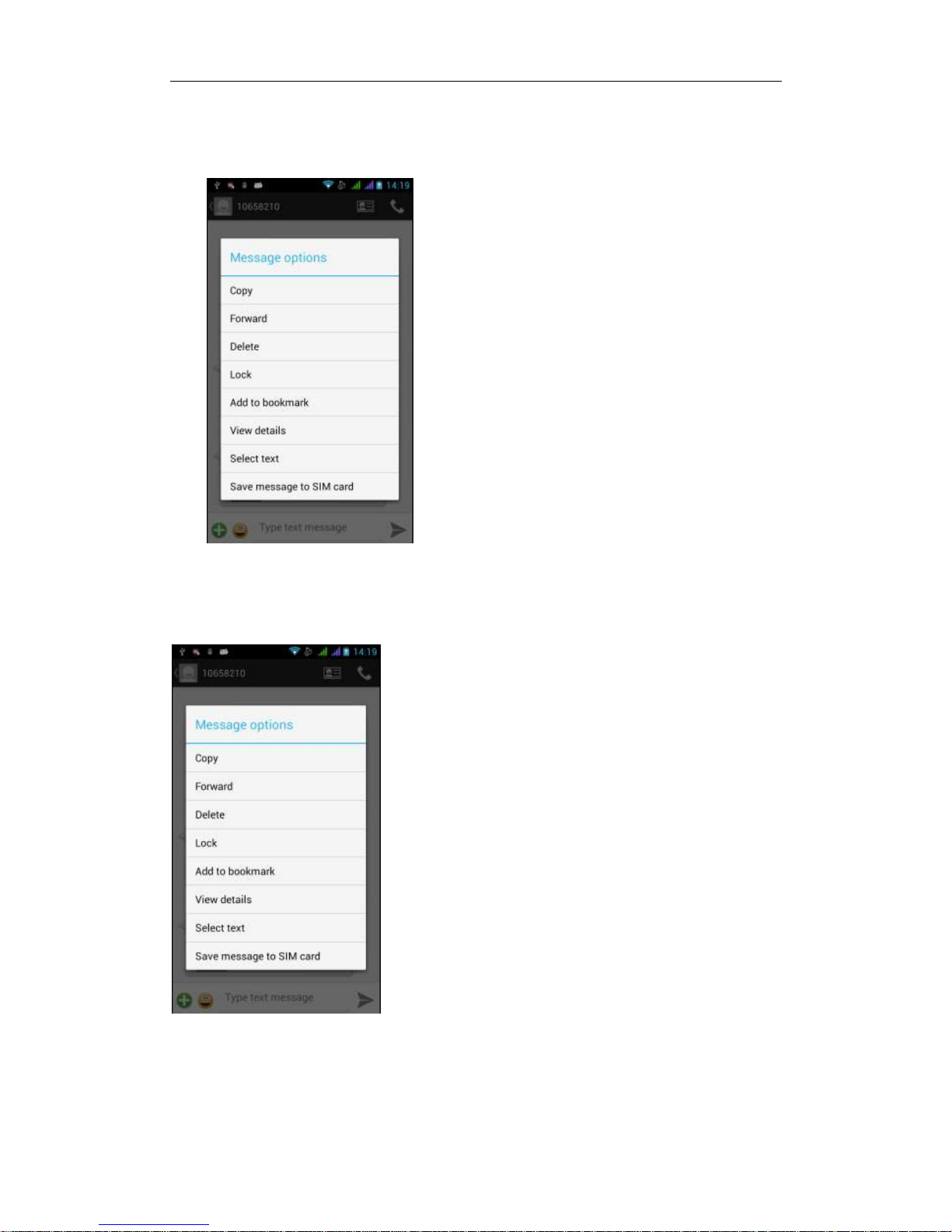
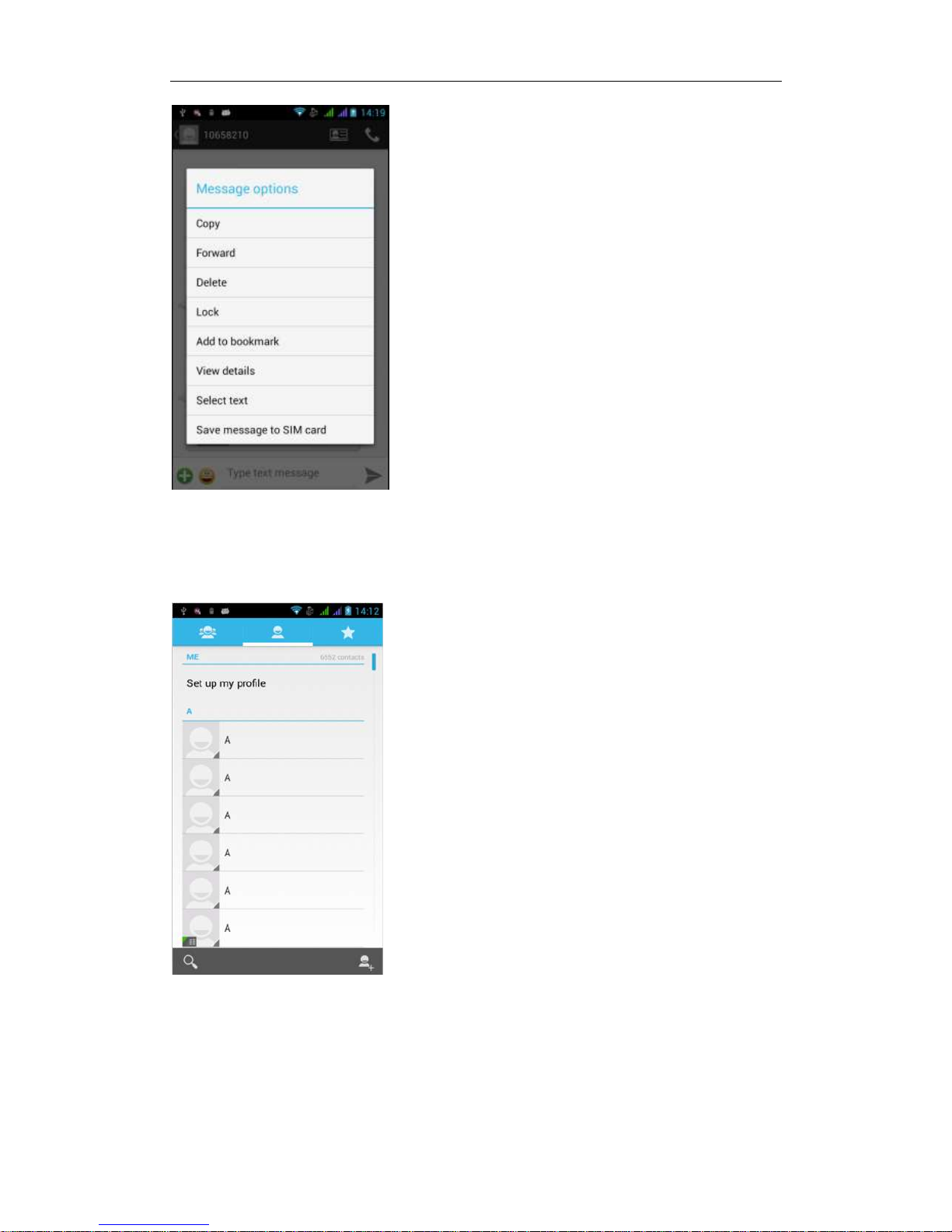
Forwards
Access to the information screen - "Select the message - " Long press the
Information, there shortcut keys - "select"Forward "function
View information details
Access to the information screen- "Select the message-" Long press the
Information, there shortcut keys -"select View details "function
Delete information session specific information on a particular
Access to the information screen - "Select the message - " Long press and
Information, there shortcut keys - "select "Delete "function
Page 9
- 9 -
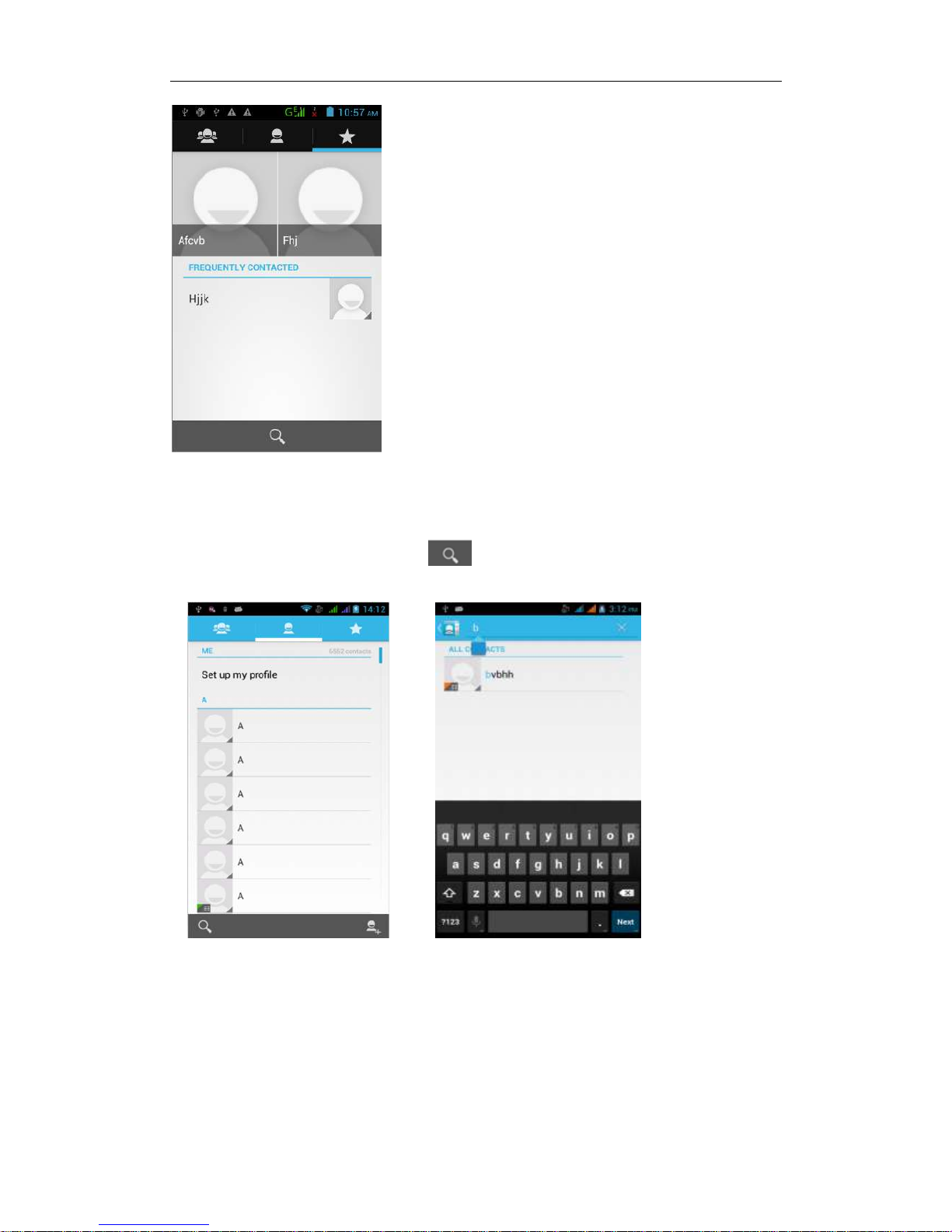
Contact Features
contacts groups, contacts and favorites feature;
Book description
By the first number, then sort the way English characters
(A-Z)
Favorites Introduction
Included collection of contacts, and users often call the recent contact
information, part of the overall fabric Top of the contact information for the user
collection, lower often call into the system default contact information;
Page 10
- 10 -
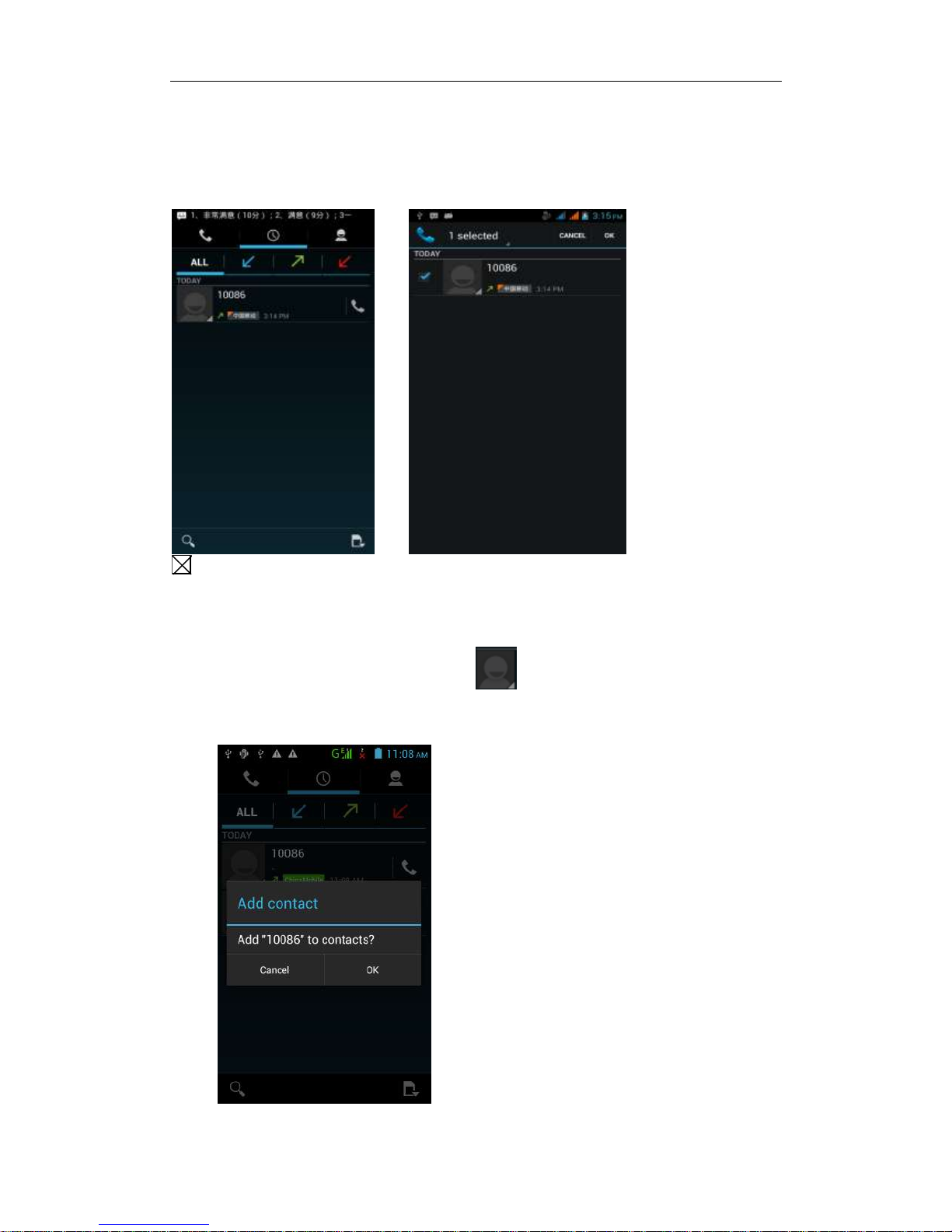
Contact Search
Into the contact interface - "click
button
Search supported by the first letter and the entire search string
Import contact information methods
using Bluetooth to achieve data synchronization
JK808 phone and the original binding, using Bluetooth to achieve
synchronization of contacts;
Page 11
- 11 -
Call History Features
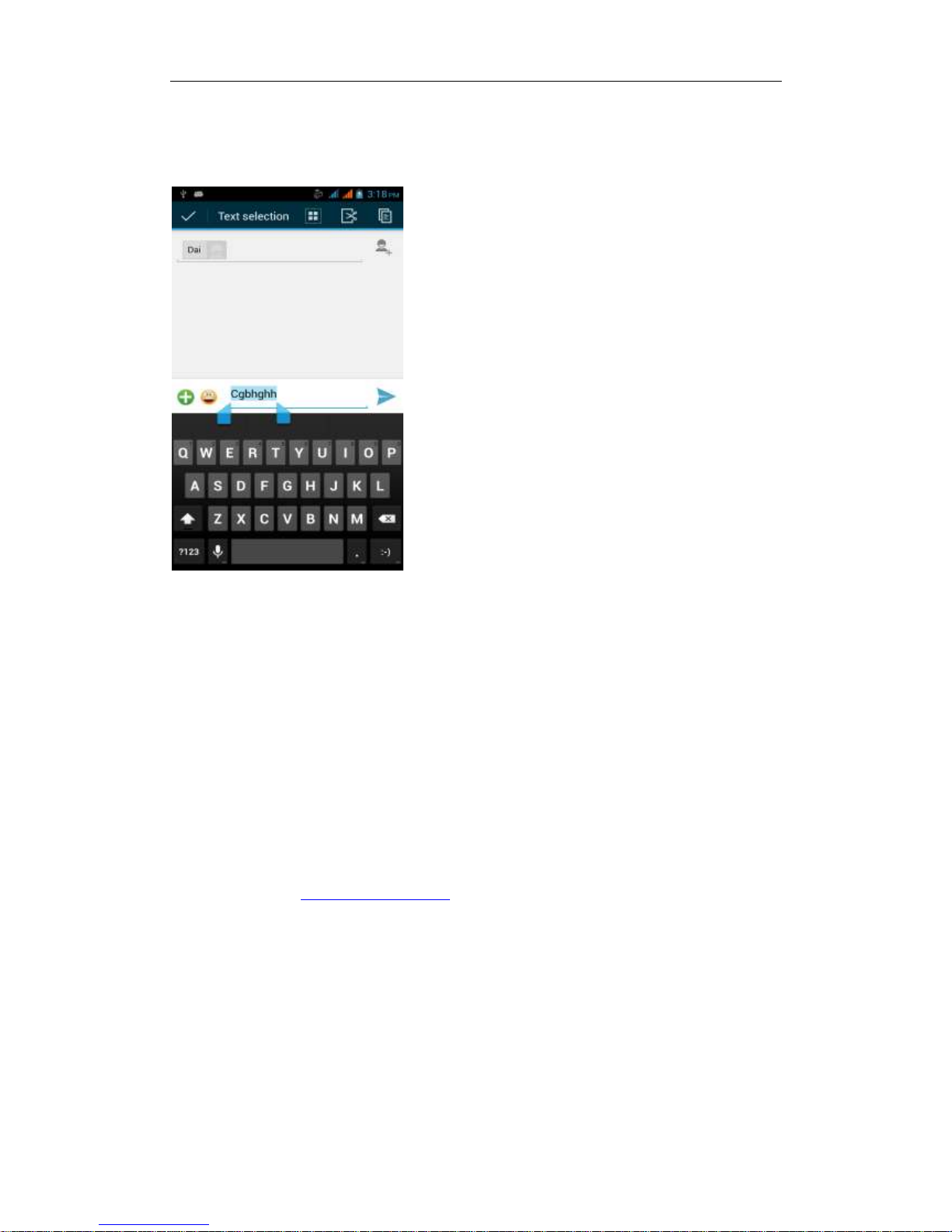
One by one to delete call records
Enter the call log interface - "Click the menu button –Select the delete
Function- " Choose the delete call records- click ok
button
Contact information stored call records
Enter the call log screen - "Select the Save call log - " click- "select "Add to
Contacts "feature
Or directly into the call log entry, -click button -select "Add to Contacts
"feature
Page 12
- 12 -
Paste the text / copy Features
Into the input field - "input string, long press and enter the region, there
shortcut keys - " select All " " cut All " ,"copy All","paste All"
E-mail Features
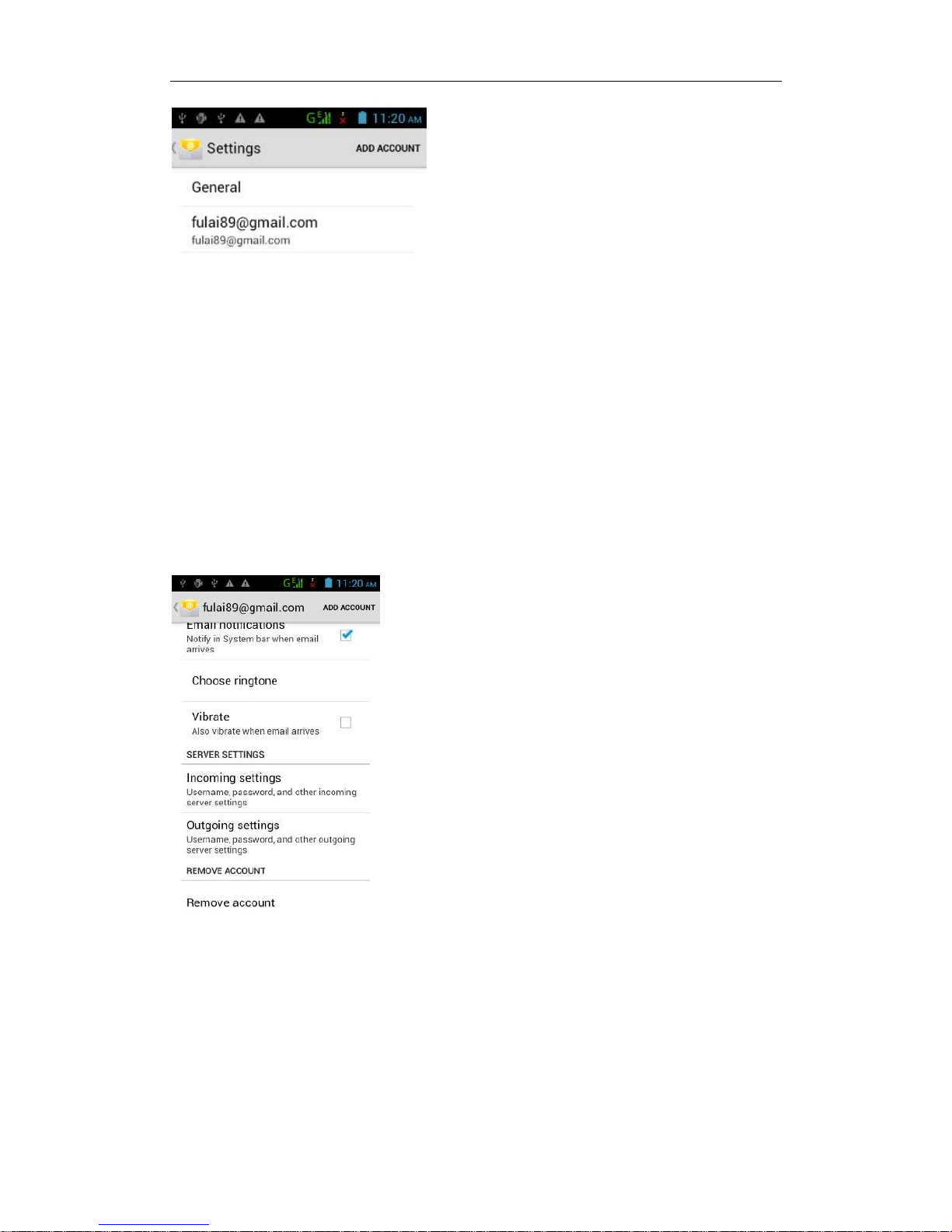
Configuring mail account
Enter the Program Group screen - "Select"Email"application -"Enter e-mail
address and password
If the system automatically recognizes the mailbox information, will
automatically configure; if the system does not recognize, will require users to
type IMAP mailbox, or POP3, enter the appropriate configuration information.
Gmail For example:
E-mail Address:
Password:
Configure multiple email accounts
Enter the Program Group screen - "Select"Email"application -" Click on the
menu button-select setting function -select "Add Account"feature
Page 13
- 13 -
Delete email account
Enter the Program Group screen - "Select"Email"application - Click on the
menu button-select setting function –select account - " select the "Remove
Account"function
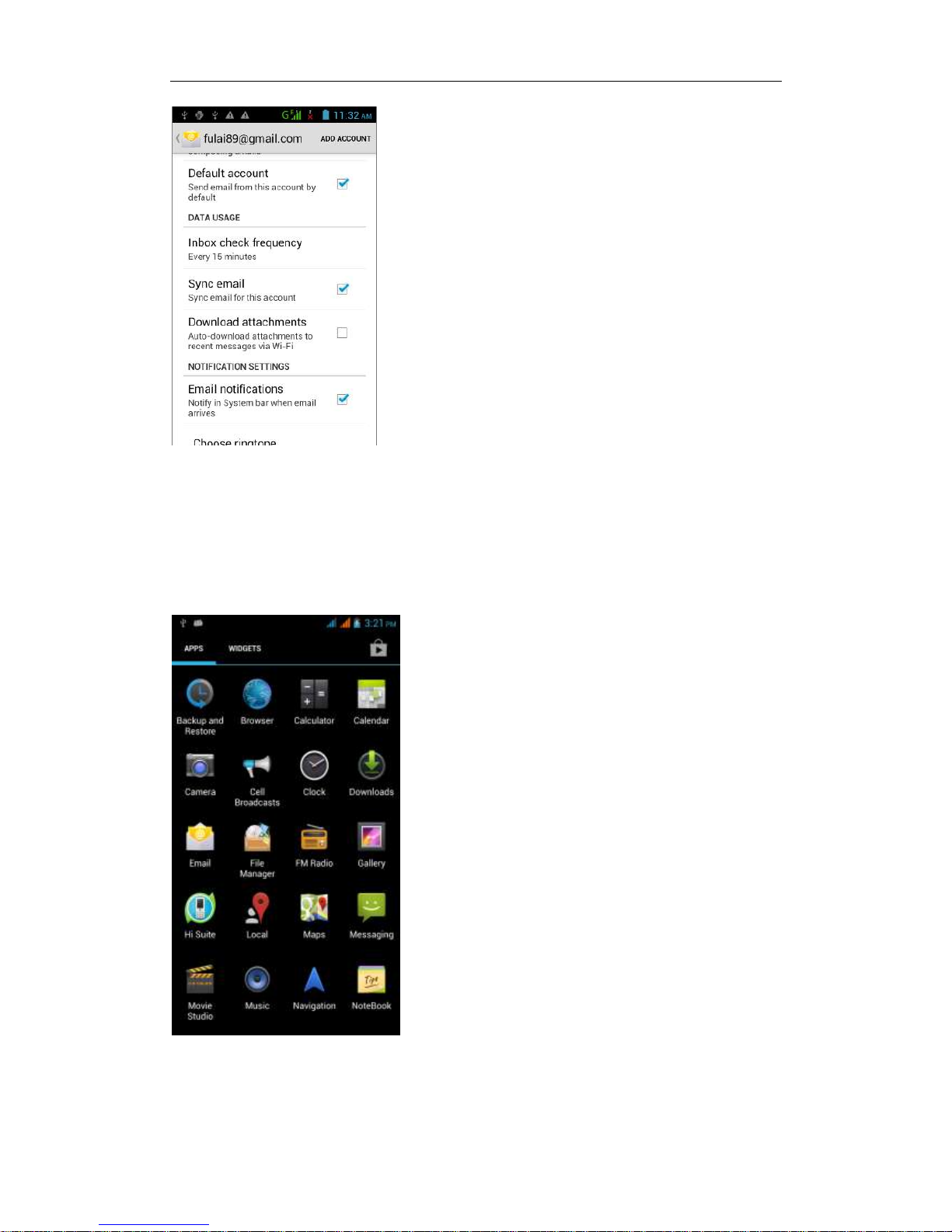
Email check frequency setting
Enter the Program Group screen - "Select"Email"application - Click on the
menu button-select setting function –select account - " select I nbox check
frequency "function
Page 14
- 14 -
Desktop Features
The common features into the desktop
Interface into the program group - "Select the desktop into the application
-"long by application, the application will be placed to the desktop;
Page 15
- 15 -
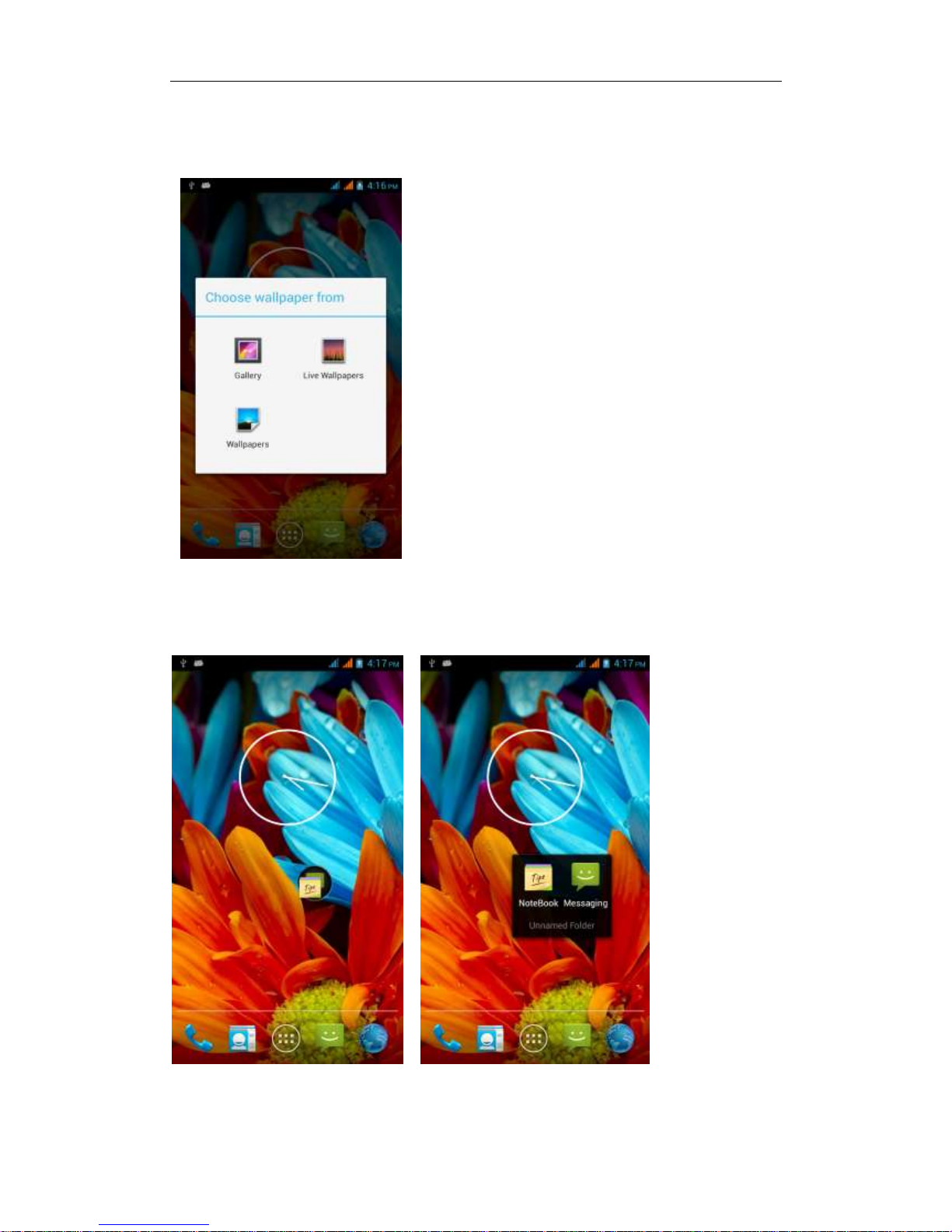
Wallpapers
In the desktop space - the "long Click the desktop, the shortcut keys
-"Select"Wallpaper"feature
Application Packet
In the desktop space – sliding the application to another application – click the
application to open New Folder
Page 16
- 16 -
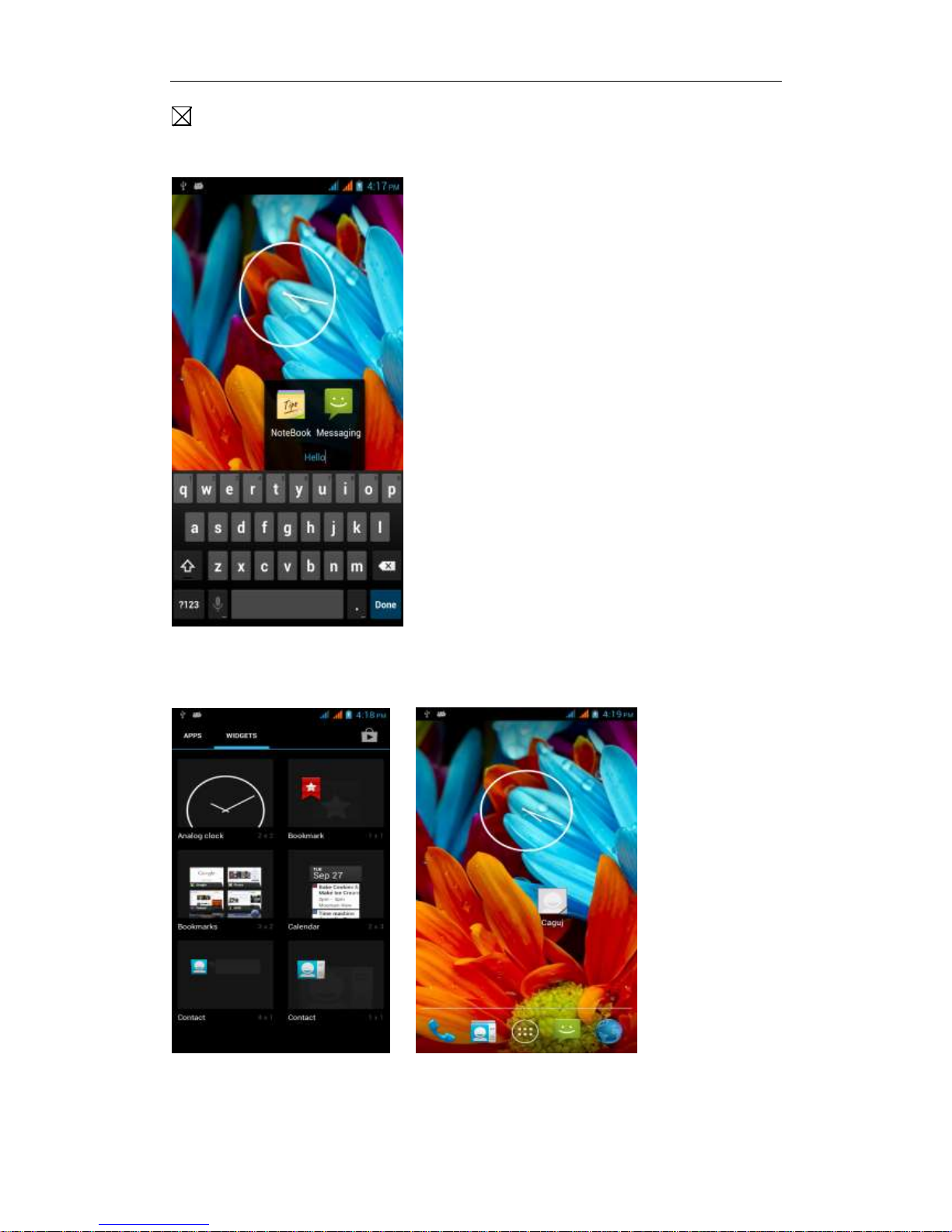
Change the folder name
Open the folder on the desktop - " click Input box - Rename Folder
Add contacts to your desktop
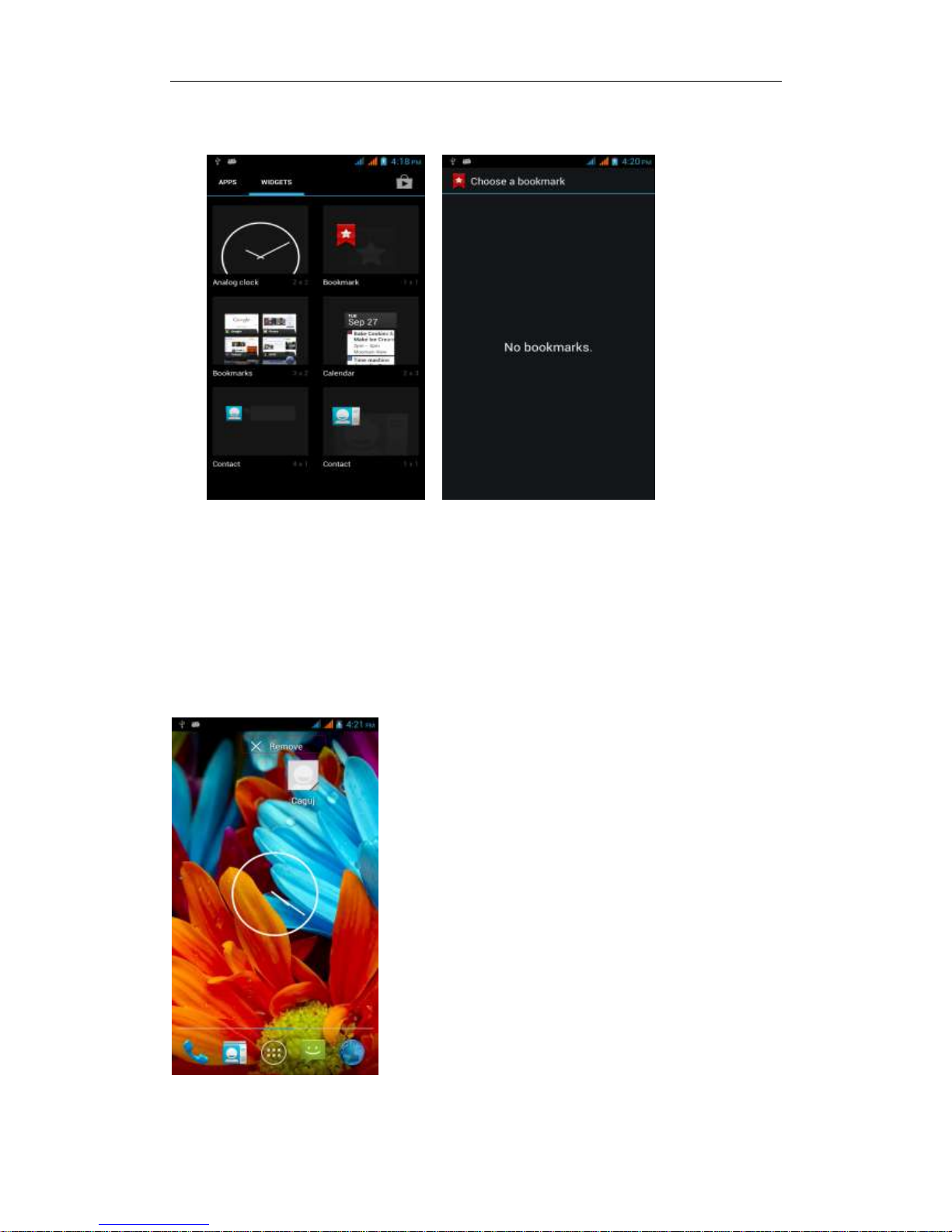
In the widgets space -long press the contact widget -" choose a contact
Add URL to the desktop
In the widgets space -long press the Bookmark widget -" choose a bookmark
Page 17
- 17 -
Add a playlist to your desktop
In the widgets space -long press the Music playlist widget -" Select a playlist
(operation method and procedure as above)
Delete the contents of the desktop
Select the desktop content - then "Long press the icon - " into the remove icon
to t
he lower Upper corner
of the screen
Page 18
- 18 -
Bluetooth Function
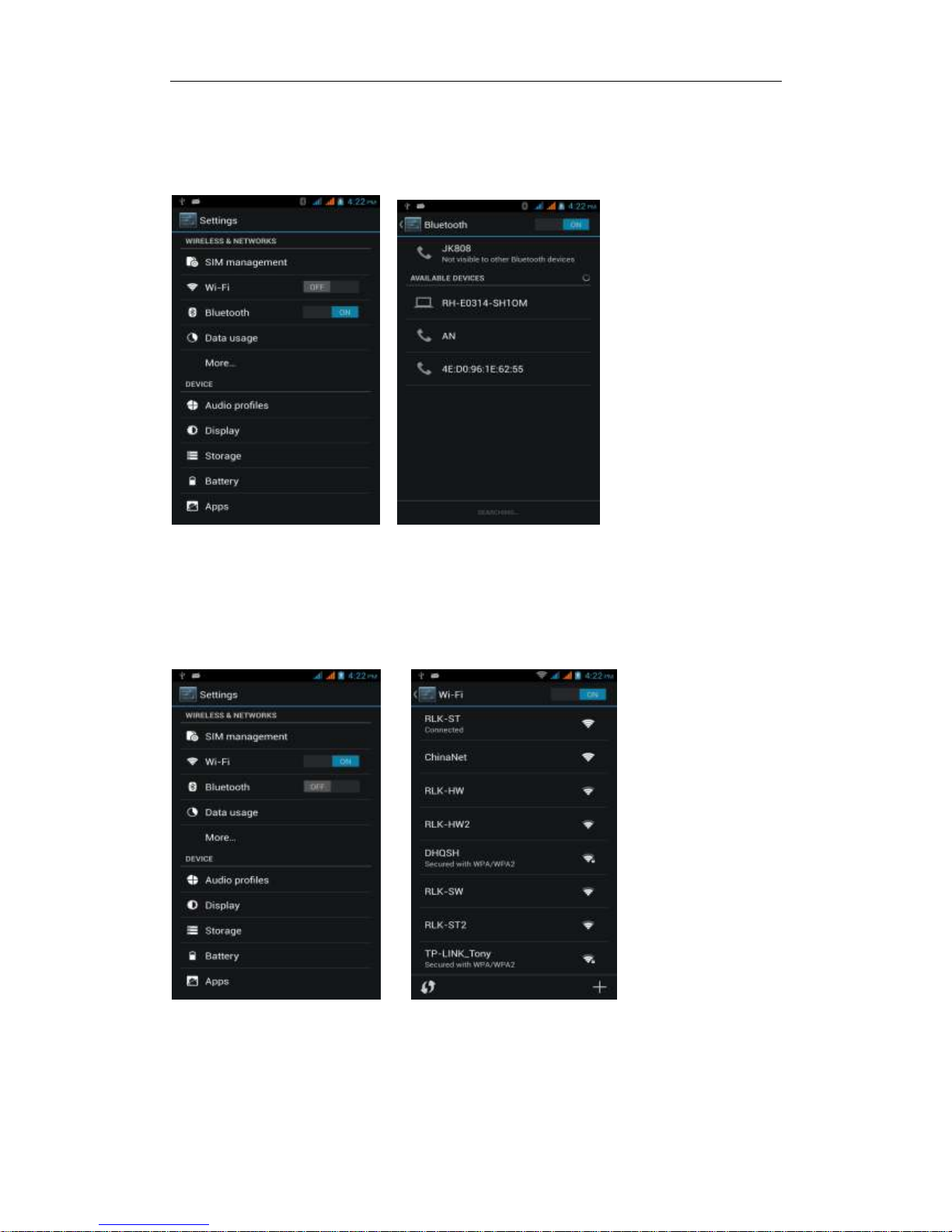
Select "Settings" -" Select "Bluetooth"function
Wifi Features
Select "Settings"-"Select Wi-Fi"- select "Add NETWORK ", select the desired
access APN
FM Function
This device provides radio function.
Note: Within doors or shielded environment, the receiving effect of radio may
Page 19
- 19 -
be affected. You can improve the effect in the following ways: Near window,
adjust the position of earphone cable or adopt manual adjustment.
Flight mode Function
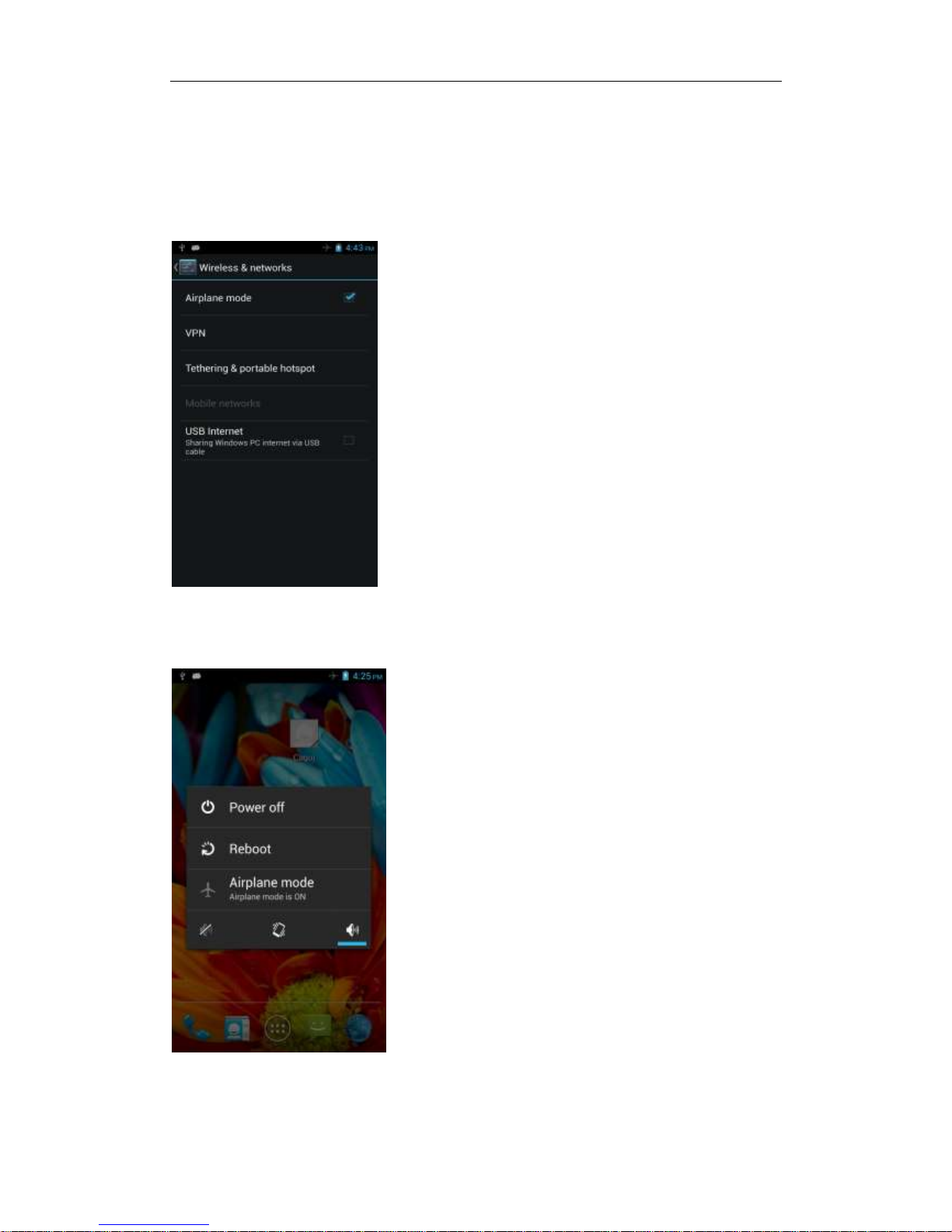
Select "Settings"-"Select More"-" choose "Airplane mode"function
Or select the phone, "Off"button - "select the" Airplane Mode "function
Page 20
- 20 -
Black unlock
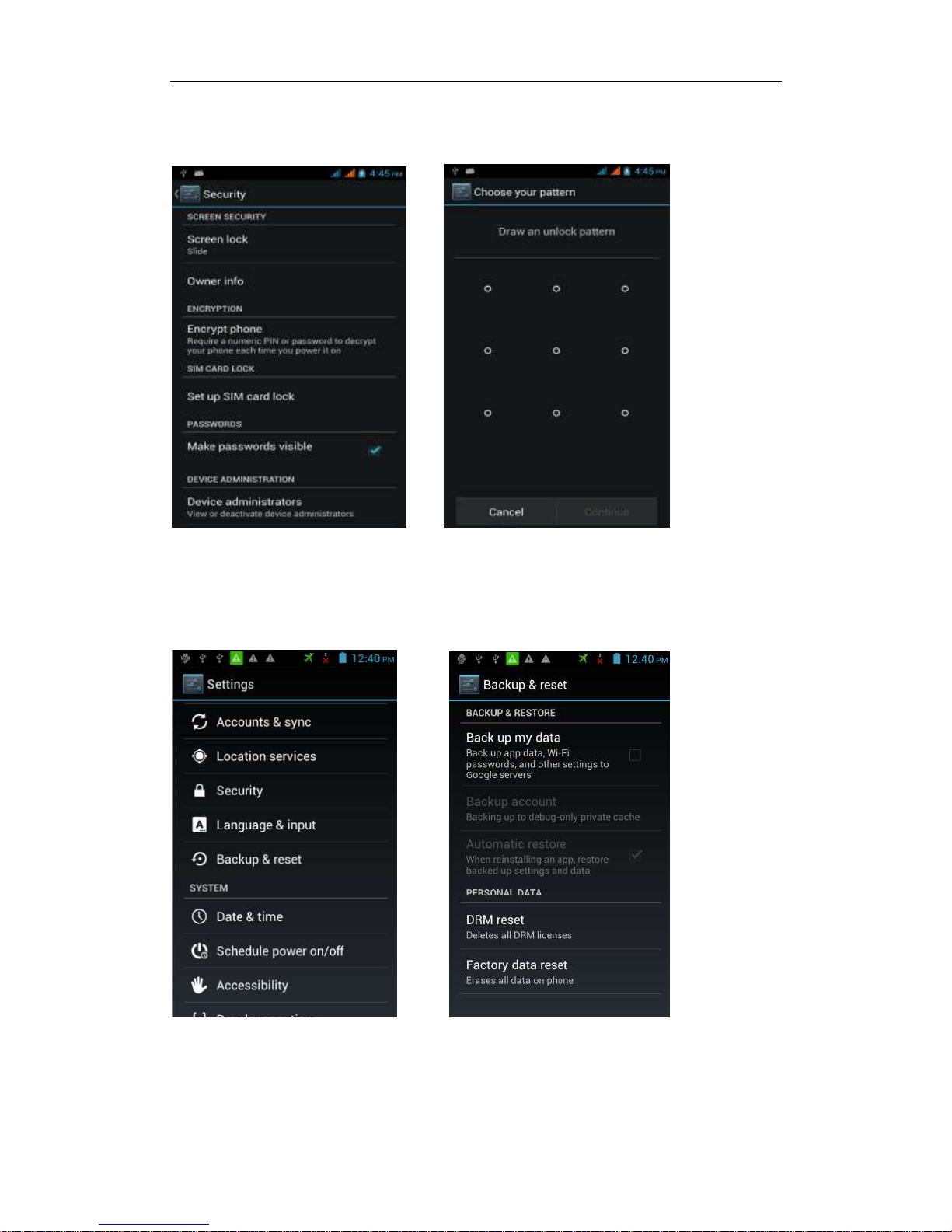
Select "Settings"-"Select " security "-" Select the " Screen lock"-Pattern
Restore to factory default
Select "Settings"-"Select"Backup&reset "-" select "Factory data reset"
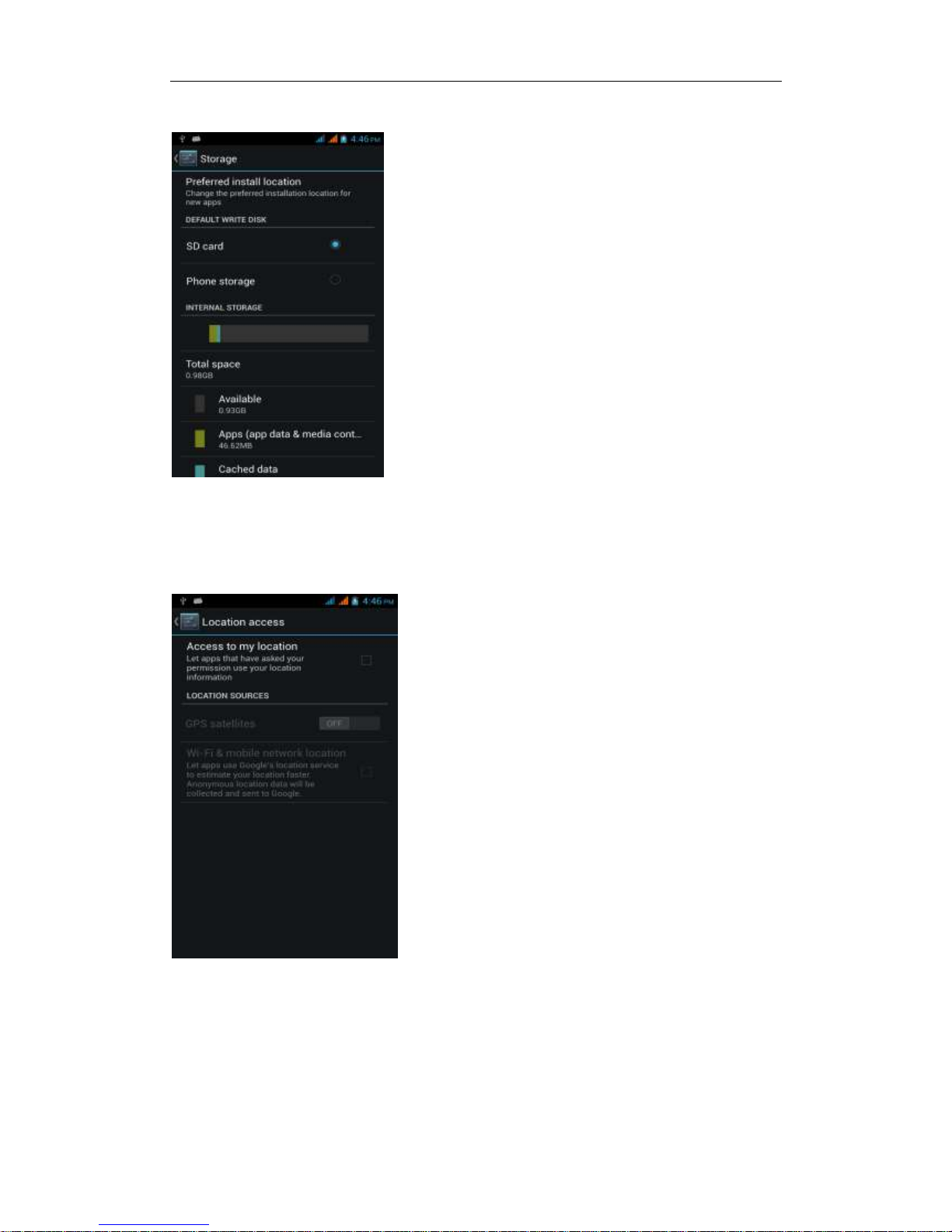
Storage Settings
Select "Settings"-"Select"storage"
Page 21
- 21 -
GPS Settings
Select "Settings"-"Select " location services"-" Check the "Enable GPS
satellites "
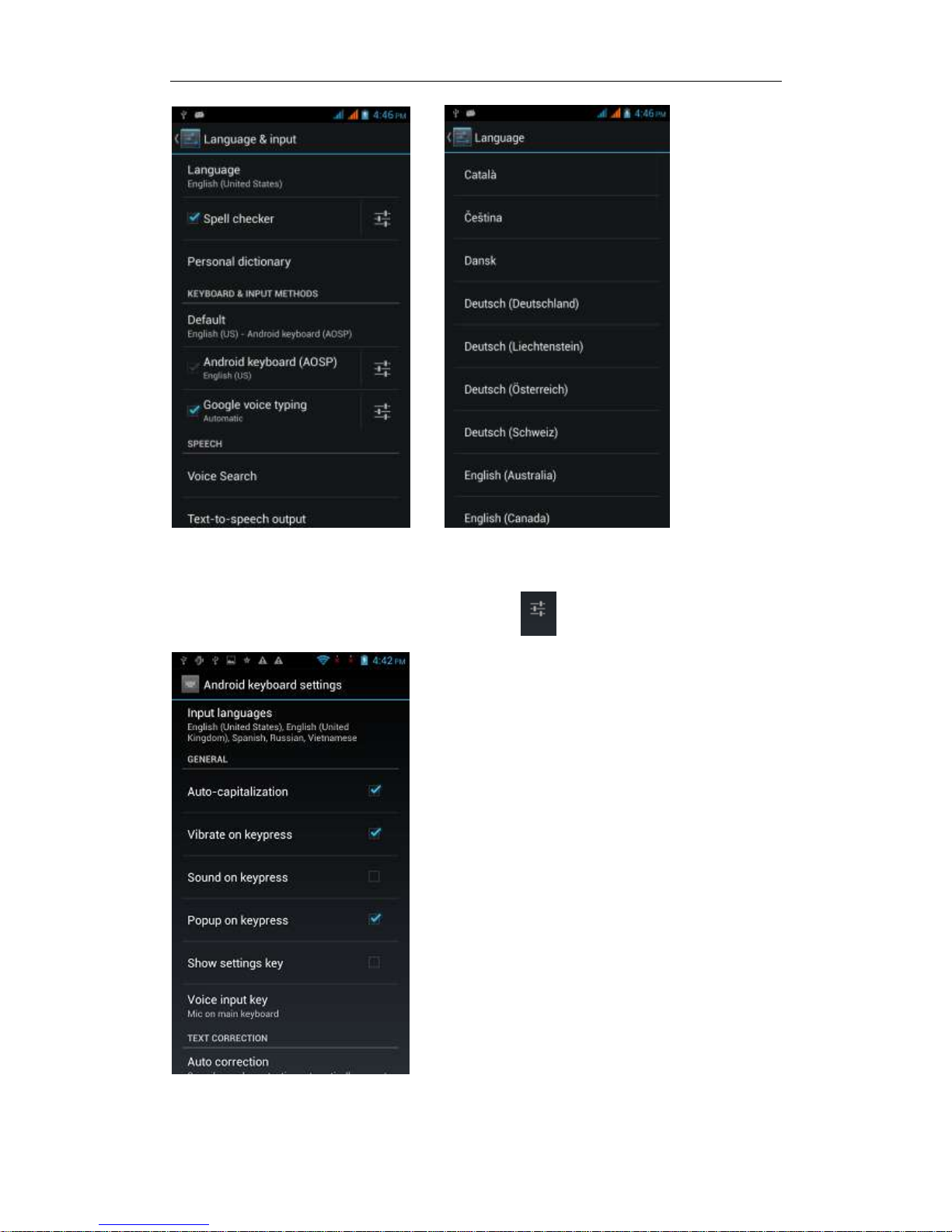
English language switching phone
Select "Settings"- "Language & input "-" Select " Language ", select English or
other
Page 22
- 22 -
Input set
Select "Settings"- " Language & input "-click
button
Page 23
- 23 -
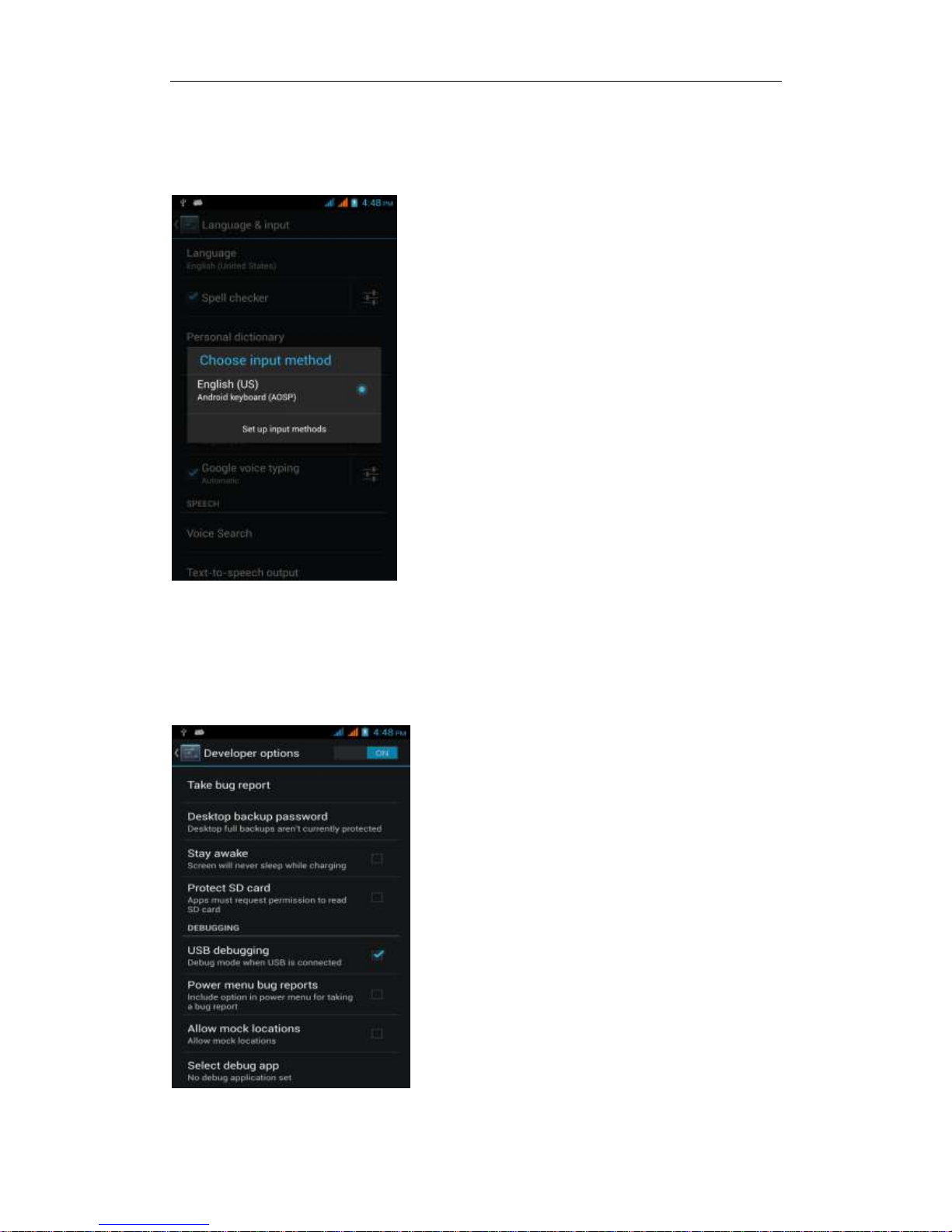
Replacement mobile phone input method
Select "Settings"- " Language & input "-Default
Android phone data cable links
Select "Settings"-"Select"Developer options"-"Check"USB debugging "
Products installed on your computer drive, the link on the USB cable;
Page 24
- 24 -
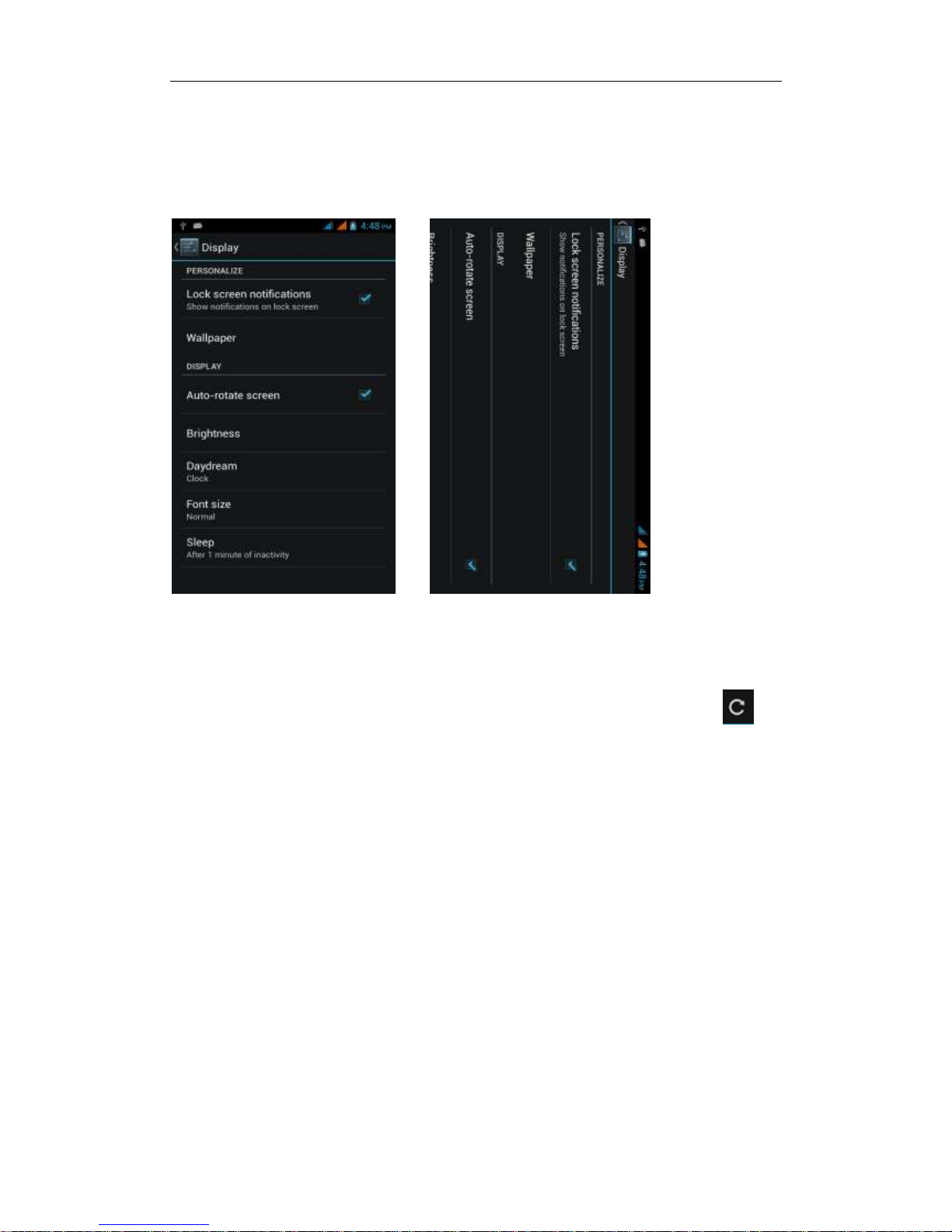
Introduce cross-screen display
Select "Settings"-""Display "-"Check"Auto- rotate screen, " according to the
phone automatically change the direction of rotation
Browser Features
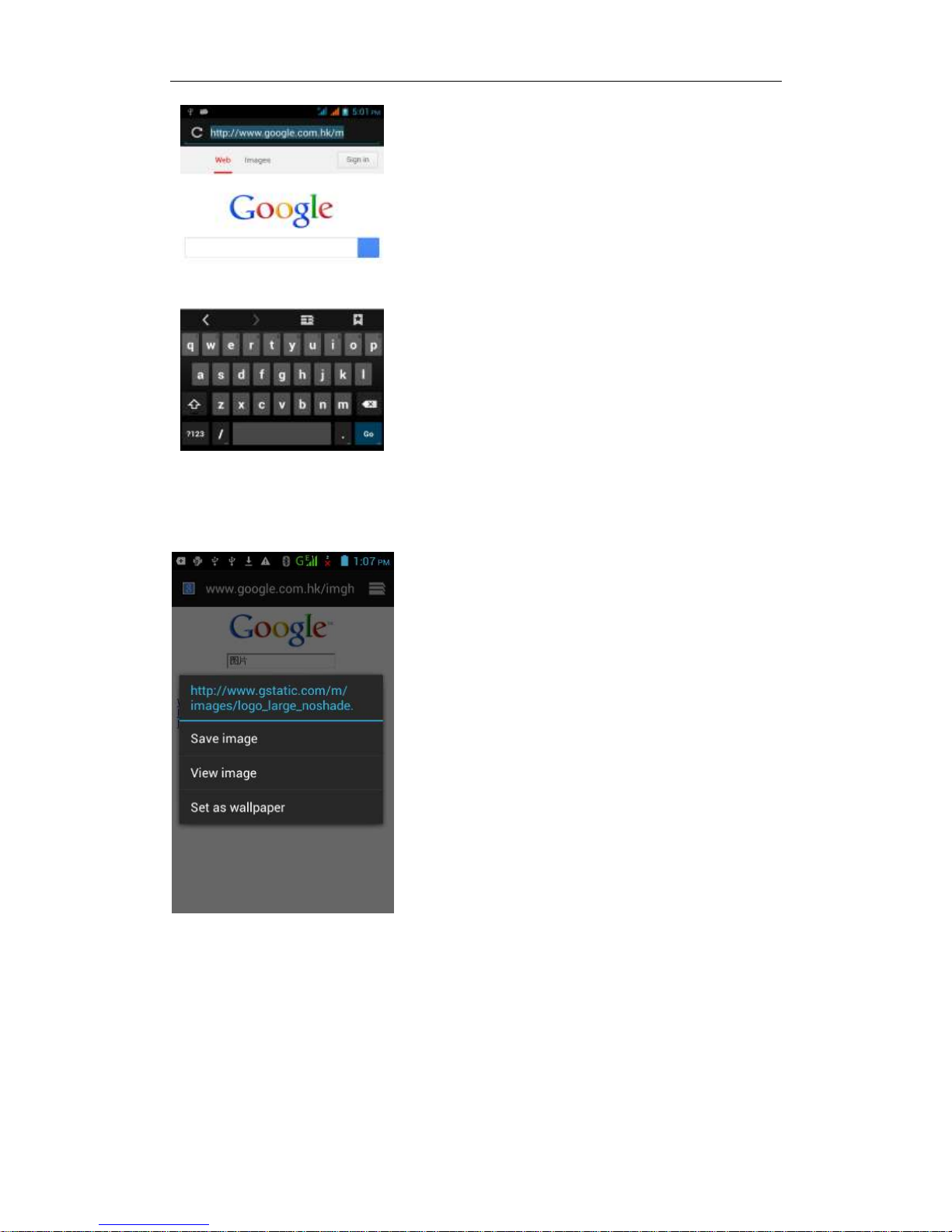
Visit the website
Browser - "Click url input area "-" Enter the URL of web browsing-click
button
Page 25
- 25 -
Download Web page images or other objects
Browser - "browse the web, long press on the picture, there shortcut keys,
choose "Save Image "function
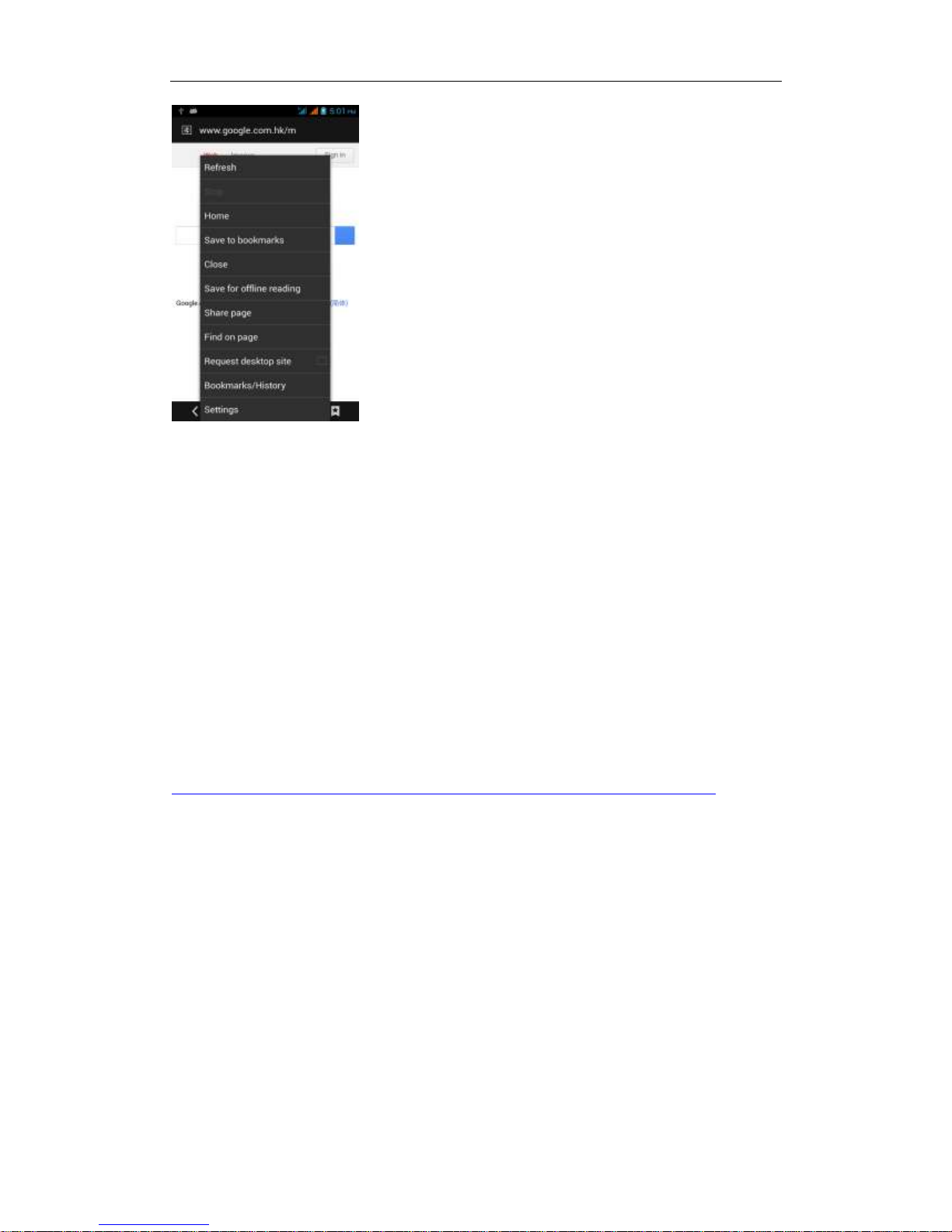
Browser settings / search page
Browser - "browse the web -"click "menu button",-select settings / find on page
Page 26
- 26 -
Q/A
1. How to turn off the software running in the background too much
Download Advanced Task Manager Advanced Task Manager and select
install, it can help you achieve, automatic end of the program services, to
switch between programs, display memory information, exclusion list, an end
of all widgets, fast uninstall program and other functions, To free up memory
space, reducing the CPU's operation long pressure, increase speed, to extend
the purpose of standby time.
Download:
http://m.91.com/soft/detail.aspx?platform=android&f_id=4001520
2. How to quickly set up Email
In the Android system, can automatically set the POP3 or IMAP e-mail most
accounts, the e-mail application, directly enter the e-mail address and
password, if not automatically fit in the mailbox, the mailbox will be required by
user Server information. See details in front of the "E-mail Features"section.
3. How do I view the capacity of SD card case
Select the "Settings"-Select Storage -select "SD card and phone memory",
will see the current SD card capacity information phone
Page 27

- 27 -
4. How to save electricity JK808
First, reduce the screen brightness can be used in peacetime by reducing
the brightness to reduce battery consumption, in the "Settings " in the "sound
and display" found on "brightness", and then sliding scale in respect of the
brightness can be set Android phones;
Close GPS global positioning, in the "Settings"and select" location services"
-uncheck the following "Enable GPS satellite set" can be;
Usually if you do not use the Wi-Fi, Bluetooth headset can be improved by
turning off these options to the standby time, turn off the WLAN search can
save about 30% to 40% of standby time;
Usually close calls and text messages to remind vibration;
5. How JK808 lock screen, to prevent others from using
In the "Settings", select " Security "and then select "screen
lock""pattern", to set individual unlock pattern, to prevent strangers use or
purpose of ensuring privacy of confidential documents.
6. Why does not the USB data cable links your computer
Confirmed in the phone's "Settings"-""Developer options"-" in the "USB
debugging"functionality check; also installed the correct USB driver
7. How to install a program on a non-Android Market
Select "Settings"-"" Security ", the"unknown source "function check
8. In browsing the web or other applications, how to switch to other
applications
If you need to open when browsing other applications, you can long press
the Home key to achieving long task switch, long press return directly to the
desktop (note that the system default task only last 6 months)
9. How to enter the silent mode quickly
In addition to continuing foreign long press the volume down key,and
Page 28

- 28 -
directly Into the status bar select the silent mode.
10. How to forward SMS / MMS
Long press and Information applications in the information content of an item
in the list, until the pop-up shortcut menu, select "Forward" can be realized.
11. how to paste and copy text
Into the input field - "input string, long press and enter the region, there
shortcut keys - " select All " " cut All " ,"copy All","paste All"
12. download and install the application installation path can be set to SD
card
Platform reason, the application can only be installed in the phone flash
memory
13. In the phone program group is installed too many applications, how
to solve
In the desktop space – sliding the application to another application – click
the application to open New Folder
14. Contacts are sorted, can change
Sort of way platform, the first number, then letters, then the Chinese way of
sorting; the user can not set their own sort
15. Contacts whether to support the group
In the contacts interface-select group
16. contacts and SMS storage capacity limits the number of
Platform reason, contacts and SMS storage for no clear limit value,
depending on the size of the current mobile phone memory space
Page 29

- 29 -
17. How to set the SD card, personalized ring tones
In the SD card, are established "ringtones" (ringtones) "alarms" (alarm tone)
"notifications" (SMS notification tone), the ring tones into a different folder, the
phone can be automatically identified.
18. How to sync the phone contacts to the original JK808
using Bluetooth the way, the two cellphone, sync contacts;
19. How to use the JK808 access Wifi (WLAN)
Wifi signal at the scene to ensure that the premise of the specific see "Wifi
function "
20. How to Find Contact
Into the contact interface, select the "Search"menu, you can search for
contacts, you can use the first letter of query letters;
21. how to download applications for the JK808
1) Visit Google Market http://www.android.com/market/; need to pay to
download some software;
2) third-party sites, access to applications, such sites are:
http://www.waptw.com/
http://android.sj.91.com/list/rjyxhj.shtml
……
More downloaded software will be installed in the SD card and some software
may vary depending on operating system version, network access nodes, size
or other reasons can not be used.
22. What are commonly used android forum
http://www.waptw.com/
http://sj.91.com/
http://www.android123.com/
http://www.android86.com.cn/
http://www.androidin.net/bbs/index.php
Page 30

- 30 -
http://bbs.zhiqi.com.cn/forum-33-1.html
http://www.androidin.net/bbs/
http://www.hiapk.com/bbs/
23. How do I delete the downloaded software
"Settings" - ""Manage app"-"Select the application to be deleted
24. How to view mobile phone version information
"Settings" - "" About phone "mobile phone version information can be
obtained, including the Android version, Linux version, software version,
hardware version, etc.
25. How do I copy SIM card contact information
Into the Contacts application, click the menu button, select "Import Contacts",
then you can see the SIM card contacts, if only to import one, you can click an
item. If all the import needs to long press the menu key, select Import to import
all.
26. why the message has a different time and date display
Message displayed on the principle that the display of the day time and date
have shown that non-day
27.JK808 whether to support the Java
Platform reason, JK808 does not support Java, if you need to install
third-party Java applications, you need to install the Java runtime environment
JK808.
28.How to open developer options
Enter the Settings -- the About phone -- click the Build number four times, system will
be generated developer options
Page 31

- 31 -
FCC RF EXPOSURE INFORMATION:
WARNING!! Read this information before using your phone
In August 1986 the Federal Communications Commission (FCC) of the United
States with its action in Report and Outer FCC 96-326 adopted an updated
safety standard for human exposure to radio frequency (RF) electromagnetic
energy emitted by FCC regulated transmitters. Those guidelines are consistent
with the safety standard previously set by both U.S. and international
standards bodies. The design of this phone complies with the FCC guidelines
and these international standards. Use only the supplied or an approved
antenna. Unauthorized antennas modifications, or attachments could impair
call quality, damage the phone, or result in violation of FCC regulations. Do not
use the phone with a damaged antenna. If a damaged antenna comes into
contact with the skin, a minor burn may result. Please contact your local dealer
for replacement antenna.
BODY-WORN OPERATION:
This device was tested for typical body-worn operations with the back of the
phone kept 0.5cm from the body. To comply with FCC RF exposure
requirements, a minimum separation distance of 0.5cm must be maintained
between the user's body and the back of the phone, including the antenna,
whether extended or retracted. Third-party belt-clips, holsters and similar
accessories containing metallic components shall not be used. Body-worn
accessories
that cannot maintain 0.5cm separation distance between the user’s body and
the back of the phone, and have not been tested for typical body-worn
operations may not comply with FCC RF exposure limits and should be
avoided.
For more information about RF exposure, please visit the FCC website at
www.fcc.gov
Your wireless handheld portable telephone is a low power radio transmitter and
receiver. When it is ON, it receives and also sends out radio frequency (RF)
signals. In August, 1996, the Federal Communications Commissions (FCC)
adopted RF exposure guidelines with safety levels for hand-held wireless
phones. Those guidelines are consistent with the safety standards previously
set by both U.S. and international standards bodies:
<ANSIC95.1> (1992) / <NCRP Report 86> (1986) / <ICIMIRP> (1996)
Those standards were based on comprehensive and periodic evaluations of
the relevant scientific literature. For example, over 120 scientists, engineers,
and physicians from universities, government health agencies, and industry
reviewed the available body of research to develop the ANSI Standard (C95.1).
Nevertheless, we recommend that you use a hands-free kit with your phone
Page 32

- 32 -
(such as an earpiece or headset) to avoid potential exposure to RF energy.
The design of your phone complies with the FCC guidelines (and those
standards).
Use only the supplied or an approved replacement antenna. Unauthorized
antennas, modifications, or attachments could damage the phone and may
violate FCC regulations.
NORMAL POSITION:
Hold the phone as you would any other telephone with the antenna pointed up
and over your shoulder.
TIPS ON EFFICIENT OPERATION:
For your phone to operate most efficiently:
• Extend your antenna fully.
•
Do not touch the antenna unnecessarily when the phone is in use. Contact
with the antenna affects call quality and may cause the phone to operate at a
higher power level than otherwise needed.
RF Exposure Information:
This product is compliance to FCC RF Exposure requirements and refer to
FCC website search for FCC ID: JJMQUADRANT to gain further information
include SAR Values.
This device complies with part 15 of the FCC rules. Operation is subject to the
following two conditions:
(1) this device may not cause harmful interference, and
(2) this device must accept any interference received, including interference
that may cause undesired operation.
NOTE: The manufacturer is not responsible for any radio or TV interference
caused by unauthorized modifications to this equipment. Such modifications
could void the user’s authority to operate the equipment.
NOTE: This equipment has been tested and found to comply with the limits for
a Class B digital device, pursuant to part 15 of the FCC Rules. These limits are
designed to provide reasonable protection against harmful interference in a
residential installation. This equipment generates uses and can radiate radio
frequency energy and, if not installed and used in accordance with the
instructions, may cause harmful interference to radio communications.
However, there is no guarantee that interference will not occur in a particular
installation. If this equipment does cause harmful interference to radio or
television reception, which can be determined by turning the equipment off and
Page 33

- 33 -
on, the user is encouraged to try to correct the interference by one or more of
the following measures:
- Reorient or relocate the receiving antenna.
- Increase the separation between the equipment and receiver.
-Connect the equipment into an outlet on a circuit different from that to which
the receiver is connected.
-Consult the dealer or an experienced radio/TV technician for help
Do not use the device with the environment which below minimum -10℃
or over maximum 50℃, the device may not work.
Changes or modifications to this unit not expressly approved by the
party responsible for compliance could void the user’s authority to operate the
equipment.
Ad Hoc function is supported but not able to operate on non-US frequencies.
 Loading...