

Page 1
Page 2

NUQLEO - Phone ION LITE
1 Introduction
1. A Package contents
1. B Safe handling of the product
1. C Battery instructions
1. D Disposal information
2 Phone basics
2.1 Turning the phone on
2.2 Turning the phone off
2.3 Navigating the menus
2.4 Making a phone call
2.5 Receiving a phone call
2.6 Sending a text message
2.7 Receiving a text message
2.8 Connecting to the internet
2.9 Charging your phone
2.10 Replacing your battery
2.11 Inserting a SIM card
3 Your call history
3.1 Viewing your call history
3.2 Deleting your call logs
3.3 Deleting all calls
3.4 Viewing the GPRS counter
3.5 Resetting your GPRS counter
4 Your messaging
4.1 Sending a text message
4.2 Sending a multimedia text message
4.3 Adding an attachment to a multimedia message
4.4 Viewing your messages
4.5 Deleting your messages
5 Your phonebook
5.1 Adding a new contact
5.2 Adding a contact from your call history
5.3 Editing contact information
5.4 Deleting a contact
5.5 Sending a text message to a contact
5.6 Searching for a contact
5.7 Storing your contacts
5.8 Copying your contacts
5.9 Deleting a contact
5.10 Viewing your memory status
2
Page 3

NUQLEO - Phone ION LITE
6 Your organizer
6.1 Using your calendar
6.2 Using your calculator
6.3 Using your alarm clock
7 Your le manager
7.1 Managing your folders
8 Your Entertainment
9 Your camera
9.1 Opening the camera
9.2 Taking pictures
9.3 Viewing your photos
9.4 Storing pictures
10 Your SIM card
10.1 Inserting your SIM card
10.2 Adding a second SIM card
11 Your prole
11.1 Opening user proles
11.2 Activating a prole
11.3 Customizing a prole
11.4 Resetting a prole
12 Your music
12.1 Opening your audio player
12.2 Playing your music or audio les
12.3 Recording audio
12.4 Connecting to FM radio
12.5 Searching for a station
12.6 Using the radio player
13 Your videos
13.1 Playing your videos
13.2 Recording videos
13.3 Deleting a video
13.4 Sending a video le
13.5 Connecting to mobile TV
14 Your Bluetooth®
14.1 Turning Bluetooth® on
14.2 Searching for a Bluetooth® device
14.3 Making the ION visible
15 Settings
15.1 Phone settings
3
Page 4

NUQLEO - Phone ION LITE
15.2 Phonebook settings
15.3 Text messaging settings
15.4 Multimedia messaging settings
15.5 Call settings
15.6 Searching for a network
15.7 Security settings
16 Specications
Appendix 1 - FCC RF exposure information
Appendix 2 - RF Exposure Information
Appendix 3 - Copyright statement
4
Page 5

NUQLEO - Phone ION LITE
I. Introduction
Thank you for purchasing the Nuqleo ION LITE Multimedia Phone. This guide will show you
how to set up your phone and use its basic functions.
Once your phone is up and running, you can visit www.nuqleo.com to nd out more about
all the great features your new mobile phone has.
1. a Package contents
•
Nuqleo Ion Lite Mobile Phone
•
Rechargeable lithium-ion battery 3.7V 600mAh
•
AC charger/USB sync/data cable
•
Earphones with microphone
•
Quick Installation Guide (QIG)
1. b Safe handling of the product
•
Never expose your phone to direct sunlight or excessive heat. Avoid leaving the product
inside a car with the windows closed.
•
Keep your phone in a dry place. Never expose this product to rain or water.
•
Do not use or store your phone in dusty, dirty areas.
•
Do not use harsh chemicals, soaps or detergents to clean your phone.
•
Do not modify, disassemble, open, drop, crush, or puncture this product.
•
Never disconnect your phone while a download or upload is in progress.
•
Switch off the device in restricted areas or where the use of electronic devices is prohibited.
•
To protect your hearing, make sure the volume level is not set too high when plugging the
headphones.
1. c Battery instructions
•
Use only the battery and battery charger specied by the manufacturer.
•
The battery has a limited service life so it will need replacing when it no longer holds
enough charge.
•
Dispose of old batteries at directed places.
•
Do not throw batteries into a re.
•
Do not force the battery when installing it.
•
If the battery overheats or changes color while charging it or storing it, stop using it.
•
Do not expose batteries to high temperatures.
•
Do not charge the battery for more than 24 hours.
1. d Disposal information
Electrical and electronic products as well as batteries must not be discarded as regular
household waste. As part of the company’s eco-friendly approach, we encourage you to recycle
and follow all applicable local waste regulations to dispose of your used devices properly. Never
dispose of batteries in a re.
5
Page 6
NUQLEO - Phone ION LITE
2 Phone basics
2.1 Turning the phone on
You can turn the phone on by pressing and holding the Power/End key.
2.2 Turning the phone off
Press and hold the Power/End key until the Nuqleo logo appears.
2.3 Navigating the menus
You can use the Navigation keys to surf the ION phone’s menu system. When you have
selected the menu item you want, just press the Center Select key to open or
enable the item.
2.4 Making a phone call
On the Main screen, start dialing the number you want to call and then press the Center
Select or the Send Answer 1 or 2 key.
2.5 Receiving a phone call
When the phone alerts you to an incoming call, press the Send/Answer 1 key for SIM ,
Send/Answer 2 key for SIM 2 or reject, if you do not want to answer the call.
2.6 Sending a text message
On the Main screen, select the Phonebook icon.
1.
Select the contact you want and then press the Menu key to open the Options screen.
2.
On the Options screen, select Send text message.
3.
After writing your message in the content area, press the Center Select key. Press the
4.
Center Select key again to conrm.
2.7 Receiving a text message
When the phone alerts you to an incoming text message, you can press the Center Select
key in order to select and view the details of the message from the dedicated list.
2.8 Connecting to the internet
On the Main screen, select the Services icon, then select Internet service.
1.
Choose the SIM card you want to use to connect to the internet and select Search or Input
2.
address to continue.
On the Search or Input address screen, you have the option to enter your desired web
3.
address or you can select from the saved addresses previously used. Select any existing
address or input your own to begin your internet experience.
Note: some conguration is needed before using the browser, based on your local service
provider specic settings.
6
Page 7

NUQLEO - Phone ION LITE
2.9 Charging your phone
Plug the at end of the charger into the phone’s micro USB port and the other end into an
electrical outlet.
Note: You should not charge your phone longer than 8 hours. If you do overcharge your
phone, this may shorten the battery life.
2.10 Replacing your battery
Carefully slide down the back cover to remove it.
1.
Align the contacts on the new battery unit with the connectors inside the compartment.
2.
Replace the phone cover by gently sliding it up until it locks into place.
3.
2.11 Inserting a SIM card
1.
Carefully slide down the back cover to remove it.
2.
Remove the battery.
3.
Insert SIM card 1 (top slot) in the proper position, and do the same with SIM card 2 (bottom
slot), if adding a second one on your phone.
4.
Insert the battery into its compartment.
5.
Replace the phone cover by gently sliding it up until it locks into place.
3 Your call history
Your call history logs the different numbers you have dialed, received, or missed. This menu
option also allows you to view timer and counter options.
3.1 Viewing your call history
1.
When the Main screen is displayed, press the Menu key and then select the Call Center icon.
2.
Select Call history.
3.
Next, choose one of the following options:
1. Missed calls
2. Dialed calls
3. Received calls
3.2 Deleting your call logs
1.
On the Call history screen, select Delete call logs.
2.
Next, choose one of the following options:
1. Dialed call
2. Missed calls
3. Received calls
4. All calls
3.
You will be asked to conrm the deletion of all calls of the log you chose. Press the Menu
key to conrm the deletion.
7
Page 8

NUQLEO - Phone ION LITE
3.3 Deleting all calls
On the Call history screen, select Delete call logs.
1.
Next, choose All calls to delete all dialed, missed, and received calls.
2.
3.4 Viewing the GPRS counter
You can view the amount of data sent using the GPRS. On the Call history menu, select
GPRS counter. Choose any of the following options to continue:
•
SIM 1 last sent
•
SIM 1 last received
•
SIM 1 all sent
•
SIM 1 all received
•
SIM 1 reset counter
Note: These options are duplicated for the SIM 2 card.
3.5 Resetting your GPRS counter
On the Call history menu, select GPRS counter.
1.
Then select SIM 1 or SIM 2 reset all.
2.
You will be asked to conrm if you want to reset the GPRS counter. Press the Menu key to
3.
conrm the deletion.
This will delete the counter information from all counters for the SIM card you chose to reset.
4.
Note: These options are duplicated for the SIM 2 card.
3.5 Resetting your GPRS counter
On the Call history menu, select GPRS counter.
1.
Then select SIM 1 or SIM 2 reset all.
2.
You will be asked to conrm if you want to reset the GPRS counter. Press the Menu key to
3.
conrm the deletion.
This will delete the counter information from all counters for the SIM card you chose to reset.
4.
8
Page 9

NUQLEO - Phone ION LITE
4 Your messaging
4.1 Sending a text message
1.
On the Main screen, select the Message center icon.
2.
On the Messaging screen, select Write message, followed by Text message.
3.
Write your message in the content area and press the Center Select key when nished.
Then do one of the following:
•
Select Enter number, type the phone number you want and press the Menu key. Finally use
the Center Select key to send the message.
-or-
•
Select Add from Phonebook to choose the contact you want from the list. Finally use the
Center Select key to send the message.
4.2 Sending a multimedia text message
1.
On the Main screen, select the Message icon.
2.
On the Messaging screen, select Write message, followed by Multimedia message.
3.
Begin composing your message in the content area and press the Center Select key when
nished. Then do one of the following:
•
Select Enter number, type the phone number you want and press the Menu key. Finally
use the Center Select key to send the message.
-or-
•
Select Add from Phonebook to choose the contact you want from the list. Finally use
the Center Select key to send the message.
4.3 Adding an attachment to a Multimedia message
1.
On the Write message screen for a Multimedia message, select Edit content.
2.
Press the Menu key to enter the Options menu, followed by the Insert option.
3.
From the Insert menu options, select one of the following:
•
Insert slide
•
Insert image
•
Insert video
4.
Finally, select the le you want to include from your storage device
(phone or external storage).
9
Page 10

NUQLEO - Phone ION LITE
4.4 Viewing your messages
1.
On the Main screen, select the Message center icon.
2.
On the Messaging screen, select one of the following options:
•
Inbox
•
Drafts
•
Outbox
•
Sent messages
4.5 Deleting your messages
1.
On the Main screen, select the Message center icon.
2.
On the Messaging screen, choose one of the options below:
•
Inbox
•
Drafts
•
Outbox
•
Sent messages
•
All messages
3.
Once you have chosen the message, select Options
4.
Scroll down to go to Delete
5.
Then press the Menu key to conrm the deletion.
10
Page 11

NUQLEO - Phone ION LITE
5 Your phonebook
5.1 Adding a new contact
On the Main screen, select the Phonebook icon.
1.
Select Add new contact in this step.
2.
On the Add new contact screen, choose one of the following storage devices:
3.
•
To SIM 1 or To SIM 2
•
To phone
On the Contact screen, in the Name eld, enter the name for your new contact.
4.
Then, in the Number eld, enter the phone number for your new contact.
5.
Press the Center Select key to save this entry.
6.
Press the Menu key at the end to conrm.
7.
5.2 Adding a contact from your call history
1. On the Main screen, rst select the Call Center icon, then Call history, followed by one
of the options listed below:
•
Missed calls
•
Dialed calls
•
Received calls
On the Number list, highlight the number you want, before pressing the Menu
1.
key to select Options.
On the Options screen, select Save to Phonebook, then select one of the following storage
2.
devices:
•
To SIM 1 or To SIM 2
•
To phone
4. On the Contact screen, in the Name eld enter the name for your new contact.
5. Then, in the Number eld, enter the phone number for your new contact.
6. Press the Center Select key to save this entry.
7. Press the Menu key at the end to conrm.
5.3 Editing contact information
On the Main screen, select the Phonebook icon and then highlight the contact you
1.
want to edit.
Press the Menu key to select Options.
2.
On the Options screen, select Edit. This will allow you to edit the following contact elements:
3.
•
Name
•
Number
•
Ring tone (if stored on phone)
•
Picture (if stored on phone)
11
Page 12

NUQLEO - Phone ION LITE
5.4 Deleting a contact
On the Main screen, select the Phonebook icon and then highlight the contact you want to
1.
delete.
Press the Menu key to select Options.
2.
On the Options screen, select Delete, pressing the Menu key at the end to conrm.
3.
5.5 Sending a text message to a contact
On the Main screen, select the Phonebook icon and then highlight the contact you want to
1.
send a message to.
Press the Menu key to select Options.
2.
On the Options screen, select Send text message.
3.
Start writing your message in the content area, and press the Center Select key when n-
4.
ished. Press the Center Select key again to conrm.
5.5 Sending a text message to a contact
On the Main screen, select the Phonebook icon and then highlight the contact you want to
1.
send a message to.
Press the Menu key to select Options.
2.
On the Options screen, select Send text message.
3.
Start writing your message in the content area, and press the Center Select key when
4.
nished. Press the Center Select key again to conrm.
5.6 Searching for a contact
On the Main screen, select the Phonebook icon. Type the name of the contact you want to
1.
nd. The system will begin to show results as you type.
On the Results list, select the contact you want.
2.
5.7 Storing your contacts
On the Main screen, select the Phonebook icon.
1.
Press the Menu key to select Options.
2.
On the Options screen, select Phonebook settings and proceed to open the
3.
Preferred storage window.
Next, select one of the following storage devices:
4.
•
SIM 1
•
SIM 2
•
Phone
•
All: This will store your contacts on all storage devices.
12
Page 13

NUQLEO - Phone ION LITE
5.8 Copying your contacts
You can copy your contacts from your phone to your SIM card or vice versa. Copying your contacts duplicates the entries on both devices.
On the Main screen, select the Phonebook icon.
1.
Highlight the contact you would like to copy and press the Menu key to select Options.
2.
On the Options screen, select Copy.
3.
Now, choose one of the following storage devices:
4.
•
To SIM 1
•
To SIM 2
•
To phone
Press the Menu key to conrm the device you are copying to.
5.
5.9 Deleting a contact
On the Main screen, select the Phonebook icon.
1.
Highlight the contact you wish you delete and press the Menu key to select Options.
2.
From the Options screen, go to Delete.
3.
Finally, press the Menu key to conrm the deletion.
4.
5.10 Viewing your memory status
On the Main screen, select the Phonebook icon.
1.
Press the Menu key to select Options.
2.
From the Options screen, go to Phonebook settings to select Memory status. The window
3.
containing the memory information will be displayed.
13
Page 14

NUQLEO - Phone ION LITE
6. Your organizer
This convenient feature contains many different elements to help you stay organized. The
phone includes a calendar, alarm clock, and World clock among many others.
6.1 Using your calendar
6.1.1 Opening the calendar
On the Main screen, select the Main menu icon.
1.
Select the Organizer icon to open the Calendar.
2.
6.1.2 Different calendar views
•
Jump to date
•
Go to today
•
Monthly view.
6.2 Using your calculator
You can open your calculator from the Main screen. Select the Main menu icon, followed by
the Organizer icon, and the Calculator. The Navigation key is used to designate the arithme-
tic operation. For example, if you want to add two numbers, you would enter the rst number,
and then press the Navigation key upwards to enter the addition symbol, and then enter the
second number. Pressing the Menu key will complete the equation and give you the result.
6.3 Using your alarm clock
You can open your Alarm Clock from the Main screen. Select the Main menu icon, followed
by the Organizer icon, and the Alarm. Fill in the alarm time information. When you are
done, press the Menu key to save the entry, using the Menu key again to conrm.
7. Your File manager
The le manager allows you to store your les in a convenient, easy to access location on your
phone or memory card. Default folders are already available for use or you can create your
own folders. You can also transfer your les easily between the ION phone and your personal
computer.
7.1 Managing your les
1.
On the Main screen, select the Menu icon and then select the File manager icon.
2.
On the File manager screen, choose one of the following devices:
•
Phone
•
Memory card
3.
Press the Menu key to open the Options screen, select New Folder and enter the name of
the new folder.
4.
Next, press the Menu key to go to the New folder Options screen.
5.
Select Done to complete this entry.
14
Page 15

NUQLEO - Phone ION LITE
8. Your entertainment
The ION phone entertainment section consists of Mobile TV, Camera, Image viewer, Video
recorder, Video player, Audio player, Sound recorder, FM radio, plus Facebook and Twitter.
9. Your camera
9.1 Opening the camera
On the Main screen, select the Main menu icon.
1.
Next, select the Multimedia icon and enable the Camera feature.
2.
9.2 Taking pictures
Once on the Camera screen, point the lens at your subject and press the Center Select key to
capture the photo. The picture will be saved to the storage device.
9.3 Viewing your photos
On the Camera screen, press the Menu key to go to the Options screen.
1.
From the Options screen, go to Photos, then highlight the image you want to view. Press the
2.
Center Select key to view the selected le.
9.4 Storing pictures
On the Camera screen, press the Menu key to go to the Options screen.
1.
From the Options screen, go to Storage, and then choose one of the following:
2.
•
Phone
•
Memory card
10 Your SIM card
You will need a SIM card to use the ION phone. You should purchase a SIM card from your
preferred wireless carrier.
10.1 Inserting your SIM card
Carefully slide down the back cover to remove it.
1.
Remove the battery.
2.
Insert SIM card 1 (top slot) in the proper position, and do the same with SIM card 2 (bottom
3.
slot), if adding a second one on your phone.
Insert the battery into its compartment.
4.
Replace the phone cover by gently sliding it up until it locks into place.
5.
10.2 Adding a second SIM card
The ION phone allows you to add a second SIM card. This SIM card will use the
Send/Answer 2 key when making or receiving a phone call or text message. You can have
different contacts on the separate cards as well as have them be from different
wireless carriers.
15
Page 16
NUQLEO - Phone ION LITE
11 Your prole
11.1 Playing your videos
Your prole stores the different sound settings you want for different events. You have several prole options to choose from and can customize them to t your needs.
11.1 Opening user proles
On the Main screen, select the Main menu icon , followed by the User proles icon.
11.2 Activating a prole
On the User proles screen, highlight the prole you want to activate
General
Silent
Meeting
Outdoor
and press the Center Select key at the end.
11.3 Customizing a prole
On the User proles screen, highlight the prole you want to customize, then press
1.
the Menu key.
Now, from the Options screen, select Customize.
2.
On the Customize screen, you can edit the different sound settings for your prole. When you
3.
are done, press the Menu key, then select Save.
11.4 Resetting a prole
On the User proles screen, highlight the prole you want to reset, and then press the
1.
Menu key.
On the Options screen, select Reset. Press the Menu key at the end to conrm.
2.
16
Page 17

NUQLEO - Phone ION LITE
12 Your music
12.1 Opening your audio player
On the Main screen, select the Main menu icon, Multimedia icon, followed by Audio player.
12.2 Playing your music or audio les
1.
On the Audio player screen, press the Menu key to go to the list of audio les.
2.
Select the audio le you want to play.
12.3 Recording audio
On the Main screen, select the Main menu icon.
1.
Select the Multimedia icon, followed by the Sound recorder.
2.
On the Sound recorder screen, press the Menu key.
3.
On the Options screen, select New record to record a new le.
4.
When you are done recording, press the Menu key. Press the Menu key once more to save the
5.
audio le.
12.4 Connecting to FM radio
On the Main screen, select the Main menu icon.
1.
Select the Multimedia icon to open the FM radio function.
2.
Press the Navigation key downwards to turn on the radio.
3.
12.5 Searching for a station
On the Main screen, select the Main menu icon.
1.
Select the Multimedia icon to open the FM radio function.
2.
On the FM radio screen, press the Menu key, and enable Auto Search. This will perform a
3.
search for all available radio signals.
12.6 Using the radio player
You can use the Navigation key to change stations as well as turn the radio on or off. The controls are as follows:
•
Navigation key down: turns the radio on or off.
•
Navigation key right or left: changes radio station.
17
Page 18
NUQLEO - Phone ION LITE
13 Your videos
13.1 Playing your videos
On the Main screen, select the Main menu icon.
1.
Next, select the Multimedia icon, followed by the Video player function.
2.
From the Video list, select the item you want to play.
3.
Press the Center Select key to start playing the video.
4.
13.2 Recording videos
On the Main screen, select the Main menu icon.
1.
After selecting the Multimedia icon, go to Video recorder.
2.
Point the lens at your subject and press the Center Select key to begin recording. Press the
3.
Back key when you are done. You can press the Menu key to save the video.
4.
13.3 Deleting a video
On the Main screen, select the Main menu icon.
1.
Next, select the Multimedia icon, followed by the Video player function.
2.
On the Video list, highlight the video you want to erase, and press the Menu key to
3.
select Options.
On the Options screen, select Delete. Press the Menu key once more to conrm.
4.
13.4 Sending a video le
On the Main screen, select the Main menu icon.
1.
Select the Multimedia icon, then select Video player.
2.
On the Video list, highlight the video you want to send and press the Menu key to
3.
select Options.
On the Options screen, select Send, then select from one of two options:
4.
•
As multimedia message
•
Via Bluetooth
13.5 Connecting to mobile TV
On the Main screen, select the Main menu icon.
1.
After selecting the Multimedia icon you can use the Mobile TV icon to open the applica-
2.
tion, the user can also press the TV hot key to instantly launch this feature.
On the Select location list, choose your preferred location. The phone will scan the airwaves
3.
for television signals available in the area.
Note: Make sure the antenna is fully extended.
18
Page 19

NUQLEO - Phone ION LITE
14 Your Bluetooth®
Bluetooth is a short-range communications technology that allows you to connect
wirelessly to a number of Bluetooth devices, such as headsets and hands-free car kits, and
Bluetooth-enabled handhelds, computers, printers, and wireless phones.
14.1 Turning Bluetooth® on
On the Main screen, select the Main menu icon.
1.
Next, select the Settings icon followed by Connectivity.
2.
On the Connectivity screen, select Bluetooth®.
3.
On the Bluetooth® screen, select Power to switch Bluetooth® on. Press the Power icon
4.
again to turn Bluetooth® off.
14.2 Searching for a Bluetooth® device
On the Main screen, select the Main menu icon.
1.
Next, select the Settings icon followed by Connectivity.
2.
On the Connectivity screen, select Bluetooth®.
3.
From the Bluetooth® screen, go to My device and enable the Search new device option.
4.
14.3 Making the ION visible
On the Main screen, select the Main menu icon.
1.
Next, select the Settings icon followed by Connectivity.
2.
On the Connectivity screen, select Bluetooth®.
3.
On the Bluetooth® screen, select Visibility to allow your phone to be discovered by other
4.
Bluetooth® devices. Select Visibility again when you want to disable the discovery mode
on your phone.
15 Settings
15.1 Phone settings
15.1.1 Changing the time and date
On the Main screen, select the Menu icon, followed by the Settings icon.
1.
From the Settings screen, go to Phone settings, then select Time and date.
2.
In this step, you are able to do any of the following:
3.
•
Set home city: Select your city from a list.
•
Set Time/date: Sets the time, date, and whether daylight savings is on or off.
Set format: Designates whether the date format is 24 hour or 12 hour. It also denes
how the date will be displayed.
15.1.2 Setting the phone’s language
On the Main screen, select the Menu icon, followed by the Settings icon.
1.
From the Settings screen, go to Phone settings, then select Language.
2.
You can then choose one of the following languages:
3.
19
Page 20

NUQLEO - Phone ION LITE
•
English
•
French
•
Spanish
•
Portuguese
15.1.3 Changing the input method
1.
On the Main screen, select the Menu icon, followed by the Settings icon.
2.
From the Settings screen, go to Phone settings and then select
Preferred input method.
3.
You will be able to choose one of the following methods:
•
abc
•
es (Spanish)
•
fr (French)
•
pt (Portuguese)
•
Numeric
15.1.4 Changing the display settings
1.
On the Main screen, select the Menu icon, followed by the Settings icon.
2.
From the Settings screen, go to Phone settings, then select Display.
3.
In this menu, the user can customize any of the following parameters:
•
Wallpaper: You can change the wallpaper for your phone by using an image from either the
system or stored on the phone by you.
•
Show date and time: You can choose to display the date and time or hide it.
15.1.5 Turning on the electric torch
1.
On the Main screen, select the Menu icon , followed by the Settings icon.
2.
From the Settings screen, go to Phone settings, then select Miscellanea settings and
then Torch to turn it on. Then select it again to turn the ashlight off.
15.1.6 Changing your LCD backlight settings
1.
On the Main screen, select the Menu icon and then select the Settings icon.
2.
On the Settings screen, select Phone settings, then select Miscellaneous settings,
and then select LCD backlight.
3.
You can then change the following settings:
•
Brightness: You can adjust the light intensity of your display. The highest setting is 5
and the lowest setting is 1.
•
Time: This is the time that the LCD backlight will remain on. The settings range from
5-60 seconds.
20
Page 21

NUQLEO - Phone ION LITE
15.2 Phonebook settings
15.2.1 Opening Phonebook settings
On the Main screen, select the Phonebook icon , followed by Options.
1.
From the Options screen, go to Phonebook settings.
2.
15.3 Text messaging settings
15.3.1 Opening Text messaging settings
On the Main screen, select the Messaging icon, followed by Message settings.
1.
From the Message settings screen, go to Text message, then select SIM 1 or SIM 2
2.
message settings.
15.3.2 Changing your prole
On the SIM card message settings screen, select the Prole settings menu.
1.
Next, choose one of the following options to activate it:
2.
•
SMS Settings
•
Email Settings
•
Empty
15.3.3 Calling your voicemail
Go to Messages icon and select Message Settings.
1.
On the SIM card message settings screen, select Text Message and SIM1 or SIM2.
2.
Once done, select the Voicemail server option.
3.
Select Voicemail to call your voicemail box.
4.
Note: You might have to set up your voicemail number. To do this follow the instructions
above and go into Options by pressing the Menu key and then on Edit.
15.4 Multimedia messaging settings
15.4.1 Opening multimedia messaging settings
On the Main screen, select the Messaging icon, followed by Message settings.
1.
From the Message settings screen, go to Multimedia message.
2.
15.4.2 Changing your composition settings
On the Main screen, select the Messaging icon, followed by Message settings.
1.
From the Message settings screen, go to Multimedia message, then select
2.
Common settings.
3.
On the Common settings screen, select Sending.
4.
Once the Sending screen is displayed, edit the settings you want, and press the Menu key
to save the entry. You will need to press the Menu key again to conrm.
21
Page 22

NUQLEO - Phone ION LITE
15.4.3 Changing your sending settings
On the Main screen, select the Messaging icon, followed by Message settings.
1.
From the Message settings screen, go to Multimedia message, then select Common set-
2.
tings.
On the Common settings screen, select Sending.
3.
Once the Compose screen is displayed, edit the settings you want and press the Menu key
4.
to save the entry. You will need to press the Menu key again to conrm.
15.4.4 Changing your retrieval settings
On the Main screen, select the Messaging icon, followed by Message settings.
1.
From the Message settings screen, go to Multimedia message, then select
2.
Common settings.
On the Common settings screen, select Retrieval.
3.
Once the Compose screen is displayed, edit the settings you want and press the Menu key
4.
to save the entry. You will need to press the Menu key again to conrm.
15.4.5 Storing your multimedia messages
On the Main screen, select the Messaging icon, followed by Message settings.
1.
From the Message settings screen, go to Multimedia message, then select
2.
Common settings.
Open the Common settings screen to select one of the following as your
3.
Preferred storage device:
•
Phone
•
Memory card
15.4.5 Storing your multimedia messages
On the Main screen, select the Messaging icon, followed by Message settings.
1.
From the Message settings screen, go to Multimedia message, then select
2.
Common settings.
On the Common settings screen, select Memory status, then select one of the
3.
following devices:
•
Phone
•
Memory card
15.5 Call settings
15.5.1 Opening call settings
On the Main screen, select the Menu icon and then select the Call center icon.
1.
On the Call center screen, select Call settings.
2.
22
Page 23

NUQLEO - Phone ION LITE
15.5.2 Activating call waiting
On the Call settings screen, select the SIM 1 or SIM 2 call settings and then select Caller
1.
waiting.
On the Call waiting screen, select one of the following options:
2.
•
Activate
•
Deactivate
•
Query status
15.5.3 Diverting calls
On the Call settings screen, select the SIM 1 or SIM 2 call settings, then select
1.
Call divert.
On the Call divert screen, select one of the following options:
2.
•
Divert all voice calls
•
Divert if unreachable
•
Diver if no answer
•
Diver if busy
•
Divert all data calls
Then select one of the following options:
3.
•
Activate
•
Deactivate
•
Query status
15.5.4 Cancelling all diverted calls
On the Call settings screen, select the SIM 1 or SIM 2 call settings, then select Call
1.
divert.
On the Call divert screen, select Cancel all diverts.
2.
15.5.5 Barring outgoing calls
On the Call settings screen, select the SIM 1 or SIM 2 call settings, then select
1.
Call barring.
On the Call barring screen, select Outgoing calls, then select one of the
2.
following options:
•
All voice calls
•
International voice calls
•
International voice calls except to home PLMN
Then select one of the following options:
3.
•
Activate
•
Deactivate
•
Query status
23
Page 24

NUQLEO - Phone ION LITE
15.5.7 Cancelling call barring
On the Call settings screen, select the SIM 1 or SIM 2 call settings, then select
1.
Call barring.
On the Call barring screen, select Cancel all.
2.
Enter the call barring password and Press the Menu key.
3.
15.5.8 Changing the call barring password
On the Call settings screen, select the SIM 1 or SIM 2 call settings, then select
1.
Call barring.
On the Call barring screen, select Change barring password.
2.
Enter the old call barring password and press the Menu key.
3.
Then enter the new call barring password and press the Menu key.
4.
15.5.9 Switching lines
On the Call settings screen, select the SIM 1 or SIM 2 call settings, then select
1.
Line switching.
On the Line switching screen, select one of the following options:
2.
•
Line 1
•
Line 2
15.5.10 Turning auto redial on or off
On the Call settings screen, select Advanced settings, then select Auto redial.
1.
On the Auto redial screen, select one of the following options:
2.
•
On
•
Off
15.5.11 Turning call time display on or off
On the Call settings screen, select Advanced settings, then select Call time display.
1.
On the Call time display screen, select one of the following options:
2.
•
On
•
Off
15.5.12 Setting the call time reminder
On the Call settings screen, select Advanced settings, then select Call time reminder.
1.
On the Call time reminder screen, select one of the following options:
2.
•
Off
•
Single
Periodic
15.5.13 Answering a call with any key
On the Call settings screen, select Advanced settings, then select Answer mode.
1.
On the Answer mode screen, select Any key. Press the Back key to save the setting.
2.
Auto answer when headset mode
3.
24
Page 25

NUQLEO - Phone ION LITE
15.6 Searching for a network
On the Main screen, select the Menu icon and then select the Settings icon.
1.
On the Settings screen, select Network settings, then select Dual SIM settings.
2.
On the SIM network settings screen, select Network selection and then select
3.
New Search.
15.7 Security settings
15.7.1 Changing your phone’s password
On the Main screen, select the Menu icon and then select the Settings icon.
1.
On the Settings screen, select Security settings and then select Phone security.
2.
On the Phone security screen, select Change Password.
3.
Enter the old password and press the Menu key, then enter the new password and press
4.
the Menu key.
15.7.2 Setting the keypad lock
Keypad lock: accessible by selecting the shortcut icon on the main screen, or by choosing
1.
menu> settings> security settings.
Phone lock: set up a password to lock your phone. The factory default is 1122.
2.
SIM PIN: set up a PIN code to block access to your card.
3.
25
Page 26
NUQLEO - Phone ION LITE
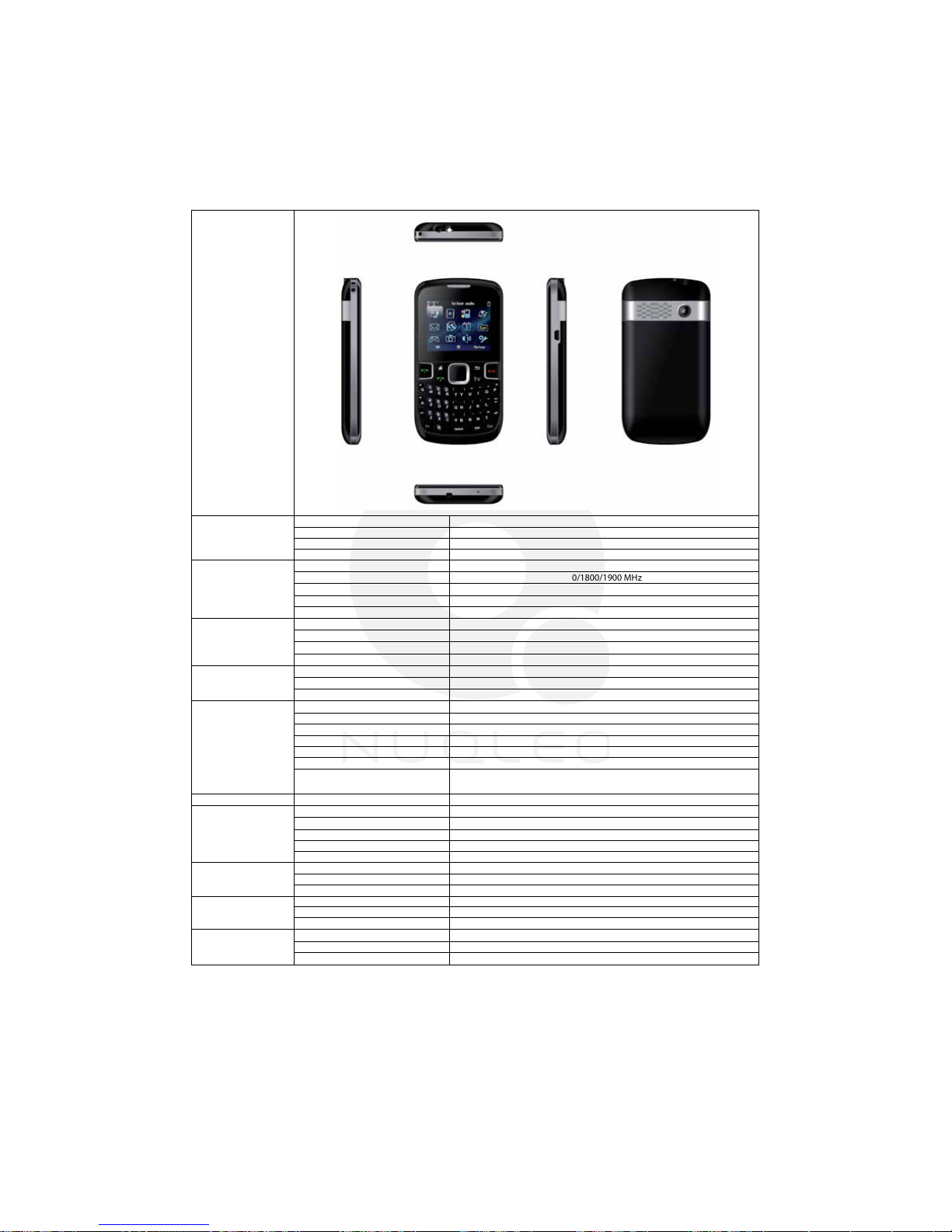
16 Specications
Size and weight
Technology/Platform
Memory
Display
Entertainment
Camera
Connectivity
Sound
Battery*
Other
Height
Width
Depth
Weight
Single USB Jack
Network
Phone type
Operating system
SIM
Phonebook
Call records
Internal
Expandable
Type
Size
Resolution
Radio
TV
GPS
Video and audio player
Vibrate alert
Messaging
Browser
Camera
Wi-Fi
Bluetooth®
Flight mode
Keypad
USB Tethering
Alert types
Speakerphone
Earphone jack
Type and capacity
Standby time
Talk time
Warranty
Languages
Certications
104 mm
45 mm
15 mm
80 g approx (with battery)
Data/charging
Quad band GSM 2G, at 850/900/1800/1900 MHz
Multimedia
N/A
Dual SIM card capability
20 dialed calls, 20 missed calls, 20 received calls
100 entries
32Mb (4MB) ROM
Supports up to 16 GB with micro SD card slot
262k color TFT display
2.0 inches
176 x 220 pixels
Yes
Yes
N/A
MP4, 3GP Video/ MIDI, MP3 audio
Yes
SMS, MMS
WAP compliant with GPRS, for high speed data transmission
and smooth internet connection
Integrated VGA camera with zoom and video recording capability
N/A
Yes
Yes
QWERTY
N/A
Multiple polyphonic ringtones
Yes
Yes
600mAh
Up to 9 days
Up to 4 hours
Yes
Multilingual: English, Spanish
FCC
* Please note duration times vary depending on usage patterns and conditions. Battery power consumption
depends on factors, such as network conguration, signal strength, operating temperature, features selected;
vibrate mode, backlight settings, browser use, frequency of calls, and voice, data, and other application usage patterns.
Specications subject to change without notice
26
Page 27

NUQLEO - Phone ION LITE
Appendix 1 - FCC RF EXPOSURE INFORMATION
¡WARNING! Read this information before using your phone
In August 1986 the Federal Communications Commission (FCC) of the United States with
its action in Report and Order FCC 96-326 adopted an updated safety standard for human exposure to radio frequency (RF) electromagnetic energy emitted by FCC regulated
transmitters. Those guidelines are consistent with the safety standard previously set by
both U.S. and international standards bodies. The design of this phone complies with the
FCC guidelines and these international standards. Use only the supplied or an approved
antenna. Unauthorized antennas modications, or attachments could impair call quality,
damage the phone, or result in violation of FCC regulations. Do not use the phone with a
damaged antenna. If a damaged antenna comes into contact with the skin, a minor burn
may result. Please contact your local dealer for replacement antenna.
BODY-WORN OPERATION
This device was tested for typical body-worn operations with the back of the phone kept
1.5cm from the body. To comply with FCC RF exposure requirements, a minimum separation distance of 1.5cm must be maintained between the user’s body and the back of the
phone, including the antenna, whether extended or retracted. Third-party belt-clips, holsters and similar accessories containing metallic components shall not be used. Body-worn
accessories that cannot maintain 1.5cm separation distance between the user’s body and
the back of the phone, and have not been tested for typical body-worn operations may
not comply with FCC RF exposure limits and should be avoided.
For more information about RF exposure, please visit the FCC website at www.fcc.gov
Your wireless handheld portable telephone is a low power radio transmitter and receiver.
When it is ON, it receives and also sends out radio frequency (RF) signals. In August, 1996,
the Federal Communications Commission (FCC) adopted RF exposure guidelines with
safety levels for hand-held wireless phones. Those guidelines are consistent with the
safety standards previously set by both U.S. and international standards bodies:
<ANSIC95.1> (1992) / <NCRP Report 86> (1986) / <ICIMIRP> (1996)
Those standards were based on comprehensive and periodic evaluations of the relevant
scientic literature. For example, over 120 scientists, engineers, and physicians from
universities, government health agencies, and industry reviewed the available body of
research to develop the ANSI Standard (C95.1). Nevertheless, we recommend that you
use a hands-free kit with your phone (such as an earpiece or headset) to avoid potential
exposure to RF energy. The design of your phone complies with the FCC guidelines (and
those standards).
27
Page 28

NUQLEO - Phone ION LITE
Use only the supplied or an approved replacement antenna. Unauthorized antennas,
modications, or attachments could damage the phone and may violate FCC regulations.
Appendix 2 - RF EXPOSURE INFORMATION
FCC RF Exposure requirements: The highest SAR value reported under this standard during
product certication for use next to the body with the minimum separation distance of 1.5cm
is 0.789W/kg, next to the head is 0.795 W/kg. This transmitter must not be collocated or
operating in conjunction with any other antenna or transmitter.
This device complies with part 15 of the FCC rules. Operation is subject to the following
two conditions:
This device may not cause harmful interference, and
1.
This device must accept any interference received, including interference that may cause
2.
undesired operation.
Note: The manufacturer is not responsible for any radio or TV interference caused by
unauthorized modications to this equipment. Such modications could void the user’s
authority to operate the equipment.
This equipment has been tested and found to comply with the limits for a Class B digital device,
pursuant to part 15 of the FCC Rules. These limits are designed to provide reasonable
protection against harmful interference in a residential installation. This equipment generates
uses and can radiate radio frequency energy and, if not installed and used in accordance with
the instructions, may cause harmful interference to radio communications. However, there is
no guarantee that interference will not occur in a particular installation. If this equipment does
cause harmful interference to radio or television reception, which can be determined by turning
the equipment off and on, the user is encouraged to try to correct the interference by one or
more of the following measures:
•
Reorient or relocate the receiving antenna.
•
Increase the separation between the equipment and receiver.
•
Connect the equipment into an outlet on a circuit different from that to which the
receiver is connected.
•
Consult the dealer or an experienced radio/TV technician for help
Do not use the device in an environment with ambient temperatures below -10ªC or a
maximum of 50 ºC since the device may not work.
Changes or modications to this unit not expressly approved by the party responsible for
compliance could void the user’s authority to operate the equipment.
Appendix 3 – COPYRIGHT STATEMENT
Reproduction of this manual or any part thereof is forbidden without written consent
from Nuqleo.
28
 Loading...