

Page 1
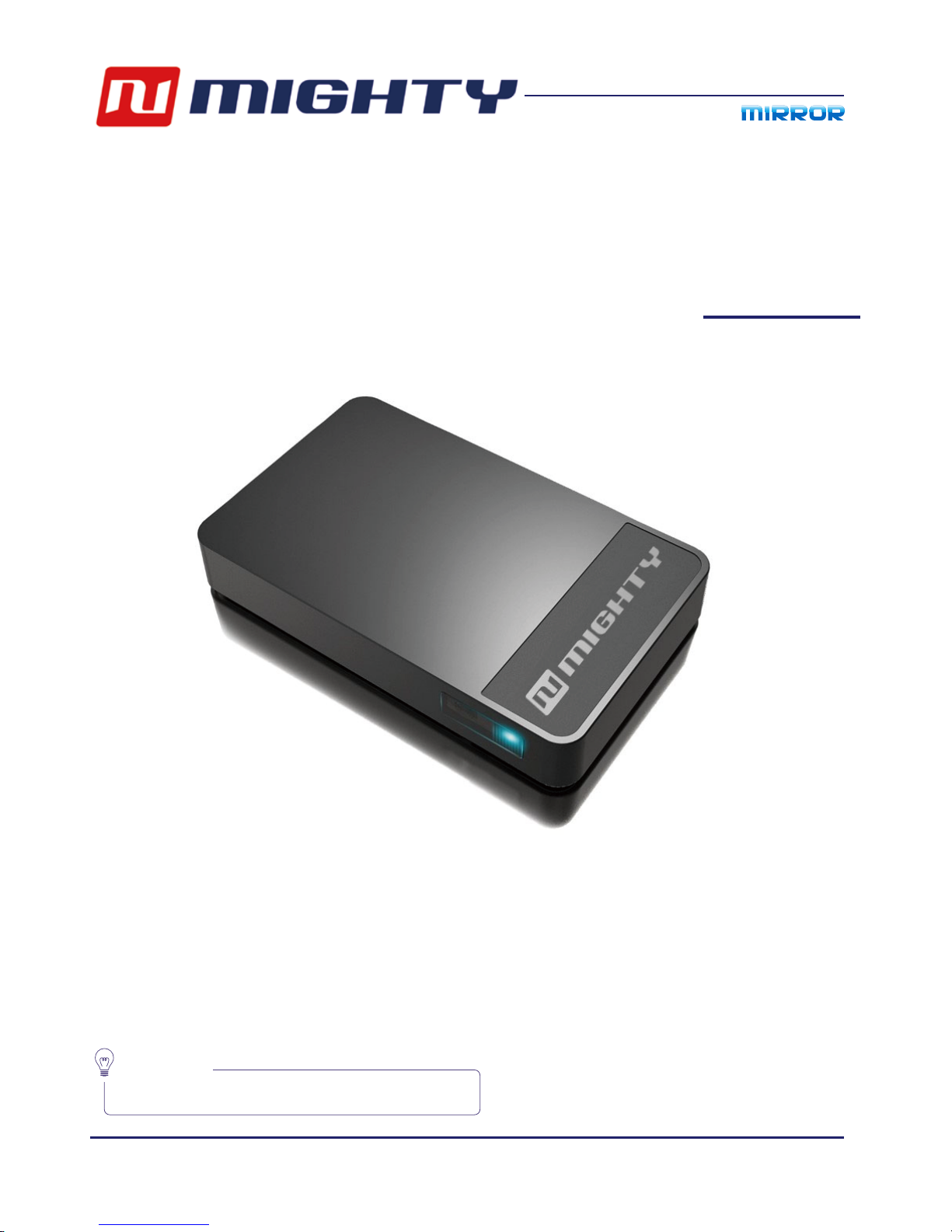
N270
User's Manual
EN
http://www.numighty.com
Warnning:
Please read user’s manual carefully before use.
Page 2

Page 3

http://www.numighty.com
3
Catalogue
1. Safty information..........................................................................................................4
Common maintenance.....................................................................................................................4
2. Packing list of products.............................................................................................5
What's in box........................................................................................................................................5
3. What you need.............................................................................................................6
Preparation.............................................................................................................................................6
4. How to start...................................................................................................................7
Control.......................................................................................................................................................7
How to connect...................................................................................................................................8
5. Display operating guide............................................................................................9
6. APK download.............................................................................................................10
7. Installing APK.................................................................................................................11
8. Network configration..............................................................................................12
WiFi Network setting......................................................................................................................12
Start APK................................................................................................................................................13
Select box..............................................................................................................................................14
Input WiFi Password........................................................................................................................15
Enter main interface........................................................................................................................16
9. Push local file...............................................................................................................17
Push video............................................................................................................................................18
Push music...........................................................................................................................................19
Push picture........................................................................................................................................20
10. Online push .............................................................................................................21
11. Video client push...................................................................................................22
12.
Troubleshooting.....................................................................................................23
Page 4
http://www.numighty.com
4
1. Important safety information
General maintenance
Caution
Note
About operating and storage temperatures
Replacement parts/accessories: www.numighty.com
• To avoid damage or malfunction:
• Do not expose the product to excessive heat, caused by heating equipment or direct sunlight.
• Do not drop the product or allow objects to fall on your player.
• Do not allow the product to be submerged in water. Do not expose socket compartment to
water, as water entering the set may cause major damage.
• Do not use any cleaning agents containing alcohol, ammonia, benzene, or abrasives as these
harm the product.
The translation of this document is for reference only.
In the event of any inconsistency between the English version and
the translated version, the English version shall prevail.
• Store in a place where temperature is always between 0 and 35ºC (32 to 95ºF)
• Store in a place where temperature is always between -20 and 45ºC (-4 to 113ºF).
Page 5
http://www.numighty.com
5
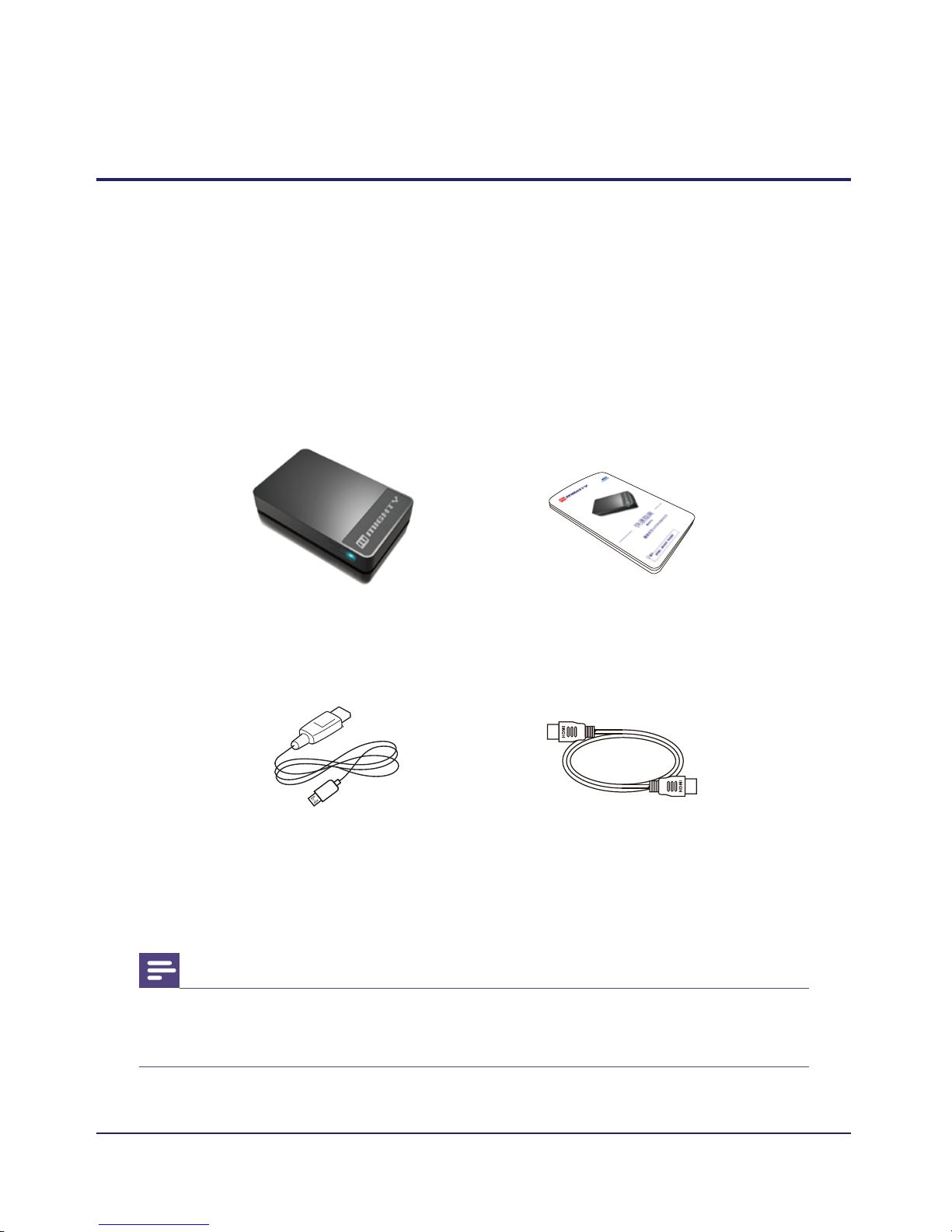
What's in box
Please check the goods in box
• N270
• Quick start guide
• Micro USB power cord
• HDMI cable (optional)
2. Packing list of product
Note
• The images serve as reference only. numighty reserves the right to change
color/design,without notice.
N270
HDMI cable (optional)Micro USB power cord
Quick start guide
Page 6
http://www.numighty.com
6
Note
• HD TV support 720P or 1080P.
• System of smart phone and MID need Android 2.3 and over.
Befor use it, you need prepare folllowing:
• Hight definition TV
• HDMI cable
• available wireless network
• smart phone or MID
• nuPush apk
3. Preparation
Page 7
http://www.numighty.com
7
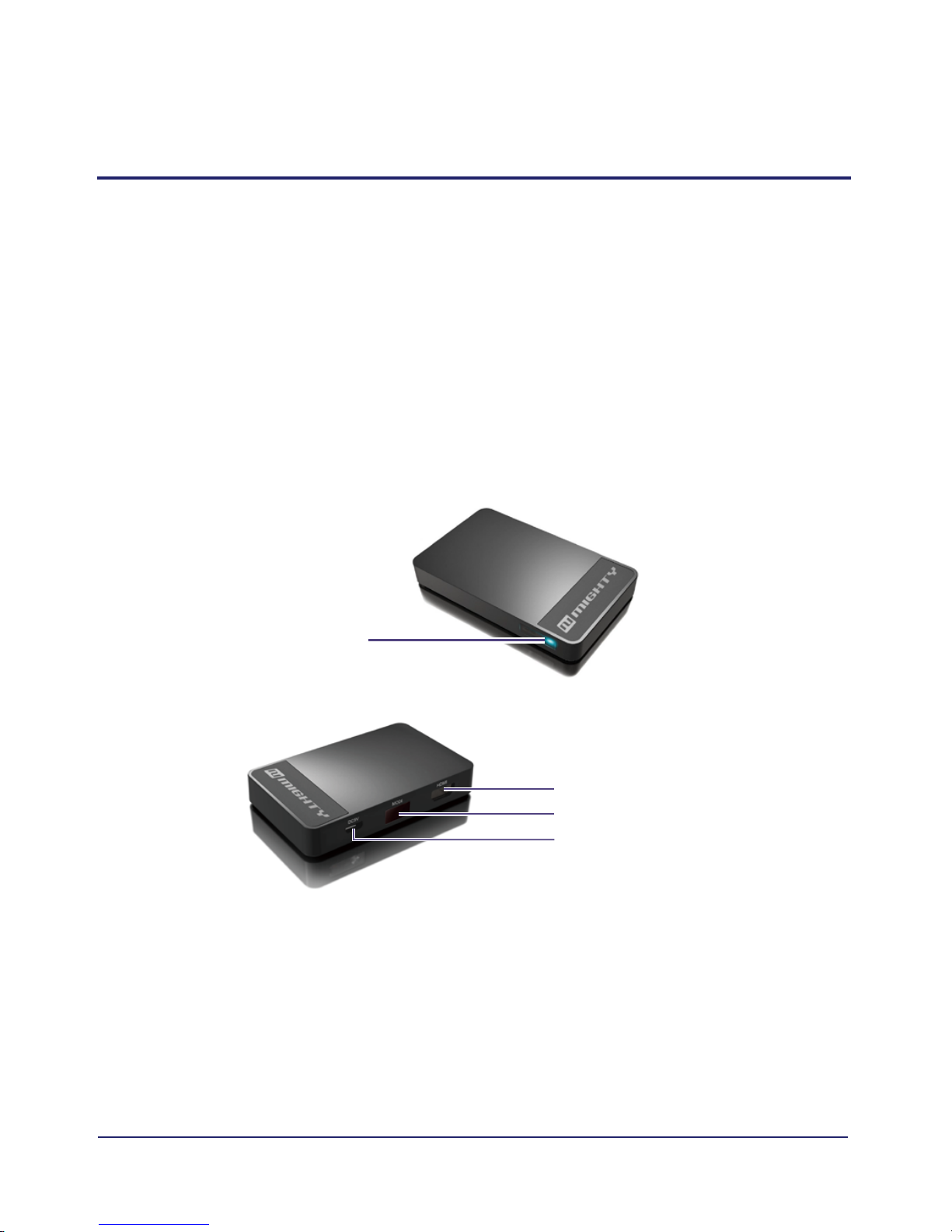
③ Mode switch button
Control:
1. LED indicator
2. HDMI port
3. Mode switch button
4. Micro USB power port
4. How to start
② HDMI port
① LED indicator
④ Micro USB power port
Page 8
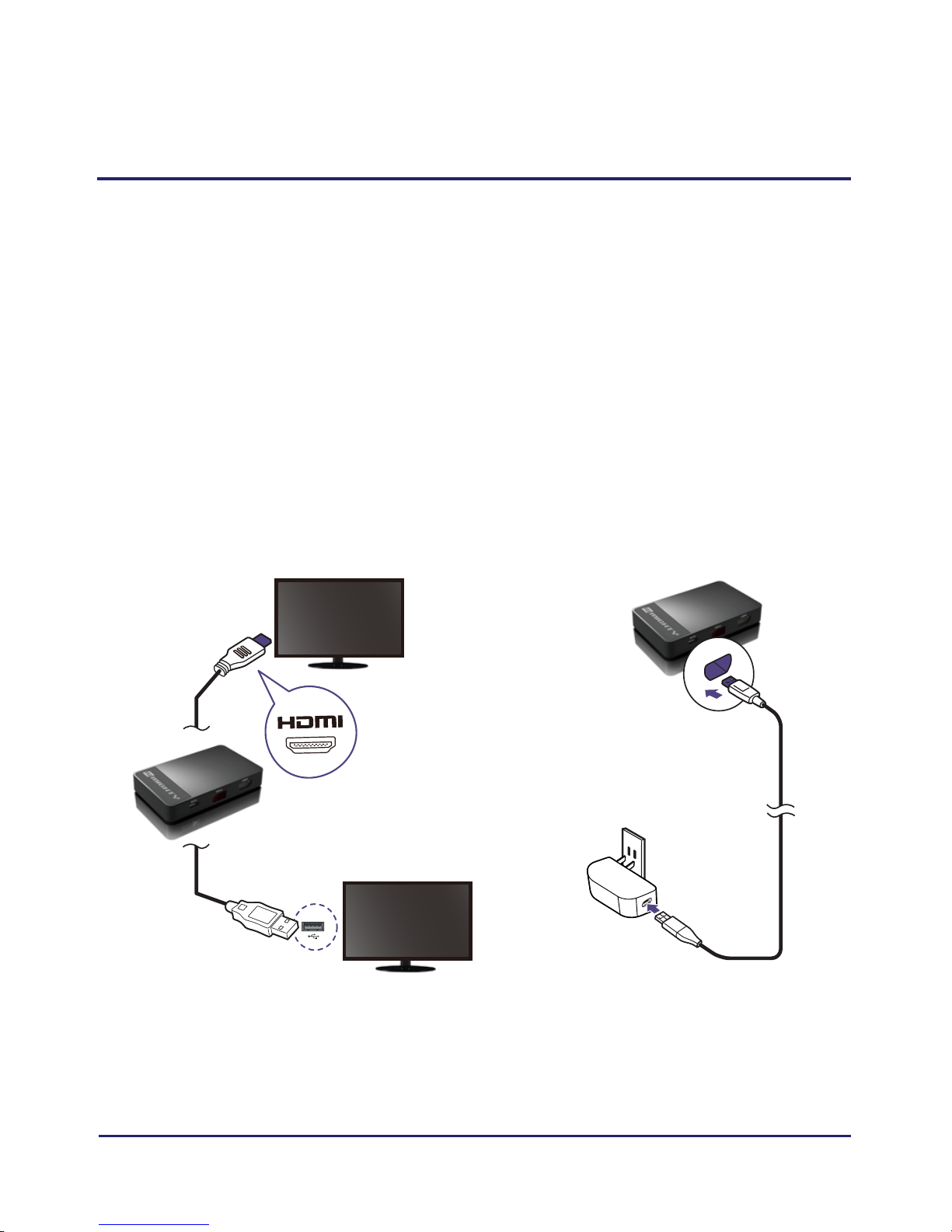
Connection method:
1. Connect the N270 to your TV by HDMI cable
2. Turn on the TV ,select the correct TV input source by the remote
control of your TV
3. Connect one end of the (Micro USB power adapter or smart TV
USB port) to power port on the back of N270.
http://www.numighty.com
8
Page 9
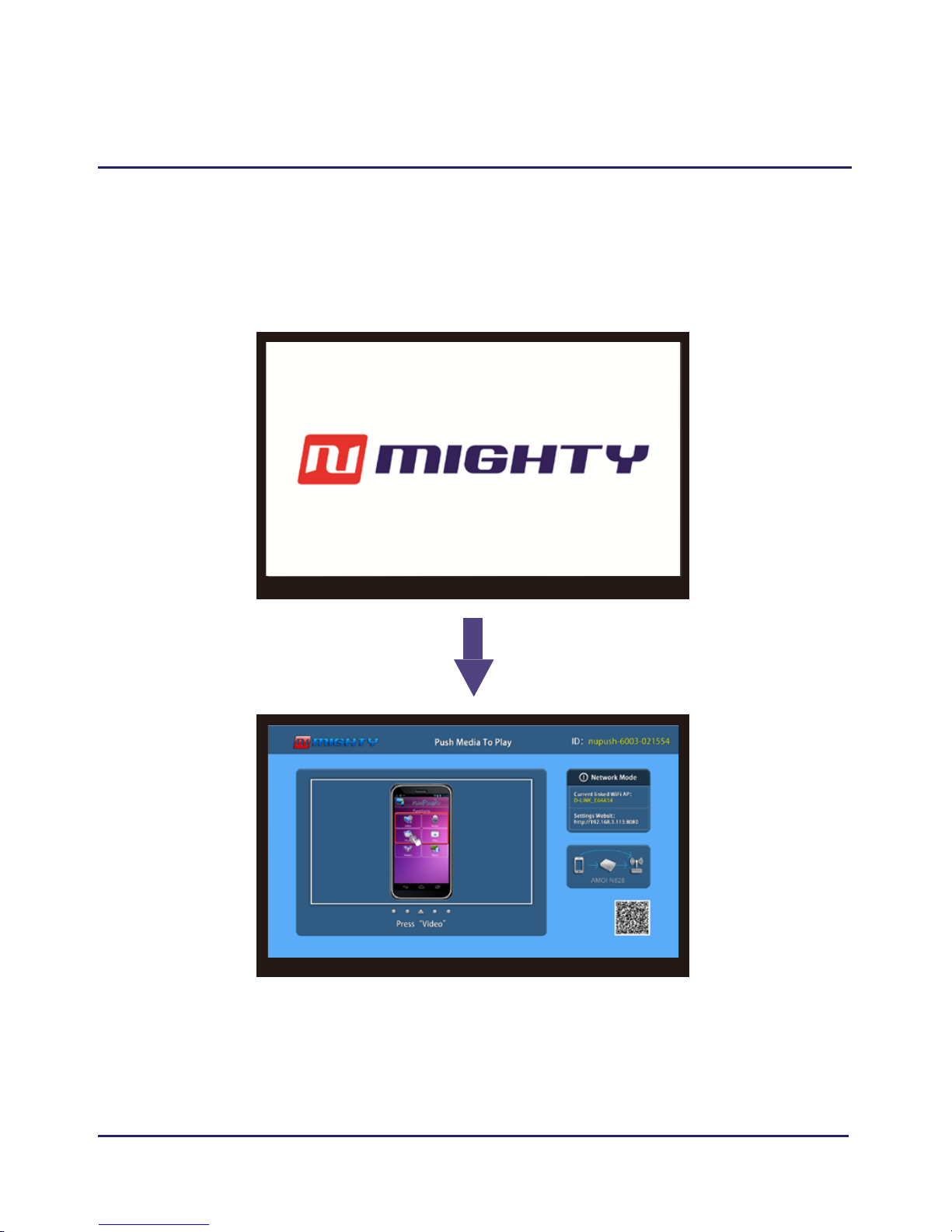
1. After you connect N270 to TV,you will see
below
5. Display operating guide
http://www.numighty.com
9
Turn on
main
interface
Page 10
http://www.numighty.com
10
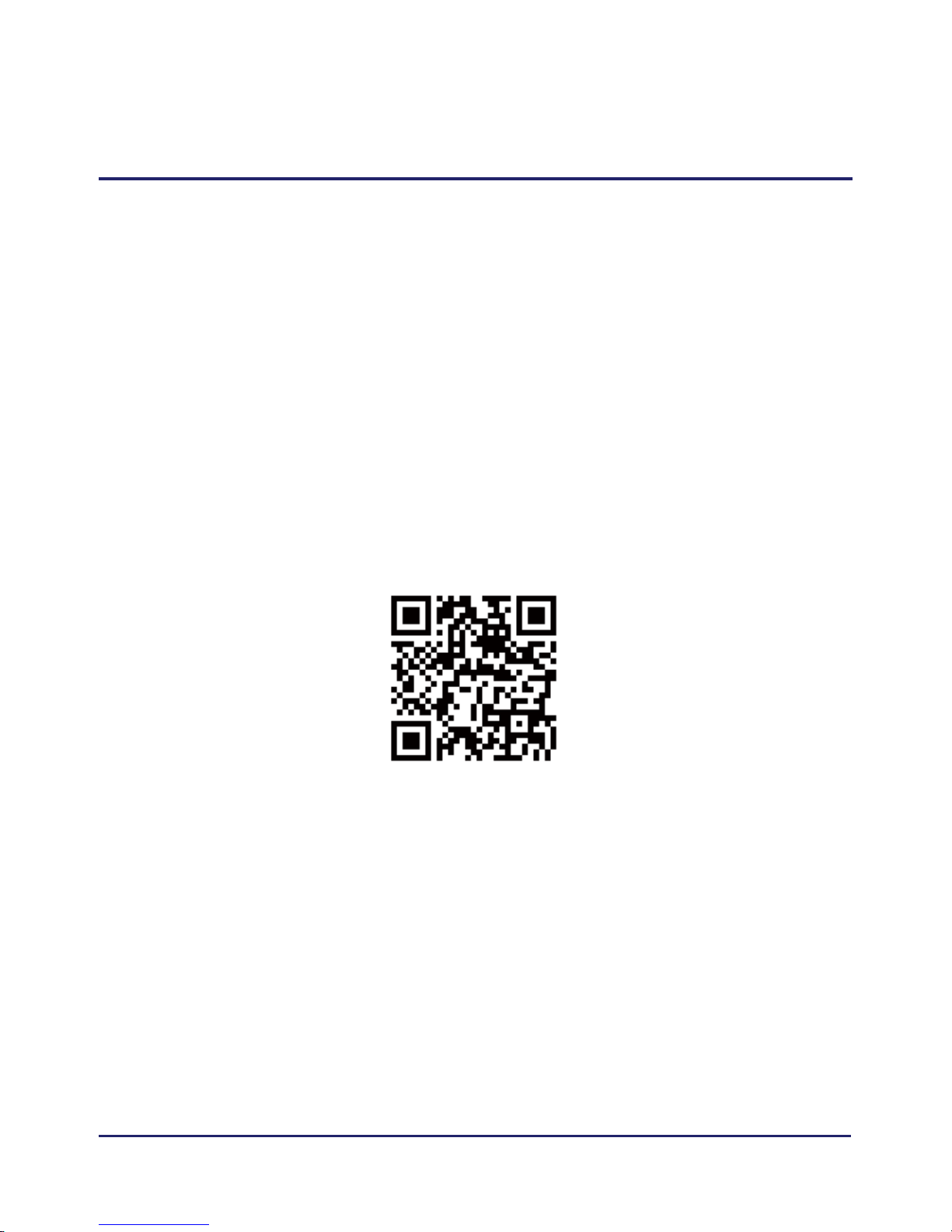
Download the APK by two ways: from wwww.numighty.com
or scan the QRcode below)
6. Download Nupush.APK
Page 11
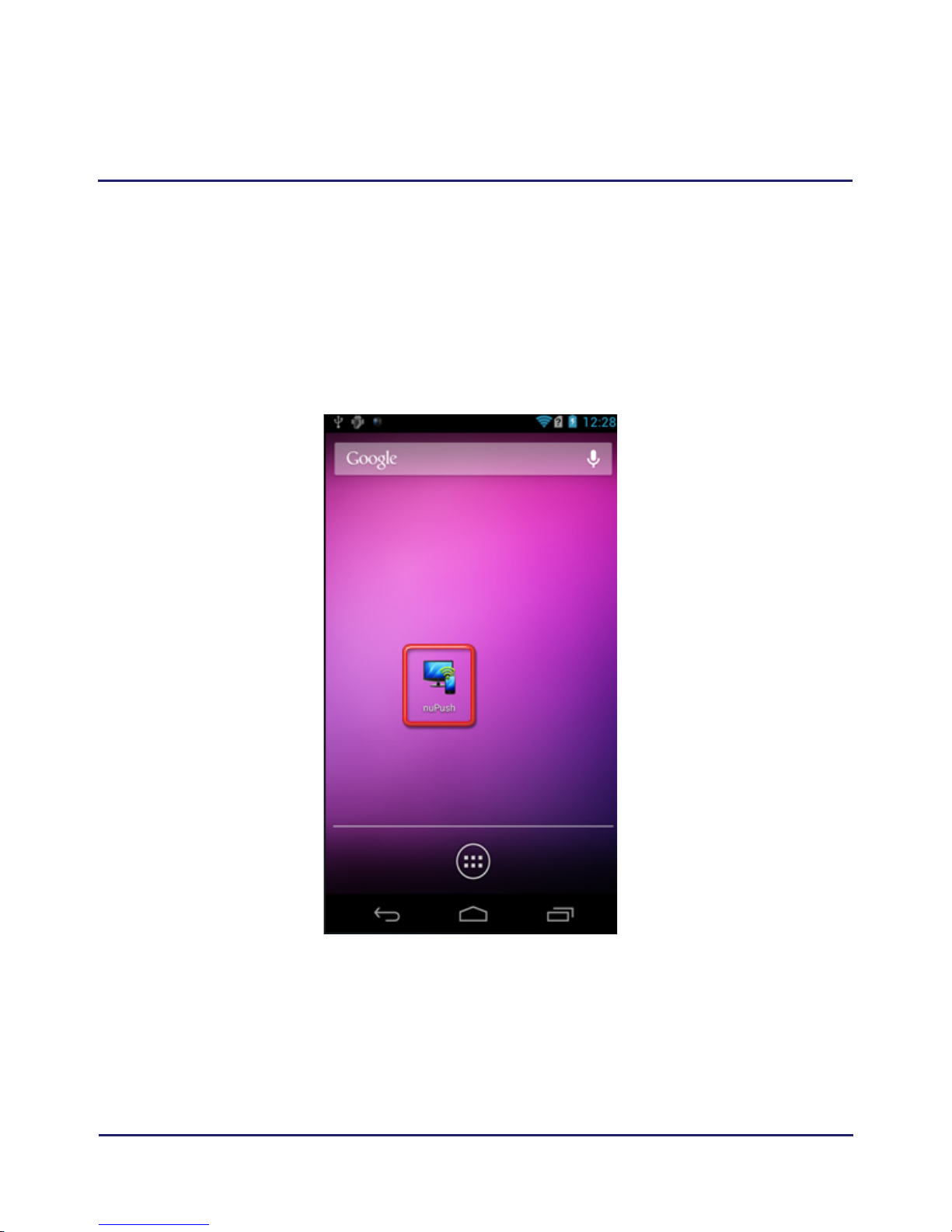
7. Installing Nupush.APK
http://www.numighty.com
11
Installling the APK on your smart phone or
MID, you can see the icon below.
Page 12
Note
• N270 will auto memorize the last Wi-Fi connection.
http://www.numighty.com
12
Connect wireless network:
If it is first time that you use N270 or connect a
new wireless network please follow the instruction below:
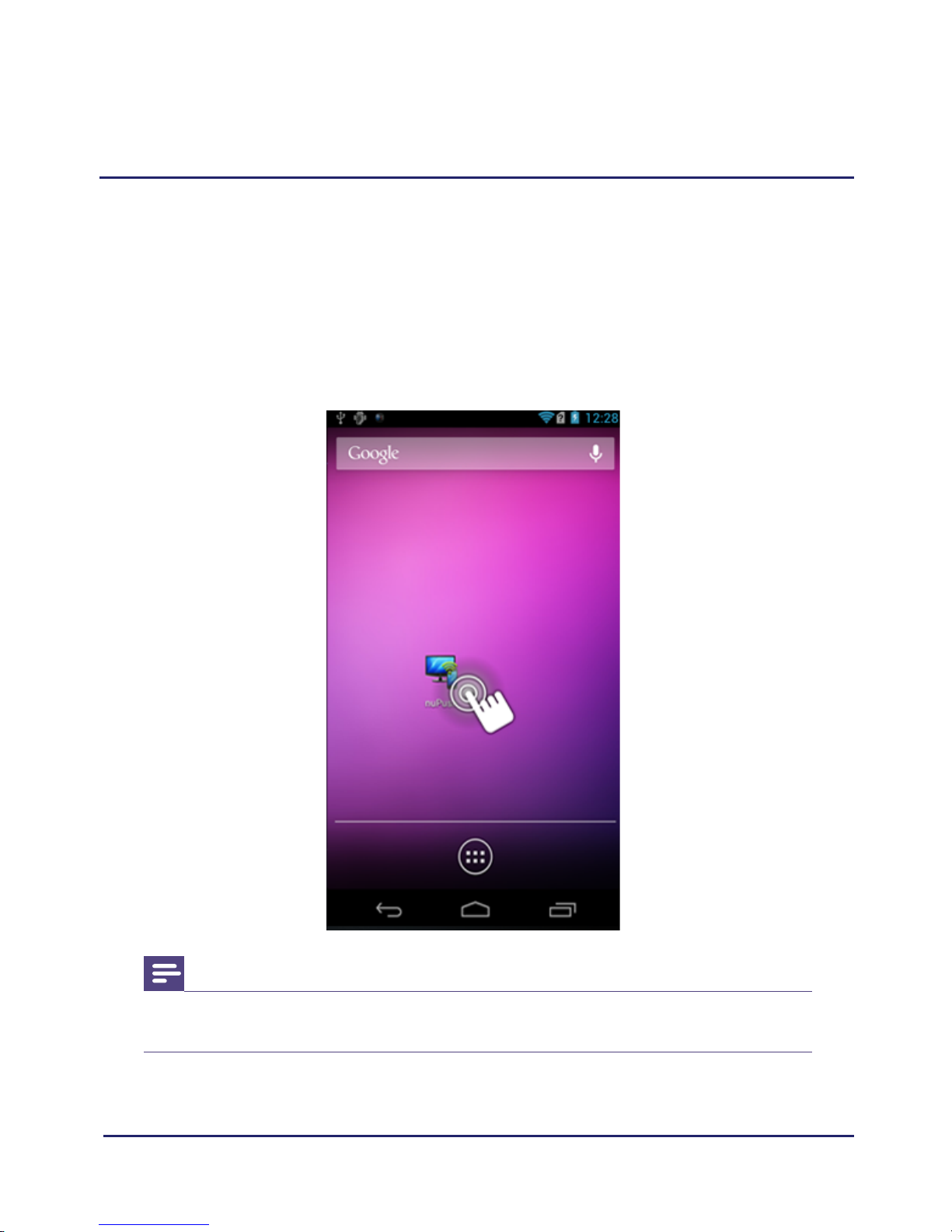
1. Click Nupush.APK
8. Network configration
Page 13
http://www.numighty.com
13
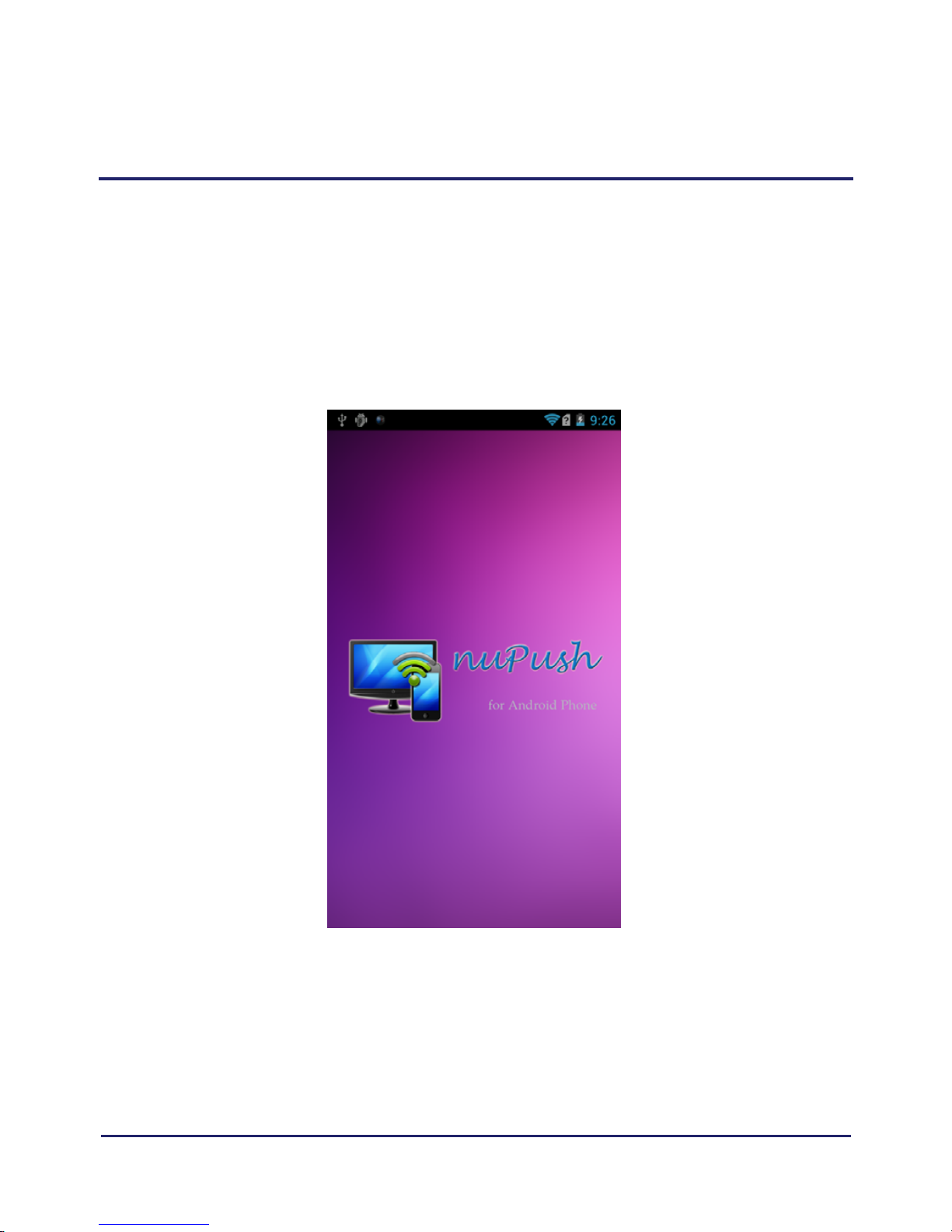
2. Run nuPush.APK
Page 14
http://www.numighty.com
14
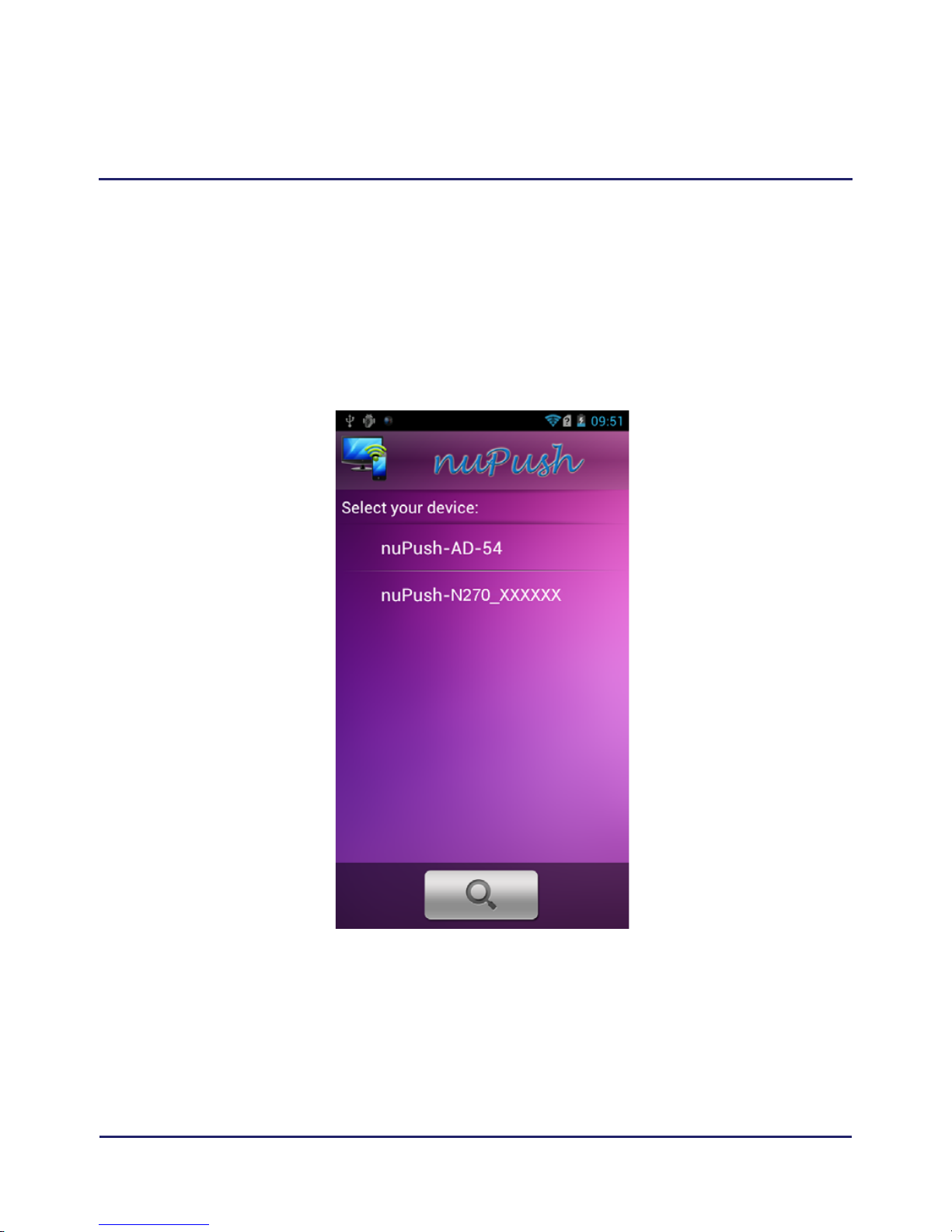
Select N270 box ID (ex. nuPush-N270-XXXXXX)
3. Select box ID
Page 15
http://www.numighty.com
15
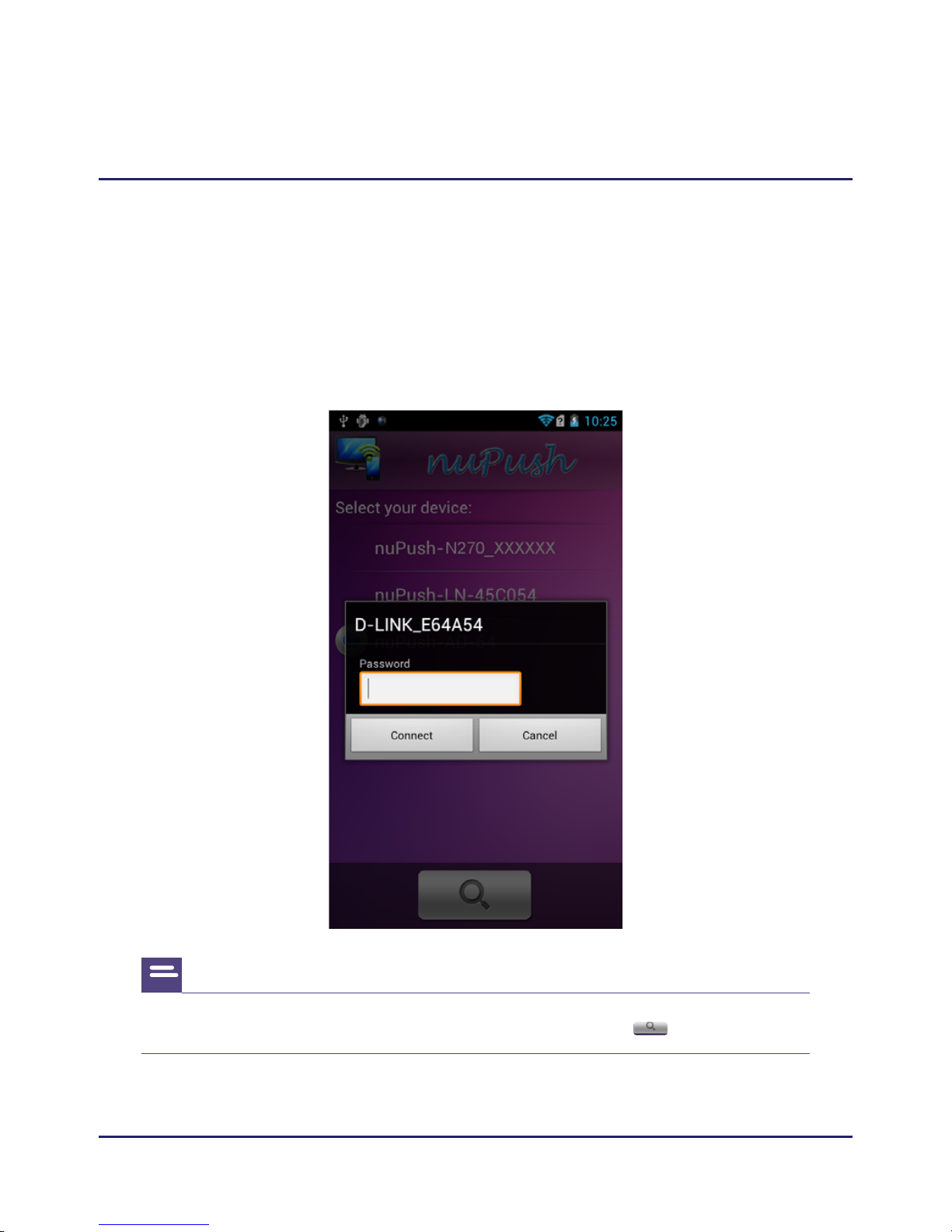
You will see your WiFi network after you enter below
interface,after you input the password, N270 will
connect the WiFi network.
4. WiFi settings
Note
• If the network can not be connected,click the icon to scan again.
Page 16
http://www.numighty.com
16
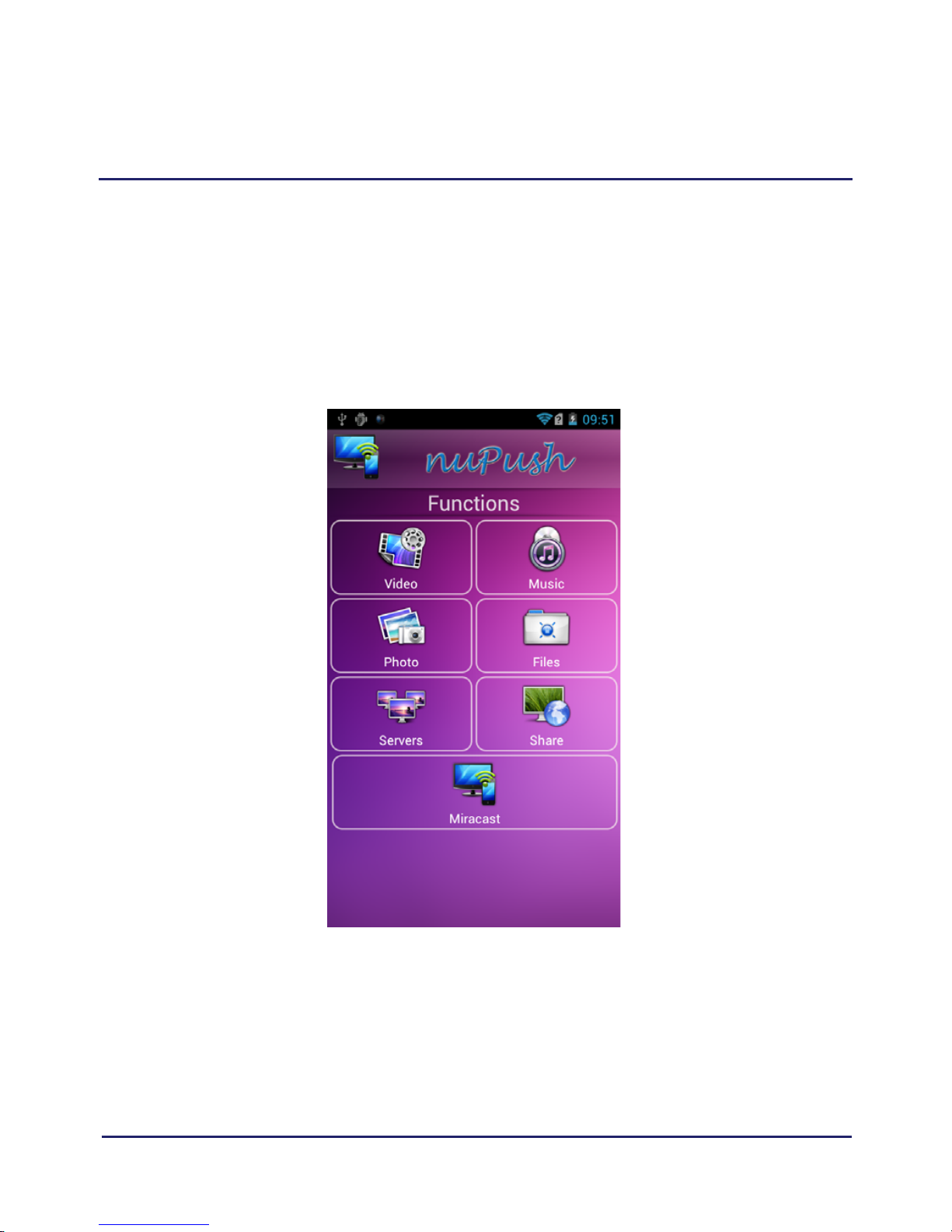
Enter main interface:
5. WiFi settings
Page 17
http://www.numighty.com
17
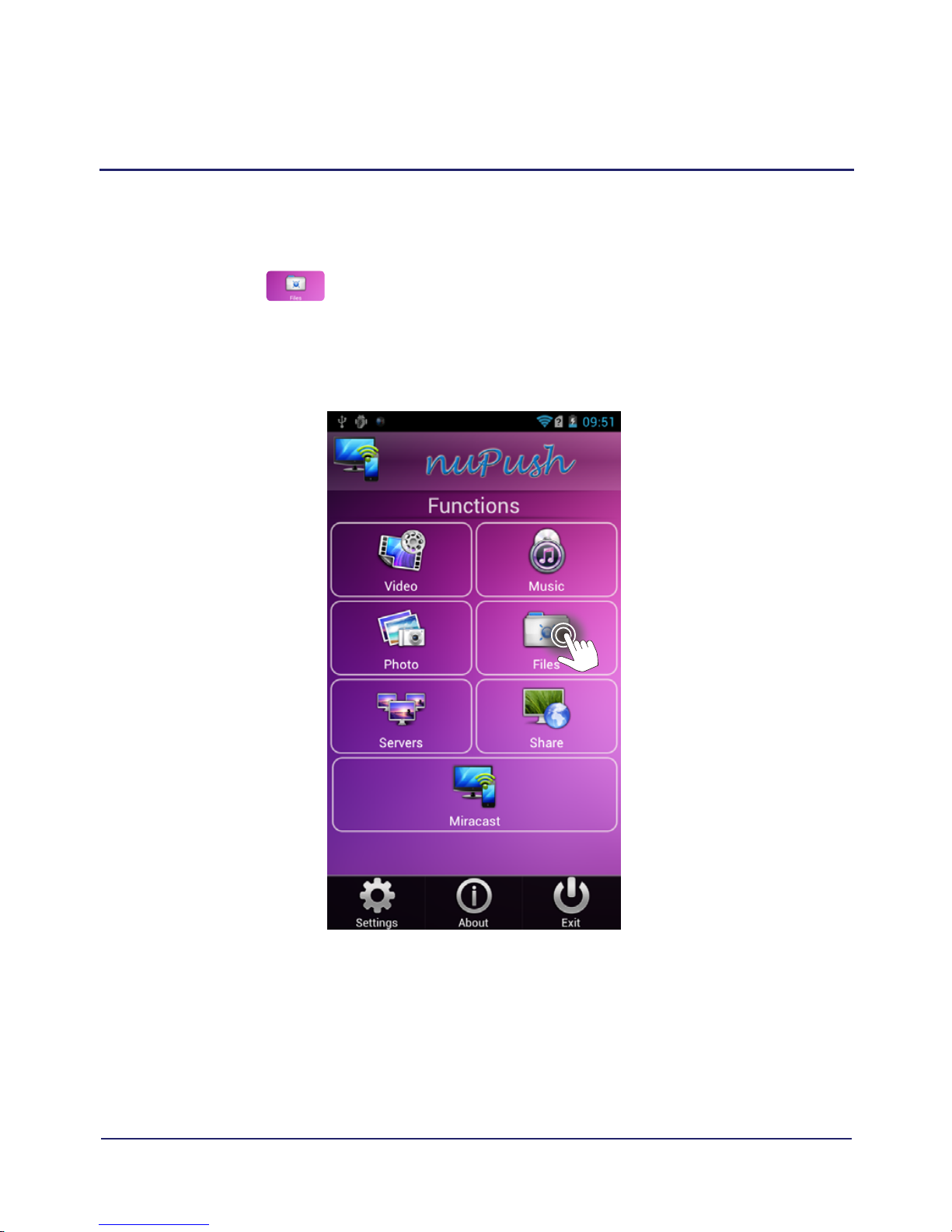
Push the local file
Click icon enter the list of file,select file
display the local file on TV.
9. Mobile device local push
Page 18
http://www.numighty.com
18
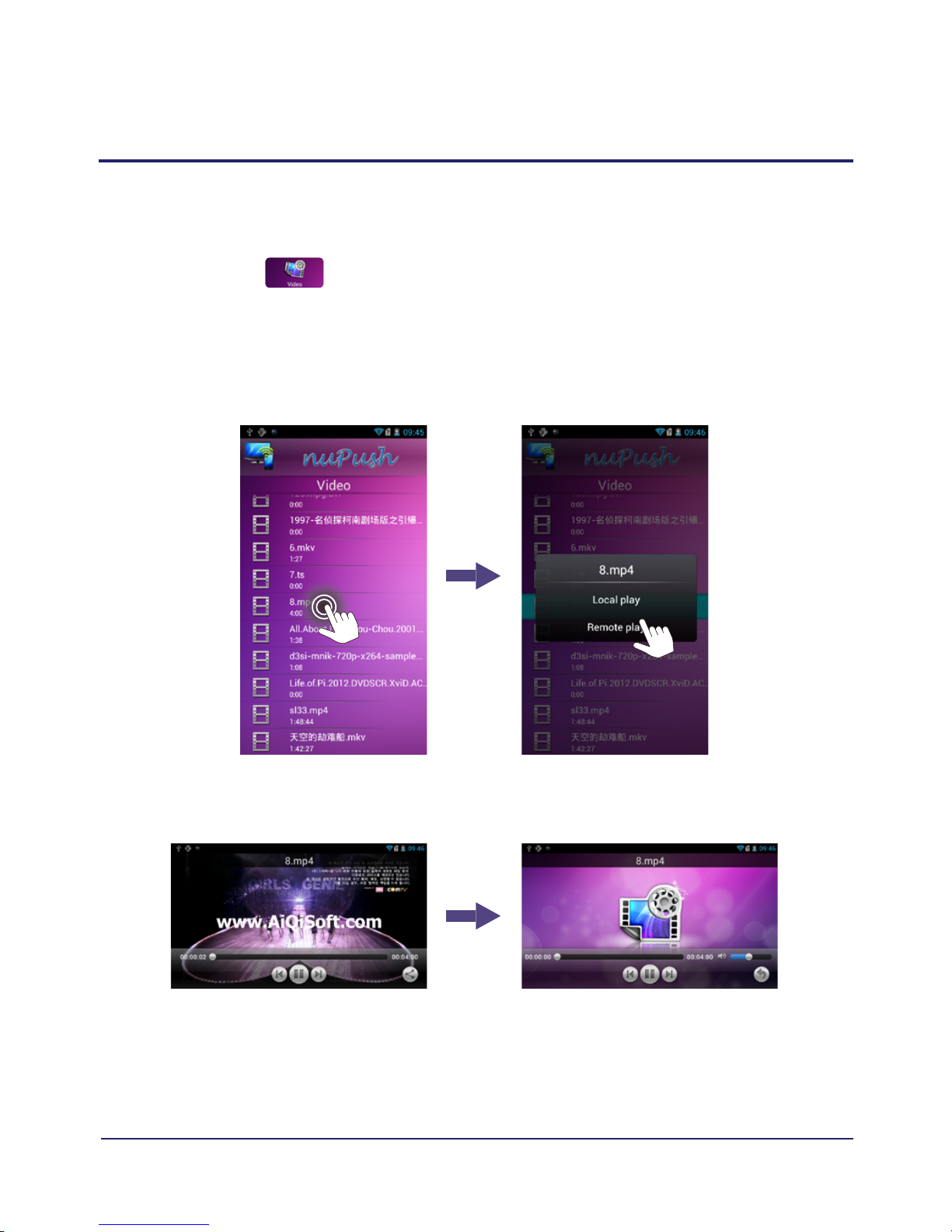
Push video
Click icon enter the list of video,select video
display video on TV.
Page 19
http://www.numighty.com
19
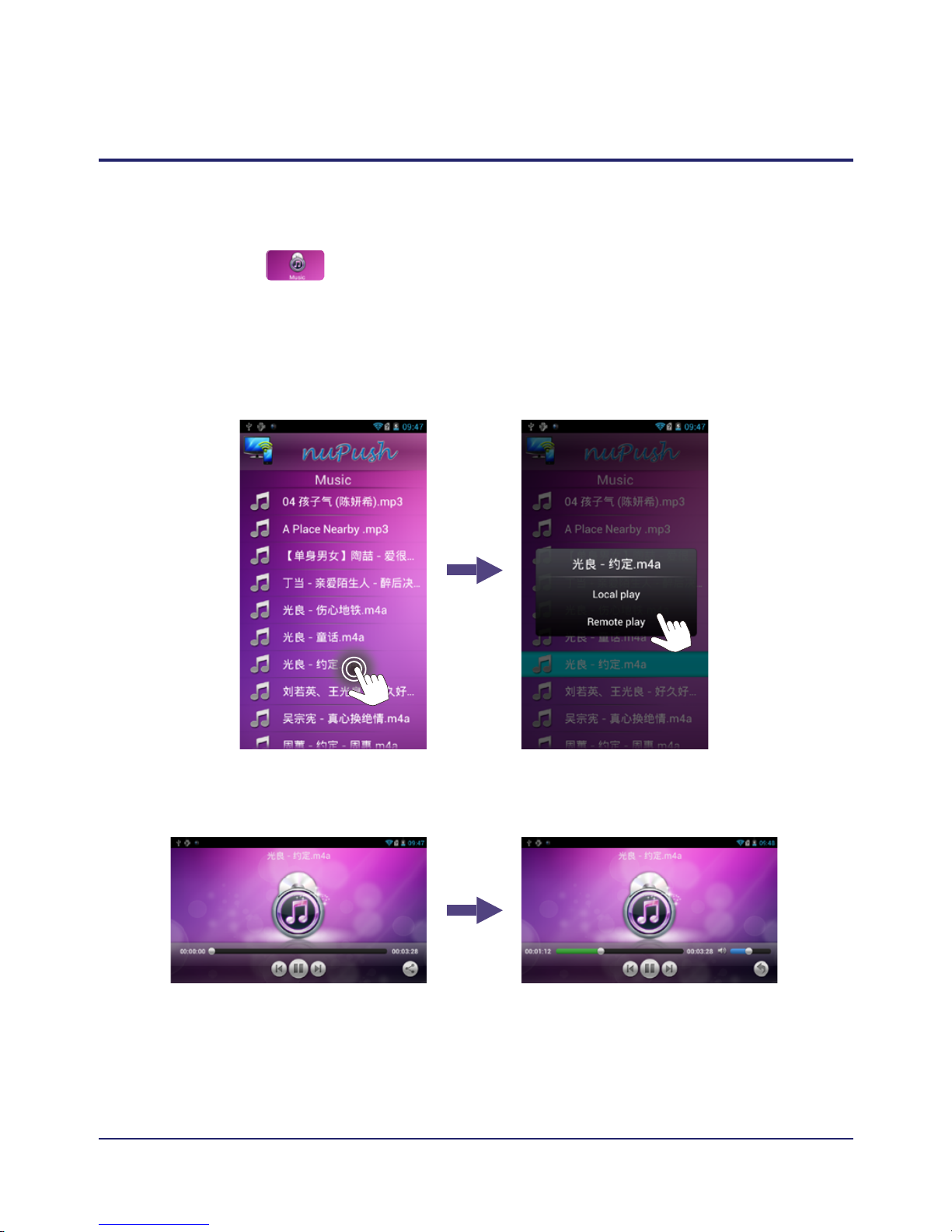
Push music
Click icon enter the list of music,select music
display music on TV.
Page 20
http://www.numighty.com
20
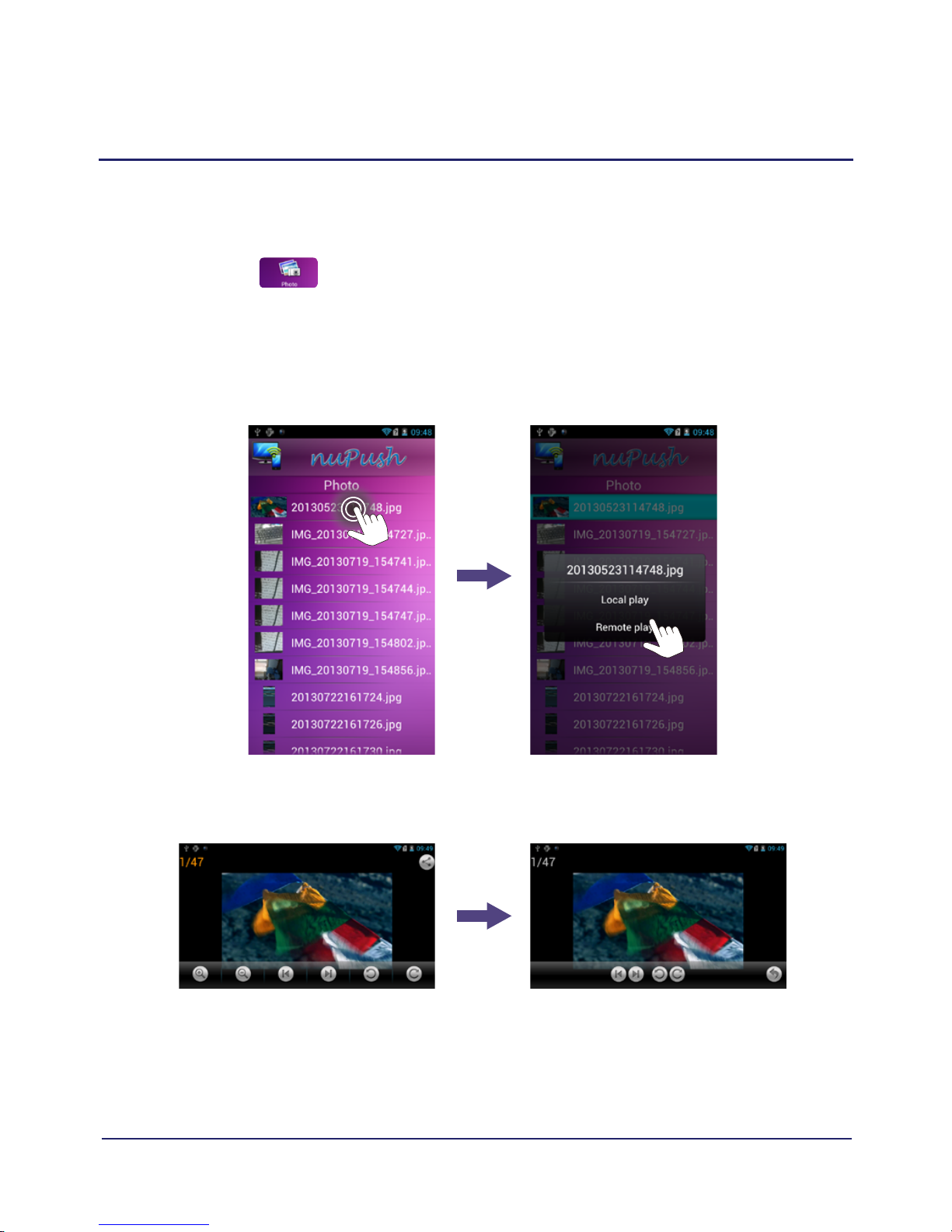
Push picture
Click icon enter the list of picure, select
picure display the picture on TV.
Page 21
http://www.numighty.com
21
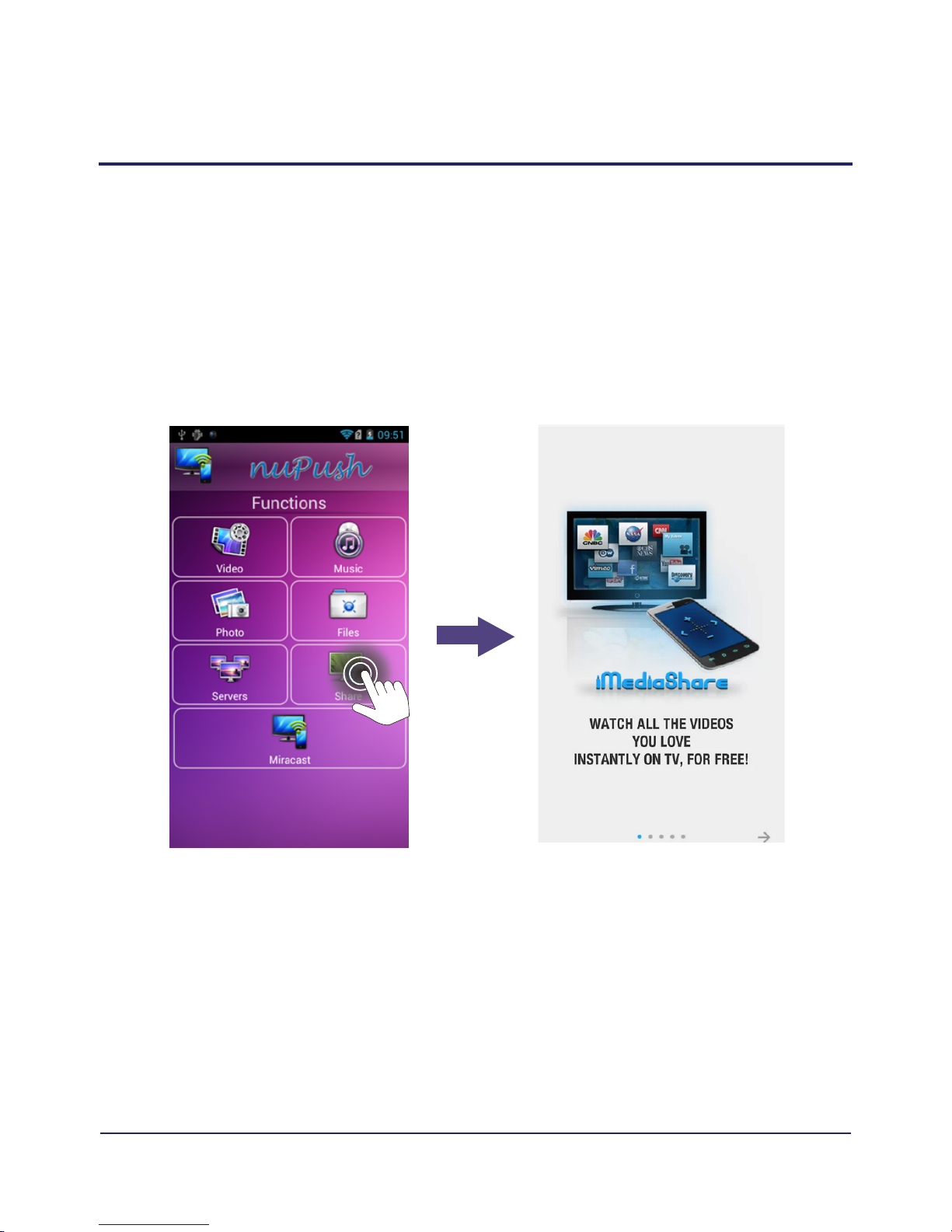
Launch the video APK( e.g. imediashare, make certain
the APK support DLNA), then push the online video
to your TV screen.
10. Online push
Page 22
http://www.numighty.com
22
Note
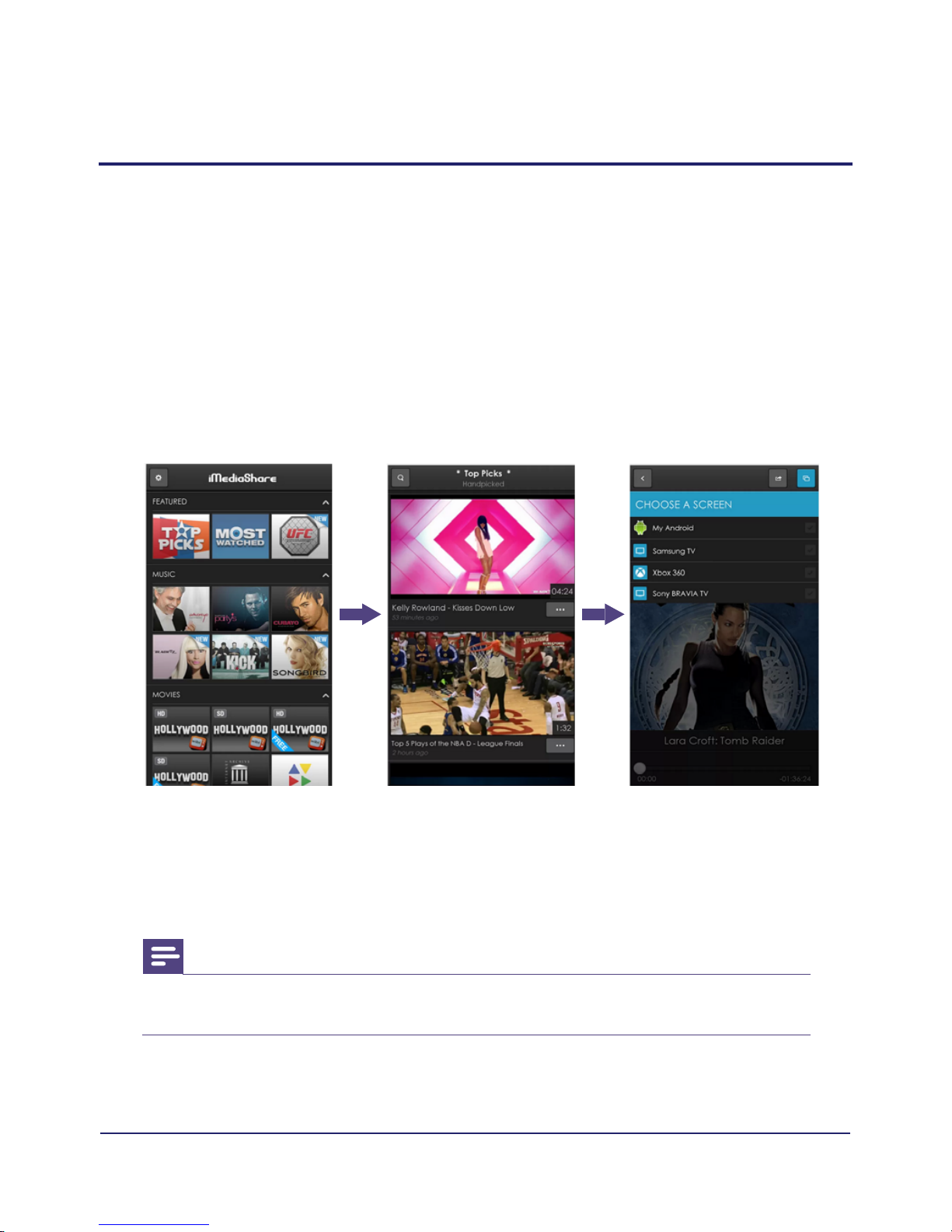
• Make sure the device can support DLNA function.
Open mobile video client imediashare and other
video sites to play the videos.
• Select the video you want to watch.
• Select device after "Device List" appearing,
then can play it.
* IOS device push Airplay function to IOS compatibled handheld devices,
to implement the content delivery and playback through airplay.
11. Video client push:
Page 23

http://www.numighty.com
23
Q. If N270 isn’t responding and status light is off?
• The N270 power port is securely connected to a working
power source.
• Make sure N270 power adapter cable is pushed all the way in.
Q. If your TV can’t see screen display after connected N270 to your TV?
• Make sure that your TV supports 720p.
• Check if the HDMI cable is connected to N270 and your TV.
• Look at the port on the back of your TV to make sure you have
the correct TV input source.
Q. No Wi-Fi connection on N270?
• Make sure that your mobile devices and N270 share the same Wi-Fi
network.
• Make sure the Wi-Fi on your mobile devices is on.
• Use a Wi-Fi router that support IEEE 802.11 b/g/n.
More information is available at http://www.numighty.com
12. Troubleshooting
Page 24

Page 25

http://www.numighty.com
http://www.numighty.com
N270_EN_UM_V1.0
Page 26

FCC Information and Copyright
This equipment has been tested and found to comply with the limits for a Class B digital device,
pursuant to part 15 of the FCC Rules.
These limits are designed to provide reasonable protection against harmful interference in a residential
installation. This equipment generates,
uses and can radiate radio frequency energy and, if not installed and used in accordance with the
instructions, may cause harmful interference
to radio communications. However, there is no guarantee that interference will not occur in a particular
installation. If this equipment does
cause harmful interference to radio or televisi on reception, which can be determined by turning the
equipment off and on, the user is
encouraged to try to correct the interference by one or more of the following measures:
—Reorient or relocate the receiving antenna.
—Increase the separation between the equipment and receiver.
—Connect the equipment into an outlet on a circuit different from that to which the receiver is
connected.
—Consult the dealer or an experienced radio/TV technician for help.
This device complies with part 15 of the FCC Rules. Operation is subject to the
following two conditions:
(1)This device may not cause harmful interference, and
(2) this device must accept any interference received, including interference that may
cause undesired operation.
changes or modifications not expressly approved by the party responsible for compliance could
void the user's authority to operate the equipment.
This equipment complies with FCC radiation exposure limits set forth for an uncontrolled
environment .This equipment should be installed and operated with minimum distance 20cm
between the radiator& your body. This transmitter must not be co-located or operating in
conjunction with any other antenna or transmitter.
 Loading...