

Page 1

Stereoizer Operation Manual
OPERATION MANUAL
Stereoizer
Expand Your Stereo Image
© 2019 NUGEN Audio
© 2019 NUGEN Audio
1
1
www.nugenaudio.com
Contents
Page 2

Stereoizer Operation Manual
Contents
Introduction
Controls
Inter-aural Intensity Difference (IID)
Inter-aural Time Difference (ITD)
Linear Width
Stereo Frequency Analysis
Stereometer and Output Balance
Input/Output Control
Dynamics
Utility Controls
3
4
5
7
8
8
9
10
11
12
Practical Application
Reporting a Problem
Version History
13
14
15
© 2019 NUGEN Audio
© 2019 NUGEN Audio
2
2
www.nugenaudio.com
Contents
Page 3

Stereoizer Operation Manual
Introduction
The NUGEN Audio Stereoizer is designed for the introduction and control of variable
stereo spread into mono and stereo signals. We have paid particular attention to the
provision of individual controls that induce mono-compatible stereo images, as this
can be important in some applications and is not always an independently accessible
feature with plug-ins of this type.
Stereoizer introduces a feeling of natural space without unwanted artefacts allowing
expansion and control of the stereo image with comprehensive and intuitive ease using
professional quality algorithms.
This is achieved by taking elements within the original audio signal and applying
algorithms that extend and adapting these characteristics using techniques in harmony
with the way the human ear perceives sound direction naturally, without adding any
articial reverberation and maintaining the original character of the sound.
Optional visual feedback is also available, showing the stereo spread relative to
frequency, allowing for frequency conscious adjustment without the needs to refer to a
separate analysis plug-in.
© 2019 NUGEN Audio
3
Contents
Page 4
Stereoizer Operation Manual
Controls
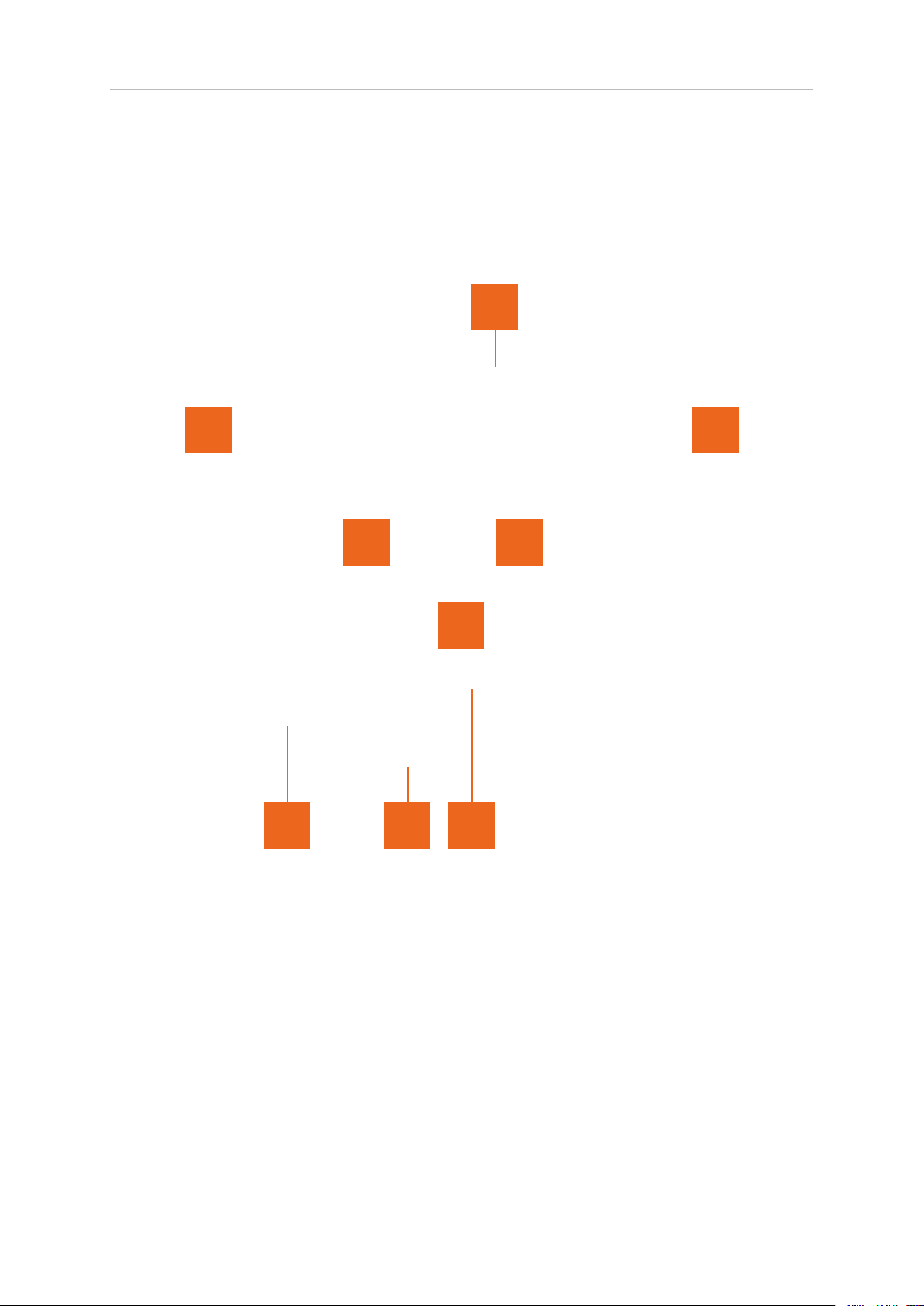
The Controls are grouped into several distinct zones to aid intuitive operation (see
diagram below).
8
7 6
1 2
3
9 5 4
1 Inter-aural intensity difference (IID) control zone
2 Inter-aural time difference (ITD) control zone
3 Global linear width
4 Stereo frequency analysis
5 Stereometer and output balance
6 I/O control zone
7 Dynamics zone
8 Utility control zone
9 Parameter value display window
© 2019 NUGEN Audio
4
Contents
Page 5
Stereoizer Operation Manual
Inter-aural Intensity Difference (IID)
This algorithm uses the principle that sound can be localised using the difference in
level between the left and right channels. By manipulating the relative levels across
the frequency spectrum, the stereo image can be enhanced with a natural sounding
balance, leaving the original character of the incoming audio intact.
The algorithm can be used to enhance the existing stereo spectrum or add stereo
depth to a mono signal and is mono compatible.
6
2
3
7
4
2
5 8 1 9
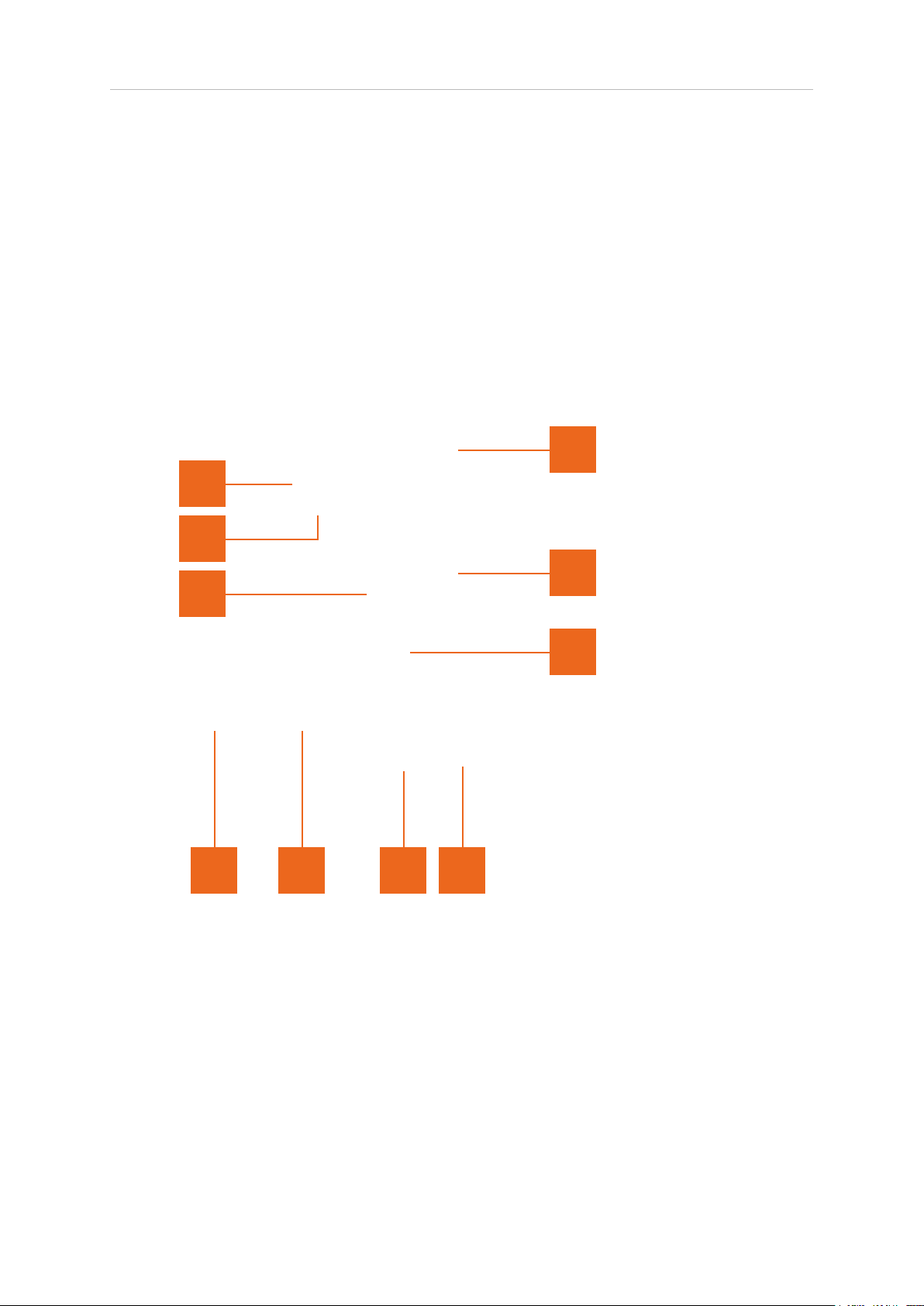
1 IID algorithm on/off. Toggles the IID effect on or off. The IID effect is
independent of other algorithms.
2 IID width. This control increases or reduces the width of the applied effect. The
inner and outer controls are identical, simply use the most convenient. Drag
outward to increase the width, inward to reduce the effect.
3/4 IID upper and lower frequency bounds. These controls can be used to
determine the frequency range of the effect. The upper frequency bound (3)
determines the maximum frequency and the lower frequency bound (4) the
lowest frequency affected. Higher frequencies are towards the outer edge,
lower frequencies toward the inner.
© 2019 NUGEN Audio
5
Contents
Page 6

Stereoizer Operation Manual
5 IID resolution. This control affects the density of the effect, and is adjusted to
suit the audio material in question. Higher resolutions give a ‘smoother’ spread
across the frequency range. The effect of the resolution control is also
dependent upon the frequencies within the original audio material.
6/7 IID focus. The IID focus controls (upper 6 and lower 7) dene the range that
the IID algorithm operates within globally. These controls have both the effect of
compressing the resolution and restricting the range of the effect in the
frequency spectrum to remain within the upper and lower bounds.
These controls are useful for ne detailed tuning of the overall effect. Generally
the same effect can be obtained using the resolution (5) and frequency bounds
(3 and 4), however, gently ‘squeezing’ the range can shift about the effected
frequencies and help to select/avoid specic frequencies in audio with dominant
frequency spikes. It can also be used to gain a very high density within a limited
frequency range, giving an almost ‘air’ like quality to the enhancement.
8 IID invert. Reverses the effect in the two channels. In an established mix, this can
help an individual track ‘sit’ better. Can also produce an alternative ‘sound’ if the
original audio material already contains marked stereo distribution.
9 IID/ITD link. Toggles a link between IID and ITD frequency bounds and applied
width of the effects. This is a relative link, preserving the relative separation
where relevant.
© 2019 NUGEN Audio
6
Contents
Page 7
Stereoizer Operation Manual
Inter-aural Time Difference (ITD)
This algorithm uses the principle that sound can be localised using the difference in
time of arrival between left and right channels. This is a subtle manipulation, not as
course as a more usual ‘Haas delay’ or simple ‘phase shifting’. This effect, unlike the
simple implementations of ITD concepts is also fully mono-compatible.
2
4
2
3
7 1 6 5
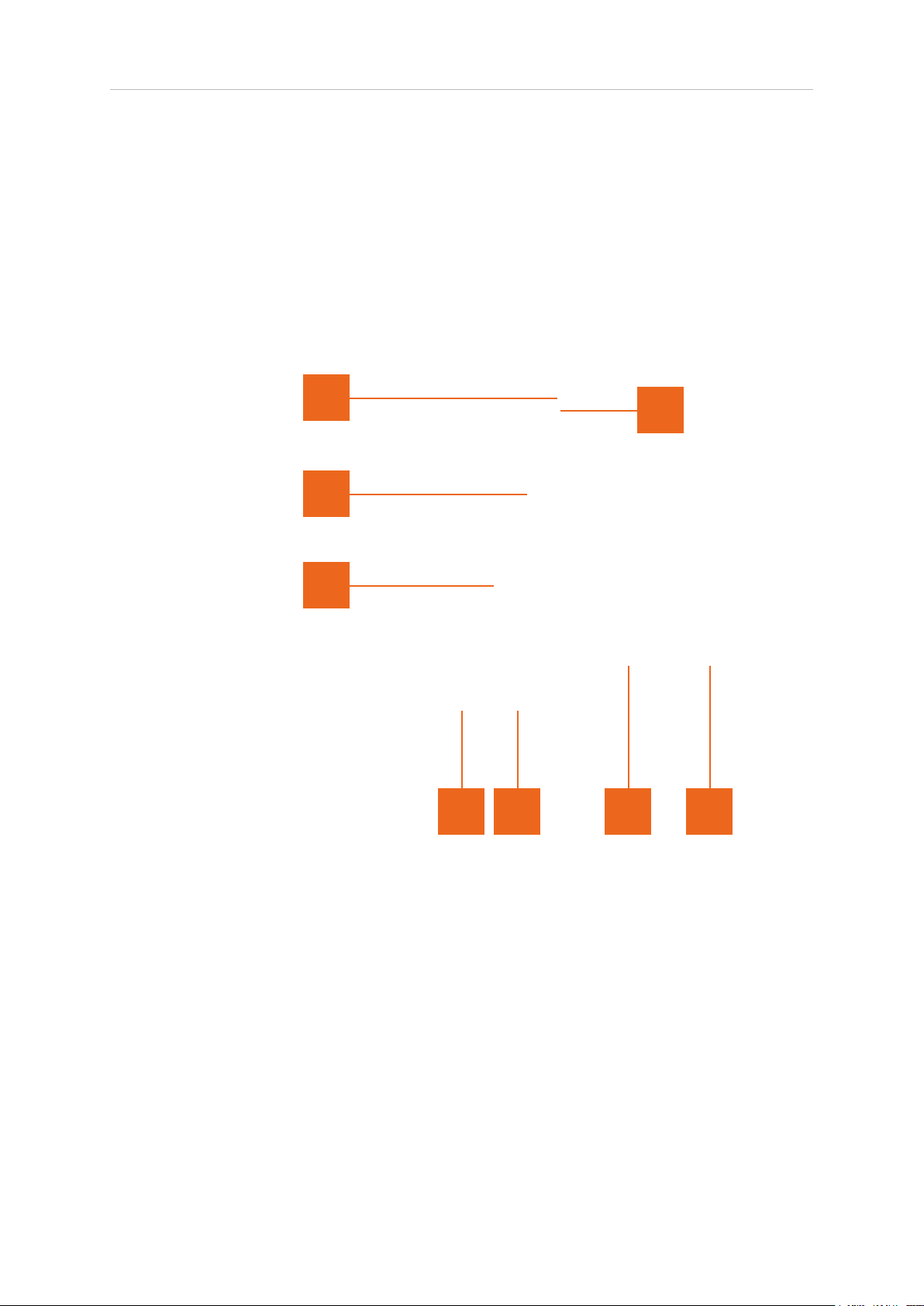
1 ITD algorithm on/off. Toggles the ITD effect on or off. The ITD effect is
independent of other algorithms.
2 ITD width. This control increases or reduces the width of the applied effect. The
inner and outer controls are identical, simply use the most convenient. Drag
outward to increase the width, inward to reduce the effect.
3/4 ITD upper and lower frequency bounds. These controls can be used to
determine the frequency range of the effect. The upper frequency bound (3)
determines the maximum frequency and the lower frequency bound (4) the
lowest frequency affected. Higher frequencies are towards the outer edge,
lower frequencies toward the inner.
© 2019 NUGEN Audio
7
Contents
Page 8

Stereoizer Operation Manual
5 ITD acuity. This control affects the ‘sharpness’ of the effect. Depending upon
the input material this can be quite pronounced, or relatively subtle. When the
incoming audio contains a high level of transients, adjusting the acuity control
can ne-tune the effect for a natural sound.
6 ITD ll. Adds an additional dimension to the algorithm, increasing the density
of the effect. The ll control is not mono compatible, and is more pronounced
at lower overall width levels, being absorbed by the main algorithm as the width
is increased.
7 IID/ITD link. Toggles a link between IID and ITD frequency bounds and applied
width of the effects. This is a relative link, preserving the relative separation
where relevant.
Linear Width
This control expands or reduced the stereo spectrum established in the audio (either at
source, and or via one of the Stereoizer processes). A value of 100% will leave the audio
unaffected (effectively turning the algorithm off). Values above 100% expand the stereo
spectrum, and values below collapse towards mono (0%).
As this algorithm is based entirely upon a natural mathematical extrapolation of in
incoming signal, it leads to extremely natural expansion of existing stereo material, with
no side effects.
This algorithm has no effect on a mono signal. If a mono signal is input and the IID and
ITD algorithms are not engaged, the output will remain mono.
Stereo Frequency Analysis
The ‘analysis’ control toggles on/off the stereo spectral frequency analysis. This tool
displays the stereo deviation from centre against frequency. Frequency rises from 20Hz
(inner edge) to 22kHz (outer edge), representing stereo position as a deviation from
centre (vertical).
A central (mono) signal, will result in a blank display, only deviation from centre is
represented.
© 2019 NUGEN Audio
8
Contents
Page 9

Stereoizer Operation Manual
Stereometer and Output Balance
The Stereometer shows the overall balance of the stereo image. The moving bar
indicates the stereo position and the numeric read out gives the value as a percentage.
The ‘haze’ shows a historical stereo position, with brightness indicating stereo focus.
12 3
1 Global stereo balance control. Slide left or right to adjust the output.
2/3 Output solo. Click to toggle output solo for Left (2) and Right (3) channels
respectively.
© 2019 NUGEN Audio
9
Contents
Page 10

Stereoizer Operation Manual
Input/Output Control
1 3
2
5
1 Input meter. Gives a simple input level indication. Click in this area to display the
input level in dB in the parameter value display.
4
2 Auto input level adjust. Toggles on/off to automatically adjust the input gain to
match input/output and avoid distortion.
3 Output meter. Gives a simple output level indication. Click in this area to display
the output level in dB in the parameter value display.
4 Collapse output to mono. Mono collapse control to check mono compatibility.
5 Phase shift. Click drag upward to shift the relative phase of right and left
channels. Drag down to invert phase of one side. Useful for phase alignment.
Can be used for eccentric psycho-acoustic stereo widening, although this
method is not mono compatible and may lead to phase cancellation when
recombined to mono.
© 2019 NUGEN Audio
10
Contents
Page 11
Stereoizer Operation Manual
Dynamics
The dynamics section is designed to introduce movement into the stereo spectrum.
The dynamics controls do not adjust the existing stereo spectrum, but rather modulate
the IIT and IID algorithms.
This section can be used to apply anything from subtle random drifting through to
tempo locked modulation pulses.
4 5
3 2
1
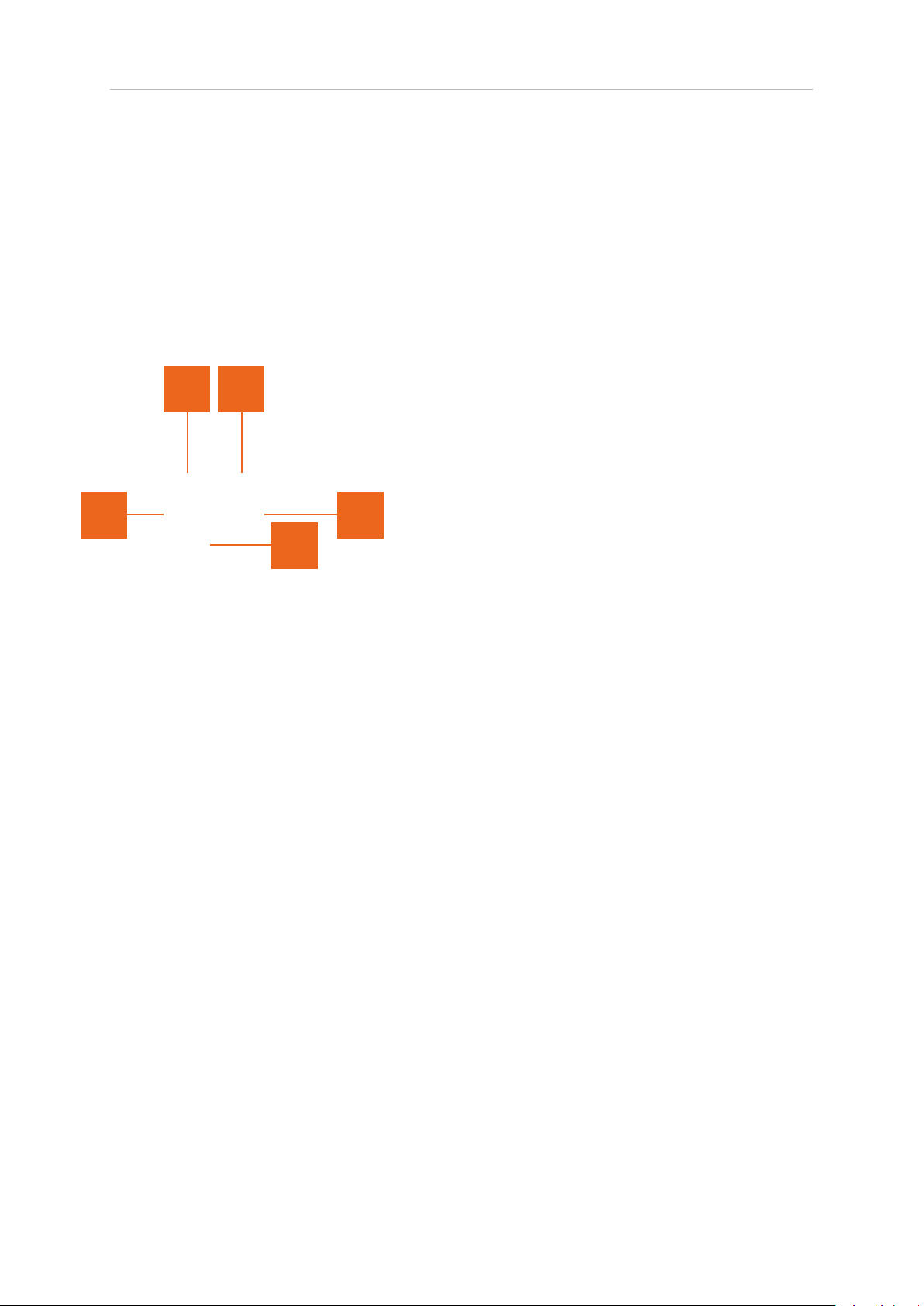
1 Dynamics on/off. Toggles the dynamics controls on/off.
2 Dynamics depth. Controls the depth of the dynamics modulation.
3 Dynamics shape. This parameter determined the shape of the modulation
effect. Choose from Rhythmic Sine, Triangular and Square. RND1 is a square
random modulation, and RND2 is a smooth randomised waveform suitable for
subtle stereo spectrum drift effects.
4 Dynamics tempo lock. Activate to lock the speed control (5) to multiples of the
DAW tempo.
5 Dynamics speed. Adjust the speed of the dynamics modulation effect. When
the tempo lock control is active (4) this control will lock to multiples of the DAW
tempo.
© 2019 NUGEN Audio
11
Contents
Page 12

Stereoizer Operation Manual
Utility Controls
Stereoizer supports a number of standard utility controls. These may be duplicated in
some instances within the host DAW, however the controls within the plugin will operate
‘in place’ to provide seamless audio performance.
2 3/4 1 5
1 Preset browser. Click to open preset browser window to select presets from list.
Use arrows to move through presets* in order
2 Bypass. In-place bypass mode, preserving PDC to avoid re-lock issues.
3 Undo. Unlimited session undo
4 Redo. Unlimited session redo
5 A | B. Switch between temporary session A and B memories to compare two
sets of settings.
General Functions
• Holding down control (Ctrl) and clicking a control will return the control to the
default position (Win) or double click a control (OSX).
• Holding down shift whilst moving a control will allow ne adjustment to be made.
© 2019 NUGEN Audio
12
Contents
Page 13

Stereoizer Operation Manual
Practical Application
Stereoizer is capable of subtle stereo enhancement through to dramatic ‘ultra-wide’
effects. Below are some suggestions to help you get the most from the plug-in.
Presets. To get a feel for what Stereoizer is capable of, take a run through the presets.
These will introduce many of the possible effects. Try them through a variety of
material, from smooth pads and E.P.’s to transient lled percussion and drum loops.
Also experiment with Stereoizer in different contexts, on tracks, groups, inserts, sends
and even the master bus.
Emphasis. Try Stereoizer on a part that’s getting lost and forgotten in the mix.
Subtle dynamics can also help to catch the ear. A wide sound can often be pushed
louder without upsetting the balance of key central sounds.
Space. Often important pad, EP and guitar sounds clash with vocal and lead sounds,
cluttering the same frequency bands. Try using Stereoizer as an alternative to heavy
EQ to ‘move’ them out of the way, leaving a clear solid centre and plenty of wide mid
range sounds intact in the mix.
Effects. Adding Stereoizer to an effect return can add extra depth, or tame a hard
panned effect output, bringing a deeper level of coherence. Stereoizer can also be used
as an alternative to an exciter or reverb, expanding and enhancing the original stereo
content of a sound without adding simulated reverberations or overcooking the highs.
Easy does it. As with all effects, when rst nding inspiration it’s easy to get carried
away. If you are looking to introduce natural width and nd space in a mix, dial in the
effect gently until you get the space you are looking for, and always check it in the
context of a mix.
Mono compatibility. Stereoizer offers mono-compatible stereo enhancement. This is as
important now as it ever has been. Many club and PA sound systems are still set-up for
mono playback. The majority of portable radio sets are mono, even the most popular
DAB radios are still mono. Many TV sets are mono, and even where stereo playback
is common, the speakers as so close together as to provide little practical stereo
separation (eg. Typical mp3 player dock).
Frequency bounds. When working on sounds with existing stereo information, using the
audio analysis will help to pinpoint the areas of the frequency spectrum that may benet
from additional treatment. With a sound that is largely working, but suffers a specic
frequency clash with a key lead part, frequency banding can be used to apply the effect
to the precise are that needs ‘widening’ out of the way. As with mono-compatibility,
frequency banding can also be a very important consideration, especially in the low
frequencies. Leaving the low frequencies mono helps apply an even load to the bass
reproduction section of the playback system, meaning louder more consistent bass
response at high levels. This is also important when pressing to vinyl to avoid needle
skip.
Mastering. When mastering, using just the right amount of enhancement is critical.
Often the linear width control on it’s own is enough to subtly adjust the width to suit.
This will crucially leave the centred parts untouched. If more control is required,
addition of a little band limited widening can be introduced. Use multiple instances if
more band control is required. It is suggested that phase adjustment and the ‘ll’
control are not applied when mastering due to potential phase cancellation issues in
the resulting mix.
© 2019 NUGEN Audio
13
Contents
Page 14

Stereoizer Operation Manual
Reporting a Problem
If you encounter a problem with any of our products, please let us know.
Please email NUGEN Audio at [email protected] giving a clear explanation of
the problem. Please state how frequently you’ve experienced the problem. If there are
any particular steps you need to go through to see the problem, please detail these.
Also, if the problem is with a VST plugin, please give details of the VST Host you are
using, including version number (eg- Ableton Live 8.0.1).
Please also state your operating system, and the rough specs for your machine (egCPU speed, RAM).
Please be patient with any problems you may experience, particularly with products at a
beta stage of release. At NUGEN we take problems with our software seriously, and will
endeavour to correct them as quickly as possible.
© 2019 NUGEN Audio
14
Contents
Page 15

Stereoizer Operation Manual
Version History
3.0 Initial release
3.1 Numerous host specic compatibility xes
Graphic optimisations
3.2 AAX 32 & 64-bit versions released
RTAS 32 bit version released
VST 64-bit version released (OSX)
AU 64-bit version released
Numerous compatibility xes
3.3 Master bypass delay compensation xed
Fixed audio unit compatibility issue
Fixed issue caused by some DAWs not reporting sample rate until after initial
setup
Ready for Avid IAP
3.4 New preset le browser
Improved AAX AudioSuite compatibility
* Presets 21-40 kindly created by Francis Gorini - musicXart | Arysound
All trademarks and registered trademarks are the property of their respective owners
© 2019 NUGEN Audio
15
Contents
Page 16
Stereoizer Operation Manual
© 2019 NUGEN Audio
www.nugenaudio.com
16
Contents
 Loading...