

Page 1
1. Before Installing
Ensure that you have:
9 Nuera MP-202 Telephone Adapter
9 A 12V power supply (use only the original power adaptor supplied)
9 A telephone cable
9 An Ethernet cable
You’ll also need (not supplied):
9 A broadband Internet connection (e.g., Cable or DSL modem)
9 An analog telephone
9 A personal computer
9 A second Ethernet cable
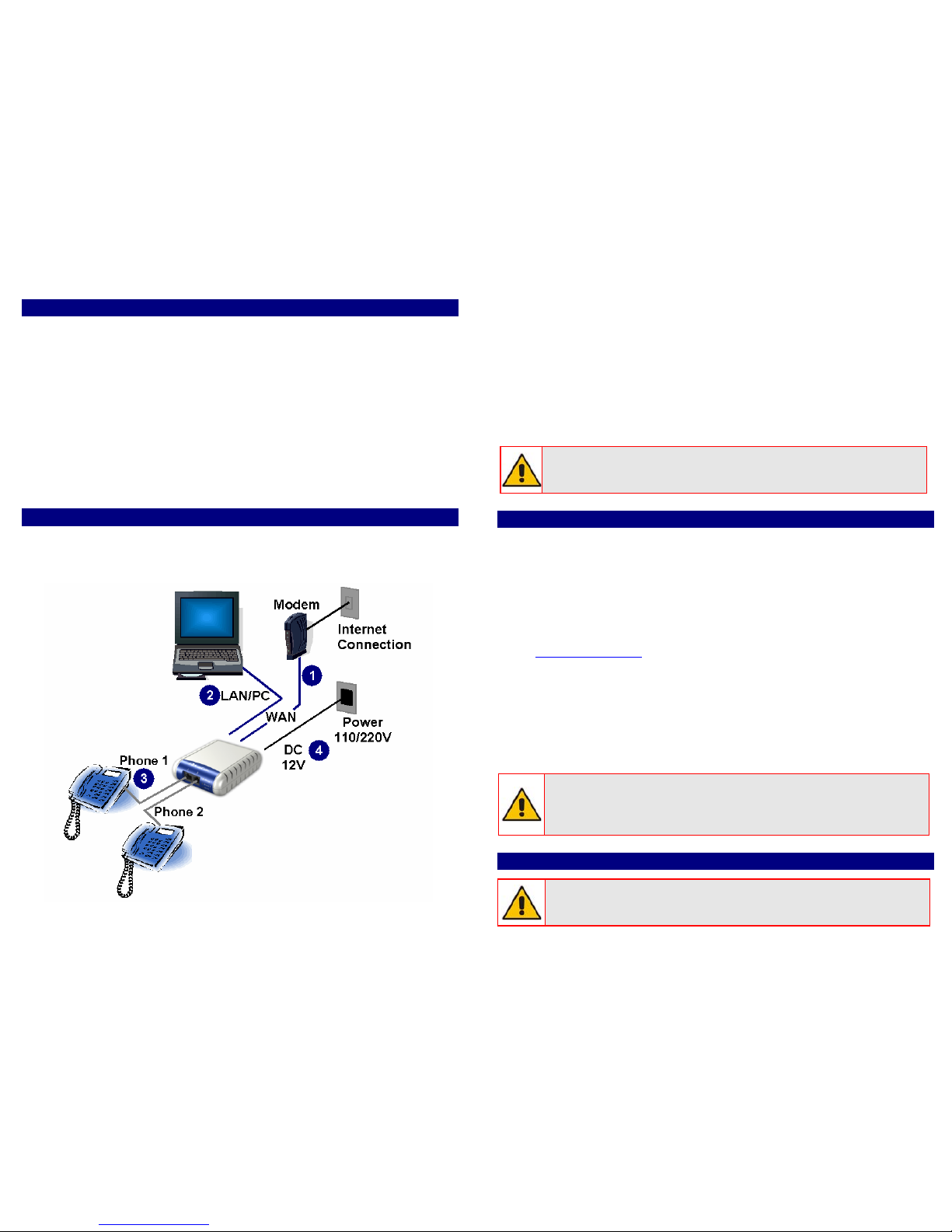
2. Cabling
1. Connect the MP-202’s Ethernet connector labeled ‘WAN’ to your
cable or DSL modem (or other network connection) using the
Ethernet cable.
2. Connect the MP-202’s Ethernet connector labeled ‘LAN/PC’ to your
PC using the second Ethernet cable.
3. Connect the MP-202’s telephone port labeled ‘PHONE 1’ to an
analog telephone using the telephone cable. Optionally connect the
port labeled ‘PHONE 2’ to a second analog telephone.
4. Connect the MP-202 to a 12V power supply; the 3 green LEDs
illuminate; the MP-202 initializes in about 45 seconds. When
initialized, the 2 phone LEDs switch off, and the ‘Power’ LED
remains on.
Before connecting the MP-202 to the power supply, make sure the
VAC ratings match.
3. Configuring Network Parameters
1. On your PC, verify that its ‘Local Area Connection’ status is
‘Connected’ by clicking Start > Settings > Network & Dial-up
Connections, and then double-click on ‘Local Area Connection’
2. If the LAN status shows ‘Disconnected’, click ‘Properties’ and click on
‘Internet Protocol (TCP/IP)’ and then click button ‘Properties; ensure
that the radio button ‘Obtain an IP address automatically’ is checked.
3. Open a Web browser and in the field ‘Address’ enter the address
http://MP202.home
A ‘Welcome’ screen is displayed. Click ‘OK’.
4. Define a new password (record and retain it for future reference).
5. In the ‘Quick Setup’ page, select the Internet connection method.
Consult your ISP for the required connection type (DHCP, PPPoE,
PPTP or L2TP). Click ‘OK’; a network map showing the elements
connected to the MP-202 is displayed; your PC is now connected to
the Internet. You’re ready to configure VoIP parameters.
A red ‘X’ under the rotating globe icon indicates an Internet
connection failure. Consult your ISP for valid connection
parameters.
4. Configuring VoIP Parameters
To make VoIP calls, register with an ISP and obtain the account
and SIP proxy information.
Page 2
1. Click the icon ‘Voice Over IP’ on the toolbar on the left side of the
page; the ‘Voice Over IP’ configuration screen opens.
2. Click tab ‘Line Settings’. If you only have a single number, disable line
2 by unchecking the ‘2’ checkbox and click ‘Apply’.
3. Click the ‘Action’ icon on the right of line 1; the ‘Line S ettings’ screen
opens. Use the configuration values provided by your ISP to configure
the parameters in this screen.
4. Click tab ‘Signaling Protocol’ and check the box ‘Use SIP Proxy’.
5. Define the field ‘Proxy IP Address or Host Name’ of the ISP’s SIP
proxy, provided by the ISP.
6. Press ‘OK’ or ‘Apply’ to complete the VoIP configuration.
Check that the MP-202 was successfully registered by clicking
‘System Monitoring’ > tab ‘Voice over IP’; entry ‘SIP Registration’
should indicate ‘Registered’ for the line(s) you configured.
7. Pick up the phone receiver and listen for the dial tone; you’re now
ready to place an outgoing call.
All your settings are saved in the MP-202’s non-volatile memory.
From now on, you won’t need the PC to make VoIP calls.
Notice
This guide describes installation of Nuera MP-202 Telephone Adapter.
Information contained in this document is believed to be accurate and reliable at
the time of printing. However, due to ongoing product improvements and
revisions, Nuera cannot guarantee accuracy of printed material after the Date
Published nor can it accept responsibility for errors or omissions. Updates to this
document and other documents can be viewed by registered Technical Support
customers at www.nuera.com.
© Copyright 2006 Nuera Ltd. All rights reserved.
This document is subject to change without notice. Refer to the current release
notes that may be included with your documentation or hardware delivery.
Date Published: Sep-04-2006 Date Printed: May-07-07
To download this Guide and other documentation, go to www.nuera.com/downloads
www.nuera.com
MP-202 Telephone Adapter
Quick Installation Guide
Document #: 299-452-202
 Loading...