

Page 1
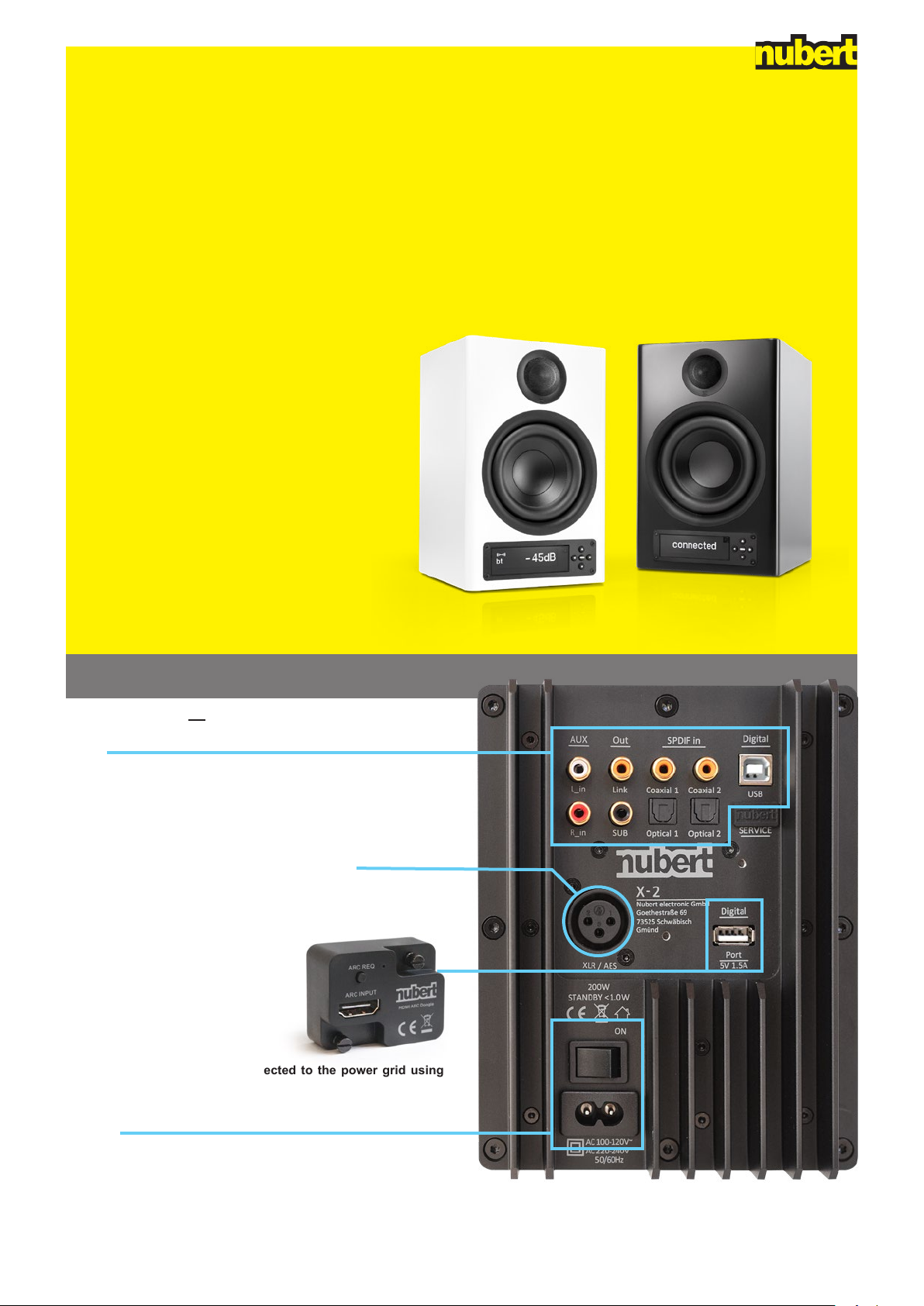
nuPro X-3000 and X-4000 X compact speakers in stereo set-ups
QUICK START
GUIDE
®
You can nd the most recent version of the operating manual here: www.nubert.de/downloads/61/ E12
Cable connections
1
Please connect all sources and the optional subwoofer to one of the two speakers of the stereo
pair.
Analogue XLR connection: Here, as an exception, each loudspeaker
is supplied with the corresponding signal separately.
At the digital Port input, you can plug in the supplied HDMI/ARC
adapter, enabling the direct connection of a TV.
Each nuPro loudspeaker is connected to the power grid using
the supplied power-cable.
Press the power switch on the back to turn on the speaker! If necessary, press the power-button on the remote control to “wake up” the
speaker.
nuPro X-3000/4000 · Quick Start Guide E12 · 11/2019
1
Page 2
Master-slave connection
2
The speaker you connected your sources to must
be set as the Master speaker.
Option A – wired connection
The master speaker controls and passes the correct audio signal on
to the second (slave-)speaker.
In order to achieve this, the speakers must be connected to each
other. The connection can be either wired or wireless. After the connection has been made, you won’t need to make any changes to the
settings on the slave-speaker.
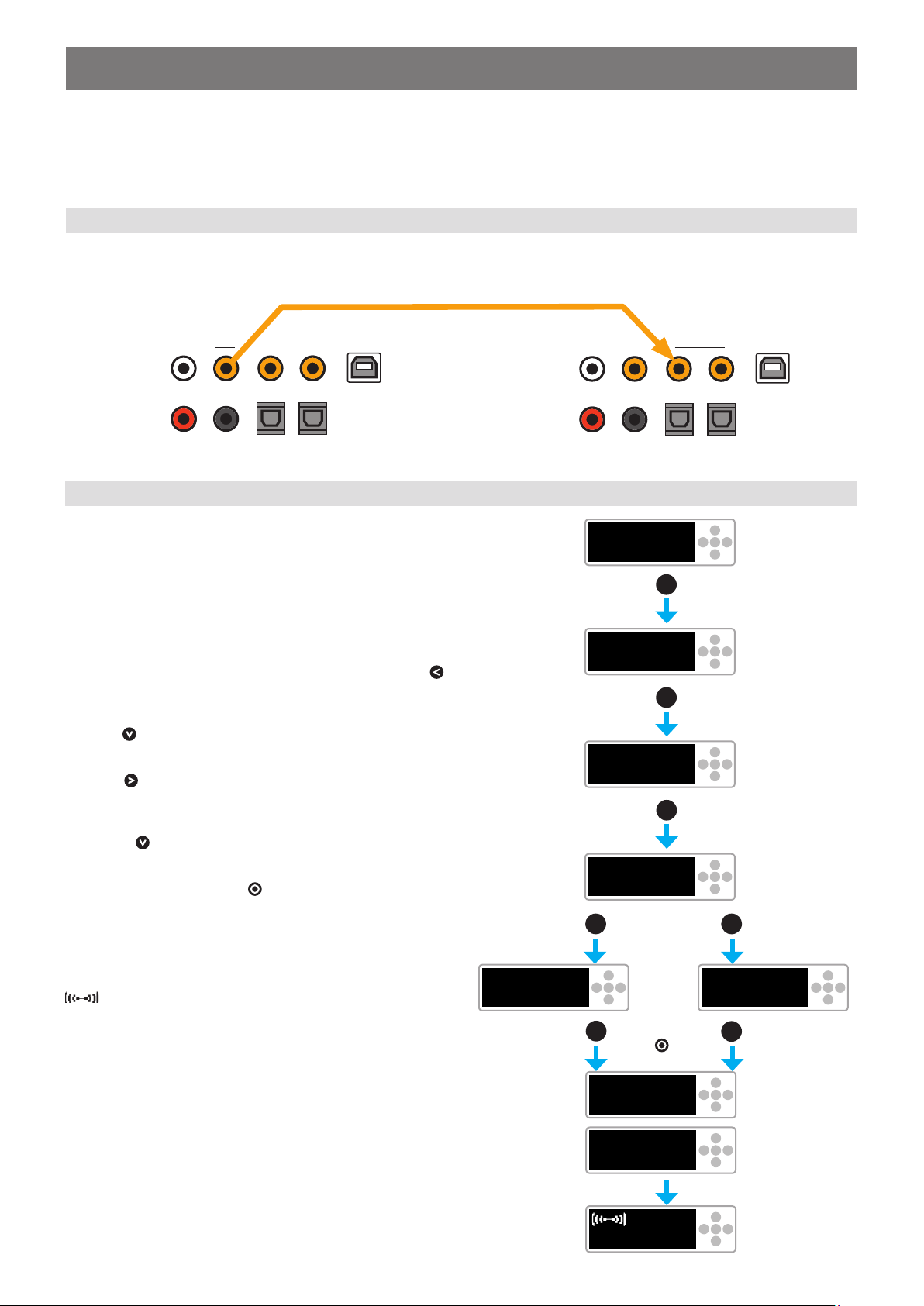
Connect the included coaxial cable between the orange coloured Link
Out connector on the Master speaker and the SPDIF in Coaxial 1
connector on the Slave speaker.
SPDIF coaxial cable
Out
Master
Speaker
Link
Option B – wireless connection
If a wired connection between the two speakers isn’t possible or
wanted, you have the option to connect the two speakers wirelessly.
Each speaker must be individually set as Master or
Slave in the setup-menu of each loudspeaker. This
is done using the control pad next to the display.
After turning on the nuPro speaker, the display will show you the
➀
set volume and input. This is the the Volume sub-menu, press
to return to the main menu.
The slave speaker congures itself automatically.
SPDIF in
Slave
Speaker
coax 1 -30dB
➀
Coaxial 1
><
>O<
<
><
➁
volume
3 x
<
>O<
Press 3 times to get to the setup menu.
➁
Press to enter the setup menu; the display will now show
➂
pair.
Use the key to select either:
➃
• wls master for your Master speaker
• wls slave for your Slave speaker
Conrm your selection with the key in the middle of the control
pad.
While establishing the connection to the other speaker, the dis-
➄
play on each speaker will show connecting. Once the connection
is established, the displays will briefly show connected and the
symbol will be shown permanently in the display of the Master
speaker.
➂
➃
Master
speaker
wls master
➄
setup
pair
<
><
>O<
Conrm with
O
the key!
connecting
connected
<
oder
2 x1x
><
>O<
><
>O<
Slave
<
speaker
wls slave
O
><
>O<
><
>O<
><
>O<
><
coax 1 -30dB
2nuPro X-3000/4000 · Quick Start Guide E12 · 11/2019
>O<
Page 3
Channel selection
3
Finally, you may have to change the default channel
settings. If the left speaker is your Master speaker,
you can skip this step.
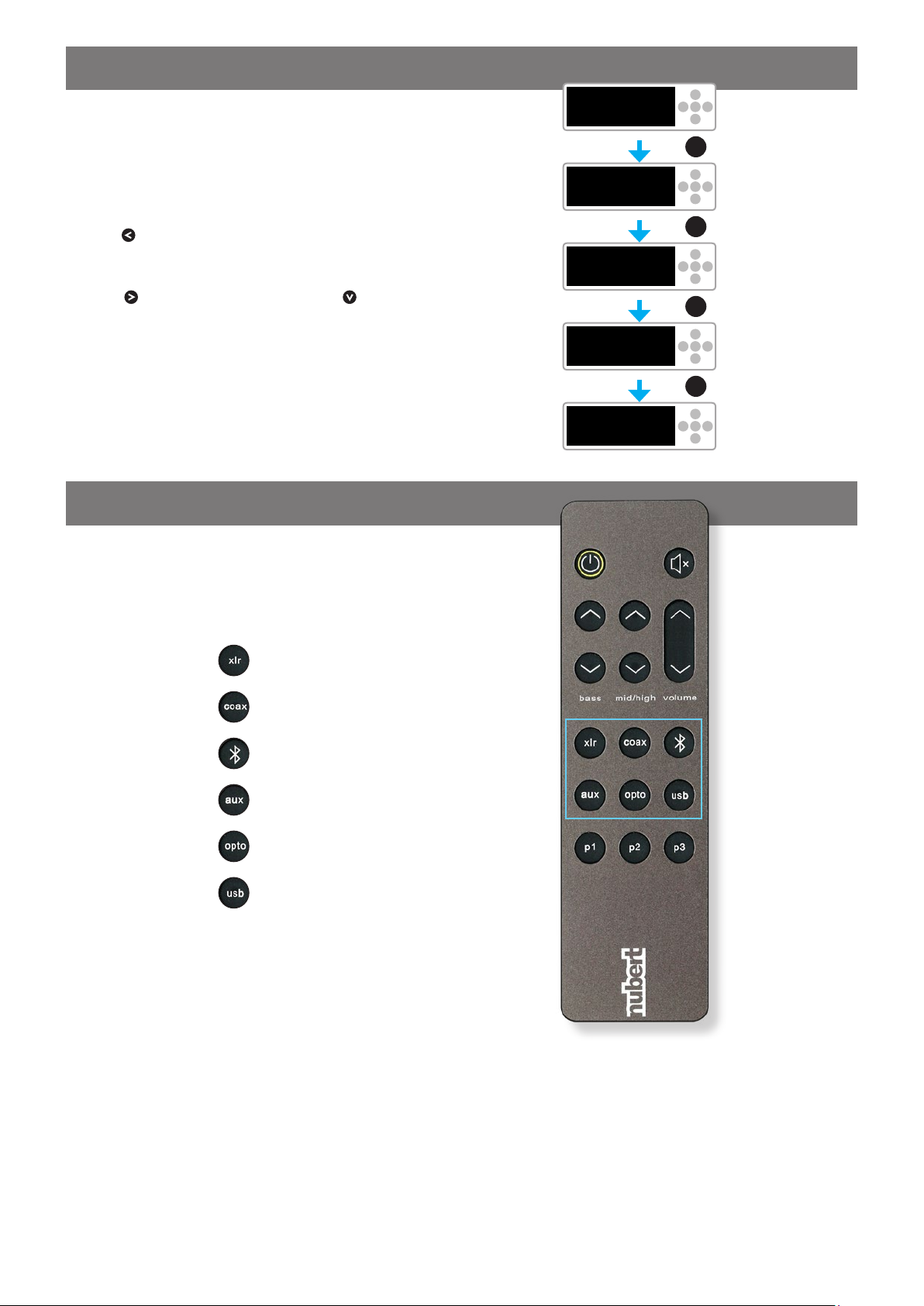
If your Master speaker is the right speaker you need to change the
settings as follows:
Press to enter the main menu
➀
Navigate to the channel menu
➁
Press to enter the channel menu and the key until right
➂
ch is shown in the display. You don’t need to conrm the selection.
Your Master speaker will now play back the right channel. Your Slave
speaker will be automatically congured to play back the left channel.
Source selection
4
coax 1 -30dB
➀
volume
➁
channel
➂
left ch
right ch
5 x
><
>O<
<
><
>O<
<
><
>O<
<
><
>O<
<
><
>O<
You can now select your preferred source; the easiest way to do this is to use the remote control.
The remote control has 6 buttons for source selection. Pressing a key
repeatedly toggles between its two sources as shown below:
• XLR analog
• AES/EBU
• Coaxial 1
• Coaxial 2
• Bluetooth
• Aux
• Optical 1
• Optical 2
• USB
• Digital Port
3
nuPro X-3000/4000 · Quick Start Guide E12 · 11/2019
Page 4
Bluetooth
5
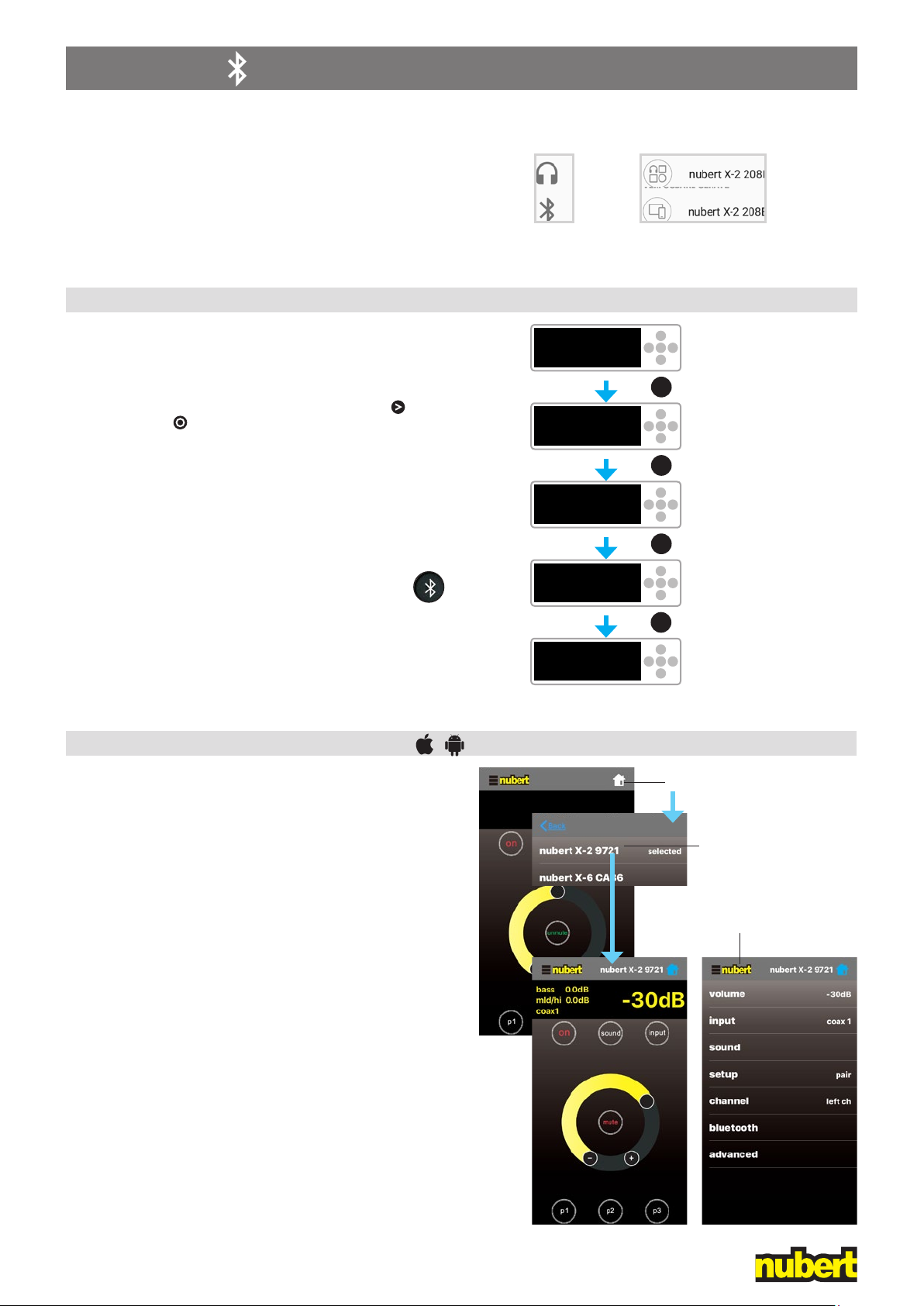
Each nuPro loudspeaker has 2 Bluetooth receivers.
The receiver marked with a headphone symbol is
used for music playback.
The receiver without the headphone symbol is
used for remote control purposes and can only be
accessed via the Nubert X-Remote app.
Music playback from Bluetooth devices
• IOS devices will show the Audio-receiver only.
• Android devices will normally show both receivers. Examples:
Stock Android 8 Samsung Experience 9
In order to listen to music from your Bluetooth device, you need to
pair your device with your nuPro X speaker. You only need to do this
once.
On the speaker (see illustration right):
Navigate to the bluetooth menu and enter it by pressing . Begin
pairing by pressing .
The receiver is now visible to other Bluetooth devices.
On the transmitting device:
Go to the settings menu of your transmitter/smartphone and start
the pairing procedure (check the owner’s manual of your device). If
you have an Android device, select the receiver marked with a headphone symbol (see above).
Source selection:
Select the Bluetooth input of the nuPro speakers, either
on the speaker itself or with the remote control (see page 3).
Note:
For the best possible audio quality, set the output level of your source
device to maximum and perform all level adjustments on your nuPro
speaker.
App Control: The Nubert X-Remote
Download and install the app from the Google Play Store or Apple
App store.
On Android devices, you must allow access to the device’s location.
coax 1 -30dB
volume
bluetooth
pair
pairing...
<
O
><
><
<
><
<
><
><
➀
>O<
>O<
4 x
>O<
>O<
>O<
Always use the Nubert X-Remote app to connect
to the master loudspeaker! Do not use the settings
menu on your device!
After opening the app, you will be prompted to connect to a loud-
➀
speaker. Tap connect to go to the list of available speakers. Alternatively, you can tap the home-symbol in the top right corner of the
screen to see available rooms or systems.
Tap on the speaker you wish to control. In the app, the connection
is conrmed by showing selected next to the name of the chosen
speaker. On the selected speaker itself, you will see a blinking
Nubert logo.
Tap on the Nubert logo in the top left corner of the app to return to
the main menu.
If you have selected the slave-speaker, an error message will appear
– simply connect to the other speaker on the list following the steps
above.
Tapping the Nubert logo toggles between basic, daily operation
➁
of the speaker and access to the full functionality of the loudspeaker
via the main menu. The latter menu is identical to that on the speaker
itself.
nuPro X-3000/4000 · Quick Start Guide E12 · 11/2019
Nubert electronic GmbH · Goethestr. 69 · D-73525 Schwäbisch Gmünd · www.nubert.de · [email protected] · Hotline: +49 7171 92690 118, Germany 0800-6823780
4
Screenshots: App V1.3
Tip:
Tap and hold the name of
the connected loudspeaker
to customize it.
➁
®
 Loading...