

Page 1
Please contact your System Administrator for
any programming questions or changes.
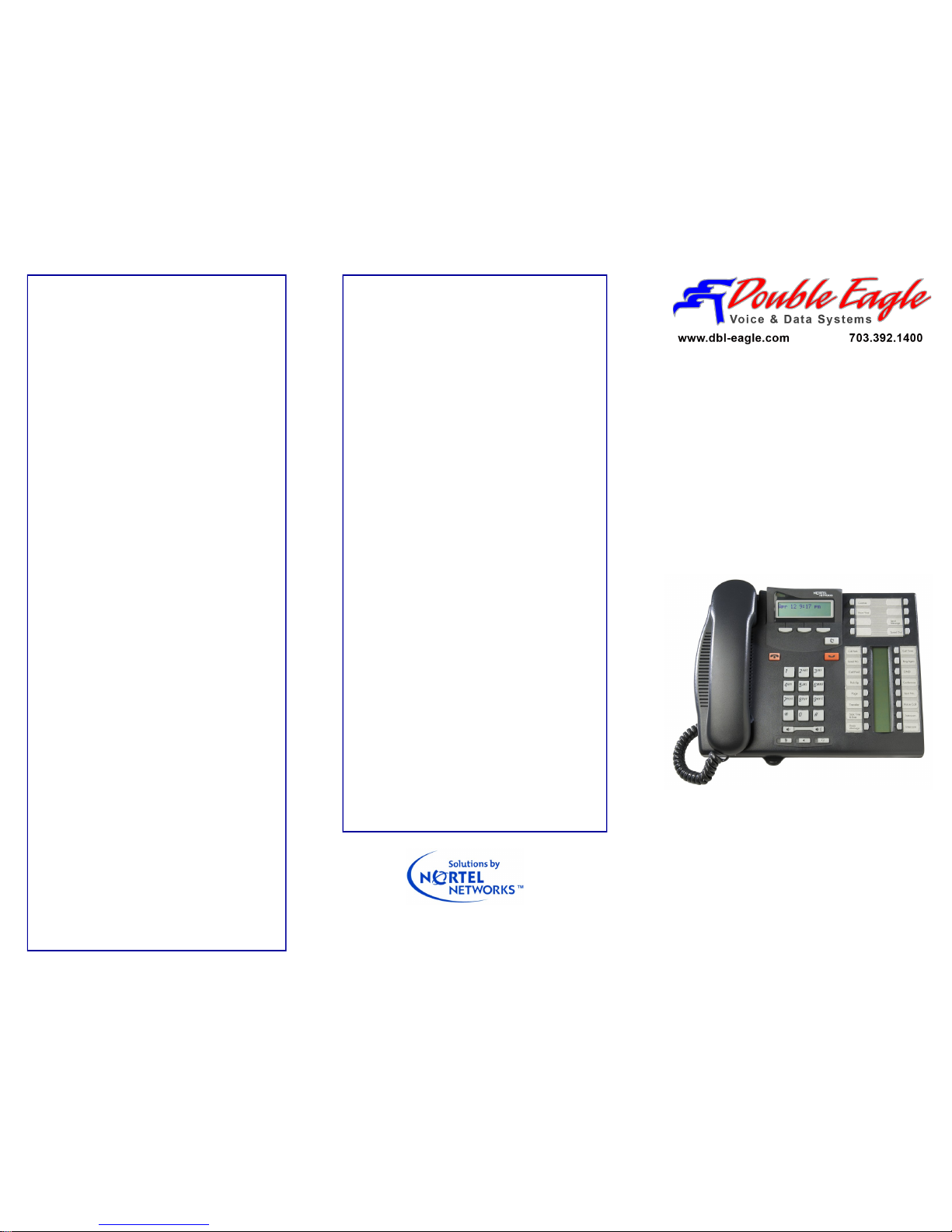
Nortel Norstar
T7316E
Telephone Set
Quick Reference
User Guide
Conference Calling allows multiple internal
and / or external parties to join together in a
common telephone conversation.
Beginning with the Nortel BCM 50 Release
2.0, additional participants may be added to
a Conference Call up to a maximum of 18
parties. The number of external parties is
limited, of course, to the number of outside
lines available to the phone system.
Conference - FEATURE 3
Establish a three-party Conference Call.
1. Make or answer the first call.
2. Press FEATURE 3 (Conference)
3. Put the first call on HOLD.
4. Make or answer the second call.
5. After the second call is connected, press
FEATURE 3 again.
6. Press the line or intercom button of the first
held call to join both calls to the Conference.
7. Press RLS to end the Conference Call.
Establish a multi-party Conference Call of 4
or more parties.
1. Follow the steps to establish a three-party
Conference Call.
2. Press the Newcall softkey,
3. After the fourth call is answered, press
FEATURE 3, and press the held line.
4. Put the fourth call on hold and repeat steps 2
and 3 to add more calls to the Conference.
5. Press RLS to end the Conference Call.
To remove yourself from a Conference
Press FEATURE 70.
The other two callers remain connected. (Some
external lines may not support this feature.)
Voicemail - FEATURE 981
To initialize and open your mailbox for the
first time:
1. Press 0000 (default password) and press
OK or #.
2. Choose a password from four to eight digits
long that does not start with zero. Enter your
new mailbox password and press OK or #.
3. Enter your new mailbox password again and
press OK or #.
4. At the tone, record your name in the Company Directory.
5. Press # to end the recording. Press # to accept the recording.
6. Press release button to end the session.
Now you are ready to record your personal
mailbox greetings and to use the CallPilot
voicemail features.
Play Messages - FEATURE 981
Follow prompts on your display to open your
mailbox.
Send Message to Another Voice Mailbox
Listen to your message.
Press 5 to send message to another mail box.
Follow prompts to record an Intro or not.
Press 1 to replay your message, 2 to erase
and # to accept.
Enter extension number then # to send, or
press 4 for multiple recipients.
For Delivery Options
After you enter extension, select an option:
1-Certified; 2-Urgent;
3-Private; 4-Timed Delivery
Forward your calls directly to Voicemail
FEATURE 984
Transfer a Call directly to a Mailbox
FEATURE 986
Enter Mailbox number
Wait until the display shows Call transferred
Voicemail Interrupt - FEATURE 987
Used to retrieve a caller from voicemail after
they have started to leave you a message.
Page 2

Button Inquiry - FEATURE *0
Used to discover which FEATURE is programmed to any button on your phone.
After pressing FEATURE *0, press any button
and observe the display.
Background Music - FEATURE 86
Plays system's Music-On-Hold audio through
your phone set's speaker.
To cancel: FEATURE #86
Call Pickup - FEATURE 75
Answer a call ringing at another telephone in
your pickup group.
Contrast Adjustment - FEATURE *7
Press the “UP” or “DOWN” softkeys to adjust
the display contrast.
Press the “OK” softkey to accept.
Do Not Disturb (DND) - FEATURE 85
To cancel: FEATURE #85
When you are not on a call, prevent all incoming calls, except priority calls, from ringing at
your telephone. When you are on a call, block
an incoming priority call.
Group Listening - FEATURE 802
To cancel: FEATURE #802
Use both the handset and speaker while you
are on a call. To avoid electronic feedback,
keep the handset away from the speaker during
the call. Press RLS to hang up.
Handsfree / Speaker Button
Press the key to transfer a call from the handset / headset to the telephone speaker. Note:
Handsfree speaker volume returns to the default volume set at the telephone at the end of
each call.
Mute Button
Press this button when you do not want the caller to hear anything from your side of a call. The
display light beside the button blinks when the
call is muted.
Ring Type - FEATURE *6
Select a distinctive ring to help differentiate your
telephone from others nearby.
The “NEXT” softkey scrolls through the choices.
Or, enter the ring type number (1 to 4).
Press the “OK” softkey to accept.
Ring Volume - FEATURE *80
Make your telephone ring so that you can adjust
the volume. You can also adjust the volume any
time your telephone rings.
Speed Dial Programming - FEATURE *4
1. Enter a two-digit code from 71 to 94.
2. Enter the telephone number you want to program (up to 24 digits).
3. Press the “OK” softkey to accept.
4. Record the code and number you have just
programmed.
Using Speed Dial - FEATURE 0.
Enter the two-digit code for the number.
Call Transfer - Softkey
Send a call to another telephone within your system or to an external telephone.
1. Press softkey under "Transfer" in the display.
2. Call the extension of person to whom you want
to transfer the call.
3. Stay on the line if you wish to speak privately to
the person before completing the transfer.
4. Press RLS or just hang up to complete the
transfer.
If an external call is transferred to a busy internal
or network extension or is not answered after a
few rings, the call automatically rings you back.
Voice Call - FEATURE 66
Opens the speaker on another extension to make
a voice announcement or to begin a conversation.
Enter extension number.
Voice Call Deny - FEATURE 88
To cancel: FEATURE #88
Prevent your telephone from receiving voice calls.
See also: Do Not Disturb - FEATURE 85.
Call Logging is a feature that records limited
Caller ID information on calls coming into your
phone system. Your System Administrator must
enable this feature on your phone and assign
your phone’s storage capacity.
To View your Call Log - FEATURE 812
1. Follow the prompts
2. Press 0 to return to the last viewed item.
3. Press # and * to move through your items.
4. Press the volume bar to view more info.
Call Log - Erase Entry
Press HOLD while viewing an item or use softkeys.
Call Log - Return Call
To return a call from your Call Log:
1. Display the desired number on your telephone.
2. Edit the number, if required. You can add
numbers for long-distance dialing or line pool
access, or you can remove numbers using the
volume bar.
3. Press a line button. 4. Lift the handset.
Call Log Options - FEATURE *84
Select the type of calls that are stored automatically in your Call Log. Press # to see the next
setting. Press HOLD to select the displayed
setting.
Call Log Password - FEATURE *85
Program a four-digit password for your Call
Log. To reset a forgotten password, see your
System Administrator.
Logit - FEATURE 813
Store caller information for your current call in
your Call Log.
TheNewNortel.com
Discover the nearly-perfect replacement for legacy
Nortel and Avaya-branded Nortel phone systems.
Keep your phones. Keep your features.
Keep your sanity!
Rev. 10-2018—Double Eagle Voice & Data Systems LLC
 Loading...