

Page 1

Nortel Media Application Server
MAS IM Chat Fundamentals
NN42020-131
.
Page 2

Document status: Standard
Document version: 01.04
Document date: 27 July 2007
Copyright © 2007, Nortel Networks
All Rights Reserved.
The information in this document is subject to change without notice. The statements, configurations, technical
data, and recommendations in this document are believed to be accurate and reliable, but are presented without
express or implied warranty. Users must take full responsibility for their applications of any products specified in this
document. The information in this document is proprietary to Nortel Networks.
Nortel, the Nortel logo, and the Globemark are trademarks of Nortel Networks.
IBM, Lotus, Lotus Notes, BladeCenter, and BladeCenter T are trademarks of International Business Machines.
Microsoft and Windows are trademarks of Microsoft.
All other trademarks are the property of their respective owners.
Sourced in Canada.
Page 3

3
Revision history
July 2007
Standard 01.04. This document is up-issued to support the IBM x3550
hardware platform for MAS.
May 2007
Standard 01.02. This document is up-issued to support multiapplication
MAS deployment.
January 2007
Standard 01.01. This document is issued to support Multimedia
Communication Server 5100 Release 4.0. This document contains
information previously contained in the legacy document, now retired: MAS
IM Chat Service Guide (NN10380-113).
May 2006
Standard 6.0. This document is up-issued for MCS 5100 Release 3.5. It
addresses CR Q01277506 and the MAS RoHS project.
March 2006
Standard 5.0. This document is up-issued for MCS 5100 Release 3.5. It
addresses CR Q01299780.
January 2006
Standard 4.0. This document is up-issued for MCS 5100 Release 3.5. It
addresses CR Q01276947.
November 2005
Standard 3.0. This document is up-issued for MCS 5100 Release 3.5.
November 2005
Standard 2.0. This document is up-issued for MCS 5100 Release 3.5.
October 2005
Standard 1.0. This document is up-issued for MCS 5100 Release 3.5.
Nortel Media Application Server
MAS IM Chat Fundamentals
NN42020-131 01.04 Standard
4.0 27 July 2007
Copyright © 2007, Nortel Networks
.
Page 4

4 Revision history
Nortel Media Application Server
MAS IM Chat Fundamentals
NN42020-131 01.04 Standard
4.0 27 July 2007
Copyright © 2007, Nortel Networks
.
Page 5

5
Contents
New in this release 7
Features 7
Base OAMP supportability 7
BCT for MAS 7
MCP granular service packaging 8
IBM x3550 8
Other changes 8
How to get help 9
Finding the latest updates on the Nortel Web site 9
Getting help from the Nortel Web site 9
Getting help over the phone from a Nortel Solutions Center 9
Getting help from a specialist by using an Express Routing Code 10
Getting help through a Nortel distributor or reseller 10
IM Chat basics 11
Overview 11
Hardware platform and OS 11
Services and features 12
IM Chat features 12
MCS documentation 13
System scalability 13
OAMP 14
Installation and upgrades 15
Multiapplication MAS 15
General information relating to MAS software upgrades 15
Fault management 17
MAS fault management strategy 17
Nortel Media Application Server
MAS IM Chat Fundamentals
NN42020-131 01.04 Standard
4.0 27 July 2007
Copyright © 2007, Nortel Networks
.
Page 6

6 Contents
Configuration management 19
Accounting 21
Performance management 23
Security and administration 25
Security strategy overview 25
Administration 25
Starting the Client Connection Manager 26
Use the Terminal Services Manager program group icons 26
Use the Terminal Services Manager to manually connect to the MAS 27
Start the MAS Console 27
Access the MAS Console help files 27
MAS subcomponents 28
Control the MAS subcomponents from the MAS Console 28
Refresh a subcomponent status on the MAS Console 29
System and platform management 30
Data backup and restore 30
Appendix A Message flows 41
Nortel Media Application Server
MAS IM Chat Fundamentals
NN42020-131 01.04 Standard
4.0 27 July 2007
Copyright © 2007, Nortel Networks
.
Page 7

7
New in this release
The following sections detail what is new in MAS IM Chat Fundamentals
(NN42020-130) for Release 4.0.
•
"Features" (page 7)
•
"Other changes" (page 8)
Features
See the following sections for information about feature changes:
•
"Base OAMP supportability" (page 7)
•
"BCT for MAS" (page 7)
•
"MCP granular service packaging" (page 8)
•
"IBM x3550" (page 8)
The following sections summarize the impact of each feature.
Base OAMP supportability
This feature enhances the support and hardware configuration of the MCS
5100 product. The feature includes the following enhancements:
•
shared network data
•
consolidated configuration data
•
consolidated software to reduce memory requirements
•
ability to configure additional Accounting Managers (AM) and Fault and
Performance Managers (FPM)
BCT for MAS
This feature provides the evolution of the Media Application Server to the
IBM BladeCenter T chassis, which is NEBS-3-/ETSI-compliant. Network
Equipment Building System 3 (NEBS-3) compliant hardware adheres to
strict requirements for withstanding high temperatures, violent shaking,
lightning strikes, airborne contaminants, fires, and electrostatic discharge.
Nortel Media Application Server
MAS IM Chat Fundamentals
NN42020-131 01.04 Standard
4.0 27 July 2007
Copyright © 2007, Nortel Networks
.
Page 8

8 New in this release
MCP granular service packaging
This feature provides the ability to control the operation of services on a
per-domain or per-user basis. Features which can be controlled include
Instant Messaging and Web Collaboration, where users or domains can
be restricted in their use of the service. The ability to send and receive
Instant Messages is controlled, as well as the ability of a user or a group
of users to transfer files, transfer a clipboard, push a URL to a user, or to
manipulate a whiteboard.
IBM x3550
The MAS platform is now supported on the IBM x3550 server. The IBM
x3550 is a direct replacement for the IBM x336 and comes with Windows
Server 2003 preloaded.
Other changes
This document was renamed and renumbered from MAS IM Chat Service
Guide (NN10380-113) to MAS IM Chat Fundamentals (NN42020-131).
The installation and upgrade procedures moved to MAS Installation and
Commissioning (NN42020-307).
Nortel Media Application Server
MAS IM Chat Fundamentals
NN42020-131 01.04 Standard
4.0 27 July 2007
Copyright © 2007, Nortel Networks
.
Page 9

9
How to get help
This chapter explains how to get help for Nortel products and services.
Finding the latest updates on the Nortel Web site
The content of this documentation was current at the time the product was
released. To check for updates to the latest documentation for Multimedia
Communication System (MCS) 5100, go to w
ww.nortel.com
and navigate to
the Technical Documentation page for Multimedia Communication Server
(MCS) 5100.
Getting help from the Nortel Web site
The best way to get technical support for Nortel products is from the Nortel
Technical Support Web site:
w
ww.nortel.com/support
This site provides access to software, documentation, bulletins, and tools to
address issues with Nortel products. From this site, you can:
•
download software, documentation, and product bulletins
•
search the Technical Support Web site and the Nortel Knowledge Base
for answers to technical issues
•
arrange for automatic notification of new software and documentation
for Nortel equipment
•
open and manage technical support cases
Getting help over the phone from a Nortel Solutions Center
If you do not find the information you require on the Nortel Technical Support
Web site, and you have a Nortel support contract, you can also get help
over the telephone from a Nortel Solutions Center.
In North America, call 1-800-4NORTEL (1-800-466-7835).
Outside North America, go to the following web site to obtain the telephone
number for your region:
Nortel Media Application Server
MAS IM Chat Fundamentals
NN42020-131 01.04 Standard
4.0 27 July 2007
Copyright © 2007, Nortel Networks
.
Page 10

10 How to get help
www.nortel.com/callus
Getting help from a specialist by using an Express Routing Code
Toaccess some Nortel Technical Solutions Centers, you can use an Express
Routing Code (ERC) to quickly route your call to a specialist in your Nortel
product or service. To locate the ERC for your product or service, go to:
w
ww.nortel.com/erc
Getting help through a Nortel distributor or reseller
If you purchased a service contract for your Nortel product from a distributor
or authorized reseller, contact the technical support staff for that distributor
or reseller.
Nortel Media Application Server
MAS IM Chat Fundamentals
NN42020-131 01.04 Standard
4.0 27 July 2007
Copyright © 2007, Nortel Networks
.
Page 11

11
IM Chat basics
This chapter contains the following sections:
•
"Overview" (page 11)
•
"Hardware platform and OS" (page 11)
•
"Services and features" (page 12)
•
"System scalability" (page 13)
•
"OAMP" (page 14)
Overview
With the IM Chat Service, two or more users (with Multimedia PC Client or
Multimedia Web Client) can send text messages to a chat room consisting
of a single on-screen window. Within the IM Chat room window, each
participant can send an instant message to any, or to all of the participants in
that chat room. In other words, a single participant can send an IM to several
participants within the same window. In addition, the users can invite other
people to join the chat room, browse available online chat rooms, or select
a specific chat room to join. The user can also join multiple chat rooms
simultaneously. In this case, each chat room appears in a separate window.
Hardware platform and OS
For the IM Chat service, the Media Application Server hardware platform
varies, depending on the individual requirements of the network. For smaller
deployments, the Media Application Server platform is an IBM xSeries
x3550, x336, or x335 rack-optimized server. For larger deployments, the
platform is an IBM eServer BladeCenter chassis with the IBM HS20 blade
servers.
CAUTION
Install only Nortel-certified software on the IBM BladeCenter T. Do
not install software updates obtained directly from IBM.
Nortel Media Application Server
MAS IM Chat Fundamentals
NN42020-131 01.04 Standard
4.0 27 July 2007
Copyright © 2007, Nortel Networks
.
Page 12

12 IM Chat basics
Note 1: The IBM xSeries x3550 server replaces the IBM xSeries x336
server (which replaced the IBM xSeries x335 server); however the x336
and x335 servers are still supported and you can consider these servers
to be interchangeable as MAS platforms.
Note 2: Use the IBM xSeries x3550, x336, or x335 server for
multiapplication MAS deployment.
For more detailed information about the hardware platforms for the IM Chat
Service for MCS 5100 Release 4.0, see Media Application Server Planning
and Engineering (NN42020-201).
Services and features
This section describes several of the features of the IM Chat service.
IM Chat features
Users and administrators can use the IM Chat service to create three types
of chat rooms:
•
public
•
public with password
•
private
Public chat room
This chat room is visible in the chat-room list and users do not need a
password to join.
Public chat room with password
This chat room is visible in the chat-room list; however, users do need a
password to join.
Private chat room
This chat room is not visible in the chat-room list and only users who are
invited can join.
In addition to the three general types of chat room, the IM Chat service
allows chat rooms to be created by the following groups:
•
system administrators
•
users
System-administrator-created chat rooms
These are predefined chat rooms created in advance. These chat rooms
always appear in the chat-room list, until the administrator removes them.
Nortel Media Application Server
MAS IM Chat Fundamentals
NN42020-131 01.04 Standard
4.0 27 July 2007
Copyright © 2007, Nortel Networks
.
Page 13

System scalability 13
Interactions between IM Chat and Multimedia PC Client
IM Chat is restricted to MCS 3.0 (or later) Web Client and Multimedia
PC Client software. PC Client version 3.6 can work with MCS 4.0 and
can support the IM Chat feature. Previous versions of Web Client and
Multimedia PC Client software do not support the IM Chat Service.
For full details about accessing IM Chat sessions, see the Multimedia PC
Client User Guide (NN42020-102).
MCS documentation
The MCS documentation suite consists of the following:
•
MAS components
— MAS Ad Hoc Conferencing Fundamentals (NN42020-116)
— MAS Announcements Fundamentals (NN42020-130)
— MAS Meet Me Conferencing Fundamentals (NN42020-120)
— MAS Meet Me Web Collaboration Fundamentals (NN42020-114)
— MAS Music on Hold Fundamentals (NN42020-129)
— New in this Release (NN42020-404)
— MCS 5100 Overview (NN42020-143)
•
Engineering guides
— MCS 5100 Network Deployment and Engineering Guide
(NN42020-200)
— Media Application Server Planning and Engineering (NN42020-201)
•
Installation, commissioning and upgrade guides
— MAS Installation and Commissioning (NN42020-307)
• Operation, Administration, Maintenance and Performance guides
— Alarm and Log Reference (NN42020-703)
— Operational Measurements Reference (NN42020-704)
System scalability
There are currently two hardware platforms for the IM Chat service:
•
IBM xSeries x3550, x336, or x335
•
IBM HS20 blade server (single slot) on an IBM eServer BladeCenter or
BladeCenter T (powered by alternating current)
Nortel Media Application Server
MAS IM Chat Fundamentals
NN42020-131 01.04 Standard
4.0 27 July 2007
Copyright © 2007, Nortel Networks
.
Page 14

14 IM Chat basics
For more information about these platforms, see Media Application Server
Planning and Engineering (NN42020-201).
OAMP
The Media Application Server builds directly into the Microsoft Management
Framework (Windows 2000, NT5 platform) to expose logs and operational
measurements, using built-in features of the operating system. The
Microsoft Management Console (MMC) provides access to components
and utilities (called snap-ins) embedded in the operating system that can
be used to build a custom management console.
The Media Application Server integrates seamlessly with the MMC to
provide logs, alarms, operational measurements, monitoring, reporting,
and service management.
You use the MAS Console to manage the MAS. The MAS Console software
runs on the MAS platform. You access the MAS Console software remotely
from your own PC using the Remote Desktop Protocol (RDP).
Optionally, you can send MAS alarms to a third-party management console
for viewing. You can also choose to view MAS logs on one or more remote
SysLog servers.
Nortel Media Application Server
MAS IM Chat Fundamentals
NN42020-131 01.04 Standard
4.0 27 July 2007
Copyright © 2007, Nortel Networks
.
Page 15

15
Installation and upgrades
This chapter provides information about IM Chat Service Software
installation and upgrade procedures. For complete information about
installing and configuring the Announcements service on a Media Application
Server, see MAS Installation and Commissioning (NN42020-307).
Multiapplication MAS
Previous to this capability, each application on the MAS had to reside on
its own separate hardware computing platform. This restriction is lifted for
a special case of MAS applications running on the IBM x3550, x335, or
x336 platform. A single MAS hardware platform solves customer needs for
cost-effective small implementations of multiple MAS services. The multiple
application MAS can work with the Enterprise micro system to deliver
multiple services for up to 250 subscribers (maximum). It can also be used
as a service evaluation platform in 4-server and 8-server configurations
The following applications can reside on the same Media Application Server
hardware platform:
•
Ad Hoc Conferencing
•
Announcements
•
Meet Me Conferencing or Meet Me Premium Conferencing
•
Music on Hold
•
IM Chat
For more information about the engineering requirements for
multiapplication MAS, see Media Application Server Planning and
Engineering (NN42020-201). For more information about installing the
IM Chat service as part of a multiapplication MAS deployment, see MAS
Installation and Commissioning (NN42020-307).
General information relating to MAS software upgrades
You use many of the same procedures to perform upgrades as you use
during installation. However, the order of the procedures differs slightly
for upgrades.
Nortel Media Application Server
MAS IM Chat Fundamentals
NN42020-131 01.04 Standard
4.0 27 July 2007
Copyright © 2007, Nortel Networks
.
Page 16

16 Installation and upgrades
Note: Configuration data is preserved during the upgrade.
Nortel Media Application Server
MAS IM Chat Fundamentals
NN42020-131 01.04 Standard
4.0 27 July 2007
Copyright © 2007, Nortel Networks
.
Page 17

17
Fault management
This chapter provides information about "MAS fault management strategy"
(page 17).
MAS fault management strategy
The MAS platform software is configured as an operating system service
(NT service) that is started and monitored by the operating system (OS)
automatically. If any MAS platform software subcomponent fails, the OS
restarts the component immediately and generates a log. An alarm is also
raised to report this condition until the component is registered with the
remainder of the system, at which point the alarm is cleared.
The Media Application Server (MAS) generates alarms in response to
fault conditions that degrade or interrupt operation of the service. In
general, MAS alarms can require you to take action to correct the fault
condition. MAS services rely on the MAS platform software to provide alarm
generation mechanisms.
After you, or the system, correct a fault, the MAS software automatically
clears the alarm condition. All alarms are logged and a second log is
generated to record the new status after an alarm clears.
The MAS platform software also provides an event logging mechanism. The
event logging mechanism is a standardized and centralized way to report
relevant software and hardware events.
For more information about Fault Management, see Alarm and Log
Reference (NN42020-703).
Nortel Media Application Server
MAS IM Chat Fundamentals
NN42020-131 01.04 Standard
4.0 27 July 2007
Copyright © 2007, Nortel Networks
.
Page 18

18 Fault management
Nortel Media Application Server
MAS IM Chat Fundamentals
NN42020-131 01.04 Standard
4.0 27 July 2007
Copyright © 2007, Nortel Networks
.
Page 19

19
Configuration management
This section describes documentation references to configure the IM Chat
service to run on a Media Application Server.
Note: For information on configuring Instant Message Screening and
Routing, see Personal Agent User Guide (NN42020-100).
For complete information about installing and configuring the Media
Application Server platform and the IM Chat service software, see MAS
Installation and Commissioning (NN42020-307).
Nortel Media Application Server
MAS IM Chat Fundamentals
NN42020-131 01.04 Standard
4.0 27 July 2007
Copyright © 2007, Nortel Networks
.
Page 20

20 Configuration management
Nortel Media Application Server
MAS IM Chat Fundamentals
NN42020-131 01.04 Standard
4.0 27 July 2007
Copyright © 2007, Nortel Networks
.
Page 21

21
Accounting
The Session Manager generates all accounting information for the IM Chat
service. The IM Chat service does not generate any accounting messages.
For more information on accounting, see
MCS 5100 Accounting Manager
Fundamentals (NN42020-144).
Nortel Media Application Server
MAS IM Chat Fundamentals
NN42020-131 01.04 Standard
4.0 27 July 2007
Copyright © 2007, Nortel Networks
.
Page 22

22 Accounting
Nortel Media Application Server
MAS IM Chat Fundamentals
NN42020-131 01.04 Standard
4.0 27 July 2007
Copyright © 2007, Nortel Networks
.
Page 23

23
Performance management
You use the Media Application Server (MAS) Console to manage the
performance of the MAS platform and the IM Chat service.
For more information about Performance Management, see Operational
Measurements Reference (NN42020-704).
Nortel Media Application Server
MAS IM Chat Fundamentals
NN42020-131 01.04 Standard
4.0 27 July 2007
Copyright © 2007, Nortel Networks
.
Page 24

24 Performance management
Nortel Media Application Server
MAS IM Chat Fundamentals
NN42020-131 01.04 Standard
4.0 27 July 2007
Copyright © 2007, Nortel Networks
.
Page 25

25
Security and administration
The Media Application Server platform provides security and administration
for the IM Chat service. These procedures are performed primarily through
the Media Application Server Console (MAS Console).
You use Media Application Server Console (MAS Console) to perform
security and administration procedures relating to the IM Chat Service. The
MAS platform uses a hardened Windows 2000 or Windows Server 2003
operating system.
Note: The MAS supports the encryption of instant messages (IM).
Security strategy overview
For more information about the Media Application Server security strategy,
see Media Application Server Planning and Engineering (NN42020-201) .
Administration
You use the MAS Console to monitor and manage the Media Application
Server. You access the MAS Console by means of the Remote Desktop
Protocol (RDP). RDP provides remote access capabilities to the MAS
platform where the MAS Console application is running. On the
administrator’s PC, click Start > Programs > Accessories > Communications
> Remote Desktop Connection and type the IP address for the MAS server
you want to connect to. You are prompted for the user name and password
to log on to the server.
Establishing the managed environment
The process for establishing the managed environment on the MAS involves
starting a remote access session to each of the Media Application Servers
in the site, and then starting the Media Application Server Console within
the context of those sessions.
All available remote access connections to Media Application Servers in the
site are visible in the Client Connection Manager and the RDP program
group. You can use either of these to initiate remote sessions with the target
Media Application Server.
Nortel Media Application Server
MAS IM Chat Fundamentals
NN42020-131 01.04 Standard
4.0 27 July 2007
Copyright © 2007, Nortel Networks
.
Page 26

26 Security and administration
Starting the Client Connection Manager
At the system administrator’s PC, select Start > Programs > Admin Tools
> Terminal Services Configuration.
The Client Connection Manager is displayed, showing all available remote
access connections to Media Application Servers in the site.
Procedure 1
Creating new remote access connection icons
Step Action
From the Client Connection Manager
1
Select Action > Create New Connection.
2
This starts a simple wizard. Follow the steps to create a connection
icon for a remote Media Application Server.
Note: You can enable a connection in a number of ways. For
example, you can double-click the entry in the Client Connection
Manager display or you can right-click an entry (for example,
NORTEL-X49) in the Client Connection Manager window to
display a shortcut menu, and select Connect from the shortcut
menu.
—End—
Use the Terminal Services Manager program group icons
All available remote access connections are visible in the Terminal Services
Client program group.
Procedure 2
Using the Terminal Services Manager program group icons
Step Action
To use the Terminal Services Manager program group icons:
At the system administrator’s PC
1
Select Start > Programs > Admin Tools > Terminal Services
Manager.
2
Select the Media Application Server connection you want.
—End—
Nortel Media Application Server
MAS IM Chat Fundamentals
NN42020-131 01.04 Standard
4.0 27 July 2007
Copyright © 2007, Nortel Networks
.
Page 27

Administration 27
Use the Terminal Services Manager to manually connect to the MAS
From the Terminal Services Manager window, you can manually connect to
(or disconnect from) the MAS server.
Procedure 3
Using the Terminal Services Manager to manually connect to the MAS
Step Action
To use the Terminal Services Manager to manually connect to the MAS
At the system administrator’s PC
1
Select Start > Programs > Administrative Tools > Terminal
Services Manager .
The Terminal Services Manager window appears.
2
Right-click on the MAS server you want to connect to (or disconnect
from).
3
Click Connect to start a connection or click Disconnect to
disconnect from the server.
—End—
Start the MAS Console
Any of the methods previously discussed starts an RDP session from
the system administrator’s PC to the Media Application Server. The
RDP attempts to automatically log on to the Media Application Server on
connecting (according to the configuration) and, if successful, displays the
actively running remote desktop for this user.
After access is gained through RDP, you can start the local MAS Console
for this Media Application Server.
From the RDP window that displays the remote MAS desktop, select Start
> Programs > Nortel Media Application Server > Media Application
Server Console.
The MAS Console appears in the RDP window.
Access the MAS Console help files
The MAS Console Help menu includes information about the console, as
well as the native OS snap-ins used to build the MAS Console.
Nortel Media Application Server
MAS IM Chat Fundamentals
NN42020-131 01.04 Standard
4.0 27 July 2007
Copyright © 2007, Nortel Networks
.
Page 28

28 Security and administration
Procedure 4
Viewing MAS Console help files
Step Action
From the MAS Console
1
Click the Help menu item.
2
Select Help Topics to open the MAS Console help display. This
display contains help topics for the Microsoft Management Console
(MMC), as well as the native operating system snap-ins used to
build the MAS Console.
3
Select Microsoft on the Web to access the Microsoft Web site, or
select About Microsoft Management Console to view the software
version.
—End—
MAS subcomponents
The MAS platform consists of six subcomponents. Each internal
subcomponent executes a simple-state machine. The overall state of the
MAS is an aggregation of the individual states of the seven subcomponents.
The MAS Console allows the system administrator to display and control
the MAS platform and subcomponents.
Control the MAS subcomponents from the MAS Console
Subcomponents are not individually controllable. The MAS platform service
is a collection of subcomponents, each of which is responsible for a specific
area of MAS platform functionality. Stopping one subcomponent affects
the others. As such, control operations are performed on the entire MAS
platform service and not on an individual subcomponent basis.
There are six control commands that you can issue to the MAS platform:
• Unlock
•
Pending Lock
•
Lock
• Start
•
Stop
•
Restart
Note: Not all control operation commands are available at any instant.
Only valid operations are enabled for the administrator. For example, if
the MAS is stopped, the Stop operation is no longer available.
Nortel Media Application Server
MAS IM Chat Fundamentals
NN42020-131 01.04 Standard
4.0 27 July 2007
Copyright © 2007, Nortel Networks
.
Page 29

Administration 29
The Stop and Restart commands are service-affecting operations and
take down all existing IM Chat service sessions. New incoming IM Chat
service requests are route advanced to other MAS servers (provided that
you installed a duplex architecture).
The Lock operation is also a service-affecting operation and takes down any
existing IM Chat service sessions. However, in this case, an emergency
maintenance announcement is streamed to the active sessions (where
applicable). New incoming IM Chat service requests are route advanced to
other MAS servers (provided that you installed a duplex architecture).
The Pending lock operation preserves existing IM Chat service
sessions.However, all new incoming IM Chat service requests are route
advanced to other servers (provided that you installed a duplex architecture).
In the case of planned maintenance, this gives existing sessions time to
disconnect naturally (without service interruption), before you stop the MAS
platform.
Use the following procedure to access the available control operations for
the MAS.
Procedure 5
Controlling the MAS platform
Step Action
From the Media Application Server Console
1
Right-click the Control Panel snap-in icon in the Console tree to
display the shortcut menu.
2 Use the Operations submenu to access the appropriate operational
command to perform on the MAS platform.
—End—
Refresh a subcomponent status on the MAS Console
The status of subcomponents automatically refreshes periodically. Use the
following procedure to initiate an immediate refresh of the subcomponent
status.
Procedure 6
Refreshing a subcomponent status on the MAS Console
Step Action
From the MAS Console
1
In the Details panel, right-click one of the subcomponents to display
the Component shortcut menu.
Nortel Media Application Server
MAS IM Chat Fundamentals
NN42020-131 01.04 Standard
4.0 27 July 2007
Copyright © 2007, Nortel Networks
.
Page 30
30 Security and administration
2
Select Refresh to update a subcomponent status.
—End—
System and platform management
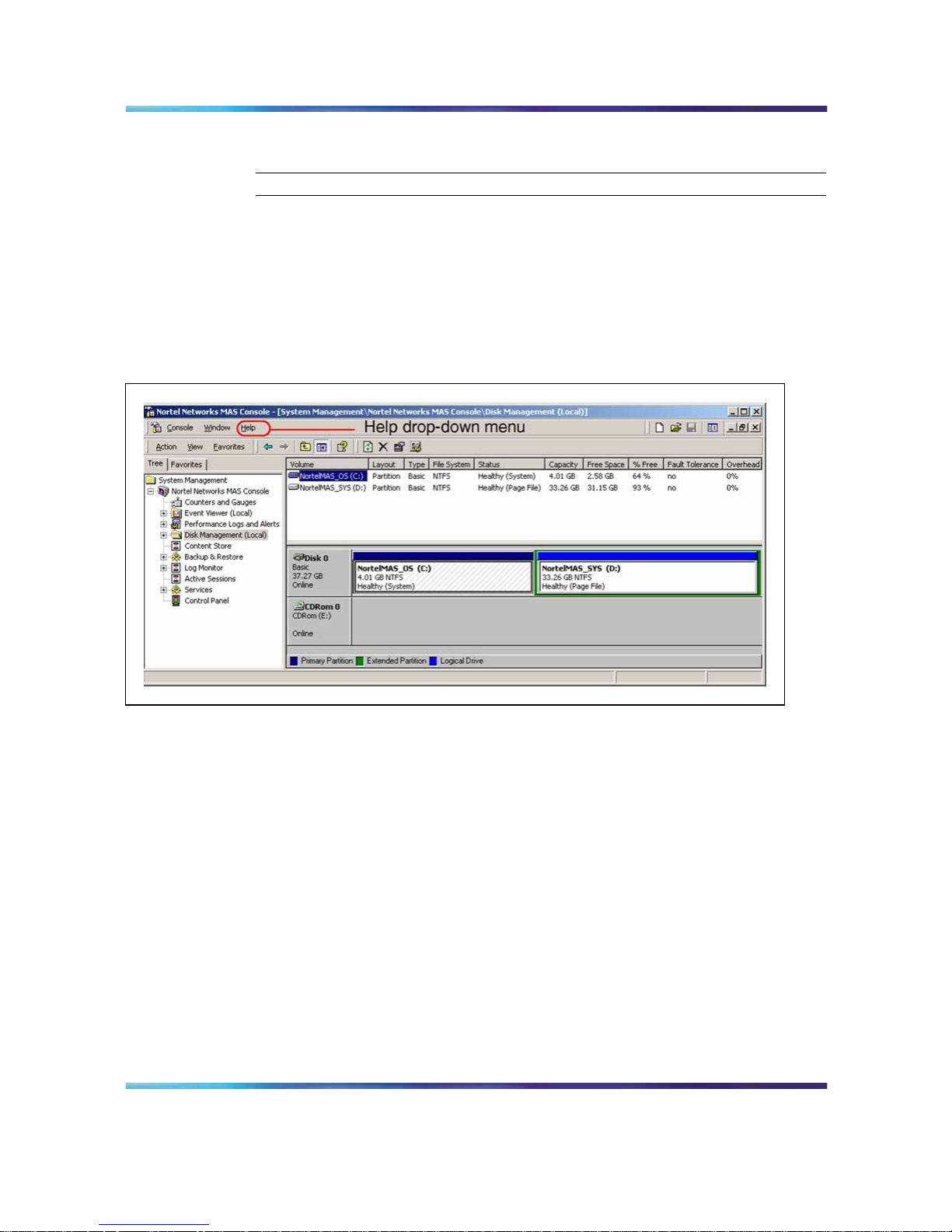
The MAS Console is preconfigured with a disk management snap-in
provided by the operating system (see Figure 1 "Disk Management snap-in
display" (page 30)).
Figure 1
Disk Management snap-in display
Preconfiguring the disk management snap-in is provided as a convenience
for managing the hard disks and volumes on the Media Application Server.
For more information about using the disk management snap-in, see the
operating-system resident help, accessible by clicking on the Help menu
in the MAS Console and clicking the HelpTopics item. The Help window
appears.
Data backup and restore
The Media Application Server can mirror customer data (managed by the
Multimedia Content Store subcomponent) on different MAS nodes. It is
frequently convenient to be able to do a complete node restoration from
outside the system. You use the MAS Console to perform backup and
restore of system configuration data, as well as service data.
System data
System data includes all configuration parameters that are visible in the
MAS Console Services folder and stored in the Windows Registry.
Nortel Media Application Server
MAS IM Chat Fundamentals
NN42020-131 01.04 Standard
4.0 27 July 2007
Copyright © 2007, Nortel Networks
.
Page 31

Administration 31
Note: You can perform a system data backup and restore with the
system online and unlocked; however, you must restart the MAS after
restoration for the configuration parameter changes to take effect.
Service data
Service data includes user data that resides in the Multimedia Content
Store subcomponent. A partial service backup archives all data except
multimedia files. A full service backup includes all data included in a partial
backup, in addition to multimedia files.
Note: For both service data archive types, the MAS must be in a
locked/shutdown state to perform a restore. During the restoration
process, all user files in the Multimedia Content Store subcomponent
are removed prior to archive extraction.
Access the MAS backup and restore functions
The backup and restore functionality provided by the MAS Console is
accessible using the Control Panel icon shortcut menu. Right-click the
Control Panel snap-in icon in the Console tree to access the Backup/Restore
submenu.
The Backup/Restore submenu contains selections to create backup archive
files for system data and service data (full or partial). For each type of
backup, a submenu is provided to allow you (the administrator) to perform
specific backup or restore-related functions for that backup type.
Create the backup archives
You use the Backup/Restore > Create Backup Archive menu command to
create backup archives for system data and service data (full or partial). The
following procedures describe how to create backup archives for system
data and service data (full and partial) on the Media Application Server.
Procedure 7
Creating a System Data backup
Step Action
From the MAS Console
1
Right-click the Control Panel snap-in icon in the Console tree to
access the Backup/Restore submenu.
2
Select Backup/Restore > System Data > Create Backup Archive
to display the Create System Backup Archive file browser window.
3
Use the file browser window to select the name and location of
where to store the backup archive on the computer. A default archive
file name is automatically generated, which specifies the type of
Nortel Media Application Server
MAS IM Chat Fundamentals
NN42020-131 01.04 Standard
4.0 27 July 2007
Copyright © 2007, Nortel Networks
.
Page 32

32 Security and administration
backup, the host name of the MAS where the backup was created,
and the date and time the backup was created.
Note: Nortel recommends that you use the automatically
generated filename to ensure consistent naming of all backup
archives and make it easier to find specific archive files when a
restore procedure is required.
4
Click Save to create the system data archive file.
—End—
Procedure 8
Creating a Full Service Data backup
Step Action
From the Media Application Server Console
1
Right-click the Control Panel snap-in icon in the Console tree to
access the Backup/Restore submenu.
2
Select Backup/Restore > Service Data (Full) > Create Backup
Archive to display the Create Service Backup Archive file browser
window.
3
Use the file browser window to select the name and location of
where to store the backup archive on the computer. A default archive
file name is automatically generated, which specifies the type of
backup, the host name of the MAS where the backup was created,
and the date and time the backup was created.
Note: Nortel recommends that you use the automatically
generated filename to ensure consistent naming of all backup
archives and make it easier to find specific archive files when a
restore procedure is required.
4
Click Save to create the full service data archive file.
—End—
Procedure 9
Creating a Partial Service Data backup
Step Action
From the Media Application Server Console
Nortel Media Application Server
MAS IM Chat Fundamentals
NN42020-131 01.04 Standard
4.0 27 July 2007
Copyright © 2007, Nortel Networks
.
Page 33

Administration 33
1
Right-click the Control Panel snap-in icon in the Console tree to
access the Backup/Restore submenu.
2
Select Backup/Restore > Service Data (Partial) > Create Backup
Archive to display the Create Service Backup Archive file browser
window.
3
Use the file browser window to select the name and location of
where the backup archive is to be stored on the computer. A default
archive file name is automatically generated that specifies the type
of backup, the host name of the MAS where the backup was created,
and the date and time the backup was created.
Note: Nortel recommends that you use the automatically
generated filename to ensure consistent naming of all backup
archives and make it easier to find specific archive files when a
restore procedure is required.
4
Click Save to create the partial service data archive file.
—End—
Restore from backup archives
You use the Backup/Restore > Restore menu command to restore from a
previously created backup archive of system data or service data (full or
partial). The following procedures describe how to restore from backup
archives.
Procedure 10
Restoring a system data backup archive
Step Action
From the Media Application Server Console
1
Right-click the Control Panel snap-in icon in the Console tree to
access the Backup/Restore submenu.
2
Select Backup/Restore > System Data > Restore to display the
Restore System Backup Archive file browser window.
3
Use the file browser window to select the system data backup
archive to use to restore the system data.
Note: If you used the default automatically generated filename
when you created the system data backup, the backup archive
filename begins with MASSYS.
4
Click Open to restore the system data from the archive file.
Nortel Media Application Server
MAS IM Chat Fundamentals
NN42020-131 01.04 Standard
4.0 27 July 2007
Copyright © 2007, Nortel Networks
.
Page 34

34 Security and administration
After the restore is complete, you must restart the Media Application
Server.
5
Right-click the Control Panel snap-in icon in the Console tree to
access the Operations submenu.
6
Select Operations > Restart to restart the Media Application Server.
—End—
Before you restore service data, you must take the Media Application Server
out of service (locked and offline). You can immediately lock the MAS and
then stop it; however, if there are active service sessions on the MAS when
it is locked, the sessions are immediately taken down as well. Because of
this, Nortel recommends that you place the MAS in the pending lock state
first, to allow existing service sessions to end. After the active sessions end,
the MAS is placed in the locked state and stopped.
Procedure 11
Restoring a full service data backup archive
Step Action
From the Media Application Server Console
1
Right-click the Control Panel snap-in icon in the Console tree to
access the Operations submenu.
2
Select Operations > Pending Lock to preventthe Media Application
Server from accepting new service requests and to allow existing
service sessions to end.
Allow all existing service sessions to end or wait until an acceptable
low number of existing service sessions remain.
3
Right-click the Control Panel icon and select Operations > Lock to
end any remaining service sessions.
4
Right-click the Control Panel icon and select Operations > Stop to
place the Media Application Server offline.
5
Right-click the Control Panel snap-in icon in the Console tree to
access the Backup/Restore submenu.
6
Select Backup/Restore > Service Data (Full) > Restore to display
the Restore Service Backup Archive file browser window.
7
Use the file browser window to select the system data backup
archive to use to restore the system data.
Nortel Media Application Server
MAS IM Chat Fundamentals
NN42020-131 01.04 Standard
4.0 27 July 2007
Copyright © 2007, Nortel Networks
.
Page 35

Administration 35
Note: If you used the default automatically generated filename
when you created the system data backup, the backup archive
filename begins with MASSVC_FULL.
8
Click Open to restore the full service data from the archive file.
After the restore is complete, you must return the Media Application
Server to service.
9
Right-click the Control Panel icon and select Operations > Start to
activate the Media Application Service.
After the Media Application Service starts, it returns to the previously
locked state. You must unlock the MAS before it can accept new
service requests.
10
Right-click the Control Panel icon and select Operations > Unlock.
The Media Application Server is online and accepts new service
requests.
—End—
Procedure 12
Restoring a partial service data backup archive
Step Action
From the Media Application Server Console
1
Right-click the Control Panel snap-in icon in the Console tree to
access the Operations submenu.
2
Select Operations > Pending Lock to preventthe Media Application
Server from accepting new service requests and to allow existing
service sessions to end.
Allow all existing service sessions to end or wait until an acceptable
low number of existing service sessions remain.
3
Right-click the Control Panel icon and select Operations > Lock to
end any remaining service sessions.
4
Right-click the Control Panel icon and select Operations > Stop to
place the Media Application Server offline.
5
Right-click the Control Panel snap-in icon in the Console tree to
access the Backup/Restore submenu.
6
Select Backup/Restore > Service Data (Partial) > Restore to
display the Restore Service Backup Archive file browser window.
Nortel Media Application Server
MAS IM Chat Fundamentals
NN42020-131 01.04 Standard
4.0 27 July 2007
Copyright © 2007, Nortel Networks
.
Page 36

36 Security and administration
7
Use the file browser window to select the system data backup
archive to use to restore the system data.
Note: If you used the default automatically generated filename
when you created the system data backup, the backup archive
filename begins with MASSVC_PARTIAL.
8
Click Open to restore the partial service data from the archive file.
After the restore is complete, you must return the Media Application
Server to service.
9
Right-click the Control Panel icon and select Operations > Start to
activate the Media Application Server.
After the Media Application Server starts, it returns to the previously
locked state. You must unlock the MAS before it can accept new
service requests.
10
Right-click the Control Panel icon and select Operations > Unlock.
The Media Application Server is online and accepts new service
requests.
—End—
Use the automatic backup tasks
You use the Backup/Restore > Automatic Backup Task menu command to
create backup archives for system data and service data (full or partial) at
regularly scheduled intervals (for example, daily or weekly). An automatic
backup task can store archives locally on the Media Application Server or
can be configured to push the archive to a remote server using File Transfer
Protocol (FTP).
The following procedures describe how to create, schedule, and remove
automatic backup tasks on the Media Application Server.
Procedure 13
Creating an Automatic Backup Task (local backup)
Step Action
From the Media Application Server Console
1
Right-click the Control Panel snap-in icon in the Console tree to
access the Backup/Restore submenu.
2
Select Backup/Restore > System Data > Automatic Backup Task
> Create to display the System Backup Task window.
Nortel Media Application Server
MAS IM Chat Fundamentals
NN42020-131 01.04 Standard
4.0 27 July 2007
Copyright © 2007, Nortel Networks
.
Page 37

Administration 37
3
In the Local Destination Folder field, enter the folder name for
where you want to store the automatic backup.
Example
D:\MASBackup
4
Click Create to save the new backup task.
—End—
Procedure 14
Creating an Automatic Backup Task (remote backup)
Step Action
From the Media Application Server Console
1
Right-click the Control Panel snap-in icon and select
Backup/Restore > System Data > Automatic Backup Task >
Create to display the System Backup Task window.
2
In the Local Destination Folder field, enter the folder for where you
want to store the automatic backup archive.
Example
D:\MASBackup
3
Select Enable FTP.
4
In the Hostname field, enter the host name or IP address of the
remote FTP service server where the backup task sends the
generated backup archive.
Example
ftpserver1
5
In the Username field, enter the user name the backup task uses to
connect to the FTP service of the remote server.
Example
masftpuser
6
In the Password field, enter the password the backup task uses to
connect to the FTP service of the remote server.
Example
masftppword
7 In the Destination Path field, enter the folder where the automatic
backup archive is to be stored on the remote FTP service server.
Nortel Media Application Server
MAS IM Chat Fundamentals
NN42020-131 01.04 Standard
4.0 27 July 2007
Copyright © 2007, Nortel Networks
.
Page 38

38 Security and administration
Example
/export/home/masftpuser
8
By default, the backup task also keeps a copy of the backup archive
on the local machine (in the folder specified in step 2 above).
Optionally, you can select Remove local file after transfer to have
the backup task remove the local copy.
9 Click Create to save the new backup task.
—End—
Procedure 15
Scheduling an Automatic Backup Task
Step Action
From the Media Application Server Console
1
Right-click the Control Panel snap-in icon in the Console tree to
access the Backup/Restore submenu.
2
Select Backup/Restore > System Data > Automatic Backup Task
> Schedule/Run to display the Task tab of the selected automatic
backup task window.
ATTENTION
Do not modify the Run field. This field is automatically generated when
the backup task is created and altering it can prevent the task from
running correctly.
3
The Run as field shows the user account that is used when the
backup task runs. Verify that the user account is NortelMASAdmin.
4
Click Set password to assign the password for the NortelMASAdmin
account.
5
Select Enabled (scheduled task runs at specified time) to activate
the backup task.
6
Select the Schedule tab to display scheduling information for the
backup task.
7
Click New to create a new schedule for the task.
8 Use the Schedule Task, Start time, and Schedule Task Daily
fields to define when and how often the backup task runs.
Nortel Media Application Server
MAS IM Chat Fundamentals
NN42020-131 01.04 Standard
4.0 27 July 2007
Copyright © 2007, Nortel Networks
.
Page 39

Administration 39
9
Select the Settings tab to display additional settings information
for the backup task.
The Settings tab is automatically configured when the backup task
is created.
Note: Changing the Settings tab properties improperly can
prevent the backup task from running correctly.
10
Click Create to save the new backup task.
—End—
Procedure 16
Deleting an Automatic Backup Task
Step Action
From the Media Application Server Console
1
Right-click the Control Panel snap-in icon in the Console tree to
access the Backup/Restore submenu.
2 Select Backup/Restore > System Data > Automatic Backup Task
> Remove to remove the backup task.
—End—
Nortel Media Application Server
MAS IM Chat Fundamentals
NN42020-131 01.04 Standard
4.0 27 July 2007
Copyright © 2007, Nortel Networks
.
Page 40

40 Security and administration
Nortel Media Application Server
MAS IM Chat Fundamentals
NN42020-131 01.04 Standard
4.0 27 July 2007
Copyright © 2007, Nortel Networks
.
Page 41

41
Appendix A
Message flows
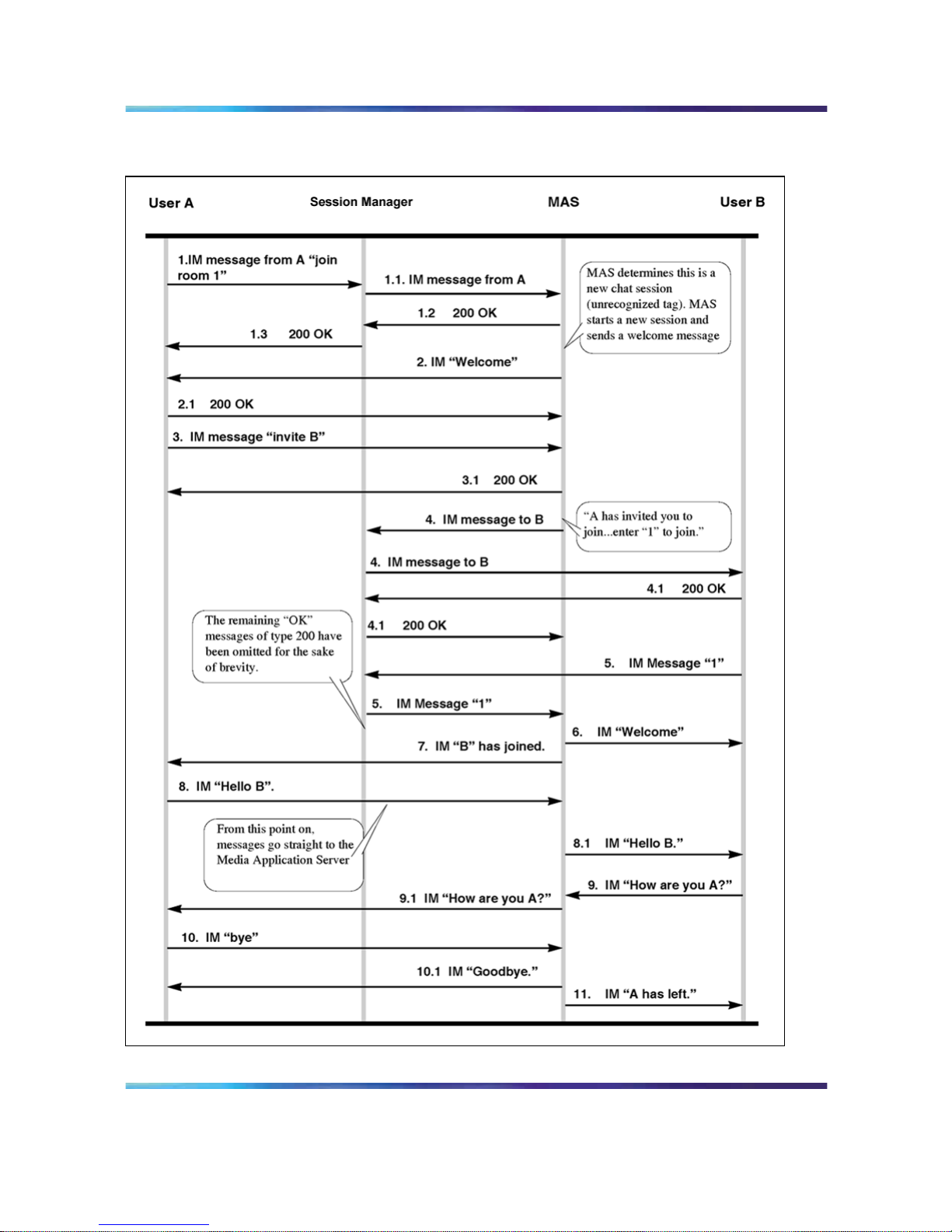
This appendix contains the following high-level message flow diagrams for
the IM Chat Service:
•
Figure 2 "IM Chat message flow" (page 42)
Note: For information about Media Application Server bypass
and firewall traversal, see Media Application Server Planning and
Engineering (NN42020-201).
In the IM Chat message flow on the following page (see Figure 2 "IM Chat
message flow" (page 42)), you can see that one user enters a chat session
and invites a second user to join the same chat session.
Nortel Media Application Server
MAS IM Chat Fundamentals
NN42020-131 01.04 Standard
4.0 27 July 2007
Copyright © 2007, Nortel Networks
.
Page 42
42 Appendix A Message flows
Figure 2
IM Chat message flow
Nortel Media Application Server
MAS IM Chat Fundamentals
NN42020-131 01.04 Standard
4.0 27 July 2007
Copyright © 2007, Nortel Networks
.
Page 43

Page 44

Nortel Media Application Server
MAS IM Chat Fundamentals
Copyright © 2007, Nortel Networks
All Rights Reserved.
Publication: NN42020-131
Document status: Standard
Document version: 01.04
Document date: 27 July 2007
The information in this document is subject to change without notice. The statements, configurations, technical data, and
recommendations in this document are believed to be accurate and reliable, but are presented without express or implied
warranty. Users must take full responsibility for their applications of any products specified in this document. The information in
this document is proprietary to Nortel Networks.
Nortel, the Nortel logo, and the Globemark are trademarks of Nortel Networks.
IBM, Lotus, Lotus Notes, BladeCenter, and BladeCenter T are trademarks of International Business Machines.
Microsoft and Windows are trademarks of Microsoft.
All other trademarks are the property of their respective owners.
Sourced in Canada.
To provide feedback or report a problem in this document, go to w
ww.nortel.com/documentfeedback.
 Loading...