

Page 1
Quick Reference Guide
CONTACT RECORDING VIEWER
Getting Started with the Contact Recording Viewer
Viewer is a browser-based application that allows you to search for and replay recorded contacts,
such as telephone interactions. With Viewer, you can search the database for calls to replay and
narrow your search by using criteria such as date and time ranges, extension numbers and agent
names. You can then view and sort your search results and replay calls. The recommended browser
version is Internet Explorer 5.5 or higher.
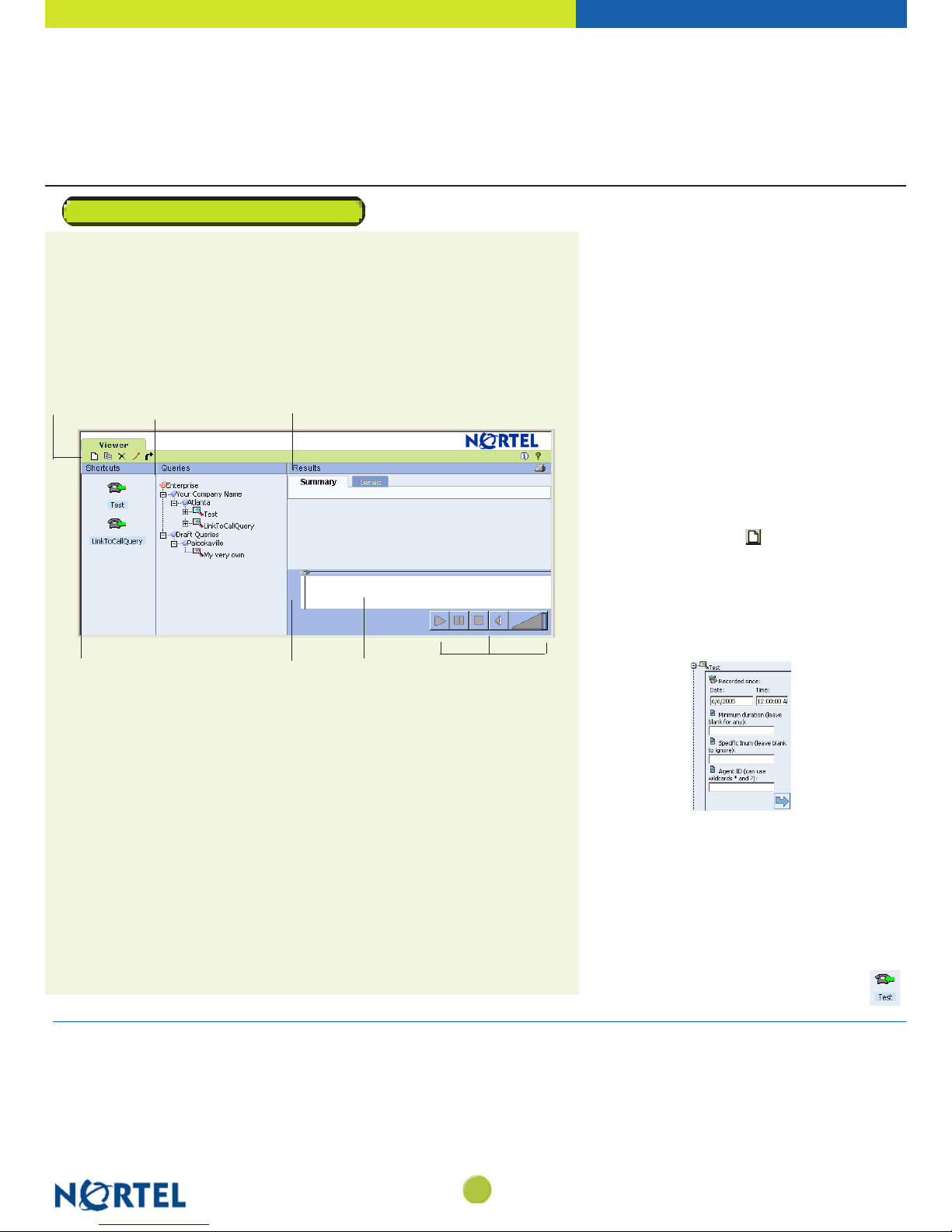
Navigating the Viewer application window
Once you start Viewer (see right column,
window opens. The window contains several panes, containing dierent information and
functionality:
Viewer menu bar
Shortcut Pane
Viewer menu bar
Queries pane Results pane
Call Viewer
Click the New Query, Copy Query, Edit Query, Delete Query or Release Query icon to
complete the desired action.
Shortcuts pane
Contains icons that you can click to run a search query immediately.
Queries pane
Lists the queries that are available to you to run a search with specic search parameters.
You can click a query title (for example, the query
the search, or alternatively use a shortcut in the Shortcuts pane.
Results pane
Lists the calls that meet your search criteria. You can select and replay calls from this list.
Call Viewer pane
Contains the Energy Envelope and the Call Control buttons:
• the
Energy Envelope is blank until you replay a call. As the call is replayed, this area
displays the waveform of the call.
• the
Call Control buttons allow you to control how a call is replayed. You can use these
buttons to play, pause, stop, and mute a call, as well as control the volume.
Starting Viewer
Energy envelope
Test shown in the graphic above) to run
), the main Viewer application
Call Control buttons
Starting Viewer
Once you receive access privileges and the
application URL, you can start using Viewer.
To start Viewer
1. Start your network browser and in the address bar,
type the URL (such as http://ViewerServer/Witness)
for Viewer. The Viewer home page is displayed, and
from here you can search and replay recorded calls.
Note:
If prompted for a user ID and password, enter
the user ID and password provided by your system
administrator.
Searching for calls
To retrieve calls to replay, you must search the
calls database. Either specify a query or use one of
Viewer’s query shortcuts.
To build a new query to search for calls
Click the New Query icon on the menu bar. To
build your query, follow the steps in the dialog box.
Note:
Call view details depend on the number of
lters you select as you create the query.
To search for calls using a query:
1. In the Queries pane, click a query (for example, Test)
to show its criteria:
2. If required, edit the query criteria. Then, click the
blue arrow at the bottom right of the Query box.
Your query results are shown in the
details, see page 2,
To search for calls using a shortcut
In the Shortcuts pane, select the shortcut icon that
matches the query you want and click it to run the
query.
For example, clicking the
(shown to the right) begins the query process
immediately. The query criteria are not shown.
Viewing search results
Test shortcut icon
Results pane. For
.
Viewing search results ...........................................................................................................2
To view the summary of all calls
To view details about a call
Replaying calls
To replay a call listed in the Summary pane
..........................................................................................................................2
........................................................................................2
..................................................................................................2
.............................................................2
Table of Contents
Audio waveform .................................................................................................................2
Call duration indicators....................................................................................................2
Controlling call replay using Call Control buttons
Using online Help
Glossary.......................................................................................................................................2
1
.................................................2
....................................................................................................................2
> BUSINESS MADE SIMPLE
Page 2
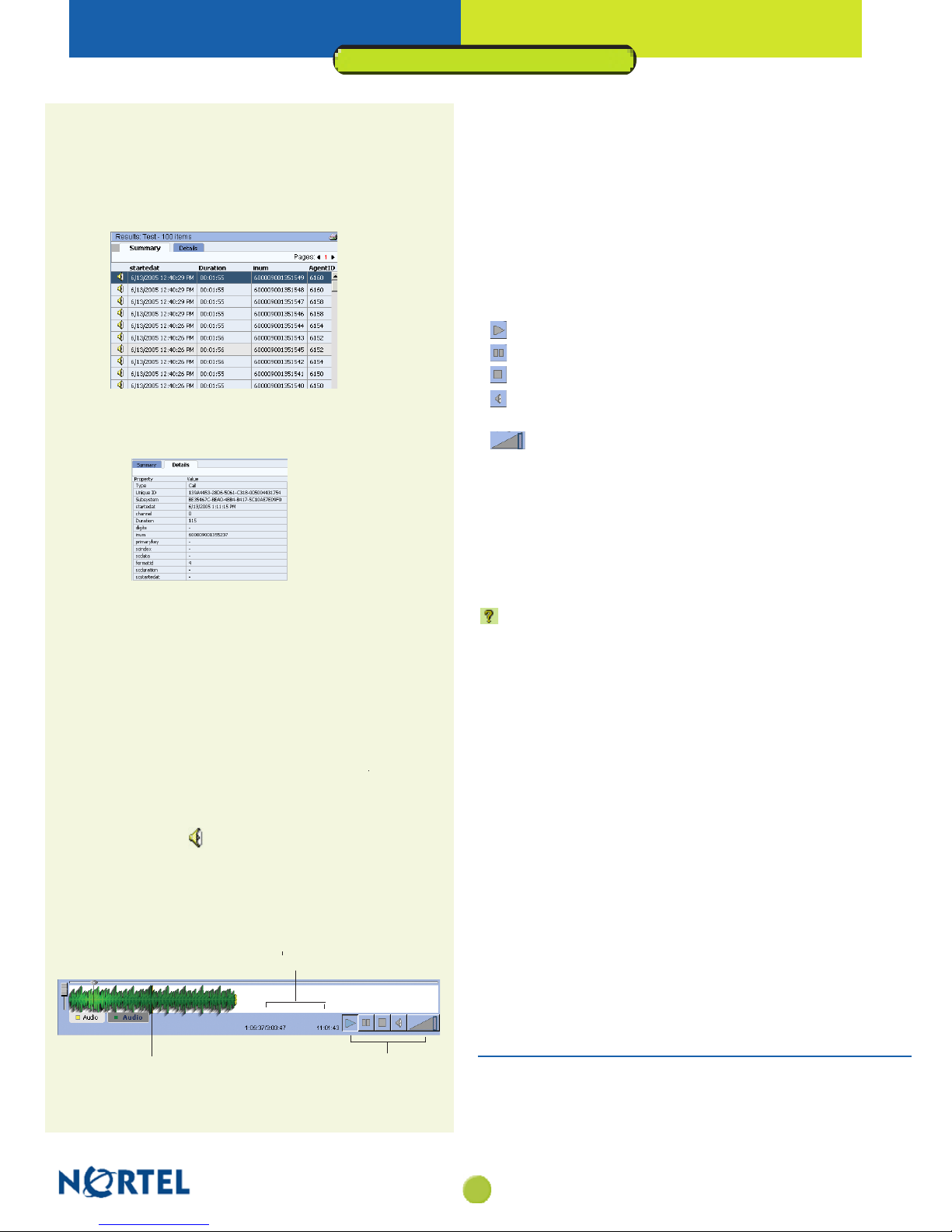
Audio waveform
As the call audio commences, the audio waveform appears and
expands inside the
Energy Envelope.
Working with the Contact Recording Viewer
Call time indicators
Viewer displays information about a call’s duration, and the time the call
was recorded, to the left of the replay call control buttons.
The rst two call time indicators relate to the call’s duration and show:
• how much of the call time has elapsed
• the overall length of the call
The third call time indicator, directly adjacent to the
the time the call was recorded. All times display as hh:mm:ss.
Controlling call replay using the call control buttons
Use the following buttons to control call replay.
•
Play button - click to play a call
•
Pause button - click to pause a call
•
Stop button - click to stop a call
•
Sound button - click to mute the sound (to reverse to audio, click
the Sound button again)
•
Volume button - click while the call replays to raise the volume.
Copyright © 2007 Nortel Networks, All Rights Reserved. Nortel Networks reserves the right
to make changes in design or components as progress in engineering and manufacturing may
warrant.
Nortel, the Nortel logo, the Globemark are trademarks of Nortel Networks
Viewing search results
After running a query, you can view the summary of all calls retrieved, or
select a single call to view specic details about the call.
To view the summary of all calls retrieved
All calls that meet your search criteria are displayed in the Results
pane:
To view call details
1. Select the call, then click the Details tab. The call details are
displayed:
Play button, shows
Using online Help
Online Help is available with the Viewer application. You should nd everything
you need to know about Viewer in the Help les, including a section for new users.
Note:
The details shown in the call view match the lters you selected
(i.e.
Unique ID, startedat, or inum) when you were building or editing
your query. For more information, see page 1,
2. To return to the list of calls, click the Summary tab.
Searching for calls.
Replaying calls
Once your search nds the calls you were looking for, you can replay the
calls through the speaker on your computer. Before replaying the call, you
can check the duration of a call, then replay a call using one of the methods
described below.
To replay a call listed in the Summary pane
In the Summary pane, do one of the following:
• Click the speaker icon
- OR -
• Select the call in the Summary list that you want to play, then
double-click it.
The call retrieval process begins. Once it is complete, the audio
replay commences and the
buttons are activated as shown below:
next to the call you want to play.
Energy Envelope and the Call Control
Call time indicators
To open Viewer’s help les
If you need assistance at any time while using Viewer, click the Help icon
located near the top right corner of the Viewer window to open the
Help les.
Glossary
This glossary describes some commonly used terms related to the Viewer
application.
Query
A pre-dened set of instructions for extracting calls from the calls
database. Viewer queries search for calls that meet the query criteria.
Replay
Play a recorded call from the calls database.
Shortcut
Icon for a pre-formatted query that you can double-click to immediately
run a query.
URL
Acronym for Uniform Resource Locator. An address for a resource on the
Internet.
Audio waveform
Call Control buttons
Publication number: 297-2183-967 Standard 1.0 Product Release 6.0.1 Sept 2007
2
> BUSINESS MADE SIMPLE
 Loading...