

Page 1
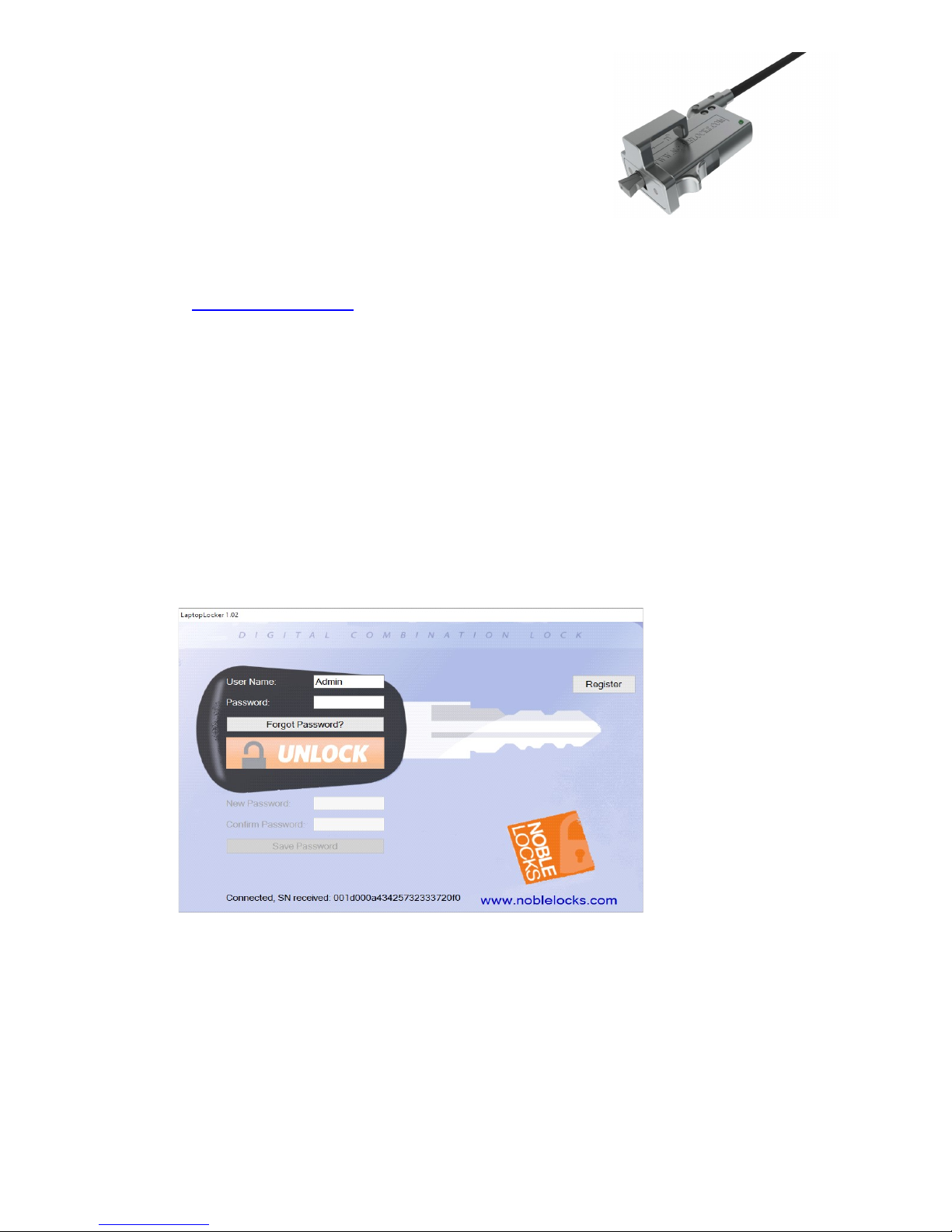
Noble Digital Wedge Lock
ETZ08T
Noble Security Inc.
Single User manuals Ver. 0.94 Dec., 2015
NOTE: Do not connect the lock to the computer via USB until instructed to do so.
SOFTWARE INSTALLATION
• Go to www.noblelocks-reg.com
• Open download.
• Select lock user , Download and install LaptopLockerUser.msi
• Run SW from the Start Menu (After the first running, Laptop Locker runs in the background until a lock is
connected).
LOCK REGISTRATION
NOTE: Must be connected to the internet to register the lock, and to change the user password.
• Connect the lock by the USB cable from the PC/Laptop USB port to the Micro USB port in the lock.
• Lock should blink green when connected for the first time. (If the lock blinks fast red, it’s a registered
lock.)
• User Interface will open (Figure 1).
Figure 1: Main screen when the lock is connected
• Press the Register key on the upper right side
• The Registration screen will open. (Figure 2)
Page 2
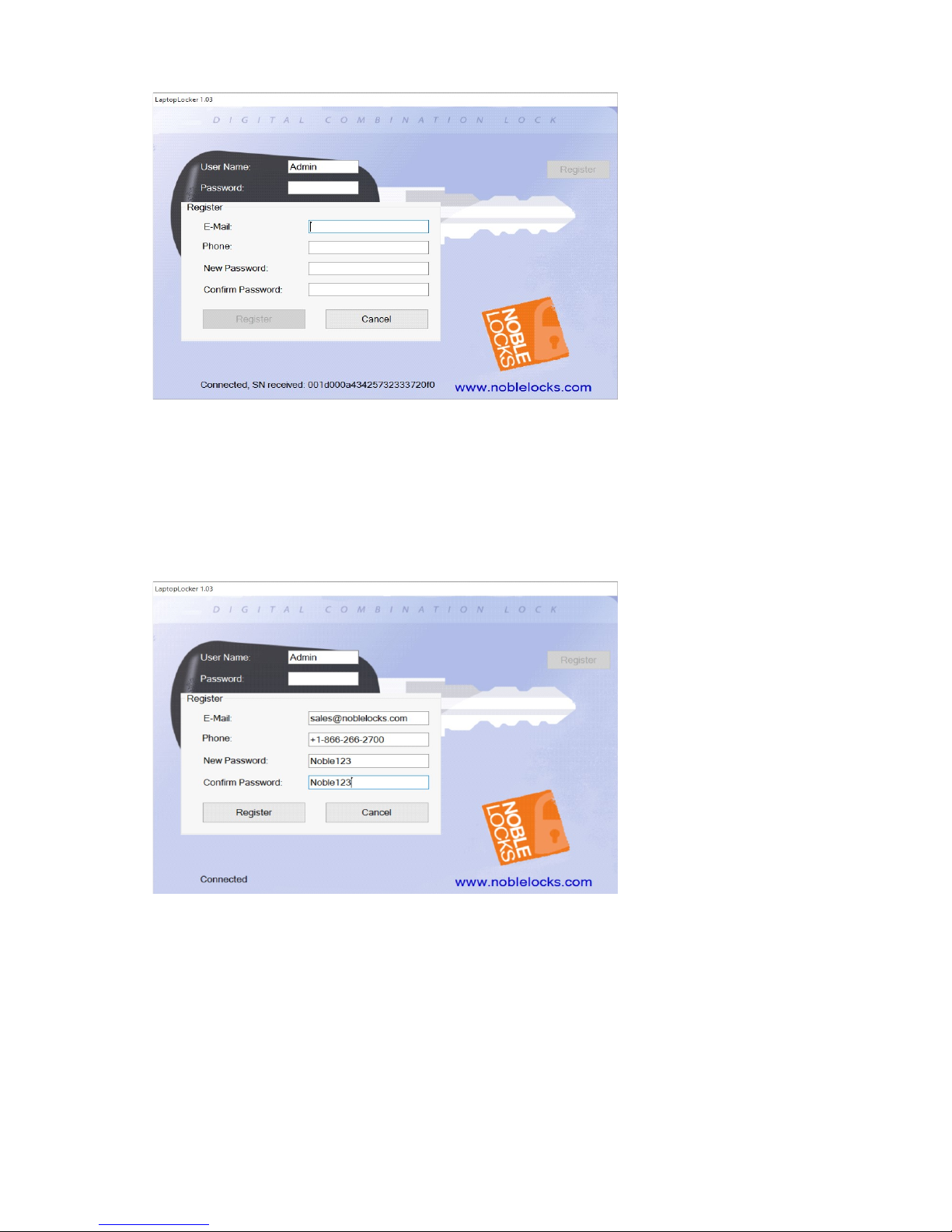
Figure 2: Registration screen
• Fill all fields according to the following:
• E-Mail – The email address you want to restore your lock password.
• Phone – Your phone number to get SMS for restore password
• Your password to open the lock. Password must have 8 - 20 any characters
• Confirm –Retype the password.
Figure 3: Registration screen example
• After filling all the fields, the register key become active. Press Register to set the new password and
register. (Figure 3)
NOTE: The Lock indicator should light or blink green, when pressing Register key. If it turns red during
filling the form, disconnect the lock and connect it again.
• After pressing the Register key, the lock indicator will turn RED and the following screen will appear.
(Figure 4)
Page 3
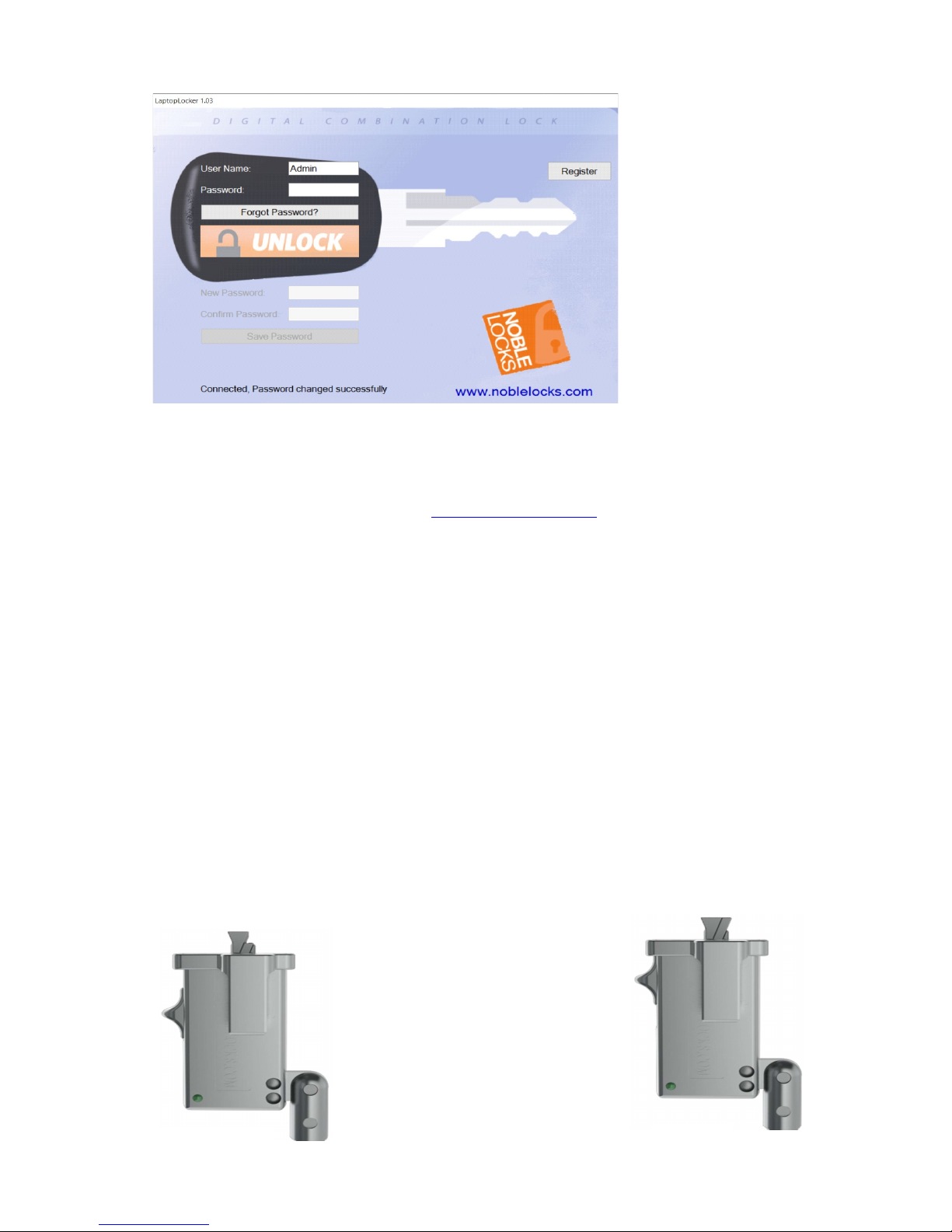
Figure 4: After registration or change password screen
• Enter your password, press UNLOCK and the lock indicator will light green. The unlock attempt was
successful
You may register and save this password at www.Noblelocks-Reg.com
Note: No need to keep the USB connected-Use only when need to open the lock.
• Your lock is configured and ready to use.
3. LOCKING
NOTE: The lock does not need to be connected via USB to lock.
• The Lock lever should be in the rearward position. (Figure 5).
• If the lever is in the forward position (Figure 6), the lock must be unlocked before you can continue. (See
Unlocking, Section 4)
• Insert the lock TIP into the slot (use TRAP if need to secure charger) and Push the Lever forward until
locked.
Figure 5A: Locked
Fig.5a
-
Locked
Fig.5b-Unlocked
Page 4
4. UNLOCKING
• Connect the USB cable from the PC/Laptop USB port to the Micro USB port in the lock.
• Popup screen will show (As figure 4). Fill Password and press UNLOCK. Green light will show for few
seconds-You need to pull the lock Lever back to Open.(Now you can Coil and store the lock)
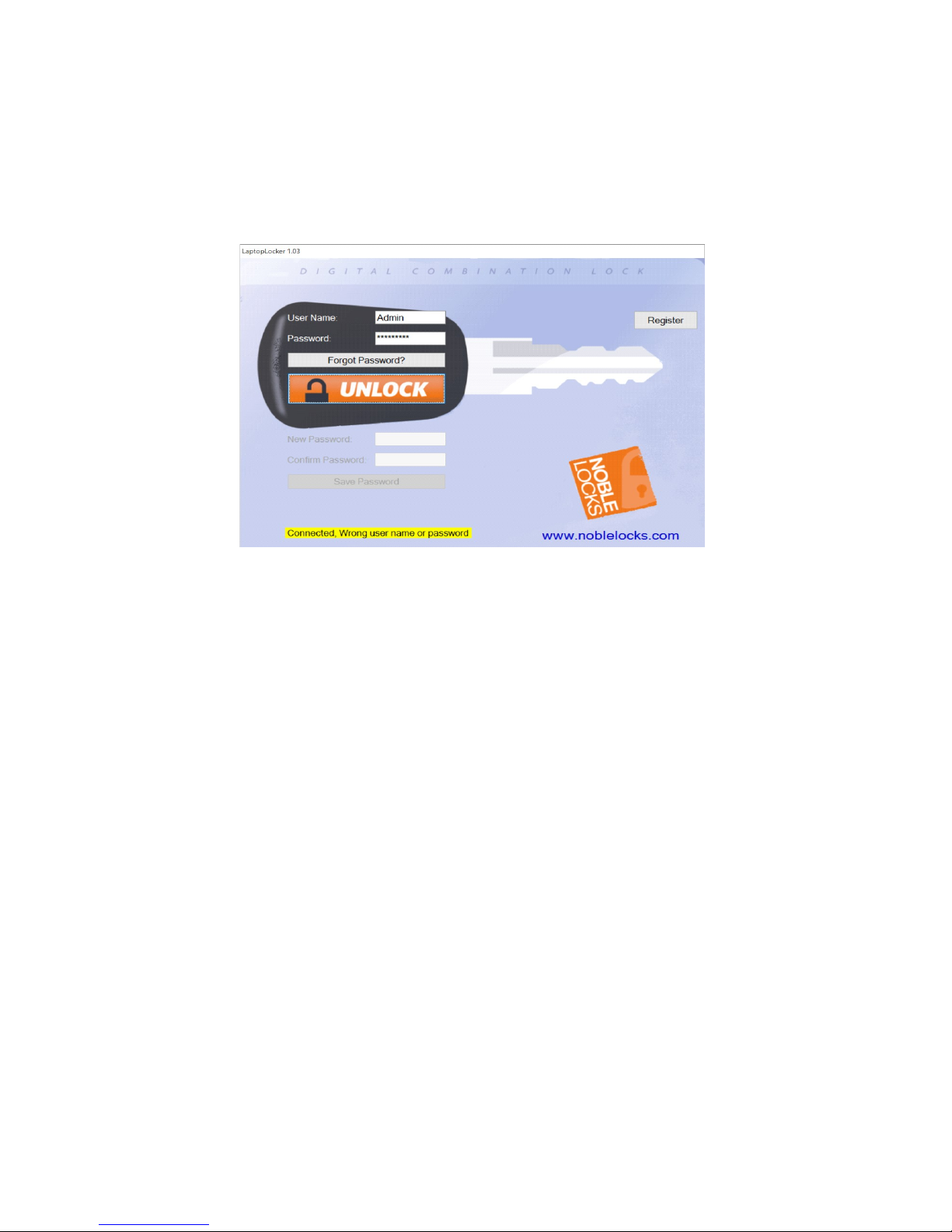
• In case of wrong user name or password the following screen will appear (Figure 6)
Figure 6: Wrong password entry
NOTES:
• After 5 incorrect password attempts, you must disconnect the USB, then reconnect the USB and wait 3
minutes before it will allow additional attempts.
• If you get an incorrect screen, check that your caps lock key is off, and make sure you are using the
correct user name and password.
Forgot Password:
• In case the user forgot his password, click Forgot Password.
• A text box will open on the right of the screen (Figure 5).
• Enter your name in the text box.
• Click [Send Password Request].
• A copy of the entered information along with your lock S/N and password will be sent to your mail address
as registered.
Page 5
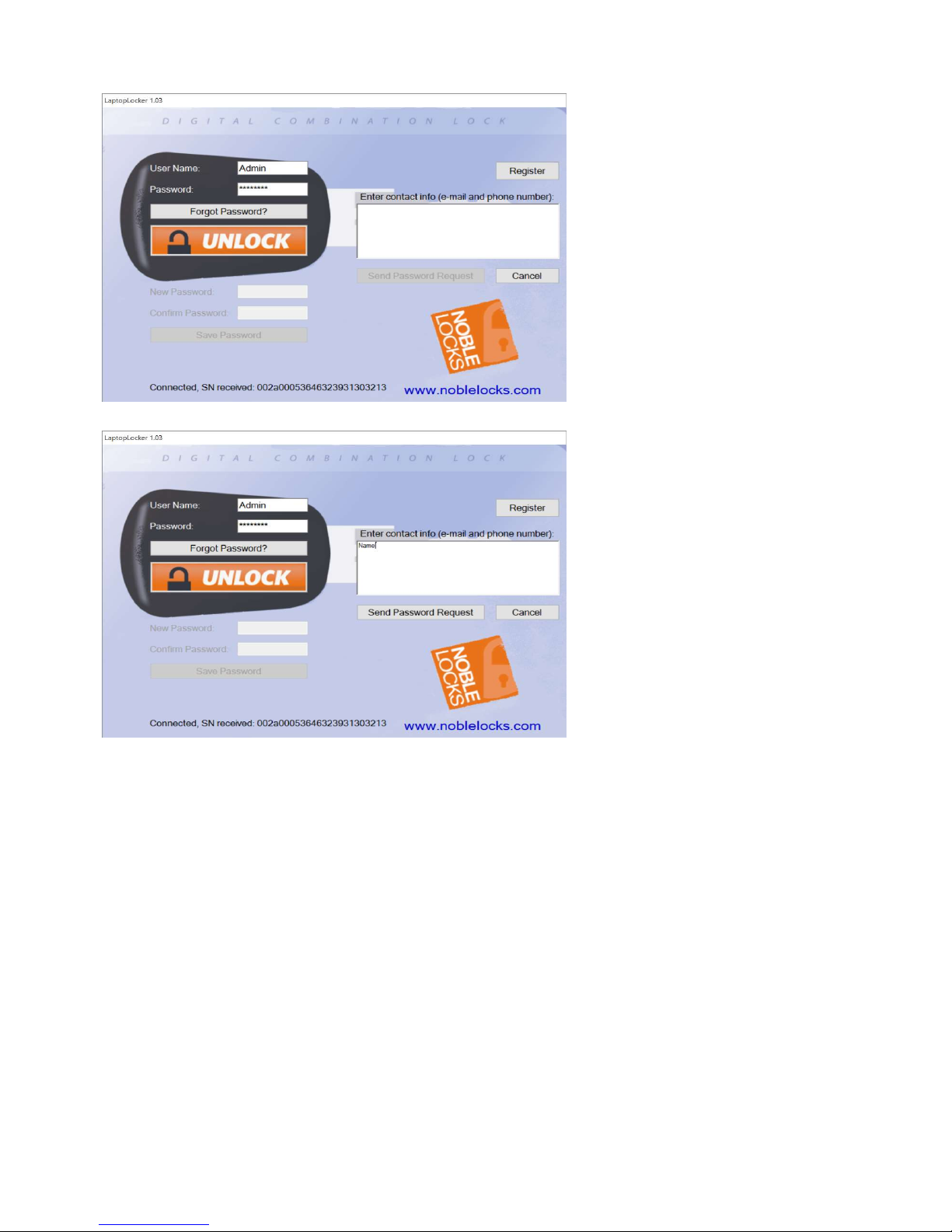
Figure 7: Forget password box
Figure 8: Forget password text message example
Change Password:
• After Opening the Lock, enter new password.
• Retype the new password.
• While the lock indication light is Green, Press the Save password and verify message as in fig. 4.
 Loading...