

Page 1
TABLE OF CONTENTS
INTRODUCTION 4
FEATURES 5
GETTING STARTED 6
Description of control button 6
Description of icons 7
Turning your pager on and off 8
Setting date & time 9
Choosing different alert modes 10
MESSAGES 12
Reading messages 12
Duplicate messages 13
Display 13
Erasing a message 14
Erasing all messages 14
Locking a message 15
OPTIONAL FUNCTIONS 18
Activating menu board 18
Setting alarm 20
Setting auto timer 21
Setting reminder alert 22
Entering greeting 23
Ready messages 24
Setting low battery alert 26
Setting script language 27
BATTERY INFORMATION 28
Low battery indication 28
Replacing battery 28
3
Page 2

INTRODUCTION
Welcome to Nixxo Pager World!
Your new pager provides you with many enhanced features,
such as 20 kinds of ready messages, 3 alarms, and English & French menu script.
INTRODUCTION
Nine segment display makes easy to read messages.
This user guide gives instructions on how to use Titanium pager.
4
Page 3

FEATURES
FEATURES
FLEX Protocol
520 Characters Private Message Memory
(20 Slots x 26 Characters)
20 Ready Messages
(User Option On/Off)
AGC (Auto Gain Control) Function Available
Side View 1 Line Display (9 Segment)
Menu Display Available in English & French
Battery Backup When Replacing Battery
Date & Time Display
Receiving Time Stamping
Message Lock
Memory Full Indication
Message Error Indication
Individual Delete & Delete All
1 Daily & 2 Event Alarms
User Selectable 15 Melodies & 5 Tones
Vibration Alert
User Programmable Auto On/Off Timer
Reflective Backlighting Display
User Programmable Unread Message Alert
User Programmable Low Battery Alert
Duplicate Message Indication
User Programmable Headline
1 AAA Battery
5
Page 4
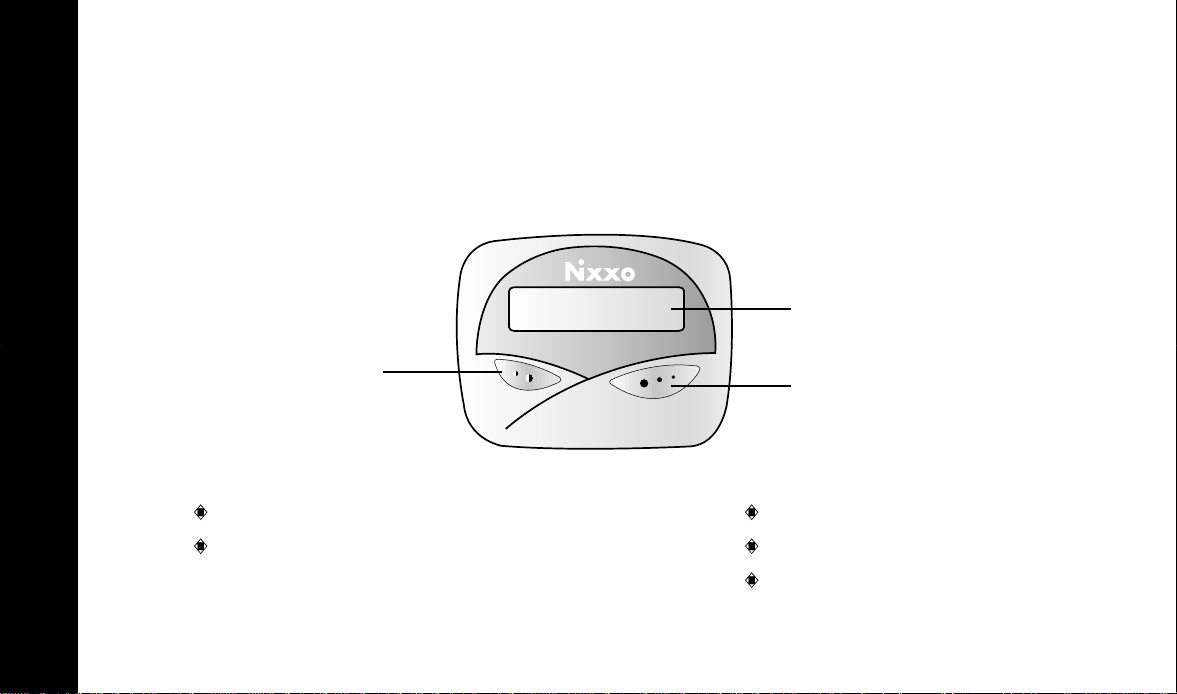
1. DESCRIPTION OF CONTROL BUTTON
Titanium
Screen
GETTING STARTED
Function Button
Function Button
Enter menu set
Change alert mode
6
Read Button
Read Button
Read messages
Select menu
Stop alert or alarm
Page 5
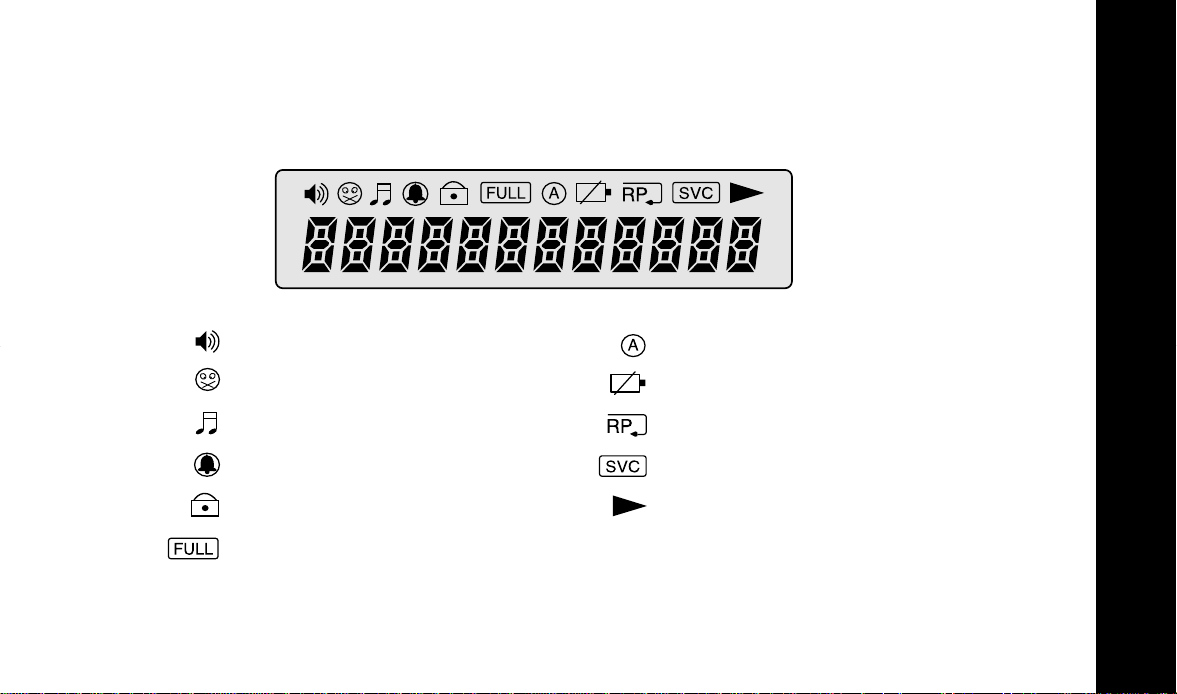
2. DESCRIPTION OF ICONS
GETTING STARTED
Tone Alert
Vibration Alert
Melody Alert
Pager Alarm
Locked Message
Full Memory Capacity
Auto On/Off Timer
Low Battery
Duplicate Message
Service Area Indicator
Continued Message
7
Page 6
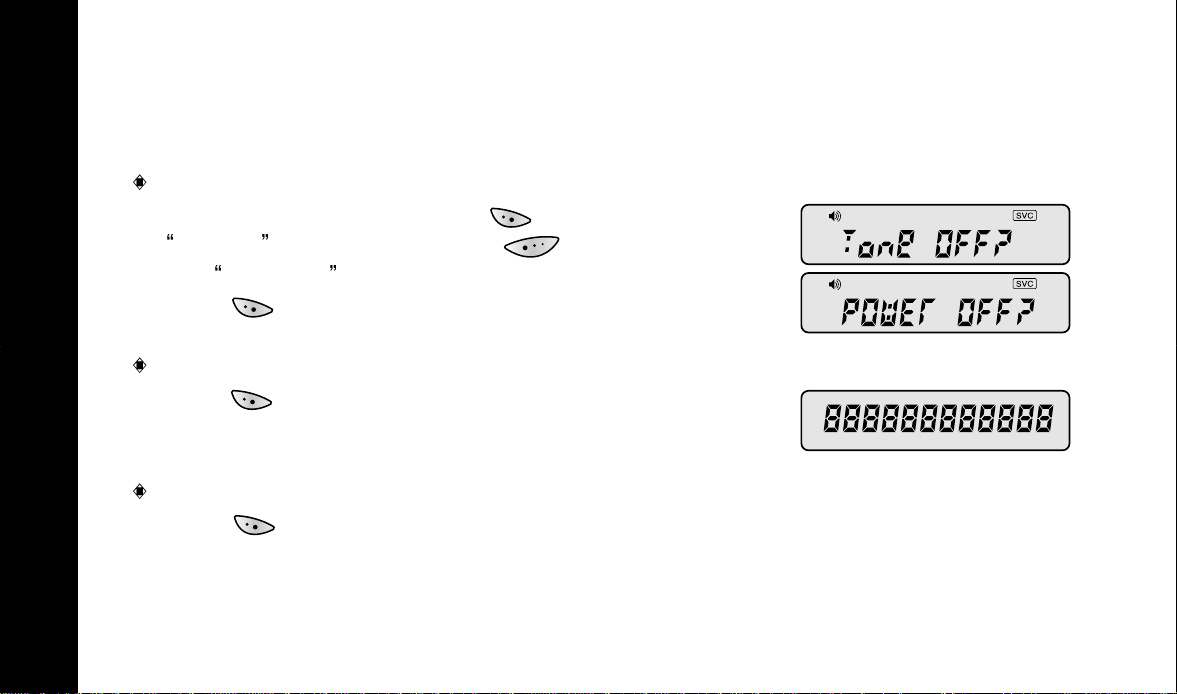
3.TURNING YOUR PAGER ON AND OFF
TURN OFF
To turn your pager off, press two times. When
Tone off is displayed, press to scan menu
until Power off is displayed.
Press to turn off.
GETTING STARTED
TURN ON
Press for 2 seconds to turn your pager on.
Greeting message is displayed.
BACKLIGHT
Press to activate lamp.
Backlight remains on for 4 seconds before automatically turned off.
8
Page 7
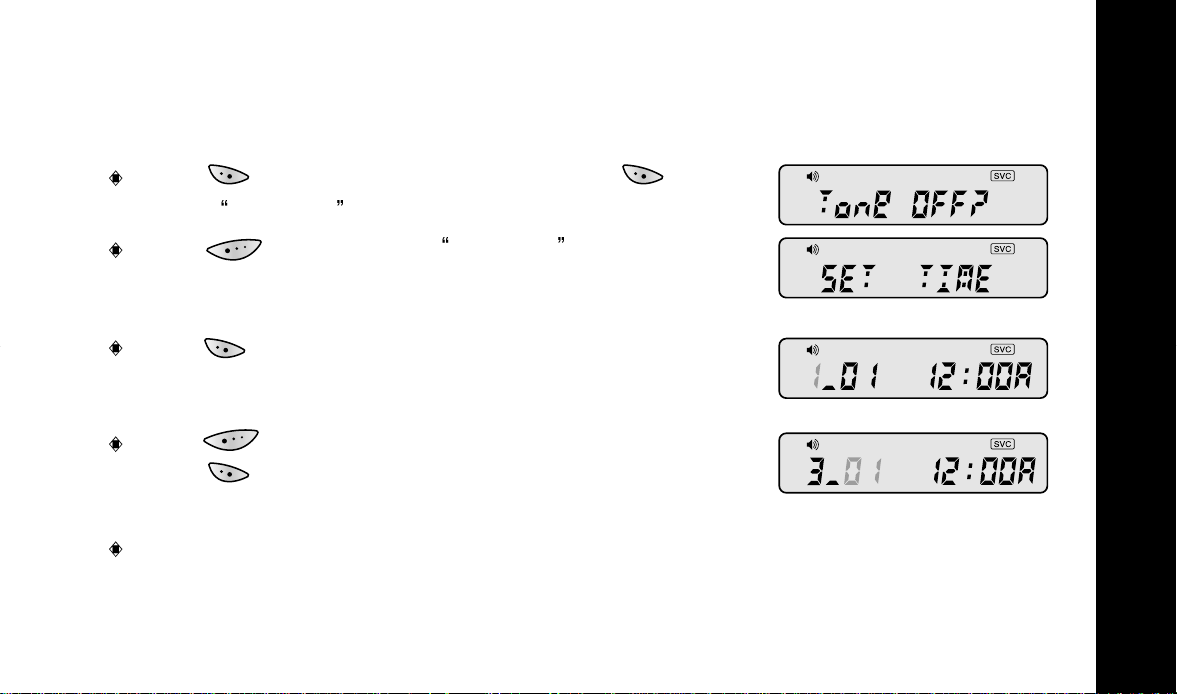
4. SETTING DATE AND TIME
Press . Backlight comes on. Then press
GETTING STARTED
again.
Press repeatedly until SET TIME is displayed.
Press to select menu. The month indicator begins
to blink.
Press to move to the desired number.
Press to enter correct month. The date indicator
starts blinking.
Repeat above steps to set all fields.
NOTE ) Please adjust the date in Feb. of ordinary year
because the pager will go to Feb.29 regardless of leap year.
Tone Off? is displayed.
9
Page 8
5. CHOOSING DIFFERENT ALERT MODES
You can choose one of 3 types of alert modes : beep, vibration or musical alert.
1. VIBRATION ALERT
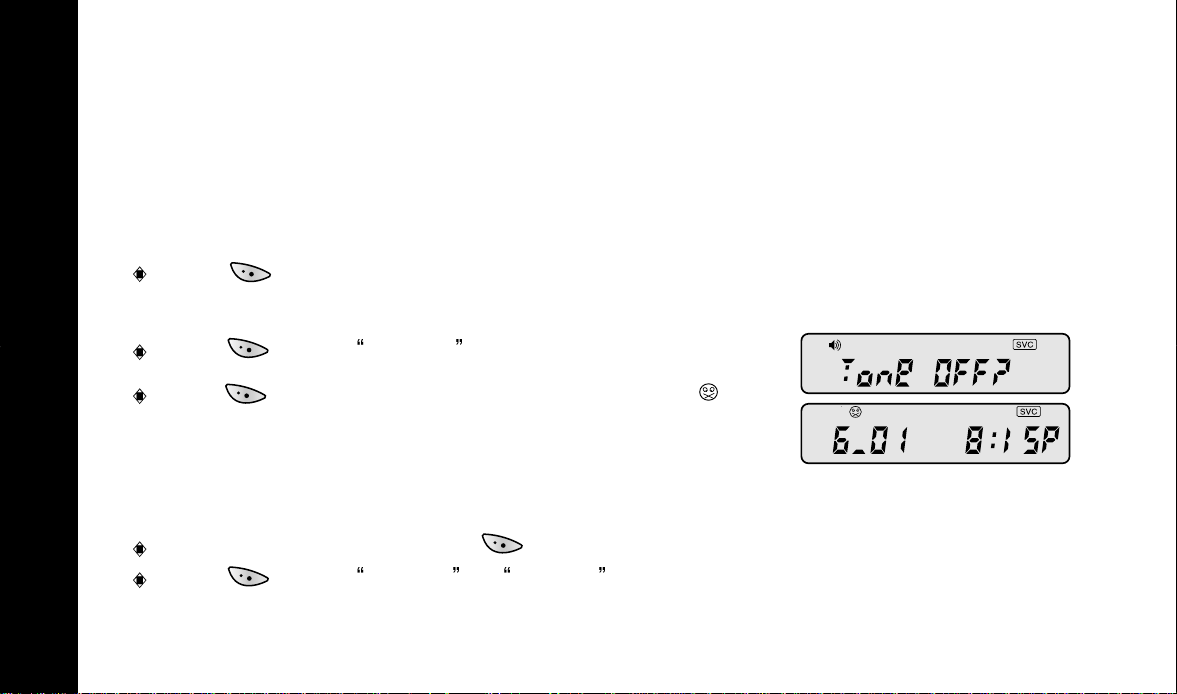
Press to change the sound alert to vibration alert.
Backlight comes on.
GETTING STARTED
Press again. Tone Off is displayed.
Press to confirm. The standby screen displays .
2. SOUND ALERT
Titanium has 15 melodies and 5 tones.
To choose sound alert, press . Backlight comes on.
Press again. Tone on or Tone off is displayed.
10
Page 9
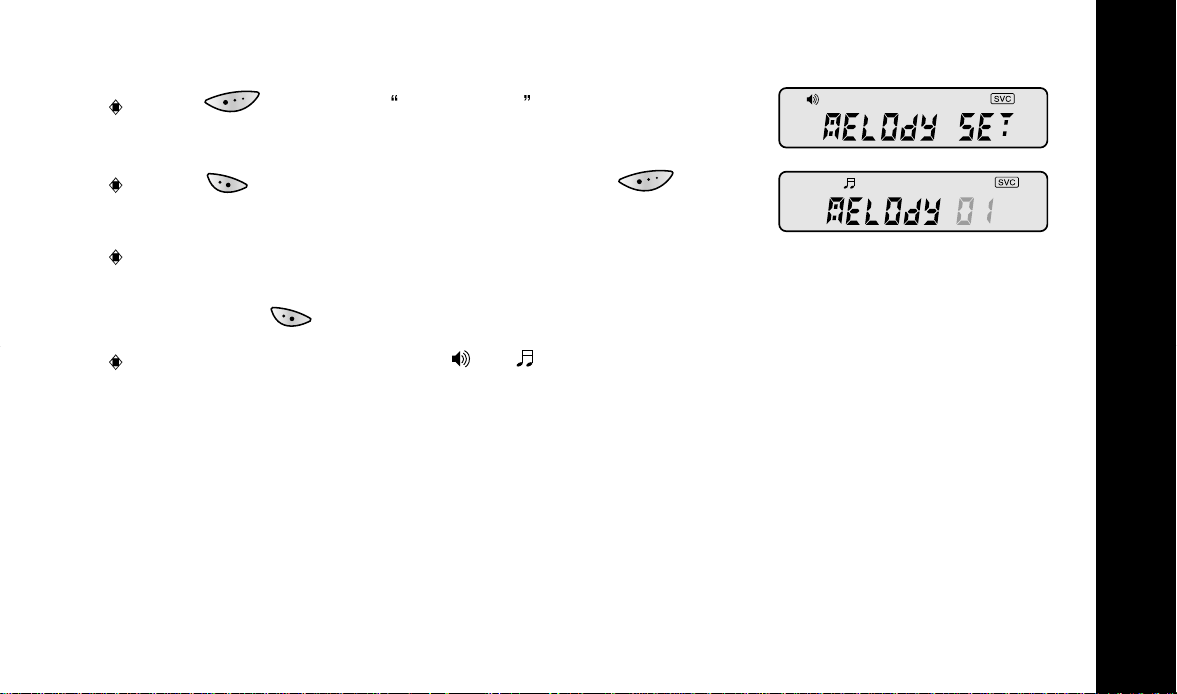
Press to display Melody Set.
Press to confirm. To scan sound, press .
The screen shows the number for each sound.
From 1 to 15 are melody alerts and from 16 to 20 are
beep alerts. When the screen displays an alert you
want, press to confirm.
The standby screen shows or , depending on
your choice.
GETTING STARTED
11
Page 10
1. READING MESSAGES
When a message is received, Titanium either audibly alerts
(beep or musical alert) or vibrates and display the message.
MESSAGES
12
To stop vibration or audible alert, press any button.
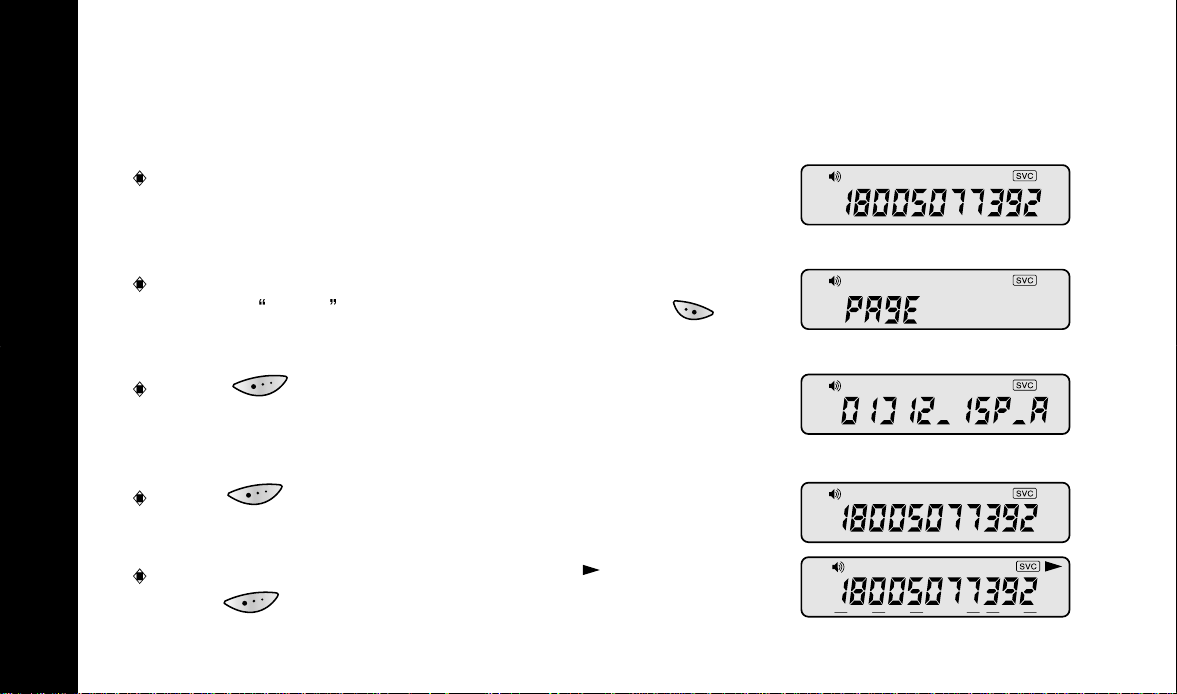
If Titanium has any unread message, the screen
displays
The current time is will be displayed 3 seconds later.
Press to display the message. The screen
displays the time the message was received.
Press again to display the message.
If the message is continued to next page, is displayed.
Press again to read the continued message.
PAGE . To see the current time, press .
01] the slot number
A : message address.
Page 11
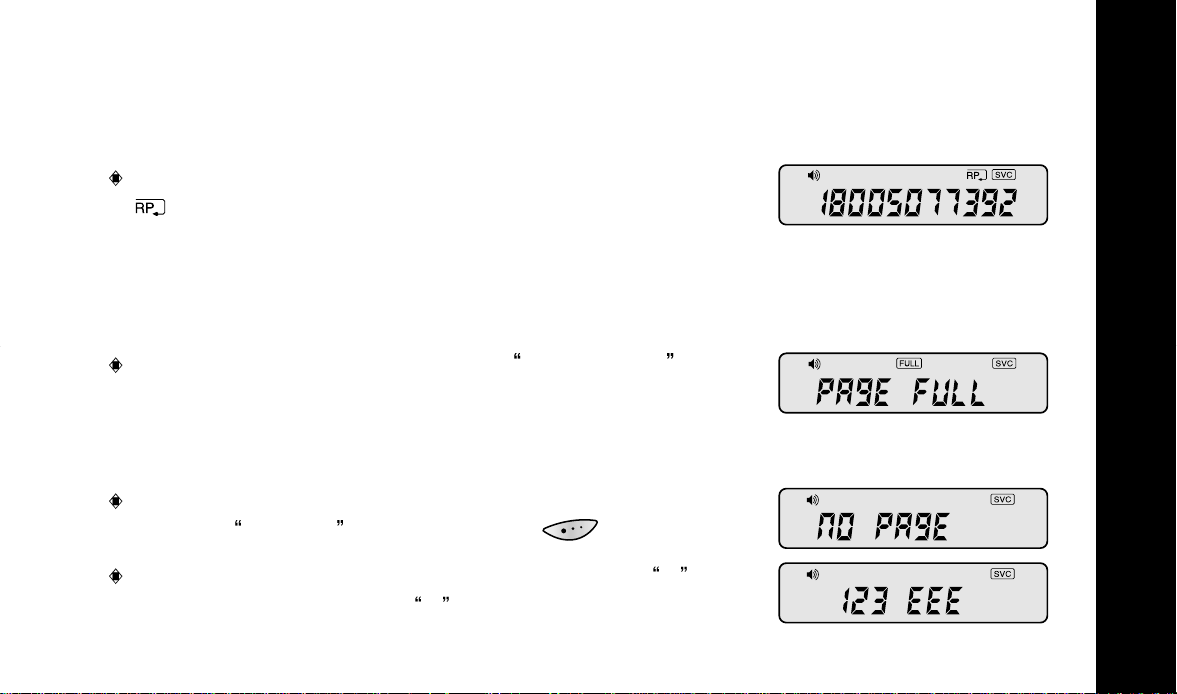
2. DUPLICATE MESSAGES
If pager receives a duplicate message, duplicate icon
displays on top of the screen.
3. DISPLAY
If the pager has 20 messages, PAGE FULL is
displayed. If Titanium receives more than 20 messages,
the oldest message gets deleted as new message is
received.
When the pager has no message, the screen
displays
When an error occurs receiving a message, E is
displayed on the screen. E means error message.
No Page upon pressing of .
MESSAGES
13
Page 12
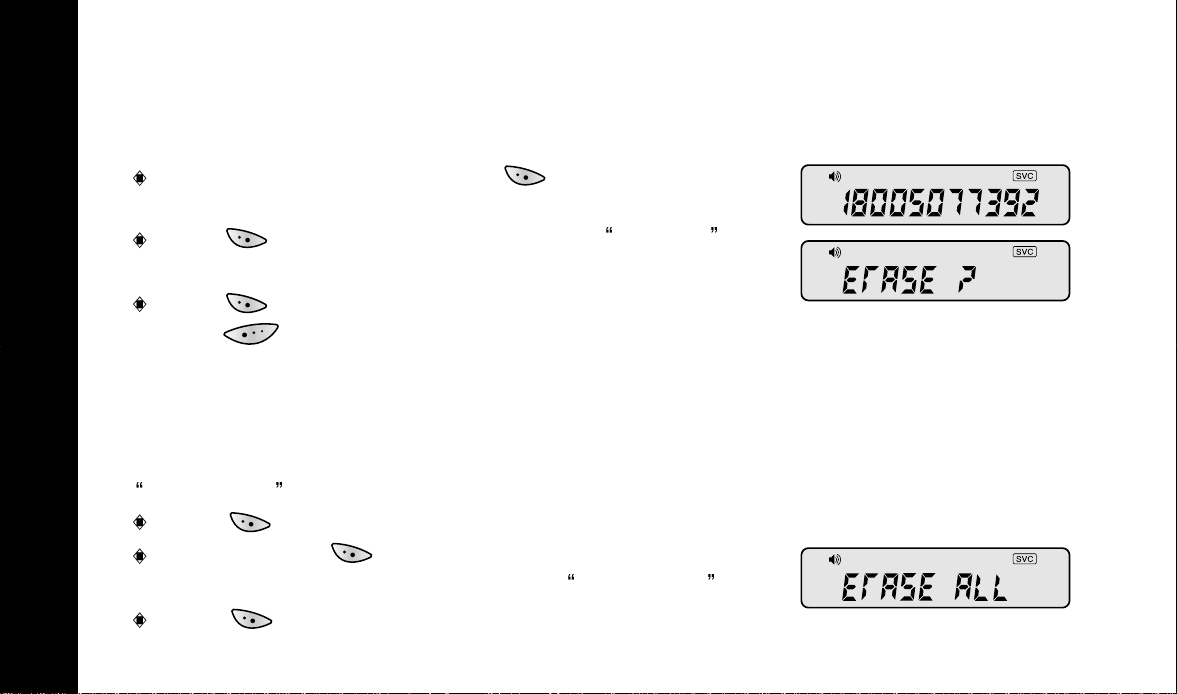
4. ERASING A MESSAGE
After reading a message, press .
Backlight comes on.
MESSAGES
Press again. You are prompted with ERASE?
display.
Press to confirm. If you want to exit this mode,
press .
5. ERASING ALL MESSAGES
ERASE ALL command erases all messages except the locked messages.
Press . Backlight comes on.
Press and hold for 2 seconds.
The screen automatically changes to
ERASE ALL
14
Press to erase all messages.
Page 13
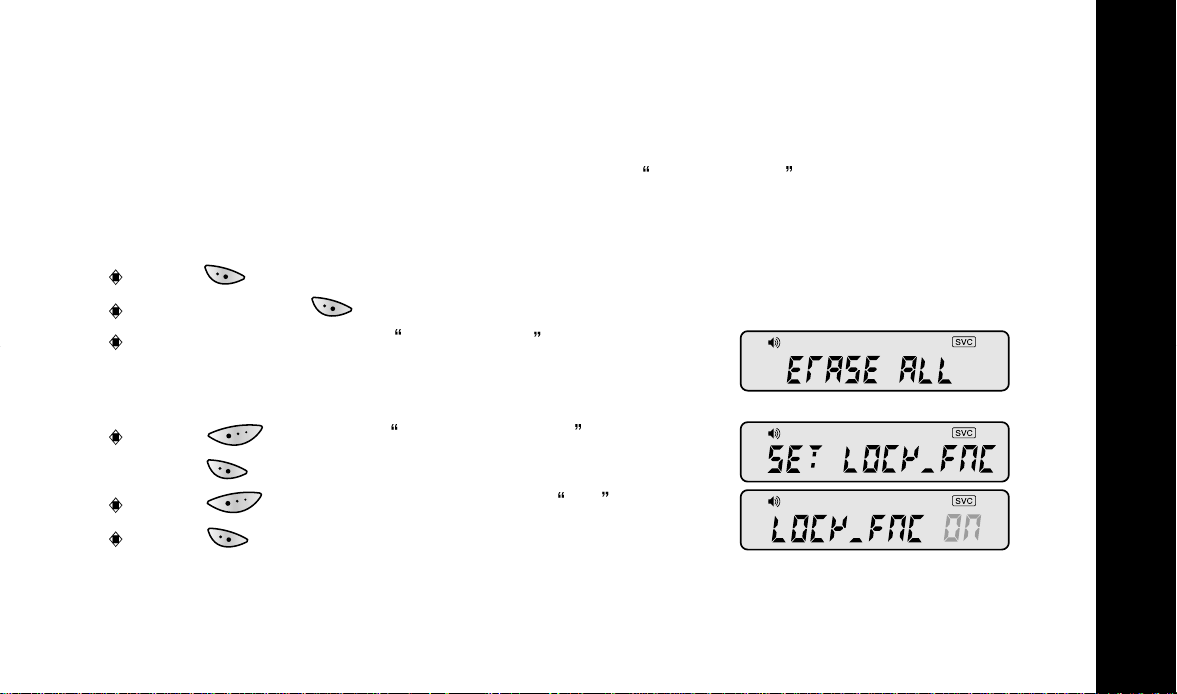
6. LOCKING A MESSAGE
You can protect messages from being erased by ERASE ALL function.
SET MESSAGE LOCK FUNCTION
Press . Backlight comes on.
Press and hold for 2 seconds.
The screen changes to ERASE ALL .
Press to display SET LOCK FNC .Then
press .
Press to turn the message lock ON .
Press to confirm.
MESSAGES
15
Page 14
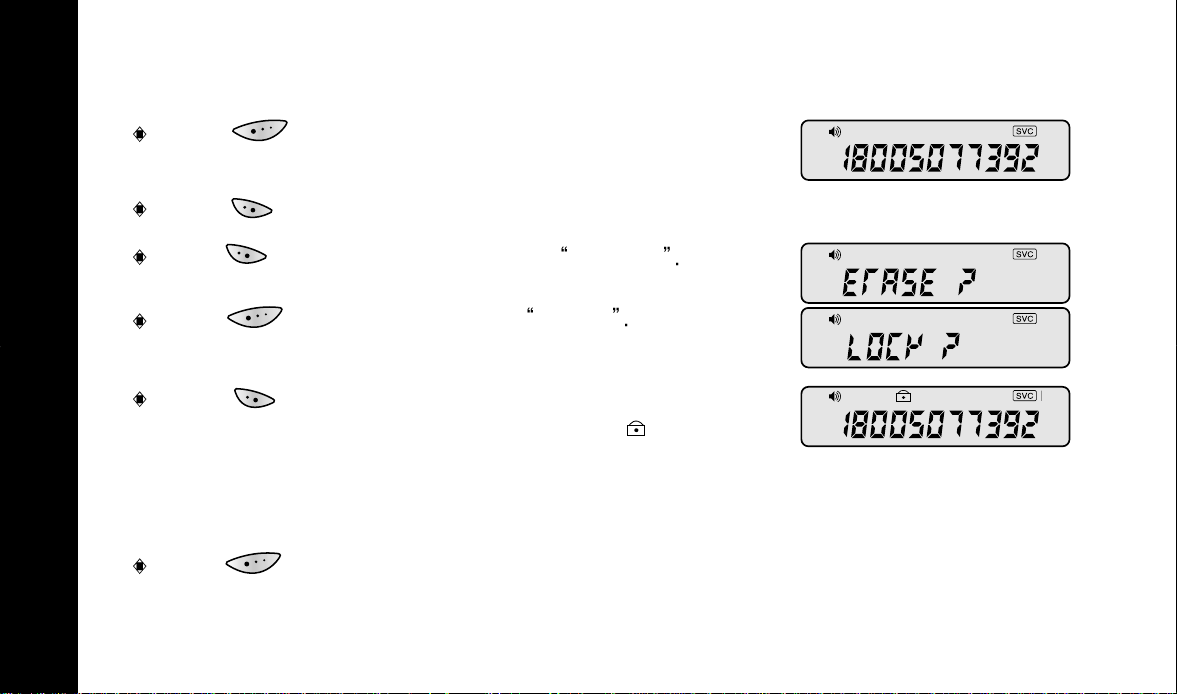
LOCK A MESSAGE
Press repeatedly to display the message to be
locked.
Press . Backlight comes on.
MESSAGES
Press again. The screen shows ERASE?
Press . The screen displays LOCK?
Press . The message is now locked. When you
read a locked message, you can see icon on top
of the screen.
UNLOCK A MESSAGE
Press repeatedly to select the message to be unlocked.
16
Page 15
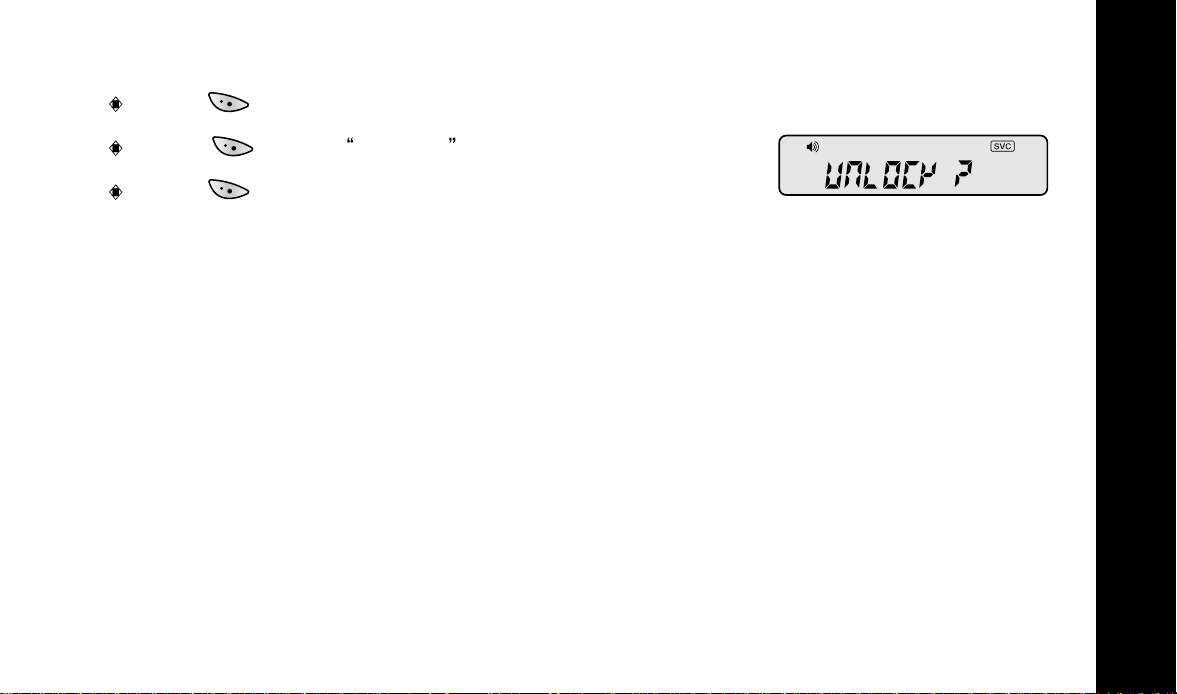
Press . Backlight comes on.
Press again. Unlock ? is displayed.
Press to confirm.
MESSAGES
17
Page 16
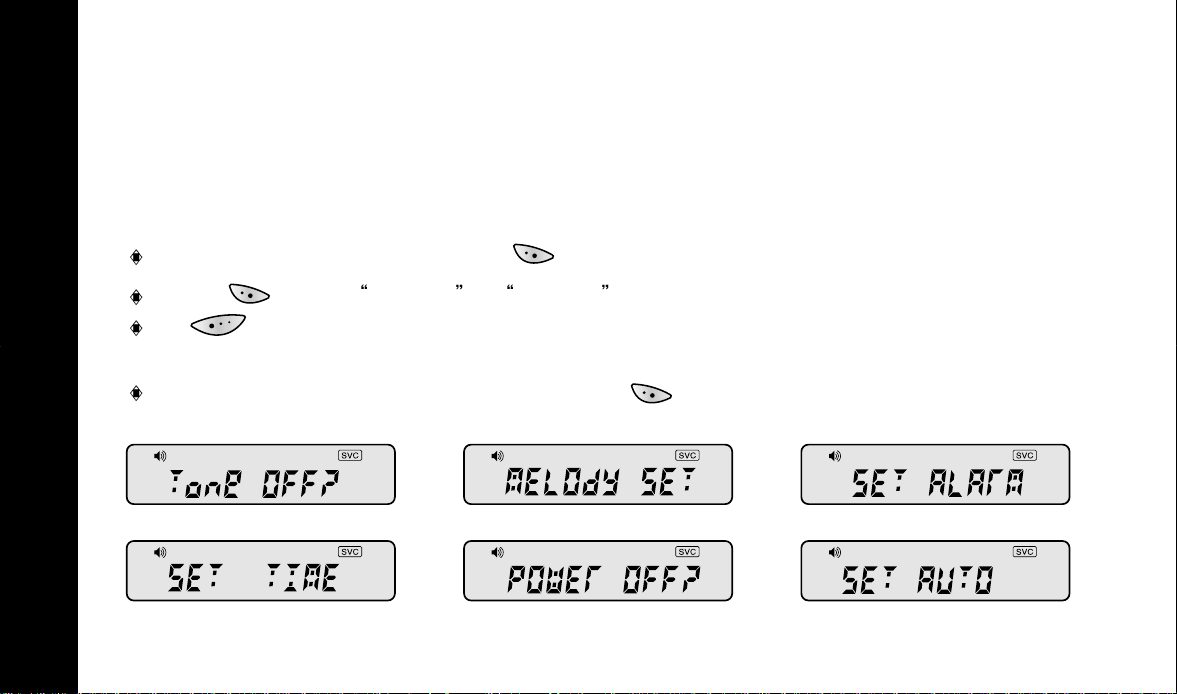
1. ACTIVATING MENU BOARDS
Titanium has 2 menu boards.
FIRST MENU BOARD
To activate a menu board, press . Backlight comes on.
Press again. Tone off or Tone on is displayed.
As is pressed, the following menu shown on the down is displayed one after
another.
OPTIONAL FUNCTIONS
When the desired menu is displayed, press .
18
1. SET ALERT 2. SET MELODY
4. SET TIME 6. SET AUTO TIMER
5. POWER OFF
3. SET ALARM
Page 17
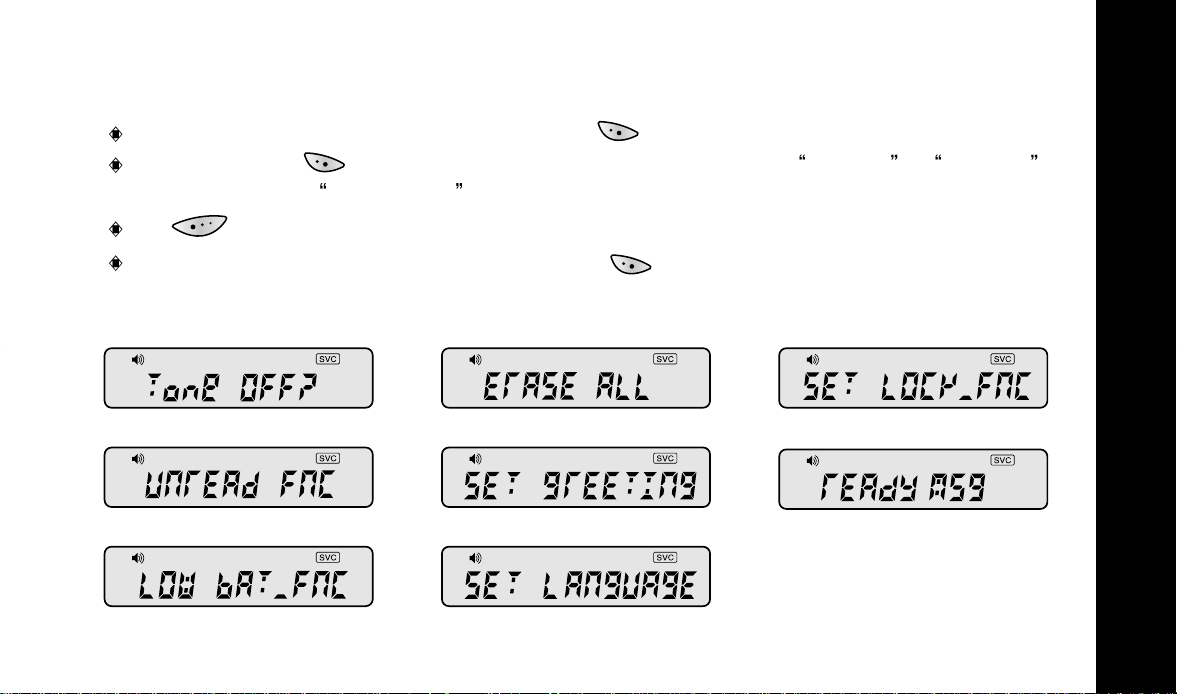
SECOND MENU BOARD
To activate the second menu board, press . Backlight comes on.
Press and hold for 2 seconds. At first the screen displays Tone off or Tone on ,
but it changes to
ERASE ALL , which is the first option of the second menu board.
As is pressed, the following menu is displayed one after another.
When the desired menu is displayed, press .
1. ERASE ALL 2. SET LOCK
OPTIONAL FUNCTIONS
4. ENTER GREETING3. SET REMINDER ALERT
7. SET LANGUAGE6. LOW BATTERY ALERT
5. READY MESSAGE
19
Page 18
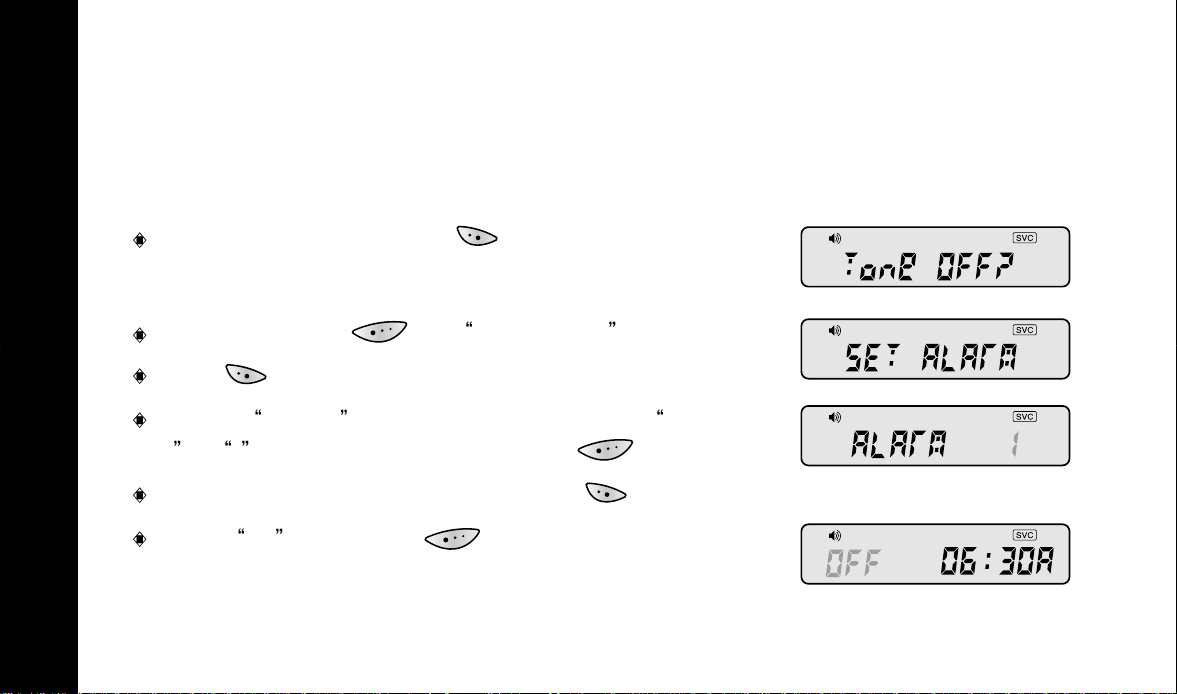
2. SETTING ALARM
Titanium has 2 types of alarms : daily alarm (everyday : alarm1)
special alarm (one time : alarm 2, 3 )
From standby mode, press two times to activate
menu.
Press and release until SET ALARM displays.
Press to activate alarm menu.
OPTIONAL FUNCTIONS
Choose alarm 1 for daily alarm and choose alarm
2 or 3 for special alarm by pressing .
When the desired alarm displays, press .
Select On by pressing .
20
Page 19
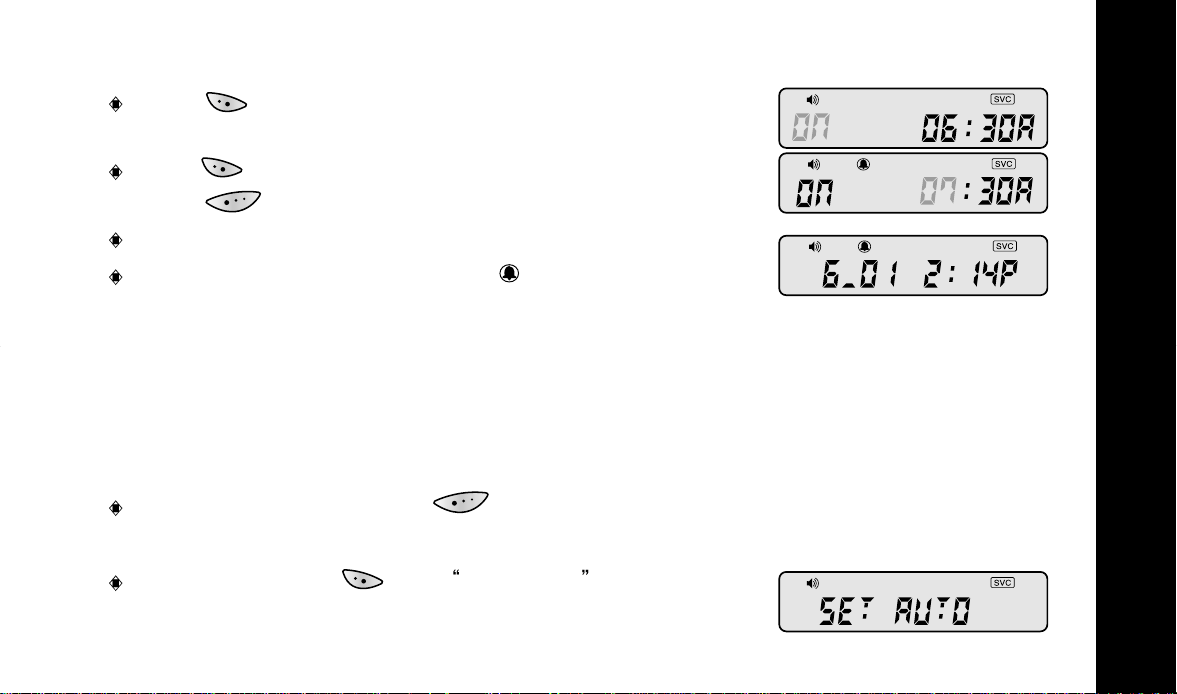
Press to confirm.
Press to enter the hour to the desired hour. Then
press to confirm.
Repeat the above procedures to set each field.
The standby screen displays icon .
3. SETTING AUTO TIMER
You can set your pager to power on or off automatically at a selected time of day.
You can save battery power by using this function.
From standby mode, press two times to
access the first menu board. ( Refer to page 18.)
Press and release until SET AUTO is
displayed.
OPTIONAL FUNCTIONS
21
Page 20
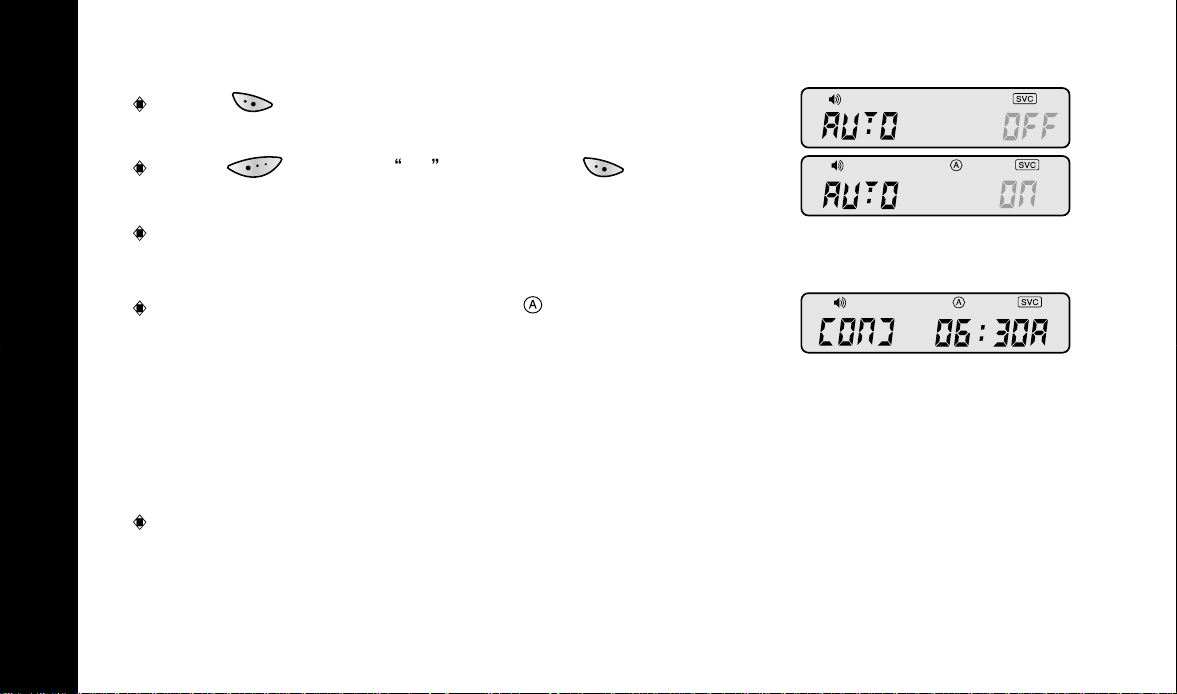
Press .
Press to select On . Then press to confirm.
Follow the same procedures of time setting to set the
on and off times. (Refer to page 9.)
The standby screen displays icon .
OPTIONAL FUNCTIONS
4. SETTING REMINDER ALERT
You can set your pager to alert every 5 minutes in case you have unread messages.
Activate the second menu board. ( Refer to page 19.)
22
Page 21
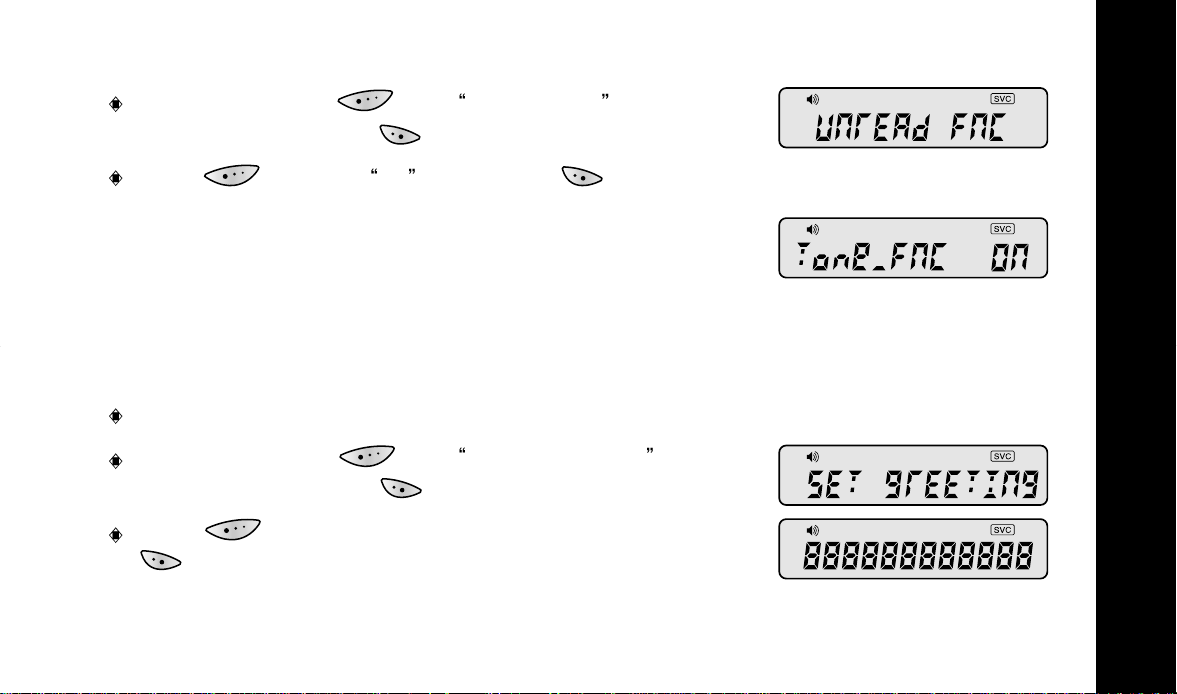
Press and release until Unread FNC is
displayed. Then press .
Press to select On . Then press to confirm.
5. ENTERING GREETING
You can enter greeting messages upto 12 characters including space. The greeting is
shown on the initial screen when power is on.
Activate the second menu board. ( Refer to page 19.)
Press and release until SET GREETING is
displayed. Then press to confirm.
Press to select the first character, then press
to confirm.
OPTIONAL FUNCTIONS
23
Page 22

Repeat the above steps until you have entered the entire message.
NOTE ) When entering characters, A ~ Z are followed by space (_) which is followed
by 0 ~9 , space (_) and dash(-).
6. READY MESSAGES
Twenty ready messages are permanently stored in the memory of Titanium pager.
When the pager receives a code number instead of phone number, it activates ready
messages.
OPTIONAL FUNCTIONS
24
To send ready message, the person, paging you, enters
ready message. For example, entering code
See the available codes on the next page.
To receive ready messages on your pager, do the following:
Access the second menu board. ( See page 19.)
Press and release until Ready Msg is
displayed.
and then a code number of
#
#
020 displays Call home on the screen.
Page 23
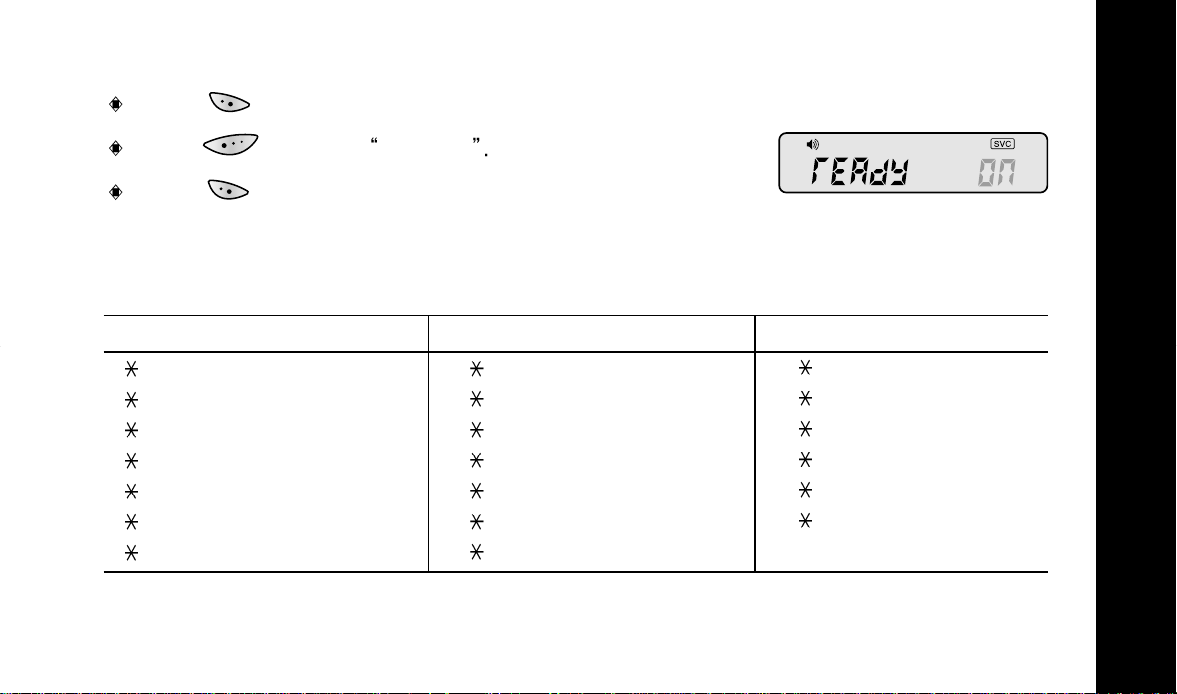
Press to set
Press to select ready on
Press to confirm.
CODES FOR READY MESSAGES
CODES MESSAGES CODES MESSAGES CODES MESSAGES
OPTIONAL FUNCTIONS
020 Call home #027 Pick you up
#
#021 Call office
#022 Come home
#023 Come office #030 I love you #037 Thanks
#024 Spvisor urgt # 031 I miss you #038 Hurry
#025 Pick up kids # 032 Good night #039 Running late
026 Pick me up #033 Help
#
#028 Home urgt
#029 I am home #036 Go to store
#034 Appt. time
#035 I am sorry
25
Page 24
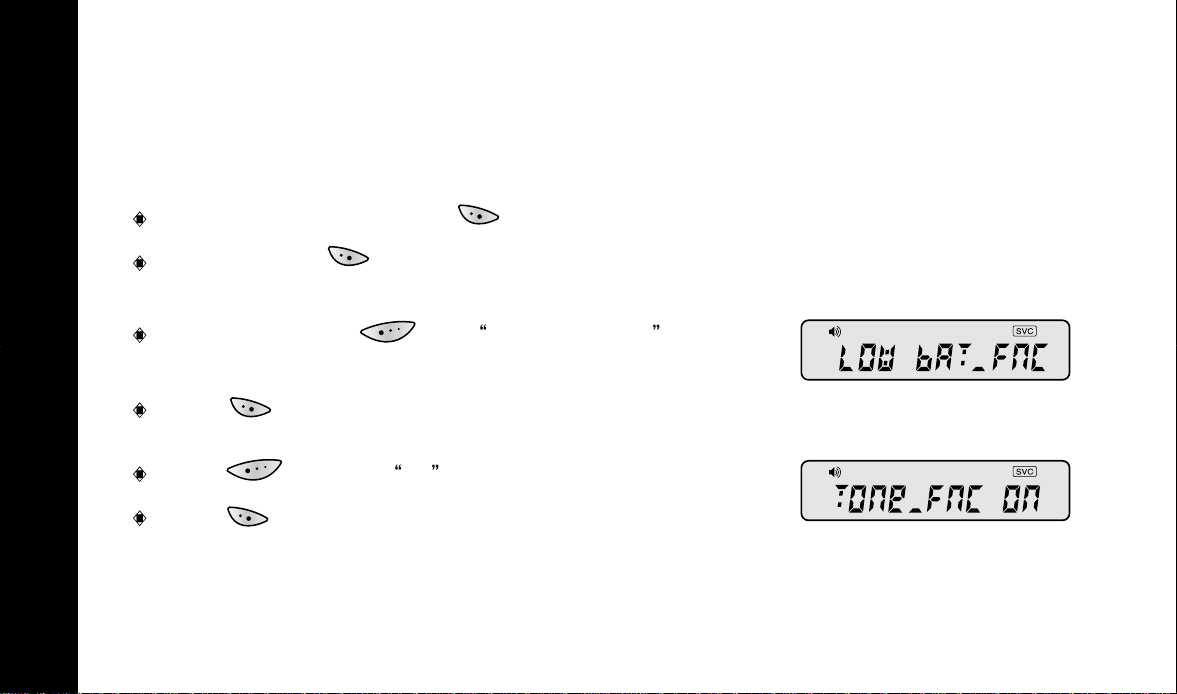
7. SETTING LOW BATTER Y ALERT
You can set your pager to low battery alert using this function, when the battery is low.
From standby mode, press .
Press and hold for 2 seconds to activate the
second menu board. ( Refer to page 19. )
Press and release until LOW BAT_Fnc is
displayed.
OPTIONAL FUNCTIONS
Press .
Press to select On .
Press to confirm.
26
Page 25
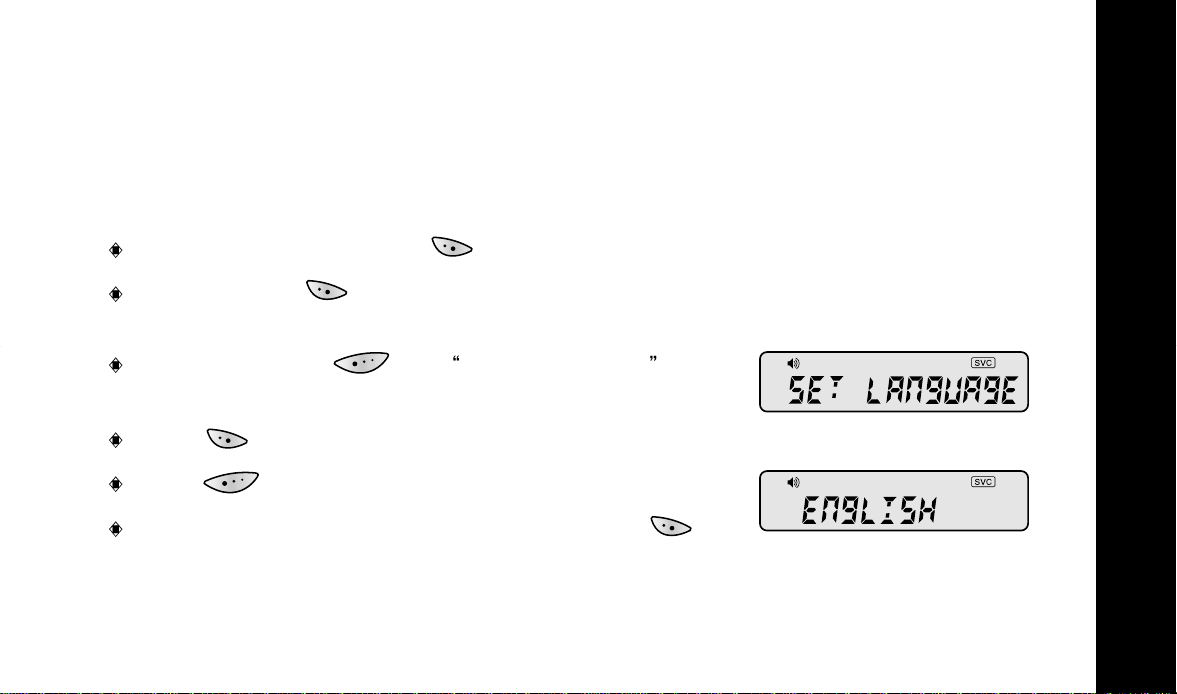
8. SETTING SCRIPT LANGUAGE
Your pager provides you with two menu script languages to choose from; English and
French.
From standby mode, press .
Press and hold for 2 seconds to access the
second menu board. ( Refer to page 19.)
Press and release until SET LANGUAGE is
displayed.
Press .
Press to select language.
When the desired language is displayed, press .
OPTIONAL FUNCTIONS
27
Page 26
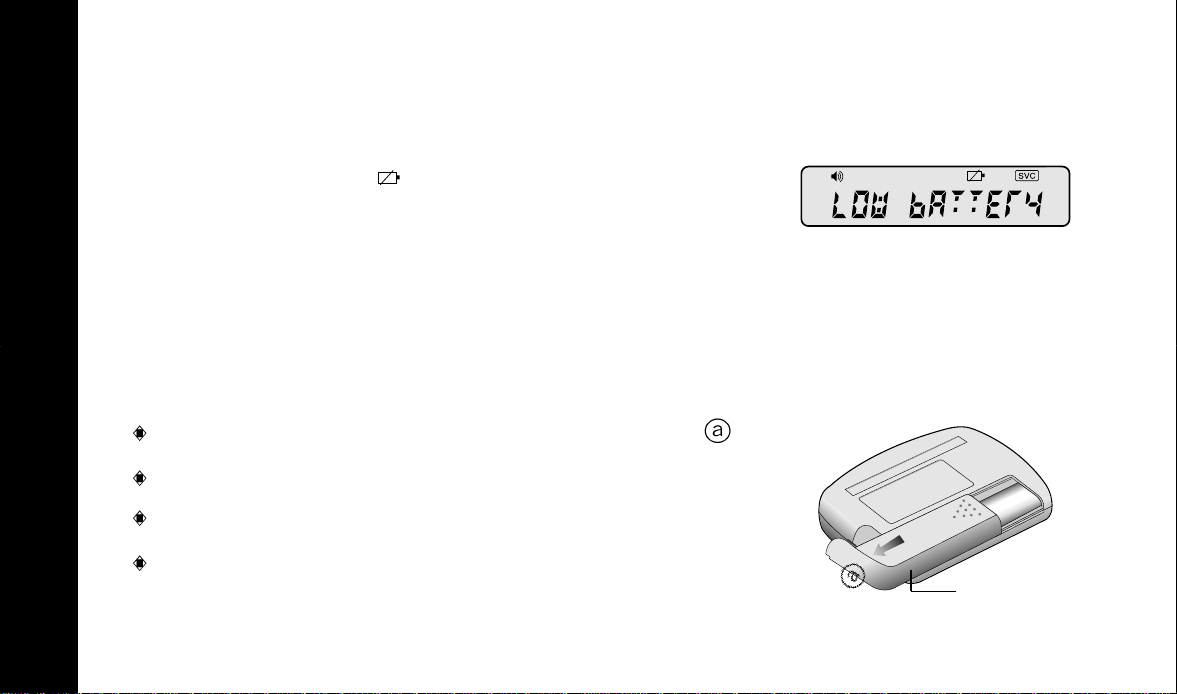
1.LOW BATTER Y INDICAITON
Titanium displays icon when battery is low.
If the pager is set on low battery alert, it sounds a beep
alert.
2. REPLACING BATTER Y
Titanium is designed to operate with a single AAA-size alkaline battery.
BATTERY INFORMATION
Slide the battery cover in the direction of the arrow .
Lift the battery cover away from rear cover.
Remove old battery.
Insert a new battery taking note of the positive (+)
and negative (-) marks on the battery.
28
BATTERY
COVER
 Loading...