

Page 1

WizeVest Trade Processor
User Guide
WizeVest Trade Processor User Guide
October 2014 Edition
PF-43-01-04
Page 2

Worldwide Technical Support and Product Information
www.nirvanasystems.com
Nirvana Systems Corporate Headquarters
7000 N. MoPac, Suite 425, Austin, Texas 78731 USA
Tel: 512 345 2545 Fax: 512 345 4225
Sales Information
For product information or to place an order, please contact 800 880 0338 or 512 345 2566. You may also fax
512 345 4225 or send email to [email protected].
Technical Support Information
For assistance in installing or using Nirvana products, please contact 512 345 2592. You may also fax
512 345 4225 or send email to [email protected].
To comment on the documentation, send email to [email protected].
© 2014 Nirvana Systems Inc. All rights reserved.
Page 3

Important Information
Copyright
Under the copyright laws, this publication may not be reproduced or transmitted in any form,
electronic or mechanical, including photocopying, recording, storing in an information retrieval
system, or translating, in whole or in part, without the prior written consent of Nirvana Systems, Inc.
Trademarks
Trade Processor™, OmniTrader™, VisualTrader™, Adaptive Reasoning Model™, ARM™, ARM
Knowledge Base™, Easy Data™, The Trading Game™, Focus List™, The Power to Trade with
Confidence™, The Path to Trading Success™, The Trader’s Advantage™, Pattern Tutor ™, and
Chart Pattern Recognition Module™ are trademarks of Nirvana Systems, Inc.
Product and company names mentioned herein are trademarks or trade names of their respective
companies.
DISCLAIMER REGARDING USE OF NIRVANA SYSTEMS PRODUCTS
Trading stocks, mutual funds, futures, and options involves high risk including possible loss of
principal and other losses. Neither the software nor any demonstration of its operation should be
construed as a recommendation or an offer to buy or sell securities or security derivative products
of any kind.
Neither Nirvana’s OmniTrader™, VisualTrader™, Nirvana Systems, Inc., nor its employees and
affiliates recommends any specific security for purchase or sale, nor do they recommend any
specific approach to investing in securities. Nirvana Systems, Inc. is not an investment advisory
service nor a registered investment advisor or broker/dealer.
No representation is being made that the methods presented will guarantee profits in trading. Past
performance, whether actual or indicated by historical systems testing, is no guarantee of future
performance or success. Information presented by Nirvana Systems, Inc. is from sources Nirvana
believes are reliable. However, Nirvana has not independently verified such information.
Page 4

Contents
Chapter 1
Introduction to the WizeVest Trade Processor
Chapter 2
Getting Started with Trade Processor
Installing the Trade Processor........................................................................................2
Installing the Trade Processor .........................................................................2
Chapter 3
MB Trading and the Trade Processor
Connection Settings for MB Trading.............................................................................3
Trade Settings ................................................................................................................6
Order Submission ............................................................................................7
Order Submission Settings................................................................7
Automation ......................................................................................................8
Automation Settings..........................................................................8
Orders ..............................................................................................................8
Exposure ..........................................................................................................9
Ordering Methods with MB Trading .............................................................................9
Method 1: Market on Open Orders .................................................................9
Method 2: Market Orders ................................................................................9
Things You Should Know About Using MB Trading ...................................................10
Live Account: ..................................................................................................10
Demo Account:................................................................................................10
Holding Company Depository Receipts:.........................................................10
Chapter 4
Trade Processor Interface
Strategies Section...........................................................................................................12
Trade Information ..........................................................................................................13
Open Positions Tab..........................................................................................13
Closing Orders Tab..........................................................................................14
Opening Orders Tab ........................................................................................15
MBT Positions Tab..........................................................................................17
MBT Orders...................................................................................................................18
Trade History .................................................................................................................18
Action Log.......................................................................................................19
© Nirvana Systems IV Wize Trade Processor User Guide
Page 5

Contents
Closed Trades.................................................................................................. 19
Trade History Right Click Menu ...................................................... 19
Statistics......................................................................................................................... 19
Running Multiple Trade Processors .............................................................................. 20
Chapter 5
Trading with the Trade Processor
Automatic Trading......................................................................................................... 21
Trading .......................................................................................................................... 21
Trading from the Open Positions Tab............................................................. 22
Open Positions Right Click Menu .................................................... 22
Trading from the Closing Orders Tab............................................................. 22
Closing Orders Right Click Options ............................................................... 23
Trading from the Opening Orders Tab ........................................................... 23
Opening Orders Right Click Options.............................................................. 24
Trading from the MBT Positions Tab............................................................. 24
MBT Positions Right Click Menu .................................................... 24
Trading from the MBT Orders Tab................................................................. 25
MBT Orders Right Click Menu........................................................ 25
WizeVest Updating Times ............................................................................................ 25
Aggregate Orders........................................................................................................... 26
Chapter 6
Monitoring the Trade Processor
Unmanaged Positions .................................................................................................... 27
No Position(Orphaned).................................................................................................. 28
Synchronizing Unmanaged Trades ................................................................. 29
Synchronization Menu .................................................................................... 30
Enabling and Disabling Strategies on WizeVest........................................................... 31
Closing Positions Outside of the Trade Processor ........................................................ 31
Trade Processor Reports................................................................................................ 31
Configuring Trade Processor Reports............................................................. 33
Trade Processor Alerts .................................................................................................. 34
SMTP Settings for Common Email Providers................................................ 35
Popular provider SMS formats for texts ......................................................... 36
Trade Processor Logs .................................................................................................... 37
Wize Trade Processor User Guide V nirvanasystems.com
Page 6

Chapter 7
Trade Processor Server Version
Enabling the Trade Processor for Server Mode.............................................................38
Closing the Trade Processing in Server Mode...............................................................39
Monitoring the Trade Processor Connection on the WizeVest Web Page ....................40
Disconnecting from Server Mode..................................................................................41
Conclusion .....................................................................................................................41
Contents
© Nirvana Systems VI Wize Trade Processor User Guide
Page 7

1
Introduction to the WizeVest
Trade Processor
Welcome to the WizeVest Trade Processor! The Trade Processor is Nirvana Systems'
powerful tool for total automation of your WizeVest Account.
The Trade Processor has the following goals:
• Automation of WizeVest Trades—Connect the Trade Processor to the WizeVest
account you want to trade and directly to your MB Trading brokerage account and
leave it running. Set the Trade Processor for Automatic Trading and it will send
opening and closing orders between the times you designate.
• Monitor your Positions—View and manage your orders and positions using the
Trade Processor.
This guidebook is designed to help you set up the Trade Processor and fully
understand the functionality with your MB Trading. Nirvana Systems strongly
recommends that you study the complete information in this document before using
Trade Processor. Once you have a thorough understanding of the power of this
program, you will be ready to use it to trade your WizeVest account.
© Nirvana Systems Inc. 1 WizeVest Trade Processor User Guide
Page 8

2
Getting Started with Trade
Processor
The WizeVest Trade Processor can be run as a client version from a local computer
or directly from the WizeVest servers. Whichever way you decide to run the
WizeVest Trade Processor, the installation below will be required.
Installing the Trade Processor
Before you can begin using the Trade Processor, you must install it.
Installing the Trade Processor
To install Trade Processor, you will need to be connected to the internet.
1. Go to http://www.mywizevest.com/Trades/TPUpdate.aspx
2. Click on the install link.
3. You will have the choices Run and Save this program to disk. (The program
does not have to be saved to install but if you choose to save the file prior to
installation, navigate to the folder on your computer you would like to save the
installation to and click Download.) Otherwise, select the Run option.
4. Follow the on-screen instructions for installation.
© Nirvana Systems Inc. 2 WizeVest Trade Processor User Guide
Page 9

3
MB Trading and the Trade
Processor
The Trade Processor can be set up to send trades directly from your selected
WizeVest account to your funded MB Trading account in one of two ways. The Trade
Processor can be run as a client version from your machine or from the WizeVest
Trade Processor servers. This chapters describes configuring the Trade Processor to
run as the client version. Please refer to Chapter 7 for information on running the
server version.
This chapter provides information on configuring the Trade Processor to connect to
and trade your MB Trading account. This chapter also includes special instructions
and limitations you may experience using your Trade Processor with MB Trading.
Connection Settings for MB Trading
Follow these instructions to connect the Trade Processor to your MB Trading
account:
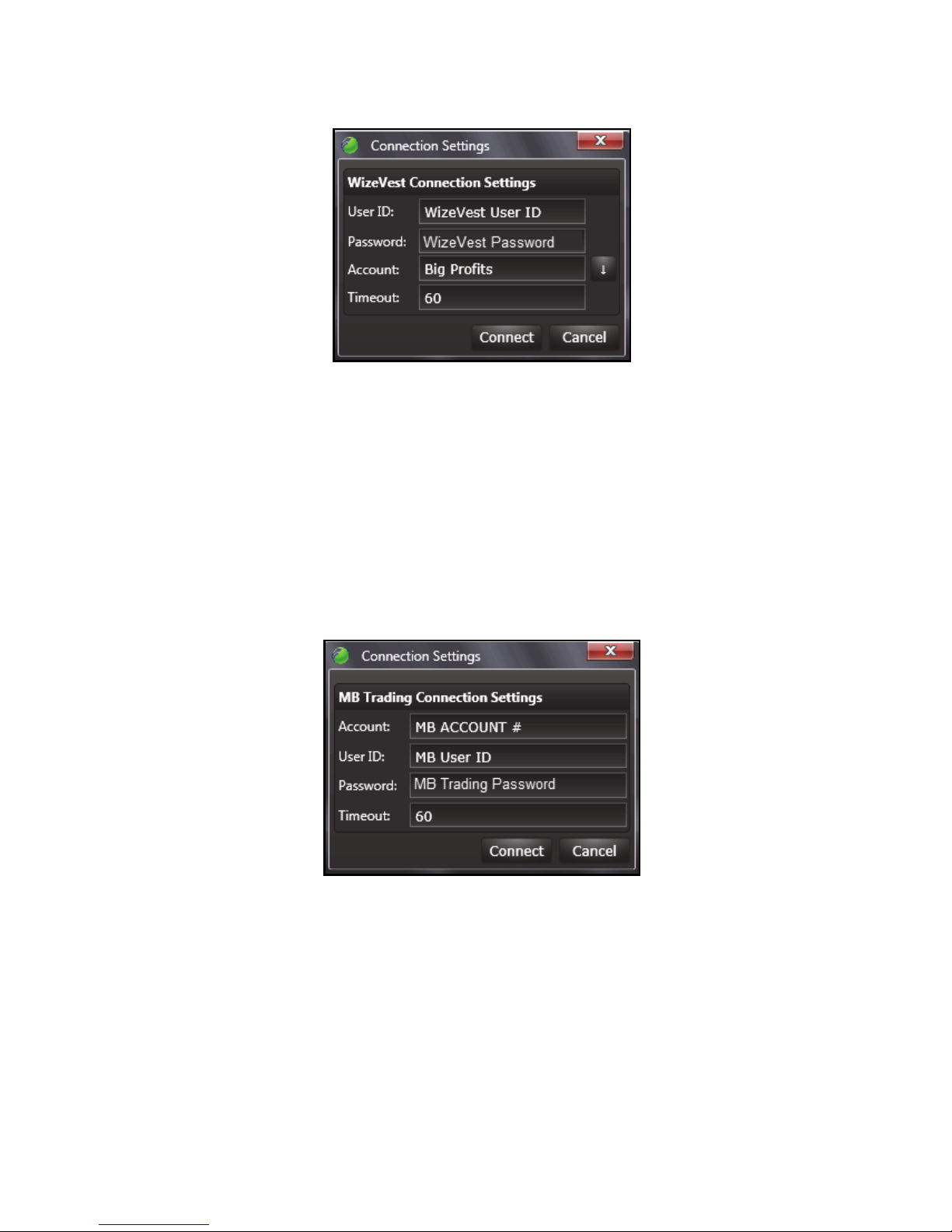
1. On initial startup, the Connection Settings form will automatically display in two
separate forms - one for the WizeVest Account settings and another for the MB
Trading Account settings.
© Nirvana Systems Inc. 3 WizeVest Trade Processor User Guide
Page 10
Chapter 3 MB Trading and the Trade Processor
Figure 3-1. WizeVest Connection Settings
2. Enter your WizeVest User ID and password.
3. Click the down arrow button to download your WizeVest account names.
4. Select the WizeVest account you want to connect to for trading. If none exist, a
WizeVest account will need to be created on the WizeVest web site.
5. Click Connect.
Next, the connection settings dialog box for the broker will appear on the screen.
Figure 3-2. MB Trading Connection Settings
1. Enter the MB Trading account number.
2. Enter the MB Trading User ID.
3. Enter the MB Trading password.
4. Click Connect.
© Nirvana Systems Inc. 4 WizeVest Trade Processor User Guide
Page 11
Chapter 3 MB Trading and the Trade Processor
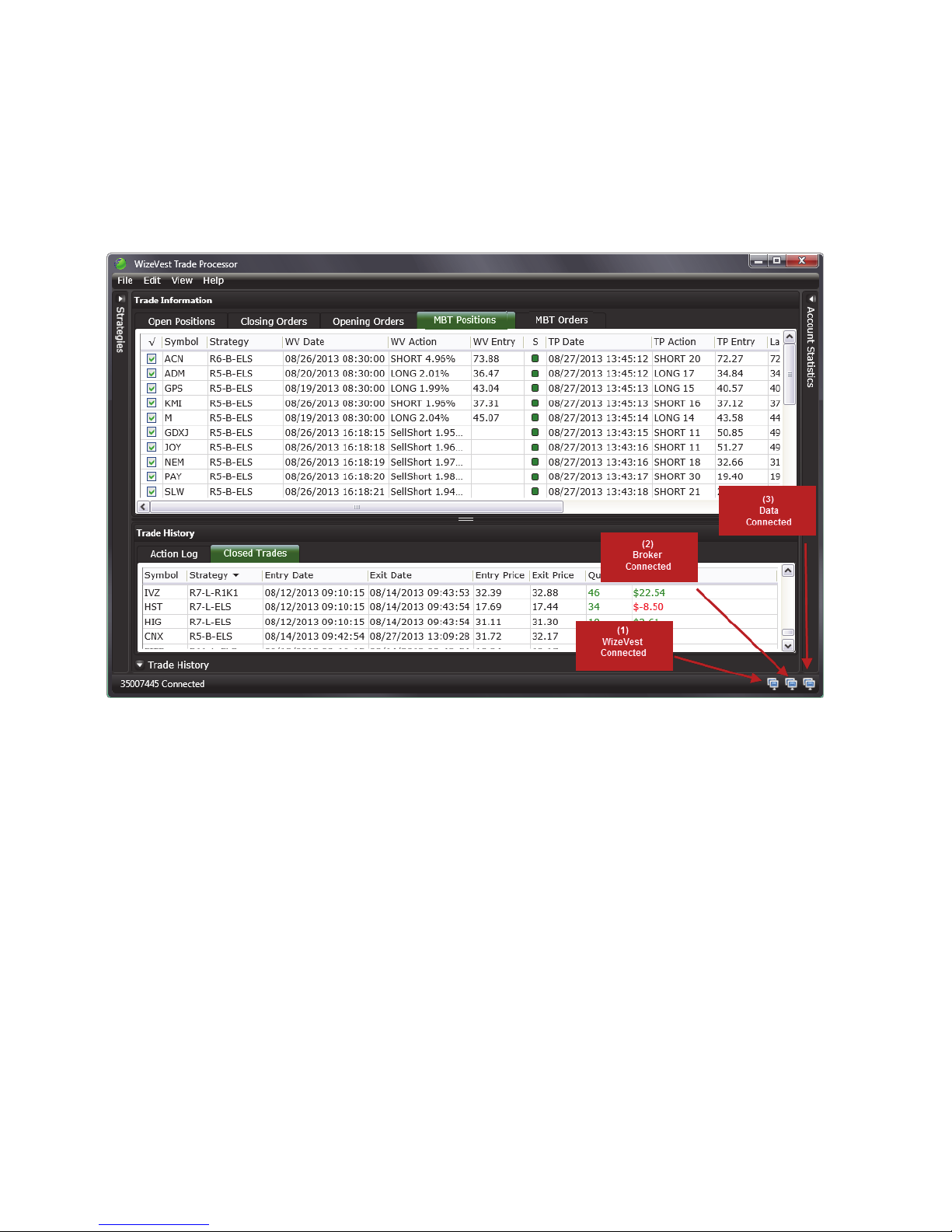
When the Trade Processor makes the connection to both WizeVest and the MB
Trading account, it is indicated in the bottom right corner of the Trade Processor. The
WizeVest account name and the MB Trading account number for the accounts you are
connected to will be displayed on the active bar at the top of the Trade Processor.
Figure 3-3. Trade Processor Connection Made to WizeVest and MB.
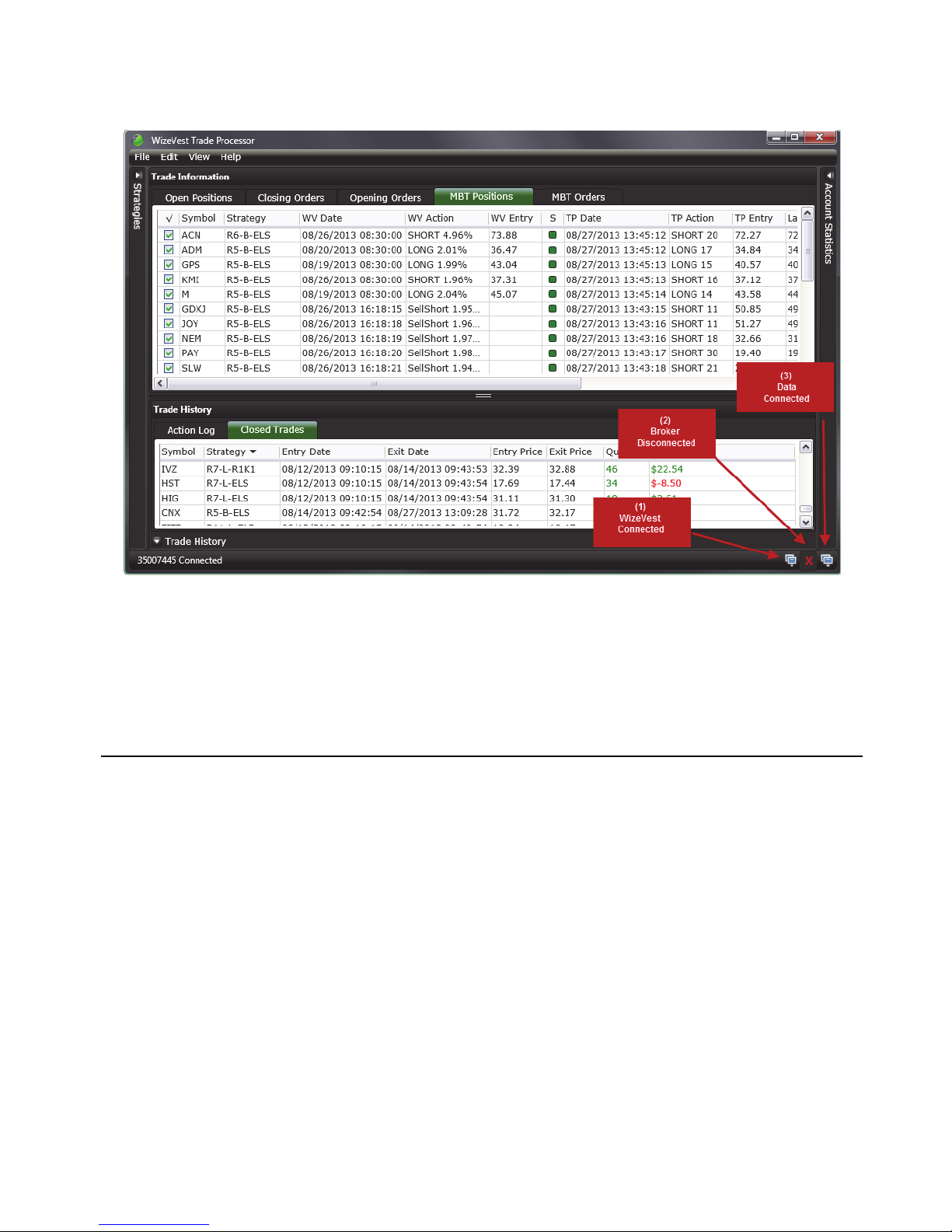
If the connection cannot be made, the Trade Processor will display a red X in place
of the computer.
WizeVest Trade Processor User Guide 5 nirvanasystems.com
Page 12
Chapter 3 MB Trading and the Trade Processor
Figure 3-4. Trade Processor Connected to WizeVest but Disconnected from the Broker
If one or both connections cannot be made, click Edit››Connection Settings and
reenter your login credentials or account number.
Trade Settings
The function of Trade Settings is to determine when and how trading will occur.
Configure the times for trading, whether it will trade manually or automatically, order
types, maximum exposure and more.
To load the Trade Settings window click Edit››Trade Settings.
© Nirvana Systems Inc. 6 WizeVest Trade Processor User Guide
Page 13
Chapter 3 MB Trading and the Trade Processor
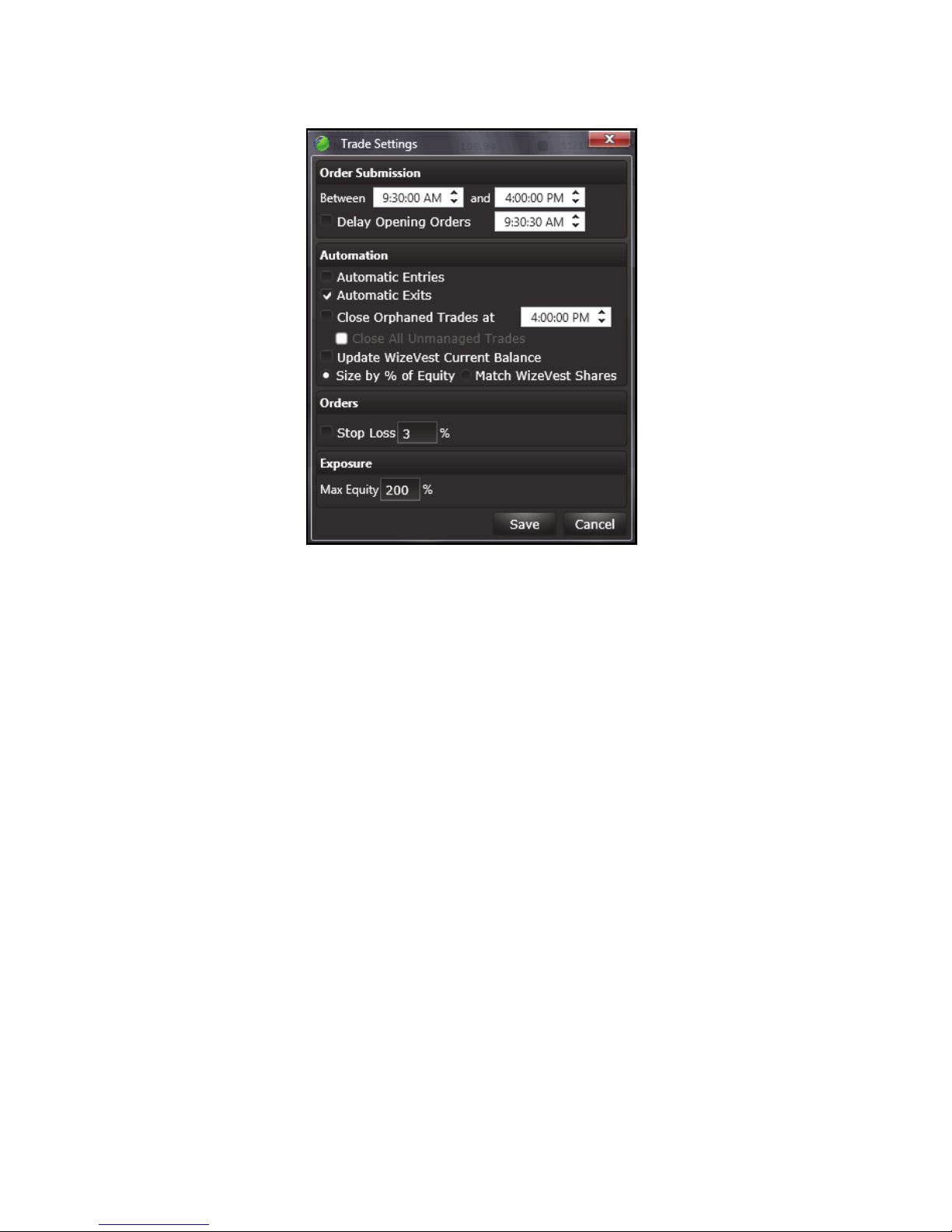
Figure 3-5. Trade Settings Window
The Trade Settings options and related information are as follows.
Order Submission
The Order Submission times are the times during which the Trade Processor will
submit automatic or manual orders. The times used are always based on the Eastern
time zone.
While between the order submission times, any checking or unchecking of orders will
be processed immediately.
While outside the order submission times, checking or unchecking orders will appear
to not do anything. This is intended. Once the order submission times are hit, the
Trade Processor will process the manually checked or unchecked orders.
Order Submission Settings
• Between—Set the trading start time using the Eastern time zone.
• And—Set the trading end time using the Eastern time zone.
WizeVest Trade Processor User Guide 7 nirvanasystems.com
Page 14

Chapter 3 MB Trading and the Trade Processor
• Delay Opening Orders—Set the time, using the Eastern time zone, for the
opening orders to be sent to the broker if you would like your opening orders to
occur at a later time than your closing orders. Doing so allows time for closing
orders to fill & free up buying power first so that new opening orders do not get
rejected due to lack of buying power.
Automation
The Automation settings determine if entry and exit orders are to be processed
automatically or not. If the automatic option(s) are not selected, only manual orders
will be processed.
Automation Settings
• Automatic Entries—Opening orders from the WizeVest account will be checked
and sent to the broker during the designated times specified in the Order
Submission Settings.
• Automatic Exits—Closing orders from the WizeVest account will be checked
and sent to the broker during the designated times specified in the Order
Submission Settings.
• Close Orphaned Trades at—Enable this option to close any orphaned positions
on the MBT Positions tab at the time you designate each day.
• Close All Unmanaged Trades—Enable this option to close all "Unmanaged”
Positions as well as orphaned positions on the MBT Positions tab at the time you
designate each day. This option is greyed out unless Close Orphaned Trades is
enabled.
• Update WizeVest Current Balance—Enable this option to send current account
equity to the account in WizeVest.
• Size by % of Equity—Allows trade size to scale according to account equity.
• Match WizeVest Shares—Instead of using QTY% to determine the share size, it
uses the exact number of shares from WizeVest.
Orders
Orders on the Opening and Closing Orders tabs are automatically converted to the
correct order type according to the time they are submitted to the broker. MB Trading
© Nirvana Systems Inc. 8 WizeVest Trade Processor User Guide
Page 15

Chapter 3 MB Trading and the Trade Processor
accepts Market on Open orders between 8:00 am and 9:28 am Eastern. Orders placed
after that time, within market hours are automatically converted to Market Orders.
• Stop Loss—When enabled, all new trades will also submit a stop loss broker
order for the percentage set from the entry price. If that level is hit at the broker,
the position will exit rather than waiting for an WizeVest closing order. Stop loss
orders may be viewed in the MBT Orders tab or in the Stop Loss column.
Exposure
The Trade Processor calculates the exposure as the total equity of open MBT
positions minus the equity that is expected to be freed by closing orders. It will only
allow new opening orders on symbols where the expected investment will not exceed
the specified Max Equity setting.
• Max Equity%—Specify the maximum equity that can be used by the Trade
Processor.
Ordering Methods with MB Trading
There are two methods for setting up the Trade Settings window when using MB
Trading. You should determine which method to use according to when you plan to
run the Trade Processor.
Method 1: Market on Open Orders
Use method one when the orders will be submitted prior to market open using Market
on Open Orders.
1. Set the order submission start time to any time that is prior to market open. MB
Trading only accepts MOO orders between 8:00 a.m. and 9:28 a.m. Eastern. The
Order Submission start time must be in this range to submit MOO orders.
2. MB Trading does not receive any orders after the market close. Set order
submission end time no later than 4:00 p.m. Eastern time.
3. Start the Trade Processor prior to the time set in step 2.
Method 2: Market Orders
Use method two when orders will be submitted inside of market hours.
1. Set Order Submission start (Between) time to a time 9:30 a.m. Eastern and 10:00
a.m. Market orders can be submitted anytime after 9:30 a.m.
WizeVest Trade Processor User Guide 9 nirvanasystems.com
Page 16

Chapter 3 MB Trading and the Trade Processor
Note It is typical to set the order submission start time to occur after market
open, for example 9:30 a.m. or 9:31 Eastern time.
2. MB Trading cannot receive any orders after the market close. Set your order
submission end time to no later than 4:00 p.m. Eastern time.
3. Start the Trade Processor prior to the time set in step 2.
Things You Should Know About Using MB Trading
Live Account:
• Market on Open orders can only be placed between 8:00 a.m. & 9:28 a.m. Eastern.
"Fill prices vary based on conditions that are not always reflected."
• MB Trading converts NASDAQ Market on Open orders to Market orders and
submits them at Market Open. "Fill prices vary based on conditions that are not
always reflected.”
• Short orders are dependent on availability at the broker. Please check here:
(http://www.mbtrading.com/easyToBorrow.aspx).
Demo Account:
• Market on Open orders are not accepted in demo accounts so be sure not to set the
trading start time prior to 9:30 a.m Eastern.
• MB Trading converts NASDAQ Market on Open orders to Market orders and
submits them at Market Open. "Fill prices vary based on conditions that are not
always reflected."
• Short orders are dependent on availability at the broker. Please check here
(http://www.mbtrading.com/easyToBorrow.aspx).
• Prices are simulated.
• Expired demo accounts will have reduced functionality and may exhibit
connection and/or performance problems. If you suspect your demo account has
expired please contact MB Trading.
Holding Company Depository Receipts:
This is a type of ETF marketed by Merrill Lynch. Unlike other ETFs, HOLDRs can
© Nirvana Systems Inc. 10 WizeVest Trade Processor User Guide
Page 17
4
Trade Processor Interface
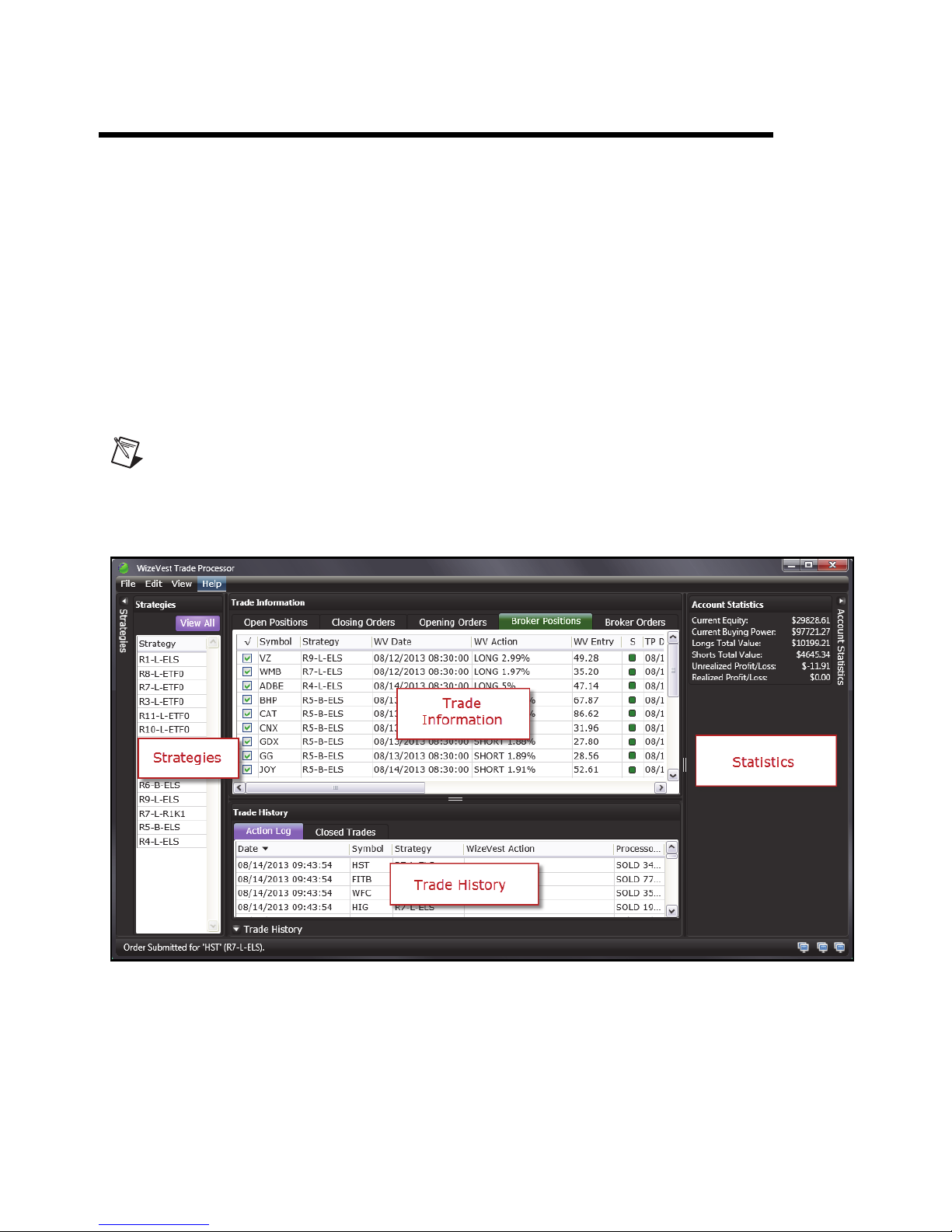
The Trade Processor Interface is configured to mirror your WizeVest account, giving
you all the information in your selected WizeVest account in one easy to use tabbed
window. The Trade Processor is divided into four main sections: Strategies, Trade
Information, Trade History and Statistics but also includes a file menu and status bar
for your connections.
Note You can increase the font size for your Trade Processor grid using the
(+) and (-) keys on your keyboard.
© Nirvana Systems Inc. 11 WizeVest Trade Processor User Guide
Figure 4-1. The Trade Processor Interface
Page 18
Chapter 4 Trade Processor Interface
Strategies Section
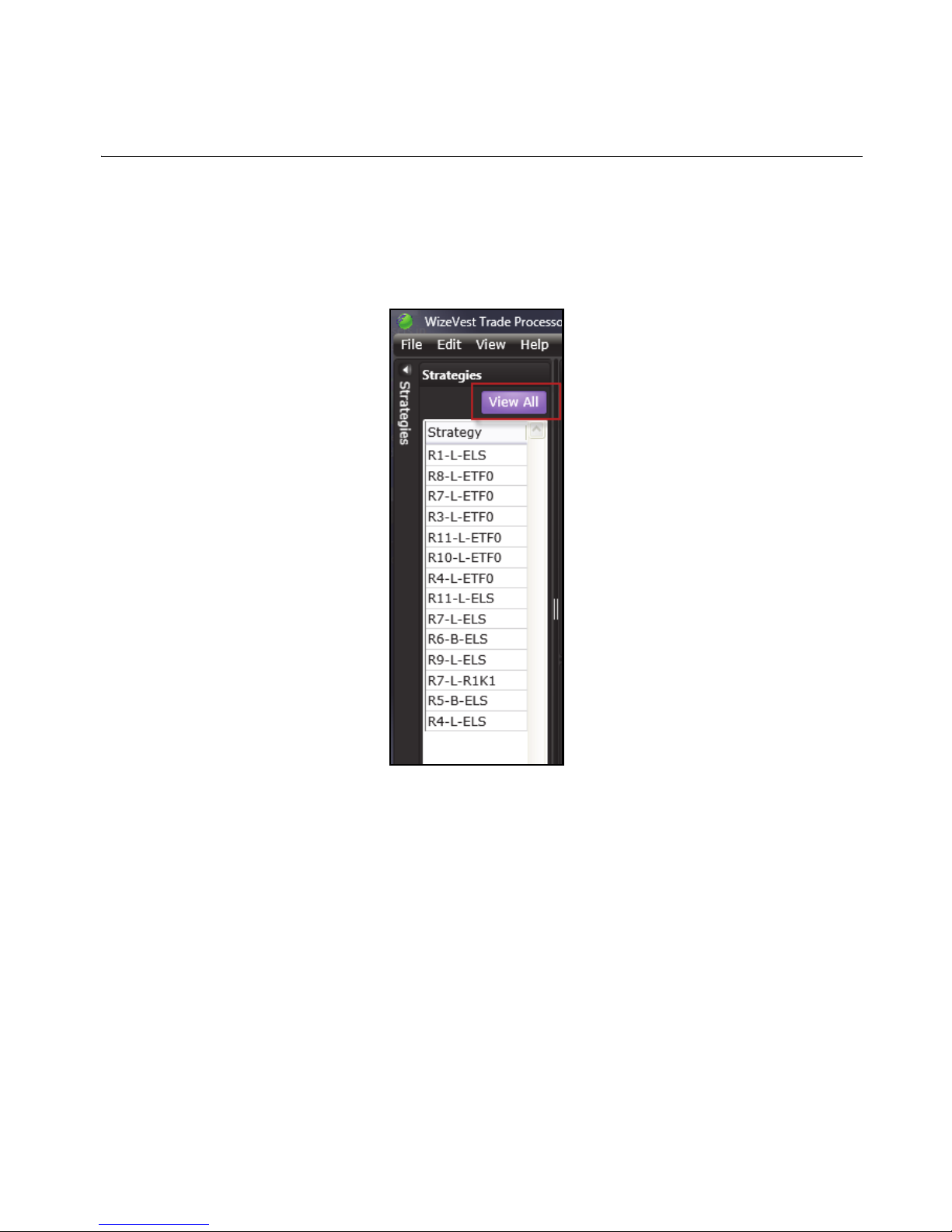
The Strategies sections displays the strategies that have been enabled in the selected
WizeVest account.
WizeVest strategies that have no open orders or positions will not be displayed.
The Trade Processor will display the positions or orders for the selected strategy on
the tab that is selected in your Trade Processor window. For example, selecting
R5-B-ELS with the MBT Positions tab selected will show only the positions that were
submitted using that strategy. Click View All to see the entire list of MBT Positions.
© Nirvana Systems Inc. 12 WizeVest Trade Processor User Guide
Figure 4-2. Strategies Section
Page 19
Chapter 4 Trade Processor Interface
Trade Information
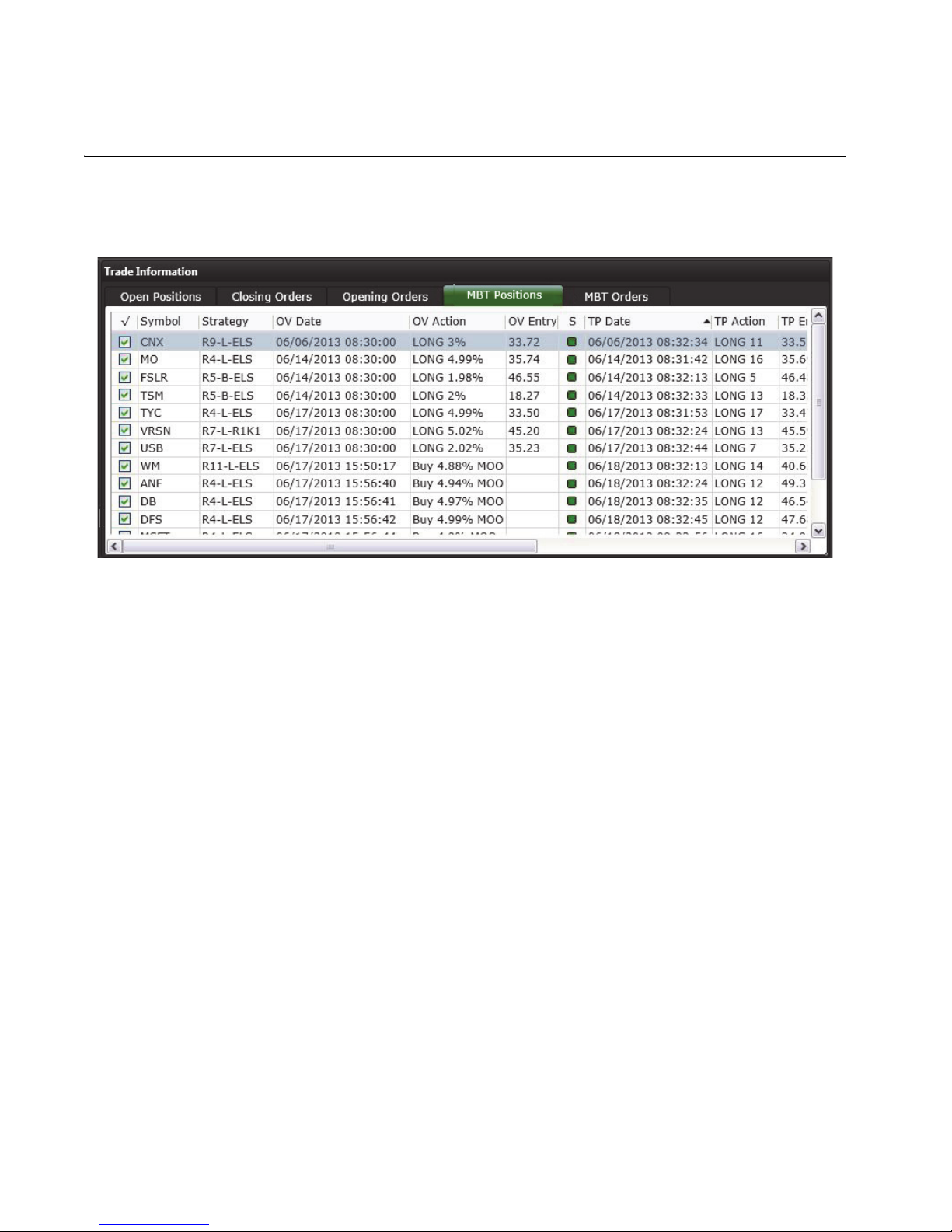
The Trade Information section provides a tabbed view of all trading activity in the
selected WizeVest account.
Figure 4-3. Trade Information Window
Each tab in the Trade Information section of the Trade Processor mirrors a section of
the selected WizeVest account. Each column of the Trade Information section
presents similar information on each tab provided the column is relevant and the
information is available. Columns may vary slightly due to where the order/position
is in the process. In cases where the information is not relevant, the column will
remain blank.
Open Positions Tab
The Open Positions tab mirrors the Open Positions that are displayed in the selected
WizeVest account.
The Trade Information columns are as follows for the Open Positions tab:
• Enable—On the Open Positions tab, the checkbox will be enabled when the trade
is live with the broker. Within the Trade Processor order submission times,
removing the check on this tab will send a closing order to your broker and will
remove the symbol from MBT Positions. Placing a check in an unchecked box
will send an order to the broker. Outside the Trade Processor submission times,
WizeVest Trade Processor User Guide 13 nirvanasystems.com
Page 20

Chapter 4 Trade Processor Interface
placing a check or removing a check on this tab will open or close the order when
the next trade window comes.
• Symbol—Symbol being traded in the WizeVest account.
• Strategy—The strategy that generated the signal in the WizeVest account.
• WV Date—Date of last WizeVest action (order placed or position entered).
• WV Action—Last WizeVest action (order placed or position entered).
• WV Entry—Displays the WizeVest position entry price.
• S—Status of position.This field is indicated with a color code.
– Ye ll o w —Not trading. No order and no position at the broker.
– Green—Order submitted at the broker or in position.
– Red—Could not enter trade: order was filtered out by the Trade Processor’s
settings or rejected by the broker.
– Black—Not applicable to Open Positions tab.
• TP Date—Displays the date and time of the last Trade Processor action or
attempted action with the broker.
• TP Action—Displays the last Trade Processor action with the broker (order
placed, or when executed, direction and quantity for the position). Column is
blank if no corresponding order or position is at the broker.
• TP Entry—Executed entry price.
• Last—Last price for the symbol. This is updated according the MB Trading data
subscription.
• PL$—Profit or loss for the trade. This price is calculated using Last.
• Message—Reports messages from the broker or special actions taken by the
Trade Processor.
Closing Orders Tab
The Closing Orders tab mirrors the Closing Orders section of the selected WizeVest
account.
Closing Orders can be disabled from being sent to the broker using the Enable column
checkbox. Orders that do not have a corresponding open position to close with the
broker will be disabled automatically and displayed with a dark grey highlight and
black status in the Status column.
© Nirvana Systems Inc. 14 WizeVest Trade Processor User Guide
Page 21

Chapter 4 Trade Processor Interface
The Trade Information columns are as follows for the Closing Orders tab:
• Enable—On the Closing Orders tab, the checkbox will be enabled when the
position is queued to send to the broker. Removing the check on this tab will
cancel the order with the broker unless the order has been executed. When the
order is executed, it will not be allowed again unless the corresponding open
position is opened.
• Symbol—Symbol the order will be placed on from the WizeVest account,
Closing Orders section.
• Strategy—The strategy that generated the closing order in the WizeVest account
• WV Date—Date of last WizeVest action (order placed or position entered).
• WV Action—Last WizeVest action (order placed or position entered).
• WV Entry—Displays the WizeVest position entry price.
• S—Status of position.This field is indicated with a color code.
– Ye ll o w —Order not placed.
– Green—Order submitted at the broker or in position.
– Red—Closing order was rejected.
– Black—Not allowed: closing orders for which a position was not entered.
• TP Date—Displays the date and time of the last Trade Processor action or
attempted action with the broker.
• TP Action—Displays the last Trade Processor action with the broker (order
placed, or executed).
• TP Entry—Entry price for the corresponding position.
• Last—Last price for the symbol. This is updated according the MB Trading data
subscription.
• PL$—Profit or loss for the trade. This price is calculated using Last.
• Message—Reports messages from the broker or special actions taken by the
Trade Processor.
Opening Orders Tab
The Opening Orders tab mirrors the Opening Orders section of the selected WizeVest
account.
WizeVest Trade Processor User Guide 15 nirvanasystems.com
Page 22

Chapter 4 Trade Processor Interface
Opening Orders can be disabled from being sent to the broker by removing the check
from the Enable column checkbox. If there is not enough buying power in the
brokerage account to place the order, it will be unchecked, show red in the Status
column and display a message.
The Trade Information columns are as follows for the Opening Orders tab:
• Enable—On the Opening Orders tab, the checkbox will be enabled when the
position is queued to send to the broker. Removing the check on this tab will
cancel the order with the broker unless the order has been executed. When the
order is executed, it will not be allowed again unless the corresponding open
position is opened.
• Symbol—Symbol the order will be placed on from the WizeVest account,
Closing Orders section.
• Strategy—The strategy that generated the signal in the WizeVest account
• WV Date—Date of last WizeVest action (order placed).
• WV Action—Last WizeVest action (order placed or position entered).
• WV Entry—Displays the WizeVest position entry price.
• S—Status of position.This field is indicated with a color code.
– Ye ll o w —Not trading. No order and no position at the broker.
– Green—Order submitted at the broker or in position.
– Red—Could not enter trade: order was filtered out by the Trade Processors
settings or rejected by the broker.
– Black—Not applicable to the opening orders tab.
• TP Date—Displays the date and time of the last Trade Processor action or
attempted action with the broker.
• TP Action—Displays the last Trade Processor action with the broker (order
placed, or when executed, direction and quantity for the position). Column is
blank if no corresponding order or position is at the broker.
• TP Entry—Executed entry price.
• Last—Last price for the symbol. This is updated according the MB Trading data
subscription.
• PL$—Profit or loss for the trade. This price is calculated using Last.
© Nirvana Systems Inc. 16 WizeVest Trade Processor User Guide
Page 23

Chapter 4 Trade Processor Interface
• Message—Reports messages from the broker or special actions taken by the
Trade Processor.
MBT Positions Tab
The MBT Positions tab mirrors the positions that are live with the broker.
The MBT Positions tab will display any positions in the brokerage account that were
made whether they were made from the Trade Processor or by using other methods
of trading. Trades made into the account using other means will display here with
“Unmanaged” in the Strategy column and “No Position” in the WizeVest Action
column.
The Trade Information columns are as follows for the MBT Positions tab:
• Enable—On the MBT Positions tab, the checkbox will be enabled when the
position is live with the broker. Removing the check on this tab will send a closing
order to the broker.
• Symbol—Symbol in position with the broker.
• Strategy—The strategy that generated the signal in the WizeVest account
• WV Date—Date of last WizeVest action (order placed or position entered).
• WV Action—Last WizeVest action (order placed or position entered).
• WV Entry—Displays the WizeVest position entry price.
• S—Status of position.This field is indicated with a color code.
– Ye ll o w —Not applicable to the MBT Positions tab.
– Green—Position at the broker.
– Red—Not applicable to the MBT Positions tab.
– Black—Not applicable to the MBT Positions tab.
• TP Date—Displays the date and time of the last Trade Processor action with the
broker.
• TP Action—Displays the last Trade Processor action with the broker.
• TP Entry—Executed entry price.
• Last—Last price for the symbol. This is updated according the MB Trading data
subscription.
• PL$—Profit or loss for the trade. This price is calculated using Last.
WizeVest Trade Processor User Guide 17 nirvanasystems.com
Page 24

Chapter 4 Trade Processor Interface
• Stop Loss— Displays the stop loss prices. When the stop loss is enabled in the
Trade Settings, users are also able to right-click a stock in the MBT Positions tab
to add or remove a stop loss. When adding stop losses this way it still uses the
percentage set from the Stop Loss Trade Setting; it does not permit typing a value.
• Message—Reports messages from the broker or special actions taken by the
Trade Processor.
MBT Orders
The MBT Orders tab will display any orders in the brokerage account that were made
whether they were made from the Trade Processor or by using other methods of
trading. As opposed to the MBT Positions tab, where shares for each symbol are
organized by WizeVest Trades, MBT Orders shows aggregated orders when multiple
orders for the same symbol are placed by different strategies.
The Trade Information columns are as follows for the MBT Positions tab:
• Enable—On the MBT Orders tab, the checkbox will be enabled when the order
is live with the broker. Removing the check on this tab will cancel to order with
the broker.
• Symbol—Symbol in position with the broker.
• Strategy—The WizeVest strategy, or strategies associated with that order.
• TP Date—Displays the date and time the order was submitted.
• TP Action—Displays a description of the order.
• Last—Last price for the symbol. This is updated according the MB Trading data
subscription.
Trade History
The Trade History provides a complete record of all of the trades that have been
placed with the broker for the selected account using the Trade Processor.
Note The Trade Processor must be connected for trade history to be
recorded.
There are two tabs in the Trade History section: the Action Log and Closed Trades.
© Nirvana Systems Inc. 18 WizeVest Trade Processor User Guide
Page 25

Chapter 4 Trade Processor Interface
Action Log
The columns for the Actions Log display the following information:
• Date—Action date and time.
• Symbol—Symbol the execution occurred on.
• Strategy—Strategy for executed action.
• WizeVest Action—WizeVest Actions taken.
• Processor Action—Action taken (order placed or position entered).
Closed Trades
The columns for Closed Trades display the following information:
• Symbol—Symbol that was traded.
• Strategy—The strategy from the WizeVest site that generated the signal.
• Entry Date—Date the position was entered at the broker.
• Exit Date—Date the position was exited at the broker.
• Entry Price—Execution price for entry.
• Exit Price—Execution price for exit.
• Quantity—Number of shares traded.
• PL$—Profit/Loss (before commissions).
Trade History Right Click Menu
Right click in the Trade History grid to display the menu options.
• Remove—Deletes the selected record.
• Clear—Deletes all records.
Statistics
The Trade Processor displays account statistics on the right side of the window.
Statistics can be viewed and then collapsed using the arrow to the right of the Account
Statistics label to allow for more room for trade information.
WizeVest Trade Processor User Guide 19 nirvanasystems.com
Page 26

Chapter 4 Trade Processor Interface
These statistics are provided by the broker:
• Current Equity—The total amount of funds in the broker account including the
value of current investments.
• Buying Power—The money in the broker account available to purchase
securities.
• Realized Profit/Loss—The profits or losses resulting from the current session’s
completed transactions.
These statistics are calculated by the Trade Processor:
• Longs Total Value—The total value of all long trades currently invested.
• Shorts Total Value—The total value of all short trades currently invested.
• Unrealized Profit/Loss—The current profits or losses resulting from all open
broker positions.
Running Multiple Trade Processors
Users may run multiple Trade Processors on one Windows instance. To do so, launch
it repeatedly from the icon.
When running multiple Trade Processors, each WizeVest account should be used by
one Trade Processor instance. When running a second Trade Processor, select a
different WizeVest account and connect that account to an MB Trading account that
is not being used in any other Trade processor instances. Connecting two WizeVest
accounts to the same MB Trading account will result in unmanaged positions in each
Trade Processor instance.
Note An MB Trading account may not be connected by two Trade
Processors at the same time using the same or any linked/affiliated account
even on the same Windows instance.
© Nirvana Systems Inc. 20 WizeVest Trade Processor User Guide
Page 27

5
Trading with the Trade
Processor
The Trade Processor is designed to fully automate trading your WizeVest account.
However, manual trades can also be easily placed using the Trade Processor.
This chapter provides details on general trading, trading manually, and also some
situations to avoid while using the Trade Processor.
Automatic Trading
It is most common to allow the Trade Processor to run in automatic mode. In order to
do this, it is necessary to configure the desired trading times under Edit››Trade
Settings and make sure the Trade Processor is running prior to the designated time.
Orders will not be placed automatically if the Trade Processor is not running during
the trading window.
The Trade Processor can run continuously. It is recommended that you check the
connection daily prior to the trading window you specify. If you do not want to run
the Trade Processor constantly, you can start the Trade Processor at any time prior to
the trading window and then close it once the orders are submitted.
Trading
You may find that you want to add or remove orders and positions in addition to the
ones that are being handled automatically. Orders can be placed manually using the
Trade Processor from any of the Trade Information tabs. Add or remove the check in
the enable box on the selected tab next to the symbol according to what action you
want the Trade Processor to take.
Manual trades may be handled differently on each trading tab. Orders are also subject
to the Trade Settings trade times.
© Nirvana Systems Inc. 21 WizeVest Trade Processor User Guide
Page 28

Chapter 5 Trading with the Trade Processor
Trading from the Open Positions Tab
The Open Positions tab mirrors the Open Positions section of the WizeVest website.
Symbols that are in trade with the broker will display a check in the Enable checkbox.
If automatic trading is enabled, you may find that some symbols displayed on the
open positions tab are not actively trading with the broker. This could be due to the
following:
• The account did not have enough buying power to place the trade.
• Trade Processor was not running when the initial order was sent through.
• The trade was rejected by the broker.
• The trade was not taken by the Trade Processor.
WizeVest Orders on the Open Positions tab will execute as Market Day orders.
– Checking a symbol submits a Market Day order.
– Unchecking a symbol submits a Market Day order or cancels the order if not
yet executed.
Open Positions Right Click Menu
Right click anywhere inside of the Open Positions tab to display the right click menu.
The following options are available:
Enable All—All symbols will be enabled and an opening order will be placed for
each symbol in the list. If the symbol is already enabled, no action will be taken.
Disable All—All symbols will be disabled and a closing order will be submitted for
each symbol in the list. If the symbol is already disabled, no action will be taken.
Trading from the Closing Orders Tab
The Closing Orders tab mirrors the Closing Orders section of the WizeVest website.
Symbols that are queued to execute with the broker will display a check in the Enable
checkbox.
© Nirvana Systems Inc. 22 WizeVest Trade Processor User Guide
Page 29

Chapter 5 Trading with the Trade Processor
If automatic trading is enabled, you may find that some symbols displayed on the
Closing Orders tab are not checked to be sent to the broker. This could occur for the
following reasons:
• There is no corresponding open position at the broker.
• The brokerage account was not available when the order was submitted.
• Automatic exits are not enabled.
Orders on the Closing Orders tabs are automatically sent as the correct order type
according to the time they are submitted to the broker. MB Trading accepts Market
on Open orders between 8:00 am and 9:28 am Eastern. Orders placed after that time,
within market hours are automatically sent to Market Orders.
Closing Orders Right Click Options
Right click anywhere inside of the Closing Orders tab to display the right click menu.
There following options are available:
• Enable All—All symbols will be enabled and a closing order will be placed for
each symbol in the list that was not previously enabled.
• Disable All—All symbols will be disabled. Closing orders will be cancelled for
each symbol in the list.
Note Closing orders that do not have open positions will be greyed out and
not selectable.
Trading from the Opening Orders Tab
The Opening Orders tab mirrors the Opening Orders section of the WizeVest website.
Symbols that are queued to execute with the broker will display a check in the Enable
checkbox.
You may find that some symbols displayed on the Opening Orders tab are not checked
to be sent to the broker. This could occur for the following reasons:
• Automatic entries are not enabled.
Orders on the Opening Orders tabs are automatically sent as the correct order type
according to the time they are submitted to the broker. MB Trading accepts Market
WizeVest Trade Processor User Guide 23 nirvanasystems.com
Page 30

Chapter 5 Trading with the Trade Processor
on Open orders between 8:00 am and 9:28 am Eastern. Orders placed after that time,
within market hours are automatically sent to Market Orders.
Opening Orders Right Click Options
Right click anywhere inside of the Opening Orders tab to display the right click menu.
There following options are available:
• Enable All—All symbols will be enabled and an opening order will be placed for
each symbol in the list that was not previously enabled.
• Disable All—All symbols will be disabled. Closing orders will be placed for each
symbol in the list.
Trading from the MBT Positions Tab
The MBT Positions tab mirrors the brokerage account. Symbols that are in trade with
the broker will display a check in the Enable checkbox.
WizeVest Orders on the Open Positions tab will execute as Market Day orders.
– Unchecking a symbol submits a Market Day order to close the trade.
MBT Positions Right Click Menu
Right click inside of the MBT Positions tab to display the right click menu. The
options in the right click menu will be displayed according to whether the position is
managed or unmanaged.
• Mark as Unmanaged—Sets the position to unmanaged status and the position
will not be handled automatically.
• Close All Trades for the Symbol—Submits a closing order for all positions on
the selected symbol.
• Close All Trades—Submits one closing Market Day order for each symbol in the
list.
• Close All WizeVest Trades—Submits one closing Market Day order for each
symbol that has trades that were initiated by WizeVest.
• Close All Unmanaged Trades—Submits one closing Market Day order for each
symbol that is marked as unmanaged.
© Nirvana Systems Inc. 24 WizeVest Trade Processor User Guide
Page 31

Chapter 5 Trading with the Trade Processor
• Add/Remove Stop Loss—When the stop loss is enabled in the Trade Settings,
users are able to right-click a stock in the MBT Positions tab to add or remove a
stop loss.
• Add/Remove Stop Loss to All WizeVest Trades—When the stop loss is enabled
in the Trade Settings, users are able to right-click in the MBT Positions tab to add
or remove stop losses for all managed positions
Trading from the MBT Orders Tab
The MBT Orders tab mirrors the brokerage account. Symbols that have a live order
with the broker will display on this tab with a check in the Enable checkbox. You can
remove the check from the enable column to cancel the order.
MBT Orders Right Click Menu
Right click inside of the MBT Orders tab to display the right click menu.
• Cancel All Orders—Cancels all orders with the broker.
WizeVest Updating Times
The Trade Processor receives information from WizeVest on the symbols that are
being traded in the selected account. The Trade Processor must be active and show
that it is connected to the WizeVest account to receive updates. The WizeVest
website is updated twice daily for end of day strategies, once at approximately 10:00
am and again at 6:00 pm Eastern.
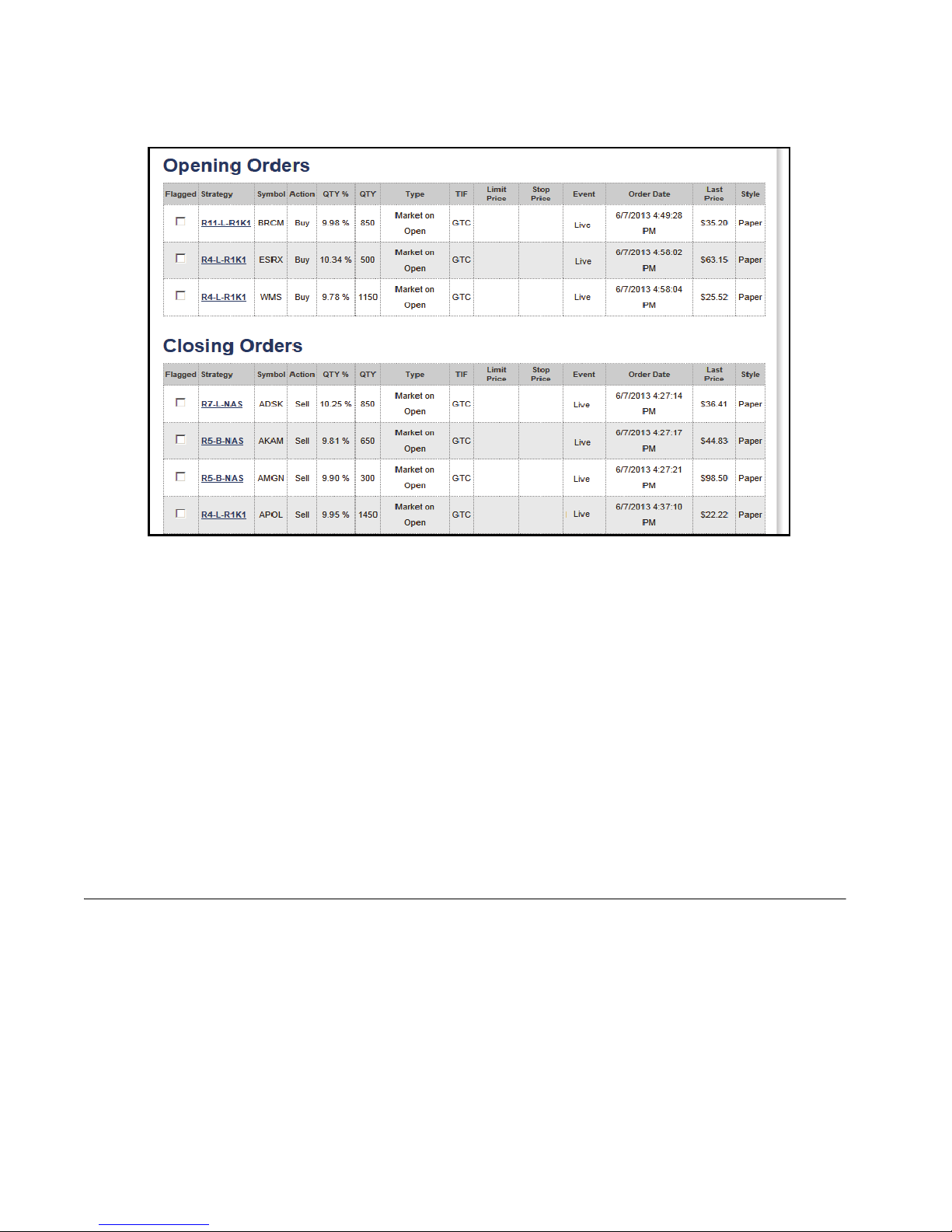
Opening and closing orders are generated and posted to the WizeVest website at
approximately 6:00 pm Eastern time.
WizeVest Trade Processor User Guide 25 nirvanasystems.com
Page 32
Chapter 5 Trading with the Trade Processor
Figure 5-1. Opening and Closing Orders on the WizeVest Website
Once the WizeVest website is updated, the opening and closing orders from the
selected account should be reflected in the opening and closing orders tabs of the
Trade Information in the Trade Processor.
Orders are executed on the WizeVest website at approximately 10:00 am Eastern.
Once the WizeVest morning update is complete, the opening and closing orders
sections of the web site will display “executed” next to the order and the opening and
closing orders tabs in the Trade Information of the Trade Processor should be blank
since all of the WizeVest orders have been executed.
Aggregate Orders
Multiple orders (opening & closing) for the same symbol are aggregated and
transmitted to the broker as one order. The Trade Processor will continue to display
them separately as managed by WizeVest. For aggregated orders to occur, the orders
must be the same order type, the same Trade in Force (tif) and placed at the same time.
Placing an order manually, then placing another order for the same symbol will not
aggregate since they were not placed at the same time.
© Nirvana Systems Inc. 26 WizeVest Trade Processor User Guide
Page 33

6
Monitoring the Trade Processor
In general, when the Trade Processor is left to run in Automatic mode (Automatic
Entries and Exits enabled) or Semi-Automatic mode (manual Entries and Automatic
Exits), Unmanaged Positions should not occur. There are cases, however, where an
Unmanaged Position can happen even with Automatic Exits enabled. Therefore,
users should periodically check their Trade Processor for Unmanaged positions and
consider closing them if they occur.
Unmanaged Positions
Certain events can occur that cause a position to become “Unmanaged” or display
“No Position” in the Trade Processor.
An Unmanaged Position is an open position at the broker that the Trade Processor is
not managing and WILL NEVER SUBMIT AN EXIT FOR.
All unmanaged trades in the MBT Positions and MBT Orders tab are displayed in red
text.
The user can easily place a market order (during the times allowed by the broker) to
close trades that become unmanaged by unchecking them in the MBT Positions tab.
The following situations will result in Unmanaged Positions:
• Opening trades directly through the broker.
Users can open trades in an account that is being managed by the Trade Processor.
This is useful if the user wants to trade in the account in parallel to the Trade
Processor. Any trades placed outside of the Trade Processor will show as Unmanaged
Positions.
© Nirvana Systems Inc. 27 WizeVest Trade Processor User Guide
Page 34

Chapter 6 Monitoring the Trade Processor
• Switching broker accounts in the Trade Processor Connection Settings.
Switching broker accounts when connected to the same WizeVest account will cause
the Trade Processor to cease managing positions that were opened in the previous
brokerage account.
• Switching WizeVest Accounts
The Trade Processor is configured to connect to one WizeVest account and one
brokerage account. Switching WizeVest accounts while connected to the brokerage
account that the trades were taken in will result in all positions being unmanaged.
Switching back to the original WizeVest account will result in the trades being
properly managed again, provided no changes were made to the account.
• Changing the Broker Account that was Previously Traded by a WizeVest
Account
Once the Trade Processor is connected, the selected WizeVest account and broker
account are then linked. If that specific WizeVest account is later connected to a
different broker account, the original WizeVest account & broker account link will be
severed which will result in unmanaged trades on the first broker account.
• Deleting WizeVest Accounts
Deleting a WizeVest account that the Trade Processor has placed trades for will result
in the Trade Processor no longer being able to connect to that WizeVest account,
therefore resulting in Unmanaged Positions.
• Partial Fills by the Broker
Temporary Unmanaged Positions will occur when an order is partially filled. Once
the order has completely filled the unmanaged entry should disappear. Normally this
state only lasts 5-10 seconds while the broker completes the fill for the trade.
No Position(Orphaned)
There are additional cases that result in WizeVest trades that are no longer managed
where the trades will not be marked as "Unmanaged." The WizeVest Strategy will
still be shown, but under the WizeVest Action column the words "No Position” will
be displayed. We refer to these as orphaned trades.
© Nirvana Systems Inc. 28 WizeVest Trade Processor User Guide
Page 35

Chapter 6 Monitoring the Trade Processor
Here are the cases in which this can occur:
• The Trade Processor is not running when a Closing Order is sent by WizeVest.
• The Automatic Exits option is disabled and the closing order is not checked by the
user.
• The Closing Order was not submitted to the broker before it was removed from
the WizeVest account.
• The broker rejected a Closing Order and the user failed to resubmit it.
Synchronizing Unmanaged Trades
If an Unmanaged position exists in the MBT Positions tab, users may be able to
synchronize the position with a WizeVest strategy allowing it to be managed. There
are two conditions necessary for a user to sync a trade:
• A symbol in the Strategy column of the MBT Positions tab must display
"Unmanaged."
• There must be a WizeVest strategy in the WizeVest account with the associated
symbol showing as a WizeVest Opening Order or a WizeVest Opening Position.
When these conditions occur, you may sync an Unmanaged position from the
Opening Orders or Open Positions tab by left-clicking the Enable checkbox for the
corresponding symbol.
Follow these instructions to synchronize an unmanaged position:
1. Identify the “Unmanaged” position on the MBT Positions tab.
2. Find the desired trade on the symbol on either the Opening Orders or Open
Positions tab.
Note If the symbol does not appear on either tab, you will not be able
to synch it.
3. Place a check in the Enable checkbox for the trade.
4. Select the desired option from the menu that appears.
Note This menu will only display for symbols meeting all synchronization
criteria.
WizeVest Trade Processor User Guide 29 nirvanasystems.com
Page 36
Chapter 6 Monitoring the Trade Processor
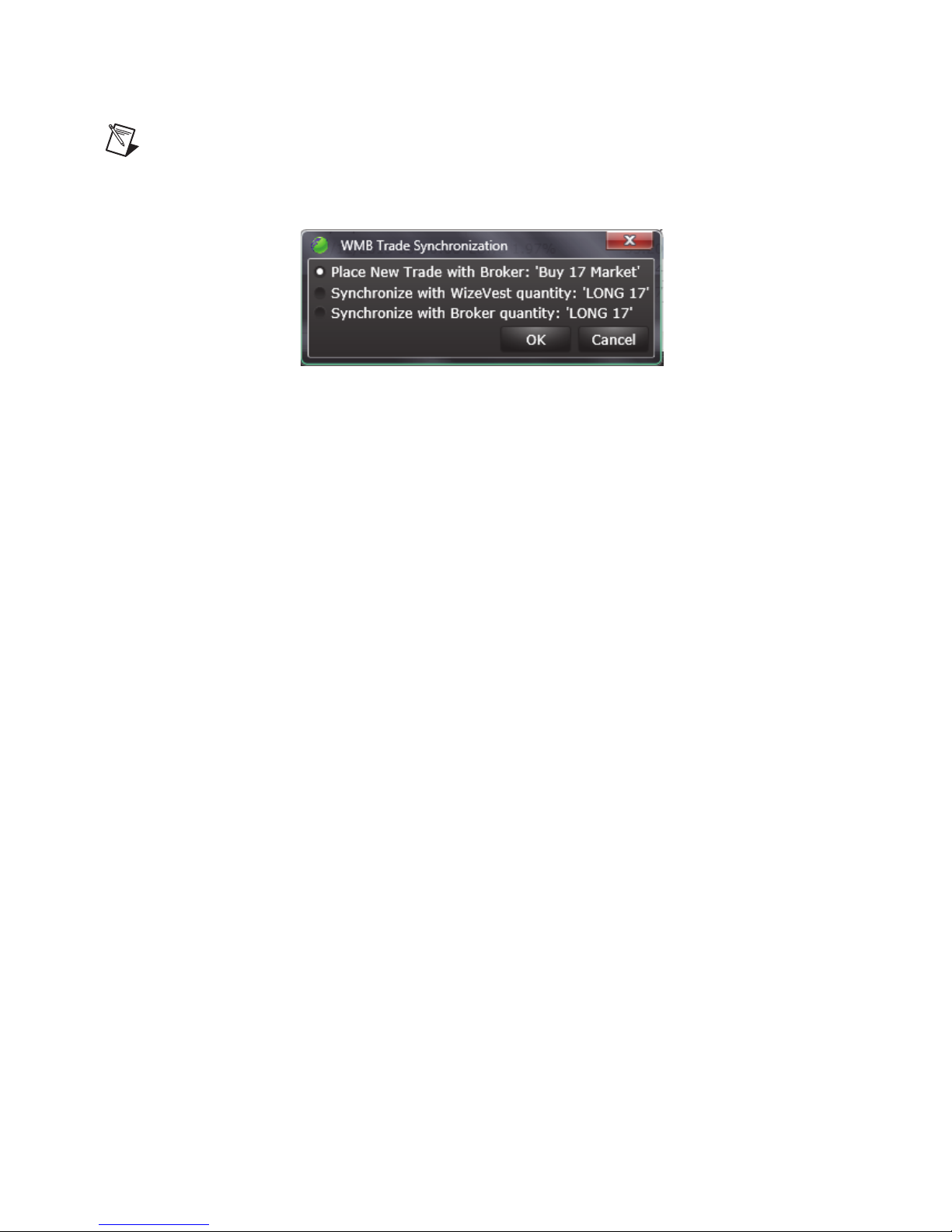
Synchronization Menu
There are three options that will appear when the symbol is available for synching.
• Place New Trade with Broker—A check will be placed in the box and a new
order will be sent to the broker. (For more information see the Open Positions tab
in Chapter 6).
• Synchronize with WizeVest quantity—Synchronizes the unmanaged broker
position with a WizeVest strategy using the WizeVest QTY% to determine the
share size based on the current equity. This is particularly useful when you want
to synchronize more than one WizeVest strategy managing separate positions for
the same symbol.
Synchronize with WizeVest Quantity Example: - An unmanaged long position for 75
shares exists for AAPL. There are two strategies in the WizeVest account that are
currently in open positions. AAPL will be unchecked in the Open Positions tab for
both strategies. Left-click the checkbox for the strategy that you want. Select
"Synchronize with WizeVest quantity: LONG 50". The share size will be determined
by the QTY% from the strategy according to the broker account's current equity. This
will allow the WizeVest strategy to manage the position for 50 shares. An unmanaged
position for 25 shares will remain. Left-click the checkbox for the second strategy for
AAPL. Select "Synchronize with WizeVest quantity: LONG 25". If the share size is
different than the remaining shares for the unmanaged position, you will likely want
to select the "Synchronize with Broker quantity" option instead. The reason for this
is because if the remaining unmanaged shares are different than the shares calculated
by WizeVest QTY%, then you will be left with an unmanaged position for the
remaining share size.
• Synchronize with Broker quantity—Synchronizes the unmanaged broker
position with a WizeVest strategy using the exact number of shares that are
entered at the broker to determine the share size. This is useful when you only
want one WizeVest strategy to manage the entire unmanaged trade.
© Nirvana Systems Inc. 30 WizeVest Trade Processor User Guide
Page 37

Chapter 6 Monitoring the Trade Processor
Synchronize with Broker Quantity Example: An unmanaged long position for 50
shares exists for AAPL. There is a strategy in the WizeVest account that currently is
in an open position. AAPL will be unchecked in the Open Positions tab. Left-click the
checkbox for it. Select "Synchronize with Broker quantity: LONG 50". This will
allow the WizeVest strategy to manage the position for 50 shares.
Enabling and Disabling Strategies on WizeVest
It is permissible to switch Strategies in an active WizeVest Account that the Trade
Processor is managing. The Trade Processor will start receiving new Opening Orders
for the newly-enabled strategies, while also receiving Closing Orders for the
strategies that were disabled in order to properly close the corresponding WizeVest
trade as dictated by the strategy.
Closing Positions Outside of the Trade Processor
You can close positions at the broker that have been placed by the Trade Processor
and they will be handled properly by the Trade Processor. If a position is partially
closed, for example, the resulting quantity is different than zero, the original
WizeVest trade will show as managed and an additional broker position trade will be
added to reflect the shares resulting from the unmanaged order marked Unmanaged
The Trade Processor must be connected for positions to appear under Closed Trades.
Trade Processor Reports
The Trade Processor provides an option to send a once daily email report of Trade
Processor activity to the email address you specify. The Trade Processor must be
running to send the report.
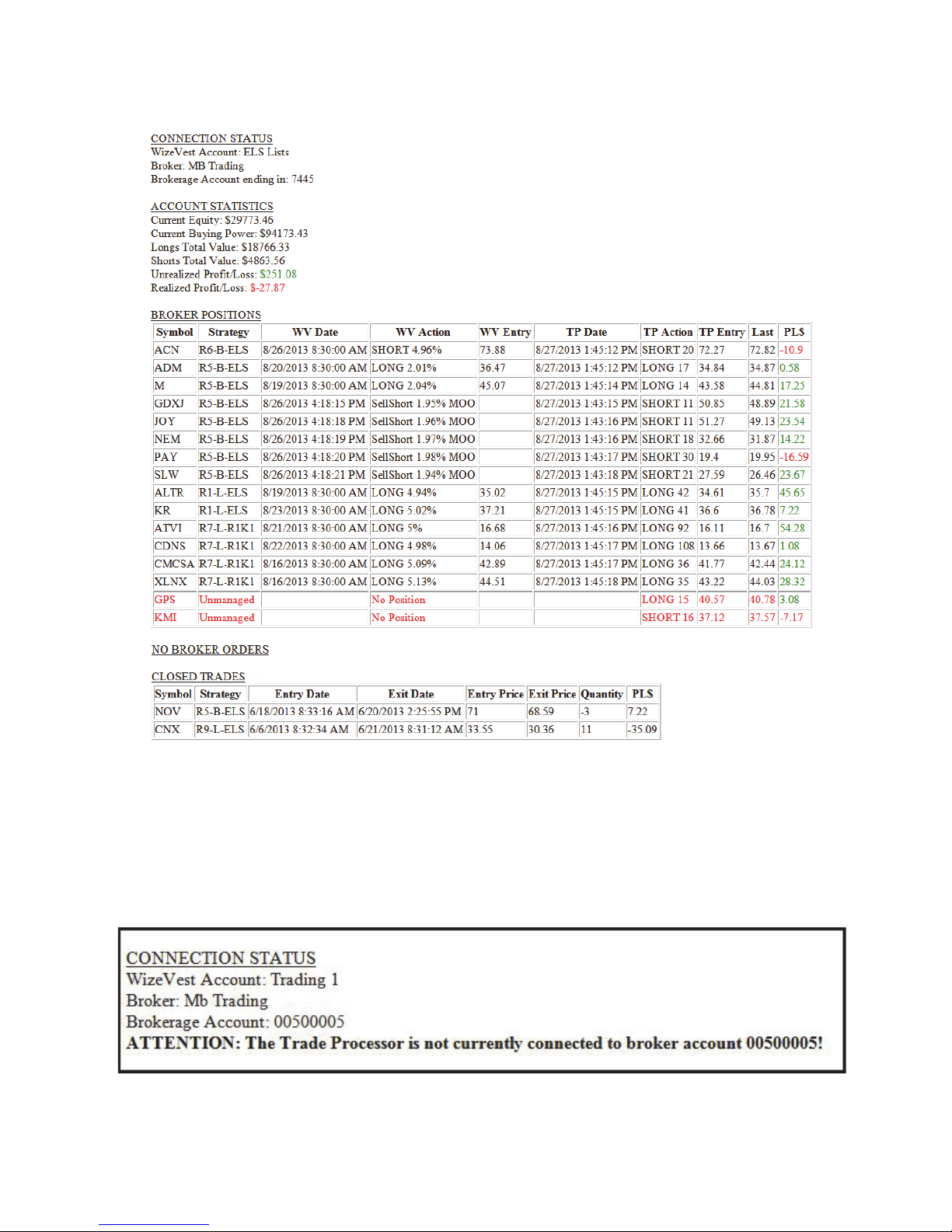
The report displays your Connection Status, Account Statistics, MBT Positions, MBT
Orders and Closed Trades for the day the report is generated.
The report displays the status of all broker positions and orders at the time the email
was generated and this serves as notification if any of your trades have become
unmanaged or out of synch with the WizeVest website.
WizeVest Trade Processor User Guide 31 nirvanasystems.com
Page 38
Chapter 6 Monitoring the Trade Processor
If your Trade Processor is disconnected at the time the report is generated, a message
will be displayed stating that the WizeVest, broker, or both connections have been
interrupted.
Figure 6-2. Trade Processor Report Showing WizeVest Connected and the Broker Disconnected
© Nirvana Systems Inc. 32 WizeVest Trade Processor User Guide
Figure 6-1. Trade Processor Report
Page 39
Chapter 6 Monitoring the Trade Processor
Configuring Trade Processor Reports
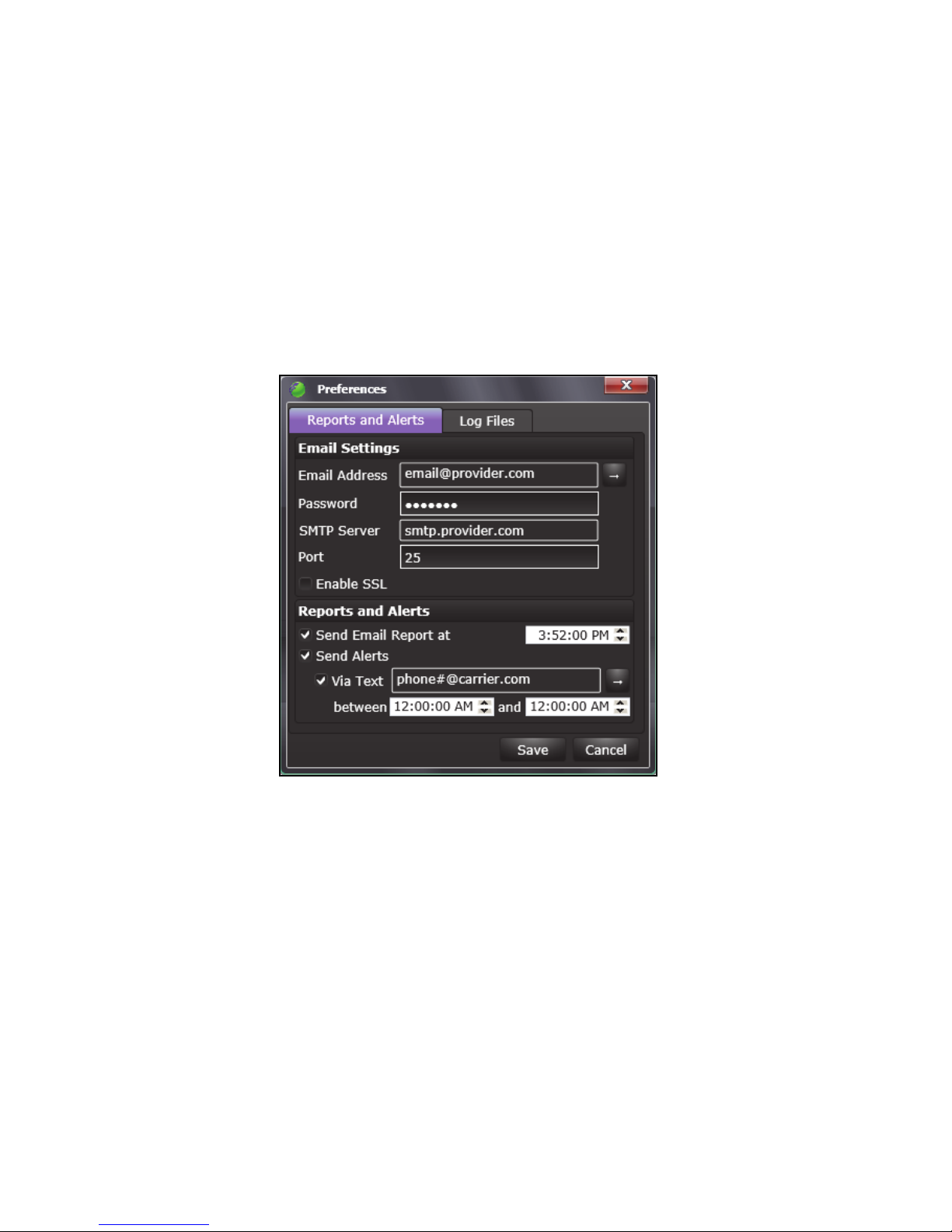
Trade Processor reports can be configured to send one email each day to the account
you specify at the time you designate. The email will be sent from your email address
to your email address, so you will need to configure your reports using your email
account credentials.
Follow these instructions to configure the reports:
1. Click Edit››Preferences.
2. Enter the email address that you want the report sent to.
3. Enter the password for the email account you are using.
4. Enter the SMTP Server information, Port and Enable SSL according to your email
provider. Settings for the most common email providers are listed at the end of
this document.
5. Enable the check box to Send Email Report.
6. Specify the time for the report to be sent.
7. Test the email report by clicking the right arrow button located to the right of the
email address field.
WizeVest Trade Processor User Guide 33 nirvanasystems.com
Figure 6-3.
Page 40
Chapter 6 Monitoring the Trade Processor
Trade Processor Alerts
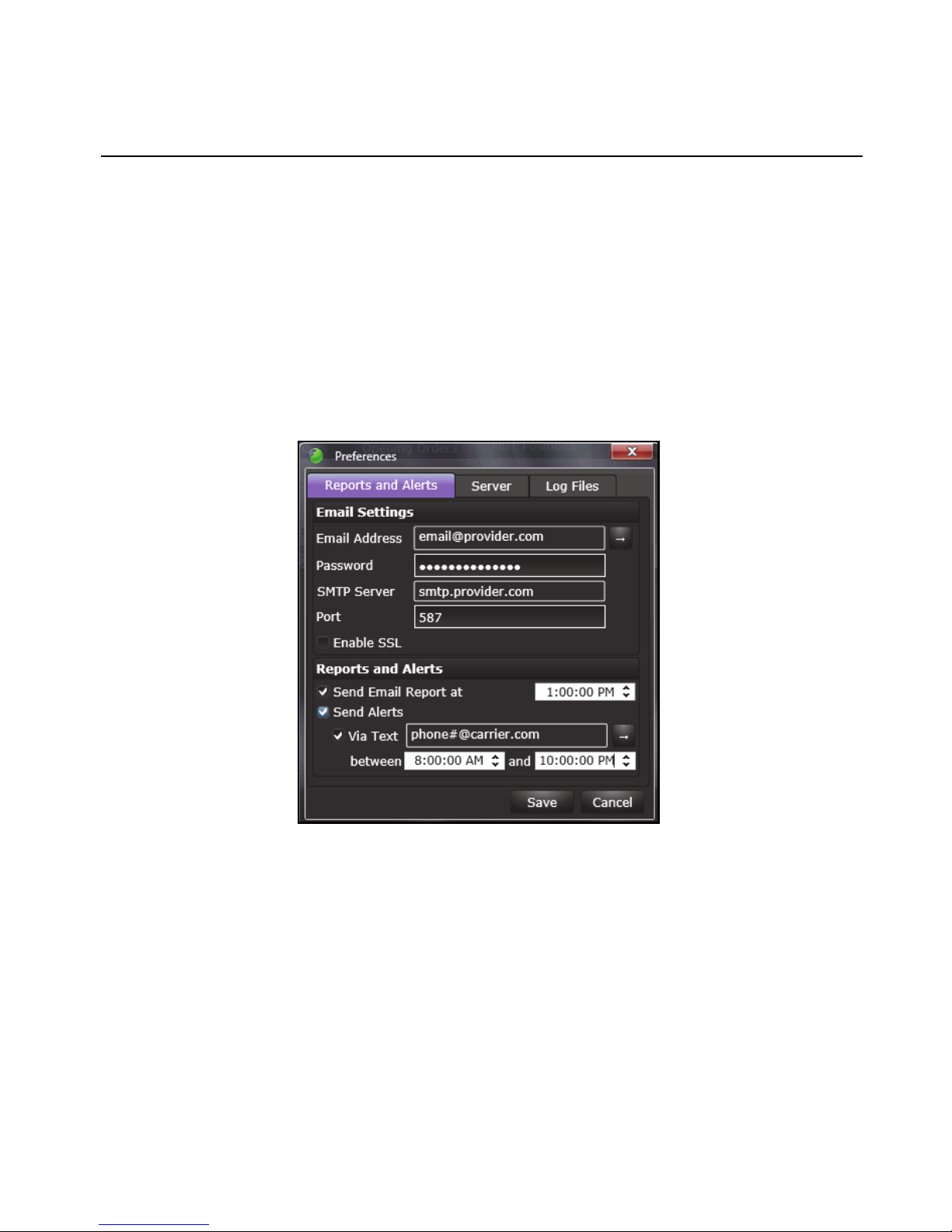
The Trade Processor can be configured to send an email or text alert when either of
the following events occur:
• The Trade Processor is disconnected from the broker for five minutes.
• The Trade Processor is disconnected from WizeVest.
• A trade or order is found to be unmanaged with user interaction.
Follow these instructions to set up Trade Processor Alerts:
1. Click Edit››Preferences.
Figure 6-4. Access Alert, Preferences and Log Files
2. Enter the email address, email password and SMTP server as described in the
above section, Configuring the Trade Processor Reports.
3. Enable Send Alerts to receive an email alert.
4. If you would prefer to receive the alert as a text message to your phone, enable
Via Text and enter your phone number and carrier.
5. Set the start and end time for text alerts to be sent, text alerts will not be sent
outside of these designated hours.
© Nirvana Systems Inc. 34 WizeVest Trade Processor User Guide
Page 41

Chapter 6 Monitoring the Trade Processor
6. Test the alert by clicking the right arrow button located to the right of the text
phone number field.
SMTP Settings for Common Email Providers
The following list of settings for each email provider are in the following format:
• Provider Name
• SMTP Server Address
•Port
• SSL
Hotmail
smtp.live.com
Port 587
Enable SSL
Outlook
smtp.live.com
Port 587
Enable SSL
Ya ho o
smtp.mail.yahoo.com
Port 587
Disable SSL
Gmail
smtp.gmail.com
Port 587
Enable SSL
MSN
smtp.email.msn.com
Port 587
Enable SSL
Roadrunner
WizeVest Trade Processor User Guide 35 nirvanasystems.com
Page 42

Chapter 6 Monitoring the Trade Processor
smtp-server.austin.rr.com (change austin to your location)
Port 587
Disable SSL
Comcast
smtp.comcast.net
Port 465
Enable SSL
Lycos
smtp.mail.lycos.com
Port 25
Disable SSL
AOL
smtp.aol.com
Port 587
Enable SSL
Mail.com
smtp.mail.com
Port 465
Enable SSL
Popular provider SMS formats for texts
phonenumber = your 10 digit phone number.
Sprint: [email protected]
Verizon: [email protected]
T-Mobile: [email protected]
AT&T: [email protected]
Virgin Mobile: [email protected]
US Cellular: [email protected]
Cricket: [email protected]
SunCom: [email protected]
Alltel: [email protected]
© Nirvana Systems Inc. 36 WizeVest Trade Processor User Guide
Page 43

Chapter 6 Monitoring the Trade Processor
Metro PCS: [email protected]
Trade Processor Logs
The Trade Processor creates activity logs that show a record of trading history,
connectivity and errors when generated. The Trade Processor can be configured to
automatically delete older log files. This may be particularly useful if the Trade
Processor is running on a Windows instance with limited space, such as on a cloud
service.
To automatically delete log files, follow these instructions:
1. 1. Click Edit››Preferences.
2. Select the Log Files tab.
3. Enable the option to "Delete log files older than” and click the drop down to
specify the time.
With this setting enabled, log files older than the specified time will be automatically
deleted at startup, when the setting is changed and once per day.
WizeVest Trade Processor User Guide 37 nirvanasystems.com
Page 44
7
Trade Processor Server Version
The Trade Processor can be run continuously on the WizeVest servers for
uninterrupted trading. You will continue to monitor trading and enter manual trades
using the Trade Processor application; however, it does not need to be running for
automatic trading to occur.
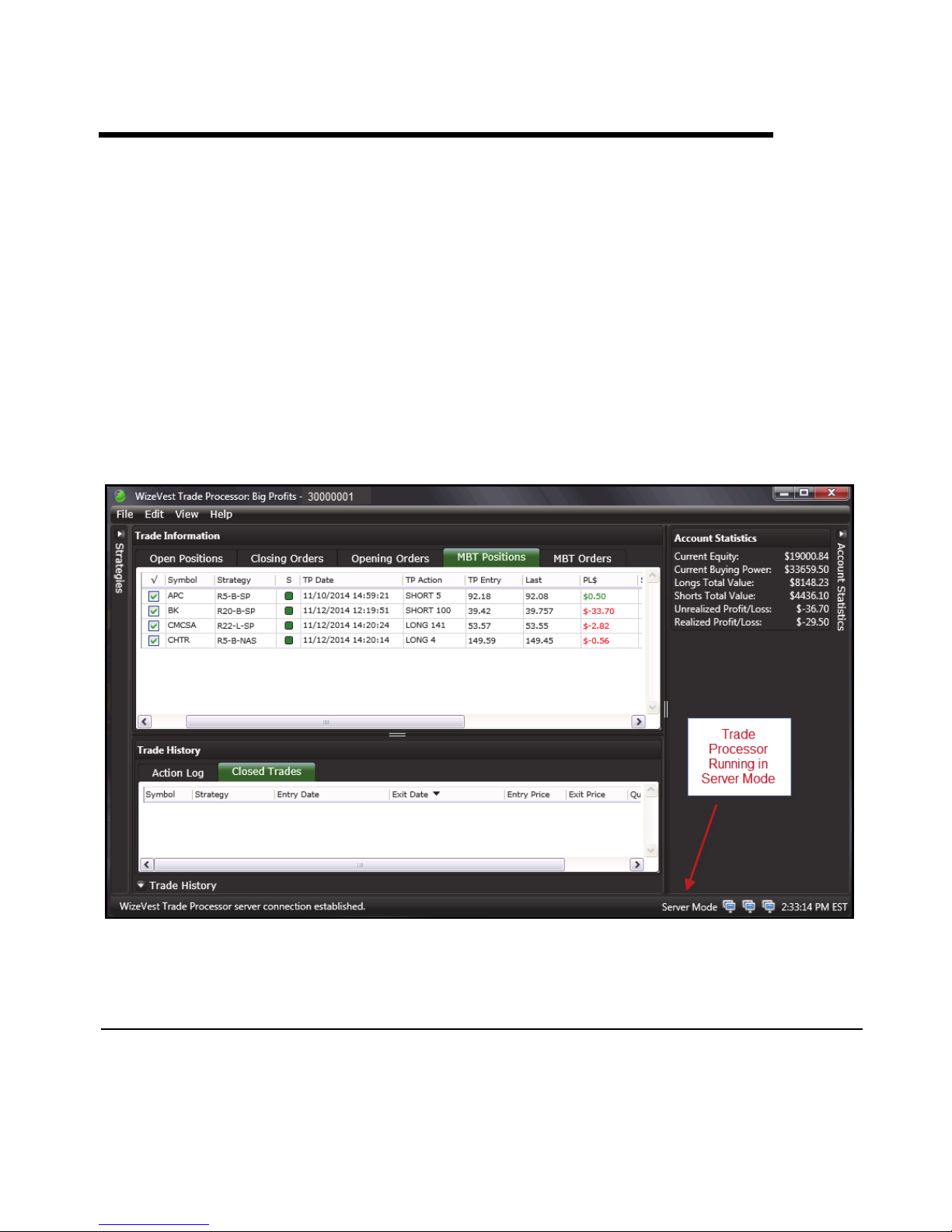
The Trade Processor will display “Server Mode” at the bottom of the window when
it is running in server mode.
Figure 7-1. Trade Processor Showing that is Running in Server Mode
Enabling the Trade Processor for Server Mode
The Trade Processor client needs to be installed and configured for trading prior to
enabling Server Mode.
© Nirvana Systems Inc. 38 WizeVest Trade Processor User Guide
Page 45
Chapter 7 Trade Processor Server Version
When the TP starts, click Edit››Preferences››Reports and Alerts.
1. Enter your email address and enable ‘Send Alerts’
Note You will not be able run server mode without these reports and alert
settings.
2. Click the Server tab and enable the option to Run Trade Processor continuously
on Server.
3. When this is activated, all settings, open trades and trade history will be moved to
a Trade Processor running on WizeVests’ servers and will connect to MB
Trading’s brokerage and data servers..
Note You may view the connection status of the account in the Trade
Processor column of the Accounts page of MyWizeVest.com.
Closing the Trade Processing in Server Mode
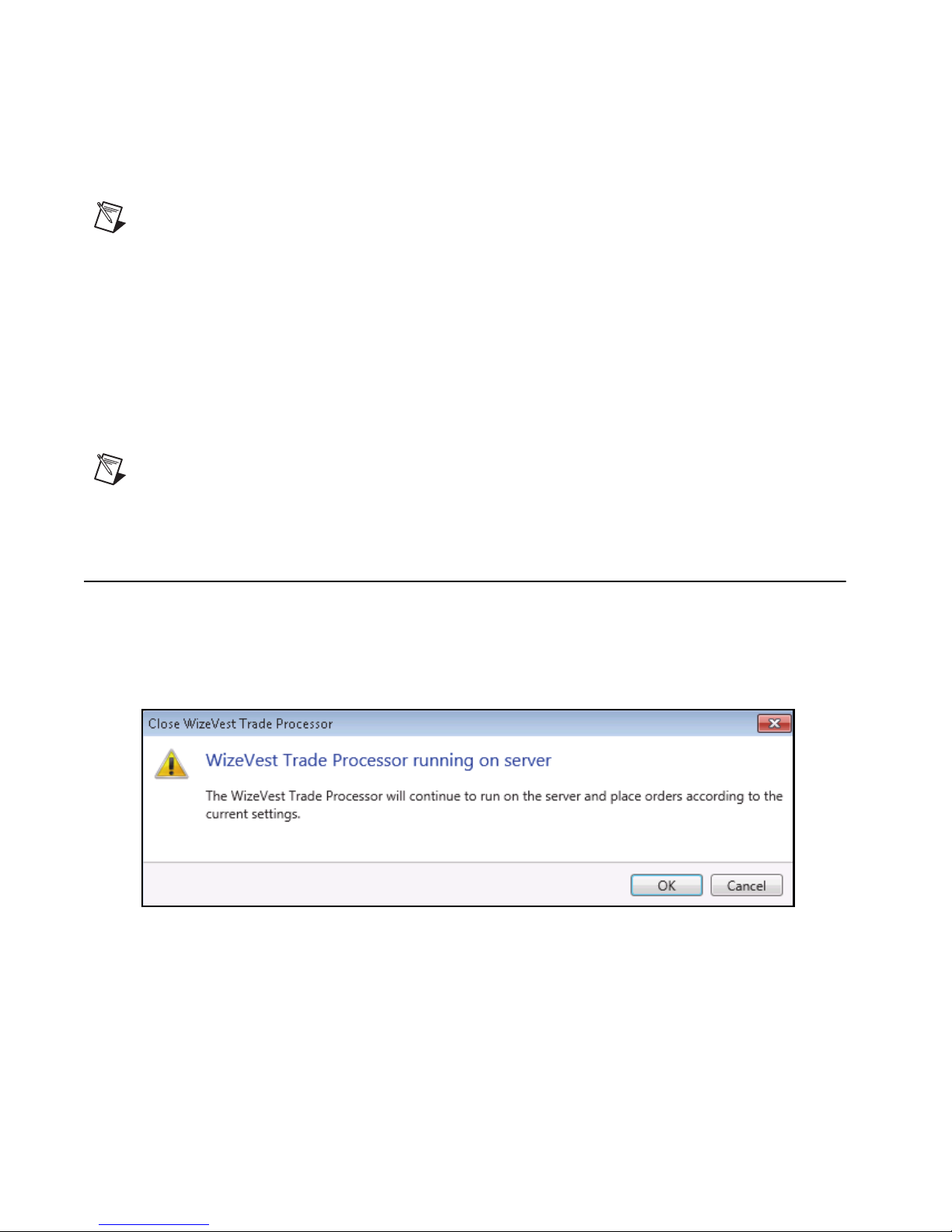
The Trade Processor client does not need to be running in order for automatic trading
to occur. Closing the Trade Processor in server mode will display a message notifying
you that trading will continue with the client application closed.
Figure 7-2. Server Notification Message
WizeVest Trade Processor User Guide 39 nirvanasystems.com
Page 46
Chapter 7 Trade Processor Server Version
Monitoring the Trade Processor Connection on the
WizeVest Web Page
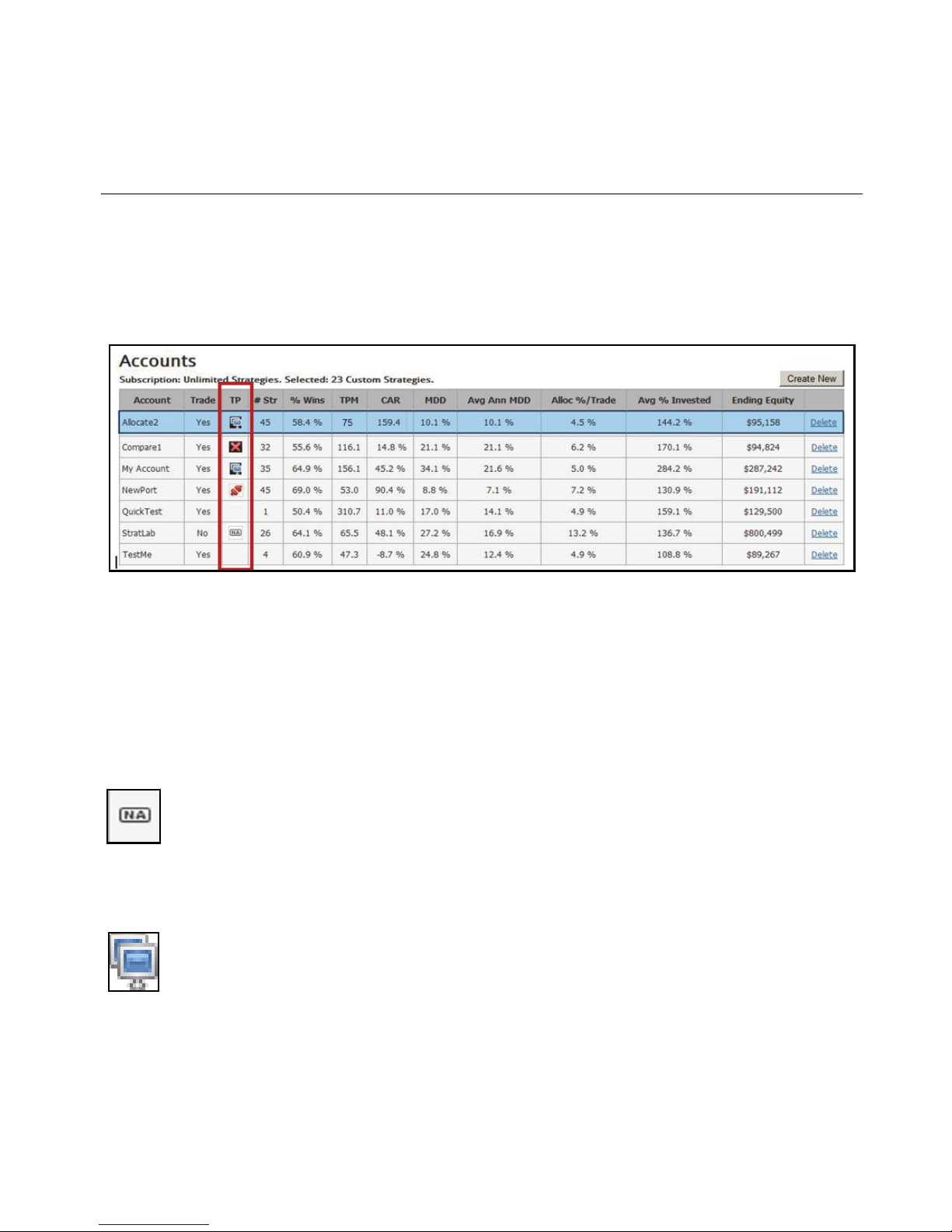
The WizeVest web page includes a TP column on the Accounts page that indicates
which of your WizeVest accounts are connected to the Server Version of the Trade
Processor.
.
Figure 7-3. Accounts Page of the WizeVest Web Site
The symbols found in the TP column on the WizeVest web page are as follows:
A blank Trade Processor column indicates there is no server version of the Trade
Processor running on that account.
• Indicates a non-traded/demo account.
• Indicates the Trade Processor is running on the server and connected to both
WizeVest and the Broker.
© Nirvana Systems Inc. 40 WizeVest Trade Processor User Guide
Page 47
Chapter 7 Trade Processor Server Version
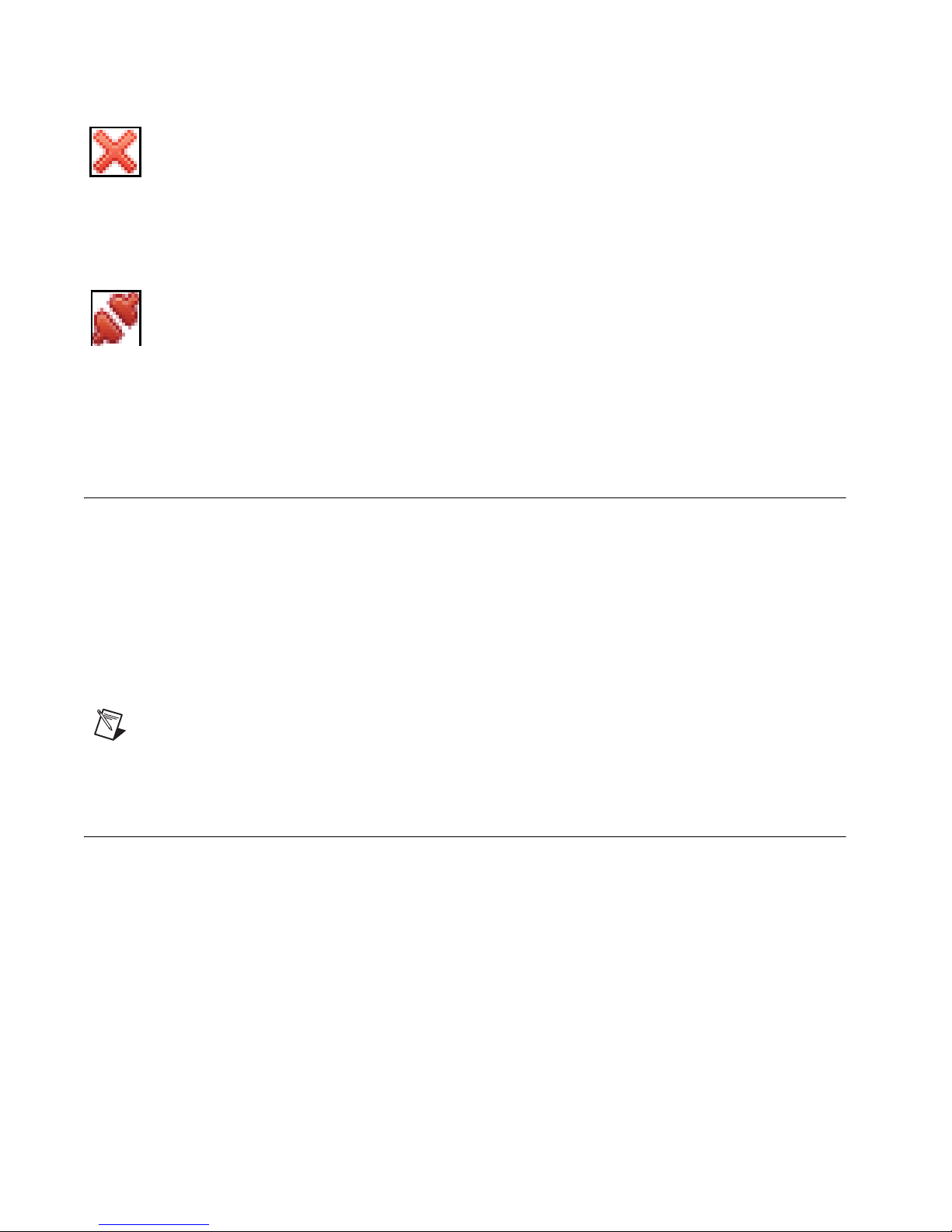
• Disconnect icon showing there is a Trade Processor running on the server but
either WizeVest, the broker or both connections have been interrupted.
• Unplugged icon indicating there should be a Trade Processor running on the
server but it’s not running. This could be an indication of a Trade Processor
unintended termination or intentional server maintenance at WizeVest.
Disconnecting from Server Mode
1. Click Edit››Preferences››Server.
2. Disable the option to Run Trade Processor continuously on Server. Server
Mode will disappear from the bottom of the Trade Processor.
If you have not configured your email settings you will need to do so before saving
this form or you may disable Send Email Report & Send Alerts as an alternative.
Note After the TP is no longer running on the server, you will need to have
the TP running if the TP is to continue trading your WizeVest account.
Conclusion
Thank you for using the Trade Processor with WizeVest. We know you will enjoy the
seamless automation of your WizeVest account through this easy-to-use program.
We wish you the best of luck in your trading.
WizeVest Trade Processor User Guide 41 nirvanasystems.com
 Loading...