

Page 1
BOXBOY!™
1
2
3
4
5
Important Information
Getting Started
Information-Sharing Precautions
Internet Enhancements
Note to Parents and Guardians
Basic Information
Saving and Erasing Data
6
7
8
9
10
How to Play
Stages
World Map
Shop
Demo Distribution
Troubleshooting
Support Information
Page 2
1
Important Information
Please read this manual carefully
before using the software. If the
software will be used by children,
the manual should be read and
explained to them by an adult.
Also, before using this software,
please select
and carefully review content in
"Health and Safety Information." It
contains important information that
will help you enjoy this software.
You should also thoroughly read
your Operations Manual, including
the "Health and Safety Information"
section, before using this software.
Please note that except where
otherwise stated, "Nintendo 3DS™"
refers to all devices in the
Nintendo 3DS family, including the
in the HOME Menu
Nintendo 3DS, Nintendo 3DS XL,
and Nintendo 2DS™.
Please note that this software does
not support 3D visuals.
Page 3

Important Information
Your Nintendo 3DS system and this
software are not designed for use with
any unauthorized device or unlicensed
accessory. Such use may be illegal,
voids any warranty, and is a breach of
your obligations under the User
Agreement. Further, such use may
lead to injury to yourself or others and
may cause performance issues and/or
damage to your Nintendo 3DS system
and related services. Nintendo (as well
as any Nintendo licensee or distributor)
is not responsible for any damage or
loss caused by the use of such device
or unlicensed accessory. Except as
authorized, copying of any Nintendo
software is illegal and is strictly
prohibited by domestic and
international intellectual property laws.
"Back-up" or "archival" copies are not
authorized.
Nintendo respects the intellectual
property of others, and we ask
Nintendo 3DS software Content
Providers to do the same. In
accordance with the Digital Millennium
Copyright Act in the US, the Electronic
Commerce Directive in the EU, and
other applicable law, we have adopted
a policy of removing, in appropriate
circumstances and at our sole
discretion, any Nintendo 3DS software
that appears to infringe anyone else's
intellectual property. If you believe
your intellectual property rights are
being infringed, please visit
www.nintendo.com/ippolicy to view the
full policy and understand your rights.
Page 4

© 2015 HAL Laboratory, Inc. /
Nintendo
Trademarks are property of their
respective owners. Nintendo 3DS is
a trademark of Nintendo.
CTR-N-JCPE-00
Page 5
2
Information-Sharing Precautions
User-generated content, or UGC, is
content created by users, such as
messages, Mii™ characters, images,
photos, video, audio, etc.
Information-Sharing Precautions
The extent of UGC exchange
depends on the software.
• Nintendo bears no responsibility
whatsoever for any problems that
result from the use of the Internet
(for example, the sending of
content over the Internet, or the
sending or receiving of content
with others).
Page 6
3
Internet Enhancements
This software allows you to connect
to the Internet and enj oy sharing
screenshots and your impressions of
the game with other players via
Miiverse™ (page 6).
♦ Refer to your Operations Manual for
information about connecting your
system to the Internet.
♦ You must go through the initial setup
for Miiverse on your system before
you can use Miiverse with this game.
This software supports Nintendo
Network.
Nintendo Network is the name of
Nintendo’s network service that
enables users to enjoy games
and other content via the
Internet.
Protecting Your Privacy
● To protect your privacy, do not
give out personal information,
such as last name, phone number,
birth date, age, school, e-mail, or
home address when
communicating with others.
● Friend codes are a part of a
system that allows you to play
with people you know. If you
exchange friend codes with
strangers, there is a risk you
Page 7

could share information with
people you do not know or
exchange messages that contain
offensive language. We therefore
recommend that you do not give
your friend codes to people you
don't know.
Page 8

4
Note to Parents and Guardians
You can restrict use of the following
feature by adjusting the options in
Parental Controls.
♦ Access to this game (as well as other
games) can also be restricted through
the Software Rating item in Parental
Controls.
♦ Refer to your Operations Manual for
information on how to set up Parental
Controls.
● Miiverse
Restricts users from viewing or
posting content on Miiverse. When
set to Restrict Posting,
screenshots, text, and handwritten
messages cannot be posted.
When set to Restrict Viewing and
Posting, screenshots, text, and
handwritten messages cannot be
posted or viewed.
Page 9
5
Saving and Erasing Data
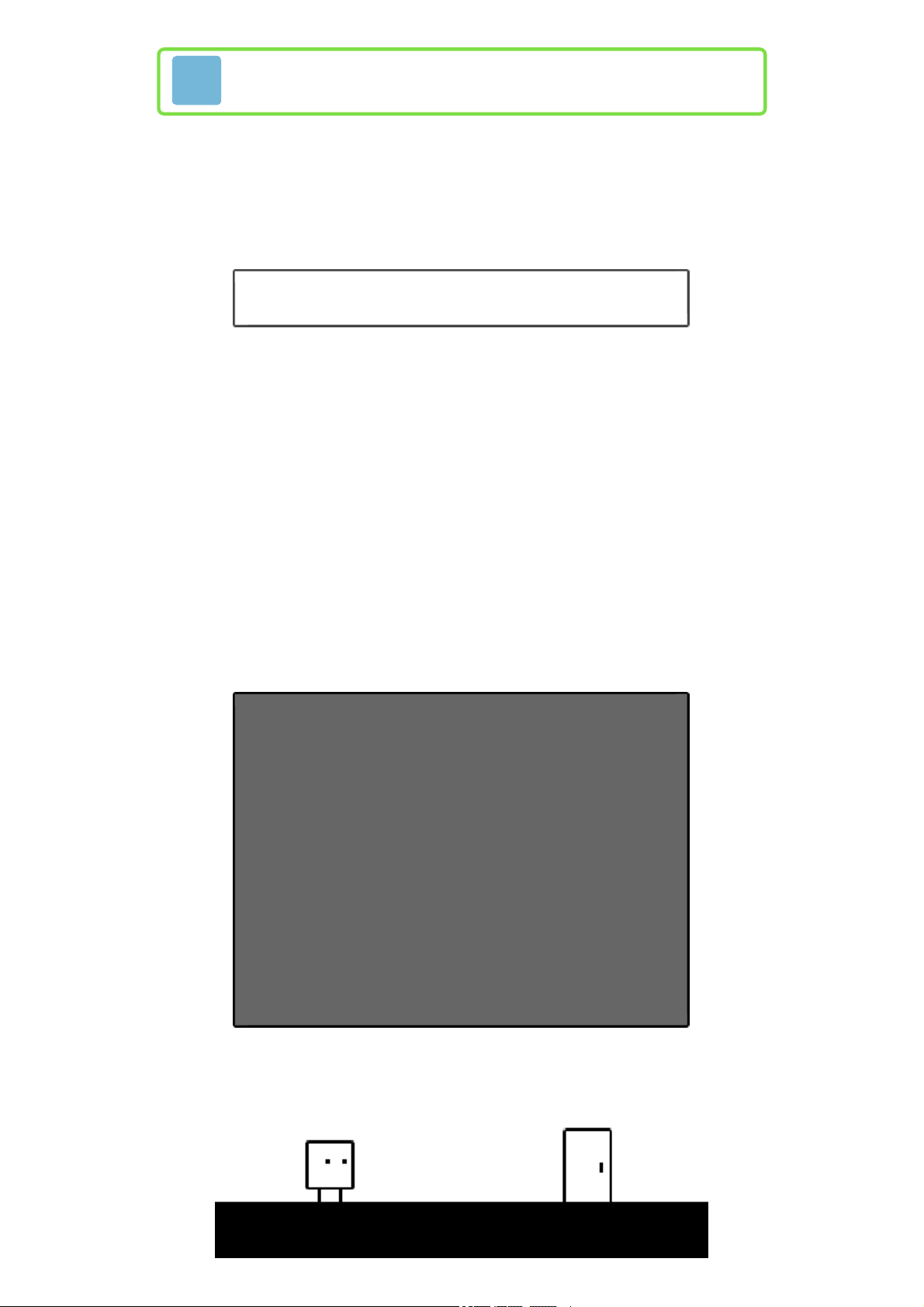
This game has one save file. Your
progress is saved automatically
whenever you clear a stage or exit
the shop.
Erasing Save Data
To delete your current save data,
launch the software, wait for the
Nintendo 3DS logo to disappear,
and then press and hold , , ,
and simultaneously until a
message window appears. Once it
appears, you will have a chance to
confirm that you want to erase
your save data.
♦ Once erased, data cannot be
recovered, so please be careful.
Data can be lost due to user
action, such as repeatedly
powering off and on the system
or removing a Game Card or SD
Card while saving. Data loss may
also be caused by poor
connectivity due to dirt or dust
in the system's ports. Please be
aware that in these cases data
cannot be restored.
Page 10
6
Stages
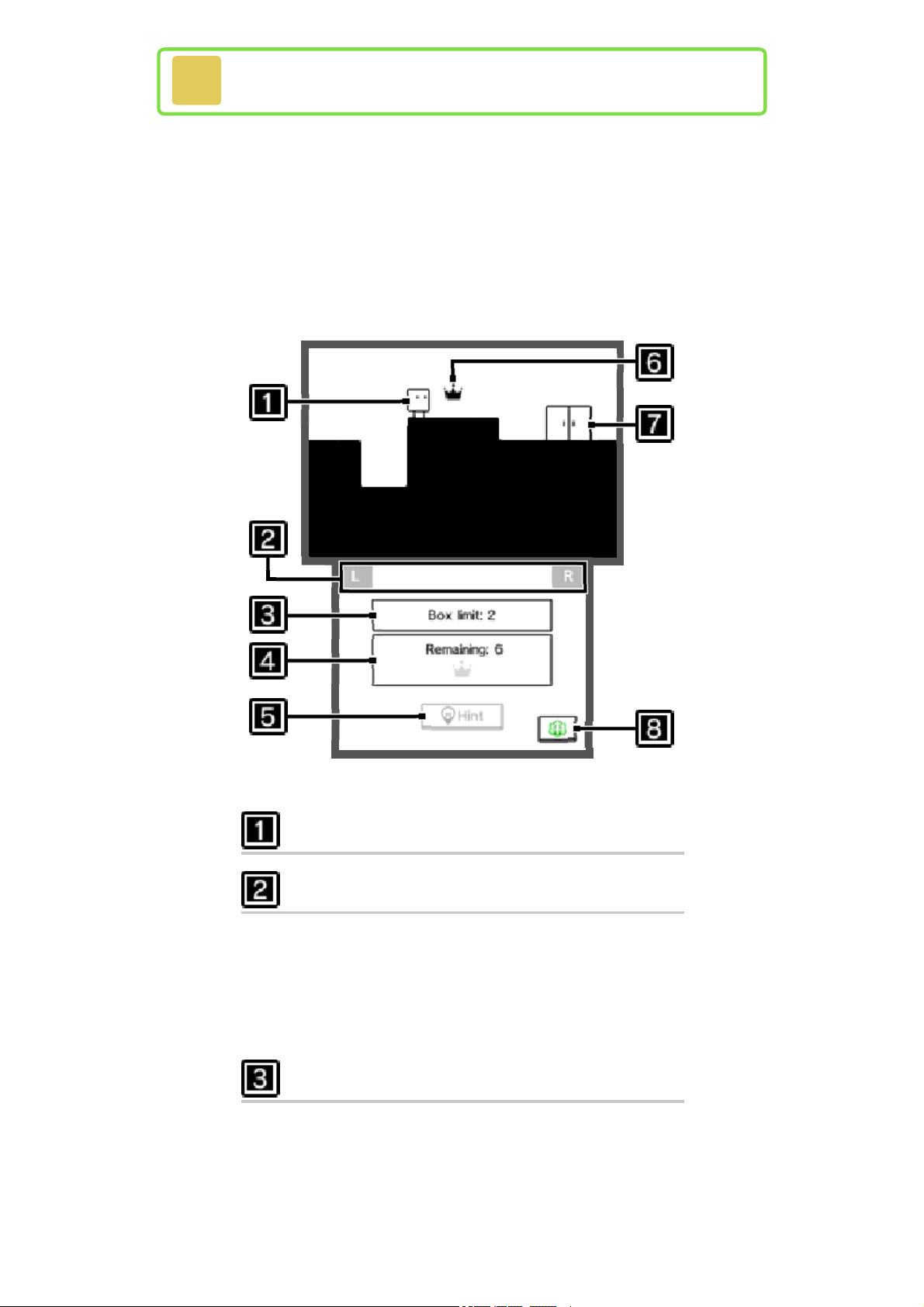
Guide Qbby through the goal door
at the end of a stage to complete
it. If you need a reminder about the
in-game controls, select Controls
from the pause menu to view a
detailed control guide.
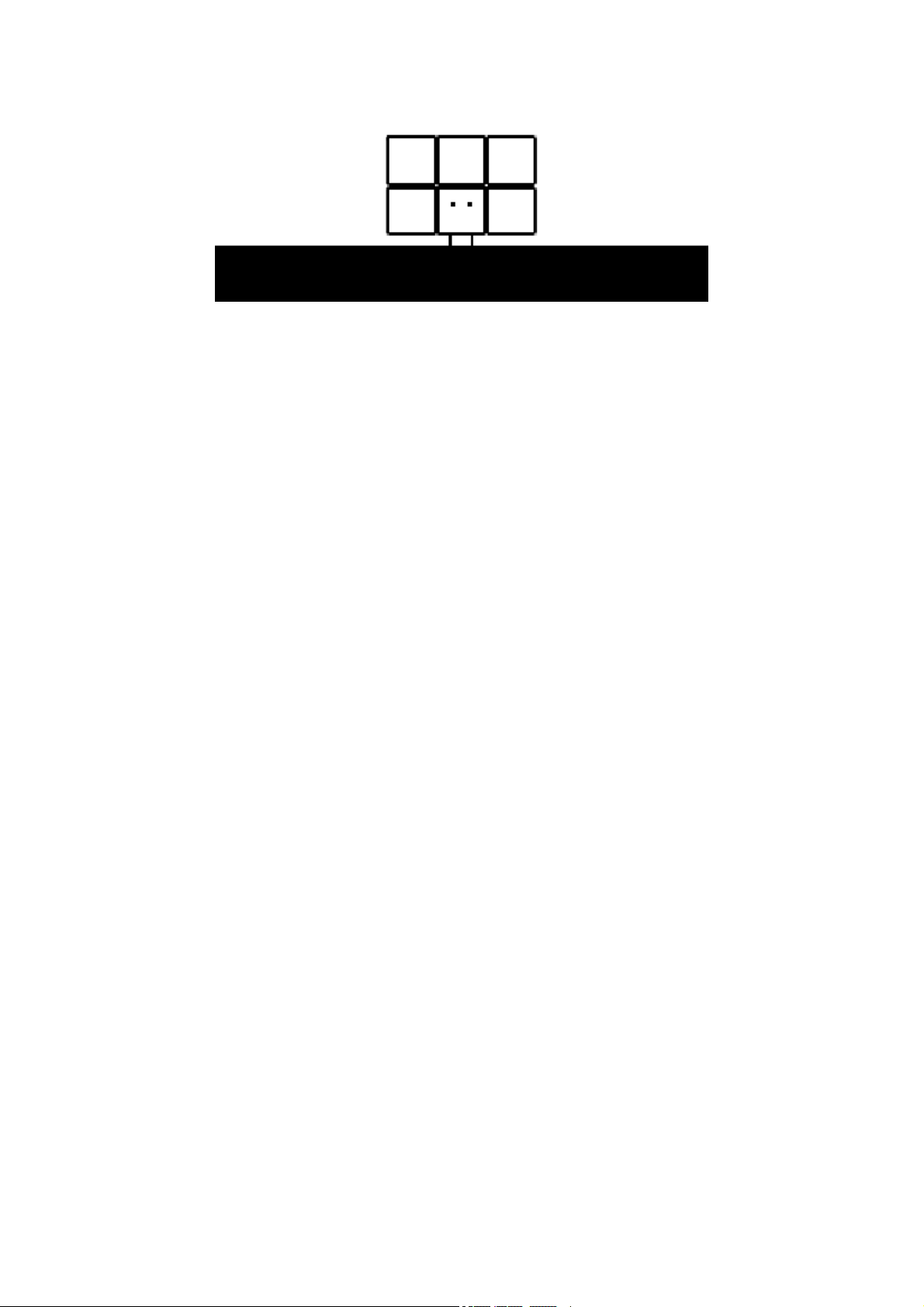
Qbby
Quick-restart reminder
These graphics are here to remind
you that you can instantly restart
from the last checkpoint by
pressing + simultaneously.
Creation info
Shows the number of boxes you
can create at one time.
Page 11
Progress info
The number of boxes you can
create before the crowns
disappear. A
will be displayed
every time you obtain a crown.
Collecting all the crowns in a
stage will earn you a perfect clear.
Hint
This button changes from gray to
black when a hint about how to
proceed is available. When it is
black, you can tap it to proceed
to a new screen and then spend a
Play Coin to view the current hint.
Play Coins are obtained by
carrying your system with you in
Sleep Mode as you walk around.
Crown
Collect a crown by touching it. If
you use up all of your remaining
boxes in a stage and then make
any additional boxes, any
uncollected crowns that remain in
the stage will turn gray (
) and
you will no longer be able to
obtain them.
Goal door
Press while standing in front of
a stage's goal door to clear the
stage.
Page 12
Miiverse
Tap this button to jump directly to
the game's official Miiverse
community. There, you can share
screenshots and your thoughts
with other players.
Pause-Menu Options
Press during a stage to
open the pause menu.
World Map
Select this option to return to the
World Map (page 7).
Retry
Select this option to start the
current stage over from the
beginning. Any crowns you've
collected so far in the stage will be
lost.
Controls
Select this option to review the
controls.
Tips & Tricks
Select this option to review any
Tips & Tricks books that you've
purchased in the shop (page 8).
Page 13
Page 14
7
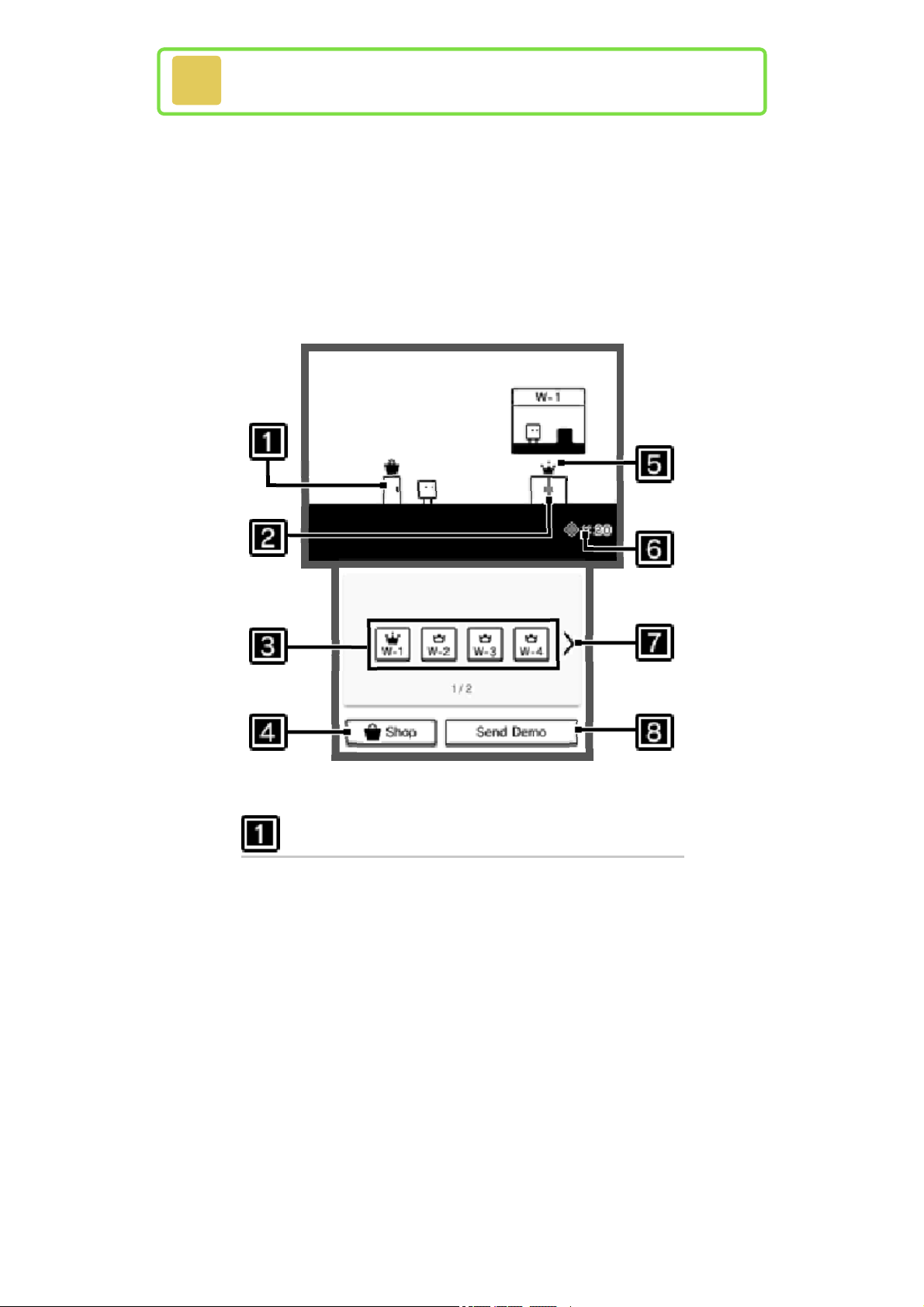
World Map
Navigate the World Map either by
using the +Control Pad and
buttons or by tapping the options
on the lower screen. To go through
a door, stand in front of it and
press .
Shop door
Go through this door to access
the shop (page 8).
Page 15
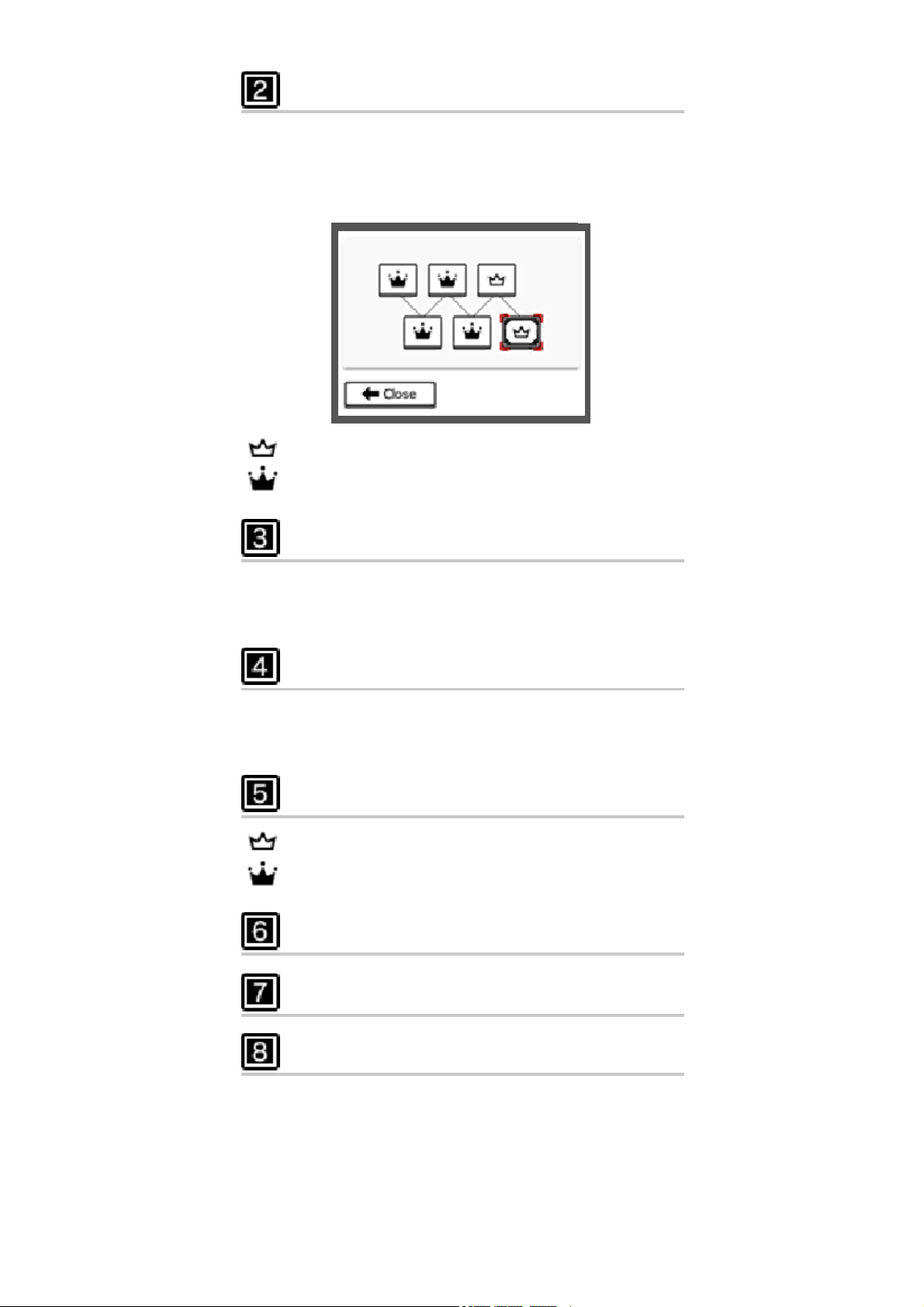
World door
Go through a world door to enter
a world and tackle the various
stages contained within.
:Cleared
:Cleared perfectly
World-door jumps
Tap these to instantly move to any
unlocked world's door.
Shop
Tap this to instantly enter the
shop (page 8).
Crown
:All stages cleared
:All stages cleared perfectly
Your medals
Turn page
Send demo
Select this if you want to send a
demo of this game to another
system in the Nintendo 3DS
family. This can be accomplished
using Download Play (page 9).
Page 16
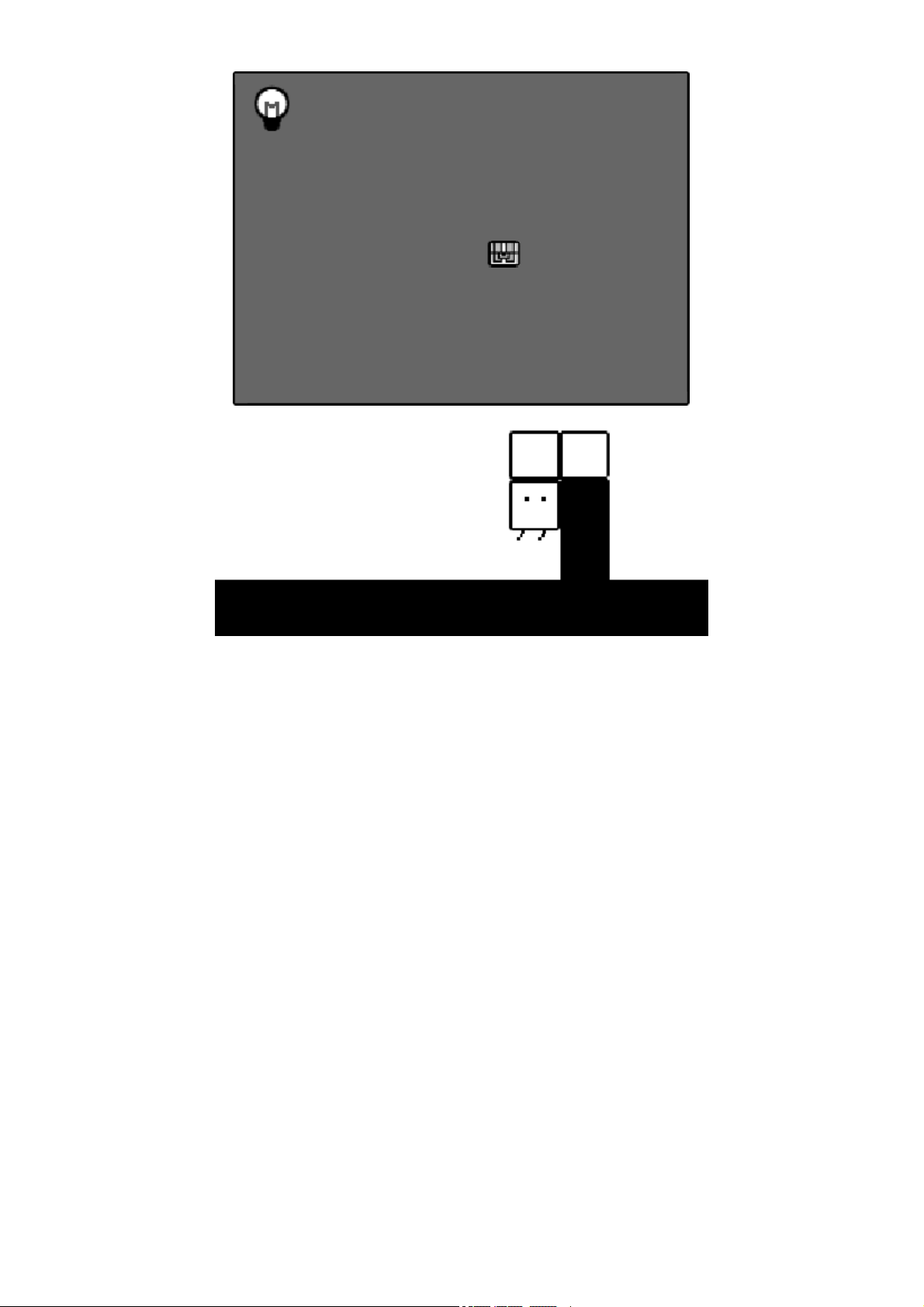
If you find a treasure
chest...
As you progress through the
game, you will come across
treasure chests (
points. Stand in front of one and
press to open it. The contents
will then fly out and be available
in the shop (page 8).
) at certain
Page 17
8
Shop
Available Items
You can exchange your medals for
a variety of different items.
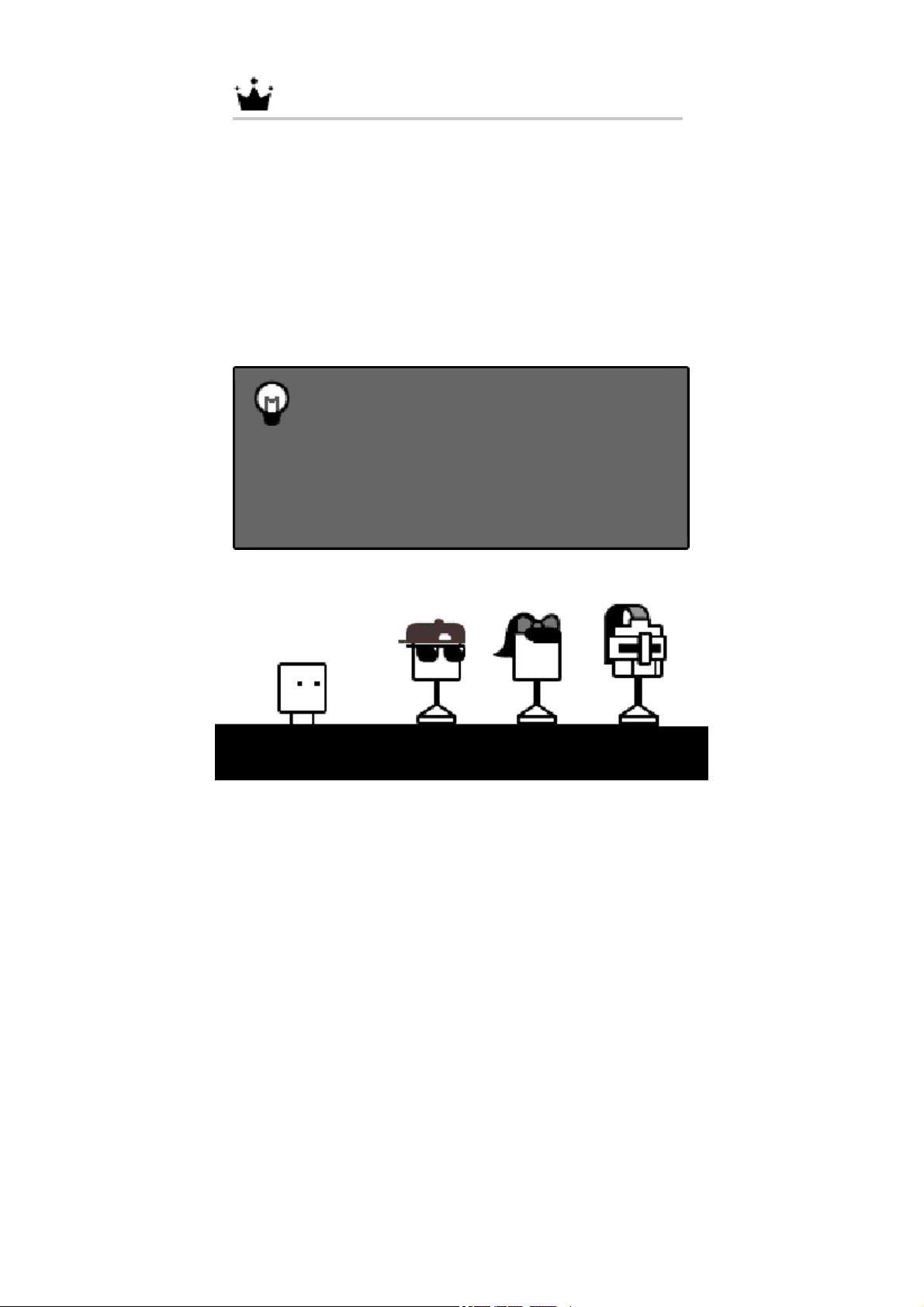
Costumes
Shake things up with a new look!
Once you've obtained a costume,
you can change Qbby into it as
often as you like simply by
selecting it from the shop.
Music
Shop here if you want to enjoy
background music from the game.
Once you've unlocked a track, you
can return to this area of the shop
and listen to it anytime you want.
Challenges
Ready to test yourself with Time
Attack and Score Attack
challenges? Then these unlockable
stages, with an inverted color
scheme, are for you.
Page 18
Tips & Tricks
The books found here have much
to teach you. Unlock them with
medals to learn about different
moves and techniques. Once a
book is unlocked, you can access
it at any time via the pause menu
(page 6).
Collecting Medals
Clear stages to earn medals.
Clear stages perfectly to earn
even more!
Page 19
9
Demo Distribution
Sharing the Game Demo
(Download Play)
You can send a demo of this game
to nearby systems in the
Nintendo 3DS family. Recipients of
this demo will be able to play it
until they turn off their system.
You Will Need
- A system in the Nintendo 3DS
family that has the full version of
the game
- A system in the Nintendo 3DS
family that can act as the recipient
of the demo
Setup
Sending the Demo
1. Select the Send Demo option on
the World Map, and then select
Yes.
2. Once the desired recipient's
name is displayed, select Send
to This Recipient.
Page 20
Receiving the Demo
1. Select the Download Play icon
on the HOME Menu, and then
tap Open.
2. Select the Nintendo 3DS logo.
3. Tap the name of the software.
♦ A system update may be required. If
so, follow the on-screen instructions
to update your system. If you see
the message, "The connection was
interrupted," and the system update
fails, try updating the system via
System Settings. For detailed
instructions, refer to the information
on system updates within the
System Settings electronic manual.
Page 21
10
Support Information
Nintendo Customer Service
SUPPORT.NINTENDO.COM
USA/Canada:
1-800-255-3700
Latin America/Caribbean:
(001) 425-558-7078
 Loading...