

Page 1
User Manual
Smart Plug
Version: 1.0
Page 2

Important Note
1.
Supports only 2.4 GHz Wi-Fi network.
2.
The App can be easi l y d o wnloa d ed a nd i n stal l ed o n you r
smartphone or tablet from Apple/Google play store.
3.
Works with Amazon Alexa, Google Home.
4.
It is recommended to use indoor only.
Due to regular upgrades of systems and products, NGTeco could not
guarantee exact consistency between the actual product and the
written information in this manual.
Page 3
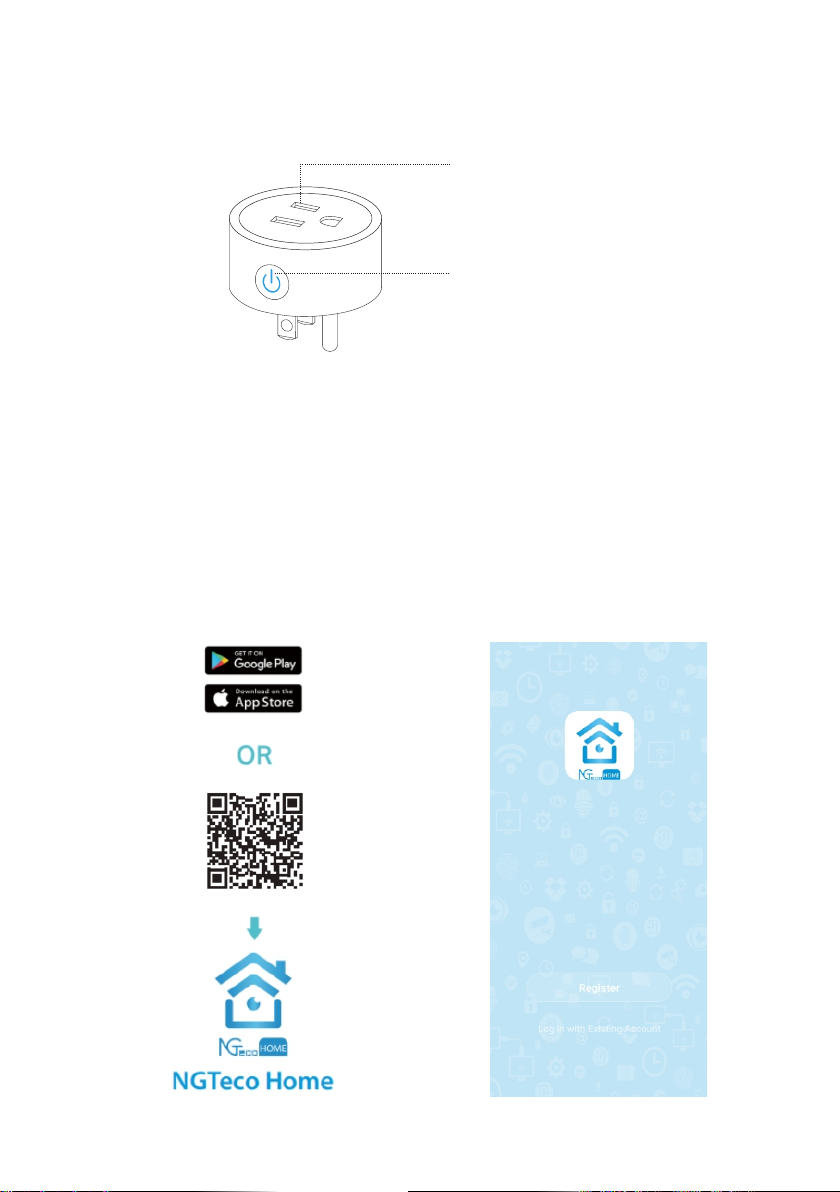
Components
1 Smart Plug
2 ON/OFF Switch
How to connect Smart Plug to NGTeco Home?
Step 1: Account Registration
Search the NGTeco HOME App
in Apple App Store or Google
Play Store and download the
Ap p t o y ou r m ob il e p ho ne
/Tablet.
Open the NGTeco HOME App
and log in with your account. If
yo u do not have an account,
crea t e an ac c ount with you r
Email ID.
1
Page 4
Step 2: Power on the Plug
Inser t the plug into the power outlet. Wait for a few seconds until the
blue LED blink continuously.
Note:
1.
The default pairing mode is EZ Mode. If the blue LED blink slowly,
press and hold the “Reset” button for 5 seconds to make the blue
LED flicker continuously.
2.
If you want to use other Net Pairing Mode, please switch to the
mode and follow the on-screen instructions.
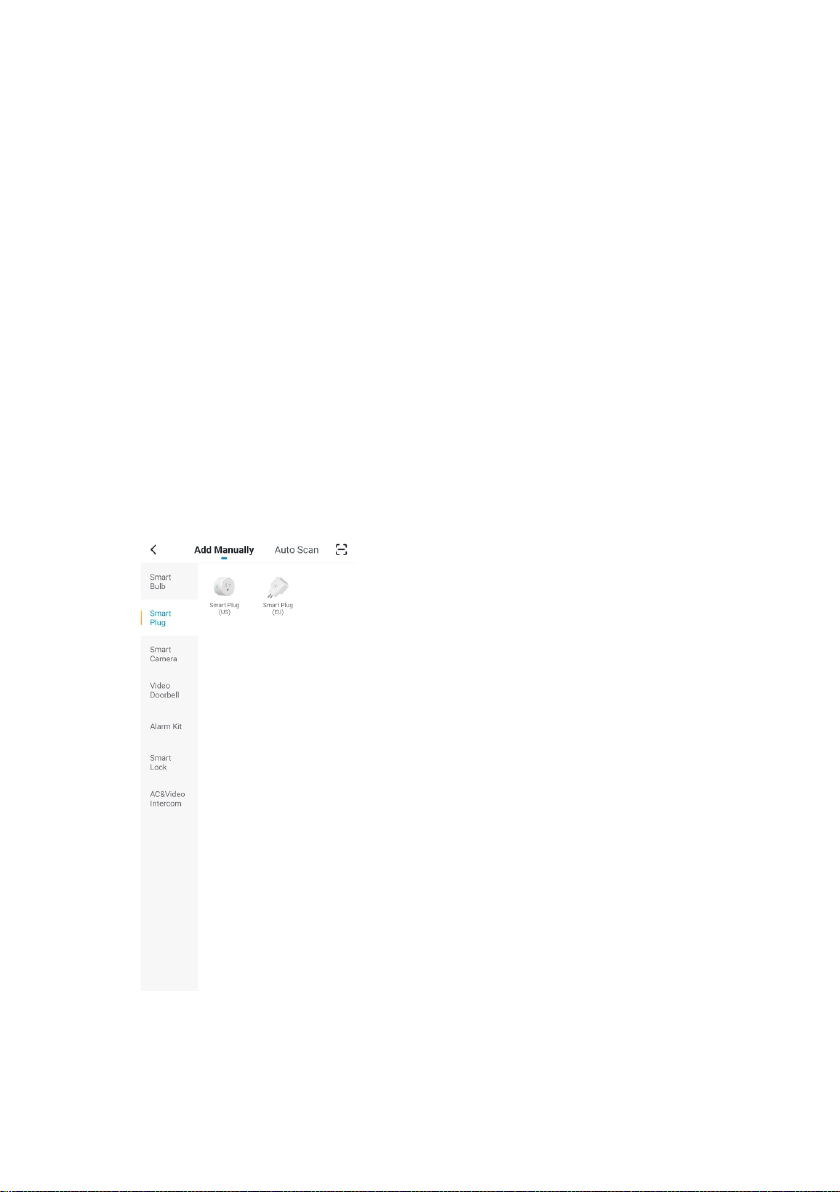
Step 3: Add the Plug to the App
Tap the “+” button on the top right corner of the inter face, and then
select the “Smart Plug” option. Choose “Confirm indicator rapidly
blink” button in the next interface.
2
Page 5

Step 4: Add the Wi-Fi Details
Enter the Wi-Fi name and Password. Then tap the “Confirm” button. The
App will search and connect the smart plug automatically.
Note: The plug only works on 2.4GHz Wi-Fi networks.
Step 5: Finish the Setup
Once you see the message “Device added successfully” on the mobile
app, tap the “Done” button to complete the setup. You can edit the
name of this smart plug manually.
Smart Plug Control
After you successfully set up your smart plug, you can view and
manage the added devices on the Home screen of the NGTeco Home
App. Tap a smart plug to control and manage it.
Home Screen
In the Home screen page, you
can manage all the devices that
h a v e b e e n a d d e d t o t h e
NGTeco Home App.
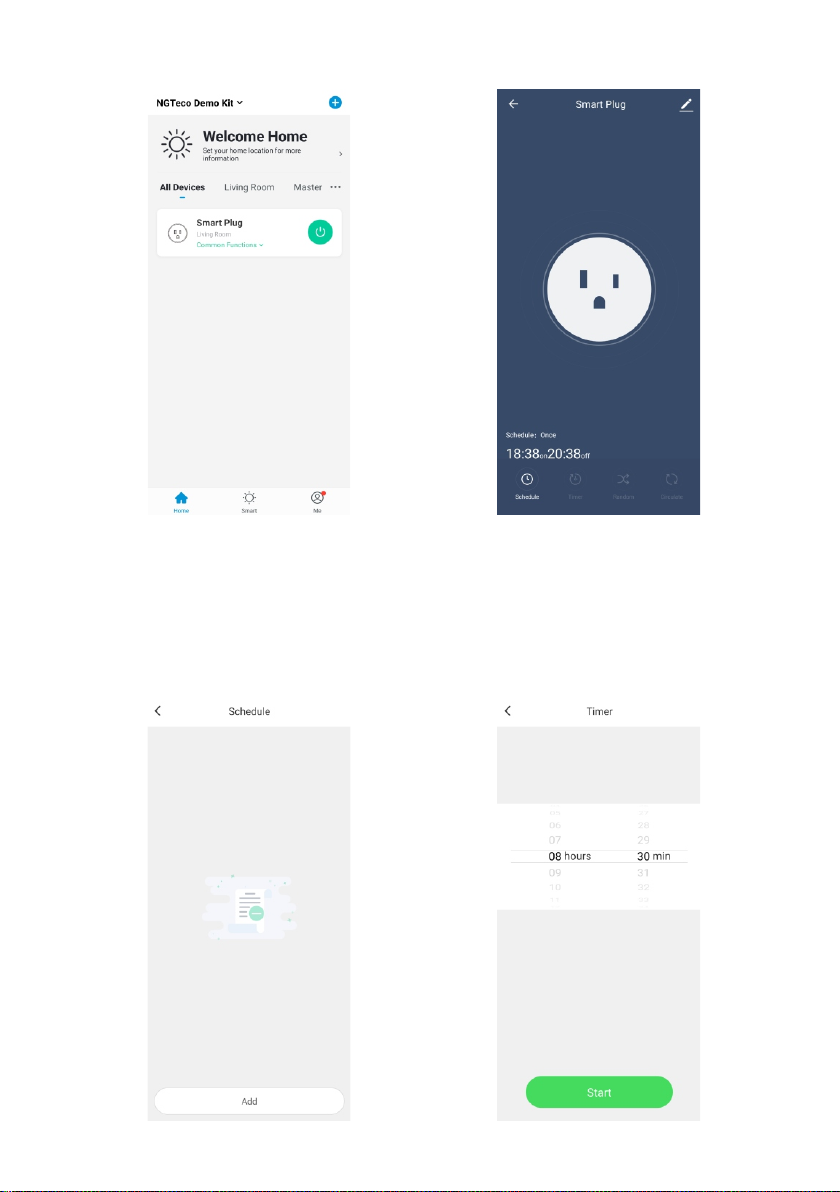
Smart Plug Inter face
It is very convenient to use such
that you can Turn On/Off the
smart plug on a click. It is also
easy to customize the smar t
p l ug w i th o pt i o ns s u ch a s
Schedule, Timer, Random, and
Circulate as shown below:
3
Page 6
Schedule Mode Timer Mode
On this page, you can create a
schedule for the Smart plug to
turn On/O ff.
On this page, you can set a
timer for t he Sm a rt p lug t o
define t h e turn On/Off time
duration.
4
Page 7
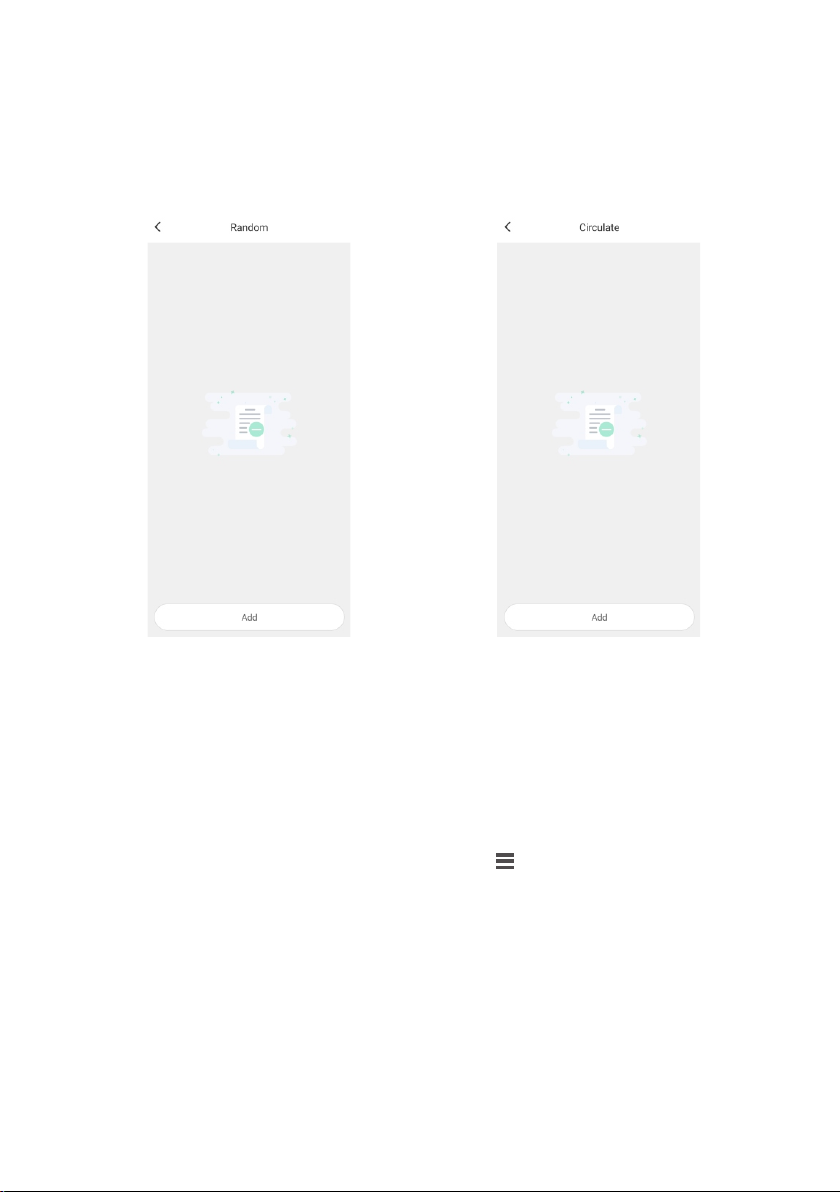
Random Mode Circulate Mode
On this page, you can create a
random schedule for the Smart
plug to turn On/Off.
On this page, you can create a
p e r io di c s ch e d u le to tu rn
On/Off the Smart plug.
How to connect the Smart Plug to Amazon
Alexa?
Step 1: Sign in to Alexa Account
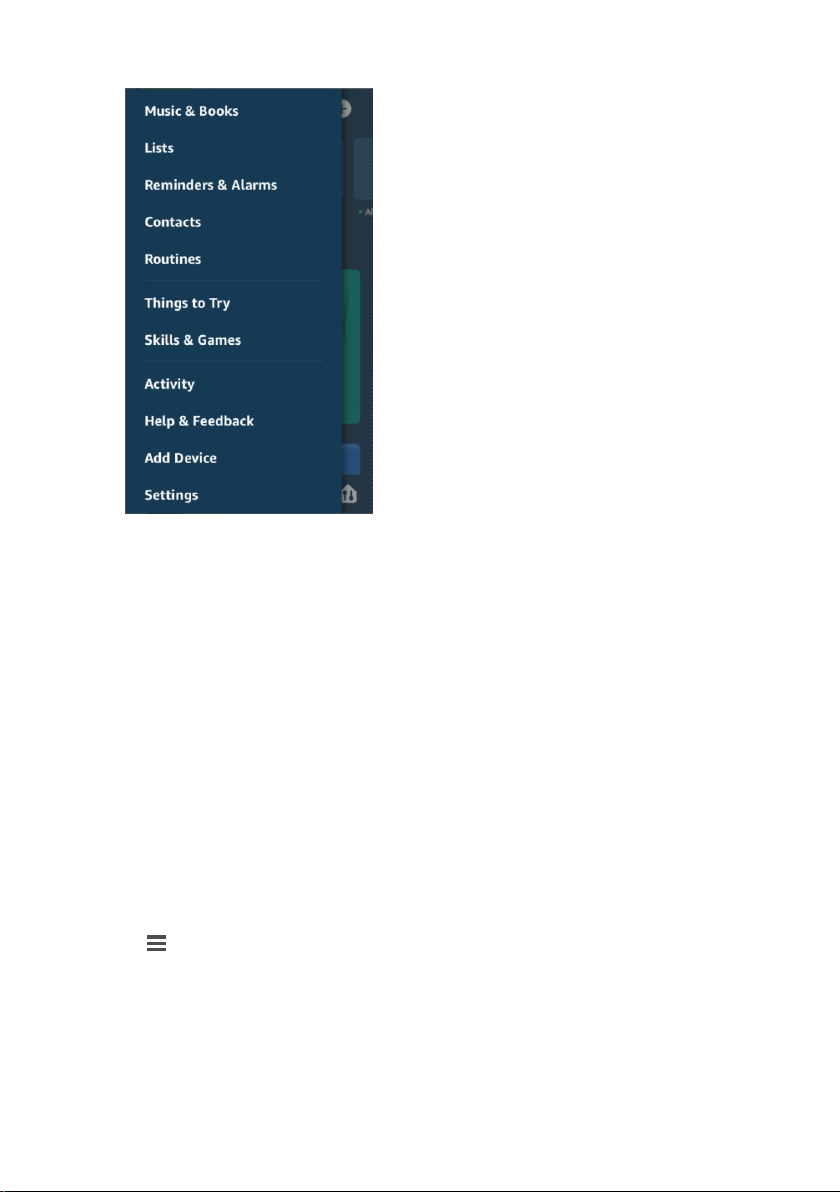
Open the Alexa App and sign in to your account. In the upper left
corner of the Home page, click the menu button to view the App
menu and then select “Skills & Games”.
5
Page 8
Step 2: Search NGTeco Home
Type in NGTeco Home in the search bar and then click the Search
button.
Step 3: Link NGTeco Home App
Enable the NGTeco Home App in the Skills and Games section. Then
sign in your NGTeco Home account to complete the account linking
process.
Note: After the account is linked successfully, you can ask Alexa to
discover the devices. Alexa will show all the discovered devices after 20
seconds.
Step 4: Back to Menu
Click to go back to the menu and then click the "Smart Home"
button.
6
Page 9
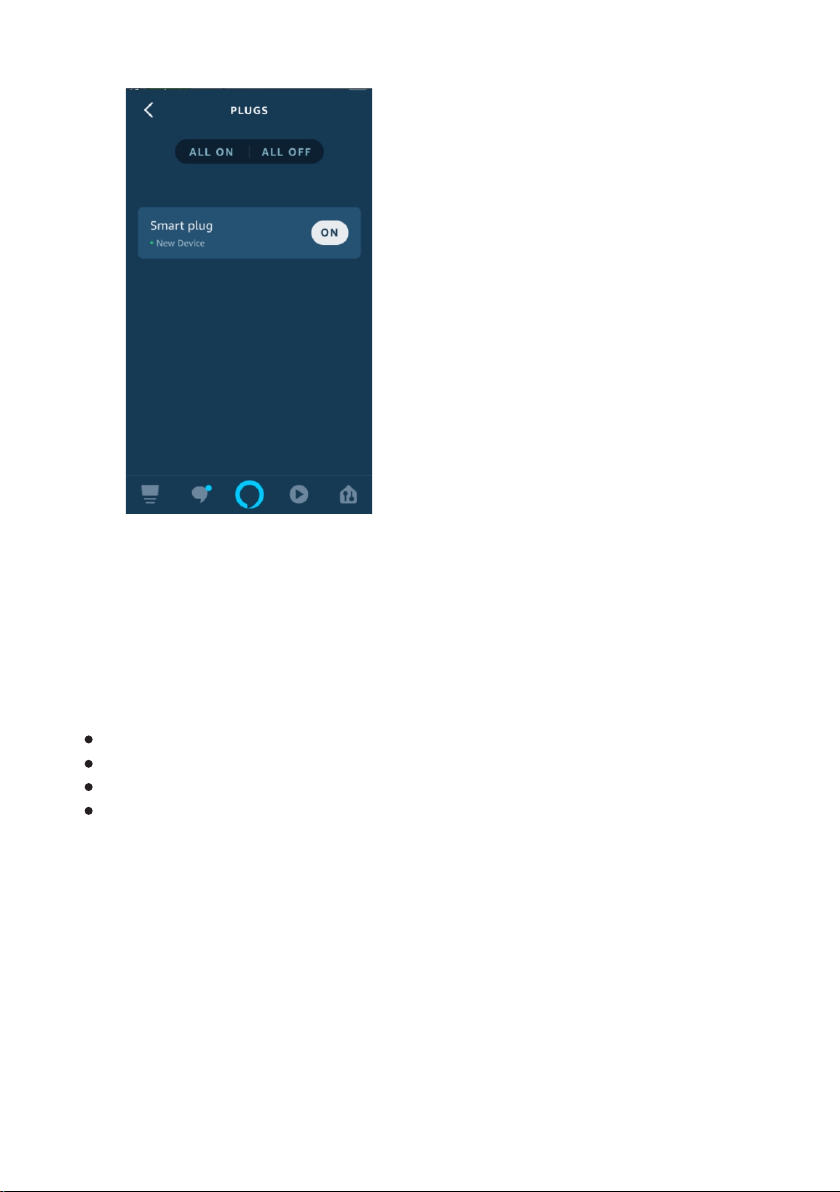
Control Smart Plug By Echo
In the NGTeco Home page, you could group your devices into different
categories. After your NGTeco Home App has been linked with Alexa,
you can command the Echo, as given below:
Echo,turnOn/Offthe bedroomplug.
Echo,setthe bedroomplugbrightness to50percent.
Echo,brighten/dimthe bedroomplug.
Echo,setthe bedroomplugcolor togreen.
How to connect Smart Plug to Google Home?
Step 1: Launch the Google Home App
Launch the Google Home App and make sure the Google Home
speaker is installed. If not, please follow the Google Home Speaker
installation instructions to complete the installation process.
7
Page 10
Step 2: Menu
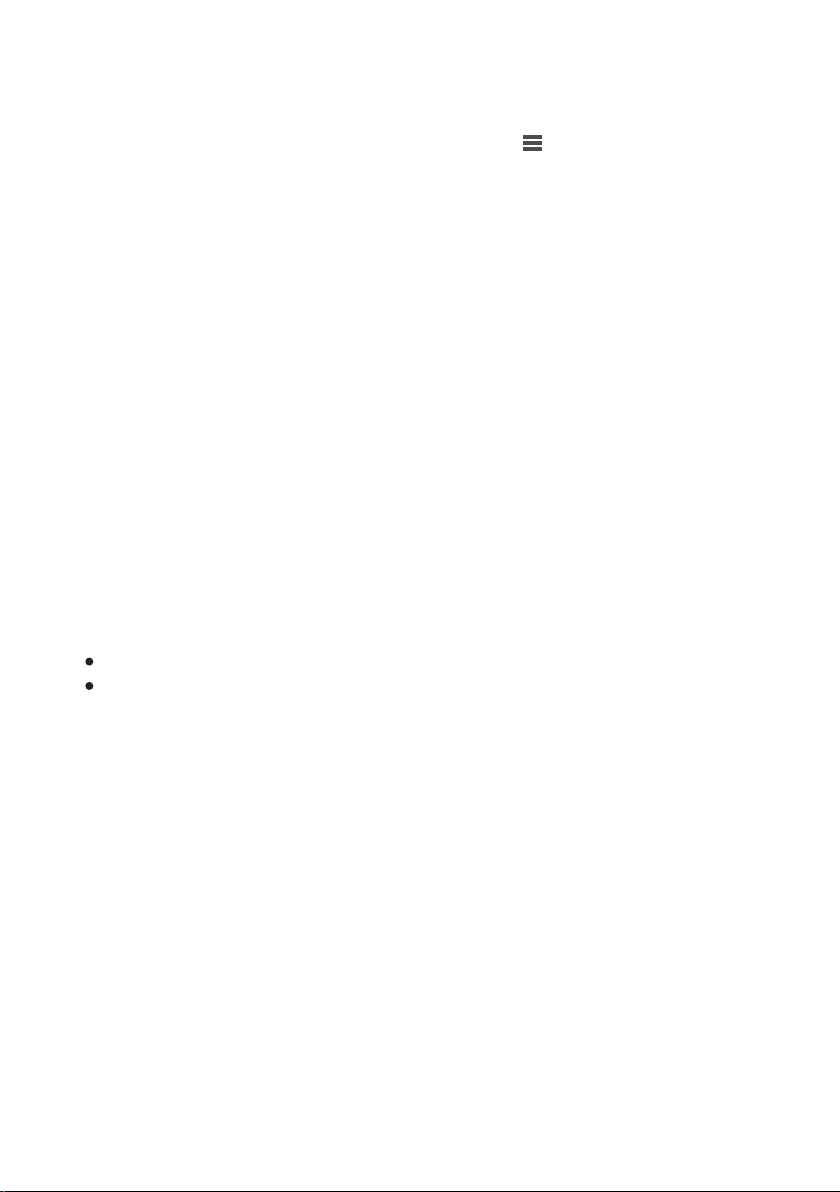
Once the Google Home is installed, click the button on the top left
corner of the interface to view the menu. Then click "Home Control" in
the menu.
Step 3: Add NGTeco Home
On the "Add device" page, scroll down to find "NGTeco Home" and
then click it. Sign in to the NGTeco Home App with your account and
password.
Note: Select the NGTeco Home App in the drop-down menu to
complete the account linking.
Step 4: Link Account
After successful account linking, you can see all the configured smar t
devices in Google Home App from your NGTeco Home App account.
You can assign rooms for each device.
Note: Now you can use Google Home to control your smar t devices,
and you can command as given below :
OK Google, turn On/Off the wall plug.
OK Google, set the bedroom plug color to red.
8
Page 11
Warning:
This device complies with Part 15 of the FCC Rules. Operation is subject to
the following two conditions: (1) This device may not cause harmful
interference, and (2) this device must accept any interference received,
including interference that may cause undesired operation.
This equipment has been tested and found to comply with the limits for a
Class B digital device, pursuant to Part 15 of the FCC Rules. These limits are
designed to provide reasonable protection against harmful inter ference
in a residential installation. This equipment generates, uses, and can
radiate radio frequenc y en e rgy an d , if not installed and us e d in
accordance with the instructions, may cause harmful interference to
radio communications. However, there is no guarantee that inter ference
will not occur in a particular installation. If this equipment does cause
harmful interference to radio or television reception, which can be
determined by turning the equipment off and on, the user is encouraged
to try to correct the inter ference by one or more of the following
measures:
Reorient or relocate the receiving antenna.
Increase the separation between the equipment and receiver.
Connect the equipment into an outlet on a circuit different from that to
which the receiver is connected.
Consult the dealer or an experienced radio/T V technician for help.
IMPORTANT! Any changes or modifications not expressly approved by
the party responsible for compliance could void the user's authority to
operate the equipment.
Page 12
1600 Union Hill Road Alpharetta, GA 30005
Tel: 770-800-2321(US)
www.ngteco.com
Copyright©2020 NGTECO E-COMMERCE CO., LIMITED. All rights reserved.
 Loading...